1. VELOCIRAPTOR
Velociraptor is already installed on your Kali host (you're welcome) - below you can find the installation instructions -
DON'Trun these again, it's only for reference.
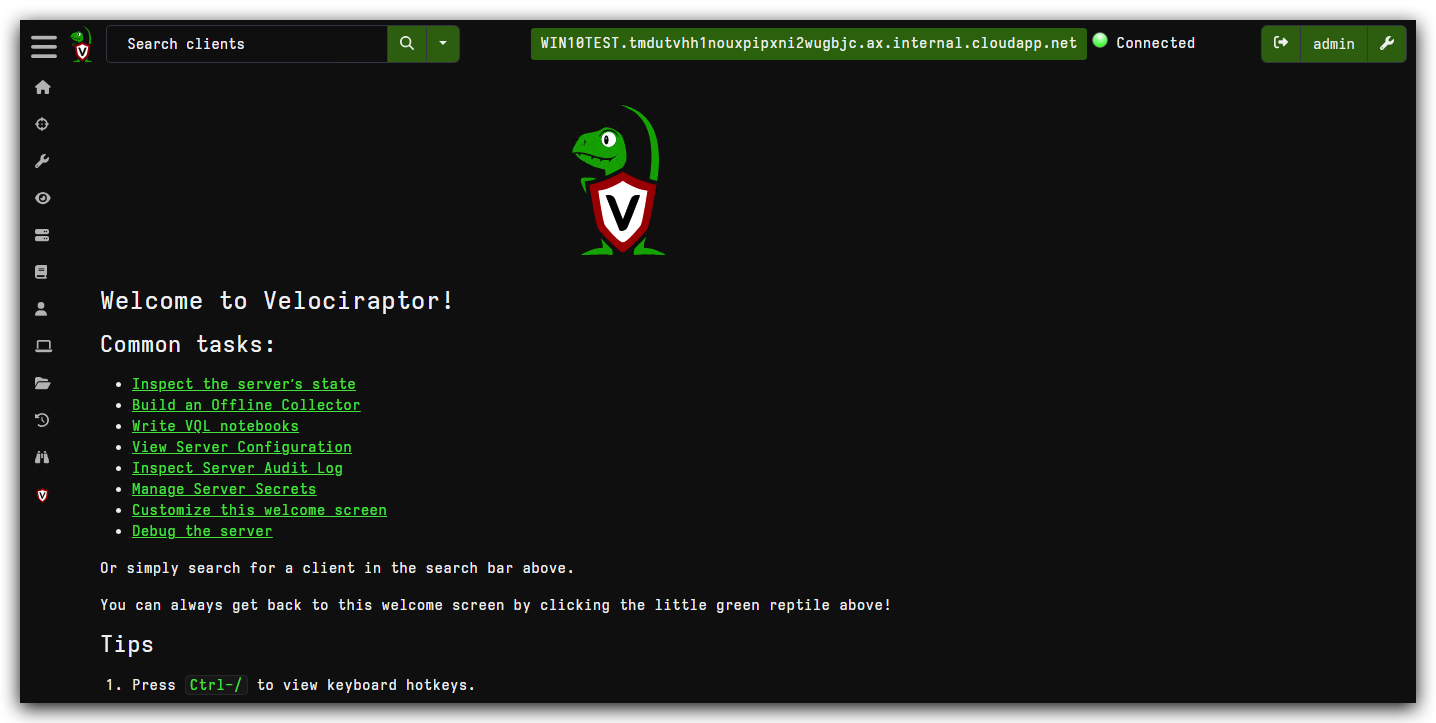
- From your Windows machine you can connect to your Velociraptor server, using Chrome at the following address: https://kali:8889/app/index.html#/
1.1 VELOCIRAPTOR SERVER INSTALLATION (KALI)
Quickstart: https://docs.velociraptor.app/docs/deployment/quickstart/
Training: https://docs.velociraptor.app/training/
NOTE: The Velociraptor server installation below is for reference only, as
it's already installed on your Kali Linux machine.
mkdir ~/velociraptor_setup && cd ~/velociraptor_setup
wget -O velociraptor https://github.com/Velocidex/velociraptor/releases/download/v0.74/velociraptor-v0.74.1-linux-amd64
chmod +x velociraptor
./velociraptor config generate -i
./velociraptor debian server --config ./server.config.yaml
sudo dpkg -i velociraptor_server_0.74.1_amd64.deb
systemctl status velociraptor_server.service
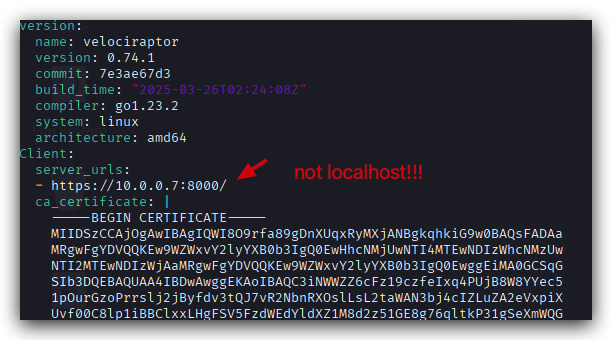
sudo nano /etc/velociraptor/server.config.yaml
systemctl restart velociraptor_server.service
systemctl status velociraptor_server.service
Velociraptor server config : /etc/velociraptor/server.config.yaml
1.2 VELOCIRAPTOR SERVICE
NOTE: The information on the Velociraptor client below is for reference only, as
it's already installed on your Windows machine.
https://docs.velociraptor.app/docs/deployment/clients/#installing-the-client-as-a-service
When installed as a service, the Velociraptor client runs with elevated privileges. But when running it manually you may choose to run it as a normal user. The choice depends on what data sources you intend to access. For example, to access operating system protected files usually requires elevated privileges.
- This will install the binary and client configuration file in the
C:\Program Files\Velociraptor\folder, create the service, and start it.
This allows for live response and continuous monitoring of the endpoint.
-
On Windows client: check yaml config under
c:\program files\velociraptor -
Install the Velociraptor client on your Windows machine using the config file from the server
1.3 VELOCIRAPTOR OFFLINE COLLECTOR (AGENTLESS)
https://docs.velociraptor.app/docs/deployment/clients/#agentless-deployment
There has been a lot of interest in "agentless hunting" using Velociraptor, especially since many people come from backgrounds where PowerShell is used for this purpose.
There are many reasons why agentless hunting is appealing. These are the ones we hear most often:
- There are already a ton of endpoint agents and yet another one may not be welcome.
- Sometimes we need to deploy endpoint agents as part of a DFIR engagement and we may not want to permanently install yet another agent on endpoints.
In the agentless deployment scenario, we simply run the binary from a network share using Group Policy settings. The downside to this approach is that the endpoint needs to be on the domain network to receive the Group Policy update (and have the network share accessible) before it can run Velociraptor.
When we run in agentless mode, we are typically interested in collecting a bunch of artifacts via hunts and then exiting - the agent will not restart after a reboot. So this method is suitable for quick hunts on corporate (non roaming) assets.
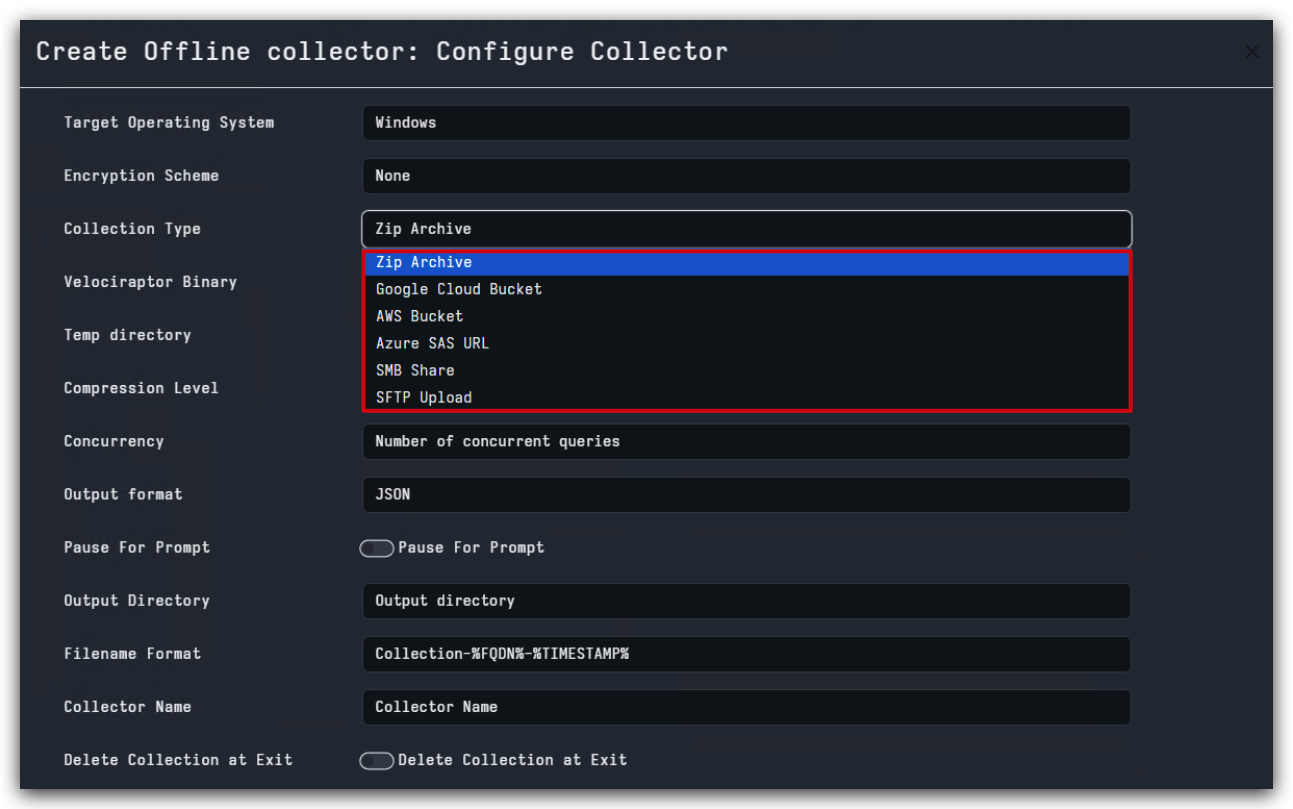
- Velociraptor allows the user to build a specially configured binary (which is actually just a preconfigured Velociraptor binary itself) that will automatically collect the artifacts we need. Velociraptor allows us to build such a collector with the GUI using an intuitive process. https://docs.velociraptor.app/docs/offline_triage/
This collector will not require the full Velociraptor agent to be installed on the endpoint. It will run standalone, collect the specified artifacts, and then upload them back to your Velociraptor server for analysis (or a AWS S3 bucket, etc).
This is where Velociraptor gets seriously powerful for incident response:
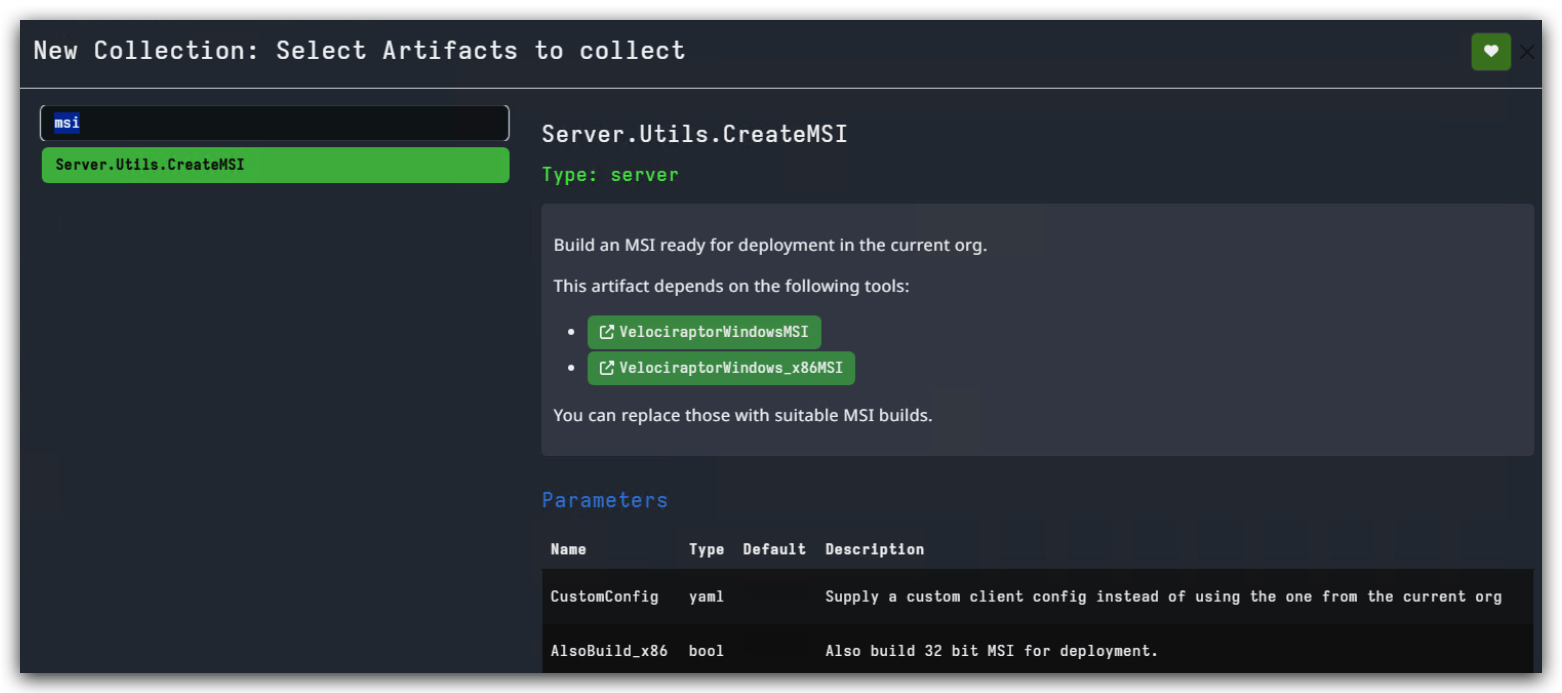
Server.Utils.CreateMSI lets you build a standalone collector that runs without needing the full Velociraptor agent installed. Key parameters:
- CustomConfig: Supply your own client config
- AlsoBuild_x86: Build both 64-bit and 32-bit versions
Real-World Application: You can create these collectors, drop them on compromised systems, collect evidence, and analyze it all from your Velociraptor server - even on air-gapped networks.
Advanced Configuration Insights
Performance Tuning:
- Concurrency: Number of concurrent queries (be careful not to overwhelm the endpoint)
- NTFS_CACHE_TIME: How long to cache NTFS metadata (1800000 = 30 minutes)
File Collection Strategies:
- Upload_file: Toggle whether to actually upload collected files
- Calculate_Hash: Compute file hashes (crucial for malware analysis)
These aren't just configuration options - they're tactical decisions that affect your investigation's success and stealth.
1.4 ESSENTIAL VELOCIRAPTOR WORKFLOWS
Now here's where Velociraptor really shines - it's not just another forensics tool, it's your complete incident response command center. Let me walk you through the workflows that'll make you dangerous as a threat hunter.
Hunting PowerShell Activity
One of the first things you'll want to do is hunt for PowerShell activity. The screenshots show us using the Windows.EventLogs.PowershellScriptblock artifact, which is specifically designed to collect PowerShell script block logging events:
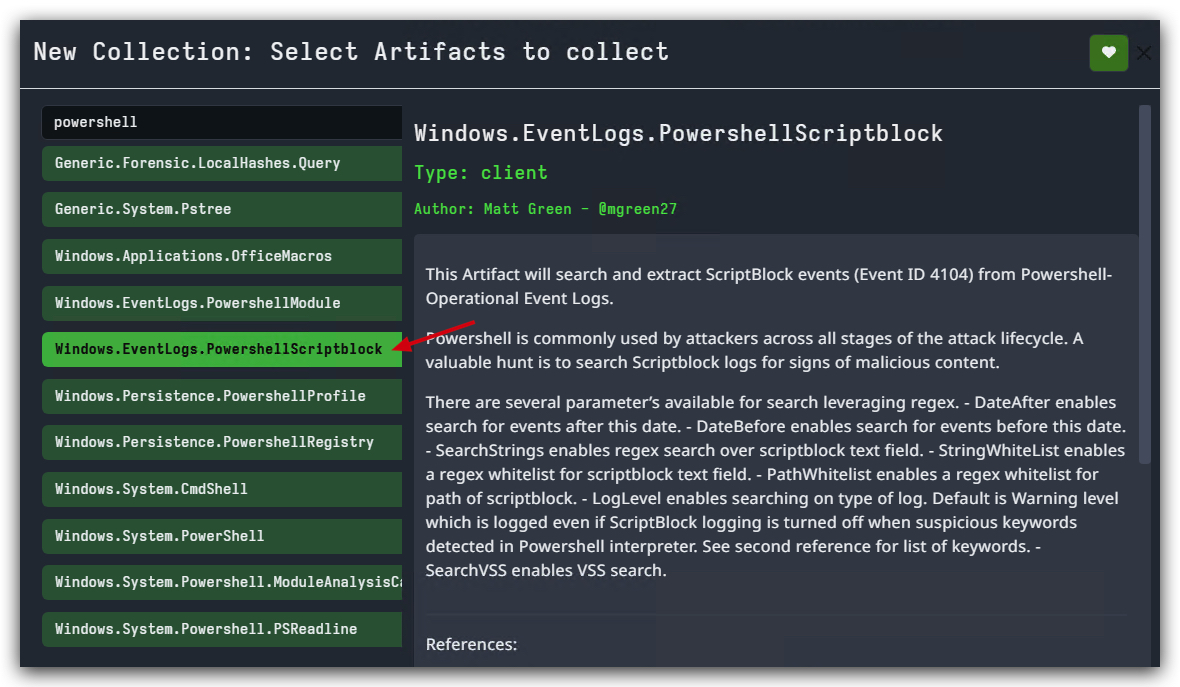
Looking at the configuration parameters in the screenshots, we can see:
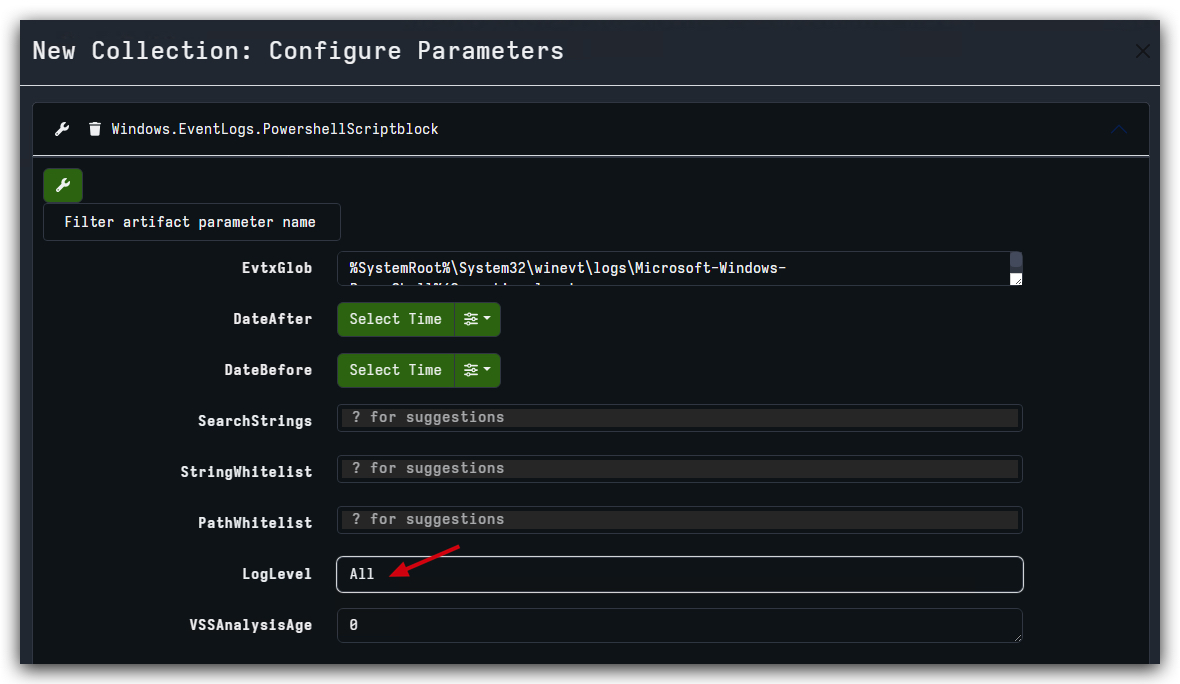
Key Parameters from the Screenshots:
- EvtxGlob:
%SystemRoot%\System32\winevt\logs\Microsoft-Windows-PowerShell%4Operational.evtx- targets the PowerShell Operational log specifically - LogLevel:
All(highlighted with red arrow) - collects all PowerShell script block events regardless of log level - SearchStrings, StringWhitelist, PathWhitelist: Additional filtering options available but not configured in this example
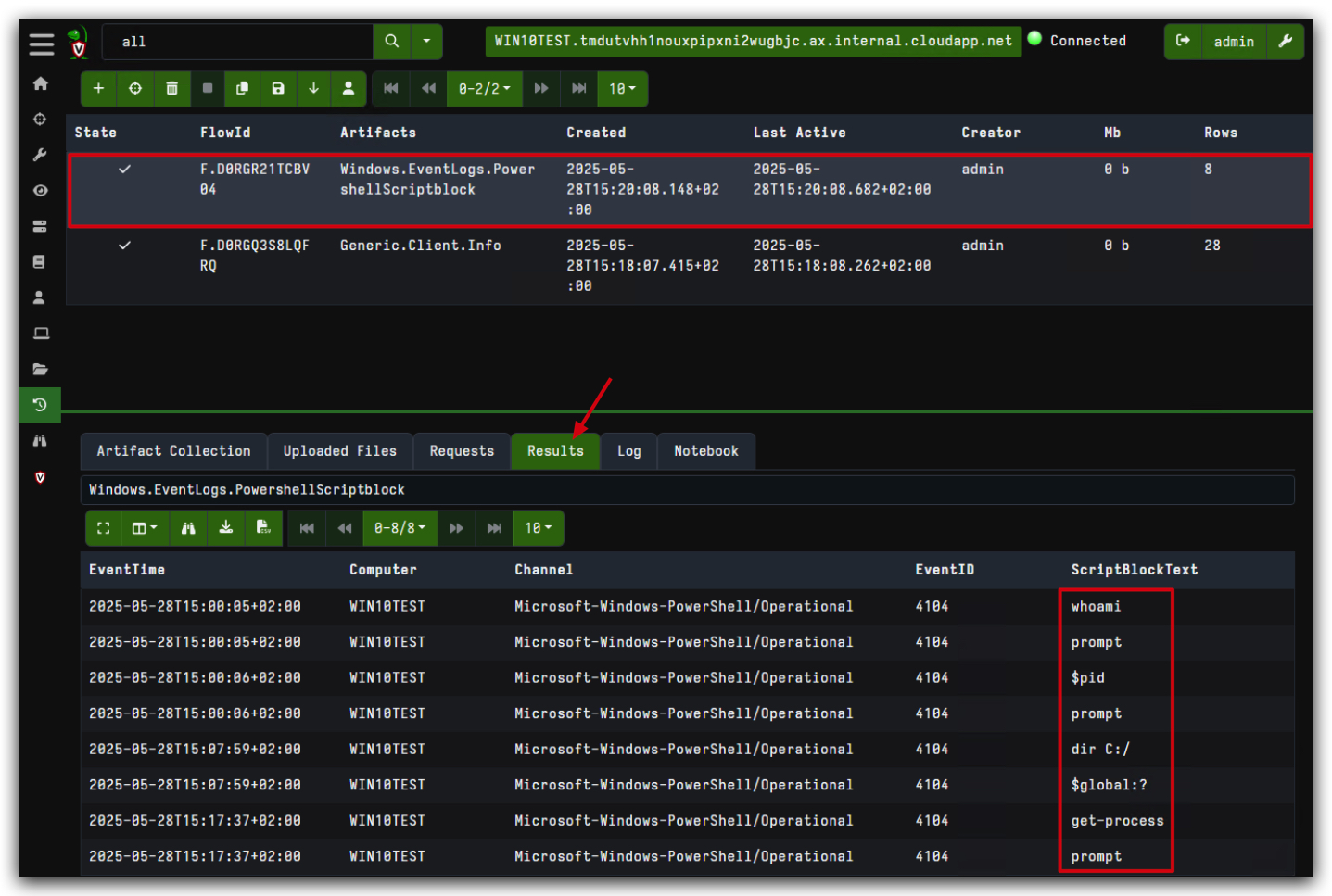
This artifact is laser-focused on PowerShell script block logging (Event ID 4104), which captures the actual PowerShell code being executed. This is pure gold for threat hunters because script block logging records the deobfuscated PowerShell content - even if attackers try to obfuscate their commands, Windows logs the final executed script.
File Hunting at Scale
The file hunting capability is where Velociraptor really flexes its muscles. Check out this workflow:
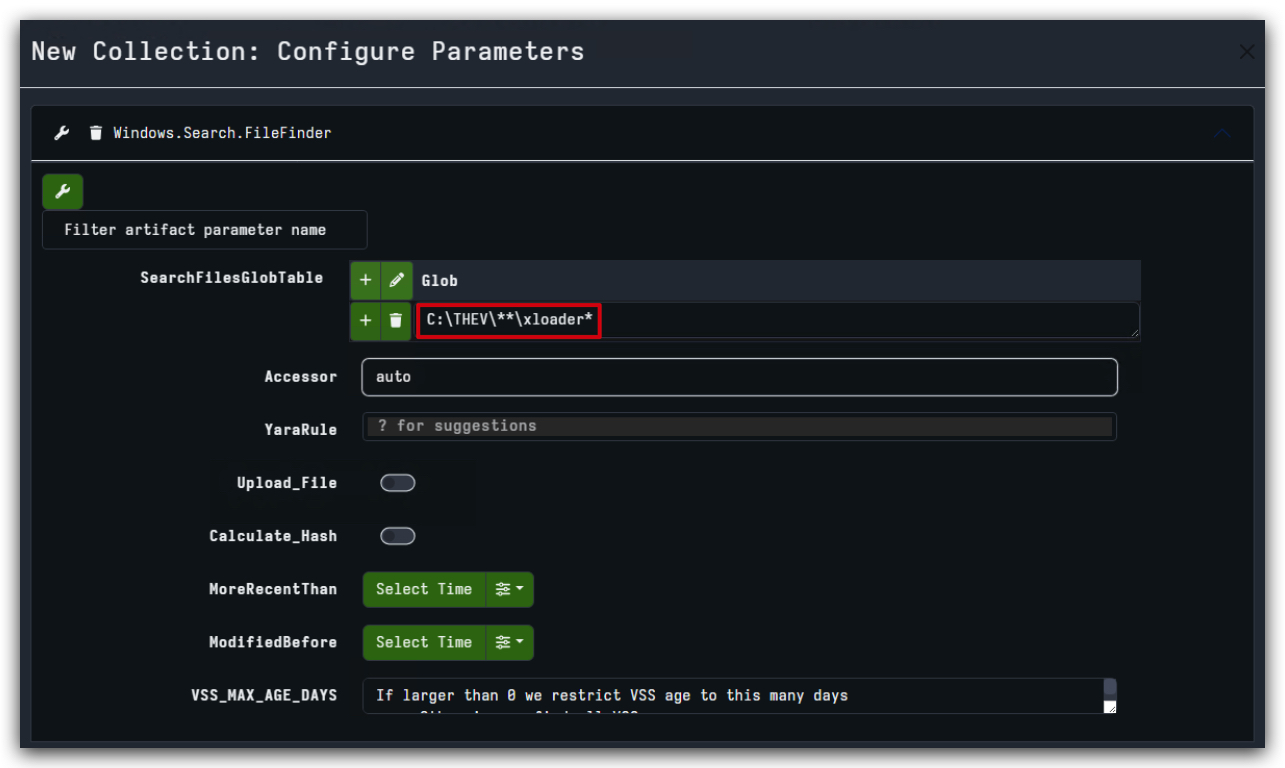
Windows.Search.FileFinder lets you hunt for files across the entire endpoint using glob patterns. In the screenshot, we're searching for C:\THEV\**\xloader* - that double asterisk (**) is crucial because it means "search recursively through all subdirectories."
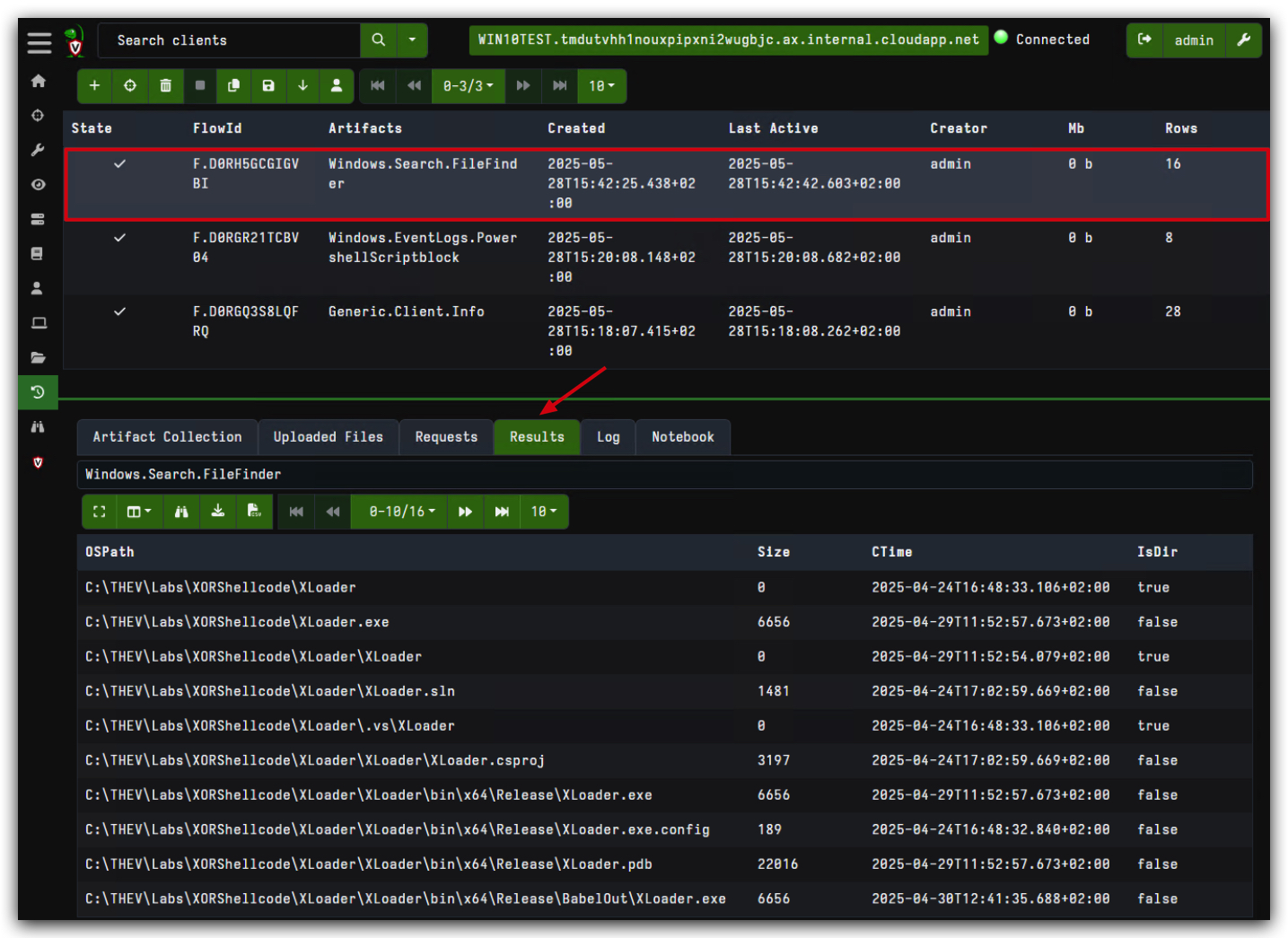
What You're Really Seeing Here:
The results show us finding files in C:\THEV\Labs\XORShellcode\XLoader\ - this is exactly the kind of pattern matching that makes Velociraptor dangerous for red teamers. It found our "xloader" files scattered across different lab directories.
Advanced File Hunting Tips:
- Use
*.exeto find all executables - Use
*loader*to find anything with "loader" in the filename (great for hunting malware) - Use time-based filters (
MoreRecentThan,ModifiedBefore) to narrow down to recent activity
Remote File Collection
Here's where things get really interesting. Velociraptor doesn't just find files - it can collect them remotely:
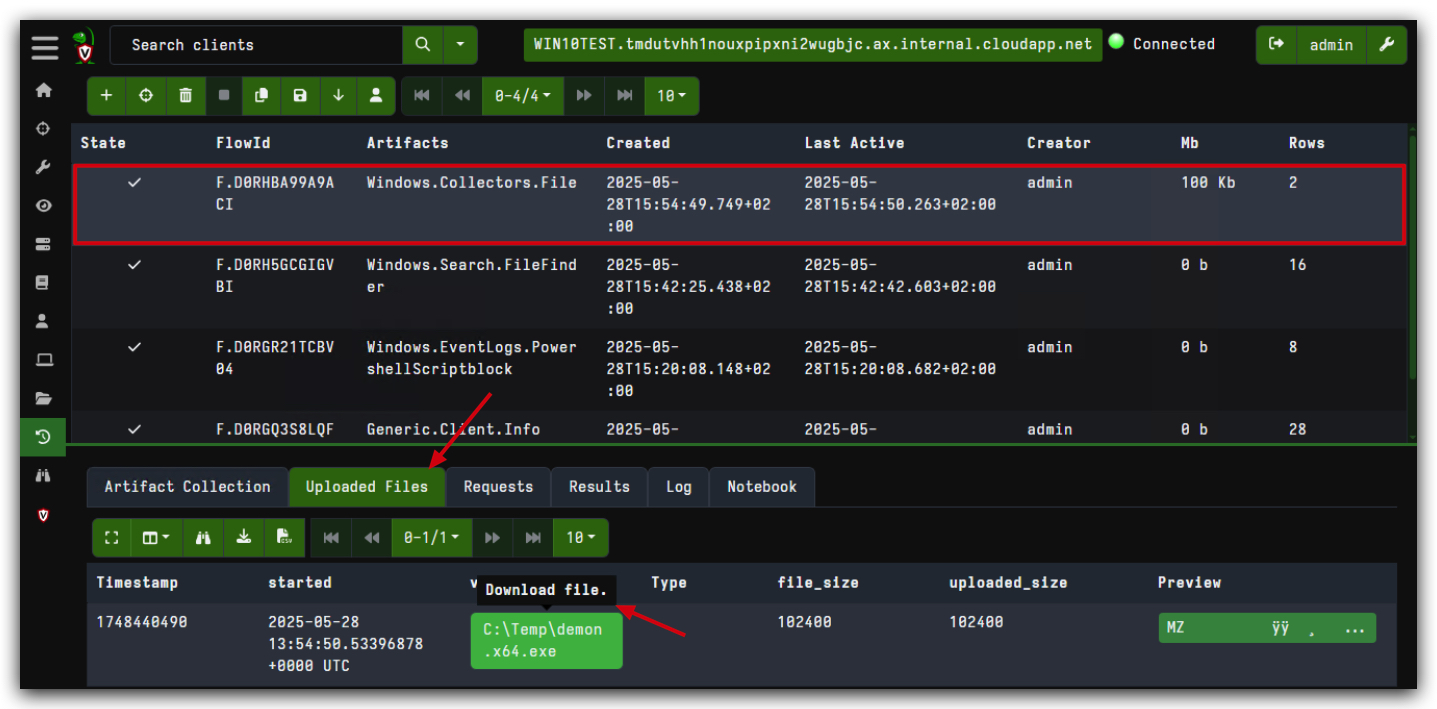
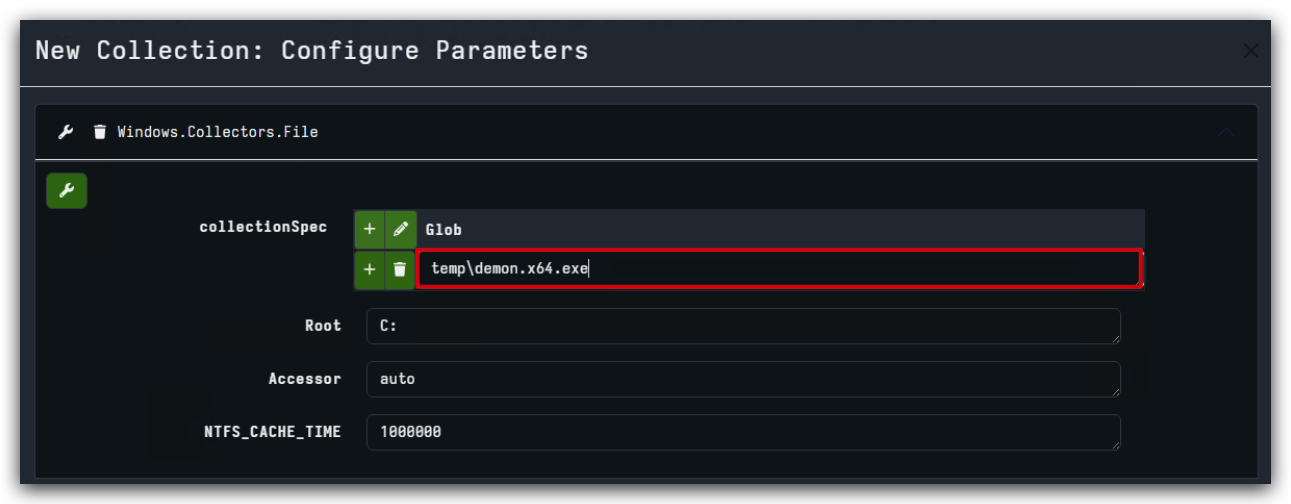
Windows.Collectors.File with these key settings:
- collectionSpec:
temp\demon.x64.exe(specific file to collect) - Root:
C:(search root) - Accessor:
auto(let Velociraptor figure out the best way to access the file)
Critical Understanding: When you see a file get collected (like that demon.x64.exe in the temp folder), Velociraptor is actually copying it back to your server. This means you can analyze malware samples without ever touching the infected endpoint directly.
Event Log Hunting Deep Dive
The event log hunting capabilities are frankly terrifying from a red team perspective:
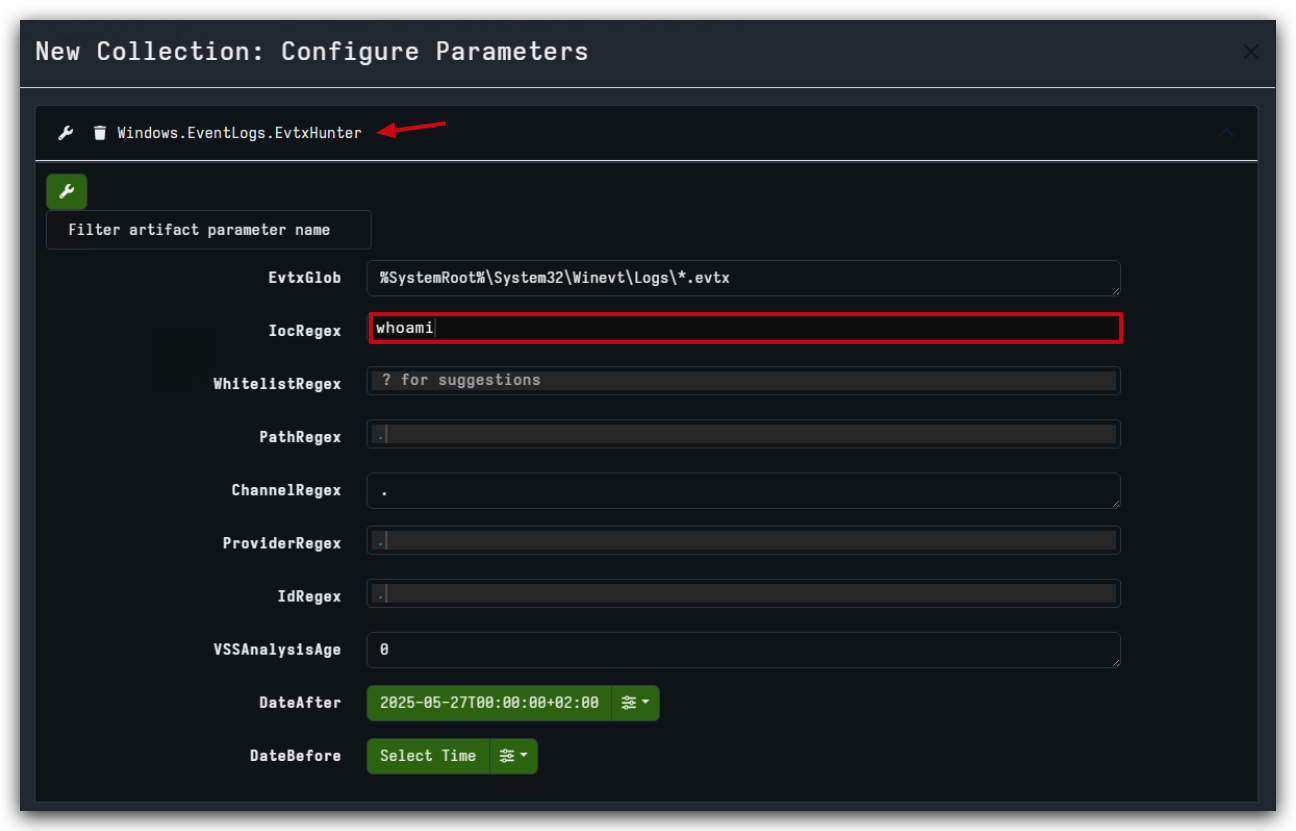
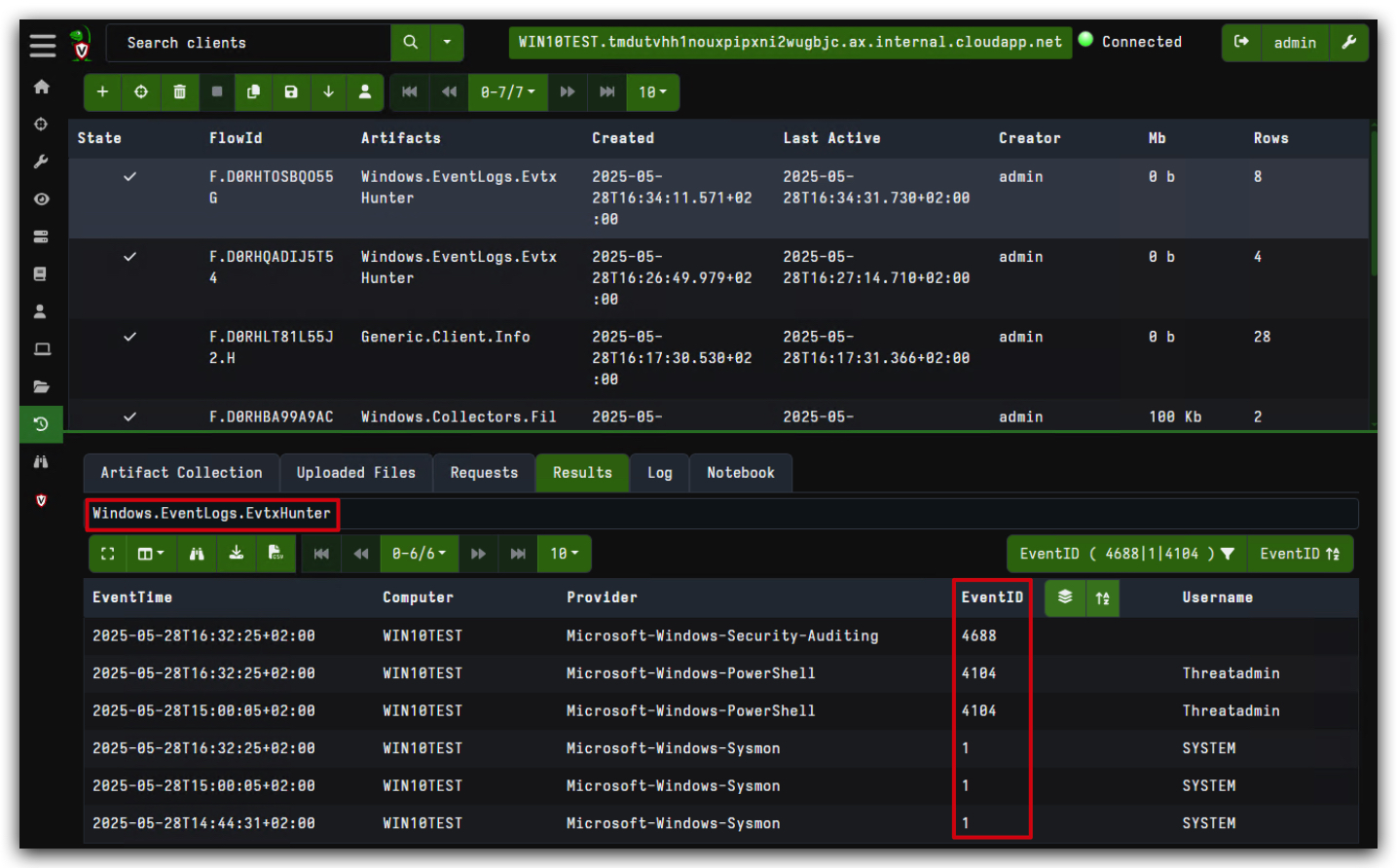
- Look at those results - we're seeing PowerShell Event ID 4104 events with actual script content:
whoami,prompt,$pid,dir C:/,$global:?,get-process.
What This Means for Red Teams: If you're running PowerShell commands, every single one is getting logged if script block logging is enabled. The "ScriptBlockText" column shows exactly what you executed. No obfuscation, no hiding - it's all there.
Blue Team Gold: Event IDs to hunt for:
- 4104: PowerShell script blocks (the actual commands)
- 4103: PowerShell module logging
- 4688: Process creation (with command lines)
- 1: Sysmon process creation
Saving Your Hunts (Favorites)
Smart hunters save their successful queries:
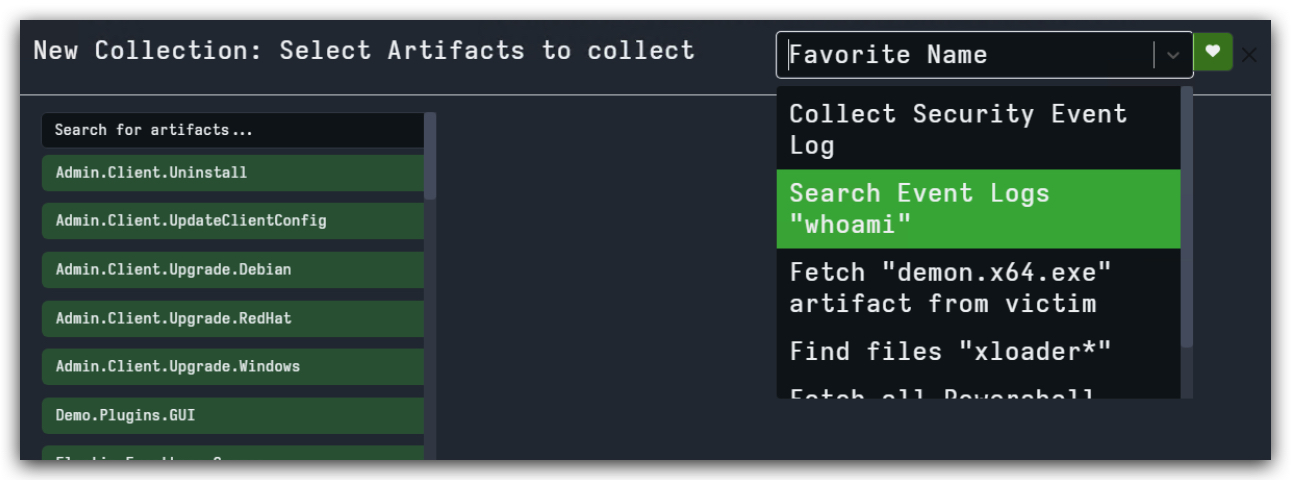
The Favorites panel shows pre-built hunts like:
- Collect Security Event Log
- Search Event Logs "whoami"
- Fetch "demon.x64.exe" artifact from victim
- Find files "xloader"*
Pro Tip: Build your own favorite hunts for common IOCs, file patterns, or registry keys. This turns Velociraptor into your personalized threat hunting platform.