Lab - Incident Response
How do I recover files or memory dumps remotely (VELOCIRAPTOR)
SIDETRACK: When an incident happpens, or one of your endpoint security solutions (EDR. AV, ... ) detects suspicious activity, how can we recover files or memory dumps remotely? Obviously we don't always have physical access to the machine in question. Most EDR solutions will allow you to initiate a remote memory dump or file recovery process, run scripts or commands remotely on the endpoint. But what if you don't have an EDR solution, or it doesn't have this capability?
- Fetch files, logs and other artifacts from the victim machine
- run scripts (powershell/cmd)
- memory dump of a process
- Get-InjectedThread.ps1 (dec to hex)
- procdump + hex editor or custom tool (MemMumper)
- sclauncher/speakeasy
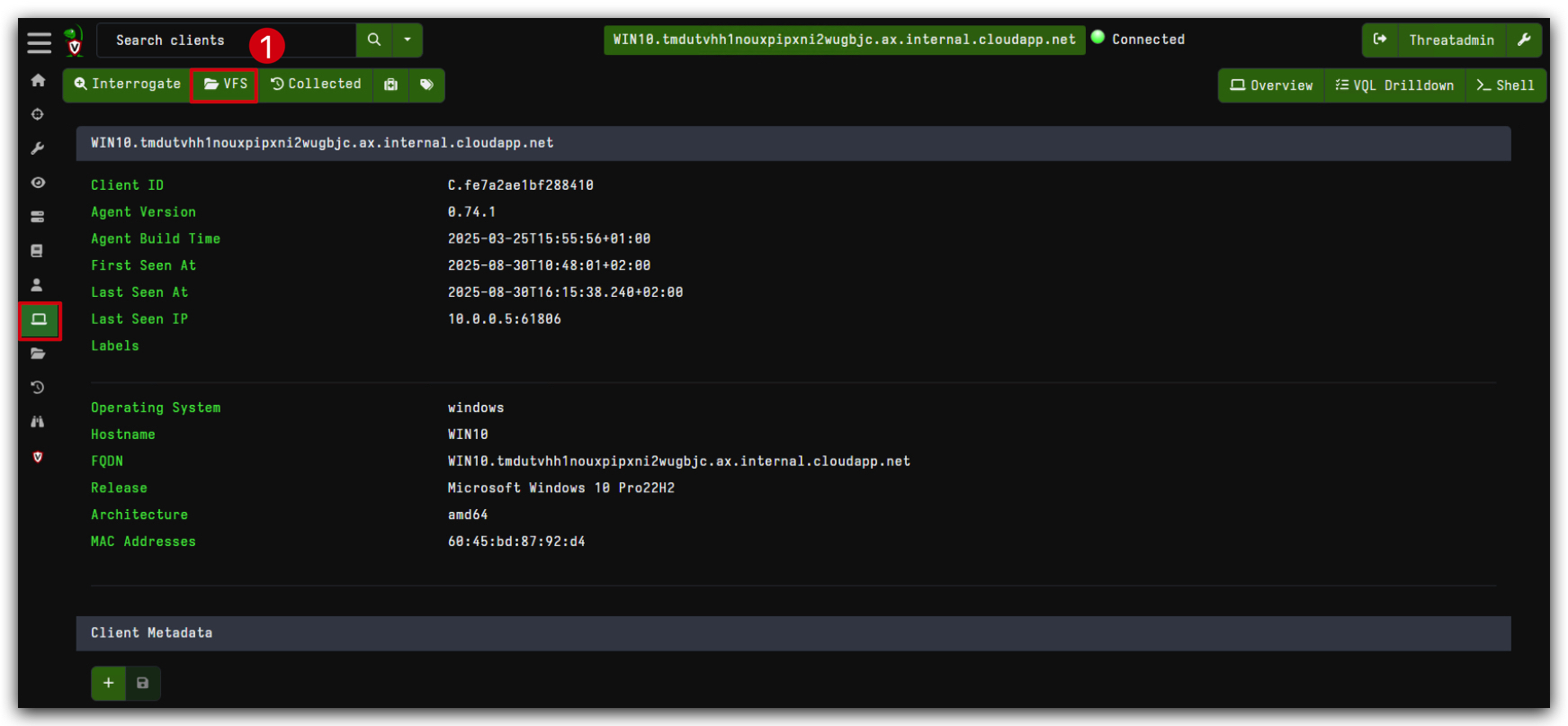
Velociraptor provides an interface to interact with the client’s filesystem which we call the Virtual File System or VFS. The VFS GUI
(1) is a convenient tool to interactively inspect the client’s filesystem and fetch files if necessary.
Although it may look somewhat like a live view of the client’s filesystem, the VFS is actually a server-side cache of the file and directory listings that are run the endpoint via Velociraptor artifacts. As you navigate and perform actions in the VFS view, the server is scheduling artifacts to run on the client in the background. All VFS actions either read data from the cache or result in artifacts being run on the endpoint.
- Open your chrome browser and navigate to https://kali:8889/app/index.html#/ and login with your credentials (Threatadmin/Threathunt25). You should see the Velociraptor GUI.
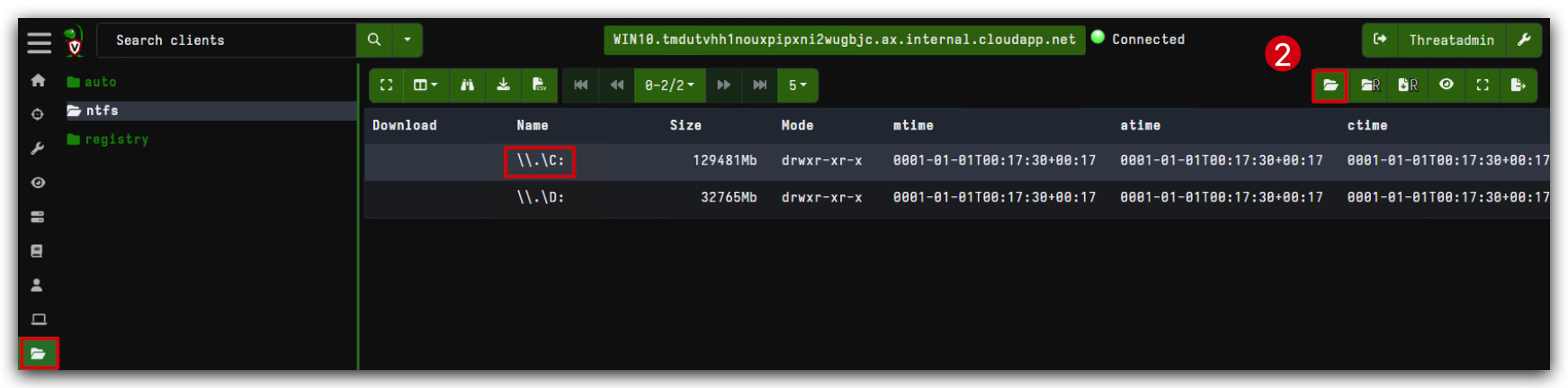
The VFS consists of a tree view in the left pane and a file listing in the top right pane. The tree view allows us to navigate through the filesystem, starting at the top level. Remember that the GUI is simply viewing data that was previously collected from the client. When clicking on a directory in the tree view that has not been synced from the client yet, the top right pane shows the message "No data available. Refresh directory from client by clicking above.."
Clicking on the refresh directory button
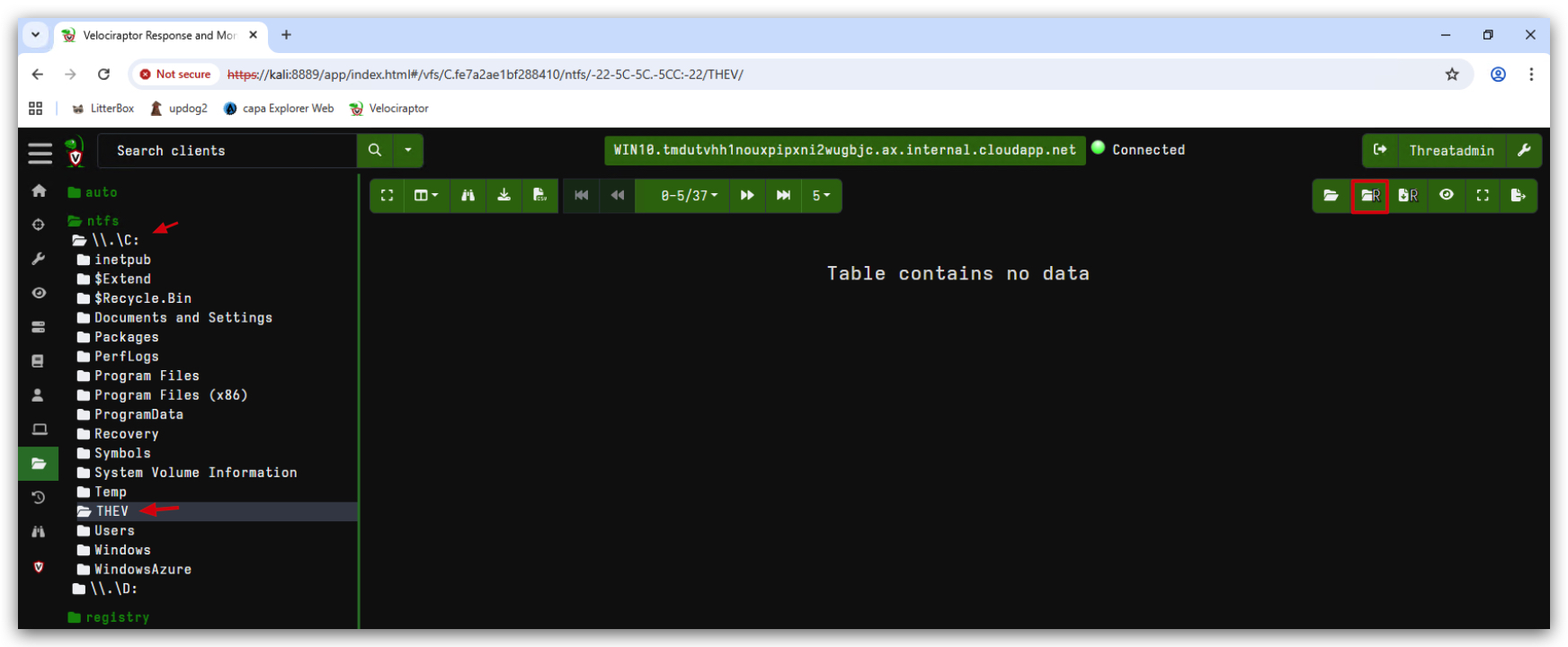
- When you are on the C-drive, click on the refresh button again, then navigate to the THEV directory and click on the recursive refresh button (just next to the refresh button). This will sync the listing all the files and folders under THEV to your Velociraptor GUI, we can now navigate further to Labs -> Lab_basicloader.
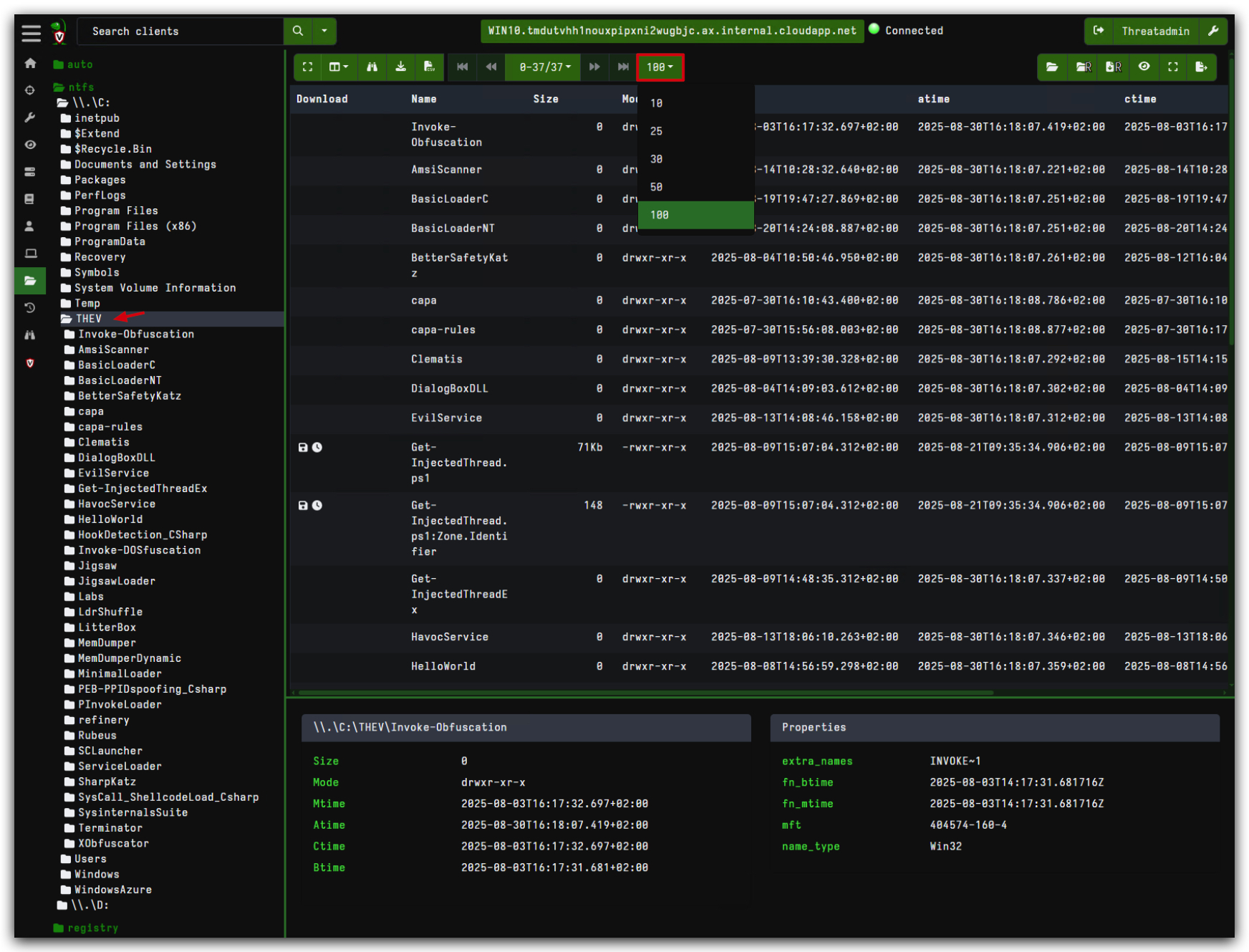
- You can change the amount of lines per page to 100 like this:
If you need to download many files, it might be easier to hide the Stats pane (bottom right pane) by clicking the Stats Toggle button
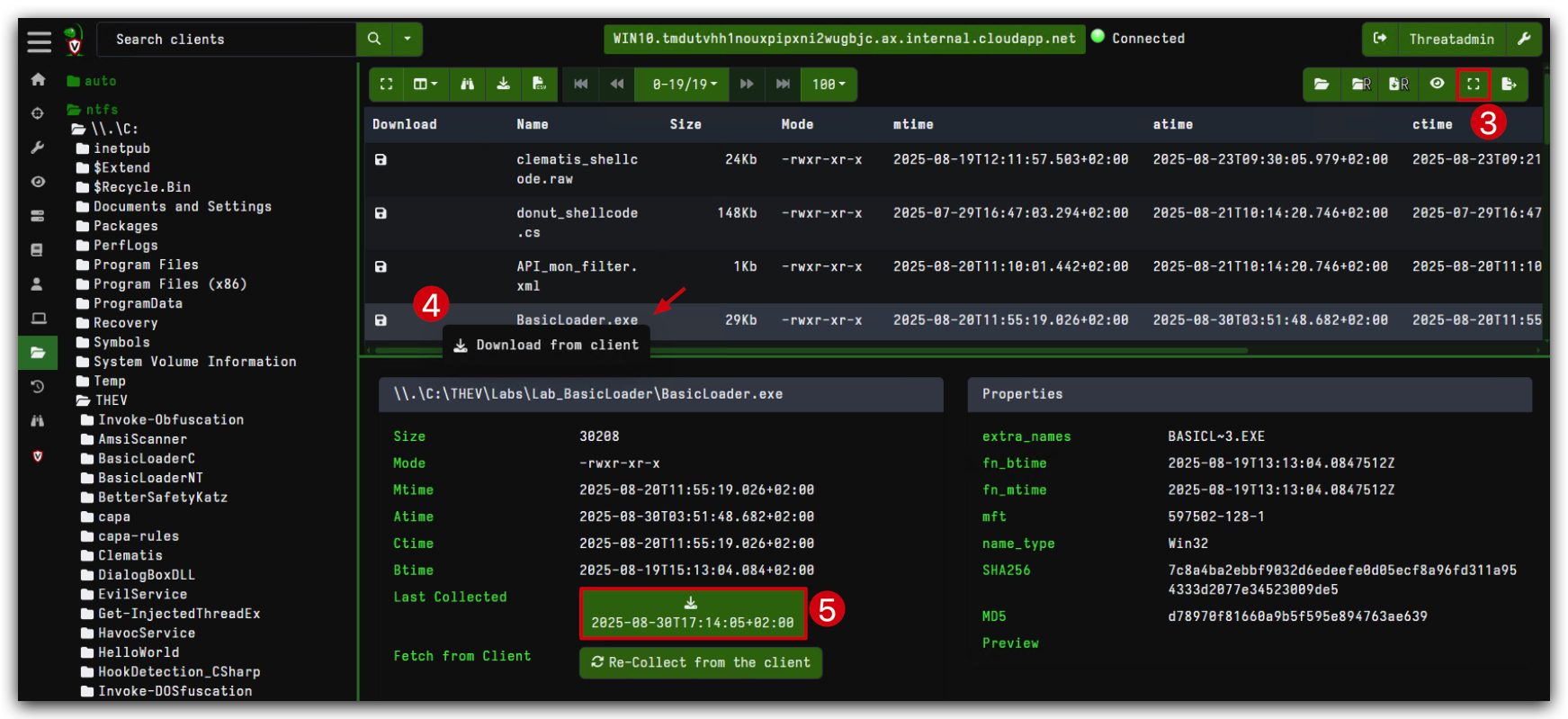
Clicking on any of the files in the directory listing, will show their properties in the bottom right pane. In particular, listing the directory only populates file metadata, such as timestamps - it does not fetch the file data. In the Stats tab (bottom right pane) we can initiate a download operation from the endpoint by clicking the Collect from the client button
- Let's collect our "basicLoader.exe" file from C:\THEV\Labs\Lab_BasicLoader, in VFS select the "basicLoader.exe" file and click the Collect/Re-Collect from the client button and then Download.
We have now recovered the file from the endpoint to our Velociraptor server. The downloaded files are stored in the Velociraptor server and can now be analyzed further. Let's continue to the next section where we will analyze the file using some forensics tools.