Lab - Forensics
Finding Process Injection and extracting shellcode from running processes
LAB WORKING DIRECTORY : "C:\THEV\Labs\Lab_BasicLoader" ├── Get-InjectedThreadEx.exe (Elastic Security) ├── MemDumperDynamic.exe (Courtesy of Vanguard Security) ├── SCLauncher64.exe └── BasicLoaderMSF.exe
Let's say we have reason to believe that our BasicLoaderMSF.exe is running in memory on a target system, and we want to investigate further to confirm the process injection and potentially extract the shellcode for analysis. Or maybe we had an alert from our EDR solution indicating suspicious activity related to process injection. How do we proceed?
IMPORTANT NOTE: before running get-injectedthreadex.exe, open
System Informerand kill the processVBCSCompiler.exe- otherwiseGet-injectedthreadex.exewill not work properly and will not be able to identify the injected thread. Why does this happen? No clue.
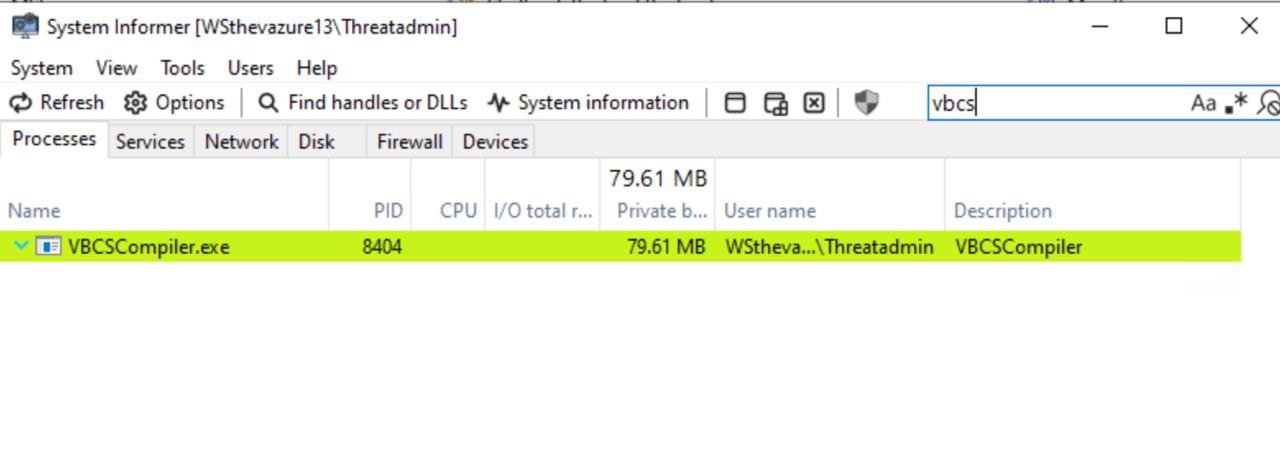
- right-click on the process and select
Kill Processto terminate it.
1. Identifying the Injected Process
Using Get-InjectedThreadEx (Elastic Security) We have downloaded the Get-InjectedThreadEx.exe tool from Elastic Security's GitHub repository (https://github.com/jdu2600/Get-InjectedThreadEx). This tool is designed to identify injected threads in running processes.
- Open a
command promptwithadministrative privilegesand navigate to the lab working directory:
cd C:\THEV\Labs\Lab_BasicLoader
- Run the Get-InjectedThreadEx tool:
Get-InjectedThreadEx.exe
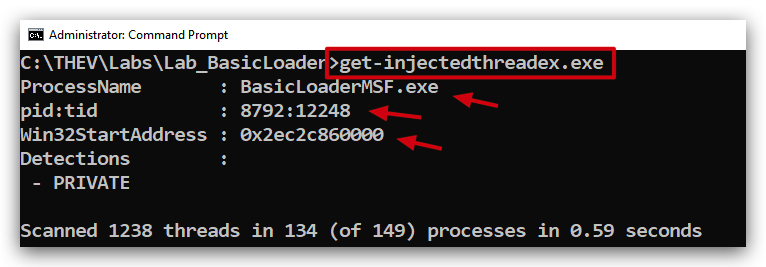
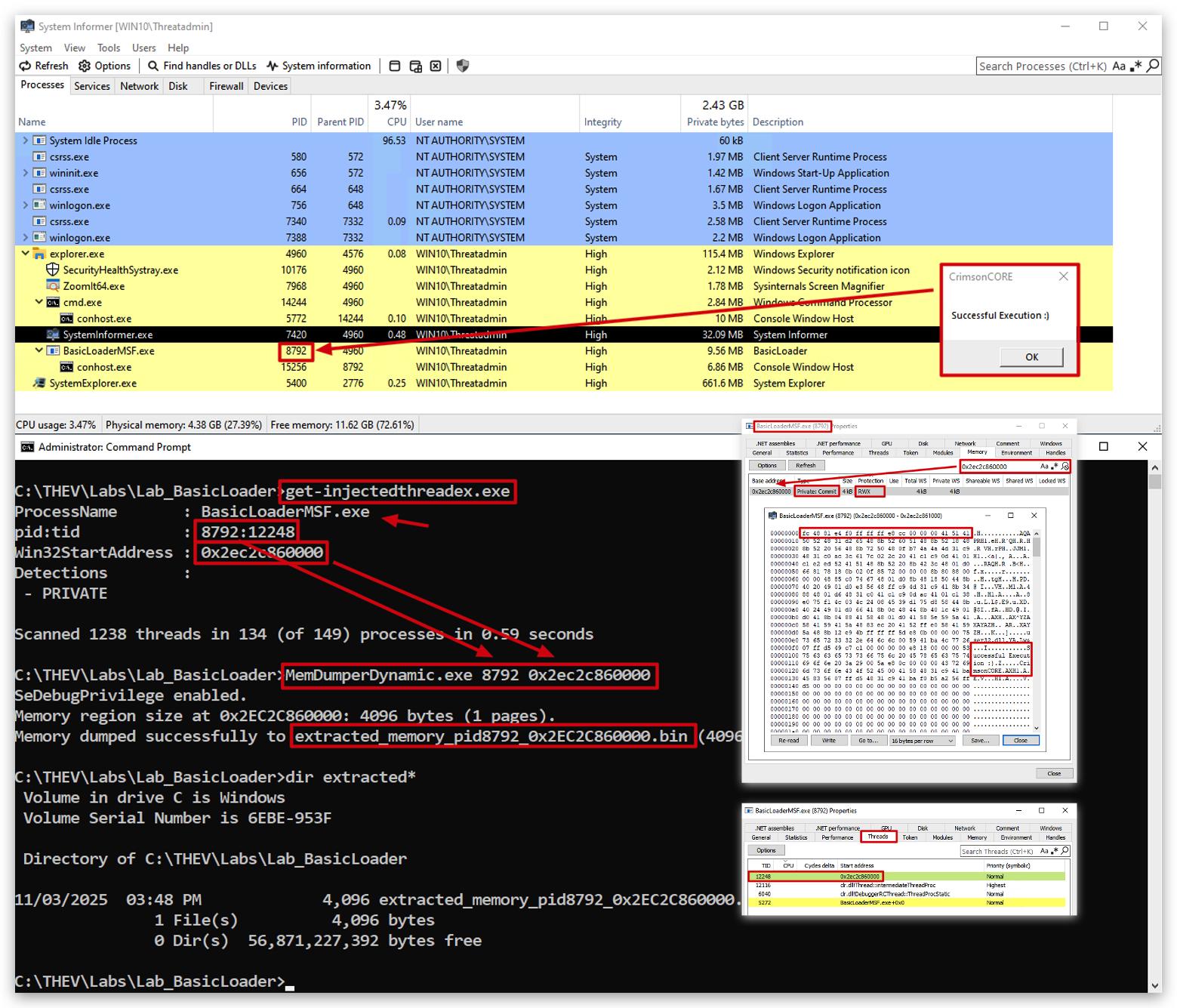
The tool will scan running processes and identify any injected threads. Look for entries that indicate injection, such as those associated with our BasicLoaderMSF.exe process.
It shows us the:
-
Process ID (PID) of the injected process :
8292(will be different on your system) -
The name of the process ;
BasicLoaderMSF.exe -
The memory address where the injection occurred :
0x2ec2c8600000(will be different on your system) -
The thread ID of the injected thread :
12248(will be different on your system) -
Let's verify if these results align with our BasicLoaderMSF.exe process, by opening
System Informer.
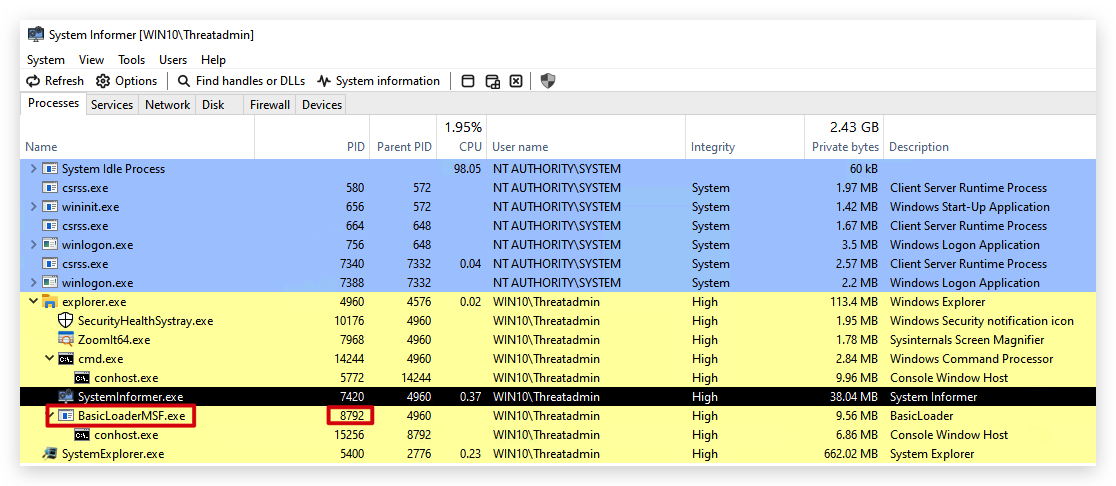
You will see BasicLoaderMSF.exe with the corresponding PID (8292).
- Right-click on the process and select
Properties,
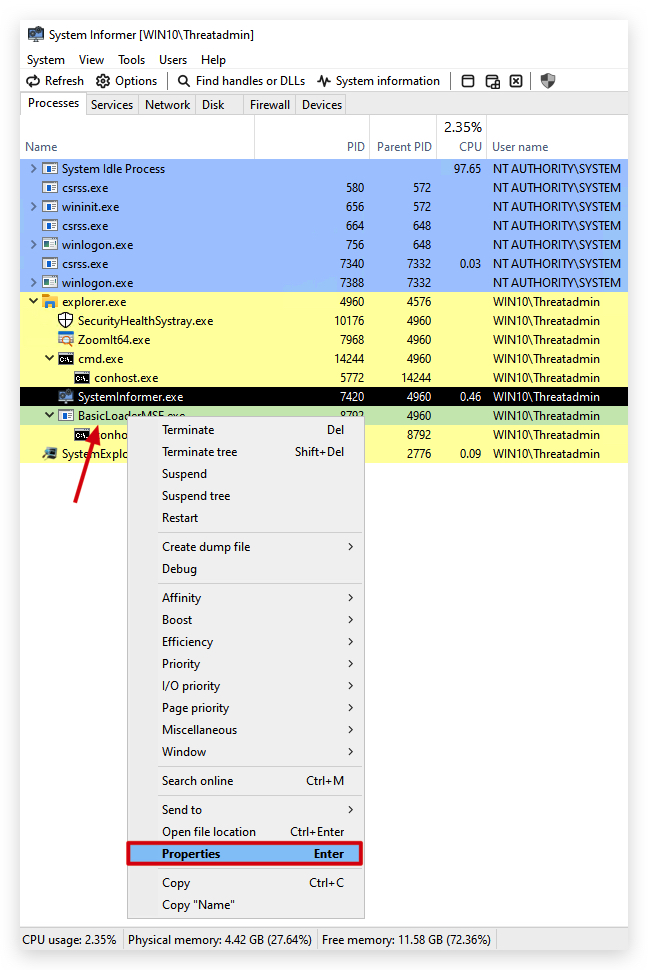
- then navigate to the
Memorytab. Look for the memory address (0x2ec2c8600000) identified by Get-InjectedThreadEx.
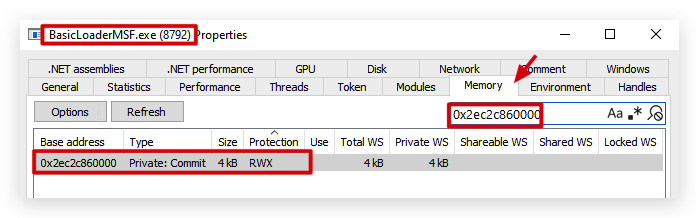
You will clearly see a memory region with MEM_COMMIT (private:commit) state and PAGE_EXECUTE_READWRITE (RWX) protection, indicating that this memory region is likely where the shellcode was injected.
Right clickon this memory region and selectread/write memory...
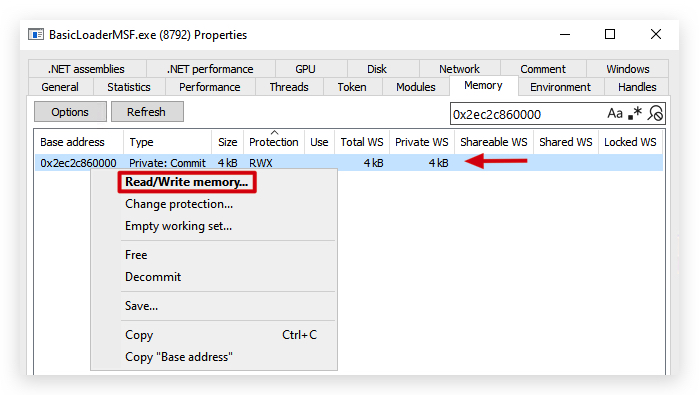
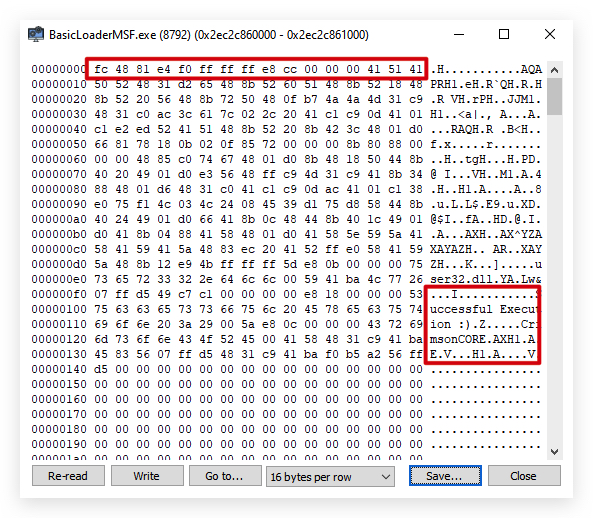
- And have a look at the contents of that memory region - that's our MSFVenom dialog box shellcode, we can also dump this memory region to a file, in System Informer by clicking on the
Savebutton.
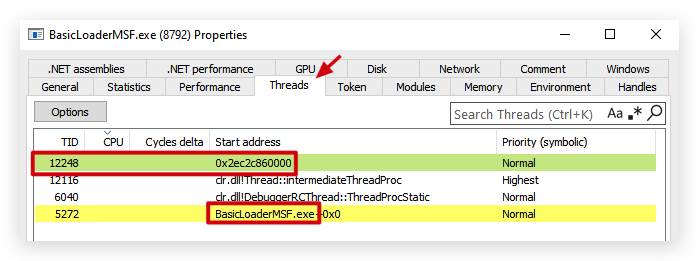
We can verify this further by checking the thread ID (12248) identified by Get-InjectedThreadEx.
-
Right-click on the process and select
Properties, then navigate to theThreadstab. Look for the thread ID (12248) identified by Get-InjectedThreadEx.- The memory address where the injection occurred.
- The thread ID of the injected thread.
2.Carving the shellcode from process memory
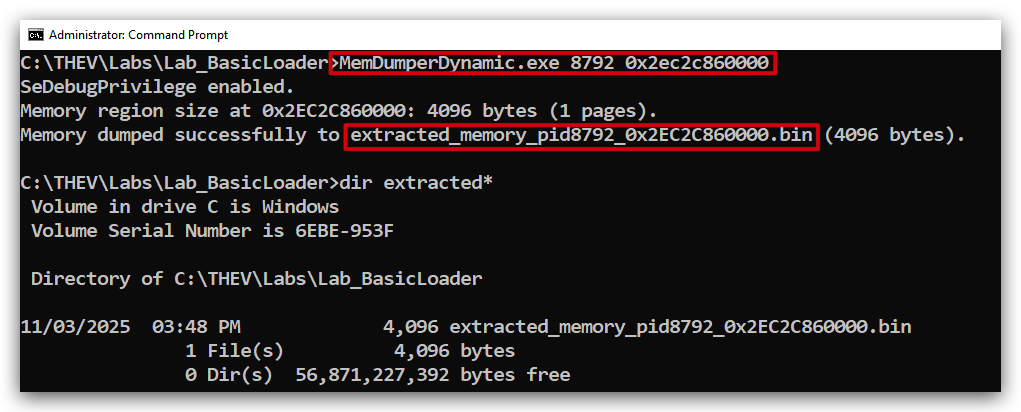
Now that we have identified the injected process and the memory region where the shellcode resides, we can proceed to extract the shellcode for further analysis. There are a lot of tools like procdump, volatility, etc. but we will use MemDumperDynamic.exe from Vanguard Security for this lab. Most of these tools dump the entire process, but MemDumperDynamic allows us to dump specific memory regions, it why we created it.
- Open a
command promptwithadministrative privilegesand navigate to the lab working directory:
Make sure to replace the Process IDandMemory Addresswith the values specific to your environment, as they may differ from the example provided here.
cd C:\THEV\Labs\Lab_BasicLoader
MemDumperDynamic.exe 8792 0x2ec2c8600000
3. Running the extracted shellcode
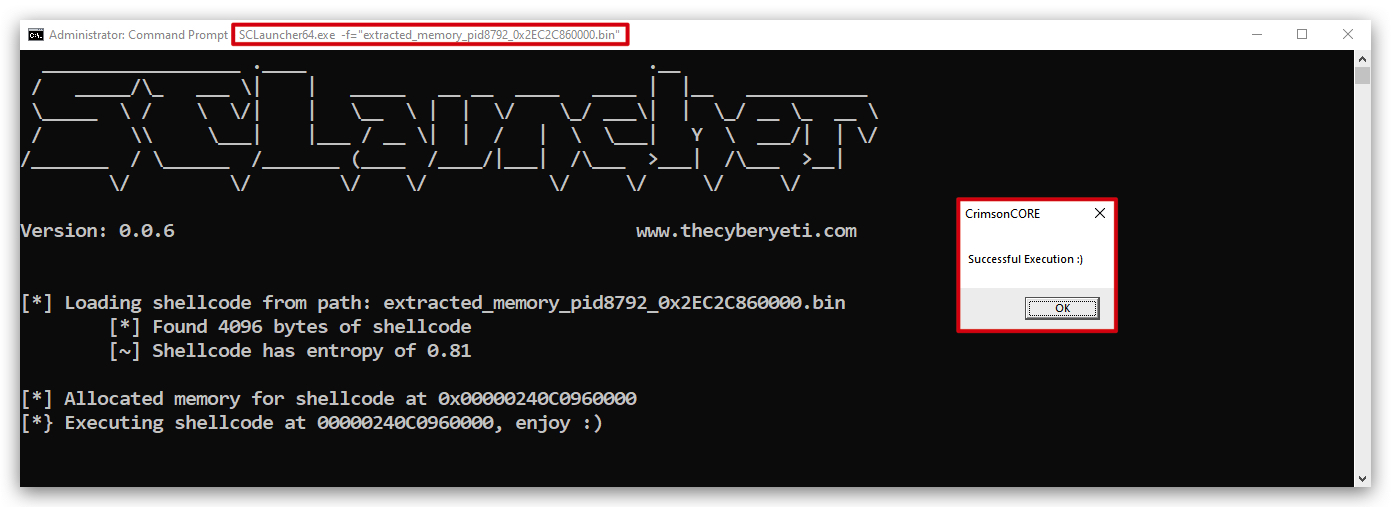
We'll use SCLauncher64.exe to run the extracted shellcode.
Filename (extracted_memory...) with the values specific to your environment, as they will differ from the example provided here.
cd C:\THEV\Labs\Lab_BasicLoader
SCLauncher64.exe -f="extracted_memory_pid8792_0x2EC2C860000.bin
4. IOC's and Yara rules for Process Injection
As always, it's crucial to understand how such techniques can be detected and what indicators of compromise (IOCs) they may leave behind. Here are some simple IOC's associated with process injection:
VirtualAllocwith RWX permissionsWriteProcessMemorymarshal.copy(alternative for WriteProcessMemory in .NET)CreateThreadshellcode(used in our BasicLoaderMSF.exe - but often used in shellcode loaders)byte[] buf =(often used in shellcode loaders, typical forMSFVenomgenerated shellcode in C#)
YARA Rule:
Below is an example how can can use YARA to detect suspicious use of remote memory allocation and injection APIs commonly associated with process injection techniques - we can scan PE files or running processes with this rule.
Note: If you want case-insensitive matching for the API names, you can add the
nocasemodifier to the respective string definitions. When scanning PE files, you might want to uncomment the PE file check in the condition section. This is a basic example and may need to be adjusted based on specific requirements and environments
rule Suspicious_Shellcode_Injection
{
    meta:
        author = "Luk Schoonaert / Vanguard Security"
        description = "Detects suspicious use of remote memory allocation and injection APIs"

    strings:
        $api1 = "VirtualAlloc" wide ascii
        $api2 = "WriteProcessMemory" wide ascii
        $api3 = "CreateThread" wide ascii
        $api4 = "marshal.copy" wide ascii
        $string1 = "shellcode" wide ascii nocase
        $string2 = "byte[] buf =" wide ascii nocase

    condition:
        // uint16(0) == 0x5A4D and // PE file
        ($api1 and $api2) and ($api3 or $api4) and 1 of ($string1, $string2)
}
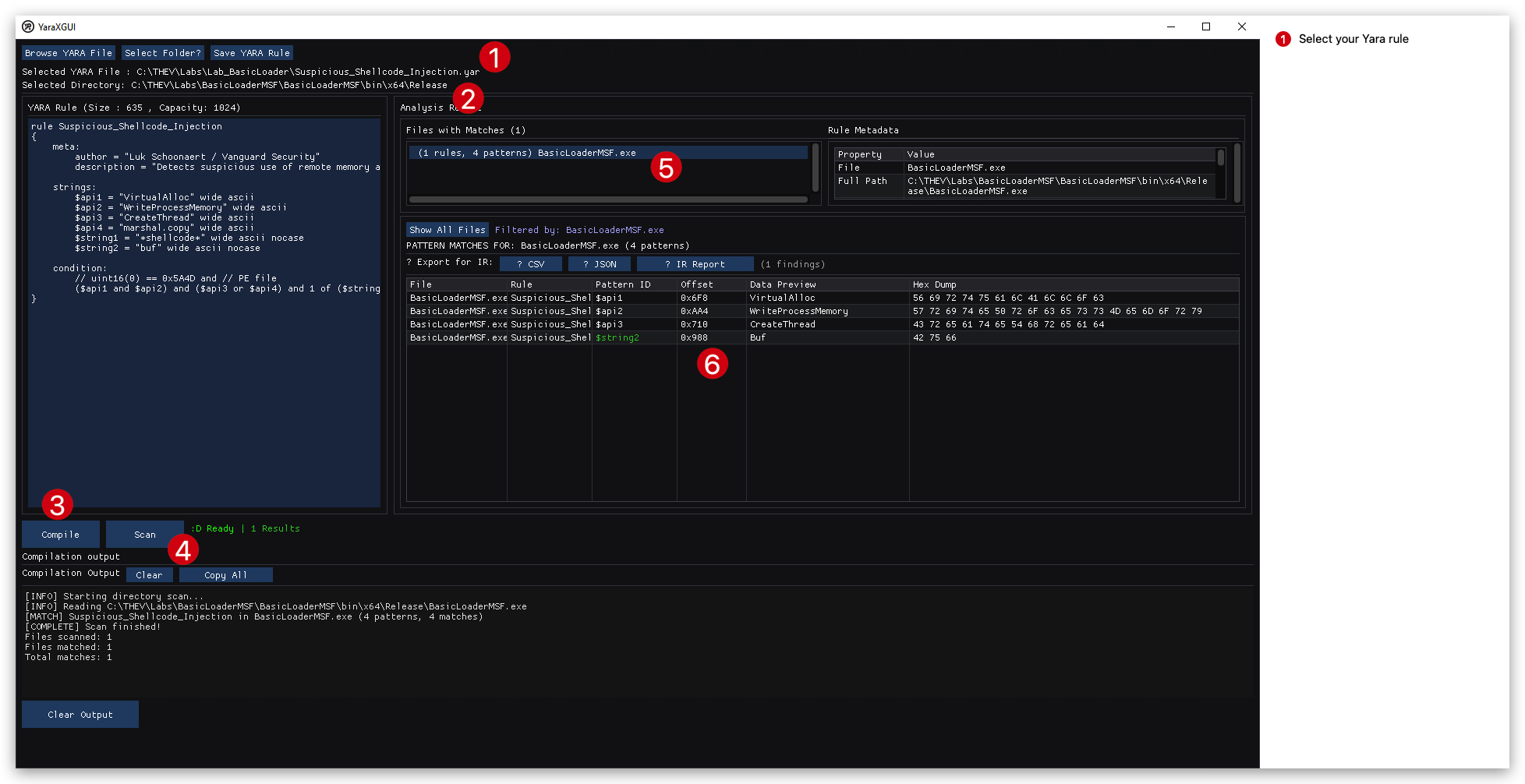
Let's use YaraXGUI.exe to scan our BasicLoaderMSF.exe with this rule.
You can find
YaraXGUI.exeunder "C:\THEV\SysinternalsSuite\YaraXGUI.exe", or simply open a command prompt and runYaraXGUI.exe.
- Load your YARA rule in
YaraXGUI, located in "C:\THEV\Labs\Lab_BasicLoader\solution\Suspicious_Shellcode_Injection.yar" - Select your target binary (directory) to scan, located in "C:\THEV\Labs\BasicLoaderMSF\BasicLoaderMSF\bin\x64\Release\BasicLoaderMSF.exe"
- Compile the rule (you can make changes to the rule in the GUI, so make sure to compile it again if you do so)
- Click on Scan
- Click on the Analysis results tab to see the results
- What's nice here is that it shows you the matched strings as well.
We can also use yara64.exe from a command prompt to scan our BasicLoaderMSF.exe with this rule.
cd C:\THEV\Labs\Lab_BasicLoader\solution
yara64.exe -r Suspicious_Shellcode_Injection.yar C:\THEV\Labs\BasicLoaderMSF\BasicLoaderMSF\bin\x64\Release\BasicLoaderMSF.exe

Additionally we can scan running processes with this rule using yara64.exe using the Process ID (PID).
- If your message box is still open from running the shellcode, you can use that PID, otherwise re-run the BasicLoaderMSF.exe to get a new PID. You can check the PID in Task Manager or System Informer.
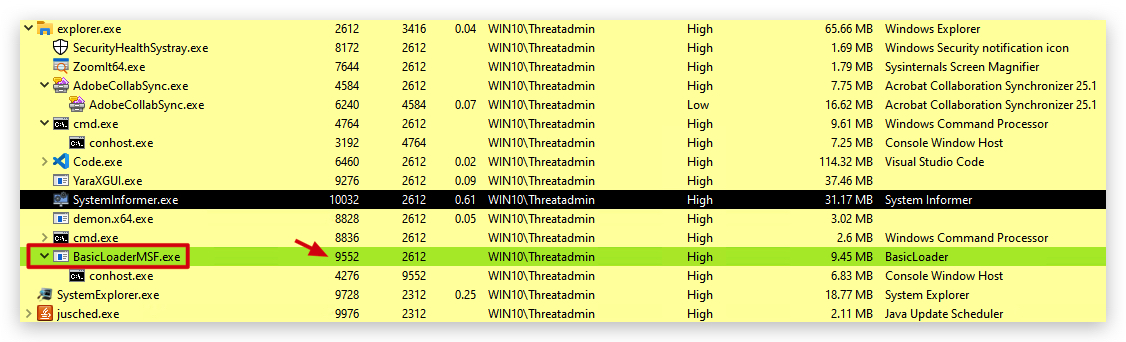
Once you have found the PID of the running BasicLoaderMSF.exe process, you can use it to scan the process memory with YARA:
- In the same command prompt, run the following command, replacing
<Enter_PID_here>with the actual PID of the BasicLoaderMSF.exe process (in the screenshot below it's9552, but it will be different on your system):
cd C:\THEV\Labs\Lab_BasicLoader\solution
yara64.exe -r Suspicious_Shellcode_Injection.yar <Enter_PID_here>

Note: Velociraptor can also be used to scan running processes with YARA rules, which is a great way to hunt for process injection across multiple systems in your environment.