1. LAB - Static Analysis
IMPORTANT : Please do not send submit samples to
Virus Total or any other public virus-scanning services, unless specifically instructed. We don't want to burn our payloads for this training. Make sure at all times that sample submission in Microsoft Defender isturned off, and if for some reason you get prompted to submit a sample, deny the request.
1.1 PREFACE
Is it safe to drop a binary to disk?. Well it is, if you can bypass Static Analysis (Signatures, Hashes, Reputation), this is exactly what we'll be doing in this lab - later on in the course we'll continue with make our malicious binaries more legit, but for now let's focus on bypassing AV Signatures.
1.2 TURN DEFENDER ON
For this lab we will
enable Microsoft Defender- in order to demonstrate howAMSIworks, and how to bypass it.
- Check if
Defenderis turnedONby running thecheckav.ps1script on yourWindowsmachine by opening a PowerShell prompt withAdministratorprivileges:
C:\thev\labs\powershell\av_check.ps1
- The output should be like this:
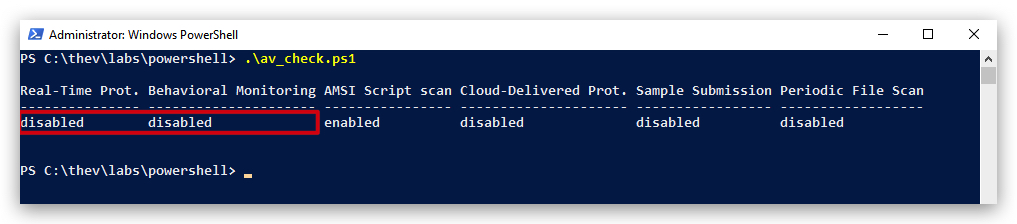
IMPORTANT: Make sure Real-Time Protection is
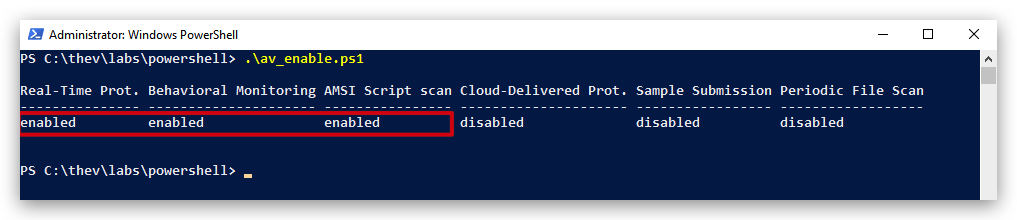
enabledand the rest isdisabled- if this is not the case just run the following script, it will configure the right settings.
- On your
Windowsmachine, from a PowerShell prompt withAdministratorprivileges:
C:\thev\labs\powershell\av_enable.ps1
- The output should be like this :
1. RUBEUS
Let's take a common attack tool "Rubeus", compile it and see what Defender thinks of it.
https://www.youtube.com/watch?v=sP2XH8YI20c&t=1042s
https://github.com/GhostPack/Rubeus.git
https://github.com/gatariee/gocheck/releases
https://gist.github.com/daddycocoaman/108d807e89a0f9731304bc848fa219f0
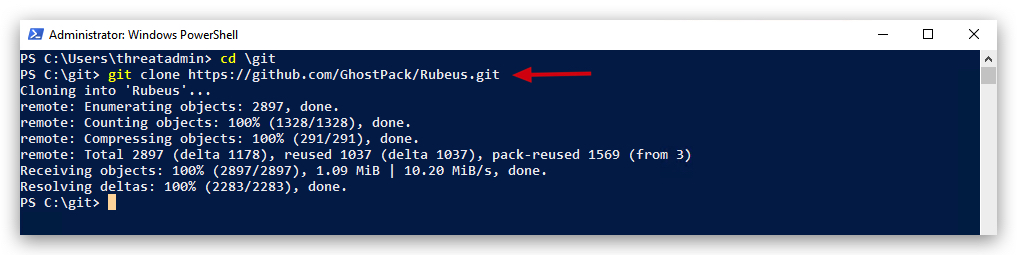
- On your windows machine, open a PowerShell prompt with Administrator privileges and type the following commands to clone Rubeus from GitHub:
cd c:\THEV
git clone https://github.com/GhostPack/Rubeus.git
NOTE:
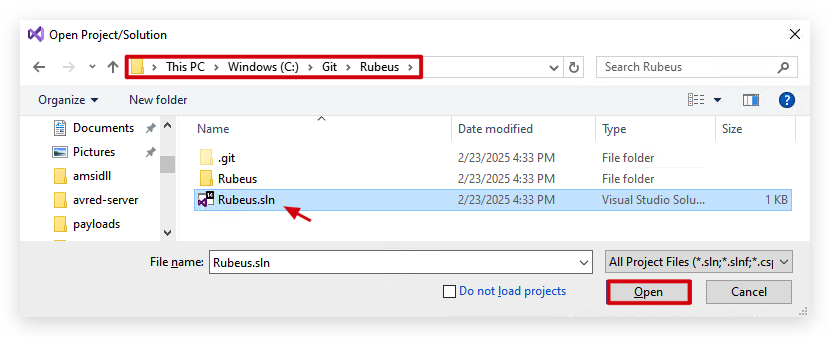
THE SCREENSHOTS BELOW ERRONEOUSLY SHOW , just follow the instructions of the lab and don't let the screenshots confuse you - now you can't unforget it :) - I was too lazy to redo all the screenshots.C:\Git\RubeusTHIS SHOULD BEC:\THEV\Rubeus
- Now on your windows machine, compile this with
Visual Studio 2019:
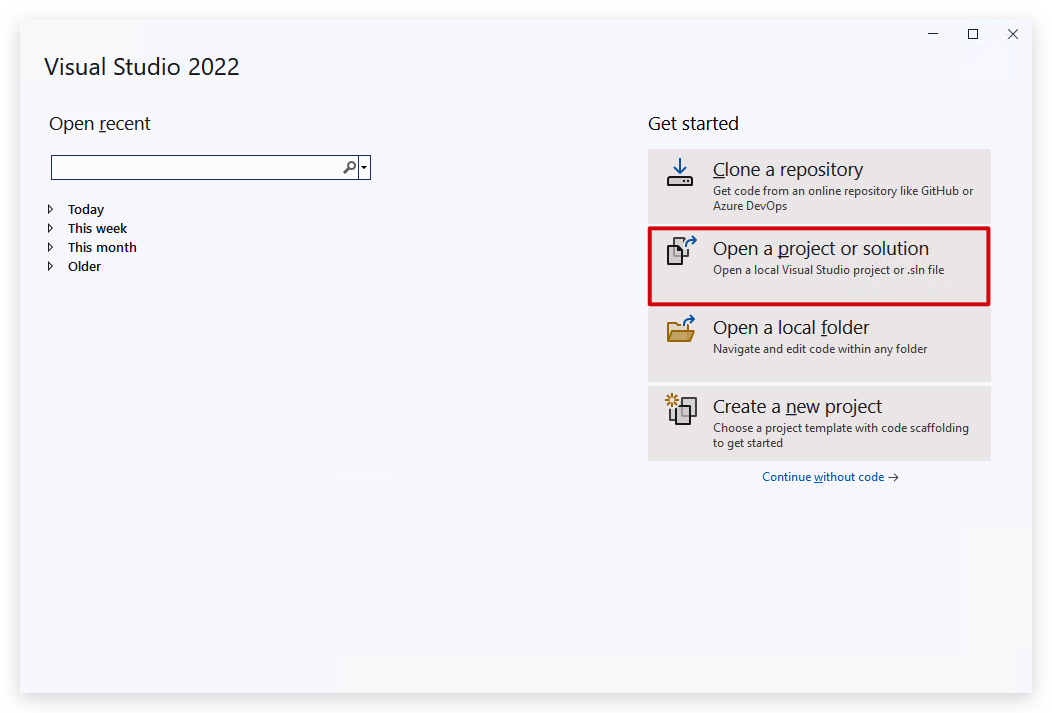
- Browse to your Rubeus solution file (C:\THEV\Rubeus)
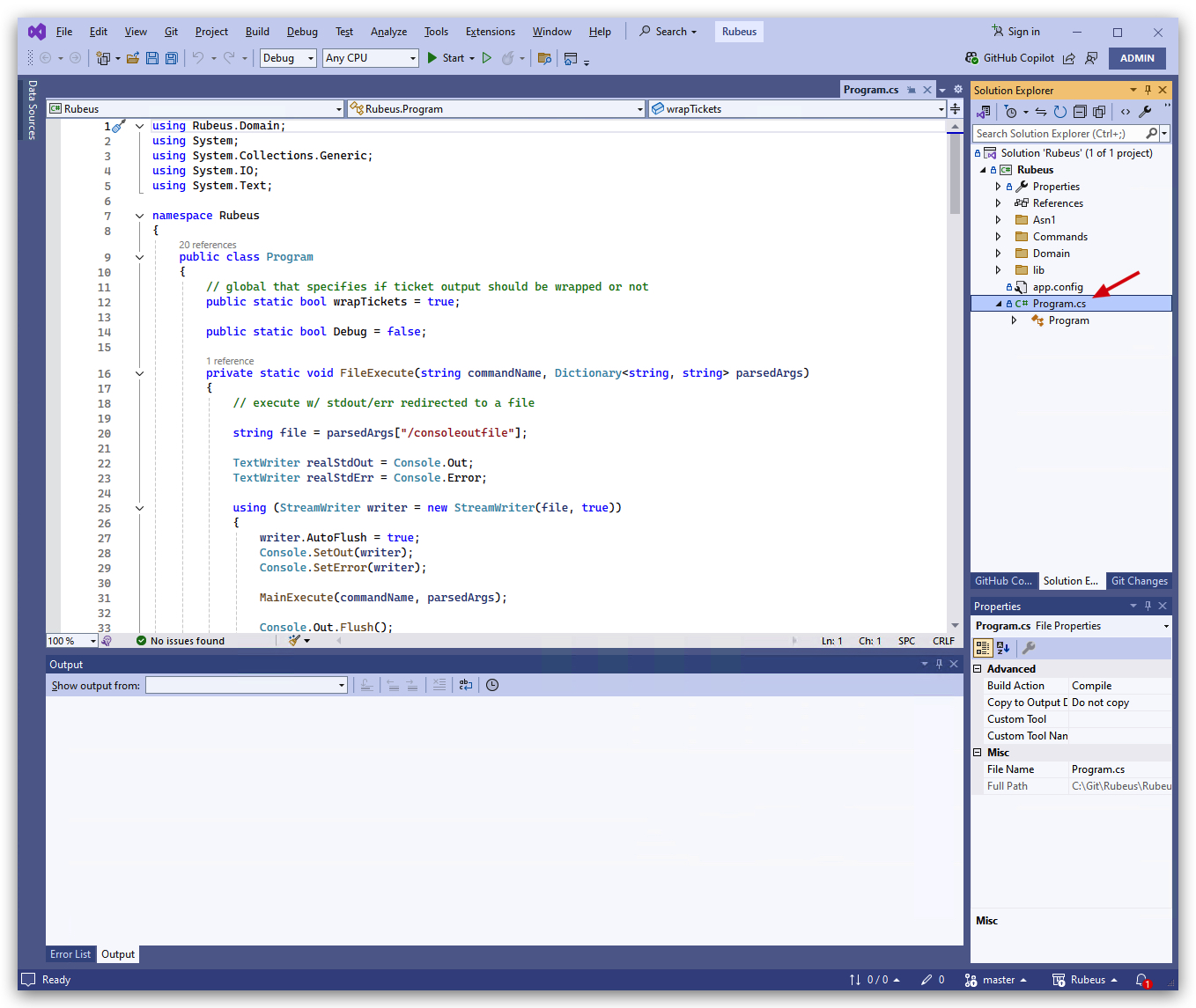
- Select the Program.cs file on the right side in your
Solution Explorer
In order to compile let's change "debug" to "release" and compile as a x64 bit application.
- Click on "Configuration Manager",
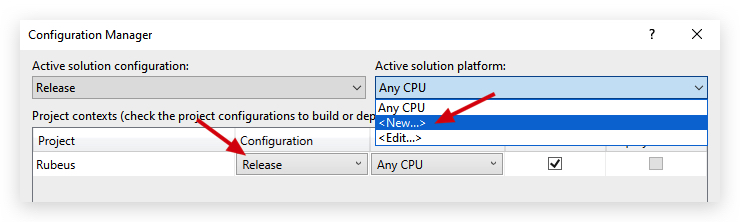
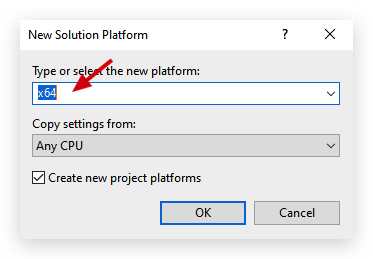
- Save the project, and let's compile (build).
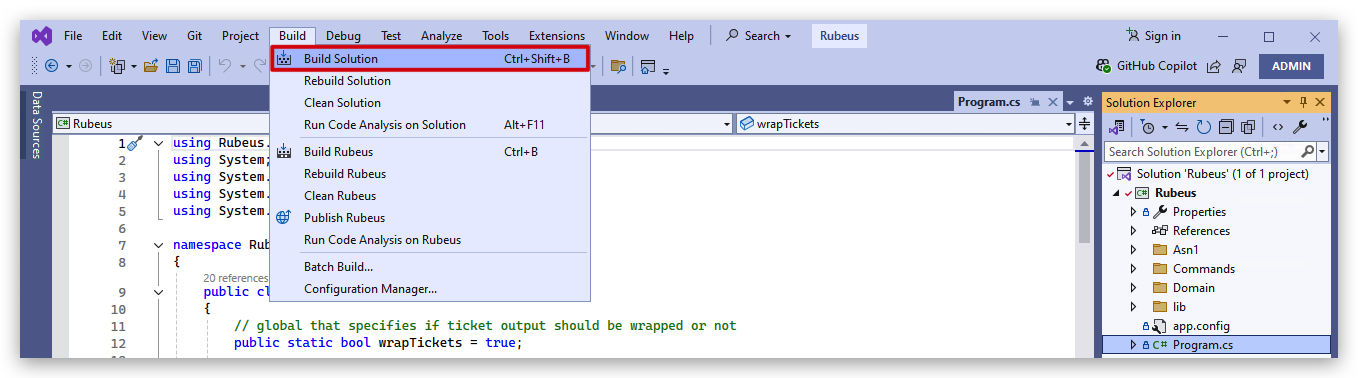
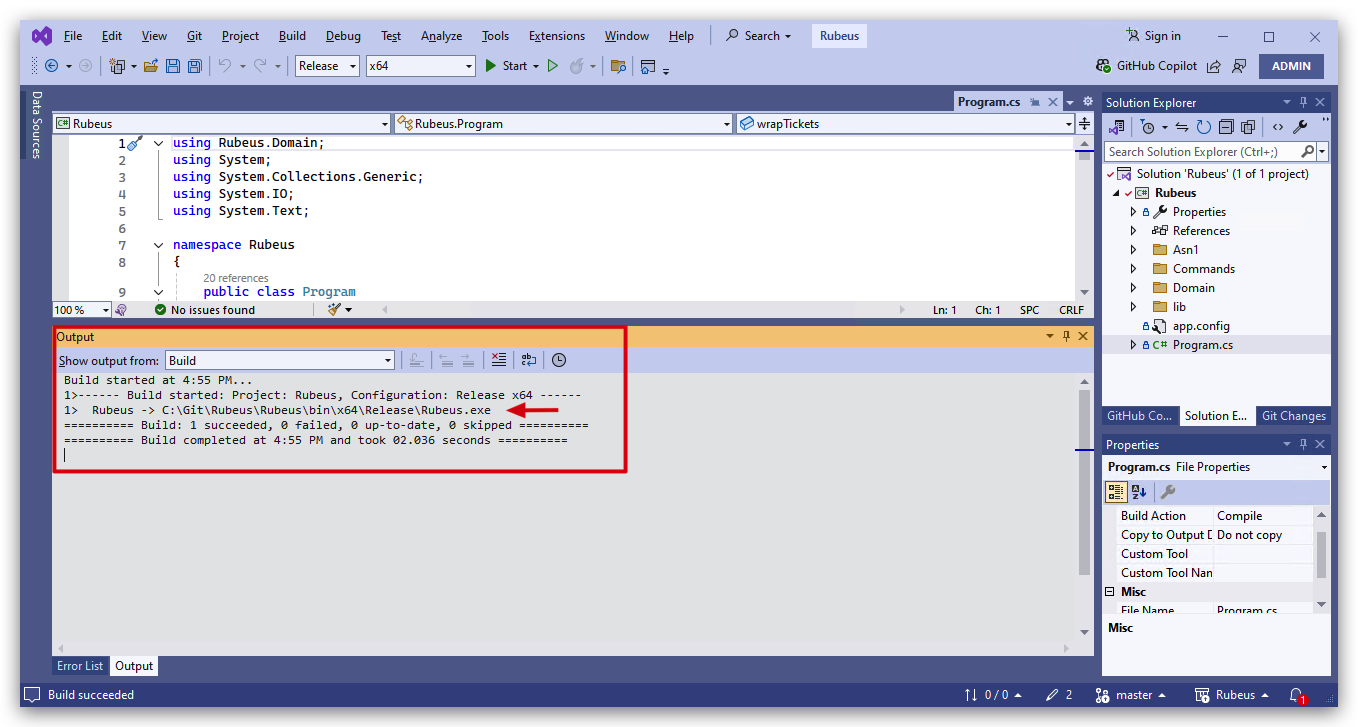
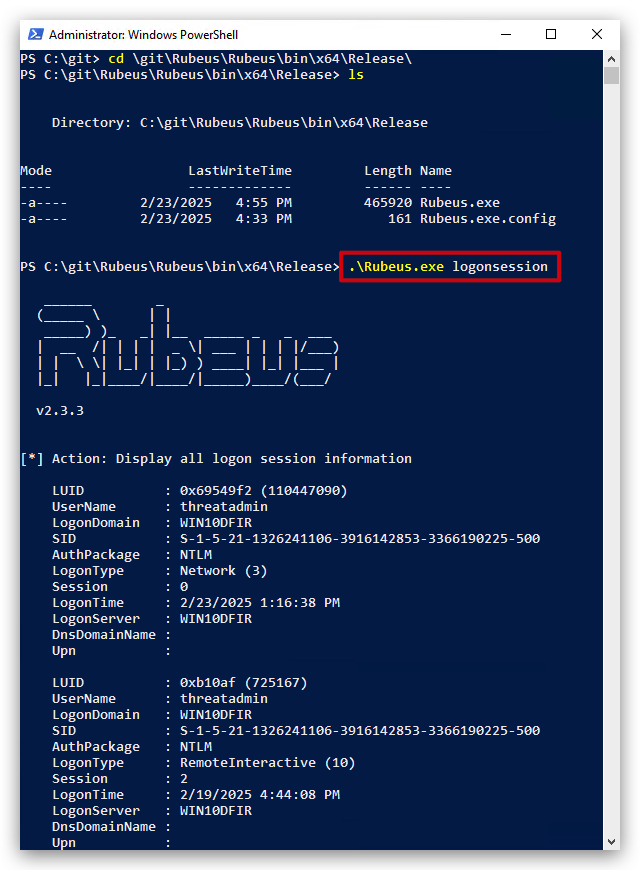
Let's see if it works by running rubeus with a simple command.
- Open a new powershell prompt and type the following command:
cd C:\THEV\Rubeus\Rubeus\bin\x64\Release
ls
.\Rubeus.exe logonsession
If we copy the file to our "C:\" directory, we'll see that Defender immediately detects it as malicious!!!
HINT : Defender didn't detect this as malicious when we compiled it since we made some ,exclusions ("C:\THEV", "C:\Temp" and "Downloads") in Defender to avoid scanning those directories.
- You can check the exclusions with the following powershell command:
Get-MpPreference | Select-Object -ExpandProperty ExclusionPath
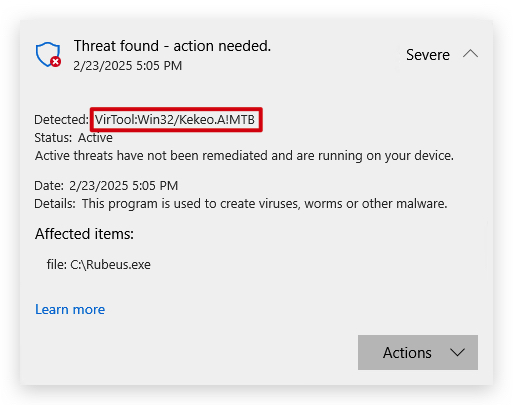
- The rule that triggered is Virtual:Win32/kekeo.A!MTB
- MTB suffix stands for "Machine Learning-Based Threat Detection"
So now what, how did Defender exactly detect this file as malicious, as we can see it was scanned upon being written to disk - this is static (signature based detection), we'll need to make some changes to our source code to bypass these signatures.
We'll use GoCheck (based of DefenderCheck and ThreatCheck) to analyze our rubeus file.
- Open a new
powershell promptand type the following command:
gocheck64.exe C:\THEV\Rubeus\Rubeus\bin\x64\Release\Rubeus.exe --defender
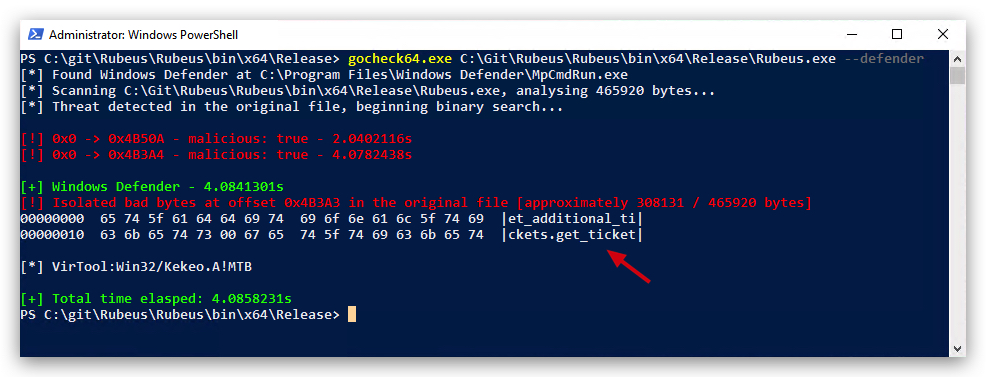
We can see exactly which strings has caused Defender to detect this as malicious,get_ticket. So all we have to do is go back to our Visual Studio source code and find/replace all get_ticket strings by something else, i.e. "token".
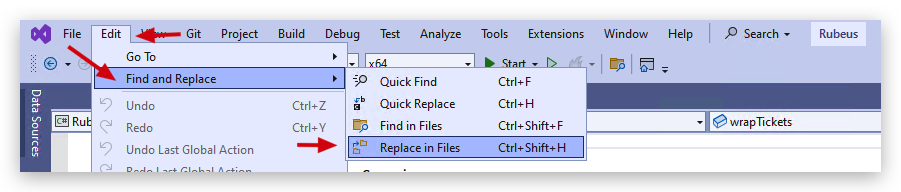
- Let's go back to Visual Studio, go to
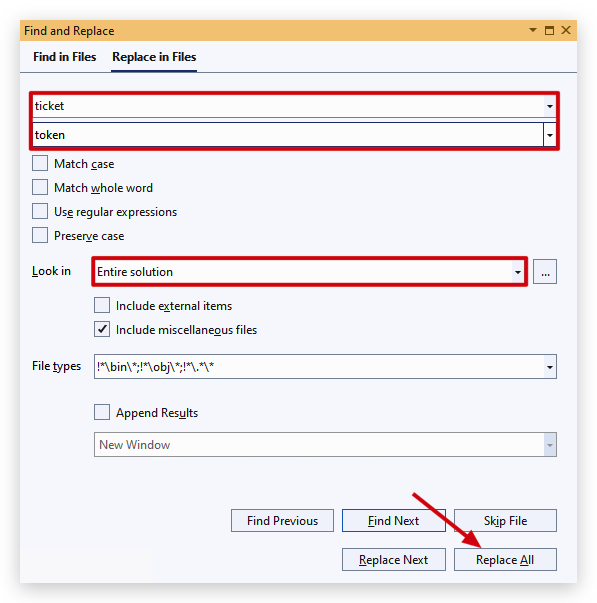
edit,Find and Replace,Replace in Files, and type in "get_ticket" in the top field, and "token" in the bottom field.
Make sure you select the "Look in" to Entire Solution, and click "Replace All".
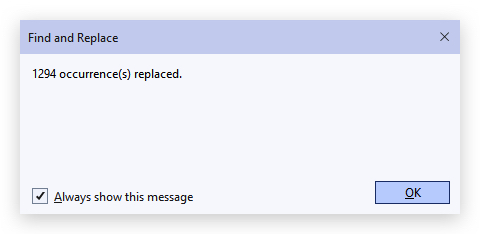
We can see 1294 References have been renamed. Save the file and let's REBUILD the solution.

- From the same
powershell promptuse GoCheck again:
gocheck64.exe C:\THEV\Rubeus\Rubeus\bin\x64\Release\Rubeus.exe --defender
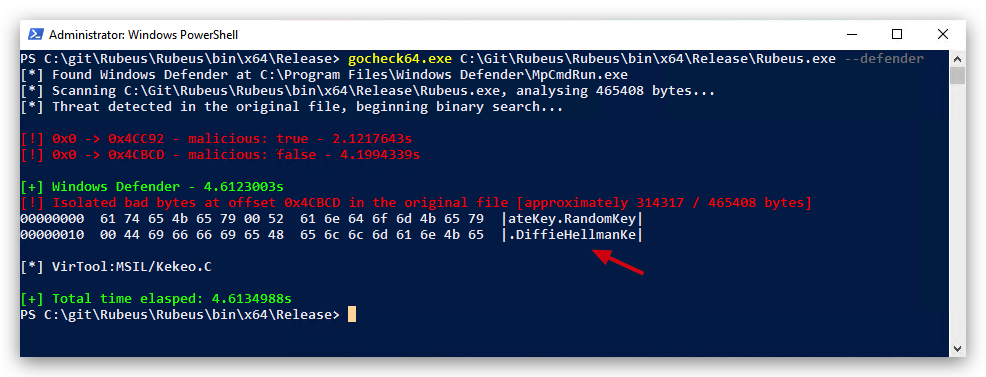
We can see there old detection for TICKET is gone, but we have a new one: DiffieHellmanKey, alright let's fix that one, just like we did before.
-
In Visual studio, open Find/Replace and change
DiffieHellmanKeyto "dhkey". Save the project, rebuild and let's scan again with GoCheck (it should replace 12 occurrences). -
From the same
powershell promptuse GoCheck again:
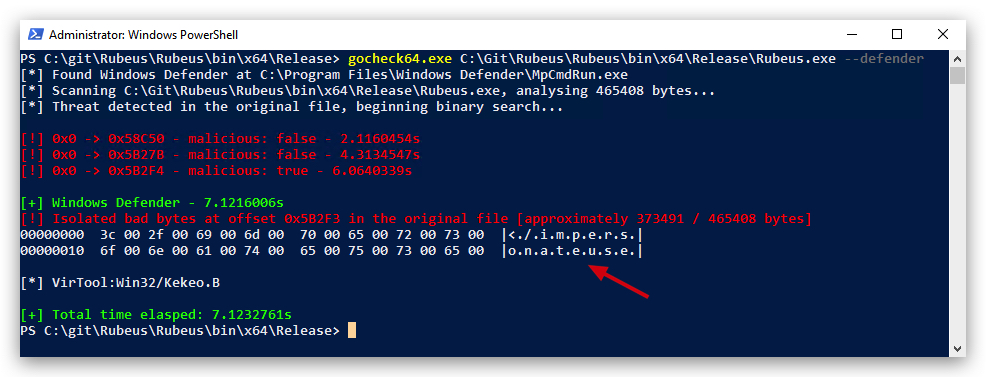
Another hit : impersonateuser, we'll replace this with "impuser". (it should replace 7 occurrences). Save the file and let's REBUILD the solution, and scan again with GoCheck.
gocheck64.exe C:\THEV\Rubeus\Rubeus\bin\x64\Release\Rubeus.exe --defender
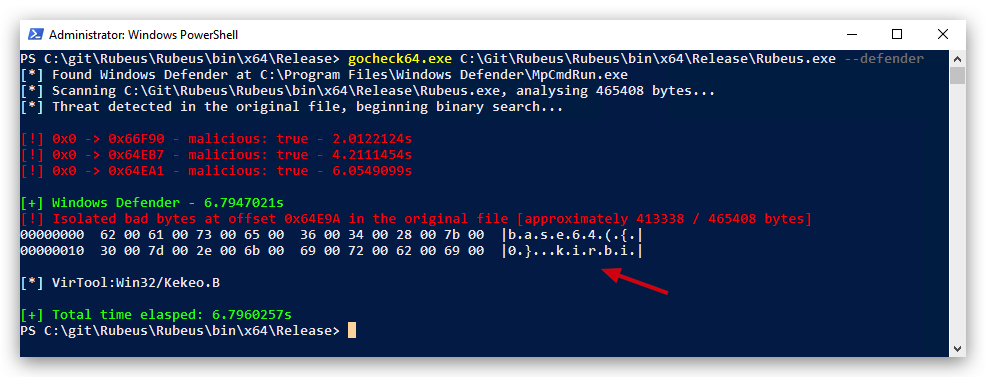
Another one? Now defender seems to dislike base64.
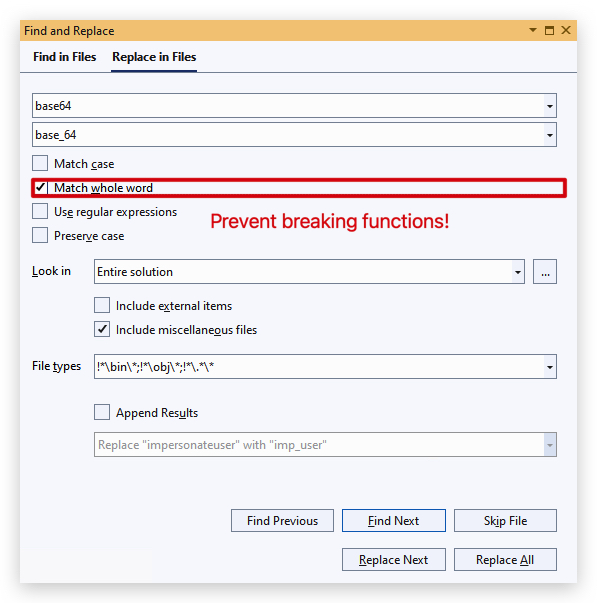
- Save the file and let's
REBUILDthe solution, and scan again with GoCheck.
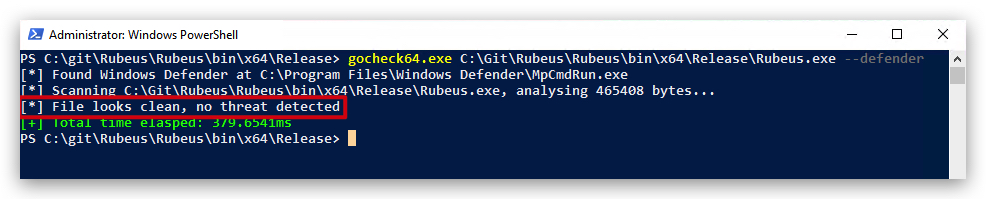
Tadaa!!!! Victory!!! No more detections, we can now drop the clean rubeus file to our "C:\" drive and defender won't detect it. Let's try:
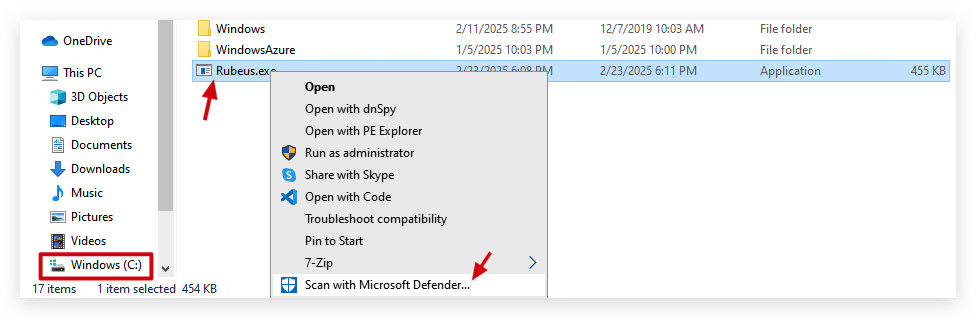
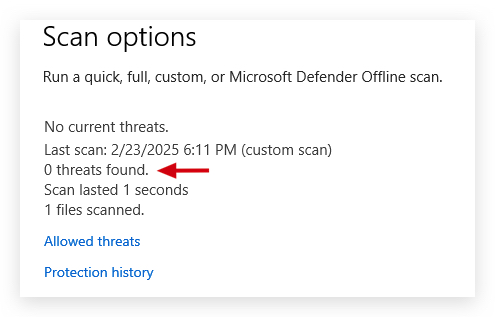
If we go and check our yara rules, we do find some kekeo (Rubeus) detection, but not the "MTB suffix stands for "Machine Learning-Based Threat Detection" (static/file-based).
One thing I noticed is that the strings ascii was missing the "wide" parameter for UTF-16 (common in .NET). Just something to know. Also string $x_1_8 translates to "KrbCred".
Defender's signature for Kekeo.B looks like this:
rule VirTool_Win32_Kekeo_B_2147805713_0
{
    meta:
        detection_name = "VirTool:Win32/Kekeo.B"
        threat_id = "2147805713"
        type = "VirTool"
        platform = "Win32: Windows 32-bit platform"
        family = "Kekeo"
        severity = "Critical"
        signature_type = "SIGNATURE_TYPE_PEHSTR_EXT"
        threshold = "7"
        strings_accuracy = "High"
    strings:
        $x_1_1 = "base64(ticket.kirbi)" ascii wide//weight: 1
        $x_1_2 = "krbtgt/{0}" ascii wide//weight: 1
        $x_1_3 = "krbtgt/.*" ascii wide//weight: 1
        $x_1_4 = "/domain:" ascii wide//weight: 1
        $x_1_5 = "/impersonateuser" ascii wide//weight: 1
        $x_1_6 = "/krbkey" ascii wide//weight: 1
        $x_1_7 = "(!samAccountName=krbtgt)(!(UserAccountControl:" ascii wide //weight: 1
        $x_1_8 = {4b 72 62 43 72 65 64 00}  //weight: 1, accuracy: High
        $x_1_9 = "base64({0}.kirbi)" ascii wide //weight: 1
    condition:
        (filesize < 20MB) and
        (7 of ($x*))
}
NOTE: See here how there's a
weightfield added to the end of each string - weight is not a standard YARA feature but a custom metadata field, likely used by the defender2yara tool or a custom scanning framework to indicate the importance or confidence of each string in the detection logic - think EDR's using this weight to determine However, you can simulate weighting or prioritize certain strings in YARA by structuring the condition section to emphasize specific strings, effectively giving them higher importance in the detection logic.
Threat ScoringandConfidenceLevels: he EDR tool assigns a numerical score to each matched YARA string based on its weight in the meta section. The total score determines the confidence level of the detection, influencing whether an alert is triggered or escalated.- Alert
Prioritization: EDR uses weights to rank alerts based on the severity or specificity of matched strings. Higher-weighted strings trigger higher-priority alerts or immediate analyst review.Behavioral Correlation: he EDR correlates YARA string matches with runtime behaviors (e.g., API calls, network activity) and uses weights to determine which strings indicate more severe behaviors. Higher-weighted strings trigger deeper behavioral analysis. The high weight of "/impersonateuser" (if we'd put this to 5 for example) prompts the EDR to monitor for user impersonation attempts, such as creating a new process with a forged Kerberos ticket. Lower-weighted strings might trigger monitoring for less critical behaviors, like domain enumeration. The EDR uses the weight to focus on high-risk behaviors, such as ticket forging in Rubeus, tying static strings to dynamic actions.- Rule Matching
Thresholds- EDR uses weights to enforce a cumulative score threshold for detection, as hinted by the threshold = "7" in the rule’s meta section. Files must accumulate enough weighted matches to be flagged. The high weight of "/impersonateuser" ensures that files with this string are more likely to meet the threshold,reducing false negativesforcriticalthreats.- Quarantine or
Response Actions- EDR uses weights to determine automated response actions, such as quarantining a file or blocking a process. Higher-weighted strings trigger more aggressive actions.- Threat Intelligence Enrichment - EDR uses weights to enrich threat intelligence reports, tagging detections with higher-weighted strings as more significant in threat analysis or reporting.
- EDR feeds weighted string matches into a machine learning model to classify files or behaviors. Higher-weighted strings contribute more to the model’s decision boundary. The higher weight of "/impersonateuser" boosts the ML model’s
confidencein detecting Kekeo.B or Rubeus, especially for Kekeo.A!MTB variants withmachine learning-based file inspection.
Palo Alto Networks describes that EDRs “monitor behavior… [and] machine learning analyzes these behaviors in real time, using historical data to differentiate between benign and malicious activities,” and that static and behavioral data are fused for final decisions. https://www.paloaltonetworks.com/cyberpedia/how-edr-leverages-machine-learning
Combinations of static and dynamic analysis continue to be the best choice for the majority of organizations, with static risk often determining what gets escalated to sandboxing or more advanced stages of inspection.
"Major EDR providers describe pipelines where “static analysis triggers deeper investigation” or where “behavioral engines are activated by suspicious static findings,” though full technical details are proprietary". https://www.fortinet.com/resources/cyberglossary/what-is-edr
NOTE: As you can see making sure your binary completely evades static detections, will have an impact on AV and EDR's* decisions made when doing behavioral analysis!!!
2. SharpKatz
Let's revisit SharpKatz from our PS Loader lab.
In the previous lab we already compiled SharpKatz - let's see how we can evade Defender's signature for SharpKatz and use it in our Havoc framework.
When we copy ShaprKatz.exe to our C:\ drive, Defender immediately picks is up with a MSIL signature:
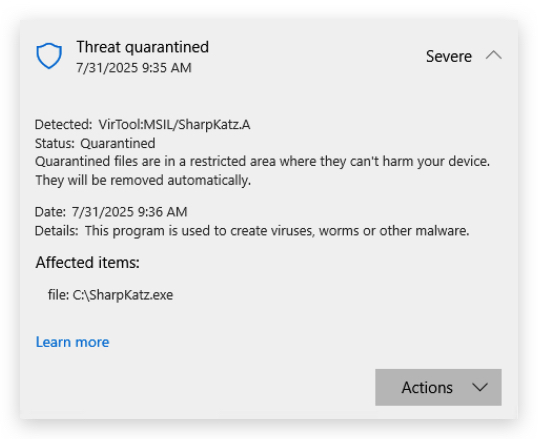
Let's find what Defender is triggering on exactly with GoCheck.
- Open a powershell prompt:
gocheck64.exe C:\THEV\SharpKatz\SharpKatz\bin\x64\Release\SharpKatz.exe --defender
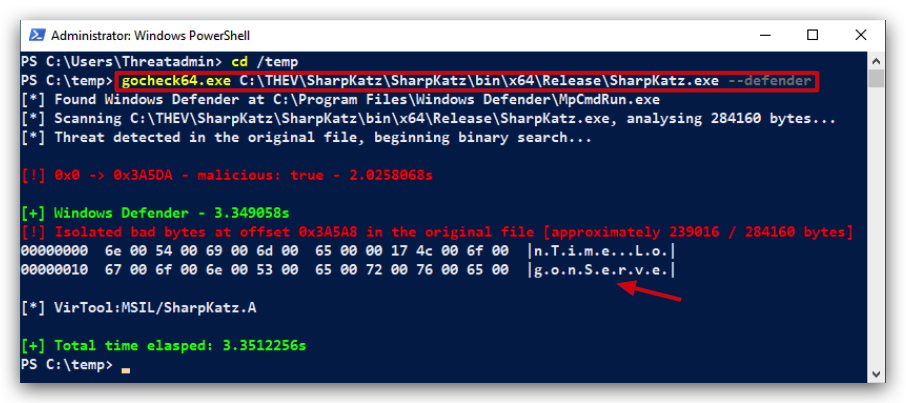
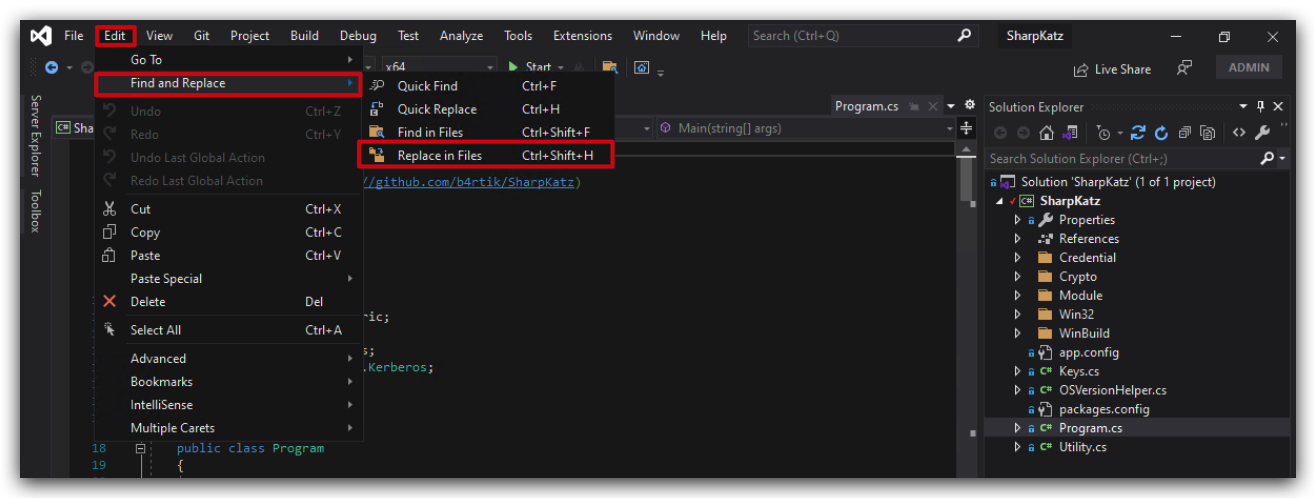
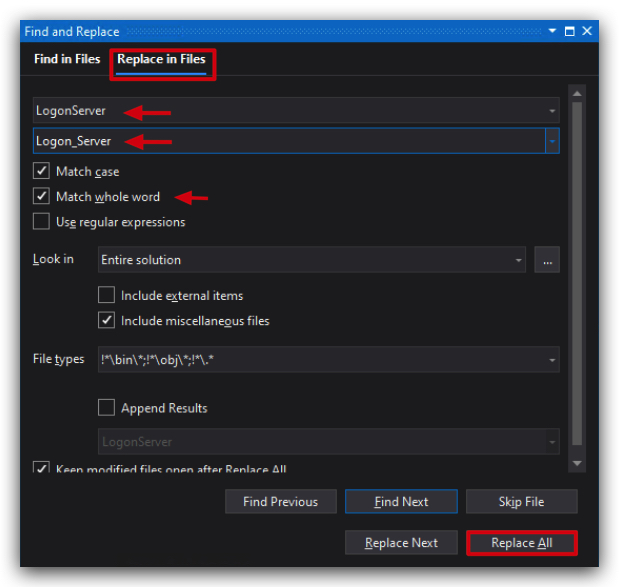
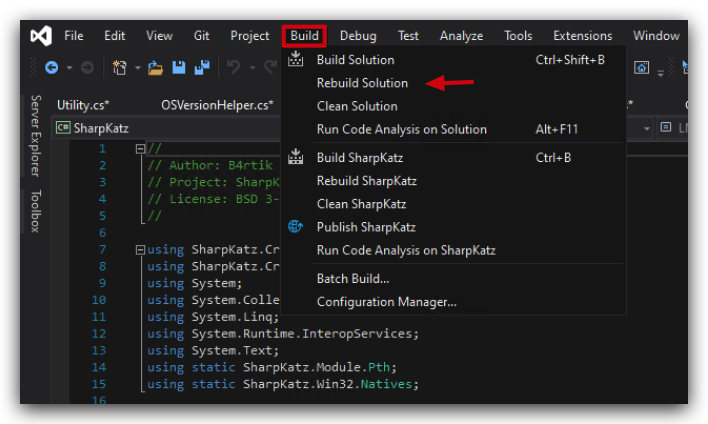
- Open the sharpkatz.sln file with Visual Studio 2019 and let's replace the
LogonServerstring withLogon_Server
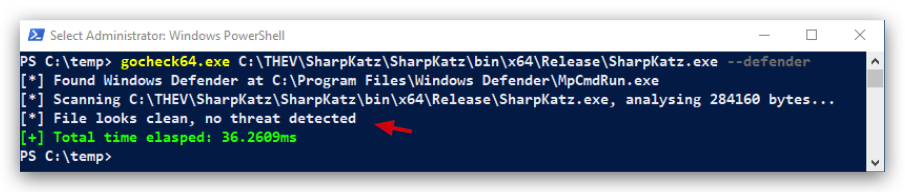
Let's upload the AV bypass version of SafetyKatz to our Kali host for later use in Havoc:
- On your windows machine, from a powershell prompt type the following command:
scp C:\THEV\SharpKatz\SharpKatz\bin\x64\Release\SharpKatz.exe Threatadmin@kali:/opt/Havoc/payloads/SharpKatz_bypass.exe
- Enter the password
Threathunt25when prompted.
This concludes the lab on static analysis and AV signature bypass. Let's do some Forensics analysis in the next lab.