Lab - Forensics
BASICLOADER IOC's
LAB WORKING DIRECTORY : "C:\THEV\Labs\Lab_BasicLoader" ├── API_mon_filter.xml └── BasicLoader.exe
In this lab we will show you how to analyze the BasicLoader.exe we created in the previous lab (Lab - PInvoke Loader) using various static analysis tools to extract IOC's (Indicators of Compromise) such as imported functions and strings.
USING dnSPY/dotpeek
DnSpy and dotpeek are great tools to decompile .NET applications, you can find both tools here:
dnSPy: dnSpy
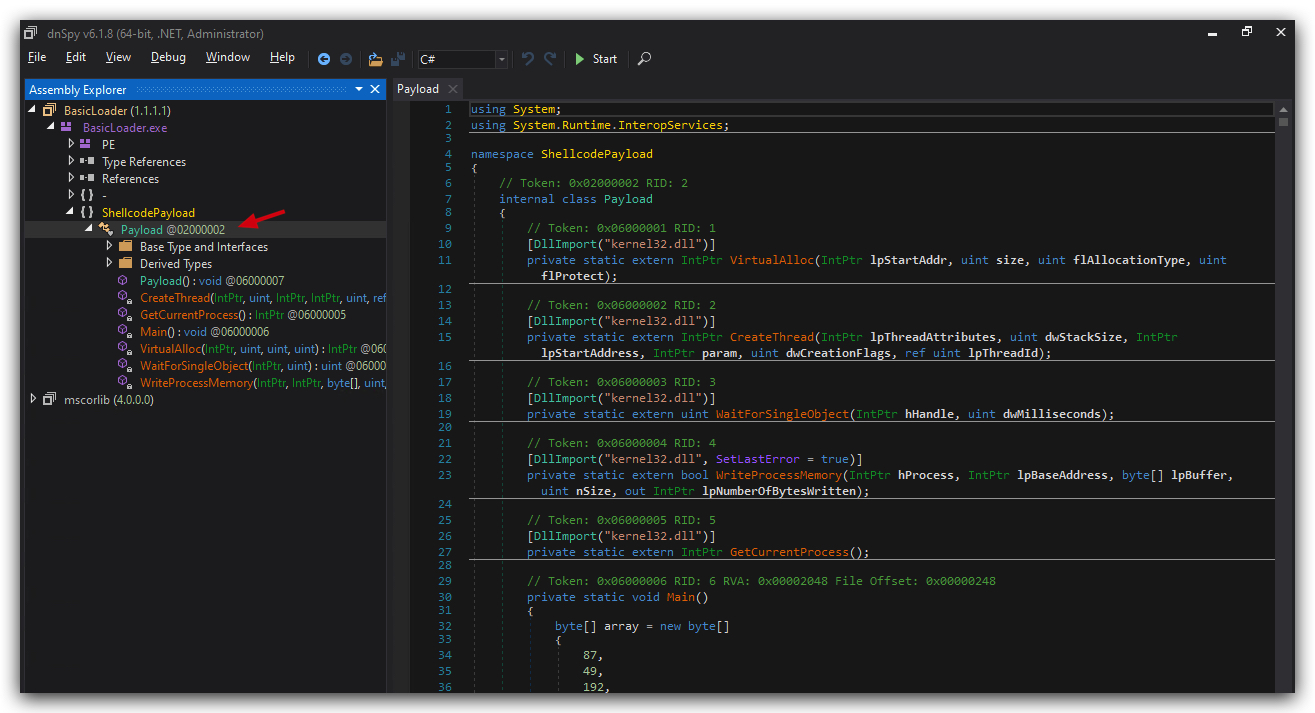
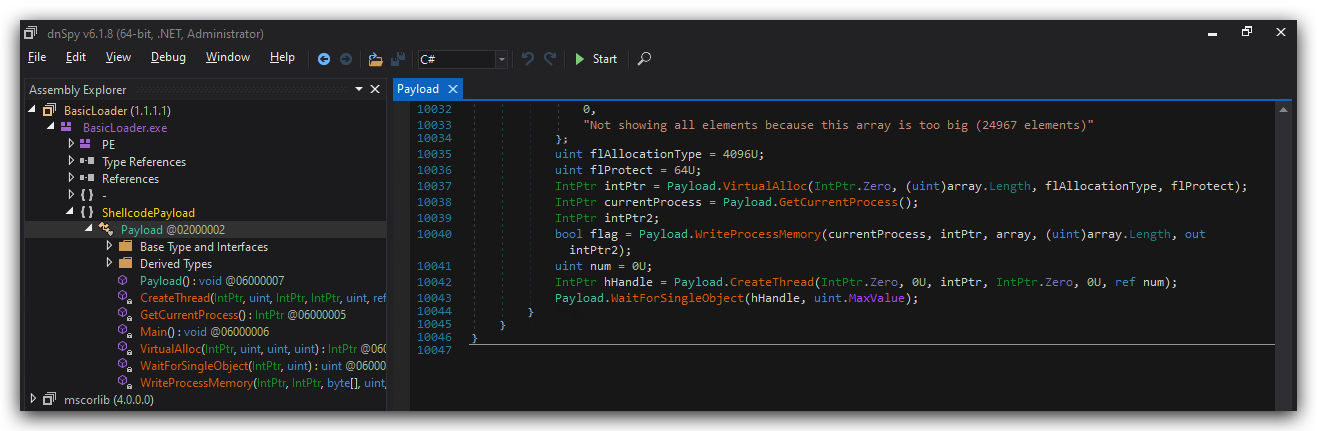
- let's open our BasicLoader.exe (located in C:\THEV\Labs\Lab_BasicLoader\BasicLoader.exe) in dnSpy:
USING PEStudio
There are plenty of tools that allow you to statically analyze a PE file (PE-Bear, CFF Explorer, ...), let's start with PEStudio:
PEStudio: https://www.winitor.com/
- Simply drag and drop the BasicLoader.exe (C:\THEV\Labs\Lab_BasicLoader\BasicLoader.exe) onto the
PEStudioshortcut on your desktop.
You will see the IMPORTS section showing the imported functions (IAT - Import Address Table):
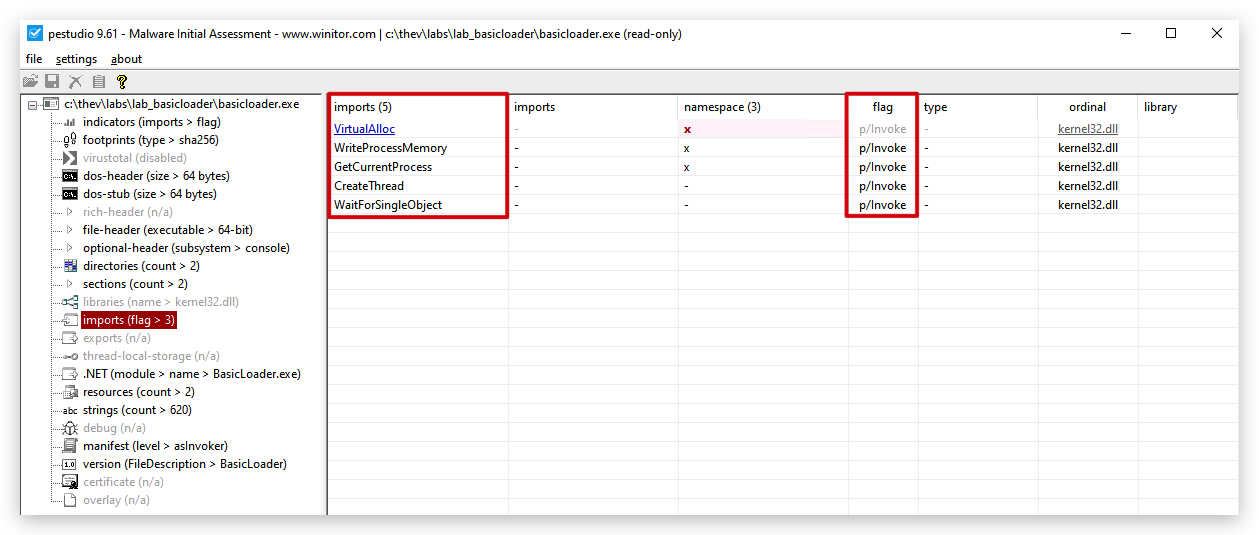
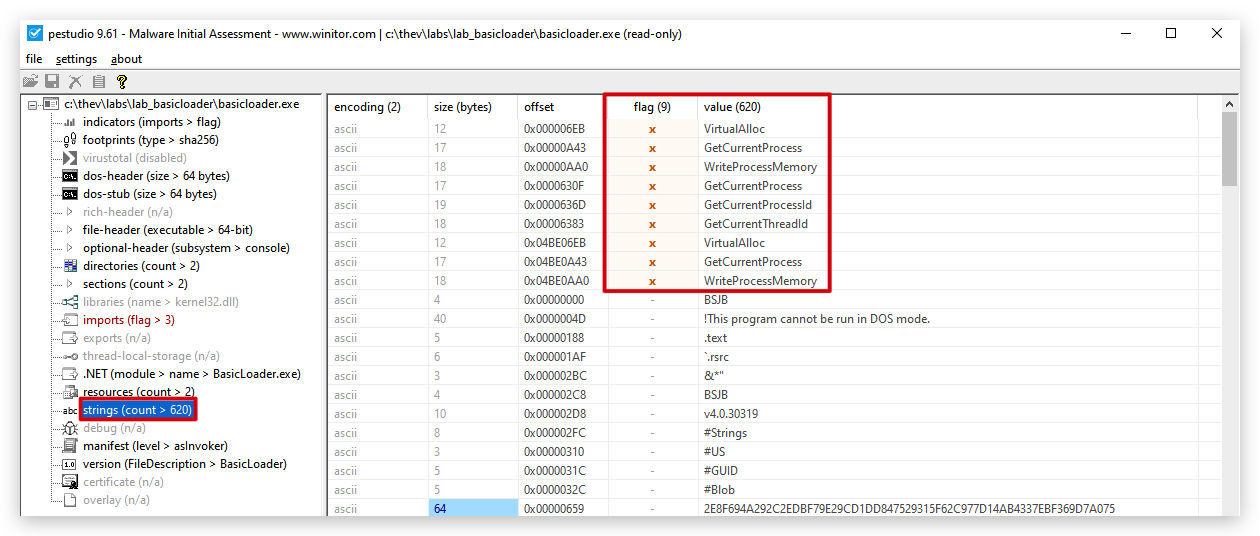
And when you scroll down you will see the STRINGS section showing all the strings we used in our BasicLoader, if you sort on the Flag column you will see the suspicious strings we used:
USING STRINGS64 (Sysinternals)
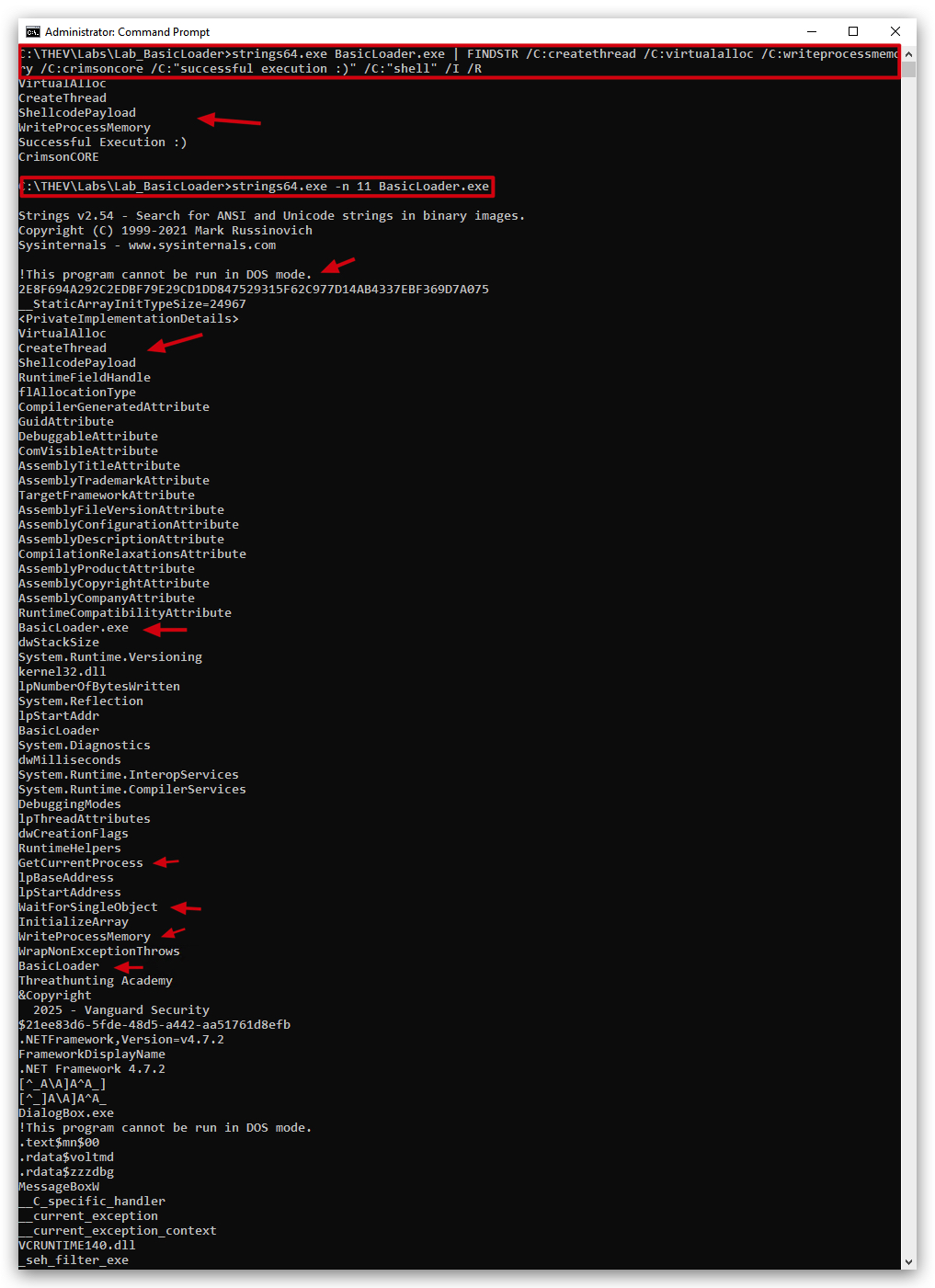
We can also use the Sysinternals Strings64 tool to extract strings from our BasicLoader.exe:
Sysinternals Suite: https://learn.microsoft.com/en-us/sysinternals/downloads/sysinternals-suite
- Open a command prompt and run the following command:
cd c:\thev\labs\lab_basicloader
strings64.exe BasicLoader.exe | FINDSTR /C:createthread /C:virtualalloc /C:writeprocessmemory /C:crimsoncore /C:"successful execution :)" /C:"shell" /I /R
USING FLOSS (Mandiant)
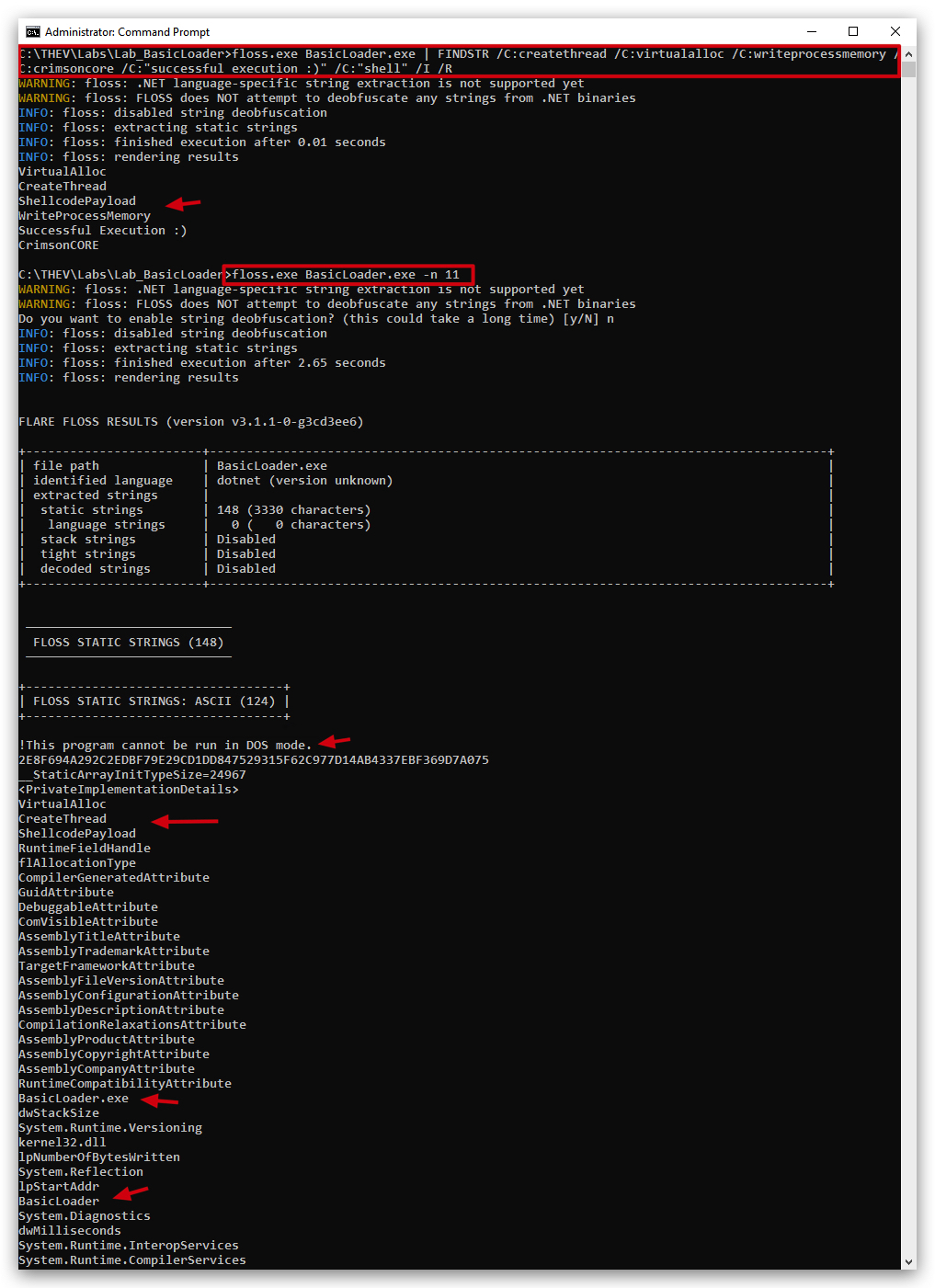
FLARE Obfuscated String Solver (FLOSS, formerly FireEye Labs Obfuscated String Solver) uses advanced static analysis techniques to automatically extract and deobfuscate all strings from malware binaries.
Floss: https://github.com/mandiant/flare-floss
- Open a command prompt and run the following command:
cd c:\thev\labs\lab_basicloader
floss.exe BasicLoader.exe | FINDSTR /C:createthread /C:virtualalloc /C:writeprocessmemory /C:crimsoncore /C:"successful execution :)" /C:"shell" /I /R
USING CAPA (Mandiant)
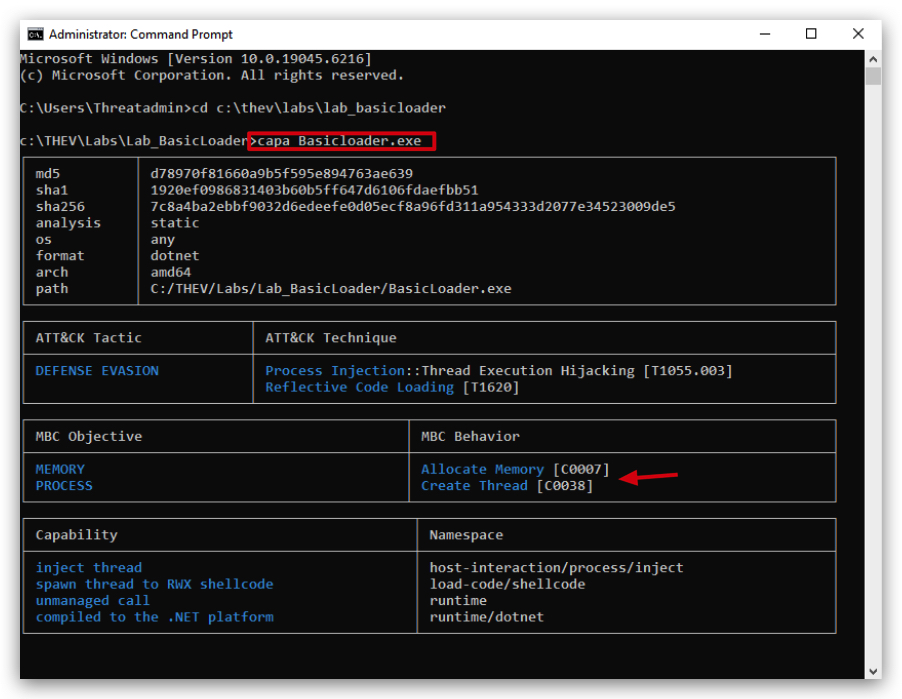
CAPA detects capabilities in executable files. You run it against a PE, ELF, .NET module, shellcode file, or a sandbox report and it tells you what it thinks the program can do. For example, it might suggest that the file is a backdoor, is capable of installing services, or relies on HTTP to communicate.
CAPA: https://github.com/mandiant/capa
- Open a command prompt and run capa on our BasicLoader.exe to check for static analysis detections:
cd c:\thev\labs\lab_basicloader
capa Basicloader.exe
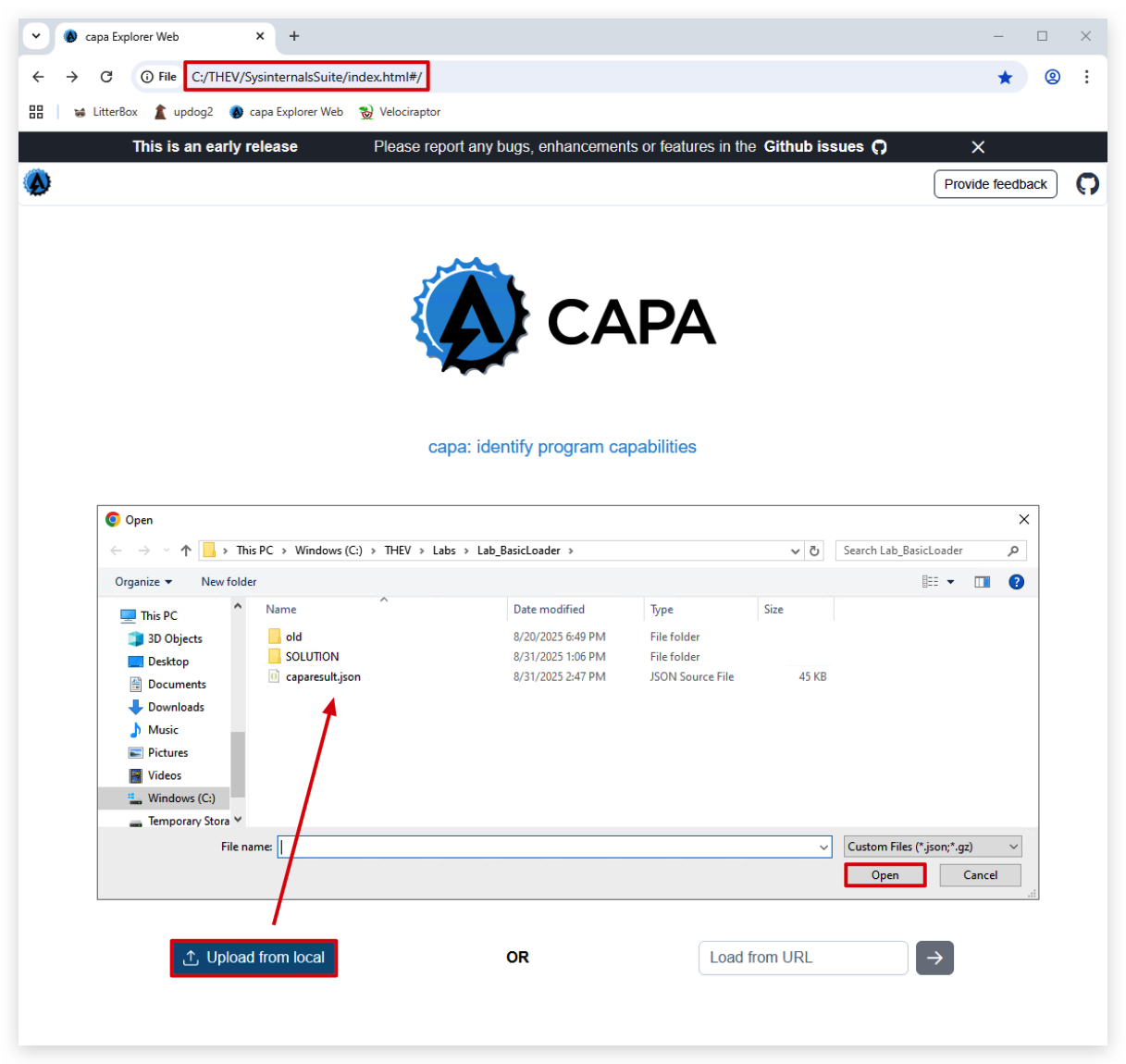
We can also use Capa Web Explorer, we first have to generate a capa json file:
capa.exe -j BasicLoader.exe -vv > caparesult.json

- Then navigate to C:\THEV\sysinternals\index.html (open the index.html in your Chrome browser) and upload the caparesult.json file located in C:\THEV\Labs\Lab_BasicLoader\caparesult.json.
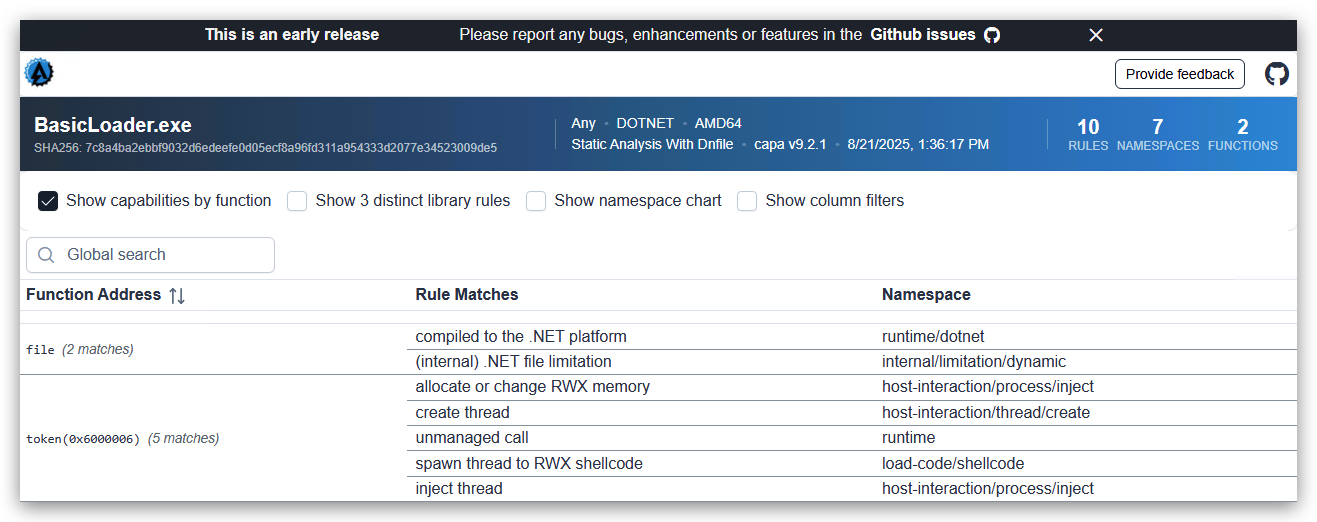
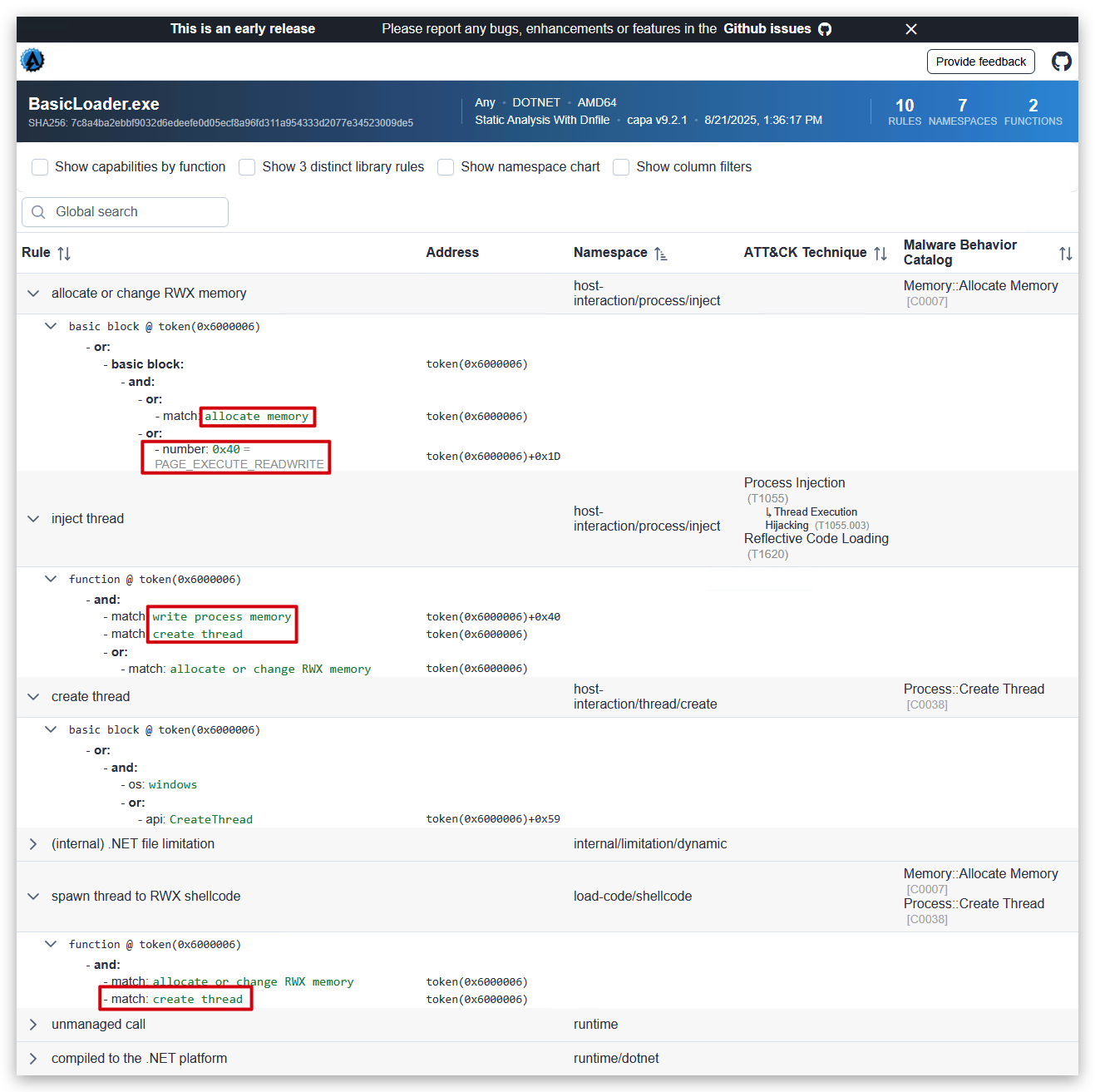
You now have the results in a more user friendly format:
USING Litterbox (Static/Dynamic)
We have pre-installed Litterbox in C:\THEV\Litterbox. Litterbox is a malware analysis platform that provides both static and dynamic analysis capabilities. It leverages various open-source tools to analyze uploaded executables and generate detailed reports. You will need to start the Litterbox server first:
Litterbox: https://github.com/BlackSnufkin/LitterBox
- Open a command prompt and run the following commands:
cd c:\thev\litterbox
python litterbox.py
- Then open
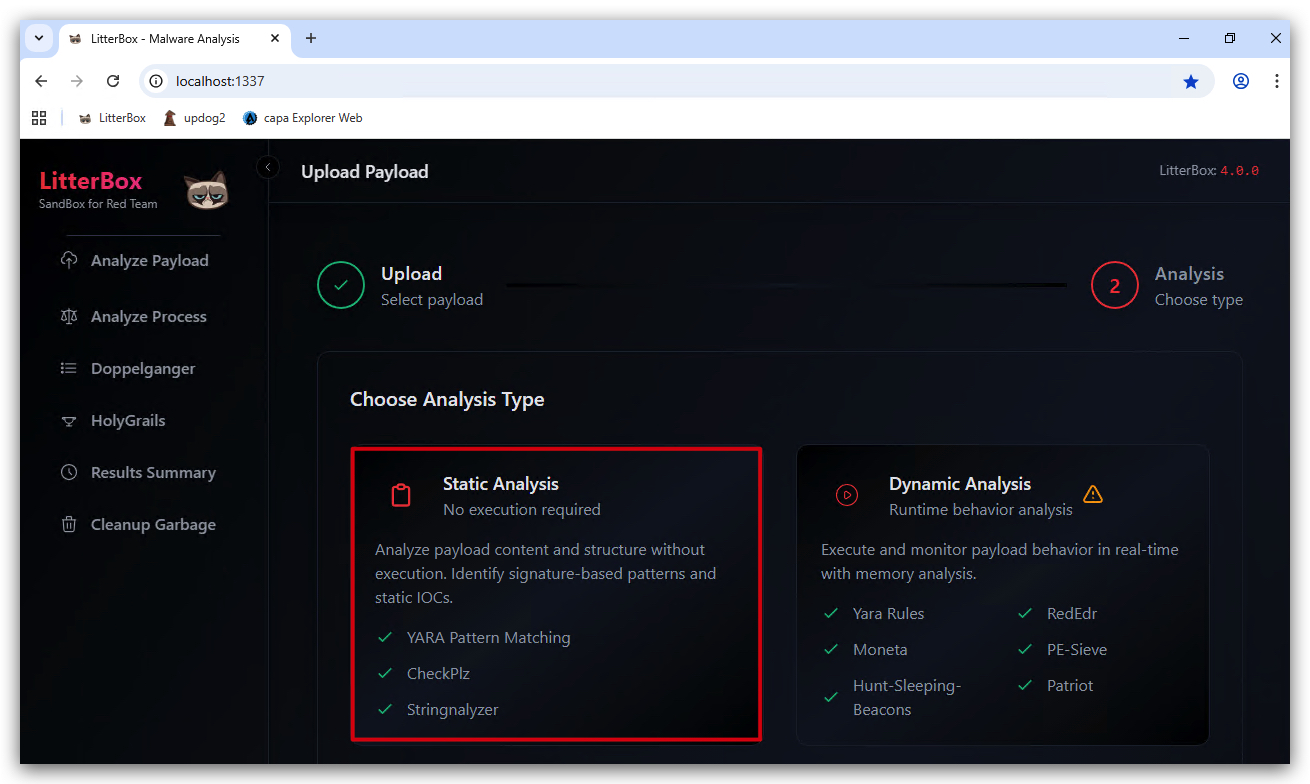
Chromeand surf to http://127.0.0.1:1337 - this will open the Litterbox web interface. Upload your compiled BasicLoader.exe and select Static Analysis.
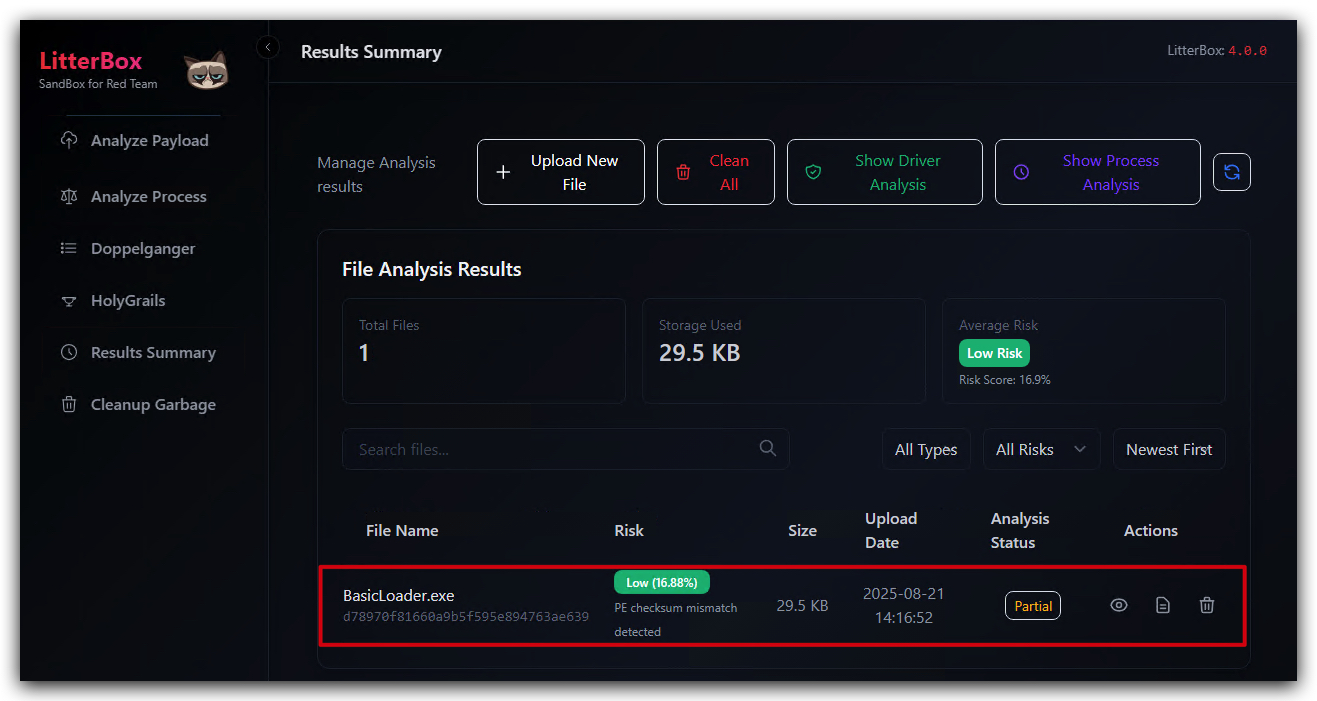
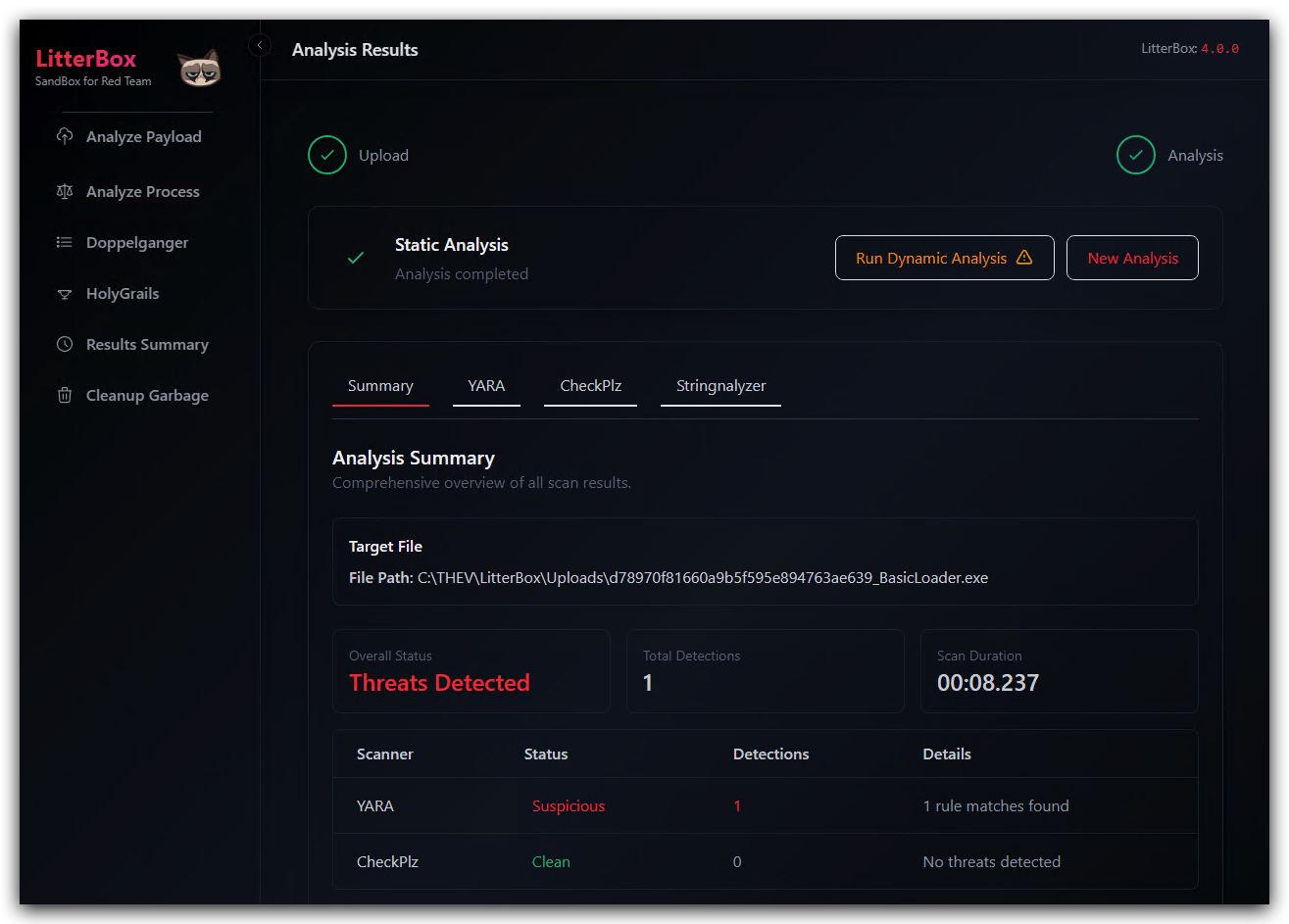
After 30-60 seconds you should see the analysis results overview. We can see various details about the uploaded executable, including its sections, imports, and potential indicators of compromise (IOCs).
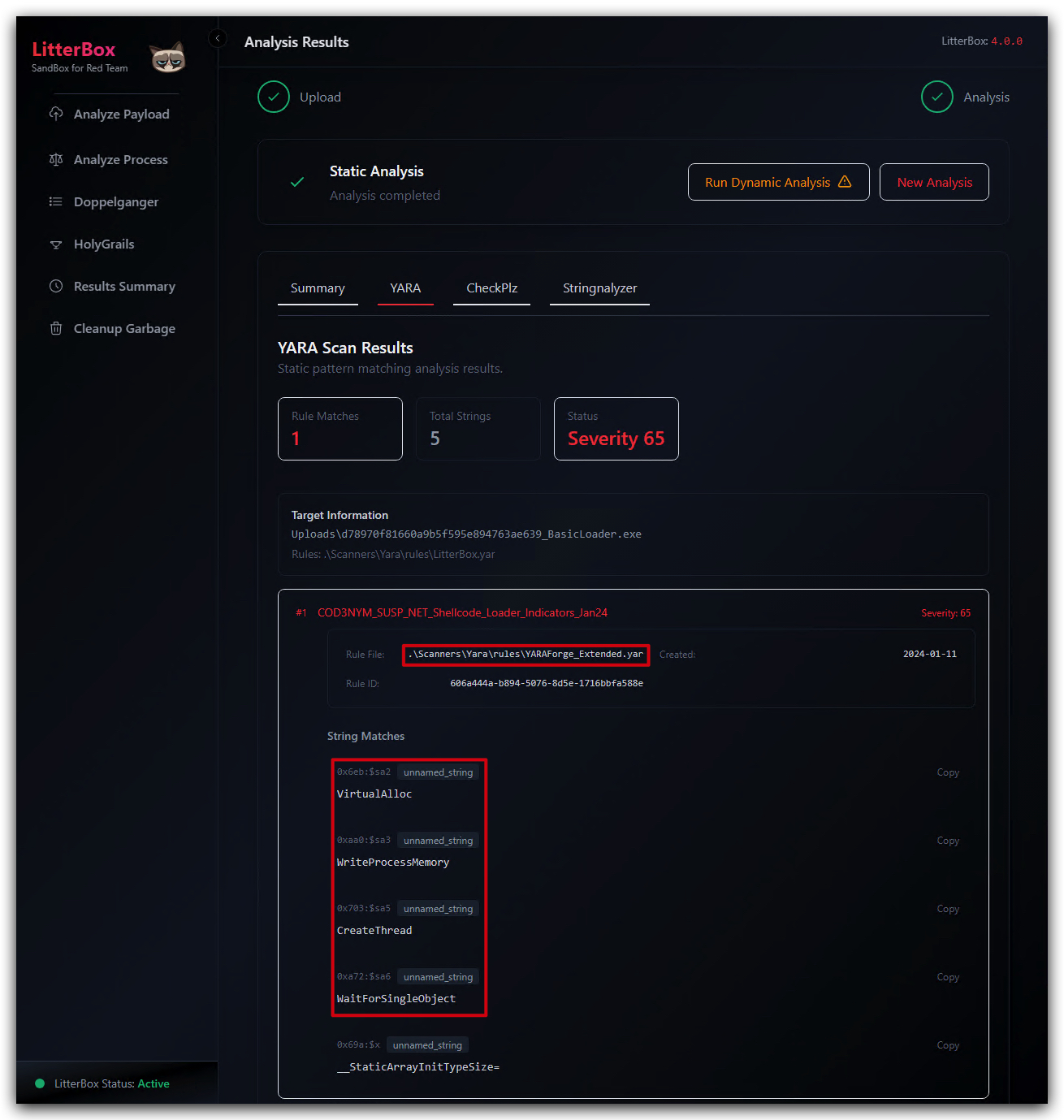
When we go to the details of the Yara detections we can see the specific patterns that were matched against the uploaded executable. In this case it's just the strings of our functions.
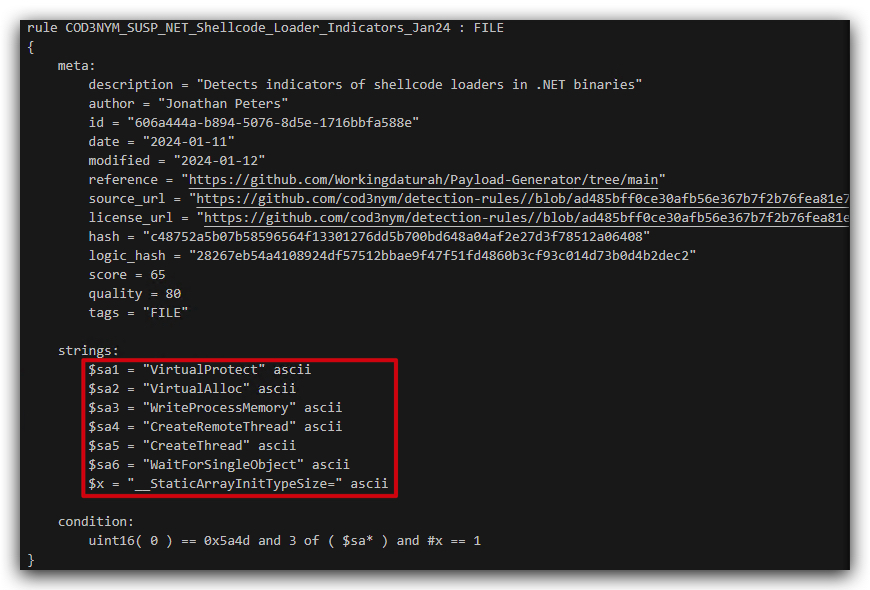
You can have a look at the specific Yara rules that were triggered by the uploaded executable. You can find the location in the *Target Information section
The report will be saved in the Results Summary section of the Litterbox web interface.