LAB ACCESS
1. ACCESSING THE LAB INFRASTRUCTURE
In this training you'll be using Apache Guacamole to connect to your Windows 10 machine and Kali Linux server. Guacamole is a clientless remote desktop gateway that supports standard protocols like VNC, RDP, and SSH. It requires no plugins or client software; all you need is a web browser.
-
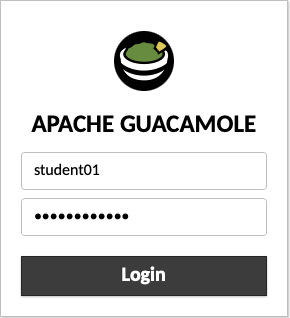
Connect with your browser to your Windows 10 machine, select the right student number that was assigned to you in the beginning of the class:
-
Guacamole URL: https://guacamole.threathuntingacademy.com
-
Guacamole Username: studentXX (XX = your assigned student number, e.g., student01)
-
Guacamole Password: Threathunt25 (
case sensitive! )
You will use the same username and password for all authentication purposes (RDP, SSH, Tools, Windows and Kali) in this training, unless specifically mentioned otherwise.
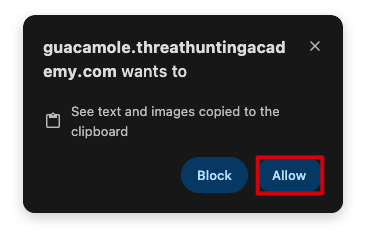
You browser will prompt you to Allow access to your clipboard - make sure allow this, as you'll be copy/pasting commands from the training material into the RDP session.
Once logged in, you will see two connections:
Windows 10 - studentXX- Your Windows 10 machine where you'll perform most of the labs.
Kali Linux - studentXX- Your Kali Linux machine where you'll perform some of the labs.
- student01 - Jenne Tondeleir (UGent)
- student02 - Bart Vermeersch (Ugent)
- student03 - B. Vermeersch (Ugent)
- student04 - Bert de Smedt (Ugent)
- student05 - Leander Vervacke (Easi)
- student06 - Raf Coulier (Easi)
- student07 - Jeroen Gui (Easi)
- student08 - Frank Driesen (UHasselt)
- student09 - Filip Vandenberghe (UHasselt)
- student10 - Steven Algoet (UZGent)
- student11 - Pieter Donche (Lineas)
The WIKI is best accessed from your Windows 10 machine by using Chrome and browsing to:
2. DO NOT SUBMIT ANY OF THE PAYLOADS FROM THIS TRAINING TO VIRUSTOTAL OR ANY OTHER ONLINE SCANNING SERVICE!
IMPORTANT : Please do not send submit samples to
Virus Total or any other public virus-scanning services, unless specifically instructed. We don't want to burn our payloads for this training. Make sure at all times thatsample submission in Microsoft Defender isturned off, and if for some reason you get prompted to submit a sample,deny the request .
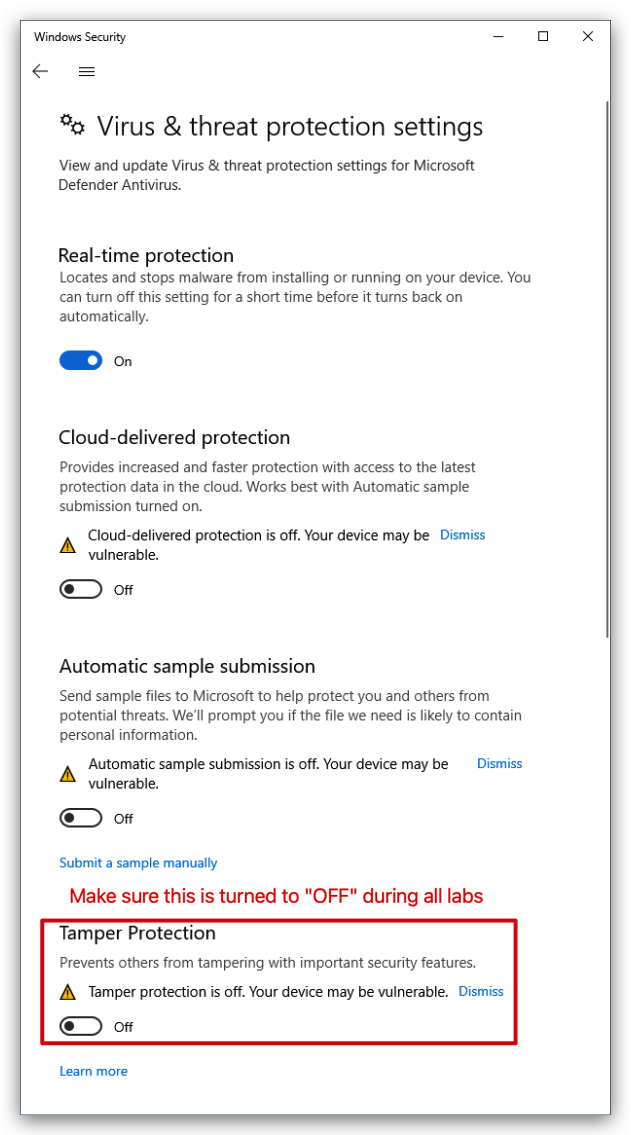
3. DISABLE WINDOWS TAMPER PROTECTION
As we'll be doing several labs that require us to disable Windows Defender features, Tamper Protection
4. DISCORD ACCESS Disabled today
Please join our Discord server for any questions, help or discussions - we will also post any updates or changes there, documents and other useful resources.
5. GUIDELINES ON HOW TO COMPLETE THE LABS
Each lab contains a number of tasks that you need to complete, each task will typically have a screenshot showing you what the end-result should look like. When you see the below, it means you need to do something:
- Do something
Typically it will be a command you need to run, it will be in a box like below, you can simply click on the little icon in the upper right corner to copy the command to your clipboard:
whoami
Every now and then you'll see a "NOTE" box, this is important information that you should read. It can be additional context, hints or tips - or a more in depth explanation of a certain topic/technique.
NOTE: If you have any questions, please ask the instructor or teaching assistant for help.
When you see text in
6. RDP and COPY/PASTE ISSUES
-
Sometimes when copy/pasting commands from the browser into the RDP session, it won't work as expected.
- You paste the command, but it
doesn't showup in the command/powershell prompt - Pasting multiple lines at once sometimes
reverses the orderof the lines,copying the lines into a notepad.exeon your windows machine first and then copying from there into the command/powershell prompt usually fixes this.
- You paste the command, but it
-
If you experience issues, try typing the command manually. This is a
known Microsoftissue with some browsers and RDP sessions.Closing the RDP sessionand reconnecting will typically fix this (temporarily). -
Sometimes the RDP session might freeze or disconnect, if that happens just reconnect using Guacamole.
7. SOLUTIONS
Every lab has a corresponding solutions folder. These are only to be used if you get stuck and need help. Try to complete the labs on your own first, and only use the solutions as a last resort. It's better to understand the material than to just get the right answer - so don't stress about copy/pasting the solution, try to understand what is being done and why.
8. LABS
Chapters in the WIKI that start with Lab - contains practical labs that you need to complete as part of this training. Each lab contains a number of tasks that you need to complete, and each task will typically have screenshots showing you what the end-result should look like. If you finish your lab early, please don't run ahead, instead you can always go through the theory we explained before the lab as this also contains other things you can try out.
9. LAB GUIDE, Tools and source code
At the end of the training we will provide you with a Lab Guide PDF that contains all labs, tasks and solutions in one document. You'll also receive a zip file with all the tools and source code you'll need for the labs.
Let's dive in!